> ## Documentation Index
> Fetch the complete documentation index at: https://www.carstoragesoftware.com/docs/llms.txt
> Use this file to discover all available pages before exploring further.
# Connect Claude to your facility
> Let Claude look up cars, customers, and other facility records after a staff sign-in—without giving away an API key.
## What you will accomplish
You will turn on **AI agents (MCP)** in Settings, copy the **Connector URL**, add it in Claude (or a similar helper), and sign in as staff so that helper can look up your facility records.
When you finish, you will know:
* How this is different from the **AI Assistant** in the dashboard sidebar.
* How to find the **AI agents (MCP)** card and turn the switch to **Enabled**.
* How to copy the **Connector URL** and paste it into Claude.
* What to do when Claude asks you to sign in and pick what it can see.
## When to use this guide
Use this guide if you already use **Claude** (on the web, on the desktop, or on your phone) and you want it to answer questions about *your* cars and customers—not just general advice.
Skip this guide if you only need the helper that lives inside Car Storage Software. That tool is [AI Assistant](https://www.carstoragesoftware.com/agent) in the left sidebar. Start with [Use the AI Assistant](/docs/ai-assistant/use-the-ai-assistant).
**Three doors, one set of records**
Your facility can use helpers in three places. They all read the same cars, customers, and schedule.
| Where you work | Best for | Open this guide |
| - | - | - |
| **[AI Assistant](https://www.carstoragesoftware.com/agent)** in the dashboard | Lookups, voice, and draft cards while you are at a computer | [Use the AI Assistant](/docs/ai-assistant/use-the-ai-assistant) |
| A **staff iMessage group** on your phone | Fast questions while you walk the lot | [Use the AI Assistant from iMessage](/docs/ai-assistant/use-the-ai-assistant-from-imessage) |
| **Claude** (or Cursor) after you connect it | People who already chat in Claude and want facility answers there | This guide |
## Why the name says MCP
The card is labeled **AI agents (MCP)**. **MCP** is a technical nickname for the connection. You do not need to remember it.
Think of the **Connector URL** as the *address of your facility's front door for helpers*. You paste that address into Claude. Claude then asks you to sign in, just like a staff member signing in to the dashboard.
**This is not a customer tool**
Only **staff** can finish the sign-in. A customer portal login will not work. Do not send the Connector URL to customers.
## Before you start
* Sign in as a **team admin**. Only an admin can turn this card on or off.
* Have a **Claude** account ready (claude.ai, Claude Desktop, or Claude on your phone). Cursor and Claude Code work too if your team already uses them.
* Know which staff person will sign in when Claude asks—use a real staff account, not a shared login.
* Plan to start with **read-only** access (look up records, do not create or change them) until you trust the setup.
## Find the AI agents card
From the [Dashboard](https://www.carstoragesoftware.com/dashboard), click **Settings** in the left menu.
Click **Integrations**.
Direct link: [Settings > Integrations](https://www.carstoragesoftware.com/dashboard/settings/integrations).
**Expected result:** The page title is **Integrations**. Under **Available integrations** you see a search box and a grid of cards.
Click **Search integrations...** and type **claude** or **mcp**.
**Expected result:** Only the **AI agents (MCP)** card stays on the page.
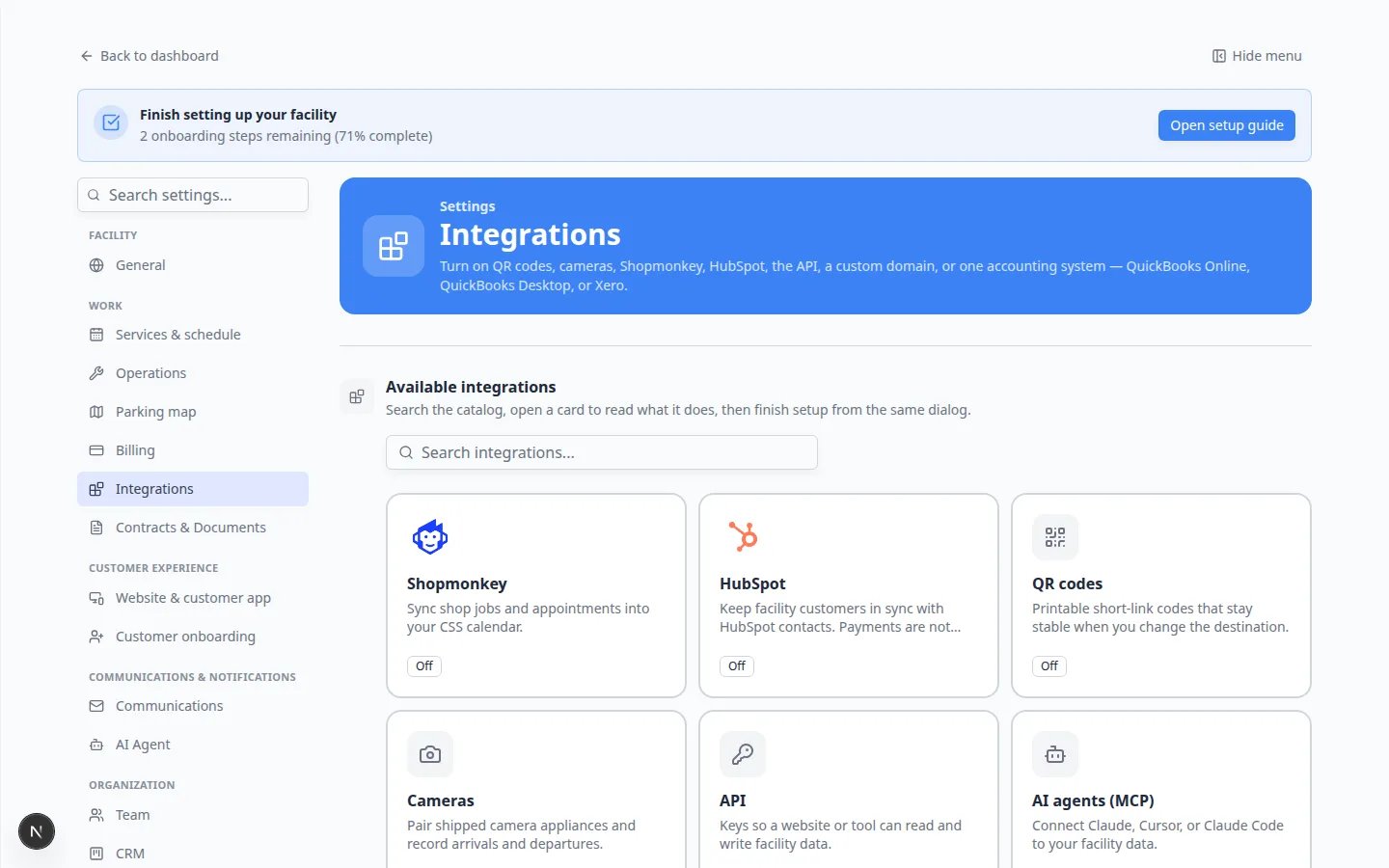 *Open [Settings > Integrations](https://www.carstoragesoftware.com/dashboard/settings/integrations). The **AI agents (MCP)** card sits with the other tools. It may say **Off** until you turn it on.*
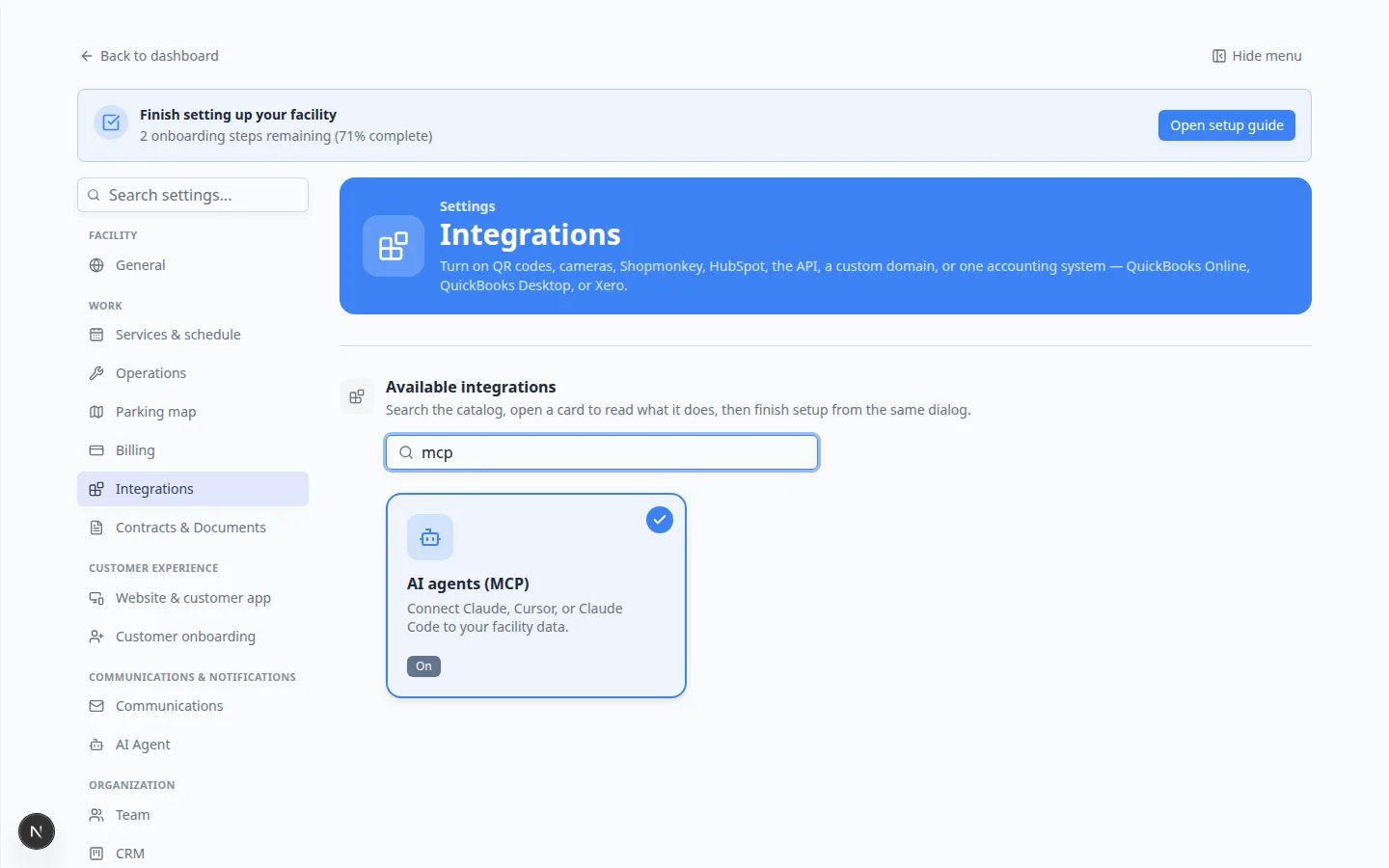 *Type **mcp** or **claude** in **Search integrations...** to jump straight to the card. After you turn it on, the small label says **On**.*
**The blue header may not list Claude**
The sentence at the top of Integrations talks about QR codes, Shopmonkey, HubSpot, and similar tools. The **AI agents (MCP)** card is still on the same page. Use search if you do not see it at first.
## Turn it on and copy the address
A window opens. The title is **AI agents (MCP)**. The first line says **Connect Claude, Cursor, or Claude Code to your facility data.**
If the switch at the bottom still says **Enable this integration**, you will also see a note titled **Turn it on to connect**. That is normal. The helper cannot finish sign-in until you flip the switch.
At the bottom of the window, turn the switch so the label changes from **Enable this integration** to **Enabled**.
**Expected result:** The switch stays on. The card on the page now shows **On**.
Find the box labeled **Connector URL**. Click **Copy** next to it.
**Expected result:** Your live facility address looks like `https://www.carstoragesoftware.com/api/mcp/v1`. A practice or test site may show a different address—that is fine for testing, but Claude should get the address from *your* live Settings page.
*Type **mcp** or **claude** in **Search integrations...** to jump straight to the card. After you turn it on, the small label says **On**.*
**The blue header may not list Claude**
The sentence at the top of Integrations talks about QR codes, Shopmonkey, HubSpot, and similar tools. The **AI agents (MCP)** card is still on the same page. Use search if you do not see it at first.
## Turn it on and copy the address
A window opens. The title is **AI agents (MCP)**. The first line says **Connect Claude, Cursor, or Claude Code to your facility data.**
If the switch at the bottom still says **Enable this integration**, you will also see a note titled **Turn it on to connect**. That is normal. The helper cannot finish sign-in until you flip the switch.
At the bottom of the window, turn the switch so the label changes from **Enable this integration** to **Enabled**.
**Expected result:** The switch stays on. The card on the page now shows **On**.
Find the box labeled **Connector URL**. Click **Copy** next to it.
**Expected result:** Your live facility address looks like `https://www.carstoragesoftware.com/api/mcp/v1`. A practice or test site may show a different address—that is fine for testing, but Claude should get the address from *your* live Settings page.
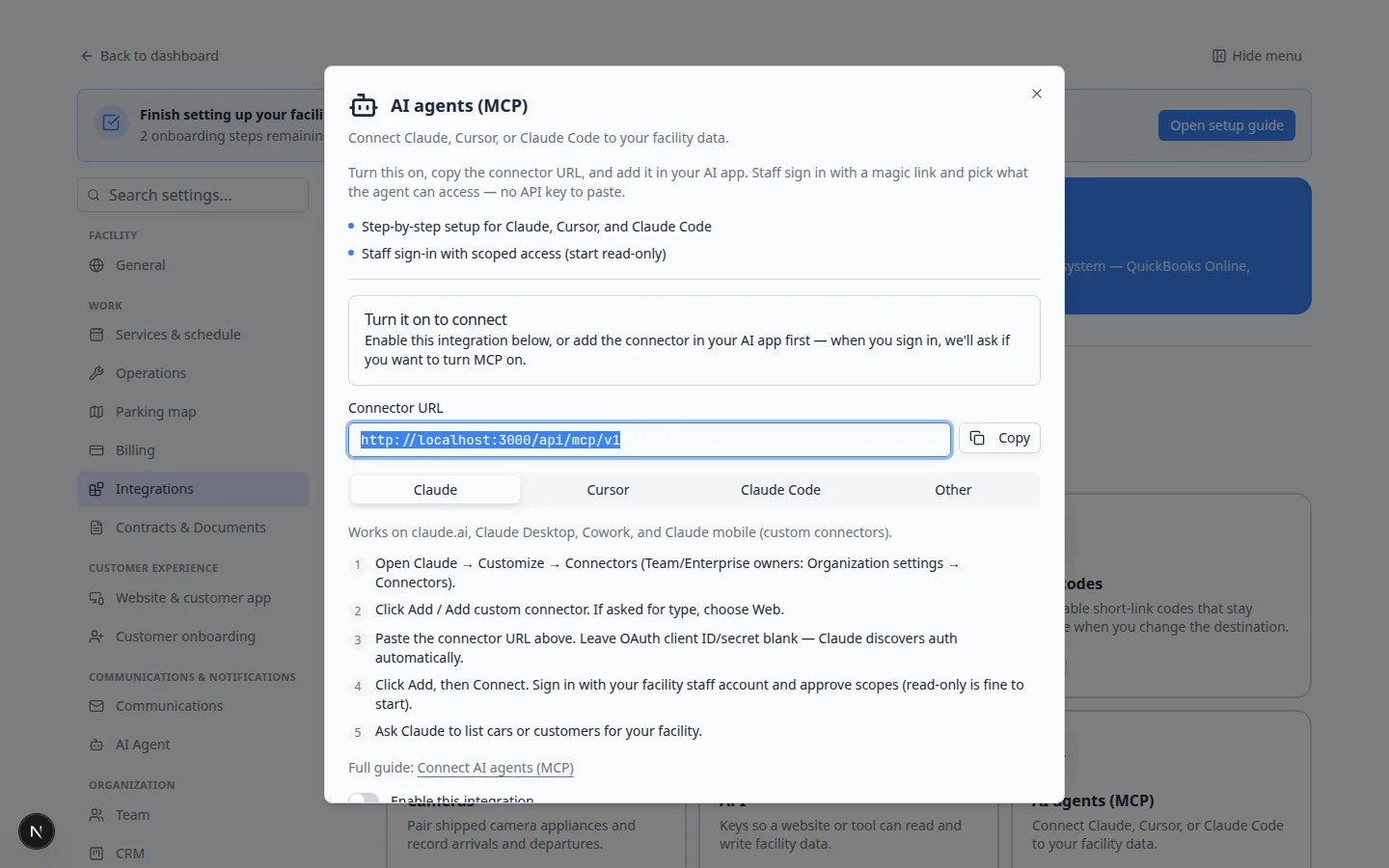 *If the switch still says **Enable this integration**, turn it on before you paste the **Connector URL** into Claude. The **Turn it on to connect** box is a reminder, not an error.*
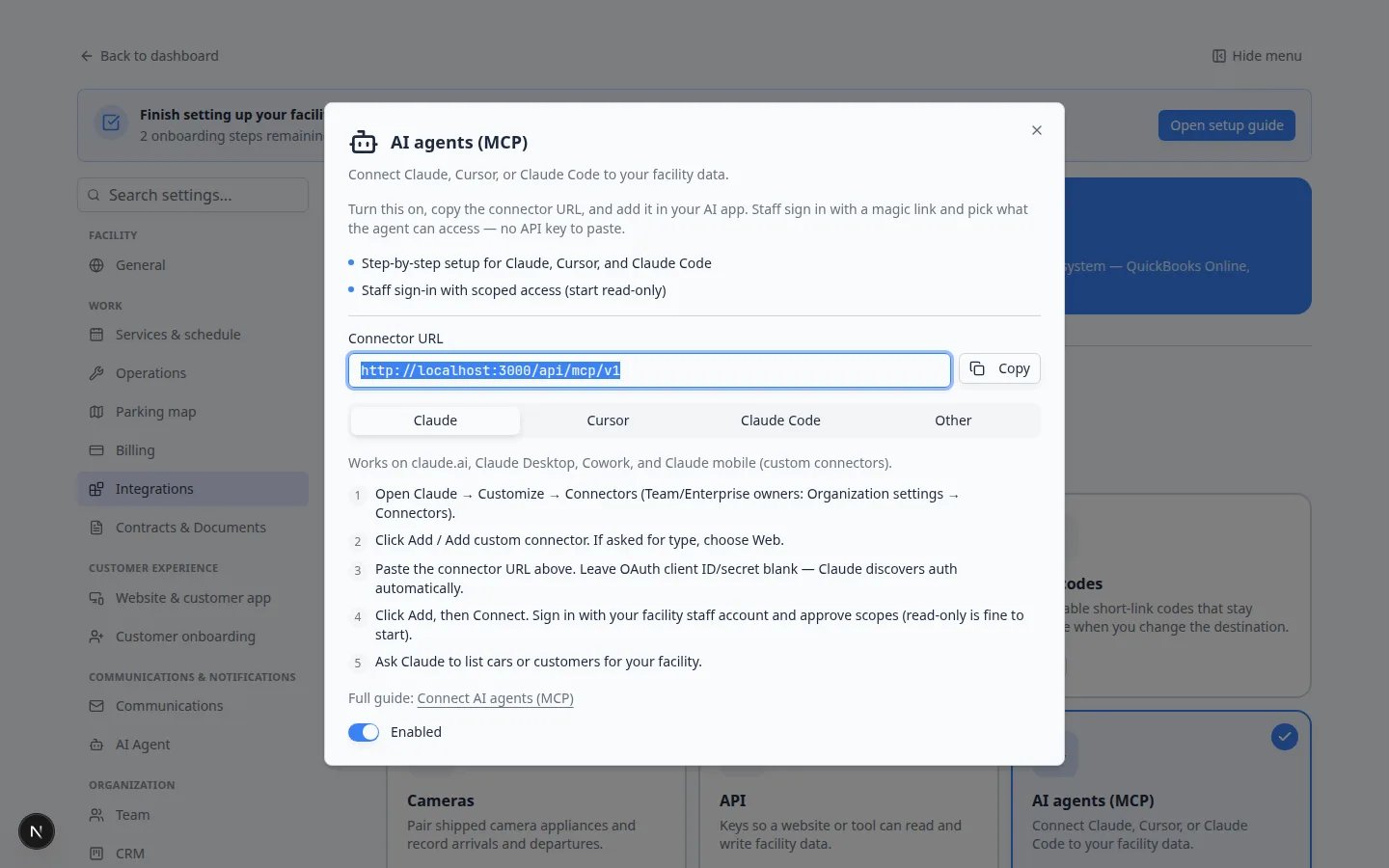 *When the switch says **Enabled**, copy the **Connector URL**. The **Claude** tab lists the clicks you will make inside Claude. Your live address will use carstoragesoftware.com, not a local test address.*
## Add the connection in Claude
Stay on the **Claude** tab in the window. Those steps match what you do in Claude.
In Claude, open **Customize → Connectors**. Team or company owners may see **Organization settings → Connectors** instead.
Click **Add** or **Add custom connector**. If Claude asks for a type, choose **Web**.
Paste the address you copied. Leave any **OAuth client ID** or **secret** boxes blank. Claude fills those in for you.
Click **Add**, then **Connect**.
A browser window opens. Sign in with your **facility staff** account. Approve access. Start with look-up (read) access if Claude lets you choose.
**Expected result:** Claude finishes connecting. You can ask it to list cars or customers for your facility.
Ask Claude: **List the cars stored for Alex Morgan** (use a real name from [Contacts](https://www.carstoragesoftware.com/dashboard/contacts)).
**Why this matters:** You confirm the helper is looking at *your* records before anyone uses it with a customer on the phone.
**What you allow Claude to see**
The sign-in screen asks what the helper may access. That list matches the same kinds of access as a team API key (cars, customers, schedule, and so on). **Read** means look up. **Write** means create or change records. Start with read. You can connect again later if you need write access.
## If your team uses Cursor instead
Some shops use **Cursor** for computer work. The same **Connector URL** works there.
Confirm the switch still says **Enabled** on [Settings > Integrations → AI agents (MCP)](https://www.carstoragesoftware.com/dashboard/settings/integrations?integration=mcp).
In the same window, click the **Cursor** tab. Follow the numbered steps. You can copy the example block with **Copy**.
If Cursor shows **Needs authentication**, click **Connect**. Sign in as staff and approve access, the same way you would in Claude.
*When the switch says **Enabled**, copy the **Connector URL**. The **Claude** tab lists the clicks you will make inside Claude. Your live address will use carstoragesoftware.com, not a local test address.*
## Add the connection in Claude
Stay on the **Claude** tab in the window. Those steps match what you do in Claude.
In Claude, open **Customize → Connectors**. Team or company owners may see **Organization settings → Connectors** instead.
Click **Add** or **Add custom connector**. If Claude asks for a type, choose **Web**.
Paste the address you copied. Leave any **OAuth client ID** or **secret** boxes blank. Claude fills those in for you.
Click **Add**, then **Connect**.
A browser window opens. Sign in with your **facility staff** account. Approve access. Start with look-up (read) access if Claude lets you choose.
**Expected result:** Claude finishes connecting. You can ask it to list cars or customers for your facility.
Ask Claude: **List the cars stored for Alex Morgan** (use a real name from [Contacts](https://www.carstoragesoftware.com/dashboard/contacts)).
**Why this matters:** You confirm the helper is looking at *your* records before anyone uses it with a customer on the phone.
**What you allow Claude to see**
The sign-in screen asks what the helper may access. That list matches the same kinds of access as a team API key (cars, customers, schedule, and so on). **Read** means look up. **Write** means create or change records. Start with read. You can connect again later if you need write access.
## If your team uses Cursor instead
Some shops use **Cursor** for computer work. The same **Connector URL** works there.
Confirm the switch still says **Enabled** on [Settings > Integrations → AI agents (MCP)](https://www.carstoragesoftware.com/dashboard/settings/integrations?integration=mcp).
In the same window, click the **Cursor** tab. Follow the numbered steps. You can copy the example block with **Copy**.
If Cursor shows **Needs authentication**, click **Connect**. Sign in as staff and approve access, the same way you would in Claude.
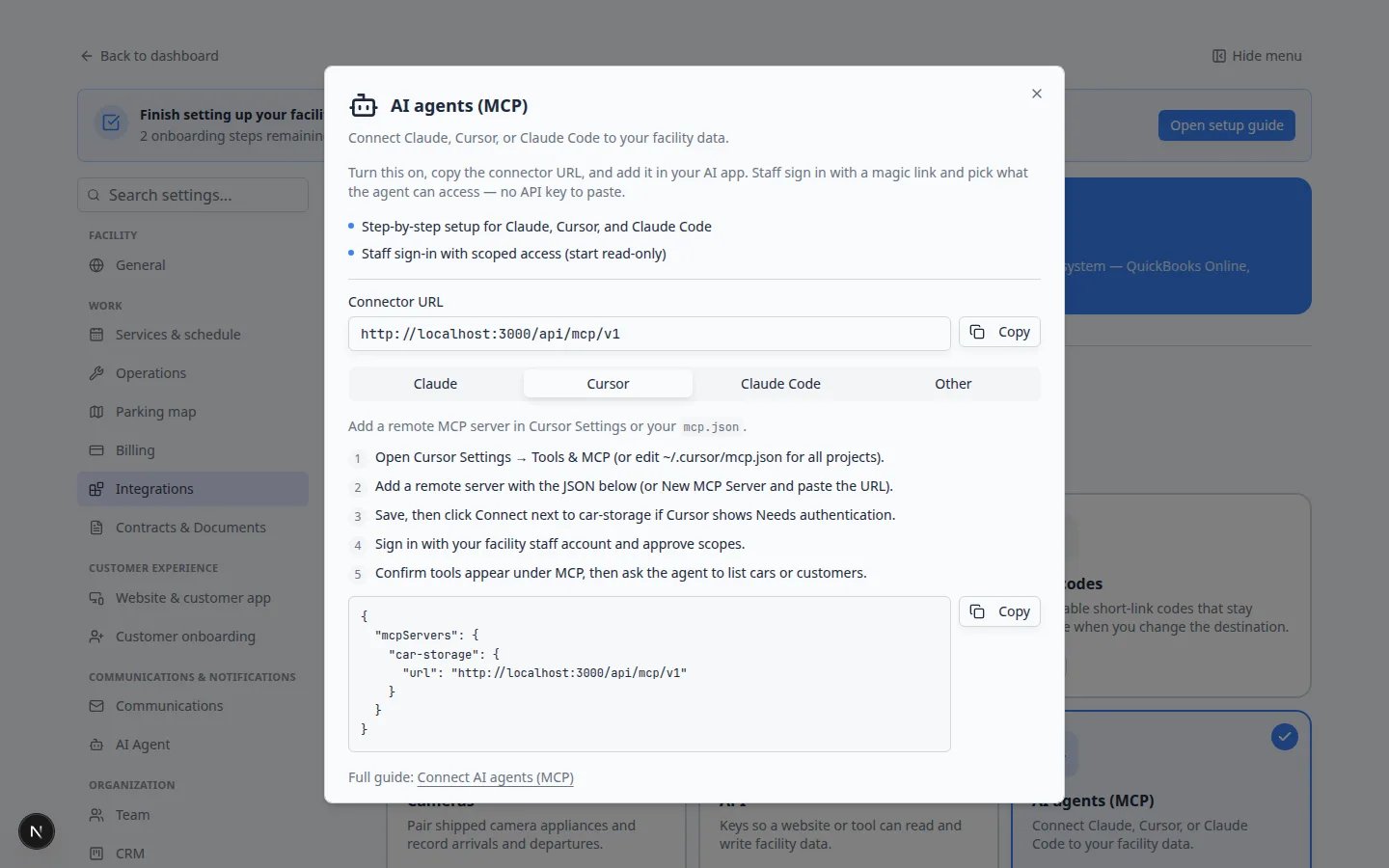 *The **Cursor** tab is for teams that already use Cursor. Staff still sign in with a facility account. You do not paste an API key.*
**Claude Code is optional**
The **Claude Code** tab is for people who work in a terminal. Most facility owners can ignore it. If you have an IT partner, they can follow that tab. Everyday staff should use the dashboard [AI Assistant](https://www.carstoragesoftware.com/agent) or Claude on the web.
## How this stays safe
**You stay in control.** Turning the card **Off** later stops new connections.
**Each staff member signs in as themselves.** Do not share one login so several people can connect Claude.
**Look-up first.** Let Claude read records before you allow it to create customers, cars, or events.
**Money and contracts still need the dashboard.** Do not ask Claude to void an invoice, change a card on file, or delete a signed agreement. Use [Payments](https://www.carstoragesoftware.com/dashboard/payments) and your contracts pages for that work.
**This does not text customers.** Customer messages still go out from [Inbox](https://www.carstoragesoftware.com/dashboard/inbox).
## Common mistakes
* Pasting the Connector URL before the switch says **Enabled**—Claude cannot finish sign-in.
* Signing in with a **customer** email instead of a staff account.
* Sending the Connector URL to a customer or posting it in a public place.
* Assuming Claude already sent a text or created a car—check [Inbox](https://www.carstoragesoftware.com/dashboard/inbox) or [Cars](https://www.carstoragesoftware.com/dashboard/cars) if you are not sure.
* Using a test address from a practice site in your live Claude app. Always copy the URL from *your* live [Integrations](https://www.carstoragesoftware.com/dashboard/settings/integrations?integration=mcp) page.
## Troubleshooting
**The switch will not turn on**
You need **admin (full access)** to turn **AI agents (MCP)** on or off. Ask an owner to open [Settings > Integrations](https://www.carstoragesoftware.com/dashboard/settings/integrations) with you, or to grant admin access in [Settings > Team](https://www.carstoragesoftware.com/dashboard/settings/team).
**Claude says authorization failed after I signed in**
Confirm the switch says **Enabled**. Sign in again as **staff**, not as a customer. Close extra browser tabs that might still be signed in to the customer portal.
**Claude connects but cannot list cars**
You may have approved no access, or only areas that do not include cars. Connect again and allow **read** access for cars and customers. Also confirm your staff role can open [Cars](https://www.carstoragesoftware.com/dashboard/cars) in the dashboard—see [Who can use the AI Assistant](/docs/ai-assistant/who-can-use-the-ai-assistant).
**Claude asked me to sign in again when I tried to add a record**
Look-up access cannot create records. Reconnect and approve write access only if you truly want Claude to add or change data. Many teams never turn write on and use [Prepare work with the AI Assistant](/docs/ai-assistant/prepare-work-with-the-ai-assistant) in the dashboard instead, because those changes show **proposal cards** you can review first.
**I want to stop Claude from seeing our data**
Disconnect the connector inside Claude. You can also turn **AI agents (MCP)** **Off** on [Settings > Integrations](https://www.carstoragesoftware.com/dashboard/settings/integrations?integration=mcp). New sign-ins will fail until an admin turns it back on.
## What to do next
* Practice a lookup in the dashboard helper: [Use the AI Assistant](/docs/ai-assistant/use-the-ai-assistant).
* If you prefer step-by-step notes that stay next to the Integrations window, open [Connect Claude or another AI helper](/docs/settings/connect-ai-agents-mcp).
* For staff who should not use Claude at all, keep using [AI Assistant](https://www.carstoragesoftware.com/agent) and leave this card **Off**.
## Related topics
- [Connect Claude or another AI helper](/docs/settings/connect-ai-agents-mcp.md)
- [AI Assistant overview](/docs/ai-assistant/overview.md)
- [Use the AI Assistant from iMessage](/docs/ai-assistant/use-the-ai-assistant-from-imessage.md)
- [Who can use the AI Assistant](/docs/ai-assistant/who-can-use-the-ai-assistant.md)
- [Use the AI Assistant](/docs/ai-assistant/use-the-ai-assistant.md)
This documentation is built and hosted on [Mintlify](https://mintlify.com), a developer documentation platform.
*The **Cursor** tab is for teams that already use Cursor. Staff still sign in with a facility account. You do not paste an API key.*
**Claude Code is optional**
The **Claude Code** tab is for people who work in a terminal. Most facility owners can ignore it. If you have an IT partner, they can follow that tab. Everyday staff should use the dashboard [AI Assistant](https://www.carstoragesoftware.com/agent) or Claude on the web.
## How this stays safe
**You stay in control.** Turning the card **Off** later stops new connections.
**Each staff member signs in as themselves.** Do not share one login so several people can connect Claude.
**Look-up first.** Let Claude read records before you allow it to create customers, cars, or events.
**Money and contracts still need the dashboard.** Do not ask Claude to void an invoice, change a card on file, or delete a signed agreement. Use [Payments](https://www.carstoragesoftware.com/dashboard/payments) and your contracts pages for that work.
**This does not text customers.** Customer messages still go out from [Inbox](https://www.carstoragesoftware.com/dashboard/inbox).
## Common mistakes
* Pasting the Connector URL before the switch says **Enabled**—Claude cannot finish sign-in.
* Signing in with a **customer** email instead of a staff account.
* Sending the Connector URL to a customer or posting it in a public place.
* Assuming Claude already sent a text or created a car—check [Inbox](https://www.carstoragesoftware.com/dashboard/inbox) or [Cars](https://www.carstoragesoftware.com/dashboard/cars) if you are not sure.
* Using a test address from a practice site in your live Claude app. Always copy the URL from *your* live [Integrations](https://www.carstoragesoftware.com/dashboard/settings/integrations?integration=mcp) page.
## Troubleshooting
**The switch will not turn on**
You need **admin (full access)** to turn **AI agents (MCP)** on or off. Ask an owner to open [Settings > Integrations](https://www.carstoragesoftware.com/dashboard/settings/integrations) with you, or to grant admin access in [Settings > Team](https://www.carstoragesoftware.com/dashboard/settings/team).
**Claude says authorization failed after I signed in**
Confirm the switch says **Enabled**. Sign in again as **staff**, not as a customer. Close extra browser tabs that might still be signed in to the customer portal.
**Claude connects but cannot list cars**
You may have approved no access, or only areas that do not include cars. Connect again and allow **read** access for cars and customers. Also confirm your staff role can open [Cars](https://www.carstoragesoftware.com/dashboard/cars) in the dashboard—see [Who can use the AI Assistant](/docs/ai-assistant/who-can-use-the-ai-assistant).
**Claude asked me to sign in again when I tried to add a record**
Look-up access cannot create records. Reconnect and approve write access only if you truly want Claude to add or change data. Many teams never turn write on and use [Prepare work with the AI Assistant](/docs/ai-assistant/prepare-work-with-the-ai-assistant) in the dashboard instead, because those changes show **proposal cards** you can review first.
**I want to stop Claude from seeing our data**
Disconnect the connector inside Claude. You can also turn **AI agents (MCP)** **Off** on [Settings > Integrations](https://www.carstoragesoftware.com/dashboard/settings/integrations?integration=mcp). New sign-ins will fail until an admin turns it back on.
## What to do next
* Practice a lookup in the dashboard helper: [Use the AI Assistant](/docs/ai-assistant/use-the-ai-assistant).
* If you prefer step-by-step notes that stay next to the Integrations window, open [Connect Claude or another AI helper](/docs/settings/connect-ai-agents-mcp).
* For staff who should not use Claude at all, keep using [AI Assistant](https://www.carstoragesoftware.com/agent) and leave this card **Off**.
## Related topics
- [Connect Claude or another AI helper](/docs/settings/connect-ai-agents-mcp.md)
- [AI Assistant overview](/docs/ai-assistant/overview.md)
- [Use the AI Assistant from iMessage](/docs/ai-assistant/use-the-ai-assistant-from-imessage.md)
- [Who can use the AI Assistant](/docs/ai-assistant/who-can-use-the-ai-assistant.md)
- [Use the AI Assistant](/docs/ai-assistant/use-the-ai-assistant.md)
This documentation is built and hosted on [Mintlify](https://mintlify.com), a developer documentation platform.