> ## Documentation Index
> Fetch the complete documentation index at: https://www.carstoragesoftware.com/docs/llms.txt
> Use this file to discover all available pages before exploring further.
# AI Assistant overview
> Understand what the AI Assistant can help with, when to use it, and how your team stays in control.
## What you will accomplish
You will understand how the **AI Assistant** helps your staff find records, answer everyday operational questions, and prepare draft work—while **your team stays in control** of what gets saved.
The AI Assistant is for **staff** using the dashboard. Customer portal users do not see it.
**Two names for the same tool**
The left sidebar says **AI Assistant**, but the page header inside the tool says **Agent**. They are the same place—open [AI Assistant](https://www.carstoragesoftware.com/agent) from the sidebar.
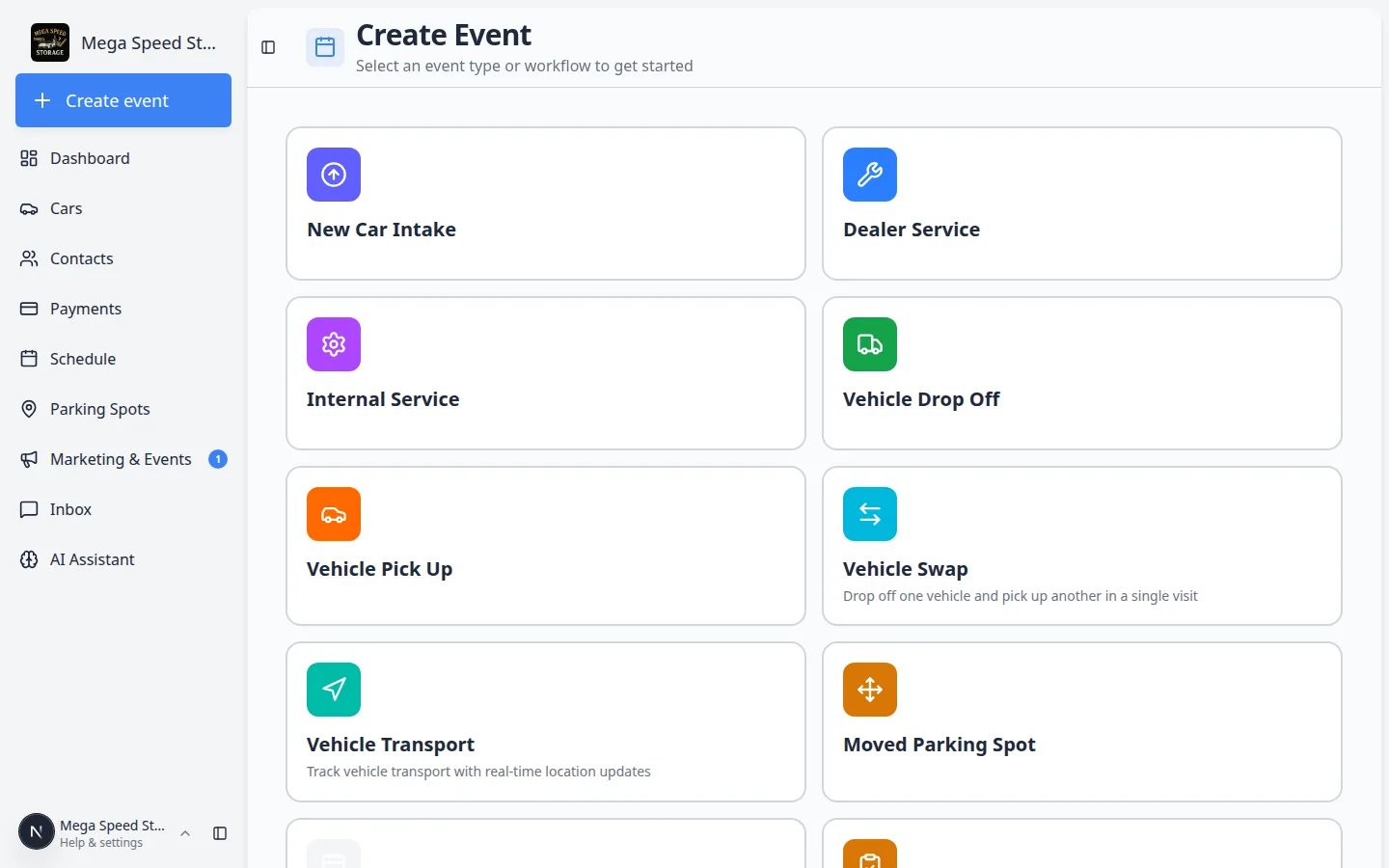 *Click **AI Assistant** in the dashboard sidebar (brain icon). The assistant opens on its own page so you can focus on the conversation.*
**Who can see AI Assistant**
The **AI Assistant** link appears in the dashboard sidebar only for staff whose role includes AI Assistant access. If you do not see it, ask a team admin to review permissions in [Settings > Team](/docs/settings/manage-team-permissions).
## Your first five minutes (quick start)
If you are brand new to the assistant, follow this short path once. It takes about five minutes and builds confidence before you use it on a live customer call.
**Close What's New first**
After sign-in, you may see a **What's New** window about product updates. Click **Got it** before you follow screenshots or click buttons near the center of the screen. The pop-up can cover menu items you need—including **AI Assistant** in the sidebar.
From [Dashboard](https://www.carstoragesoftware.com/dashboard), click **AI Assistant** in the left sidebar (brain icon). The page title at the top may say **Agent**—that is the same tool.
**Expected result:** You see the start screen with a round voice button, blue suggestion chips, and a **Type a message...** box at the bottom.
Tap a suggestion chip such as **What's on the schedule today?** or type **Look up Alex Morgan's cars** (use a real customer name from your [Contacts](https://www.carstoragesoftware.com/dashboard/contacts) list).
**Expected result:** The assistant answers in the chat. Nothing is saved until you confirm proposal cards.
Click **New Chat** in the left sidebar before you help a different customer.
**Why this matters:** Each thread stays easy to read and the assistant is less likely to mix up names.
*Click **AI Assistant** in the dashboard sidebar (brain icon). The assistant opens on its own page so you can focus on the conversation.*
**Who can see AI Assistant**
The **AI Assistant** link appears in the dashboard sidebar only for staff whose role includes AI Assistant access. If you do not see it, ask a team admin to review permissions in [Settings > Team](/docs/settings/manage-team-permissions).
## Your first five minutes (quick start)
If you are brand new to the assistant, follow this short path once. It takes about five minutes and builds confidence before you use it on a live customer call.
**Close What's New first**
After sign-in, you may see a **What's New** window about product updates. Click **Got it** before you follow screenshots or click buttons near the center of the screen. The pop-up can cover menu items you need—including **AI Assistant** in the sidebar.
From [Dashboard](https://www.carstoragesoftware.com/dashboard), click **AI Assistant** in the left sidebar (brain icon). The page title at the top may say **Agent**—that is the same tool.
**Expected result:** You see the start screen with a round voice button, blue suggestion chips, and a **Type a message...** box at the bottom.
Tap a suggestion chip such as **What's on the schedule today?** or type **Look up Alex Morgan's cars** (use a real customer name from your [Contacts](https://www.carstoragesoftware.com/dashboard/contacts) list).
**Expected result:** The assistant answers in the chat. Nothing is saved until you confirm proposal cards.
Click **New Chat** in the left sidebar before you help a different customer.
**Why this matters:** Each thread stays easy to read and the assistant is less likely to mix up names.
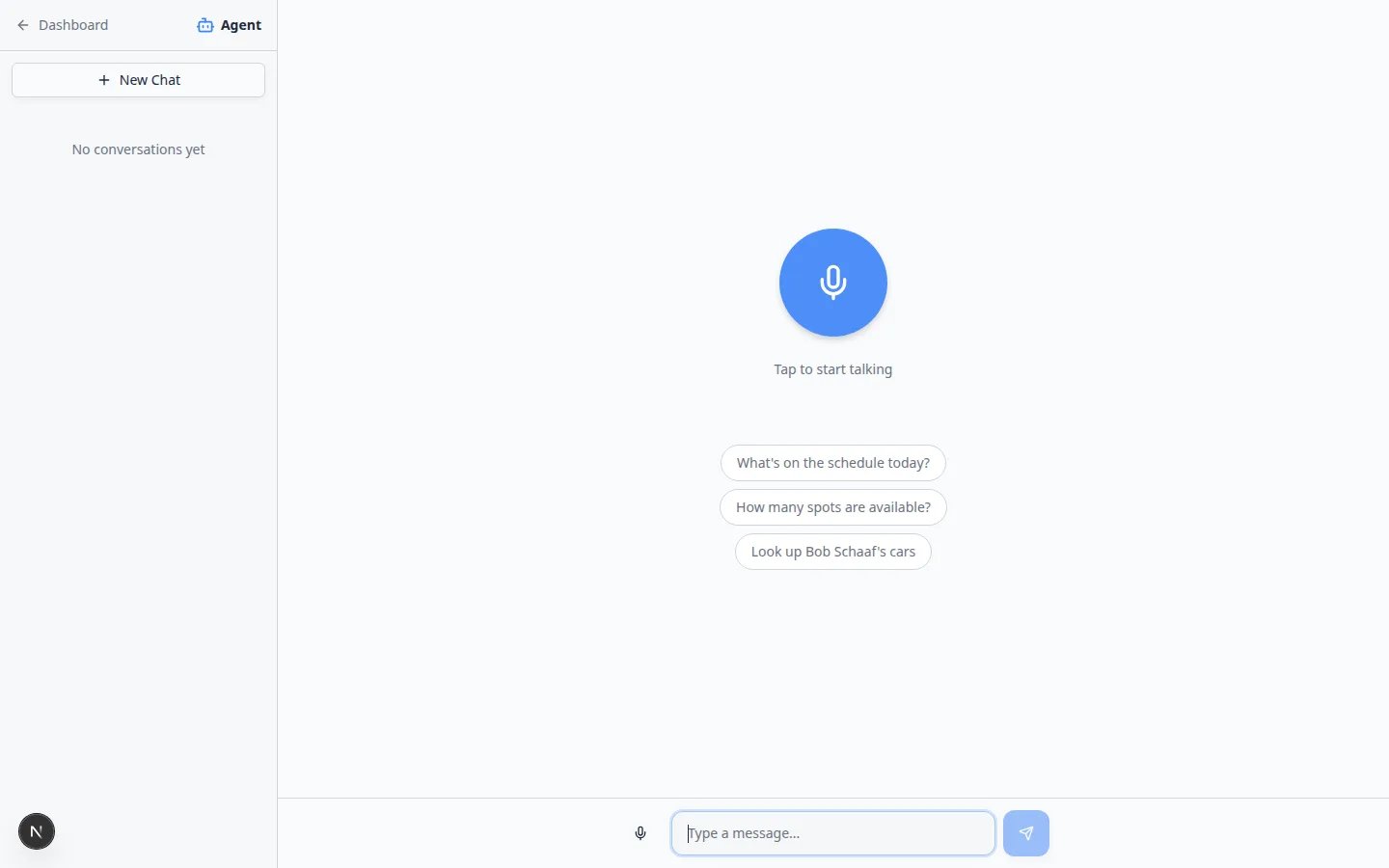 *The start screen lets you tap a suggestion, speak, or type at the bottom. The third chip may show a sample name (for example **Bob Schaaf**). Type a real customer from [Contacts](https://www.carstoragesoftware.com/dashboard/contacts), such as **Alex Morgan**.*
## When to use the AI Assistant
Use it when you know what you need, but want a faster path to the answer or the right page.
Good moments include:
* A customer calls and you need their vehicles quickly.
* You want today's schedule without opening every calendar filter.
* You need to know how many parking spots are open or where a car is parked.
* You want to draft a new customer, car, and appointment from one spoken or typed request.
* You want help wording a text or email before you send it from [Inbox](https://www.carstoragesoftware.com/dashboard/inbox).
**When to use the dashboard instead**
Use the normal dashboard pages—not the assistant—for work that must be exact the first time: finalizing invoices, voiding contracts, changing payment methods, deleting records, or anything your manager must approve in writing. The assistant helps you **find** information and **prepare drafts**; you stay in control of what gets saved.
*On the start screen you can tap the microphone, click a suggestion chip, or type in **Type a message...** at the bottom. The keyboard icon labeled **Type instead** appears only after you open an active chat.*
## What the assistant can help with
* **Look up records** — customers, cars, appointments, parking spots, inbox threads, invoices, and quotes (based on your permissions).
* **Answer operational questions** — what is scheduled today, where a car is parked, or how many spots are free.
* **Prepare draft work** — new customers, cars, drop-offs, pickups, moves, events, and related notes shown as review cards.
* **Open the right page** — navigate to [Cars](https://www.carstoragesoftware.com/dashboard/cars), [Contacts](https://www.carstoragesoftware.com/dashboard/contacts), [Schedule](https://www.carstoragesoftware.com/dashboard/schedule), [Parking Spots](https://www.carstoragesoftware.com/dashboard/parking-spots), [Inbox](https://www.carstoragesoftware.com/dashboard/inbox), or [Payments](https://www.carstoragesoftware.com/dashboard/payments) when you are ready.
* **Draft messages** — professional wording you can edit before sending from [Inbox](https://www.carstoragesoftware.com/dashboard/inbox).
*The start screen lets you tap a suggestion, speak, or type at the bottom. The third chip may show a sample name (for example **Bob Schaaf**). Type a real customer from [Contacts](https://www.carstoragesoftware.com/dashboard/contacts), such as **Alex Morgan**.*
## When to use the AI Assistant
Use it when you know what you need, but want a faster path to the answer or the right page.
Good moments include:
* A customer calls and you need their vehicles quickly.
* You want today's schedule without opening every calendar filter.
* You need to know how many parking spots are open or where a car is parked.
* You want to draft a new customer, car, and appointment from one spoken or typed request.
* You want help wording a text or email before you send it from [Inbox](https://www.carstoragesoftware.com/dashboard/inbox).
**When to use the dashboard instead**
Use the normal dashboard pages—not the assistant—for work that must be exact the first time: finalizing invoices, voiding contracts, changing payment methods, deleting records, or anything your manager must approve in writing. The assistant helps you **find** information and **prepare drafts**; you stay in control of what gets saved.
*On the start screen you can tap the microphone, click a suggestion chip, or type in **Type a message...** at the bottom. The keyboard icon labeled **Type instead** appears only after you open an active chat.*
## What the assistant can help with
* **Look up records** — customers, cars, appointments, parking spots, inbox threads, invoices, and quotes (based on your permissions).
* **Answer operational questions** — what is scheduled today, where a car is parked, or how many spots are free.
* **Prepare draft work** — new customers, cars, drop-offs, pickups, moves, events, and related notes shown as review cards.
* **Open the right page** — navigate to [Cars](https://www.carstoragesoftware.com/dashboard/cars), [Contacts](https://www.carstoragesoftware.com/dashboard/contacts), [Schedule](https://www.carstoragesoftware.com/dashboard/schedule), [Parking Spots](https://www.carstoragesoftware.com/dashboard/parking-spots), [Inbox](https://www.carstoragesoftware.com/dashboard/inbox), or [Payments](https://www.carstoragesoftware.com/dashboard/payments) when you are ready.
* **Draft messages** — professional wording you can edit before sending from [Inbox](https://www.carstoragesoftware.com/dashboard/inbox).
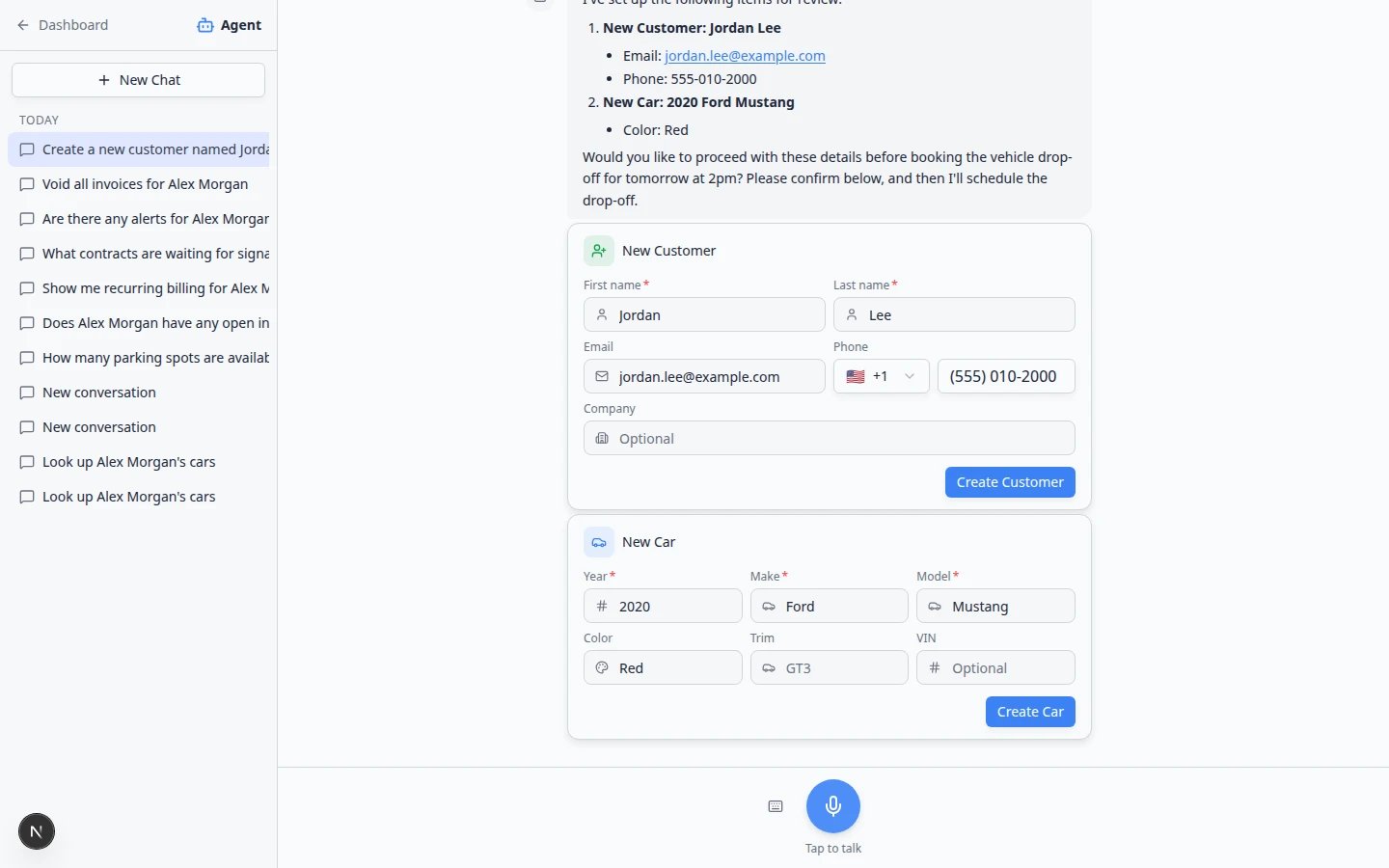 *When the assistant prepares new records, you review proposal cards first—nothing is saved until you choose **Confirm All** or a card button such as **Create Customer**. See [Review AI proposals](/docs/ai-assistant/review-ai-proposals).*
## What the assistant does not replace
The assistant speeds up work. It does not replace your team's judgment.
Treat answers as **drafts** whenever they affect customers, vehicles, money, appointments, or outbound messages. If something looks wrong, stop and check the record in the dashboard.
Use the normal pages—not the assistant—for sensitive work such as finalizing contracts, changing payment methods, or deleting important records.
## How your team stays in control
Questions like “Look up Alex Morgan's cars” display results for you to read. Nothing changes until you edit records yourself or confirm a proposal.
When the assistant prepares new customers, cars, or appointments, you see **proposal cards** and a **Confirm All** button. Review every card first. Read [Review AI proposals](/docs/ai-assistant/review-ai-proposals) before your first save.
Staff only see areas their role allows—such as Cars, Schedule, or Payments. If access is missing, the assistant will say so. A team admin can adjust access in [Settings > Team](/docs/settings/manage-team-permissions).
Sometimes the assistant offers to open a dashboard page with **Go now** or **Cancel**. You choose whether to leave the chat. If you do nothing, the countdown may open the page automatically when it reaches zero—use **Cancel** if you only needed the answer on the phone.
After you confirm proposal cards, green success cards (for example **Casey Brooks created**) may appear. Click a card to jump straight to that customer, car, or appointment in the dashboard.
## Web assistant, iMessage, and Claude
Your facility can use helpers in three places. They all read the same records.
**Web — [AI Assistant](https://www.carstoragesoftware.com/agent)** — Full chat page with voice, **Type instead**, proposal cards, **Confirm All**, and optional **Go now** links to dashboard pages.
**iMessage — team group chat** — Text questions from a phone. Replies are short messages. An admin connects the group in [Settings > AI Agent](https://www.carstoragesoftware.com/dashboard/settings/ai-agent). See [Connect iMessage to the AI Assistant](/docs/ai-assistant/connect-imessage-to-the-ai-assistant) and [Use the AI Assistant in iMessage](/docs/ai-assistant/use-the-ai-assistant-in-imessage).
**Claude (or Cursor)** — A helper your team already uses outside the dashboard. An admin turns on **AI agents (MCP)** in [Settings > Integrations](https://www.carstoragesoftware.com/dashboard/settings/integrations?integration=mcp), copies the **Connector URL**, and staff sign in when Claude asks. See [Connect Claude to your facility](/docs/ai-assistant/connect-claude-to-your-facility).
*When the assistant prepares new records, you review proposal cards first—nothing is saved until you choose **Confirm All** or a card button such as **Create Customer**. See [Review AI proposals](/docs/ai-assistant/review-ai-proposals).*
## What the assistant does not replace
The assistant speeds up work. It does not replace your team's judgment.
Treat answers as **drafts** whenever they affect customers, vehicles, money, appointments, or outbound messages. If something looks wrong, stop and check the record in the dashboard.
Use the normal pages—not the assistant—for sensitive work such as finalizing contracts, changing payment methods, or deleting important records.
## How your team stays in control
Questions like “Look up Alex Morgan's cars” display results for you to read. Nothing changes until you edit records yourself or confirm a proposal.
When the assistant prepares new customers, cars, or appointments, you see **proposal cards** and a **Confirm All** button. Review every card first. Read [Review AI proposals](/docs/ai-assistant/review-ai-proposals) before your first save.
Staff only see areas their role allows—such as Cars, Schedule, or Payments. If access is missing, the assistant will say so. A team admin can adjust access in [Settings > Team](/docs/settings/manage-team-permissions).
Sometimes the assistant offers to open a dashboard page with **Go now** or **Cancel**. You choose whether to leave the chat. If you do nothing, the countdown may open the page automatically when it reaches zero—use **Cancel** if you only needed the answer on the phone.
After you confirm proposal cards, green success cards (for example **Casey Brooks created**) may appear. Click a card to jump straight to that customer, car, or appointment in the dashboard.
## Web assistant, iMessage, and Claude
Your facility can use helpers in three places. They all read the same records.
**Web — [AI Assistant](https://www.carstoragesoftware.com/agent)** — Full chat page with voice, **Type instead**, proposal cards, **Confirm All**, and optional **Go now** links to dashboard pages.
**iMessage — team group chat** — Text questions from a phone. Replies are short messages. An admin connects the group in [Settings > AI Agent](https://www.carstoragesoftware.com/dashboard/settings/ai-agent). See [Connect iMessage to the AI Assistant](/docs/ai-assistant/connect-imessage-to-the-ai-assistant) and [Use the AI Assistant in iMessage](/docs/ai-assistant/use-the-ai-assistant-in-imessage).
**Claude (or Cursor)** — A helper your team already uses outside the dashboard. An admin turns on **AI agents (MCP)** in [Settings > Integrations](https://www.carstoragesoftware.com/dashboard/settings/integrations?integration=mcp), copies the **Connector URL**, and staff sign in when Claude asks. See [Connect Claude to your facility](/docs/ai-assistant/connect-claude-to-your-facility).
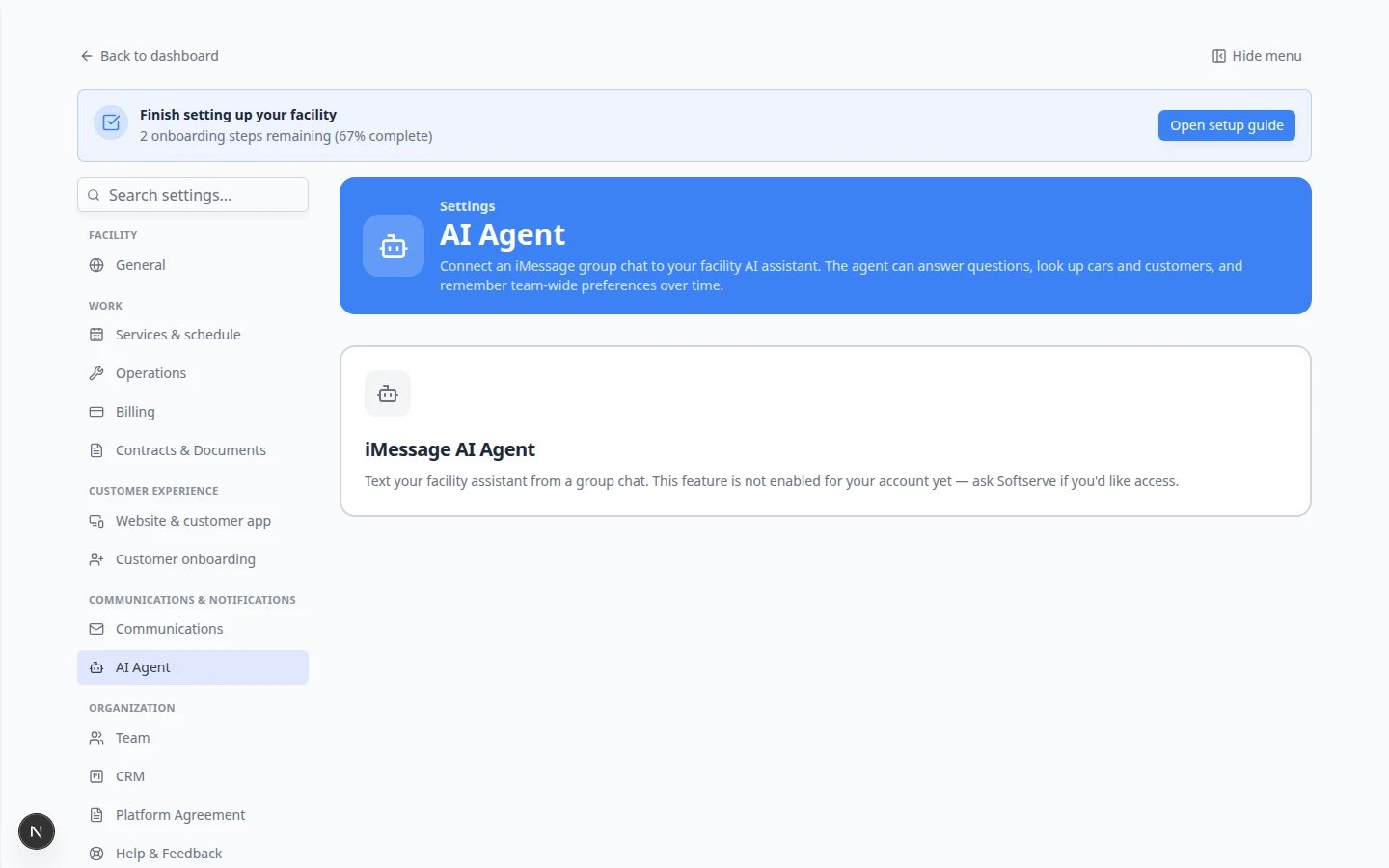 *Admins set up iMessage under Settings > AI Agent in three steps: agent number, verified phones, and group chat linking. Daily lookups happen on the AI Assistant page or in your linked group chat.*
## Recommended learning path
Follow these guides in order the first time your team tries the assistant.
Managers: read [Who can use the AI Assistant](/docs/ai-assistant/who-can-use-the-ai-assistant) so each role has the right permissions.
Start with [Manage your assistant chats](/docs/ai-assistant/manage-your-assistant-chats) for **New Chat**, history, and deleting old threads.
Use [Use the AI Assistant](/docs/ai-assistant/use-the-ai-assistant) and [Ask about schedule, parking, and records](/docs/ai-assistant/ask-about-schedule-parking-and-records) for lookups such as “Look up Alex Morgan's cars” or “What's on the schedule today?”
Front-desk staff should read [Use the assistant during a customer call](/docs/ai-assistant/use-the-assistant-during-a-customer-call).
When your team is ready to create records, follow [Prepare work with the AI Assistant](/docs/ai-assistant/prepare-work-with-the-ai-assistant).
Always finish with [Review AI proposals](/docs/ai-assistant/review-ai-proposals) before you select **Confirm All**.
When your role includes **Payments**, read [Ask about billing, contracts, and alerts](/docs/ai-assistant/ask-about-billing-contracts-and-alerts). Practice one invoice question, then open [Payments](https://www.carstoragesoftware.com/dashboard/payments) to confirm the answer before you quote a customer.
Connect a staff group chat with [Connect iMessage to the AI Assistant](/docs/ai-assistant/connect-imessage-to-the-ai-assistant), then add shared rules in [Manage team memory for the AI Assistant](/docs/ai-assistant/manage-team-memory-for-the-ai-assistant).
After an admin links your group chat, read [Use the AI Assistant in iMessage](/docs/ai-assistant/use-the-ai-assistant-in-imessage) for everyday questions from your iPhone.
If staff already use Claude (or Cursor) outside the dashboard, follow [Connect Claude to your facility](/docs/ai-assistant/connect-claude-to-your-facility). An admin turns on **AI agents (MCP)** in [Settings > Integrations](https://www.carstoragesoftware.com/dashboard/settings/integrations?integration=mcp). Staff then sign in when Claude asks.
* [Who can use the AI Assistant](/docs/ai-assistant/who-can-use-the-ai-assistant) — permissions and manager setup.
* [Manage your assistant chats](/docs/ai-assistant/manage-your-assistant-chats) — **New Chat**, chat history, and deleting old threads.
* [Use the AI Assistant](/docs/ai-assistant/use-the-ai-assistant) — voice and typing, clear questions, and follow-ups.
* [Fix voice and microphone problems](/docs/ai-assistant/fix-voice-and-microphone-problems) — use **Type instead** when voice is blocked.
* [Use the assistant during a customer call](/docs/ai-assistant/use-the-assistant-during-a-customer-call) — lookups while someone is on the phone.
* [Ask about schedule, parking, and records](/docs/ai-assistant/ask-about-schedule-parking-and-records) — today's work, parking, and customer or vehicle lookups.
* [From AI draft to customer message](/docs/ai-assistant/from-ai-draft-to-customer-message) — draft in the assistant, send from Inbox.
* [Prepare work with the AI Assistant](/docs/ai-assistant/prepare-work-with-the-ai-assistant) — multi-step requests that create proposal cards.
* [When the assistant cannot help](/docs/ai-assistant/when-the-assistant-cannot-help) — errors, limits, and safe fallbacks.
* [Review AI proposals](/docs/ai-assistant/review-ai-proposals) — checklist before **Confirm All**.
* [Connect iMessage to the AI Assistant](/docs/ai-assistant/connect-imessage-to-the-ai-assistant) — link a team group chat (admins).
* [Ask about billing, contracts, and alerts](/docs/ai-assistant/ask-about-billing-contracts-and-alerts) — invoice and deadline lookups (verify in Payments).
* [Use the AI Assistant in iMessage](/docs/ai-assistant/use-the-ai-assistant-in-imessage) — ask questions from a staff group chat on your phone.
* [Manage team memory for the AI Assistant](/docs/ai-assistant/manage-team-memory-for-the-ai-assistant) — shared facts for web and iMessage.
* [Connect Claude to your facility](/docs/ai-assistant/connect-claude-to-your-facility) — let Claude look up the same records after a staff sign-in.
## Voice or keyboard?
On the **start screen**, the text box at the bottom is always available—type there when you need exact spelling for names, email addresses, or VINs. Tap the large microphone when voice is faster (for example “What's on the schedule today?”).
Inside an **active chat**, click the small **keyboard** icon if the screen is in voice mode. The tooltip says **Type instead**. Click it again (or use **Switch to voice**) to go back to the microphone.
*Admins set up iMessage under Settings > AI Agent in three steps: agent number, verified phones, and group chat linking. Daily lookups happen on the AI Assistant page or in your linked group chat.*
## Recommended learning path
Follow these guides in order the first time your team tries the assistant.
Managers: read [Who can use the AI Assistant](/docs/ai-assistant/who-can-use-the-ai-assistant) so each role has the right permissions.
Start with [Manage your assistant chats](/docs/ai-assistant/manage-your-assistant-chats) for **New Chat**, history, and deleting old threads.
Use [Use the AI Assistant](/docs/ai-assistant/use-the-ai-assistant) and [Ask about schedule, parking, and records](/docs/ai-assistant/ask-about-schedule-parking-and-records) for lookups such as “Look up Alex Morgan's cars” or “What's on the schedule today?”
Front-desk staff should read [Use the assistant during a customer call](/docs/ai-assistant/use-the-assistant-during-a-customer-call).
When your team is ready to create records, follow [Prepare work with the AI Assistant](/docs/ai-assistant/prepare-work-with-the-ai-assistant).
Always finish with [Review AI proposals](/docs/ai-assistant/review-ai-proposals) before you select **Confirm All**.
When your role includes **Payments**, read [Ask about billing, contracts, and alerts](/docs/ai-assistant/ask-about-billing-contracts-and-alerts). Practice one invoice question, then open [Payments](https://www.carstoragesoftware.com/dashboard/payments) to confirm the answer before you quote a customer.
Connect a staff group chat with [Connect iMessage to the AI Assistant](/docs/ai-assistant/connect-imessage-to-the-ai-assistant), then add shared rules in [Manage team memory for the AI Assistant](/docs/ai-assistant/manage-team-memory-for-the-ai-assistant).
After an admin links your group chat, read [Use the AI Assistant in iMessage](/docs/ai-assistant/use-the-ai-assistant-in-imessage) for everyday questions from your iPhone.
If staff already use Claude (or Cursor) outside the dashboard, follow [Connect Claude to your facility](/docs/ai-assistant/connect-claude-to-your-facility). An admin turns on **AI agents (MCP)** in [Settings > Integrations](https://www.carstoragesoftware.com/dashboard/settings/integrations?integration=mcp). Staff then sign in when Claude asks.
* [Who can use the AI Assistant](/docs/ai-assistant/who-can-use-the-ai-assistant) — permissions and manager setup.
* [Manage your assistant chats](/docs/ai-assistant/manage-your-assistant-chats) — **New Chat**, chat history, and deleting old threads.
* [Use the AI Assistant](/docs/ai-assistant/use-the-ai-assistant) — voice and typing, clear questions, and follow-ups.
* [Fix voice and microphone problems](/docs/ai-assistant/fix-voice-and-microphone-problems) — use **Type instead** when voice is blocked.
* [Use the assistant during a customer call](/docs/ai-assistant/use-the-assistant-during-a-customer-call) — lookups while someone is on the phone.
* [Ask about schedule, parking, and records](/docs/ai-assistant/ask-about-schedule-parking-and-records) — today's work, parking, and customer or vehicle lookups.
* [From AI draft to customer message](/docs/ai-assistant/from-ai-draft-to-customer-message) — draft in the assistant, send from Inbox.
* [Prepare work with the AI Assistant](/docs/ai-assistant/prepare-work-with-the-ai-assistant) — multi-step requests that create proposal cards.
* [When the assistant cannot help](/docs/ai-assistant/when-the-assistant-cannot-help) — errors, limits, and safe fallbacks.
* [Review AI proposals](/docs/ai-assistant/review-ai-proposals) — checklist before **Confirm All**.
* [Connect iMessage to the AI Assistant](/docs/ai-assistant/connect-imessage-to-the-ai-assistant) — link a team group chat (admins).
* [Ask about billing, contracts, and alerts](/docs/ai-assistant/ask-about-billing-contracts-and-alerts) — invoice and deadline lookups (verify in Payments).
* [Use the AI Assistant in iMessage](/docs/ai-assistant/use-the-ai-assistant-in-imessage) — ask questions from a staff group chat on your phone.
* [Manage team memory for the AI Assistant](/docs/ai-assistant/manage-team-memory-for-the-ai-assistant) — shared facts for web and iMessage.
* [Connect Claude to your facility](/docs/ai-assistant/connect-claude-to-your-facility) — let Claude look up the same records after a staff sign-in.
## Voice or keyboard?
On the **start screen**, the text box at the bottom is always available—type there when you need exact spelling for names, email addresses, or VINs. Tap the large microphone when voice is faster (for example “What's on the schedule today?”).
Inside an **active chat**, click the small **keyboard** icon if the screen is in voice mode. The tooltip says **Type instead**. Click it again (or use **Switch to voice**) to go back to the microphone.
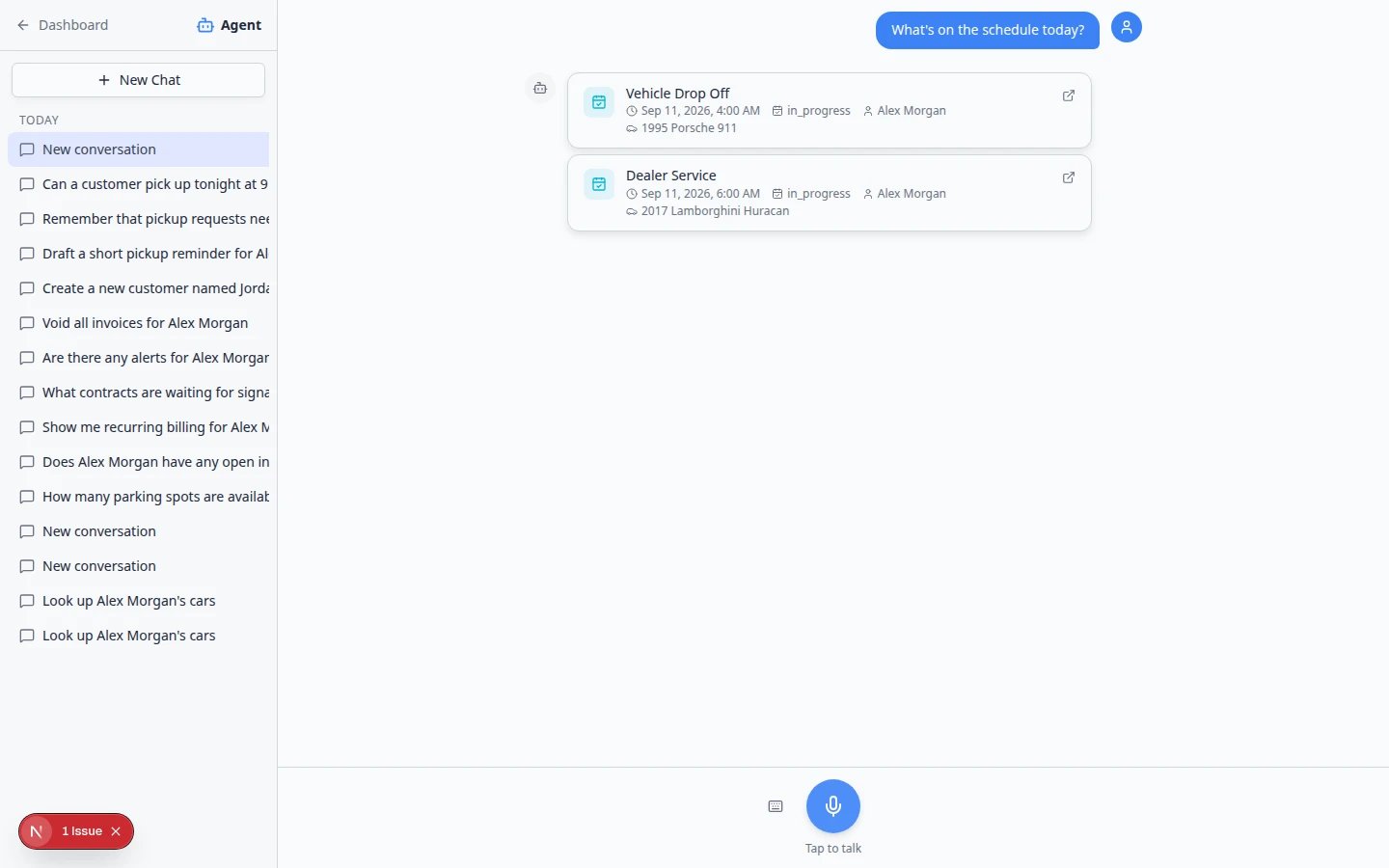 ***Type instead** is the keyboard icon inside a chat—not a separate button on the first start screen. Use it for customer names, email addresses, and VINs.*
If you see **Speech recognition error: not-allowed**, your browser blocked the microphone. That is common on shared computers. Click **Type instead** and continue with the keyboard—see [Fix voice and microphone problems](/docs/ai-assistant/fix-voice-and-microphone-problems).
## Important words in plain English
**Chat** means one conversation thread with the assistant.
**Proposal** or **proposal card** means a draft the assistant prepared for you to review before saving.
**Confirm All** saves every prepared card in that group at once—only use it after you check each card.
**Lookup** means searching existing records without creating new ones.
**New Chat** starts a fresh thread so the assistant does not mix up two different customers.
**Claude** (or Cursor) is an outside helper. An admin connects it with the **AI agents (MCP)** card and a **Connector URL**. That is not the same page as **AI Assistant** in the sidebar.
## Who should read which guide
**Front desk and phone staff** — start with [Use the AI Assistant](/docs/ai-assistant/use-the-ai-assistant) and [Ask about schedule, parking, and records](/docs/ai-assistant/ask-about-schedule-parking-and-records).
**Anyone creating new customers, cars, or appointments** — read [Prepare work with the AI Assistant](/docs/ai-assistant/prepare-work-with-the-ai-assistant) and always finish with [Review AI proposals](/docs/ai-assistant/review-ai-proposals).
**Managers training the team** — share [Manage your assistant chats](/docs/ai-assistant/manage-your-assistant-chats) so each customer gets a fresh **New Chat** thread.
**Admins connecting Claude** — follow [Connect Claude to your facility](/docs/ai-assistant/connect-claude-to-your-facility) so staff who already use Claude can look up the same records there.
## Quick links by job
| I need to… | Open this page | Step-by-step guide |
| - | - | - |
| Start a fresh conversation | [AI Assistant](https://www.carstoragesoftware.com/agent) → **New Chat** | [Manage your assistant chats](/docs/ai-assistant/manage-your-assistant-chats) |
| Look up a customer or car on the phone | [AI Assistant](https://www.carstoragesoftware.com/agent) | [Ask about schedule, parking, and records](/docs/ai-assistant/ask-about-schedule-parking-and-records) |
| Check today's appointments quickly | [AI Assistant](https://www.carstoragesoftware.com/agent) or [Schedule](https://www.carstoragesoftware.com/dashboard/schedule) | [Ask about schedule, parking, and records](/docs/ai-assistant/ask-about-schedule-parking-and-records) |
| Find where a car is parked | [AI Assistant](https://www.carstoragesoftware.com/agent) or [Parking Spots](https://www.carstoragesoftware.com/dashboard/parking-spots) | [Ask about schedule, parking, and records](/docs/ai-assistant/ask-about-schedule-parking-and-records) |
| Ask from a team iMessage group | iPhone **Messages** group chat | [Use the AI Assistant in iMessage](/docs/ai-assistant/use-the-ai-assistant-in-imessage) |
| Ask Claude about our cars or customers | [Settings > Integrations](https://www.carstoragesoftware.com/dashboard/settings/integrations?integration=mcp) | [Connect Claude to your facility](/docs/ai-assistant/connect-claude-to-your-facility) |
| Draft a new customer, car, and drop-off | [AI Assistant](https://www.carstoragesoftware.com/agent) | [Prepare work with the AI Assistant](/docs/ai-assistant/prepare-work-with-the-ai-assistant) |
| Save assistant drafts safely | Proposal cards in the chat | [Review AI proposals](/docs/ai-assistant/review-ai-proposals) |
| Answer a customer on the phone | [AI Assistant](https://www.carstoragesoftware.com/agent) | [Use the assistant during a customer call](/docs/ai-assistant/use-the-assistant-during-a-customer-call) |
| Word a text or email (without sending) | [AI Assistant](https://www.carstoragesoftware.com/agent), then [Inbox](https://www.carstoragesoftware.com/dashboard/inbox) | [From AI draft to customer message](/docs/ai-assistant/from-ai-draft-to-customer-message) |
| Fix a blocked microphone | [AI Assistant](https://www.carstoragesoftware.com/agent) | [Fix voice and microphone problems](/docs/ai-assistant/fix-voice-and-microphone-problems) |
| Staff cannot see AI Assistant | [Settings > Team](https://www.carstoragesoftware.com/dashboard/settings/team) | [Who can use the AI Assistant](/docs/ai-assistant/who-can-use-the-ai-assistant) |
## Your first phone call with the assistant
Many front-desk staff open the assistant while a customer is on hold. This short path works well the first time:
Click **AI Assistant** in the sidebar, then **New Chat** so the thread is only about this caller.
**Expected result:** You see the start screen with suggested questions and **Type a message...** at the bottom.
Type in **Type a message...** and ask something specific. Examples:
* **Look up Alex Morgan's cars**
* **I have Alex Morgan on the phone. What cars are stored and what's scheduled this week?**
**Why this matters:** One clear question is easier to verify than several topics mixed together.
Check the customer name, vehicle, time, or spot before you tell the caller.
**Expected result:** You can answer the customer confidently—or you know you need to open [Schedule](https://www.carstoragesoftware.com/dashboard/schedule) or [Cars](https://www.carstoragesoftware.com/dashboard/cars) to double-check.
When the next customer calls about a different person, click **New Chat** again.
**Why this matters:** Mixing two customers in one thread is the most common mistake new users make.
***Type instead** is the keyboard icon inside a chat—not a separate button on the first start screen. Use it for customer names, email addresses, and VINs.*
If you see **Speech recognition error: not-allowed**, your browser blocked the microphone. That is common on shared computers. Click **Type instead** and continue with the keyboard—see [Fix voice and microphone problems](/docs/ai-assistant/fix-voice-and-microphone-problems).
## Important words in plain English
**Chat** means one conversation thread with the assistant.
**Proposal** or **proposal card** means a draft the assistant prepared for you to review before saving.
**Confirm All** saves every prepared card in that group at once—only use it after you check each card.
**Lookup** means searching existing records without creating new ones.
**New Chat** starts a fresh thread so the assistant does not mix up two different customers.
**Claude** (or Cursor) is an outside helper. An admin connects it with the **AI agents (MCP)** card and a **Connector URL**. That is not the same page as **AI Assistant** in the sidebar.
## Who should read which guide
**Front desk and phone staff** — start with [Use the AI Assistant](/docs/ai-assistant/use-the-ai-assistant) and [Ask about schedule, parking, and records](/docs/ai-assistant/ask-about-schedule-parking-and-records).
**Anyone creating new customers, cars, or appointments** — read [Prepare work with the AI Assistant](/docs/ai-assistant/prepare-work-with-the-ai-assistant) and always finish with [Review AI proposals](/docs/ai-assistant/review-ai-proposals).
**Managers training the team** — share [Manage your assistant chats](/docs/ai-assistant/manage-your-assistant-chats) so each customer gets a fresh **New Chat** thread.
**Admins connecting Claude** — follow [Connect Claude to your facility](/docs/ai-assistant/connect-claude-to-your-facility) so staff who already use Claude can look up the same records there.
## Quick links by job
| I need to… | Open this page | Step-by-step guide |
| - | - | - |
| Start a fresh conversation | [AI Assistant](https://www.carstoragesoftware.com/agent) → **New Chat** | [Manage your assistant chats](/docs/ai-assistant/manage-your-assistant-chats) |
| Look up a customer or car on the phone | [AI Assistant](https://www.carstoragesoftware.com/agent) | [Ask about schedule, parking, and records](/docs/ai-assistant/ask-about-schedule-parking-and-records) |
| Check today's appointments quickly | [AI Assistant](https://www.carstoragesoftware.com/agent) or [Schedule](https://www.carstoragesoftware.com/dashboard/schedule) | [Ask about schedule, parking, and records](/docs/ai-assistant/ask-about-schedule-parking-and-records) |
| Find where a car is parked | [AI Assistant](https://www.carstoragesoftware.com/agent) or [Parking Spots](https://www.carstoragesoftware.com/dashboard/parking-spots) | [Ask about schedule, parking, and records](/docs/ai-assistant/ask-about-schedule-parking-and-records) |
| Ask from a team iMessage group | iPhone **Messages** group chat | [Use the AI Assistant in iMessage](/docs/ai-assistant/use-the-ai-assistant-in-imessage) |
| Ask Claude about our cars or customers | [Settings > Integrations](https://www.carstoragesoftware.com/dashboard/settings/integrations?integration=mcp) | [Connect Claude to your facility](/docs/ai-assistant/connect-claude-to-your-facility) |
| Draft a new customer, car, and drop-off | [AI Assistant](https://www.carstoragesoftware.com/agent) | [Prepare work with the AI Assistant](/docs/ai-assistant/prepare-work-with-the-ai-assistant) |
| Save assistant drafts safely | Proposal cards in the chat | [Review AI proposals](/docs/ai-assistant/review-ai-proposals) |
| Answer a customer on the phone | [AI Assistant](https://www.carstoragesoftware.com/agent) | [Use the assistant during a customer call](/docs/ai-assistant/use-the-assistant-during-a-customer-call) |
| Word a text or email (without sending) | [AI Assistant](https://www.carstoragesoftware.com/agent), then [Inbox](https://www.carstoragesoftware.com/dashboard/inbox) | [From AI draft to customer message](/docs/ai-assistant/from-ai-draft-to-customer-message) |
| Fix a blocked microphone | [AI Assistant](https://www.carstoragesoftware.com/agent) | [Fix voice and microphone problems](/docs/ai-assistant/fix-voice-and-microphone-problems) |
| Staff cannot see AI Assistant | [Settings > Team](https://www.carstoragesoftware.com/dashboard/settings/team) | [Who can use the AI Assistant](/docs/ai-assistant/who-can-use-the-ai-assistant) |
## Your first phone call with the assistant
Many front-desk staff open the assistant while a customer is on hold. This short path works well the first time:
Click **AI Assistant** in the sidebar, then **New Chat** so the thread is only about this caller.
**Expected result:** You see the start screen with suggested questions and **Type a message...** at the bottom.
Type in **Type a message...** and ask something specific. Examples:
* **Look up Alex Morgan's cars**
* **I have Alex Morgan on the phone. What cars are stored and what's scheduled this week?**
**Why this matters:** One clear question is easier to verify than several topics mixed together.
Check the customer name, vehicle, time, or spot before you tell the caller.
**Expected result:** You can answer the customer confidently—or you know you need to open [Schedule](https://www.carstoragesoftware.com/dashboard/schedule) or [Cars](https://www.carstoragesoftware.com/dashboard/cars) to double-check.
When the next customer calls about a different person, click **New Chat** again.
**Why this matters:** Mixing two customers in one thread is the most common mistake new users make.
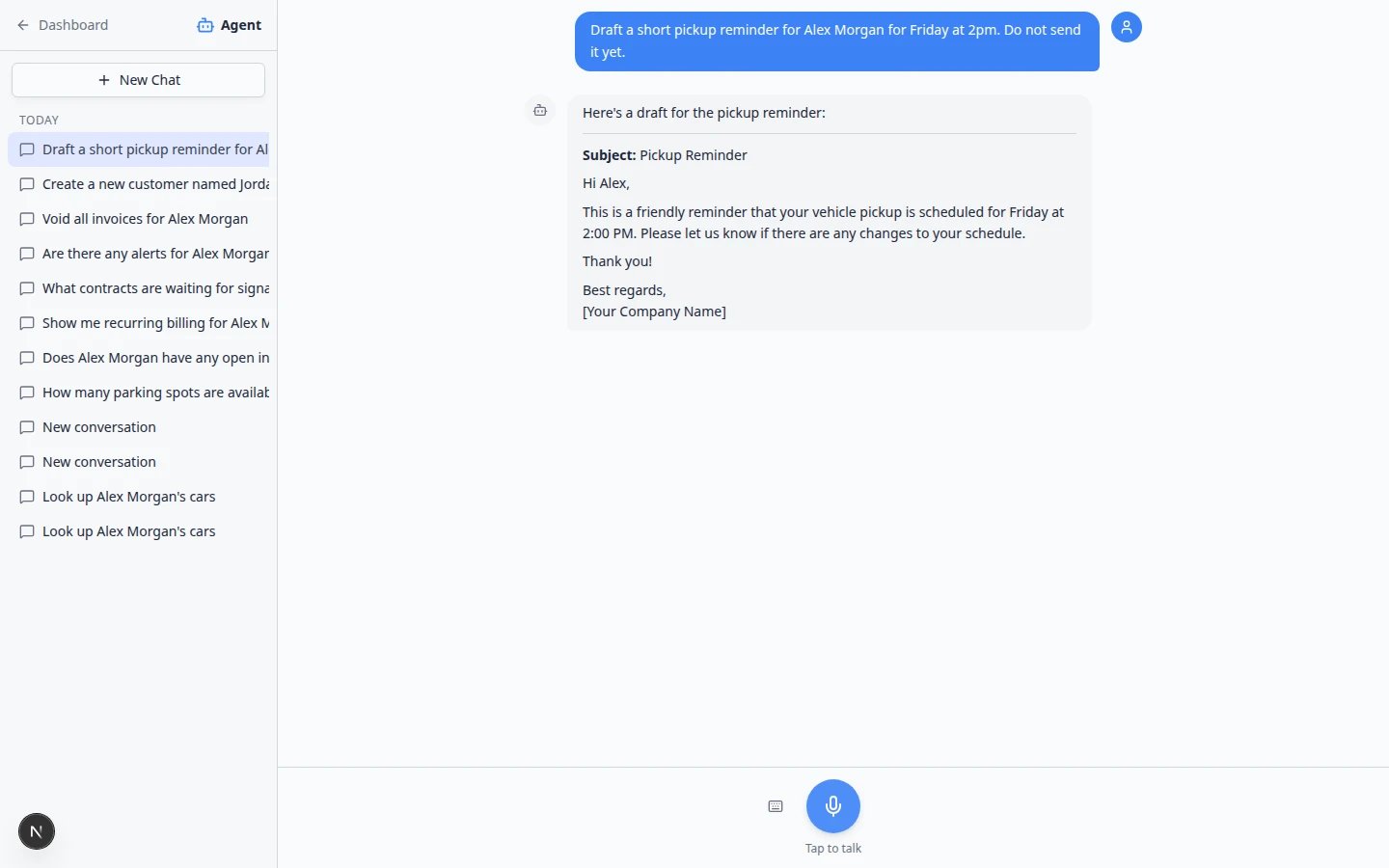 *When you need help wording a text or email, ask for a **draft only**. Copy the words into [Inbox](https://www.carstoragesoftware.com/dashboard/inbox) when you are ready to send.*
## Related dashboard areas
After you are comfortable with the assistant, these sections work hand-in-hand with it:
* [Cars](/docs/cars/overview) for vehicle records and activity
* [Contacts](/docs/contacts/overview) for customers and leads
* [Schedule](/docs/schedule/overview) for appointments and team planning
* [Parking Spots](/docs/parking-spots/overview) for floor plans and assignments
* [Inbox](/docs/inbox/overview) for customer messages
* [Settings > Team](/docs/settings/manage-team-permissions) for who can access each area (including **AI Assistant**)
* [Settings > AI Agent](https://www.carstoragesoftware.com/dashboard/settings/ai-agent) for iMessage linking and team memory
* [Settings > Integrations](https://www.carstoragesoftware.com/dashboard/settings/integrations?integration=mcp) for connecting Claude or Cursor — see [Connect Claude to your facility](/docs/ai-assistant/connect-claude-to-your-facility)
## Troubleshooting
**I do not see AI Assistant in the sidebar**
You must be signed in as **staff**, not as a customer. If you are staff and still do not see it, ask a team admin to enable **AI Assistant** permission in [Settings > Team](https://www.carstoragesoftware.com/dashboard/settings/team).
**The assistant says it does not have permission**
Your role may not include the area you asked about (for example **Payments** or **Schedule**). Open the record manually from the dashboard, or ask an admin to adjust your access in [Settings > Team](https://www.carstoragesoftware.com/dashboard/settings/team).
**The microphone does not work**
Use the **Type a message...** box on the start screen, or click the **keyboard** icon during a chat. Shared shop computers often block the microphone for privacy—that is normal.
**I need the assistant on my phone**
If your facility has iMessage enabled, an admin sets up the group chat in [Connect iMessage to the AI Assistant](/docs/ai-assistant/connect-imessage-to-the-ai-assistant). Staff then read [Use the AI Assistant in iMessage](/docs/ai-assistant/use-the-ai-assistant-in-imessage). Otherwise use [AI Assistant](https://www.carstoragesoftware.com/agent) in your mobile browser.
**I want Claude to look up our records**
That is a different door from the sidebar **AI Assistant**. An admin turns on **AI agents (MCP)** in [Settings > Integrations](https://www.carstoragesoftware.com/dashboard/settings/integrations?integration=mcp), copies the **Connector URL**, and staff sign in when Claude asks. Full steps: [Connect Claude to your facility](/docs/ai-assistant/connect-claude-to-your-facility).
**Answers about money or contracts look wrong**
Always open the real record in [Payments](https://www.carstoragesoftware.com/dashboard/payments) or your contracts area before you act. The assistant helps you find information faster—it is not a substitute for reviewing official records.
**A proposal card shows Failed**
That usually means a later step ran before an earlier one finished (for example adding a car before the customer exists). Read the message above the cards, fix or confirm the first card, then ask again in a **New Chat** if needed. See [Review AI proposals](/docs/ai-assistant/review-ai-proposals).
**Confirm All or Create Customer is disabled**
Look for empty required fields on the cards (names marked with a red asterisk \*). Fill in what you know, or leave optional fields blank instead of guessing.
**The answer does not match what I see on Schedule or Parking**
The assistant reads the same records your team maintains. If the calendar or map looks different, update [Schedule](https://www.carstoragesoftware.com/dashboard/schedule) or [Parking Spots](https://www.carstoragesoftware.com/dashboard/parking-spots) first, then ask again—or open the page yourself before you promise a time or spot to a customer.
## Common mistakes to avoid
* Do not ask about a second customer in the same chat—click **New Chat** when the topic changes.
* Do not assume the assistant sent a message to a customer—sending always happens in [Inbox](https://www.carstoragesoftware.com/dashboard/inbox).
* Do not trust invoice totals or contract details from the assistant alone—open [Payments](https://www.carstoragesoftware.com/dashboard/payments) or the record page to verify.
* Do not skip the keyboard for exact spelling—type in **Type a message...** for names, email addresses, and VINs.
## What success looks like
* Staff can open [AI Assistant](https://www.carstoragesoftware.com/agent) and complete a record lookup on the first try.
* Proposal cards are reviewed before **Confirm All** is used.
* Each new topic starts with **New Chat** so conversations stay easy to follow.
* Your team knows when to use the dashboard directly for sensitive billing or contract work.
## AI Assistant vs Inbox **Suggest with AI**
Your facility has two helpful AI entry points. Use this table so staff pick the right one.
| I need to… | Use this | Why |
| - | - | - |
| Look up a customer, car, spot, or today’s schedule while on the phone | [AI Assistant](https://www.carstoragesoftware.com/agent) | Built for quick answers and optional navigation to the right page |
| Draft a new customer, car, and appointment from one spoken request | [AI Assistant](https://www.carstoragesoftware.com/agent) | Shows review cards before anything is saved |
| Reply to a customer who already texted or emailed | [Inbox](https://www.carstoragesoftware.com/dashboard/inbox) | The customer’s thread and send buttons live here |
| Get a reply draft inside an existing customer thread | [Inbox](https://www.carstoragesoftware.com/dashboard/inbox) → **Suggest with AI** | Draft stays tied to that conversation; you still press **Send** |
| Send the message to the customer | [Inbox](https://www.carstoragesoftware.com/dashboard/inbox) only | Neither AI tool sends customer messages automatically |
**Simple rule**
**Assistant** helps you find and prepare work. **Inbox** is where customer messages actually go out.
## What to do next
Start with [Manage your assistant chats](/docs/ai-assistant/manage-your-assistant-chats), then practice one lookup in [Use the AI Assistant](/docs/ai-assistant/use-the-ai-assistant). If your team already chats in Claude, an admin can follow [Connect Claude to your facility](/docs/ai-assistant/connect-claude-to-your-facility).
## Related topics
- [Use the AI Assistant from iMessage](/docs/ai-assistant/use-the-ai-assistant-from-imessage.md)
- [Manage team memory for the AI Assistant](/docs/ai-assistant/manage-team-memory-for-the-ai-assistant.md)
- [Connect iMessage to the AI Assistant](/docs/ai-assistant/connect-imessage-to-the-ai-assistant.md)
- [Use the AI Assistant](/docs/ai-assistant/use-the-ai-assistant.md)
- [Prepare work with the AI Assistant](/docs/ai-assistant/prepare-work-with-the-ai-assistant.md)
This documentation is built and hosted on [Mintlify](https://mintlify.com), a developer documentation platform.
*When you need help wording a text or email, ask for a **draft only**. Copy the words into [Inbox](https://www.carstoragesoftware.com/dashboard/inbox) when you are ready to send.*
## Related dashboard areas
After you are comfortable with the assistant, these sections work hand-in-hand with it:
* [Cars](/docs/cars/overview) for vehicle records and activity
* [Contacts](/docs/contacts/overview) for customers and leads
* [Schedule](/docs/schedule/overview) for appointments and team planning
* [Parking Spots](/docs/parking-spots/overview) for floor plans and assignments
* [Inbox](/docs/inbox/overview) for customer messages
* [Settings > Team](/docs/settings/manage-team-permissions) for who can access each area (including **AI Assistant**)
* [Settings > AI Agent](https://www.carstoragesoftware.com/dashboard/settings/ai-agent) for iMessage linking and team memory
* [Settings > Integrations](https://www.carstoragesoftware.com/dashboard/settings/integrations?integration=mcp) for connecting Claude or Cursor — see [Connect Claude to your facility](/docs/ai-assistant/connect-claude-to-your-facility)
## Troubleshooting
**I do not see AI Assistant in the sidebar**
You must be signed in as **staff**, not as a customer. If you are staff and still do not see it, ask a team admin to enable **AI Assistant** permission in [Settings > Team](https://www.carstoragesoftware.com/dashboard/settings/team).
**The assistant says it does not have permission**
Your role may not include the area you asked about (for example **Payments** or **Schedule**). Open the record manually from the dashboard, or ask an admin to adjust your access in [Settings > Team](https://www.carstoragesoftware.com/dashboard/settings/team).
**The microphone does not work**
Use the **Type a message...** box on the start screen, or click the **keyboard** icon during a chat. Shared shop computers often block the microphone for privacy—that is normal.
**I need the assistant on my phone**
If your facility has iMessage enabled, an admin sets up the group chat in [Connect iMessage to the AI Assistant](/docs/ai-assistant/connect-imessage-to-the-ai-assistant). Staff then read [Use the AI Assistant in iMessage](/docs/ai-assistant/use-the-ai-assistant-in-imessage). Otherwise use [AI Assistant](https://www.carstoragesoftware.com/agent) in your mobile browser.
**I want Claude to look up our records**
That is a different door from the sidebar **AI Assistant**. An admin turns on **AI agents (MCP)** in [Settings > Integrations](https://www.carstoragesoftware.com/dashboard/settings/integrations?integration=mcp), copies the **Connector URL**, and staff sign in when Claude asks. Full steps: [Connect Claude to your facility](/docs/ai-assistant/connect-claude-to-your-facility).
**Answers about money or contracts look wrong**
Always open the real record in [Payments](https://www.carstoragesoftware.com/dashboard/payments) or your contracts area before you act. The assistant helps you find information faster—it is not a substitute for reviewing official records.
**A proposal card shows Failed**
That usually means a later step ran before an earlier one finished (for example adding a car before the customer exists). Read the message above the cards, fix or confirm the first card, then ask again in a **New Chat** if needed. See [Review AI proposals](/docs/ai-assistant/review-ai-proposals).
**Confirm All or Create Customer is disabled**
Look for empty required fields on the cards (names marked with a red asterisk \*). Fill in what you know, or leave optional fields blank instead of guessing.
**The answer does not match what I see on Schedule or Parking**
The assistant reads the same records your team maintains. If the calendar or map looks different, update [Schedule](https://www.carstoragesoftware.com/dashboard/schedule) or [Parking Spots](https://www.carstoragesoftware.com/dashboard/parking-spots) first, then ask again—or open the page yourself before you promise a time or spot to a customer.
## Common mistakes to avoid
* Do not ask about a second customer in the same chat—click **New Chat** when the topic changes.
* Do not assume the assistant sent a message to a customer—sending always happens in [Inbox](https://www.carstoragesoftware.com/dashboard/inbox).
* Do not trust invoice totals or contract details from the assistant alone—open [Payments](https://www.carstoragesoftware.com/dashboard/payments) or the record page to verify.
* Do not skip the keyboard for exact spelling—type in **Type a message...** for names, email addresses, and VINs.
## What success looks like
* Staff can open [AI Assistant](https://www.carstoragesoftware.com/agent) and complete a record lookup on the first try.
* Proposal cards are reviewed before **Confirm All** is used.
* Each new topic starts with **New Chat** so conversations stay easy to follow.
* Your team knows when to use the dashboard directly for sensitive billing or contract work.
## AI Assistant vs Inbox **Suggest with AI**
Your facility has two helpful AI entry points. Use this table so staff pick the right one.
| I need to… | Use this | Why |
| - | - | - |
| Look up a customer, car, spot, or today’s schedule while on the phone | [AI Assistant](https://www.carstoragesoftware.com/agent) | Built for quick answers and optional navigation to the right page |
| Draft a new customer, car, and appointment from one spoken request | [AI Assistant](https://www.carstoragesoftware.com/agent) | Shows review cards before anything is saved |
| Reply to a customer who already texted or emailed | [Inbox](https://www.carstoragesoftware.com/dashboard/inbox) | The customer’s thread and send buttons live here |
| Get a reply draft inside an existing customer thread | [Inbox](https://www.carstoragesoftware.com/dashboard/inbox) → **Suggest with AI** | Draft stays tied to that conversation; you still press **Send** |
| Send the message to the customer | [Inbox](https://www.carstoragesoftware.com/dashboard/inbox) only | Neither AI tool sends customer messages automatically |
**Simple rule**
**Assistant** helps you find and prepare work. **Inbox** is where customer messages actually go out.
## What to do next
Start with [Manage your assistant chats](/docs/ai-assistant/manage-your-assistant-chats), then practice one lookup in [Use the AI Assistant](/docs/ai-assistant/use-the-ai-assistant). If your team already chats in Claude, an admin can follow [Connect Claude to your facility](/docs/ai-assistant/connect-claude-to-your-facility).
## Related topics
- [Use the AI Assistant from iMessage](/docs/ai-assistant/use-the-ai-assistant-from-imessage.md)
- [Manage team memory for the AI Assistant](/docs/ai-assistant/manage-team-memory-for-the-ai-assistant.md)
- [Connect iMessage to the AI Assistant](/docs/ai-assistant/connect-imessage-to-the-ai-assistant.md)
- [Use the AI Assistant](/docs/ai-assistant/use-the-ai-assistant.md)
- [Prepare work with the AI Assistant](/docs/ai-assistant/prepare-work-with-the-ai-assistant.md)
This documentation is built and hosted on [Mintlify](https://mintlify.com), a developer documentation platform.