> ## Documentation Index
> Fetch the complete documentation index at: https://www.carstoragesoftware.com/docs/llms.txt
> Use this file to discover all available pages before exploring further.
# Move a car
> Reassign a vehicle to a different parking spot or facility zone so the record matches the floor plan.
When a car changes location in your facility — whether it is moved for service, rearranged for space, or being prepared for customer pickup — update the parking assignment so your digital floor plan stays in sync with the physical one.
## What you will accomplish
After following this guide, the car's record, the [Cars](https://www.carstoragesoftware.com/dashboard/cars) list, and the [Parking Spots](https://www.carstoragesoftware.com/dashboard/parking-spots) map will all show the same location.
**Expected outcome:** Anyone on your team can answer "where is this car?" without walking the lot first.
## When to move a car on the record
* A vehicle was physically moved to a new spot or zone in your building.
* You are preparing a car for customer pickup and need to clear its spot for the next vehicle.
* An intake or service session ended and the car was placed in a new location.
**Move the record when you move the car**
Update the parking assignment during the physical move—not at the end of the day. That keeps your [Parking Spots](https://www.carstoragesoftware.com/dashboard/parking-spots) map trustworthy for the whole team.
## Before you start
* Know which **car** you are moving.
* Know the **destination** parking spot or zone. If you are not sure which spots are available, check the [Parking Spots](https://www.carstoragesoftware.com/dashboard/parking-spots) page first.
* If the move is part of a scheduled event (intake, delivery, service), consider starting the move from that event's workflow instead of doing it separately.
## Move a car from the detail page
This is the most common way to move a car. You start from the vehicle's detail page and use the parking button at the top of the banner.
**Moving several cars in a row?**
Open the dedicated [Move Car](https://www.carstoragesoftware.com/dashboard/cars/move) page when you want car search and spot selection on one focused screen. On that page the blue button says **Assign Parking Spot** if the car has no spot yet, or **Move Car** if it is changing spots. See [Use the Move Car page](/docs/cars/use-the-move-car-page).
Go to the [Cars page](https://www.carstoragesoftware.com/dashboard/cars) and click **View** on the vehicle you want to move.
**Expected result:** You see the correct vehicle title (year, make, model) before changing parking.
At the top of the car detail page, look in the upper-right area of the photo banner for the parking button.
* If the car has no spot yet, the button says **Assign location**.
* If the car is already parked, the button shows **Zone:** or **Spot:** followed by the name on larger screens (for example **Zone: Outdoor Lot** or **Spot: A1**). On phones, you may see only the location name without the **Zone:** or **Spot:** label—but the meaning is the same.
* If the car is at an outside vendor, the button may show **At vendor:** and the vendor name.
Click that button to open the **Parking Location** window.
**Expected result:** A window titled **Parking Location** opens. It shows where the car is now (if any) and a **Location** field to pick a new spot or zone.
**Why this matters:** The label always tells you where the system thinks the car is now. Updating it right after a physical move keeps the [Parking Spots](https://www.carstoragesoftware.com/dashboard/parking-spots) map accurate for everyone.
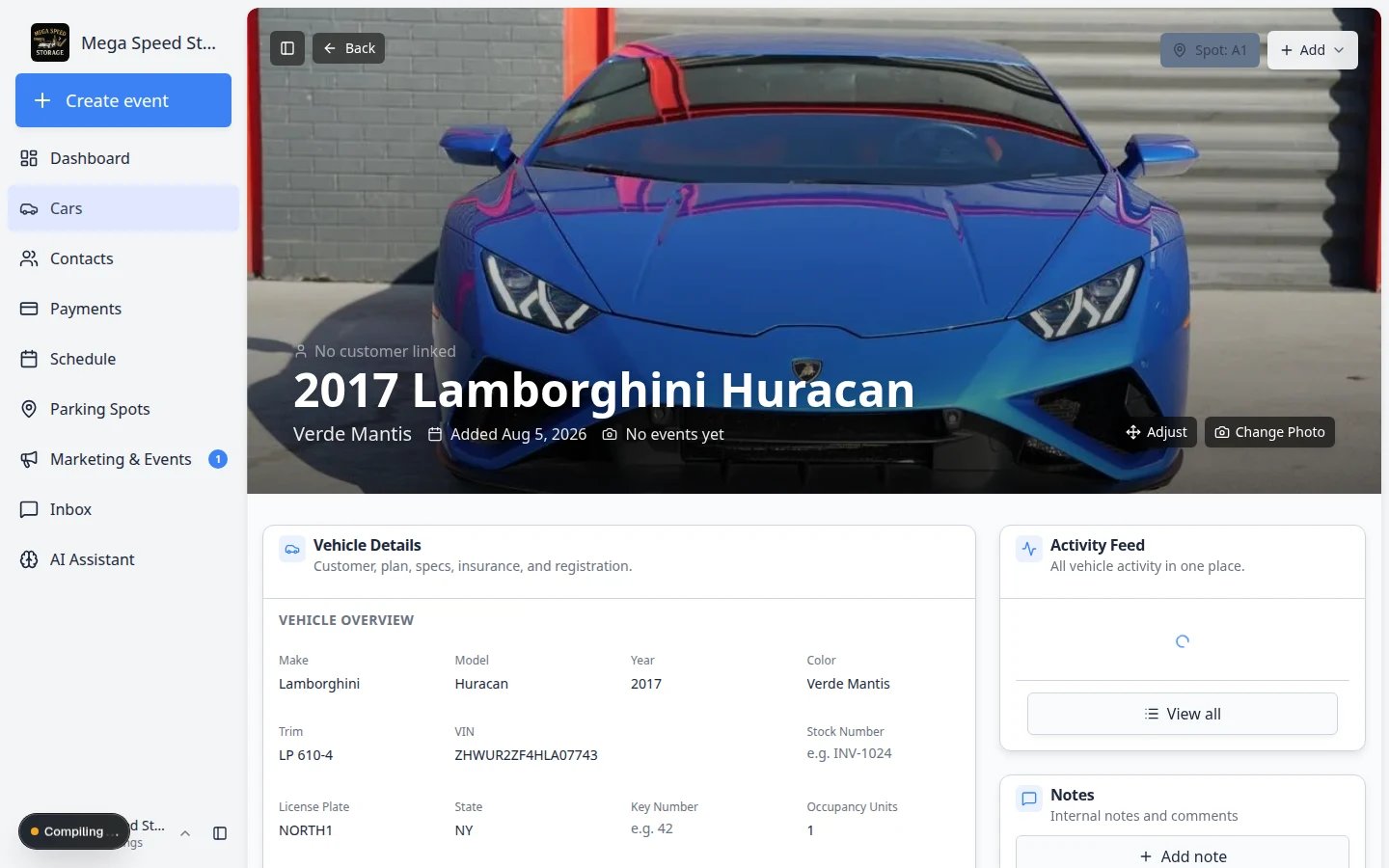 *The parking button shows Zone: or Spot: plus the current location name. The Add menu is for events and photos—not parking.*
In the **Parking Location** window, use the **Location** field to search for and select the destination.
You can pick:
* **Specific spot** — an exact numbered spot (for example **A1**, **Bay 3**)
* **Zone** — a flexible area (for example **Outdoor Lot**, **Service Bay Area**)
* **Vendor** — an off-site shop or transport partner when the car leaves your building
*The parking button shows Zone: or Spot: plus the current location name. The Add menu is for events and photos—not parking.*
In the **Parking Location** window, use the **Location** field to search for and select the destination.
You can pick:
* **Specific spot** — an exact numbered spot (for example **A1**, **Bay 3**)
* **Zone** — a flexible area (for example **Outdoor Lot**, **Service Bay Area**)
* **Vendor** — an off-site shop or transport partner when the car leaves your building
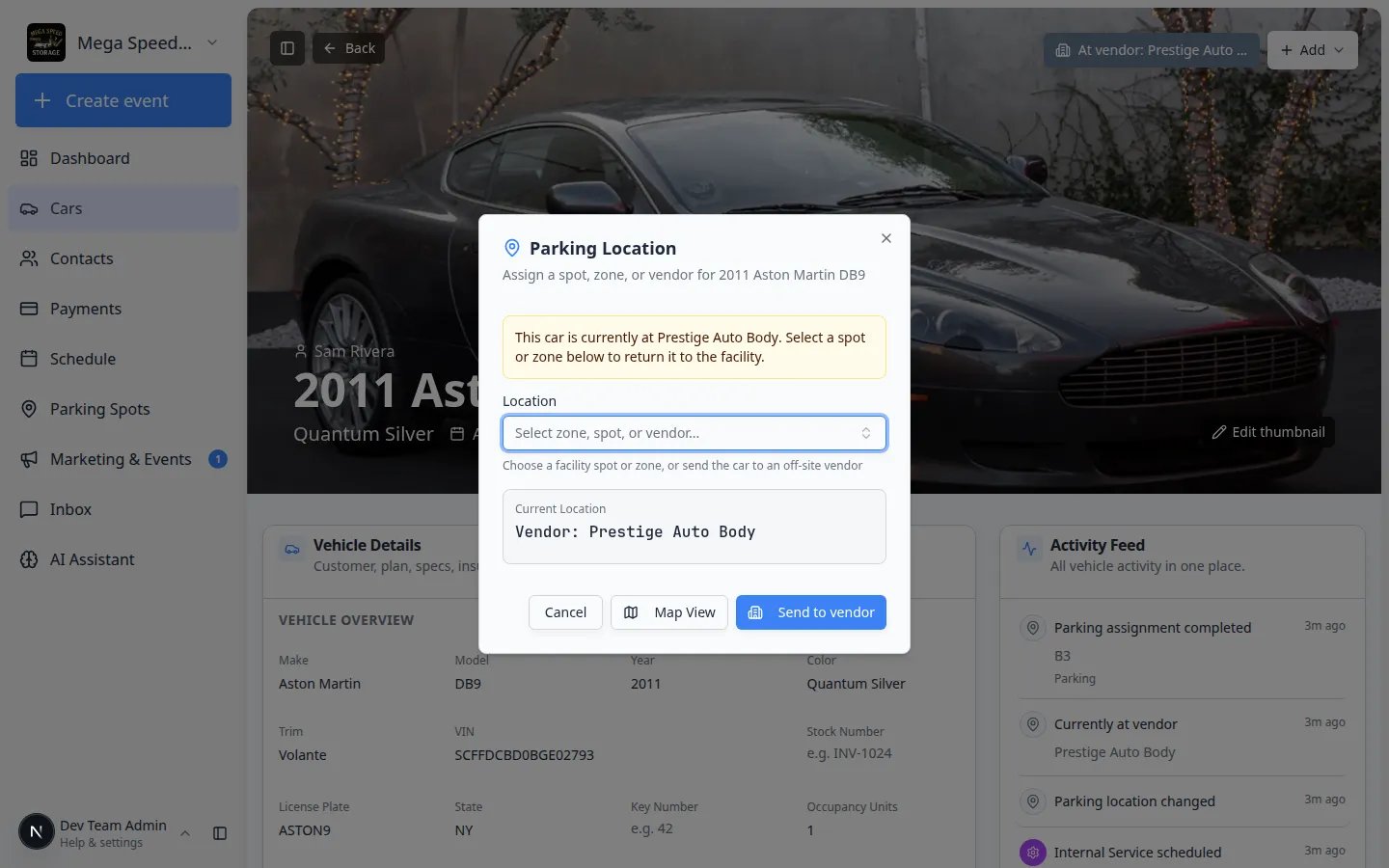 *The Parking Location window lets you search for a spot, zone, or vendor. Map View opens your floor plan when you need to see open spaces first.*
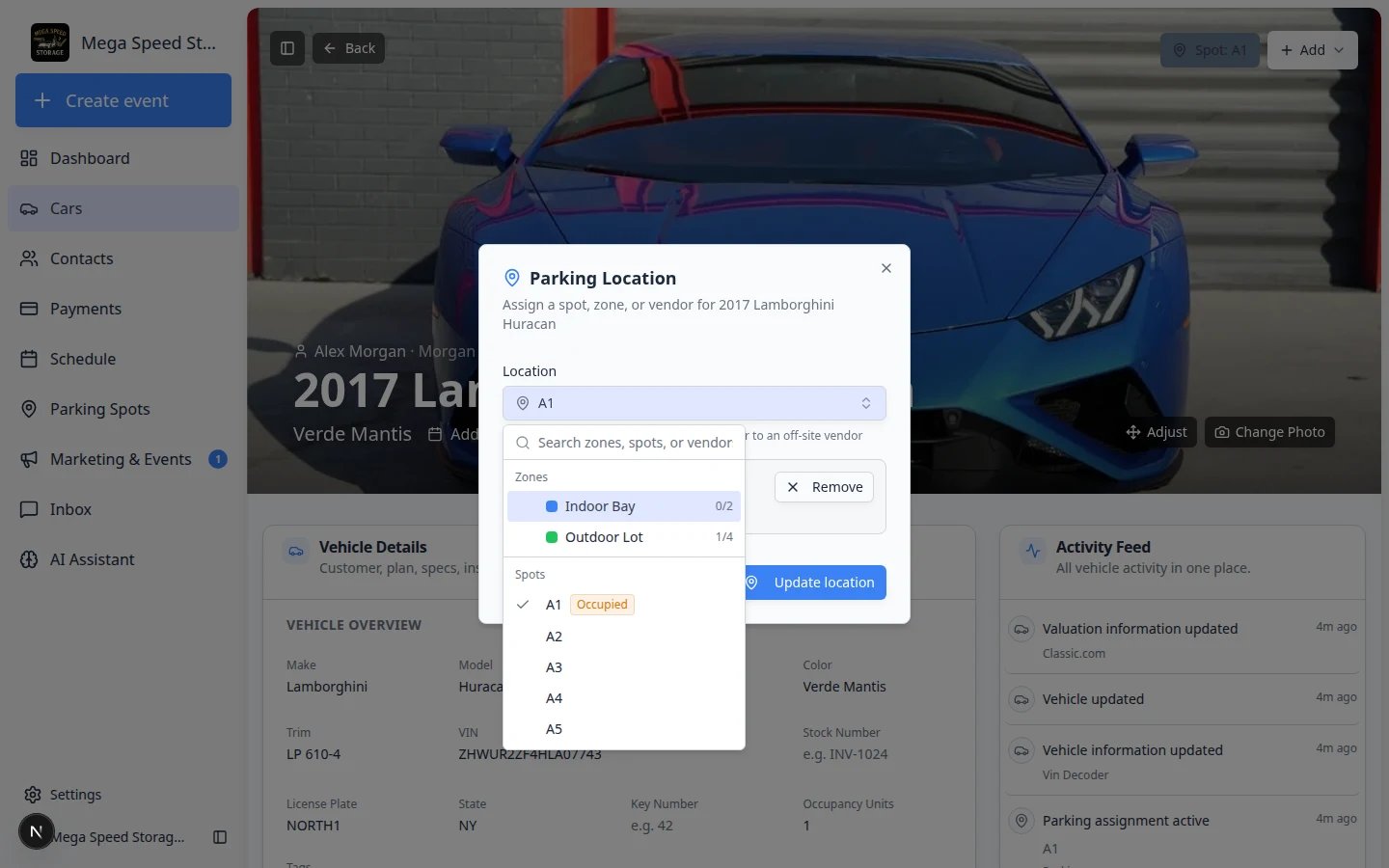 *Type in the Location field to filter the list. Zones work well for outdoor lots; numbered spots work best for long-term storage rows.*
**Zone vs spot — which should you pick?**
* **Zone** (for example **Outdoor Lot** or **Indoor Bay**) — use when vehicles move around inside a general area and you do not need an exact numbered position. Good for service bays and overflow lots.
* **Spot** (for example **A1** or **Bay 3**) — use when your facility tracks the exact parking position. Good for long-term storage where every space has a number.
*Type in the Location field to filter the list. Zones work well for outdoor lots; numbered spots work best for long-term storage rows.*
**Zone vs spot — which should you pick?**
* **Zone** (for example **Outdoor Lot** or **Indoor Bay**) — use when vehicles move around inside a general area and you do not need an exact numbered position. Good for service bays and overflow lots.
* **Spot** (for example **A1** or **Bay 3**) — use when your facility tracks the exact parking position. Good for long-term storage where every space has a number.
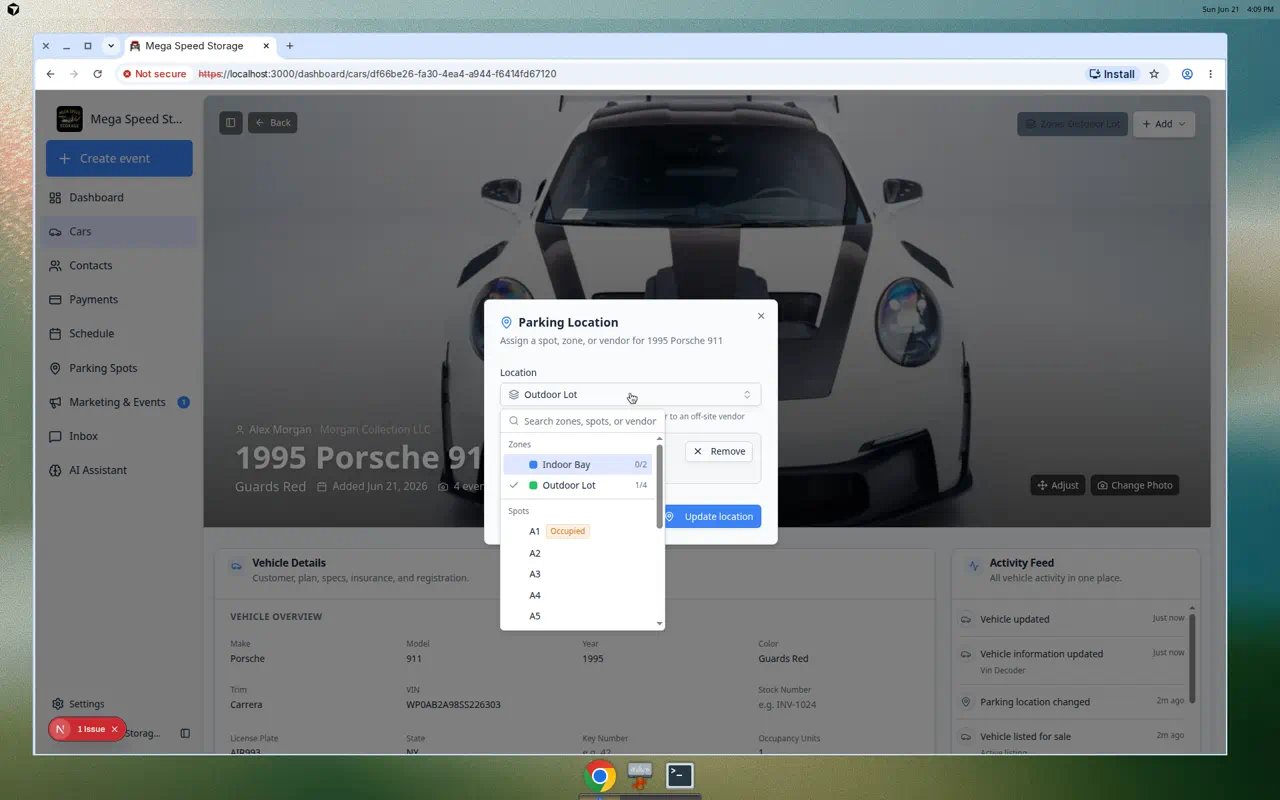 *The Location dropdown lists zones and spots together. Zones cover a region; spots are exact positions on your floor plan.*
Click **Update location** when the car stays in your facility. If you picked a **vendor**, the button changes to **Send to vendor**—click that instead.
**Expected result:** The banner button updates to the new spot, zone, or vendor name right away.
**Previous assignment**
You do not need to manually remove the car from the old spot first. Moving the car automatically ends the previous assignment so there is no overlap.
After the move, confirm the banner button now shows the new spot or zone name. The change also appears in:
* The **Cars list** table under the **Parking Spot** or **Location** column
* The **Parking Spots** map and list views
* The car's **Activity Feed** as a recorded move event
**Expected result:** The banner button, Cars list, and parking map all show the same new location. If any screen still shows the old spot, refresh the page and check again.
## Move a car from the Parking Spots map
When you are already looking at the [Parking Spots](https://www.carstoragesoftware.com/dashboard/parking-spots) map, you can assign or move a car without opening the car record first.
Click **Parking Spots** in the left sidebar, or go to [Parking Spots](https://www.carstoragesoftware.com/dashboard/parking-spots).
**Expected result:** You see the facility map (or table) with **Available**, **Reserved**, and **Occupied** counts near the map legend.
Click an open spot or a spot that already has a car. A window opens with spot details and actions such as **Move Car Here** or **Assign Car**.
**Why this matters:** Porters often start from the map when they are walking the floor. This path saves a search through the Cars list.
Search for the vehicle, then confirm the move. The map and the car record update together.
**Expected result:** The spot shows the car name on the map, and the car's banner button shows the same spot when you open its record.
*The Location dropdown lists zones and spots together. Zones cover a region; spots are exact positions on your floor plan.*
Click **Update location** when the car stays in your facility. If you picked a **vendor**, the button changes to **Send to vendor**—click that instead.
**Expected result:** The banner button updates to the new spot, zone, or vendor name right away.
**Previous assignment**
You do not need to manually remove the car from the old spot first. Moving the car automatically ends the previous assignment so there is no overlap.
After the move, confirm the banner button now shows the new spot or zone name. The change also appears in:
* The **Cars list** table under the **Parking Spot** or **Location** column
* The **Parking Spots** map and list views
* The car's **Activity Feed** as a recorded move event
**Expected result:** The banner button, Cars list, and parking map all show the same new location. If any screen still shows the old spot, refresh the page and check again.
## Move a car from the Parking Spots map
When you are already looking at the [Parking Spots](https://www.carstoragesoftware.com/dashboard/parking-spots) map, you can assign or move a car without opening the car record first.
Click **Parking Spots** in the left sidebar, or go to [Parking Spots](https://www.carstoragesoftware.com/dashboard/parking-spots).
**Expected result:** You see the facility map (or table) with **Available**, **Reserved**, and **Occupied** counts near the map legend.
Click an open spot or a spot that already has a car. A window opens with spot details and actions such as **Move Car Here** or **Assign Car**.
**Why this matters:** Porters often start from the map when they are walking the floor. This path saves a search through the Cars list.
Search for the vehicle, then confirm the move. The map and the car record update together.
**Expected result:** The spot shows the car name on the map, and the car's banner button shows the same spot when you open its record.
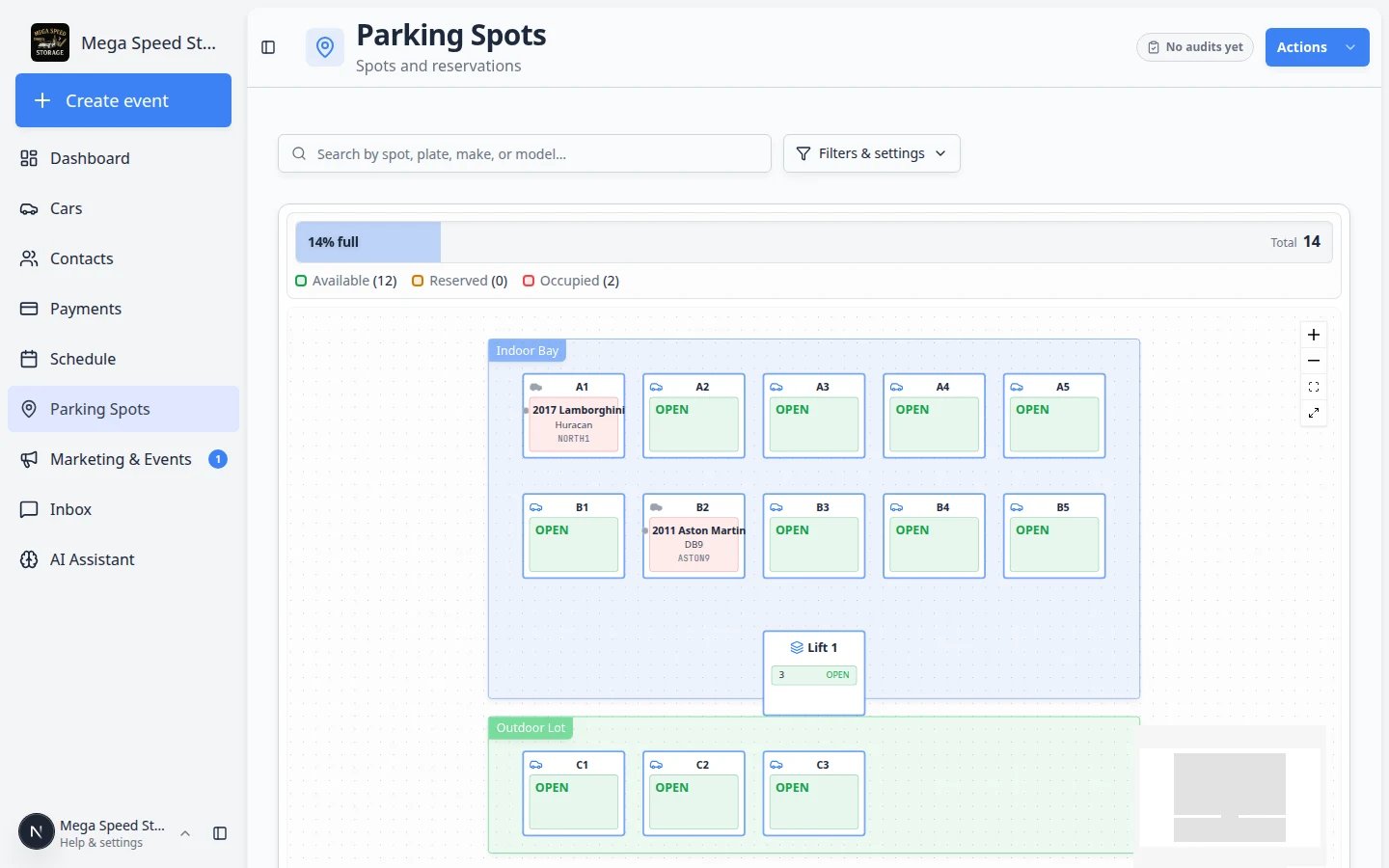 *From the map, open a spot and pick the car that should park there. This is the fastest path when you are already on the floor plan.*
For more map tips, read [Assign a parking spot](/docs/parking-spots/assign-a-parking-spot) and [Find parking spots and available spaces](/docs/parking-spots/find-parking-spots-and-available-spaces).
## Use Map View when you want to see the floor plan first
If you are not sure which spots are open, use **Map View** from the **Parking Location** window. This opens your facility map on the [Parking Spots](https://www.carstoragesoftware.com/dashboard/parking-spots) page with the car you are moving already highlighted.
On the car detail page, click **Assign location** or the current **Zone:** / **Spot:** button.
In the **Parking Location** window, click **Map View**.
**Expected result:** Your browser opens the Parking Spots map. The car you started from stays highlighted so you can compare open spaces visually.
Look for an open spot or zone that matches where you are moving the vehicle in the building. You can click a spot on the map or use the list on that page.
Go back to the car detail page, open **Parking Location** again if needed, choose the spot or zone in **Location**, then click **Update location**.
**Expected outcome:** The map, the [Cars](https://www.carstoragesoftware.com/dashboard/cars) list, and the car banner all show the same location.
*From the map, open a spot and pick the car that should park there. This is the fastest path when you are already on the floor plan.*
For more map tips, read [Assign a parking spot](/docs/parking-spots/assign-a-parking-spot) and [Find parking spots and available spaces](/docs/parking-spots/find-parking-spots-and-available-spaces).
## Use Map View when you want to see the floor plan first
If you are not sure which spots are open, use **Map View** from the **Parking Location** window. This opens your facility map on the [Parking Spots](https://www.carstoragesoftware.com/dashboard/parking-spots) page with the car you are moving already highlighted.
On the car detail page, click **Assign location** or the current **Zone:** / **Spot:** button.
In the **Parking Location** window, click **Map View**.
**Expected result:** Your browser opens the Parking Spots map. The car you started from stays highlighted so you can compare open spaces visually.
Look for an open spot or zone that matches where you are moving the vehicle in the building. You can click a spot on the map or use the list on that page.
Go back to the car detail page, open **Parking Location** again if needed, choose the spot or zone in **Location**, then click **Update location**.
**Expected outcome:** The map, the [Cars](https://www.carstoragesoftware.com/dashboard/cars) list, and the car banner all show the same location.
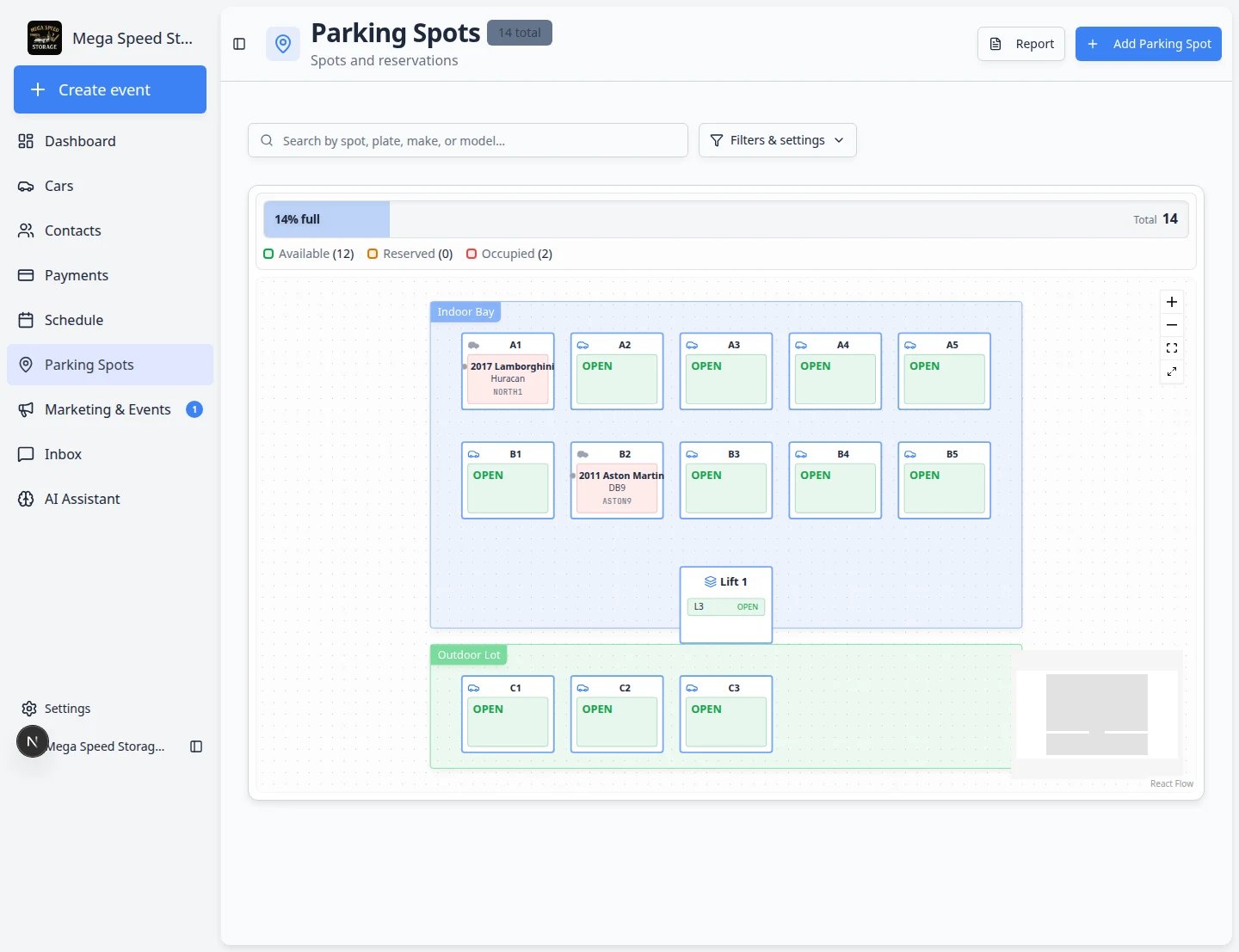 *Map View opens your live floor plan so you can choose an open spot before you save the move on the car record.*
**No spots in the list?**
Your facility must create spots and zones first. See [Set up parking spots and zones](/docs/parking-spots/set-up-parking-spots-and-zones) before assigning cars.
## Move a car that is at a vendor
When a vehicle leaves your building for paint, mechanical work, or transport, the parking button can show **At vendor:** and the vendor's name instead of a spot on your map.
Go to [Cars](https://www.carstoragesoftware.com/dashboard/cars) and open the vehicle.
Click **At vendor:** on the banner (or open **Parking Location** the same way you would for a spot change).
**Expected result:** The **Parking Location** window opens. You can pick a different vendor, return the car to a facility spot, or remove the assignment when the vehicle comes back.
Choose the correct vendor, spot, or zone, then click **Update location**.
**Why this matters:** Your team knows the car is not in the building—even when it no longer occupies a numbered spot on your floor plan.
## Remove a car from its spot
Use this when the vehicle is leaving your building and should no longer take up a spot on the map—for example after customer pickup, transport out, or a sale.
On the car detail page, click the **Zone:** or **Spot:** button (or **Assign location** if no spot is set).
In the **Parking Location** window, find the **Current Location** box. Click the **Remove** button on the right side of that box.
**Why this matters:** Removing the spot frees the space on your map for the next vehicle. The car record itself stays in [Cars](https://www.carstoragesoftware.com/dashboard/cars) for history, billing, and photos.
A second window titled **Remove from Spot** opens. Read the message carefully. Your facility may also create a **pickup** event on the car's timeline when you remove it from a spot.
Set a pickup time if your team uses that field, then click **Remove from Spot**.
**Expected outcome:** The banner no longer shows a spot name, the Parking Spots map shows that space as open, and the **Activity Feed** may show a pickup-related event.
*Map View opens your live floor plan so you can choose an open spot before you save the move on the car record.*
**No spots in the list?**
Your facility must create spots and zones first. See [Set up parking spots and zones](/docs/parking-spots/set-up-parking-spots-and-zones) before assigning cars.
## Move a car that is at a vendor
When a vehicle leaves your building for paint, mechanical work, or transport, the parking button can show **At vendor:** and the vendor's name instead of a spot on your map.
Go to [Cars](https://www.carstoragesoftware.com/dashboard/cars) and open the vehicle.
Click **At vendor:** on the banner (or open **Parking Location** the same way you would for a spot change).
**Expected result:** The **Parking Location** window opens. You can pick a different vendor, return the car to a facility spot, or remove the assignment when the vehicle comes back.
Choose the correct vendor, spot, or zone, then click **Update location**.
**Why this matters:** Your team knows the car is not in the building—even when it no longer occupies a numbered spot on your floor plan.
## Remove a car from its spot
Use this when the vehicle is leaving your building and should no longer take up a spot on the map—for example after customer pickup, transport out, or a sale.
On the car detail page, click the **Zone:** or **Spot:** button (or **Assign location** if no spot is set).
In the **Parking Location** window, find the **Current Location** box. Click the **Remove** button on the right side of that box.
**Why this matters:** Removing the spot frees the space on your map for the next vehicle. The car record itself stays in [Cars](https://www.carstoragesoftware.com/dashboard/cars) for history, billing, and photos.
A second window titled **Remove from Spot** opens. Read the message carefully. Your facility may also create a **pickup** event on the car's timeline when you remove it from a spot.
Set a pickup time if your team uses that field, then click **Remove from Spot**.
**Expected outcome:** The banner no longer shows a spot name, the Parking Spots map shows that space as open, and the **Activity Feed** may show a pickup-related event.
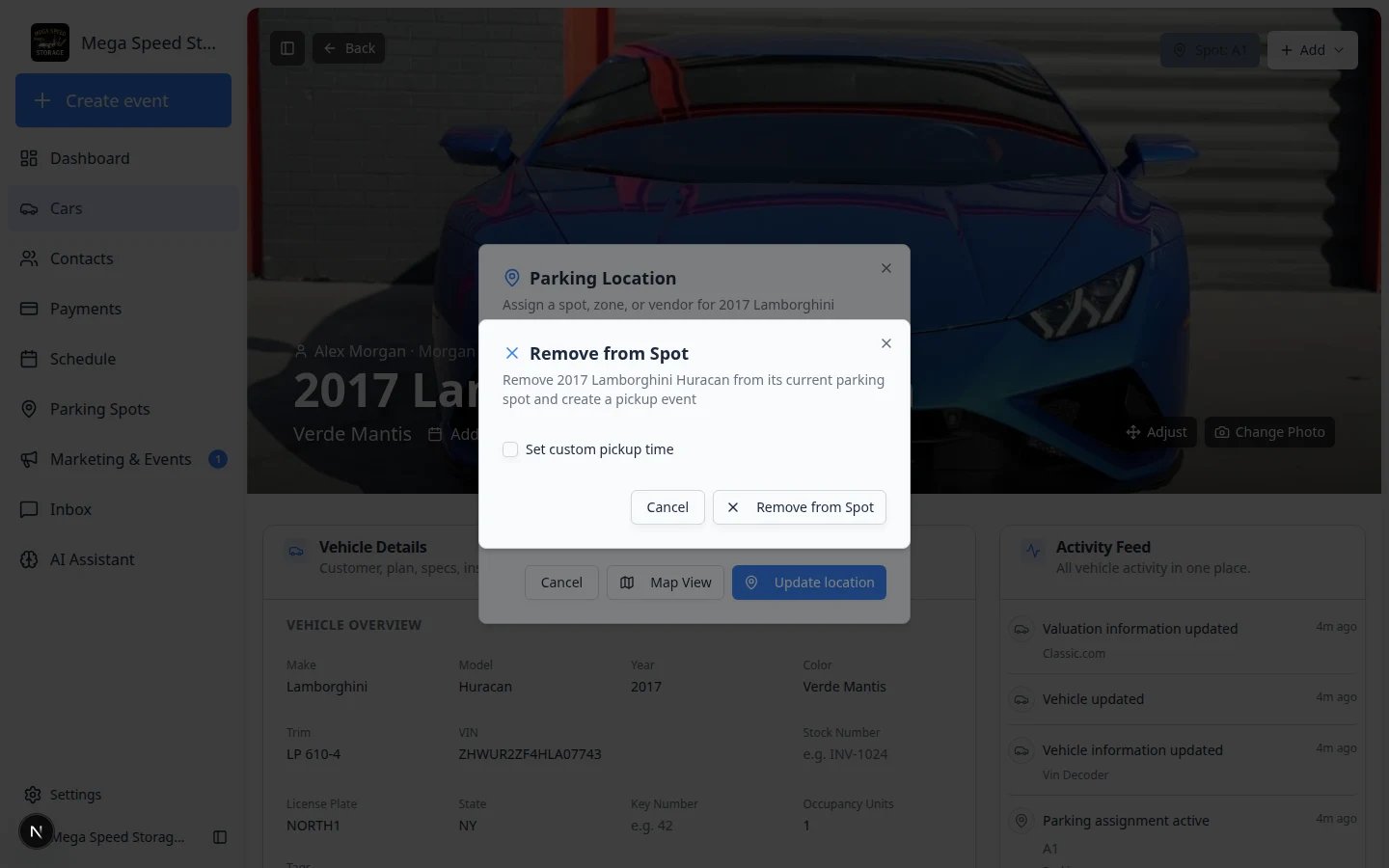 *Removing a car from its spot clears the map assignment without deleting the vehicle record.*
## Tips for keeping the floor plan accurate
A parking map is only useful when it reflects reality. Build these habits into your team's workflow:
* **Move the record when you move the car** — not later, not tomorrow. Do it as part of the physical move so the map never drifts.
* **Use zones for flexible areas** — if vehicles shift within a region frequently, assign them to a zone instead of an exact spot so your team does not need to update the record after every small shuffle.
* **Check the Parking Spots page regularly** — the parking report shows occupancy, duration, and any spots that appear double-assigned.
* **Tie moves to events** — when a move is part of a scheduled intake, delivery, or service event, the event workflow can prompt for a parking assignment automatically.
## What success looks like
After a move is saved correctly:
* The banner button on the car detail page shows the new **Zone:** or **Spot:** name right away.
* The [Cars list](https://www.carstoragesoftware.com/dashboard/cars) **Parking Spot** or **Location** column matches the banner.
* The [Parking Spots](https://www.carstoragesoftware.com/dashboard/parking-spots) map shows the car in the new location—and the old spot is free if the car left it.
* The car's **Activity Feed** includes a parking move entry with a timestamp your team can reference later.
* Anyone on your team can answer "where is this car?" from the record without walking the lot first.
## Common mistakes to avoid
* Do not move the car physically and forget to update the record. The map is only useful when it matches reality.
* Do not pick a **spot** when a **zone** is enough. If cars shuffle often inside one area, a zone saves your team from updating the record after every small move.
* Do not confuse **zone** and **spot**. A zone is a region (Outdoor Lot). A spot is one numbered position (A1). The banner label tells you which type you saved.
* Do not delete the car record when it leaves your building. Use **Remove** in the **Parking Location** window to free the spot—the car history, photos, and billing stay on file.
* Do not use the **Add** menu for parking changes. Parking is always updated from the **Zone:** / **Spot:** / **Assign location** button on the banner—not from **Create event** or **Quick photo**.
## Troubleshooting
**I do not see any spots in the dropdown**
Parking spots must be created in the [Parking Spots](https://www.carstoragesoftware.com/dashboard/parking-spots) section before they appear in the parking dialog. Ask a team admin to set up the facility layout if no spots exist yet.
**The car still shows the old spot**
Refresh the page after moving. If the old spot still appears, check the Parking Spots page to confirm the move was saved. If the issue persists, try the move again — a network interruption may have prevented the save.
**I need to move several cars in a row**
Move each car one at a time from its detail page or from the [Parking Spots](https://www.carstoragesoftware.com/dashboard/parking-spots) map. If cars shuffle often inside the same outdoor area, assign them to a **zone** instead of a numbered spot so small moves do not require constant updates.
## Send a car to an outside vendor
When a vehicle is at a body shop, detailer, or partner—not on your floor map—use a **vendor** location instead of a numbered spot.
See [Send a car to a vendor location](/docs/cars/send-a-car-to-a-vendor) for full steps. The parking dialog shows **Send to vendor** when you pick a vendor from the **Location** field.
## What to do next
* After the car is parked, run intake or inspection with [Start a car session](/docs/cars/start-a-car-session).
* If insurance or plate details still need updates, use [View and edit vehicle details](/docs/cars/view-and-edit-vehicle-details).
* To see every car on the map at once, open [Parking Spots](https://www.carstoragesoftware.com/dashboard/parking-spots) or read [Find parking spots and available spaces](/docs/parking-spots/find-parking-spots-and-available-spaces).
## Related topics
- [Use the Move Car page](/docs/cars/use-the-move-car-page.md)
- [Cars overview](/docs/cars/overview.md)
- [Review car activity, notes, and photos](/docs/cars/review-car-activity-notes-and-photos.md)
- [Assign a parking spot](/docs/parking-spots/assign-a-parking-spot.md)
- [Work with zones on the map](/docs/parking-spots/work-with-zones-on-the-map.md)
This documentation is built and hosted on [Mintlify](https://mintlify.com), a developer documentation platform.
*Removing a car from its spot clears the map assignment without deleting the vehicle record.*
## Tips for keeping the floor plan accurate
A parking map is only useful when it reflects reality. Build these habits into your team's workflow:
* **Move the record when you move the car** — not later, not tomorrow. Do it as part of the physical move so the map never drifts.
* **Use zones for flexible areas** — if vehicles shift within a region frequently, assign them to a zone instead of an exact spot so your team does not need to update the record after every small shuffle.
* **Check the Parking Spots page regularly** — the parking report shows occupancy, duration, and any spots that appear double-assigned.
* **Tie moves to events** — when a move is part of a scheduled intake, delivery, or service event, the event workflow can prompt for a parking assignment automatically.
## What success looks like
After a move is saved correctly:
* The banner button on the car detail page shows the new **Zone:** or **Spot:** name right away.
* The [Cars list](https://www.carstoragesoftware.com/dashboard/cars) **Parking Spot** or **Location** column matches the banner.
* The [Parking Spots](https://www.carstoragesoftware.com/dashboard/parking-spots) map shows the car in the new location—and the old spot is free if the car left it.
* The car's **Activity Feed** includes a parking move entry with a timestamp your team can reference later.
* Anyone on your team can answer "where is this car?" from the record without walking the lot first.
## Common mistakes to avoid
* Do not move the car physically and forget to update the record. The map is only useful when it matches reality.
* Do not pick a **spot** when a **zone** is enough. If cars shuffle often inside one area, a zone saves your team from updating the record after every small move.
* Do not confuse **zone** and **spot**. A zone is a region (Outdoor Lot). A spot is one numbered position (A1). The banner label tells you which type you saved.
* Do not delete the car record when it leaves your building. Use **Remove** in the **Parking Location** window to free the spot—the car history, photos, and billing stay on file.
* Do not use the **Add** menu for parking changes. Parking is always updated from the **Zone:** / **Spot:** / **Assign location** button on the banner—not from **Create event** or **Quick photo**.
## Troubleshooting
**I do not see any spots in the dropdown**
Parking spots must be created in the [Parking Spots](https://www.carstoragesoftware.com/dashboard/parking-spots) section before they appear in the parking dialog. Ask a team admin to set up the facility layout if no spots exist yet.
**The car still shows the old spot**
Refresh the page after moving. If the old spot still appears, check the Parking Spots page to confirm the move was saved. If the issue persists, try the move again — a network interruption may have prevented the save.
**I need to move several cars in a row**
Move each car one at a time from its detail page or from the [Parking Spots](https://www.carstoragesoftware.com/dashboard/parking-spots) map. If cars shuffle often inside the same outdoor area, assign them to a **zone** instead of a numbered spot so small moves do not require constant updates.
## Send a car to an outside vendor
When a vehicle is at a body shop, detailer, or partner—not on your floor map—use a **vendor** location instead of a numbered spot.
See [Send a car to a vendor location](/docs/cars/send-a-car-to-a-vendor) for full steps. The parking dialog shows **Send to vendor** when you pick a vendor from the **Location** field.
## What to do next
* After the car is parked, run intake or inspection with [Start a car session](/docs/cars/start-a-car-session).
* If insurance or plate details still need updates, use [View and edit vehicle details](/docs/cars/view-and-edit-vehicle-details).
* To see every car on the map at once, open [Parking Spots](https://www.carstoragesoftware.com/dashboard/parking-spots) or read [Find parking spots and available spaces](/docs/parking-spots/find-parking-spots-and-available-spaces).
## Related topics
- [Use the Move Car page](/docs/cars/use-the-move-car-page.md)
- [Cars overview](/docs/cars/overview.md)
- [Review car activity, notes, and photos](/docs/cars/review-car-activity-notes-and-photos.md)
- [Assign a parking spot](/docs/parking-spots/assign-a-parking-spot.md)
- [Work with zones on the map](/docs/parking-spots/work-with-zones-on-the-map.md)
This documentation is built and hosted on [Mintlify](https://mintlify.com), a developer documentation platform.