> ## Documentation Index
> Fetch the complete documentation index at: https://www.carstoragesoftware.com/docs/llms.txt
> Use this file to discover all available pages before exploring further.
# Cars overview
> Understand the vehicle workflows available from the Cars section of the dashboard.
The **Cars** section is the operational center of your facility dashboard. Every vehicle your team stores, services, or tracks lives here as a car record — connecting the vehicle to its owner, parking spot, billing history, activity, documents, photos, and notes.
## What you will accomplish
After reading this overview and the linked guides, you and your team will know how to:
* Find any vehicle quickly from the [Cars page](https://www.carstoragesoftware.com/dashboard/cars).
* Keep vehicle details, customer links, and parking assignments accurate.
* Run intake, inspection, and service work using events and photo sessions.
* Review the **Activity Feed**, notes, and photos before talking with a customer.
## When to use the Cars section
* A vehicle is arriving for storage, service, or consignment and needs a record before work starts.
* Someone asks **where a car is parked** or **who owns it**.
* You need to document intake, inspection, delivery, or other work with photos and a timeline.
* Plate, VIN, insurance, or customer details changed and the record must stay accurate for billing and messages.
 *The Cars page is accessible from the main sidebar and shows every vehicle in your facility at a glance.*
## Before you start
* You can sign in to the dashboard and open [Cars](https://www.carstoragesoftware.com/dashboard/cars) from the left sidebar.
* Your facility has at least one customer in [Contacts](https://www.carstoragesoftware.com/dashboard/contacts) when you plan to link owners to vehicles.
* If you will assign parking spots, your team has set up spots or zones in [Parking Spots](https://www.carstoragesoftware.com/dashboard/parking-spots).
## What you can do from Cars
* **Add a car** — create a vehicle record with or without a photo walkthrough so your team can start tracking it immediately.
* **View and edit vehicle details** — update make, model, year, color, VIN, license plate, insurance, mileage, fuel level, declared value, tags, and customer ownership from one detail page.
* **Move a car** — assign or change the vehicle's parking spot, zone, or vendor location so the record matches the physical floor plan.
* **Look up by VIN** — on a phone, tap **Scan** in the bottom bar to open a record from the windshield barcode.
* **Track parts** — log aftermarket parts, modifications, and accessories with photos and costs on the car record.
* **Create events and tasks** — schedule work, log a **quick task**, start a **quick photo** session, or **upload a document** from the **Add** menu on a car record.
* **Review market trends** — when your facility uses Classic.com, see **Market Data** on the car record next to declared value.
* **Scan plan health from the list** — turn on the **Service** column on the [Cars page](https://www.carstoragesoftware.com/dashboard/cars) to see which vehicles have plan work due.
* **Review activity history** — see every past and upcoming event, status change, and note in the **Activity Feed**. For a searchable full timeline, see [Review car activity, notes, and photos](/docs/cars/review-car-activity-notes-and-photos).
## Quick links by job
| I need to… | Open this page | Step-by-step guide |
| - | - | - |
| Add a car that just arrived | [Cars](https://www.carstoragesoftware.com/dashboard/cars) → **Create New Car** | [Add a car](/docs/cars/add-a-car) |
| Park a car from the floor map | [Parking Spots](https://www.carstoragesoftware.com/dashboard/parking-spots) → click a spot | [Move a car](/docs/cars/move-a-car) (from the map) |
| Find a car by plate or customer | [Cars](https://www.carstoragesoftware.com/dashboard/cars) → **Search** | [Find and filter cars](/docs/cars/find-and-filter-cars) |
| Scan a VIN on the lot (phone) | Bottom bar → **Scan** | [Look up a car by VIN](/docs/cars/look-up-a-car-by-vin) |
| Answer "where is this car?" | Open the car → check **Zone:** or **Spot:** at the top | [Move a car](/docs/cars/move-a-car) |
| Move several cars quickly | [Move Car](https://www.carstoragesoftware.com/dashboard/cars/move) | [Use the Move Car page](/docs/cars/use-the-move-car-page) |
| Update plate, VIN, insurance, or owner | Open the car → **Vehicle Details** | [View and edit vehicle details](/docs/cars/view-and-edit-vehicle-details) |
| Record insurance or registration dates | Open the car → **Insurance** / **Registration** | [Track insurance and registration on a vehicle](/docs/cars/track-insurance-and-registration-on-a-vehicle) |
| List consignment or inventory for sale | Open the car → **For Sale** | [List a vehicle for sale on your marketplace](/docs/cars/list-a-vehicle-for-sale-on-your-marketplace) |
| Log a quick reminder for the team | Open the car → **Add** → **Quick task** | [Start a car session](/docs/cars/start-a-car-session) |
| Upload insurance or registration | Open the car → **Add** → **Upload document** | [Start a car session](/docs/cars/start-a-car-session) |
| Check if plan work is overdue | [Cars](https://www.carstoragesoftware.com/dashboard/cars) → **Service** column | [Find and filter cars](/docs/cars/find-and-filter-cars) |
| Schedule intake, detail, or pickup | Open the car → **Add** → **Create event** | [Start a car session](/docs/cars/start-a-car-session) |
| See what happened at intake | Open the car → **Activity Feed** and **Notes** | [Review car activity, notes, and photos](/docs/cars/review-car-activity-notes-and-photos) |
| Research a long vehicle history | Car → **View all** on Activity Feed | [View full vehicle activity history](/docs/cars/view-full-vehicle-activity-history) |
| Log installed upgrades or parts | Open the car → **Parts** in Vehicle Details | [Track parts, modifications, and accessories](/docs/cars/track-parts-modifications-and-accessories) |
| Hide a sold or departed car | Car detail → **Danger Zone** → **Archive** | [Archive or restore a vehicle](/docs/cars/archive-or-restore-a-vehicle) |
| Download full inventory for an audit | [Cars](https://www.carstoragesoftware.com/dashboard/cars) → **Report** | [Export your vehicle inventory report](/docs/cars/export-your-vehicle-inventory-report) |
| Remove a mistaken duplicate record | Car detail → **Danger Zone** → **Delete Permanently** | [Delete a vehicle record](/docs/cars/delete-a-vehicle-record) |
## Finding cars quickly
The Cars list supports **search**, **filters**, and **two view modes** so you can find the right vehicle fast:
* **Search** — type any part of the make, model, year, VIN, plate, stock number, or customer name. The search bar may show removable chips for parts of your query (such as a year).
* **Table view** — a sortable table with columns you can show or hide. Turn on **Inline edit** only when you mean to change fields directly in the list.
* **Card view** — a responsive grid of vehicle cards with thumbnail photos. Useful on tablets or when you recognize cars by photo.
* **Filters** — narrow the list by facility location, make, model, color, year range, **for sale** status, insurance status, service plan, **archive status**, and tags.
* **Report** — open [Cars Report](https://www.carstoragesoftware.com/dashboard/cars/report) to export the full inventory as CSV or Excel. See [Export your vehicle inventory report](/docs/cars/export-your-vehicle-inventory-report).
*The Cars page is accessible from the main sidebar and shows every vehicle in your facility at a glance.*
## Before you start
* You can sign in to the dashboard and open [Cars](https://www.carstoragesoftware.com/dashboard/cars) from the left sidebar.
* Your facility has at least one customer in [Contacts](https://www.carstoragesoftware.com/dashboard/contacts) when you plan to link owners to vehicles.
* If you will assign parking spots, your team has set up spots or zones in [Parking Spots](https://www.carstoragesoftware.com/dashboard/parking-spots).
## What you can do from Cars
* **Add a car** — create a vehicle record with or without a photo walkthrough so your team can start tracking it immediately.
* **View and edit vehicle details** — update make, model, year, color, VIN, license plate, insurance, mileage, fuel level, declared value, tags, and customer ownership from one detail page.
* **Move a car** — assign or change the vehicle's parking spot, zone, or vendor location so the record matches the physical floor plan.
* **Look up by VIN** — on a phone, tap **Scan** in the bottom bar to open a record from the windshield barcode.
* **Track parts** — log aftermarket parts, modifications, and accessories with photos and costs on the car record.
* **Create events and tasks** — schedule work, log a **quick task**, start a **quick photo** session, or **upload a document** from the **Add** menu on a car record.
* **Review market trends** — when your facility uses Classic.com, see **Market Data** on the car record next to declared value.
* **Scan plan health from the list** — turn on the **Service** column on the [Cars page](https://www.carstoragesoftware.com/dashboard/cars) to see which vehicles have plan work due.
* **Review activity history** — see every past and upcoming event, status change, and note in the **Activity Feed**. For a searchable full timeline, see [Review car activity, notes, and photos](/docs/cars/review-car-activity-notes-and-photos).
## Quick links by job
| I need to… | Open this page | Step-by-step guide |
| - | - | - |
| Add a car that just arrived | [Cars](https://www.carstoragesoftware.com/dashboard/cars) → **Create New Car** | [Add a car](/docs/cars/add-a-car) |
| Park a car from the floor map | [Parking Spots](https://www.carstoragesoftware.com/dashboard/parking-spots) → click a spot | [Move a car](/docs/cars/move-a-car) (from the map) |
| Find a car by plate or customer | [Cars](https://www.carstoragesoftware.com/dashboard/cars) → **Search** | [Find and filter cars](/docs/cars/find-and-filter-cars) |
| Scan a VIN on the lot (phone) | Bottom bar → **Scan** | [Look up a car by VIN](/docs/cars/look-up-a-car-by-vin) |
| Answer "where is this car?" | Open the car → check **Zone:** or **Spot:** at the top | [Move a car](/docs/cars/move-a-car) |
| Move several cars quickly | [Move Car](https://www.carstoragesoftware.com/dashboard/cars/move) | [Use the Move Car page](/docs/cars/use-the-move-car-page) |
| Update plate, VIN, insurance, or owner | Open the car → **Vehicle Details** | [View and edit vehicle details](/docs/cars/view-and-edit-vehicle-details) |
| Record insurance or registration dates | Open the car → **Insurance** / **Registration** | [Track insurance and registration on a vehicle](/docs/cars/track-insurance-and-registration-on-a-vehicle) |
| List consignment or inventory for sale | Open the car → **For Sale** | [List a vehicle for sale on your marketplace](/docs/cars/list-a-vehicle-for-sale-on-your-marketplace) |
| Log a quick reminder for the team | Open the car → **Add** → **Quick task** | [Start a car session](/docs/cars/start-a-car-session) |
| Upload insurance or registration | Open the car → **Add** → **Upload document** | [Start a car session](/docs/cars/start-a-car-session) |
| Check if plan work is overdue | [Cars](https://www.carstoragesoftware.com/dashboard/cars) → **Service** column | [Find and filter cars](/docs/cars/find-and-filter-cars) |
| Schedule intake, detail, or pickup | Open the car → **Add** → **Create event** | [Start a car session](/docs/cars/start-a-car-session) |
| See what happened at intake | Open the car → **Activity Feed** and **Notes** | [Review car activity, notes, and photos](/docs/cars/review-car-activity-notes-and-photos) |
| Research a long vehicle history | Car → **View all** on Activity Feed | [View full vehicle activity history](/docs/cars/view-full-vehicle-activity-history) |
| Log installed upgrades or parts | Open the car → **Parts** in Vehicle Details | [Track parts, modifications, and accessories](/docs/cars/track-parts-modifications-and-accessories) |
| Hide a sold or departed car | Car detail → **Danger Zone** → **Archive** | [Archive or restore a vehicle](/docs/cars/archive-or-restore-a-vehicle) |
| Download full inventory for an audit | [Cars](https://www.carstoragesoftware.com/dashboard/cars) → **Report** | [Export your vehicle inventory report](/docs/cars/export-your-vehicle-inventory-report) |
| Remove a mistaken duplicate record | Car detail → **Danger Zone** → **Delete Permanently** | [Delete a vehicle record](/docs/cars/delete-a-vehicle-record) |
## Finding cars quickly
The Cars list supports **search**, **filters**, and **two view modes** so you can find the right vehicle fast:
* **Search** — type any part of the make, model, year, VIN, plate, stock number, or customer name. The search bar may show removable chips for parts of your query (such as a year).
* **Table view** — a sortable table with columns you can show or hide. Turn on **Inline edit** only when you mean to change fields directly in the list.
* **Card view** — a responsive grid of vehicle cards with thumbnail photos. Useful on tablets or when you recognize cars by photo.
* **Filters** — narrow the list by facility location, make, model, color, year range, **for sale** status, insurance status, service plan, **archive status**, and tags.
* **Report** — open [Cars Report](https://www.carstoragesoftware.com/dashboard/cars/report) to export the full inventory as CSV or Excel. See [Export your vehicle inventory report](/docs/cars/export-your-vehicle-inventory-report).
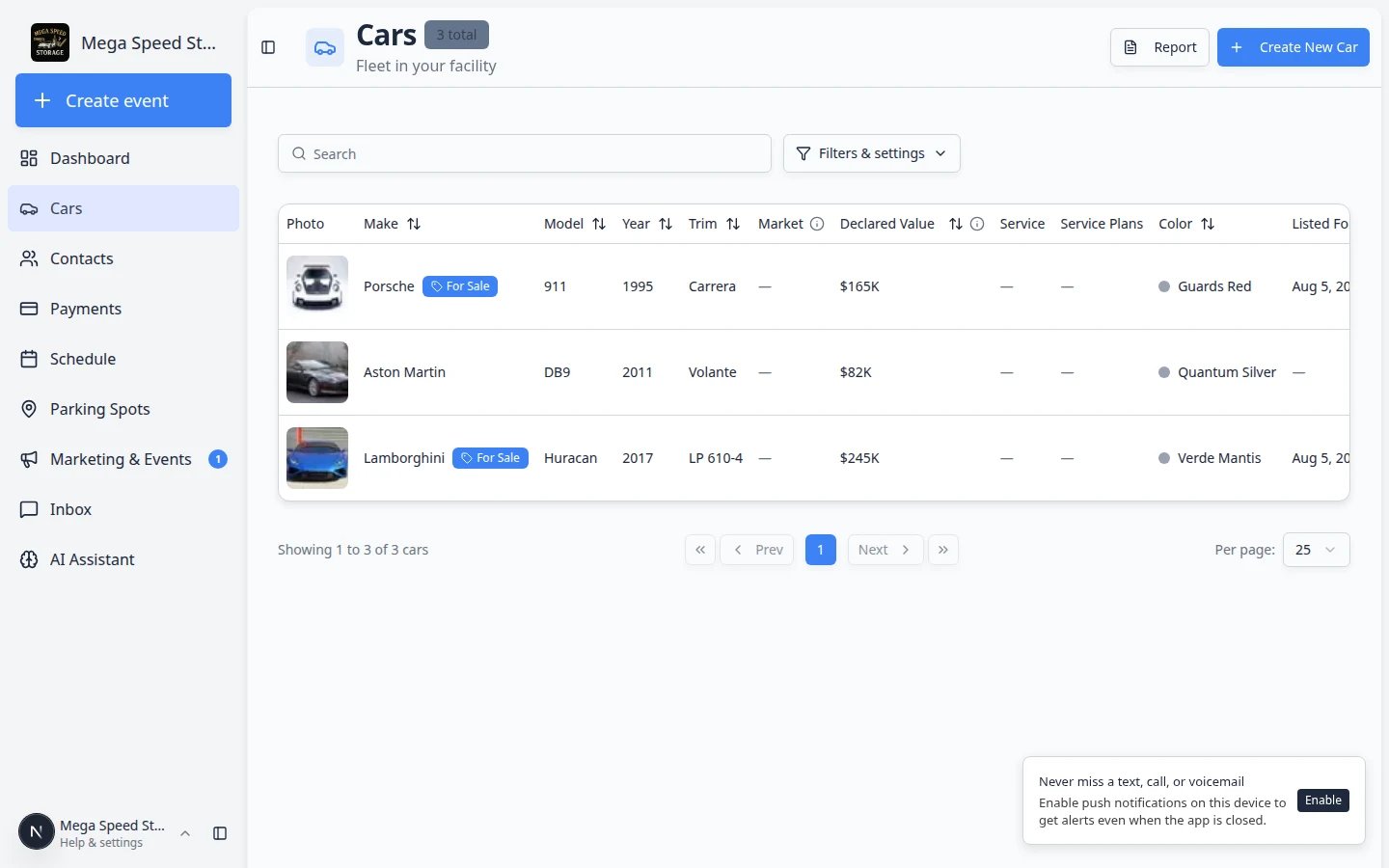 *The Cars table view with sortable columns and filter controls.*
To open a car, click **View** in the **Actions** column (or click the vehicle row when inline edit is off).
## Helpful terms
These words appear often on car records. Knowing them helps your team talk about the same thing:
| Term | What it means |
| - | - |
| **Car record** | The full page for one vehicle—details on the left, **Activity Feed** and **Notes** on the right. |
| **Session** | A structured workflow tied to an event (intake, inspection, delivery, and so on). You complete photos, readings, and checklists inside a session. |
| **Event** | A scheduled or in-progress piece of work on the calendar. It appears as a row in the **Activity Feed**. |
| **Quick task** | A fast internal reminder on a car—not a full calendar appointment with photos. |
| **Quick photo** | A photo walkthrough that starts right away without scheduling a time slot first. |
| **Inline edit** | A table mode on the [Cars list](https://www.carstoragesoftware.com/dashboard/cars) that lets you change fields in the list. Turn it off when you want clicking a row to open the full record. |
| **Zone** | A general parking area (for example **Outdoor Lot**). The car is in that region but may not have an exact numbered spot. |
| **Spot** | One numbered parking position on your floor plan (for example **A1**). |
| **Activity Feed** | The timeline on the right side of a car record—every event, parking move, and status change for that vehicle. |
## The car detail page
Click any vehicle to open its detail page. This single page is the source of truth for everything about the car.
On wide screens, the page is split into two main areas:
* **Vehicle Details** (left) — specs, customer, insurance, registration, service plans, marketplace listing, photos, and readings.
* **Activity Feed** and **Notes** (right) — timeline of work plus internal team notes.
At the top of the page you will also see:
* **Back** — return to the [Cars list](https://www.carstoragesoftware.com/dashboard/cars).
* **Zone:**, **Spot:**, **At vendor:**, or **Assign location** — open the parking assignment dialog.
* **Add** — menu with **Create event**, **Quick task**, **Quick photo**, and **Upload document** (upload requires a linked customer).
* **Market Data** — inside **Vehicle Details**, optional Classic.com price trends when your facility enables them.
* **Adjust** / **Change Photo** — update the banner image when a photo exists.
*The Cars table view with sortable columns and filter controls.*
To open a car, click **View** in the **Actions** column (or click the vehicle row when inline edit is off).
## Helpful terms
These words appear often on car records. Knowing them helps your team talk about the same thing:
| Term | What it means |
| - | - |
| **Car record** | The full page for one vehicle—details on the left, **Activity Feed** and **Notes** on the right. |
| **Session** | A structured workflow tied to an event (intake, inspection, delivery, and so on). You complete photos, readings, and checklists inside a session. |
| **Event** | A scheduled or in-progress piece of work on the calendar. It appears as a row in the **Activity Feed**. |
| **Quick task** | A fast internal reminder on a car—not a full calendar appointment with photos. |
| **Quick photo** | A photo walkthrough that starts right away without scheduling a time slot first. |
| **Inline edit** | A table mode on the [Cars list](https://www.carstoragesoftware.com/dashboard/cars) that lets you change fields in the list. Turn it off when you want clicking a row to open the full record. |
| **Zone** | A general parking area (for example **Outdoor Lot**). The car is in that region but may not have an exact numbered spot. |
| **Spot** | One numbered parking position on your floor plan (for example **A1**). |
| **Activity Feed** | The timeline on the right side of a car record—every event, parking move, and status change for that vehicle. |
## The car detail page
Click any vehicle to open its detail page. This single page is the source of truth for everything about the car.
On wide screens, the page is split into two main areas:
* **Vehicle Details** (left) — specs, customer, insurance, registration, service plans, marketplace listing, photos, and readings.
* **Activity Feed** and **Notes** (right) — timeline of work plus internal team notes.
At the top of the page you will also see:
* **Back** — return to the [Cars list](https://www.carstoragesoftware.com/dashboard/cars).
* **Zone:**, **Spot:**, **At vendor:**, or **Assign location** — open the parking assignment dialog.
* **Add** — menu with **Create event**, **Quick task**, **Quick photo**, and **Upload document** (upload requires a linked customer).
* **Market Data** — inside **Vehicle Details**, optional Classic.com price trends when your facility enables them.
* **Adjust** / **Change Photo** — update the banner image when a photo exists.
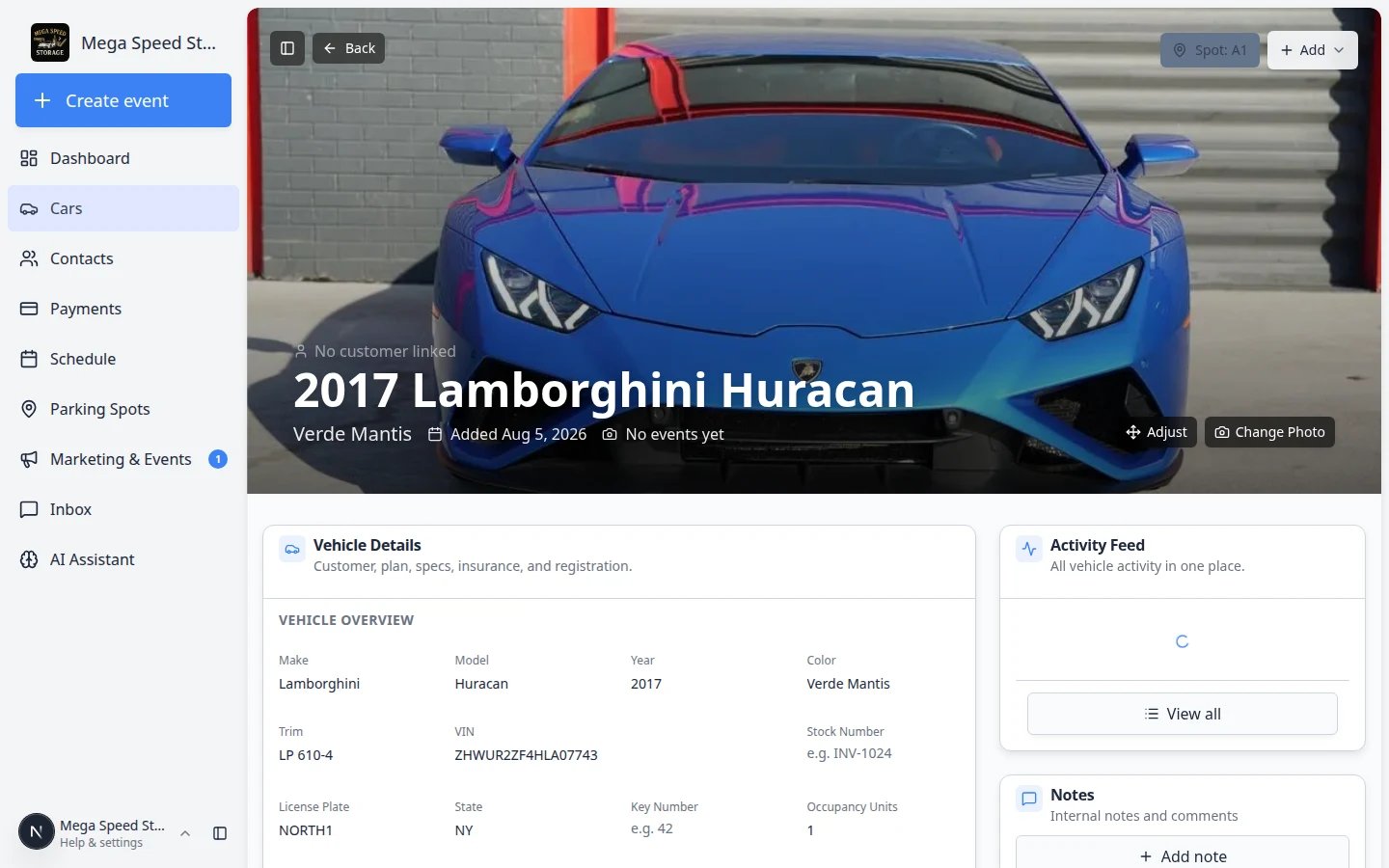 *The car detail page keeps vehicle information, activity, and notes on one screen.*
 *The Activity Feed on the right shows every event, parking move, and status change for this vehicle.*
## How-to guides
Create a new vehicle record with or without a photo intake walkthrough. [Read the guide →](/docs/cars/add-a-car)
Upload many vehicles at once from a CSV or Excel file and link them to customers. [Read the guide →](/docs/cars/import-vehicles-from-a-spreadsheet)
Search by customer, plate, year, make, model, VIN, or tag. Adjust filters, views, columns, and inline editing so the Cars list shows what you need. [Read the guide →](/docs/cars/find-and-filter-cars)
On a phone, tap **Scan** in the bottom bar to open a record from the windshield VIN—or start a new intake when the car is not on file yet. [Read the guide →](/docs/cars/look-up-a-car-by-vin)
Update vehicle information, customer ownership, insurance, registration, declared value, readings, and service details from one car record. [Read the guide →](/docs/cars/view-and-edit-vehicle-details)
Connect recurring care packages so your team sees what work is due. [Read the guide →](/docs/cars/assign-service-plans-on-a-vehicle)
Show which monthly storage or membership charge belongs to this car. [Read the guide →](/docs/cars/link-recurring-billing-to-a-vehicle)
Read price trends and fix the market chart when it points at the wrong vehicle type. [Read the guide →](/docs/cars/review-classic-com-market-data-on-a-vehicle)
Assign or change a vehicle's parking spot or zone inside your facility. [Read the guide →](/docs/cars/move-a-car)
Record when a vehicle is at an outside shop or partner. [Read the guide →](/docs/cars/send-a-car-to-a-vendor)
Reassign spots from a focused page when you are walking the lot or following a link with the car already selected. [Read the guide →](/docs/cars/use-the-move-car-page)
Log aftermarket parts and upgrades with photos and costs so your team shares one inventory list per vehicle. [Read the guide →](/docs/cars/track-parts-modifications-and-accessories)
Schedule an event, run a quick photo session, or continue work already shown in the Activity Feed. [Read the guide →](/docs/cars/start-a-car-session)
Set the banner image, add quick photos, and browse the full gallery. [Read the guide →](/docs/cars/manage-vehicle-photos)
Read the vehicle timeline, internal notes, and photo sections so your team understands what happened and what should happen next. [Read the guide →](/docs/cars/review-car-activity-notes-and-photos)
Search and filter the complete activity timeline when the short feed on the car page is not enough. [Read the guide →](/docs/cars/view-full-vehicle-activity-history)
Permanently remove a car that was created by mistake. Use only when history should not be kept. [Read the guide →](/docs/cars/delete-a-vehicle-record)
## Recommended order for new teams
If your facility is just getting started with vehicle records, use this order:
Create records with [Add a car](/docs/cars/add-a-car), or import many at once with [Import vehicles from a spreadsheet](/docs/cars/import-vehicles-from-a-spreadsheet). Link each vehicle to the correct customer in Contacts when you can.
**Expected result:** Every vehicle in your building appears on [Cars](https://www.carstoragesoftware.com/dashboard/cars) with year, make, model, and (when possible) a linked customer.
Place cars on your floor plan with [Move a car](/docs/cars/move-a-car) so everyone knows where vehicles are parked.
**Expected result:** The header button shows **Zone:** or **Spot:** and the [Parking Spots](https://www.carstoragesoftware.com/dashboard/parking-spots) map matches the real floor.
Document condition and readings with [Start a car session](/docs/cars/start-a-car-session).
**Expected result:** The **Activity Feed** on each car shows completed work with photos and statuses—not only paper notes.
When details change, use [View and edit vehicle details](/docs/cars/view-and-edit-vehicle-details). Attach care packages with [Assign service plans on a vehicle](/docs/cars/assign-service-plans-on-a-vehicle) and monthly charges with [Link recurring billing to a vehicle](/docs/cars/link-recurring-billing-to-a-vehicle). When you need history or photos, use [Review car activity, notes, and photos](/docs/cars/review-car-activity-notes-and-photos) and [Manage vehicle photos](/docs/cars/manage-vehicle-photos).
**Expected result:** Your team can answer customer questions from the record instead of searching email or clipboards.
## Related guides outside Cars
Cars work connects closely with other parts of the dashboard:
* [Contacts](/docs/contacts/overview) — add customers before or while you link cars. Use [Import customers and cars from a spreadsheet](/docs/contacts/import-customers-and-cars) for bulk customer upload.
* [Parking Spots](/docs/parking-spots/overview) — set up your floor plan so [Move a car](/docs/cars/move-a-car) has spots to choose from.
* [Schedule](/docs/schedule/overview) — see facility-wide appointments in addition to each car's **Activity Feed**.
* [Payments](/docs/payments/overview) — invoice storage or service after the car and customer records are correct.
## Common mistakes to avoid
* Do not leave **Inline edit** turned on on the Cars list after you finish quick edits—rows may not open the full record when you click them.
* Do not forget to update the parking assignment when a car physically moves. The map is only useful when it matches reality.
* Do not assume a note was sent to the customer. Notes on the car record are usually for your team only.
## Troubleshooting
**I cannot find a car on the list**
Try a simpler search (plate only or customer last name). Open **Filters & settings** and clear any filters that might be hiding the vehicle—including **Archive status** set to **Active** when the car was archived. If the car was never added, use [Add a car](/docs/cars/add-a-car).
**The parking spot on the record looks wrong**
Open the car and click the **Zone:**, **Spot:**, or **At vendor:** button at the top. Use [Move a car](/docs/cars/move-a-car) for spots inside your building, [Send a car to a vendor location](/docs/cars/send-a-car-to-a-vendor) when the vehicle is at an outside shop, or **Remove** if the vehicle left your care entirely.
## What success looks like
When your Cars section is working well:
* Every vehicle in your building has a car record with correct year, make, model, and customer link.
* Parking spots on car records match where cars actually sit on the [Parking Spots](https://www.carstoragesoftware.com/dashboard/parking-spots) map.
* Intake and service work show up in the **Activity Feed** with clear statuses—not only on paper clipboards.
* Your team can find any car in seconds using search or filters on [Cars](https://www.carstoragesoftware.com/dashboard/cars).
## What to do next
If a vehicle is arriving today, start with [Add a car](/docs/cars/add-a-car). If you are migrating from another system, start with [Import vehicles and photos from a spreadsheet](/docs/cars/import-vehicles-and-photos). If you need a spreadsheet of every record, use [Export your vehicle inventory report](/docs/cars/export-your-vehicle-inventory-report). If a car sold or left storage, see [Archive or restore a vehicle](/docs/cars/archive-or-restore-a-vehicle).
## Related topics
- [Contacts overview](/docs/contacts/overview.md)
- [Events overview](/docs/events/overview.md)
- [Schedule overview](/docs/schedule/overview.md)
- [Payments overview](/docs/payments/overview.md)
- [Contracts overview](/docs/contracts/overview.md)
This documentation is built and hosted on [Mintlify](https://mintlify.com), a developer documentation platform.
*The Activity Feed on the right shows every event, parking move, and status change for this vehicle.*
## How-to guides
Create a new vehicle record with or without a photo intake walkthrough. [Read the guide →](/docs/cars/add-a-car)
Upload many vehicles at once from a CSV or Excel file and link them to customers. [Read the guide →](/docs/cars/import-vehicles-from-a-spreadsheet)
Search by customer, plate, year, make, model, VIN, or tag. Adjust filters, views, columns, and inline editing so the Cars list shows what you need. [Read the guide →](/docs/cars/find-and-filter-cars)
On a phone, tap **Scan** in the bottom bar to open a record from the windshield VIN—or start a new intake when the car is not on file yet. [Read the guide →](/docs/cars/look-up-a-car-by-vin)
Update vehicle information, customer ownership, insurance, registration, declared value, readings, and service details from one car record. [Read the guide →](/docs/cars/view-and-edit-vehicle-details)
Connect recurring care packages so your team sees what work is due. [Read the guide →](/docs/cars/assign-service-plans-on-a-vehicle)
Show which monthly storage or membership charge belongs to this car. [Read the guide →](/docs/cars/link-recurring-billing-to-a-vehicle)
Read price trends and fix the market chart when it points at the wrong vehicle type. [Read the guide →](/docs/cars/review-classic-com-market-data-on-a-vehicle)
Assign or change a vehicle's parking spot or zone inside your facility. [Read the guide →](/docs/cars/move-a-car)
Record when a vehicle is at an outside shop or partner. [Read the guide →](/docs/cars/send-a-car-to-a-vendor)
Reassign spots from a focused page when you are walking the lot or following a link with the car already selected. [Read the guide →](/docs/cars/use-the-move-car-page)
Log aftermarket parts and upgrades with photos and costs so your team shares one inventory list per vehicle. [Read the guide →](/docs/cars/track-parts-modifications-and-accessories)
Schedule an event, run a quick photo session, or continue work already shown in the Activity Feed. [Read the guide →](/docs/cars/start-a-car-session)
Set the banner image, add quick photos, and browse the full gallery. [Read the guide →](/docs/cars/manage-vehicle-photos)
Read the vehicle timeline, internal notes, and photo sections so your team understands what happened and what should happen next. [Read the guide →](/docs/cars/review-car-activity-notes-and-photos)
Search and filter the complete activity timeline when the short feed on the car page is not enough. [Read the guide →](/docs/cars/view-full-vehicle-activity-history)
Permanently remove a car that was created by mistake. Use only when history should not be kept. [Read the guide →](/docs/cars/delete-a-vehicle-record)
## Recommended order for new teams
If your facility is just getting started with vehicle records, use this order:
Create records with [Add a car](/docs/cars/add-a-car), or import many at once with [Import vehicles from a spreadsheet](/docs/cars/import-vehicles-from-a-spreadsheet). Link each vehicle to the correct customer in Contacts when you can.
**Expected result:** Every vehicle in your building appears on [Cars](https://www.carstoragesoftware.com/dashboard/cars) with year, make, model, and (when possible) a linked customer.
Place cars on your floor plan with [Move a car](/docs/cars/move-a-car) so everyone knows where vehicles are parked.
**Expected result:** The header button shows **Zone:** or **Spot:** and the [Parking Spots](https://www.carstoragesoftware.com/dashboard/parking-spots) map matches the real floor.
Document condition and readings with [Start a car session](/docs/cars/start-a-car-session).
**Expected result:** The **Activity Feed** on each car shows completed work with photos and statuses—not only paper notes.
When details change, use [View and edit vehicle details](/docs/cars/view-and-edit-vehicle-details). Attach care packages with [Assign service plans on a vehicle](/docs/cars/assign-service-plans-on-a-vehicle) and monthly charges with [Link recurring billing to a vehicle](/docs/cars/link-recurring-billing-to-a-vehicle). When you need history or photos, use [Review car activity, notes, and photos](/docs/cars/review-car-activity-notes-and-photos) and [Manage vehicle photos](/docs/cars/manage-vehicle-photos).
**Expected result:** Your team can answer customer questions from the record instead of searching email or clipboards.
## Related guides outside Cars
Cars work connects closely with other parts of the dashboard:
* [Contacts](/docs/contacts/overview) — add customers before or while you link cars. Use [Import customers and cars from a spreadsheet](/docs/contacts/import-customers-and-cars) for bulk customer upload.
* [Parking Spots](/docs/parking-spots/overview) — set up your floor plan so [Move a car](/docs/cars/move-a-car) has spots to choose from.
* [Schedule](/docs/schedule/overview) — see facility-wide appointments in addition to each car's **Activity Feed**.
* [Payments](/docs/payments/overview) — invoice storage or service after the car and customer records are correct.
## Common mistakes to avoid
* Do not leave **Inline edit** turned on on the Cars list after you finish quick edits—rows may not open the full record when you click them.
* Do not forget to update the parking assignment when a car physically moves. The map is only useful when it matches reality.
* Do not assume a note was sent to the customer. Notes on the car record are usually for your team only.
## Troubleshooting
**I cannot find a car on the list**
Try a simpler search (plate only or customer last name). Open **Filters & settings** and clear any filters that might be hiding the vehicle—including **Archive status** set to **Active** when the car was archived. If the car was never added, use [Add a car](/docs/cars/add-a-car).
**The parking spot on the record looks wrong**
Open the car and click the **Zone:**, **Spot:**, or **At vendor:** button at the top. Use [Move a car](/docs/cars/move-a-car) for spots inside your building, [Send a car to a vendor location](/docs/cars/send-a-car-to-a-vendor) when the vehicle is at an outside shop, or **Remove** if the vehicle left your care entirely.
## What success looks like
When your Cars section is working well:
* Every vehicle in your building has a car record with correct year, make, model, and customer link.
* Parking spots on car records match where cars actually sit on the [Parking Spots](https://www.carstoragesoftware.com/dashboard/parking-spots) map.
* Intake and service work show up in the **Activity Feed** with clear statuses—not only on paper clipboards.
* Your team can find any car in seconds using search or filters on [Cars](https://www.carstoragesoftware.com/dashboard/cars).
## What to do next
If a vehicle is arriving today, start with [Add a car](/docs/cars/add-a-car). If you are migrating from another system, start with [Import vehicles and photos from a spreadsheet](/docs/cars/import-vehicles-and-photos). If you need a spreadsheet of every record, use [Export your vehicle inventory report](/docs/cars/export-your-vehicle-inventory-report). If a car sold or left storage, see [Archive or restore a vehicle](/docs/cars/archive-or-restore-a-vehicle).
## Related topics
- [Contacts overview](/docs/contacts/overview.md)
- [Events overview](/docs/events/overview.md)
- [Schedule overview](/docs/schedule/overview.md)
- [Payments overview](/docs/payments/overview.md)
- [Contracts overview](/docs/contracts/overview.md)
This documentation is built and hosted on [Mintlify](https://mintlify.com), a developer documentation platform.