> ## Documentation Index
> Fetch the complete documentation index at: https://www.carstoragesoftware.com/docs/llms.txt
> Use this file to discover all available pages before exploring further.
# Review car activity, notes, and photos
> Understand what has happened with a vehicle by reading its activity history, notes, and photo sections.
Use a car's activity, notes, and photos when you need to understand the vehicle's history before taking the next step.
This guide shows you where to look, what each section means, and how to use the information without confusing internal notes with customer-facing updates.
## What you will accomplish
You will read the car's timeline, internal notes, and photos so you can answer customer questions or plan the next step without guessing.
**Expected outcome:** You know what work already happened, what is still scheduled, what your team wrote down internally, and which photos belong to which event.
## When to use this guide
Use these steps when:
* A customer asks what happened during a recent inspection, intake, pickup, or delivery.
* A teammate needs context before moving, servicing, or releasing a car.
* You want to check whether photos or notes were added during an event.
* You need to see whether a car has upcoming or previous work.
## Before you start
* Open the correct car from [Cars](https://www.carstoragesoftware.com/dashboard/cars).
* If you are not sure which car to open, use [Find and filter cars](/docs/cars/find-and-filter-cars).
* Remember that notes may be internal. Do not copy internal notes to a customer unless your team has confirmed they are appropriate to share.
## Read the Activity Feed
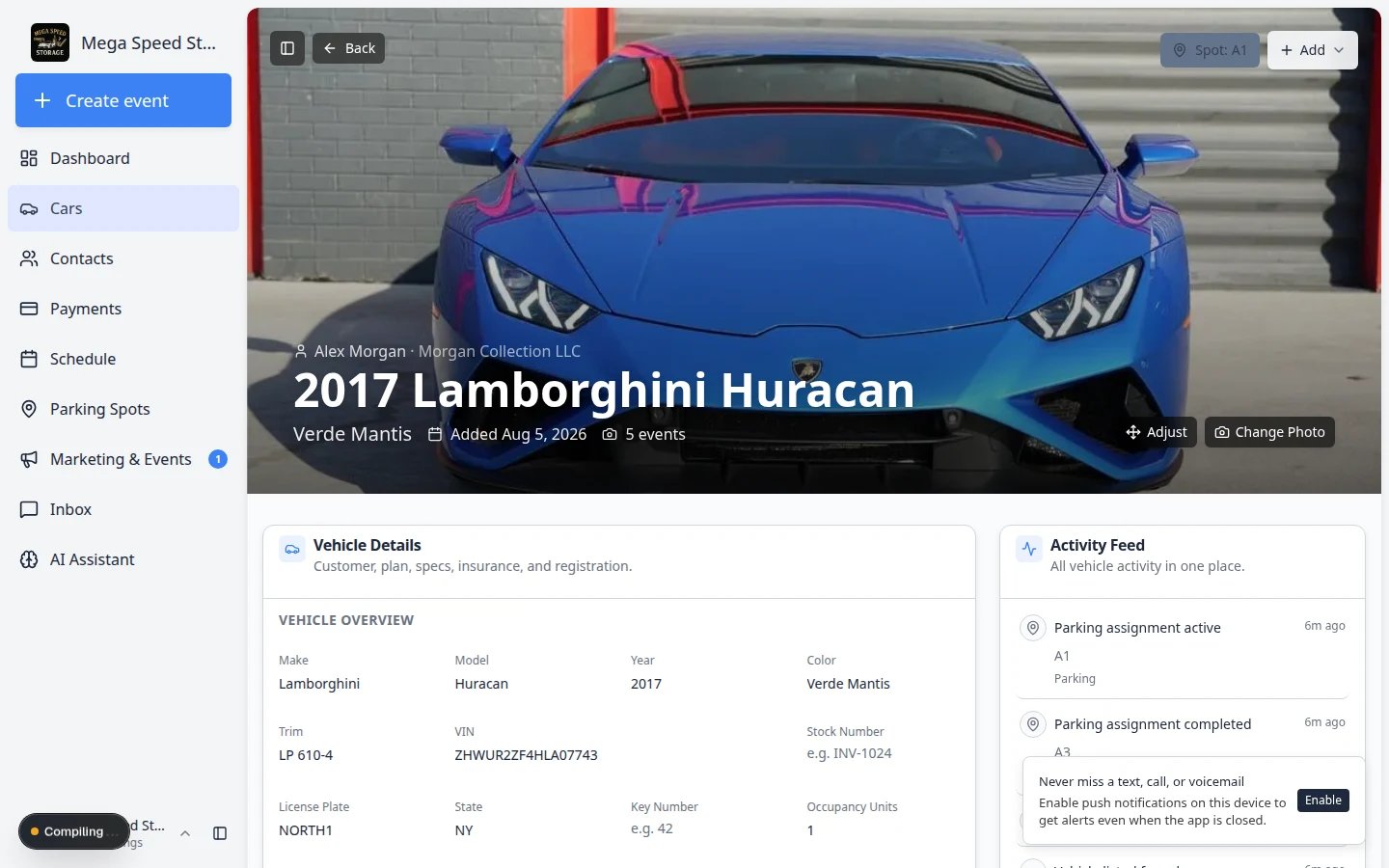
The **Activity Feed** is the car's timeline. It helps your team answer, "What has happened with this car?"
On wide screens, the Activity Feed appears on the right side of the car detail page. On smaller screens, scroll down past **Vehicle Details** to find it.
Go to [Cars](https://www.carstoragesoftware.com/dashboard/cars) and click **View** on the vehicle.
**Expected result:** The car detail page loads with **Activity Feed** visible on the right or below the main details.
Look for the card titled **Activity Feed** with the subtitle "All vehicle activity in one place."
Each row may show:
* The **event name** (for example, dealer service, internal service, or vehicle transport)
* The **date or time**
* The **status** (scheduled, in progress, or complete)
* Short summaries such as parking changes, listing updates, or completed work
Read the newest rows first when you need a quick answer about recent work.
**Why this matters:** Status labels tell you whether work is still planned, happening now, or already finished. Do not tell a customer a job is done if the row still says **Scheduled** or **In progress**.
Click an activity row when you need the full story — every photo, reading, signature, and checklist answer from that session.
**Expected outcome:** A detail window or page opens. You can see the scheduled time, assigned staff, vehicle, customer, status, and any notes tied to that event.
**Why this matters:** The feed shows a short summary. The event detail shows everything your team captured during that visit.
If many events exist, click **View all** or **View more activity** at the bottom of the feed to see the full history in one place.
**Expected result:** A larger list opens with search and filters so you can scroll through every parking move, service visit, and listing change for this car.
For a full walkthrough of that page, read [View full vehicle activity history](/docs/cars/view-full-vehicle-activity-history).
## Open the full Vehicle activity page
When the short **Activity Feed** on the car detail page is not enough, open the dedicated **Vehicle activity** page for the same car. This page is built for deep searches across months of history.
Open the car from [Cars](https://www.carstoragesoftware.com/dashboard/cars). On the **Activity Feed** card, click **View all** or **View more activity**—or go directly to the activity page for this vehicle using the link pattern `/dashboard/cars/[car id]/activity` (your browser will show the real car ID in the address bar after you open it once).
On the **Vehicle activity** page, use the search box to find a keyword (for example **intake**, **transport**, or a teammate's name). Use filters to narrow by activity type or date range when available.
**Why this matters:** A collector may ask what happened six months ago. The full activity page keeps that history in one searchable list instead of scrolling a short feed.
Click an activity row to see photos, readings, signatures, and notes from that session—same as opening an event from the short feed.
**Expected outcome:** You can answer detailed customer questions without opening [Schedule](https://www.carstoragesoftware.com/dashboard/schedule) and hunting through the whole facility calendar.
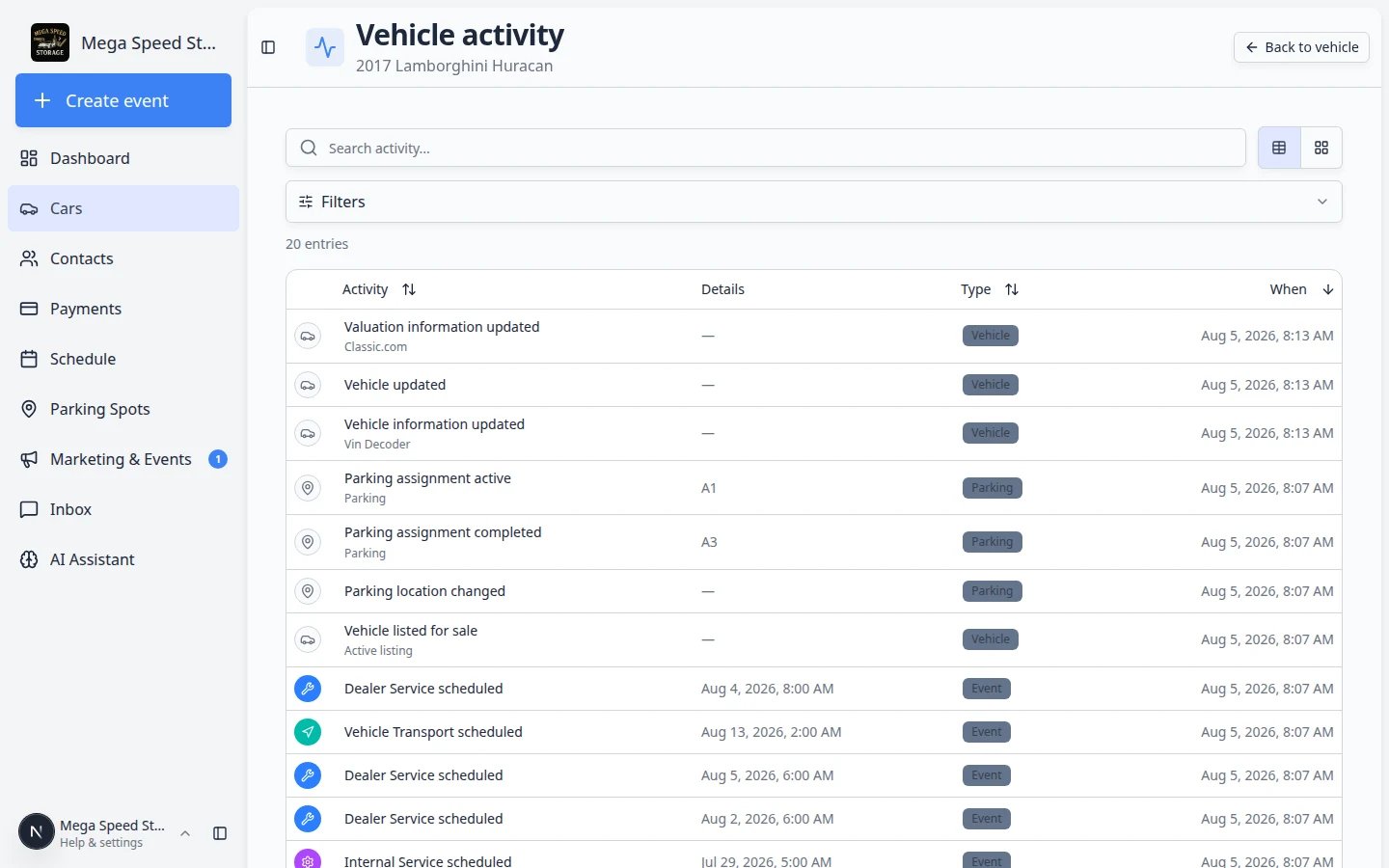 *The Vehicle activity page shows every event, parking move, and billing change for one car—with search when the short Activity Feed is not enough.*
 *Each row in the Activity Feed shows what happened and its status. Parking moves, service appointments, and listing updates all appear here.*
 *The Activity Feed and Notes sit together so your team sees recent work and internal comments on one screen.*
## Parking moves appear in the Activity Feed too
When staff assign or move a car on the [Parking Spots](https://www.carstoragesoftware.com/dashboard/parking-spots) map—or from the car record—the change often shows up as its own line in the **Activity Feed**.
Scroll the feed for lines that mention a spot name, zone name, or a move between locations.
**Expected result:** You can see when the car last changed spots without opening the parking map.
If a customer says “You moved my car without telling me,” click the parking row to see the date and time the system recorded the move.
**Why this matters:** The feed timestamp is your team's shared record of when the assignment changed—not when someone remembered to update it later.
When the feed shows the wrong spot, follow [Move a car](/docs/cars/move-a-car) to correct the record. Teach floor staff to update the app during the physical move so the feed stays trustworthy.
**Activity Feed vs Parking Spots map**
The **Activity Feed** tells the story for **this car**. The [Parking Spots](https://www.carstoragesoftware.com/dashboard/parking-spots) map shows **every car** in the building right now. Use both when a customer asks about their vehicle specifically versus “what is in bay A today?”
## Understand activity status
Statuses tell you where an event stands. Look at the label on each row before you promise a customer that work is finished.
*The Activity Feed and Notes sit together so your team sees recent work and internal comments on one screen.*
## Parking moves appear in the Activity Feed too
When staff assign or move a car on the [Parking Spots](https://www.carstoragesoftware.com/dashboard/parking-spots) map—or from the car record—the change often shows up as its own line in the **Activity Feed**.
Scroll the feed for lines that mention a spot name, zone name, or a move between locations.
**Expected result:** You can see when the car last changed spots without opening the parking map.
If a customer says “You moved my car without telling me,” click the parking row to see the date and time the system recorded the move.
**Why this matters:** The feed timestamp is your team's shared record of when the assignment changed—not when someone remembered to update it later.
When the feed shows the wrong spot, follow [Move a car](/docs/cars/move-a-car) to correct the record. Teach floor staff to update the app during the physical move so the feed stays trustworthy.
**Activity Feed vs Parking Spots map**
The **Activity Feed** tells the story for **this car**. The [Parking Spots](https://www.carstoragesoftware.com/dashboard/parking-spots) map shows **every car** in the building right now. Use both when a customer asks about their vehicle specifically versus “what is in bay A today?”
## Understand activity status
Statuses tell you where an event stands. Look at the label on each row before you promise a customer that work is finished.
 *Click any activity row to open the full event detail. Check status, time, and notes before you reply to a customer.*
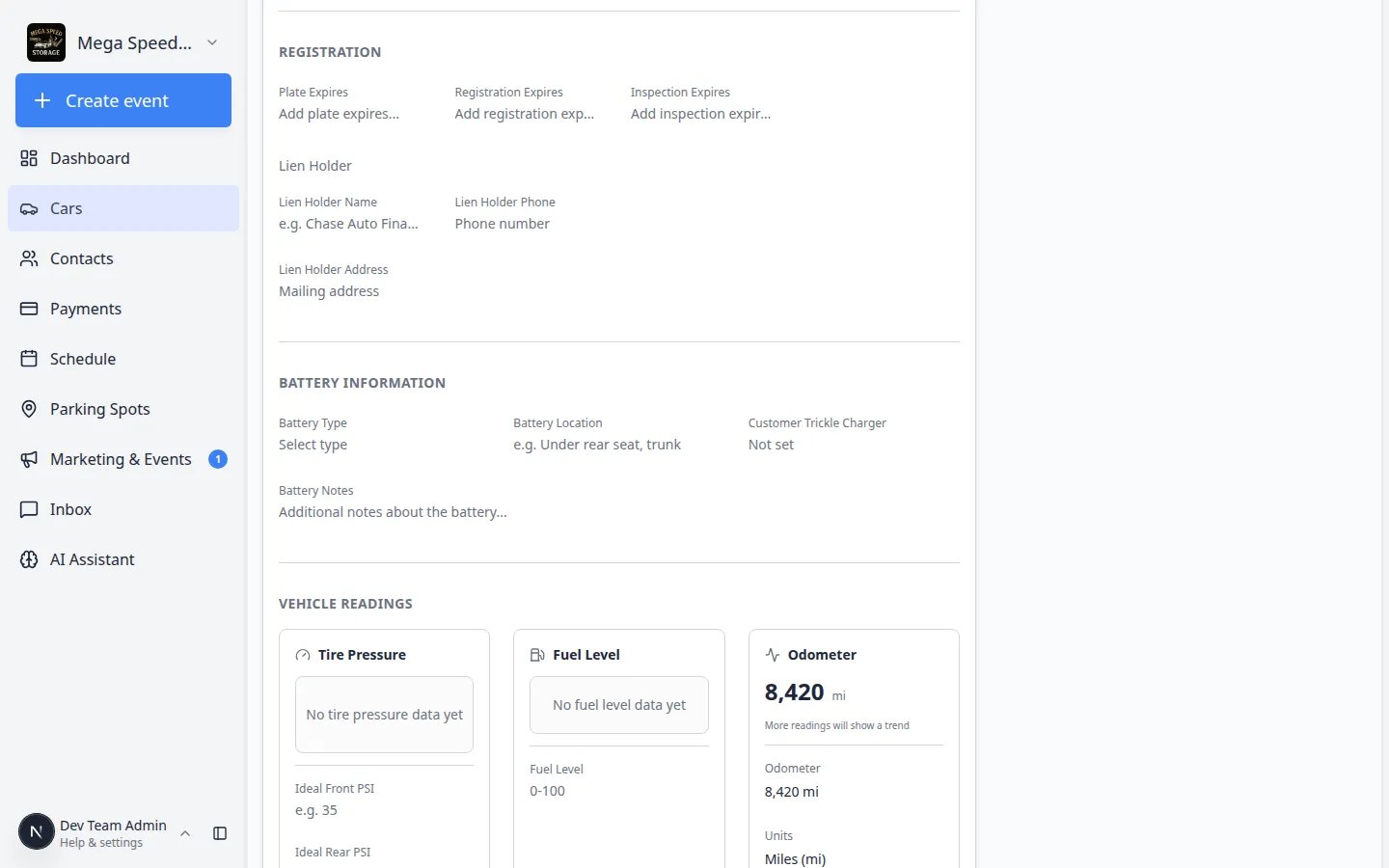 *Use View all when the short feed is not enough. Search and scroll through the complete history for this vehicle.*
Common meanings:
* **Scheduled** means the work is planned but has not happened yet.
* **In progress** means someone started the workflow but has not finished it.
* **Completed** means the event was finished and saved.
* **Cancelled** means the event will not happen.
Your team may also see parking moves, valuation updates, and marketplace changes mixed in with service events. If you are unsure what a status means, ask your team admin or manager.
## Review internal notes
Notes help teammates share context without relying on memory.
Below the **Activity Feed** card, look for the **Notes** card with the subtitle "Internal notes and comments."
Notes usually show the most recent context near the top. Read enough history to understand the current situation.
Click **Add note**. A window opens where you can type your message and choose who can see it.
**Why this matters:** Notes stay on the car record for your team. They are not automatically sent to the customer unless you choose **Customer visible**.
At the top of the note window, pick one option:
* **Customer visible** — the customer can see this note in their portal (use only for information you are comfortable sharing).
* **Internal only** — only your staff see the note (default for shop talk, pricing, or sensitive details).
**Expected result:** The toggle shows which option is selected before you save.
Type your note, then save it. Confirm the new note appears in the **Notes** list with today's date.
**Expected outcome:** The next teammate who opens this car sees your note—and the customer sees it too only if you picked **Customer visible**.
*Use View all when the short feed is not enough. Search and scroll through the complete history for this vehicle.*
Common meanings:
* **Scheduled** means the work is planned but has not happened yet.
* **In progress** means someone started the workflow but has not finished it.
* **Completed** means the event was finished and saved.
* **Cancelled** means the event will not happen.
Your team may also see parking moves, valuation updates, and marketplace changes mixed in with service events. If you are unsure what a status means, ask your team admin or manager.
## Review internal notes
Notes help teammates share context without relying on memory.
Below the **Activity Feed** card, look for the **Notes** card with the subtitle "Internal notes and comments."
Notes usually show the most recent context near the top. Read enough history to understand the current situation.
Click **Add note**. A window opens where you can type your message and choose who can see it.
**Why this matters:** Notes stay on the car record for your team. They are not automatically sent to the customer unless you choose **Customer visible**.
At the top of the note window, pick one option:
* **Customer visible** — the customer can see this note in their portal (use only for information you are comfortable sharing).
* **Internal only** — only your staff see the note (default for shop talk, pricing, or sensitive details).
**Expected result:** The toggle shows which option is selected before you save.
Type your note, then save it. Confirm the new note appears in the **Notes** list with today's date.
**Expected outcome:** The next teammate who opens this car sees your note—and the customer sees it too only if you picked **Customer visible**.
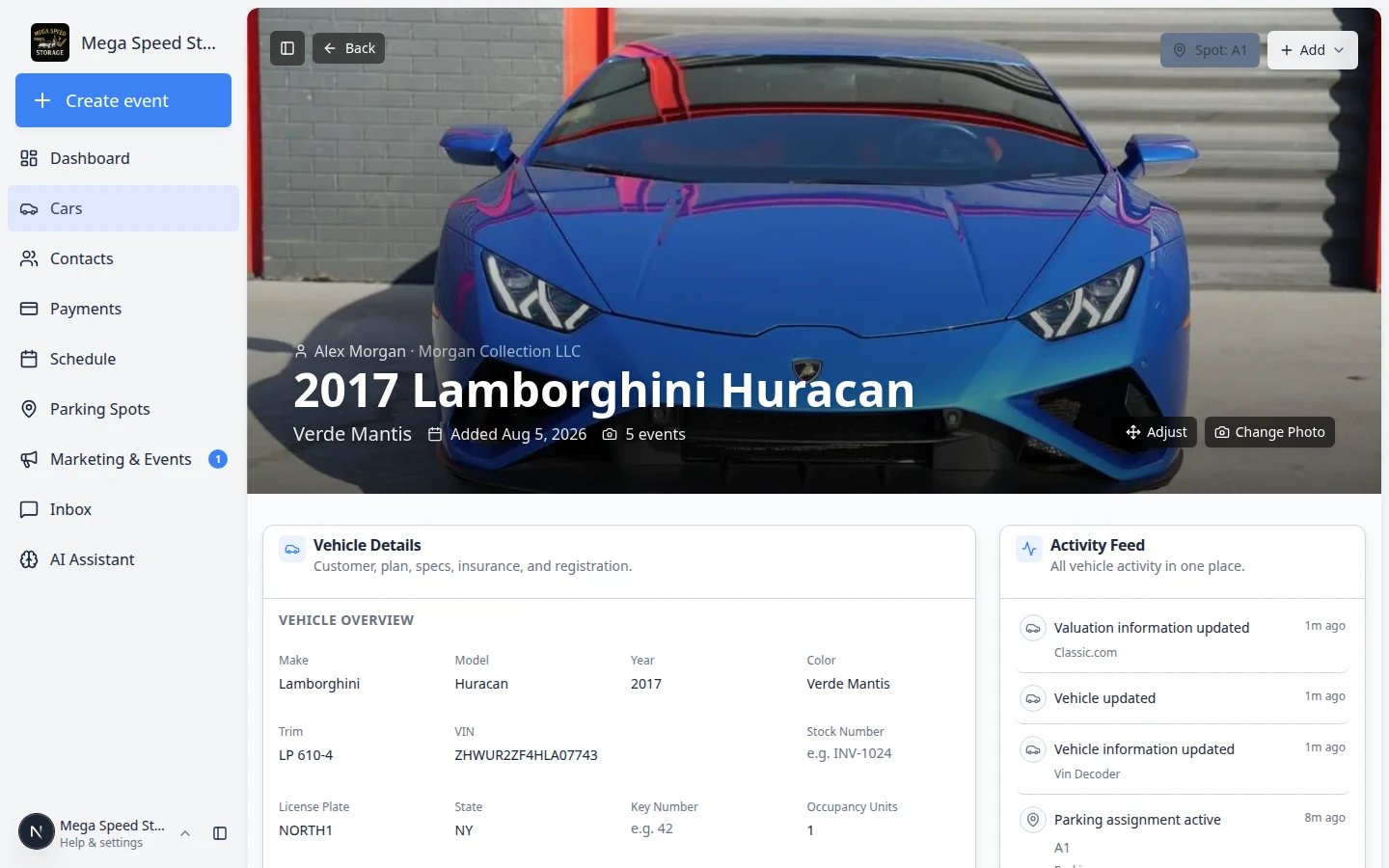 *Choose Customer visible only when the customer should read the note in their portal. Use Internal only for shop handoffs and sensitive details.*
## Write useful notes
Good notes help the next teammate take action.
* Write what matters for the next step, not every small detail.
* Use clear names and dates when helpful.
* Explain special handling instructions, customer preferences, or follow-up needs.
* Keep the tone professional, even for internal notes.
**Example note**
"Customer prefers the battery tender connected whenever the car returns to storage."
## Find documents uploaded for this car
Insurance scans, signed contracts, and registration files usually live on the **customer** record even when you start the upload from a car.
On the car detail page, click the customer name at the top of the banner (or open the **CUSTOMER** block in **Vehicle Details**).
**Expected result:** You open the customer record in [Contacts](https://www.carstoragesoftware.com/dashboard/contacts).
On the customer page, find the documents or files section your facility uses. Browse for insurance, registration, or contract files linked to this vehicle.
**Why this matters:** Customers often email “Can you send my insurance card?” The answer may already be in the system from intake—you do not need to ask them to resend it.
If nothing is on file yet, return to the car and use **Add → Upload document**. See [View and edit vehicle details](/docs/cars/view-and-edit-vehicle-details) or [Start a car session](/docs/cars/start-a-car-session).
## Review photos
Photos appear when they were captured during a session (such as intake or inspection) or added to the car record another way.
Inside the **Vehicle Details** section, scroll until you see **Latest Photos**. If the car has recent images, you will see small thumbnails with a count of how many came from the most recent activity.
Click a thumbnail to open a larger view. Use this when a customer asks about condition, when you need to verify a VIN or odometer photo, or when you are comparing before-and-after damage.
If you need to know *why* a photo was taken, open the related row in the **Activity Feed**. The session page shows every photo from that event in order.
**Expected outcome:** You can answer customer questions with confidence because you saw the actual images tied to the work.
Below the thumbnails, click **view all** when you need every image from every session—not only the latest batch. See [Manage vehicle photos](/docs/cars/manage-vehicle-photos) for filters, damage search, and banner images.
*Choose Customer visible only when the customer should read the note in their portal. Use Internal only for shop handoffs and sensitive details.*
## Write useful notes
Good notes help the next teammate take action.
* Write what matters for the next step, not every small detail.
* Use clear names and dates when helpful.
* Explain special handling instructions, customer preferences, or follow-up needs.
* Keep the tone professional, even for internal notes.
**Example note**
"Customer prefers the battery tender connected whenever the car returns to storage."
## Find documents uploaded for this car
Insurance scans, signed contracts, and registration files usually live on the **customer** record even when you start the upload from a car.
On the car detail page, click the customer name at the top of the banner (or open the **CUSTOMER** block in **Vehicle Details**).
**Expected result:** You open the customer record in [Contacts](https://www.carstoragesoftware.com/dashboard/contacts).
On the customer page, find the documents or files section your facility uses. Browse for insurance, registration, or contract files linked to this vehicle.
**Why this matters:** Customers often email “Can you send my insurance card?” The answer may already be in the system from intake—you do not need to ask them to resend it.
If nothing is on file yet, return to the car and use **Add → Upload document**. See [View and edit vehicle details](/docs/cars/view-and-edit-vehicle-details) or [Start a car session](/docs/cars/start-a-car-session).
## Review photos
Photos appear when they were captured during a session (such as intake or inspection) or added to the car record another way.
Inside the **Vehicle Details** section, scroll until you see **Latest Photos**. If the car has recent images, you will see small thumbnails with a count of how many came from the most recent activity.
Click a thumbnail to open a larger view. Use this when a customer asks about condition, when you need to verify a VIN or odometer photo, or when you are comparing before-and-after damage.
If you need to know *why* a photo was taken, open the related row in the **Activity Feed**. The session page shows every photo from that event in order.
**Expected outcome:** You can answer customer questions with confidence because you saw the actual images tied to the work.
Below the thumbnails, click **view all** when you need every image from every session—not only the latest batch. See [Manage vehicle photos](/docs/cars/manage-vehicle-photos) for filters, damage search, and banner images.
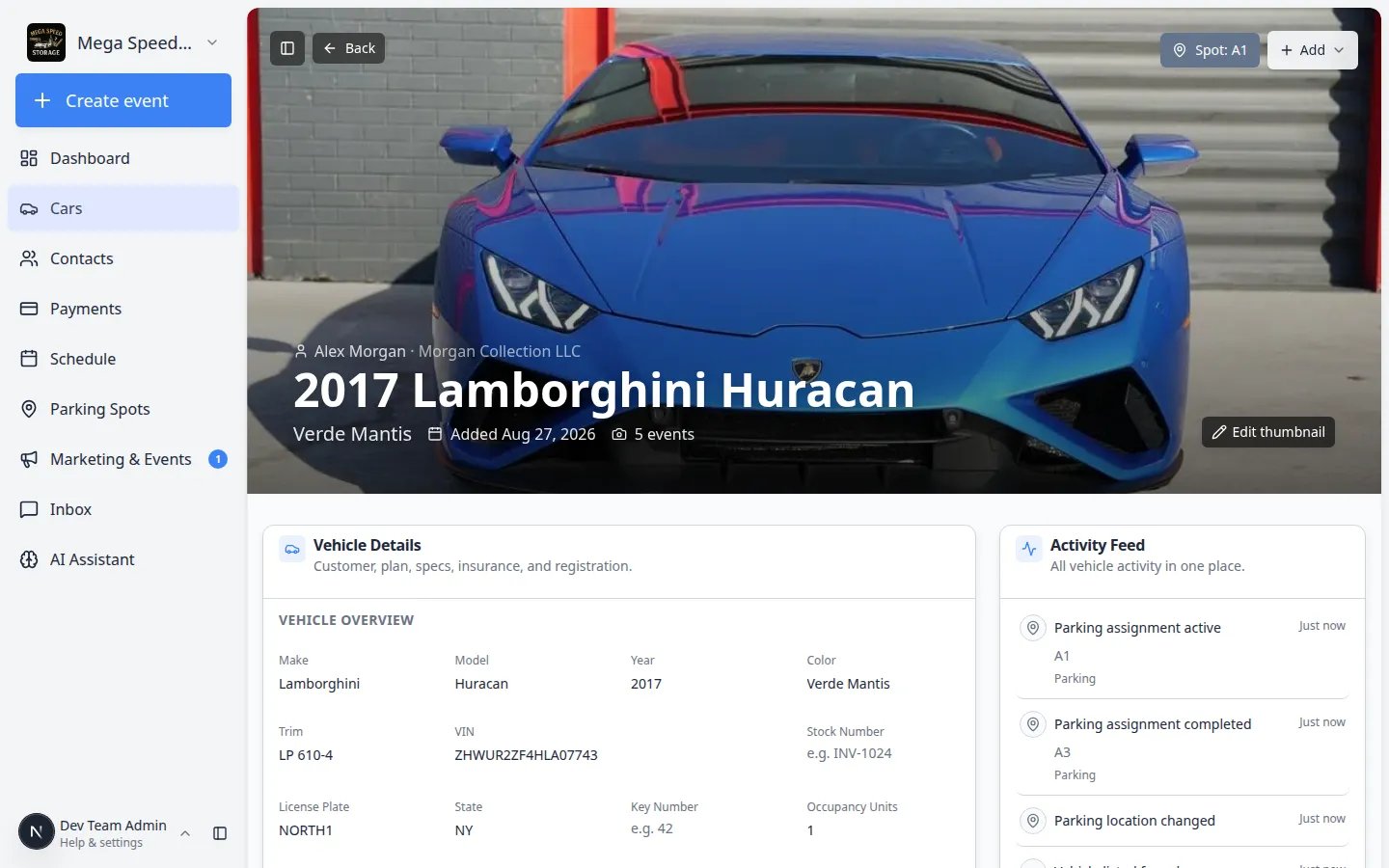 *Latest Photos inside Vehicle Details shows recent images. Open the related activity for the full set from each session.*
**If you do not see photos**
Some cars may not have photos yet. Use **Add → Quick photo** on the car banner, or see [Manage vehicle photos](/docs/cars/manage-vehicle-photos) for banner, gallery, and quick photo workflows.
## Find documents linked to this car
Uploaded insurance cards, registration scans, and signed contracts are usually stored on the **customer** record, not inside the car's photo gallery.
On the car banner, click the customer name—or scroll to the **CUSTOMER** block in **Vehicle Details** and open the customer from there.
On the customer record, find **Documents** or **Documents & Contracts** (the exact label may vary). This section lists files linked to that customer and, when applicable, to this car.
If you are standing at the vehicle with a file in hand, you can also use **Add → Upload document** on the car banner. See [Start a car session](/docs/cars/start-a-car-session) or [Upload a document for a customer](/docs/contracts/upload-a-document-for-a-customer).
**Expected outcome:** The file appears on the customer record and is linked to the correct car when you chose a car-specific document type.
**Activity Feed vs Schedule page**
The **Activity Feed** on a car shows work tied to that vehicle. The [Schedule](https://www.carstoragesoftware.com/dashboard/schedule) page shows everything happening at your facility on one calendar. Use both when a customer asks about their car specifically versus "what is the shop doing today?"
## What success looks like
After reviewing activity, notes, and photos:
* You understand the most recent work or upcoming work for the car.
* You know whether there are internal notes your team should consider.
* You can find photos or know why none are available.
* You can take the next step with more confidence.
## Common mistakes to avoid
* Do not assume a note was sent to the customer. Check whether the note was saved as **Customer visible** or **Internal only**.
* Do not rely on memory when a note should be added. If the next teammate needs to know it, write it down.
* Do not treat an unfinished session as complete. Check the status before promising a customer that work is done.
* Do not share photos outside your team unless your facility's policy allows it.
## Troubleshooting
**I expected to see an event, but it is missing**
Check the [Schedule](https://www.carstoragesoftware.com/dashboard/schedule) page to confirm the event was created for the correct car. If the event is attached to another car or customer, ask a manager before changing records.
**A note is unclear**
Ask the teammate who wrote it or add a new clarifying note. Avoid deleting useful history unless your team has a clear reason.
**Photos are missing from an event**
Open the event or session and check whether the photo step was completed. If the session is still in progress, finish or review the workflow before assuming the photos are gone.
## What to do next
* Open the full gallery with [Manage vehicle photos](/docs/cars/manage-vehicle-photos).
* If details on the record are wrong, fix them with [View and edit vehicle details](/docs/cars/view-and-edit-vehicle-details).
* If the car needs new work, use [Start a car session](/docs/cars/start-a-car-session).
* If the car moved since the last note, update the spot with [Move a car](/docs/cars/move-a-car).
* To see the same event on the facility calendar, open [Schedule](https://www.carstoragesoftware.com/dashboard/schedule).
## Related topics
- [Manage vehicle photos](/docs/cars/manage-vehicle-photos.md)
- [View full vehicle activity history](/docs/cars/view-full-vehicle-activity-history.md)
- [Cars overview](/docs/cars/overview.md)
- [Start a car session](/docs/cars/start-a-car-session.md)
- [Look up a car by VIN](/docs/cars/look-up-a-car-by-vin.md)
This documentation is built and hosted on [Mintlify](https://mintlify.com), a developer documentation platform.
*Latest Photos inside Vehicle Details shows recent images. Open the related activity for the full set from each session.*
**If you do not see photos**
Some cars may not have photos yet. Use **Add → Quick photo** on the car banner, or see [Manage vehicle photos](/docs/cars/manage-vehicle-photos) for banner, gallery, and quick photo workflows.
## Find documents linked to this car
Uploaded insurance cards, registration scans, and signed contracts are usually stored on the **customer** record, not inside the car's photo gallery.
On the car banner, click the customer name—or scroll to the **CUSTOMER** block in **Vehicle Details** and open the customer from there.
On the customer record, find **Documents** or **Documents & Contracts** (the exact label may vary). This section lists files linked to that customer and, when applicable, to this car.
If you are standing at the vehicle with a file in hand, you can also use **Add → Upload document** on the car banner. See [Start a car session](/docs/cars/start-a-car-session) or [Upload a document for a customer](/docs/contracts/upload-a-document-for-a-customer).
**Expected outcome:** The file appears on the customer record and is linked to the correct car when you chose a car-specific document type.
**Activity Feed vs Schedule page**
The **Activity Feed** on a car shows work tied to that vehicle. The [Schedule](https://www.carstoragesoftware.com/dashboard/schedule) page shows everything happening at your facility on one calendar. Use both when a customer asks about their car specifically versus "what is the shop doing today?"
## What success looks like
After reviewing activity, notes, and photos:
* You understand the most recent work or upcoming work for the car.
* You know whether there are internal notes your team should consider.
* You can find photos or know why none are available.
* You can take the next step with more confidence.
## Common mistakes to avoid
* Do not assume a note was sent to the customer. Check whether the note was saved as **Customer visible** or **Internal only**.
* Do not rely on memory when a note should be added. If the next teammate needs to know it, write it down.
* Do not treat an unfinished session as complete. Check the status before promising a customer that work is done.
* Do not share photos outside your team unless your facility's policy allows it.
## Troubleshooting
**I expected to see an event, but it is missing**
Check the [Schedule](https://www.carstoragesoftware.com/dashboard/schedule) page to confirm the event was created for the correct car. If the event is attached to another car or customer, ask a manager before changing records.
**A note is unclear**
Ask the teammate who wrote it or add a new clarifying note. Avoid deleting useful history unless your team has a clear reason.
**Photos are missing from an event**
Open the event or session and check whether the photo step was completed. If the session is still in progress, finish or review the workflow before assuming the photos are gone.
## What to do next
* Open the full gallery with [Manage vehicle photos](/docs/cars/manage-vehicle-photos).
* If details on the record are wrong, fix them with [View and edit vehicle details](/docs/cars/view-and-edit-vehicle-details).
* If the car needs new work, use [Start a car session](/docs/cars/start-a-car-session).
* If the car moved since the last note, update the spot with [Move a car](/docs/cars/move-a-car).
* To see the same event on the facility calendar, open [Schedule](https://www.carstoragesoftware.com/dashboard/schedule).
## Related topics
- [Manage vehicle photos](/docs/cars/manage-vehicle-photos.md)
- [View full vehicle activity history](/docs/cars/view-full-vehicle-activity-history.md)
- [Cars overview](/docs/cars/overview.md)
- [Start a car session](/docs/cars/start-a-car-session.md)
- [Look up a car by VIN](/docs/cars/look-up-a-car-by-vin.md)
This documentation is built and hosted on [Mintlify](https://mintlify.com), a developer documentation platform.