> ## Documentation Index
> Fetch the complete documentation index at: https://www.carstoragesoftware.com/docs/llms.txt
> Use this file to discover all available pages before exploring further.
# Edit customer details
> Update customer contact information, CRM fields, notes, and account status from the customer detail page.
Use this guide when a customer's contact information, CRM stage, tags, or account status needs to change.
You might open a customer record to:
* Fix a typo in an email or phone number before sending an invoice or portal invite.
* Move someone from **lead** to **active customer** after they sign a storage agreement.
* Mark a customer **Inactive** when they pause storage but you want to keep their history.
* Add a team note so the next person on the phone knows how this customer prefers to communicate.
**When to use a different guide**
* Adding a **spouse or assistant** → [Manage additional contacts](/docs/contacts/manage-additional-contacts)
* **Tags, pipeline stage, or customer type** → [Manage contact tags and CRM fields](/docs/contacts/manage-contact-tags)
* **Payment setup** on the record → [Manage billing on a customer record](/docs/contacts/manage-billing-on-a-customer-record)
## What you will accomplish
You will update the customer record safely so your team keeps accurate history for billing, cars, documents, and portal access. Small edits now prevent wrong emails, missing portal access, and confused customers later.
Customer details change over time. A customer may get a new email address, add a company name, change phone numbers, move to a new address, or move from lead to active customer.
## Before you start
* Confirm you are editing the correct customer. Search by email or phone if two names look similar.
* Have the new information ready before you start.
* If you are changing an email address, remember that portal sign-in and invitations use email.
* If the customer has cars, invoices, or documents, review those connections after major changes.
## Open the customer detail page
Open [All Contacts](https://www.carstoragesoftware.com/dashboard/contacts/all).
**Expected result:** You see your customer list (usually in **Table** view).
Use the **Search** field to find the customer by name, email, phone, or company.
**Why this matters:** Two customers with similar names are easy to mix up. Search by email or phone when names match.
Click the customer **row** or **View Details**.
**Expected result:** The customer detail page opens. You can edit most fields on this page without a separate "edit mode."
 *The top of the customer detail page includes the customer's main contact information.*
## Edit personal and contact information
Most fields on the customer detail page can be edited directly.
The **Personal & Contact** section is near the top of the customer detail page.
Click the value for fields such as name, email, phone, company, address, birthday, or notes.
Type the correct value. Use the full email address and a complete phone number when possible.
Follow the on-screen save action for that field. After saving, the new value appears on the page.
*The top of the customer detail page includes the customer's main contact information.*
## Edit personal and contact information
Most fields on the customer detail page can be edited directly.
The **Personal & Contact** section is near the top of the customer detail page.
Click the value for fields such as name, email, phone, company, address, birthday, or notes.
Type the correct value. Use the full email address and a complete phone number when possible.
Follow the on-screen save action for that field. After saving, the new value appears on the page.
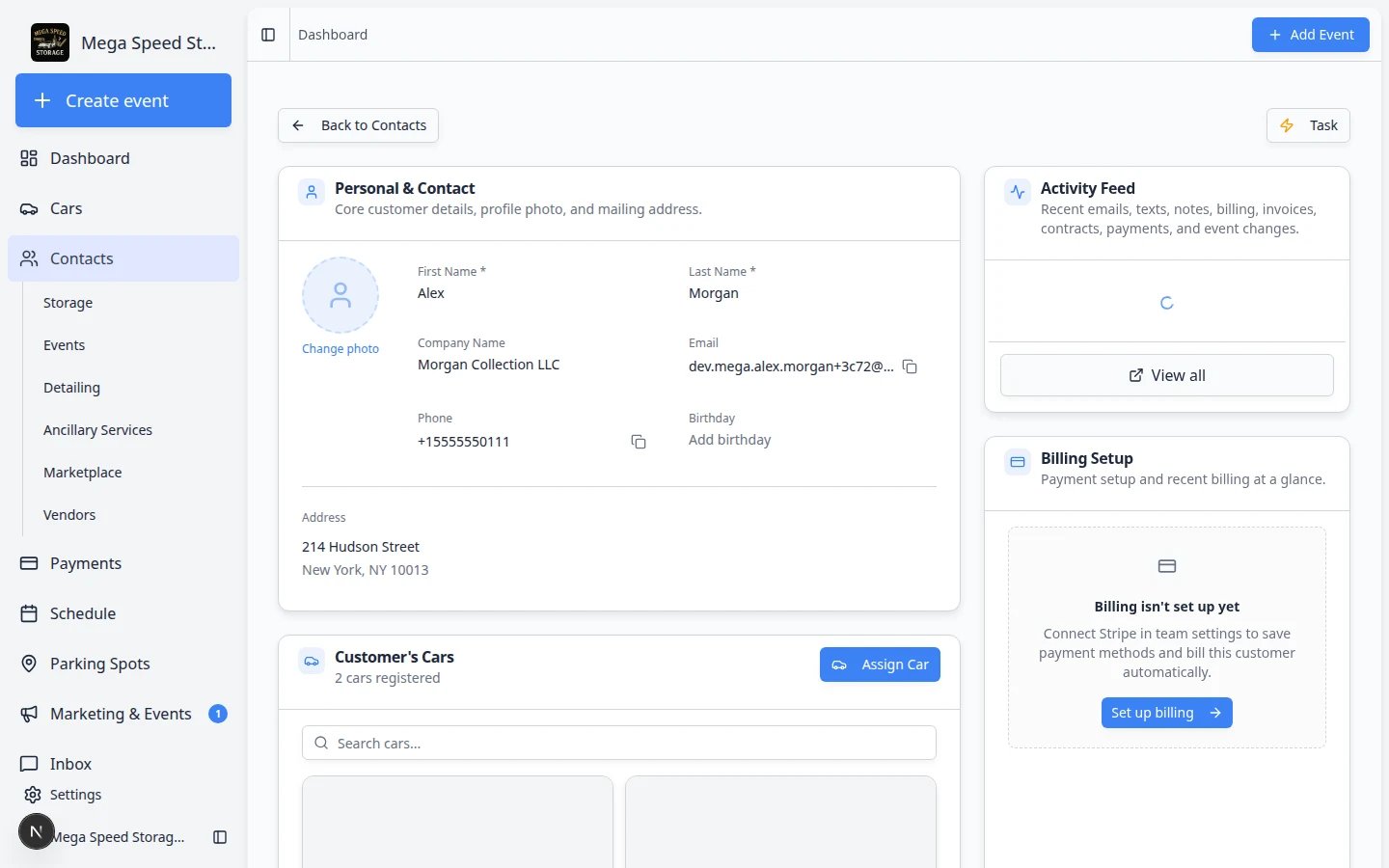 *Click a field to edit it directly on the customer detail page. You do not need to open a separate edit screen for most contact details.*
**Changing the email address**
The email address is used for portal invites, invoices, contracts, and many customer messages. After changing an email, resend any needed portal invite or document link to the new address.
## Understand Relationship Stage vs pipeline stage
Your customer record has two related but different fields:
| Field | What it means | Example values |
| - | - | - |
| **Relationship Stage** | The big picture: is this person a lead, an active customer, or a former customer? | Lead, Customer, Former Customer |
| **Current Stage** (pipeline) | Where they are inside your sales or onboarding process right now | Tour Scheduled, Contract Sent, Active Storage |
**Why this matters:** Pipeline stages you can pick in **Current Stage** depend on the **Relationship Stage**. If you need a stage that is missing from the dropdown, check both fields—or ask an admin to add the stage in [Settings > CRM](https://www.carstoragesoftware.com/dashboard/settings/crm).
## Update CRM information
CRM fields help your team understand where the customer is in your process.
*Click a field to edit it directly on the customer detail page. You do not need to open a separate edit screen for most contact details.*
**Changing the email address**
The email address is used for portal invites, invoices, contracts, and many customer messages. After changing an email, resend any needed portal invite or document link to the new address.
## Understand Relationship Stage vs pipeline stage
Your customer record has two related but different fields:
| Field | What it means | Example values |
| - | - | - |
| **Relationship Stage** | The big picture: is this person a lead, an active customer, or a former customer? | Lead, Customer, Former Customer |
| **Current Stage** (pipeline) | Where they are inside your sales or onboarding process right now | Tour Scheduled, Contract Sent, Active Storage |
**Why this matters:** Pipeline stages you can pick in **Current Stage** depend on the **Relationship Stage**. If you need a stage that is missing from the dropdown, check both fields—or ask an admin to add the stage in [Settings > CRM](https://www.carstoragesoftware.com/dashboard/settings/crm).
## Update CRM information
CRM fields help your team understand where the customer is in your process.
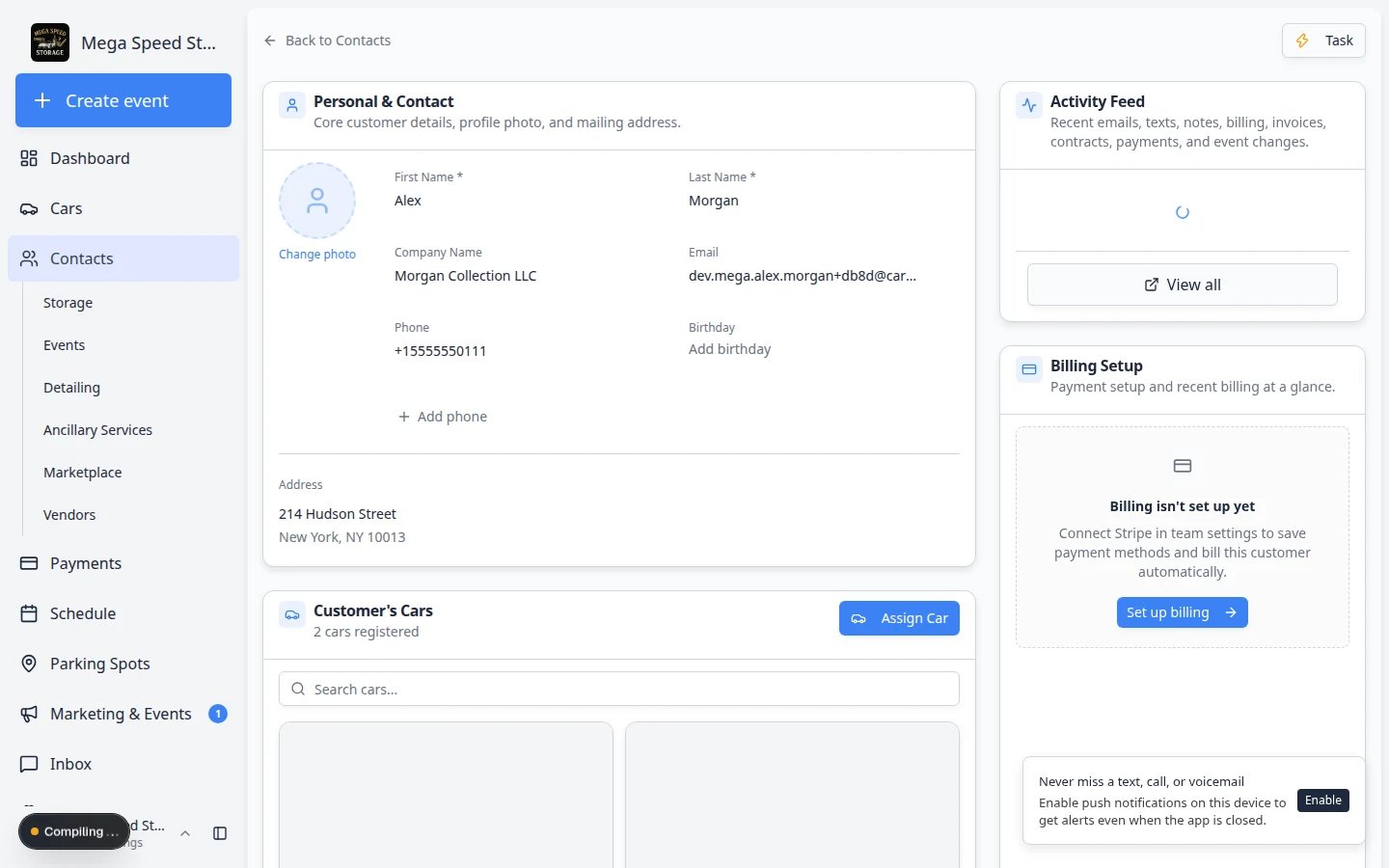 *CRM Information helps your team organize follow-up work and customer groups.*
### Last Communication, Stage Changed, and Member Since
Below **Current Stage**, three read-only fields help your team prioritize follow-up:
*CRM Information helps your team organize follow-up work and customer groups.*
### Last Communication, Stage Changed, and Member Since
Below **Current Stage**, three read-only fields help your team prioritize follow-up:
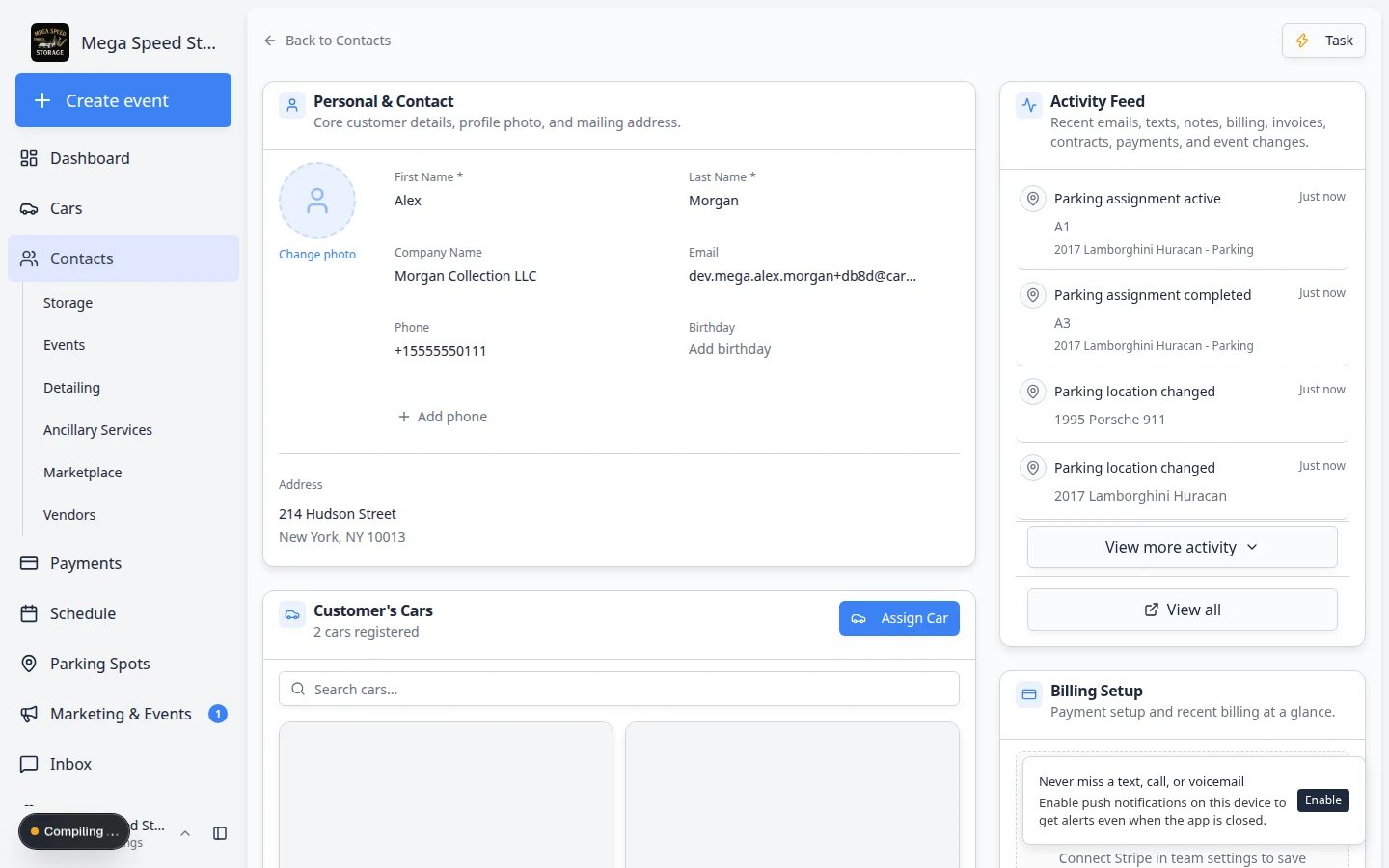 *Last Communication updates from messages and activity. Stage Changed shows when the pipeline stage last moved. Member Since is when the record was created.*
| Field | What it tells you | How it updates |
| - | - | - |
| **Last Communication** | When your team last emailed, texted, or otherwise contacted this customer | Updates automatically from [Inbox](https://www.carstoragesoftware.com/dashboard/inbox) and related activity |
| **Stage Changed** | When the CRM stage last changed | Updates when you change stage on this page or drag the customer on the board |
| **Member Since** | When the customer record was created | Set once at creation; does not change |
**Use Last Communication on phone calls**
If **Last Communication** shows a recent date but the customer says nobody called them back, open [Review customer activity and history](/docs/contacts/review-customer-activity-and-history) to see exactly what happened.
Find the **CRM Information** section on the customer detail page.
Use the **Stage** field under **Current Stage** to choose the customer's current step.
Examples might include lead, customer, former customer, tour scheduled, contract sent, or active storage, depending on your team's settings.
Use **Customer Source** to record how the customer found you, such as referral, website, social media, event, or manual entry.
Use **Additional Details** for helpful notes, such as "Referred by Sam Rivera" or "Met at cars and coffee event".
Use **Customer Groups** to mark broad service types, such as storage, events, detailing, or other groups your team uses.
Click **Add Tag** to add flexible labels such as VIP, winter storage, high touch, fleet, or pending documents.
For a full walkthrough of tags, board view, and customer groups, read [Manage contact tags and CRM fields](/docs/contacts/manage-contact-tags).
**Tags vs customer groups**
**Customer Groups** (Storage, Events, Detailing) describe what services someone uses. **Tags** are freeform labels your team invents on the spot. Use groups for sidebar pages like [Storage contacts](https://www.carstoragesoftware.com/dashboard/contacts/storage); use tags for quick flags like **VIP**.
## Add notes for your team
Use customer notes when your team needs context that does not belong in a field. Notes appear on the customer record and in the [Activity Feed](/docs/contacts/review-customer-activity-and-history) so the next teammate can see them.
In **Personal & Contact**, click **Notes** (or the notes area below the main contact fields).
Write one or two sentences your team will understand on a busy day.
**Expected result:** The note saves with the customer record and shows in activity history.
Good notes are short and useful:
* "Prefers email, do not text unless urgent." (internal only)
* "Tour completed May 18. Waiting for signed storage agreement." (internal only)
* "Welcome — your vehicles are in climate-controlled storage." (customer visible)
Customer Notes also appear in [Review customer activity and history](/docs/contacts/review-customer-activity-and-history) alongside messages and invoices.
### Short Notes field (Personal & Contact)
At the top of the page, the **Notes** field under **Personal & Contact** is a single editable line—helpful for a quick flag everyone should see immediately (for example, "VIP — owner calls directly").
It does not keep a history or separate team vs customer visibility. For anything longer or time-sensitive, use **Customer Notes** instead.
## Upload or change a profile photo
A photo helps your team recognize the customer quickly in table, card, and board views.
At the top of the customer detail page, look for the round profile image or placeholder.
Click the image area to upload a new photo from your computer.
After the upload finishes, the new photo should appear on the customer record and in list views.
**Expected result:** Your team can spot this customer faster in Contacts.
## Mark a customer inactive or delete a record
Use the **Active / Inactive** switch in **CRM Information** on the customer detail page—not a separate account menu.
*Last Communication updates from messages and activity. Stage Changed shows when the pipeline stage last moved. Member Since is when the record was created.*
| Field | What it tells you | How it updates |
| - | - | - |
| **Last Communication** | When your team last emailed, texted, or otherwise contacted this customer | Updates automatically from [Inbox](https://www.carstoragesoftware.com/dashboard/inbox) and related activity |
| **Stage Changed** | When the CRM stage last changed | Updates when you change stage on this page or drag the customer on the board |
| **Member Since** | When the customer record was created | Set once at creation; does not change |
**Use Last Communication on phone calls**
If **Last Communication** shows a recent date but the customer says nobody called them back, open [Review customer activity and history](/docs/contacts/review-customer-activity-and-history) to see exactly what happened.
Find the **CRM Information** section on the customer detail page.
Use the **Stage** field under **Current Stage** to choose the customer's current step.
Examples might include lead, customer, former customer, tour scheduled, contract sent, or active storage, depending on your team's settings.
Use **Customer Source** to record how the customer found you, such as referral, website, social media, event, or manual entry.
Use **Additional Details** for helpful notes, such as "Referred by Sam Rivera" or "Met at cars and coffee event".
Use **Customer Groups** to mark broad service types, such as storage, events, detailing, or other groups your team uses.
Click **Add Tag** to add flexible labels such as VIP, winter storage, high touch, fleet, or pending documents.
For a full walkthrough of tags, board view, and customer groups, read [Manage contact tags and CRM fields](/docs/contacts/manage-contact-tags).
**Tags vs customer groups**
**Customer Groups** (Storage, Events, Detailing) describe what services someone uses. **Tags** are freeform labels your team invents on the spot. Use groups for sidebar pages like [Storage contacts](https://www.carstoragesoftware.com/dashboard/contacts/storage); use tags for quick flags like **VIP**.
## Add notes for your team
Use customer notes when your team needs context that does not belong in a field. Notes appear on the customer record and in the [Activity Feed](/docs/contacts/review-customer-activity-and-history) so the next teammate can see them.
In **Personal & Contact**, click **Notes** (or the notes area below the main contact fields).
Write one or two sentences your team will understand on a busy day.
**Expected result:** The note saves with the customer record and shows in activity history.
Good notes are short and useful:
* "Prefers email, do not text unless urgent." (internal only)
* "Tour completed May 18. Waiting for signed storage agreement." (internal only)
* "Welcome — your vehicles are in climate-controlled storage." (customer visible)
Customer Notes also appear in [Review customer activity and history](/docs/contacts/review-customer-activity-and-history) alongside messages and invoices.
### Short Notes field (Personal & Contact)
At the top of the page, the **Notes** field under **Personal & Contact** is a single editable line—helpful for a quick flag everyone should see immediately (for example, "VIP — owner calls directly").
It does not keep a history or separate team vs customer visibility. For anything longer or time-sensitive, use **Customer Notes** instead.
## Upload or change a profile photo
A photo helps your team recognize the customer quickly in table, card, and board views.
At the top of the customer detail page, look for the round profile image or placeholder.
Click the image area to upload a new photo from your computer.
After the upload finishes, the new photo should appear on the customer record and in list views.
**Expected result:** Your team can spot this customer faster in Contacts.
## Mark a customer inactive or delete a record
Use the **Active / Inactive** switch in **CRM Information** on the customer detail page—not a separate account menu.
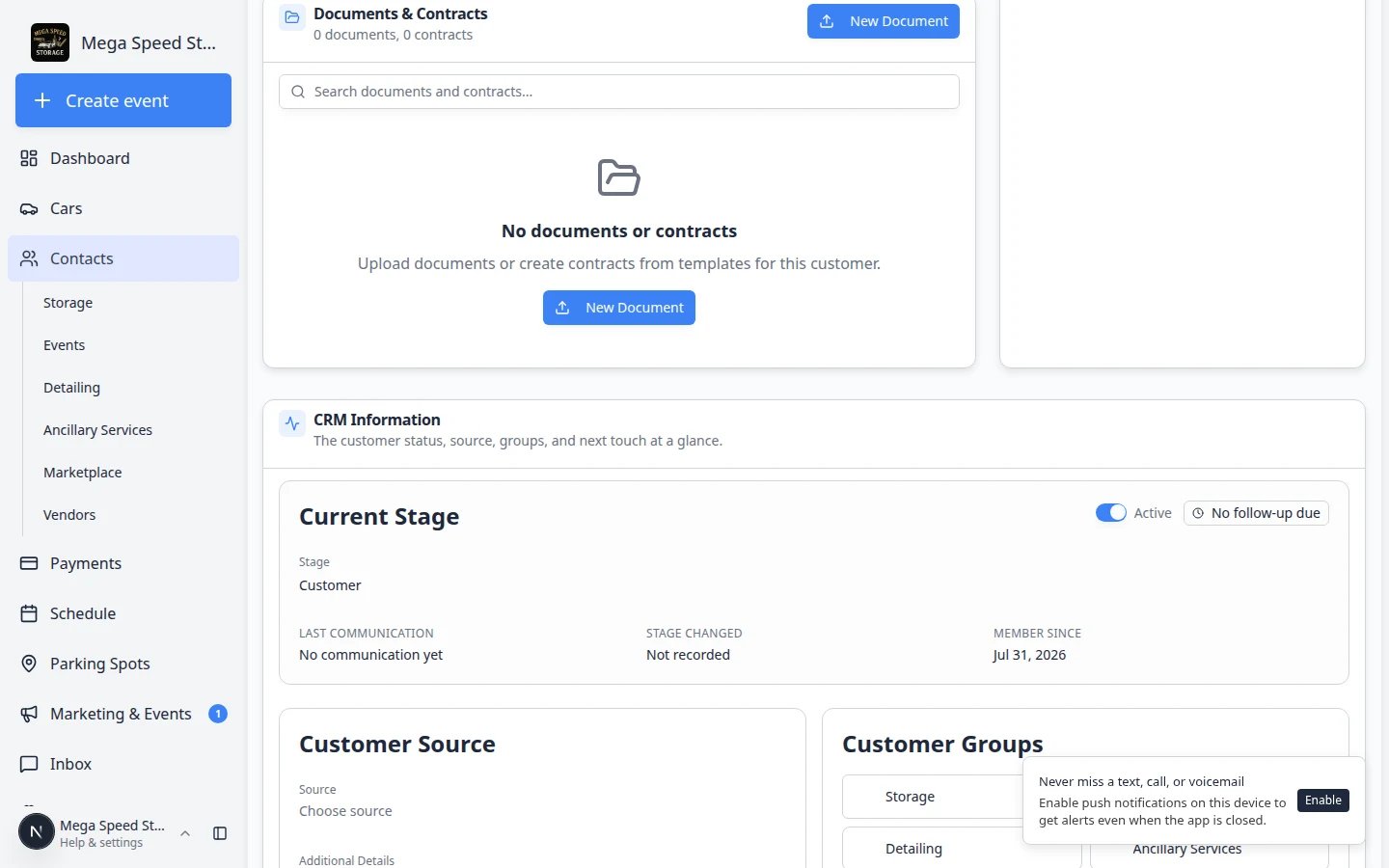 *Flip the Active switch to Inactive when the customer pauses but you want to keep their history.*
| Action | Where to do it | Use when |
| - | - | - |
| **Inactive** | **CRM Information** → Active switch | The customer pauses storage or service but history should stay |
| **Migrate to contact** | **Danger Zone** at bottom of customer page | A duplicate record should become a spouse or assistant on another account |
| **Delete** | **Danger Zone** | The record was a mistake with no important billing or cars |
| **Restore** | Open a **Deleted** customer from the list | You need to undo a delete |
Open the customer, scroll to **CRM Information**, and turn the **Active** switch off.
**Expected result:** The label shows **Inactive**. On [All Contacts](https://www.carstoragesoftware.com/dashboard/contacts/all), set **Filters & settings** → **Status** to **Inactive** to find them again.
Scroll to **Danger Zone** at the bottom of the customer page. Read each option carefully before you click.
*Flip the Active switch to Inactive when the customer pauses but you want to keep their history.*
| Action | Where to do it | Use when |
| - | - | - |
| **Inactive** | **CRM Information** → Active switch | The customer pauses storage or service but history should stay |
| **Migrate to contact** | **Danger Zone** at bottom of customer page | A duplicate record should become a spouse or assistant on another account |
| **Delete** | **Danger Zone** | The record was a mistake with no important billing or cars |
| **Restore** | Open a **Deleted** customer from the list | You need to undo a delete |
Open the customer, scroll to **CRM Information**, and turn the **Active** switch off.
**Expected result:** The label shows **Inactive**. On [All Contacts](https://www.carstoragesoftware.com/dashboard/contacts/all), set **Filters & settings** → **Status** to **Inactive** to find them again.
Scroll to **Danger Zone** at the bottom of the customer page. Read each option carefully before you click.
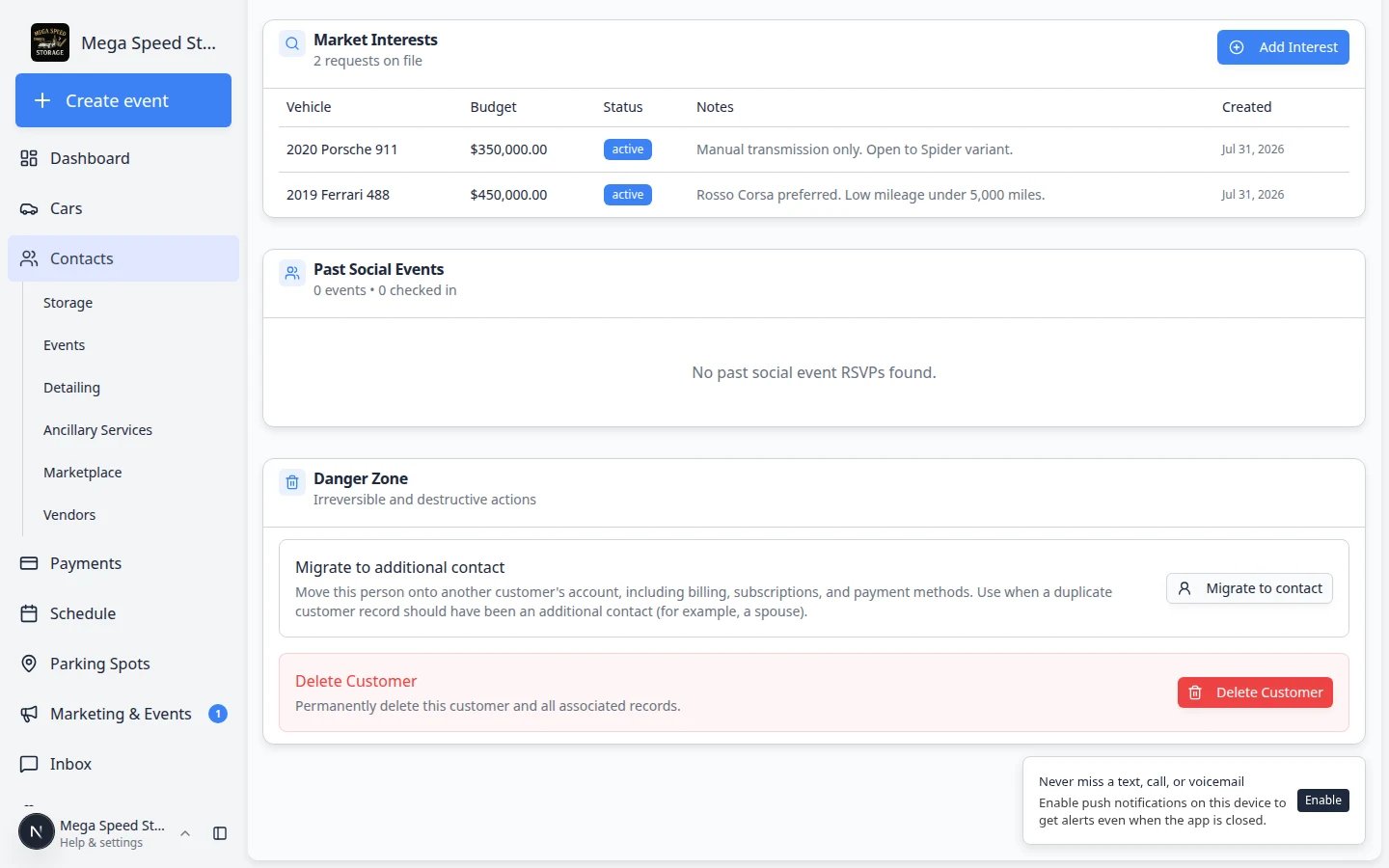 *Danger Zone actions are permanent or hard to undo. Read each button label before you click.*
See [Handle duplicate or merged customer records](/docs/contacts/handle-duplicate-or-merged-customer-records) for step-by-step migrate, delete, and restore help.
**Do not delete before checking links**
Before deleting a customer, check cars, invoices, documents, contracts, and notes. Move anything important to the correct customer record first.
## What happens next
After editing a customer, check the parts of the system that depend on that information:
* If you changed email, resend portal invites, invoices, or contract links as needed.
* If you changed CRM stage, review board view in [All Contacts](https://www.carstoragesoftware.com/dashboard/contacts/all).
* If you changed groups or tags, review any marketing lists or filters that use those labels.
* If the customer shared a buy-want, add it under **Market Interests**: [Track customer market interests](/docs/contacts/track-customer-market-interests).
* If you changed ownership details, confirm the right cars and documents are still linked.
## Troubleshooting
**My change did not save**
Wait a moment and look for any error message. If the field returns to the old value, try again. If it still fails, check your internet connection and ask an admin whether you have permission to edit customers.
**The stage I need is missing**
CRM stages are managed in [Settings -> CRM](https://www.carstoragesoftware.com/dashboard/settings/crm). Ask an admin to add or update the stage.
**I changed the wrong customer**
Correct the field right away. If cars, invoices, documents, or contracts were changed too, review each linked area before you continue.
## Related topics
- [Review customer activity and history](/docs/contacts/review-customer-activity-and-history.md)
- [Understand portal access levels](/docs/contacts/understand-portal-access-levels.md)
- [Find and filter contacts](/docs/contacts/find-and-filter-contacts.md)
- [Add a customer](/docs/contacts/add-a-customer.md)
- [Add and manage customer notes](/docs/contacts/add-and-manage-customer-notes.md)
This documentation is built and hosted on [Mintlify](https://mintlify.com), a developer documentation platform.
*Danger Zone actions are permanent or hard to undo. Read each button label before you click.*
See [Handle duplicate or merged customer records](/docs/contacts/handle-duplicate-or-merged-customer-records) for step-by-step migrate, delete, and restore help.
**Do not delete before checking links**
Before deleting a customer, check cars, invoices, documents, contracts, and notes. Move anything important to the correct customer record first.
## What happens next
After editing a customer, check the parts of the system that depend on that information:
* If you changed email, resend portal invites, invoices, or contract links as needed.
* If you changed CRM stage, review board view in [All Contacts](https://www.carstoragesoftware.com/dashboard/contacts/all).
* If you changed groups or tags, review any marketing lists or filters that use those labels.
* If the customer shared a buy-want, add it under **Market Interests**: [Track customer market interests](/docs/contacts/track-customer-market-interests).
* If you changed ownership details, confirm the right cars and documents are still linked.
## Troubleshooting
**My change did not save**
Wait a moment and look for any error message. If the field returns to the old value, try again. If it still fails, check your internet connection and ask an admin whether you have permission to edit customers.
**The stage I need is missing**
CRM stages are managed in [Settings -> CRM](https://www.carstoragesoftware.com/dashboard/settings/crm). Ask an admin to add or update the stage.
**I changed the wrong customer**
Correct the field right away. If cars, invoices, documents, or contracts were changed too, review each linked area before you continue.
## Related topics
- [Review customer activity and history](/docs/contacts/review-customer-activity-and-history.md)
- [Understand portal access levels](/docs/contacts/understand-portal-access-levels.md)
- [Find and filter contacts](/docs/contacts/find-and-filter-contacts.md)
- [Add a customer](/docs/contacts/add-a-customer.md)
- [Add and manage customer notes](/docs/contacts/add-and-manage-customer-notes.md)
This documentation is built and hosted on [Mintlify](https://mintlify.com), a developer documentation platform.