> ## Documentation Index
> Fetch the complete documentation index at: https://www.carstoragesoftware.com/docs/llms.txt
> Use this file to discover all available pages before exploring further.
# Manage contact tags and CRM fields
> Use tags, pipeline stages, customer types, and sources to organize and segment your customer base.
Use this guide when you need to organize customers by pipeline stage, service type, source, or flexible labels.
## What you will accomplish
* Understand when to use **CRM stage**, **customer types**, **source**, and **tags**—and when tags alone are enough.
* Add or remove tags on a customer record from [All Contacts](https://www.carstoragesoftware.com/dashboard/contacts/all).
* Move a customer to a new pipeline stage from their record or by dragging on the **Board** view.
* Record how the customer found your facility with **Customer Source**.
* Know where admins set up stages, types, and sources in [Settings > CRM](https://www.carstoragesoftware.com/dashboard/settings/crm).
Tags and CRM fields are how your team organizes, prioritizes, and segments customers. Whether you need to track where a lead came from, what stage they are in your sales pipeline, what type of service they use, or simply flag VIP customers for special treatment—these tools work together to keep your contact list actionable.
**What success looks like**
After your team uses these fields consistently, you can open [All Contacts](https://www.carstoragesoftware.com/dashboard/contacts/all), filter by stage or tag, and see exactly who needs a follow-up call today—without maintaining a separate spreadsheet.
## When to use each tool
**Start simple**
If you only need a quick label (for example **VIP** or **Pending documents**), add a **tag**. Use **CRM stage** when the customer is moving through a defined process (inquiry → tour → contract → active storage).
## Before you start
* Understand the **four segmentation tools** and when to use each one (see the comparison table below).
* If you need to add new CRM stages, customer types, or sources, you will need access to [Settings → CRM](https://www.carstoragesoftware.com/dashboard/settings/crm).
* Tags can be created on the fly from any customer record — no admin setup required.
## Understanding the four segmentation tools
Your facility has four ways to classify customers. Each serves a different purpose:
| Tool | What it does | Where it is configured | Example values |
| - | - | - | - |
| **CRM Stage** | Tracks where a customer sits in your pipeline. One stage per customer at a time. | [Settings → CRM](https://www.carstoragesoftware.com/dashboard/settings/crm) | New Inquiry, Tour Scheduled, Contract Sent, Active Storage, Paused |
| **Relationship Stage** | High-level bucket that groups pipeline stages into three categories. | Set when creating/editing a customer | Lead, Customer, Former Customer |
| **Customer Types** | Multi-select groups describing what kind of service the customer uses. | [Settings → CRM](https://www.carstoragesoftware.com/dashboard/settings/crm) | Storage, Events, Detailing, Consignment |
| **CRM Source** | Records how the customer found your facility. One source per customer. | [Settings → CRM](https://www.carstoragesoftware.com/dashboard/settings/crm) | Website, Referral, Social Media, Car Show, Walk-in |
| **Tags** | Flexible, freeform labels. A customer can have unlimited tags. | Created on the fly from any customer record | VIP, Collector, Fleet, Requires White Glove, Pending Documents |
## Add or change tags on a customer
Tags are the most flexible segmentation tool. Create them on the spot and apply as many as you need.
Go to the [Contacts page](https://www.carstoragesoftware.com/dashboard/contacts) and click the customer you want to tag. The detail page opens.
Scroll down to the **CRM Information** section on the detail page. You will see fields for Current Stage, Customer Source, Customer Groups, and **Tags**.
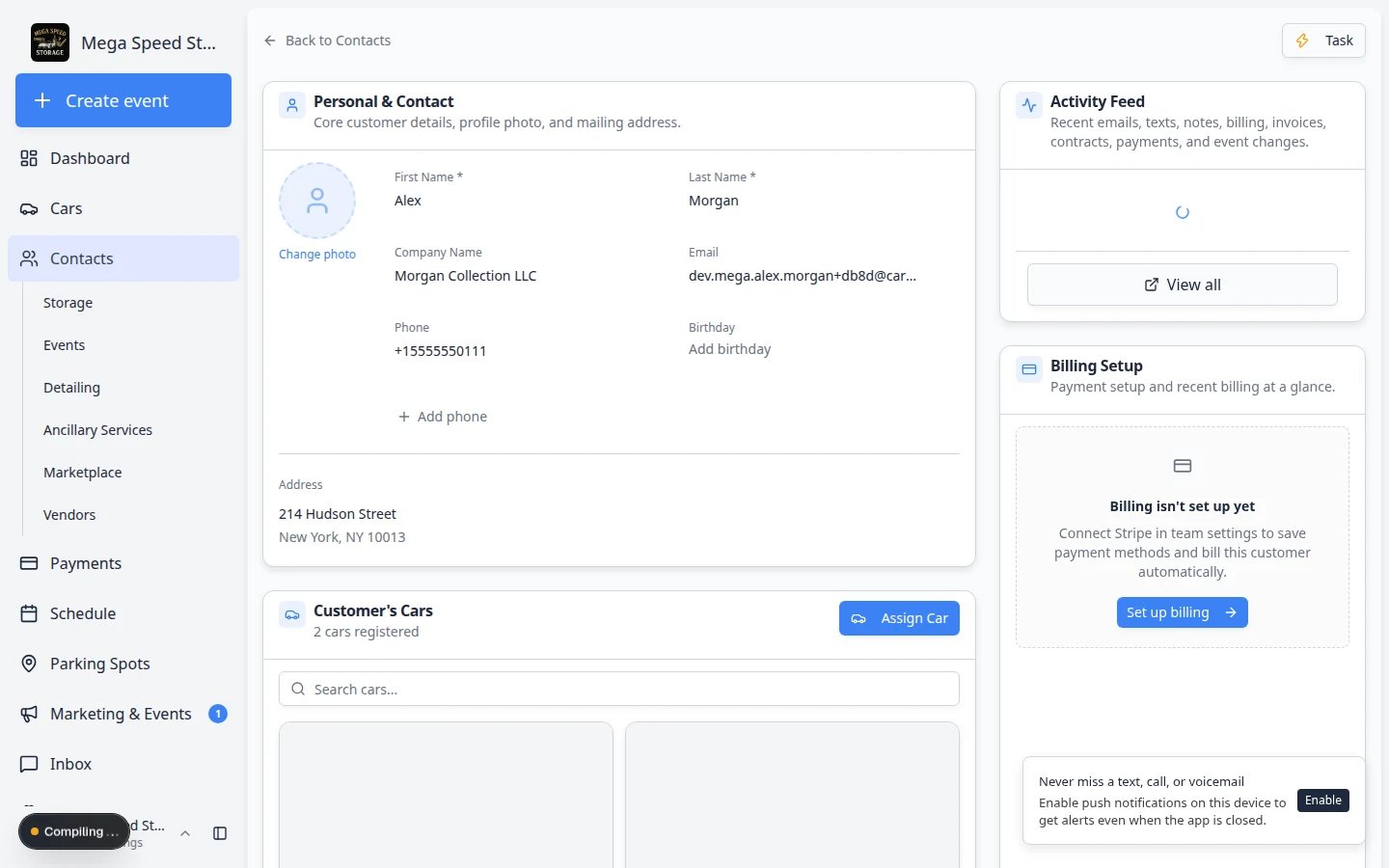 *The CRM Information section is where you manage all segmentation fields for a customer.*
Click the **Tags** field to open the tag picker. You will see a search box and a list of existing tags your team has created.
* **To apply an existing tag** — type part of the tag name to filter the list, then click it to apply.
* **To create a new tag** — type the full tag name. If it does not exist, you will see an option to create it. Click to create and apply in one step.
*The CRM Information section is where you manage all segmentation fields for a customer.*
Click the **Tags** field to open the tag picker. You will see a search box and a list of existing tags your team has created.
* **To apply an existing tag** — type part of the tag name to filter the list, then click it to apply.
* **To create a new tag** — type the full tag name. If it does not exist, you will see an option to create it. Click to create and apply in one step.
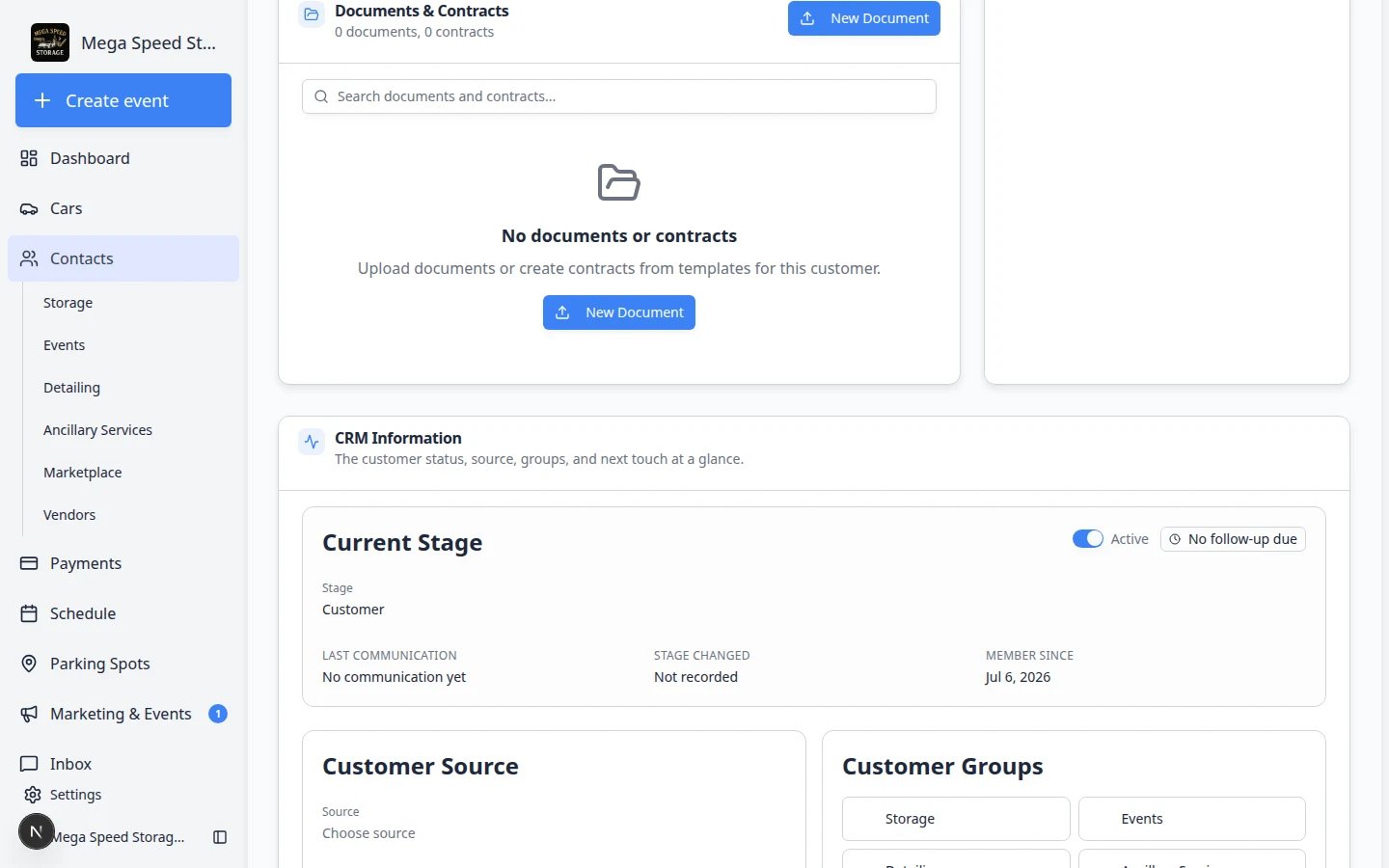 *The tag picker lets you search existing tags or create new ones on the fly.*
**Tags are team-wide**
When you create a tag, it becomes available to your entire team on any customer record. Choose clear, consistent names so everyone uses the same tags (e.g. "VIP" not "vip customer" and "Very Important").
To remove a tag, click the **×** next to the tag name in the Tags field. The tag is removed from this customer but still exists for use on other records.
## Change the CRM pipeline stage
The pipeline stage shows where a customer is in your sales or service process. You can change it from the detail page or by dragging on the board view.
### From the detail page
Go to [All Contacts](https://www.carstoragesoftware.com/dashboard/contacts/all) and click the customer whose stage you want to change.
In the **CRM Information** section, locate the **Current Stage** dropdown.
Click the dropdown and select the appropriate stage. The stages shown depend on the customer's **Relationship Stage** — lead stages appear for leads, customer stages for customers, and so on.
The change is saved immediately. The system records the timestamp of the stage change for reporting and SLA tracking.
### Follow-up due badges on the customer page
On the customer detail page, **CRM Information** may show a badge next to **Current Stage**:
* **No follow-up due** — your team is on track for this stage.
* **Follow-up due** — the stage has been unchanged longer than your team's target (a reminder to call or email).
* **Overdue** — the follow-up window has passed; prioritize this customer.
Admins set how many days each stage allows in [Configure CRM settings](/docs/settings/configure-crm-settings). Staff use the badges as a daily to-do list—not as a customer-facing message.
**Badges are reminders, not automatic messages**
A **Follow-up due** badge does not email the customer. It reminds **your team** to reach out. Update the stage when the work is done and the badge clears.
### From the board view (drag and drop)
Board view is helpful when your team works from a pipeline. Each column is a stage, and each card is a customer.
*The tag picker lets you search existing tags or create new ones on the fly.*
**Tags are team-wide**
When you create a tag, it becomes available to your entire team on any customer record. Choose clear, consistent names so everyone uses the same tags (e.g. "VIP" not "vip customer" and "Very Important").
To remove a tag, click the **×** next to the tag name in the Tags field. The tag is removed from this customer but still exists for use on other records.
## Change the CRM pipeline stage
The pipeline stage shows where a customer is in your sales or service process. You can change it from the detail page or by dragging on the board view.
### From the detail page
Go to [All Contacts](https://www.carstoragesoftware.com/dashboard/contacts/all) and click the customer whose stage you want to change.
In the **CRM Information** section, locate the **Current Stage** dropdown.
Click the dropdown and select the appropriate stage. The stages shown depend on the customer's **Relationship Stage** — lead stages appear for leads, customer stages for customers, and so on.
The change is saved immediately. The system records the timestamp of the stage change for reporting and SLA tracking.
### Follow-up due badges on the customer page
On the customer detail page, **CRM Information** may show a badge next to **Current Stage**:
* **No follow-up due** — your team is on track for this stage.
* **Follow-up due** — the stage has been unchanged longer than your team's target (a reminder to call or email).
* **Overdue** — the follow-up window has passed; prioritize this customer.
Admins set how many days each stage allows in [Configure CRM settings](/docs/settings/configure-crm-settings). Staff use the badges as a daily to-do list—not as a customer-facing message.
**Badges are reminders, not automatic messages**
A **Follow-up due** badge does not email the customer. It reminds **your team** to reach out. Update the stage when the work is done and the badge clears.
### From the board view (drag and drop)
Board view is helpful when your team works from a pipeline. Each column is a stage, and each card is a customer.
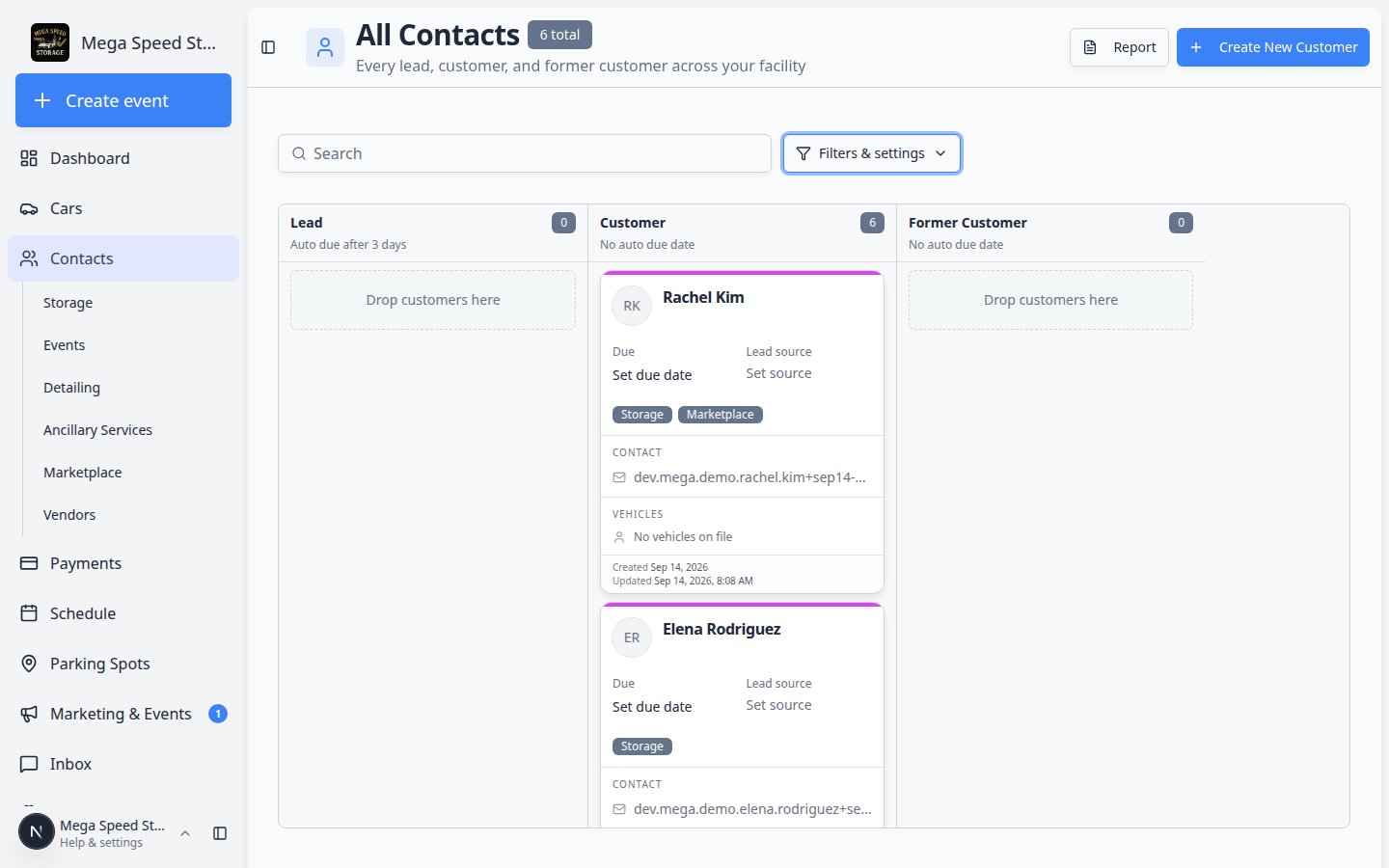 *Board view lets you move customers between stages without opening each customer record.*
On [All Contacts](https://www.carstoragesoftware.com/dashboard/contacts/all), switch to the **Board** view using **Filters & settings**. The board shows customers as cards arranged in columns by CRM stage.
Find the customer's card and drag it from the current column to the destination stage column. Release to save.
The stage change is saved immediately and the timestamp updates. This is the fastest way to move multiple customers through your pipeline.
## Set the customer source
The source records how the customer found your facility — critical for understanding which marketing channels work.
Go to the [Contacts page](https://www.carstoragesoftware.com/dashboard/contacts) and click the customer.
In the **CRM Information** section, locate the **Customer Source** dropdown.
Choose from the configured sources (e.g. Website, Referral, Social Media, Car Show). These are defined by your team admin in [Settings → CRM](https://www.carstoragesoftware.com/dashboard/settings/crm).
If available, fill in the **Source Detail** text field with specifics — for example, "Referred by John Smith" or "Saw our booth at Amelia Island 2025." This extra context helps your team attribute leads accurately.
## Assign customer types (groups)
Customer types let you tag what kind of service a customer uses. Unlike pipeline stages (one at a time), a customer can belong to multiple types simultaneously.
Go to the [Contacts page](https://www.carstoragesoftware.com/dashboard/contacts) and click the customer.
In the **CRM Information** section, locate the **Customer Groups** toggle buttons.
Click a type to activate it (highlighted) or deactivate it (dimmed). Common types include Storage, Events, Detailing, and Consignment — but your admin may have configured others.
Changes are saved immediately. Customer types appear in filters, on type-specific contacts pages (such as [Storage](https://www.carstoragesoftware.com/dashboard/contacts/storage)), and in reports so your team can find all customers who use a specific service.
## Find customers by tag, stage, or type on the list
After you label customers, use [Find and filter contacts](/docs/contacts/find-and-filter-contacts) to narrow [All Contacts](https://www.carstoragesoftware.com/dashboard/contacts/all):
* **Board view** — drag cards between pipeline columns (see above).
* **Filters & settings** — filter by CRM stage, customer type, source, or status.
* **Search** — type a tag name to find customers with that label.
* **Customer Report** — export stage and portal columns for managers. See [Export and use the customer report](/docs/contacts/export-and-use-the-customer-report).
## Configure CRM stages, types, and sources (admin)
If you are a team admin and need to add, reorder, or archive segmentation options, work in **Settings**—not on each customer record.
*Board view lets you move customers between stages without opening each customer record.*
On [All Contacts](https://www.carstoragesoftware.com/dashboard/contacts/all), switch to the **Board** view using **Filters & settings**. The board shows customers as cards arranged in columns by CRM stage.
Find the customer's card and drag it from the current column to the destination stage column. Release to save.
The stage change is saved immediately and the timestamp updates. This is the fastest way to move multiple customers through your pipeline.
## Set the customer source
The source records how the customer found your facility — critical for understanding which marketing channels work.
Go to the [Contacts page](https://www.carstoragesoftware.com/dashboard/contacts) and click the customer.
In the **CRM Information** section, locate the **Customer Source** dropdown.
Choose from the configured sources (e.g. Website, Referral, Social Media, Car Show). These are defined by your team admin in [Settings → CRM](https://www.carstoragesoftware.com/dashboard/settings/crm).
If available, fill in the **Source Detail** text field with specifics — for example, "Referred by John Smith" or "Saw our booth at Amelia Island 2025." This extra context helps your team attribute leads accurately.
## Assign customer types (groups)
Customer types let you tag what kind of service a customer uses. Unlike pipeline stages (one at a time), a customer can belong to multiple types simultaneously.
Go to the [Contacts page](https://www.carstoragesoftware.com/dashboard/contacts) and click the customer.
In the **CRM Information** section, locate the **Customer Groups** toggle buttons.
Click a type to activate it (highlighted) or deactivate it (dimmed). Common types include Storage, Events, Detailing, and Consignment — but your admin may have configured others.
Changes are saved immediately. Customer types appear in filters, on type-specific contacts pages (such as [Storage](https://www.carstoragesoftware.com/dashboard/contacts/storage)), and in reports so your team can find all customers who use a specific service.
## Find customers by tag, stage, or type on the list
After you label customers, use [Find and filter contacts](/docs/contacts/find-and-filter-contacts) to narrow [All Contacts](https://www.carstoragesoftware.com/dashboard/contacts/all):
* **Board view** — drag cards between pipeline columns (see above).
* **Filters & settings** — filter by CRM stage, customer type, source, or status.
* **Search** — type a tag name to find customers with that label.
* **Customer Report** — export stage and portal columns for managers. See [Export and use the customer report](/docs/contacts/export-and-use-the-customer-report).
## Configure CRM stages, types, and sources (admin)
If you are a team admin and need to add, reorder, or archive segmentation options, work in **Settings**—not on each customer record.
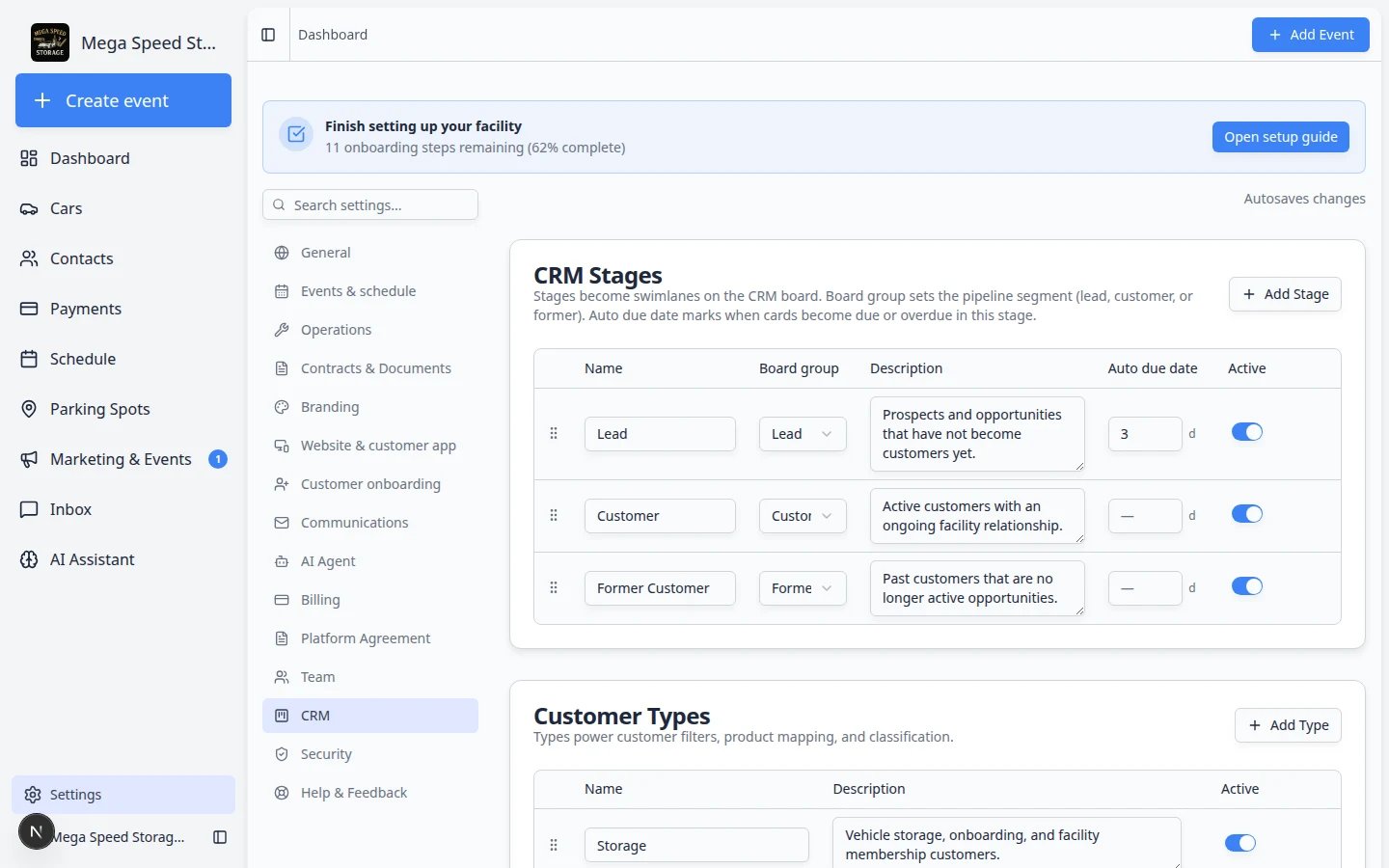 *Settings > CRM is where admins define the stages, types, and sources that appear on customer records and in filters.*
Navigate to [Settings > CRM](https://www.carstoragesoftware.com/dashboard/settings/crm). You will see sections for **Pipeline Stages**, **Customer Types**, and **Lead Sources**.
**Expected result:** You can see the same stage and type names your team picks on customer records.
In any section, click the **Add** button. Enter a name and (for stages) assign it to a category: Lead, Customer, or Former Customer. Click Save.
Drag options up or down to change their display order. The order affects how stages appear on the board and in dropdowns.
To remove an option from active use without losing historical data, use the archive action. Archived options no longer appear in dropdowns but remain on existing records.
**SLA tracking on stages**
When configuring pipeline stages, you can set an optional **SLA (in minutes)** for each stage. This enables due-date badges on customer records — your team will see a visual indicator when a customer has been sitting in a stage longer than expected.
## Tips for effective segmentation
Segmentation works best when your team agrees on conventions before creating dozens of tags and stages:
* **Use pipeline stages for process** — stages answer "where is this customer in our workflow right now?" Keep the number of stages manageable (5–8 per category is a good target).
* **Use customer types for services** — types answer "what does this customer buy from us?" They are durable and rarely change.
* **Use sources for attribution** — sources answer "how did this customer find us?" Set them once when the customer is created and rarely update.
* **Use tags for everything else** — tags are flexible labels for any attribute that does not fit stages, types, or sources. Common uses: VIP status, special handling instructions, event audiences, and temporary flags.
* **Clean up unused tags** — periodically review your tag list and remove duplicates or outdated tags to keep the picker manageable.
## What to do next
* Use [Find and filter contacts](/docs/contacts/find-and-filter-contacts) to filter by stage, type, or source on the list.
* When a customer is ready for the portal, follow [Invite a customer to the portal](/docs/contacts/invite-a-customer-to-the-portal).
* For full CRM setup during onboarding, read [Configure CRM settings](/docs/settings/configure-crm-settings).
## Troubleshooting
**I do not see the stage I need in the dropdown**
CRM stages are configured by your team admin in [Settings → CRM](https://www.carstoragesoftware.com/dashboard/settings/crm). If a stage is missing, ask your admin to create it. Make sure the stage's category (Lead, Customer, or Former Customer) matches the customer's relationship stage — stages only appear for their matching category.
**A tag I created has a similar name to an existing one**
Tags are matched by normalized name (case-insensitive, trimmed). If you try to create "VIP" but "vip" already exists, the system will use the existing tag. If two similar but not identical tags exist (e.g. "VIP" and "V.I.P."), consolidate by removing one from all customers and using only the other.
**I moved a customer to a new stage but the board did not update**
The board view updates immediately after a drag-and-drop. If you changed the stage from the detail page, navigate back to the board view to see the updated position. If the customer seems to have disappeared, check that your board filters are not hiding the destination column.
**Customer types are not showing in filters**
Customer type filters only appear if your team has at least one customer type configured in [Settings → CRM](https://www.carstoragesoftware.com/dashboard/settings/crm). If you do not see type-based filters on the contacts list, ask your admin to set up customer types. You can still open type pages from the sidebar (for example [Storage](https://www.carstoragesoftware.com/dashboard/contacts/storage))—those pages filter automatically.
## Related topics
- [Configure CRM settings](/docs/settings/configure-crm-settings.md)
- [Contacts overview](/docs/contacts/overview.md)
- [Add and manage customer notes](/docs/contacts/add-and-manage-customer-notes.md)
- [Edit customer details](/docs/contacts/edit-customer-details.md)
- [Work with customer type lists](/docs/contacts/work-with-customer-type-lists.md)
This documentation is built and hosted on [Mintlify](https://mintlify.com), a developer documentation platform.
*Settings > CRM is where admins define the stages, types, and sources that appear on customer records and in filters.*
Navigate to [Settings > CRM](https://www.carstoragesoftware.com/dashboard/settings/crm). You will see sections for **Pipeline Stages**, **Customer Types**, and **Lead Sources**.
**Expected result:** You can see the same stage and type names your team picks on customer records.
In any section, click the **Add** button. Enter a name and (for stages) assign it to a category: Lead, Customer, or Former Customer. Click Save.
Drag options up or down to change their display order. The order affects how stages appear on the board and in dropdowns.
To remove an option from active use without losing historical data, use the archive action. Archived options no longer appear in dropdowns but remain on existing records.
**SLA tracking on stages**
When configuring pipeline stages, you can set an optional **SLA (in minutes)** for each stage. This enables due-date badges on customer records — your team will see a visual indicator when a customer has been sitting in a stage longer than expected.
## Tips for effective segmentation
Segmentation works best when your team agrees on conventions before creating dozens of tags and stages:
* **Use pipeline stages for process** — stages answer "where is this customer in our workflow right now?" Keep the number of stages manageable (5–8 per category is a good target).
* **Use customer types for services** — types answer "what does this customer buy from us?" They are durable and rarely change.
* **Use sources for attribution** — sources answer "how did this customer find us?" Set them once when the customer is created and rarely update.
* **Use tags for everything else** — tags are flexible labels for any attribute that does not fit stages, types, or sources. Common uses: VIP status, special handling instructions, event audiences, and temporary flags.
* **Clean up unused tags** — periodically review your tag list and remove duplicates or outdated tags to keep the picker manageable.
## What to do next
* Use [Find and filter contacts](/docs/contacts/find-and-filter-contacts) to filter by stage, type, or source on the list.
* When a customer is ready for the portal, follow [Invite a customer to the portal](/docs/contacts/invite-a-customer-to-the-portal).
* For full CRM setup during onboarding, read [Configure CRM settings](/docs/settings/configure-crm-settings).
## Troubleshooting
**I do not see the stage I need in the dropdown**
CRM stages are configured by your team admin in [Settings → CRM](https://www.carstoragesoftware.com/dashboard/settings/crm). If a stage is missing, ask your admin to create it. Make sure the stage's category (Lead, Customer, or Former Customer) matches the customer's relationship stage — stages only appear for their matching category.
**A tag I created has a similar name to an existing one**
Tags are matched by normalized name (case-insensitive, trimmed). If you try to create "VIP" but "vip" already exists, the system will use the existing tag. If two similar but not identical tags exist (e.g. "VIP" and "V.I.P."), consolidate by removing one from all customers and using only the other.
**I moved a customer to a new stage but the board did not update**
The board view updates immediately after a drag-and-drop. If you changed the stage from the detail page, navigate back to the board view to see the updated position. If the customer seems to have disappeared, check that your board filters are not hiding the destination column.
**Customer types are not showing in filters**
Customer type filters only appear if your team has at least one customer type configured in [Settings → CRM](https://www.carstoragesoftware.com/dashboard/settings/crm). If you do not see type-based filters on the contacts list, ask your admin to set up customer types. You can still open type pages from the sidebar (for example [Storage](https://www.carstoragesoftware.com/dashboard/contacts/storage))—those pages filter automatically.
## Related topics
- [Configure CRM settings](/docs/settings/configure-crm-settings.md)
- [Contacts overview](/docs/contacts/overview.md)
- [Add and manage customer notes](/docs/contacts/add-and-manage-customer-notes.md)
- [Edit customer details](/docs/contacts/edit-customer-details.md)
- [Work with customer type lists](/docs/contacts/work-with-customer-type-lists.md)
This documentation is built and hosted on [Mintlify](https://mintlify.com), a developer documentation platform.