> ## Documentation Index
> Fetch the complete documentation index at: https://www.carstoragesoftware.com/docs/llms.txt
> Use this file to discover all available pages before exploring further.
# Contacts overview
> Understand the customer and CRM workflows available from the Contacts section of the dashboard.
The **Contacts** section is where your team keeps customer records. A customer record connects a person or company to their cars, billing history, documents, portal access, tags, notes, and communication history.
## What you will accomplish
After reading this overview and the linked how-to guides, your team will be able to:
* Add or import customers and keep contact details accurate.
* Find customers quickly using search, filters, and table, card, or board views.
* Organize leads and active customers with CRM stages, types, sources, and tags.
* Link the right cars and documents before billing or portal invites.
* Invite customers to the portal and help them sign in with confidence.
Use Contacts whenever you need to answer questions like:
* Who owns this car?
* What is the best email or phone number for this customer?
* Has this customer been invited to the portal?
* What will this customer see after they sign in?
* Which customers are leads, active customers, or former customers?
* Which documents, invoices, and cars belong to this customer?
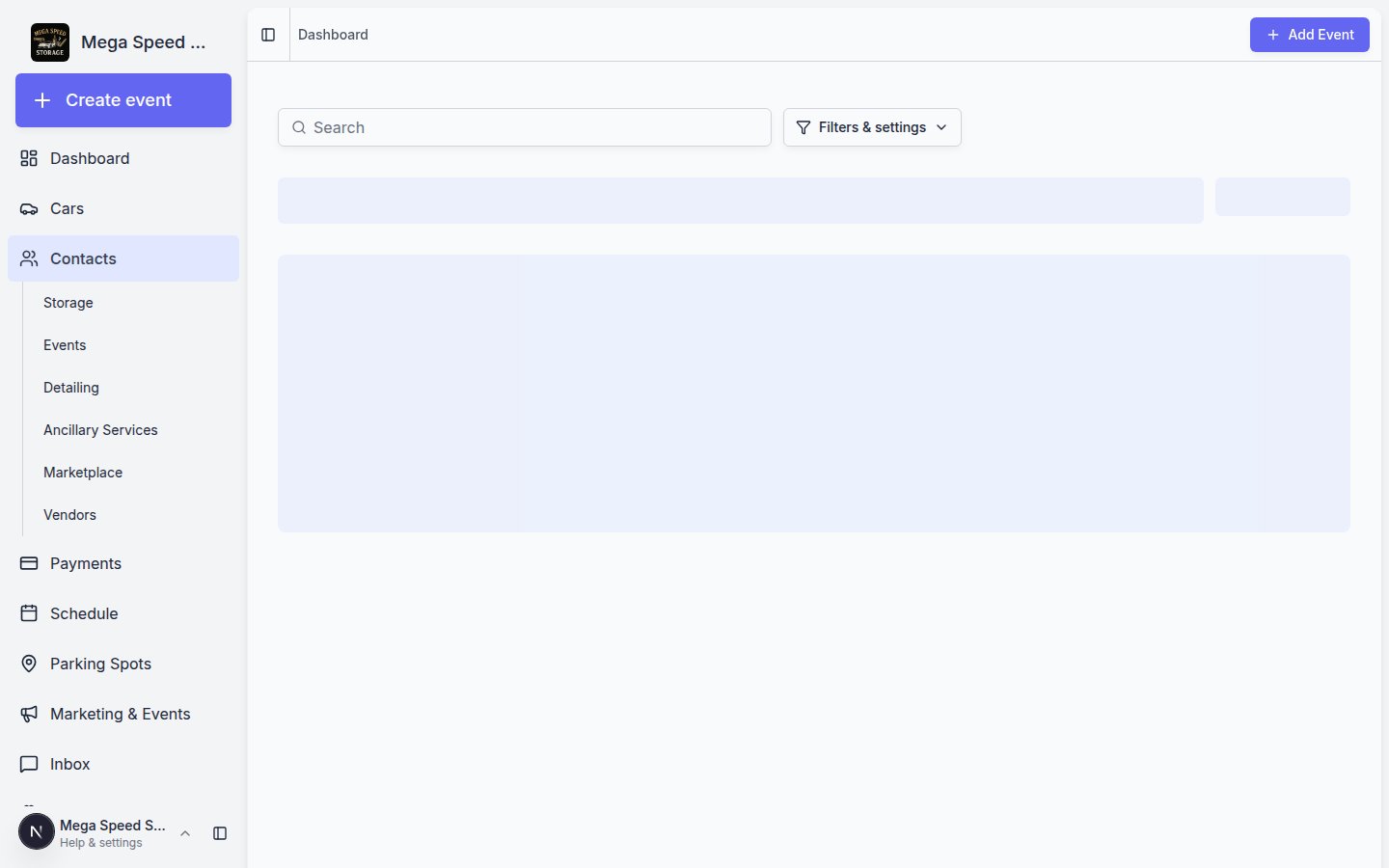 *Click Contacts in the sidebar, then All Contacts (or a customer-type page) to see your full customer list.*
## How the Contacts area is organized
The **Contacts** item in the left sidebar opens a whole area of the app—not just one page. Think of it as your customer directory with shortcuts for different kinds of relationships.
| Page in the sidebar | Best for | Direct link |
| - | - | - |
| **All Contacts** | Everyone—leads, active customers, and former customers in one list | [All Contacts](https://www.carstoragesoftware.com/dashboard/contacts/all) |
| **Storage** | Customers who use vehicle storage | [Storage contacts](https://www.carstoragesoftware.com/dashboard/contacts/storage) |
| **Events** | Social event attendees and event prospects | [Events contacts](https://www.carstoragesoftware.com/dashboard/contacts/events) |
| **Detailing** | Detail, wash, and cosmetic service customers | [Detailing contacts](https://www.carstoragesoftware.com/dashboard/contacts/detailing) |
| **Ancillary Services** | Transport, maintenance, and other non-storage work | [Ancillary Services contacts](https://www.carstoragesoftware.com/dashboard/contacts/ancillary_services) |
| **Marketplace** | Marketplace buyers and sales prospects | [Marketplace contacts](https://www.carstoragesoftware.com/dashboard/contacts/marketplace) |
| **Vendors** | Outside companies you pay (detailers, transport, and similar) | [Vendors](https://www.carstoragesoftware.com/dashboard/contacts/vendors) — see [Work with vendor contacts](/docs/contacts/work-with-vendor-contacts) |
*Click Contacts in the sidebar, then All Contacts (or a customer-type page) to see your full customer list.*
## How the Contacts area is organized
The **Contacts** item in the left sidebar opens a whole area of the app—not just one page. Think of it as your customer directory with shortcuts for different kinds of relationships.
| Page in the sidebar | Best for | Direct link |
| - | - | - |
| **All Contacts** | Everyone—leads, active customers, and former customers in one list | [All Contacts](https://www.carstoragesoftware.com/dashboard/contacts/all) |
| **Storage** | Customers who use vehicle storage | [Storage contacts](https://www.carstoragesoftware.com/dashboard/contacts/storage) |
| **Events** | Social event attendees and event prospects | [Events contacts](https://www.carstoragesoftware.com/dashboard/contacts/events) |
| **Detailing** | Detail, wash, and cosmetic service customers | [Detailing contacts](https://www.carstoragesoftware.com/dashboard/contacts/detailing) |
| **Ancillary Services** | Transport, maintenance, and other non-storage work | [Ancillary Services contacts](https://www.carstoragesoftware.com/dashboard/contacts/ancillary_services) |
| **Marketplace** | Marketplace buyers and sales prospects | [Marketplace contacts](https://www.carstoragesoftware.com/dashboard/contacts/marketplace) |
| **Vendors** | Outside companies you pay (detailers, transport, and similar) | [Vendors](https://www.carstoragesoftware.com/dashboard/contacts/vendors) — see [Work with vendor contacts](/docs/contacts/work-with-vendor-contacts) |
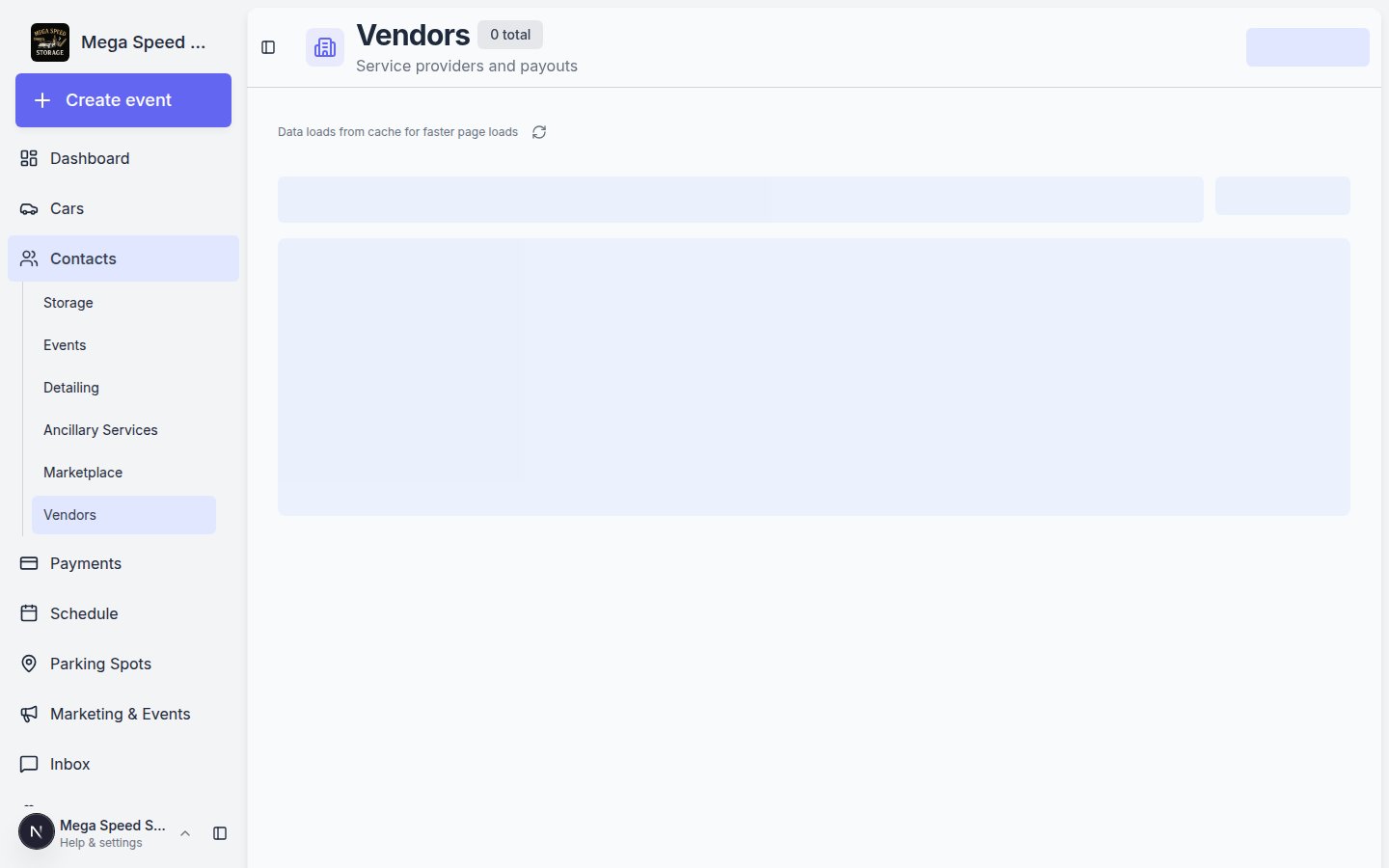 *Vendors live under Contacts in the sidebar. Use this page for outside providers you pay—not for customers who pay you.*
**Vendors vs customers**
**Customers** pay your facility for storage and services. **Vendors** are companies your facility pays. For step-by-step vendor setup, read [Manage vendors](/docs/payments/manage-vendors).
**Why there are separate pages**
Each customer-type page shows only customers tagged with that **Customer Type** on their record. **All Contacts** never hides anyone—it is the safest place to search when you are not sure which group someone belongs to.
Click **Contacts** in the left sidebar.
**Expected result:** The sidebar expands (on desktop) or you land on a contacts list. The page title at the top says **All Contacts** or the name of the type you chose (for example **Storage**).
* Use **All Contacts** when you need to search everyone or you are not sure where someone belongs.
* Use **Storage**, **Events**, or another type page when your team only works with that group today.
**Why this matters:** A shorter list is easier to scan. A storage coordinator does not need to scroll past marketplace buyers every morning.
**Search**, **Filters & settings**, **Create New Customer**, and **Report** work the same on every contacts page. You do not need to learn different buttons for each type.
*Vendors live under Contacts in the sidebar. Use this page for outside providers you pay—not for customers who pay you.*
**Vendors vs customers**
**Customers** pay your facility for storage and services. **Vendors** are companies your facility pays. For step-by-step vendor setup, read [Manage vendors](/docs/payments/manage-vendors).
**Why there are separate pages**
Each customer-type page shows only customers tagged with that **Customer Type** on their record. **All Contacts** never hides anyone—it is the safest place to search when you are not sure which group someone belongs to.
Click **Contacts** in the left sidebar.
**Expected result:** The sidebar expands (on desktop) or you land on a contacts list. The page title at the top says **All Contacts** or the name of the type you chose (for example **Storage**).
* Use **All Contacts** when you need to search everyone or you are not sure where someone belongs.
* Use **Storage**, **Events**, or another type page when your team only works with that group today.
**Why this matters:** A shorter list is easier to scan. A storage coordinator does not need to scroll past marketplace buyers every morning.
**Search**, **Filters & settings**, **Create New Customer**, and **Report** work the same on every contacts page. You do not need to learn different buttons for each type.
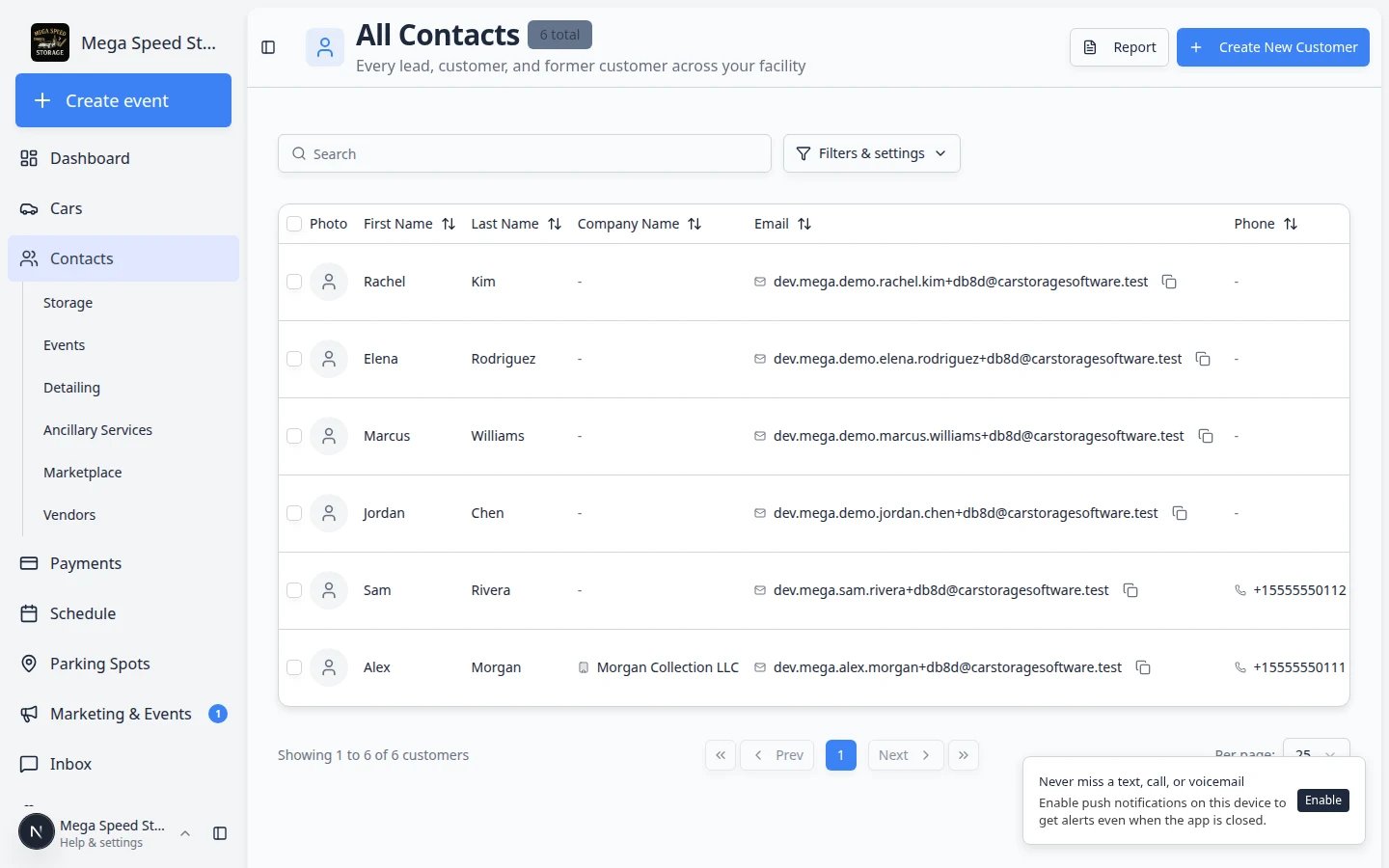 *Click the arrow beside Contacts to expand the list. Each link opens customers filtered by customer type.*
## What you can do from Contacts
* **Add a customer** — create one customer record at a time. See [Add a customer](/docs/contacts/add-a-customer).
* **Import customers** — bring in a spreadsheet when you are moving from another system. See [Import customers, cars, events, and photos](/docs/contacts/import-customers-and-cars).
* **Find and filter customers** — search by name, email, phone, company, status, stage, type, or source. See [Find and filter contacts](/docs/contacts/find-and-filter-contacts).
* **Work with customer type lists** — open Storage, Detailing, Marketplace, and other focused lists from the Contacts sidebar. See [Work with customer type lists](/docs/contacts/work-with-customer-type-lists).
* **View and edit customer details** — update name, email, phone, address, company, birthday, and CRM information. See [Edit customer details](/docs/contacts/edit-customer-details).
* **Customize the contact page** — hide unused blocks (such as **Market Interests**) and reorder the rest so your team sees cars, activity, and billing first. See [Customize the contact page](/docs/contacts/customize-the-contact-page).
* **Add customer notes** — leave team-only or customer-visible notes so the next teammate knows preferences and follow-up. See [Add and manage customer notes](/docs/contacts/add-and-manage-customer-notes).
* **Track market interests** — record vehicles a customer wants to buy with year, make, model, and budget. See [Track customer market interests](/docs/contacts/track-customer-market-interests).
* **Review activity and history** — see emails, texts, invoices, and event changes on the customer timeline. See [Review customer activity and history](/docs/contacts/review-customer-activity-and-history).
* **Manage billing on the record** — add the customer to payment processing and review payment methods. See [Manage billing on a customer record](/docs/contacts/manage-billing-on-a-customer-record).
* **Work with vendor contacts** — add outside detailers, transporters, and contractors under [Contacts > Vendors](https://www.carstoragesoftware.com/dashboard/contacts/vendors). See [Work with vendor contacts](/docs/contacts/work-with-vendor-contacts).
* **Manage additional contacts** — add a spouse, assistant, bookkeeper, or vehicle manager with their own communication preferences. See [Manage additional contacts](/docs/contacts/manage-additional-contacts).
* **Link cars and documents** — connect vehicles, contracts, files, billing, and history to the correct person. See [Link cars and documents to a customer](/docs/contacts/link-cars-and-documents).
* **Invite a customer to the portal** — send a sign-in link so the customer can view the information your team has prepared. See [Invite a customer to the portal](/docs/contacts/invite-a-customer-to-the-portal).
* **Guide a customer through the portal** — help customers sign in, find cars, review events, and understand billing. See [Guide a customer through the portal](/docs/contacts/guide-a-customer-through-the-portal).
* **Understand portal access levels** — learn the difference between Full and Ticket-only access. See [Understand portal access levels](/docs/contacts/understand-portal-access-levels).
* **Export the customer report** — sort and download customer data for reviews and follow-up lists. See [Export and use the customer report](/docs/contacts/export-and-use-the-customer-report).
* **Handle duplicates** — migrate, restore, or delete mistaken records safely. See [Handle duplicate or merged customer records](/docs/contacts/handle-duplicate-or-merged-customer-records).
## Customer journey from record to portal
Most customer portal problems start before the customer signs in. Use this simple flow to give customers a smooth first experience:
Add the customer, confirm the email address, link cars, and attach any documents or billing items the customer should see.
Send the portal invite only after the record looks ready. This helps the customer trust what they see when they sign in.
Explain the main portal areas in simple terms: Events, Cars, Shop, Billing, Documents, and Settings.
When cars, documents, billing, or contact details change, update the customer record so the portal stays accurate.
*Click the arrow beside Contacts to expand the list. Each link opens customers filtered by customer type.*
## What you can do from Contacts
* **Add a customer** — create one customer record at a time. See [Add a customer](/docs/contacts/add-a-customer).
* **Import customers** — bring in a spreadsheet when you are moving from another system. See [Import customers, cars, events, and photos](/docs/contacts/import-customers-and-cars).
* **Find and filter customers** — search by name, email, phone, company, status, stage, type, or source. See [Find and filter contacts](/docs/contacts/find-and-filter-contacts).
* **Work with customer type lists** — open Storage, Detailing, Marketplace, and other focused lists from the Contacts sidebar. See [Work with customer type lists](/docs/contacts/work-with-customer-type-lists).
* **View and edit customer details** — update name, email, phone, address, company, birthday, and CRM information. See [Edit customer details](/docs/contacts/edit-customer-details).
* **Customize the contact page** — hide unused blocks (such as **Market Interests**) and reorder the rest so your team sees cars, activity, and billing first. See [Customize the contact page](/docs/contacts/customize-the-contact-page).
* **Add customer notes** — leave team-only or customer-visible notes so the next teammate knows preferences and follow-up. See [Add and manage customer notes](/docs/contacts/add-and-manage-customer-notes).
* **Track market interests** — record vehicles a customer wants to buy with year, make, model, and budget. See [Track customer market interests](/docs/contacts/track-customer-market-interests).
* **Review activity and history** — see emails, texts, invoices, and event changes on the customer timeline. See [Review customer activity and history](/docs/contacts/review-customer-activity-and-history).
* **Manage billing on the record** — add the customer to payment processing and review payment methods. See [Manage billing on a customer record](/docs/contacts/manage-billing-on-a-customer-record).
* **Work with vendor contacts** — add outside detailers, transporters, and contractors under [Contacts > Vendors](https://www.carstoragesoftware.com/dashboard/contacts/vendors). See [Work with vendor contacts](/docs/contacts/work-with-vendor-contacts).
* **Manage additional contacts** — add a spouse, assistant, bookkeeper, or vehicle manager with their own communication preferences. See [Manage additional contacts](/docs/contacts/manage-additional-contacts).
* **Link cars and documents** — connect vehicles, contracts, files, billing, and history to the correct person. See [Link cars and documents to a customer](/docs/contacts/link-cars-and-documents).
* **Invite a customer to the portal** — send a sign-in link so the customer can view the information your team has prepared. See [Invite a customer to the portal](/docs/contacts/invite-a-customer-to-the-portal).
* **Guide a customer through the portal** — help customers sign in, find cars, review events, and understand billing. See [Guide a customer through the portal](/docs/contacts/guide-a-customer-through-the-portal).
* **Understand portal access levels** — learn the difference between Full and Ticket-only access. See [Understand portal access levels](/docs/contacts/understand-portal-access-levels).
* **Export the customer report** — sort and download customer data for reviews and follow-up lists. See [Export and use the customer report](/docs/contacts/export-and-use-the-customer-report).
* **Handle duplicates** — migrate, restore, or delete mistaken records safely. See [Handle duplicate or merged customer records](/docs/contacts/handle-duplicate-or-merged-customer-records).
## Customer journey from record to portal
Most customer portal problems start before the customer signs in. Use this simple flow to give customers a smooth first experience:
Add the customer, confirm the email address, link cars, and attach any documents or billing items the customer should see.
Send the portal invite only after the record looks ready. This helps the customer trust what they see when they sign in.
Explain the main portal areas in simple terms: Events, Cars, Shop, Billing, Documents, and Settings.
When cars, documents, billing, or contact details change, update the customer record so the portal stays accurate.
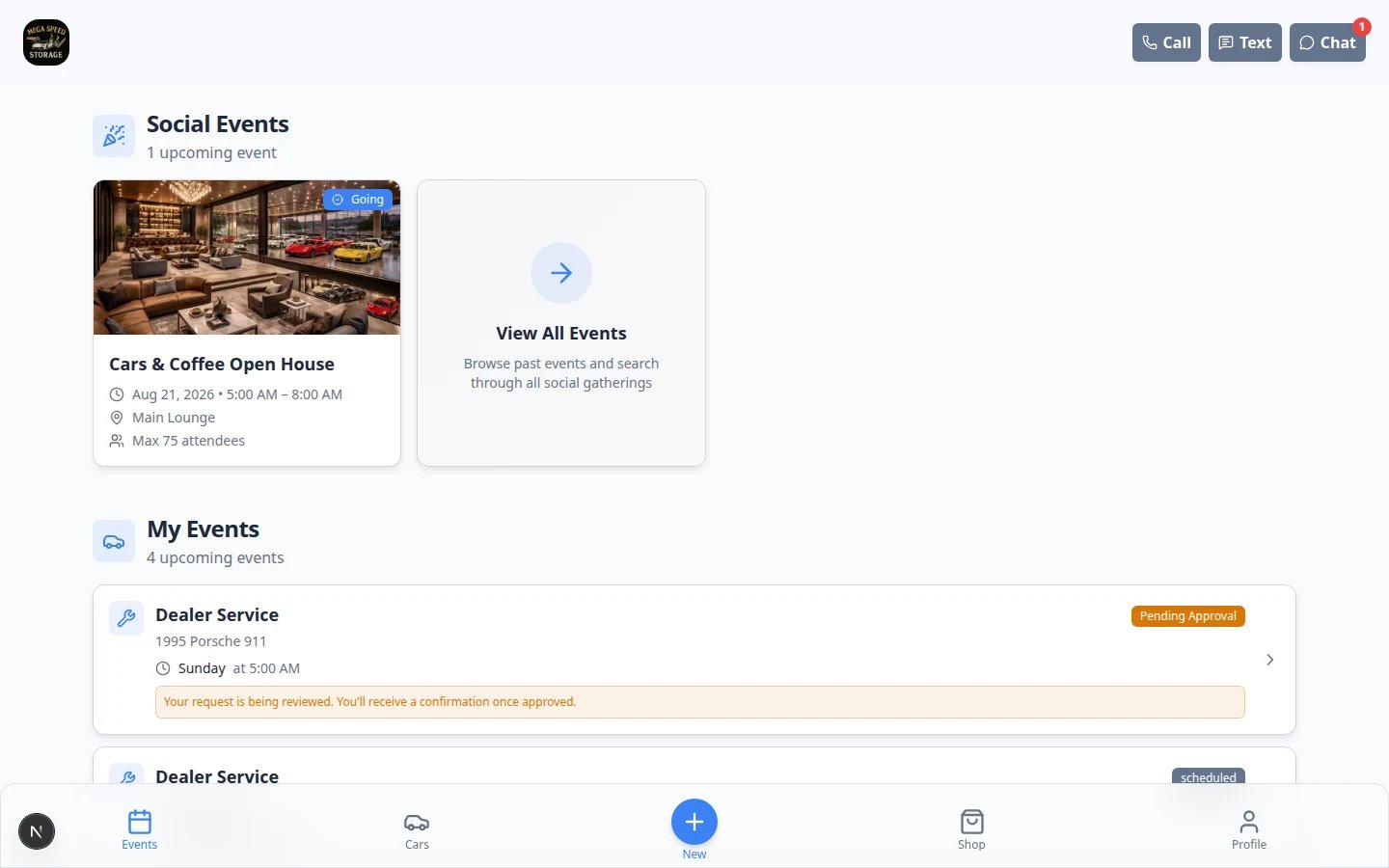 *The portal gives customers a self-service view of the information your team has prepared for them.*
## Finding customers quickly
The [All Contacts page](https://www.carstoragesoftware.com/dashboard/contacts/all) (and each customer-type page) supports **search**, **filters**, and **three view modes** so you can find the right customer on the first try.
| View | Best for | How to switch |
| - | - | - |
| **Table** | Daily office work, sorting, and quick actions | Open **Filters & settings**, then choose **Table** |
| **Card** | Visual browsing with photos | Open **Filters & settings**, then choose **Card** |
| **Board** | Sales follow-up and moving leads through stages | Open **Filters & settings**, then choose **Board** |
*The portal gives customers a self-service view of the information your team has prepared for them.*
## Finding customers quickly
The [All Contacts page](https://www.carstoragesoftware.com/dashboard/contacts/all) (and each customer-type page) supports **search**, **filters**, and **three view modes** so you can find the right customer on the first try.
| View | Best for | How to switch |
| - | - | - |
| **Table** | Daily office work, sorting, and quick actions | Open **Filters & settings**, then choose **Table** |
| **Card** | Visual browsing with photos | Open **Filters & settings**, then choose **Card** |
| **Board** | Sales follow-up and moving leads through stages | Open **Filters & settings**, then choose **Board** |
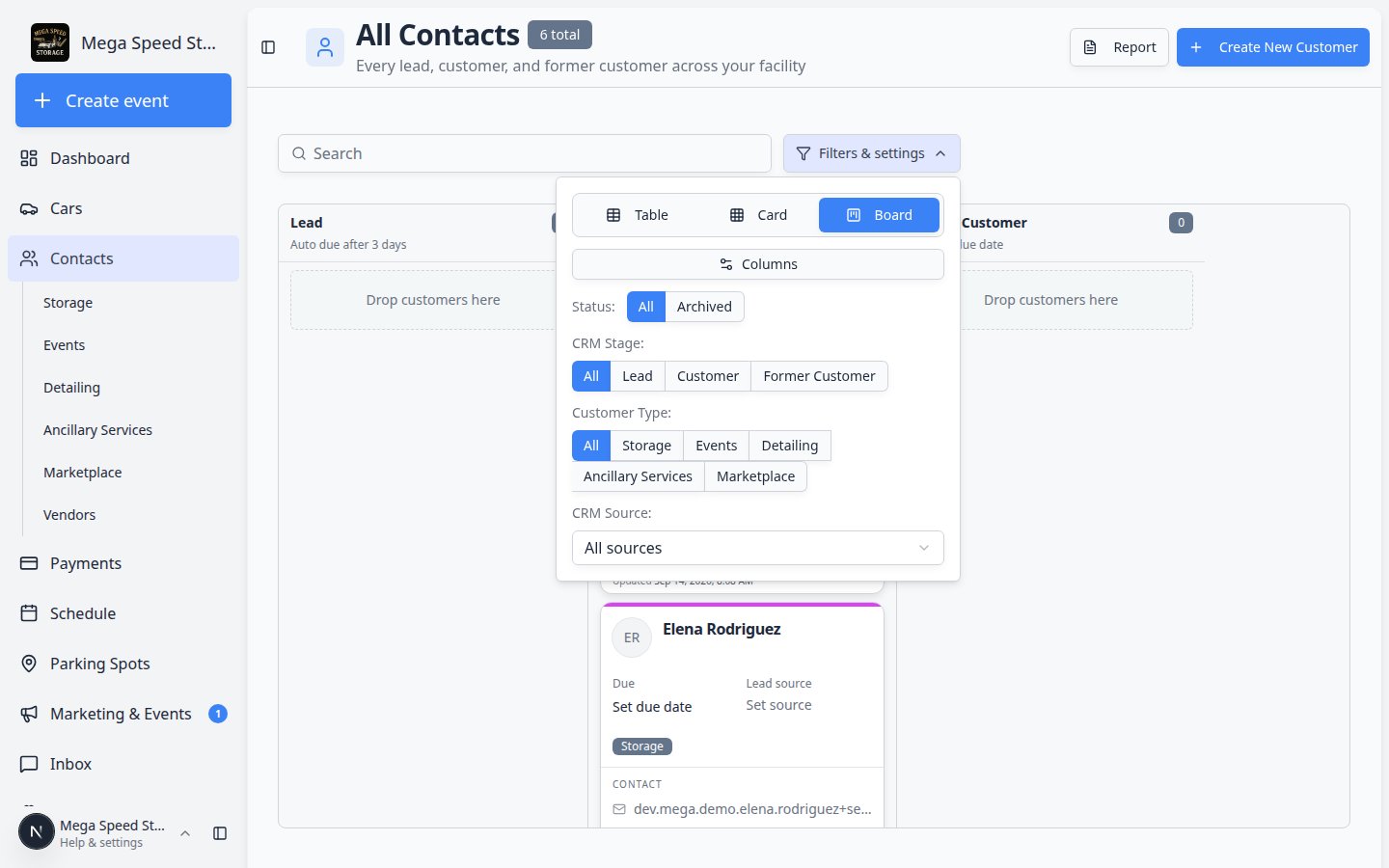 *Open **Filters & settings** near the search bar to change views, show or hide table columns, and narrow the list.*
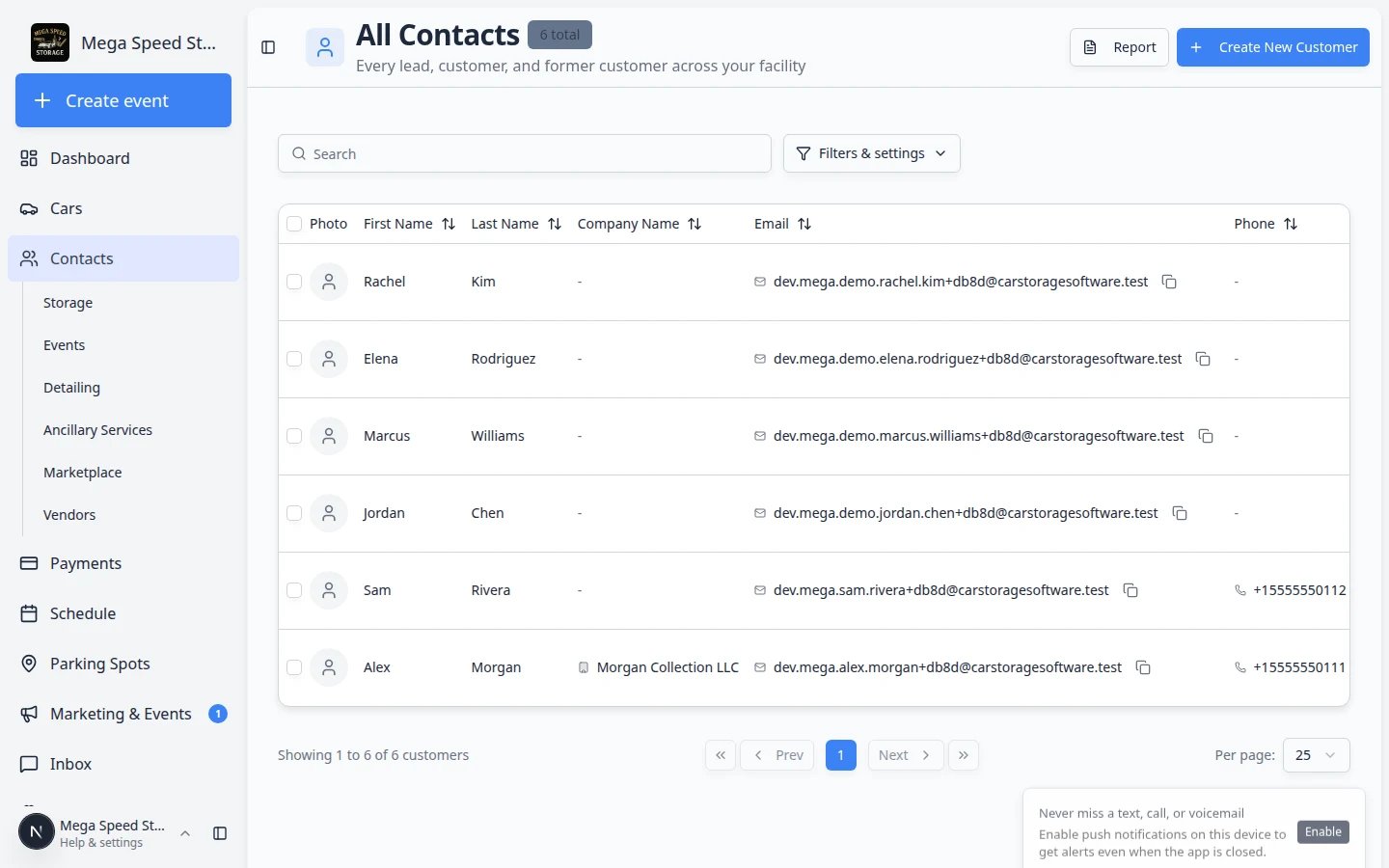 *Card view helps your team browse customers visually—useful when you recognize people by photo or name at a glance.*
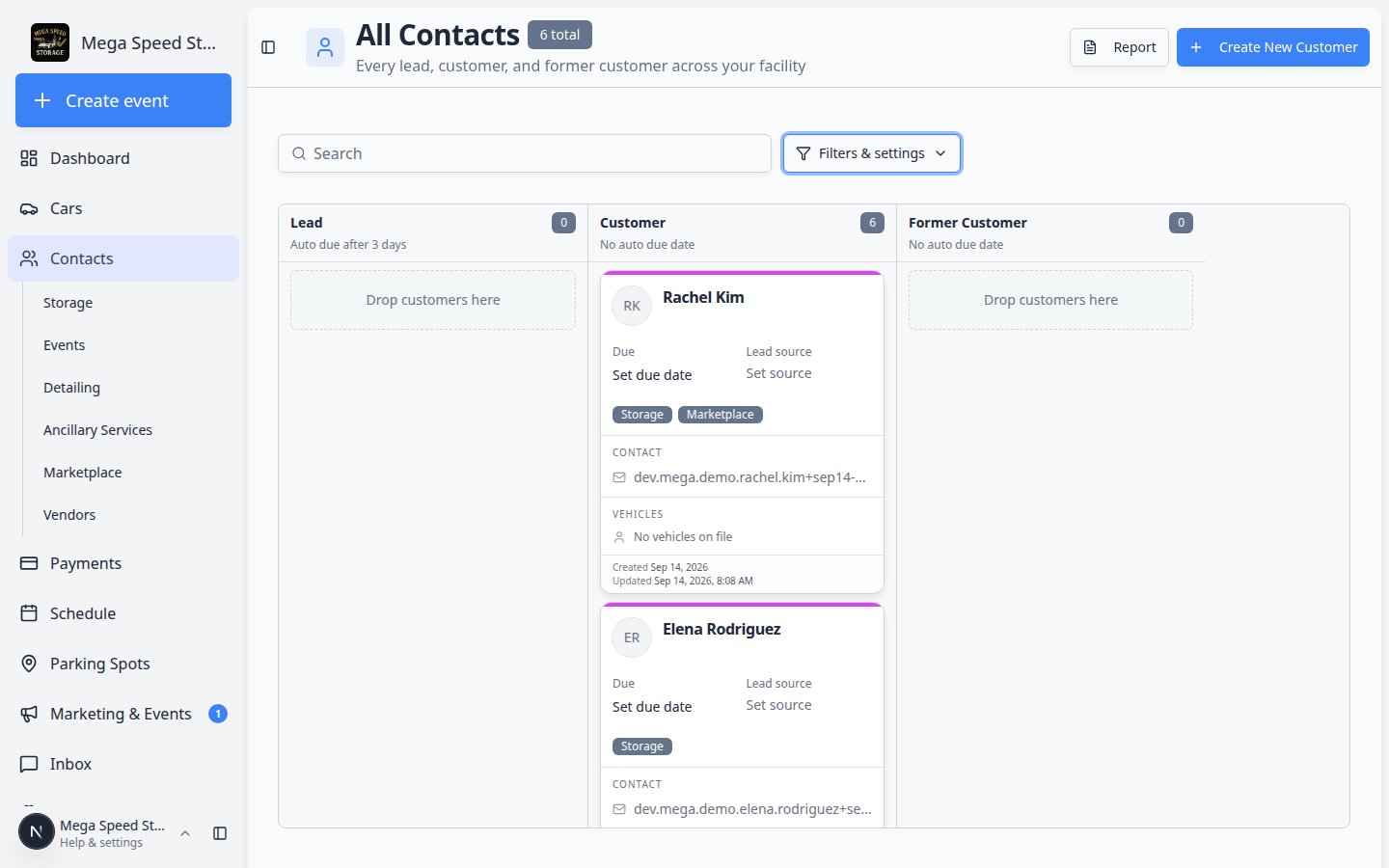 *Board view groups customers by pipeline stage. Drag a card to another column when their stage changes.*
For step-by-step help with search and filters, read [Find and filter contacts](/docs/contacts/find-and-filter-contacts).
## The customer detail page
Click any customer to open their detail page. This single page is the source of truth for everything about the customer. Your team can hide or reorder these blocks in [Settings > CRM](https://www.carstoragesoftware.com/dashboard/settings/crm) — see [Customize the contact page](/docs/contacts/customize-the-contact-page).
* **Personal & Contact** — name, company, email, phone, address, birthday, profile photo, and location assignment.
* **CRM Information** — pipeline stage, customer source (with detail), customer groups (types), and freeform tags.
* **Customer's Cars** — all vehicles linked to this customer, with quick actions to assign more.
* **Contacts** — additional people associated with the customer account (spouse, assistant, bookkeeper, etc.) with individual communication preferences and portal access. In settings this block is named **Additional Contacts**.
* **Customer Notes** — short messages your team adds on purpose. See [Add and manage customer notes](/docs/contacts/add-and-manage-customer-notes).
* **Market Interests** — vehicles the customer wants to buy (when your facility sells or sources cars). See [Track customer market interests](/docs/contacts/track-customer-market-interests). Hide this block if you never source cars.
* **Documents & Contracts** — contracts, agreements, and uploaded files tied to the customer.
* **Activity Feed** — a timeline of communications, events, and changes. See [Review customer activity and history](/docs/contacts/review-customer-activity-and-history).
* **Billing Setup** — payment methods, payment history, and fee configuration (when payments are enabled). See [Manage billing on a customer record](/docs/contacts/manage-billing-on-a-customer-record).
*Board view groups customers by pipeline stage. Drag a card to another column when their stage changes.*
For step-by-step help with search and filters, read [Find and filter contacts](/docs/contacts/find-and-filter-contacts).
## The customer detail page
Click any customer to open their detail page. This single page is the source of truth for everything about the customer. Your team can hide or reorder these blocks in [Settings > CRM](https://www.carstoragesoftware.com/dashboard/settings/crm) — see [Customize the contact page](/docs/contacts/customize-the-contact-page).
* **Personal & Contact** — name, company, email, phone, address, birthday, profile photo, and location assignment.
* **CRM Information** — pipeline stage, customer source (with detail), customer groups (types), and freeform tags.
* **Customer's Cars** — all vehicles linked to this customer, with quick actions to assign more.
* **Contacts** — additional people associated with the customer account (spouse, assistant, bookkeeper, etc.) with individual communication preferences and portal access. In settings this block is named **Additional Contacts**.
* **Customer Notes** — short messages your team adds on purpose. See [Add and manage customer notes](/docs/contacts/add-and-manage-customer-notes).
* **Market Interests** — vehicles the customer wants to buy (when your facility sells or sources cars). See [Track customer market interests](/docs/contacts/track-customer-market-interests). Hide this block if you never source cars.
* **Documents & Contracts** — contracts, agreements, and uploaded files tied to the customer.
* **Activity Feed** — a timeline of communications, events, and changes. See [Review customer activity and history](/docs/contacts/review-customer-activity-and-history).
* **Billing Setup** — payment methods, payment history, and fee configuration (when payments are enabled). See [Manage billing on a customer record](/docs/contacts/manage-billing-on-a-customer-record).
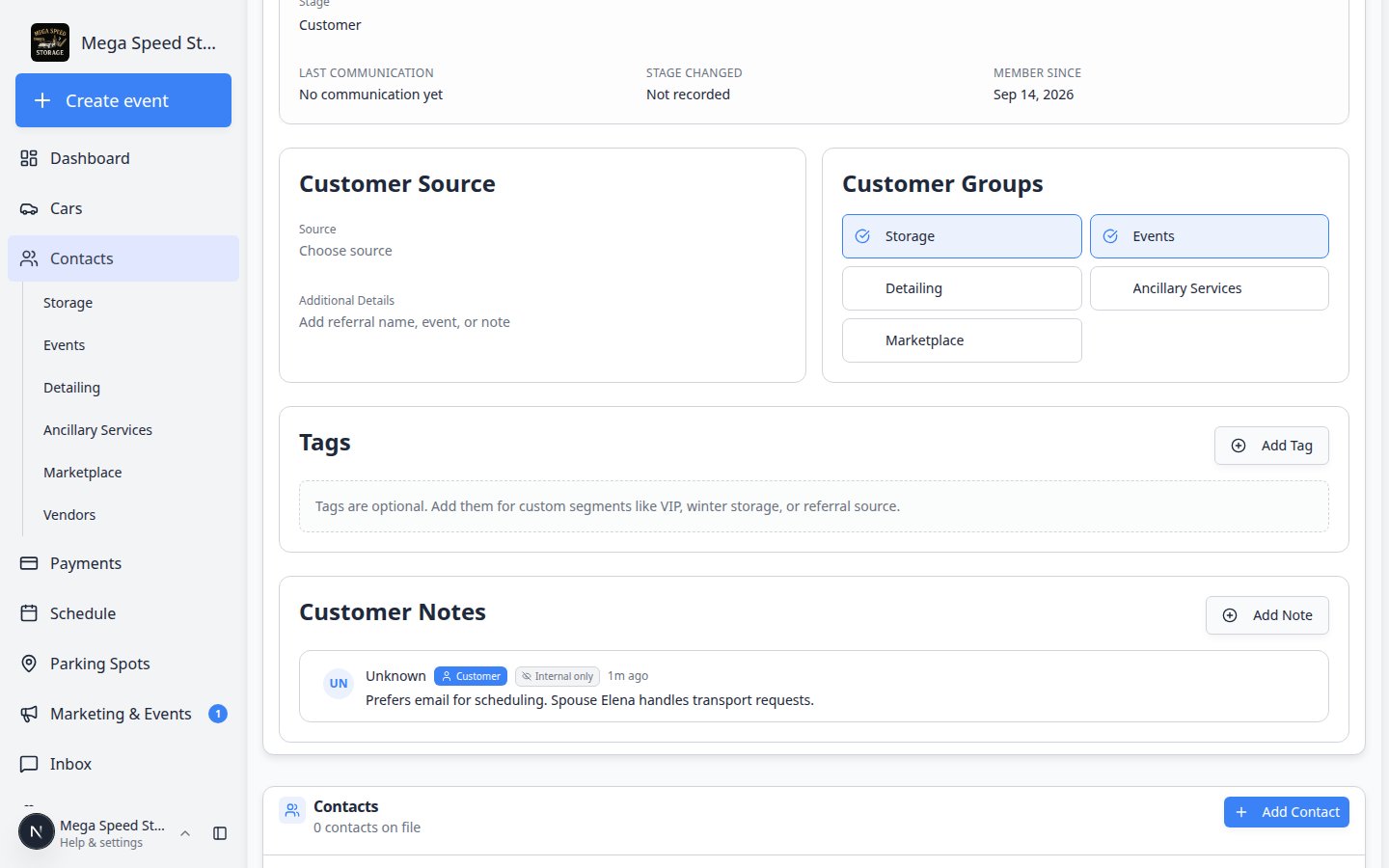 ***Customer Notes** and **Market Interests** live on the same customer page—scroll past CRM Information to find them.*
 ***Market Interests** records what a customer wants to buy—not cars you are selling. Use it when a collector asks you to keep an eye out for a specific model.*
 *The top of the customer detail page shows personal information and quick-edit fields.*
## How-to guides
Create a new customer record with contact details and CRM classification. [Read the guide →](/docs/contacts/add-a-customer)
Bring existing customer lists, vehicles, historical events, and photo archives into the system during onboarding. [Read the guide →](/docs/contacts/import-customers-and-cars)
Use Storage, Events, Detailing, Marketplace, and other sidebar pages to focus on the right customers each day. [Read the guide →](/docs/contacts/work-with-customer-type-lists)
Add outside detailers, transporters, and contractors under [Contacts > Vendors](https://www.carstoragesoftware.com/dashboard/contacts/vendors). [Read the guide →](/docs/contacts/work-with-vendor-contacts)
Use search, filters, table view, card view, and board view to find the right record quickly. [Read the guide →](/docs/contacts/find-and-filter-contacts)
Review portal sign-in, payment status, and monthly recurring totals—and export CSV when needed. [Read the guide →](/docs/contacts/export-and-use-the-customer-report)
Use tags, pipeline stages, customer types, and sources to organize and segment your customer base. [Read the guide →](/docs/contacts/manage-contact-tags)
Leave team-only or customer-visible notes on the record. [Read the guide →](/docs/contacts/add-and-manage-customer-notes)
Record wish-list vehicles when you sell or source cars for customers. [Read the guide →](/docs/contacts/track-customer-market-interests)
Connect payment processing and review payment methods from the customer page. [Read the guide →](/docs/contacts/manage-billing-on-a-customer-record)
Connect vehicles, contracts, and uploaded files to the correct customer record. [Read the guide →](/docs/contacts/link-cars-and-documents)
See messages, notes, invoices, and schedule changes in one timeline. [Read the guide →](/docs/contacts/review-customer-activity-and-history)
Update contact information, CRM fields, notes, and account status safely. [Read the guide →](/docs/contacts/edit-customer-details)
Hide unused blocks and drag the rest into the order your team opens most. [Read the guide →](/docs/contacts/customize-the-contact-page)
Add assistants, spouses, bookkeepers, and other people who help manage the account. [Read the guide →](/docs/contacts/manage-additional-contacts)
Send a sign-in link so the customer can access their cars, billing, documents, and schedule from the customer portal. [Read the guide →](/docs/contacts/invite-a-customer-to-the-portal)
Learn Full vs Ticket-only access and when Send Invite appears on the list. [Read the guide →](/docs/contacts/understand-portal-access-levels)
Help a customer sign in, understand what they can do, and complete common portal tasks with confidence. [Read the guide →](/docs/contacts/guide-a-customer-through-the-portal)
Migrate duplicates, restore deleted customers, or delete mistaken records safely. [Read the guide →](/docs/contacts/handle-duplicate-or-merged-customer-records)
## Recommended first-time setup order
If your facility is new to Car Storage Software, use this order:
Review [Configure CRM settings](/docs/settings/configure-crm-settings) so your stages, sources, and customer groups match your process.
Hide blocks your team will not use, then put cars, activity, and billing where staff can see them during a call. [Customize the contact page](/docs/contacts/customize-the-contact-page).
Add one customer with [Add a customer](/docs/contacts/add-a-customer), or bring in a spreadsheet from [Import Data](https://www.carstoragesoftware.com/dashboard/import) using [Import customers, cars, events, and photos](/docs/contacts/import-customers-and-cars).
Create the vehicles and link them to the correct customers.
Add the paperwork customers need before they use the portal.
Invite customers after their record looks complete.
Use [Guide a customer through the portal](/docs/contacts/guide-a-customer-through-the-portal) to explain what customers see and how your team should answer common portal questions.
## Related topics
- [Add a customer](/docs/contacts/add-a-customer.md)
- [Contracts overview](/docs/contracts/overview.md)
- [Payments overview](/docs/payments/overview.md)
- [Inbox overview](/docs/inbox/overview.md)
- [Cars overview](/docs/cars/overview.md)
This documentation is built and hosted on [Mintlify](https://mintlify.com), a developer documentation platform.
*The top of the customer detail page shows personal information and quick-edit fields.*
## How-to guides
Create a new customer record with contact details and CRM classification. [Read the guide →](/docs/contacts/add-a-customer)
Bring existing customer lists, vehicles, historical events, and photo archives into the system during onboarding. [Read the guide →](/docs/contacts/import-customers-and-cars)
Use Storage, Events, Detailing, Marketplace, and other sidebar pages to focus on the right customers each day. [Read the guide →](/docs/contacts/work-with-customer-type-lists)
Add outside detailers, transporters, and contractors under [Contacts > Vendors](https://www.carstoragesoftware.com/dashboard/contacts/vendors). [Read the guide →](/docs/contacts/work-with-vendor-contacts)
Use search, filters, table view, card view, and board view to find the right record quickly. [Read the guide →](/docs/contacts/find-and-filter-contacts)
Review portal sign-in, payment status, and monthly recurring totals—and export CSV when needed. [Read the guide →](/docs/contacts/export-and-use-the-customer-report)
Use tags, pipeline stages, customer types, and sources to organize and segment your customer base. [Read the guide →](/docs/contacts/manage-contact-tags)
Leave team-only or customer-visible notes on the record. [Read the guide →](/docs/contacts/add-and-manage-customer-notes)
Record wish-list vehicles when you sell or source cars for customers. [Read the guide →](/docs/contacts/track-customer-market-interests)
Connect payment processing and review payment methods from the customer page. [Read the guide →](/docs/contacts/manage-billing-on-a-customer-record)
Connect vehicles, contracts, and uploaded files to the correct customer record. [Read the guide →](/docs/contacts/link-cars-and-documents)
See messages, notes, invoices, and schedule changes in one timeline. [Read the guide →](/docs/contacts/review-customer-activity-and-history)
Update contact information, CRM fields, notes, and account status safely. [Read the guide →](/docs/contacts/edit-customer-details)
Hide unused blocks and drag the rest into the order your team opens most. [Read the guide →](/docs/contacts/customize-the-contact-page)
Add assistants, spouses, bookkeepers, and other people who help manage the account. [Read the guide →](/docs/contacts/manage-additional-contacts)
Send a sign-in link so the customer can access their cars, billing, documents, and schedule from the customer portal. [Read the guide →](/docs/contacts/invite-a-customer-to-the-portal)
Learn Full vs Ticket-only access and when Send Invite appears on the list. [Read the guide →](/docs/contacts/understand-portal-access-levels)
Help a customer sign in, understand what they can do, and complete common portal tasks with confidence. [Read the guide →](/docs/contacts/guide-a-customer-through-the-portal)
Migrate duplicates, restore deleted customers, or delete mistaken records safely. [Read the guide →](/docs/contacts/handle-duplicate-or-merged-customer-records)
## Recommended first-time setup order
If your facility is new to Car Storage Software, use this order:
Review [Configure CRM settings](/docs/settings/configure-crm-settings) so your stages, sources, and customer groups match your process.
Hide blocks your team will not use, then put cars, activity, and billing where staff can see them during a call. [Customize the contact page](/docs/contacts/customize-the-contact-page).
Add one customer with [Add a customer](/docs/contacts/add-a-customer), or bring in a spreadsheet from [Import Data](https://www.carstoragesoftware.com/dashboard/import) using [Import customers, cars, events, and photos](/docs/contacts/import-customers-and-cars).
Create the vehicles and link them to the correct customers.
Add the paperwork customers need before they use the portal.
Invite customers after their record looks complete.
Use [Guide a customer through the portal](/docs/contacts/guide-a-customer-through-the-portal) to explain what customers see and how your team should answer common portal questions.
## Related topics
- [Add a customer](/docs/contacts/add-a-customer.md)
- [Contracts overview](/docs/contracts/overview.md)
- [Payments overview](/docs/payments/overview.md)
- [Inbox overview](/docs/inbox/overview.md)
- [Cars overview](/docs/cars/overview.md)
This documentation is built and hosted on [Mintlify](https://mintlify.com), a developer documentation platform.