> ## Documentation Index
> Fetch the complete documentation index at: https://www.carstoragesoftware.com/docs/llms.txt
> Use this file to discover all available pages before exploring further.
# Buy a ready-made contract template
> Preview and purchase a storage or membership agreement from the template store, then upload the unmarked PDF to start sending signatures.
## What you will accomplish
You will buy a ready-made agreement from the **template store**, download the unmarked PDF, and turn it into a contract template your team can send for signature.
This is the fastest way to start if you do not already have a lawyer-reviewed PDF on your computer.
**These files are samples, not legal advice**
The store sells **document templates**, not legal services. Car Storage Software is not a law firm. Have an attorney review the wording for your state, your facility, and your customers before you send it to real people.
## When to use this guide
Use this guide when you want a starting agreement without writing one from scratch.
* You are opening a new facility and need a first storage agreement.
* You run a car club or social membership and need a membership agreement.
* You want to preview a DRAFT copy for free before you pay.
If you already have your own PDF, skip this guide and follow [Create a contract template](/docs/contracts/create-a-contract-template).
## Before you start
* You can open [Settings > Contracts & Documents](https://www.carstoragesoftware.com/dashboard/settings/contracts-and-documents).
* You can manage Settings for your team.
* Your facility has a **card on the platform subscription**. The store charges that card one time. If you see **Add a card on your platform subscription before purchasing**, add the card first, then come back.
## Step 1: Open Contracts & Documents
In the left sidebar, click **Settings**.
Go to [Settings > Contracts & Documents](https://www.carstoragesoftware.com/dashboard/settings/contracts-and-documents).
At the top you will see **Contract templates and e-sign**. That is the list of agreements customers sign.
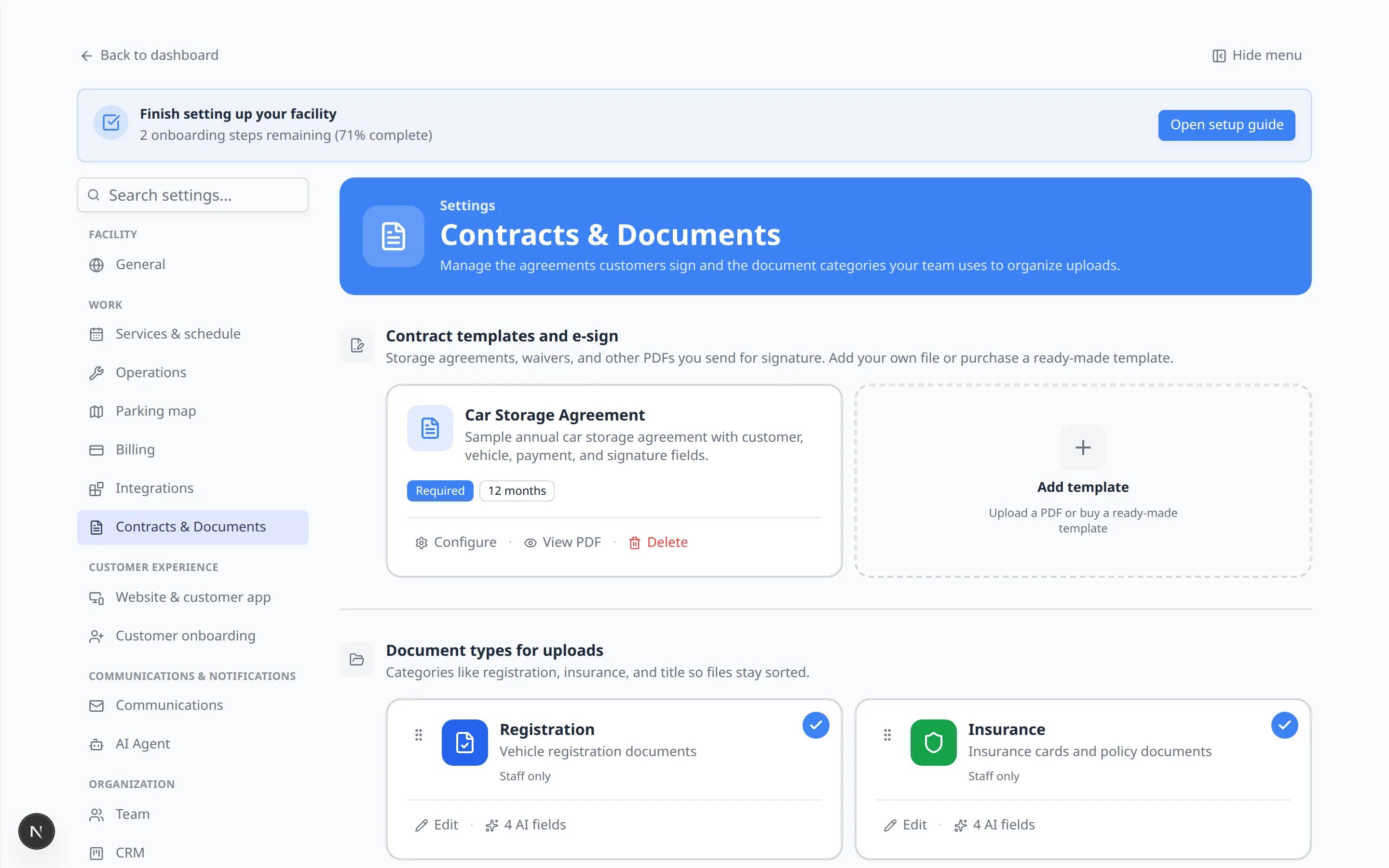 ***Contract templates and e-sign** lists agreements you already have. The dashed **Add template** card is how you buy a ready-made file or upload your own PDF.*
**Expected result:** You see your current templates (if any) and a dashed card that says **Add template**.
## Step 2: Open the create window
Click the dashed **Add template** card. The helper text on the card says **Upload a PDF or buy a ready-made template**.
**Why this matters:** One window covers both paths. You do not need a separate store page.
***Contract templates and e-sign** lists agreements you already have. The dashed **Add template** card is how you buy a ready-made file or upload your own PDF.*
**Expected result:** You see your current templates (if any) and a dashed card that says **Add template**.
## Step 2: Open the create window
Click the dashed **Add template** card. The helper text on the card says **Upload a PDF or buy a ready-made template**.
**Why this matters:** One window covers both paths. You do not need a separate store page.
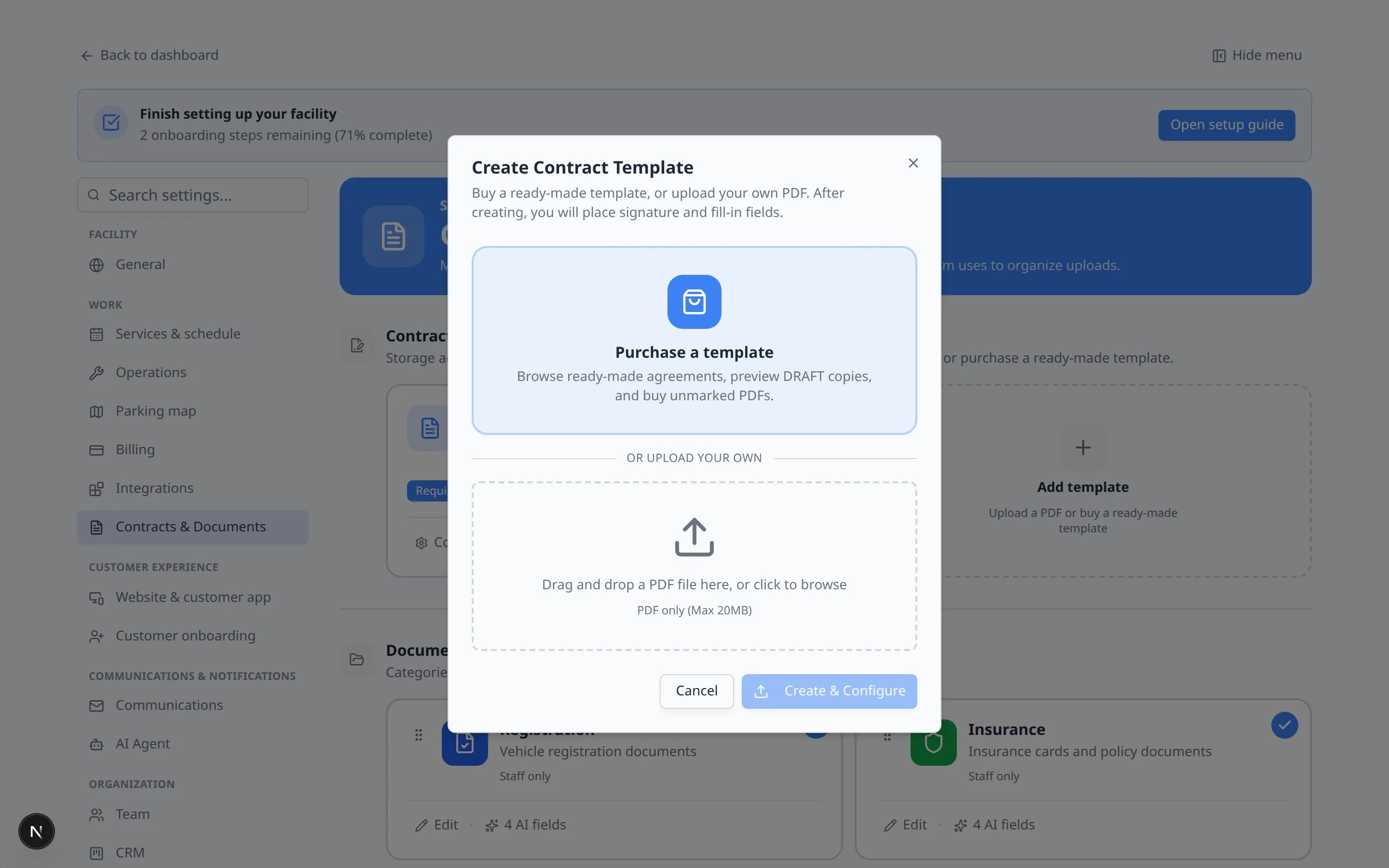 *The **Create Contract Template** window opens with **Purchase a template** at the top and **or upload your own** below. Choose the store when you do not already have a PDF.*
**Expected result:** A window titled **Create Contract Template** appears. The first choice is a large **Purchase a template** card.
## Step 3: Browse the template store
Click **Purchase a template**. The helper text says you can browse ready-made agreements, preview DRAFT copies, and buy unmarked PDFs.
The window title changes to **Template store**. Today you will usually see:
* **Vehicle Storage Agreement Template** — \$249. A fill-in storage agreement you can adapt for your facility.
* **Social Membership Agreement Template** — \$249. A fill-in social / car-club membership agreement covering dues, house rules, guests, and liability.
More templates may appear here later.
*The **Create Contract Template** window opens with **Purchase a template** at the top and **or upload your own** below. Choose the store when you do not already have a PDF.*
**Expected result:** A window titled **Create Contract Template** appears. The first choice is a large **Purchase a template** card.
## Step 3: Browse the template store
Click **Purchase a template**. The helper text says you can browse ready-made agreements, preview DRAFT copies, and buy unmarked PDFs.
The window title changes to **Template store**. Today you will usually see:
* **Vehicle Storage Agreement Template** — \$249. A fill-in storage agreement you can adapt for your facility.
* **Social Membership Agreement Template** — \$249. A fill-in social / car-club membership agreement covering dues, house rules, guests, and liability.
More templates may appear here later.
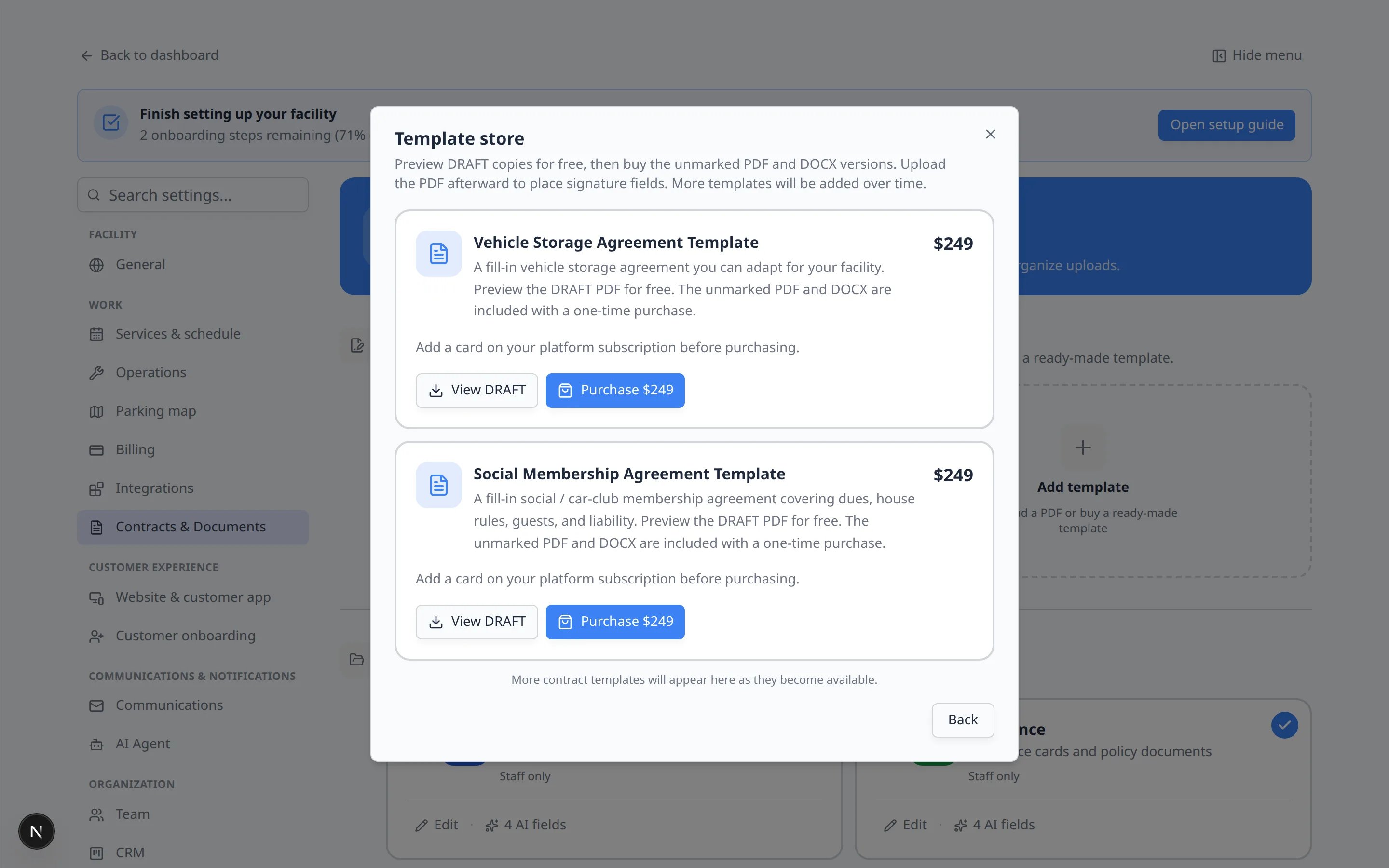 *Preview a **View DRAFT** copy for free. **Purchase \$249** buys the unmarked PDF and Word file. The store charges the card on your platform subscription.*
**DRAFT** means a watermarked sample you can read before you pay. It is marked **DRAFT — NOT FOR USE** so you do not send it to customers by mistake.
**Unmarked** means the clean PDF and Word file you receive after you pay. Upload the PDF to create your working template.
**Expected result:** You can see the name, price, short description, **View DRAFT**, and **Purchase \$249** for each listing.
## Step 4: Preview the DRAFT for free
Click **View DRAFT** on the agreement you are considering.
The DRAFT PDF opens in a new browser tab. Read the sections that matter to your facility—fees, liability, keys, and who may pick up a car.
*Preview a **View DRAFT** copy for free. **Purchase \$249** buys the unmarked PDF and Word file. The store charges the card on your platform subscription.*
**DRAFT** means a watermarked sample you can read before you pay. It is marked **DRAFT — NOT FOR USE** so you do not send it to customers by mistake.
**Unmarked** means the clean PDF and Word file you receive after you pay. Upload the PDF to create your working template.
**Expected result:** You can see the name, price, short description, **View DRAFT**, and **Purchase \$249** for each listing.
## Step 4: Preview the DRAFT for free
Click **View DRAFT** on the agreement you are considering.
The DRAFT PDF opens in a new browser tab. Read the sections that matter to your facility—fees, liability, keys, and who may pick up a car.
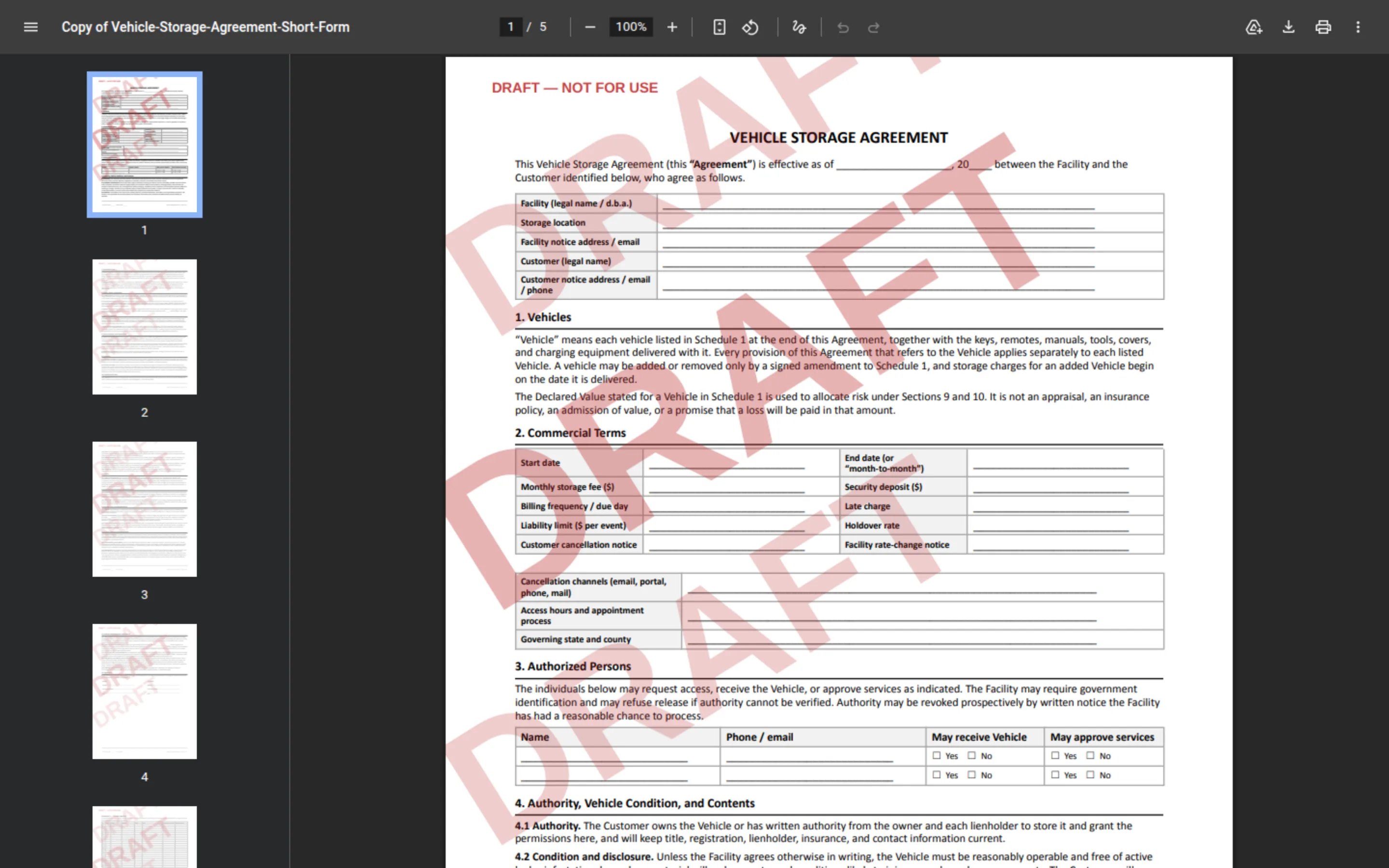 *The free preview is clearly marked **DRAFT — NOT FOR USE**. Use it to decide whether the layout and topics fit your facility before you buy.*
**Expected result:** You understand what the agreement covers. If it is the wrong type of document, close the tab and look at the other listing.
**Do not send the DRAFT to a customer**
The watermarked file is only a preview. Customers should only ever receive an unmarked PDF that you uploaded as a template and sent through [Send a contract for signature](/docs/contracts/send-a-contract-for-signature).
## Step 5: Purchase the unmarked files
Back in the **Template store** window, click **Purchase \$249** on the listing you want.
The window title changes to **Purchase Vehicle Storage Agreement Template** (or the membership title).
The text explains that this is a **one-time purchase of a document template, not legal services**, and that the charge goes to the payment method on file.
Check the box that starts with **I am purchasing for a business**. It also links to **Contract Template Usage Terms**.
You cannot click **Pay \$249** until this box is checked.
Click **Pay \$249**.
When the purchase works, the listing shows a **Purchased** badge and buttons for **Download PDF** and **Download DOCX**.
*The free preview is clearly marked **DRAFT — NOT FOR USE**. Use it to decide whether the layout and topics fit your facility before you buy.*
**Expected result:** You understand what the agreement covers. If it is the wrong type of document, close the tab and look at the other listing.
**Do not send the DRAFT to a customer**
The watermarked file is only a preview. Customers should only ever receive an unmarked PDF that you uploaded as a template and sent through [Send a contract for signature](/docs/contracts/send-a-contract-for-signature).
## Step 5: Purchase the unmarked files
Back in the **Template store** window, click **Purchase \$249** on the listing you want.
The window title changes to **Purchase Vehicle Storage Agreement Template** (or the membership title).
The text explains that this is a **one-time purchase of a document template, not legal services**, and that the charge goes to the payment method on file.
Check the box that starts with **I am purchasing for a business**. It also links to **Contract Template Usage Terms**.
You cannot click **Pay \$249** until this box is checked.
Click **Pay \$249**.
When the purchase works, the listing shows a **Purchased** badge and buttons for **Download PDF** and **Download DOCX**.
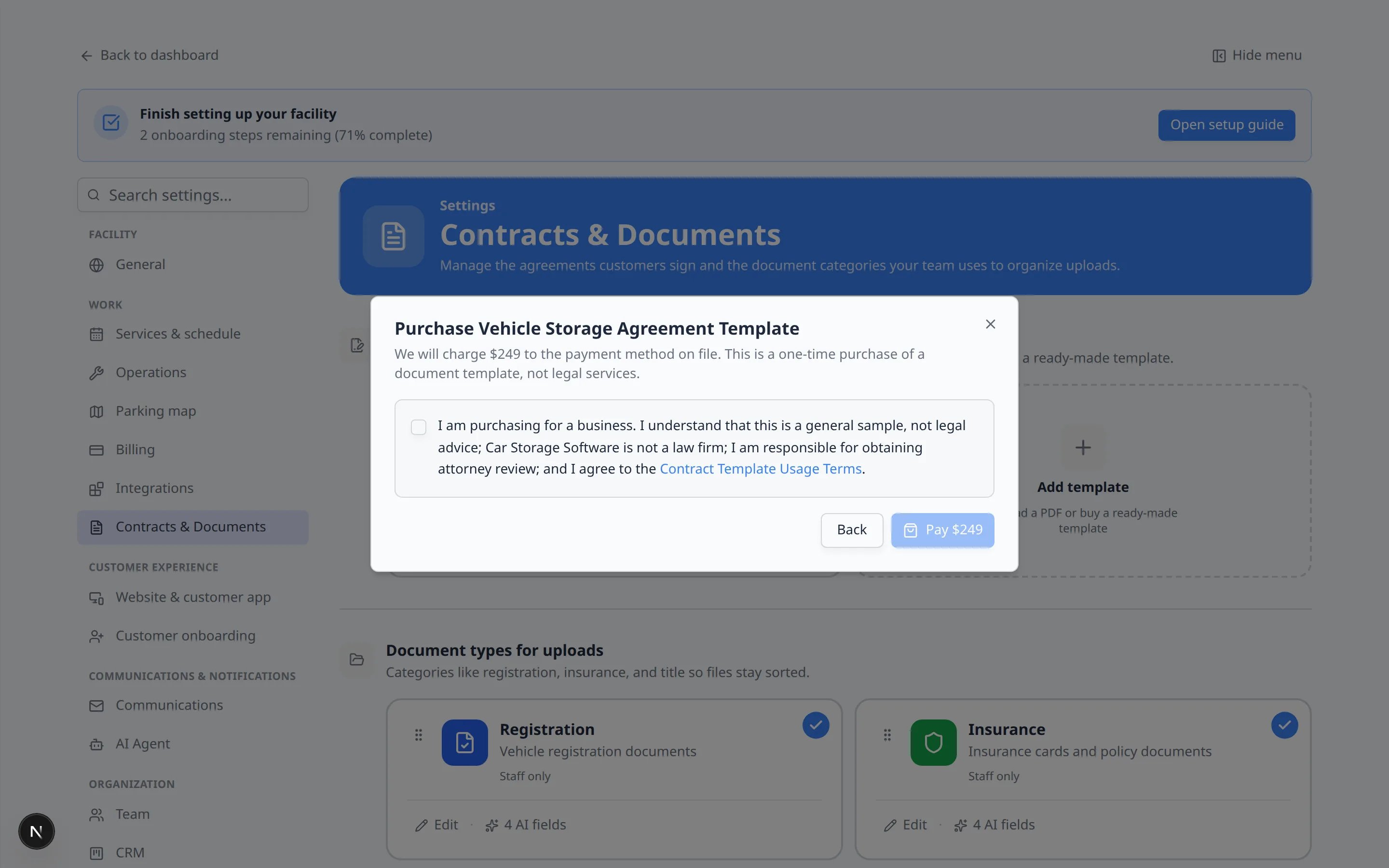 *Check the terms box, then click **Pay \$249**. This is a one-time document purchase, not a monthly subscription and not legal advice.*
**Expected result:** You can download the unmarked PDF and the Word (DOCX) file. Keep both. The Word file is useful if your attorney wants to edit wording before you upload the final PDF.
## Step 6: Upload the unmarked PDF as your template
Buying the file does **not** create a sendable template by itself. You still upload the PDF and place signature boxes.
In the store, click **Download PDF**.
Click **Back** until you see **Create Contract Template** again, or close the window and click **Add template**.
Under **or upload your own**, click **Drag and drop a PDF file here, or click to browse**. Choose the unmarked PDF you just downloaded.
**Why this matters:** The app names the template from the file name. You can rename it later in the editor if you want a shorter staff name, such as **Car Storage Agreement**.
Click **Create & Configure**.
**Expected result:** The template editor opens so you can place names, vehicle details, and signatures. Continue with [Create a contract template](/docs/contracts/create-a-contract-template) starting at the field-placement steps, or use [Use Auto-fill when building a template](/docs/contracts/use-auto-fill-when-building-a-template) to speed that up.
## What success looks like
* You previewed the DRAFT and decided the agreement is the right type.
* You purchased the unmarked PDF and Word file.
* The unmarked PDF is uploaded in [Settings > Contracts & Documents](https://www.carstoragesoftware.com/dashboard/settings/contracts-and-documents).
* An attorney has a copy of the Word file if your facility needs a legal review before go-live.
## Troubleshooting
**I see Add a card on your platform subscription before purchasing**
The store charges the card on your Car Storage Software subscription. Ask a team admin to add that card, then refresh [Settings > Contracts & Documents](https://www.carstoragesoftware.com/dashboard/settings/contracts-and-documents) and try again.
**I do not see Purchase a template**
Your role may not include permission to manage contract settings. Ask a team admin to review your access in [Settings > Team](https://www.carstoragesoftware.com/dashboard/settings/team).
**Pay \$249 stays gray**
The terms checkbox must be checked. Open **Contract Template Usage Terms** if you want to read them first, then check the box.
**I bought the file but staff still cannot send it**
A purchase is only a download. You must upload the unmarked PDF, place fields, and keep the template **Active**. Then send it from a customer record using [Send a contract for signature](/docs/contracts/send-a-contract-for-signature).
**The DRAFT and the purchased PDF look similar**
That is expected. The DRAFT has a watermark so you do not use it by mistake. Always upload the unmarked **Download PDF** file.
## What to do next
Follow [Create a contract template](/docs/contracts/create-a-contract-template) to put name, vehicle, and signature boxes on the PDF.
If you want the signing page to include a booking step, follow [Schedule a service while signing a contract](/docs/contracts/schedule-a-service-while-signing-a-contract).
Send the agreement to a test customer with [Send a contract for signature](/docs/contracts/send-a-contract-for-signature).
## Related topics
- [Create a contract template](/docs/contracts/create-a-contract-template.md)
- [Schedule a service while signing a contract](/docs/contracts/schedule-a-service-while-signing-a-contract.md)
- [Contracts overview](/docs/contracts/overview.md)
- [Attach contracts to customer workflows](/docs/contracts/attach-contracts-to-workflows.md)
- [Use Auto-fill when building a template](/docs/contracts/use-auto-fill-when-building-a-template.md)
This documentation is built and hosted on [Mintlify](https://mintlify.com), a developer documentation platform.
*Check the terms box, then click **Pay \$249**. This is a one-time document purchase, not a monthly subscription and not legal advice.*
**Expected result:** You can download the unmarked PDF and the Word (DOCX) file. Keep both. The Word file is useful if your attorney wants to edit wording before you upload the final PDF.
## Step 6: Upload the unmarked PDF as your template
Buying the file does **not** create a sendable template by itself. You still upload the PDF and place signature boxes.
In the store, click **Download PDF**.
Click **Back** until you see **Create Contract Template** again, or close the window and click **Add template**.
Under **or upload your own**, click **Drag and drop a PDF file here, or click to browse**. Choose the unmarked PDF you just downloaded.
**Why this matters:** The app names the template from the file name. You can rename it later in the editor if you want a shorter staff name, such as **Car Storage Agreement**.
Click **Create & Configure**.
**Expected result:** The template editor opens so you can place names, vehicle details, and signatures. Continue with [Create a contract template](/docs/contracts/create-a-contract-template) starting at the field-placement steps, or use [Use Auto-fill when building a template](/docs/contracts/use-auto-fill-when-building-a-template) to speed that up.
## What success looks like
* You previewed the DRAFT and decided the agreement is the right type.
* You purchased the unmarked PDF and Word file.
* The unmarked PDF is uploaded in [Settings > Contracts & Documents](https://www.carstoragesoftware.com/dashboard/settings/contracts-and-documents).
* An attorney has a copy of the Word file if your facility needs a legal review before go-live.
## Troubleshooting
**I see Add a card on your platform subscription before purchasing**
The store charges the card on your Car Storage Software subscription. Ask a team admin to add that card, then refresh [Settings > Contracts & Documents](https://www.carstoragesoftware.com/dashboard/settings/contracts-and-documents) and try again.
**I do not see Purchase a template**
Your role may not include permission to manage contract settings. Ask a team admin to review your access in [Settings > Team](https://www.carstoragesoftware.com/dashboard/settings/team).
**Pay \$249 stays gray**
The terms checkbox must be checked. Open **Contract Template Usage Terms** if you want to read them first, then check the box.
**I bought the file but staff still cannot send it**
A purchase is only a download. You must upload the unmarked PDF, place fields, and keep the template **Active**. Then send it from a customer record using [Send a contract for signature](/docs/contracts/send-a-contract-for-signature).
**The DRAFT and the purchased PDF look similar**
That is expected. The DRAFT has a watermark so you do not use it by mistake. Always upload the unmarked **Download PDF** file.
## What to do next
Follow [Create a contract template](/docs/contracts/create-a-contract-template) to put name, vehicle, and signature boxes on the PDF.
If you want the signing page to include a booking step, follow [Schedule a service while signing a contract](/docs/contracts/schedule-a-service-while-signing-a-contract).
Send the agreement to a test customer with [Send a contract for signature](/docs/contracts/send-a-contract-for-signature).
## Related topics
- [Create a contract template](/docs/contracts/create-a-contract-template.md)
- [Schedule a service while signing a contract](/docs/contracts/schedule-a-service-while-signing-a-contract.md)
- [Contracts overview](/docs/contracts/overview.md)
- [Attach contracts to customer workflows](/docs/contracts/attach-contracts-to-workflows.md)
- [Use Auto-fill when building a template](/docs/contracts/use-auto-fill-when-building-a-template.md)
This documentation is built and hosted on [Mintlify](https://mintlify.com), a developer documentation platform.