> ## Documentation Index
> Fetch the complete documentation index at: https://www.carstoragesoftware.com/docs/llms.txt
> Use this file to discover all available pages before exploring further.
# Contracts overview
> Understand contract templates, signing flows, document requirements, and customer agreements.
## What you will accomplish
You will set up agreements and file types so your facility can collect **signed storage contracts**, **waivers**, and **supporting documents** (insurance, registration, and more) in one organized place on each customer record.
When this section is set up well:
* Customers understand what they are signing and receive links that work on a phone or computer.
* Your team can find signed PDFs and uploaded files in seconds—not in email threads.
* New customers can finish paperwork during portal onboarding without repeated phone calls.
* Front desk staff know whether to send a **contract** (signature required) or accept an **upload** (file only).
## Who this section is for
These guides are for **facility owners, managers, and front-desk staff** who send agreements, collect uploads, and check whether a customer finished signing. You do not need technical skills—only access to **Settings** and **Contacts** in your dashboard.
## Quick links by job
| I need to… | Open this page | Step-by-step guide |
| - | - | - |
| Buy a starting storage or membership PDF | [Settings > Contracts & Documents](https://www.carstoragesoftware.com/dashboard/settings/contracts-and-documents) → **Add template** → **Purchase a template** | [Buy a ready-made contract template](/docs/contracts/buy-a-ready-made-contract-template) |
| Set up templates and upload categories | [Settings > Contracts & Documents](https://www.carstoragesoftware.com/dashboard/settings/contracts-and-documents) | [Create a contract template](/docs/contracts/create-a-contract-template) |
| Book drop-off or pickup while they sign | Template editor → **Event Scheduling** field | [Schedule a service while signing a contract](/docs/contracts/schedule-a-service-while-signing-a-contract) |
| Send one agreement to one customer | [Contacts](https://www.carstoragesoftware.com/dashboard/contacts) → customer record → **Setup → Fields → Review** wizard | [Send a contract for signature](/docs/contracts/send-a-contract-for-signature) |
| Send the same agreement to many customers | [Contacts](https://www.carstoragesoftware.com/dashboard/contacts) → select rows → **Actions** | [Send contracts to many customers at once](/docs/contracts/send-contracts-to-many-customers-at-once) |
| Send the same agreement for several cars | [Contacts](https://www.carstoragesoftware.com/dashboard/contacts) → customer record | [Send multiple contracts in one signing link](/docs/contracts/send-multiple-contracts-in-one-signing-link) |
| Save an insurance card staff received by email | [Contacts](https://www.carstoragesoftware.com/dashboard/contacts) → customer record | [Upload a document for a customer](/docs/contracts/upload-a-document-for-a-customer) |
| Require signing when customers first log in | [Settings > Customer onboarding](https://www.carstoragesoftware.com/dashboard/settings/customer-onboarding) | [Attach contracts to customer workflows](/docs/contracts/attach-contracts-to-workflows) |
| Check whether someone signed | [Contacts](https://www.carstoragesoftware.com/dashboard/contacts) → **Documents & Contracts** | [Review signed contracts and document history](/docs/contracts/review-signed-contracts-and-documents) |
| Coach a customer stuck during first portal login | Phone or email with the customer | [Help customers complete onboarding paperwork](/docs/contracts/help-customers-complete-onboarding-paperwork) |
| Let customers upload insurance in the portal | Customer portal **My Documents** | [Help customers upload documents in the portal](/docs/contracts/help-customers-upload-documents-in-the-portal) |
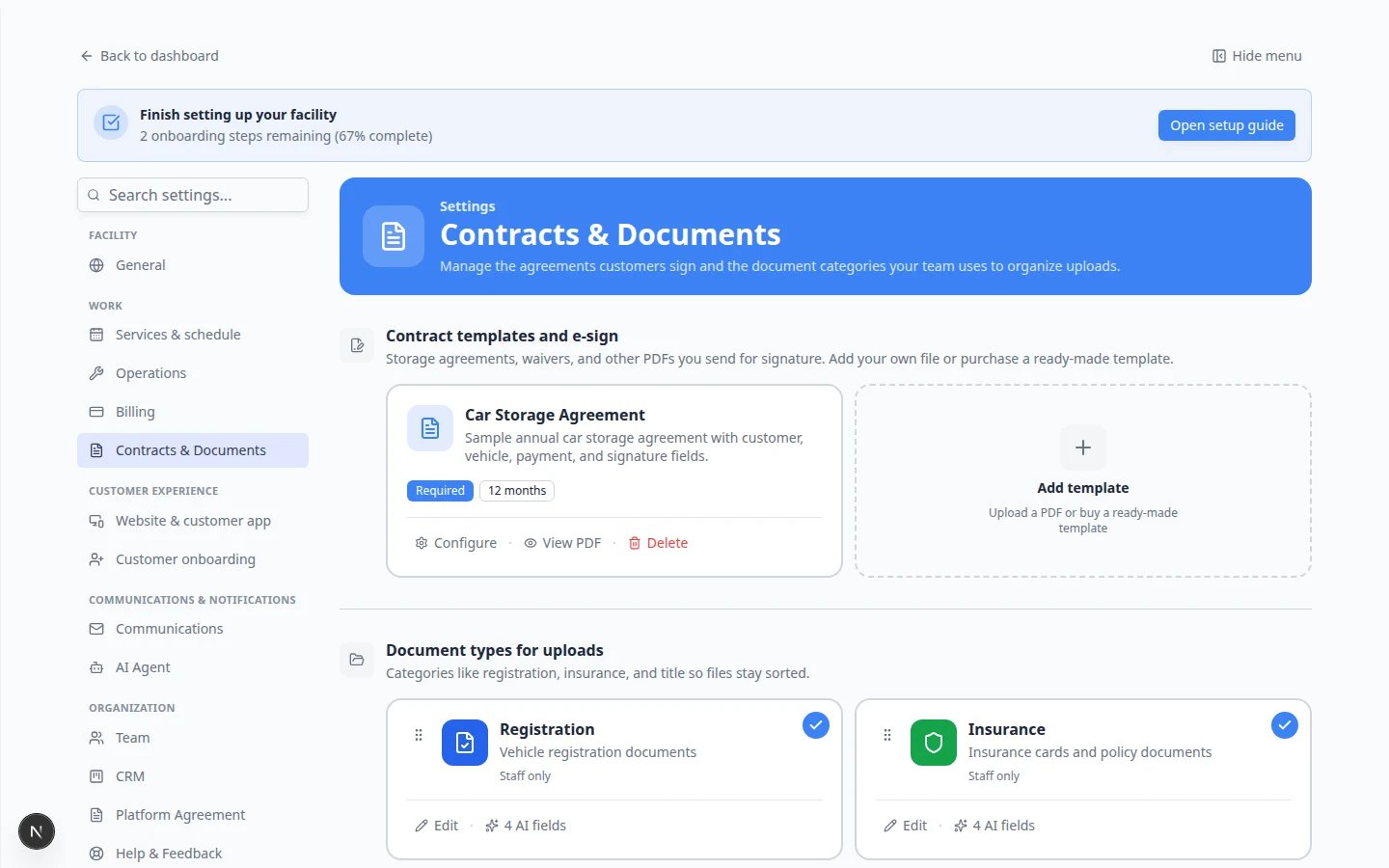 *Most setup starts in [Settings > Contracts & Documents](https://www.carstoragesoftware.com/dashboard/settings/contracts-and-documents). Templates are at the top; upload categories are farther down the page.*
 *After setup, every agreement and upload for a customer appears on their record under **Documents & Contracts**.*
## When to use Contracts vs Documents
**Contracts** are PDF agreements customers **sign electronically** (storage agreement, waiver, service authorization).
**Documents** are **files customers or staff upload** (insurance card, registration, driver's license, title).
*After setup, every agreement and upload for a customer appears on their record under **Documents & Contracts**.*
## When to use Contracts vs Documents
**Contracts** are PDF agreements customers **sign electronically** (storage agreement, waiver, service authorization).
**Documents** are **files customers or staff upload** (insurance card, registration, driver's license, title).
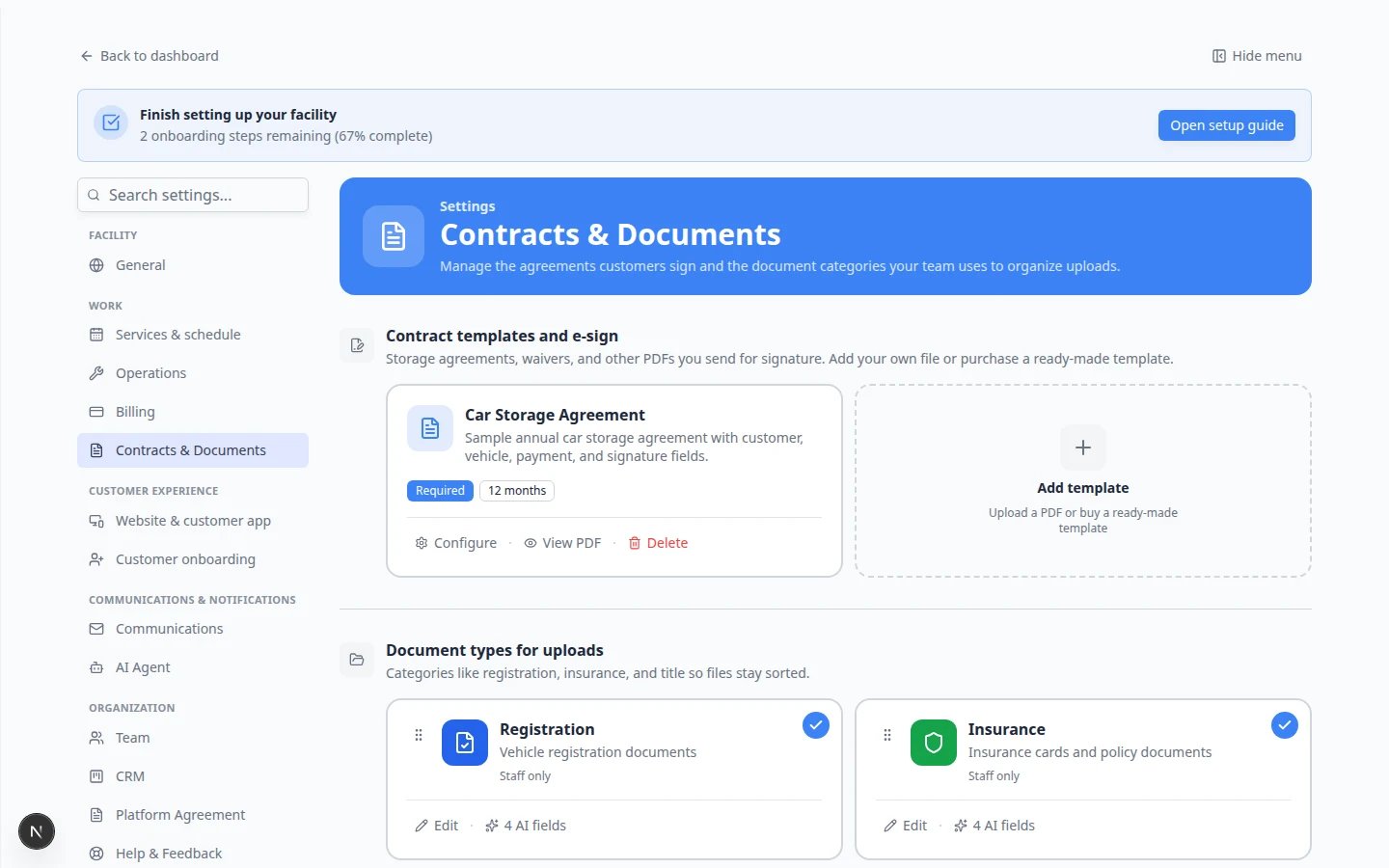
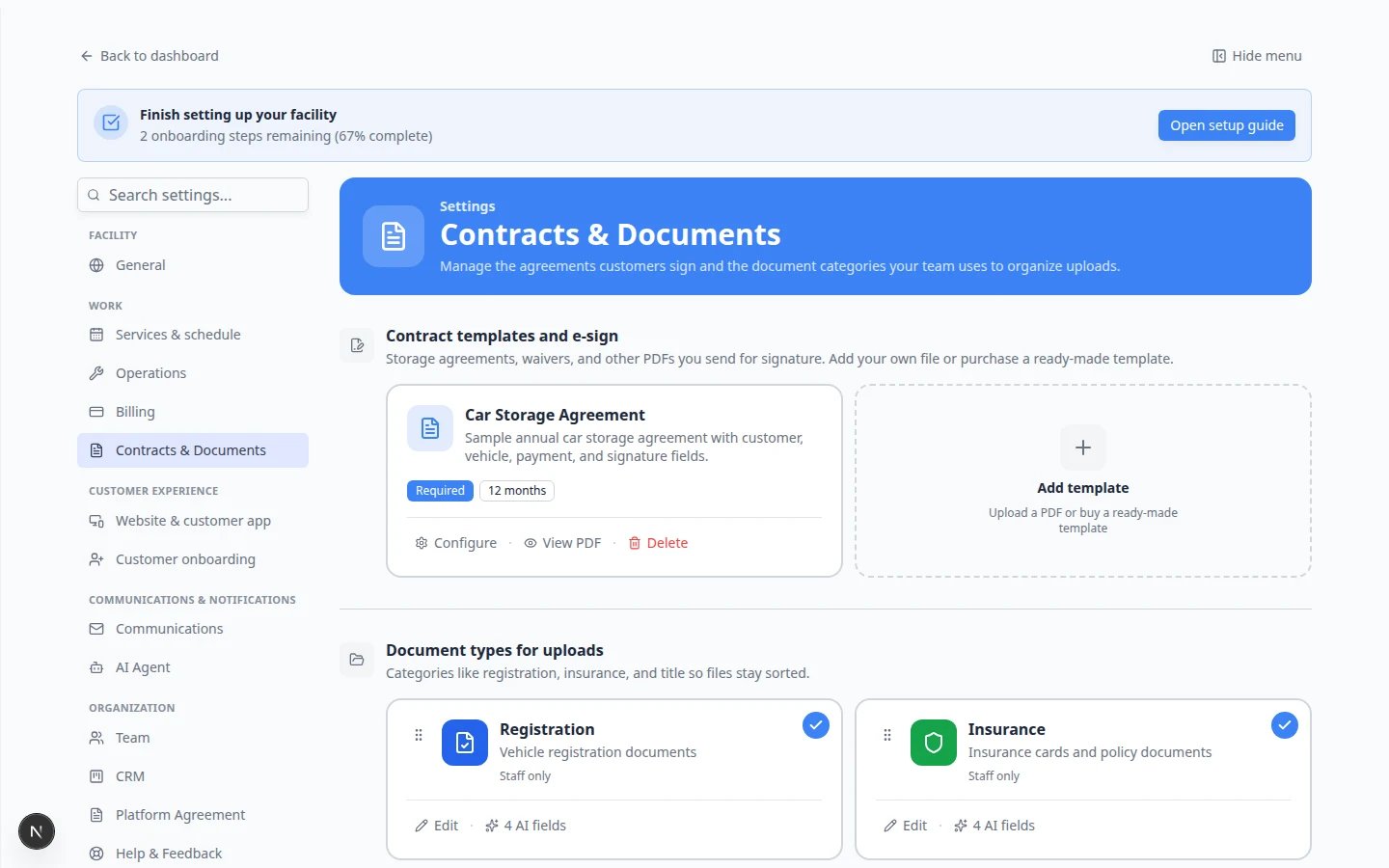 *In [Settings > Contracts & Documents](https://www.carstoragesoftware.com/dashboard/settings/contracts-and-documents), **contract templates** are at the top and **document types for uploads** are farther down the page. Use the right section for each job.*
Contracts and documents both appear on the customer record under **Documents & Contracts**, but they serve different jobs. Use the right tool so customers are not asked to sign a file that should only be uploaded, or upload a file when they should sign an agreement.
## Best setup order for a new facility
Follow this order the first time your team turns on agreements and uploads.
If you do not already have a lawyer-reviewed PDF, start with [Buy a ready-made contract template](/docs/contracts/buy-a-ready-made-contract-template). Then place fields in [Create a contract template](/docs/contracts/create-a-contract-template). Example: **Car Storage Agreement** or **Vehicle Storage Agreement**.
If the first visit should be booked while they sign, add **Event Scheduling** using [Schedule a service while signing a contract](/docs/contracts/schedule-a-service-while-signing-a-contract). Example: **Vehicle Drop Off**.
Add upload categories in [Configure document requirements](/docs/contracts/configure-document-requirements). Example: **Insurance**, **Vehicle Registration**.
Send a test contract from one customer record using [Send a contract for signature](/docs/contracts/send-a-contract-for-signature). You will walk through **Setup** → **Fields** → **Review** before the customer receives email. If your test customer has two vehicles, try [Send multiple contracts in one signing link](/docs/contracts/send-multiple-contracts-in-one-signing-link).
Upload a sample insurance card with [Upload a document for a customer](/docs/contracts/upload-a-document-for-a-customer) so your team knows where files live on the record.
If every new customer must sign during portal setup, connect the template in [Attach contracts to customer workflows](/docs/contracts/attach-contracts-to-workflows).
Use [Review signed contracts and document history](/docs/contracts/review-signed-contracts-and-documents) when you need proof, downloads, or status checks.
**Why this order helps**
Templates come first because every signing request needs a template. After one test send works, you can safely connect onboarding or registration without guessing whether email links and PDF fields are correct.
## How-to guides in this section
* [Buy a ready-made contract template](/docs/contracts/buy-a-ready-made-contract-template) — preview a DRAFT, purchase an unmarked PDF, then upload it as your template.
* [Create a contract template](/docs/contracts/create-a-contract-template) — upload a PDF and place signature, name, vehicle, and date fields.
* [Use Auto-fill when building a template](/docs/contracts/use-auto-fill-when-building-a-template) — speed up field placement with suggested fields.
* [Schedule a service while signing a contract](/docs/contracts/schedule-a-service-while-signing-a-contract) — add **Event Scheduling** so staff or the customer can book **Vehicle Drop Off** (or another visit) during send or sign.
* [Configure document requirements](/docs/contracts/configure-document-requirements) — define Insurance, Registration, and other upload types.
* [Send contracts to many customers at once](/docs/contracts/send-contracts-to-many-customers-at-once) — same template for many contacts from the Contacts list.
* [Send multiple contracts in one signing link](/docs/contracts/send-multiple-contracts-in-one-signing-link) — one email when the same agreement applies to several vehicles.
* [Send a contract for signature](/docs/contracts/send-a-contract-for-signature) — email one customer a signing link from their record.
* [Counter-sign after the customer](/docs/contracts/counter-sign-after-the-customer) — add your facility signature when the template uses **Team signs last**.
* [Upload a document for a customer](/docs/contracts/upload-a-document-for-a-customer) — save insurance, registration, and other files staff receive in person or by email.
* [Attach contracts to customer workflows](/docs/contracts/attach-contracts-to-workflows) — require signing during customer onboarding.
* [Review signed contracts and document history](/docs/contracts/review-signed-contracts-and-documents) — download PDFs, check status, and confirm uploads.
* [Amend a signed contract](/docs/contracts/amend-a-signed-contract) — update allowed fields and keep version history.
* [Help customers complete onboarding paperwork](/docs/contracts/help-customers-complete-onboarding-paperwork) — coach customers through portal signing and upload steps.
* [Help customers upload documents in the portal](/docs/contracts/help-customers-upload-documents-in-the-portal) — let customers upload insurance and registration from **My Documents**.
## What the customer sees
Customers do not use the staff dashboard. They open a link in email or the customer portal and sign in a simple browser page.
*In [Settings > Contracts & Documents](https://www.carstoragesoftware.com/dashboard/settings/contracts-and-documents), **contract templates** are at the top and **document types for uploads** are farther down the page. Use the right section for each job.*
Contracts and documents both appear on the customer record under **Documents & Contracts**, but they serve different jobs. Use the right tool so customers are not asked to sign a file that should only be uploaded, or upload a file when they should sign an agreement.
## Best setup order for a new facility
Follow this order the first time your team turns on agreements and uploads.
If you do not already have a lawyer-reviewed PDF, start with [Buy a ready-made contract template](/docs/contracts/buy-a-ready-made-contract-template). Then place fields in [Create a contract template](/docs/contracts/create-a-contract-template). Example: **Car Storage Agreement** or **Vehicle Storage Agreement**.
If the first visit should be booked while they sign, add **Event Scheduling** using [Schedule a service while signing a contract](/docs/contracts/schedule-a-service-while-signing-a-contract). Example: **Vehicle Drop Off**.
Add upload categories in [Configure document requirements](/docs/contracts/configure-document-requirements). Example: **Insurance**, **Vehicle Registration**.
Send a test contract from one customer record using [Send a contract for signature](/docs/contracts/send-a-contract-for-signature). You will walk through **Setup** → **Fields** → **Review** before the customer receives email. If your test customer has two vehicles, try [Send multiple contracts in one signing link](/docs/contracts/send-multiple-contracts-in-one-signing-link).
Upload a sample insurance card with [Upload a document for a customer](/docs/contracts/upload-a-document-for-a-customer) so your team knows where files live on the record.
If every new customer must sign during portal setup, connect the template in [Attach contracts to customer workflows](/docs/contracts/attach-contracts-to-workflows).
Use [Review signed contracts and document history](/docs/contracts/review-signed-contracts-and-documents) when you need proof, downloads, or status checks.
**Why this order helps**
Templates come first because every signing request needs a template. After one test send works, you can safely connect onboarding or registration without guessing whether email links and PDF fields are correct.
## How-to guides in this section
* [Buy a ready-made contract template](/docs/contracts/buy-a-ready-made-contract-template) — preview a DRAFT, purchase an unmarked PDF, then upload it as your template.
* [Create a contract template](/docs/contracts/create-a-contract-template) — upload a PDF and place signature, name, vehicle, and date fields.
* [Use Auto-fill when building a template](/docs/contracts/use-auto-fill-when-building-a-template) — speed up field placement with suggested fields.
* [Schedule a service while signing a contract](/docs/contracts/schedule-a-service-while-signing-a-contract) — add **Event Scheduling** so staff or the customer can book **Vehicle Drop Off** (or another visit) during send or sign.
* [Configure document requirements](/docs/contracts/configure-document-requirements) — define Insurance, Registration, and other upload types.
* [Send contracts to many customers at once](/docs/contracts/send-contracts-to-many-customers-at-once) — same template for many contacts from the Contacts list.
* [Send multiple contracts in one signing link](/docs/contracts/send-multiple-contracts-in-one-signing-link) — one email when the same agreement applies to several vehicles.
* [Send a contract for signature](/docs/contracts/send-a-contract-for-signature) — email one customer a signing link from their record.
* [Counter-sign after the customer](/docs/contracts/counter-sign-after-the-customer) — add your facility signature when the template uses **Team signs last**.
* [Upload a document for a customer](/docs/contracts/upload-a-document-for-a-customer) — save insurance, registration, and other files staff receive in person or by email.
* [Attach contracts to customer workflows](/docs/contracts/attach-contracts-to-workflows) — require signing during customer onboarding.
* [Review signed contracts and document history](/docs/contracts/review-signed-contracts-and-documents) — download PDFs, check status, and confirm uploads.
* [Amend a signed contract](/docs/contracts/amend-a-signed-contract) — update allowed fields and keep version history.
* [Help customers complete onboarding paperwork](/docs/contracts/help-customers-complete-onboarding-paperwork) — coach customers through portal signing and upload steps.
* [Help customers upload documents in the portal](/docs/contracts/help-customers-upload-documents-in-the-portal) — let customers upload insurance and registration from **My Documents**.
## What the customer sees
Customers do not use the staff dashboard. They open a link in email or the customer portal and sign in a simple browser page.
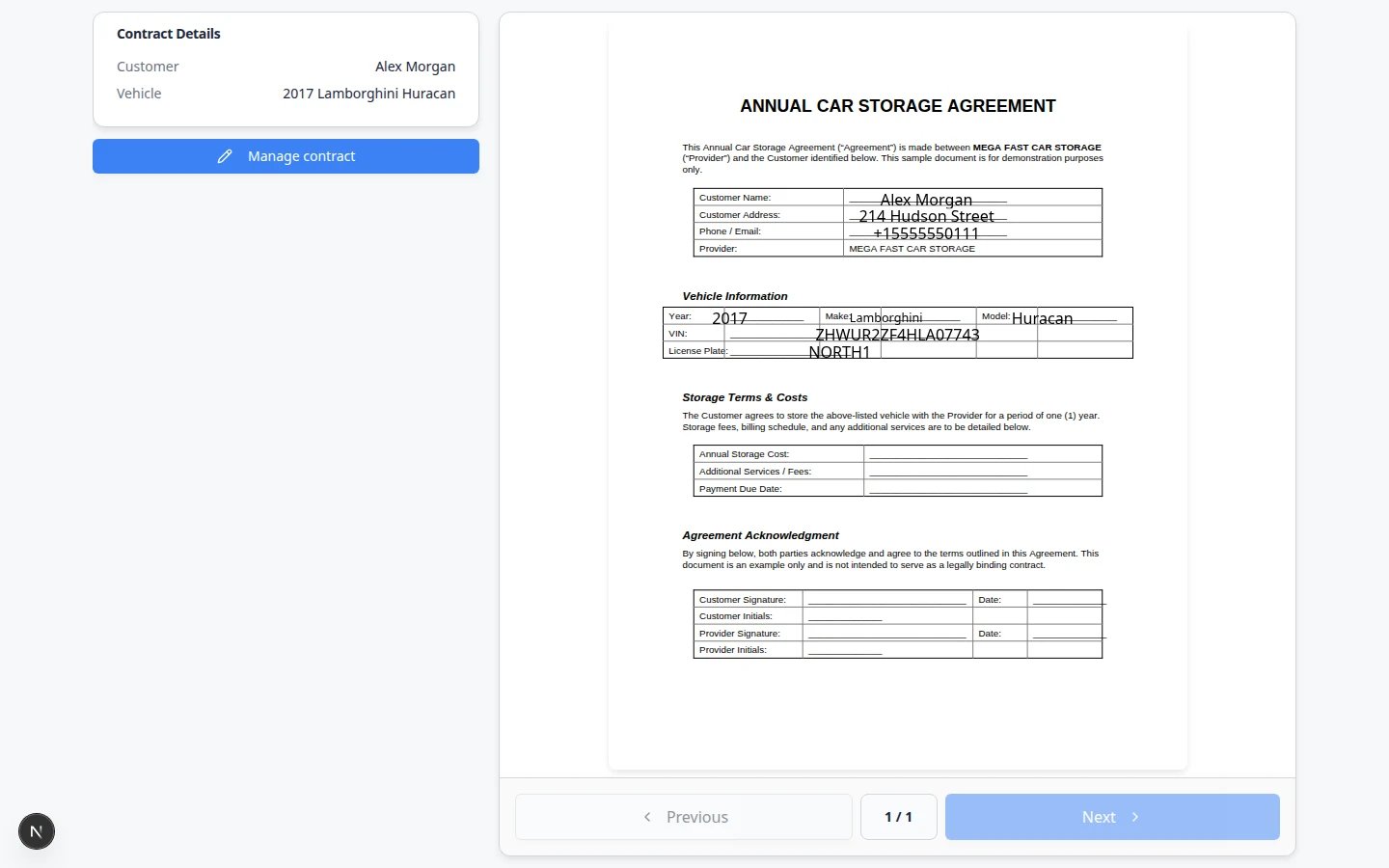 *The signing page shows the agreement, vehicle details when needed, and a place to draw a signature. Staff configure this experience from templates and send links from the customer record.*
## Important words in plain English
**Contract template** means the reusable PDF your team starts from.
**Field** means a spot on the PDF for a name, vehicle detail, date, signature, initials, or **Event Scheduling** (a box that books a visit such as **Vehicle Drop Off** while the agreement is sent or signed).
**Document type** means a label for uploaded files, such as **Insurance** or **Registration** (your facility may use **Vehicle Registration** or a similar name).
**Customer onboarding** means the steps a new customer completes in the portal after your team invites them.
**Status** on a contract might read **Draft**, **Sent**, **Viewed**, **Awaiting team signature**, **Signed**, **Completed**, **Cancelled**, **Expired**, or **Voided**. Each status tells your team what happened and what to do next.
## Contract status at a glance
Front desk staff often ask, "Did they sign yet?" Use this table before you call a customer or resend email.
| Status | What it means | What to do next |
| - | - | - |
| **Draft** | Created but not emailed | Review, then send—or cancel if it was a mistake |
| **Sent** | Signing email went out | Wait, or resend from the contract card |
| **Viewed** | Customer opened the link | Call or email—a reminder to finish signing often helps |
| **Awaiting team signature** | Customer signed; facility must counter-sign | Follow [Counter-sign after the customer](/docs/contracts/counter-sign-after-the-customer) |
| **Signed** / **Completed** | Customer finished | Download the signed PDF for your files |
| **Cancelled** | Unsigned request stopped | Send a new contract if they still need to sign |
| **Expired** | Link timed out | Create and send a fresh contract |
| **Voided** | Signed copy kept but not valid anymore | Send a replacement agreement if needed |
Full steps for downloads, resends, and cancellations are in [Review signed contracts and document history](/docs/contracts/review-signed-contracts-and-documents).
## Daily paperwork habits that prevent support calls
Open [Contacts](https://www.carstoragesoftware.com/dashboard/contacts) for customers who finished onboarding yesterday. Check **Documents & Contracts** for **Completed** contracts and required uploads.
**Expected result:** You catch missing insurance or unsigned agreements before the car is released or billed.
Search their record first. If status is **Sent** or **Viewed**, resend from the contract card (see [Review signed contracts and document history](/docs/contracts/review-signed-contracts-and-documents)) and ask them to check spam folders.
Save files with [Upload a document for a customer](/docs/contracts/upload-a-document-for-a-customer) the same day. Do not leave insurance photos in personal inboxes.
## Related sections
* [Facility Web Pages](/docs/facility-web-pages/overview) when contracts or uploads are part of public registration.
* [Contacts](/docs/contacts/overview) when you invite customers to the portal or open a customer record.
* [Settings](/docs/settings/overview) for the full first-week facility setup path.
## What success looks like
* At least one active contract template exists in [Settings > Contracts & Documents](https://www.carstoragesoftware.com/dashboard/settings/contracts-and-documents).
* Document types match the files your facility actually collects.
* A test customer can open a signing link, sign, and show **Completed** on their record.
* Staff can download a signed PDF from **Documents & Contracts** on the customer record.
*The signing page shows the agreement, vehicle details when needed, and a place to draw a signature. Staff configure this experience from templates and send links from the customer record.*
## Important words in plain English
**Contract template** means the reusable PDF your team starts from.
**Field** means a spot on the PDF for a name, vehicle detail, date, signature, initials, or **Event Scheduling** (a box that books a visit such as **Vehicle Drop Off** while the agreement is sent or signed).
**Document type** means a label for uploaded files, such as **Insurance** or **Registration** (your facility may use **Vehicle Registration** or a similar name).
**Customer onboarding** means the steps a new customer completes in the portal after your team invites them.
**Status** on a contract might read **Draft**, **Sent**, **Viewed**, **Awaiting team signature**, **Signed**, **Completed**, **Cancelled**, **Expired**, or **Voided**. Each status tells your team what happened and what to do next.
## Contract status at a glance
Front desk staff often ask, "Did they sign yet?" Use this table before you call a customer or resend email.
| Status | What it means | What to do next |
| - | - | - |
| **Draft** | Created but not emailed | Review, then send—or cancel if it was a mistake |
| **Sent** | Signing email went out | Wait, or resend from the contract card |
| **Viewed** | Customer opened the link | Call or email—a reminder to finish signing often helps |
| **Awaiting team signature** | Customer signed; facility must counter-sign | Follow [Counter-sign after the customer](/docs/contracts/counter-sign-after-the-customer) |
| **Signed** / **Completed** | Customer finished | Download the signed PDF for your files |
| **Cancelled** | Unsigned request stopped | Send a new contract if they still need to sign |
| **Expired** | Link timed out | Create and send a fresh contract |
| **Voided** | Signed copy kept but not valid anymore | Send a replacement agreement if needed |
Full steps for downloads, resends, and cancellations are in [Review signed contracts and document history](/docs/contracts/review-signed-contracts-and-documents).
## Daily paperwork habits that prevent support calls
Open [Contacts](https://www.carstoragesoftware.com/dashboard/contacts) for customers who finished onboarding yesterday. Check **Documents & Contracts** for **Completed** contracts and required uploads.
**Expected result:** You catch missing insurance or unsigned agreements before the car is released or billed.
Search their record first. If status is **Sent** or **Viewed**, resend from the contract card (see [Review signed contracts and document history](/docs/contracts/review-signed-contracts-and-documents)) and ask them to check spam folders.
Save files with [Upload a document for a customer](/docs/contracts/upload-a-document-for-a-customer) the same day. Do not leave insurance photos in personal inboxes.
## Related sections
* [Facility Web Pages](/docs/facility-web-pages/overview) when contracts or uploads are part of public registration.
* [Contacts](/docs/contacts/overview) when you invite customers to the portal or open a customer record.
* [Settings](/docs/settings/overview) for the full first-week facility setup path.
## What success looks like
* At least one active contract template exists in [Settings > Contracts & Documents](https://www.carstoragesoftware.com/dashboard/settings/contracts-and-documents).
* Document types match the files your facility actually collects.
* A test customer can open a signing link, sign, and show **Completed** on their record.
* Staff can download a signed PDF from **Documents & Contracts** on the customer record.
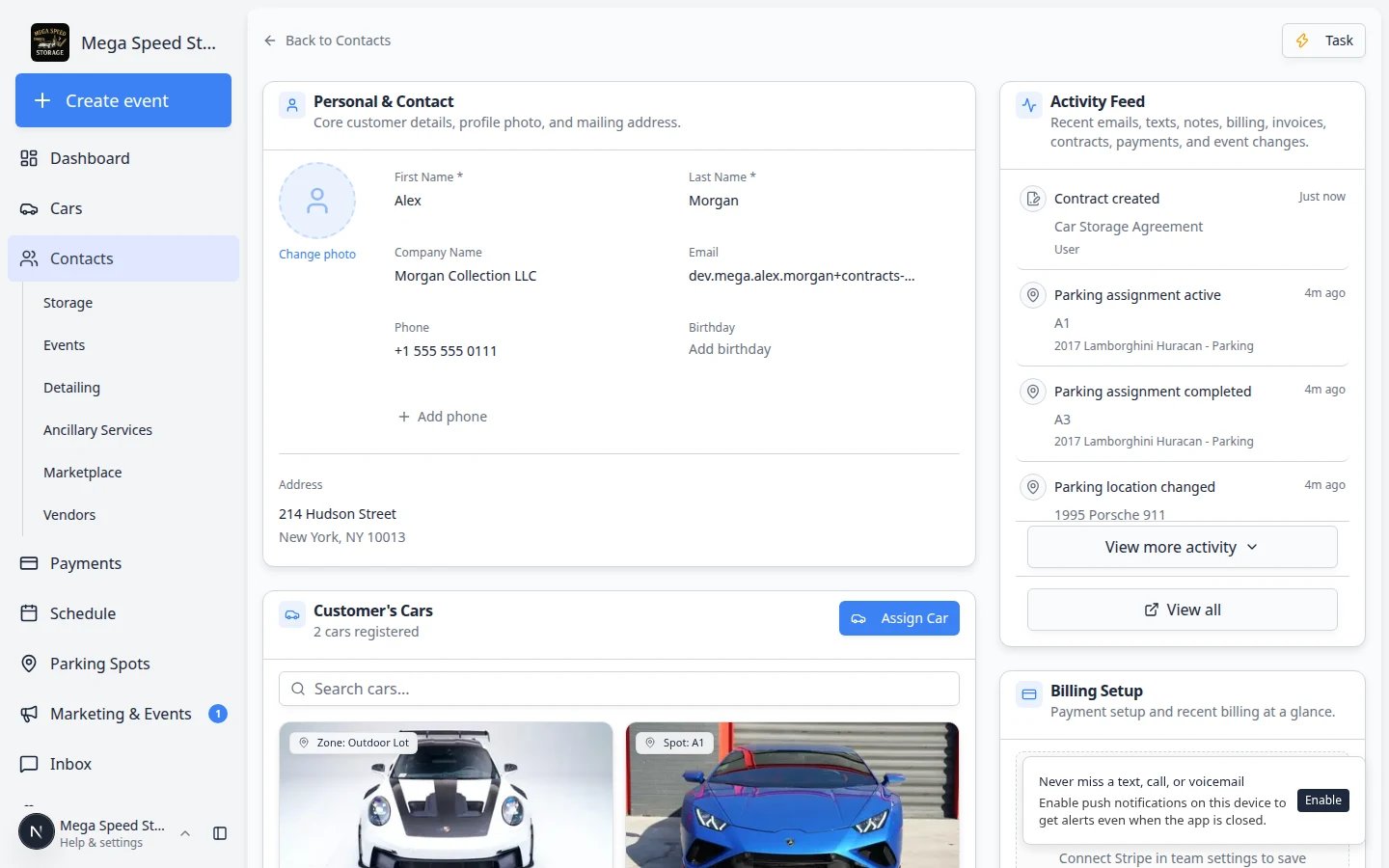 *When paperwork is working well, each customer record shows clear contract statuses and organized uploads in one place.*
## Common mix-ups (and how to avoid them)
**Customer asked to sign an insurance card**
Insurance and registration are usually **uploads**, not contracts. Use [Upload a document for a customer](/docs/contracts/upload-a-document-for-a-customer) or turn on portal uploads in [Configure document requirements](/docs/contracts/configure-document-requirements).
**Two cars, two separate emails**
When one owner stores multiple vehicles under the same agreement, use [Send multiple contracts in one signing link](/docs/contracts/send-multiple-contracts-in-one-signing-link) so they receive **one** email and **one** signing session.
**Agreement shows blank vehicle details**
The customer record needs the correct car **before** you send or before they reach **Contract Signing** in onboarding. Add or fix the vehicle in [Contacts](https://www.carstoragesoftware.com/dashboard/contacts) or [Cars](https://www.carstoragesoftware.com/dashboard/cars), then send a new contract if the old one had wrong information.
**Customer signed but never booked drop-off**
If the first visit should happen as soon as they sign, add **Event Scheduling** to the template. Staff or the customer can click **Schedule Vehicle Drop Off** (or the matching service name) during send or sign. See [Schedule a service while signing a contract](/docs/contracts/schedule-a-service-while-signing-a-contract).
**Customer says the email never arrived**
Confirm the email on the customer record, resend from the contract card, then check spam. If corporate email blocks the message, open **View contract** and share the browser link by text when your facility allows. See [Send a contract for signature](/docs/contracts/send-a-contract-for-signature) and [Review signed contracts and document history](/docs/contracts/review-signed-contracts-and-documents).
**Portal onboarding stuck after signing**
Ask the customer to tap **Refresh Status** on the contract step during onboarding, then **Continue**. Staff can confirm **Completed** on the customer record while you stay on the phone. See [Help customers complete onboarding paperwork](/docs/contracts/help-customers-complete-onboarding-paperwork).
## What to do next
After your first test send works:
Share [Upload a document for a customer](/docs/contracts/upload-a-document-for-a-customer) for email attachments and [Review signed contracts and document history](/docs/contracts/review-signed-contracts-and-documents) for “did they sign yet?” questions. If you bought a store PDF, keep the Word file for your attorney and only send the unmarked uploaded template.
When every new customer must sign online, follow [Attach contracts to customer workflows](/docs/contracts/attach-contracts-to-workflows).
## Related topics
- [Settings overview](/docs/settings/overview.md)
- [Ask about billing, contracts, and alerts](/docs/ai-assistant/ask-about-billing-contracts-and-alerts.md)
- [Upload a document for a customer](/docs/contracts/upload-a-document-for-a-customer.md)
- [Complete the onboarding wizard](/docs/basics/complete-the-onboarding-wizard.md)
- [Contacts overview](/docs/contacts/overview.md)
This documentation is built and hosted on [Mintlify](https://mintlify.com), a developer documentation platform.
*When paperwork is working well, each customer record shows clear contract statuses and organized uploads in one place.*
## Common mix-ups (and how to avoid them)
**Customer asked to sign an insurance card**
Insurance and registration are usually **uploads**, not contracts. Use [Upload a document for a customer](/docs/contracts/upload-a-document-for-a-customer) or turn on portal uploads in [Configure document requirements](/docs/contracts/configure-document-requirements).
**Two cars, two separate emails**
When one owner stores multiple vehicles under the same agreement, use [Send multiple contracts in one signing link](/docs/contracts/send-multiple-contracts-in-one-signing-link) so they receive **one** email and **one** signing session.
**Agreement shows blank vehicle details**
The customer record needs the correct car **before** you send or before they reach **Contract Signing** in onboarding. Add or fix the vehicle in [Contacts](https://www.carstoragesoftware.com/dashboard/contacts) or [Cars](https://www.carstoragesoftware.com/dashboard/cars), then send a new contract if the old one had wrong information.
**Customer signed but never booked drop-off**
If the first visit should happen as soon as they sign, add **Event Scheduling** to the template. Staff or the customer can click **Schedule Vehicle Drop Off** (or the matching service name) during send or sign. See [Schedule a service while signing a contract](/docs/contracts/schedule-a-service-while-signing-a-contract).
**Customer says the email never arrived**
Confirm the email on the customer record, resend from the contract card, then check spam. If corporate email blocks the message, open **View contract** and share the browser link by text when your facility allows. See [Send a contract for signature](/docs/contracts/send-a-contract-for-signature) and [Review signed contracts and document history](/docs/contracts/review-signed-contracts-and-documents).
**Portal onboarding stuck after signing**
Ask the customer to tap **Refresh Status** on the contract step during onboarding, then **Continue**. Staff can confirm **Completed** on the customer record while you stay on the phone. See [Help customers complete onboarding paperwork](/docs/contracts/help-customers-complete-onboarding-paperwork).
## What to do next
After your first test send works:
Share [Upload a document for a customer](/docs/contracts/upload-a-document-for-a-customer) for email attachments and [Review signed contracts and document history](/docs/contracts/review-signed-contracts-and-documents) for “did they sign yet?” questions. If you bought a store PDF, keep the Word file for your attorney and only send the unmarked uploaded template.
When every new customer must sign online, follow [Attach contracts to customer workflows](/docs/contracts/attach-contracts-to-workflows).
## Related topics
- [Settings overview](/docs/settings/overview.md)
- [Ask about billing, contracts, and alerts](/docs/ai-assistant/ask-about-billing-contracts-and-alerts.md)
- [Upload a document for a customer](/docs/contracts/upload-a-document-for-a-customer.md)
- [Complete the onboarding wizard](/docs/basics/complete-the-onboarding-wizard.md)
- [Contacts overview](/docs/contacts/overview.md)
This documentation is built and hosted on [Mintlify](https://mintlify.com), a developer documentation platform.