> ## Documentation Index
> Fetch the complete documentation index at: https://www.carstoragesoftware.com/docs/llms.txt
> Use this file to discover all available pages before exploring further.
# Review signed contracts and document history
> Find signed agreements, uploaded files, statuses, downloads, and history on a customer record.
## What you will accomplish
You will open a customer record, find signed agreements and uploaded files, understand what each **status** means, and download or void records when your facility needs proof or corrections.
## When to use this guide
Use this guide when:
* A customer says they already signed.
* You need a PDF copy for your files or insurance.
* You must confirm insurance or registration was uploaded.
* A signed agreement should no longer be treated as valid but must stay in history.
* A contract still shows **Sent** or **Viewed** and you need to know what to do next.
* You need to resend a signing link or cancel an agreement the customer should not finish.
## Before you start
* Know which customer you are reviewing.
* Sign in as a team member who can view customer records.
* If you plan to void or cancel a contract, know the plain-language reason first.
## Quick answer: "Did they sign?"
| If status is… | Tell the customer… | Your next step |
| - | - | - |
| **Draft** | "We have not sent the agreement yet." | Send or cancel the draft |
| **Sent** or **Viewed** | "Please check email (and spam) for the signing link." | Open the contract card → click **Resend email** |
| **Completed** or **Signed** | "Yes—we have your signed copy on file." | Download PDF if they need a copy |
| **Cancelled** or **Expired** | "That link is no longer active." | Create and send a new contract |
## Step 1: Open the customer record
Go to [Contacts](https://www.carstoragesoftware.com/dashboard/contacts).
Search by name, company, email, or phone. Open the matching record.
**Expected result:** You see the correct customer before viewing private documents. If two people have similar names, compare **email** and **company** on the record header.
**Open the record from email**
When a customer emails a file, click their name in [Inbox](https://www.carstoragesoftware.com/dashboard/inbox) (if linked) or search [All Contacts](https://www.carstoragesoftware.com/dashboard/contacts/all) by the **From** email address. That is faster than guessing which customer folder they belong in.
## Step 2: Open Documents & Contracts
Scroll to **Documents & Contracts** on the customer page.
This section shows:
* **Contract cards** — agreements sent for signature, each with a status badge (Draft, Sent, Viewed, Completed, and more).
* **Document cards** — uploaded files such as insurance or registration.
You can use the search box (**Search documents and contracts...**) when the list is long. Type part of a file name, contract title, or status word like **Sent** or **Insurance** to narrow the list quickly.
The header may show a count such as **2 documents, 1 contract** when both types are on file.
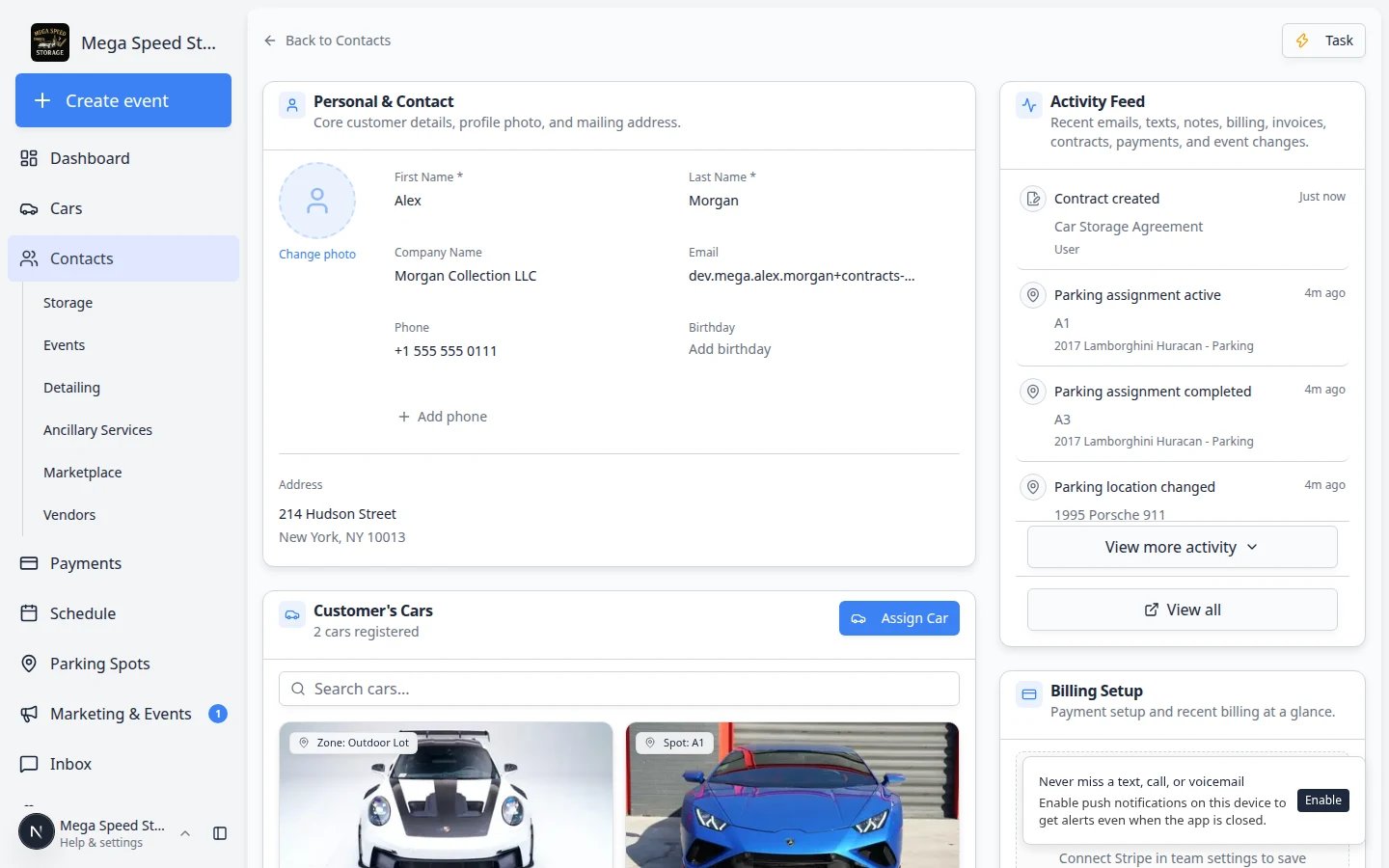 *Documents & Contracts is the main staff view for agreements and uploads on one customer. Each item is a card you can click.*
**Expected result:** You see contract cards, document cards, and colored status badges on each agreement.
## Step 3: Open a contract or document
Contracts and uploads both appear as cards, but they open **different** screens when you click them.
**Contract cards** (agreements with statuses like **Sent**, **Completed**, or **Awaiting team signature**) open a **full contract page** where you can resend email, download PDFs, cancel unsigned requests, or amend signed agreements.
**Document cards** (uploads such as insurance or registration) open a **preview window** where you can view or download the file.
Click the agreement you want to review.
**Expected result:** A contract page opens with a status badge at the top, a progress tracker (**Prepared** → **Sent** → **Viewed** → **Signed**), and action buttons such as **Resend email**, **Download PDF**, or **Cancel contract**.
Click an uploaded file (insurance, registration, and so on).
**Expected result:** A smaller preview window opens with **Download** or **View**—the same as before.
*Documents & Contracts is the main staff view for agreements and uploads on one customer. Each item is a card you can click.*
**Expected result:** You see contract cards, document cards, and colored status badges on each agreement.
## Step 3: Open a contract or document
Contracts and uploads both appear as cards, but they open **different** screens when you click them.
**Contract cards** (agreements with statuses like **Sent**, **Completed**, or **Awaiting team signature**) open a **full contract page** where you can resend email, download PDFs, cancel unsigned requests, or amend signed agreements.
**Document cards** (uploads such as insurance or registration) open a **preview window** where you can view or download the file.
Click the agreement you want to review.
**Expected result:** A contract page opens with a status badge at the top, a progress tracker (**Prepared** → **Sent** → **Viewed** → **Signed**), and action buttons such as **Resend email**, **Download PDF**, or **Cancel contract**.
Click an uploaded file (insurance, registration, and so on).
**Expected result:** A smaller preview window opens with **Download** or **View**—the same as before.
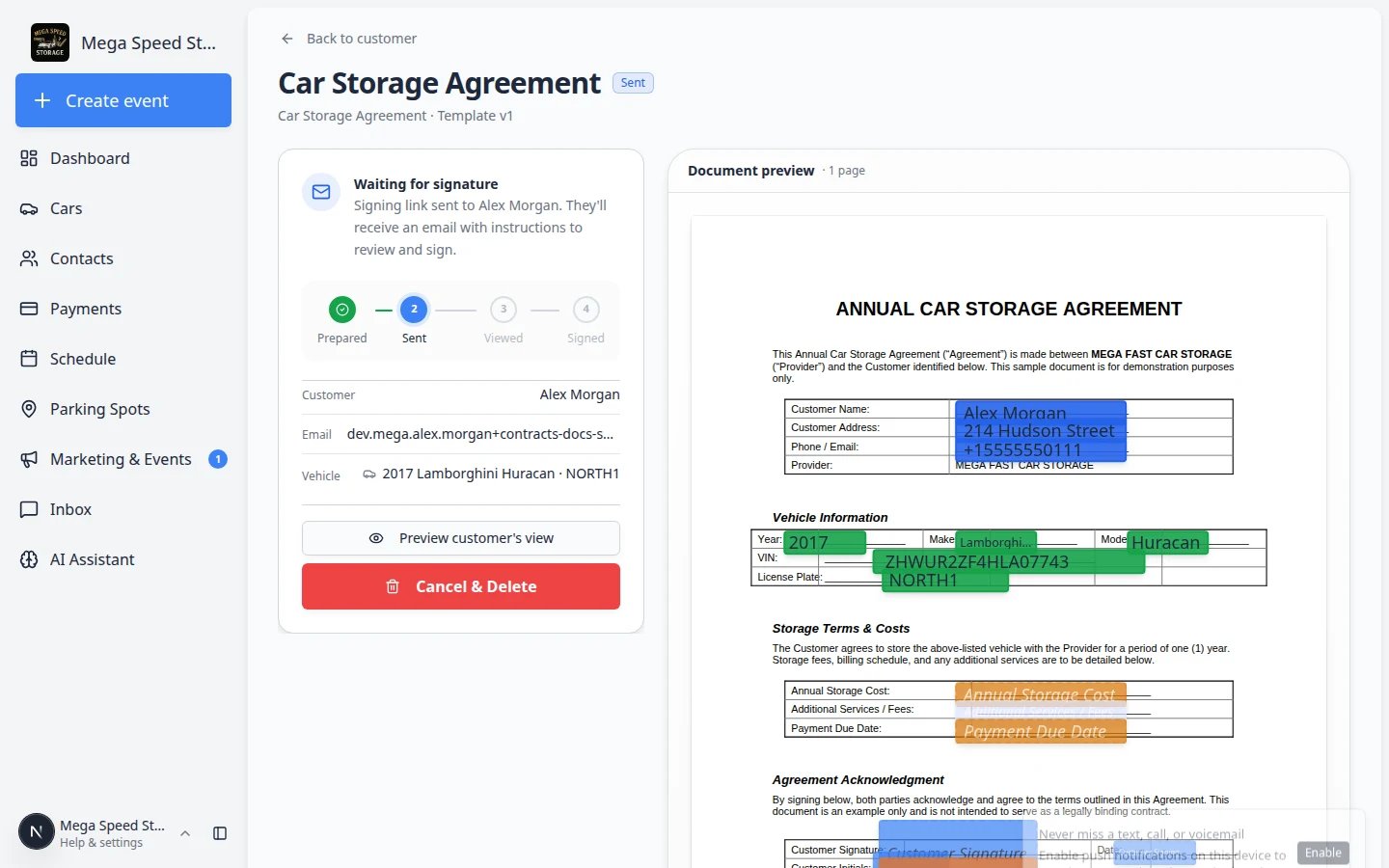 *Contract cards open this full page. Use it to resend email, download PDFs, or cancel unsigned agreements.*
**Expected result:** You can tell whether you are looking at a signing workflow (contract page) or a simple file upload (preview window).
## Step 4: Understand contract statuses
Read the status on the contract card or in the preview window.
**Draft** — your team created the contract but has not sent it yet. Action: send when ready, or cancel if it was a mistake.
**Sent** — the customer was emailed a signing link. Action: wait, resend, or call the customer if it has been a while.
**Viewed** — the customer opened the contract but has not finished signing. Action: remind them to complete signature and initials.
**Awaiting team signature** — the customer finished, but your facility must counter-sign (**Team signs last** templates). Action: follow [Counter-sign after the customer](/docs/contracts/counter-sign-after-the-customer).
**Signed** / **Completed** — everyone who must sign has finished. Action: download the signed PDF for your records.
**Waiting for facility signature** — the customer signed first; your team must **Counter-sign** when the template uses **Team signs last**.
**Cancelled** — the signing request was stopped before completion. Action: create a new contract if the customer still needs to sign.
**Expired** — the signing link passed its expiration date. Action: create and send a new contract.
**Voided** — the signed agreement stays in history but should not be used anymore. Action: send a replacement agreement if the customer still needs a valid contract.
**Expected result:** You know whether to wait, resend, download, or create a new agreement.
## Choosing the right action (quick guide)
Use this table when a customer calls or a contract card looks confusing:
| Status on the card | What it usually means | What your team should do |
| - | - | - |
| **Draft** | Created but not emailed yet | Open the card → **Email** to send, or **Cancel contract** if it was a mistake |
| **Sent** | Email went out; customer has not opened it | Wait a few hours, then click **Resend email** on the contract page. Confirm the email address on the record first |
| **Viewed** | Customer opened the link but did not finish | Call or text a reminder. Click **Resend email** if needed |
| **Completed** / **Signed** | Customer finished | **Download PDF** for your files. No resend needed |
| **Cancelled** | Unsigned request stopped | Create a **new** contract if they still need to sign |
| **Expired** | Link passed its expiration date | Create and send a **new** contract |
**Cancel vs create new**
**Cancel** is for unsigned agreements the customer should not finish. **Completed** agreements stay on the record for history—add a note in **Description** if an old agreement was replaced, then send a new contract when they need a valid agreement on file today.
## Step 5: View, download, or resend a contract
On the **contract page** (opened from a contract card), look for these actions:
* **View contract** or **Preview** — opens the agreement in the browser (same type of page the customer uses to sign).
* **Download PDF** — saves a copy to your computer. For proof, use a contract whose status is **Completed** or **Signed**.
* **Resend email** — sends the signing message again when status is **Sent** or **Viewed**.
* **Cancel contract** — stops an unsigned request the customer should not finish.
* **Amend** or **Version history** — appears on signed contracts when your template allows amendments. See [Amend a signed contract](/docs/contracts/amend-a-signed-contract).
Open a **Completed** contract card. Click **Download PDF**.
**Expected result:** Your computer saves a PDF that includes the customer's signature (and facility signature when **Team signs last** was used).
Open a **Sent** or **Viewed** contract. Click **Resend email**.
Confirm the customer's email if asked. Tell the customer to check spam or junk folders.
**Expected result:** They receive a fresh message with the signing link.
**Use the signed PDF for proof**
For insurance, audits, or disputes, use the downloaded file from a **Completed** contract. That file includes the customer's signature.
## Step 6: Cancel an unsigned contract
Use **Cancel contract** when the customer should **not** finish signing—for example, wrong vehicle, wrong template, or they chose not to store the car.
Click the contract card to open the contract page, then click **Cancel contract**.
A dialog explains that cancelling stops the signing request. This is normal when you need to start over.
Follow the on-screen steps to cancel. The status should change to **Cancelled**.
**Expected result:** The customer can no longer sign that link. Create a new contract if they still need an agreement.
*Contract cards open this full page. Use it to resend email, download PDFs, or cancel unsigned agreements.*
**Expected result:** You can tell whether you are looking at a signing workflow (contract page) or a simple file upload (preview window).
## Step 4: Understand contract statuses
Read the status on the contract card or in the preview window.
**Draft** — your team created the contract but has not sent it yet. Action: send when ready, or cancel if it was a mistake.
**Sent** — the customer was emailed a signing link. Action: wait, resend, or call the customer if it has been a while.
**Viewed** — the customer opened the contract but has not finished signing. Action: remind them to complete signature and initials.
**Awaiting team signature** — the customer finished, but your facility must counter-sign (**Team signs last** templates). Action: follow [Counter-sign after the customer](/docs/contracts/counter-sign-after-the-customer).
**Signed** / **Completed** — everyone who must sign has finished. Action: download the signed PDF for your records.
**Waiting for facility signature** — the customer signed first; your team must **Counter-sign** when the template uses **Team signs last**.
**Cancelled** — the signing request was stopped before completion. Action: create a new contract if the customer still needs to sign.
**Expired** — the signing link passed its expiration date. Action: create and send a new contract.
**Voided** — the signed agreement stays in history but should not be used anymore. Action: send a replacement agreement if the customer still needs a valid contract.
**Expected result:** You know whether to wait, resend, download, or create a new agreement.
## Choosing the right action (quick guide)
Use this table when a customer calls or a contract card looks confusing:
| Status on the card | What it usually means | What your team should do |
| - | - | - |
| **Draft** | Created but not emailed yet | Open the card → **Email** to send, or **Cancel contract** if it was a mistake |
| **Sent** | Email went out; customer has not opened it | Wait a few hours, then click **Resend email** on the contract page. Confirm the email address on the record first |
| **Viewed** | Customer opened the link but did not finish | Call or text a reminder. Click **Resend email** if needed |
| **Completed** / **Signed** | Customer finished | **Download PDF** for your files. No resend needed |
| **Cancelled** | Unsigned request stopped | Create a **new** contract if they still need to sign |
| **Expired** | Link passed its expiration date | Create and send a **new** contract |
**Cancel vs create new**
**Cancel** is for unsigned agreements the customer should not finish. **Completed** agreements stay on the record for history—add a note in **Description** if an old agreement was replaced, then send a new contract when they need a valid agreement on file today.
## Step 5: View, download, or resend a contract
On the **contract page** (opened from a contract card), look for these actions:
* **View contract** or **Preview** — opens the agreement in the browser (same type of page the customer uses to sign).
* **Download PDF** — saves a copy to your computer. For proof, use a contract whose status is **Completed** or **Signed**.
* **Resend email** — sends the signing message again when status is **Sent** or **Viewed**.
* **Cancel contract** — stops an unsigned request the customer should not finish.
* **Amend** or **Version history** — appears on signed contracts when your template allows amendments. See [Amend a signed contract](/docs/contracts/amend-a-signed-contract).
Open a **Completed** contract card. Click **Download PDF**.
**Expected result:** Your computer saves a PDF that includes the customer's signature (and facility signature when **Team signs last** was used).
Open a **Sent** or **Viewed** contract. Click **Resend email**.
Confirm the customer's email if asked. Tell the customer to check spam or junk folders.
**Expected result:** They receive a fresh message with the signing link.
**Use the signed PDF for proof**
For insurance, audits, or disputes, use the downloaded file from a **Completed** contract. That file includes the customer's signature.
## Step 6: Cancel an unsigned contract
Use **Cancel contract** when the customer should **not** finish signing—for example, wrong vehicle, wrong template, or they chose not to store the car.
Click the contract card to open the contract page, then click **Cancel contract**.
A dialog explains that cancelling stops the signing request. This is normal when you need to start over.
Follow the on-screen steps to cancel. The status should change to **Cancelled**.
**Expected result:** The customer can no longer sign that link. Create a new contract if they still need an agreement.
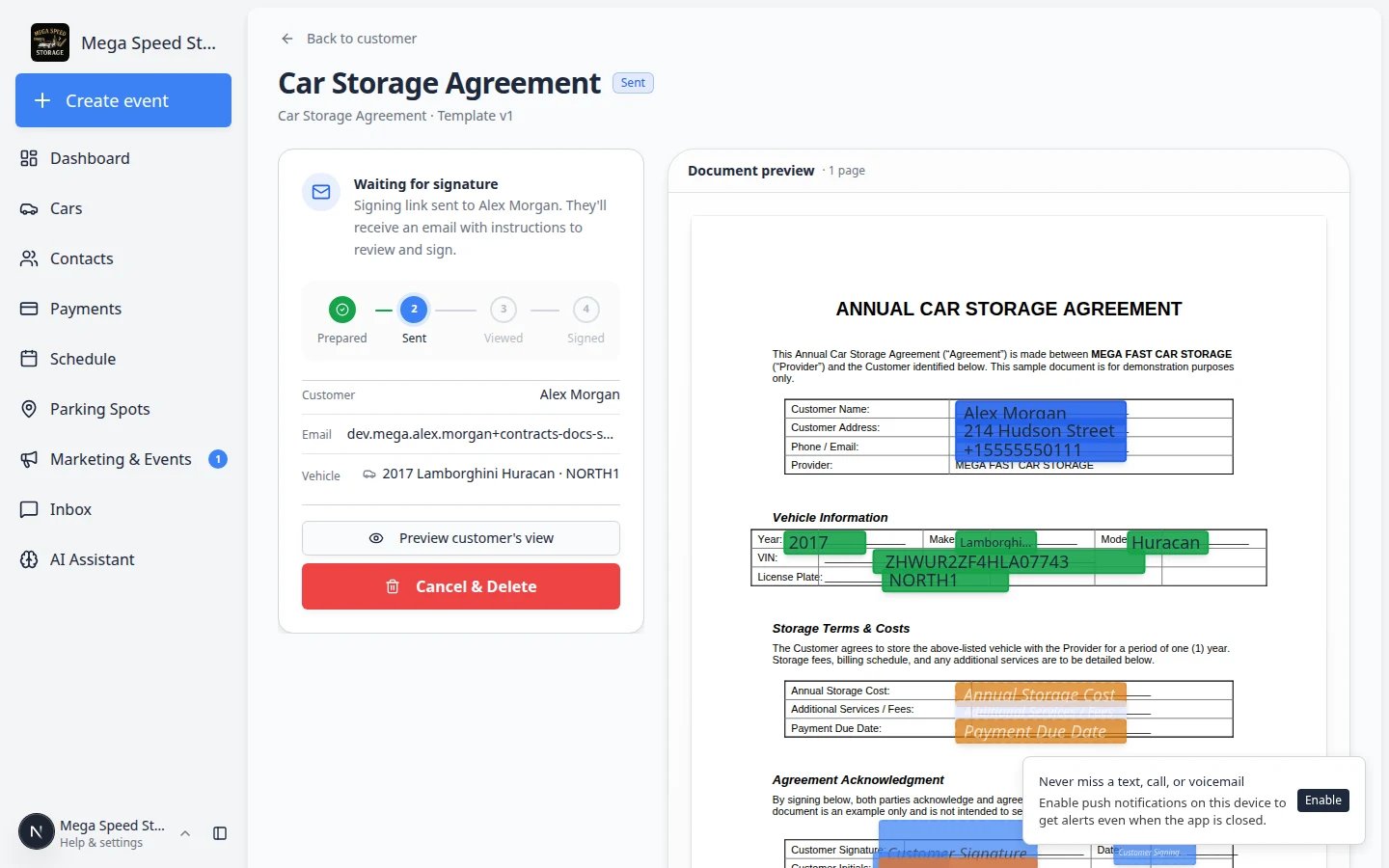 ***Cancel contract** appears on unsigned agreements. Use it when the wrong agreement was sent or the customer no longer needs to sign.*
**Where to find Cancel**
**Cancel contract** usually appears on the **lower-left** of the preview window when the agreement is still **Draft**, **Sent**, or **Viewed**. You will not see it on **Completed** agreements—those are already signed.
## Step 7: Review uploaded documents
In the same **Documents & Contracts** area, review uploads such as insurance cards, registration, titles, or licenses.
Uploaded files appear as **document cards** (not contract cards). They usually show the document type name—**Insurance**, **Registration**, and so on—without a signing status like **Sent** or **Completed**.
Click the upload you want to review. A preview window opens—similar to contracts, but for files customers or staff uploaded.
**Expected result:** You can read the file name, document type, and any notes your team added.
Use **Open full view** (or **View**) for photos and PDFs inside the browser. Use **Download** to save a copy to your computer for insurance or audit requests.
**Why this matters:** Contracts need a **Completed** status for a signed PDF. Uploads are ready to view as soon as they appear on the record.
***Cancel contract** appears on unsigned agreements. Use it when the wrong agreement was sent or the customer no longer needs to sign.*
**Where to find Cancel**
**Cancel contract** usually appears on the **lower-left** of the preview window when the agreement is still **Draft**, **Sent**, or **Viewed**. You will not see it on **Completed** agreements—those are already signed.
## Step 7: Review uploaded documents
In the same **Documents & Contracts** area, review uploads such as insurance cards, registration, titles, or licenses.
Uploaded files appear as **document cards** (not contract cards). They usually show the document type name—**Insurance**, **Registration**, and so on—without a signing status like **Sent** or **Completed**.
Click the upload you want to review. A preview window opens—similar to contracts, but for files customers or staff uploaded.
**Expected result:** You can read the file name, document type, and any notes your team added.
Use **Open full view** (or **View**) for photos and PDFs inside the browser. Use **Download** to save a copy to your computer for insurance or audit requests.
**Why this matters:** Contracts need a **Completed** status for a signed PDF. Uploads are ready to view as soon as they appear on the record.
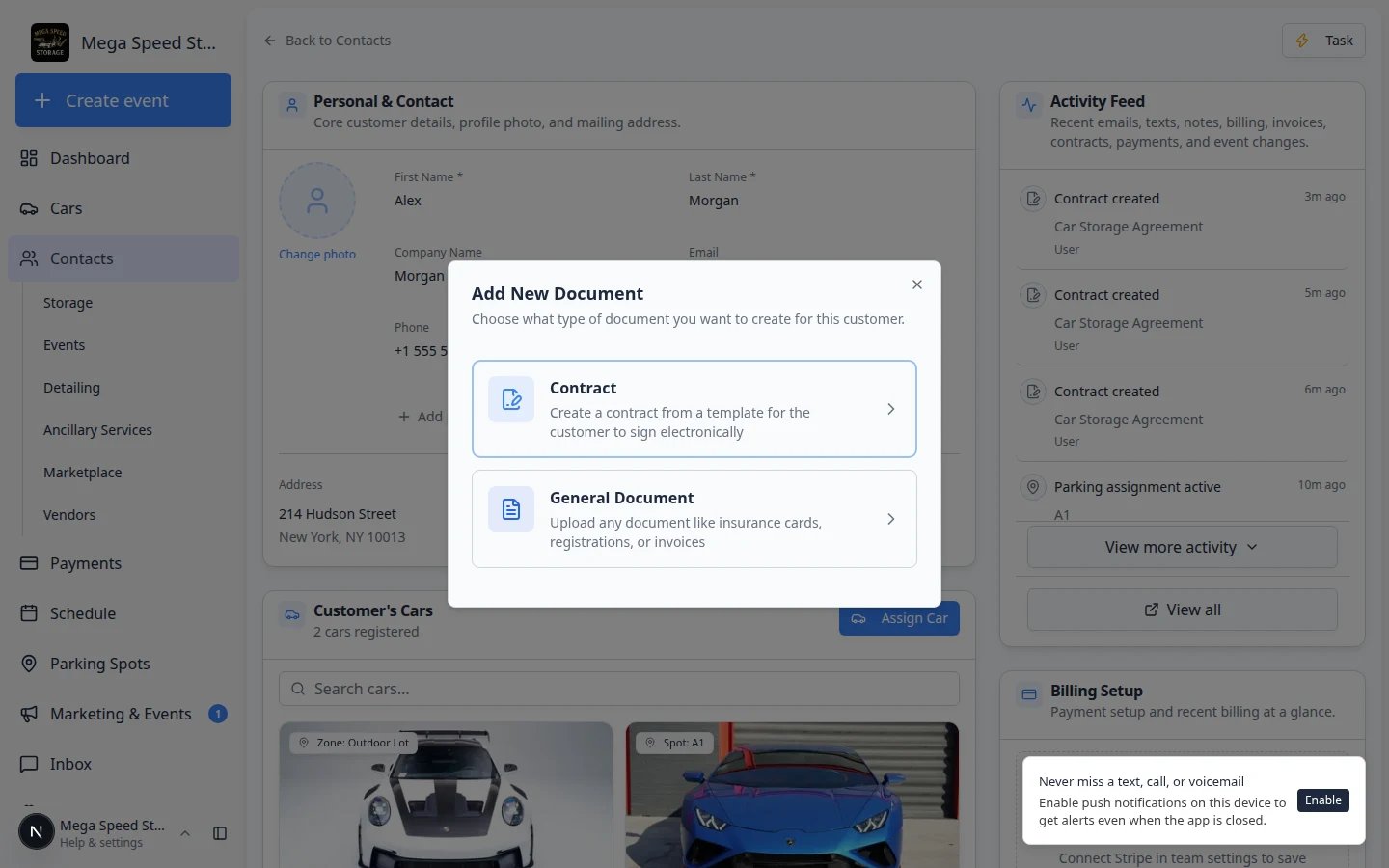 *Uploaded files and contracts use the same preview window. Contracts show signing status; uploads show the document type and file details.*
Check each upload:
* The **document type** label is correct.
* The file belongs to this customer.
* The file is linked to the right car when a car is shown.
* The file is readable and current (not expired insurance, for example).
* Notes explain anything staff should know later.
**Expected result:** You know whether the customer provided the files your facility requires.
## Step 8: Add helpful notes
If a file or contract needs context, add a short description when the app allows it.
Good examples:
* **Insurance card expires 03/31/2027.**
* **Signed replacement agreement after vehicle change.**
* **Title copy provided by spouse.**
Avoid vague notes like **Important** or **See file**—future staff may not know what you meant.
## When a signed agreement should no longer be used
Sometimes a **Completed** contract must stay in history but should not be treated as the active agreement—for example, the customer sold the vehicle or signed a replacement agreement.
**What to do today:** Keep the old card on the customer record for history. Add a clear note in the **Description** field on the preview window (for example, **Replaced by new agreement 05/2026 — do not use**). Send a new contract if the customer still needs a valid agreement on file.
If your facility uses a formal void workflow, follow your manager's process. On the current **Documents & Contracts** cards view, staff use **Cancel contract** for unsigned requests and keep signed PDFs for history rather than deleting completed agreements.
## What success looks like
* You can find signed agreements quickly on the customer record.
* You can download final signed PDFs.
* You can tell which uploads are present and which are missing.
* Statuses clearly show what still needs a phone call or resend.
* Important context is written in the description field when a contract is outdated but kept for history.
## Troubleshooting
**I cannot find the signed contract**
Confirm you opened the correct customer. Some people have more than one record—search by email and company name in [Contacts](https://www.carstoragesoftware.com/dashboard/contacts).
**Status is still Sent or Viewed**
The customer has not finished signing. Resend the email or call them. Ask if they are stuck on location permission, initials, or a required field.
**The downloaded file looks unsigned**
Wait until status is **Signed** or **Completed**, then download again. Earlier downloads may be the unsigned draft.
**Wrong file type on an upload**
Update the document type if staff can tell what the file really is. If the file itself is wrong, ask the customer to upload the correct document.
**I cancelled the wrong contract**
If you cancelled a contract the customer still needs to sign, create and send a new one from **New Document** > **Contract**. Double-check the vehicle and email before sending.
## What to do next
If the customer still needs to sign, follow [Send a contract for signature](/docs/contracts/send-a-contract-for-signature). For several vehicles at once, see [Send multiple contracts in one signing link](/docs/contracts/send-multiple-contracts-in-one-signing-link).
If missing uploads block onboarding, review [Configure document requirements](/docs/contracts/configure-document-requirements) or add files with [Upload a document for a customer](/docs/contracts/upload-a-document-for-a-customer).
## Related topics
- [Amend a signed contract](/docs/contracts/amend-a-signed-contract.md)
- [Upload a document for a customer](/docs/contracts/upload-a-document-for-a-customer.md)
- [Help customers upload documents in the portal](/docs/contracts/help-customers-upload-documents-in-the-portal.md)
- [Contracts overview](/docs/contracts/overview.md)
- [Send contracts to many customers at once](/docs/contracts/send-contracts-to-many-customers-at-once.md)
This documentation is built and hosted on [Mintlify](https://mintlify.com), a developer documentation platform.
*Uploaded files and contracts use the same preview window. Contracts show signing status; uploads show the document type and file details.*
Check each upload:
* The **document type** label is correct.
* The file belongs to this customer.
* The file is linked to the right car when a car is shown.
* The file is readable and current (not expired insurance, for example).
* Notes explain anything staff should know later.
**Expected result:** You know whether the customer provided the files your facility requires.
## Step 8: Add helpful notes
If a file or contract needs context, add a short description when the app allows it.
Good examples:
* **Insurance card expires 03/31/2027.**
* **Signed replacement agreement after vehicle change.**
* **Title copy provided by spouse.**
Avoid vague notes like **Important** or **See file**—future staff may not know what you meant.
## When a signed agreement should no longer be used
Sometimes a **Completed** contract must stay in history but should not be treated as the active agreement—for example, the customer sold the vehicle or signed a replacement agreement.
**What to do today:** Keep the old card on the customer record for history. Add a clear note in the **Description** field on the preview window (for example, **Replaced by new agreement 05/2026 — do not use**). Send a new contract if the customer still needs a valid agreement on file.
If your facility uses a formal void workflow, follow your manager's process. On the current **Documents & Contracts** cards view, staff use **Cancel contract** for unsigned requests and keep signed PDFs for history rather than deleting completed agreements.
## What success looks like
* You can find signed agreements quickly on the customer record.
* You can download final signed PDFs.
* You can tell which uploads are present and which are missing.
* Statuses clearly show what still needs a phone call or resend.
* Important context is written in the description field when a contract is outdated but kept for history.
## Troubleshooting
**I cannot find the signed contract**
Confirm you opened the correct customer. Some people have more than one record—search by email and company name in [Contacts](https://www.carstoragesoftware.com/dashboard/contacts).
**Status is still Sent or Viewed**
The customer has not finished signing. Resend the email or call them. Ask if they are stuck on location permission, initials, or a required field.
**The downloaded file looks unsigned**
Wait until status is **Signed** or **Completed**, then download again. Earlier downloads may be the unsigned draft.
**Wrong file type on an upload**
Update the document type if staff can tell what the file really is. If the file itself is wrong, ask the customer to upload the correct document.
**I cancelled the wrong contract**
If you cancelled a contract the customer still needs to sign, create and send a new one from **New Document** > **Contract**. Double-check the vehicle and email before sending.
## What to do next
If the customer still needs to sign, follow [Send a contract for signature](/docs/contracts/send-a-contract-for-signature). For several vehicles at once, see [Send multiple contracts in one signing link](/docs/contracts/send-multiple-contracts-in-one-signing-link).
If missing uploads block onboarding, review [Configure document requirements](/docs/contracts/configure-document-requirements) or add files with [Upload a document for a customer](/docs/contracts/upload-a-document-for-a-customer).
## Related topics
- [Amend a signed contract](/docs/contracts/amend-a-signed-contract.md)
- [Upload a document for a customer](/docs/contracts/upload-a-document-for-a-customer.md)
- [Help customers upload documents in the portal](/docs/contracts/help-customers-upload-documents-in-the-portal.md)
- [Contracts overview](/docs/contracts/overview.md)
- [Send contracts to many customers at once](/docs/contracts/send-contracts-to-many-customers-at-once.md)
This documentation is built and hosted on [Mintlify](https://mintlify.com), a developer documentation platform.