> ## Documentation Index
> Fetch the complete documentation index at: https://www.carstoragesoftware.com/docs/llms.txt
> Use this file to discover all available pages before exploring further.
# Schedule a service while signing a contract
> Add an Event Scheduling field to a contract template so staff or the customer can book a drop-off, pickup, or other visit while the agreement is sent or signed.
## What you will accomplish
You will add an **Event Scheduling** box to a contract template so the person sending or signing the agreement can **book a visit at the same time**.
A common example: a new storage customer signs the agreement and books **Vehicle Drop Off** in one sitting. Your calendar gets the visit. The customer does not need a second phone call to schedule the arrival.
## When to use this guide
Use this when the agreement and the first visit belong together.
* A new storage customer should book **Vehicle Drop Off** while they sign.
* A pickup or transport should be scheduled before the car leaves.
* You want staff to book the visit on the send screen so the customer only needs to sign.
**This is not the public social-event calendar**
**Event Scheduling** on a contract books a **facility service** from [Settings > Services & schedule](https://www.carstoragesoftware.com/dashboard/settings/events)—such as **Vehicle Drop Off** or **Internal Service**. It does not create a public cars-and-coffee event. Those live under [Marketing & Events](/docs/marketing-events/overview).
## Before you start
* You already have a contract template. Create one in [Create a contract template](/docs/contracts/create-a-contract-template) or buy one in [Buy a ready-made contract template](/docs/contracts/buy-a-ready-made-contract-template).
* The service you want to book already exists and is **Active** in [Settings > Services & schedule](https://www.carstoragesoftware.com/dashboard/settings/events). Example: **Vehicle Drop Off**.
* You can open the template editor from [Settings > Contracts & Documents](https://www.carstoragesoftware.com/dashboard/settings/contracts-and-documents).
## Step 1: Open the template editor
Go to [Settings > Contracts & Documents](https://www.carstoragesoftware.com/dashboard/settings/contracts-and-documents).
On the template card, click **Configure**.
The editor opens with the PDF on the right and **Add Fields** on the left.
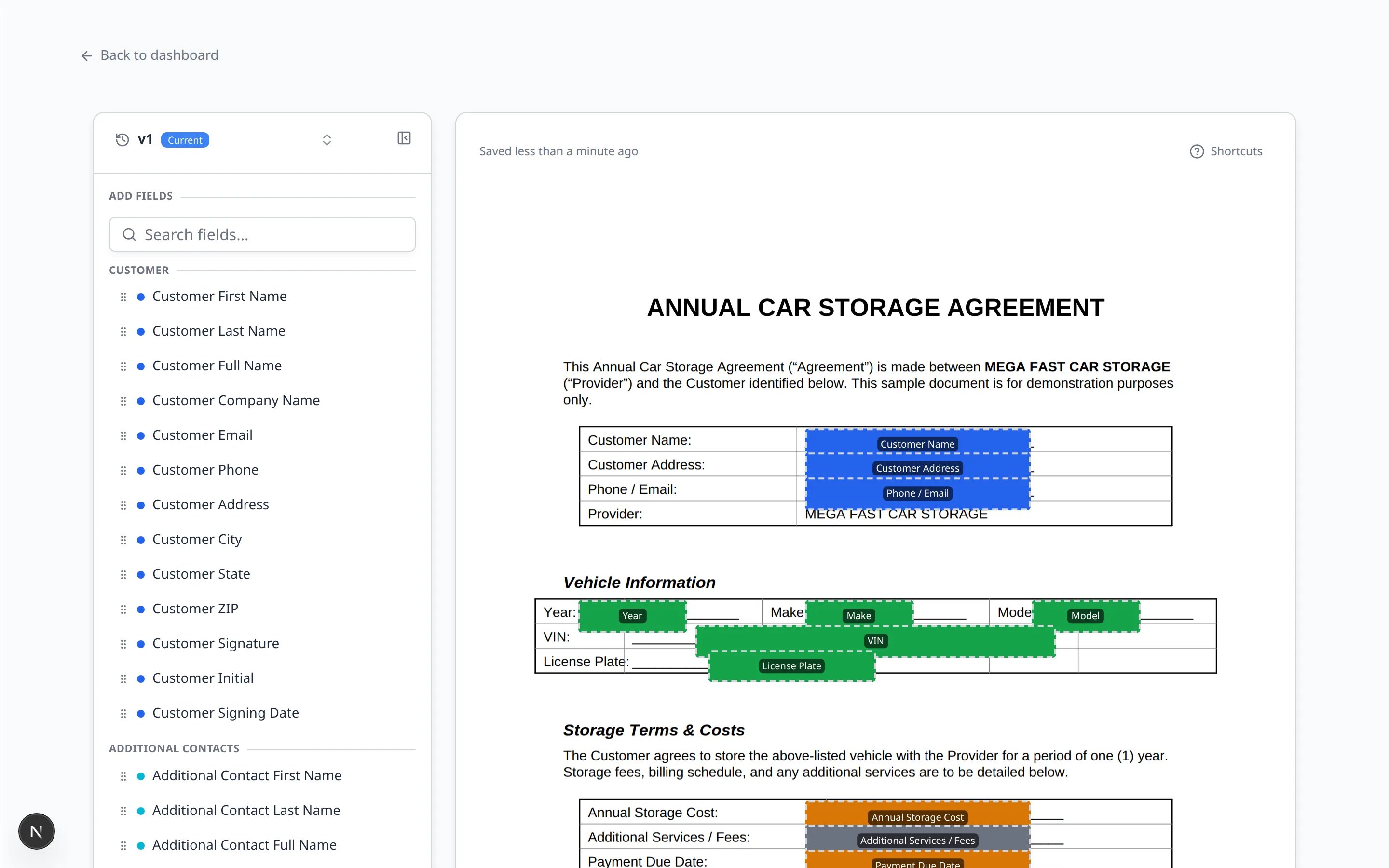 *The editor has two parts: **Add Fields** on the left, and the PDF on the right. Drag fields onto the places a customer or staff member must complete.*
**Expected result:** You see the PDF with any fields you already placed, and a searchable list of field types.
## Step 2: Find Event Scheduling
In **Add Fields**, click **Search fields…** and type **Event Scheduling**.
The list narrows to the **Scheduling** group. The only field in that group is **Event Scheduling**.
*The editor has two parts: **Add Fields** on the left, and the PDF on the right. Drag fields onto the places a customer or staff member must complete.*
**Expected result:** You see the PDF with any fields you already placed, and a searchable list of field types.
## Step 2: Find Event Scheduling
In **Add Fields**, click **Search fields…** and type **Event Scheduling**.
The list narrows to the **Scheduling** group. The only field in that group is **Event Scheduling**.
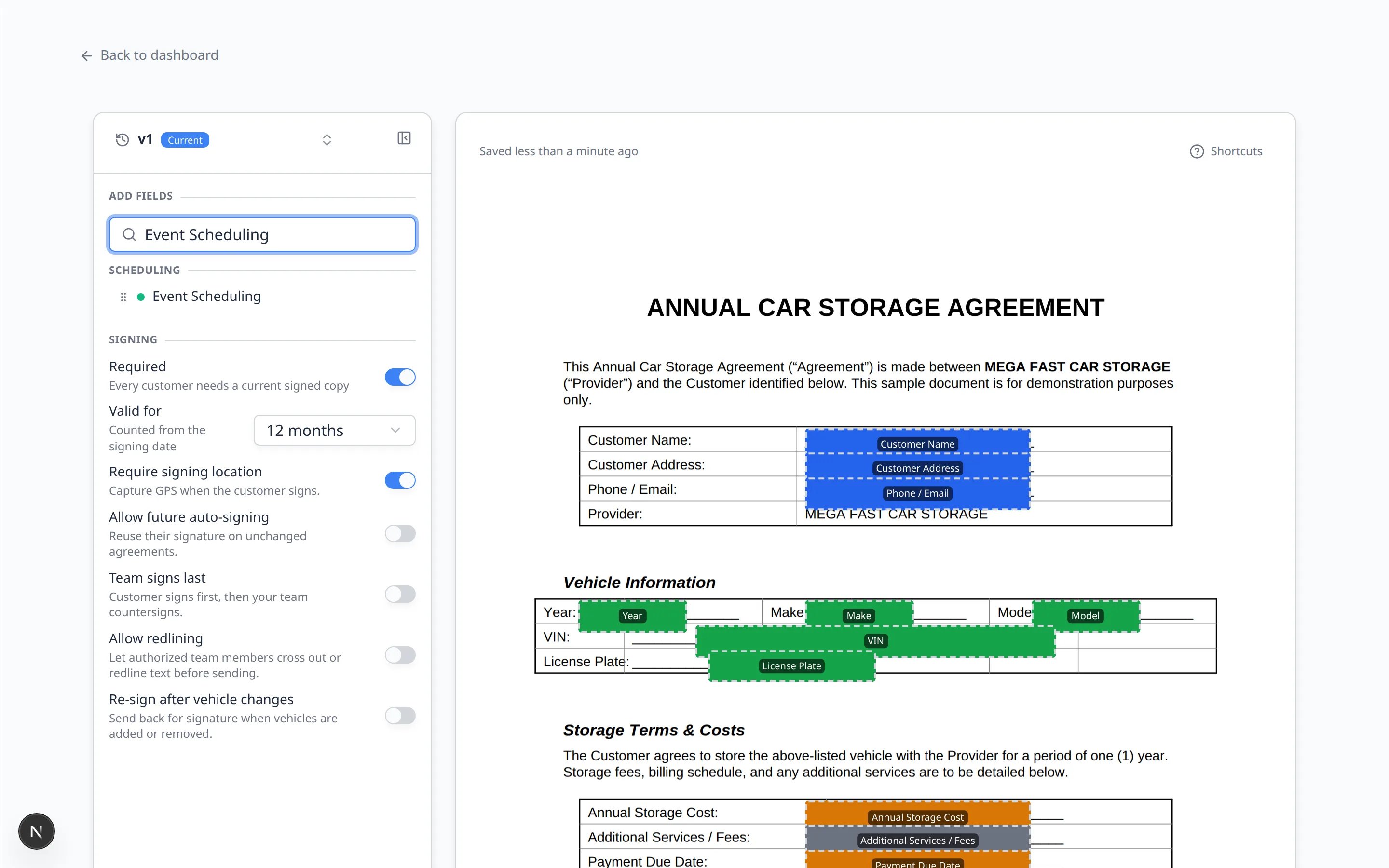 *Type **Event Scheduling** in **Search fields…**. The **Scheduling** group appears with one field you can drag onto the PDF.*
**Expected result:** You see **Event Scheduling** under **Scheduling**, not buried in the long Customer or Car lists.
The search box is the fastest way to find this field. If you clear the search, scroll the left list until you see the **Scheduling** heading. The helper text there says signers or the team will book event availability on this agreement.
## Step 3: Place the field on the PDF
Drag **Event Scheduling** from the left list onto a clear spot on the PDF.
A good place is near the signature block or a line about arrival, drop-off, or first visit. Leave enough room for a wide box.
Double-click the new box.
The field settings ask **Which event type is booked?** with a list of your active services.
Pick the service that belongs with this agreement. Example: **Vehicle Drop Off** for a storage contract.
If you see **Who fills this out?**:
* **Team or customer** — staff can book on the send screen, or the customer can book on the signing page. This is the usual choice.
* **Team only** — only staff book it before the email goes out. The customer cannot change the visit while signing.
*Type **Event Scheduling** in **Search fields…**. The **Scheduling** group appears with one field you can drag onto the PDF.*
**Expected result:** You see **Event Scheduling** under **Scheduling**, not buried in the long Customer or Car lists.
The search box is the fastest way to find this field. If you clear the search, scroll the left list until you see the **Scheduling** heading. The helper text there says signers or the team will book event availability on this agreement.
## Step 3: Place the field on the PDF
Drag **Event Scheduling** from the left list onto a clear spot on the PDF.
A good place is near the signature block or a line about arrival, drop-off, or first visit. Leave enough room for a wide box.
Double-click the new box.
The field settings ask **Which event type is booked?** with a list of your active services.
Pick the service that belongs with this agreement. Example: **Vehicle Drop Off** for a storage contract.
If you see **Who fills this out?**:
* **Team or customer** — staff can book on the send screen, or the customer can book on the signing page. This is the usual choice.
* **Team only** — only staff book it before the email goes out. The customer cannot change the visit while signing.
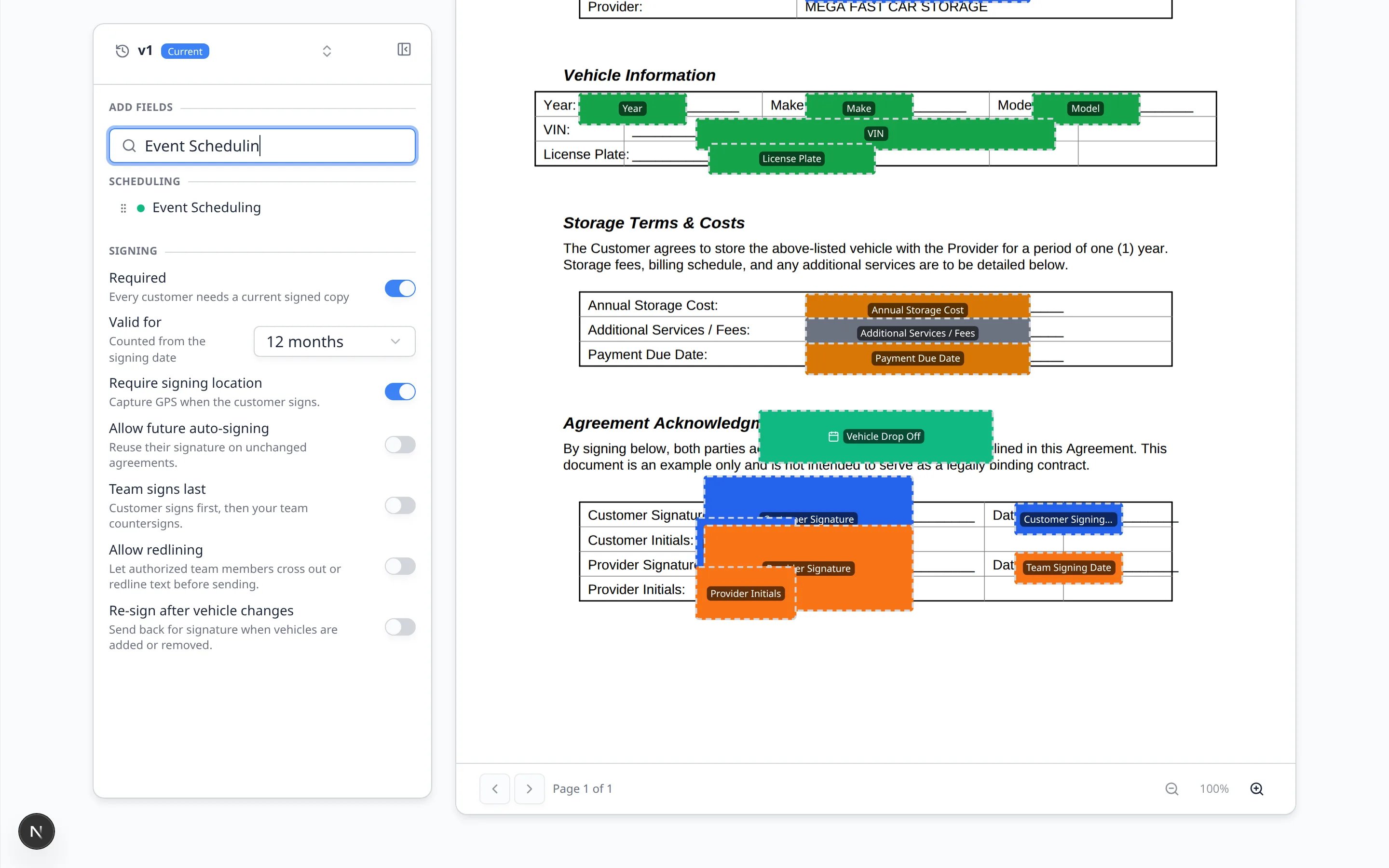 *After you choose a service, the box on the PDF shows that name—here **Vehicle Drop Off**—so staff can see what will be booked.*
**Expected result:** The box on the PDF shows the service name, such as **Vehicle Drop Off**. The editor saves automatically. Watch for **Saved** near the top.
**Choose the event type before you send**
If you skip **Which event type is booked?**, the send screen shows **Choose an event type on the template before sending.** Open **Configure** again, double-click the box, and pick a service.
## Step 4: Send a test and book the visit
Go to [Contacts](https://www.carstoragesoftware.com/dashboard/contacts) and open a customer you can experiment with.
Follow [Send a contract for signature](/docs/contracts/send-a-contract-for-signature) through **Setup** and **Fields**.
On **Fields**, look for a button such as **Schedule Vehicle Drop Off**.
Click it. A booking window opens with that service already selected. Pick a day and time, then click **Book event**.
After it saves, the button may change to **Change booking**.
If you left the field on **Team or customer** and you did not book it yourself, the customer sees the same **Schedule …** button on the signing page.
They pick a day and time, click **Book event**, then finish their signature.
**Expected result:** A visit appears on [Schedule](https://www.carstoragesoftware.com/dashboard/schedule) for that customer and car. The contract still needs a signature to become **Completed**.
**Why book during signing?**
The agreement and the first visit often fail for the same reason: someone meant to schedule later and never did. Putting the booking on the contract means the car has a drop-off time before the customer closes the tab.
## What the customer sees
Customers do not see the template editor. They see a simple **Schedule Vehicle Drop Off** (or similar) button next to the other signing questions.
* They pick an open day and time for that service.
* They click **Book event**.
* They can click **Change booking** if they picked the wrong time.
* They still need to draw their signature and finish the agreement.
## What success looks like
* The template has an **Event Scheduling** box tied to a real service, such as **Vehicle Drop Off**.
* A test send lets staff or the customer click **Schedule …** and **Book event**.
* The booked visit shows on [Schedule](https://www.carstoragesoftware.com/dashboard/schedule).
* The signed PDF still downloads from **Documents & Contracts** on the customer record.
## Troubleshooting
**I cannot find Event Scheduling**
Type **Event** in **Search fields…**. If the list is empty, you are in an old browser tab—click **Reload**, then search again.
**The event type list is empty**
Open [Settings > Services & schedule](https://www.carstoragesoftware.com/dashboard/settings/events) and confirm the service is **Active**. Calendar Block and similar internal-only items may not be what you want for a customer-facing booking.
**Choose an event type on the template before sending**
The box is on the PDF, but no service is selected. Double-click the box in the template editor and pick **Vehicle Drop Off** or the matching service.
**The customer cannot book**
Check **Who fills this out?** If it is **Team only**, only staff can book on the send screen. Change it to **Team or customer** if the signer should pick the time.
**The visit is on the wrong day**
Open the contract send screen or signing page and click **Change booking**. You can also edit the visit on [Schedule](https://www.carstoragesoftware.com/dashboard/schedule) after it is created.
## What to do next
When the test booking looks right, send the template from a real customer record with [Send a contract for signature](/docs/contracts/send-a-contract-for-signature).
In the same editor, the **Signing** section can mark the template **Required** and set **Valid for** 12 months. See [Create a contract template](/docs/contracts/create-a-contract-template).
## Related topics
- [Send a contract for signature](/docs/contracts/send-a-contract-for-signature.md)
- [Contracts overview](/docs/contracts/overview.md)
- [Buy a ready-made contract template](/docs/contracts/buy-a-ready-made-contract-template.md)
- [Create a contract template](/docs/contracts/create-a-contract-template.md)
- [Use Auto-fill when building a template](/docs/contracts/use-auto-fill-when-building-a-template.md)
This documentation is built and hosted on [Mintlify](https://mintlify.com), a developer documentation platform.
*After you choose a service, the box on the PDF shows that name—here **Vehicle Drop Off**—so staff can see what will be booked.*
**Expected result:** The box on the PDF shows the service name, such as **Vehicle Drop Off**. The editor saves automatically. Watch for **Saved** near the top.
**Choose the event type before you send**
If you skip **Which event type is booked?**, the send screen shows **Choose an event type on the template before sending.** Open **Configure** again, double-click the box, and pick a service.
## Step 4: Send a test and book the visit
Go to [Contacts](https://www.carstoragesoftware.com/dashboard/contacts) and open a customer you can experiment with.
Follow [Send a contract for signature](/docs/contracts/send-a-contract-for-signature) through **Setup** and **Fields**.
On **Fields**, look for a button such as **Schedule Vehicle Drop Off**.
Click it. A booking window opens with that service already selected. Pick a day and time, then click **Book event**.
After it saves, the button may change to **Change booking**.
If you left the field on **Team or customer** and you did not book it yourself, the customer sees the same **Schedule …** button on the signing page.
They pick a day and time, click **Book event**, then finish their signature.
**Expected result:** A visit appears on [Schedule](https://www.carstoragesoftware.com/dashboard/schedule) for that customer and car. The contract still needs a signature to become **Completed**.
**Why book during signing?**
The agreement and the first visit often fail for the same reason: someone meant to schedule later and never did. Putting the booking on the contract means the car has a drop-off time before the customer closes the tab.
## What the customer sees
Customers do not see the template editor. They see a simple **Schedule Vehicle Drop Off** (or similar) button next to the other signing questions.
* They pick an open day and time for that service.
* They click **Book event**.
* They can click **Change booking** if they picked the wrong time.
* They still need to draw their signature and finish the agreement.
## What success looks like
* The template has an **Event Scheduling** box tied to a real service, such as **Vehicle Drop Off**.
* A test send lets staff or the customer click **Schedule …** and **Book event**.
* The booked visit shows on [Schedule](https://www.carstoragesoftware.com/dashboard/schedule).
* The signed PDF still downloads from **Documents & Contracts** on the customer record.
## Troubleshooting
**I cannot find Event Scheduling**
Type **Event** in **Search fields…**. If the list is empty, you are in an old browser tab—click **Reload**, then search again.
**The event type list is empty**
Open [Settings > Services & schedule](https://www.carstoragesoftware.com/dashboard/settings/events) and confirm the service is **Active**. Calendar Block and similar internal-only items may not be what you want for a customer-facing booking.
**Choose an event type on the template before sending**
The box is on the PDF, but no service is selected. Double-click the box in the template editor and pick **Vehicle Drop Off** or the matching service.
**The customer cannot book**
Check **Who fills this out?** If it is **Team only**, only staff can book on the send screen. Change it to **Team or customer** if the signer should pick the time.
**The visit is on the wrong day**
Open the contract send screen or signing page and click **Change booking**. You can also edit the visit on [Schedule](https://www.carstoragesoftware.com/dashboard/schedule) after it is created.
## What to do next
When the test booking looks right, send the template from a real customer record with [Send a contract for signature](/docs/contracts/send-a-contract-for-signature).
In the same editor, the **Signing** section can mark the template **Required** and set **Valid for** 12 months. See [Create a contract template](/docs/contracts/create-a-contract-template).
## Related topics
- [Send a contract for signature](/docs/contracts/send-a-contract-for-signature.md)
- [Contracts overview](/docs/contracts/overview.md)
- [Buy a ready-made contract template](/docs/contracts/buy-a-ready-made-contract-template.md)
- [Create a contract template](/docs/contracts/create-a-contract-template.md)
- [Use Auto-fill when building a template](/docs/contracts/use-auto-fill-when-building-a-template.md)
This documentation is built and hosted on [Mintlify](https://mintlify.com), a developer documentation platform.