> ## Documentation Index
> Fetch the complete documentation index at: https://www.carstoragesoftware.com/docs/llms.txt
> Use this file to discover all available pages before exploring further.
# Send multiple contracts in one signing link
> When one customer has several vehicles, help them sign every required agreement in one sitting—especially during customer portal onboarding.
## What you will accomplish
You will understand how Car Storage Software groups **several vehicle agreements into one signing experience** so a customer with two or more cars does not need separate emails for each storage agreement.
After setup, the customer sees **one** onboarding step—**Sign Your Contracts**—and can finish every required agreement in a single browser session.
## When to use bundled signing
* One owner is storing two or more vehicles and needs the same storage agreement for each.
* You want the customer to sign everything in one sitting instead of several emails.
* Each vehicle already exists on the customer record in [Contacts](https://www.carstoragesoftware.com/dashboard/contacts).
* Your contract template supports multiple vehicles (ask your facility admin if you are unsure).
**One vehicle or a one-off email?**
For a **single** car or when staff sends an agreement from a customer record today, use [Send a contract for signature](/docs/contracts/send-a-contract-for-signature). That flow sends **one agreement per send**.
## How bundling works (plain English)
When onboarding runs and a customer has **more than one vehicle** on their account, the app can create a **contract bundle**:
* The customer receives **one signing experience** (one **Review & Sign Now** button for the bundle).
* After signing, your team still sees **separate completed agreements**—one per vehicle—on the customer record.
* Each signed PDF includes the correct car details for that vehicle.
Bundling is built for **portal onboarding**, not for a special checkbox on the staff send screen.
## Before you start
* Complete [Create a contract template](/docs/contracts/create-a-contract-template) with vehicle fields (year, make, model, VIN, and so on).
* Every vehicle is on the **same customer record** in [Contacts](https://www.carstoragesoftware.com/dashboard/contacts).
* **Customer app onboarding** is on and **Contract Signing** is enabled—see [Attach contracts to customer workflows](/docs/contracts/attach-contracts-to-workflows).
* The required template is selected in **Contract Step Configuration** and shows a **Car-linked** badge when it needs vehicle details.
* The customer's **email** on the record is correct.
## Step 1: Turn on Contract Signing for onboarding
Bundled signing runs during **customer portal onboarding**, not from a special button on the staff send screen. Turn it on once in settings.
Go to [Settings > Customer onboarding](https://www.carstoragesoftware.com/dashboard/settings/customer-onboarding).
Enable **Customer app onboarding** at the top of the page.
**Why this matters:** Without this master switch, new portal customers skip the signing steps entirely.
In **Onboarding steps**, turn **Contract Signing** **on**, then click **Configure**.
In **Contract Step Configuration**, turn on the template every customer must sign—for example **Car Storage Agreement**.
Templates with a **Car-linked** badge need vehicle details on the record before signing.
**Expected result:** At least one required template is checked. Close the window when you are done.
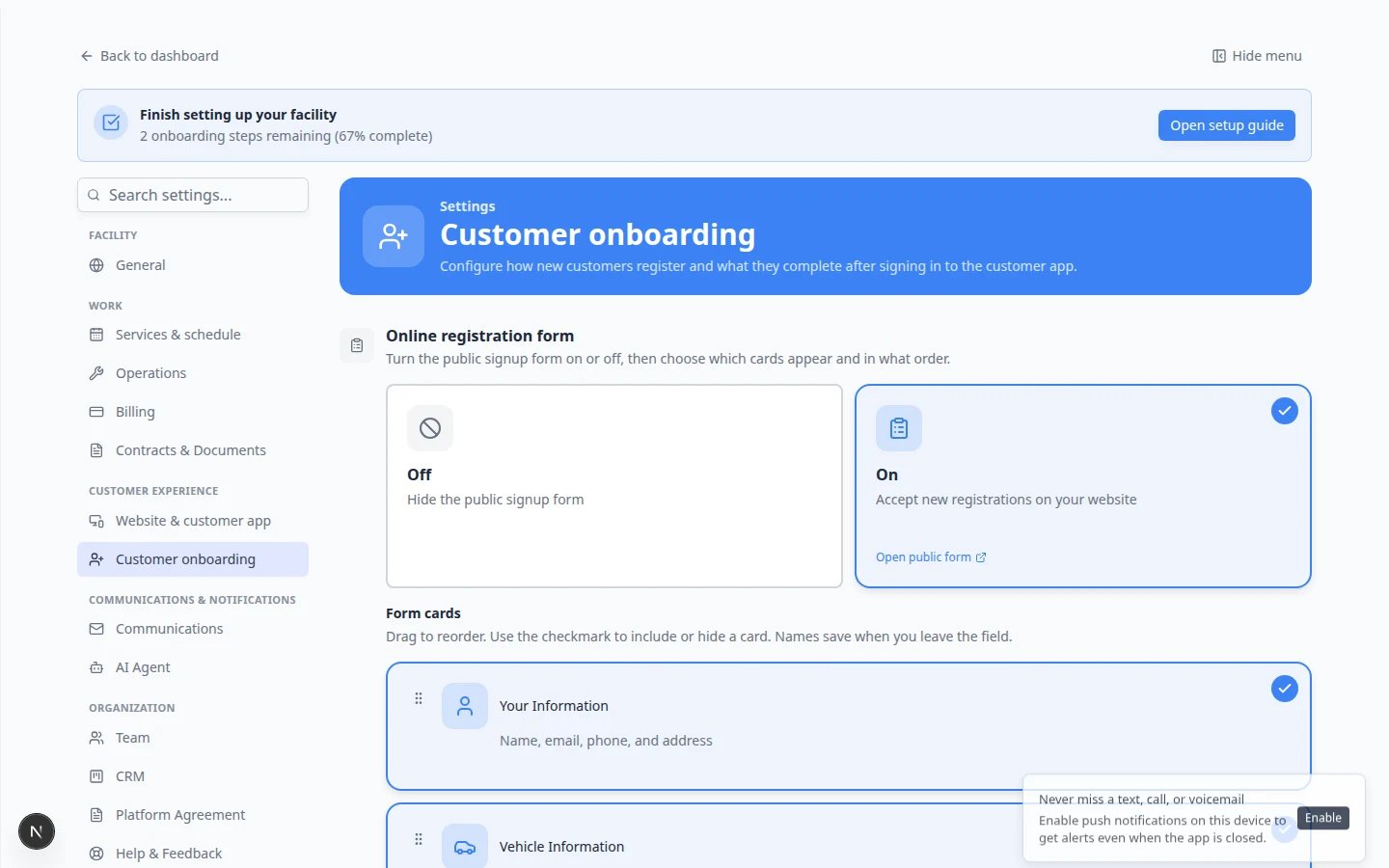 *Choose the agreement customers must sign during first-time portal setup. See [Attach contracts to customer workflows](/docs/contracts/attach-contracts-to-workflows) for the full onboarding order.*
## Step 2: Put the Cars step before Contract Signing
Customers must add **every vehicle** to their account before they sign. That is how the app knows which cars belong in the bundle.
On [Settings > Customer onboarding](https://www.carstoragesoftware.com/dashboard/settings/customer-onboarding), find the **Onboarding steps** list.
Drag **Cars** (or **Add Your Vehicle**) **above** **Contract Signing**.
**Why this matters:** If signing comes first, vehicle lines on the PDF may be blank and the bundle cannot include every car.
Confirm the list saves. Many facilities use: **Welcome** → **Profile** → **Cars** → **Contract Signing** → **Document Upload**.
**Expected result:** New portal customers add vehicles before they reach **Sign Your Contracts**.
*Choose the agreement customers must sign during first-time portal setup. See [Attach contracts to customer workflows](/docs/contracts/attach-contracts-to-workflows) for the full onboarding order.*
## Step 2: Put the Cars step before Contract Signing
Customers must add **every vehicle** to their account before they sign. That is how the app knows which cars belong in the bundle.
On [Settings > Customer onboarding](https://www.carstoragesoftware.com/dashboard/settings/customer-onboarding), find the **Onboarding steps** list.
Drag **Cars** (or **Add Your Vehicle**) **above** **Contract Signing**.
**Why this matters:** If signing comes first, vehicle lines on the PDF may be blank and the bundle cannot include every car.
Confirm the list saves. Many facilities use: **Welcome** → **Profile** → **Cars** → **Contract Signing** → **Document Upload**.
**Expected result:** New portal customers add vehicles before they reach **Sign Your Contracts**.
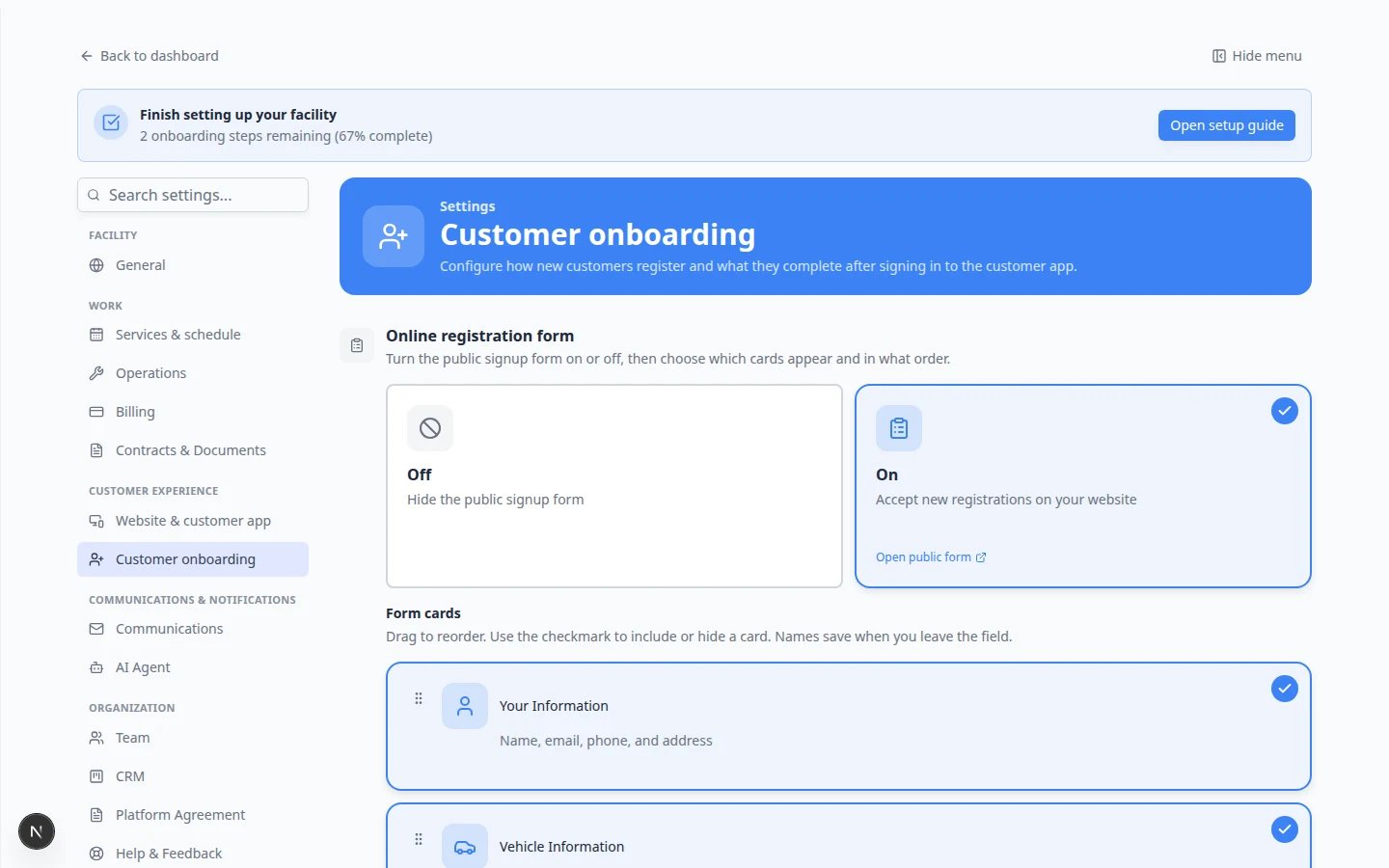 *Put **Cars** before **Contract Signing** when your agreement includes vehicle year, make, model, or VIN.*
## Step 3: Add every vehicle on the customer record (staff prep)
Before you invite a multi-car customer to the portal, make sure their record is ready—or coach them to add each car during onboarding.
Go to [Contacts](https://www.carstoragesoftware.com/dashboard/contacts) and open the customer who stores more than one vehicle.
Check that every stored vehicle appears on the customer page. Add missing cars from [Cars](https://www.carstoragesoftware.com/dashboard/cars) if your team enters them in the office.
**Why this matters:** Onboarding can only bundle agreements for vehicles already linked to that customer.
Send a portal invite using your normal process. See [Invite a customer to the portal](/docs/contacts/invite-a-customer-to-the-portal).
**Expected result:** The customer can sign in and walk through onboarding—including adding any cars you did not enter for them.
## Step 4: What the customer sees during onboarding
When the customer reaches **Sign Your Contracts**, the app groups every required agreement into **one signing session**.
During onboarding, the customer sees **Sign Your Contracts** with progress such as **0 of 2 signed** when two vehicles need the same template.
One button opens the browser signing page. The customer does **not** receive a separate email per vehicle during onboarding.
They scroll through the agreement, allow location if asked, and sign once. The app applies that signing session to each vehicle in the bundle.
**Expected result:** Progress updates to show all required contracts signed before **Continue** unlocks.
*Put **Cars** before **Contract Signing** when your agreement includes vehicle year, make, model, or VIN.*
## Step 3: Add every vehicle on the customer record (staff prep)
Before you invite a multi-car customer to the portal, make sure their record is ready—or coach them to add each car during onboarding.
Go to [Contacts](https://www.carstoragesoftware.com/dashboard/contacts) and open the customer who stores more than one vehicle.
Check that every stored vehicle appears on the customer page. Add missing cars from [Cars](https://www.carstoragesoftware.com/dashboard/cars) if your team enters them in the office.
**Why this matters:** Onboarding can only bundle agreements for vehicles already linked to that customer.
Send a portal invite using your normal process. See [Invite a customer to the portal](/docs/contacts/invite-a-customer-to-the-portal).
**Expected result:** The customer can sign in and walk through onboarding—including adding any cars you did not enter for them.
## Step 4: What the customer sees during onboarding
When the customer reaches **Sign Your Contracts**, the app groups every required agreement into **one signing session**.
During onboarding, the customer sees **Sign Your Contracts** with progress such as **0 of 2 signed** when two vehicles need the same template.
One button opens the browser signing page. The customer does **not** receive a separate email per vehicle during onboarding.
They scroll through the agreement, allow location if asked, and sign once. The app applies that signing session to each vehicle in the bundle.
**Expected result:** Progress updates to show all required contracts signed before **Continue** unlocks.
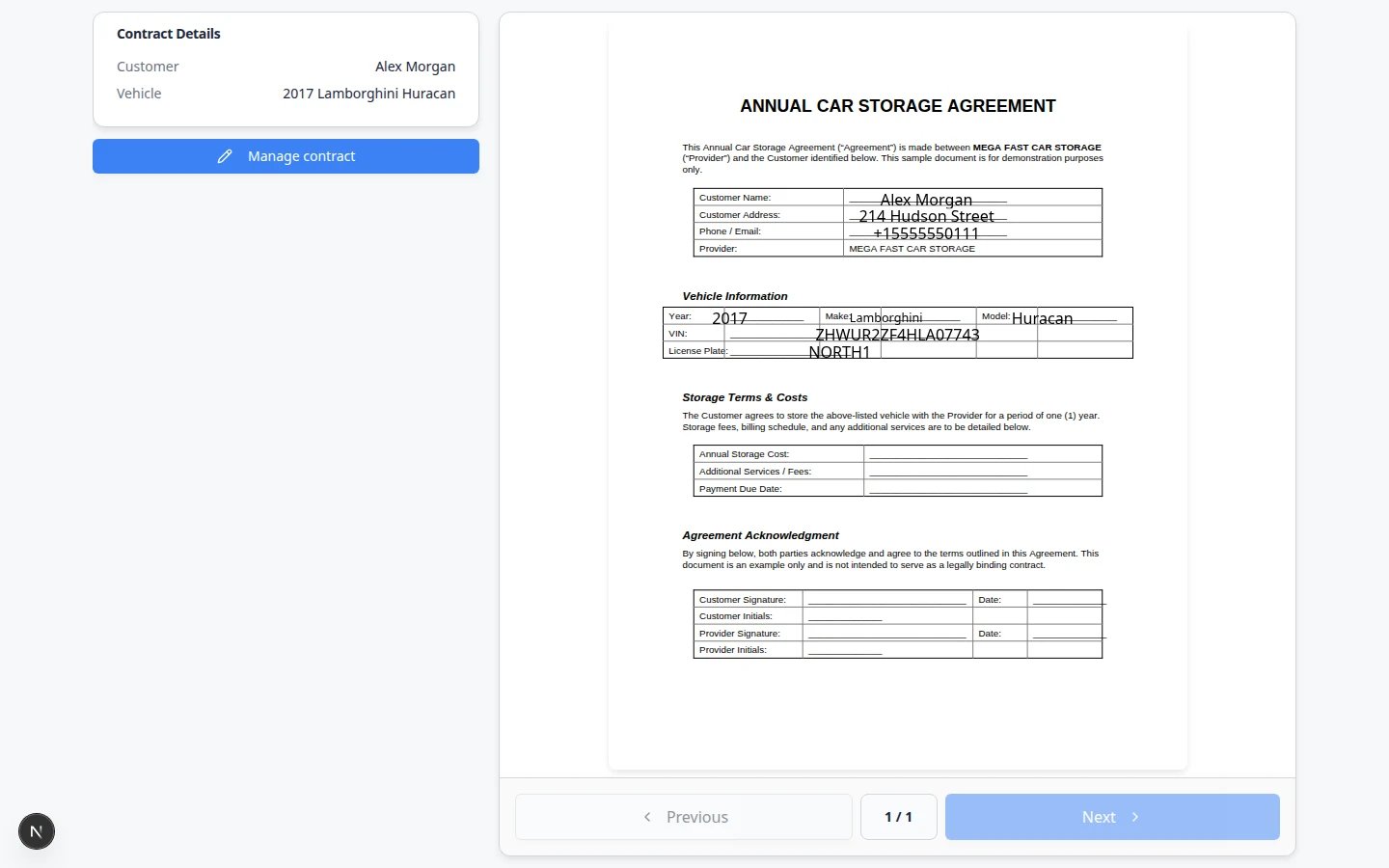 *Onboarding uses the same browser signing page as email links. Customers with multiple vehicles still sign in one session.*
 *When more than one vehicle needs the same agreement, the customer signs once—not once per car.*
## Step 5: Confirm on the customer record (staff view)
After the customer finishes onboarding, verify each vehicle has its own completed agreement.
Go to [Contacts](https://www.carstoragesoftware.com/dashboard/contacts) and open the customer who just finished signing.
Scroll to **Documents & Contracts**. You should see **one contract card per vehicle**—for example two **Completed** cards when the customer stores two cars.
**Expected result:** The section header may read **0 documents, 2 contracts** (or similar). Each card shows the correct vehicle on the agreement.
Open each **Completed** card and click **Download PDF** when you need a copy for your files.
**Why this matters:** Insurance, audits, and move-out checks often need the agreement that matches each VIN—not just one generic file.
*When more than one vehicle needs the same agreement, the customer signs once—not once per car.*
## Step 5: Confirm on the customer record (staff view)
After the customer finishes onboarding, verify each vehicle has its own completed agreement.
Go to [Contacts](https://www.carstoragesoftware.com/dashboard/contacts) and open the customer who just finished signing.
Scroll to **Documents & Contracts**. You should see **one contract card per vehicle**—for example two **Completed** cards when the customer stores two cars.
**Expected result:** The section header may read **0 documents, 2 contracts** (or similar). Each card shows the correct vehicle on the agreement.
Open each **Completed** card and click **Download PDF** when you need a copy for your files.
**Why this matters:** Insurance, audits, and move-out checks often need the agreement that matches each VIN—not just one generic file.
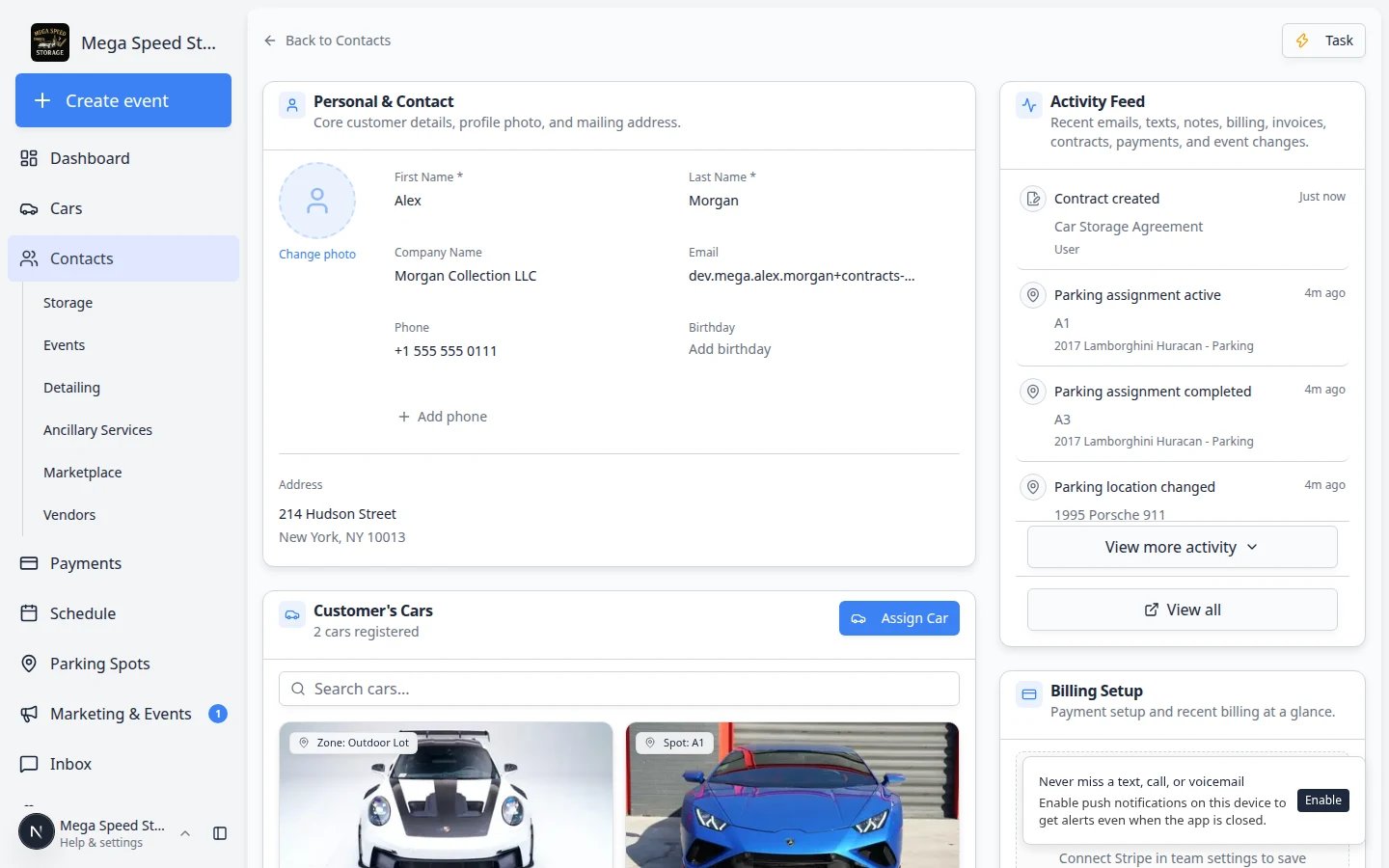 *After bundled onboarding signing, each vehicle's agreement appears as its own card on the customer record.*
## Optional: staff send screen with multiple vehicles
When staff send an agreement manually from a customer record, you may be able to select more than one vehicle on the **Fields** step of the send wizard. That path still sends **one email** when multiple cars are selected.
*After bundled onboarding signing, each vehicle's agreement appears as its own card on the customer record.*
## Optional: staff send screen with multiple vehicles
When staff send an agreement manually from a customer record, you may be able to select more than one vehicle on the **Fields** step of the send wizard. That path still sends **one email** when multiple cars are selected.
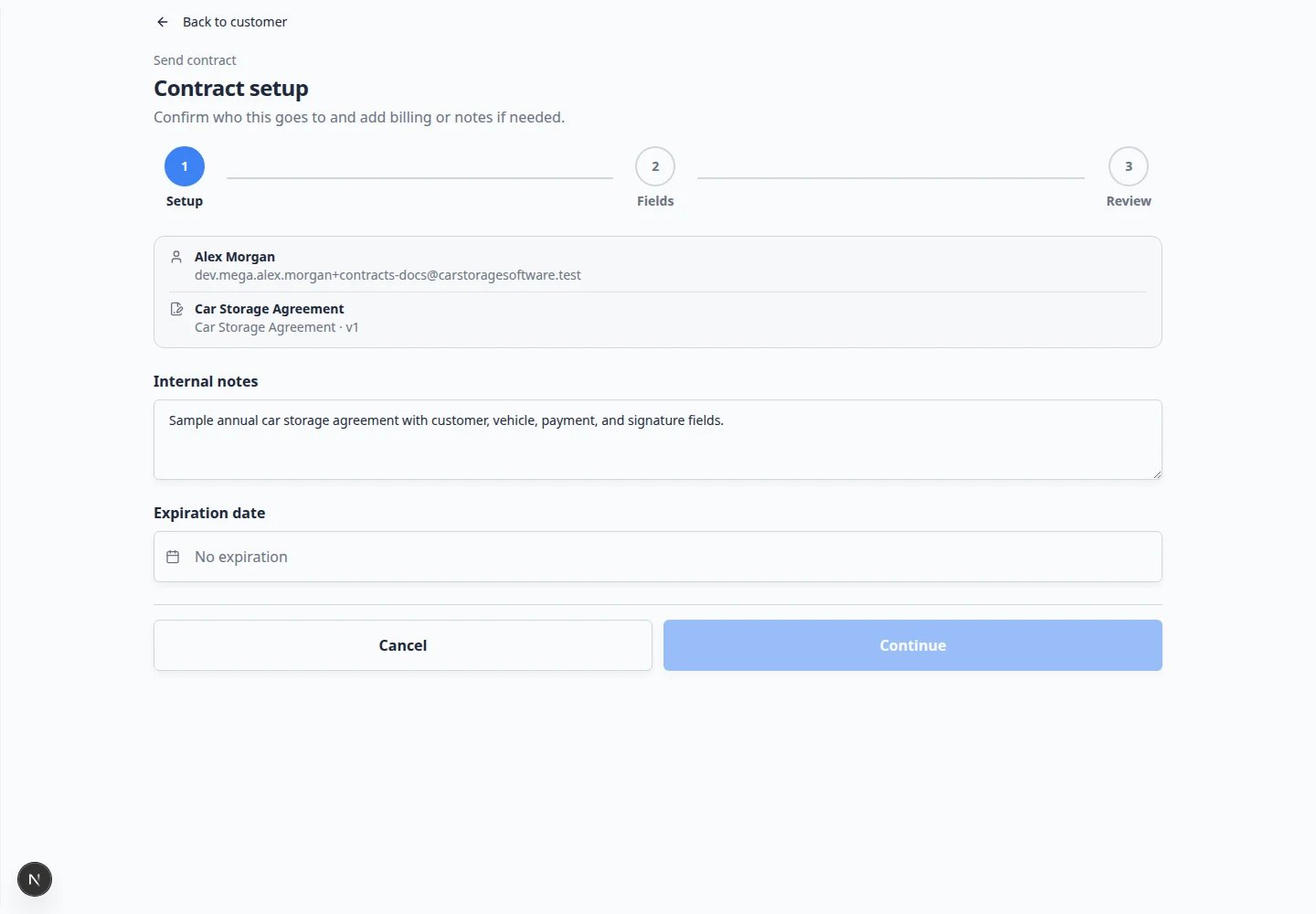
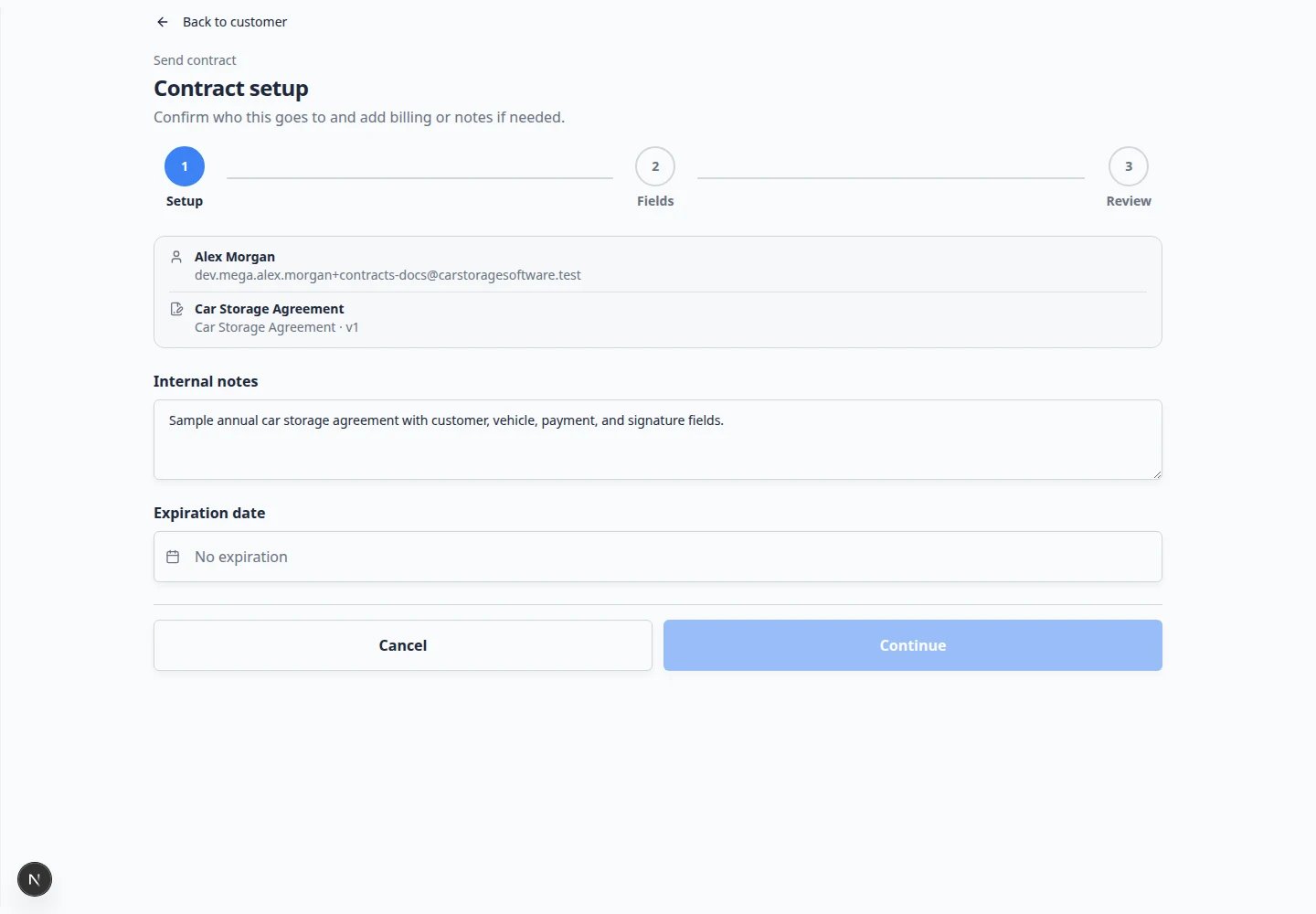 *On a manual send, open **Vehicle** in the checklist and select every car that should share this signing link. For step-by-step help, see [Send a contract for signature](/docs/contracts/send-a-contract-for-signature).*
**Onboarding vs manual send**
**Onboarding** bundles agreements automatically when a customer has multiple cars and **Contract Signing** is enabled. **Manual send** from a customer record works one agreement at a time unless your template supports multi-vehicle selection on the **Fields** step—as shown above.
## Staff sending outside onboarding
When staff send an agreement from **Documents & Contracts** on a customer record, each send creates **one contract at a time** through the [Send contract](/docs/contracts/send-a-contract-for-signature) composer.
If a customer with three cars needs agreements **today** and is **not** going through onboarding:
1. Send the first agreement from their customer record and wait for signing, **or**
2. Invite them to the portal so onboarding can bundle the agreements automatically.
There is no separate **bundle** button on the staff send screen today.
## What success looks like
* Customers with multiple vehicles see one **Sign Your Contracts** step during onboarding.
* They complete signing in one session without multiple emails per car.
* Each vehicle has its own **Completed** contract card on the customer record.
* Staff can download a signed PDF per vehicle.
## Troubleshooting
**I only see one vehicle to pick**
Add the missing cars on the customer record first in [Contacts](https://www.carstoragesoftware.com/dashboard/contacts) or [Cars](https://www.carstoragesoftware.com/dashboard/cars), then start the contract again. If you still only see one vehicle, your template may be single-vehicle only—send one contract per car using [Send a contract for signature](/docs/contracts/send-a-contract-for-signature).
**I do not see checkboxes for multiple vehicles**
Your template must support a **vehicle schedule** for bundling. Ask a facility admin to review the template in [Settings > Contracts & Documents](https://www.carstoragesoftware.com/dashboard/settings/contracts-and-documents), or send one contract per vehicle until bundling is enabled.
**Continue stays gray on the Fields step**
This tip applies to **manual sends** from a customer record—not to customers signing during onboarding. Open each checklist item until the banner shows you are ready to send.
**Customer stuck after signing**
Ask them to tap **Refresh Status** on the contract step, or sign out and sign in again. See [Help customers complete onboarding paperwork](/docs/contracts/help-customers-complete-onboarding-paperwork).
## What to do next
* Coach customers during first login: [Help customers complete onboarding paperwork](/docs/contracts/help-customers-complete-onboarding-paperwork)
* Send a single agreement outside onboarding: [Send a contract for signature](/docs/contracts/send-a-contract-for-signature)
* Download and verify signed files: [Review signed contracts and document history](/docs/contracts/review-signed-contracts-and-documents)
## Related topics
- [Send a contract for signature](/docs/contracts/send-a-contract-for-signature.md)
- [Send contracts to many customers at once](/docs/contracts/send-contracts-to-many-customers-at-once.md)
- [Contracts overview](/docs/contracts/overview.md)
- [Attach contracts to customer workflows](/docs/contracts/attach-contracts-to-workflows.md)
- [Review signed contracts and document history](/docs/contracts/review-signed-contracts-and-documents.md)
This documentation is built and hosted on [Mintlify](https://mintlify.com), a developer documentation platform.
*On a manual send, open **Vehicle** in the checklist and select every car that should share this signing link. For step-by-step help, see [Send a contract for signature](/docs/contracts/send-a-contract-for-signature).*
**Onboarding vs manual send**
**Onboarding** bundles agreements automatically when a customer has multiple cars and **Contract Signing** is enabled. **Manual send** from a customer record works one agreement at a time unless your template supports multi-vehicle selection on the **Fields** step—as shown above.
## Staff sending outside onboarding
When staff send an agreement from **Documents & Contracts** on a customer record, each send creates **one contract at a time** through the [Send contract](/docs/contracts/send-a-contract-for-signature) composer.
If a customer with three cars needs agreements **today** and is **not** going through onboarding:
1. Send the first agreement from their customer record and wait for signing, **or**
2. Invite them to the portal so onboarding can bundle the agreements automatically.
There is no separate **bundle** button on the staff send screen today.
## What success looks like
* Customers with multiple vehicles see one **Sign Your Contracts** step during onboarding.
* They complete signing in one session without multiple emails per car.
* Each vehicle has its own **Completed** contract card on the customer record.
* Staff can download a signed PDF per vehicle.
## Troubleshooting
**I only see one vehicle to pick**
Add the missing cars on the customer record first in [Contacts](https://www.carstoragesoftware.com/dashboard/contacts) or [Cars](https://www.carstoragesoftware.com/dashboard/cars), then start the contract again. If you still only see one vehicle, your template may be single-vehicle only—send one contract per car using [Send a contract for signature](/docs/contracts/send-a-contract-for-signature).
**I do not see checkboxes for multiple vehicles**
Your template must support a **vehicle schedule** for bundling. Ask a facility admin to review the template in [Settings > Contracts & Documents](https://www.carstoragesoftware.com/dashboard/settings/contracts-and-documents), or send one contract per vehicle until bundling is enabled.
**Continue stays gray on the Fields step**
This tip applies to **manual sends** from a customer record—not to customers signing during onboarding. Open each checklist item until the banner shows you are ready to send.
**Customer stuck after signing**
Ask them to tap **Refresh Status** on the contract step, or sign out and sign in again. See [Help customers complete onboarding paperwork](/docs/contracts/help-customers-complete-onboarding-paperwork).
## What to do next
* Coach customers during first login: [Help customers complete onboarding paperwork](/docs/contracts/help-customers-complete-onboarding-paperwork)
* Send a single agreement outside onboarding: [Send a contract for signature](/docs/contracts/send-a-contract-for-signature)
* Download and verify signed files: [Review signed contracts and document history](/docs/contracts/review-signed-contracts-and-documents)
## Related topics
- [Send a contract for signature](/docs/contracts/send-a-contract-for-signature.md)
- [Send contracts to many customers at once](/docs/contracts/send-contracts-to-many-customers-at-once.md)
- [Contracts overview](/docs/contracts/overview.md)
- [Attach contracts to customer workflows](/docs/contracts/attach-contracts-to-workflows.md)
- [Review signed contracts and document history](/docs/contracts/review-signed-contracts-and-documents.md)
This documentation is built and hosted on [Mintlify](https://mintlify.com), a developer documentation platform.