> ## Documentation Index
> Fetch the complete documentation index at: https://www.carstoragesoftware.com/docs/llms.txt
> Use this file to discover all available pages before exploring further.
# Configure event types
> Set up the appointment and workflow types your facility schedules most often.
## What you will accomplish
You will create or update an **event type**—a reusable name and rules for one kind of work your facility does, such as **Storage Intake**, **Vehicle Pickup**, **Detail Appointment**, **Maintenance**, or **Customer Tour**.
When you finish, staff can choose that event from [Schedule](https://www.carstoragesoftware.com/dashboard/schedule) or a car record. **Who can see this** controls whether customers see those events in the portal. If you also turn on **Customers can book**, they can pick a time themselves.
This guide covers the first setup screen: name, description, who can use the event, and which workflow features are required. Scheduling hours, booking options, messages, photos, and resources have their own guides linked at the end.
## Before you start
* Confirm you have admin access. Most event type settings are managed from [Settings > Services & schedule](https://www.carstoragesoftware.com/dashboard/settings/events).
* Write down the service or workflow name customers and staff will understand.
* Decide who should see this event — **Team**, **Customer**, or **Both** — and whether customers should be able to book it themselves.
* Know the usual appointment length, availability, and reminder needs.
* If the event needs photos or resources, you can add those during setup or come back later.
## Open Services & schedule
Go to [Settings > Services & schedule](https://www.carstoragesoftware.com/dashboard/settings/events).
The **Services & event types** section shows each service as a card in a searchable grid. Each card shows the service name, whether customers can see or book it, and buttons to **Set up** (guided editor) or **Advanced** (full settings page).
**Set up vs Advanced**
**Set up** walks through one section at a time—good for your first event type. **Advanced** opens every section on one long page—faster when you already know where a setting lives (for example **Photo Documentation** or **Notification Settings**).
The same page also includes **Service plans**, **Create event screen layout**, and **Subscribe to your schedule**. Scheduling hours, customer messages, photo rules, and closed days live on other settings pages—this guide focuses on event types first.
**Service plans step**
Service plans are **checks**, not just calendar events. Turn on **Engine start** on the **Details** step if staff should confirm the engine started—same as odometer, fuel, or tire pressure. After **Details**, the wizard **Service plans** step lets you pick extra checks that finishing this event should also credit, and — if this event has a checklist — map any checklist row to those checks. Completing this event type always fulfills its own check. Calendar visits still generate when a plan item is this event type—see [Set up service plans](/docs/events/set-up-service-plans).
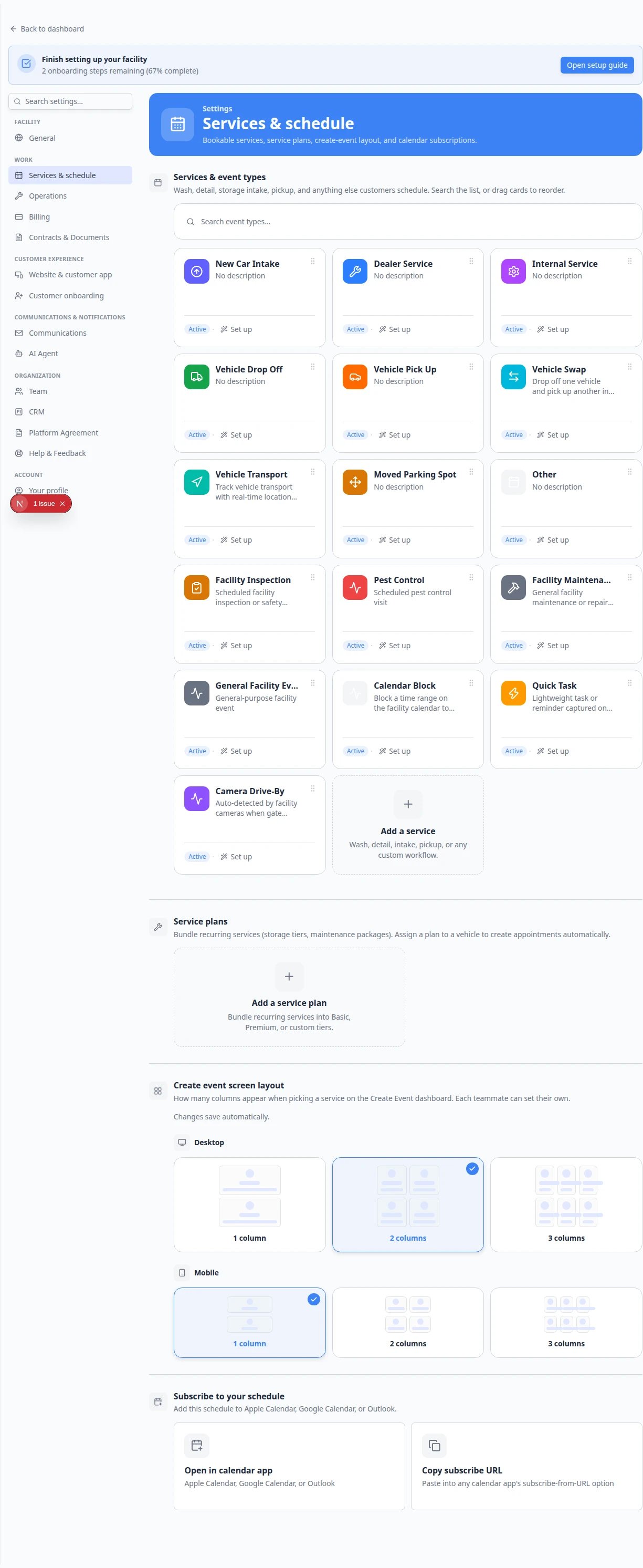 *The **Services & schedule** page shows your services as cards. Search the list, drag cards to reorder, or click **Add a service** to create a new one.*
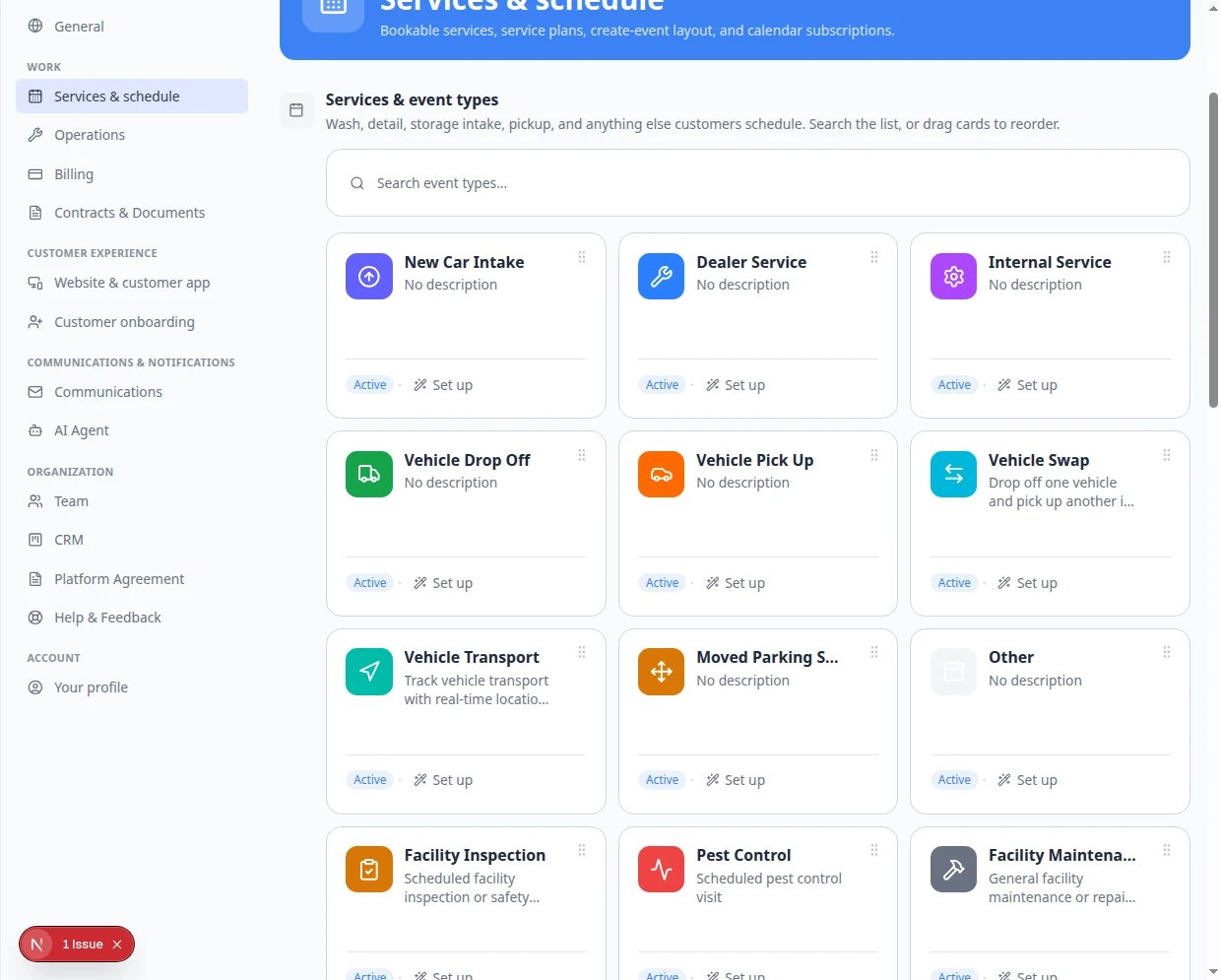 *Each card shows whether the service is **Customers can book**, **Customers can see**, or **Team only**, plus **Set up** (guided) and **Advanced** (full editor) buttons.*
## Create a new event type
In the **Services & event types** section, click the dashed **Add a service** tile.
**Expected result:** The guided setup wizard opens at the first step.
Type the name staff should choose when they schedule or start this kind of work.
Good names are short and clear, such as **Storage Intake**, **Detail Appointment**, **Vehicle Pickup**, or **Annual Inspection**.
Explain when this event should be used.
Example: "Use this when a customer drops off a car for long-term storage."
This helps new teammates choose the right event type without asking someone else.
Pick a color and icon that make the event easy to recognize in lists and calendars.
The color and icon do not change how the event works. They only make it easier to spot.
After **Details**, the **Service plans** step asks which extra checks finishing this event should also credit. If the event has a checklist, you can also map any checklist row to those checks. Completing this event type always clears its own check. Engine start, mileage, fuel, and tire pressure are credited automatically when those fields are filled in on the event.
Then follow the remaining steps for scheduling, photos, notifications, and other settings—or click **Advanced** at any time to jump to the full editor.
**Expected result:** When you finish, the new service appears as a card on [Services & schedule](https://www.carstoragesoftware.com/dashboard/settings/events) and staff can use it on [Schedule](https://www.carstoragesoftware.com/dashboard/schedule).
*Each card shows whether the service is **Customers can book**, **Customers can see**, or **Team only**, plus **Set up** (guided) and **Advanced** (full editor) buttons.*
## Create a new event type
In the **Services & event types** section, click the dashed **Add a service** tile.
**Expected result:** The guided setup wizard opens at the first step.
Type the name staff should choose when they schedule or start this kind of work.
Good names are short and clear, such as **Storage Intake**, **Detail Appointment**, **Vehicle Pickup**, or **Annual Inspection**.
Explain when this event should be used.
Example: "Use this when a customer drops off a car for long-term storage."
This helps new teammates choose the right event type without asking someone else.
Pick a color and icon that make the event easy to recognize in lists and calendars.
The color and icon do not change how the event works. They only make it easier to spot.
After **Details**, the **Service plans** step asks which extra checks finishing this event should also credit. If the event has a checklist, you can also map any checklist row to those checks. Completing this event type always clears its own check. Engine start, mileage, fuel, and tire pressure are credited automatically when those fields are filled in on the event.
Then follow the remaining steps for scheduling, photos, notifications, and other settings—or click **Advanced** at any time to jump to the full editor.
**Expected result:** When you finish, the new service appears as a card on [Services & schedule](https://www.carstoragesoftware.com/dashboard/settings/events) and staff can use it on [Schedule](https://www.carstoragesoftware.com/dashboard/schedule).
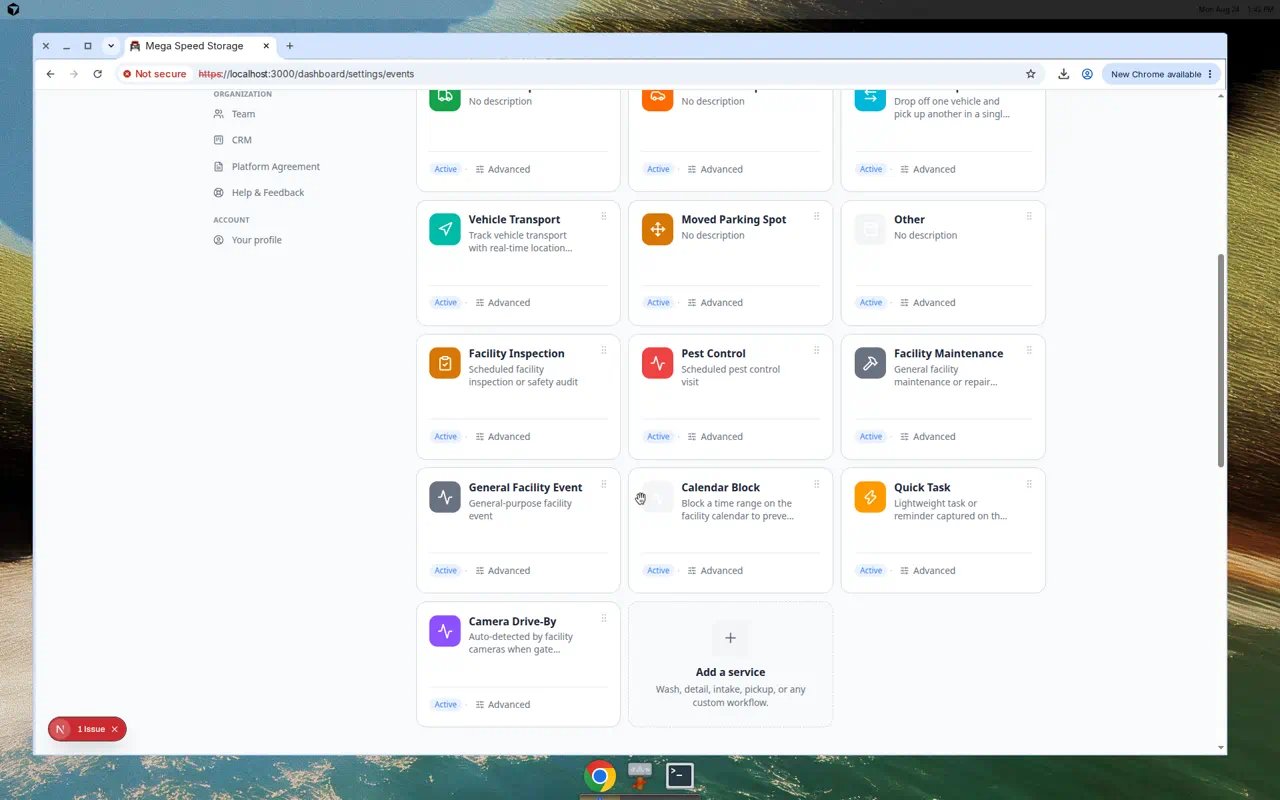 *Click **Add a service** to start the guided wizard for a new event type.*
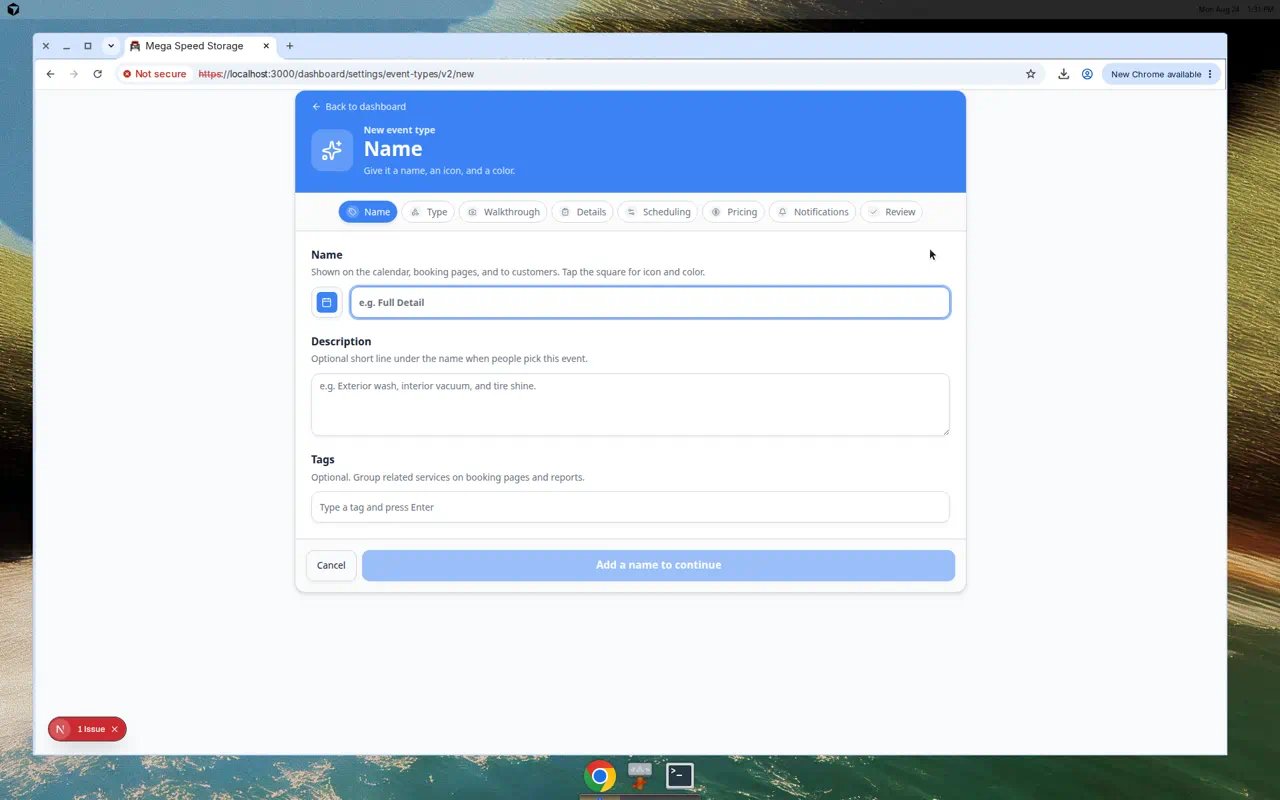 *The guided wizard walks you through each part of setup. You can switch to **Advanced** at any time for the full settings page.*
## Edit the event type settings
You can edit a new or existing event type from [Settings > Services & schedule](https://www.carstoragesoftware.com/dashboard/settings/events) by clicking **Set up** (guided editor) or **Advanced** (full settings page) on the service card.
*The guided wizard walks you through each part of setup. You can switch to **Advanced** at any time for the full settings page.*
## Edit the event type settings
You can edit a new or existing event type from [Settings > Services & schedule](https://www.carstoragesoftware.com/dashboard/settings/events) by clicking **Set up** (guided editor) or **Advanced** (full settings page) on the service card.
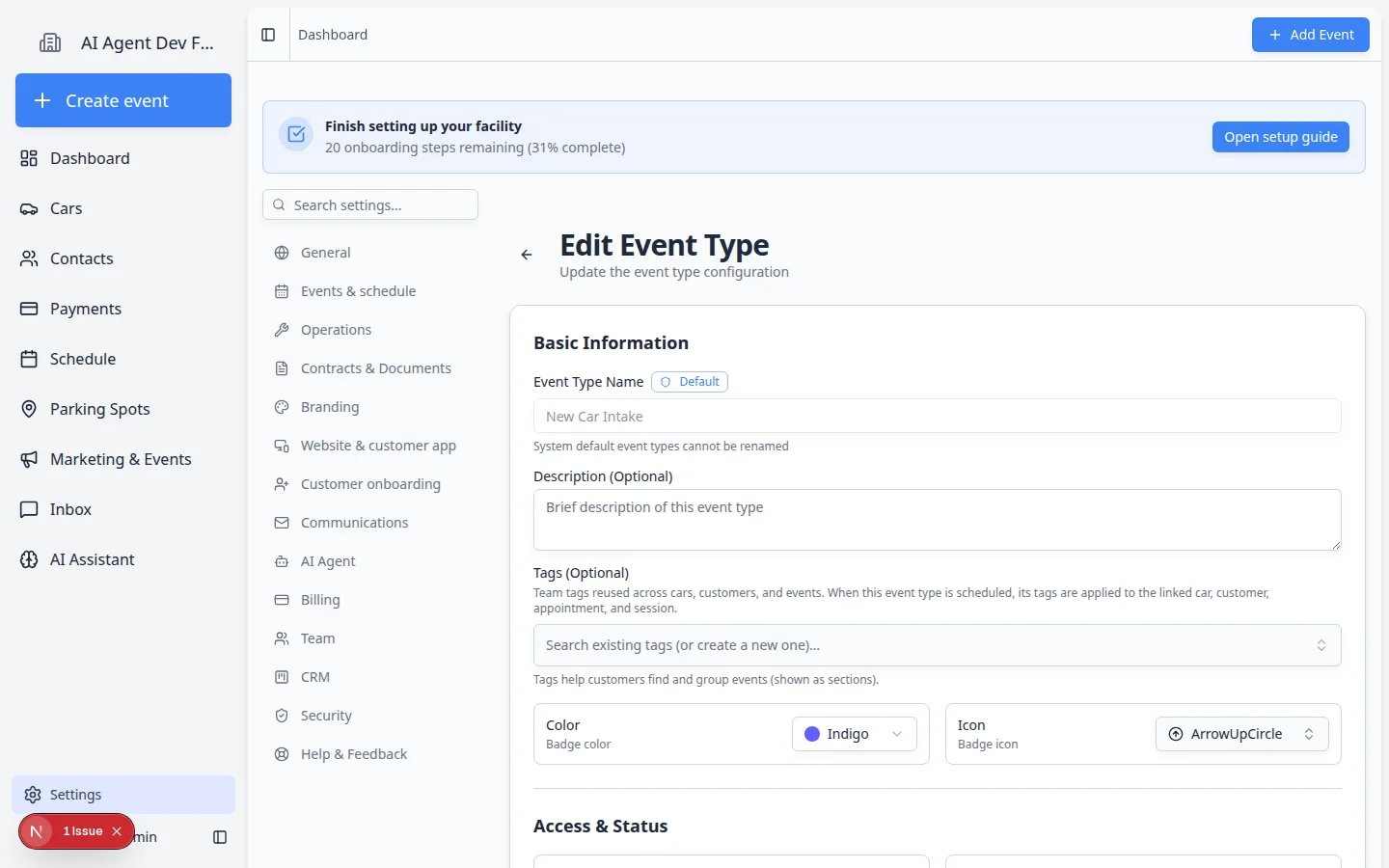 *The edit page controls who can use the event type, whether it is active, and which workflow features are required.*
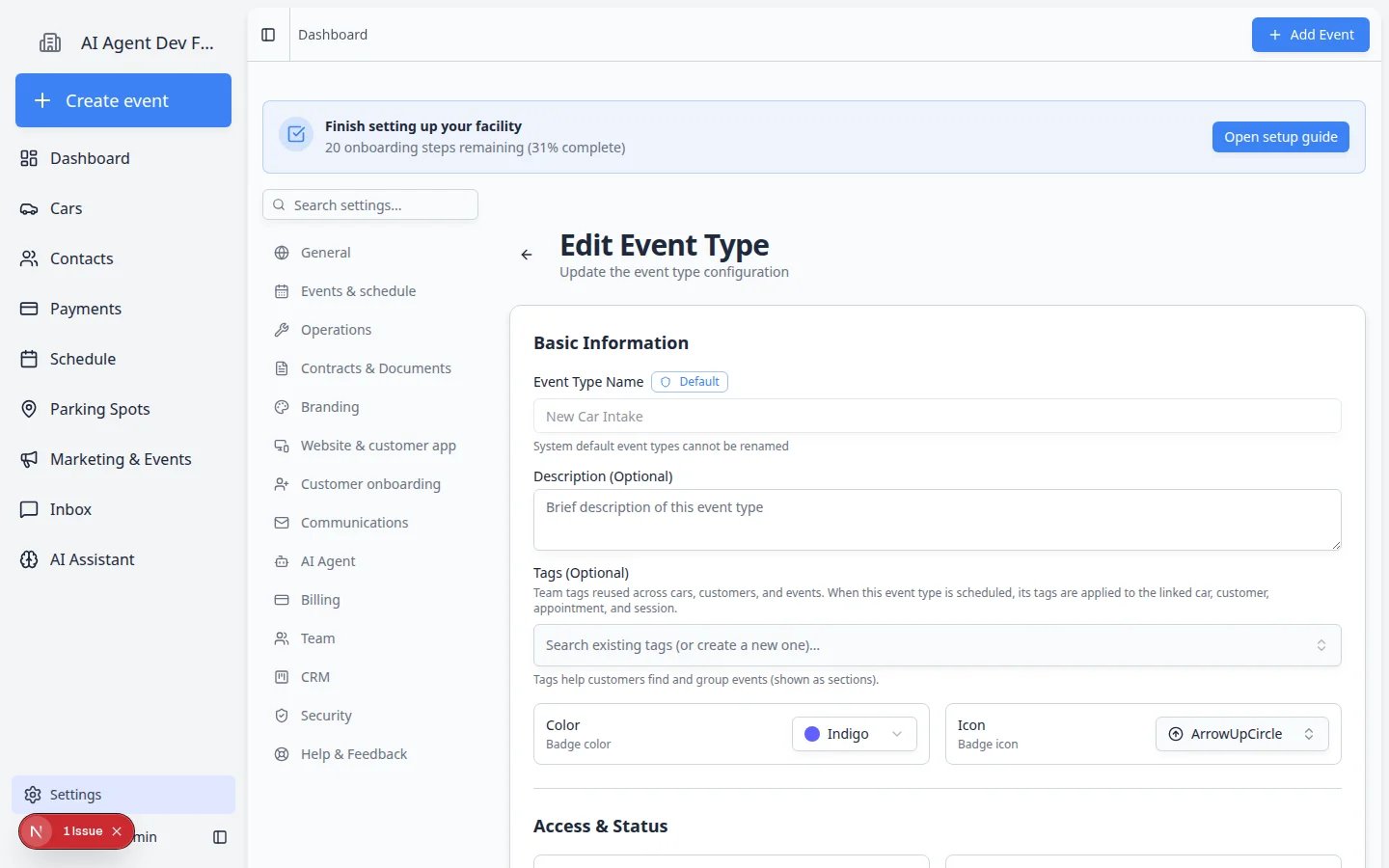 *Use **Who can see this** to choose Team, Customer, or Both. Keep Active on when staff should use the event today.*
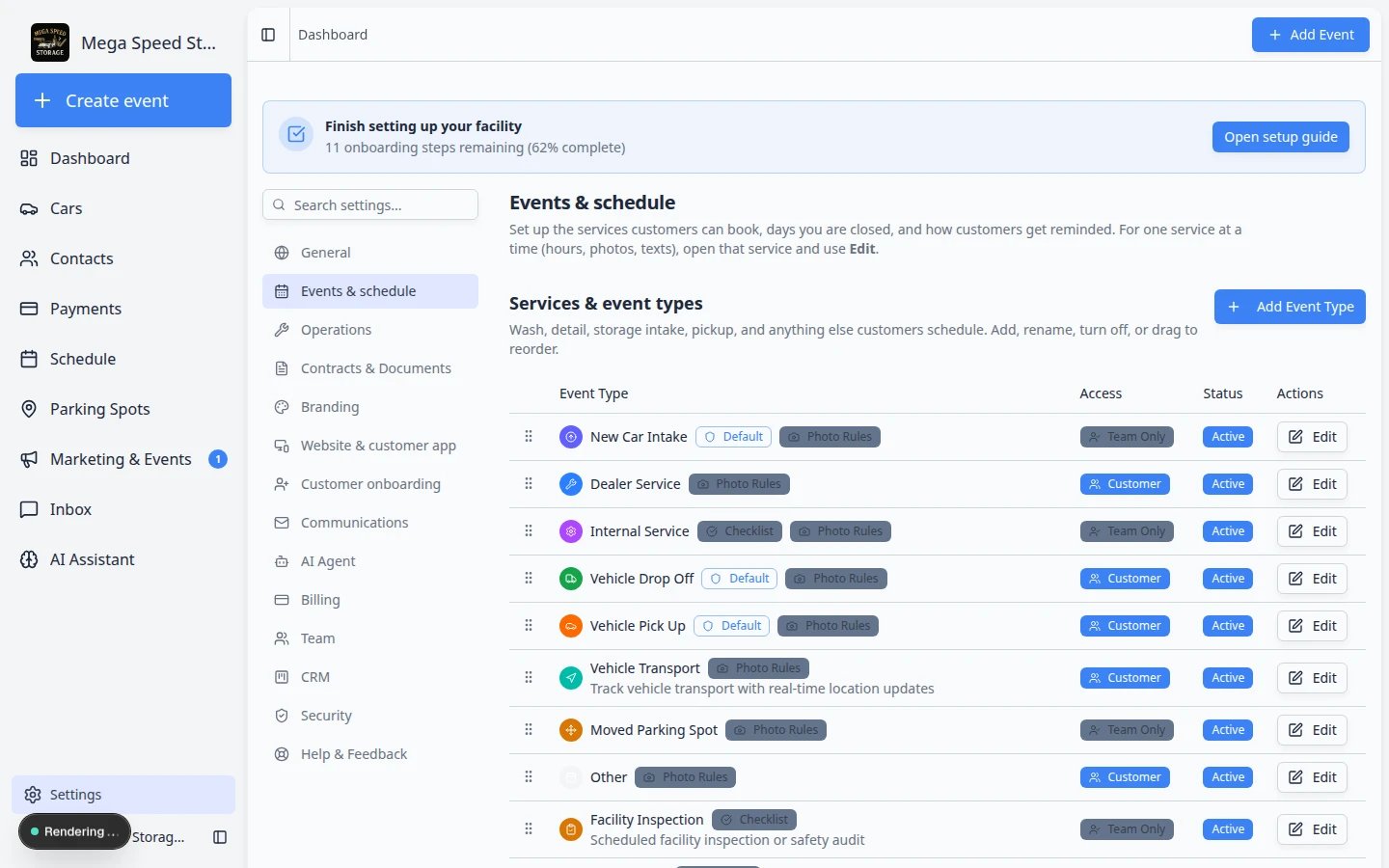 *Require Approval holds customer bookings until staff confirm them. Add a Designated Approver when team bookings should need a manager’s sign-off too.*
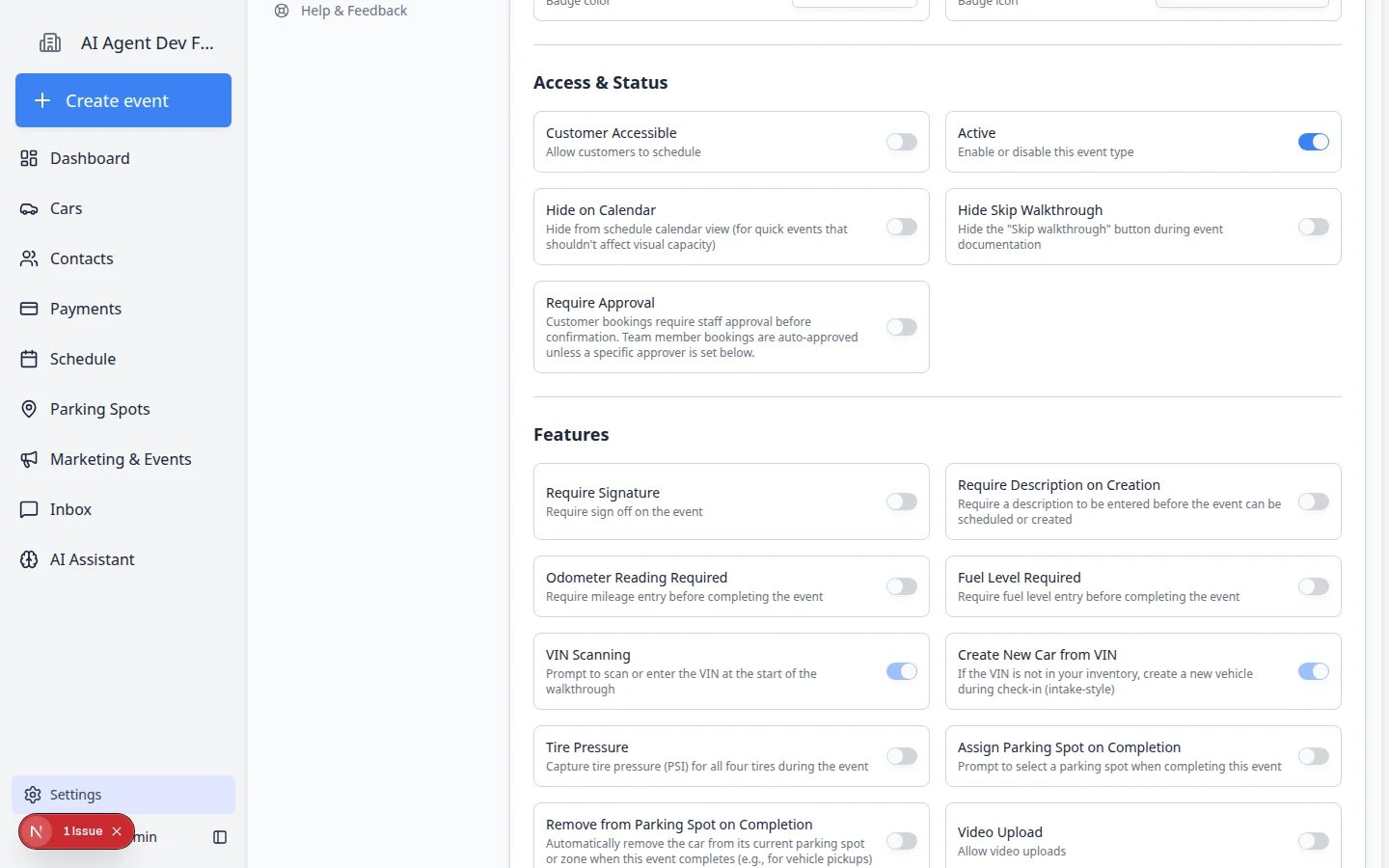 *Scroll past **Access & Status** to review **Features**—each switch adds a step staff complete during the visit (odometer, fuel, parking, and more).*
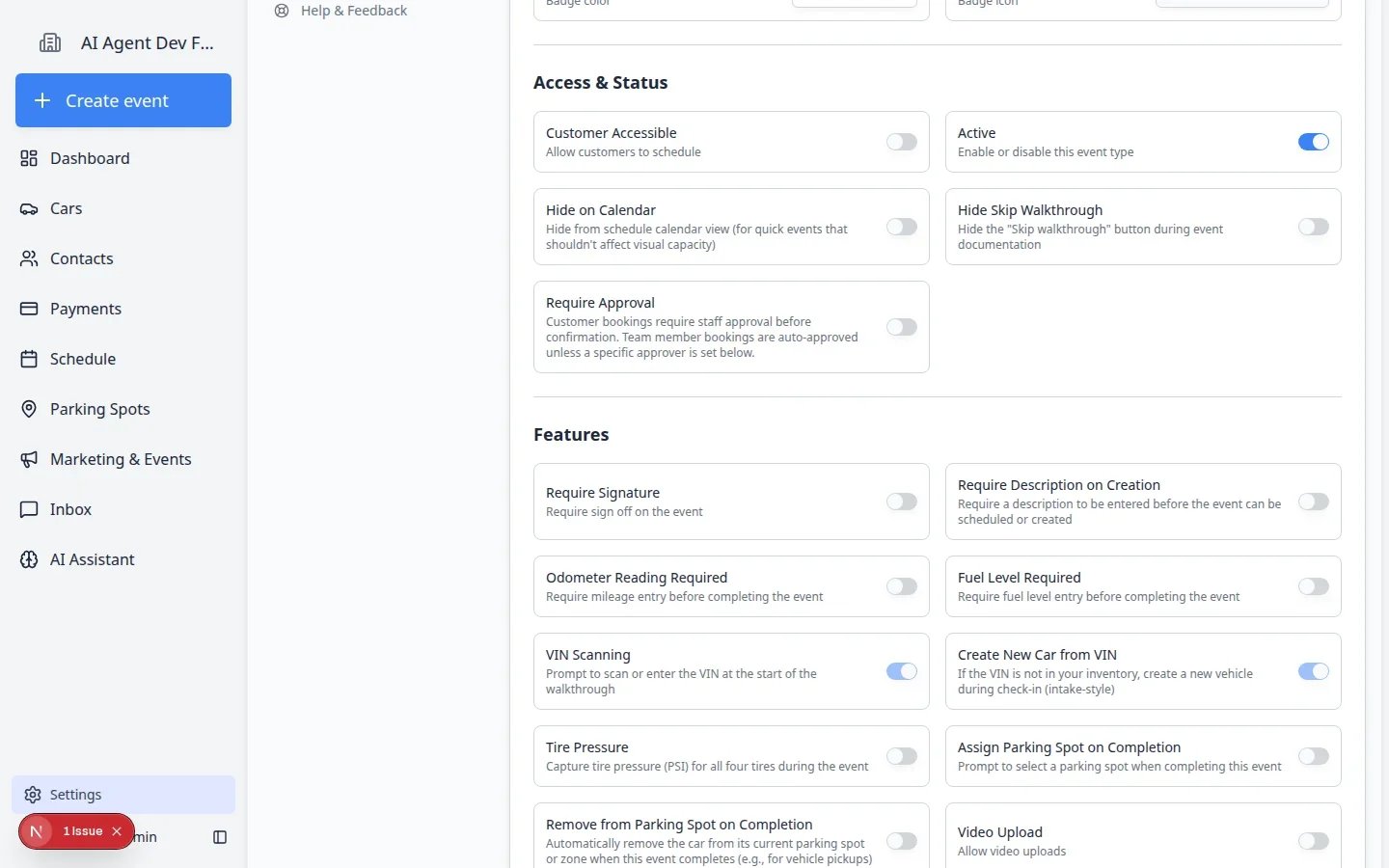 *Under **When this event completes**, choose **Ask where the car is going** when staff should record a parking spot or zone at the end of intake or drop-off. See [Assign parking during a Schedule event](/docs/parking-spots/assign-parking-during-a-schedule-event).*
Confirm the **Event Type Name**, **Description**, **Tags**, **Color**, and **Icon**.
Some default event types cannot be renamed. If a field is disabled, that means the system protects that default event name.
Choose **Team**, **Customer**, or **Both**.
* **Team** — Staff only. Customers will not see this event in the portal and will not get emails, texts, or push notifications about it.
* **Customer** — The customer this event is for can see it in the portal and get the usual event messages.
* **Both** — Your team and the customer can see it.
Use **Team** for internal work, such as staff-only inspections, lot moves, or admin tasks. Hidden events stay on the staff calendar.
Turn **Customers can book** on only when customers should pick a time themselves.
Staff can always schedule the event even when this is off. Turning booking on locks **Who can see this** to **Both** — Team and Customer stay visible as locked placeholders until you turn booking off.
**Active** means the event type can be used now.
Turn **Active** off only when you want to stop using the event type for new events while keeping past history.
In **Access & Status**, find **Require Approval**.
Turn this on when a manager should review customer booking requests before they appear as confirmed on [Schedule](https://www.carstoragesoftware.com/dashboard/schedule).
**Why this matters:** Without approval, customer bookings may go straight to the calendar. With approval, they wait in **Needs Approval** until staff accept them. See [Approve or decline customer booking requests](/docs/schedule/approve-or-decline-customer-booking-requests).
Optional: choose a **Designated Approver (optional)** if one person should always approve this service. Leave **None — team members auto-approve** if staff bookings should not need approval.
Turn on only the switches your team truly needs. Each one adds a step during the event.
| If you need… | Turn on… |
| - | - |
| A written note every time someone creates this event | **Require Description on Creation** |
| Staff or customer sign-off before the event is done | **Require Signature** |
| Mileage recorded at intake or pickup | **Odometer Reading Required** |
| Fuel level recorded at intake or pickup | **Fuel Level Required** |
| Staff to record where the car goes when work finishes — a spot or zone, a vendor, or a customer taking it | **When this event completes** → **Ask where the car is going** (see [Parking Spots](/docs/parking-spots/overview)) |
| The car to leave its spot when it is picked up or delivered, with nothing to fill in | **When this event completes** → **Mark it as gone** |
**Expected result:** Only the fields your process needs appear when staff run the event.
**When this event completes** offers three choices for vehicle events, and you pick one:
* **Leave the car where it is** — nothing changes about the car's location.
* **Ask where the car is going** — staff choose a destination and the car moves there. Use the checkboxes underneath to limit which destinations they can pick.
* **Mark it as gone** — no prompt at all: the car's spot is freed and its vendor cleared. This applies however the event is completed, including dragging it to **Completed** on the calendar, which makes it the simplest option for pickups and departures.
Choose what the event connects to:
* **Vehicle** - use when the event is about a specific car.
* **Customer** - use when the event is about a customer but not one car.
* **Facility** - use for internal events that do not need a customer or car.
The scope matters because it decides what information the app asks for when someone creates the event.
In the **Scheduling** section, set the days and times when this event can be booked.
Duration, buffer time, notice time, capacity, and service choices are handled in **Booking Options**. For a full walkthrough, use [Configure scheduling and booking options](/docs/events/configure-scheduling-and-booking-options).
The **Edit Event Type** page saves automatically as you work. Look for **Saving…** or **Saved** near the top of the page.
When you are finished, click **Back** to return to [Settings > Services & schedule](https://www.carstoragesoftware.com/dashboard/settings/events).
**Expected result:** The event type is ready for your team to use on [Schedule](https://www.carstoragesoftware.com/dashboard/schedule) and [Create event](https://www.carstoragesoftware.com/dashboard).
*Under **When this event completes**, choose **Ask where the car is going** when staff should record a parking spot or zone at the end of intake or drop-off. See [Assign parking during a Schedule event](/docs/parking-spots/assign-parking-during-a-schedule-event).*
Confirm the **Event Type Name**, **Description**, **Tags**, **Color**, and **Icon**.
Some default event types cannot be renamed. If a field is disabled, that means the system protects that default event name.
Choose **Team**, **Customer**, or **Both**.
* **Team** — Staff only. Customers will not see this event in the portal and will not get emails, texts, or push notifications about it.
* **Customer** — The customer this event is for can see it in the portal and get the usual event messages.
* **Both** — Your team and the customer can see it.
Use **Team** for internal work, such as staff-only inspections, lot moves, or admin tasks. Hidden events stay on the staff calendar.
Turn **Customers can book** on only when customers should pick a time themselves.
Staff can always schedule the event even when this is off. Turning booking on locks **Who can see this** to **Both** — Team and Customer stay visible as locked placeholders until you turn booking off.
**Active** means the event type can be used now.
Turn **Active** off only when you want to stop using the event type for new events while keeping past history.
In **Access & Status**, find **Require Approval**.
Turn this on when a manager should review customer booking requests before they appear as confirmed on [Schedule](https://www.carstoragesoftware.com/dashboard/schedule).
**Why this matters:** Without approval, customer bookings may go straight to the calendar. With approval, they wait in **Needs Approval** until staff accept them. See [Approve or decline customer booking requests](/docs/schedule/approve-or-decline-customer-booking-requests).
Optional: choose a **Designated Approver (optional)** if one person should always approve this service. Leave **None — team members auto-approve** if staff bookings should not need approval.
Turn on only the switches your team truly needs. Each one adds a step during the event.
| If you need… | Turn on… |
| - | - |
| A written note every time someone creates this event | **Require Description on Creation** |
| Staff or customer sign-off before the event is done | **Require Signature** |
| Mileage recorded at intake or pickup | **Odometer Reading Required** |
| Fuel level recorded at intake or pickup | **Fuel Level Required** |
| Staff to record where the car goes when work finishes — a spot or zone, a vendor, or a customer taking it | **When this event completes** → **Ask where the car is going** (see [Parking Spots](/docs/parking-spots/overview)) |
| The car to leave its spot when it is picked up or delivered, with nothing to fill in | **When this event completes** → **Mark it as gone** |
**Expected result:** Only the fields your process needs appear when staff run the event.
**When this event completes** offers three choices for vehicle events, and you pick one:
* **Leave the car where it is** — nothing changes about the car's location.
* **Ask where the car is going** — staff choose a destination and the car moves there. Use the checkboxes underneath to limit which destinations they can pick.
* **Mark it as gone** — no prompt at all: the car's spot is freed and its vendor cleared. This applies however the event is completed, including dragging it to **Completed** on the calendar, which makes it the simplest option for pickups and departures.
Choose what the event connects to:
* **Vehicle** - use when the event is about a specific car.
* **Customer** - use when the event is about a customer but not one car.
* **Facility** - use for internal events that do not need a customer or car.
The scope matters because it decides what information the app asks for when someone creates the event.
In the **Scheduling** section, set the days and times when this event can be booked.
Duration, buffer time, notice time, capacity, and service choices are handled in **Booking Options**. For a full walkthrough, use [Configure scheduling and booking options](/docs/events/configure-scheduling-and-booking-options).
The **Edit Event Type** page saves automatically as you work. Look for **Saving…** or **Saved** near the top of the page.
When you are finished, click **Back** to return to [Settings > Services & schedule](https://www.carstoragesoftware.com/dashboard/settings/events).
**Expected result:** The event type is ready for your team to use on [Schedule](https://www.carstoragesoftware.com/dashboard/schedule) and [Create event](https://www.carstoragesoftware.com/dashboard).
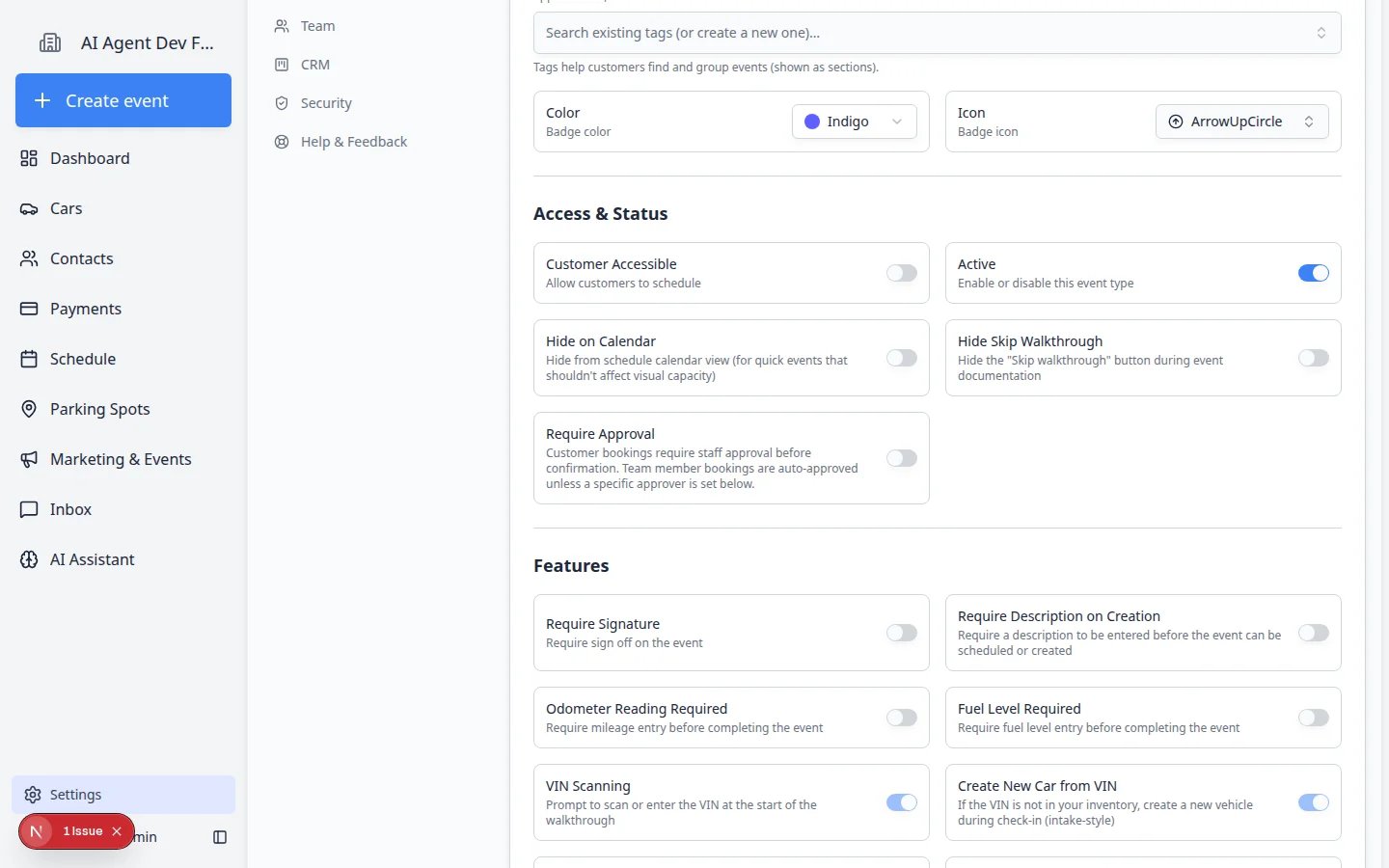 *Turn on **Require Approval** when customer bookings should wait for staff review before they are confirmed on the calendar.*
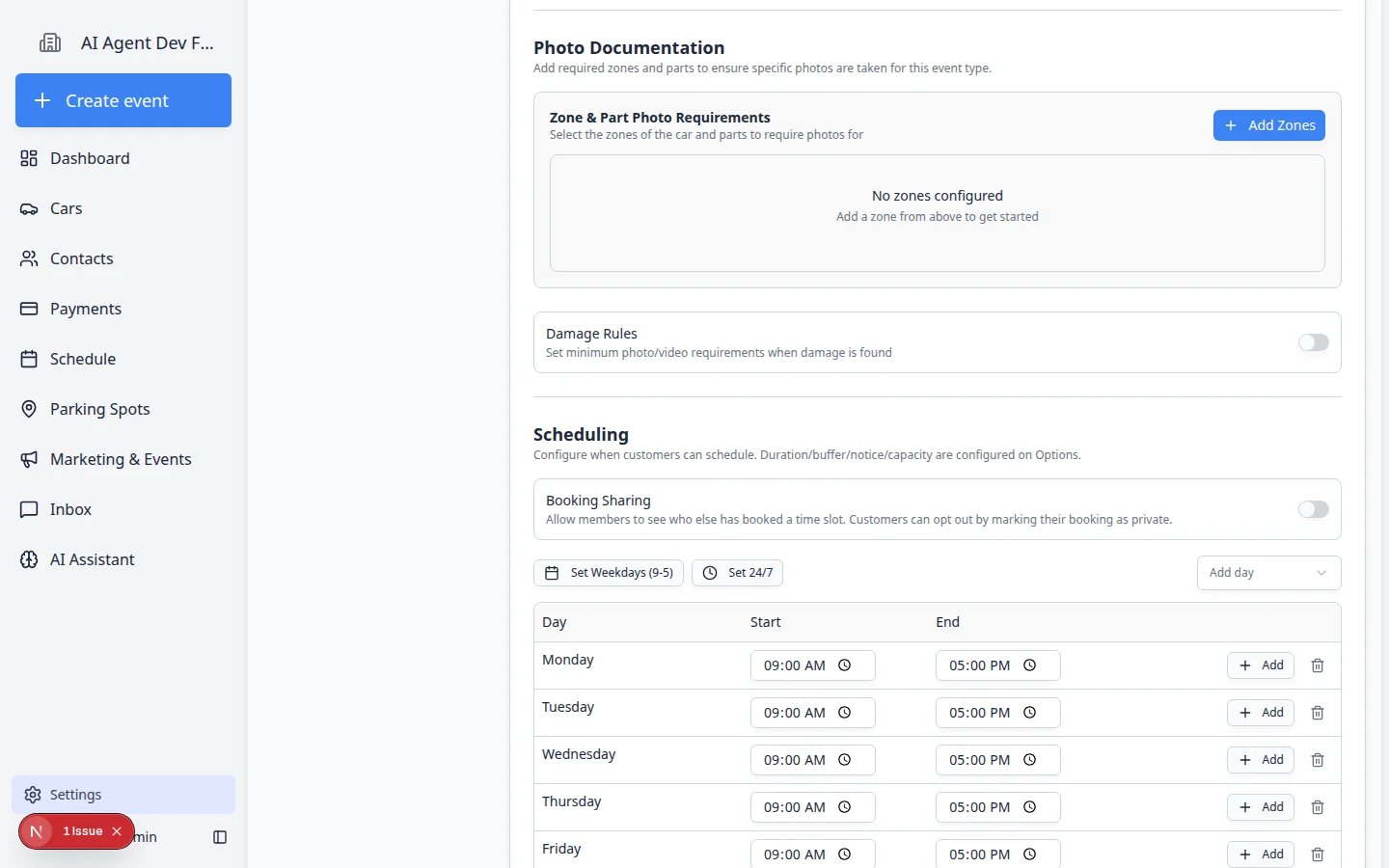 *Scheduling controls the days and times when this event can be booked.*
## Understand the Services & event types cards
Before you edit one event type, it helps to read the card grid on [Settings > Services & schedule](https://www.carstoragesoftware.com/dashboard/settings/events).
| Label on the card | What it means |
| - | - |
| **Customers can book** badge | Customers can pick a time themselves when **Customers can book** is on. |
| **Customers can see** badge | Customers see scheduled events of this type in the portal, even if they cannot book it themselves. |
| **Team only** badge | Staff-only. Customers do not see this event and are not emailed about it. |
| **Photo Rules** badge | This event type requires walkthrough or zone photos. See [Configure photo rules](/docs/events/configure-photo-rules). |
| **Set up** button | Opens the guided editor—best for first-time setup or quick changes. |
| **Advanced** button | Opens the full settings page with every option visible at once. |
**Reorder event types by dragging**
Admins can drag service cards to change the order they appear in dropdowns and on the Create Event screen. The list saves automatically after you drop a card.
**Quick Task vs Calendar Block**
**Quick Task** is for lightweight reminders staff capture on the fly. **Calendar Block** holds time on the calendar so nothing else can be booked in that slot. Neither replaces [Set closed days for events](/docs/events/set-closed-days-for-events) for whole-facility holidays.
## What success looks like
After you save the event type:
* It appears in the **Services & event types** grid on [Settings > Services & schedule](https://www.carstoragesoftware.com/dashboard/settings/events).
* Staff can select it when creating events or appointments.
* If **Who can see this** is **Customer** or **Both**, scheduled events of this type appear in the customer portal.
* If **Customers can book** is on, customers can request it from customer-facing booking pages.
* The event asks for the right customer, car, photos, checklist items, or resources based on your settings.
## Tips for clear event types
* Use names that match how your staff talks every day.
* Create separate event types when the steps are different. For example, **Vehicle Pickup** and **Vehicle Delivery** usually deserve separate setups.
* Keep customer-facing event names friendly and easy to understand.
* Turn on only the requirements you truly need. Too many required fields can slow staff down.
## Troubleshooting
**I do not see Add a service**
You may not have admin permission. Ask a team admin to review your role in [Settings > Team](https://www.carstoragesoftware.com/dashboard/settings/team).
**Appointment stays Pending approval**
If **Require Approval** is on, customer bookings stay **Pending approval** until staff approve them. See [Approve or decline customer booking requests](/docs/schedule/approve-or-decline-customer-booking-requests).
**Customers cannot see the event**
Open the event type and make sure **Who can see this** is **Customer** or **Both**, and **Active** is turned on. Also confirm the event scope is not **Facility**, because facility-only events are internal. If they should be able to pick a time themselves, also turn on **Customers can book**.
**Staff cannot schedule the event**
Check whether **Active** is turned on. Then review the scheduling settings, availability, closed days, and any required resources that may block the time.
**The event asks for the wrong information**
Review **Event Scope** first. If the event is set to **Vehicle**, the app expects a car. If it is set to **Customer**, it expects a customer but not a car.
## What to do next
If customers or staff will book this event on the calendar, continue with [Configure scheduling and booking options](/docs/events/configure-scheduling-and-booking-options). If your facility bundles recurring care, see [Set up service plans](/docs/events/set-up-service-plans). If the event needs required photos, continue with [Configure photo rules](/docs/events/configure-photo-rules) and [Configure walkthrough photo defaults](/docs/events/configure-walkthrough-photo-defaults). If the event depends on limited capacity, continue with [Set up bookable resources](/docs/events/set-up-bookable-resources).
When the basics are saved, run [Test an event setup](/docs/events/test-an-event-setup) before you choose **Customer** or **Both** for real customers.
## Related topics
- [Events overview](/docs/events/overview.md)
- [Configure scheduling and booking options](/docs/events/configure-scheduling-and-booking-options.md)
- [Configure services and schedule settings](/docs/settings/configure-events-and-schedule-settings.md)
- [Test an event setup](/docs/events/test-an-event-setup.md)
- [Turn on custom statuses for an event type](/docs/events/turn-on-custom-statuses-for-an-event-type.md)
This documentation is built and hosted on [Mintlify](https://mintlify.com), a developer documentation platform.
*Scheduling controls the days and times when this event can be booked.*
## Understand the Services & event types cards
Before you edit one event type, it helps to read the card grid on [Settings > Services & schedule](https://www.carstoragesoftware.com/dashboard/settings/events).
| Label on the card | What it means |
| - | - |
| **Customers can book** badge | Customers can pick a time themselves when **Customers can book** is on. |
| **Customers can see** badge | Customers see scheduled events of this type in the portal, even if they cannot book it themselves. |
| **Team only** badge | Staff-only. Customers do not see this event and are not emailed about it. |
| **Photo Rules** badge | This event type requires walkthrough or zone photos. See [Configure photo rules](/docs/events/configure-photo-rules). |
| **Set up** button | Opens the guided editor—best for first-time setup or quick changes. |
| **Advanced** button | Opens the full settings page with every option visible at once. |
**Reorder event types by dragging**
Admins can drag service cards to change the order they appear in dropdowns and on the Create Event screen. The list saves automatically after you drop a card.
**Quick Task vs Calendar Block**
**Quick Task** is for lightweight reminders staff capture on the fly. **Calendar Block** holds time on the calendar so nothing else can be booked in that slot. Neither replaces [Set closed days for events](/docs/events/set-closed-days-for-events) for whole-facility holidays.
## What success looks like
After you save the event type:
* It appears in the **Services & event types** grid on [Settings > Services & schedule](https://www.carstoragesoftware.com/dashboard/settings/events).
* Staff can select it when creating events or appointments.
* If **Who can see this** is **Customer** or **Both**, scheduled events of this type appear in the customer portal.
* If **Customers can book** is on, customers can request it from customer-facing booking pages.
* The event asks for the right customer, car, photos, checklist items, or resources based on your settings.
## Tips for clear event types
* Use names that match how your staff talks every day.
* Create separate event types when the steps are different. For example, **Vehicle Pickup** and **Vehicle Delivery** usually deserve separate setups.
* Keep customer-facing event names friendly and easy to understand.
* Turn on only the requirements you truly need. Too many required fields can slow staff down.
## Troubleshooting
**I do not see Add a service**
You may not have admin permission. Ask a team admin to review your role in [Settings > Team](https://www.carstoragesoftware.com/dashboard/settings/team).
**Appointment stays Pending approval**
If **Require Approval** is on, customer bookings stay **Pending approval** until staff approve them. See [Approve or decline customer booking requests](/docs/schedule/approve-or-decline-customer-booking-requests).
**Customers cannot see the event**
Open the event type and make sure **Who can see this** is **Customer** or **Both**, and **Active** is turned on. Also confirm the event scope is not **Facility**, because facility-only events are internal. If they should be able to pick a time themselves, also turn on **Customers can book**.
**Staff cannot schedule the event**
Check whether **Active** is turned on. Then review the scheduling settings, availability, closed days, and any required resources that may block the time.
**The event asks for the wrong information**
Review **Event Scope** first. If the event is set to **Vehicle**, the app expects a car. If it is set to **Customer**, it expects a customer but not a car.
## What to do next
If customers or staff will book this event on the calendar, continue with [Configure scheduling and booking options](/docs/events/configure-scheduling-and-booking-options). If your facility bundles recurring care, see [Set up service plans](/docs/events/set-up-service-plans). If the event needs required photos, continue with [Configure photo rules](/docs/events/configure-photo-rules) and [Configure walkthrough photo defaults](/docs/events/configure-walkthrough-photo-defaults). If the event depends on limited capacity, continue with [Set up bookable resources](/docs/events/set-up-bookable-resources).
When the basics are saved, run [Test an event setup](/docs/events/test-an-event-setup) before you choose **Customer** or **Both** for real customers.
## Related topics
- [Events overview](/docs/events/overview.md)
- [Configure scheduling and booking options](/docs/events/configure-scheduling-and-booking-options.md)
- [Configure services and schedule settings](/docs/settings/configure-events-and-schedule-settings.md)
- [Test an event setup](/docs/events/test-an-event-setup.md)
- [Turn on custom statuses for an event type](/docs/events/turn-on-custom-statuses-for-an-event-type.md)
This documentation is built and hosted on [Mintlify](https://mintlify.com), a developer documentation platform.