> ## Documentation Index
> Fetch the complete documentation index at: https://www.carstoragesoftware.com/docs/llms.txt
> Use this file to discover all available pages before exploring further.
# Configure scheduling and booking options
> Choose when a service can be booked, how long it takes, and which choices customers or staff can pick.
## What you will accomplish
You will set when a service can be booked and how long each visit takes on the [Schedule](https://www.carstoragesoftware.com/dashboard/schedule) calendar.
Good hours and booking choices help your team avoid double bookings, last-minute rushes, and visits that do not leave enough time.
On the event type edit page you will set:
* **Scheduling** — the days and hours when this service can be booked, plus an optional **Booking Sharing** switch.
* **Booking Options** — the named choices people pick (for example **Standard drop-off**), including duration, buffer time, notice time, and how many can happen at once.
## When to use this
Use this guide after the service already exists. Typical reasons:
* Customers can book times your shop is not ready to support.
* Two drop-offs land at the same minute and the lot gets crowded.
* You offer more than one version of the same service (weekday intake vs after-hours intake).
* A new service should follow your normal shop hours instead of its own schedule.
**Require Approval is not set here**
If online bookings must wait for staff before they are confirmed, turn on **Require Approval** in [Configure event types](/docs/events/configure-event-types)—not in **Scheduling** or **Booking Options**.
## Before you start
* The event type already exists. If not, start with [Configure event types](/docs/events/configure-event-types).
* You know your shop's normal hours. Those live on [Settings > General](https://www.carstoragesoftware.com/dashboard/settings/general) under **Hours of operation**.
* You know how long the work usually takes, and whether staff need extra time after each visit.
* Decide whether customers need choices, such as **Standard drop-off** or **After-hours intake**.
* If the work uses a limited bay, lift, room, or person, set that up first in [Set up bookable resources](/docs/events/set-up-bookable-resources).
## Open the event type
In the sidebar, open [Settings](https://www.carstoragesoftware.com/dashboard/settings), then click **Services & schedule**. You can also go directly to [Settings > Services & schedule](https://www.carstoragesoftware.com/dashboard/settings/events).
**Expected result:** You see service cards with **Set up** and **Advanced** on each card.
Find the service you want to update (for example **Vehicle Drop Off**) and click **Advanced**.
**Why this matters:** The guided **Set up** wizard is great for first-time setup. **Advanced** shows **Scheduling** and **Booking Options** on one long page so you can see hours and choices together.
**Expected result:** The **Edit Event Type** page opens. Look for **Saved** near the top after you make a change—the page saves as you work.
Scroll past photos and damage rules until you see the **Scheduling** heading.
**Expected result:** You see **Booking Sharing**, then either **Using facility hours** or custom hour cards (**Weekdays**, **Open 24/7**, **Custom**).
## Choose facility hours or custom hours
Most customer services should follow the same hours as the front desk. That is the **Using facility hours** path.
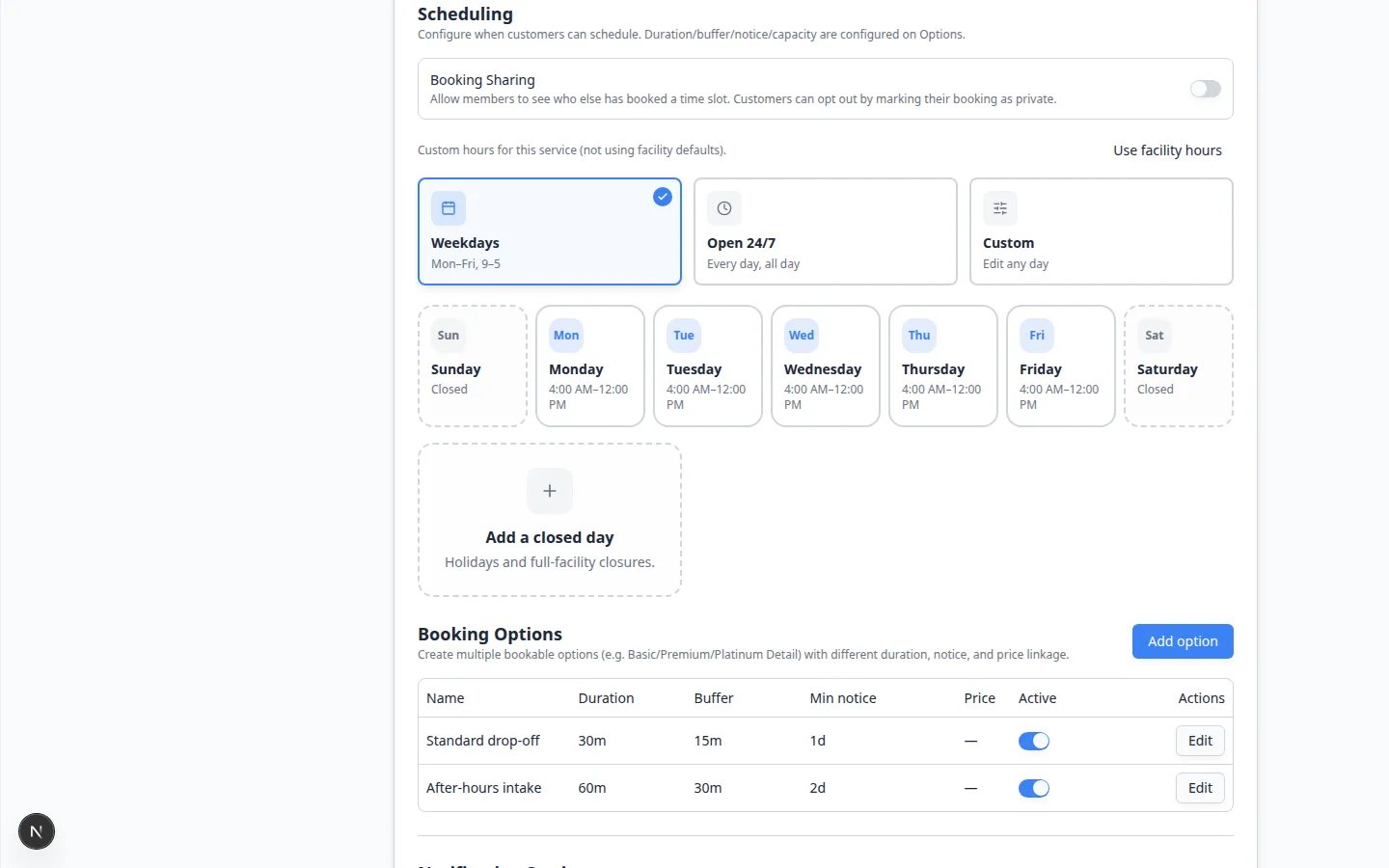 ***Using facility hours** copies your shop's **Hours of operation**. Click **Customize hours for this service** only when this one service needs different days or times.*
If you see **Using facility hours**, this service already follows [Hours of operation](https://www.carstoragesoftware.com/dashboard/settings/general).
**Expected result:** The weekday list matches your shop (for example Monday–Friday, 9:00 AM–5:00 PM). Sunday and Saturday may show **Closed**.
Use this when the service is shorter than the shop day (details only until 3:00 PM) or runs on different days.
**Expected result:** The page shows **Custom hours for this service (not using facility defaults)** plus three cards: **Weekdays**, **Open 24/7**, and **Custom**. A **Use facility hours** button returns you to the shop schedule.
**Why hours matter**
The calendar uses these hours to decide which time slots appear. Hours that are too wide let customers book times your team cannot support. Hours that are too narrow hide good openings.
## Set custom hours with Weekdays, Open 24/7, or Custom
These three cards appear only after you click **Customize hours for this service**.
***Using facility hours** copies your shop's **Hours of operation**. Click **Customize hours for this service** only when this one service needs different days or times.*
If you see **Using facility hours**, this service already follows [Hours of operation](https://www.carstoragesoftware.com/dashboard/settings/general).
**Expected result:** The weekday list matches your shop (for example Monday–Friday, 9:00 AM–5:00 PM). Sunday and Saturday may show **Closed**.
Use this when the service is shorter than the shop day (details only until 3:00 PM) or runs on different days.
**Expected result:** The page shows **Custom hours for this service (not using facility defaults)** plus three cards: **Weekdays**, **Open 24/7**, and **Custom**. A **Use facility hours** button returns you to the shop schedule.
**Why hours matter**
The calendar uses these hours to decide which time slots appear. Hours that are too wide let customers book times your team cannot support. Hours that are too narrow hide good openings.
## Set custom hours with Weekdays, Open 24/7, or Custom
These three cards appear only after you click **Customize hours for this service**.
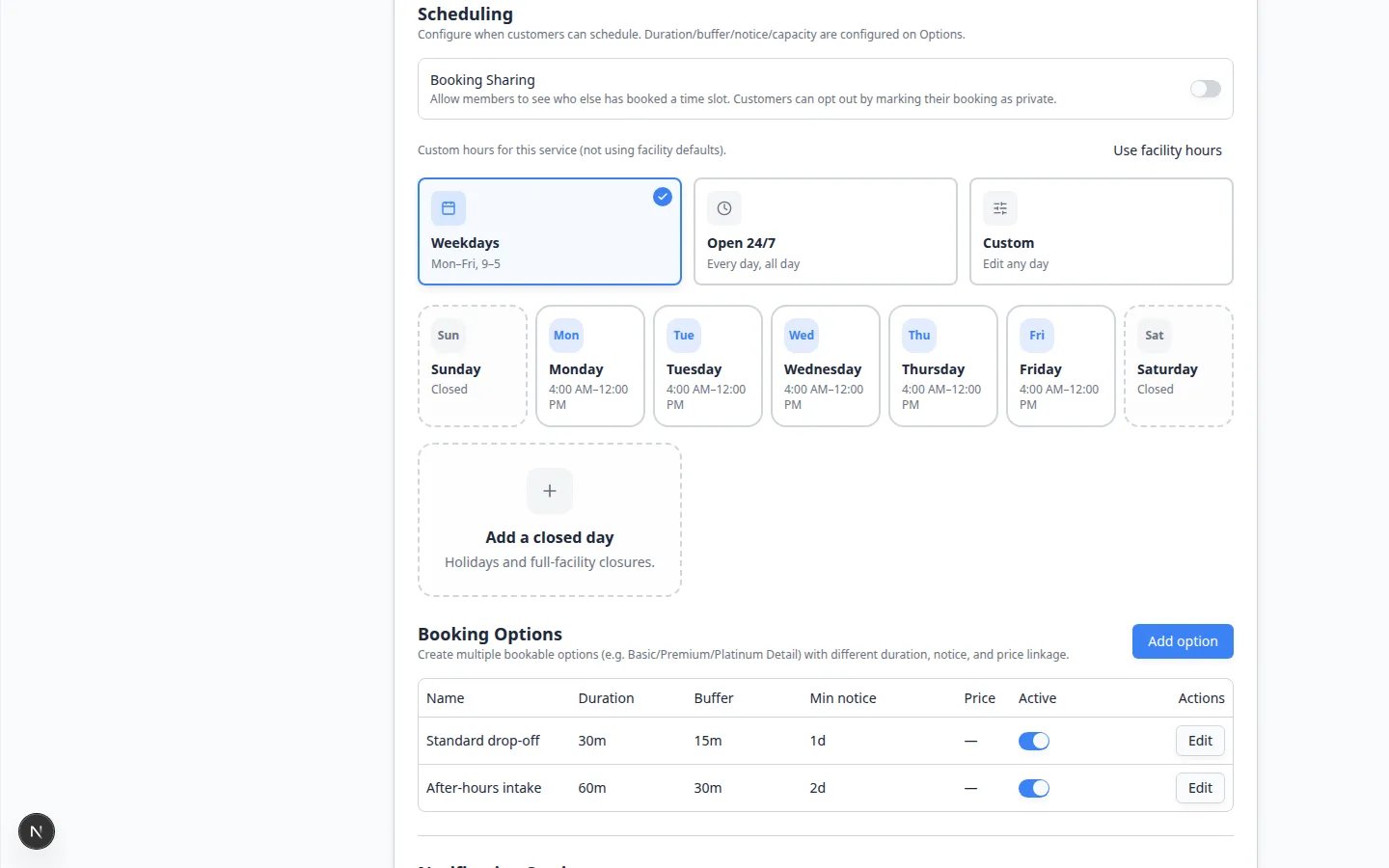 ***Weekdays** is Mon–Fri, 9–5. **Open 24/7** is every day, all day. **Custom** lets you edit any day. Click a day card (for example **Monday**) to change that day's windows.*
Click **Weekdays**. The card description says **Mon–Fri, 9–5**.
**Expected result:** A brief **Saved** or success message appears. Weekday cards show open hours. Saturday and Sunday stay **Closed**.
Click **Open 24/7** only for work your team truly allows at any hour.
For most facilities this is better for internal blocks, not normal customer appointments.
Click **Custom**, then click a day card such as **Monday**.
**Expected result:** A window titled **Monday hours** (or that day's name) opens.
In the day window, set **Opens** and **Closes**. Click **Add time range** if you need a lunch break or a second window (for example 9:00 AM–12:00 PM and 1:00 PM–5:00 PM).
Click **Mark closed** if customers should not book this service on that day.
**Expected result:** After **Save**, the day card shows the new windows—or **Closed**.
***Weekdays** is Mon–Fri, 9–5. **Open 24/7** is every day, all day. **Custom** lets you edit any day. Click a day card (for example **Monday**) to change that day's windows.*
Click **Weekdays**. The card description says **Mon–Fri, 9–5**.
**Expected result:** A brief **Saved** or success message appears. Weekday cards show open hours. Saturday and Sunday stay **Closed**.
Click **Open 24/7** only for work your team truly allows at any hour.
For most facilities this is better for internal blocks, not normal customer appointments.
Click **Custom**, then click a day card such as **Monday**.
**Expected result:** A window titled **Monday hours** (or that day's name) opens.
In the day window, set **Opens** and **Closes**. Click **Add time range** if you need a lunch break or a second window (for example 9:00 AM–12:00 PM and 1:00 PM–5:00 PM).
Click **Mark closed** if customers should not book this service on that day.
**Expected result:** After **Save**, the day card shows the new windows—or **Closed**.
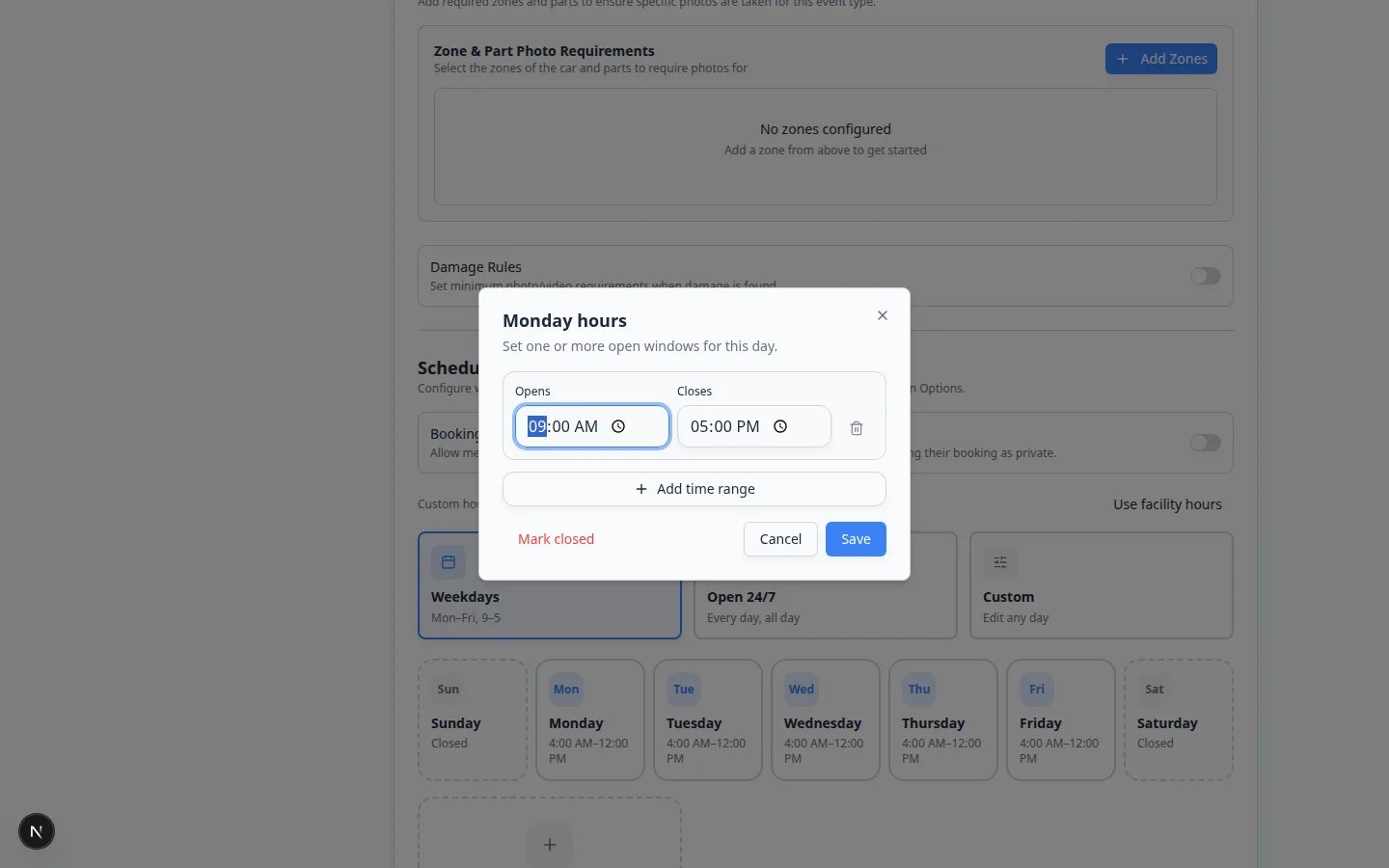 *Each day window uses **Opens** and **Closes**. **Add time range** adds a second window. **Mark closed** removes that day from booking.*
## Turn on Booking Sharing (optional)
**Booking Sharing** sits at the top of **Scheduling**.
Turn it on only when members should see who else booked the same time. Customers can still mark their own booking as private.
Leave it off if your customers expect drop-off times to stay private.
## Block one date on this service only
Below the day cards you may see **Add a closed day**.
Use that for a date this **one** service should not accept (for example a detailer day off). For a holiday that closes the whole shop, use [Set closed days for events](/docs/events/set-closed-days-for-events) instead.
## Add booking options
Booking options are the choices people select when they schedule this service.
Examples:
* **Standard drop-off** — 30 minutes, 15-minute buffer, 1 day notice
* **After-hours intake** — 60 minutes, 30-minute buffer, 2 day notice
* **Basic Detail** — 1 hour
* **Premium Detail** — 2 hours
If you leave **Booking Options** empty, people book using the service's default setup and may not see an option selector.
*Each day window uses **Opens** and **Closes**. **Add time range** adds a second window. **Mark closed** removes that day from booking.*
## Turn on Booking Sharing (optional)
**Booking Sharing** sits at the top of **Scheduling**.
Turn it on only when members should see who else booked the same time. Customers can still mark their own booking as private.
Leave it off if your customers expect drop-off times to stay private.
## Block one date on this service only
Below the day cards you may see **Add a closed day**.
Use that for a date this **one** service should not accept (for example a detailer day off). For a holiday that closes the whole shop, use [Set closed days for events](/docs/events/set-closed-days-for-events) instead.
## Add booking options
Booking options are the choices people select when they schedule this service.
Examples:
* **Standard drop-off** — 30 minutes, 15-minute buffer, 1 day notice
* **After-hours intake** — 60 minutes, 30-minute buffer, 2 day notice
* **Basic Detail** — 1 hour
* **Premium Detail** — 2 hours
If you leave **Booking Options** empty, people book using the service's default setup and may not see an option selector.
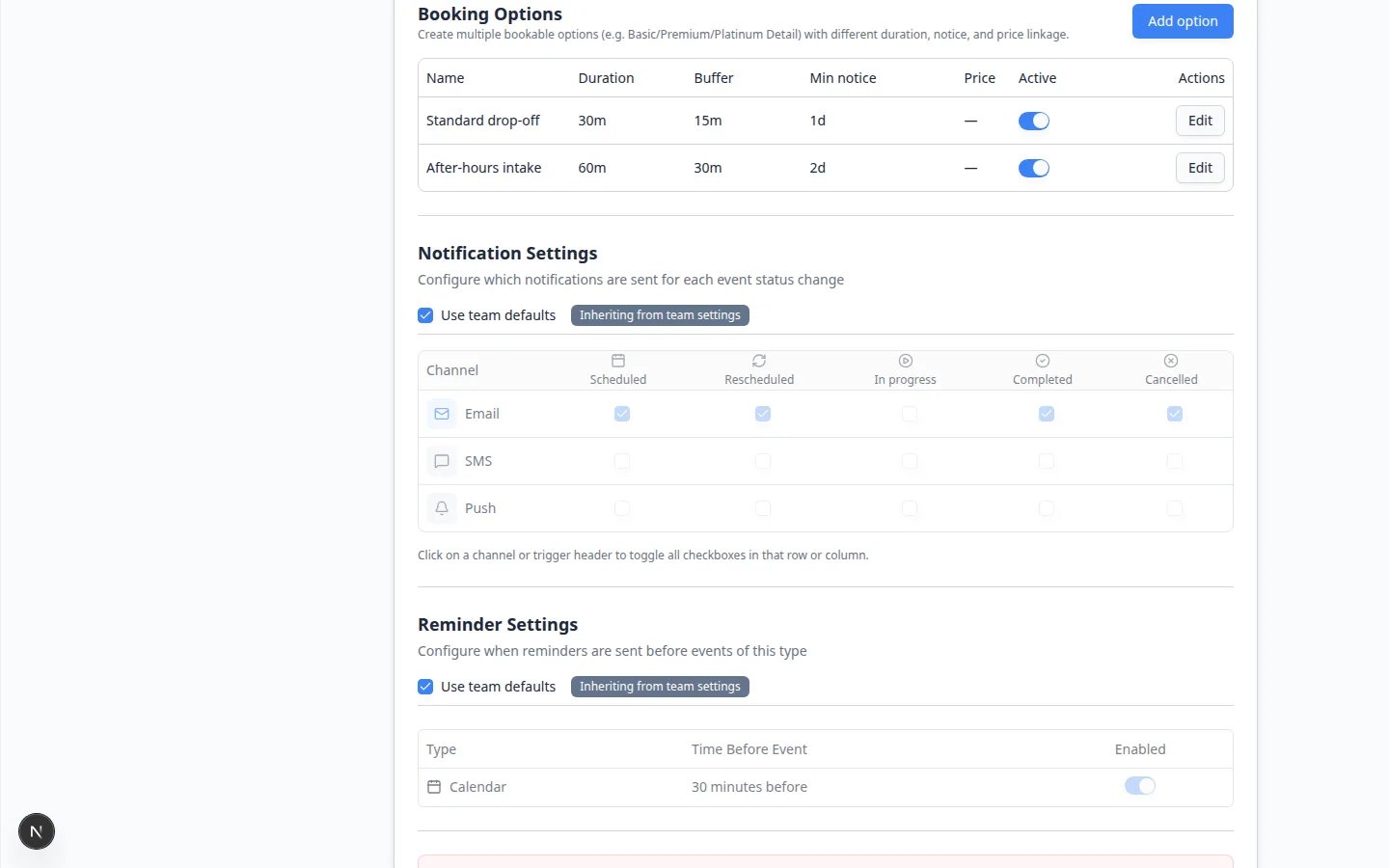 *Each row is one customer-facing choice. **Duration**, **Buffer**, and **Min notice** control the calendar. Click **Edit** to change a row, or **Add option** to create a new one.*
On the same **Advanced** page, find **Booking Options** below **Scheduling**.
Click **Add option**.
**Expected result:** An **Add option** window opens with **Name**, **Description**, **Duration**, **Buffer**, **Minimum notice**, and **Max concurrent bookings**.
Use a name customers and staff will understand.
Good examples: **Standard drop-off**, **After-hours intake**, **Basic Detail**, or **Storage Intake**.
Explain what is included.
Example: "Staff meet the owner, walk the car, and park it in storage."
**Duration** is how long the visit takes on the calendar.
Use the real working time your team needs. Do not pick a shorter time just to show more openings.
**Buffer** is extra time **after** the visit.
Use it when staff need time to park the car, clean a bay, or finish notes before the next booking.
**Minimum notice** is how far ahead someone must book.
Example: If you need one day to prepare staff and space, choose **1d**.
This is how many of this option can happen at the same time.
* **Unlimited** — this option itself does not cap slots. A linked bay or amenity can still limit bookings.
* **1** — only one of this option at a time.
* A higher number — your team can safely run several at once.
**Expected result:** The number matches how many of this option you can run in parallel.
Click **Save** on the window.
**Expected result:** The new row appears in the **Booking Options** table with an **Edit** button and an **Active** switch.
*Each row is one customer-facing choice. **Duration**, **Buffer**, and **Min notice** control the calendar. Click **Edit** to change a row, or **Add option** to create a new one.*
On the same **Advanced** page, find **Booking Options** below **Scheduling**.
Click **Add option**.
**Expected result:** An **Add option** window opens with **Name**, **Description**, **Duration**, **Buffer**, **Minimum notice**, and **Max concurrent bookings**.
Use a name customers and staff will understand.
Good examples: **Standard drop-off**, **After-hours intake**, **Basic Detail**, or **Storage Intake**.
Explain what is included.
Example: "Staff meet the owner, walk the car, and park it in storage."
**Duration** is how long the visit takes on the calendar.
Use the real working time your team needs. Do not pick a shorter time just to show more openings.
**Buffer** is extra time **after** the visit.
Use it when staff need time to park the car, clean a bay, or finish notes before the next booking.
**Minimum notice** is how far ahead someone must book.
Example: If you need one day to prepare staff and space, choose **1d**.
This is how many of this option can happen at the same time.
* **Unlimited** — this option itself does not cap slots. A linked bay or amenity can still limit bookings.
* **1** — only one of this option at a time.
* A higher number — your team can safely run several at once.
**Expected result:** The number matches how many of this option you can run in parallel.
Click **Save** on the window.
**Expected result:** The new row appears in the **Booking Options** table with an **Edit** button and an **Active** switch.
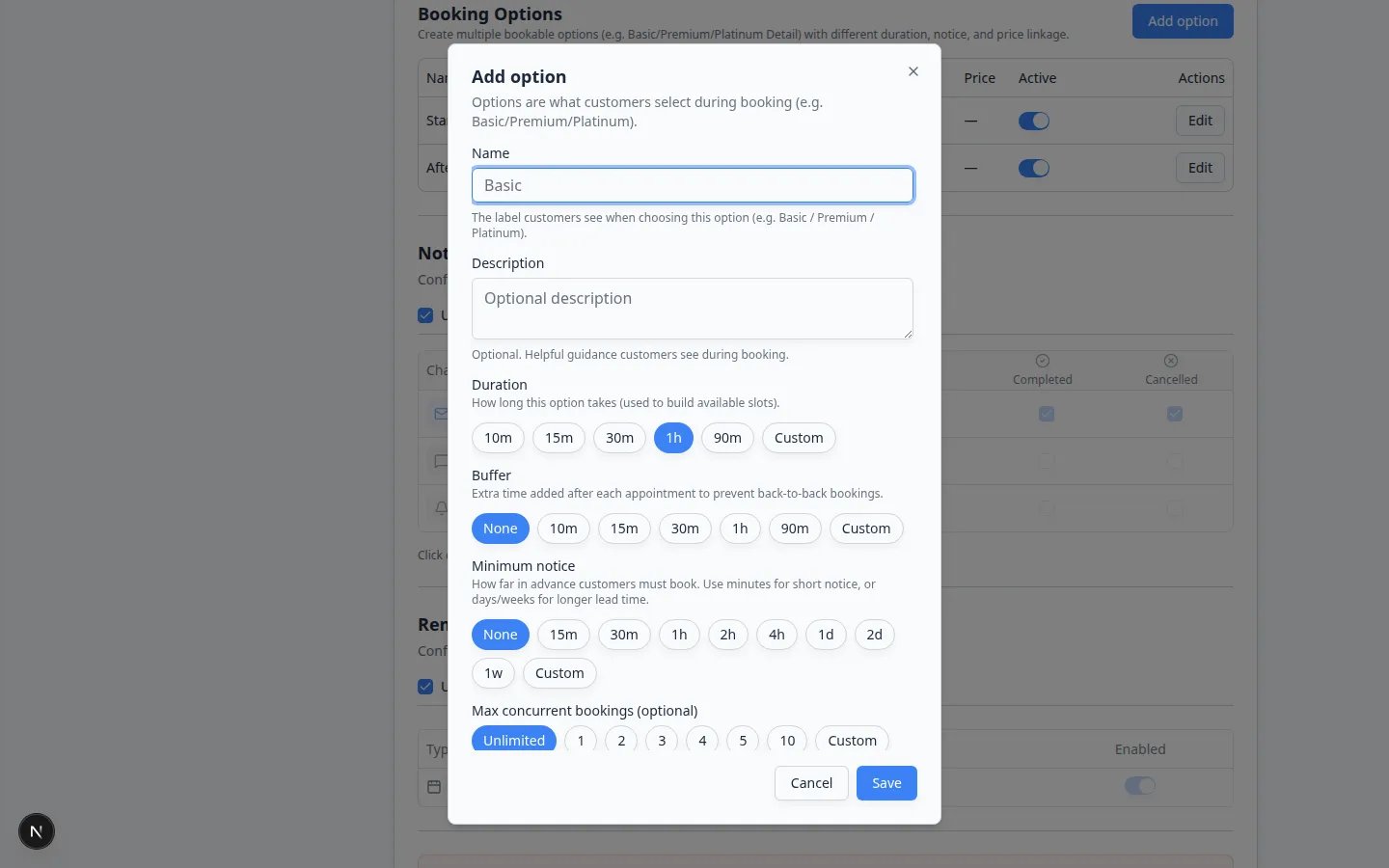 *The **Add option** window is where you set how long a choice takes, how much rest time follows it, and how far ahead someone must book.*
## Optional fields inside Add option or Edit
Scroll further in the same window when you need them:
* **Facility amenity (optional)** — reserve a bay, lift, or room. See [Set up bookable resources](/docs/events/set-up-bookable-resources).
* **Linked price (optional)** — attach a product price so customers see the cost when they book. Finish [Connect payment processing](/docs/settings/connect-payment-processing) first. Skip this if they pay later on an invoice.
* **Default assignee (optional)** — pre-assign a teammate who usually does this work.
If you link a price, a **Billing trigger** row appears under the table. Choose **On scheduling** to charge when the time is booked, or **On completion** to charge when the work is finished.
## Save and test
The **Edit Event Type** page saves as you work. Look for **Saving…** or **Saved** near the top after you change hours or options.
Wait until you see **Saved**. Open **Advanced** again if you want to double-check.
**Expected result:** The hours and options you set are still there.
Open [Schedule](https://www.carstoragesoftware.com/dashboard/schedule) and click **Schedule Event**.
Choose the event type you just edited. Pick a test vehicle. Type **TEST** in the description so your team can spot it later.
**Expected result:** The **Create New Event** window shows time slots that match your **Scheduling** hours and the option you pick.
Pick an open day. Check that slots respect **Minimum notice**, **Buffer**, **Max concurrent bookings**, closed days, and any linked bay.
**Expected result:** A closed day or holiday shows fewer slots—or none.
*The **Add option** window is where you set how long a choice takes, how much rest time follows it, and how far ahead someone must book.*
## Optional fields inside Add option or Edit
Scroll further in the same window when you need them:
* **Facility amenity (optional)** — reserve a bay, lift, or room. See [Set up bookable resources](/docs/events/set-up-bookable-resources).
* **Linked price (optional)** — attach a product price so customers see the cost when they book. Finish [Connect payment processing](/docs/settings/connect-payment-processing) first. Skip this if they pay later on an invoice.
* **Default assignee (optional)** — pre-assign a teammate who usually does this work.
If you link a price, a **Billing trigger** row appears under the table. Choose **On scheduling** to charge when the time is booked, or **On completion** to charge when the work is finished.
## Save and test
The **Edit Event Type** page saves as you work. Look for **Saving…** or **Saved** near the top after you change hours or options.
Wait until you see **Saved**. Open **Advanced** again if you want to double-check.
**Expected result:** The hours and options you set are still there.
Open [Schedule](https://www.carstoragesoftware.com/dashboard/schedule) and click **Schedule Event**.
Choose the event type you just edited. Pick a test vehicle. Type **TEST** in the description so your team can spot it later.
**Expected result:** The **Create New Event** window shows time slots that match your **Scheduling** hours and the option you pick.
Pick an open day. Check that slots respect **Minimum notice**, **Buffer**, **Max concurrent bookings**, closed days, and any linked bay.
**Expected result:** A closed day or holiday shows fewer slots—or none.
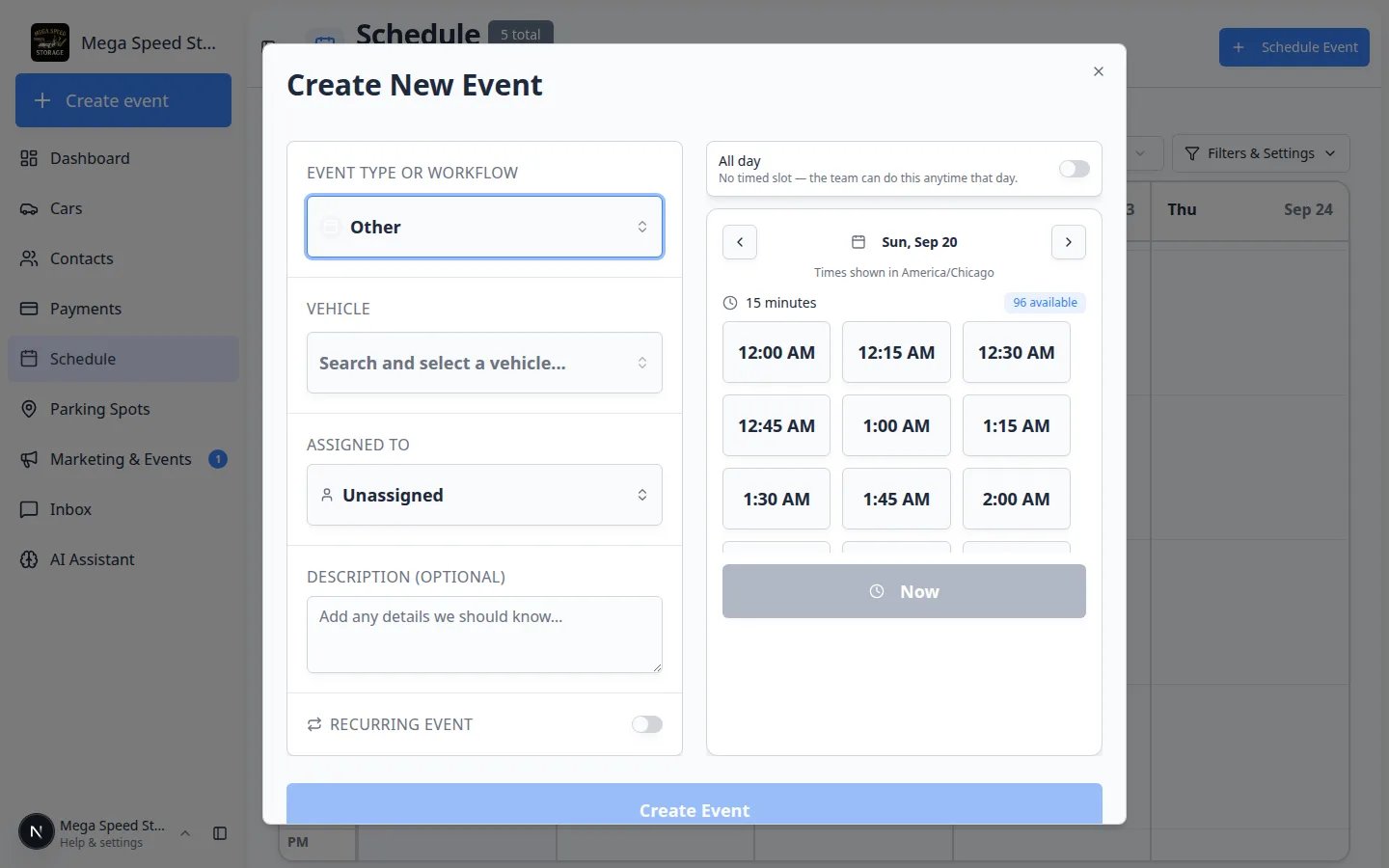 *On [Schedule](https://www.carstoragesoftware.com/dashboard/schedule), click **Schedule Event** and choose the service you just edited. Open slots should match that service's hours and booking options.*
## What success looks like
After setup:
* Customers and staff see times your team can actually support.
* Each choice's length matches the work being done.
* Buffer time keeps visits from stacking on top of each other.
* Minimum notice gives your team time to prepare.
* Limited bays, lifts, rooms, or staff are less likely to be double booked.
## Troubleshooting
**No time slots are showing**
Check **Scheduling** first (facility hours vs custom hours). Then check **Minimum notice**, [closed days](/docs/events/set-closed-days-for-events), and any required bay or amenity. One blocked rule can hide every slot.
**Customers can book too soon**
Increase **Minimum notice** on the booking option. This gives your team more time before someone can claim a slot.
**Appointments are too close together**
Increase **Buffer** on the booking option. Buffer time is breathing room after each visit.
**The option does not appear for customers**
Make sure the option's **Active** switch is on. Also check that the event type is **Active** and **Who can see this** is **Customer** or **Both**. For self-serve booking, **Customers can book** must also be on. See [Configure event types](/docs/events/configure-event-types).
**I cannot find Set Weekdays or Add day**
Those older button names were replaced. Use **Using facility hours**, or click **Customize hours for this service** and choose **Weekdays**, **Open 24/7**, or **Custom**. Click a day card to edit **Opens** and **Closes**.
## What to do next
Run [Test an event setup](/docs/events/test-an-event-setup) to confirm slots, capacity, and any linked resource.
If the service should be closed on holidays, continue with [Set closed days for events](/docs/events/set-closed-days-for-events).
If staff should check off work during the visit, continue with [Set up event checklists](/docs/events/set-up-event-checklists). If they need progress labels such as **In the bay**, continue with [Turn on custom statuses for an event type](/docs/events/turn-on-custom-statuses-for-an-event-type).
If customer bookings should wait for staff review, turn on **Require Approval** in [Configure event types](/docs/events/configure-event-types), then use [Approve or decline customer booking requests](/docs/schedule/approve-or-decline-customer-booking-requests).
## Related topics
- [Test an event setup](/docs/events/test-an-event-setup.md)
- [Events overview](/docs/events/overview.md)
- [Configure event types](/docs/events/configure-event-types.md)
- [Configure services and schedule settings](/docs/settings/configure-events-and-schedule-settings.md)
- [Set closed days for events](/docs/events/set-closed-days-for-events.md)
This documentation is built and hosted on [Mintlify](https://mintlify.com), a developer documentation platform.
*On [Schedule](https://www.carstoragesoftware.com/dashboard/schedule), click **Schedule Event** and choose the service you just edited. Open slots should match that service's hours and booking options.*
## What success looks like
After setup:
* Customers and staff see times your team can actually support.
* Each choice's length matches the work being done.
* Buffer time keeps visits from stacking on top of each other.
* Minimum notice gives your team time to prepare.
* Limited bays, lifts, rooms, or staff are less likely to be double booked.
## Troubleshooting
**No time slots are showing**
Check **Scheduling** first (facility hours vs custom hours). Then check **Minimum notice**, [closed days](/docs/events/set-closed-days-for-events), and any required bay or amenity. One blocked rule can hide every slot.
**Customers can book too soon**
Increase **Minimum notice** on the booking option. This gives your team more time before someone can claim a slot.
**Appointments are too close together**
Increase **Buffer** on the booking option. Buffer time is breathing room after each visit.
**The option does not appear for customers**
Make sure the option's **Active** switch is on. Also check that the event type is **Active** and **Who can see this** is **Customer** or **Both**. For self-serve booking, **Customers can book** must also be on. See [Configure event types](/docs/events/configure-event-types).
**I cannot find Set Weekdays or Add day**
Those older button names were replaced. Use **Using facility hours**, or click **Customize hours for this service** and choose **Weekdays**, **Open 24/7**, or **Custom**. Click a day card to edit **Opens** and **Closes**.
## What to do next
Run [Test an event setup](/docs/events/test-an-event-setup) to confirm slots, capacity, and any linked resource.
If the service should be closed on holidays, continue with [Set closed days for events](/docs/events/set-closed-days-for-events).
If staff should check off work during the visit, continue with [Set up event checklists](/docs/events/set-up-event-checklists). If they need progress labels such as **In the bay**, continue with [Turn on custom statuses for an event type](/docs/events/turn-on-custom-statuses-for-an-event-type).
If customer bookings should wait for staff review, turn on **Require Approval** in [Configure event types](/docs/events/configure-event-types), then use [Approve or decline customer booking requests](/docs/schedule/approve-or-decline-customer-booking-requests).
## Related topics
- [Test an event setup](/docs/events/test-an-event-setup.md)
- [Events overview](/docs/events/overview.md)
- [Configure event types](/docs/events/configure-event-types.md)
- [Configure services and schedule settings](/docs/settings/configure-events-and-schedule-settings.md)
- [Set closed days for events](/docs/events/set-closed-days-for-events.md)
This documentation is built and hosted on [Mintlify](https://mintlify.com), a developer documentation platform.