> ## Documentation Index
> Fetch the complete documentation index at: https://www.carstoragesoftware.com/docs/llms.txt
> Use this file to discover all available pages before exploring further.
# Events overview
> Understand the operational event system that powers scheduling, workflows, resources, notifications, and documentation.
## What you will accomplish
You will set up the services and workflows your facility performs again and again—storage intake, pickup, delivery, wash, detail, inspection, maintenance, customer visits, and internal shop tasks.
When event setup is done well:
* Staff pick clear event names instead of guessing.
* Customers book only the services that are ready.
* Appointments use the right length, reminders, and available hours.
* Required photos and checklists show up during the work.
* Limited bays, lifts, and rooms are less likely to be double booked.
Most setup happens in [Settings > Services & schedule](https://www.carstoragesoftware.com/dashboard/settings/events). Those choices affect [Schedule](https://www.carstoragesoftware.com/dashboard/schedule), [Cars](https://www.carstoragesoftware.com/dashboard/cars), [Parking Spots](https://www.carstoragesoftware.com/dashboard/parking-spots), customer messages, photo documentation, and staff workflows.
**Events setup is not the same as the daily calendar**
Use **Events** guides when you are **building or changing** how services work (names, hours, messages, photos, resources).
Use [Schedule](/docs/schedule/overview) when your team is **booking and running** work on the calendar each day.
Use [Marketing & Events](/docs/marketing-events/overview) only for **customer parties, campaigns, and RSVPs**—not for storage intake or service appointments.
**Where to click in the app**
Most setup lives under [Settings > Services & schedule](https://www.carstoragesoftware.com/dashboard/settings/events) in the left sidebar (**Settings**, then **Services & schedule**). Closed days live on [Settings > General](https://www.carstoragesoftware.com/dashboard/settings/general#closed-days). Customer messages and reminders live on [Settings > Communications](https://www.carstoragesoftware.com/dashboard/settings/communications). Bookable bays start on [Settings > Operations](https://www.carstoragesoftware.com/dashboard/settings/operations#amenities).
**Who this section is for**
These guides are written for facility owners and office staff setting up the app—not for software developers. You do not need technical training. Follow the steps in order, test once with [Test an event setup](/docs/events/test-an-event-setup), then tell your team which event types to use.
## Before you start
* You can open [Settings](https://www.carstoragesoftware.com/dashboard/settings) and [Settings > Services & schedule](https://www.carstoragesoftware.com/dashboard/settings/events). An owner or admin usually does this setup.
* You have a short list of services your facility offers (intake, detail, pickup, inspection, and so on).
* You know your normal business hours and which days you are closed.
* If customers will book online, confirm [Settings > Communications](https://www.carstoragesoftware.com/dashboard/settings/communications) and [Settings > Website & signup](https://www.carstoragesoftware.com/dashboard/settings/website) are ready.
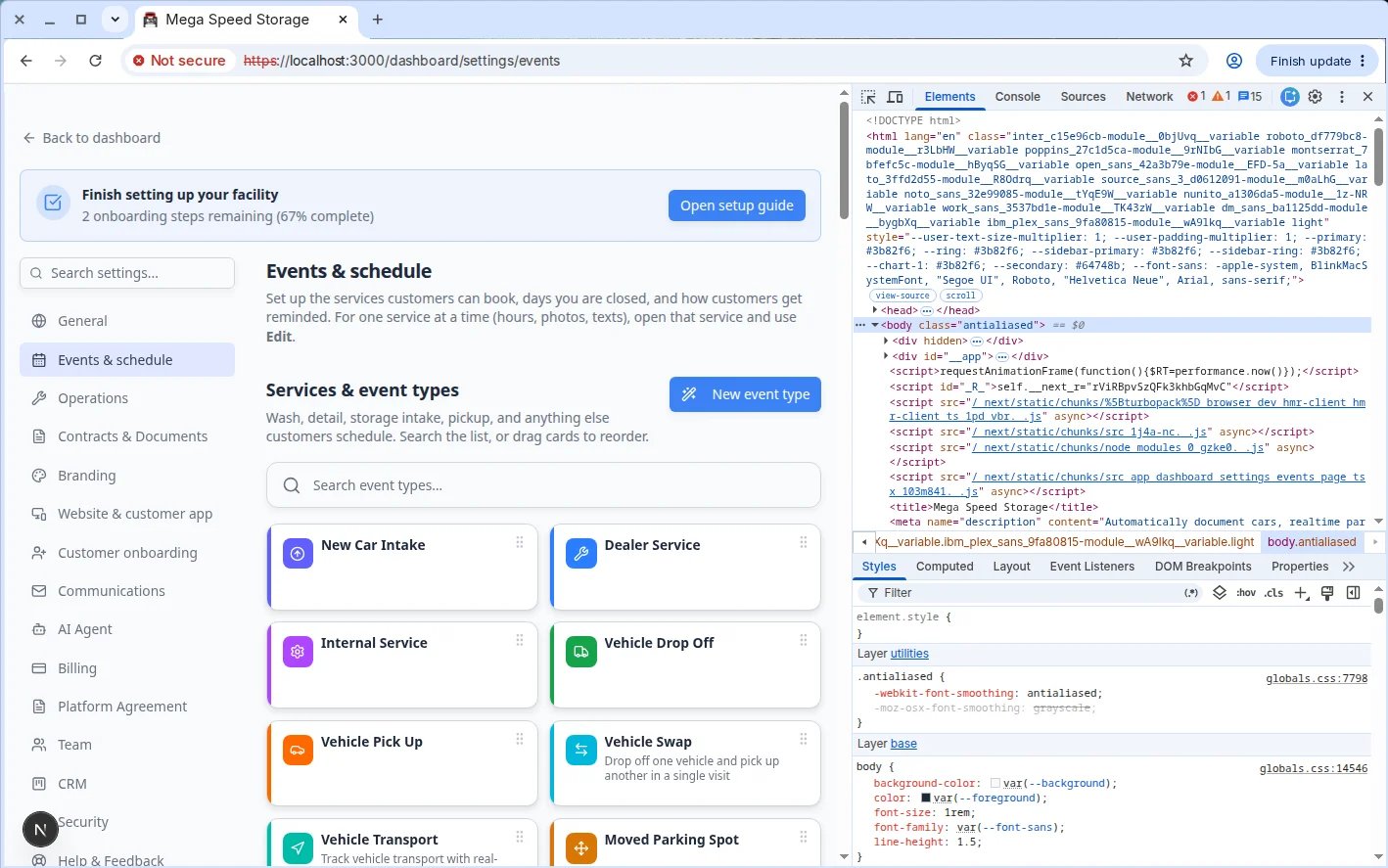 *Services & schedule is where admins control services, recurring plans, walkthrough defaults, Create event layout, closed days, and message defaults.*
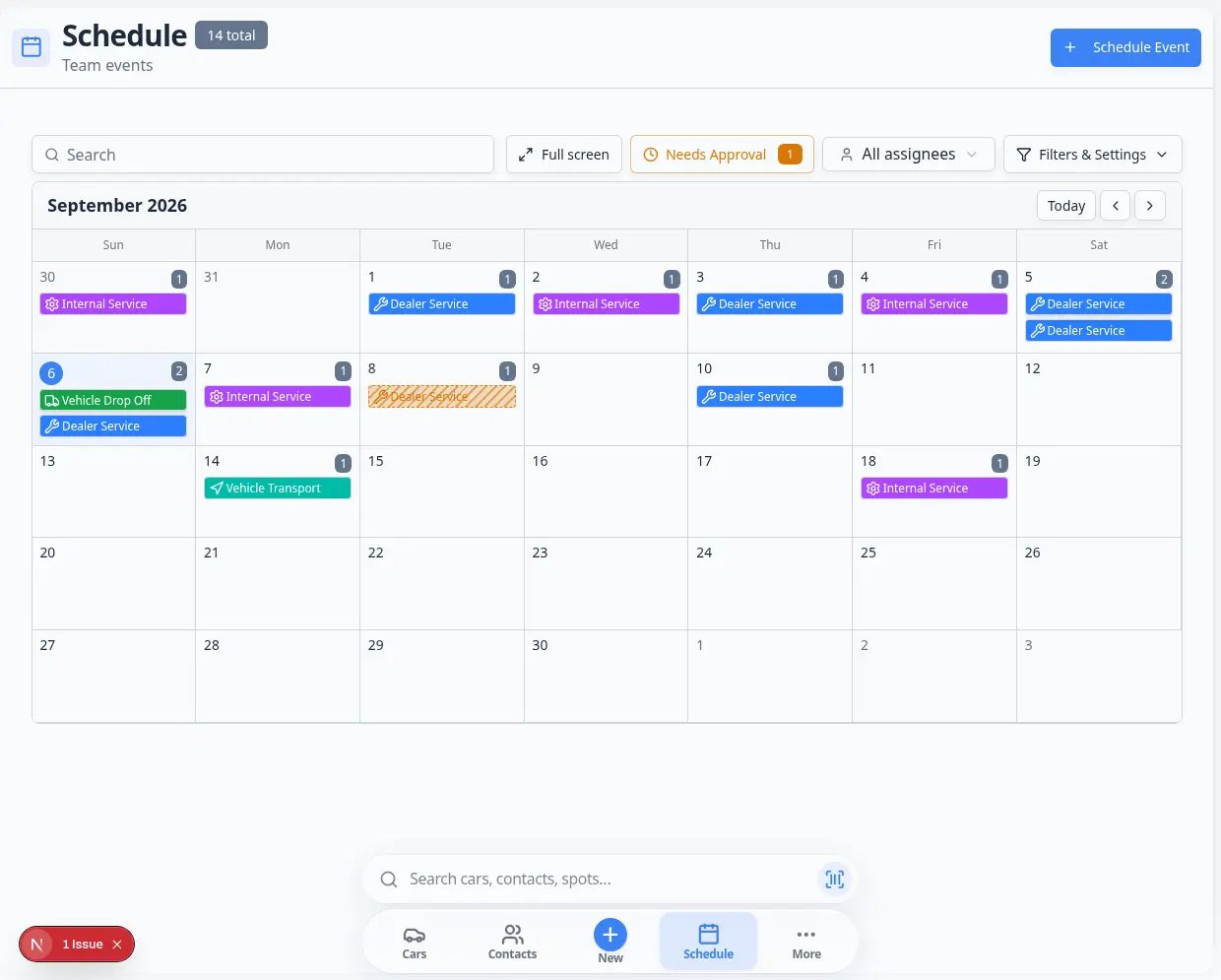 *When event setup is done well, [Schedule](https://www.carstoragesoftware.com/dashboard/schedule) shows clear appointment blocks your team can open and run.*
## What you can set up from Events
* **Event types** - reusable service or workflow names such as Storage Intake, Detail Appointment, Vehicle Pickup, or Maintenance.
* **Service plans** - bundle recurring care (monthly checks, quarterly service) into named packages you assign to stored vehicles.
* **Customer access** - decide which event types customers can request from customer-facing booking pages.
* **Booking approval** - require staff to approve customer requests before they land on the calendar.
* **Photos and checklists** - require staff to capture the right proof before an event is finished.
* **Walkthrough photo defaults** - choose whether damage annotation opens automatically during intake photos.
* **Create event layout** - pick how many columns each staff member sees on the Create event home page.
* **Scheduling rules** - set duration, availability, reminders, closed days, and booking behavior.
* **Bookable resources** - prevent overbooking limited items such as bays, lifts, rooms, staff time, or equipment.
* **Calendar subscription** - let staff add the shop schedule to Apple Calendar, Google Calendar, or Outlook.
## How event setup fits together
Think of an event type as the instruction card for a repeatable task.
For example, a **Detail Appointment** event type can say:
* Customers are allowed to book it.
* The appointment takes 2 hours.
* A detail bay is required.
* Staff must take before-and-after photos.
* The customer receives reminder messages before the appointment.
Once that event type is set up, your team can use it again and again without rebuilding the process each time.
## Example: set up Storage Intake from start to finish
This walkthrough ties the guides together. Replace **Storage Intake** with any service your facility offers.
In [Configure event types](/docs/events/configure-event-types), add **Storage Intake** with **Who can see this** set to **Customer** or **Both**, and set **When this event completes** to **Ask where the car is going** if cars should be parked after intake.
In [Configure scheduling and booking options](/docs/events/configure-scheduling-and-booking-options), set weekday hours and one booking option named **Standard Intake** (about 30 minutes).
In [Set closed days for events](/docs/events/set-closed-days-for-events), add facility-wide closed dates such as Thanksgiving. Customers should not be able to book online on those days.
In [Set up event notifications and reminders](/docs/events/set-up-event-notifications-and-reminders), enable **Scheduled → Email** and one reminder **1 day before**.
In [Configure photo rules](/docs/events/configure-photo-rules), add zones such as **Front**, **Rear**, and **Odometer** for this event type.
If intake uses damage markup, review [Configure walkthrough photo defaults](/docs/events/configure-walkthrough-photo-defaults).
Follow [Test an event setup](/docs/events/test-an-event-setup): book a practice appointment, confirm the time slot, and check that photos and parking steps appear when staff open the event.
In [Configure event types](/docs/events/configure-event-types), turn on **Require Approval** for services where your team must review each online request first. Train staff with [Approve or decline customer booking requests](/docs/schedule/approve-or-decline-customer-booking-requests).
**Before customers book online**
Finish [Configure communications](/docs/settings/configure-communications) and [Configure portal and website](/docs/settings/configure-portal-and-website) so confirmation emails, texts, and booking pages use your facility name and contact details.
## Recommended setup order
Start with the services and workflows your team uses most often. Each event type should have a clear name, description, customer access setting, and status. [Read the guide](/docs/events/configure-event-types)
When storage tiers include repeating care, bundle event types into plans. [Read the guide](/docs/events/set-up-service-plans)
Decide when the event can be booked, how long it takes, how much notice your team needs, and whether customers should choose service options. [Read the guide](/docs/events/configure-scheduling-and-booking-options)
Block holidays, team training days, facility maintenance, or any date when customers should not book appointments. [Read the guide](/docs/events/set-closed-days-for-events)
Decide which emails, texts, and reminders customers should receive before and during the event. [Read the guide](/docs/events/set-up-event-notifications-and-reminders)
Add photo requirements for events where condition, damage, or completed work should be documented. [Read the guide](/docs/events/configure-photo-rules)
Add resources when a service depends on something limited, like one lift, two detail bays, or a specific staff member. [Read the guide](/docs/events/set-up-bookable-resources)
If stored vehicles need repeating internal service or inspections, create named plans and assign them on car records. [Read the guide](/docs/events/set-up-service-plans)
Choose whether damage annotation opens automatically during intake photos. [Read the guide](/docs/events/configure-walkthrough-photo-defaults)
Help front-desk staff scan service cards faster on desktop and mobile. [Read the guide](/docs/events/customize-create-event-screen-layout)
After setup, run through [Test an event setup](/docs/events/test-an-event-setup). Create a practice appointment on [Schedule](https://www.carstoragesoftware.com/dashboard/schedule), check the calendar, and confirm fields, reminders, photos, and resources behave the way you expect.
*When event setup is done well, [Schedule](https://www.carstoragesoftware.com/dashboard/schedule) shows clear appointment blocks your team can open and run.*
## What you can set up from Events
* **Event types** - reusable service or workflow names such as Storage Intake, Detail Appointment, Vehicle Pickup, or Maintenance.
* **Service plans** - bundle recurring care (monthly checks, quarterly service) into named packages you assign to stored vehicles.
* **Customer access** - decide which event types customers can request from customer-facing booking pages.
* **Booking approval** - require staff to approve customer requests before they land on the calendar.
* **Photos and checklists** - require staff to capture the right proof before an event is finished.
* **Walkthrough photo defaults** - choose whether damage annotation opens automatically during intake photos.
* **Create event layout** - pick how many columns each staff member sees on the Create event home page.
* **Scheduling rules** - set duration, availability, reminders, closed days, and booking behavior.
* **Bookable resources** - prevent overbooking limited items such as bays, lifts, rooms, staff time, or equipment.
* **Calendar subscription** - let staff add the shop schedule to Apple Calendar, Google Calendar, or Outlook.
## How event setup fits together
Think of an event type as the instruction card for a repeatable task.
For example, a **Detail Appointment** event type can say:
* Customers are allowed to book it.
* The appointment takes 2 hours.
* A detail bay is required.
* Staff must take before-and-after photos.
* The customer receives reminder messages before the appointment.
Once that event type is set up, your team can use it again and again without rebuilding the process each time.
## Example: set up Storage Intake from start to finish
This walkthrough ties the guides together. Replace **Storage Intake** with any service your facility offers.
In [Configure event types](/docs/events/configure-event-types), add **Storage Intake** with **Who can see this** set to **Customer** or **Both**, and set **When this event completes** to **Ask where the car is going** if cars should be parked after intake.
In [Configure scheduling and booking options](/docs/events/configure-scheduling-and-booking-options), set weekday hours and one booking option named **Standard Intake** (about 30 minutes).
In [Set closed days for events](/docs/events/set-closed-days-for-events), add facility-wide closed dates such as Thanksgiving. Customers should not be able to book online on those days.
In [Set up event notifications and reminders](/docs/events/set-up-event-notifications-and-reminders), enable **Scheduled → Email** and one reminder **1 day before**.
In [Configure photo rules](/docs/events/configure-photo-rules), add zones such as **Front**, **Rear**, and **Odometer** for this event type.
If intake uses damage markup, review [Configure walkthrough photo defaults](/docs/events/configure-walkthrough-photo-defaults).
Follow [Test an event setup](/docs/events/test-an-event-setup): book a practice appointment, confirm the time slot, and check that photos and parking steps appear when staff open the event.
In [Configure event types](/docs/events/configure-event-types), turn on **Require Approval** for services where your team must review each online request first. Train staff with [Approve or decline customer booking requests](/docs/schedule/approve-or-decline-customer-booking-requests).
**Before customers book online**
Finish [Configure communications](/docs/settings/configure-communications) and [Configure portal and website](/docs/settings/configure-portal-and-website) so confirmation emails, texts, and booking pages use your facility name and contact details.
## Recommended setup order
Start with the services and workflows your team uses most often. Each event type should have a clear name, description, customer access setting, and status. [Read the guide](/docs/events/configure-event-types)
When storage tiers include repeating care, bundle event types into plans. [Read the guide](/docs/events/set-up-service-plans)
Decide when the event can be booked, how long it takes, how much notice your team needs, and whether customers should choose service options. [Read the guide](/docs/events/configure-scheduling-and-booking-options)
Block holidays, team training days, facility maintenance, or any date when customers should not book appointments. [Read the guide](/docs/events/set-closed-days-for-events)
Decide which emails, texts, and reminders customers should receive before and during the event. [Read the guide](/docs/events/set-up-event-notifications-and-reminders)
Add photo requirements for events where condition, damage, or completed work should be documented. [Read the guide](/docs/events/configure-photo-rules)
Add resources when a service depends on something limited, like one lift, two detail bays, or a specific staff member. [Read the guide](/docs/events/set-up-bookable-resources)
If stored vehicles need repeating internal service or inspections, create named plans and assign them on car records. [Read the guide](/docs/events/set-up-service-plans)
Choose whether damage annotation opens automatically during intake photos. [Read the guide](/docs/events/configure-walkthrough-photo-defaults)
Help front-desk staff scan service cards faster on desktop and mobile. [Read the guide](/docs/events/customize-create-event-screen-layout)
After setup, run through [Test an event setup](/docs/events/test-an-event-setup). Create a practice appointment on [Schedule](https://www.carstoragesoftware.com/dashboard/schedule), check the calendar, and confirm fields, reminders, photos, and resources behave the way you expect.
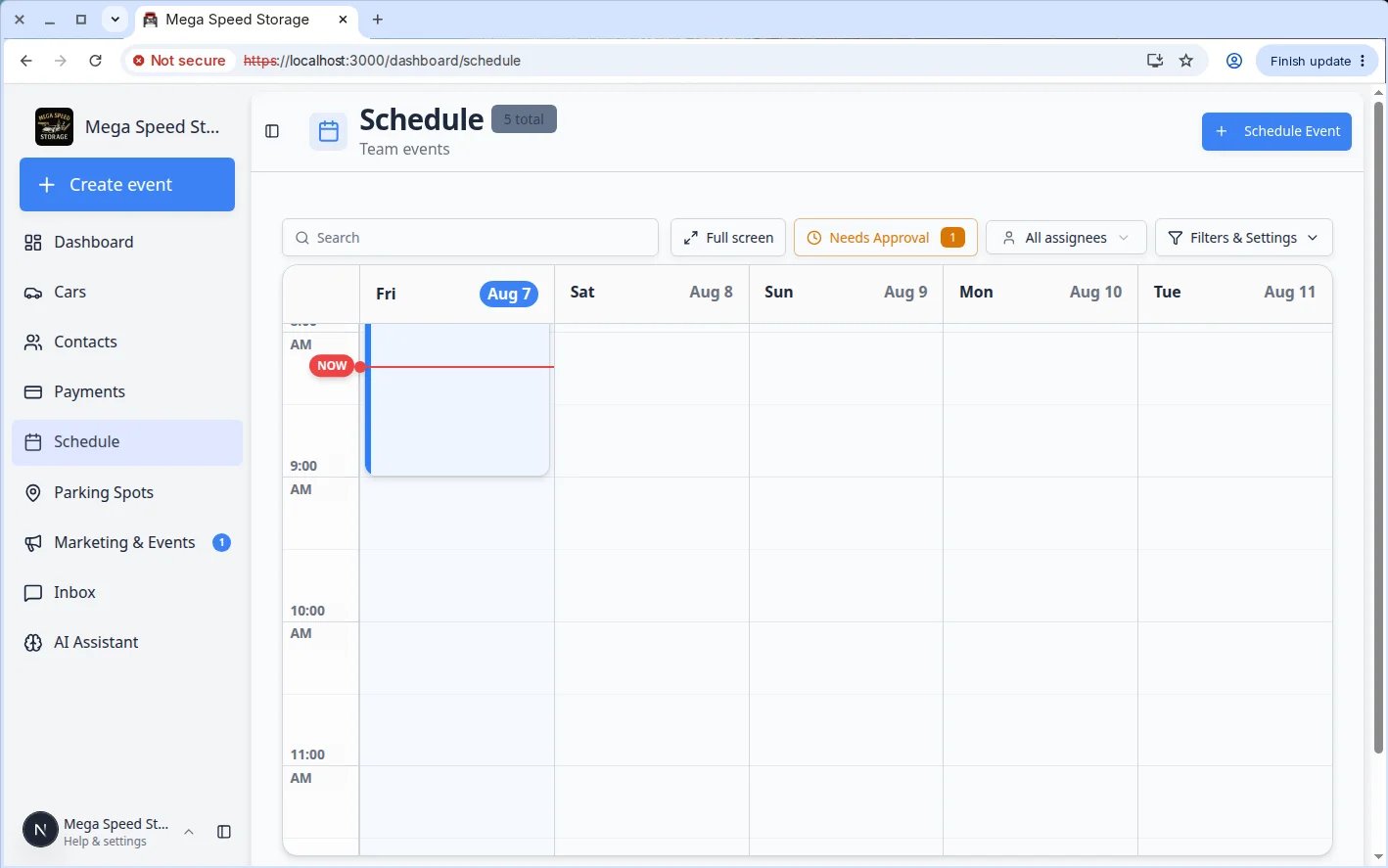 *After you configure event types, a short test on [Schedule](https://www.carstoragesoftware.com/dashboard/schedule) shows whether names, colors, and time slots look right before customers rely on them.*
## Closed days are not the same as Calendar Block
New teams sometimes mix up two different ways to block time. They solve different problems.
| | **Closed days / Block out dates** | **Calendar Block** |
| - | - | - |
| **Where you set it** | [General settings](https://www.carstoragesoftware.com/dashboard/settings/general#closed-days) (whole shop) or inside one event type's **Scheduling** section | [Schedule](https://www.carstoragesoftware.com/dashboard/schedule) → **Schedule Event** → event type **Calendar Block** |
| **What it blocks** | New **customer** bookings on a date | **All** scheduling in a time range (staff and customers) |
| **Typical use** | Thanksgiving, facility closed, one service unavailable | Shop meeting, bay maintenance window, "do not book this hour" |
| **Guide** | [Set closed days for events](/docs/events/set-closed-days-for-events) | [Create an appointment](/docs/schedule/create-an-appointment) (Block Time section) |
**Quick rule of thumb**
Use **closed days** when customers should not book online on a date. Use **Calendar Block** on [Schedule](https://www.carstoragesoftware.com/dashboard/schedule) when your team needs a visible block on the calendar for a specific time range.
## Subscribe to your schedule from Services & schedule
Staff who want appointments on their phone or desktop calendar can copy a subscription link without leaving Settings.
*After you configure event types, a short test on [Schedule](https://www.carstoragesoftware.com/dashboard/schedule) shows whether names, colors, and time slots look right before customers rely on them.*
## Closed days are not the same as Calendar Block
New teams sometimes mix up two different ways to block time. They solve different problems.
| | **Closed days / Block out dates** | **Calendar Block** |
| - | - | - |
| **Where you set it** | [General settings](https://www.carstoragesoftware.com/dashboard/settings/general#closed-days) (whole shop) or inside one event type's **Scheduling** section | [Schedule](https://www.carstoragesoftware.com/dashboard/schedule) → **Schedule Event** → event type **Calendar Block** |
| **What it blocks** | New **customer** bookings on a date | **All** scheduling in a time range (staff and customers) |
| **Typical use** | Thanksgiving, facility closed, one service unavailable | Shop meeting, bay maintenance window, "do not book this hour" |
| **Guide** | [Set closed days for events](/docs/events/set-closed-days-for-events) | [Create an appointment](/docs/schedule/create-an-appointment) (Block Time section) |
**Quick rule of thumb**
Use **closed days** when customers should not book online on a date. Use **Calendar Block** on [Schedule](https://www.carstoragesoftware.com/dashboard/schedule) when your team needs a visible block on the calendar for a specific time range.
## Subscribe to your schedule from Services & schedule
Staff who want appointments on their phone or desktop calendar can copy a subscription link without leaving Settings.
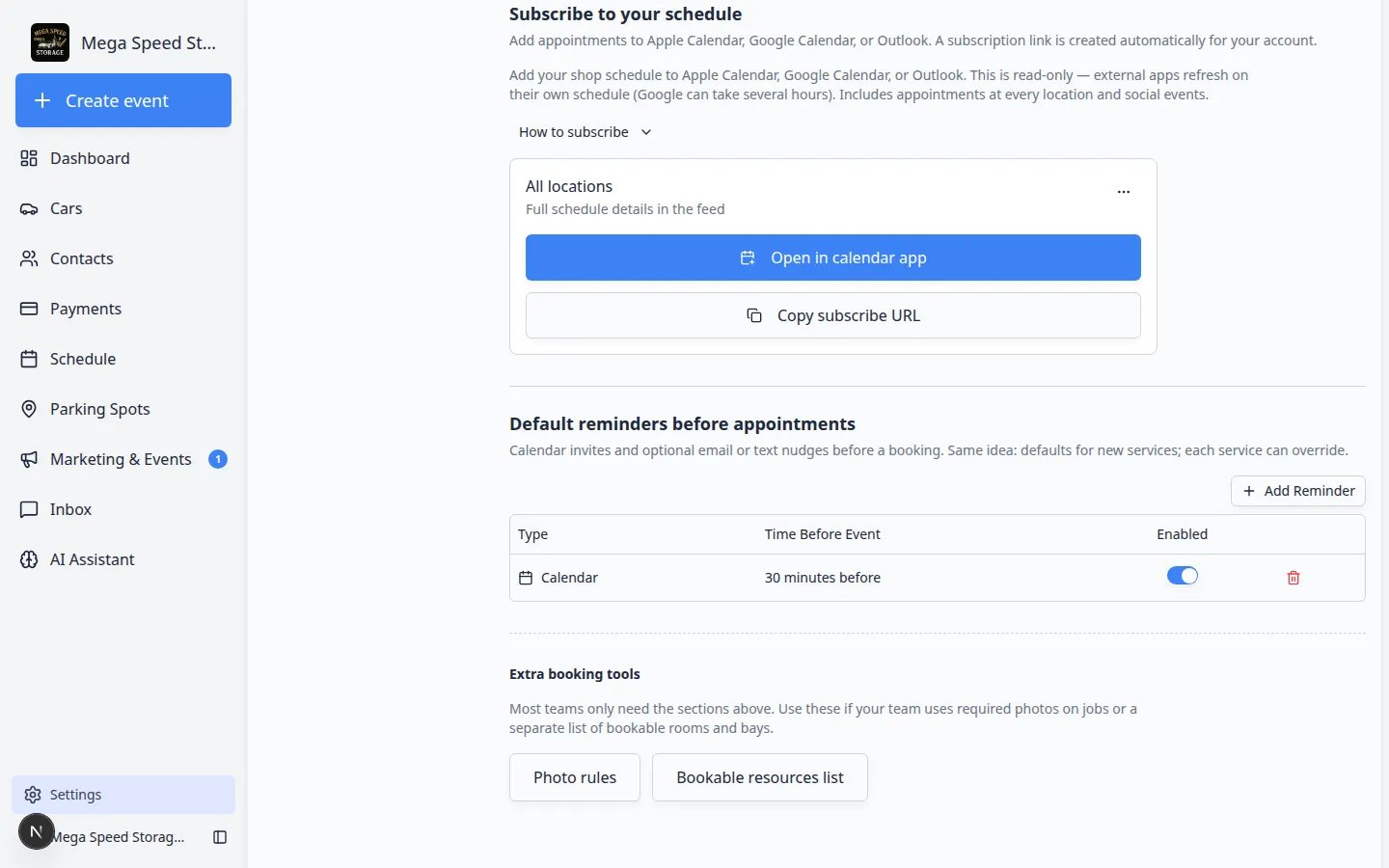 *Each team member gets their own subscription link. Use **Copy subscribe URL** for Google Calendar or Outlook, or **Open in calendar app** on a Mac or iPhone.*
For step-by-step help in Apple, Google, or Outlook, read [Subscribe to the team calendar](/docs/schedule/subscribe-to-the-team-calendar).
## Related settings on other pages
Some event setup lives outside Services & schedule. Use these pages when the guides below point you there:
* **Closed days** (holidays, facility closures) → [Settings > General](https://www.carstoragesoftware.com/dashboard/settings/general#closed-days)
* **Customer messages and reminders** → [Settings > Communications](https://www.carstoragesoftware.com/dashboard/settings/communications)
* **Bookable bays and amenities** → [Settings > Operations](https://www.carstoragesoftware.com/dashboard/settings/operations#amenities)
* **Advanced bookable resources** → [Settings > Bookable resources](https://www.carstoragesoftware.com/dashboard/settings/resources)
* **Photo rules audit** → [Settings > Photo rules](https://www.carstoragesoftware.com/dashboard/settings/photo-rules)
## How Events setup connects to Schedule
Your team does **not** live in Settings all day. After you configure event types here, everyday work happens on [Schedule](https://www.carstoragesoftware.com/dashboard/schedule).
| You set up in **Events** (Settings) | Your team uses it on **Schedule** |
| - | - |
| Event type name, color, and who can book | **Schedule Event** list and calendar colors |
| Require Approval and Designated Approver | **Needs Approval** filter and pending requests on Schedule |
| Scheduling hours and booking options | Available time slots when booking |
| Closed days and blockouts | **Unavailable** dates or no open times |
| Photo rules and workflow toggles | **Open Event** prompts during the visit |
| Bookable resources (bays, lifts) | Fewer double bookings on busy days |
| Require Approval on event type | **Needs approval** filter and approve/decline on [Schedule](https://www.carstoragesoftware.com/dashboard/schedule) |
*Each team member gets their own subscription link. Use **Copy subscribe URL** for Google Calendar or Outlook, or **Open in calendar app** on a Mac or iPhone.*
For step-by-step help in Apple, Google, or Outlook, read [Subscribe to the team calendar](/docs/schedule/subscribe-to-the-team-calendar).
## Related settings on other pages
Some event setup lives outside Services & schedule. Use these pages when the guides below point you there:
* **Closed days** (holidays, facility closures) → [Settings > General](https://www.carstoragesoftware.com/dashboard/settings/general#closed-days)
* **Customer messages and reminders** → [Settings > Communications](https://www.carstoragesoftware.com/dashboard/settings/communications)
* **Bookable bays and amenities** → [Settings > Operations](https://www.carstoragesoftware.com/dashboard/settings/operations#amenities)
* **Advanced bookable resources** → [Settings > Bookable resources](https://www.carstoragesoftware.com/dashboard/settings/resources)
* **Photo rules audit** → [Settings > Photo rules](https://www.carstoragesoftware.com/dashboard/settings/photo-rules)
## How Events setup connects to Schedule
Your team does **not** live in Settings all day. After you configure event types here, everyday work happens on [Schedule](https://www.carstoragesoftware.com/dashboard/schedule).
| You set up in **Events** (Settings) | Your team uses it on **Schedule** |
| - | - |
| Event type name, color, and who can book | **Schedule Event** list and calendar colors |
| Require Approval and Designated Approver | **Needs Approval** filter and pending requests on Schedule |
| Scheduling hours and booking options | Available time slots when booking |
| Closed days and blockouts | **Unavailable** dates or no open times |
| Photo rules and workflow toggles | **Open Event** prompts during the visit |
| Bookable resources (bays, lifts) | Fewer double bookings on busy days |
| Require Approval on event type | **Needs approval** filter and approve/decline on [Schedule](https://www.carstoragesoftware.com/dashboard/schedule) |
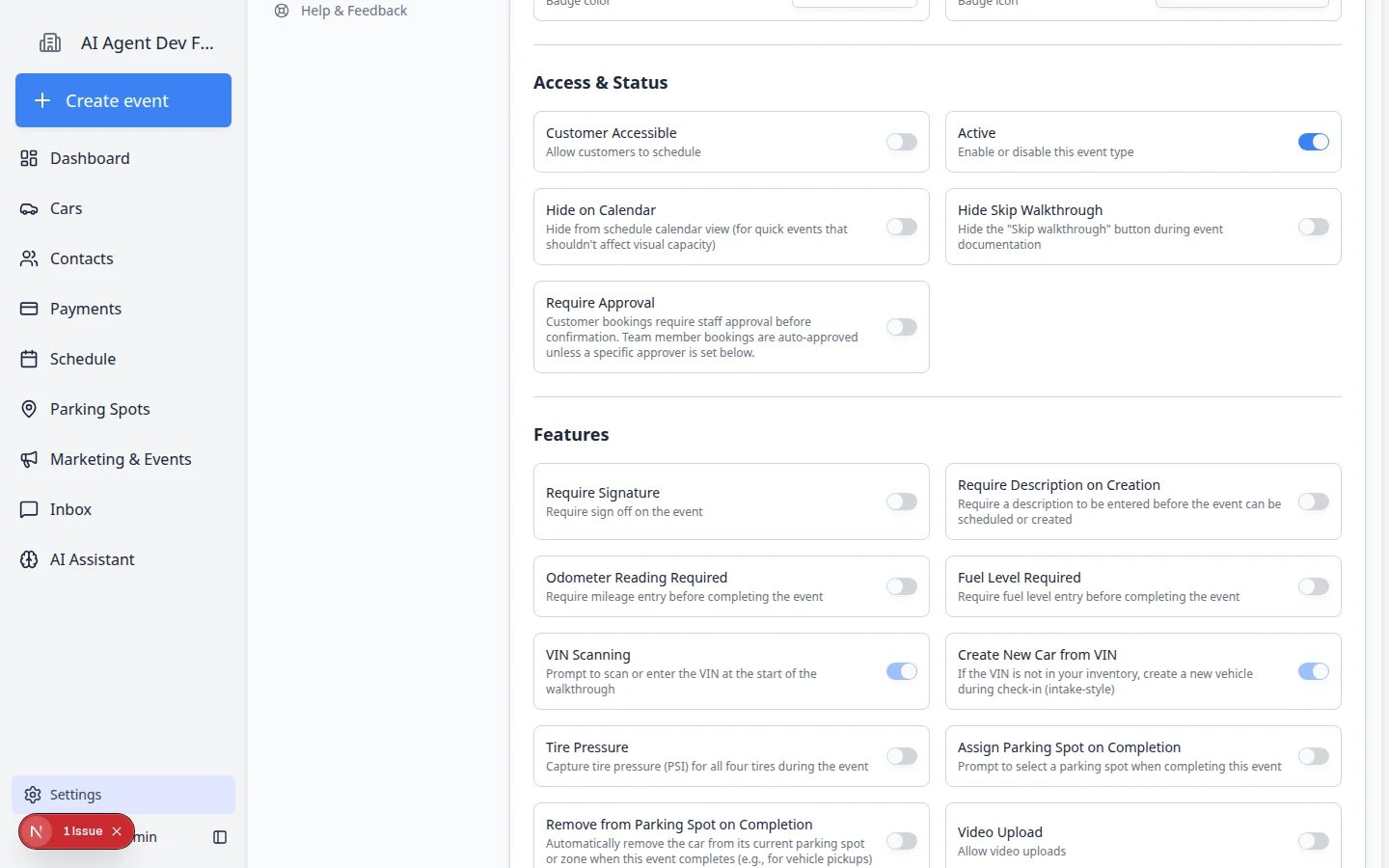 *Each event type controls what staff and customers see during a visit—turn on only the steps your process truly needs.*
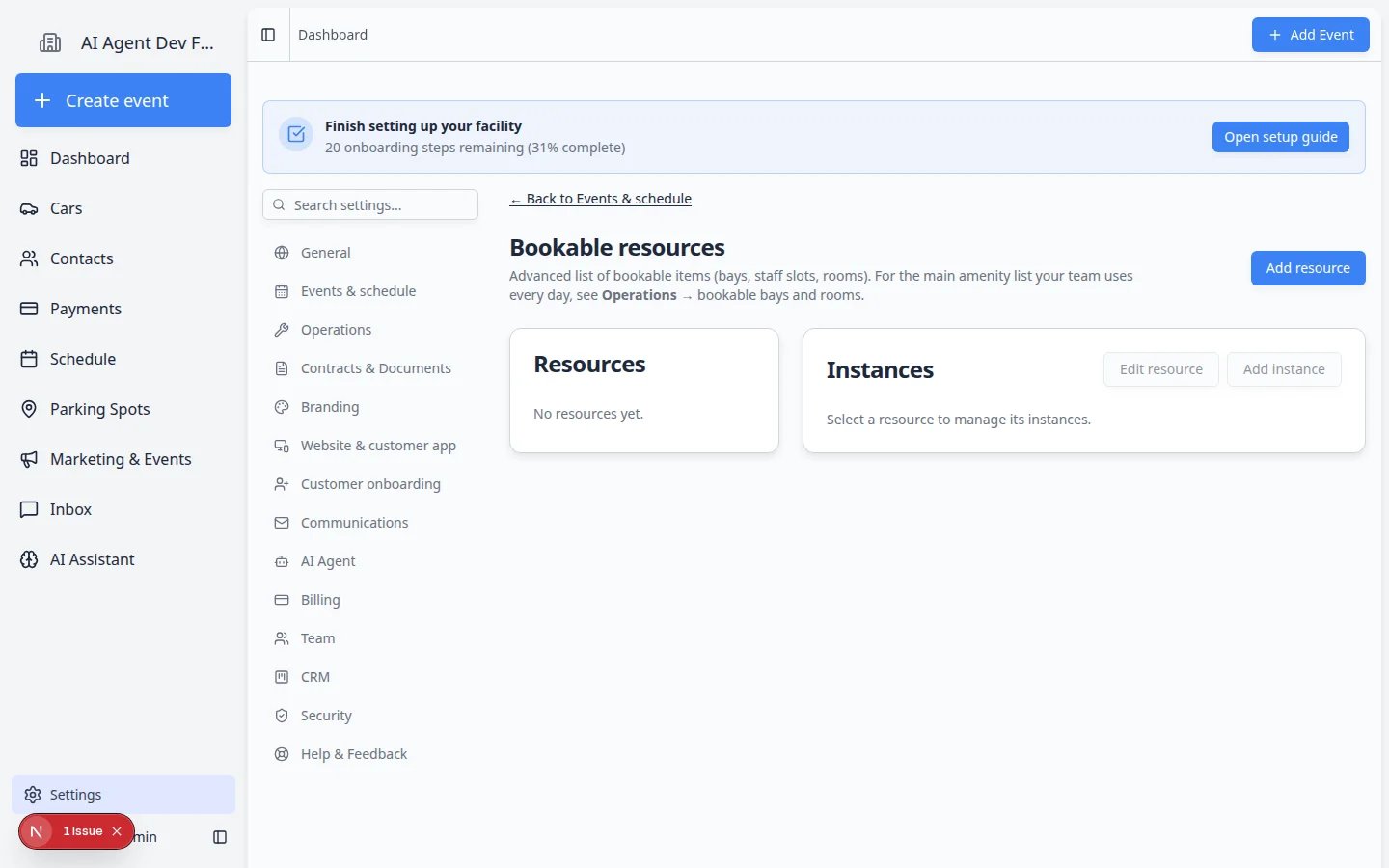 *When capacity matters, create named bays or rooms first, then link them to booking options so the calendar cannot double book.*
## Quick links by job
* **First-time facility setup:** [Configure event types](/docs/events/configure-event-types) → [Configure scheduling and booking options](/docs/events/configure-scheduling-and-booking-options) → [Test an event setup](/docs/events/test-an-event-setup)
* **Online bookings need review:** [Configure event types](/docs/events/configure-event-types) (**Require Approval**) → [Approve or decline customer booking requests](/docs/schedule/approve-or-decline-customer-booking-requests)
* **Customers book the wrong times:** [Configure scheduling and booking options](/docs/events/configure-scheduling-and-booking-options) and [Set closed days for events](/docs/events/set-closed-days-for-events)
* **Too many or too few customer texts/emails:** [Set up event notifications and reminders](/docs/events/set-up-event-notifications-and-reminders)
* **Staff skip photos at intake:** [Configure photo rules](/docs/events/configure-photo-rules) and [Configure walkthrough photo defaults](/docs/events/configure-walkthrough-photo-defaults)
* **Two appointments in one bay:** [Set up bookable resources](/docs/events/set-up-bookable-resources)
* **Recurring care for stored cars:** [Set up service plans](/docs/events/set-up-service-plans)
* **Create event cards too crowded on phones:** [Customize Create event screen layout](/docs/events/customize-create-event-screen-layout)
## More settings on the Services & schedule page
The [Settings > Services & schedule](https://www.carstoragesoftware.com/dashboard/settings/events) page includes four sections. Each one affects a different part of daily work.
### Service plans (recurring vehicle care)
**Service plans** bundle repeating work—such as a monthly fluid check and a quarterly dealer service—into one named package you assign to a car.
*When capacity matters, create named bays or rooms first, then link them to booking options so the calendar cannot double book.*
## Quick links by job
* **First-time facility setup:** [Configure event types](/docs/events/configure-event-types) → [Configure scheduling and booking options](/docs/events/configure-scheduling-and-booking-options) → [Test an event setup](/docs/events/test-an-event-setup)
* **Online bookings need review:** [Configure event types](/docs/events/configure-event-types) (**Require Approval**) → [Approve or decline customer booking requests](/docs/schedule/approve-or-decline-customer-booking-requests)
* **Customers book the wrong times:** [Configure scheduling and booking options](/docs/events/configure-scheduling-and-booking-options) and [Set closed days for events](/docs/events/set-closed-days-for-events)
* **Too many or too few customer texts/emails:** [Set up event notifications and reminders](/docs/events/set-up-event-notifications-and-reminders)
* **Staff skip photos at intake:** [Configure photo rules](/docs/events/configure-photo-rules) and [Configure walkthrough photo defaults](/docs/events/configure-walkthrough-photo-defaults)
* **Two appointments in one bay:** [Set up bookable resources](/docs/events/set-up-bookable-resources)
* **Recurring care for stored cars:** [Set up service plans](/docs/events/set-up-service-plans)
* **Create event cards too crowded on phones:** [Customize Create event screen layout](/docs/events/customize-create-event-screen-layout)
## More settings on the Services & schedule page
The [Settings > Services & schedule](https://www.carstoragesoftware.com/dashboard/settings/events) page includes four sections. Each one affects a different part of daily work.
### Service plans (recurring vehicle care)
**Service plans** bundle repeating work—such as a monthly fluid check and a quarterly dealer service—into one named package you assign to a car.
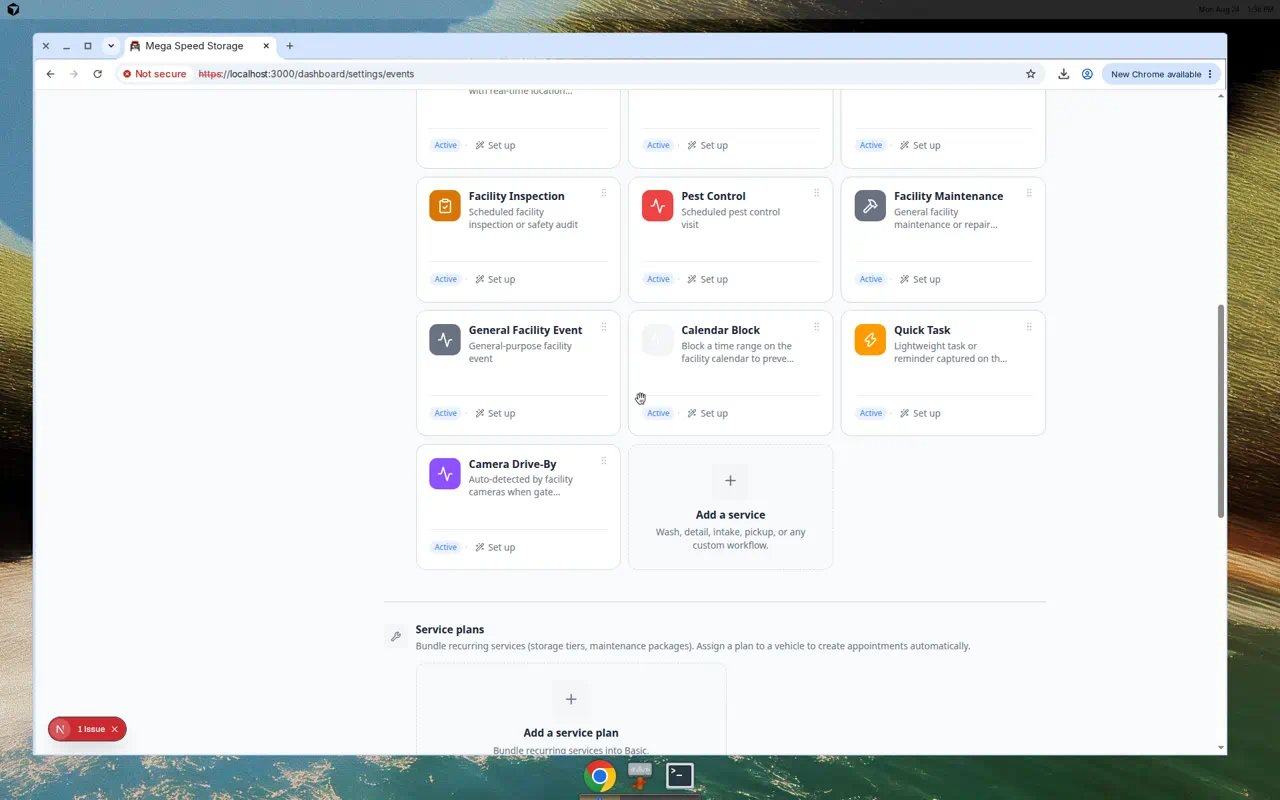 *Service plans live on the Services & schedule page. Use them when a storage tier or membership includes scheduled care—not one-time invoices.*
When a plan is assigned to a vehicle, the app can create recurring appointments using the same repeat rules as the calendar. For step-by-step setup, read [Set up service plans](/docs/events/set-up-service-plans).
### Create event screen layout
The **Create event** home screen (the large-button page many staff see after sign-in) can show **1**, **2**, or **3** columns of event types on desktop and mobile.
*Service plans live on the Services & schedule page. Use them when a storage tier or membership includes scheduled care—not one-time invoices.*
When a plan is assigned to a vehicle, the app can create recurring appointments using the same repeat rules as the calendar. For step-by-step setup, read [Set up service plans](/docs/events/set-up-service-plans).
### Create event screen layout
The **Create event** home screen (the large-button page many staff see after sign-in) can show **1**, **2**, or **3** columns of event types on desktop and mobile.
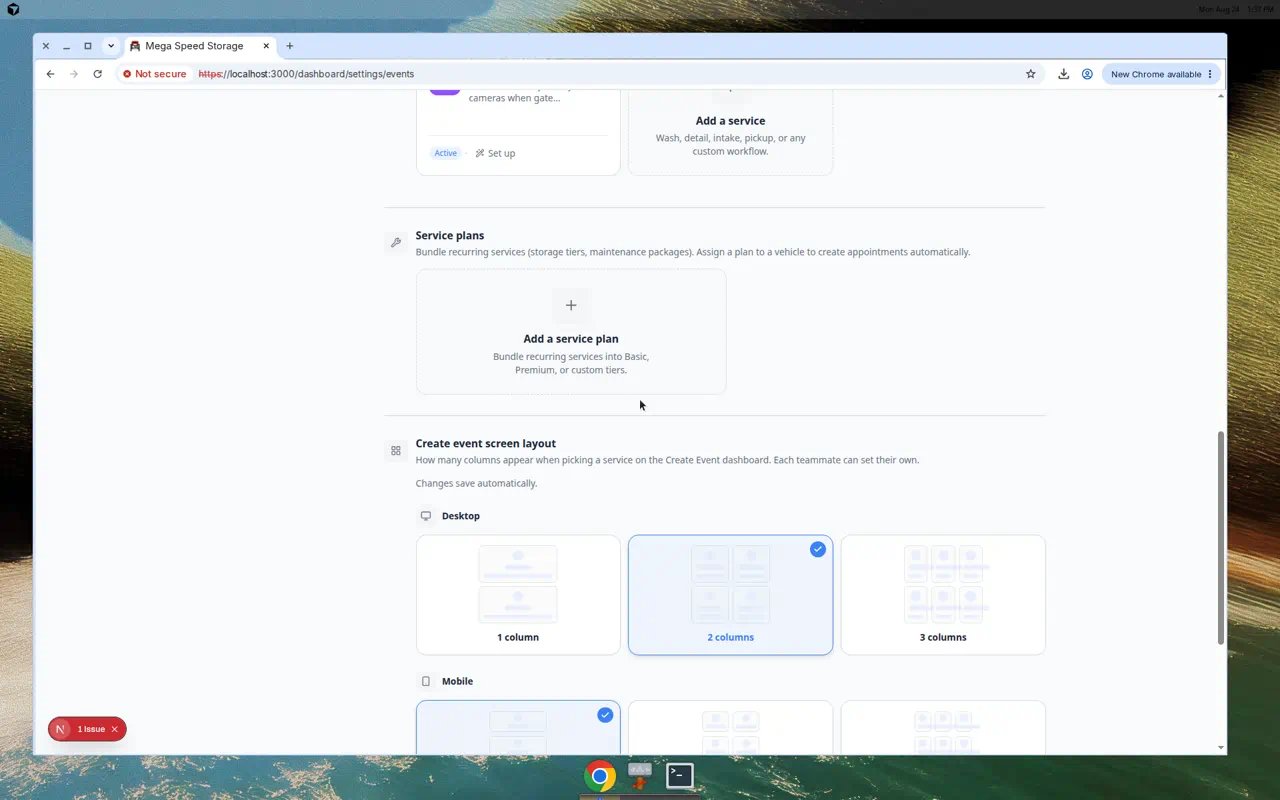 *Each team member can pick their own layout. Changes save automatically—no Save button on this section.*
**Why this matters:** A front-desk tablet may work better with **1 column** and large buttons. A wide monitor may fit **3 columns** so staff see more services at once.
### Subscribe to your schedule
Staff can add the facility calendar to Apple Calendar, Google Calendar, or Outlook using a personal subscription link on this page.
*The feed is read-only and refreshes on the calendar app's own schedule. For a full walkthrough, see [Subscribe to the team calendar](/docs/schedule/subscribe-to-the-team-calendar).*
**Calendar Block vs closed days**
**Closed days for the whole shop** block customer booking on holidays for every service. The **Calendar Block** event type blocks time on the calendar for internal use. Use closed days for Thanksgiving; use Calendar Block when one bay is offline but the rest of the shop is open. See [Set closed days for events](/docs/events/set-closed-days-for-events).
## How-to guides
* [Configure event types](/docs/events/configure-event-types) — create or edit the services and workflows your facility schedules.
* [Set up service plans](/docs/events/set-up-service-plans) — bundle recurring care packages for stored vehicles.
* [Configure walkthrough photo defaults](/docs/events/configure-walkthrough-photo-defaults) — set damage annotation behavior per service.
* [Customize Create event screen layout](/docs/events/customize-create-event-screen-layout) — choose column layout on the Create event home page.
* [Configure scheduling and booking options](/docs/events/configure-scheduling-and-booking-options) — set available hours, options, duration, buffer time, notice, and capacity.
* [Set closed days for events](/docs/events/set-closed-days-for-events) — block holidays and dates when bookings should not be accepted.
* [Set up event notifications and reminders](/docs/events/set-up-event-notifications-and-reminders) — choose customer emails, texts, and reminder timing.
* [Configure photo rules](/docs/events/configure-photo-rules) — require photos by zone and part so documentation is complete.
* [Set up bookable resources](/docs/events/set-up-bookable-resources) — add bays, rooms, lifts, staff, or equipment that limit scheduling capacity.
* [Test an event setup](/docs/events/test-an-event-setup) — confirm the setup works before customers or staff depend on it.
## Related areas of the app
Use [Schedule](https://www.carstoragesoftware.com/dashboard/schedule) for day-to-day calendar work. Use [Cars](https://www.carstoragesoftware.com/dashboard/cars) when an event is about one vehicle. Use [Marketing & Events](https://www.carstoragesoftware.com/dashboard/marketing) for social events, RSVPs, tickets, and check-in—not for operational service appointments.
## Troubleshooting
**Staff do not see the event type on Schedule**
Open the event type in [Settings > Services & schedule](https://www.carstoragesoftware.com/dashboard/settings/events) and confirm **Active** is on. If customers should see it, set **Who can see this** to **Customer** or **Both**. If they should pick a time themselves, turn on **Customers can book**.
**Customers see no open times**
Check **Scheduling** hours, **Booking Options**, [closed days](/docs/events/set-closed-days-for-events), and any [bookable resource](/docs/events/set-up-bookable-resources) tied to the event. One blocked rule can hide every time slot.
**We changed settings but one event type did not change**
Team-wide defaults apply only when an event type uses **Use team defaults** for messages and reminders. Open that event type and check for custom notification or reminder overrides.
## What to do next
If you are setting up the app for the first time, start with [Configure event types](/docs/events/configure-event-types). When the basics look right, run [Test an event setup](/docs/events/test-an-event-setup) before you invite customers to book online.
If your team already schedules work every day, keep using [Schedule](/docs/schedule/overview) and return here only when you need to add or change a service.
## What success looks like
After your Events setup is in good shape:
* Staff choose from clear event names instead of guessing.
* Customers can only request services that are ready for booking.
* Appointments use the right duration, reminders, and availability.
* Required photos and checklists appear during the workflow.
* Limited resources are easier to protect from double booking.
## Related topics
- [Marketing & Events overview](/docs/marketing-events/overview.md)
- [Use the Create event home page](/docs/basics/use-the-create-event-home.md)
- [Schedule overview](/docs/schedule/overview.md)
- [Contacts overview](/docs/contacts/overview.md)
- [Cars overview](/docs/cars/overview.md)
This documentation is built and hosted on [Mintlify](https://mintlify.com), a developer documentation platform.
*Each team member can pick their own layout. Changes save automatically—no Save button on this section.*
**Why this matters:** A front-desk tablet may work better with **1 column** and large buttons. A wide monitor may fit **3 columns** so staff see more services at once.
### Subscribe to your schedule
Staff can add the facility calendar to Apple Calendar, Google Calendar, or Outlook using a personal subscription link on this page.
*The feed is read-only and refreshes on the calendar app's own schedule. For a full walkthrough, see [Subscribe to the team calendar](/docs/schedule/subscribe-to-the-team-calendar).*
**Calendar Block vs closed days**
**Closed days for the whole shop** block customer booking on holidays for every service. The **Calendar Block** event type blocks time on the calendar for internal use. Use closed days for Thanksgiving; use Calendar Block when one bay is offline but the rest of the shop is open. See [Set closed days for events](/docs/events/set-closed-days-for-events).
## How-to guides
* [Configure event types](/docs/events/configure-event-types) — create or edit the services and workflows your facility schedules.
* [Set up service plans](/docs/events/set-up-service-plans) — bundle recurring care packages for stored vehicles.
* [Configure walkthrough photo defaults](/docs/events/configure-walkthrough-photo-defaults) — set damage annotation behavior per service.
* [Customize Create event screen layout](/docs/events/customize-create-event-screen-layout) — choose column layout on the Create event home page.
* [Configure scheduling and booking options](/docs/events/configure-scheduling-and-booking-options) — set available hours, options, duration, buffer time, notice, and capacity.
* [Set closed days for events](/docs/events/set-closed-days-for-events) — block holidays and dates when bookings should not be accepted.
* [Set up event notifications and reminders](/docs/events/set-up-event-notifications-and-reminders) — choose customer emails, texts, and reminder timing.
* [Configure photo rules](/docs/events/configure-photo-rules) — require photos by zone and part so documentation is complete.
* [Set up bookable resources](/docs/events/set-up-bookable-resources) — add bays, rooms, lifts, staff, or equipment that limit scheduling capacity.
* [Test an event setup](/docs/events/test-an-event-setup) — confirm the setup works before customers or staff depend on it.
## Related areas of the app
Use [Schedule](https://www.carstoragesoftware.com/dashboard/schedule) for day-to-day calendar work. Use [Cars](https://www.carstoragesoftware.com/dashboard/cars) when an event is about one vehicle. Use [Marketing & Events](https://www.carstoragesoftware.com/dashboard/marketing) for social events, RSVPs, tickets, and check-in—not for operational service appointments.
## Troubleshooting
**Staff do not see the event type on Schedule**
Open the event type in [Settings > Services & schedule](https://www.carstoragesoftware.com/dashboard/settings/events) and confirm **Active** is on. If customers should see it, set **Who can see this** to **Customer** or **Both**. If they should pick a time themselves, turn on **Customers can book**.
**Customers see no open times**
Check **Scheduling** hours, **Booking Options**, [closed days](/docs/events/set-closed-days-for-events), and any [bookable resource](/docs/events/set-up-bookable-resources) tied to the event. One blocked rule can hide every time slot.
**We changed settings but one event type did not change**
Team-wide defaults apply only when an event type uses **Use team defaults** for messages and reminders. Open that event type and check for custom notification or reminder overrides.
## What to do next
If you are setting up the app for the first time, start with [Configure event types](/docs/events/configure-event-types). When the basics look right, run [Test an event setup](/docs/events/test-an-event-setup) before you invite customers to book online.
If your team already schedules work every day, keep using [Schedule](/docs/schedule/overview) and return here only when you need to add or change a service.
## What success looks like
After your Events setup is in good shape:
* Staff choose from clear event names instead of guessing.
* Customers can only request services that are ready for booking.
* Appointments use the right duration, reminders, and availability.
* Required photos and checklists appear during the workflow.
* Limited resources are easier to protect from double booking.
## Related topics
- [Marketing & Events overview](/docs/marketing-events/overview.md)
- [Use the Create event home page](/docs/basics/use-the-create-event-home.md)
- [Schedule overview](/docs/schedule/overview.md)
- [Contacts overview](/docs/contacts/overview.md)
- [Cars overview](/docs/cars/overview.md)
This documentation is built and hosted on [Mintlify](https://mintlify.com), a developer documentation platform.