> ## Documentation Index
> Fetch the complete documentation index at: https://www.carstoragesoftware.com/docs/llms.txt
> Use this file to discover all available pages before exploring further.
# Set closed days for events
> Block holidays, facility closures, and service-specific blackout dates so customers do not book unavailable days.
## What you will accomplish
You will block dates when your facility—or one specific service—should not accept new bookings.
Common examples include holidays, staff training days, facility maintenance, private events, severe weather closures, or any day your team cannot support appointments.
Closed days stop **new customer bookings** on those dates. They do not automatically cancel appointments that were already on [Schedule](https://www.carstoragesoftware.com/dashboard/schedule).
**Closed days vs Calendar Block**
**Closed days** (this guide) block new customer bookings on a date. **Calendar Block** is a different event type on [Schedule](https://www.carstoragesoftware.com/dashboard/schedule) that blocks a time range on the calendar for staff and customers. Use closed days for holidays; use Calendar Block for a two-hour team meeting or bay maintenance window. See [Events overview](/docs/events/overview).
**Staff can still schedule with care**
When your team books from [Schedule](https://www.carstoragesoftware.com/dashboard/schedule), the app may still show time slots on a closed day so managers can override rules when needed. **Customers** booking online or through the portal should see **Unavailable** or **no open times** on closed days. Always double-check the customer path with [Test an event setup](/docs/events/test-an-event-setup).
There are two kinds of closed days—and a third tool that looks similar but works differently:
* **Whole-shop closed days** block bookings for the entire facility. You set these on [Settings > General](https://www.carstoragesoftware.com/dashboard/settings/general#closed-days).
* **Event-specific block out dates** block one event type, while other event types can still be booked. You set these inside each event type's **Scheduling** section.
* **Calendar Block** (an event type) holds time on the staff calendar—it is not the same as a holiday closure. Staff use it for internal blocks; customers do not book it online.
**Holiday vs one bay offline**
Use **Closed days** on [General settings](https://www.carstoragesoftware.com/dashboard/settings/general#closed-days) when nobody should book anything (Christmas, snow day). Use an **event-specific block out** when only Detail is closed but Pickup still runs. Use **Calendar Block** on [Schedule](https://www.carstoragesoftware.com/dashboard/schedule) when you need to reserve time without calling it a holiday.
## Before you start
* Make sure you have admin access to [Settings > General](https://www.carstoragesoftware.com/dashboard/settings/general) and [Settings > Services & schedule](https://www.carstoragesoftware.com/dashboard/settings/events).
* Know whether the closure affects the whole facility or only one service.
* Write a short reason, such as **Thanksgiving**, **Detail bay maintenance**, or **Staff training**.
* If appointments already exist on that date, review them before adding the closed day.
## Add a whole-shop closed day
Whole-shop closed days are best when the entire facility is closed.
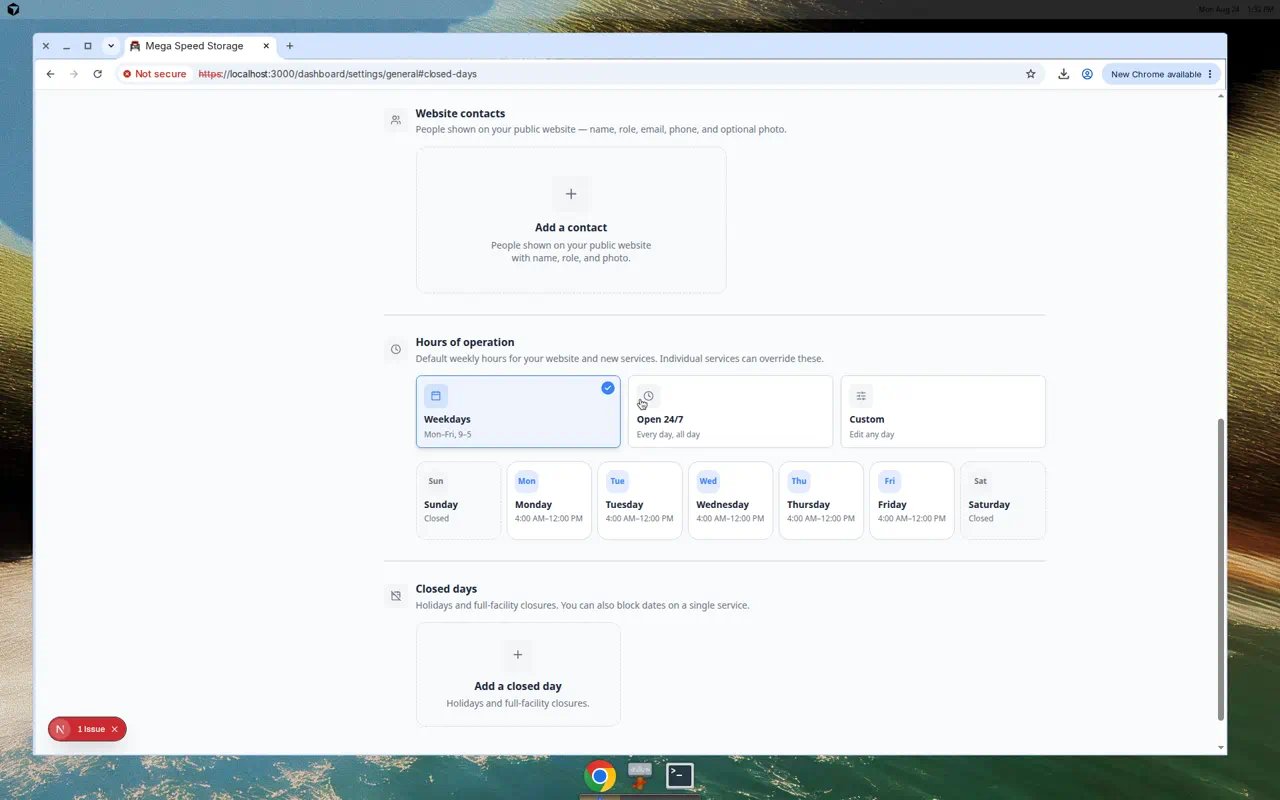 *Whole-shop closed days live on [Settings > General](https://www.carstoragesoftware.com/dashboard/settings/general#closed-days)—not on the Services & schedule page.*
In the left sidebar, click **Settings**, then **General**. You can also go directly to [Settings > General](https://www.carstoragesoftware.com/dashboard/settings/general#closed-days).
Scroll to **Closed days**.
**Expected result:** You see upcoming closure cards (if any) and a dashed **Add a closed day** tile.
Click the **Add a closed day** card.
**Expected result:** A dialog opens with a calendar and a **Reason (optional)** field.
Pick the date on the calendar.
You can only choose dates that are not already blocked.
In **Reason (optional)**, type a short note that explains the closure.
Examples: **Christmas**, **Facility maintenance**, or **Team training**.
**Why this matters:** A clear reason helps your team remember why the date was blocked months later.
Click **Save** or **Add** in the dialog.
**Expected result:** A new closure card appears in the **Closed days** list with the date and reason you typed.
*Whole-shop closed days live on [Settings > General](https://www.carstoragesoftware.com/dashboard/settings/general#closed-days)—not on the Services & schedule page.*
In the left sidebar, click **Settings**, then **General**. You can also go directly to [Settings > General](https://www.carstoragesoftware.com/dashboard/settings/general#closed-days).
Scroll to **Closed days**.
**Expected result:** You see upcoming closure cards (if any) and a dashed **Add a closed day** tile.
Click the **Add a closed day** card.
**Expected result:** A dialog opens with a calendar and a **Reason (optional)** field.
Pick the date on the calendar.
You can only choose dates that are not already blocked.
In **Reason (optional)**, type a short note that explains the closure.
Examples: **Christmas**, **Facility maintenance**, or **Team training**.
**Why this matters:** A clear reason helps your team remember why the date was blocked months later.
Click **Save** or **Add** in the dialog.
**Expected result:** A new closure card appears in the **Closed days** list with the date and reason you typed.
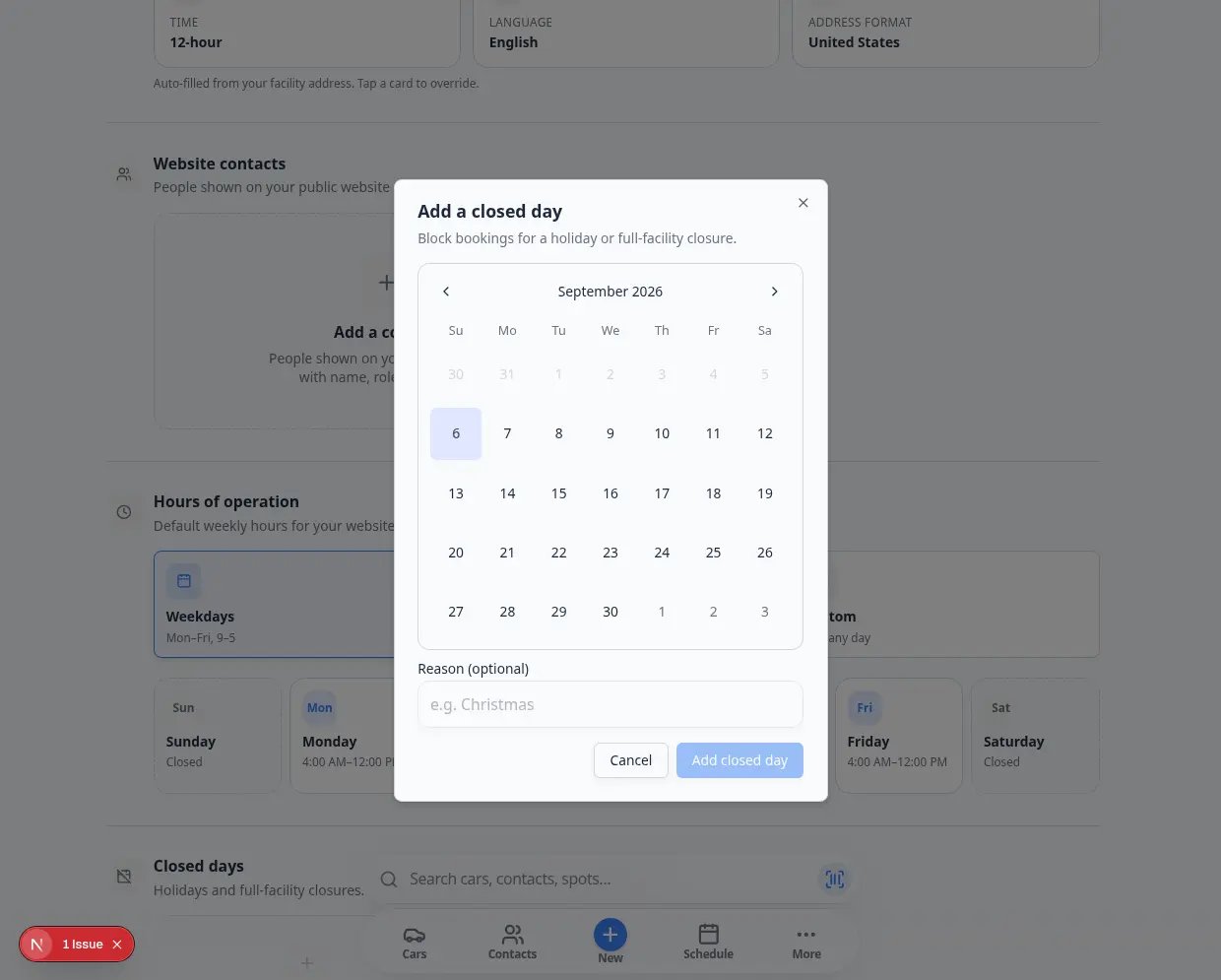 *The **Add a closed day** dialog lets you pick one date and add a short reason your team will recognize later.*
**What happens after you add it**
New customer bookings are blocked on that date for the **entire facility**. The closed day does not erase past activity and does not automatically cancel appointments that were already scheduled—you still need to review [Schedule](https://www.carstoragesoftware.com/dashboard/schedule) for existing work on that day.
## Add a block out date for only one event type
Use this when one service is unavailable but the rest of the facility is open.
Example: Your detail bay is closed for maintenance, but vehicle pickup appointments are still allowed.
Go to [Settings > Services & schedule](https://www.carstoragesoftware.com/dashboard/settings/events), find the event type card, and click **Set up** or **Advanced**.
**Expected result:** The event type editor opens.
Find the **Scheduling** section.
This is where the event type stores its own availability rules.
In **Scheduling**, scroll to **Block Out Dates**.
Click the date on the small calendar, type a short reason (for example **Detail bay maintenance**), then click **Add Block Out Date**.
**Expected result:** The date shows in this event type's block out list. Other event types can still accept bookings on the same day if they are not blocked separately.
The editor saves automatically. Look for **Saving…** or **Saved** near the top of the page.
**Expected result:** The block out date applies the next time someone tries to book this event type.
Open [Schedule](https://www.carstoragesoftware.com/dashboard/schedule), click **Schedule Event**, choose this event type, and pick the blocked date on the calendar.
**Expected result for customers:** Online booking should show **Unavailable** or no open times on that date.
**Expected result for staff:** You may still see time slots because staff can override rules when a manager approves. Use **Continue anyway** only when you mean to book outside normal rules.
*The **Add a closed day** dialog lets you pick one date and add a short reason your team will recognize later.*
**What happens after you add it**
New customer bookings are blocked on that date for the **entire facility**. The closed day does not erase past activity and does not automatically cancel appointments that were already scheduled—you still need to review [Schedule](https://www.carstoragesoftware.com/dashboard/schedule) for existing work on that day.
## Add a block out date for only one event type
Use this when one service is unavailable but the rest of the facility is open.
Example: Your detail bay is closed for maintenance, but vehicle pickup appointments are still allowed.
Go to [Settings > Services & schedule](https://www.carstoragesoftware.com/dashboard/settings/events), find the event type card, and click **Set up** or **Advanced**.
**Expected result:** The event type editor opens.
Find the **Scheduling** section.
This is where the event type stores its own availability rules.
In **Scheduling**, scroll to **Block Out Dates**.
Click the date on the small calendar, type a short reason (for example **Detail bay maintenance**), then click **Add Block Out Date**.
**Expected result:** The date shows in this event type's block out list. Other event types can still accept bookings on the same day if they are not blocked separately.
The editor saves automatically. Look for **Saving…** or **Saved** near the top of the page.
**Expected result:** The block out date applies the next time someone tries to book this event type.
Open [Schedule](https://www.carstoragesoftware.com/dashboard/schedule), click **Schedule Event**, choose this event type, and pick the blocked date on the calendar.
**Expected result for customers:** Online booking should show **Unavailable** or no open times on that date.
**Expected result for staff:** You may still see time slots because staff can override rules when a manager approves. Use **Continue anyway** only when you mean to book outside normal rules.
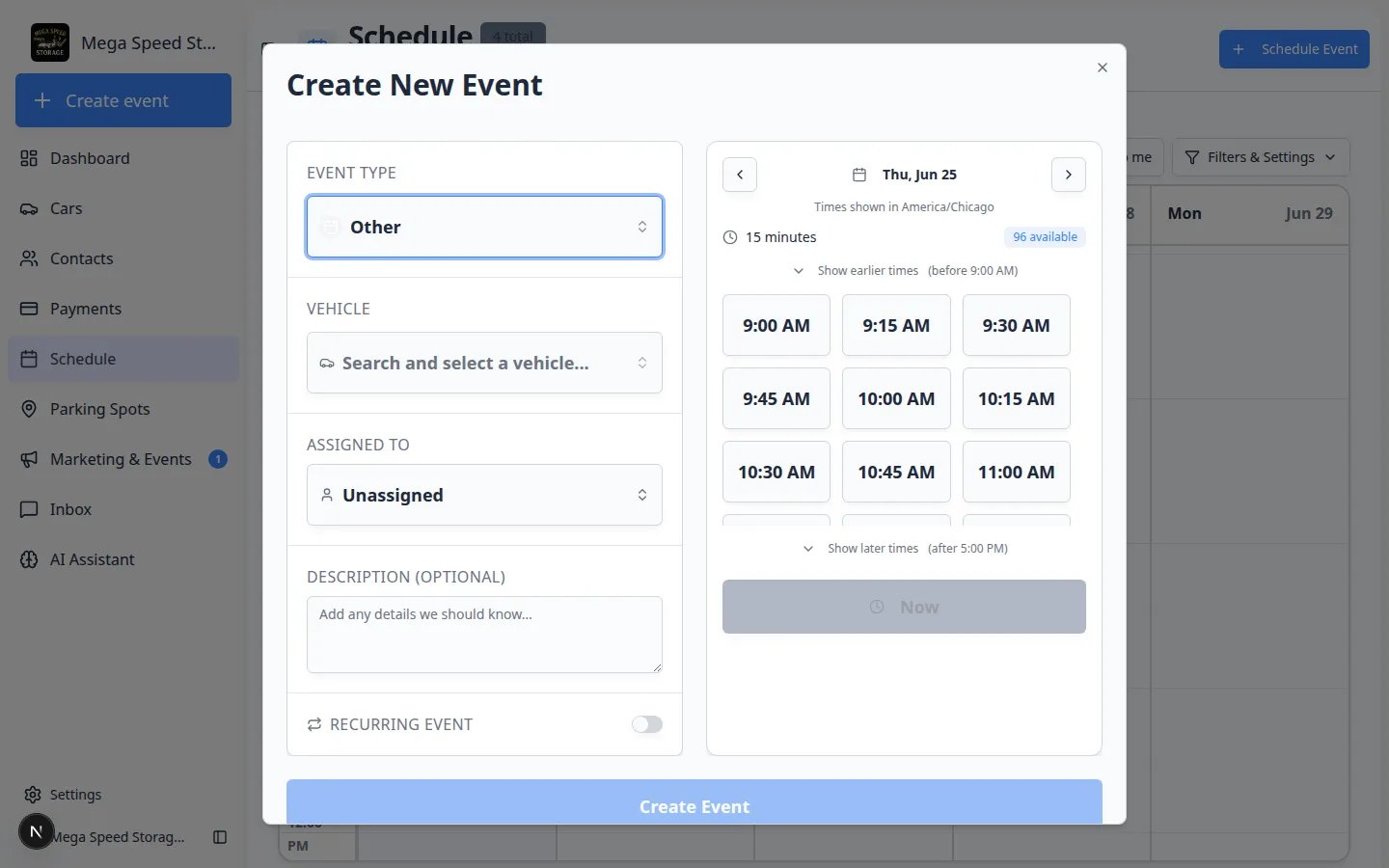 *On a whole-shop closed day, the time area should show **Unavailable** or no open slots for customer-facing booking. Test the same date your customers would use.*
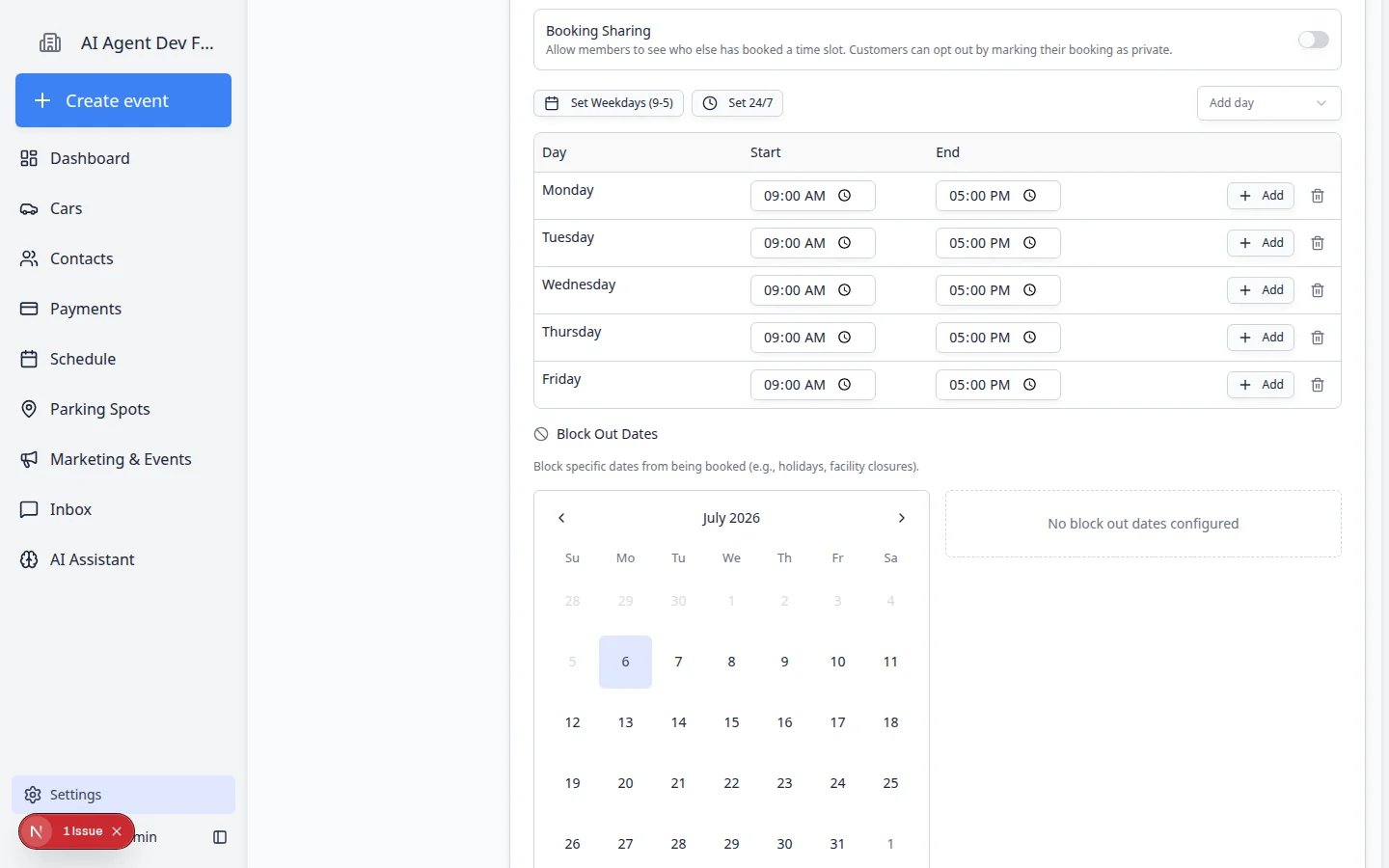 *Event-specific block out dates live inside the event type's Scheduling section—not in General closed days.*
**Dates follow your facility time zone**
Closed days use the time zone from [Settings > General](https://www.carstoragesoftware.com/dashboard/settings/general). If your team spans regions, pick the zone that matches where the work happens.
## See closed days on the Schedule calendar
Your team can spot facility-wide closed days without opening Settings.
Go to [Schedule](https://www.carstoragesoftware.com/dashboard/schedule).
Click **Filters & Settings**, choose **Calendar** under **View Mode**, then click **Month**. Move to the month that includes your closed day.
**Expected result:** Blocked dates may show a special marker or styling on the month grid so staff know bookings are limited that day.
If customers book online, test the same date from your public booking page. Customers should not be able to finish a booking on a whole-shop closed day.
**Why this matters:** The month view helps staff plan; the customer test confirms outsiders cannot book when you are closed.
*Event-specific block out dates live inside the event type's Scheduling section—not in General closed days.*
**Dates follow your facility time zone**
Closed days use the time zone from [Settings > General](https://www.carstoragesoftware.com/dashboard/settings/general). If your team spans regions, pick the zone that matches where the work happens.
## See closed days on the Schedule calendar
Your team can spot facility-wide closed days without opening Settings.
Go to [Schedule](https://www.carstoragesoftware.com/dashboard/schedule).
Click **Filters & Settings**, choose **Calendar** under **View Mode**, then click **Month**. Move to the month that includes your closed day.
**Expected result:** Blocked dates may show a special marker or styling on the month grid so staff know bookings are limited that day.
If customers book online, test the same date from your public booking page. Customers should not be able to finish a booking on a whole-shop closed day.
**Why this matters:** The month view helps staff plan; the customer test confirms outsiders cannot book when you are closed.
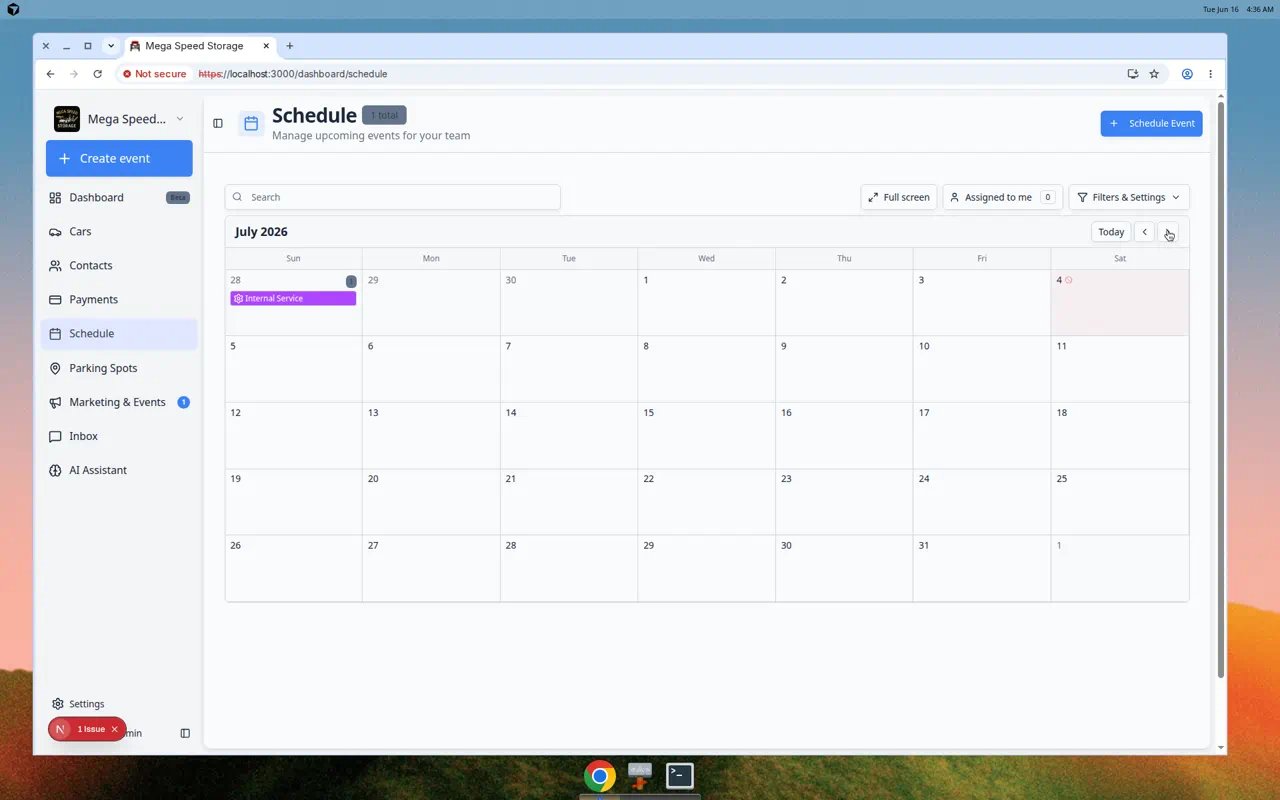 *Month view helps staff spot closure days at a glance. Use it when you plan around holidays or maintenance.*
## Remove a closed day you no longer need
Go to [Settings > General](https://www.carstoragesoftware.com/dashboard/settings/general#closed-days) for whole-shop closures—or open the event type editor for a service-specific block out.
Look in the **Closed days** list on General settings, or the event type's block out list.
**Expected result:** You see the date and reason you added earlier.
Click the remove or delete control on the closure card.
**Expected result:** The date disappears from the list and new customer bookings can use that day again—if your normal scheduling hours allow it.
**Removing does not reschedule old work**
Deleting a closed day only allows **new** bookings. Appointments that were already on [Schedule](https://www.carstoragesoftware.com/dashboard/schedule) stay where they are until someone changes them.
## Check existing appointments before closing a day
Closed days prevent new bookings, but your team should still check the schedule for appointments that were already created.
Go to [Schedule](https://www.carstoragesoftware.com/dashboard/schedule).
Use the calendar controls to view that date.
Look for customer visits, pickups, deliveries, service work, or internal tasks.
If the closure affects an existing appointment, update it before relying on the closed day.
For help, see [Update, assign, or reschedule an event](/docs/schedule/update-assign-or-reschedule-an-event) or [Cancel or delete a scheduled event](/docs/schedule/cancel-or-delete-a-scheduled-event).
## What success looks like
After setup:
* The closed date appears in the closure list on General settings (or in the event type's block out list).
* Customers cannot choose that date for affected bookings.
* Staff understand why the date is closed because the reason is clear.
* Existing appointments were reviewed and handled separately if needed.
## Common mistakes to avoid
* Do not use a whole-shop closed day when only one service is unavailable.
* Do not assume closed days cancel existing appointments. Review the Schedule page.
* Do not leave the reason blank if your team may forget why the date was blocked.
* Do not block a past date unless you are cleaning up records. It will not help future booking availability.
## Troubleshooting
**Customers can still book the date**
Confirm whether you added the date in the right place. Whole-shop closed days on [General settings](https://www.carstoragesoftware.com/dashboard/settings/general#closed-days) block the facility for **customer** booking. Event-specific block out dates block only one event type.
Staff booking from [Schedule](https://www.carstoragesoftware.com/dashboard/schedule) may still show time slots because managers can override rules. Test the **customer** booking path—not only the staff form—to confirm closures work.
**The date is not selectable**
The date may already be blocked, or it may be in the past. Check the closed days list on General settings.
**I need to reopen the date**
Find the date in the closed days list and remove it. After it is removed, new bookings can use that date again if the rest of the scheduling rules allow it.
## What to do next
After closed days are set, review [Configure scheduling and booking options](/docs/events/configure-scheduling-and-booking-options) to make sure normal available days and hours are correct. Then run [Test an event setup](/docs/events/test-an-event-setup) on both an open day and a closed day.
If you also manage recurring care for stored vehicles, return to [Set up service plans](/docs/events/set-up-service-plans) after your calendar rules look right.
## Related topics
- [Events overview](/docs/events/overview.md)
- [Test an event setup](/docs/events/test-an-event-setup.md)
- [Configure scheduling and booking options](/docs/events/configure-scheduling-and-booking-options.md)
- [Configure event types](/docs/events/configure-event-types.md)
- [Configure services and schedule settings](/docs/settings/configure-events-and-schedule-settings.md)
This documentation is built and hosted on [Mintlify](https://mintlify.com), a developer documentation platform.
*Month view helps staff spot closure days at a glance. Use it when you plan around holidays or maintenance.*
## Remove a closed day you no longer need
Go to [Settings > General](https://www.carstoragesoftware.com/dashboard/settings/general#closed-days) for whole-shop closures—or open the event type editor for a service-specific block out.
Look in the **Closed days** list on General settings, or the event type's block out list.
**Expected result:** You see the date and reason you added earlier.
Click the remove or delete control on the closure card.
**Expected result:** The date disappears from the list and new customer bookings can use that day again—if your normal scheduling hours allow it.
**Removing does not reschedule old work**
Deleting a closed day only allows **new** bookings. Appointments that were already on [Schedule](https://www.carstoragesoftware.com/dashboard/schedule) stay where they are until someone changes them.
## Check existing appointments before closing a day
Closed days prevent new bookings, but your team should still check the schedule for appointments that were already created.
Go to [Schedule](https://www.carstoragesoftware.com/dashboard/schedule).
Use the calendar controls to view that date.
Look for customer visits, pickups, deliveries, service work, or internal tasks.
If the closure affects an existing appointment, update it before relying on the closed day.
For help, see [Update, assign, or reschedule an event](/docs/schedule/update-assign-or-reschedule-an-event) or [Cancel or delete a scheduled event](/docs/schedule/cancel-or-delete-a-scheduled-event).
## What success looks like
After setup:
* The closed date appears in the closure list on General settings (or in the event type's block out list).
* Customers cannot choose that date for affected bookings.
* Staff understand why the date is closed because the reason is clear.
* Existing appointments were reviewed and handled separately if needed.
## Common mistakes to avoid
* Do not use a whole-shop closed day when only one service is unavailable.
* Do not assume closed days cancel existing appointments. Review the Schedule page.
* Do not leave the reason blank if your team may forget why the date was blocked.
* Do not block a past date unless you are cleaning up records. It will not help future booking availability.
## Troubleshooting
**Customers can still book the date**
Confirm whether you added the date in the right place. Whole-shop closed days on [General settings](https://www.carstoragesoftware.com/dashboard/settings/general#closed-days) block the facility for **customer** booking. Event-specific block out dates block only one event type.
Staff booking from [Schedule](https://www.carstoragesoftware.com/dashboard/schedule) may still show time slots because managers can override rules. Test the **customer** booking path—not only the staff form—to confirm closures work.
**The date is not selectable**
The date may already be blocked, or it may be in the past. Check the closed days list on General settings.
**I need to reopen the date**
Find the date in the closed days list and remove it. After it is removed, new bookings can use that date again if the rest of the scheduling rules allow it.
## What to do next
After closed days are set, review [Configure scheduling and booking options](/docs/events/configure-scheduling-and-booking-options) to make sure normal available days and hours are correct. Then run [Test an event setup](/docs/events/test-an-event-setup) on both an open day and a closed day.
If you also manage recurring care for stored vehicles, return to [Set up service plans](/docs/events/set-up-service-plans) after your calendar rules look right.
## Related topics
- [Events overview](/docs/events/overview.md)
- [Test an event setup](/docs/events/test-an-event-setup.md)
- [Configure scheduling and booking options](/docs/events/configure-scheduling-and-booking-options.md)
- [Configure event types](/docs/events/configure-event-types.md)
- [Configure services and schedule settings](/docs/settings/configure-events-and-schedule-settings.md)
This documentation is built and hosted on [Mintlify](https://mintlify.com), a developer documentation platform.