> ## Documentation Index
> Fetch the complete documentation index at: https://www.carstoragesoftware.com/docs/llms.txt
> Use this file to discover all available pages before exploring further.
# Set up event notifications and reminders
> Choose which customer emails, texts, and reminders are sent for scheduled events.
## What you will accomplish
You will choose which emails, texts, and reminders customers receive when an event is scheduled, changed, started, completed, or cancelled.
Clear messages reduce phone calls, missed appointments, and confusion. They also help customers feel confident that their booking is confirmed and your team is prepared.
This guide explains two related settings:
* **Team defaults** on [Settings > Communications](https://www.carstoragesoftware.com/dashboard/settings/communications) decide which messages and reminders new event types inherit.
* **Event overrides** on each event type let one service send different messages than the rest of your shop.
**Where to find team defaults**
Open [Settings > Communications](https://www.carstoragesoftware.com/dashboard/settings/communications), scroll to **Alerts**, choose **Customers**, then open **Scheduling** (texts and emails for new services) or **Reminders** (nudges before appointments). Turn on **Automated customer messages** first—without it, the Scheduling and Reminders panels stay hidden.
**Set up texting and email first**
Customer **Email** and **SMS** messages only work after your facility finishes [Configure communications](/docs/settings/configure-communications). If a channel is grayed out or unavailable, complete that setup before turning the channel on here.
## Before you start
* Make sure the event type already exists. If not, start with [Configure event types](/docs/events/configure-event-types).
* Decide whether the event should use your team defaults or its own custom settings.
* Confirm your team has email or text messaging set up in [Settings > Communications](https://www.carstoragesoftware.com/dashboard/settings/communications) if you plan to send those messages.
* Think about what customers truly need. Too many messages can feel noisy.
## Recommended starter setup (most facilities)
If you are unsure where to begin, use these team defaults first. You can always turn more channels on later.
* **Scheduled → Email** on — customers get a confirmation when an appointment is booked.
* **Rescheduled → Email** on — customers know when the time changes.
* **Cancelled → Email** on — customers are not left wondering.
* **In Progress** and **Completed** off for customer-facing events unless you have a specific reason (many facilities keep these staff-only).
* **SMS** off until [Configure communications](/docs/settings/configure-communications) is finished.
* One default reminder: **Email — 1 day before** the appointment.
**What customers actually receive**
Messages use your facility name and the appointment details from the event (date, time, service name, and vehicle when applicable). The exact wording comes from your team's message templates in **Services & schedule** settings. After you send a test appointment, check the customer's inbox or phone to confirm it reads clearly.
**Bookings that need staff approval first**
If an event type uses **Require Approval** ([Configure event types](/docs/events/configure-event-types)), customers may not receive a final **Scheduled** confirmation until your team approves the request. Turn on **Scheduled → Email** anyway so customers get a message once the appointment is confirmed.
## Understand team defaults and event overrides
Team defaults are the starting message settings for new event types.
Event overrides are custom settings for one specific event type.
Example:
Your team may want all events to send an email when they are scheduled. That belongs in the team default.
But you may want **Vehicle Pickup** to send an extra reminder one day before the appointment. That can be set on the Vehicle Pickup event type.
## Review default texts and emails for new services
Team defaults live on the Communications page—not on Services & schedule.
Go to [Settings > Communications](https://www.carstoragesoftware.com/dashboard/settings/communications).
Scroll to **Alerts** and click **Customers**.
**Expected result:** You see choice cards for **Scheduling**, **Reminders**, and **Billing**.
If **Automated customer messages** is off, turn it on first.
**Why this matters:** Scheduling and Reminders settings stay hidden until automated messages are enabled for your facility.
Click the **Scheduling** card (texts and emails for new services).
**Expected result:** A matrix shows triggers such as **Scheduled**, **Rescheduled**, **In Progress**, **Completed**, and **Cancelled** with **Email**, **SMS**, and **Push** channels.
Turn on only the messages your facility wants for new event types.
**Expected result:** You know which messages new event types will send by default. Turn off channels you do not want (for example **SMS** until texting is set up).
Click a **channel** name (Email, SMS, or Push) or a **trigger** name (Scheduled, Rescheduled, and so on) in the table header.
**Expected result:** Every checkbox in that row or column turns on or off together. This is faster than clicking each box when you are setting up many channels at once.
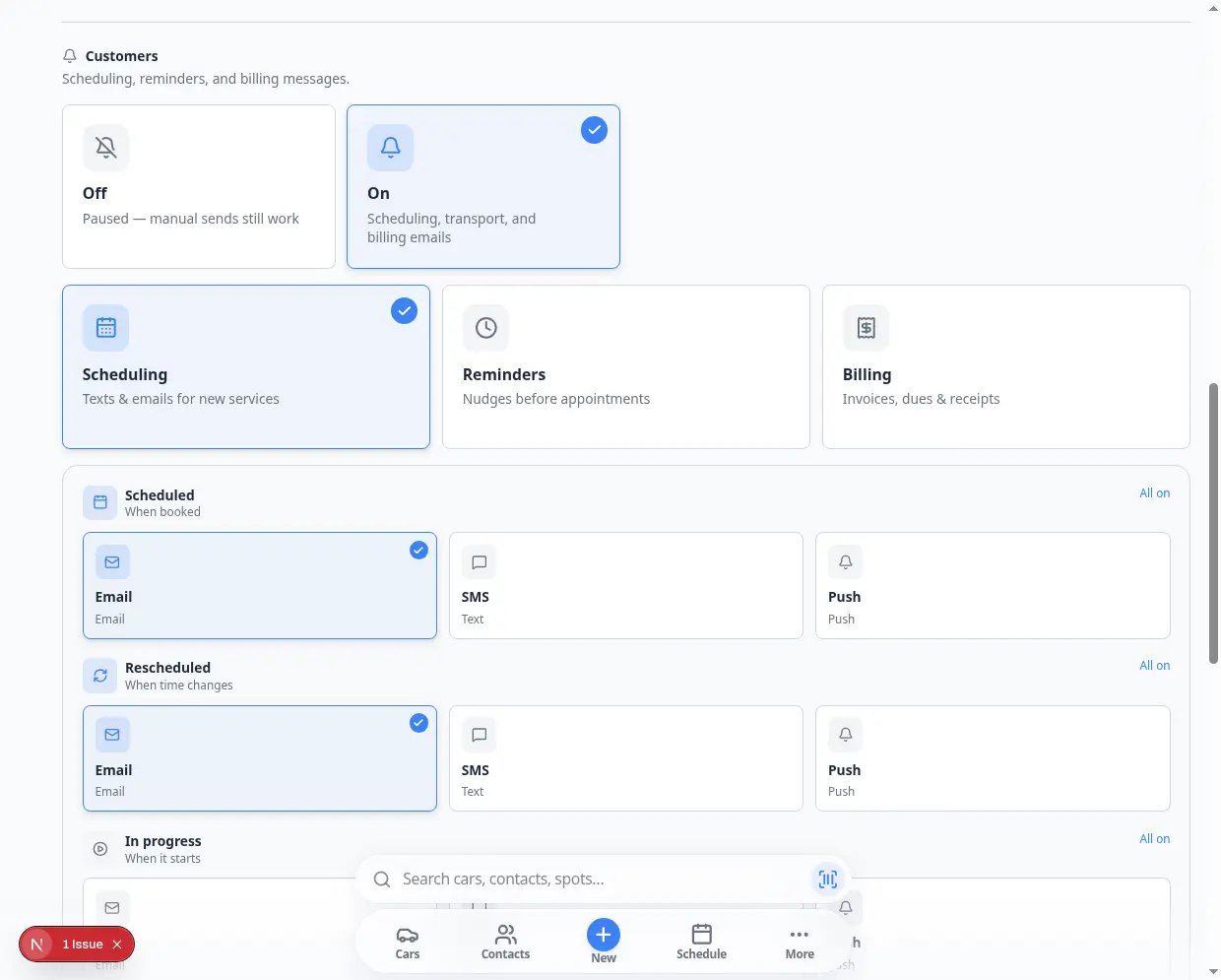 *The **Scheduling** panel shows which messages new event types send by default. Turn on **Email** for **Scheduled** and **Rescheduled** first—add **SMS** only after texting is set up.*
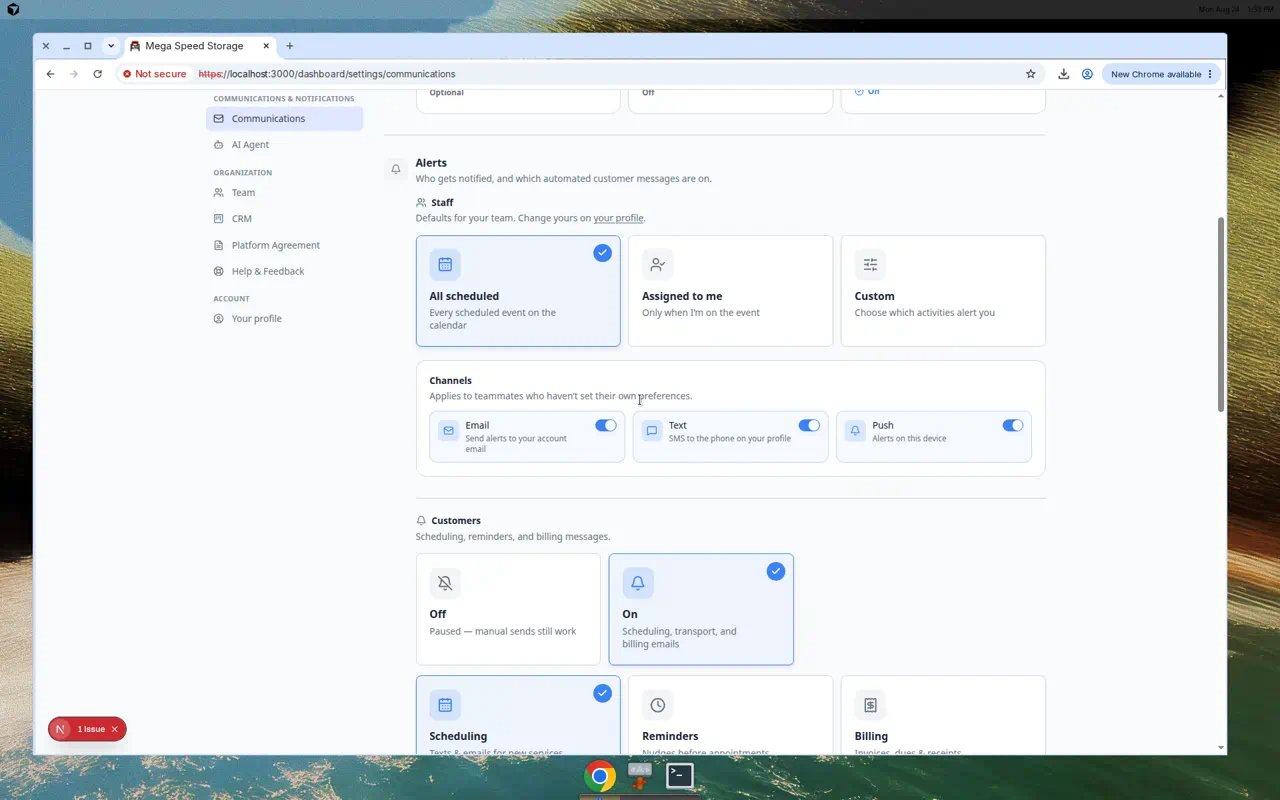 *Team notification defaults live under [Settings > Communications](https://www.carstoragesoftware.com/dashboard/settings/communications) → **Alerts** → **Customers** → **Scheduling**.*
## Set default reminders before appointments
Default reminders are the reminder times new event types use unless you override them later.
Go to [Settings > Communications](https://www.carstoragesoftware.com/dashboard/settings/communications).
Under **Alerts**, click **Customers**, then click the **Reminders** card (nudges before appointments).
Look at the reminder type and timing.
Example: an email reminder **1 day before** the event.
Add another reminder only when it helps the customer or your team.
Common choices are **1 day before** and **1 hour before**.
If you see **SMS Reminders Unavailable**, your facility still needs a phone number in [Settings > Communications](https://www.carstoragesoftware.com/dashboard/settings/communications) before text reminders can send.
**Expected result:** After phone setup, return here and add an **SMS** reminder row. Until then, use **Email** or **Calendar** reminders.
If customers receive too many messages, remove the reminders that are not helpful.
**Expected result:** New event types inherit reminder timing that matches how your facility actually operates (for example one email **1 day before** the appointment).
*Team notification defaults live under [Settings > Communications](https://www.carstoragesoftware.com/dashboard/settings/communications) → **Alerts** → **Customers** → **Scheduling**.*
## Set default reminders before appointments
Default reminders are the reminder times new event types use unless you override them later.
Go to [Settings > Communications](https://www.carstoragesoftware.com/dashboard/settings/communications).
Under **Alerts**, click **Customers**, then click the **Reminders** card (nudges before appointments).
Look at the reminder type and timing.
Example: an email reminder **1 day before** the event.
Add another reminder only when it helps the customer or your team.
Common choices are **1 day before** and **1 hour before**.
If you see **SMS Reminders Unavailable**, your facility still needs a phone number in [Settings > Communications](https://www.carstoragesoftware.com/dashboard/settings/communications) before text reminders can send.
**Expected result:** After phone setup, return here and add an **SMS** reminder row. Until then, use **Email** or **Calendar** reminders.
If customers receive too many messages, remove the reminders that are not helpful.
**Expected result:** New event types inherit reminder timing that matches how your facility actually operates (for example one email **1 day before** the appointment).
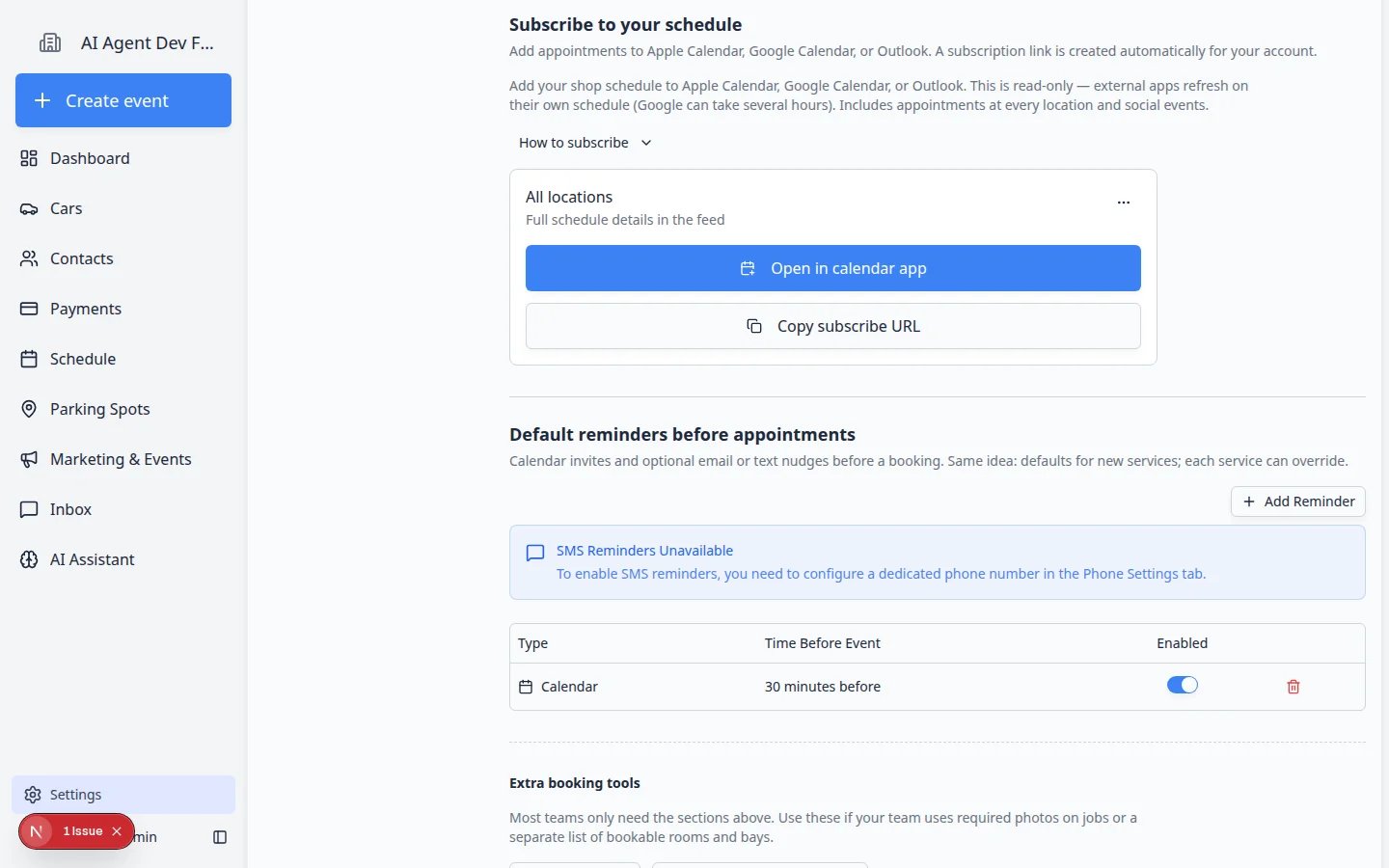 *Default reminders control when new event types remind customers before an appointment. Open **Communications** → **Alerts** → **Customers** → **Reminders**.*
**SMS Reminders Unavailable banner**
If your facility has not finished phone setup, the reminders section shows **SMS Reminders Unavailable** and a button to open phone settings. Email and calendar reminders still work. Finish [Configure communications](/docs/settings/configure-communications) before you turn on SMS reminders.
## Customize messages for one event type
Use this when one event type needs different message behavior than your team default.
Go to [Settings > Services & schedule](https://www.carstoragesoftware.com/dashboard/settings/events), find the event type card, and click **Set up** or **Advanced**.
Find **Notification Settings**.
If **Use team defaults** is on, the event type follows your team default settings.
Turn it off only when this event type needs its own message rules.
Review the rows:
* **Scheduled** - when the appointment is booked.
* **Rescheduled** - when the appointment time changes.
* **In Progress** - when the event starts.
* **Completed** - when the event finishes.
* **Cancelled** - when the event is cancelled.
Turn on only the channels your team wants to use for this event type.
If text messaging is not set up, keep **SMS** off until your team finishes setup.
*Default reminders control when new event types remind customers before an appointment. Open **Communications** → **Alerts** → **Customers** → **Reminders**.*
**SMS Reminders Unavailable banner**
If your facility has not finished phone setup, the reminders section shows **SMS Reminders Unavailable** and a button to open phone settings. Email and calendar reminders still work. Finish [Configure communications](/docs/settings/configure-communications) before you turn on SMS reminders.
## Customize messages for one event type
Use this when one event type needs different message behavior than your team default.
Go to [Settings > Services & schedule](https://www.carstoragesoftware.com/dashboard/settings/events), find the event type card, and click **Set up** or **Advanced**.
Find **Notification Settings**.
If **Use team defaults** is on, the event type follows your team default settings.
Turn it off only when this event type needs its own message rules.
Review the rows:
* **Scheduled** - when the appointment is booked.
* **Rescheduled** - when the appointment time changes.
* **In Progress** - when the event starts.
* **Completed** - when the event finishes.
* **Cancelled** - when the event is cancelled.
Turn on only the channels your team wants to use for this event type.
If text messaging is not set up, keep **SMS** off until your team finishes setup.
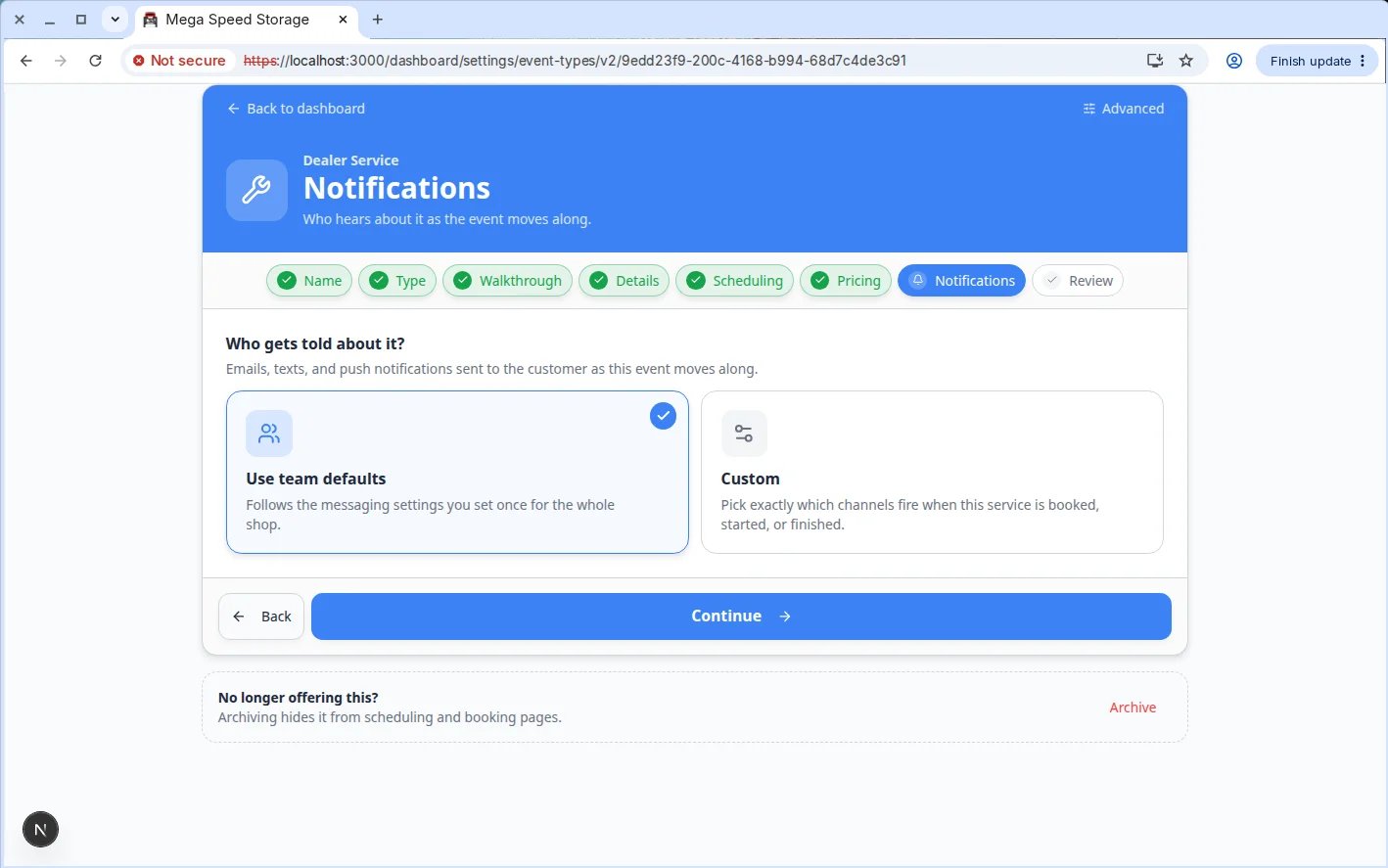 *Notification Settings let one event type use team defaults or its own customer message rules.*
## Customize reminders for one event type
On the same event type edit page, find **Reminder Settings**.
Keep **Use team defaults** on when the regular reminder timing works.
Turn it off when this event needs more or fewer reminders.
Choose the reminder type and timing.
Good examples are **Email - 1 day before** or **Email - 1 hour before**.
Wait for **Saved** near the top of the page. The editor saves automatically as you work.
*Notification Settings let one event type use team defaults or its own customer message rules.*
## Customize reminders for one event type
On the same event type edit page, find **Reminder Settings**.
Keep **Use team defaults** on when the regular reminder timing works.
Turn it off when this event needs more or fewer reminders.
Choose the reminder type and timing.
Good examples are **Email - 1 day before** or **Email - 1 hour before**.
Wait for **Saved** near the top of the page. The editor saves automatically as you work.
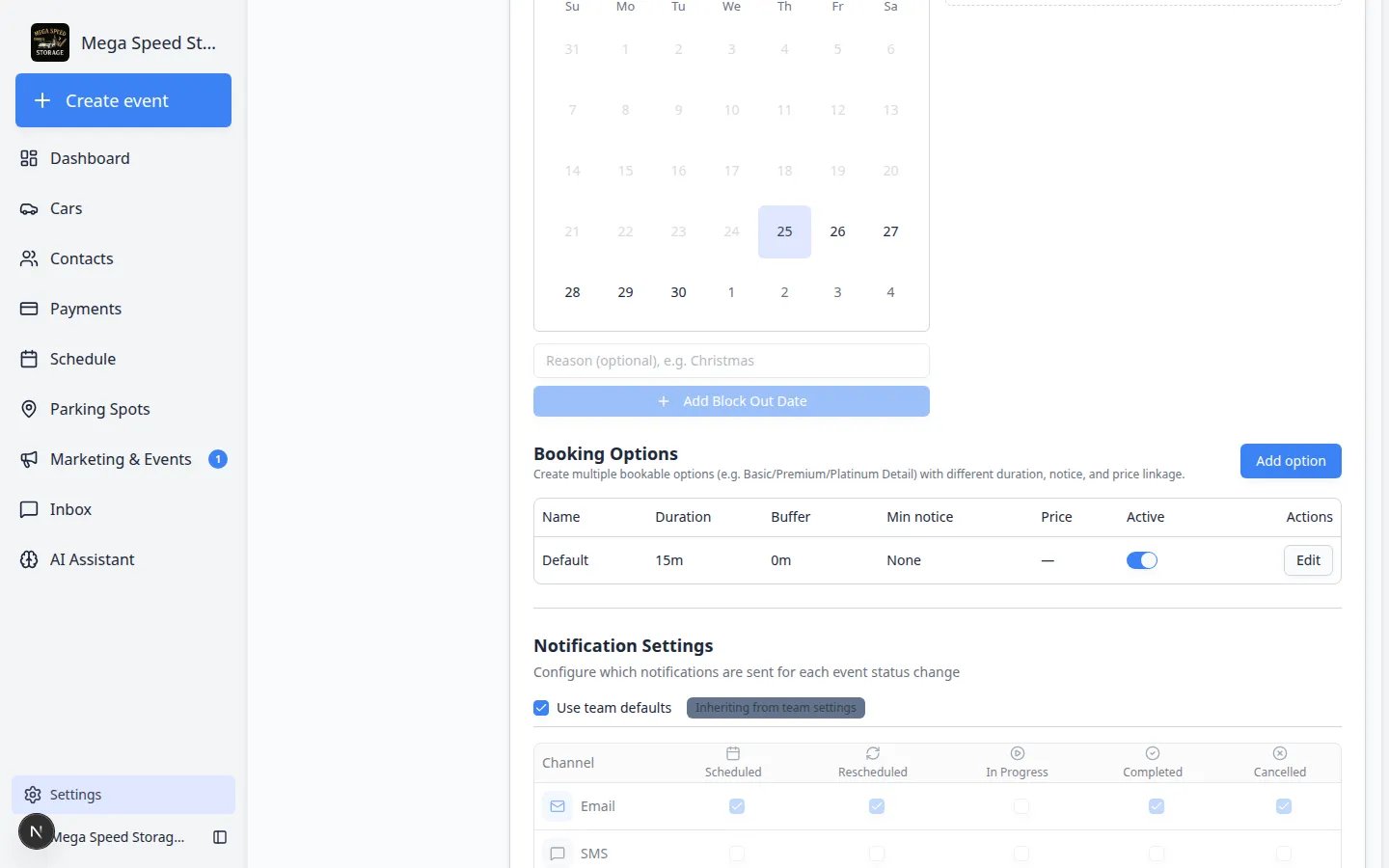 *Reminder Settings control when customers are reminded before this specific event type.*
## Message choices that work well
* Send a confirmation when customers book an appointment.
* Send a reschedule notice when the appointment time changes.
* Use one reminder the day before for appointments customers must attend.
* Use a second reminder closer to the appointment only when missed appointments are common.
* Keep internal-only events quieter so customers do not receive messages they do not need.
## Test that messages and reminders work
After you save notification and reminder settings, run a short test so you are not surprised on a real customer appointment.
If you are testing with a real customer's email or phone, temporarily turn off **Email** and **SMS** on the event type—or use a test customer record with your own contact details.
**Why this matters:** A saved test appointment can send real messages when channels are on.
Follow [Test an event setup](/docs/events/test-an-event-setup) and book at least two days in the future if you are testing a **1 day before** reminder.
**Expected result:** A confirmation email or text arrives when **Scheduled** notifications are enabled.
Open the customer in [Contacts](https://www.carstoragesoftware.com/dashboard/contacts/all) and confirm **Email** and **Phone** are correct.
**Why this matters:** Messages only go to contact details saved on that record—wrong email is the most common reason customers say they never received a reminder.
Open the customer record and scroll to **Activity Feed**, or check [Inbox](https://www.carstoragesoftware.com/dashboard/inbox) for outbound messages.
**Expected result:** You see a line showing the confirmation or reminder was sent, with a timestamp you can share with the customer if they ask.
**Why this matters:** If nothing appears in Activity or Inbox, the message may not have sent—double-check the customer's email or phone on their [Contacts](https://www.carstoragesoftware.com/dashboard/contacts) record before you turn notifications on for real customers.
*Reminder Settings control when customers are reminded before this specific event type.*
## Message choices that work well
* Send a confirmation when customers book an appointment.
* Send a reschedule notice when the appointment time changes.
* Use one reminder the day before for appointments customers must attend.
* Use a second reminder closer to the appointment only when missed appointments are common.
* Keep internal-only events quieter so customers do not receive messages they do not need.
## Test that messages and reminders work
After you save notification and reminder settings, run a short test so you are not surprised on a real customer appointment.
If you are testing with a real customer's email or phone, temporarily turn off **Email** and **SMS** on the event type—or use a test customer record with your own contact details.
**Why this matters:** A saved test appointment can send real messages when channels are on.
Follow [Test an event setup](/docs/events/test-an-event-setup) and book at least two days in the future if you are testing a **1 day before** reminder.
**Expected result:** A confirmation email or text arrives when **Scheduled** notifications are enabled.
Open the customer in [Contacts](https://www.carstoragesoftware.com/dashboard/contacts/all) and confirm **Email** and **Phone** are correct.
**Why this matters:** Messages only go to contact details saved on that record—wrong email is the most common reason customers say they never received a reminder.
Open the customer record and scroll to **Activity Feed**, or check [Inbox](https://www.carstoragesoftware.com/dashboard/inbox) for outbound messages.
**Expected result:** You see a line showing the confirmation or reminder was sent, with a timestamp you can share with the customer if they ask.
**Why this matters:** If nothing appears in Activity or Inbox, the message may not have sent—double-check the customer's email or phone on their [Contacts](https://www.carstoragesoftware.com/dashboard/contacts) record before you turn notifications on for real customers.
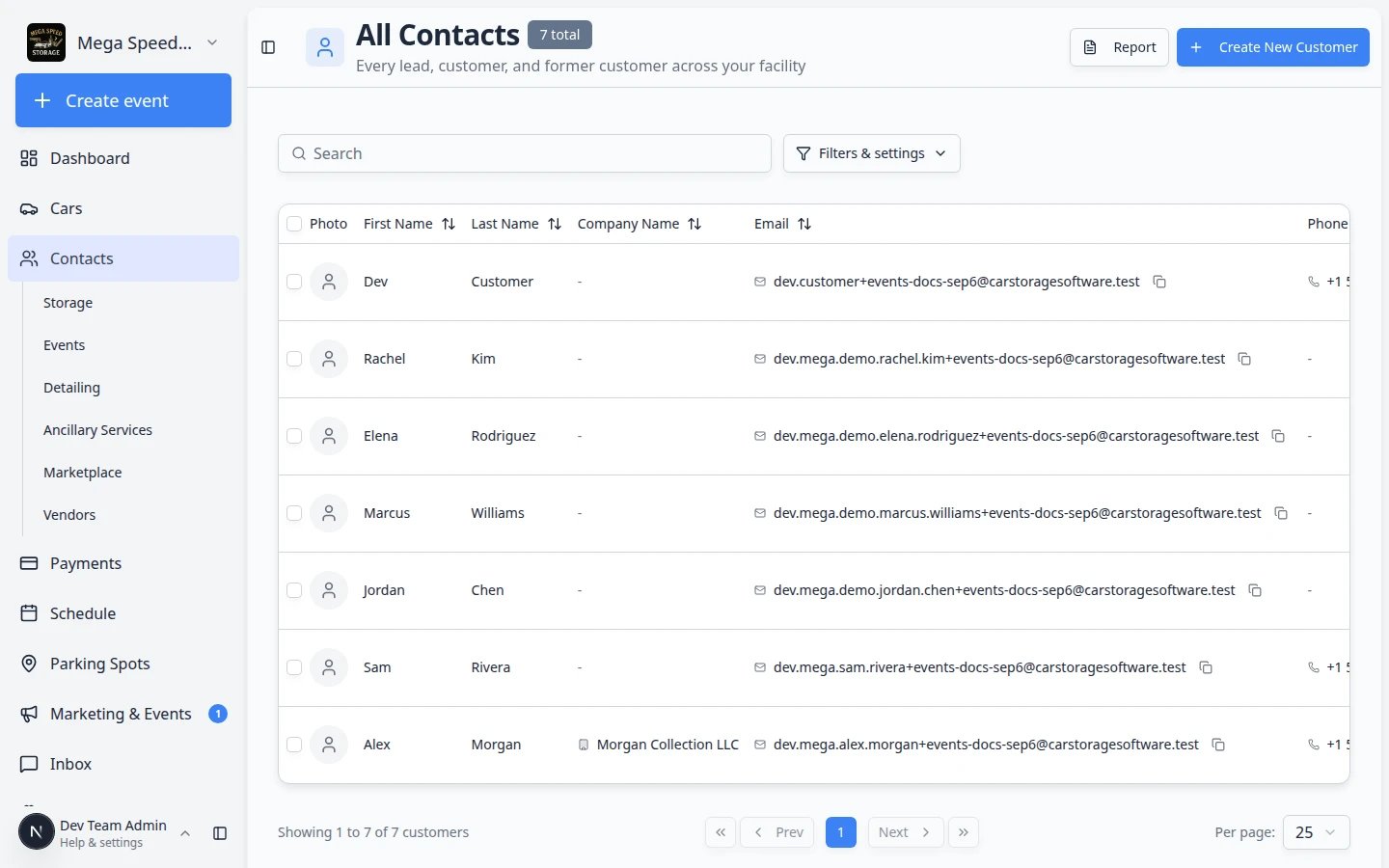 *After a test appointment, check the customer's **Activity Feed** to confirm a **Scheduled** confirmation or reminder was sent.*
## What success looks like
After setup:
* Customers receive the messages your team expects.
* Reminder timing gives customers enough notice to arrive or respond.
* Event types that should be quiet do not send unnecessary messages.
* Staff understand whether an event type uses team defaults or custom settings.
## Troubleshooting
**Text messages are unavailable**
Text messages require communications setup. Go to [Settings > Communications](https://www.carstoragesoftware.com/dashboard/settings/communications) or ask an admin to confirm your texting setup.
**Customer has no email or phone on file**
Open the customer record in [Contacts](https://www.carstoragesoftware.com/dashboard/contacts) and confirm **Email** and **Phone** are correct. Messages and reminders only go to contact details saved on that record.
**A customer did not get a reminder**
Check that the reminder is enabled, the customer has the right contact information, and the event was scheduled far enough ahead of the reminder time. For example, a one-day reminder cannot send if the event is created only two hours before it starts.
**Customers are getting too many messages**
Review both team defaults and event-specific settings. A reminder can come from the team default if the event type is using **Use team defaults**.
**I changed the team default, but one event did not change**
Open that event type and check whether it is using its own notification or reminder settings. Event-specific overrides do not automatically follow team defaults.
## What to do next
After messages and reminders are set, use [Test an event setup](/docs/events/test-an-event-setup) to create a test appointment and confirm the customer experience.
## Related topics
- [Test an event setup](/docs/events/test-an-event-setup.md)
- [Events overview](/docs/events/overview.md)
- [Set up event checklists](/docs/events/set-up-event-checklists.md)
- [Configure communications](/docs/settings/configure-communications.md)
- [Invite a customer to the portal](/docs/contacts/invite-a-customer-to-the-portal.md)
This documentation is built and hosted on [Mintlify](https://mintlify.com), a developer documentation platform.
*After a test appointment, check the customer's **Activity Feed** to confirm a **Scheduled** confirmation or reminder was sent.*
## What success looks like
After setup:
* Customers receive the messages your team expects.
* Reminder timing gives customers enough notice to arrive or respond.
* Event types that should be quiet do not send unnecessary messages.
* Staff understand whether an event type uses team defaults or custom settings.
## Troubleshooting
**Text messages are unavailable**
Text messages require communications setup. Go to [Settings > Communications](https://www.carstoragesoftware.com/dashboard/settings/communications) or ask an admin to confirm your texting setup.
**Customer has no email or phone on file**
Open the customer record in [Contacts](https://www.carstoragesoftware.com/dashboard/contacts) and confirm **Email** and **Phone** are correct. Messages and reminders only go to contact details saved on that record.
**A customer did not get a reminder**
Check that the reminder is enabled, the customer has the right contact information, and the event was scheduled far enough ahead of the reminder time. For example, a one-day reminder cannot send if the event is created only two hours before it starts.
**Customers are getting too many messages**
Review both team defaults and event-specific settings. A reminder can come from the team default if the event type is using **Use team defaults**.
**I changed the team default, but one event did not change**
Open that event type and check whether it is using its own notification or reminder settings. Event-specific overrides do not automatically follow team defaults.
## What to do next
After messages and reminders are set, use [Test an event setup](/docs/events/test-an-event-setup) to create a test appointment and confirm the customer experience.
## Related topics
- [Test an event setup](/docs/events/test-an-event-setup.md)
- [Events overview](/docs/events/overview.md)
- [Set up event checklists](/docs/events/set-up-event-checklists.md)
- [Configure communications](/docs/settings/configure-communications.md)
- [Invite a customer to the portal](/docs/contacts/invite-a-customer-to-the-portal.md)
This documentation is built and hosted on [Mintlify](https://mintlify.com), a developer documentation platform.