> ## Documentation Index
> Fetch the complete documentation index at: https://www.carstoragesoftware.com/docs/llms.txt
> Use this file to discover all available pages before exploring further.
# Choose the right public link to share
> Pick the correct customer-facing link for prospects, customers, vendors, marketplace shoppers, and website visitors.
## What you will accomplish
You will know which link to send to each person, copy it without typos, test it once in a private browser window, and add one clear sentence so they know what to do next.
## When to use this guide
Use this guide when someone asks, “What link should I send?”
You might hear that question when:
* A customer cannot find the portal sign-in page
* A prospect wants to request storage online
* A vendor asks where to email or upload an invoice
* Your website helper needs the correct button or embed code
* You are not sure whether to share the facility page, registration form, marketplace, or login link
**Staff links are not customer links**
If the link in your browser starts with `/dashboard`, it is for your staff team only. Copy customer-facing links from [Settings > Website & customer app](https://www.carstoragesoftware.com/dashboard/settings/website) under **Shareable links**.
## Before you start
* You can open [Settings > Website & customer app](https://www.carstoragesoftware.com/dashboard/settings/website).
* Your **Public website** is turned on if you plan to share facility, registration, marketplace, or vendor invoice links.
* You know who will open the link: a new prospect, an existing customer, a vendor, a shopper, or your website helper.
* You have a few minutes to test the link in a private browser window before you send it.
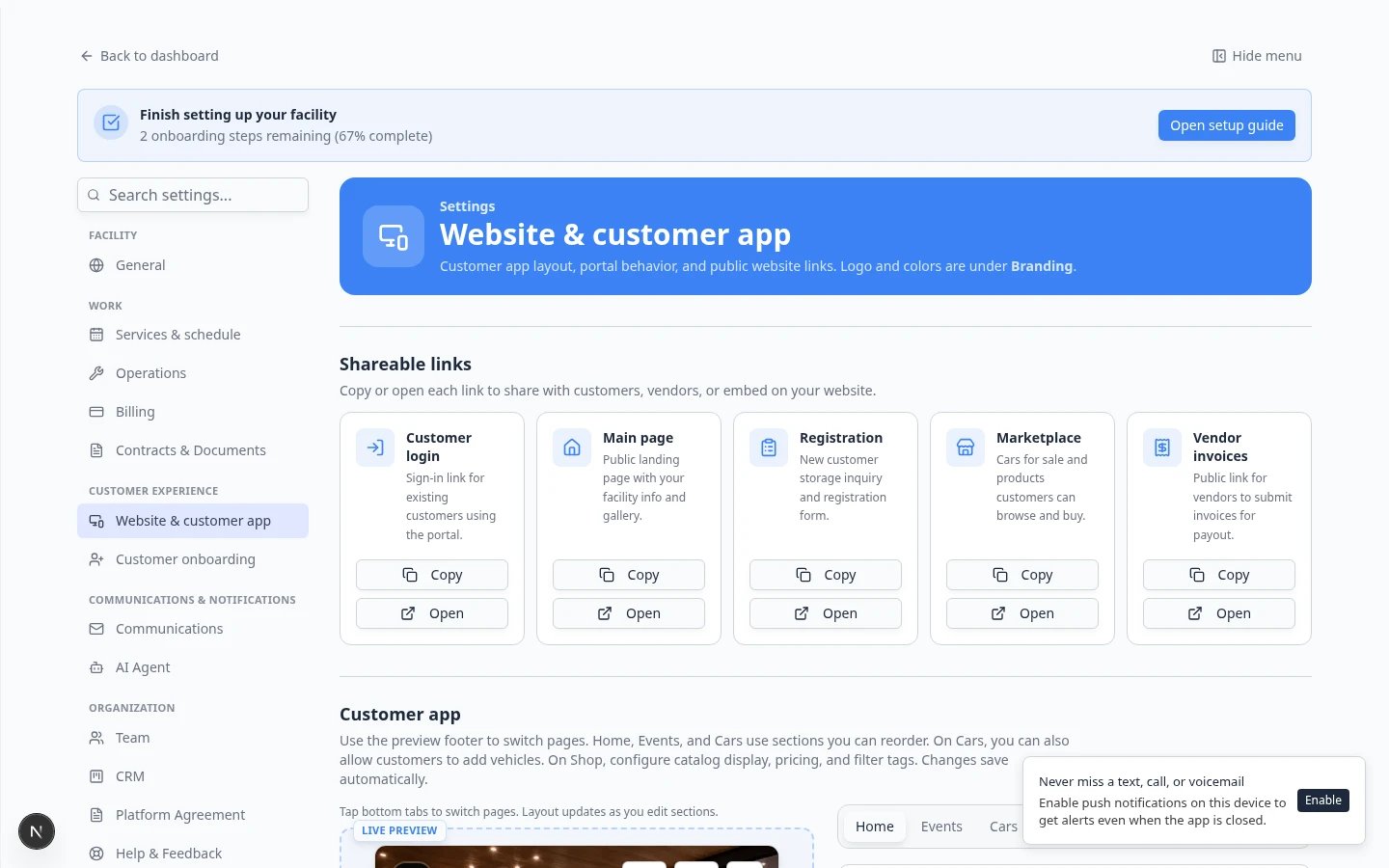 *Open Website & customer app and use **Shareable links** near the top. Each card has **Copy** and **Open** buttons—including **Marketplace** for shoppers.*
## Step 1: Open Website & customer app
In the dashboard sidebar, open [Settings](https://www.carstoragesoftware.com/dashboard/settings), then choose **Website & customer app**.
You can also go directly to [Settings > Website & customer app](https://www.carstoragesoftware.com/dashboard/settings/website).
**Expected result:** The page title is **Website & customer app**. You see **Shareable links** near the top—not the staff dashboard address from your browser.
Near the top, find the **Shareable links** section.
You will see cards such as:
* **Customer login** — for existing customers who already have a portal account
* **Main page** — your public facility landing page
* **Registration** — for new prospects requesting storage
* **Marketplace** — for shoppers who should browse cars for sale and products with online checkout
* **Vendor invoices** — for outside providers submitting invoices
Scroll down for **Public website** (page content and toggles) and **Website schedule widget** (embed code for your existing website).
**Expected result:** You know where to copy each type of link before you paste it into an email or website.
*Open Website & customer app and use **Shareable links** near the top. Each card has **Copy** and **Open** buttons—including **Marketplace** for shoppers.*
## Step 1: Open Website & customer app
In the dashboard sidebar, open [Settings](https://www.carstoragesoftware.com/dashboard/settings), then choose **Website & customer app**.
You can also go directly to [Settings > Website & customer app](https://www.carstoragesoftware.com/dashboard/settings/website).
**Expected result:** The page title is **Website & customer app**. You see **Shareable links** near the top—not the staff dashboard address from your browser.
Near the top, find the **Shareable links** section.
You will see cards such as:
* **Customer login** — for existing customers who already have a portal account
* **Main page** — your public facility landing page
* **Registration** — for new prospects requesting storage
* **Marketplace** — for shoppers who should browse cars for sale and products with online checkout
* **Vendor invoices** — for outside providers submitting invoices
Scroll down for **Public website** (page content and toggles) and **Website schedule widget** (embed code for your existing website).
**Expected result:** You know where to copy each type of link before you paste it into an email or website.
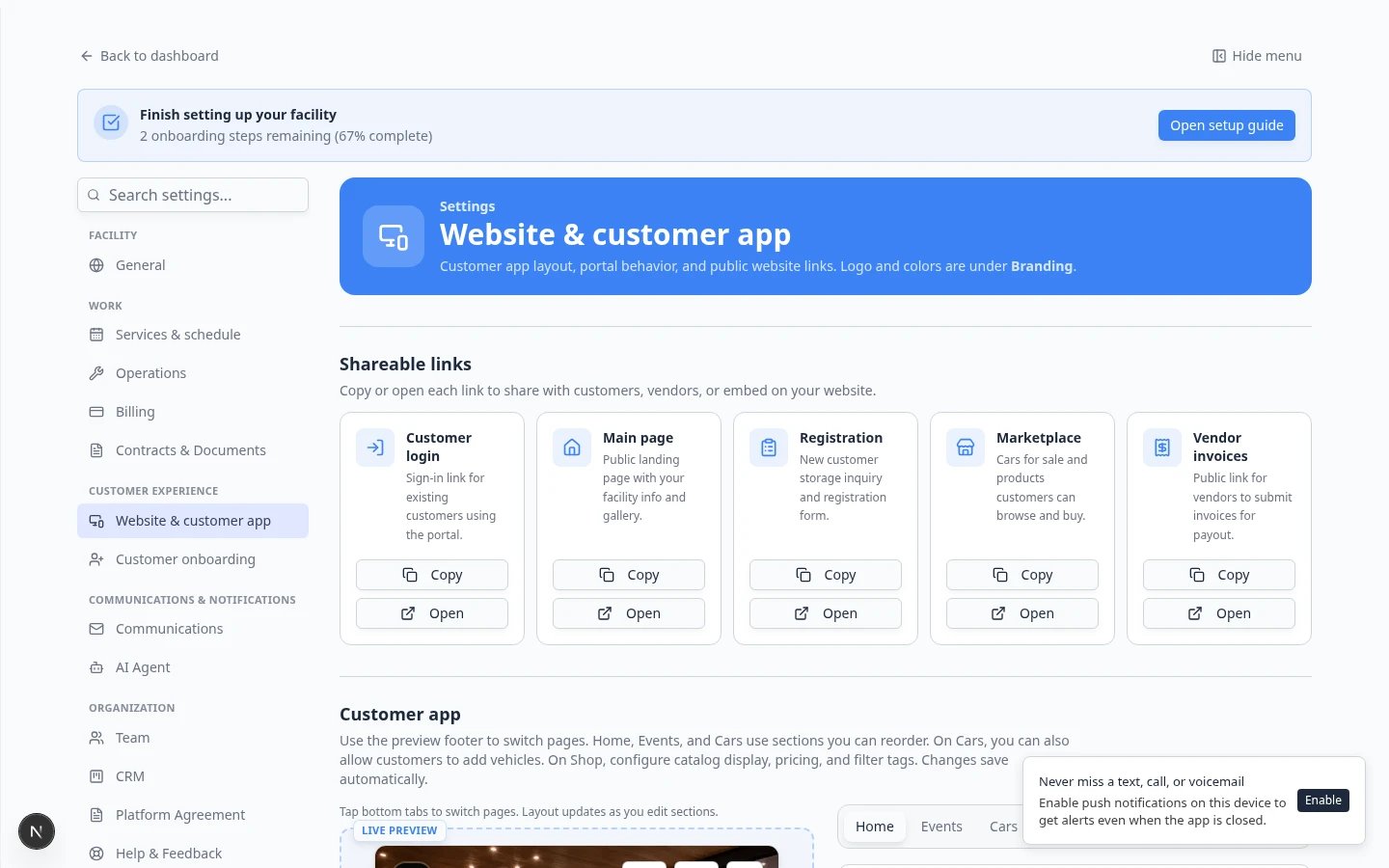 *Use **Copy** on the card that matches the person’s goal. Click **Open** to preview before you send the link.*
## Step 2: Match the person to the right link
Answer this question first: **What should this person do when they click?**
| If this person needs to… | Share this link | Where to copy it |
| - | - | - |
| Learn about your facility first (with a **Storage inquiry** button) | Public facility page (`/facility/your-facility-name`) | **Main page** in **Shareable links** |
| Request storage or send vehicle details as a new prospect | Registration page (`/facility/your-facility-name/registration`) | **Registration** in **Shareable links** (appears only when registration is enabled) |
| Sign in to their private portal | Customer login link (ends with `/signin`) | **Customer login** in **Shareable links** |
| Browse cars for sale | Vehicle marketplace (`/facility/your-facility-name/marketplace`) | **Marketplace** in **Shareable links**, then choose **Cars** on the public page |
| Browse products, services, or plans | Product marketplace (`/facility/your-facility-name/marketplace/products`) | **Marketplace** in **Shareable links**, then choose **Products** on the public page |
| Send your facility an invoice | Vendor invoice portal (`/facility/your-facility-name/invoices`) | **Vendor invoices** in **Shareable links** (appears only when vendor portal is enabled) |
| Signed-in customer needs mobile home, events, or billing tabs | Customer app on Website settings | [Customize the customer mobile app](/docs/facility-web-pages/customize-the-customer-mobile-app) |
| Add a branded badge on your existing website | Embed code | **Website schedule widget** (scroll down on the same settings page) |
**Prospect** means someone who is not a customer yet. **Customer** means someone who already has a record and portal access at your facility.
### What each public page looks like
These screenshots help you confirm you picked the right link before you send it.
*Use **Copy** on the card that matches the person’s goal. Click **Open** to preview before you send the link.*
## Step 2: Match the person to the right link
Answer this question first: **What should this person do when they click?**
| If this person needs to… | Share this link | Where to copy it |
| - | - | - |
| Learn about your facility first (with a **Storage inquiry** button) | Public facility page (`/facility/your-facility-name`) | **Main page** in **Shareable links** |
| Request storage or send vehicle details as a new prospect | Registration page (`/facility/your-facility-name/registration`) | **Registration** in **Shareable links** (appears only when registration is enabled) |
| Sign in to their private portal | Customer login link (ends with `/signin`) | **Customer login** in **Shareable links** |
| Browse cars for sale | Vehicle marketplace (`/facility/your-facility-name/marketplace`) | **Marketplace** in **Shareable links**, then choose **Cars** on the public page |
| Browse products, services, or plans | Product marketplace (`/facility/your-facility-name/marketplace/products`) | **Marketplace** in **Shareable links**, then choose **Products** on the public page |
| Send your facility an invoice | Vendor invoice portal (`/facility/your-facility-name/invoices`) | **Vendor invoices** in **Shareable links** (appears only when vendor portal is enabled) |
| Signed-in customer needs mobile home, events, or billing tabs | Customer app on Website settings | [Customize the customer mobile app](/docs/facility-web-pages/customize-the-customer-mobile-app) |
| Add a branded badge on your existing website | Embed code | **Website schedule widget** (scroll down on the same settings page) |
**Prospect** means someone who is not a customer yet. **Customer** means someone who already has a record and portal access at your facility.
### What each public page looks like
These screenshots help you confirm you picked the right link before you send it.
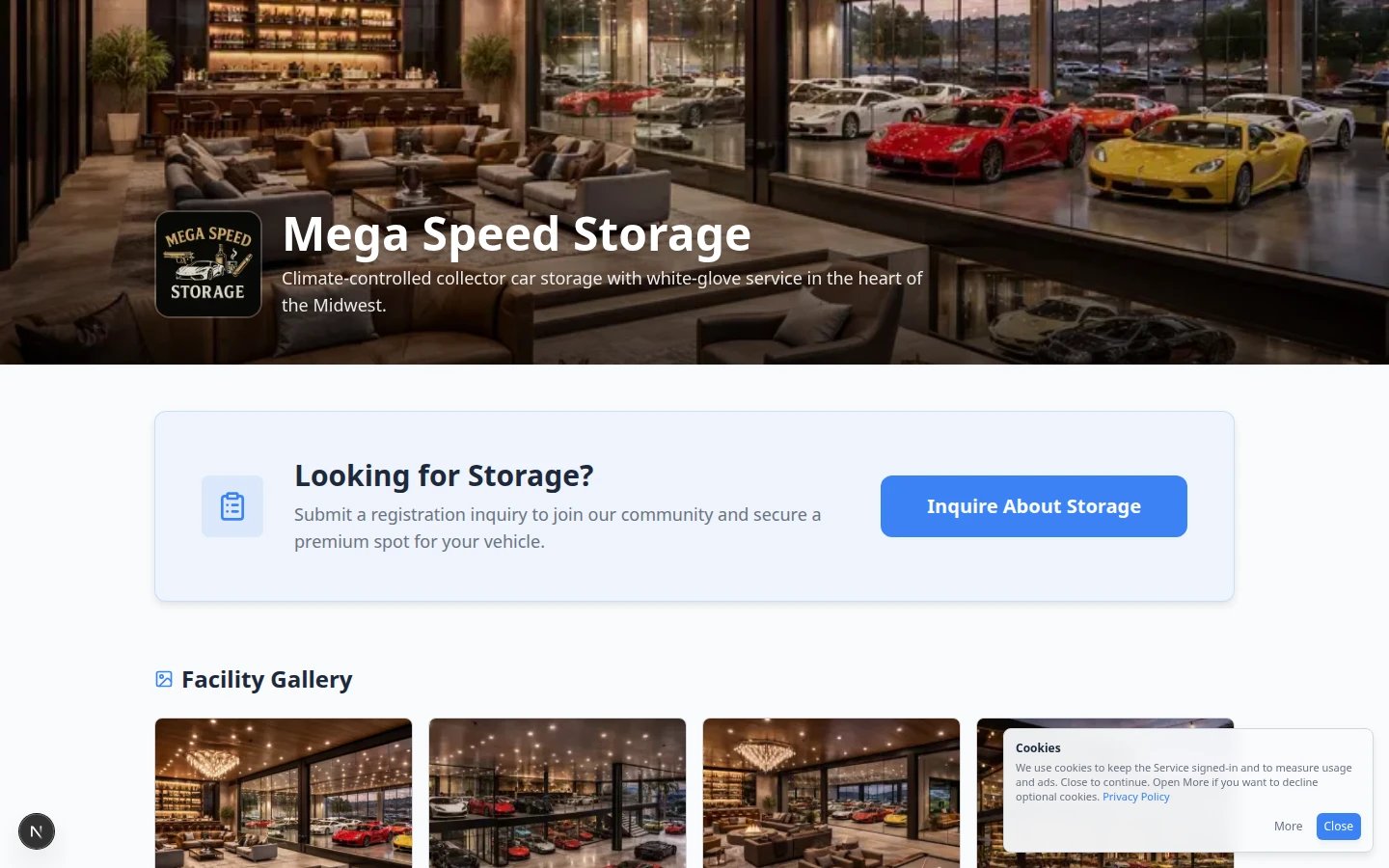 *The public facility page is a good first link for prospects who need to learn about your facility.*
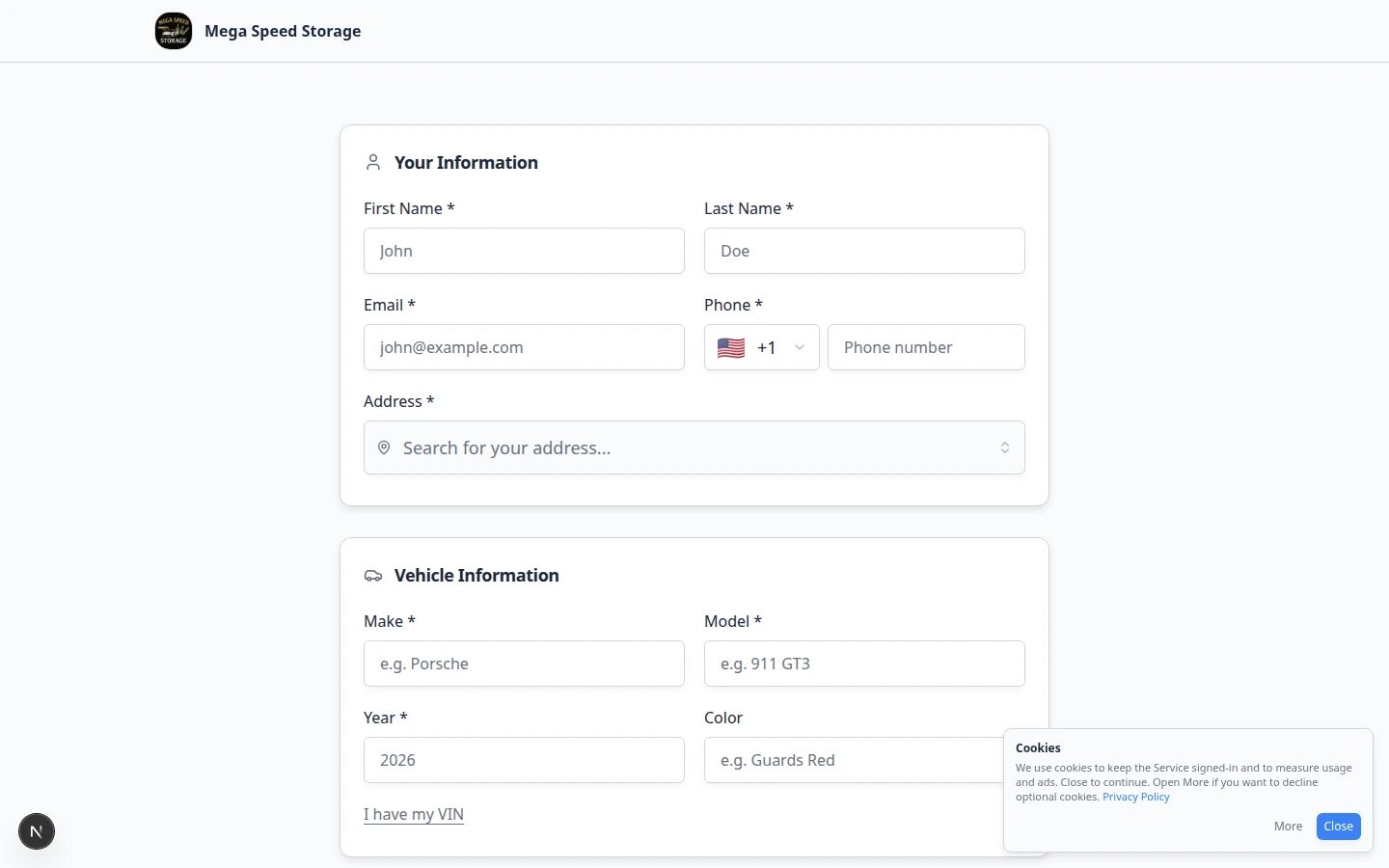 *The registration page is for new prospects who should request storage or share vehicle details.*
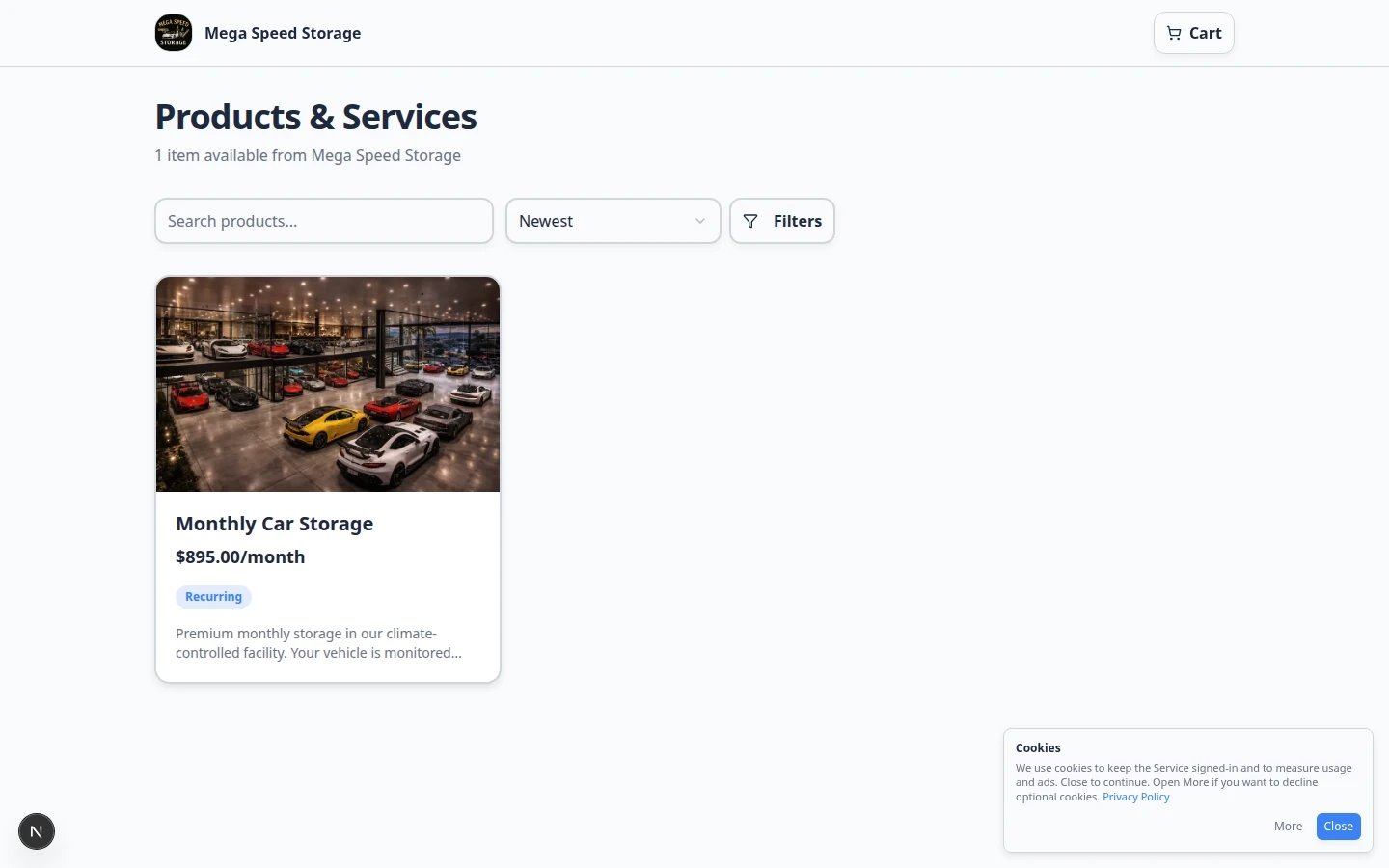 *The product marketplace is for shoppers who should buy a plan or service online—not for staff billing.*
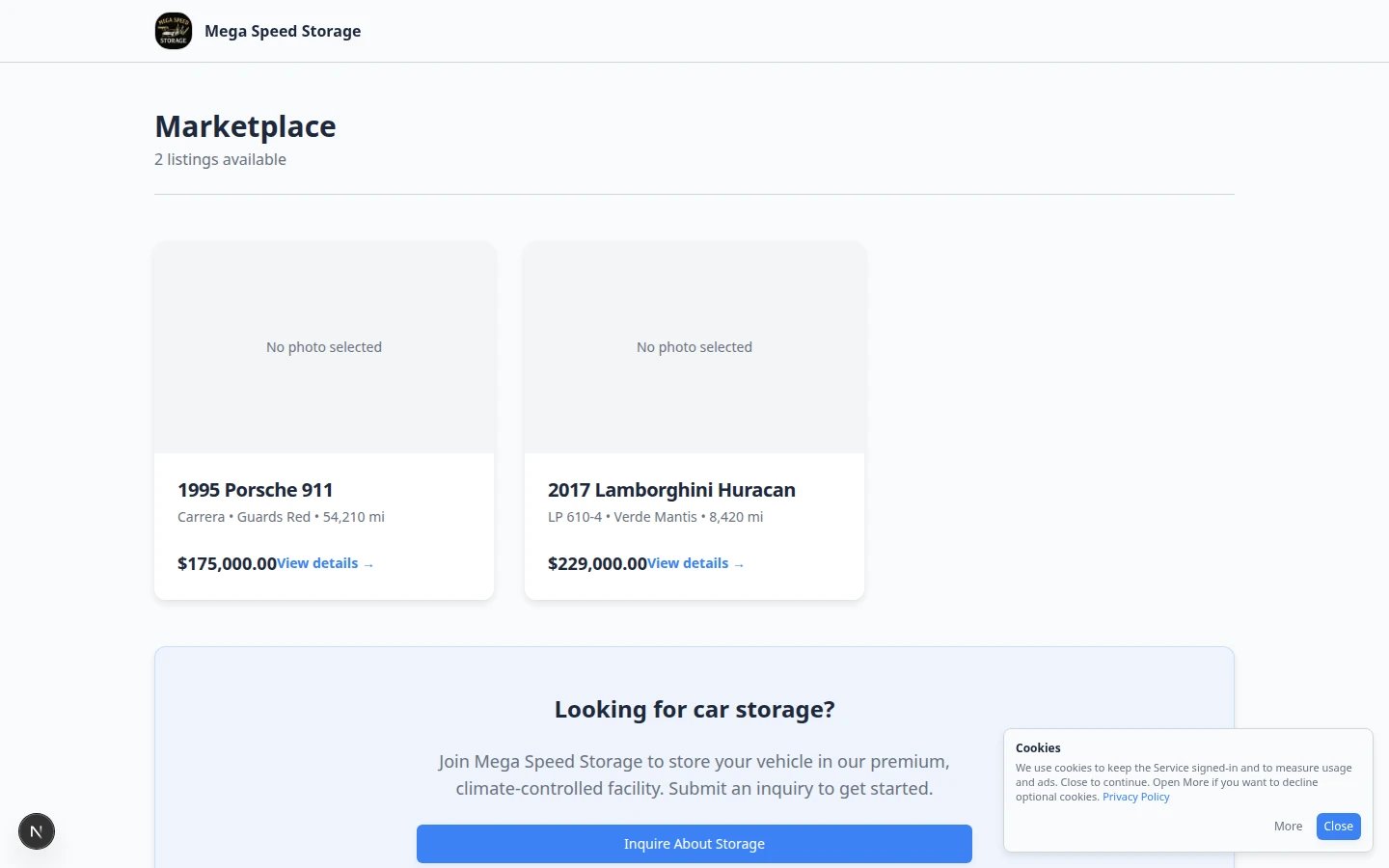 *The vehicle marketplace is for cars your team listed for sale. Shoppers browse here—they do not use this page to buy storage plans.*
**Marketplace is now a Shareable link card**
You no longer need to build marketplace URLs by hand. Copy **Marketplace** from **Shareable links**, then send shoppers to the **Cars** or **Products** tab on the public page. Use **Main page** when prospects should learn about your facility first—not when they are ready to shop.
## Step 3: Turn on Public Facility Pages when needed
If a link shows “not found,” the public page may be off—or a **Shareable links** card may be hidden because that feature is not enabled yet.
On [Settings > Website & customer app](https://www.carstoragesoftware.com/dashboard/settings/website), scroll to **Public website**.
Turn on **Public Facility Pages** when prospects, shoppers, or vendors should use your public links.
In the **Page editor**, turn on **Marketplace**, **Registration form** (or **Storage inquiry**), or **Vendor invoice portal** only when your team is ready to support each action.
**Why this matters:** **Registration** and **Vendor invoices** cards in **Shareable links** appear only after those sections are enabled.
After settings save automatically, copy the link from **Shareable links** at the top of the page. Do not retype it.
**Expected result:** The link opens your facility name and the correct public page—not a staff sign-in screen.
*The vehicle marketplace is for cars your team listed for sale. Shoppers browse here—they do not use this page to buy storage plans.*
**Marketplace is now a Shareable link card**
You no longer need to build marketplace URLs by hand. Copy **Marketplace** from **Shareable links**, then send shoppers to the **Cars** or **Products** tab on the public page. Use **Main page** when prospects should learn about your facility first—not when they are ready to shop.
## Step 3: Turn on Public Facility Pages when needed
If a link shows “not found,” the public page may be off—or a **Shareable links** card may be hidden because that feature is not enabled yet.
On [Settings > Website & customer app](https://www.carstoragesoftware.com/dashboard/settings/website), scroll to **Public website**.
Turn on **Public Facility Pages** when prospects, shoppers, or vendors should use your public links.
In the **Page editor**, turn on **Marketplace**, **Registration form** (or **Storage inquiry**), or **Vendor invoice portal** only when your team is ready to support each action.
**Why this matters:** **Registration** and **Vendor invoices** cards in **Shareable links** appear only after those sections are enabled.
After settings save automatically, copy the link from **Shareable links** at the top of the page. Do not retype it.
**Expected result:** The link opens your facility name and the correct public page—not a staff sign-in screen.
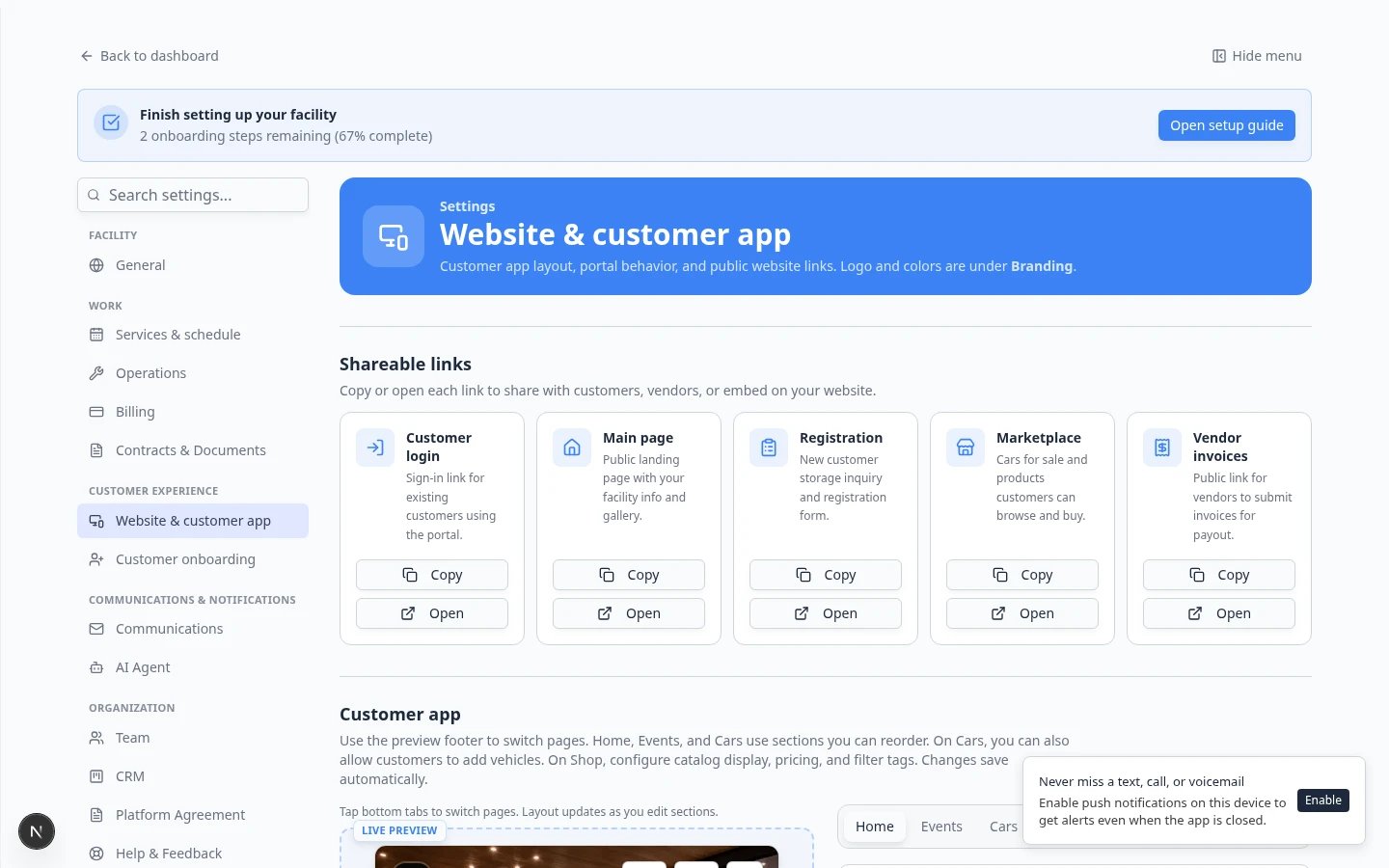 *Turn features on in the Page editor, then copy matching links from Shareable links at the top.*
## Step 4: Copy the full link and add instructions
Click **Copy** on the **Shareable links** card you need. Paste the full address into your email, text, or website ticket.
**Why this matters:** One wrong character can send someone to an error page. Copying prevents typos.
Click **Open** on the same card if you want to confirm the page before you send it.
**Expected result:** A new browser tab shows the public page—not the staff dashboard.
Do not send a bare link. Tell the person what to do.
Examples:
* “Use this link to request storage and tell us about your vehicle.”
* “Use this link to open your customer portal. Sign in with the email we have on file for you.”
* “Use this link to submit your invoice and upload your PDF.”
**Expected result:** The reader knows the goal before they click.
## Step 5: Test the link like a customer
Use a private or incognito window—or a browser where you are **not** signed in to the staff dashboard.
Confirm:
* The page opens without asking for a staff login
* Your facility name looks correct
* The page matches what you told the person to do (register, sign in, shop, or submit an invoice)
* The page is readable on a phone-sized screen
**Expected result:** You would feel comfortable sending this link to a real customer, prospect, or vendor.
## What success looks like
* The link matches the person’s goal (prospect, customer, vendor, or shopper).
* The link opens a public or customer-facing page, not `/dashboard`.
* You tested the link in a private window before sharing it.
* Your message includes one clear sentence about what to do next.
## Troubleshooting
**The page says not found**
Open [Settings > Website & customer app](https://www.carstoragesoftware.com/dashboard/settings/website). Under **Public website**, confirm **Public Facility Pages** is on and your **Facility slug** is saved. In the **Page editor**, turn on the **Marketplace**, **Registration form**, or **Vendor invoice portal** section if that link requires it.
**The customer sees a staff sign-in page**
You may have copied a staff dashboard link. Go back to **Shareable links** and copy **Customer login** or **Main page**.
**The customer cannot sign in**
Ask them to use the email on their record in [Contacts](https://www.carstoragesoftware.com/dashboard/contacts). If the email is wrong, update the customer record, then send the login link again. See [Share customer login links](/docs/facility-web-pages/share-customer-login-links).
**I need something on our website**
For a branded badge embed or website buttons, use [Add a website embed](/docs/facility-web-pages/add-a-website-embed). For login only, use [Share customer login links](/docs/facility-web-pages/share-customer-login-links).
## What to do next
* [Share customer login links](/docs/facility-web-pages/share-customer-login-links) for existing customers
* [Set up customer registration](/docs/facility-web-pages/set-up-customer-registration) for new prospects
* [Set up the vendor invoice portal](/docs/facility-web-pages/set-up-vendor-invoice-portal) for outside providers
* [Test marketplace checkout](/docs/facility-web-pages/test-marketplace-checkout) before sharing product marketplace links
* [Go live checklist for public pages](/docs/facility-web-pages/go-live-checklist-for-public-pages) before a wide launch
## Related topics
- [Share customer login links](/docs/facility-web-pages/share-customer-login-links.md)
- [Go live checklist for public pages](/docs/facility-web-pages/go-live-checklist-for-public-pages.md)
- [Add a website embed](/docs/facility-web-pages/add-a-website-embed.md)
- [Set up the vendor invoice portal](/docs/facility-web-pages/set-up-vendor-invoice-portal.md)
- [Test marketplace checkout](/docs/facility-web-pages/test-marketplace-checkout.md)
This documentation is built and hosted on [Mintlify](https://mintlify.com), a developer documentation platform.
*Turn features on in the Page editor, then copy matching links from Shareable links at the top.*
## Step 4: Copy the full link and add instructions
Click **Copy** on the **Shareable links** card you need. Paste the full address into your email, text, or website ticket.
**Why this matters:** One wrong character can send someone to an error page. Copying prevents typos.
Click **Open** on the same card if you want to confirm the page before you send it.
**Expected result:** A new browser tab shows the public page—not the staff dashboard.
Do not send a bare link. Tell the person what to do.
Examples:
* “Use this link to request storage and tell us about your vehicle.”
* “Use this link to open your customer portal. Sign in with the email we have on file for you.”
* “Use this link to submit your invoice and upload your PDF.”
**Expected result:** The reader knows the goal before they click.
## Step 5: Test the link like a customer
Use a private or incognito window—or a browser where you are **not** signed in to the staff dashboard.
Confirm:
* The page opens without asking for a staff login
* Your facility name looks correct
* The page matches what you told the person to do (register, sign in, shop, or submit an invoice)
* The page is readable on a phone-sized screen
**Expected result:** You would feel comfortable sending this link to a real customer, prospect, or vendor.
## What success looks like
* The link matches the person’s goal (prospect, customer, vendor, or shopper).
* The link opens a public or customer-facing page, not `/dashboard`.
* You tested the link in a private window before sharing it.
* Your message includes one clear sentence about what to do next.
## Troubleshooting
**The page says not found**
Open [Settings > Website & customer app](https://www.carstoragesoftware.com/dashboard/settings/website). Under **Public website**, confirm **Public Facility Pages** is on and your **Facility slug** is saved. In the **Page editor**, turn on the **Marketplace**, **Registration form**, or **Vendor invoice portal** section if that link requires it.
**The customer sees a staff sign-in page**
You may have copied a staff dashboard link. Go back to **Shareable links** and copy **Customer login** or **Main page**.
**The customer cannot sign in**
Ask them to use the email on their record in [Contacts](https://www.carstoragesoftware.com/dashboard/contacts). If the email is wrong, update the customer record, then send the login link again. See [Share customer login links](/docs/facility-web-pages/share-customer-login-links).
**I need something on our website**
For a branded badge embed or website buttons, use [Add a website embed](/docs/facility-web-pages/add-a-website-embed). For login only, use [Share customer login links](/docs/facility-web-pages/share-customer-login-links).
## What to do next
* [Share customer login links](/docs/facility-web-pages/share-customer-login-links) for existing customers
* [Set up customer registration](/docs/facility-web-pages/set-up-customer-registration) for new prospects
* [Set up the vendor invoice portal](/docs/facility-web-pages/set-up-vendor-invoice-portal) for outside providers
* [Test marketplace checkout](/docs/facility-web-pages/test-marketplace-checkout) before sharing product marketplace links
* [Go live checklist for public pages](/docs/facility-web-pages/go-live-checklist-for-public-pages) before a wide launch
## Related topics
- [Share customer login links](/docs/facility-web-pages/share-customer-login-links.md)
- [Go live checklist for public pages](/docs/facility-web-pages/go-live-checklist-for-public-pages.md)
- [Add a website embed](/docs/facility-web-pages/add-a-website-embed.md)
- [Set up the vendor invoice portal](/docs/facility-web-pages/set-up-vendor-invoice-portal.md)
- [Test marketplace checkout](/docs/facility-web-pages/test-marketplace-checkout.md)
This documentation is built and hosted on [Mintlify](https://mintlify.com), a developer documentation platform.