> ## Documentation Index
> Fetch the complete documentation index at: https://www.carstoragesoftware.com/docs/llms.txt
> Use this file to discover all available pages before exploring further.
# Go live checklist for public pages
> Review the customer-facing links, forms, marketplace, vendor invoice portal, and website links before you share them.
## What you will accomplish
Your team will test every customer-facing link in a safe order, fix problems before launch, and know where each submission appears in the staff dashboard.
## Overview
Use this checklist before you put Car Storage Software links on your website, in emails, on social media, or in printed materials.
When you finish, your team will know the public pages open correctly, the words make sense to customers, and every button sends people to the right next step.
This guide is helpful when you are about to launch a new facility page, registration form, marketplace, customer login link, vendor invoice portal, or custom domain.
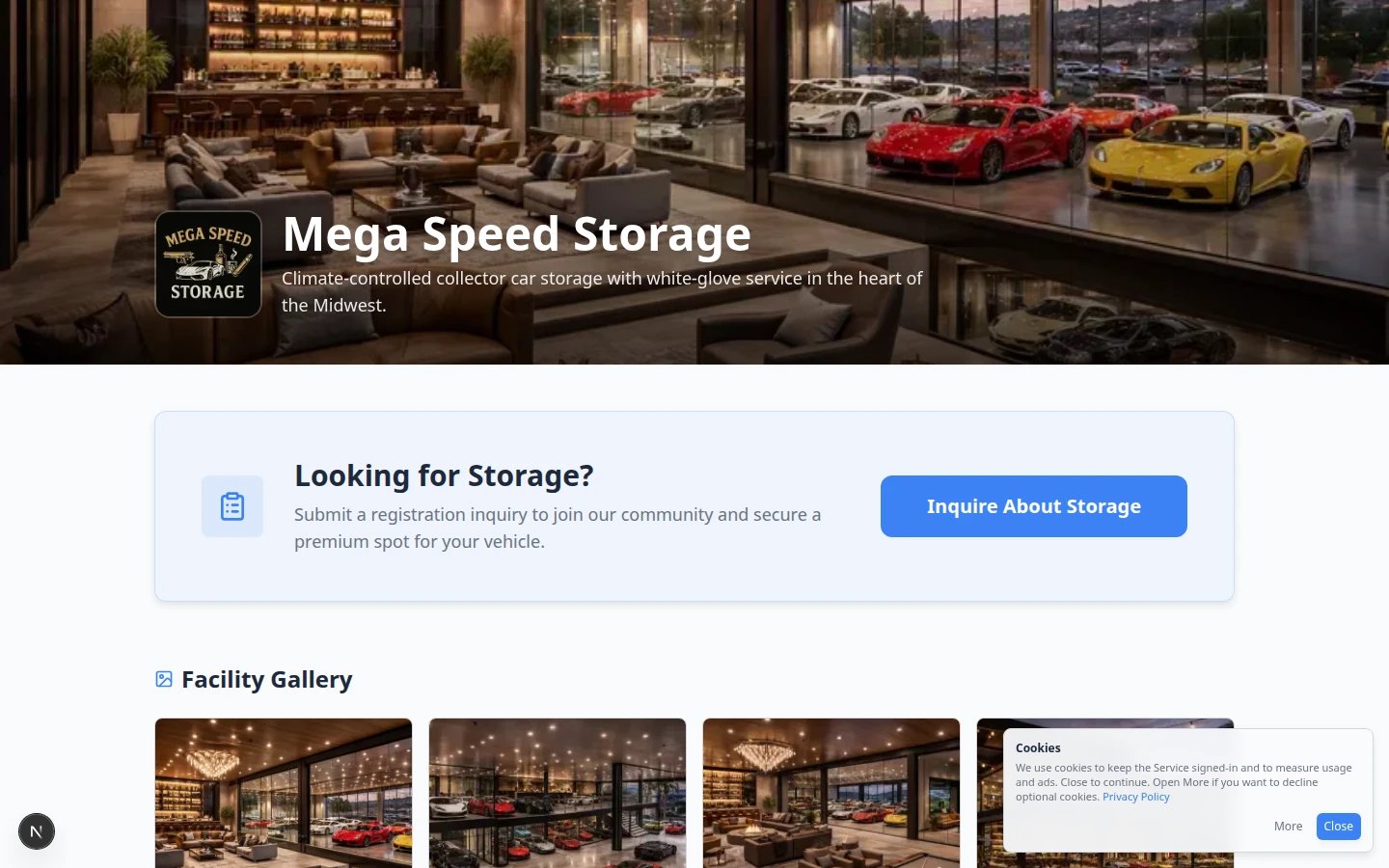 *Check the public page first. It is often the first place prospects, customers, and vendors will land.*
## Before you start
* Your team has access to [Settings > Website & customer app](https://www.carstoragesoftware.com/dashboard/settings/website).
* Your **Public website** is turned on only if you are ready to test it.
* You have one test customer email address your team can recognize.
* If you sell items online, [payment processing](/docs/settings/connect-payment-processing) is set up and tested.
* If you use a custom domain, the person who manages your domain can help with DNS if needed.
**Use a private test before a public launch**
Do not announce the links until your team has opened every page and completed at least one test action. A short test now prevents confusing customers later.
**Not sure which link to test first?**
Use [Choose the right public link to share](/docs/facility-web-pages/choose-the-right-public-link) to match each link to the right audience before you run this checklist.
## Launch checklist
Work through each item. Skip optional sections if your facility does not use that feature yet.
### Required for most facilities
* **Public Facility Pages** is on and **Facility slug** is saved in [Settings > Website & customer app](https://www.carstoragesoftware.com/dashboard/settings/website).
* **Main page** opens in a private window and shows correct facility name, description, and services.
* If you use the website editor, you clicked **Publish** and the top bar says **Live** before you share **Main page**. Unpublished drafts are not what visitors see.
* If you added **Location & map**, **Hours of operation**, **Contact people**, or **Social links**, those sections appear on **Main page** (not only as gray hints in the editor). See [Add hours, map, contacts, and social links to your website](/docs/facility-web-pages/add-hours-map-contacts-and-social-to-your-website).
* **Registration** link works; a test submission appears in [Contacts](https://www.carstoragesoftware.com/dashboard/contacts).
* **Customer login** opens the sign-in page at your facility address (usually ending in `/signin`)—not the staff dashboard.
* **Customer app** home sections and **Bottom navigation** look clear in the live preview on Website settings.
* If customers buy in the app, **Shop** prices and tags were reviewed with [Configure the customer shop](/docs/facility-web-pages/configure-the-customer-shop).
* If owners should add vehicles themselves, **Customers can add cars** was reviewed with [Let customers add their own cars](/docs/facility-web-pages/let-customers-add-their-own-cars).
* **Marketplace** link opens and shows the correct **Cars** and **Products** tabs when you use marketplace features.
* Every public page was checked on a phone-sized screen.
### Optional — marketplace
* Vehicle marketplace (`/marketplace`) shows only approved car listings.
* Product marketplace (`/marketplace/products`) shows items with **Show on marketplace** turned on.
* Product checkout was tested with [Test marketplace checkout](/docs/facility-web-pages/test-marketplace-checkout).
### Optional — vendor invoices
* Vendor invoice portal opens at `/facility/your-slug/invoices`.
* Form fields (name, email, invoice number, amount, file upload) are clear to vendors.
* Staff know to review submissions on the **Vendor** tab in [Payments > Invoices](https://www.carstoragesoftware.com/dashboard/payments/invoices?type=vendor).
### Optional — website and custom domain
* Website buttons or badge embed open the correct Car Storage Software pages ([Add a website embed](/docs/facility-web-pages/add-a-website-embed)).
* Custom domain shows **Complete** in [Settings > Custom domain](https://www.carstoragesoftware.com/dashboard/settings/custom-domain) and all **Shareable links** were re-copied after DNS finished.
## Step 1: Confirm the main public page
Open [Settings > Website & customer app](https://www.carstoragesoftware.com/dashboard/settings/website).
Scroll to **Public website**.
If your team uses the website editor, open it from **Open website editor** **(beta)** and check the status in the top bar. **Unpublished changes** means visitors still see the last published page. Click **Publish** only after you review every page tab on desktop and phone views. See [Edit your website with the AI website editor](/docs/facility-web-pages/build-your-website-with-ai).
**A few details skip the draft**
Address, hours, website contacts, social accounts, and similar facility facts go live when you save them in Settings. Publishing only releases the page layout and wording you changed in the editor.
Check:
* **Public Facility Pages** is turned on.
* **Facility slug** is short and easy to recognize.
* The facility name, description, and services are correct.
* The buttons you want customers to see are turned on.
Then open the public page link.
### Expected result
The public page opens without a staff login and clearly explains what your facility offers.
*Check the public page first. It is often the first place prospects, customers, and vendors will land.*
## Before you start
* Your team has access to [Settings > Website & customer app](https://www.carstoragesoftware.com/dashboard/settings/website).
* Your **Public website** is turned on only if you are ready to test it.
* You have one test customer email address your team can recognize.
* If you sell items online, [payment processing](/docs/settings/connect-payment-processing) is set up and tested.
* If you use a custom domain, the person who manages your domain can help with DNS if needed.
**Use a private test before a public launch**
Do not announce the links until your team has opened every page and completed at least one test action. A short test now prevents confusing customers later.
**Not sure which link to test first?**
Use [Choose the right public link to share](/docs/facility-web-pages/choose-the-right-public-link) to match each link to the right audience before you run this checklist.
## Launch checklist
Work through each item. Skip optional sections if your facility does not use that feature yet.
### Required for most facilities
* **Public Facility Pages** is on and **Facility slug** is saved in [Settings > Website & customer app](https://www.carstoragesoftware.com/dashboard/settings/website).
* **Main page** opens in a private window and shows correct facility name, description, and services.
* If you use the website editor, you clicked **Publish** and the top bar says **Live** before you share **Main page**. Unpublished drafts are not what visitors see.
* If you added **Location & map**, **Hours of operation**, **Contact people**, or **Social links**, those sections appear on **Main page** (not only as gray hints in the editor). See [Add hours, map, contacts, and social links to your website](/docs/facility-web-pages/add-hours-map-contacts-and-social-to-your-website).
* **Registration** link works; a test submission appears in [Contacts](https://www.carstoragesoftware.com/dashboard/contacts).
* **Customer login** opens the sign-in page at your facility address (usually ending in `/signin`)—not the staff dashboard.
* **Customer app** home sections and **Bottom navigation** look clear in the live preview on Website settings.
* If customers buy in the app, **Shop** prices and tags were reviewed with [Configure the customer shop](/docs/facility-web-pages/configure-the-customer-shop).
* If owners should add vehicles themselves, **Customers can add cars** was reviewed with [Let customers add their own cars](/docs/facility-web-pages/let-customers-add-their-own-cars).
* **Marketplace** link opens and shows the correct **Cars** and **Products** tabs when you use marketplace features.
* Every public page was checked on a phone-sized screen.
### Optional — marketplace
* Vehicle marketplace (`/marketplace`) shows only approved car listings.
* Product marketplace (`/marketplace/products`) shows items with **Show on marketplace** turned on.
* Product checkout was tested with [Test marketplace checkout](/docs/facility-web-pages/test-marketplace-checkout).
### Optional — vendor invoices
* Vendor invoice portal opens at `/facility/your-slug/invoices`.
* Form fields (name, email, invoice number, amount, file upload) are clear to vendors.
* Staff know to review submissions on the **Vendor** tab in [Payments > Invoices](https://www.carstoragesoftware.com/dashboard/payments/invoices?type=vendor).
### Optional — website and custom domain
* Website buttons or badge embed open the correct Car Storage Software pages ([Add a website embed](/docs/facility-web-pages/add-a-website-embed)).
* Custom domain shows **Complete** in [Settings > Custom domain](https://www.carstoragesoftware.com/dashboard/settings/custom-domain) and all **Shareable links** were re-copied after DNS finished.
## Step 1: Confirm the main public page
Open [Settings > Website & customer app](https://www.carstoragesoftware.com/dashboard/settings/website).
Scroll to **Public website**.
If your team uses the website editor, open it from **Open website editor** **(beta)** and check the status in the top bar. **Unpublished changes** means visitors still see the last published page. Click **Publish** only after you review every page tab on desktop and phone views. See [Edit your website with the AI website editor](/docs/facility-web-pages/build-your-website-with-ai).
**A few details skip the draft**
Address, hours, website contacts, social accounts, and similar facility facts go live when you save them in Settings. Publishing only releases the page layout and wording you changed in the editor.
Check:
* **Public Facility Pages** is turned on.
* **Facility slug** is short and easy to recognize.
* The facility name, description, and services are correct.
* The buttons you want customers to see are turned on.
Then open the public page link.
### Expected result
The public page opens without a staff login and clearly explains what your facility offers.
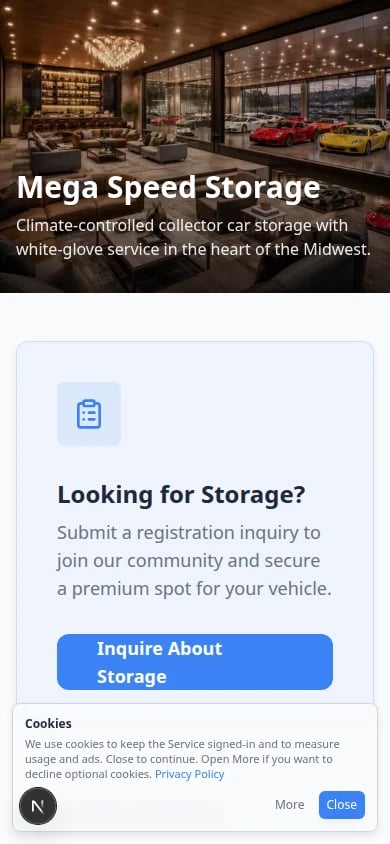 *Open **Main page** on your phone—or narrow your browser window—before you announce the link. Text messages almost always open links on mobile.*
## Step 2: Test new customer registration
If prospects should request storage online, copy **Registration** from **Shareable links** and open it in a private window.
*Open **Main page** on your phone—or narrow your browser window—before you announce the link. Text messages almost always open links on mobile.*
## Step 2: Test new customer registration
If prospects should request storage online, copy **Registration** from **Shareable links** and open it in a private window.
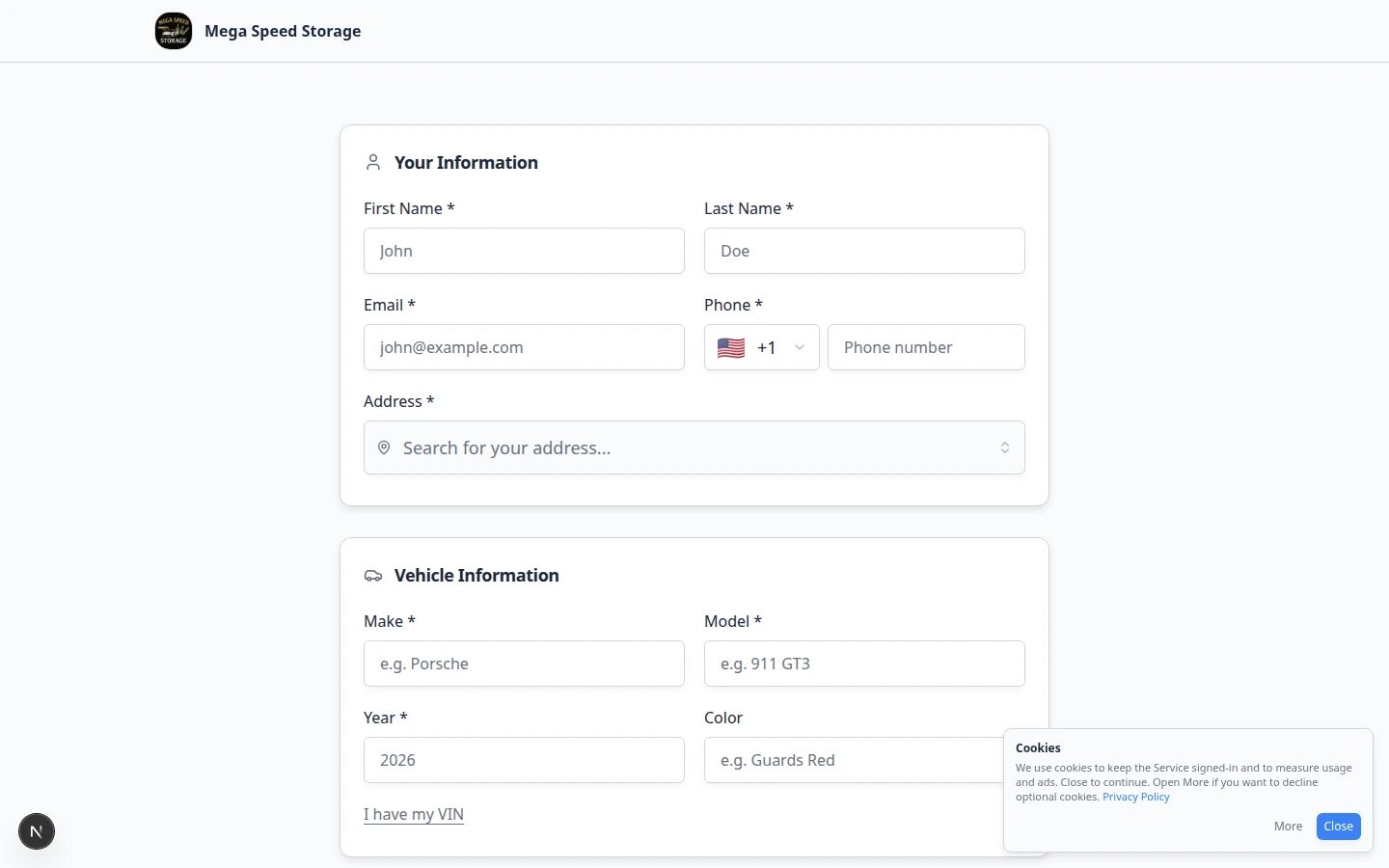 *Submit one test registration before you share the link publicly.*
The link usually looks like:
`/facility/your-facility-name/registration`
Submit a test request using a clear test name, such as **Test Registration**.
Check:
* The form asks for the right information.
* The required fields make sense.
* The confirmation message is clear.
* Your staff can find the new request in [Contacts](https://www.carstoragesoftware.com/dashboard/contacts).
If you need help with the staff review step, use [Review and approve registration requests](/docs/facility-web-pages/review-and-approve-registration-requests).
## Step 3: Test customer login links
If existing customers need to sign in from your website, copy **Customer login** from **Shareable links** on [Settings > Website & customer app](https://www.carstoragesoftware.com/dashboard/settings/website).
*Submit one test registration before you share the link publicly.*
The link usually looks like:
`/facility/your-facility-name/registration`
Submit a test request using a clear test name, such as **Test Registration**.
Check:
* The form asks for the right information.
* The required fields make sense.
* The confirmation message is clear.
* Your staff can find the new request in [Contacts](https://www.carstoragesoftware.com/dashboard/contacts).
If you need help with the staff review step, use [Review and approve registration requests](/docs/facility-web-pages/review-and-approve-registration-requests).
## Step 3: Test customer login links
If existing customers need to sign in from your website, copy **Customer login** from **Shareable links** on [Settings > Website & customer app](https://www.carstoragesoftware.com/dashboard/settings/website).
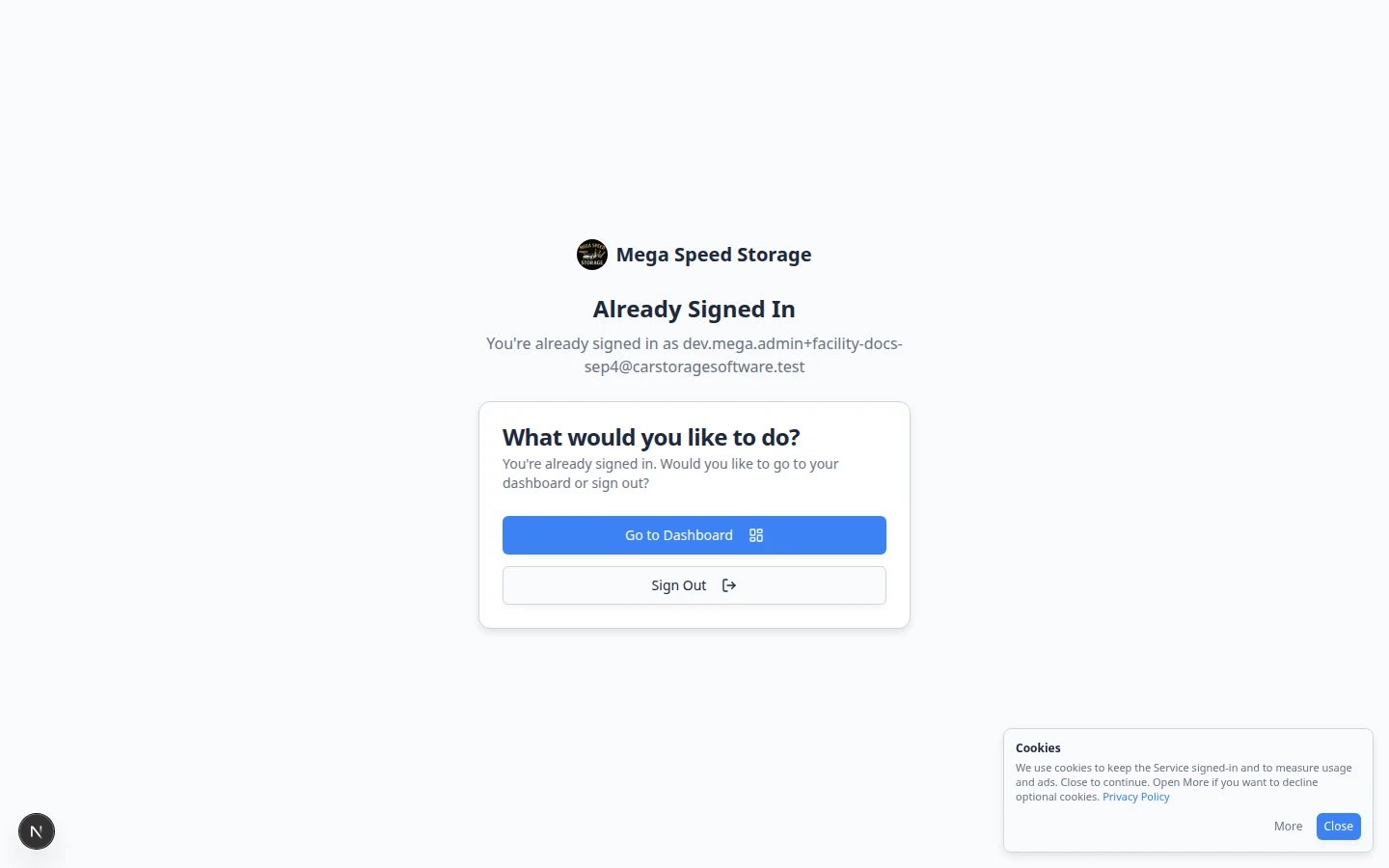 *The login link should open this page—not the staff dashboard.*
Open the link in a private browser window or a different browser.
Check:
* The sign-in page uses the correct facility name.
* The customer knows they should enter their email address.
* The link does not send customers to the staff dashboard.
For more detail, follow [Share customer login links](/docs/facility-web-pages/share-customer-login-links).
*The login link should open this page—not the staff dashboard.*
Open the link in a private browser window or a different browser.
Check:
* The sign-in page uses the correct facility name.
* The customer knows they should enter their email address.
* The link does not send customers to the staff dashboard.
For more detail, follow [Share customer login links](/docs/facility-web-pages/share-customer-login-links).
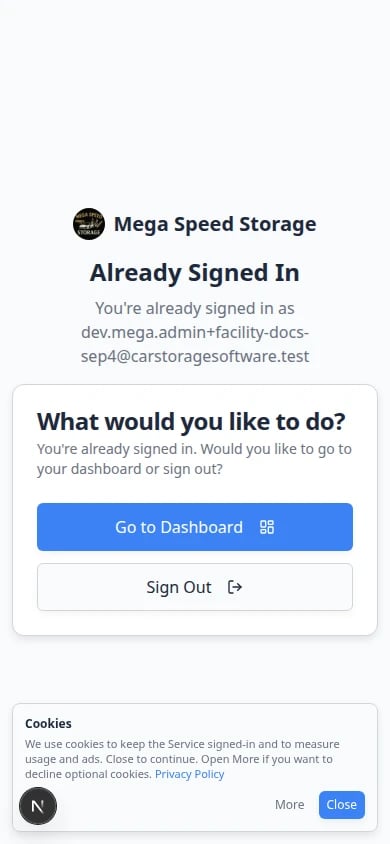 *The customer login page should be readable and easy to tap on a phone—not only on a desktop monitor.*
## Step 4: Test marketplace pages and checkout
If you use marketplace listings, open the public marketplace page and review it like a customer.
*The customer login page should be readable and easy to tap on a phone—not only on a desktop monitor.*
## Step 4: Test marketplace pages and checkout
If you use marketplace listings, open the public marketplace page and review it like a customer.
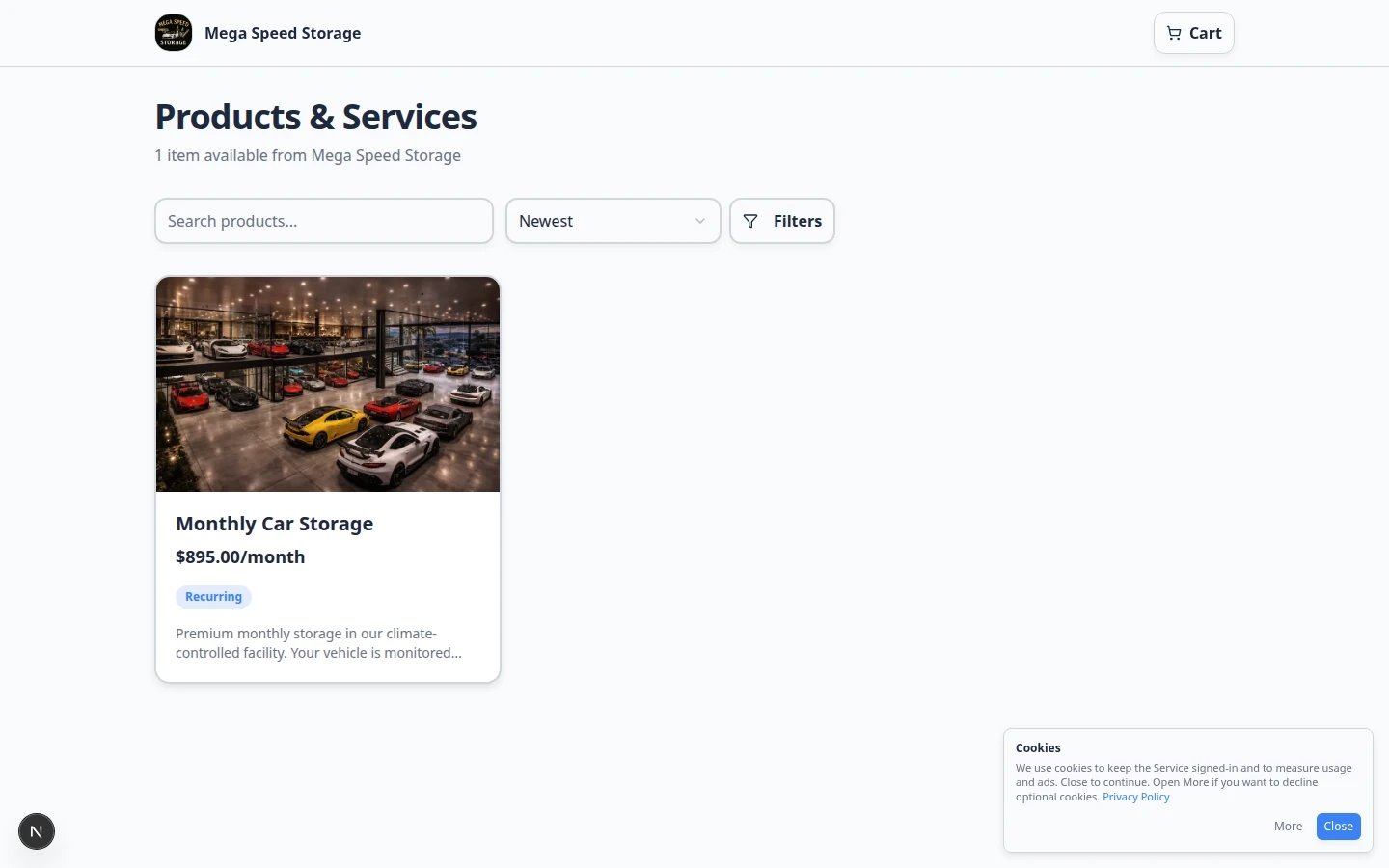 *Product marketplace is for plans, services, and memberships. Car listings use the vehicle marketplace page.*
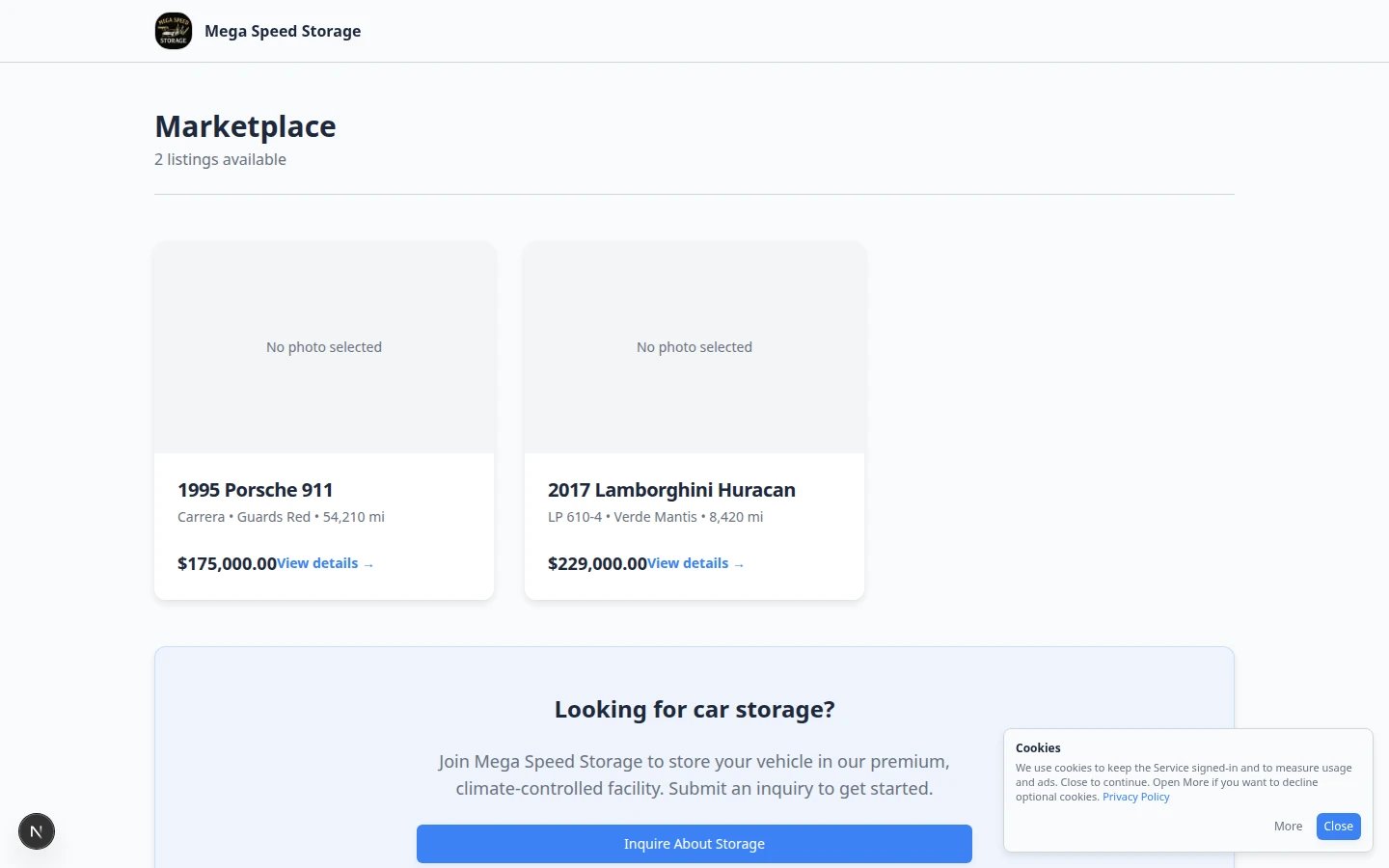 *Vehicle marketplace is for cars listed for sale. Product marketplace is for plans, services, and memberships.*
Check:
* Only items you want to share are visible.
* Names, descriptions, prices, and photos are correct.
* Buttons such as **View details**, **Add to cart**, or **Checkout** lead to the right place.
* Your team knows where new purchases or requests will appear.
If customers can pay online, follow [Test marketplace checkout](/docs/facility-web-pages/test-marketplace-checkout) before sharing the link.
## Step 5: Test the vendor invoice portal
*Vehicle marketplace is for cars listed for sale. Product marketplace is for plans, services, and memberships.*
Check:
* Only items you want to share are visible.
* Names, descriptions, prices, and photos are correct.
* Buttons such as **View details**, **Add to cart**, or **Checkout** lead to the right place.
* Your team knows where new purchases or requests will appear.
If customers can pay online, follow [Test marketplace checkout](/docs/facility-web-pages/test-marketplace-checkout) before sharing the link.
## Step 5: Test the vendor invoice portal
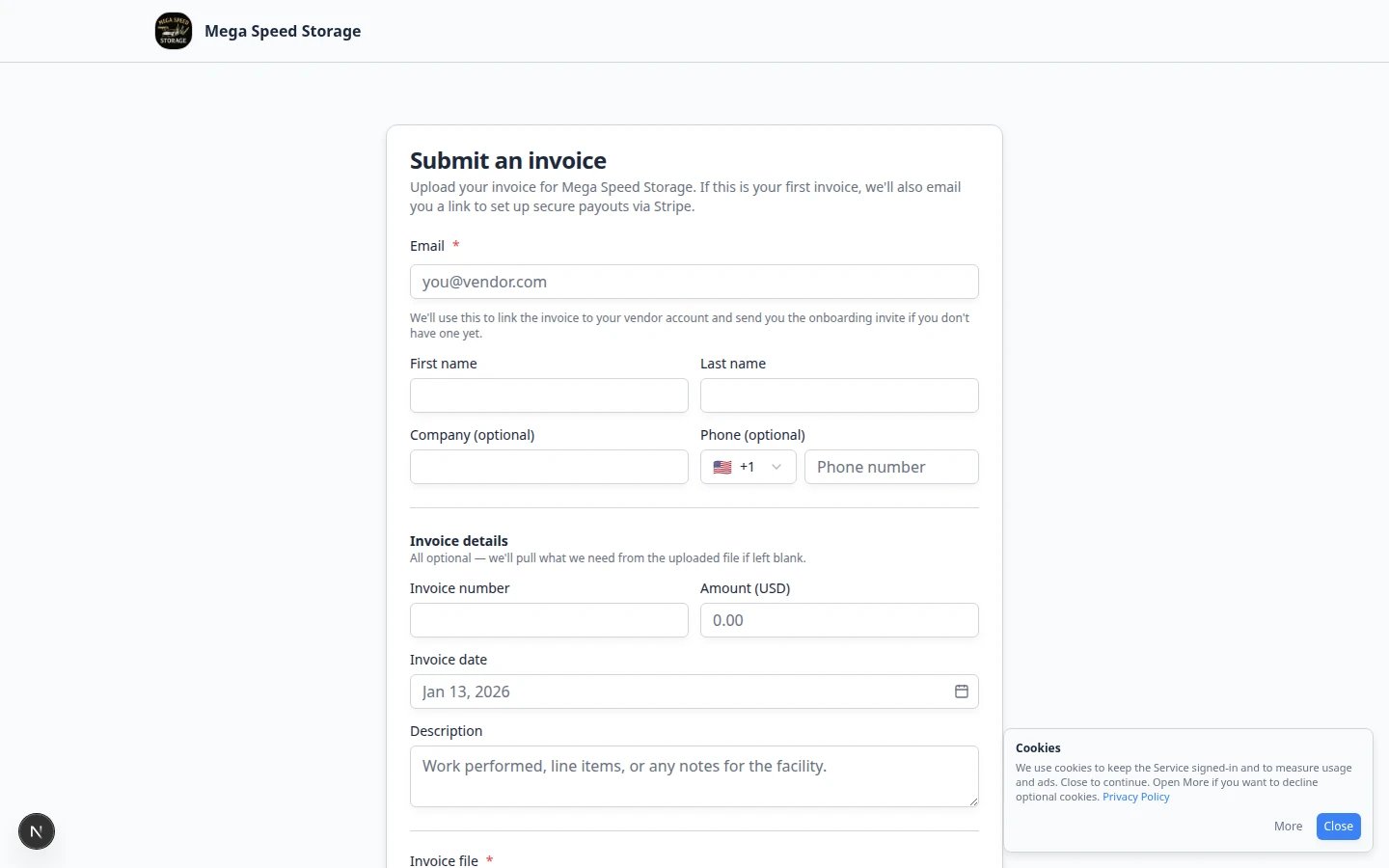 *Vendors should be able to complete this form without calling your office.*
If vendors should send invoices through a public link, open:
`/facility/your-facility-name/invoices`
Check:
* The form asks for first name, last name, email, invoice number, amount (USD), invoice date, description, and a required invoice file upload.
* The instructions are clear enough for a vendor who does not use your staff dashboard.
* Your team knows to review submissions in [Payments > Invoices](https://www.carstoragesoftware.com/dashboard/payments/invoices?type=vendor).
For full setup steps, use [Set up the vendor invoice portal](/docs/facility-web-pages/set-up-vendor-invoice-portal).
## Step 6: Test links from your own website
If you added a button, menu item, or embed to your existing website, open the public website like a customer would.
Check:
* The button or widget is easy to find.
* The words tell the visitor what will happen next.
* The link opens the correct facility page, registration page, marketplace, or login page.
* The page works on a phone-sized screen.
If you have not added a link yet, follow [Add a website embed](/docs/facility-web-pages/add-a-website-embed).
## Step 6b: Complete one real test action per feature
After pages load correctly, walk through the same path a customer or vendor would:
Submit a test registration from the **Registration** link. Confirm it appears in [Contacts](https://www.carstoragesoftware.com/dashboard/contacts). Follow [Review and approve registration requests](/docs/facility-web-pages/review-and-approve-registration-requests).
Open **Customer login** in a private window. Confirm it asks for an email—not the staff dashboard.
Run [Test marketplace checkout](/docs/facility-web-pages/test-marketplace-checkout) before sharing product links.
Sign in as a test customer and open **Shop**. Confirm prices and tags match [Configure the customer shop](/docs/facility-web-pages/configure-the-customer-shop).
If **Customers can add cars** is on, add one test car from the customer **Cars** page and find it in [Cars](https://www.carstoragesoftware.com/dashboard/cars). See [Let customers add their own cars](/docs/facility-web-pages/let-customers-add-their-own-cars).
Open the vendor link in a private window and confirm the upload form loads.
**Write down your test date**
Note the date and who ran the test. If someone changes settings later, run this checklist again before the next public launch.
## Step 7: Confirm the custom domain, if you use one
If customers should use your own domain, open the custom domain in a browser.
Check:
* The page opens without an error.
* The address bar shows your domain.
* Registration, marketplace, vendor invoice, and login links still work.
If the domain is not ready, follow [Connect a custom domain](/docs/facility-web-pages/connect-a-custom-domain).
## Step 8: Test on a phone-sized screen
Many customers open your links from a text message on their phone—not from a desktop computer.
Copy **Main page** from **Shareable links**. Open it in a private window and shrink the browser, or use your phone.
**Expected result:** Text is readable, buttons are easy to tap, and photos are not cut off.
Test each link you plan to share. A page that looks fine on a large monitor may feel cramped on a phone.
*Check your public page on a phone-sized screen before you text links to customers.*
## What success looks like
* Your public links open without a staff login.
* Customers can understand what to do without calling your team for basic instructions.
* Test registration, checkout, and vendor invoice paths have been reviewed by staff.
* Your website, emails, and printed instructions use the same final links.
* Your team knows where each submitted request appears in the staff dashboard.
## Troubleshooting
**Registration submits but nothing appears in Contacts**
Check two places: **Online registration form** must be on in [Settings > Customer onboarding](https://www.carstoragesoftware.com/dashboard/settings/customer-onboarding), and **Registration form** must be on in the **Page editor** on [Settings > Website & customer app](https://www.carstoragesoftware.com/dashboard/settings/website). Both are required. Then search [Contacts](https://www.carstoragesoftware.com/dashboard/contacts) by the exact email the prospect typed.
**Customer login opens the staff dashboard**
You copied a `/dashboard` link by mistake. Copy **Customer login** again from **Shareable links** on [Settings > Website & customer app](https://www.carstoragesoftware.com/dashboard/settings/website). Test in a private browser window where you are not signed in as staff.
**Marketplace or checkout looks empty**
Open [Payments > Products and services](https://www.carstoragesoftware.com/dashboard/payments/products). Confirm the item is active and **Show on marketplace** is on. For cars, confirm listings are approved in [Marketplace](https://www.carstoragesoftware.com/dashboard/marketplace). Then run [Test marketplace checkout](/docs/facility-web-pages/test-marketplace-checkout).
**Custom domain works but old links fail**
After DNS finishes, **Shareable links** may show new addresses. Copy every link again and update your website, emails, and printed QR codes. See [Connect a custom domain](/docs/facility-web-pages/connect-a-custom-domain).
**Vendor invoice link shows not found**
Turn on **Public Facility Pages** and **Vendor invoice portal** in the **Page editor**, save your **Facility slug**, then copy **Vendor invoices** from **Shareable links** again.
**Hours, map, or people are missing on Main page**
Those sections stay hidden until the facts exist in Settings. Set the address and hours on [Settings > General](https://www.carstoragesoftware.com/dashboard/settings/general), add an Active person under **Website contacts**, then reopen **Main page**. See [Add hours, map, contacts, and social links to your website](/docs/facility-web-pages/add-hours-map-contacts-and-social-to-your-website).
**A link works on my computer but not on a phone**
Copy the link again from **Shareable links**. Confirm you did not paste a `/dashboard` staff address. Test in a private window on the phone itself—not only by resizing a desktop browser.
**Registration works but customers see an empty portal**
Review **Customer app** settings before sending login links. Turn off empty home sections or add cars and events first. See [Customize the customer mobile app](/docs/facility-web-pages/customize-the-customer-mobile-app).
**Marketplace checkout fails during the test**
Stop sharing the marketplace link until [Test marketplace checkout](/docs/facility-web-pages/test-marketplace-checkout) passes and [Connect payment processing](/docs/settings/connect-payment-processing) is ready.
## Common mistakes to avoid
**Sharing the wrong link**
Use customer-facing links from [Settings > Website & customer app](https://www.carstoragesoftware.com/dashboard/settings/website), not links copied from inside the staff dashboard. If your team is unsure which link belongs where, follow [Choose the right public link to share](/docs/facility-web-pages/choose-the-right-public-link).
**Turning on too many actions at once**
Start with the actions your team is ready to answer today. You can add marketplace, vendor invoices, embeds, or custom domains after the main registration path works.
**Forgetting to test on a phone**
Many customers open links from text messages. Always check the page in a narrow browser window or on a phone before launch.
## What to do next
After every item passes, add the final links to your website, email templates, customer instructions, and staff call scripts.
## Related topics
- [Review website traffic on your public pages](/docs/marketing-events/review-website-traffic-on-your-public-pages.md)
- [Choose the right public link to share](/docs/facility-web-pages/choose-the-right-public-link.md)
- [Connect a custom domain](/docs/facility-web-pages/connect-a-custom-domain.md)
- [Facility Web Pages overview](/docs/facility-web-pages/overview.md)
- [Test marketplace checkout](/docs/facility-web-pages/test-marketplace-checkout.md)
This documentation is built and hosted on [Mintlify](https://mintlify.com), a developer documentation platform.
*Vendors should be able to complete this form without calling your office.*
If vendors should send invoices through a public link, open:
`/facility/your-facility-name/invoices`
Check:
* The form asks for first name, last name, email, invoice number, amount (USD), invoice date, description, and a required invoice file upload.
* The instructions are clear enough for a vendor who does not use your staff dashboard.
* Your team knows to review submissions in [Payments > Invoices](https://www.carstoragesoftware.com/dashboard/payments/invoices?type=vendor).
For full setup steps, use [Set up the vendor invoice portal](/docs/facility-web-pages/set-up-vendor-invoice-portal).
## Step 6: Test links from your own website
If you added a button, menu item, or embed to your existing website, open the public website like a customer would.
Check:
* The button or widget is easy to find.
* The words tell the visitor what will happen next.
* The link opens the correct facility page, registration page, marketplace, or login page.
* The page works on a phone-sized screen.
If you have not added a link yet, follow [Add a website embed](/docs/facility-web-pages/add-a-website-embed).
## Step 6b: Complete one real test action per feature
After pages load correctly, walk through the same path a customer or vendor would:
Submit a test registration from the **Registration** link. Confirm it appears in [Contacts](https://www.carstoragesoftware.com/dashboard/contacts). Follow [Review and approve registration requests](/docs/facility-web-pages/review-and-approve-registration-requests).
Open **Customer login** in a private window. Confirm it asks for an email—not the staff dashboard.
Run [Test marketplace checkout](/docs/facility-web-pages/test-marketplace-checkout) before sharing product links.
Sign in as a test customer and open **Shop**. Confirm prices and tags match [Configure the customer shop](/docs/facility-web-pages/configure-the-customer-shop).
If **Customers can add cars** is on, add one test car from the customer **Cars** page and find it in [Cars](https://www.carstoragesoftware.com/dashboard/cars). See [Let customers add their own cars](/docs/facility-web-pages/let-customers-add-their-own-cars).
Open the vendor link in a private window and confirm the upload form loads.
**Write down your test date**
Note the date and who ran the test. If someone changes settings later, run this checklist again before the next public launch.
## Step 7: Confirm the custom domain, if you use one
If customers should use your own domain, open the custom domain in a browser.
Check:
* The page opens without an error.
* The address bar shows your domain.
* Registration, marketplace, vendor invoice, and login links still work.
If the domain is not ready, follow [Connect a custom domain](/docs/facility-web-pages/connect-a-custom-domain).
## Step 8: Test on a phone-sized screen
Many customers open your links from a text message on their phone—not from a desktop computer.
Copy **Main page** from **Shareable links**. Open it in a private window and shrink the browser, or use your phone.
**Expected result:** Text is readable, buttons are easy to tap, and photos are not cut off.
Test each link you plan to share. A page that looks fine on a large monitor may feel cramped on a phone.
*Check your public page on a phone-sized screen before you text links to customers.*
## What success looks like
* Your public links open without a staff login.
* Customers can understand what to do without calling your team for basic instructions.
* Test registration, checkout, and vendor invoice paths have been reviewed by staff.
* Your website, emails, and printed instructions use the same final links.
* Your team knows where each submitted request appears in the staff dashboard.
## Troubleshooting
**Registration submits but nothing appears in Contacts**
Check two places: **Online registration form** must be on in [Settings > Customer onboarding](https://www.carstoragesoftware.com/dashboard/settings/customer-onboarding), and **Registration form** must be on in the **Page editor** on [Settings > Website & customer app](https://www.carstoragesoftware.com/dashboard/settings/website). Both are required. Then search [Contacts](https://www.carstoragesoftware.com/dashboard/contacts) by the exact email the prospect typed.
**Customer login opens the staff dashboard**
You copied a `/dashboard` link by mistake. Copy **Customer login** again from **Shareable links** on [Settings > Website & customer app](https://www.carstoragesoftware.com/dashboard/settings/website). Test in a private browser window where you are not signed in as staff.
**Marketplace or checkout looks empty**
Open [Payments > Products and services](https://www.carstoragesoftware.com/dashboard/payments/products). Confirm the item is active and **Show on marketplace** is on. For cars, confirm listings are approved in [Marketplace](https://www.carstoragesoftware.com/dashboard/marketplace). Then run [Test marketplace checkout](/docs/facility-web-pages/test-marketplace-checkout).
**Custom domain works but old links fail**
After DNS finishes, **Shareable links** may show new addresses. Copy every link again and update your website, emails, and printed QR codes. See [Connect a custom domain](/docs/facility-web-pages/connect-a-custom-domain).
**Vendor invoice link shows not found**
Turn on **Public Facility Pages** and **Vendor invoice portal** in the **Page editor**, save your **Facility slug**, then copy **Vendor invoices** from **Shareable links** again.
**Hours, map, or people are missing on Main page**
Those sections stay hidden until the facts exist in Settings. Set the address and hours on [Settings > General](https://www.carstoragesoftware.com/dashboard/settings/general), add an Active person under **Website contacts**, then reopen **Main page**. See [Add hours, map, contacts, and social links to your website](/docs/facility-web-pages/add-hours-map-contacts-and-social-to-your-website).
**A link works on my computer but not on a phone**
Copy the link again from **Shareable links**. Confirm you did not paste a `/dashboard` staff address. Test in a private window on the phone itself—not only by resizing a desktop browser.
**Registration works but customers see an empty portal**
Review **Customer app** settings before sending login links. Turn off empty home sections or add cars and events first. See [Customize the customer mobile app](/docs/facility-web-pages/customize-the-customer-mobile-app).
**Marketplace checkout fails during the test**
Stop sharing the marketplace link until [Test marketplace checkout](/docs/facility-web-pages/test-marketplace-checkout) passes and [Connect payment processing](/docs/settings/connect-payment-processing) is ready.
## Common mistakes to avoid
**Sharing the wrong link**
Use customer-facing links from [Settings > Website & customer app](https://www.carstoragesoftware.com/dashboard/settings/website), not links copied from inside the staff dashboard. If your team is unsure which link belongs where, follow [Choose the right public link to share](/docs/facility-web-pages/choose-the-right-public-link).
**Turning on too many actions at once**
Start with the actions your team is ready to answer today. You can add marketplace, vendor invoices, embeds, or custom domains after the main registration path works.
**Forgetting to test on a phone**
Many customers open links from text messages. Always check the page in a narrow browser window or on a phone before launch.
## What to do next
After every item passes, add the final links to your website, email templates, customer instructions, and staff call scripts.
## Related topics
- [Review website traffic on your public pages](/docs/marketing-events/review-website-traffic-on-your-public-pages.md)
- [Choose the right public link to share](/docs/facility-web-pages/choose-the-right-public-link.md)
- [Connect a custom domain](/docs/facility-web-pages/connect-a-custom-domain.md)
- [Facility Web Pages overview](/docs/facility-web-pages/overview.md)
- [Test marketplace checkout](/docs/facility-web-pages/test-marketplace-checkout.md)
This documentation is built and hosted on [Mintlify](https://mintlify.com), a developer documentation platform.