> ## Documentation Index
> Fetch the complete documentation index at: https://www.carstoragesoftware.com/docs/llms.txt
> Use this file to discover all available pages before exploring further.
# Facility Web Pages overview
> Understand the customer-facing facility pages, registration forms, marketplace pages, embeds, and checkout flows.
## What you will accomplish
After you work through this section, your facility will have clear, tested links that send each person to the right place. Prospects can learn about you and request storage. Existing customers can sign in to their portal. Vendors can submit invoices. Shoppers can view marketplace items. Your team will not need to re-explain the same steps by phone.
* Know which public link to share with prospects, customers, vendors, and website visitors.
* Set up your public facility page so it looks professional on desktop and mobile.
* Turn on registration, marketplace, and vendor invoice flows your team is ready to support.
* Test every link in a private browser window before sharing it on your website or in emails.
## Who this section is for
These guides are for **facility owners, managers, and front-desk staff** who set up public pages, copy customer links, and help customers find the right sign-in page. You do not need technical skills—only access to **Settings** in your dashboard.
## Staff dashboard vs public pages
Your team works in the **staff dashboard** (addresses that start with `/dashboard`). Customers and prospects open **public pages** (addresses that start with `/facility/your-facility-name` or your custom domain).
| Who opens it | Where they go | Example link type |
| - | - | - |
| **Your staff team** | Staff dashboard | `/dashboard/contacts`, `/dashboard/settings/website` |
| **New prospects** | Public facility page or registration form | **Main page**, **Registration** |
| **Existing customers** | Customer portal sign-in | **Customer login** |
| **Vendors** | Vendor invoice portal | **Vendor invoices** |
| **Shoppers** | Vehicle or product marketplace | **Marketplace** (or `/marketplace`, `/marketplace/products`) |
**Never share a staff dashboard link**
If the link in your browser starts with `/dashboard`, it is for your team only. Copy customer-facing links from [Settings > Website & customer app](https://www.carstoragesoftware.com/dashboard/settings/website) under **Shareable links**.
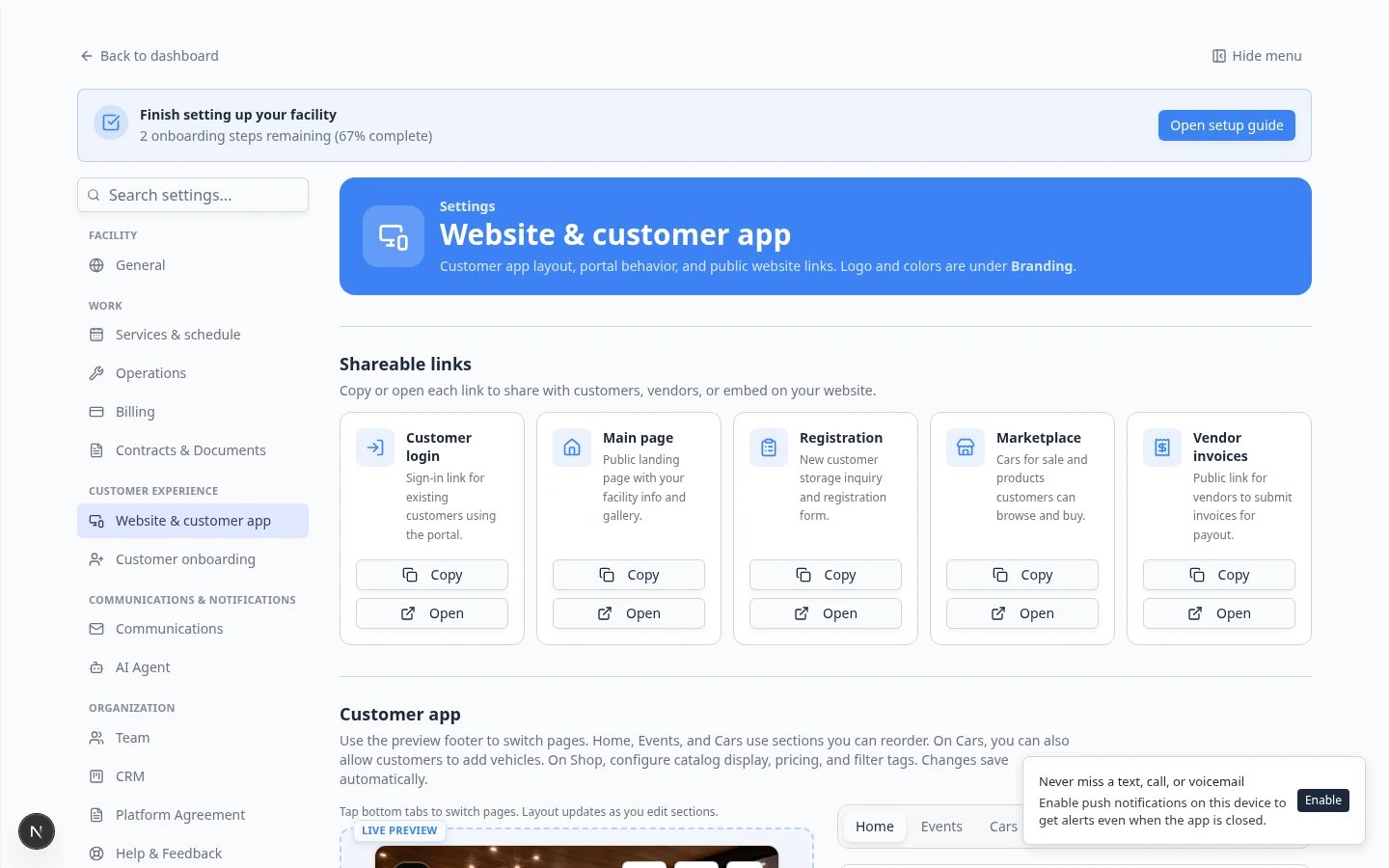
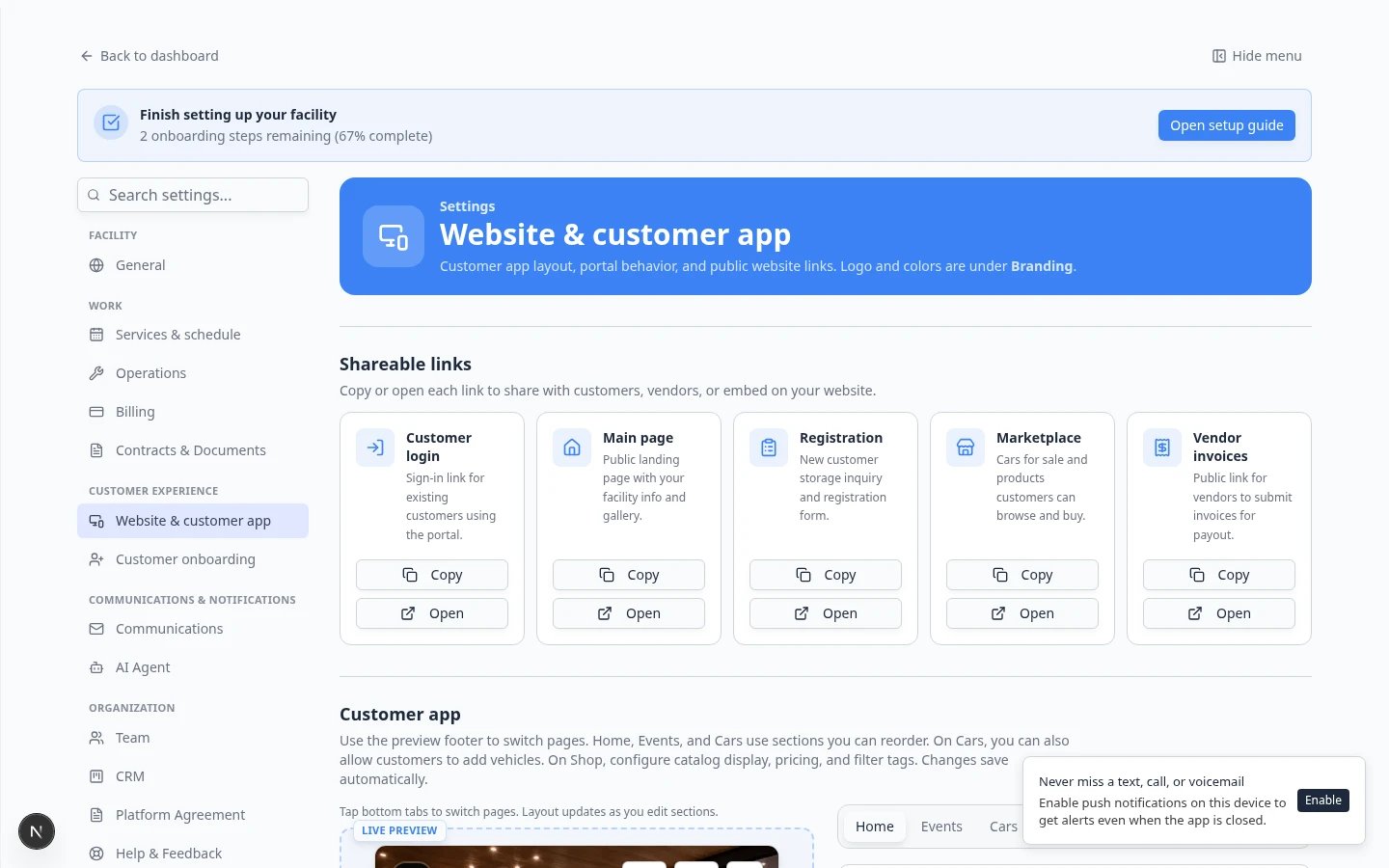 *Most public links are copied from **Shareable links** on [Settings > Website & customer app](https://www.carstoragesoftware.com/dashboard/settings/website). Staff configure pages here; customers open the finished links.*
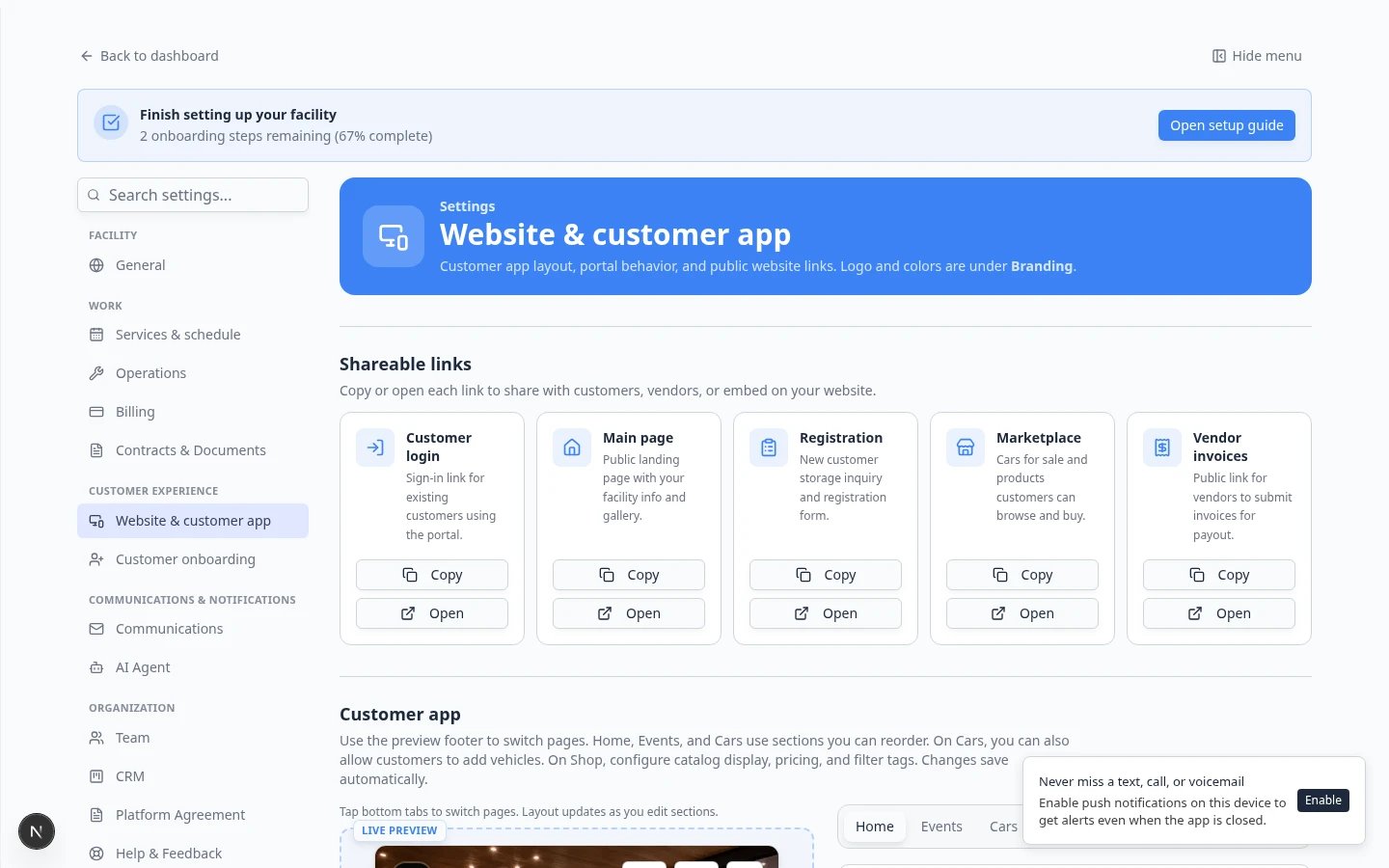 *Each **Shareable links** card has **Copy** and **Open**. Use **Open** to preview the page before you paste the link into an email or website. **Marketplace** is a newer shortcut for shoppers who should browse cars and products.*
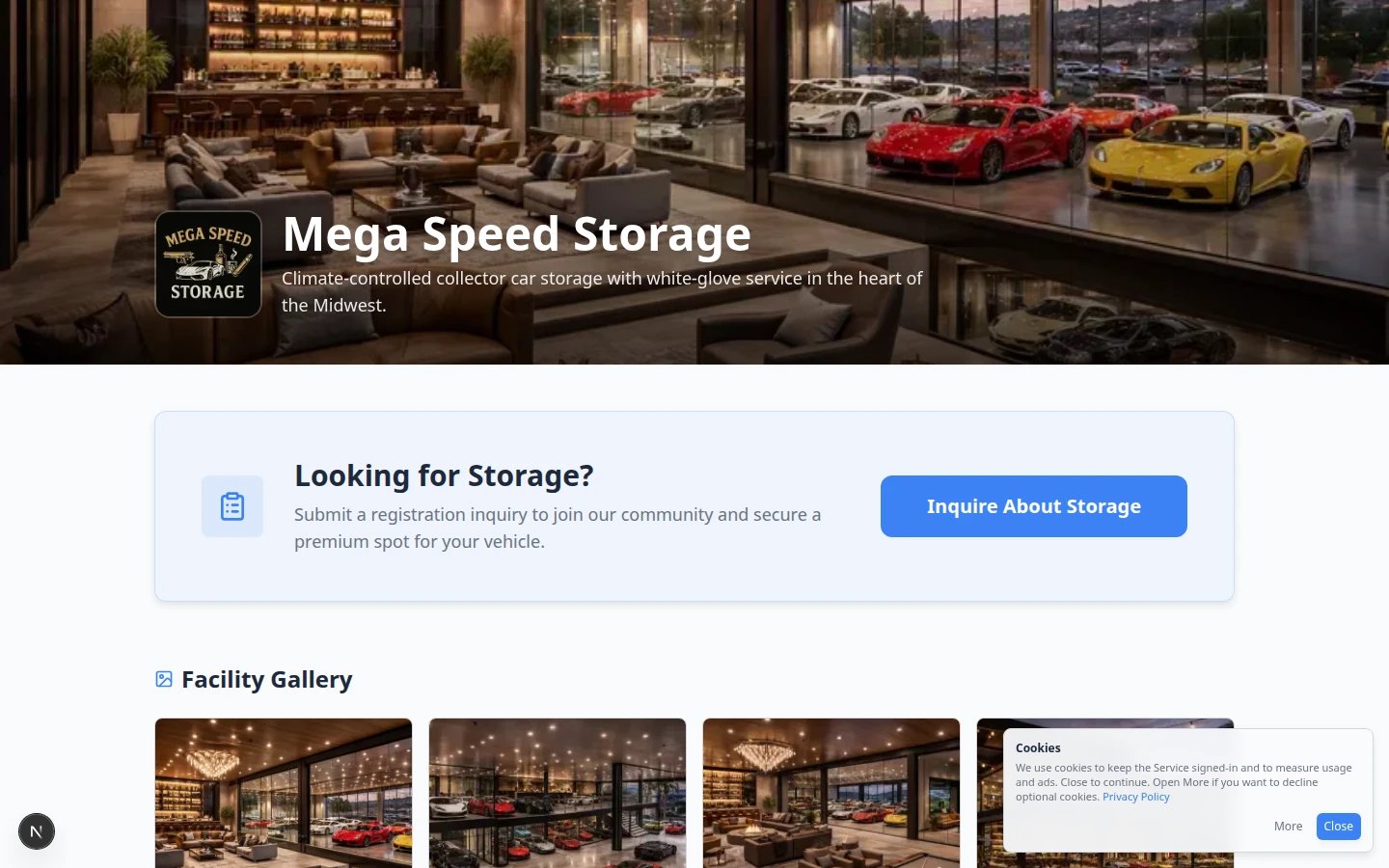 *The public facility page is often the first link prospects see. Preview it before you add it to your website.*
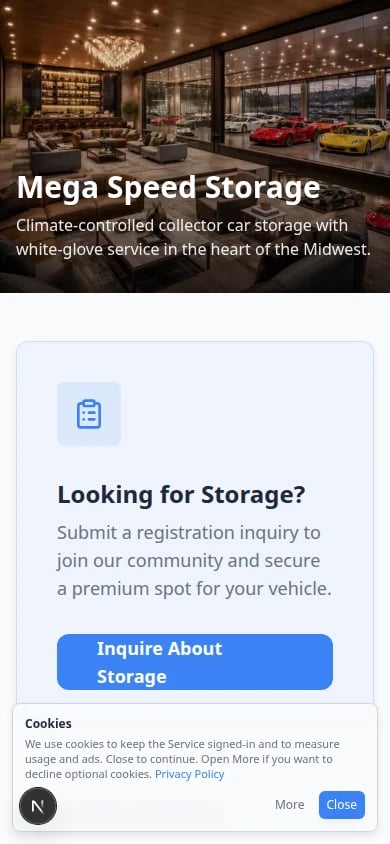 *Many customers open your link from a text message. Always preview the public page on a phone before you share it widely.*
## What you can set up
* A **public facility page** that introduces your business and services.
* A **customer login link** for existing customers who already have a portal account.
* A **customer registration page** for new storage requests.
* A **marketplace page** and checkout path for cars, products, services, or memberships.
* A **vendor invoice portal** for outside providers who need to send your team an invoice.
* A **website badge embed** you can add to another website.
* A **custom domain**, such as your own website address.
* A **QR code** for customer login or your public facility page (printed materials, front desk).
## Quick links by job
Use this table when someone asks, “Which link should I send?”
| Situation | Link to use | Guide |
| - | - | - |
| New prospect wants to request storage | **Registration** or **Main page** | [Set up customer registration](/docs/facility-web-pages/set-up-customer-registration) |
| Existing customer forgot how to sign in | **Customer login** | [Share customer login links](/docs/facility-web-pages/share-customer-login-links) |
| Vendor asks where to send an invoice | **Vendor invoices** | [Set up the vendor invoice portal](/docs/facility-web-pages/set-up-vendor-invoice-portal) |
| Shopper should browse cars or products | **Marketplace** in **Shareable links** | [Publish marketplace listings](/docs/facility-web-pages/publish-marketplace-listings) |
| Customer should buy a storage plan online | **Marketplace** (then open **Products**) or `/marketplace/products` | [Test marketplace checkout](/docs/facility-web-pages/test-marketplace-checkout) |
| Website helper needs a button or embed | **Shareable links** or embed code | [Add a website embed](/docs/facility-web-pages/add-a-website-embed) |
| You want your own domain on public pages | Custom domain settings | [Connect a custom domain](/docs/facility-web-pages/connect-a-custom-domain) |
| You want to polish the signed-in phone experience | [Settings > Website & customer app](https://www.carstoragesoftware.com/dashboard/settings/website) → **Customer app** | [Customize the customer mobile app](/docs/facility-web-pages/customize-the-customer-mobile-app) |
| Not sure which link fits | — | [Choose the right public link to share](/docs/facility-web-pages/choose-the-right-public-link) |
## Where setup happens in the dashboard
Most public page work starts on [Settings > Website & customer app](https://www.carstoragesoftware.com/dashboard/settings/website). Scroll down this one long page in this order:
| Section (top to bottom) | What you set up there |
| - | - |
| **Shareable links** | Copy **Customer login**, **Main page**, **Registration**, **Marketplace**, **Vendor invoices** |
| **Customer app** | Signed-in pages (**Home**, **Events**, **Cars**, **Schedule**, **Shop**, and more), header, sections, and bottom navigation |
| **Marketplace** | Facility-wide marketplace visibility and defaults |
| **Public website** | **Facility slug**, **Page editor** sections, live preview |
| **Car page** | Which blocks appear on a vehicle record for staff and customers |
| **Community** | Public community settings when your facility uses that feature |
| **Website schedule widget** | Optional branded badge embed code for another website |
Your own website address is set on a separate page: [Settings > Custom domain](https://www.carstoragesoftware.com/dashboard/settings/custom-domain). See [Connect a custom domain](/docs/facility-web-pages/connect-a-custom-domain).
Go to [Settings > Website & customer app](https://www.carstoragesoftware.com/dashboard/settings/website).
**Expected result:** You see **Shareable links** near the top, then sections for **Customer app**, **Public website**, and **Website schedule widget**.
Use **Copy** on the card that matches your goal: **Customer login**, **Main page**, **Registration**, **Marketplace**, or **Vendor invoices**.
**Why this matters:** Copying prevents typos. One wrong character can send customers to an error page.
Scroll to **Public website** to turn pages on, choose your **Facility slug**, and use the **Page editor** to add or remove sections. Turn on **Vendor invoice portal** under **Header & page settings** when vendors need a public submit link.
See [Configure the facility landing page](/docs/facility-web-pages/configure-the-facility-landing-page). To show hours, a map, people, or social icons, also follow [Add hours, map, contacts, and social links to your website](/docs/facility-web-pages/add-hours-map-contacts-and-social-to-your-website).
Open [Settings > Customer onboarding](https://www.carstoragesoftware.com/dashboard/settings/customer-onboarding) to choose which questions appear on the registration form.
See [Set up customer registration](/docs/facility-web-pages/set-up-customer-registration).
Scroll to **Customer app** on the same settings page. Use the page row to switch **Home**, **Cars**, **Shop**, and other pages. Set header text, home sections, and bottom tabs before customers sign in.
See [Customize the customer mobile app](/docs/facility-web-pages/customize-the-customer-mobile-app), [Configure the customer shop](/docs/facility-web-pages/configure-the-customer-shop), and [Let customers add their own cars](/docs/facility-web-pages/let-customers-add-their-own-cars).
*Many customers open your link from a text message. Always preview the public page on a phone before you share it widely.*
## What you can set up
* A **public facility page** that introduces your business and services.
* A **customer login link** for existing customers who already have a portal account.
* A **customer registration page** for new storage requests.
* A **marketplace page** and checkout path for cars, products, services, or memberships.
* A **vendor invoice portal** for outside providers who need to send your team an invoice.
* A **website badge embed** you can add to another website.
* A **custom domain**, such as your own website address.
* A **QR code** for customer login or your public facility page (printed materials, front desk).
## Quick links by job
Use this table when someone asks, “Which link should I send?”
| Situation | Link to use | Guide |
| - | - | - |
| New prospect wants to request storage | **Registration** or **Main page** | [Set up customer registration](/docs/facility-web-pages/set-up-customer-registration) |
| Existing customer forgot how to sign in | **Customer login** | [Share customer login links](/docs/facility-web-pages/share-customer-login-links) |
| Vendor asks where to send an invoice | **Vendor invoices** | [Set up the vendor invoice portal](/docs/facility-web-pages/set-up-vendor-invoice-portal) |
| Shopper should browse cars or products | **Marketplace** in **Shareable links** | [Publish marketplace listings](/docs/facility-web-pages/publish-marketplace-listings) |
| Customer should buy a storage plan online | **Marketplace** (then open **Products**) or `/marketplace/products` | [Test marketplace checkout](/docs/facility-web-pages/test-marketplace-checkout) |
| Website helper needs a button or embed | **Shareable links** or embed code | [Add a website embed](/docs/facility-web-pages/add-a-website-embed) |
| You want your own domain on public pages | Custom domain settings | [Connect a custom domain](/docs/facility-web-pages/connect-a-custom-domain) |
| You want to polish the signed-in phone experience | [Settings > Website & customer app](https://www.carstoragesoftware.com/dashboard/settings/website) → **Customer app** | [Customize the customer mobile app](/docs/facility-web-pages/customize-the-customer-mobile-app) |
| Not sure which link fits | — | [Choose the right public link to share](/docs/facility-web-pages/choose-the-right-public-link) |
## Where setup happens in the dashboard
Most public page work starts on [Settings > Website & customer app](https://www.carstoragesoftware.com/dashboard/settings/website). Scroll down this one long page in this order:
| Section (top to bottom) | What you set up there |
| - | - |
| **Shareable links** | Copy **Customer login**, **Main page**, **Registration**, **Marketplace**, **Vendor invoices** |
| **Customer app** | Signed-in pages (**Home**, **Events**, **Cars**, **Schedule**, **Shop**, and more), header, sections, and bottom navigation |
| **Marketplace** | Facility-wide marketplace visibility and defaults |
| **Public website** | **Facility slug**, **Page editor** sections, live preview |
| **Car page** | Which blocks appear on a vehicle record for staff and customers |
| **Community** | Public community settings when your facility uses that feature |
| **Website schedule widget** | Optional branded badge embed code for another website |
Your own website address is set on a separate page: [Settings > Custom domain](https://www.carstoragesoftware.com/dashboard/settings/custom-domain). See [Connect a custom domain](/docs/facility-web-pages/connect-a-custom-domain).
Go to [Settings > Website & customer app](https://www.carstoragesoftware.com/dashboard/settings/website).
**Expected result:** You see **Shareable links** near the top, then sections for **Customer app**, **Public website**, and **Website schedule widget**.
Use **Copy** on the card that matches your goal: **Customer login**, **Main page**, **Registration**, **Marketplace**, or **Vendor invoices**.
**Why this matters:** Copying prevents typos. One wrong character can send customers to an error page.
Scroll to **Public website** to turn pages on, choose your **Facility slug**, and use the **Page editor** to add or remove sections. Turn on **Vendor invoice portal** under **Header & page settings** when vendors need a public submit link.
See [Configure the facility landing page](/docs/facility-web-pages/configure-the-facility-landing-page). To show hours, a map, people, or social icons, also follow [Add hours, map, contacts, and social links to your website](/docs/facility-web-pages/add-hours-map-contacts-and-social-to-your-website).
Open [Settings > Customer onboarding](https://www.carstoragesoftware.com/dashboard/settings/customer-onboarding) to choose which questions appear on the registration form.
See [Set up customer registration](/docs/facility-web-pages/set-up-customer-registration).
Scroll to **Customer app** on the same settings page. Use the page row to switch **Home**, **Cars**, **Shop**, and other pages. Set header text, home sections, and bottom tabs before customers sign in.
See [Customize the customer mobile app](/docs/facility-web-pages/customize-the-customer-mobile-app), [Configure the customer shop](/docs/facility-web-pages/configure-the-customer-shop), and [Let customers add their own cars](/docs/facility-web-pages/let-customers-add-their-own-cars).
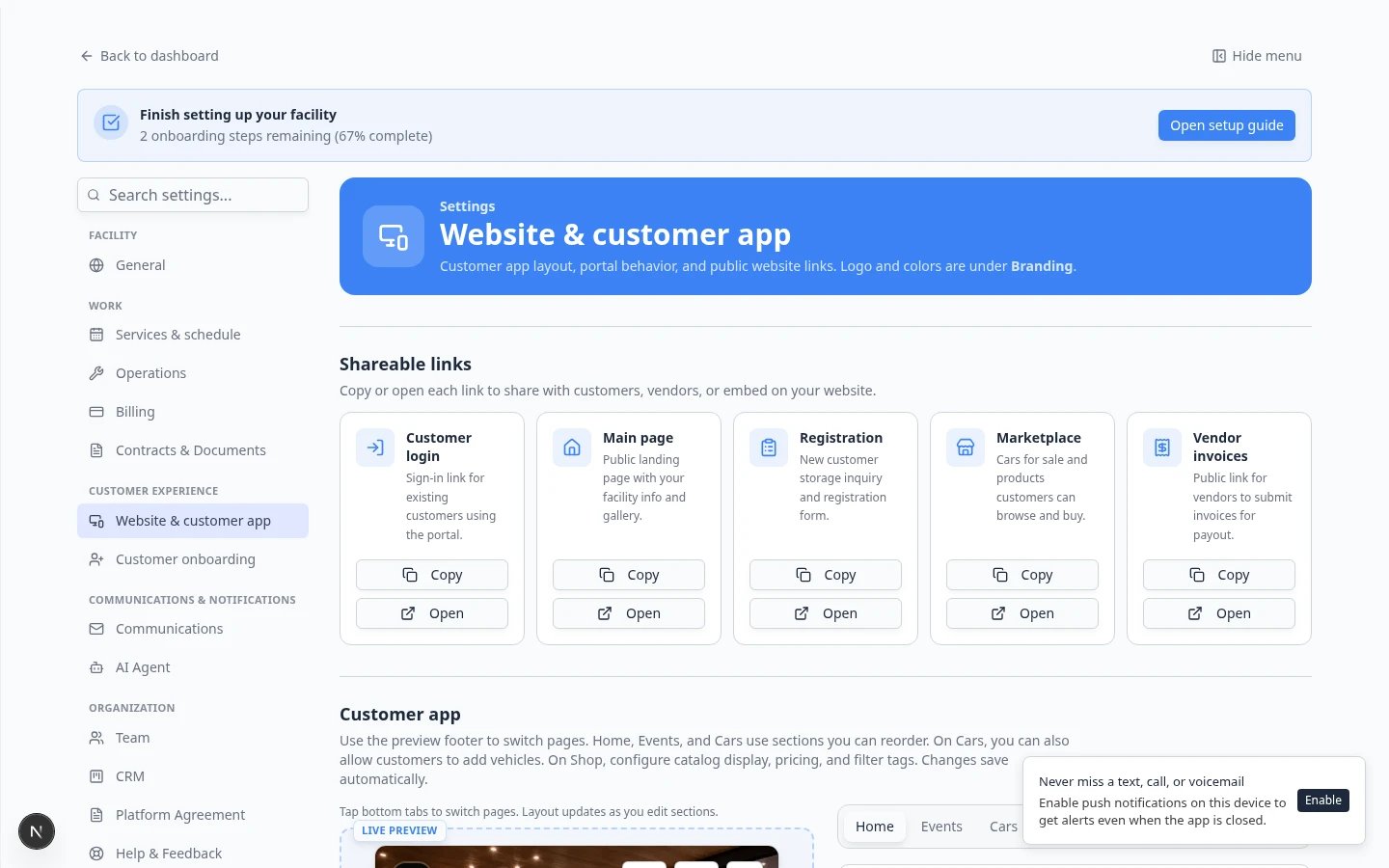 ***Shareable links** is where staff copy customer-facing URLs. Never share a `/dashboard` address with customers.*
 *Draggable sections live in the **Page editor**. **Vendor invoice portal** is a separate toggle under **Header & page settings**—not in this list.*
## Recommended setup order
Follow this order if you are setting up public pages for the first time.
Set up your **Facility slug**, banner, and **Page editor** sections in [Configure the facility landing page](/docs/facility-web-pages/configure-the-facility-landing-page). Add [hours, map, contacts, and social links](/docs/facility-web-pages/add-hours-map-contacts-and-social-to-your-website) so prospects can find you without calling.
Turn on the **Online registration form** and **Registration form** section, then test a submission with [Set up customer registration](/docs/facility-web-pages/set-up-customer-registration).
Train staff with [Review and approve registration requests](/docs/facility-web-pages/review-and-approve-registration-requests).
Set header, home sections, and bottom tabs with [Customize the customer mobile app](/docs/facility-web-pages/customize-the-customer-mobile-app) before wide portal invites. If customers will buy plans or add cars themselves, also follow [Configure the customer shop](/docs/facility-web-pages/configure-the-customer-shop) and [Let customers add their own cars](/docs/facility-web-pages/let-customers-add-their-own-cars).
Add the **Customer login** link to your website and welcome emails with [Share customer login links](/docs/facility-web-pages/share-customer-login-links).
Use [Choose the right public link to share](/docs/facility-web-pages/choose-the-right-public-link), then run [Go live checklist for public pages](/docs/facility-web-pages/go-live-checklist-for-public-pages) before sharing widely.
### Expected result
Your team has one clear public path for prospects: they can learn about your facility, request storage, and reach the right next step without calling your staff for basic instructions.
## Customize the customer app (signed-in mobile experience)
Prospects see your **public facility page**. After they become customers and sign in, they use the **customer app** on their phone.
Go to [Settings > Website & customer app](https://www.carstoragesoftware.com/dashboard/settings/website) and scroll to **Customer app**.
**Expected result:** A live preview shows the phone home screen. A page row lets you switch **Home**, **Cars**, **Shop**, and other signed-in pages.
Stay on **Home** first. Turn sections on or off (gallery, upcoming events, quick actions) and drag them into a friendly order.
Click **Shop** when you need prices and tags. Click **Cars** when you need **Customers can add cars**.
**Why this matters:** Customers who already trust your facility will judge your professionalism again when they open the portal on their phone.
Copy **Customer login** from **Shareable links**, open it on your phone, and sign in as a test customer if you have one.
**Expected result:** The signed-in home screen matches the preview in settings.
*Draggable sections live in the **Page editor**. **Vendor invoice portal** is a separate toggle under **Header & page settings**—not in this list.*
## Recommended setup order
Follow this order if you are setting up public pages for the first time.
Set up your **Facility slug**, banner, and **Page editor** sections in [Configure the facility landing page](/docs/facility-web-pages/configure-the-facility-landing-page). Add [hours, map, contacts, and social links](/docs/facility-web-pages/add-hours-map-contacts-and-social-to-your-website) so prospects can find you without calling.
Turn on the **Online registration form** and **Registration form** section, then test a submission with [Set up customer registration](/docs/facility-web-pages/set-up-customer-registration).
Train staff with [Review and approve registration requests](/docs/facility-web-pages/review-and-approve-registration-requests).
Set header, home sections, and bottom tabs with [Customize the customer mobile app](/docs/facility-web-pages/customize-the-customer-mobile-app) before wide portal invites. If customers will buy plans or add cars themselves, also follow [Configure the customer shop](/docs/facility-web-pages/configure-the-customer-shop) and [Let customers add their own cars](/docs/facility-web-pages/let-customers-add-their-own-cars).
Add the **Customer login** link to your website and welcome emails with [Share customer login links](/docs/facility-web-pages/share-customer-login-links).
Use [Choose the right public link to share](/docs/facility-web-pages/choose-the-right-public-link), then run [Go live checklist for public pages](/docs/facility-web-pages/go-live-checklist-for-public-pages) before sharing widely.
### Expected result
Your team has one clear public path for prospects: they can learn about your facility, request storage, and reach the right next step without calling your staff for basic instructions.
## Customize the customer app (signed-in mobile experience)
Prospects see your **public facility page**. After they become customers and sign in, they use the **customer app** on their phone.
Go to [Settings > Website & customer app](https://www.carstoragesoftware.com/dashboard/settings/website) and scroll to **Customer app**.
**Expected result:** A live preview shows the phone home screen. A page row lets you switch **Home**, **Cars**, **Shop**, and other signed-in pages.
Stay on **Home** first. Turn sections on or off (gallery, upcoming events, quick actions) and drag them into a friendly order.
Click **Shop** when you need prices and tags. Click **Cars** when you need **Customers can add cars**.
**Why this matters:** Customers who already trust your facility will judge your professionalism again when they open the portal on their phone.
Copy **Customer login** from **Shareable links**, open it on your phone, and sign in as a test customer if you have one.
**Expected result:** The signed-in home screen matches the preview in settings.
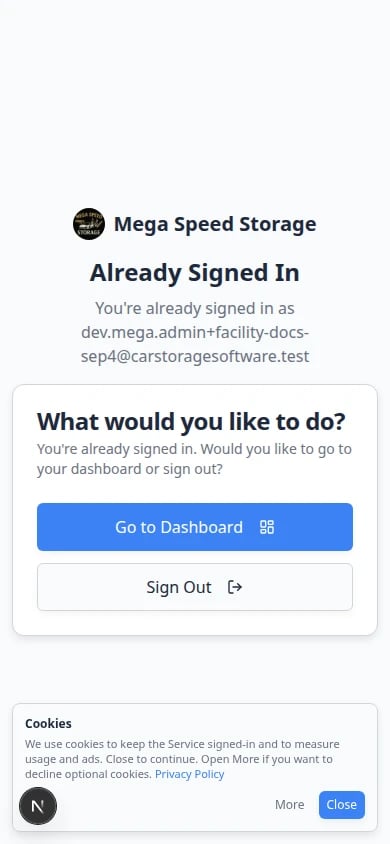 *Many customers open **Customer login** from a text message on their phone. Preview the sign-in page at phone size before you share the link widely.*
For step-by-step help building the public page (not the signed-in app), see [Configure the facility landing page](/docs/facility-web-pages/configure-the-facility-landing-page).
## Customer journey from first visit to portal
They open your **Main page** from your website, a text message, or a business card QR code.
They complete the **Registration** form. Your team reviews the request in [Contacts](https://www.carstoragesoftware.com/dashboard/contacts).
Follow [Review and approve registration requests](/docs/facility-web-pages/review-and-approve-registration-requests). Add cars, documents, and billing as needed.
Send the **Customer login** link after the record looks ready. See [Invite a customer to the portal](/docs/contacts/invite-a-customer-to-the-portal).
They view cars, events, billing, and documents from the customer portal. See [Guide a customer through the portal](/docs/contacts/guide-a-customer-through-the-portal).
*Many customers open **Customer login** from a text message on their phone. Preview the sign-in page at phone size before you share the link widely.*
For step-by-step help building the public page (not the signed-in app), see [Configure the facility landing page](/docs/facility-web-pages/configure-the-facility-landing-page).
## Customer journey from first visit to portal
They open your **Main page** from your website, a text message, or a business card QR code.
They complete the **Registration** form. Your team reviews the request in [Contacts](https://www.carstoragesoftware.com/dashboard/contacts).
Follow [Review and approve registration requests](/docs/facility-web-pages/review-and-approve-registration-requests). Add cars, documents, and billing as needed.
Send the **Customer login** link after the record looks ready. See [Invite a customer to the portal](/docs/contacts/invite-a-customer-to-the-portal).
They view cars, events, billing, and documents from the customer portal. See [Guide a customer through the portal](/docs/contacts/guide-a-customer-through-the-portal).
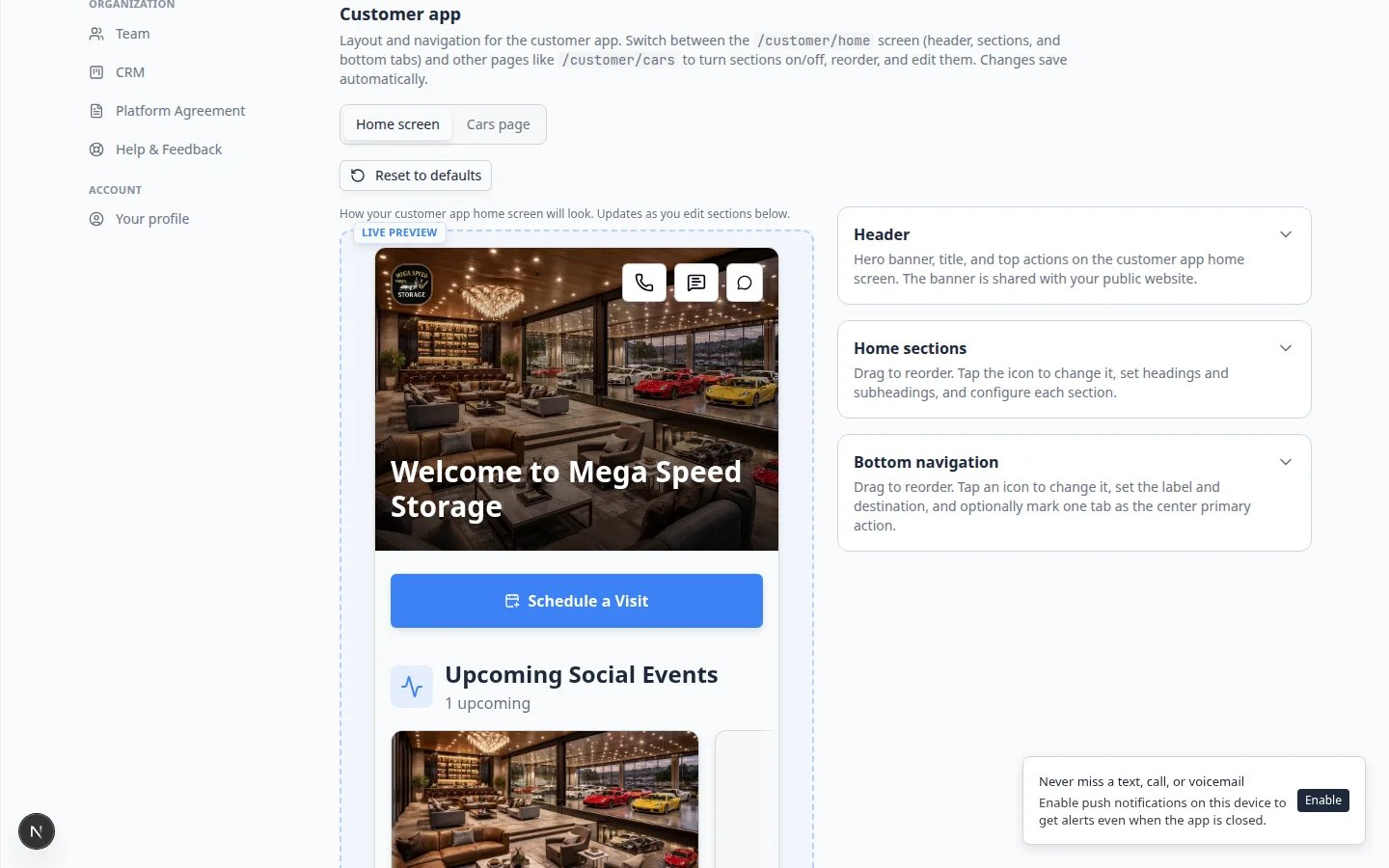 *The **Customer app** section on Website settings shows what signed-in customers see on their phone. Customize header and home sections there.*
## Important words in plain English
**Public facility page** means the page anyone can open to learn about your facility.
**Registration page** means the form a new customer fills out to request storage or onboarding.
**Customer portal** means the private area customers use after they are accepted or invited.
**Marketplace** means the public or customer-facing page where cars, products, services, or memberships can be shown.
**Facility slug** means the short name at the end of your public web address (for example `smith-storage`).
**Shareable links** means the copy buttons near the top of Website & customer app settings.
## How-to guides in this section
* [Go live checklist for public pages](/docs/facility-web-pages/go-live-checklist-for-public-pages) — test every link before you announce them.
* [Choose the right public link to share](/docs/facility-web-pages/choose-the-right-public-link) — match each link to the right person.
* [Share customer login links](/docs/facility-web-pages/share-customer-login-links) — help existing customers find the portal.
* [Customize the customer mobile app](/docs/facility-web-pages/customize-the-customer-mobile-app) — set up the signed-in home screen on phones.
* [Configure the customer shop](/docs/facility-web-pages/configure-the-customer-shop) — choose how signed-in customers see prices and product tags.
* [Let customers add their own cars](/docs/facility-web-pages/let-customers-add-their-own-cars) — allow owners to add a vehicle from the Cars page.
* [Set up customer registration](/docs/facility-web-pages/set-up-customer-registration) — collect new storage requests online.
* [Review and approve registration requests](/docs/facility-web-pages/review-and-approve-registration-requests) — process submissions in Contacts.
* [Configure the facility landing page](/docs/facility-web-pages/configure-the-facility-landing-page) — build your public front door.
* [Edit your website with the AI website editor](/docs/facility-web-pages/build-your-website-with-ai) — describe changes in plain words, then publish (beta).
* [Add hours, map, contacts, and social links to your website](/docs/facility-web-pages/add-hours-map-contacts-and-social-to-your-website) — show address, weekly hours, public contacts, and social icons.
* [Publish marketplace listings](/docs/facility-web-pages/publish-marketplace-listings) — show cars, products, or services.
* [Test marketplace checkout](/docs/facility-web-pages/test-marketplace-checkout) — confirm online purchases work.
* [Add a website embed](/docs/facility-web-pages/add-a-website-embed) — connect your existing website.
* [Set up the vendor invoice portal](/docs/facility-web-pages/set-up-vendor-invoice-portal) — let vendors submit invoices from a public link.
* [Connect a custom domain](/docs/facility-web-pages/connect-a-custom-domain) — use your own web address.
## What success looks like
* **Public Facility Pages** is on and your **Facility slug** is saved.
* Every **Shareable link** opens the correct page in a private browser window.
* A test registration appears in [Contacts](https://www.carstoragesoftware.com/dashboard/contacts).
* **Customer login** opens the sign-in page—not the staff dashboard.
* Public pages look good on a phone-sized screen.
* Your team ran [Go live checklist for public pages](/docs/facility-web-pages/go-live-checklist-for-public-pages) before sharing links widely.
## Troubleshooting
**The customer says the link does not work**
Copy the link again from [Settings > Website & customer app](https://www.carstoragesoftware.com/dashboard/settings/website). Test it in a private browser window. Make sure you did not accidentally copy a `/dashboard` address.
**The public page says not found**
Open Website settings. Under **Public website**, confirm **Public Facility Pages** is on and your **Facility slug** is saved.
**Registration submits but nothing appears in Contacts**
Check two places: **Online registration form** must be on in [Customer onboarding](https://www.carstoragesoftware.com/dashboard/settings/customer-onboarding), and **Registration form** must be on in the **Page editor**. Both are required.
**The page does not match our brand**
Review [Settings > Branding](https://www.carstoragesoftware.com/dashboard/settings/branding) for logo and colors. Review Website settings for public page wording and photos.
**The customer portal looks empty on a phone**
Open **Customer app** on [Settings > Website & customer app](https://www.carstoragesoftware.com/dashboard/settings/website). Turn off home sections that have no data yet, or add cars and events before inviting customers. See [Customize the customer mobile app](/docs/facility-web-pages/customize-the-customer-mobile-app).
## Common questions
**Do customers need a login to see public pages?**
Usually, no. A public facility page and public registration page are meant for prospects who do not have a customer login yet. A customer portal is private and does require a customer login.
**Should vendors use the customer portal?**
Usually, no. Vendors can use the vendor invoice portal link when they only need to send your facility an invoice. Customers use the customer portal for their vehicles, events, documents, and billing.
**Should I share the page before it is finished?**
No. Preview the page first. Check the words, links, photos, and buttons before adding the page to your website or sending it to customers.
## Related sections
* [Settings](/docs/settings/overview) for branding, billing, and team setup.
* [Contacts](/docs/contacts/overview) for customer records created by registration.
* [Payments](/docs/payments/overview) for products, checkout, and vendor invoices.
* [Contracts](/docs/contracts/overview) when registration or onboarding includes signed agreements.
## What to do next
If your goal is new storage requests, start with [Set up customer registration](/docs/facility-web-pages/set-up-customer-registration). If your goal is helping existing customers sign in, start with [Share customer login links](/docs/facility-web-pages/share-customer-login-links). If visitors keep asking for hours or the address, start with [Add hours, map, contacts, and social links to your website](/docs/facility-web-pages/add-hours-map-contacts-and-social-to-your-website).
## Related topics
- [List a vehicle for sale on your marketplace](/docs/cars/list-a-vehicle-for-sale-on-your-marketplace.md)
- [Contracts overview](/docs/contracts/overview.md)
- [Configure the facility landing page](/docs/facility-web-pages/configure-the-facility-landing-page.md)
- [AI Assistant overview](/docs/ai-assistant/overview.md)
- [Settings overview](/docs/settings/overview.md)
This documentation is built and hosted on [Mintlify](https://mintlify.com), a developer documentation platform.
*The **Customer app** section on Website settings shows what signed-in customers see on their phone. Customize header and home sections there.*
## Important words in plain English
**Public facility page** means the page anyone can open to learn about your facility.
**Registration page** means the form a new customer fills out to request storage or onboarding.
**Customer portal** means the private area customers use after they are accepted or invited.
**Marketplace** means the public or customer-facing page where cars, products, services, or memberships can be shown.
**Facility slug** means the short name at the end of your public web address (for example `smith-storage`).
**Shareable links** means the copy buttons near the top of Website & customer app settings.
## How-to guides in this section
* [Go live checklist for public pages](/docs/facility-web-pages/go-live-checklist-for-public-pages) — test every link before you announce them.
* [Choose the right public link to share](/docs/facility-web-pages/choose-the-right-public-link) — match each link to the right person.
* [Share customer login links](/docs/facility-web-pages/share-customer-login-links) — help existing customers find the portal.
* [Customize the customer mobile app](/docs/facility-web-pages/customize-the-customer-mobile-app) — set up the signed-in home screen on phones.
* [Configure the customer shop](/docs/facility-web-pages/configure-the-customer-shop) — choose how signed-in customers see prices and product tags.
* [Let customers add their own cars](/docs/facility-web-pages/let-customers-add-their-own-cars) — allow owners to add a vehicle from the Cars page.
* [Set up customer registration](/docs/facility-web-pages/set-up-customer-registration) — collect new storage requests online.
* [Review and approve registration requests](/docs/facility-web-pages/review-and-approve-registration-requests) — process submissions in Contacts.
* [Configure the facility landing page](/docs/facility-web-pages/configure-the-facility-landing-page) — build your public front door.
* [Edit your website with the AI website editor](/docs/facility-web-pages/build-your-website-with-ai) — describe changes in plain words, then publish (beta).
* [Add hours, map, contacts, and social links to your website](/docs/facility-web-pages/add-hours-map-contacts-and-social-to-your-website) — show address, weekly hours, public contacts, and social icons.
* [Publish marketplace listings](/docs/facility-web-pages/publish-marketplace-listings) — show cars, products, or services.
* [Test marketplace checkout](/docs/facility-web-pages/test-marketplace-checkout) — confirm online purchases work.
* [Add a website embed](/docs/facility-web-pages/add-a-website-embed) — connect your existing website.
* [Set up the vendor invoice portal](/docs/facility-web-pages/set-up-vendor-invoice-portal) — let vendors submit invoices from a public link.
* [Connect a custom domain](/docs/facility-web-pages/connect-a-custom-domain) — use your own web address.
## What success looks like
* **Public Facility Pages** is on and your **Facility slug** is saved.
* Every **Shareable link** opens the correct page in a private browser window.
* A test registration appears in [Contacts](https://www.carstoragesoftware.com/dashboard/contacts).
* **Customer login** opens the sign-in page—not the staff dashboard.
* Public pages look good on a phone-sized screen.
* Your team ran [Go live checklist for public pages](/docs/facility-web-pages/go-live-checklist-for-public-pages) before sharing links widely.
## Troubleshooting
**The customer says the link does not work**
Copy the link again from [Settings > Website & customer app](https://www.carstoragesoftware.com/dashboard/settings/website). Test it in a private browser window. Make sure you did not accidentally copy a `/dashboard` address.
**The public page says not found**
Open Website settings. Under **Public website**, confirm **Public Facility Pages** is on and your **Facility slug** is saved.
**Registration submits but nothing appears in Contacts**
Check two places: **Online registration form** must be on in [Customer onboarding](https://www.carstoragesoftware.com/dashboard/settings/customer-onboarding), and **Registration form** must be on in the **Page editor**. Both are required.
**The page does not match our brand**
Review [Settings > Branding](https://www.carstoragesoftware.com/dashboard/settings/branding) for logo and colors. Review Website settings for public page wording and photos.
**The customer portal looks empty on a phone**
Open **Customer app** on [Settings > Website & customer app](https://www.carstoragesoftware.com/dashboard/settings/website). Turn off home sections that have no data yet, or add cars and events before inviting customers. See [Customize the customer mobile app](/docs/facility-web-pages/customize-the-customer-mobile-app).
## Common questions
**Do customers need a login to see public pages?**
Usually, no. A public facility page and public registration page are meant for prospects who do not have a customer login yet. A customer portal is private and does require a customer login.
**Should vendors use the customer portal?**
Usually, no. Vendors can use the vendor invoice portal link when they only need to send your facility an invoice. Customers use the customer portal for their vehicles, events, documents, and billing.
**Should I share the page before it is finished?**
No. Preview the page first. Check the words, links, photos, and buttons before adding the page to your website or sending it to customers.
## Related sections
* [Settings](/docs/settings/overview) for branding, billing, and team setup.
* [Contacts](/docs/contacts/overview) for customer records created by registration.
* [Payments](/docs/payments/overview) for products, checkout, and vendor invoices.
* [Contracts](/docs/contracts/overview) when registration or onboarding includes signed agreements.
## What to do next
If your goal is new storage requests, start with [Set up customer registration](/docs/facility-web-pages/set-up-customer-registration). If your goal is helping existing customers sign in, start with [Share customer login links](/docs/facility-web-pages/share-customer-login-links). If visitors keep asking for hours or the address, start with [Add hours, map, contacts, and social links to your website](/docs/facility-web-pages/add-hours-map-contacts-and-social-to-your-website).
## Related topics
- [List a vehicle for sale on your marketplace](/docs/cars/list-a-vehicle-for-sale-on-your-marketplace.md)
- [Contracts overview](/docs/contracts/overview.md)
- [Configure the facility landing page](/docs/facility-web-pages/configure-the-facility-landing-page.md)
- [AI Assistant overview](/docs/ai-assistant/overview.md)
- [Settings overview](/docs/settings/overview.md)
This documentation is built and hosted on [Mintlify](https://mintlify.com), a developer documentation platform.