> ## Documentation Index
> Fetch the complete documentation index at: https://www.carstoragesoftware.com/docs/llms.txt
> Use this file to discover all available pages before exploring further.
# Test marketplace checkout
> Walk through the customer checkout path before sharing marketplace links or accepting online purchases.
## What you will accomplish
You will walk through checkout the same way a customer would—from the product list to the cart to the contact form—and confirm names, prices, and staff follow-up locations are correct before you share a marketplace link.
## When to use this guide
Use this guide before customers buy products, services, memberships, or storage plans from your **product marketplace**.
Run this test when:
* You turn on the product marketplace for the first time
* You add a new paid plan or change a price
* A customer reported confusion at checkout
* You are about to put a marketplace link on your website or in an email
**Test before you share the link**
A wrong price or a broken checkout step can hurt customer trust. A five-minute test in a private browser window is much easier than fixing upset customers later.
## Before you start
* Marketplace options are turned on in [Settings > Website & customer app](https://www.carstoragesoftware.com/dashboard/settings/website).
* The item is active in [Payments > Products and services](https://www.carstoragesoftware.com/dashboard/payments/products).
* The item has at least one **pricing variant** customers can select (not **Contact for pricing** only).
* The item is set to **Show on marketplace** in [Payments > Products and services](https://www.carstoragesoftware.com/dashboard/payments/products).
* A manager reviewed the price, billing schedule, and customer-facing description.
* [Payment processing](/docs/settings/connect-payment-processing) is connected if customers will pay by card online.
**Do not charge a real customer by accident**
Use your facility’s approved test process for card payments. If you are not sure how to test safely, ask your facility owner before completing payment.
## Step 1: Copy the product marketplace link
Go to [Settings > Website & customer app](https://www.carstoragesoftware.com/dashboard/settings/website).
On [Settings > Website & customer app](https://www.carstoragesoftware.com/dashboard/settings/website), find **Shareable links** near the top.
Click **Copy** on the **Marketplace** card, then open that link in a private browser window and choose **Products** in the menu.
You can also copy **Main page** and add `/marketplace/products` to the end of the address, or open [Marketplace](https://www.carstoragesoftware.com/dashboard/marketplace) and click **View marketplace**, then **Products**.
**Expected result:** You have the customer-facing products link, not a staff dashboard address.
## Step 2: Open the marketplace like a customer
Open the copied link in a private or incognito window—or a browser where you are **not** signed in to the staff dashboard.
**Why this matters:** Customers never see your staff sidebar. You should see what they see.
Check:
* At least one item appears
* Names are clear (for example, “Monthly Climate Controlled Storage”)
* Prices match what your team expects
* Descriptions explain what the customer receives
* Draft or internal-only items are **not** visible
**Expected result:** A customer can understand what you sell without calling your office.
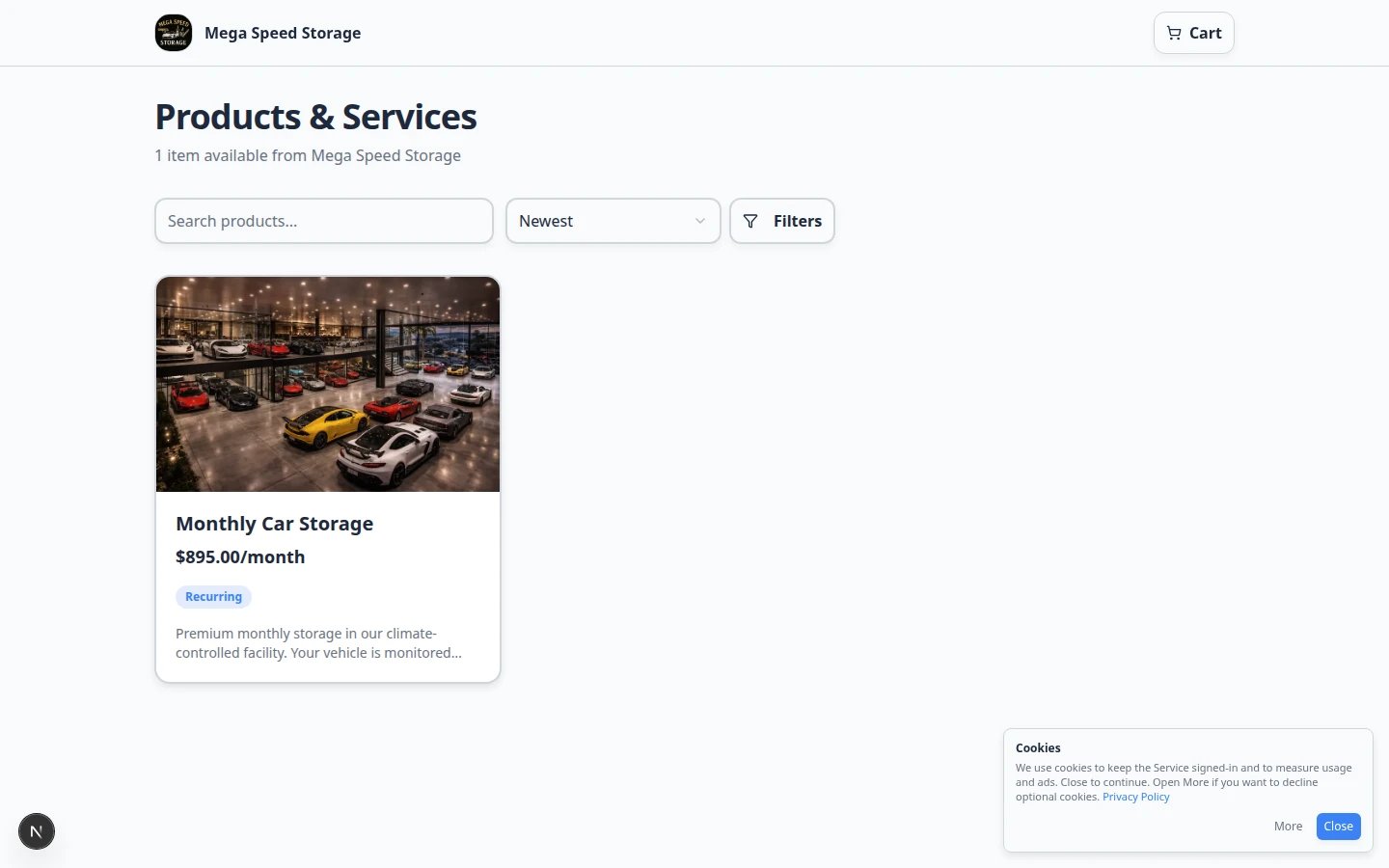 *Start on the product list. If nothing appears, fix the product in [Payments > Products and services](https://www.carstoragesoftware.com/dashboard/payments/products) before you share this link.*
## Step 3: Open the product and add it to the cart
Open the plan or service you want to test.
Some products offer more than one price (for example, different storage levels). Click the option that matches what you want to test.
If you only see **Contact for pricing**, the product may not have a **pricing variant** yet. Open the product in [Payments > Products and services](https://www.carstoragesoftware.com/dashboard/payments/products), click **Add variant**, save a price option, then test again.
Click **Add to cart** when the button appears.
**Expected result:** The cart shows the correct name, price, and billing schedule (such as monthly).
*Start on the product list. If nothing appears, fix the product in [Payments > Products and services](https://www.carstoragesoftware.com/dashboard/payments/products) before you share this link.*
## Step 3: Open the product and add it to the cart
Open the plan or service you want to test.
Some products offer more than one price (for example, different storage levels). Click the option that matches what you want to test.
If you only see **Contact for pricing**, the product may not have a **pricing variant** yet. Open the product in [Payments > Products and services](https://www.carstoragesoftware.com/dashboard/payments/products), click **Add variant**, save a price option, then test again.
Click **Add to cart** when the button appears.
**Expected result:** The cart shows the correct name, price, and billing schedule (such as monthly).
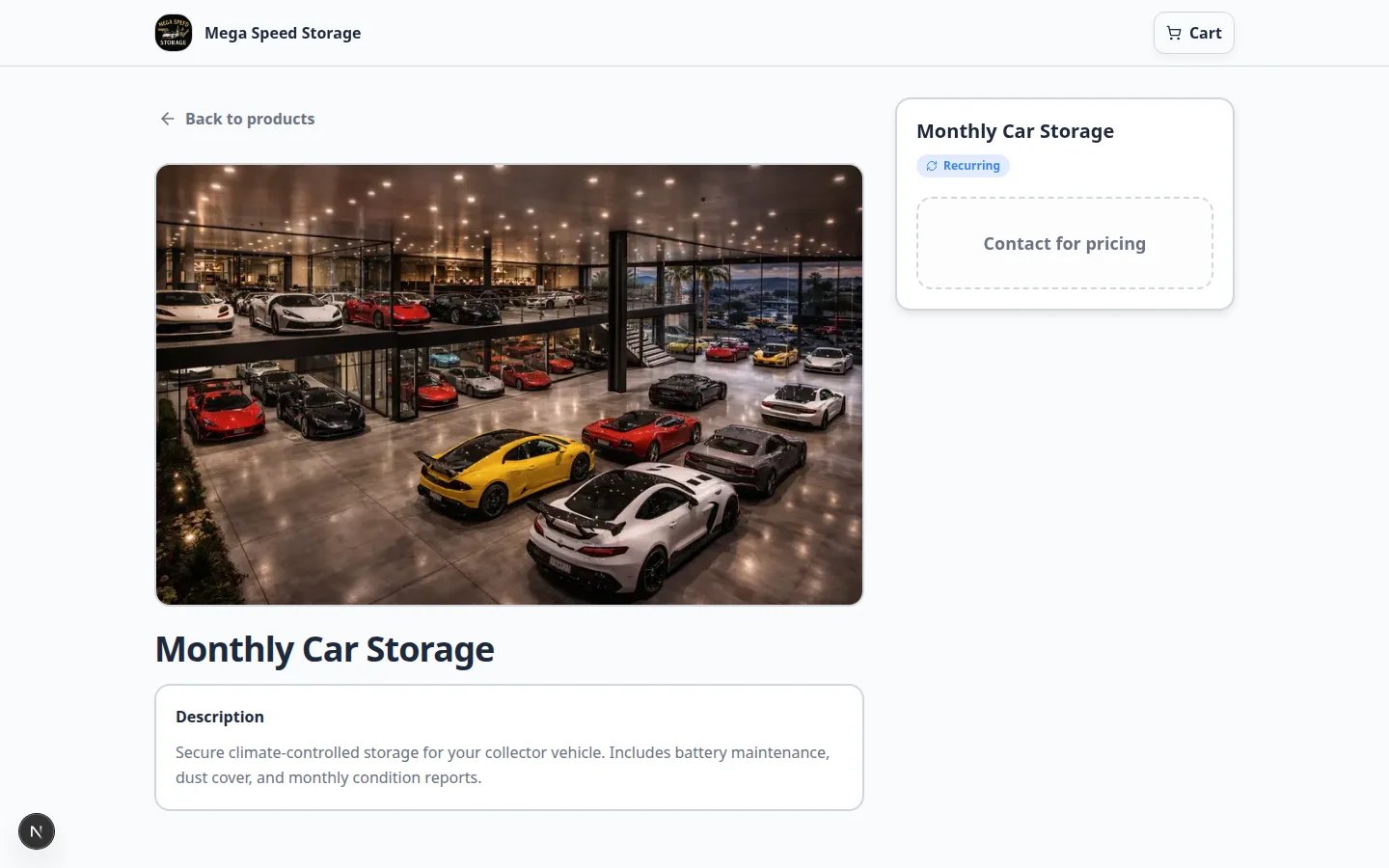 *Confirm the price and billing schedule on the product page before you add the item to the cart.*
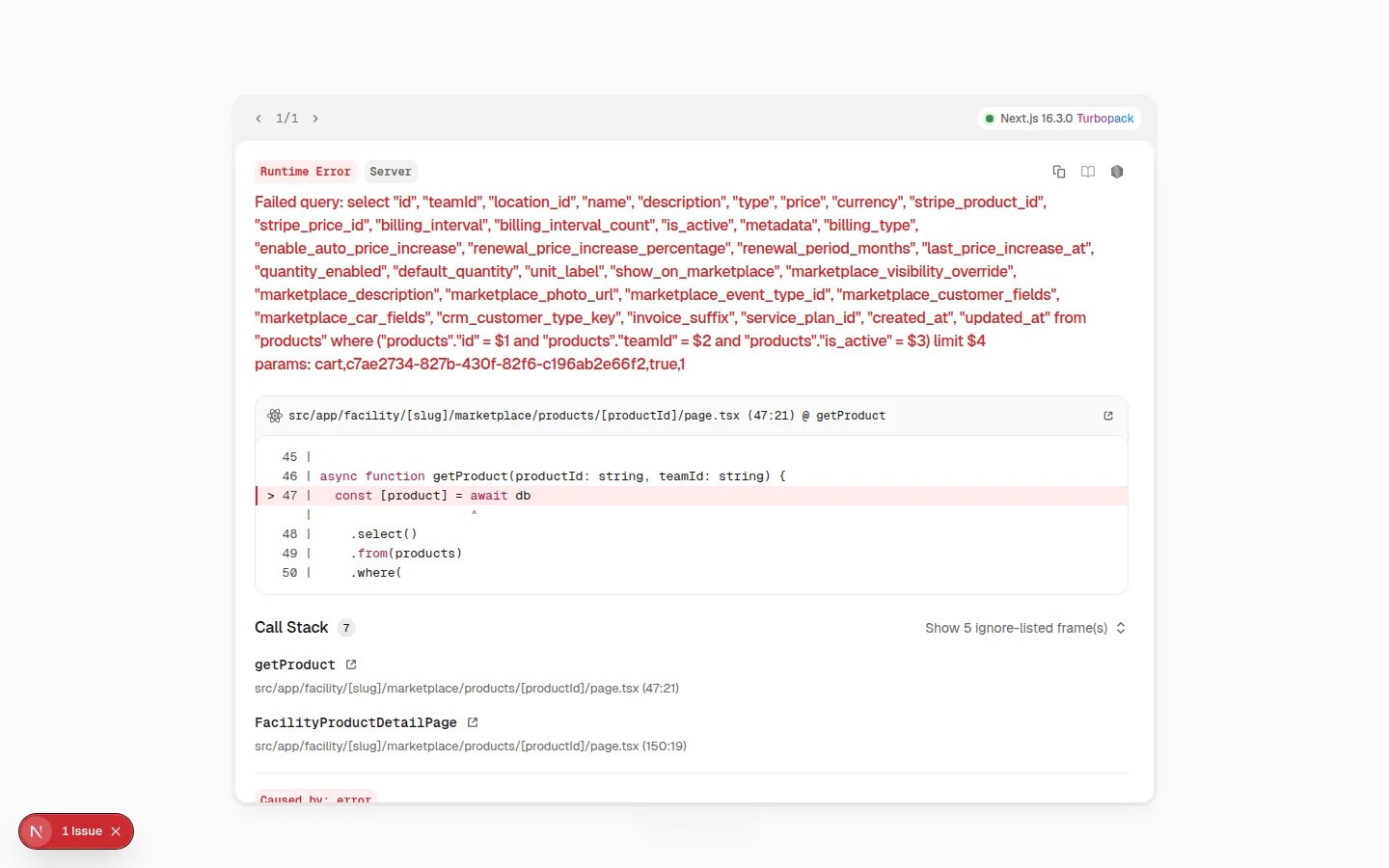 *Read the cart summary carefully. This is what the customer agrees to pay.*
## Step 4: Open checkout and review contact details
From the cart or product flow, click **Checkout**.
Checkout usually asks for first name, last name, and email first. Some facilities also ask for a phone number.
**Expected result:** The customer knows which fields are required and what happens after they click **Continue**.
*Read the cart summary carefully. This is what the customer agrees to pay.*
## Step 4: Open checkout and review contact details
From the cart or product flow, click **Checkout**.
Checkout usually asks for first name, last name, and email first. Some facilities also ask for a phone number.
**Expected result:** The customer knows which fields are required and what happens after they click **Continue**.
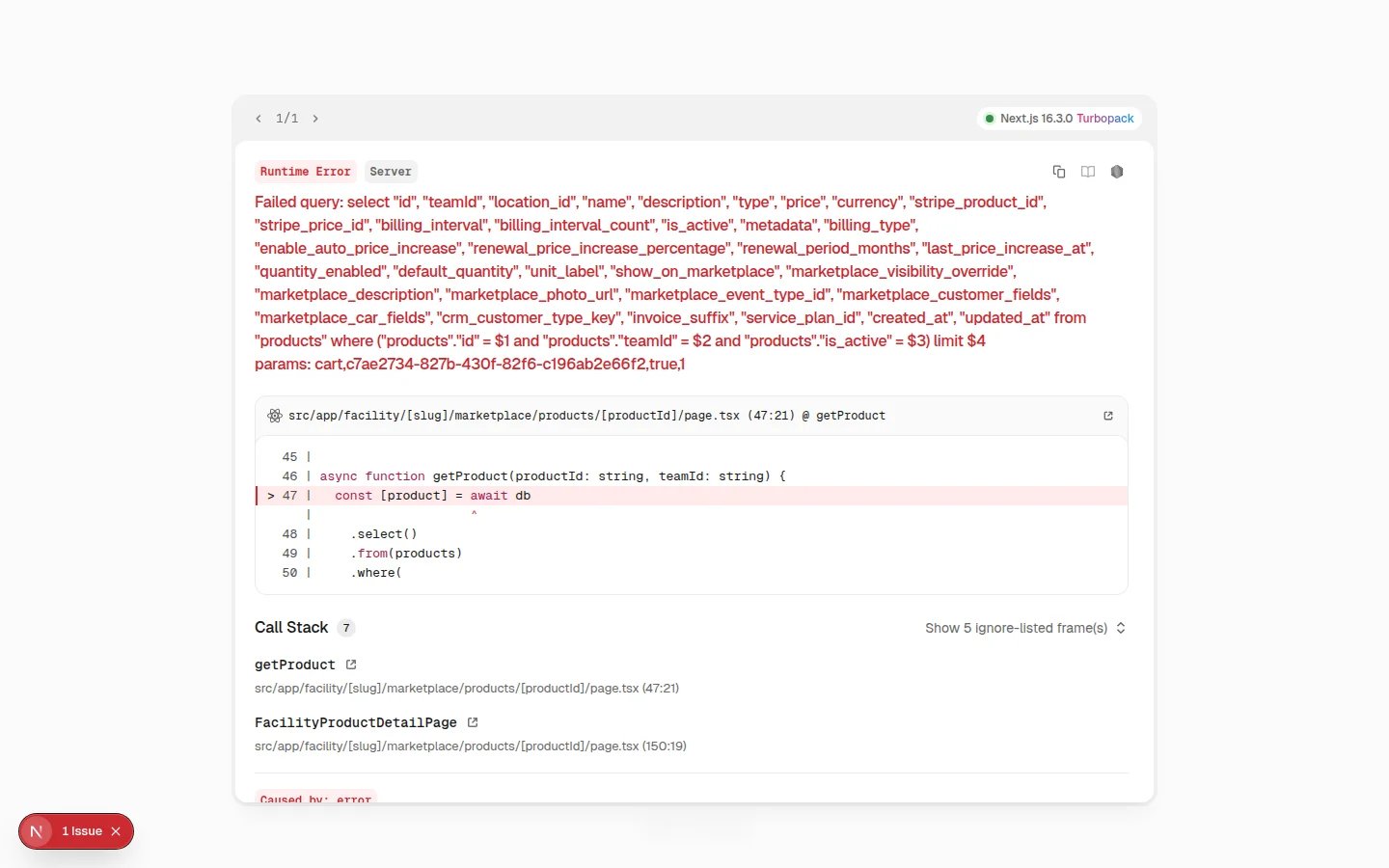 *Checkout ties the purchase to a person before payment. Confirm the order summary matches the cart.*
Check:
* Your facility name is correct
* The cart summary shows the right product and price
* Repeating charges clearly say monthly or another schedule
* Required fields are marked clearly
## Step 5: Complete your facility’s safe test path
Follow your team’s approved test process from here.
Enter first name, last name, and email. Click **Continue**.
**Expected result:** The page moves to email verification or payment—depending on your setup.
Check the test inbox for a verification code. Enter the code and click **Verify & Continue to Payment** (or similar).
**Why this matters:** This step ties the purchase to the correct person before payment. If you skip this during testing, a real customer may get stuck here later.
Continue only with test card details your facility approves. Stripe may show an embedded payment form on the same page.
**Expected result:** You see a clear success message when payment finishes.
Sign back into the staff dashboard and check [Contacts](https://www.carstoragesoftware.com/dashboard/contacts), [Payments > Invoices](https://www.carstoragesoftware.com/dashboard/payments/invoices), and [Payments > Recurring](https://www.carstoragesoftware.com/dashboard/payments/recurring) if the customer bought a repeating plan.
**Email code never arrives**
Check spam folders. Use a real email address you can access during testing. If codes still fail, confirm [Settings > Communications](https://www.carstoragesoftware.com/dashboard/settings/communications) is set up for your facility.
## Step 6: Confirm where staff will see the result
After your test, sign back into the staff dashboard and check the places your facility uses:
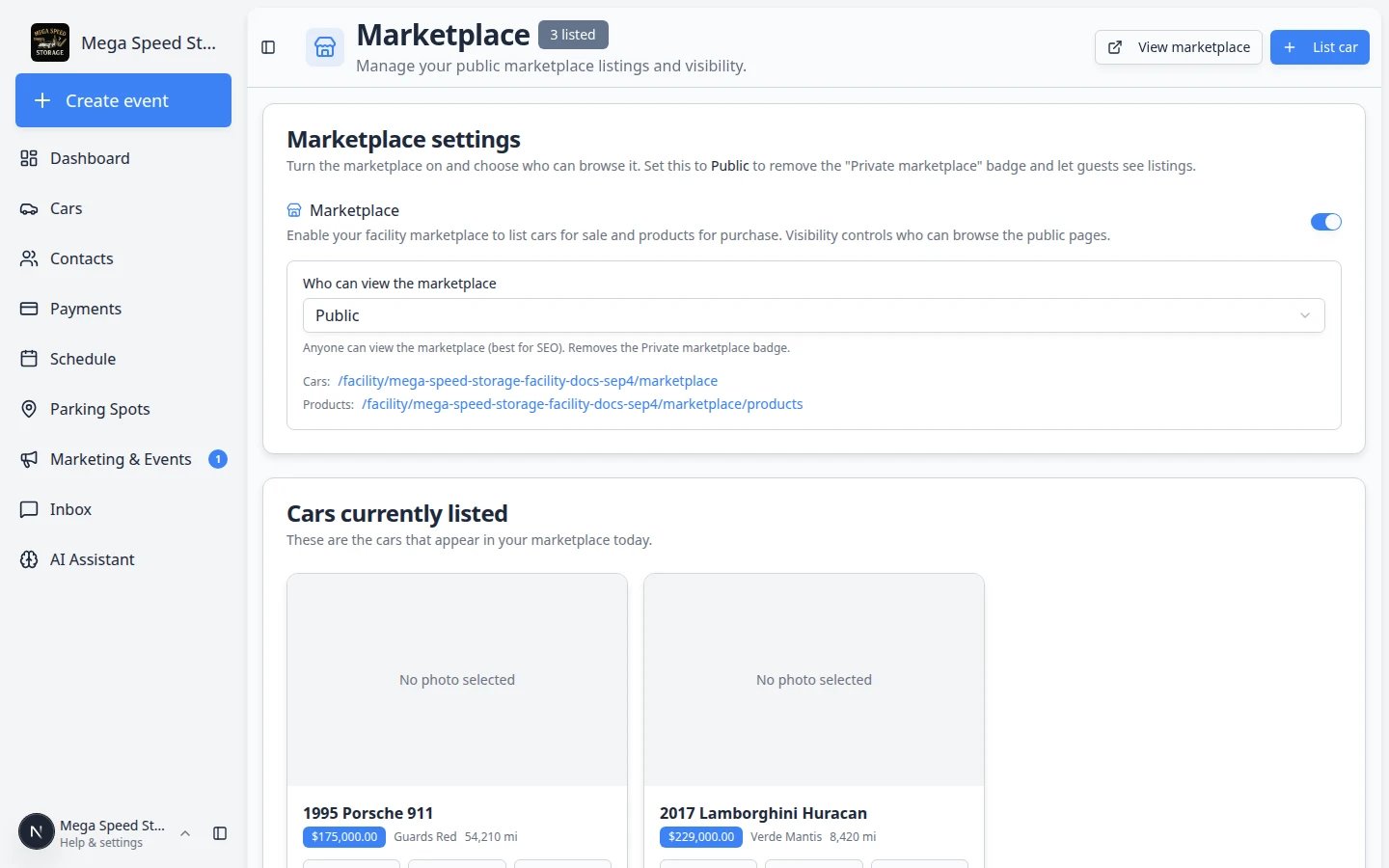
Go to [Marketplace](https://www.carstoragesoftware.com/dashboard/marketplace) to confirm listings look correct from the staff side.
**Expected result:** The same products or cars you saw on the public page appear here with the correct status.
Open [Contacts](https://www.carstoragesoftware.com/dashboard/contacts), [Payments > Invoices](https://www.carstoragesoftware.com/dashboard/payments/invoices), and [Payments > Recurring](https://www.carstoragesoftware.com/dashboard/payments/recurring) if the customer bought a repeating plan.
**Why this matters:** Your team needs to know where the purchase lands before a real customer checks out.
*Checkout ties the purchase to a person before payment. Confirm the order summary matches the cart.*
Check:
* Your facility name is correct
* The cart summary shows the right product and price
* Repeating charges clearly say monthly or another schedule
* Required fields are marked clearly
## Step 5: Complete your facility’s safe test path
Follow your team’s approved test process from here.
Enter first name, last name, and email. Click **Continue**.
**Expected result:** The page moves to email verification or payment—depending on your setup.
Check the test inbox for a verification code. Enter the code and click **Verify & Continue to Payment** (or similar).
**Why this matters:** This step ties the purchase to the correct person before payment. If you skip this during testing, a real customer may get stuck here later.
Continue only with test card details your facility approves. Stripe may show an embedded payment form on the same page.
**Expected result:** You see a clear success message when payment finishes.
Sign back into the staff dashboard and check [Contacts](https://www.carstoragesoftware.com/dashboard/contacts), [Payments > Invoices](https://www.carstoragesoftware.com/dashboard/payments/invoices), and [Payments > Recurring](https://www.carstoragesoftware.com/dashboard/payments/recurring) if the customer bought a repeating plan.
**Email code never arrives**
Check spam folders. Use a real email address you can access during testing. If codes still fail, confirm [Settings > Communications](https://www.carstoragesoftware.com/dashboard/settings/communications) is set up for your facility.
## Step 6: Confirm where staff will see the result
After your test, sign back into the staff dashboard and check the places your facility uses:
Go to [Marketplace](https://www.carstoragesoftware.com/dashboard/marketplace) to confirm listings look correct from the staff side.
**Expected result:** The same products or cars you saw on the public page appear here with the correct status.
Open [Contacts](https://www.carstoragesoftware.com/dashboard/contacts), [Payments > Invoices](https://www.carstoragesoftware.com/dashboard/payments/invoices), and [Payments > Recurring](https://www.carstoragesoftware.com/dashboard/payments/recurring) if the customer bought a repeating plan.
**Why this matters:** Your team needs to know where the purchase lands before a real customer checks out.
 *After a test checkout, confirm staff can find the customer record and any invoice or subscription in the dashboard—not only on the public marketplace page.*
* [Contacts](https://www.carstoragesoftware.com/dashboard/contacts) for a new or updated customer
* [Payments > Invoices](https://www.carstoragesoftware.com/dashboard/payments/invoices) for customer billing records
* [Payments > Recurring](https://www.carstoragesoftware.com/dashboard/payments/recurring) if the customer bought a repeating plan
* [Inbox](https://www.carstoragesoftware.com/dashboard/inbox) if your team sends follow-up messages from the app
**Write down what you tested**
Note the product name, price, and date you tested. If someone changes the product later, run this guide again before the next public launch.
## What success looks like
* Only approved items appear on the public marketplace.
* Product, cart, and checkout totals all match.
* A customer can complete contact details without confusion.
* Staff know where the customer record, invoice, or subscription will appear.
* You tested the full path in a private window before sharing the link.
## Troubleshooting
**The item does not appear on the marketplace**
Open [Payments > Products and services](https://www.carstoragesoftware.com/dashboard/payments/products). Confirm the item is active and marked to show on the marketplace. Also check marketplace settings in [Settings > Website & customer app](https://www.carstoragesoftware.com/dashboard/settings/website).
**The product says Contact for pricing**
The product needs at least one **pricing variant** with an amount and billing frequency. Edit the product in [Payments > Products and services](https://www.carstoragesoftware.com/dashboard/payments/products), add a variant under **Pricing variants**, then test again. See [Manage products and services](/docs/payments/manage-products-and-services).
**Checkout says the cart is empty**
Return to the product page and click **Add to cart** again. Private browser windows sometimes clear the cart when you close them.
**Payment does not load**
Check [Settings > Billing](https://www.carstoragesoftware.com/dashboard/settings/billing) and [Connect payment processing](/docs/settings/connect-payment-processing). Online checkout cannot take card payments until processing is set up correctly.
**A customer is confused by the price**
Update the product name or description to explain the billing schedule—for example, “Monthly Climate Controlled Storage” instead of only “Storage.”
## What to do next
* [Choose the right public link to share](/docs/facility-web-pages/choose-the-right-public-link) when you send marketplace links to customers
* [Manage products and services](/docs/payments/manage-products-and-services) to keep pricing and descriptions accurate
* [Go live checklist for public pages](/docs/facility-web-pages/go-live-checklist-for-public-pages) before a wide launch
## Related topics
- [Publish marketplace listings](/docs/facility-web-pages/publish-marketplace-listings.md)
- [Go live checklist for public pages](/docs/facility-web-pages/go-live-checklist-for-public-pages.md)
- [Choose the right public link to share](/docs/facility-web-pages/choose-the-right-public-link.md)
- [Configure the customer shop](/docs/facility-web-pages/configure-the-customer-shop.md)
- [Facility Web Pages overview](/docs/facility-web-pages/overview.md)
This documentation is built and hosted on [Mintlify](https://mintlify.com), a developer documentation platform.
*After a test checkout, confirm staff can find the customer record and any invoice or subscription in the dashboard—not only on the public marketplace page.*
* [Contacts](https://www.carstoragesoftware.com/dashboard/contacts) for a new or updated customer
* [Payments > Invoices](https://www.carstoragesoftware.com/dashboard/payments/invoices) for customer billing records
* [Payments > Recurring](https://www.carstoragesoftware.com/dashboard/payments/recurring) if the customer bought a repeating plan
* [Inbox](https://www.carstoragesoftware.com/dashboard/inbox) if your team sends follow-up messages from the app
**Write down what you tested**
Note the product name, price, and date you tested. If someone changes the product later, run this guide again before the next public launch.
## What success looks like
* Only approved items appear on the public marketplace.
* Product, cart, and checkout totals all match.
* A customer can complete contact details without confusion.
* Staff know where the customer record, invoice, or subscription will appear.
* You tested the full path in a private window before sharing the link.
## Troubleshooting
**The item does not appear on the marketplace**
Open [Payments > Products and services](https://www.carstoragesoftware.com/dashboard/payments/products). Confirm the item is active and marked to show on the marketplace. Also check marketplace settings in [Settings > Website & customer app](https://www.carstoragesoftware.com/dashboard/settings/website).
**The product says Contact for pricing**
The product needs at least one **pricing variant** with an amount and billing frequency. Edit the product in [Payments > Products and services](https://www.carstoragesoftware.com/dashboard/payments/products), add a variant under **Pricing variants**, then test again. See [Manage products and services](/docs/payments/manage-products-and-services).
**Checkout says the cart is empty**
Return to the product page and click **Add to cart** again. Private browser windows sometimes clear the cart when you close them.
**Payment does not load**
Check [Settings > Billing](https://www.carstoragesoftware.com/dashboard/settings/billing) and [Connect payment processing](/docs/settings/connect-payment-processing). Online checkout cannot take card payments until processing is set up correctly.
**A customer is confused by the price**
Update the product name or description to explain the billing schedule—for example, “Monthly Climate Controlled Storage” instead of only “Storage.”
## What to do next
* [Choose the right public link to share](/docs/facility-web-pages/choose-the-right-public-link) when you send marketplace links to customers
* [Manage products and services](/docs/payments/manage-products-and-services) to keep pricing and descriptions accurate
* [Go live checklist for public pages](/docs/facility-web-pages/go-live-checklist-for-public-pages) before a wide launch
## Related topics
- [Publish marketplace listings](/docs/facility-web-pages/publish-marketplace-listings.md)
- [Go live checklist for public pages](/docs/facility-web-pages/go-live-checklist-for-public-pages.md)
- [Choose the right public link to share](/docs/facility-web-pages/choose-the-right-public-link.md)
- [Configure the customer shop](/docs/facility-web-pages/configure-the-customer-shop.md)
- [Facility Web Pages overview](/docs/facility-web-pages/overview.md)
This documentation is built and hosted on [Mintlify](https://mintlify.com), a developer documentation platform.