> ## Documentation Index
> Fetch the complete documentation index at: https://www.carstoragesoftware.com/docs/llms.txt
> Use this file to discover all available pages before exploring further.
# Getting started
> Follow a simple first-time setup path so your team can start using Car Storage Software with confidence.
Use this guide when your facility is **brand new** to Car Storage Software, when a **new teammate** needs a calm first tour, or when you want a **short checklist** before diving into detailed how-to guides.
You will learn what to set up first, where to find the most important pages, and which step-by-step guides to read next.
This page is the **shortest path** into the product. For a longer overview with a first-week checklist, read [Getting started overview](/docs/basics/overview).
**Start small**
You do not need to finish every setting before your team can begin. Start with your facility details, your customers, and the cars in your care. Those three building blocks support nearly every other workflow.
**Close What's New first**
After sign-in, you may see a **What's New** window about product updates. Read it if you like, then click **Got it** before you follow screenshots or click buttons near the center of the screen. The pop-up can cover menu items you need.
## What you will accomplish
* Sign in and land on the staff dashboard (not the customer portal).
* Understand the best order for first-time setup.
* Use the in-app [Setup Guide](https://www.carstoragesoftware.com/dashboard/onboarding/v2) to track progress.
* Learn where customers, cars, payments, schedule, and help live in the sidebar.
* Add the first customer and car records your team needs for day-to-day work.
* Know which detailed guide to open for invoices, parking, contracts, or appointments.
## Before you start
You should have a **staff account** that can open the dashboard.
* You can sign in at your facility's staff login page (often linked from your welcome email).
* You know who at your facility owns billing, customer communication, and day-to-day operations setup.
* You have your facility name, address, phone number, and public email ready if you will edit settings.
* If you cannot open the dashboard, ask your facility owner or manager to invite you in [Settings > Team](https://www.carstoragesoftware.com/dashboard/settings/team).
**Staff dashboard vs customer portal**
Your login should open pages that start with `/dashboard`. Customer portal pages look different and are for vehicle owners, not your team. If you landed on the wrong site, sign out and use the staff link your manager gave you.
## Your first day — seven calm steps
Follow these steps on day one. You can pause between steps. You do not need to finish everything in one sitting.
Use the login link your facility gave you. Many staff land on [Create event](https://www.carstoragesoftware.com/dashboard) first — a page with large colored cards for starting vehicle work today.
**Expected result:** Your facility name appears at the top of the left sidebar. You are signed in as staff, not as a customer.
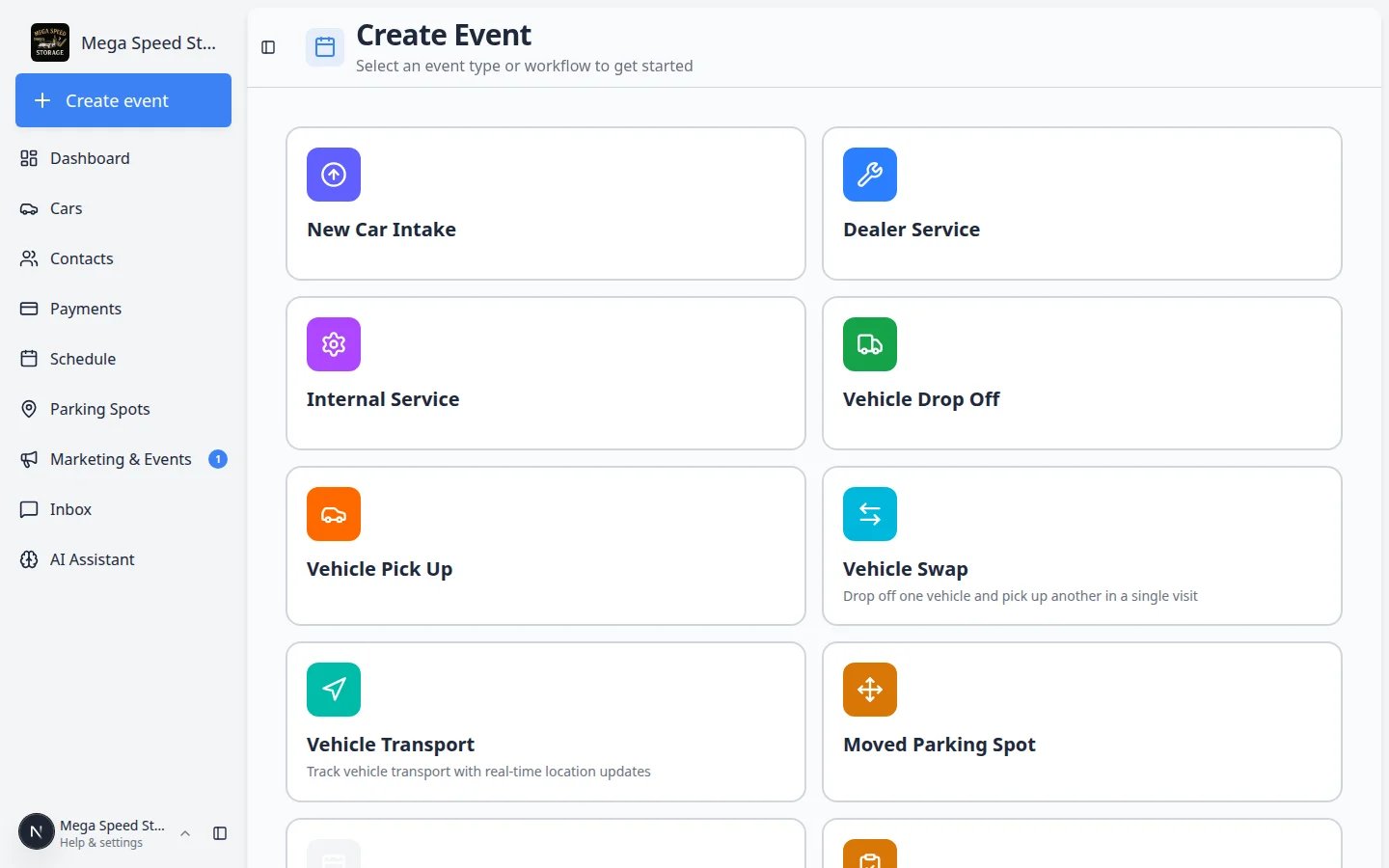 *After sign-in, many staff see **Create event** — large cards for starting vehicle work. Your facility name appears under the sidebar header.*
Go to [Setup Guide](https://www.carstoragesoftware.com/dashboard/onboarding/v2). This page shows six setup cards and your progress (for example, **2 of 6 complete**).
**Why this matters:** The Setup Guide is your facility's to-do list inside the app. Each **Set up** button opens the correct settings page so you do not have to hunt through menus.
**Expected result:** You can see which setup areas are finished and open any card to continue.
For a full walkthrough, read [Complete the Setup Guide](/docs/basics/complete-the-setup-guide) or [Complete the onboarding wizard](/docs/basics/complete-the-onboarding-wizard).
*After sign-in, many staff see **Create event** — large cards for starting vehicle work. Your facility name appears under the sidebar header.*
Go to [Setup Guide](https://www.carstoragesoftware.com/dashboard/onboarding/v2). This page shows six setup cards and your progress (for example, **2 of 6 complete**).
**Why this matters:** The Setup Guide is your facility's to-do list inside the app. Each **Set up** button opens the correct settings page so you do not have to hunt through menus.
**Expected result:** You can see which setup areas are finished and open any card to continue.
For a full walkthrough, read [Complete the Setup Guide](/docs/basics/complete-the-setup-guide) or [Complete the onboarding wizard](/docs/basics/complete-the-onboarding-wizard).
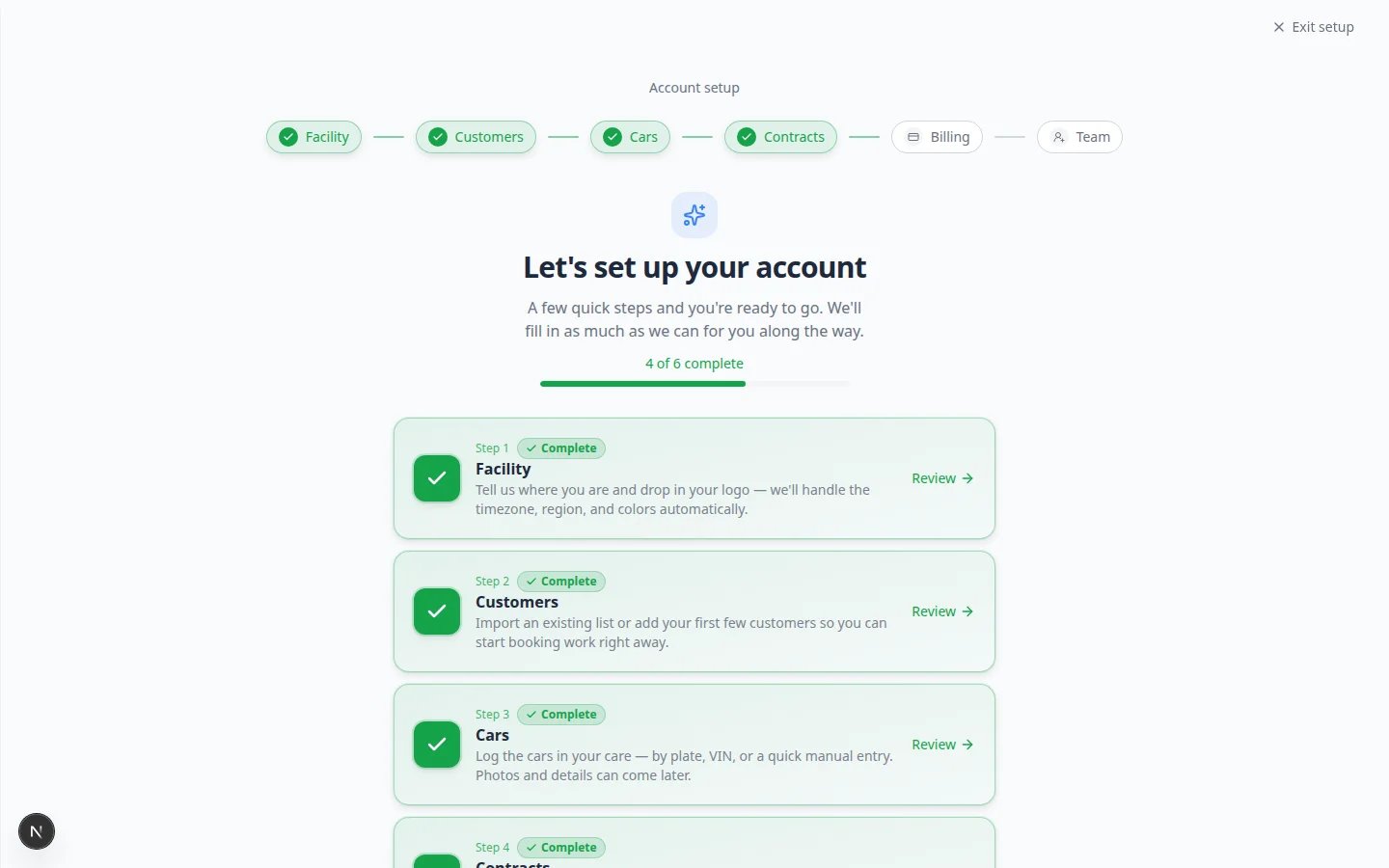 *The [Setup Guide](https://www.carstoragesoftware.com/dashboard/onboarding/v2) gives new teams a clear onboarding hub inside the dashboard.*
Open [Set up your facility profile](/docs/basics/set-up-your-facility-profile) and save your **Branding** (name and logo) and **General** (time zone and date format) settings.
**Why this matters:** Customers see your name and logo on forms, emails, invoices, and public pages. Correct time zones keep appointments on the right clock.
**Expected result:** [Settings > Branding](https://www.carstoragesoftware.com/dashboard/settings/branding) and [Settings > General](https://www.carstoragesoftware.com/dashboard/settings/general) show the business details your customers should see.
Open [Contacts](https://www.carstoragesoftware.com/dashboard/contacts) and add the customers your team works with most often.
**Why this matters:** A car record is easier to manage when it is connected to the correct owner from the start.
Read [Prepare your first customer and car](/docs/basics/prepare-your-first-customer-and-car) when you are ready to enter real records.
If you already have a spreadsheet of customers and vehicles, your manager may use [Import Data](https://www.carstoragesoftware.com/dashboard/import) instead — see [Import customers and cars](/docs/contacts/import-customers-and-cars).
*The [Setup Guide](https://www.carstoragesoftware.com/dashboard/onboarding/v2) gives new teams a clear onboarding hub inside the dashboard.*
Open [Set up your facility profile](/docs/basics/set-up-your-facility-profile) and save your **Branding** (name and logo) and **General** (time zone and date format) settings.
**Why this matters:** Customers see your name and logo on forms, emails, invoices, and public pages. Correct time zones keep appointments on the right clock.
**Expected result:** [Settings > Branding](https://www.carstoragesoftware.com/dashboard/settings/branding) and [Settings > General](https://www.carstoragesoftware.com/dashboard/settings/general) show the business details your customers should see.
Open [Contacts](https://www.carstoragesoftware.com/dashboard/contacts) and add the customers your team works with most often.
**Why this matters:** A car record is easier to manage when it is connected to the correct owner from the start.
Read [Prepare your first customer and car](/docs/basics/prepare-your-first-customer-and-car) when you are ready to enter real records.
If you already have a spreadsheet of customers and vehicles, your manager may use [Import Data](https://www.carstoragesoftware.com/dashboard/import) instead — see [Import customers and cars](/docs/contacts/import-customers-and-cars).
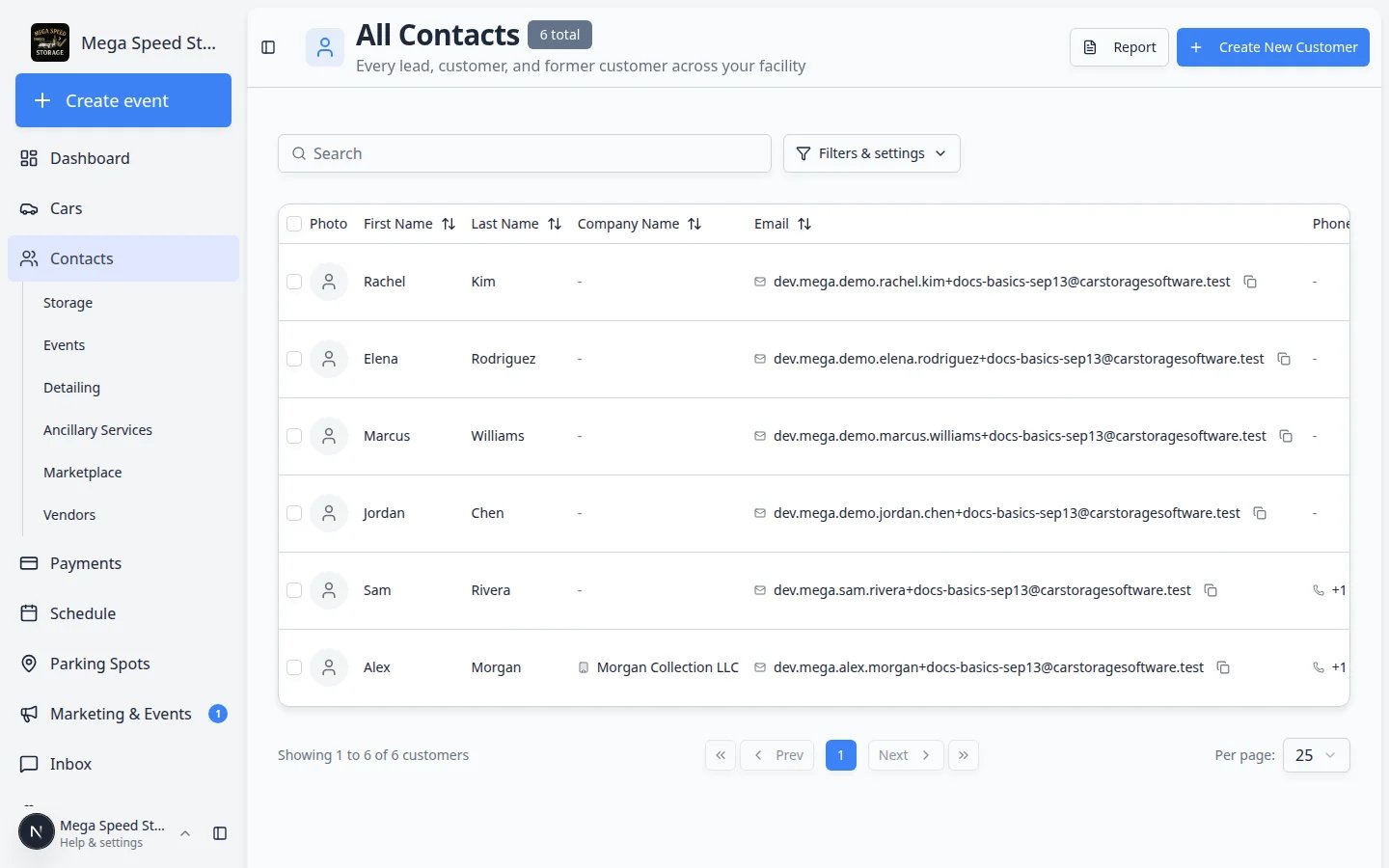 *Add customers in [Contacts](https://www.carstoragesoftware.com/dashboard/contacts) before you create cars. Search first so you do not create duplicates.*
Open [Cars](https://www.carstoragesoftware.com/dashboard/cars) and create records for cars already stored, serviced, or tracked by your facility.
**Expected result:** Your team can search by customer, vehicle, VIN, plate, parking location, or other details.
*Add customers in [Contacts](https://www.carstoragesoftware.com/dashboard/contacts) before you create cars. Search first so you do not create duplicates.*
Open [Cars](https://www.carstoragesoftware.com/dashboard/cars) and create records for cars already stored, serviced, or tracked by your facility.
**Expected result:** Your team can search by customer, vehicle, VIN, plate, parking location, or other details.
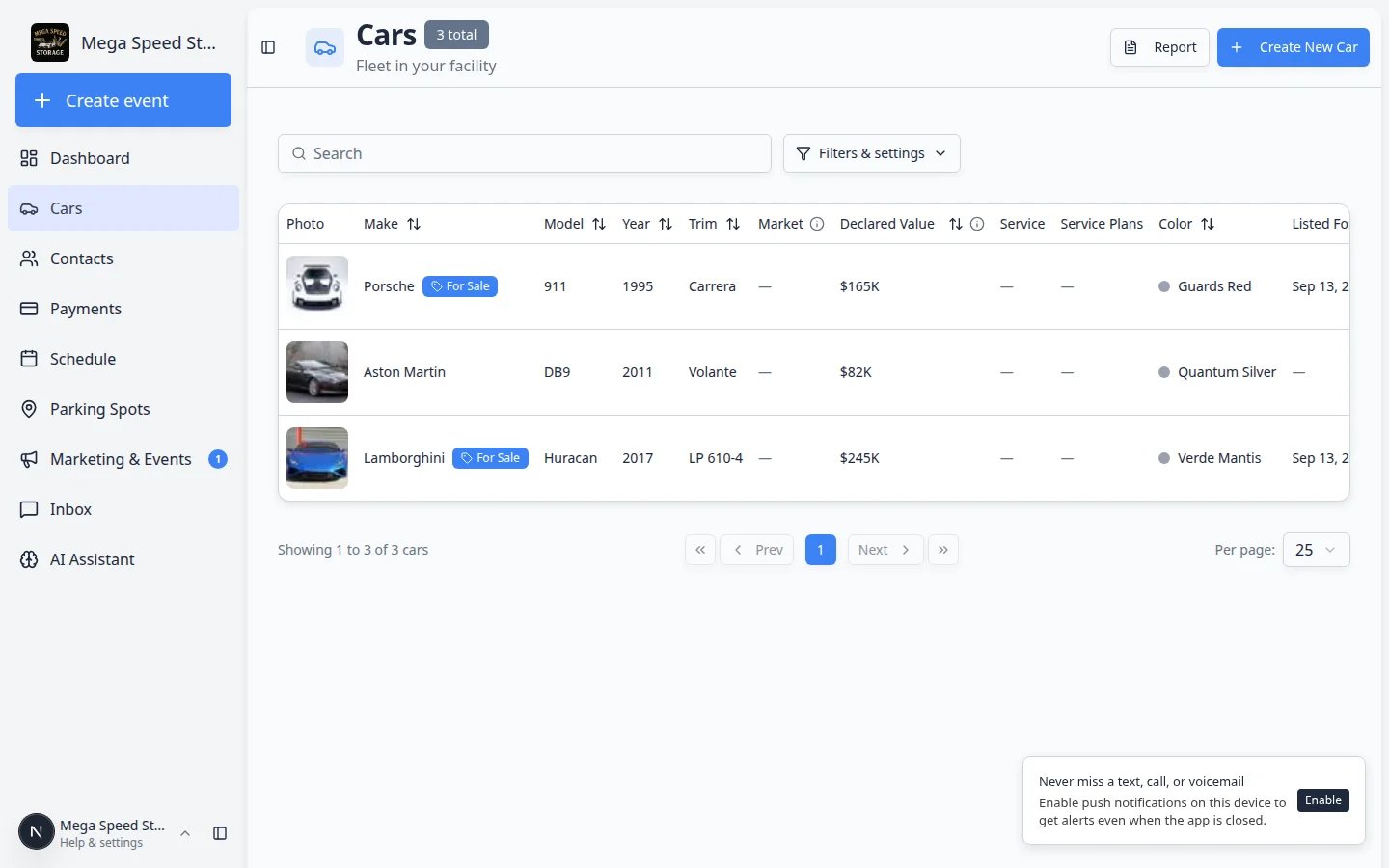 *Every stored or serviced vehicle should have a record in [Cars](https://www.carstoragesoftware.com/dashboard/cars) linked to the correct customer.*
Open [Learn the dashboard](/docs/basics/learn-the-dashboard) for a tour of **Create event**, **Cars**, **Contacts**, **Schedule**, **Payments**, **Parking Spots**, **Inbox**, **Marketing & Events**, **AI Assistant**, and **Settings**.
**Why this matters:** Knowing where to click first saves time and prevents duplicate records — including where customer messages and facility setup live.
*Every stored or serviced vehicle should have a record in [Cars](https://www.carstoragesoftware.com/dashboard/cars) linked to the correct customer.*
Open [Learn the dashboard](/docs/basics/learn-the-dashboard) for a tour of **Create event**, **Cars**, **Contacts**, **Schedule**, **Payments**, **Parking Spots**, **Inbox**, **Marketing & Events**, **AI Assistant**, and **Settings**.
**Why this matters:** Knowing where to click first saves time and prevents duplicate records — including where customer messages and facility setup live.
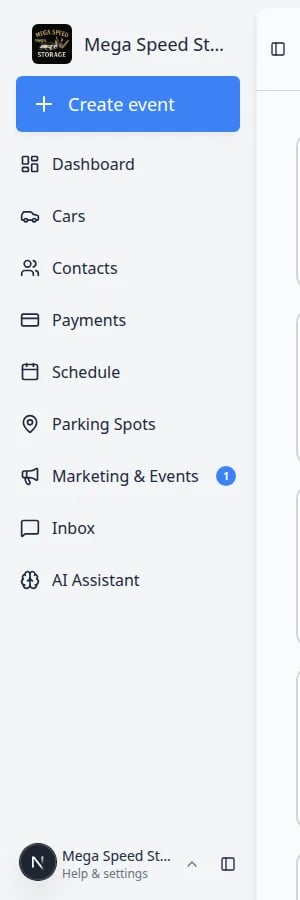 *The sidebar stays on the left. **Create event** is the large button at the top. The active page is highlighted.*
If customers need to sign agreements, upload documents, pay invoices, request appointments, or use the customer portal, review those settings before inviting customers.
Start with [Contracts overview](/docs/contracts/overview), [Payments overview](/docs/payments/overview), and [Configure portal and website](/docs/settings/configure-portal-and-website).
**Expected result:** Your manager knows which setup tasks still need an owner (payments, communications, team invites) before customers are invited.
## Two home screens — both are normal
The sidebar offers two starting points. Neither is wrong.
**Create event** ([Create event](https://www.carstoragesoftware.com/dashboard)) — Large colored cards for starting vehicle work **right now** (drop-off, detail, pickup). Best for front desk and shop floor.
**Dashboard** ([Dashboard](https://www.carstoragesoftware.com/dashboard/v2), labeled **Beta**) — A customizable page with widgets for schedule, parking map, inbox, and charts. Best for managers who want one overview screen.
*The sidebar stays on the left. **Create event** is the large button at the top. The active page is highlighted.*
If customers need to sign agreements, upload documents, pay invoices, request appointments, or use the customer portal, review those settings before inviting customers.
Start with [Contracts overview](/docs/contracts/overview), [Payments overview](/docs/payments/overview), and [Configure portal and website](/docs/settings/configure-portal-and-website).
**Expected result:** Your manager knows which setup tasks still need an owner (payments, communications, team invites) before customers are invited.
## Two home screens — both are normal
The sidebar offers two starting points. Neither is wrong.
**Create event** ([Create event](https://www.carstoragesoftware.com/dashboard)) — Large colored cards for starting vehicle work **right now** (drop-off, detail, pickup). Best for front desk and shop floor.
**Dashboard** ([Dashboard](https://www.carstoragesoftware.com/dashboard/v2), labeled **Beta**) — A customizable page with widgets for schedule, parking map, inbox, and charts. Best for managers who want one overview screen.
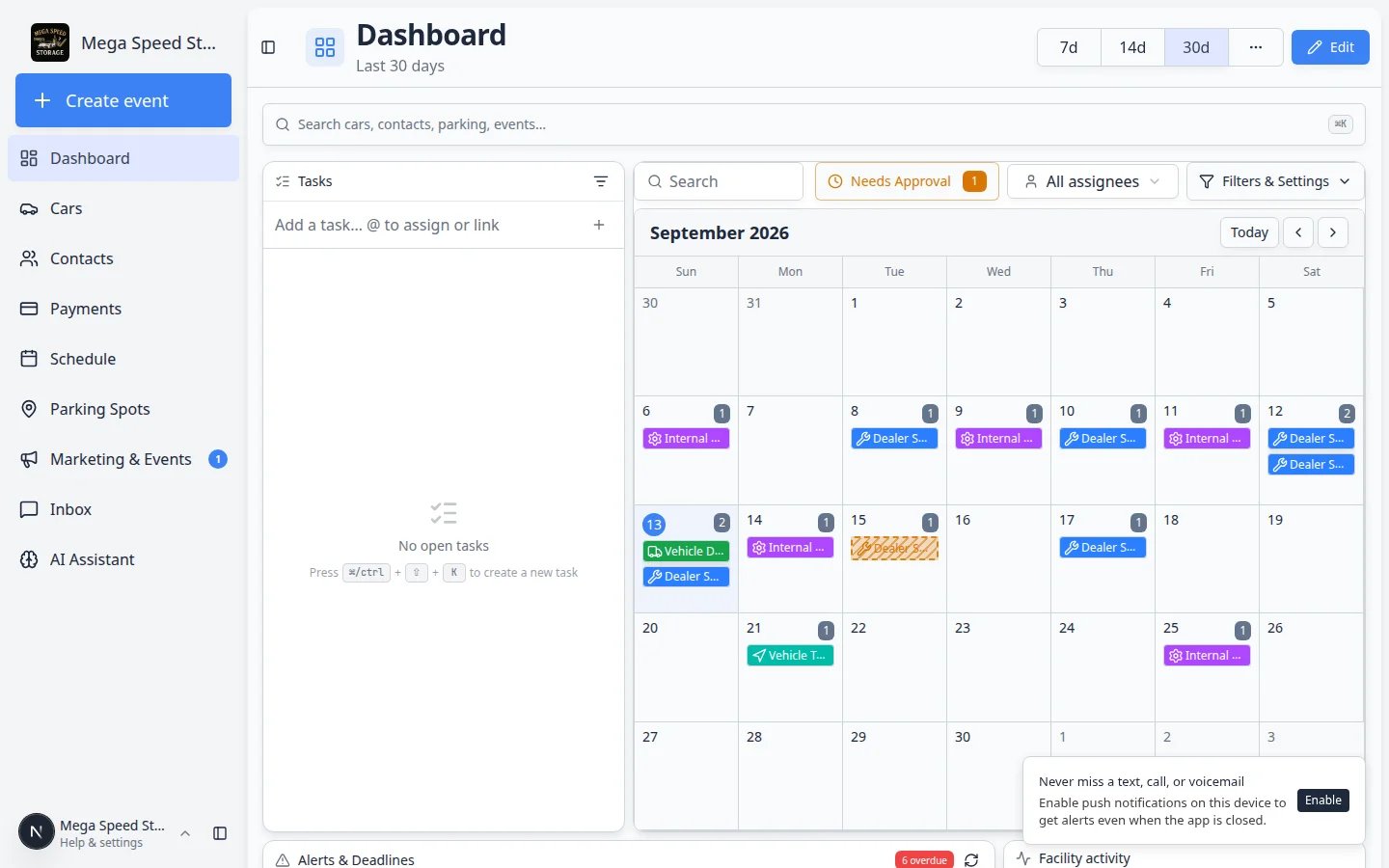 ***Create event** and **Dashboard (Beta)** are different home screens. Use whichever matches how you start your day.*
## Where to find Setup Guide in the app
The Setup Guide is easy to miss on a phone. Use any of these paths:
* **Direct link:** [Setup Guide](https://www.carstoragesoftware.com/dashboard/onboarding/v2)
* **Sidebar:** scroll the left menu — **Setup Guide** often appears below the main work areas.
* **From Settings:** open [Settings](https://www.carstoragesoftware.com/dashboard/settings) and look for a banner or link to setup progress.
***Create event** and **Dashboard (Beta)** are different home screens. Use whichever matches how you start your day.*
## Where to find Setup Guide in the app
The Setup Guide is easy to miss on a phone. Use any of these paths:
* **Direct link:** [Setup Guide](https://www.carstoragesoftware.com/dashboard/onboarding/v2)
* **Sidebar:** scroll the left menu — **Setup Guide** often appears below the main work areas.
* **From Settings:** open [Settings](https://www.carstoragesoftware.com/dashboard/settings) and look for a banner or link to setup progress.
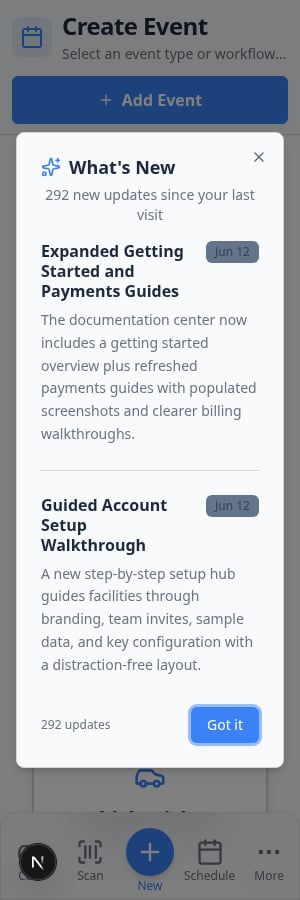 *The Setup Guide uses the same sidebar as the rest of the dashboard. Bookmark [Setup Guide](https://www.carstoragesoftware.com/dashboard/onboarding/v2) if your team checks it often during launch week.*
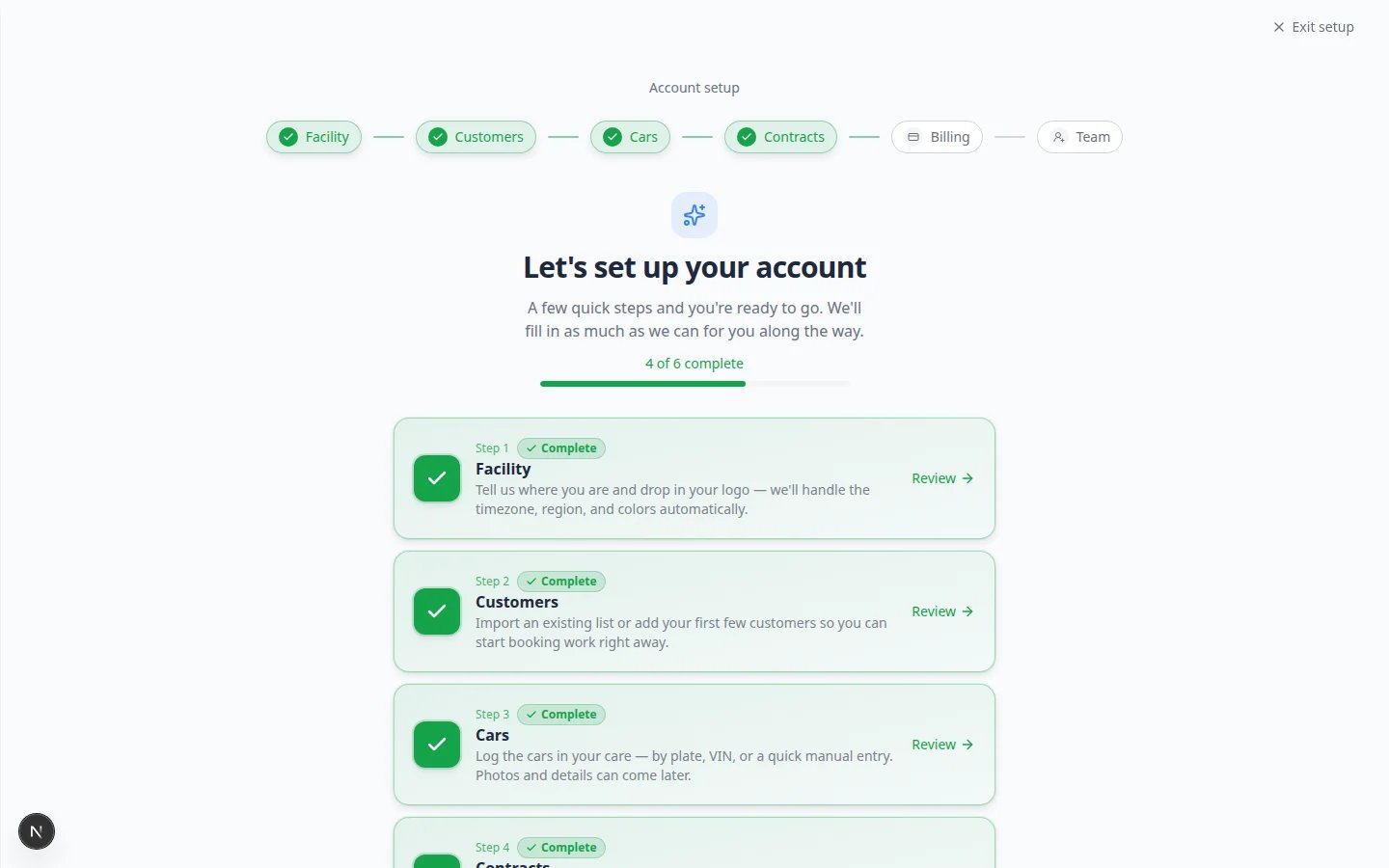 *After you save settings on another page, return here and click the **refresh** icon in **Setup Progress** if tasks still look incomplete.*
## Sidebar map — where daily work lives
Use this table when someone asks, “Where do I click for that?”
| Sidebar item | What it is for | Open it when… |
| - | - | - |
| **Create event** | Large cards to start vehicle work **now** | A car just arrived or work is starting on the floor |
| **Dashboard** (Beta) | Custom widgets — schedule, parking, inbox | You want one manager screen |
| **Cars** | Every vehicle your facility stores or services | You need VIN, photos, parking, or activity on a car |
| **Contacts** | Customers and companies | You need owner details, portal access, or billing contact |
| **Schedule** | Calendar for **future** appointments | You are booking or moving a date and time |
| **Payments** | Invoices, quotes, products, vendors | You need to bill or collect money |
| **Parking Spots** | Floor plan and spot assignment | You need to see or change where a car sits |
| **Marketing & Events** | Campaigns, social events, reviews | You run car meets or marketing outreach |
| **Inbox** | Texts, emails, calls with customers | A customer messaged your facility |
| **AI Assistant** | Ask questions about records in plain English | You need a quick answer without hunting pages |
| **Settings** | Facility-wide setup (admins) | You are configuring branding, team, or billing |
| **Setup Guide** | First-time checklist | You are launching or auditing setup progress |
For a visual tour with screenshots of each area, read [Learn the dashboard](/docs/basics/learn-the-dashboard).
## Important words in plain English
**Dashboard** — The signed-in staff area of the app (addresses starting with `/dashboard`). Not the same as the customer portal.
**Setup Guide** — An in-app checklist at [Setup Guide](https://www.carstoragesoftware.com/dashboard/onboarding/v2) that links to the settings pages your facility still needs.
**Customer record** — A person or company in [Contacts](https://www.carstoragesoftware.com/dashboard/contacts). Vehicles and billing connect here.
**Car record** — A vehicle in [Cars](https://www.carstoragesoftware.com/dashboard/cars). Every stored or serviced car should have one.
**Event type** — A labeled kind of work (drop-off, pickup, detail) shown as a card on [Create event](https://www.carstoragesoftware.com/dashboard).
**Portal** — The customer-facing website where owners view cars, billing, and documents. Staff use the **dashboard**; customers use the **portal**.
## Basics learning path
After your first day, work through these guides in order:
* [Complete the Setup Guide](/docs/basics/complete-the-setup-guide)
* [Complete the onboarding wizard](/docs/basics/complete-the-onboarding-wizard) — detailed help for each setup card
* [Set up your facility profile](/docs/basics/set-up-your-facility-profile)
* [Use the Create event home page](/docs/basics/use-the-create-event-home)
* [Learn the dashboard](/docs/basics/learn-the-dashboard)
* [Search your facility quickly](/docs/basics/search-your-facility-quickly)
* [Prepare your first customer and car](/docs/basics/prepare-your-first-customer-and-car)
* [Install the mobile app](/docs/basics/install-the-mobile-app) — optional, when staff or customers want a home screen shortcut
* [Customize your Overview dashboard](/docs/basics/customize-your-overview) — optional, when you want one screen for schedule, parking, and inbox
Then open the product area your team will use next:
* [Cars overview](/docs/cars/overview) — vehicle records, movement, and sessions
* [Contacts overview](/docs/contacts/overview) — customers, portal invites, and tags
* [Schedule overview](/docs/schedule/overview) — appointments and calendar work
* [Payments overview](/docs/payments/overview) — invoices, quotes, and recurring billing
* [Settings overview](/docs/settings/overview) — full facility configuration
## Common first-day questions
**Do I need to fill in every field?**
No. Start with the fields your staff needs to identify customers and cars correctly. You can add more details later.
**What if I make a mistake?**
Most records can be opened again and edited. If you are unsure about deleting something, update the record instead or ask a manager first.
**I feel lost in the sidebar**
Open [Learn the dashboard](/docs/basics/learn-the-dashboard). Each section explains what that area is for and includes direct links you can click from this help site.
**Create event vs Schedule — which do I use?**
Use **Create event** when work is **starting now** (a car just arrived). Use **Schedule** when you are **planning ahead** (booking next Tuesday at 2 PM). Many teams use both every day.
**I cannot open Settings or Setup Guide**
Your role may not include those pages yet. Ask your facility owner to review your access in [Settings > Team](https://www.carstoragesoftware.com/dashboard/settings/team). You can still practice with [Cars](https://www.carstoragesoftware.com/dashboard/cars) and [Contacts](https://www.carstoragesoftware.com/dashboard/contacts) if your manager allows it.
**The Setup Guide percentage did not change after I saved**
Return to [Setup Guide](https://www.carstoragesoftware.com/dashboard/onboarding/v2) and click the circular **refresh** icon in the **Setup Progress** card. Some tasks need every **required** field saved — for example a logo upload on Branding or a chosen time zone on General.
## What success looks like on day one
* You signed in and recognize your facility name in the sidebar.
* You opened [Setup Guide](https://www.carstoragesoftware.com/dashboard/onboarding/v2) and know what **Set up** does.
* You can find **Cars**, **Contacts**, and **Create event** without help.
* Your manager knows which setup tasks still need an owner (payments, communications, team invites).
## What to do next
* **Still setting up?** — Open [Complete the Setup Guide](/docs/basics/complete-the-setup-guide) and click the first **Set up** button your manager recommends.
* **Ready for real records?** — Follow [Prepare your first customer and car](/docs/basics/prepare-your-first-customer-and-car).
* **A car is arriving today?** — Read [Use the Create event home page](/docs/basics/use-the-create-event-home).
* **Want the app on a phone?** — Read [Install the mobile app](/docs/basics/install-the-mobile-app).
* **Want the full first-week plan?** — Read [Getting started overview](/docs/basics/overview).
## Related topics
- [Getting started overview](/docs/basics/overview.md)
- [Set up your facility profile](/docs/basics/set-up-your-facility-profile.md)
- [Learn the dashboard](/docs/basics/learn-the-dashboard.md)
- [Customize your Overview dashboard](/docs/basics/customize-your-overview.md)
- [Use the Create event home page](/docs/basics/use-the-create-event-home.md)
This documentation is built and hosted on [Mintlify](https://mintlify.com), a developer documentation platform.
*After you save settings on another page, return here and click the **refresh** icon in **Setup Progress** if tasks still look incomplete.*
## Sidebar map — where daily work lives
Use this table when someone asks, “Where do I click for that?”
| Sidebar item | What it is for | Open it when… |
| - | - | - |
| **Create event** | Large cards to start vehicle work **now** | A car just arrived or work is starting on the floor |
| **Dashboard** (Beta) | Custom widgets — schedule, parking, inbox | You want one manager screen |
| **Cars** | Every vehicle your facility stores or services | You need VIN, photos, parking, or activity on a car |
| **Contacts** | Customers and companies | You need owner details, portal access, or billing contact |
| **Schedule** | Calendar for **future** appointments | You are booking or moving a date and time |
| **Payments** | Invoices, quotes, products, vendors | You need to bill or collect money |
| **Parking Spots** | Floor plan and spot assignment | You need to see or change where a car sits |
| **Marketing & Events** | Campaigns, social events, reviews | You run car meets or marketing outreach |
| **Inbox** | Texts, emails, calls with customers | A customer messaged your facility |
| **AI Assistant** | Ask questions about records in plain English | You need a quick answer without hunting pages |
| **Settings** | Facility-wide setup (admins) | You are configuring branding, team, or billing |
| **Setup Guide** | First-time checklist | You are launching or auditing setup progress |
For a visual tour with screenshots of each area, read [Learn the dashboard](/docs/basics/learn-the-dashboard).
## Important words in plain English
**Dashboard** — The signed-in staff area of the app (addresses starting with `/dashboard`). Not the same as the customer portal.
**Setup Guide** — An in-app checklist at [Setup Guide](https://www.carstoragesoftware.com/dashboard/onboarding/v2) that links to the settings pages your facility still needs.
**Customer record** — A person or company in [Contacts](https://www.carstoragesoftware.com/dashboard/contacts). Vehicles and billing connect here.
**Car record** — A vehicle in [Cars](https://www.carstoragesoftware.com/dashboard/cars). Every stored or serviced car should have one.
**Event type** — A labeled kind of work (drop-off, pickup, detail) shown as a card on [Create event](https://www.carstoragesoftware.com/dashboard).
**Portal** — The customer-facing website where owners view cars, billing, and documents. Staff use the **dashboard**; customers use the **portal**.
## Basics learning path
After your first day, work through these guides in order:
* [Complete the Setup Guide](/docs/basics/complete-the-setup-guide)
* [Complete the onboarding wizard](/docs/basics/complete-the-onboarding-wizard) — detailed help for each setup card
* [Set up your facility profile](/docs/basics/set-up-your-facility-profile)
* [Use the Create event home page](/docs/basics/use-the-create-event-home)
* [Learn the dashboard](/docs/basics/learn-the-dashboard)
* [Search your facility quickly](/docs/basics/search-your-facility-quickly)
* [Prepare your first customer and car](/docs/basics/prepare-your-first-customer-and-car)
* [Install the mobile app](/docs/basics/install-the-mobile-app) — optional, when staff or customers want a home screen shortcut
* [Customize your Overview dashboard](/docs/basics/customize-your-overview) — optional, when you want one screen for schedule, parking, and inbox
Then open the product area your team will use next:
* [Cars overview](/docs/cars/overview) — vehicle records, movement, and sessions
* [Contacts overview](/docs/contacts/overview) — customers, portal invites, and tags
* [Schedule overview](/docs/schedule/overview) — appointments and calendar work
* [Payments overview](/docs/payments/overview) — invoices, quotes, and recurring billing
* [Settings overview](/docs/settings/overview) — full facility configuration
## Common first-day questions
**Do I need to fill in every field?**
No. Start with the fields your staff needs to identify customers and cars correctly. You can add more details later.
**What if I make a mistake?**
Most records can be opened again and edited. If you are unsure about deleting something, update the record instead or ask a manager first.
**I feel lost in the sidebar**
Open [Learn the dashboard](/docs/basics/learn-the-dashboard). Each section explains what that area is for and includes direct links you can click from this help site.
**Create event vs Schedule — which do I use?**
Use **Create event** when work is **starting now** (a car just arrived). Use **Schedule** when you are **planning ahead** (booking next Tuesday at 2 PM). Many teams use both every day.
**I cannot open Settings or Setup Guide**
Your role may not include those pages yet. Ask your facility owner to review your access in [Settings > Team](https://www.carstoragesoftware.com/dashboard/settings/team). You can still practice with [Cars](https://www.carstoragesoftware.com/dashboard/cars) and [Contacts](https://www.carstoragesoftware.com/dashboard/contacts) if your manager allows it.
**The Setup Guide percentage did not change after I saved**
Return to [Setup Guide](https://www.carstoragesoftware.com/dashboard/onboarding/v2) and click the circular **refresh** icon in the **Setup Progress** card. Some tasks need every **required** field saved — for example a logo upload on Branding or a chosen time zone on General.
## What success looks like on day one
* You signed in and recognize your facility name in the sidebar.
* You opened [Setup Guide](https://www.carstoragesoftware.com/dashboard/onboarding/v2) and know what **Set up** does.
* You can find **Cars**, **Contacts**, and **Create event** without help.
* Your manager knows which setup tasks still need an owner (payments, communications, team invites).
## What to do next
* **Still setting up?** — Open [Complete the Setup Guide](/docs/basics/complete-the-setup-guide) and click the first **Set up** button your manager recommends.
* **Ready for real records?** — Follow [Prepare your first customer and car](/docs/basics/prepare-your-first-customer-and-car).
* **A car is arriving today?** — Read [Use the Create event home page](/docs/basics/use-the-create-event-home).
* **Want the app on a phone?** — Read [Install the mobile app](/docs/basics/install-the-mobile-app).
* **Want the full first-week plan?** — Read [Getting started overview](/docs/basics/overview).
## Related topics
- [Getting started overview](/docs/basics/overview.md)
- [Set up your facility profile](/docs/basics/set-up-your-facility-profile.md)
- [Learn the dashboard](/docs/basics/learn-the-dashboard.md)
- [Customize your Overview dashboard](/docs/basics/customize-your-overview.md)
- [Use the Create event home page](/docs/basics/use-the-create-event-home.md)
This documentation is built and hosted on [Mintlify](https://mintlify.com), a developer documentation platform.