> ## Documentation Index
> Fetch the complete documentation index at: https://www.carstoragesoftware.com/docs/llms.txt
> Use this file to discover all available pages before exploring further.
# Call a customer from Inbox
> Place a phone call from a customer conversation or dial any number with Quick call, then keep the call in the same history as your texts and emails.
Use this guide when you need to talk with a customer live — from [Inbox](https://www.carstoragesoftware.com/dashboard/inbox) — instead of sending another text or email.
You will learn when to click **Call** on a saved customer, when to use **Quick call** to dial any number, and what to do after the call so the next person on your team can see what happened.
**Why this matters:** Customers often ask a question by text, then need a two-minute conversation to finish the decision. If you call from a personal phone, the rest of your team never sees that the call happened. Calling from Inbox keeps the call on the same timeline as the texts and emails.
## What you will accomplish
* Choose **Call** for a saved customer or **Quick call** for a number that is not open yet.
* Confirm the phone number before you start the call.
* Know what the **Quick call** dial pad labels mean (**Clear**, **Backspace**, **Will dial**, **Call**).
* Follow up in writing when the customer or your team needs a record of what you decided.
## When to use Call vs Quick call
Inbox has two outbound calling tools. They sit in different places and do different jobs.
| Button | Where it is | What it dials | Use it when… |
| - | - | - | - |
| **Call** | Top-right of the open conversation, next to **Texts**, **Emails**, and **Calls** | The phone number on that customer record | You already have the right customer open |
| **Quick call** | Phone icon in the Inbox page header (to the right of the **Inbox** title) | Any number you type or tap on the dial pad | You need to dial a number that is not the open conversation — a vendor, a spouse's phone, or a number from a voicemail |
**They are not the same button**
**Call** belongs to the customer you already opened. **Quick call** is a small phone icon in the page header. If you cannot find **Quick call**, look at the top of [Inbox](https://www.carstoragesoftware.com/dashboard/inbox) — not inside the conversation.
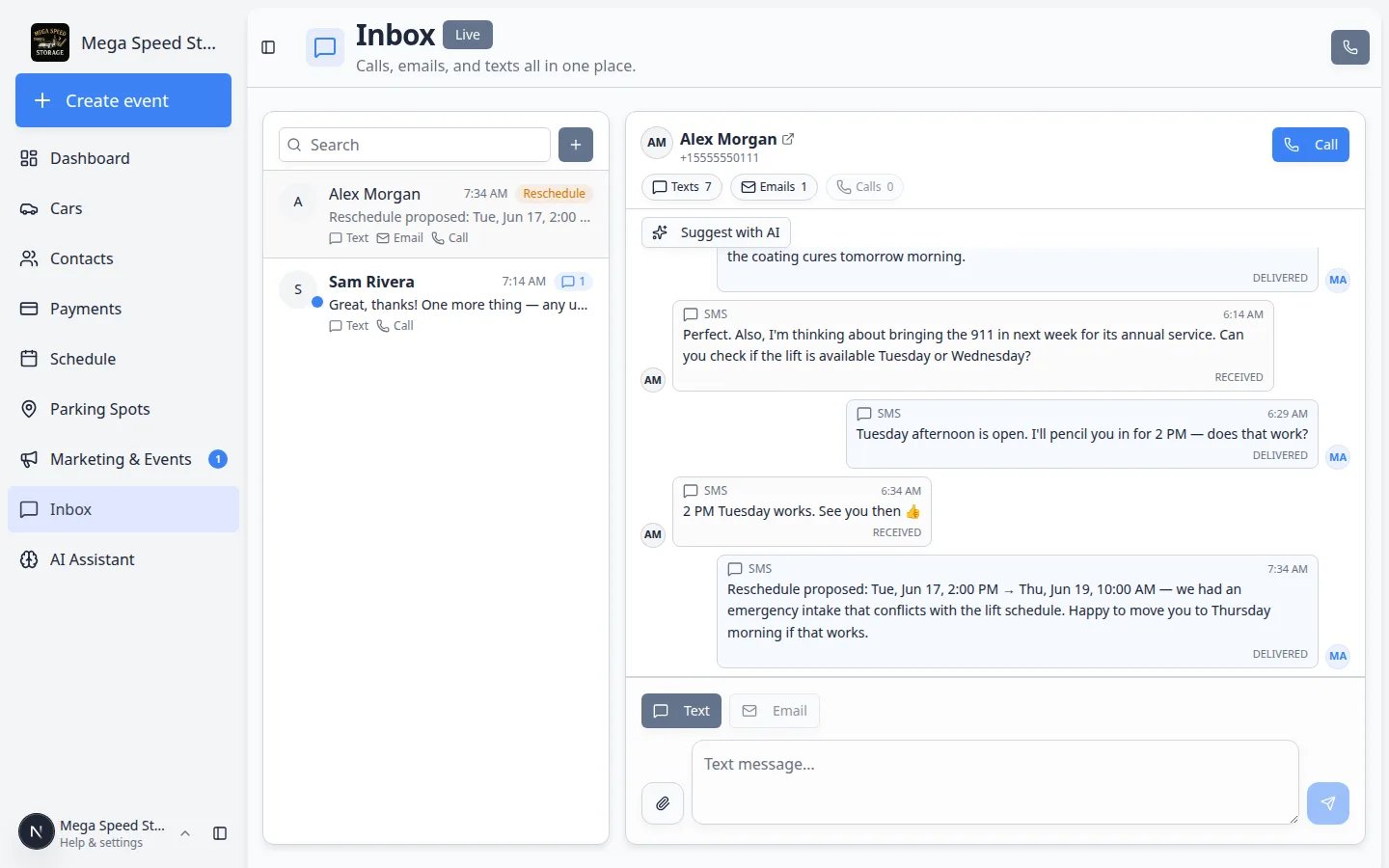 ***Quick call** is the phone icon in the Inbox header. **Call** is the larger button on the right side of the open conversation.*
## Before you start
* Calling must be set up for your facility. If **Call** or **Quick call** is gray, an admin should finish [Configure communication settings for Inbox](/docs/inbox/configure-communication-settings) on [Settings > Communications](https://www.carstoragesoftware.com/dashboard/settings/communications).
* Keep your computer or tablet volume on so you can hear the call.
* Allow the browser to use your microphone when it asks. The call uses your computer or tablet — not a separate desk phone.
* Read the latest messages first. A two-minute read prevents promising something that conflicts with a text another teammate already sent.
* You cannot start a second call while you are already on a call. Hang up first.
**If buttons stay gray**
Gray **Call** on one customer usually means that person has no valid phone number. Open their record in [Contacts](https://www.carstoragesoftware.com/dashboard/contacts) and add the number.
Gray **Call** and **Quick call** on every conversation usually means calling is not finished in [Settings > Communications](https://www.carstoragesoftware.com/dashboard/settings/communications).
## Call a saved customer
Use this path when the customer is already in your conversation list.
Go to [Inbox](https://www.carstoragesoftware.com/dashboard/inbox) from the dashboard sidebar.
Click the customer in the list on the left — for example **Alex Morgan** or **Sam Rivera**.
Check the name and phone number at the top of the conversation before you dial.
**Why this matters:** Two customers can share a last name or a family account. Calling the wrong number wastes time and can share private details.
Near the top-right of the conversation, click **Call** (phone icon plus the word **Call**).
This dials the number shown for that customer. It does **not** open the Quick call dial pad.
**Expected result:** Your team's phone system starts the call. You may see a call window on the screen while you talk.
Confirm what the customer needs. Write down the time, vehicle, or dollar amount before you hang up if you will need it in a follow-up text.
After the call ends, click the **Calls** pill near the top of the conversation.
**Expected result:** A new **OUTBOUND** call entry appears in this customer's timeline with a duration and status (for example **completed**).
***Quick call** is the phone icon in the Inbox header. **Call** is the larger button on the right side of the open conversation.*
## Before you start
* Calling must be set up for your facility. If **Call** or **Quick call** is gray, an admin should finish [Configure communication settings for Inbox](/docs/inbox/configure-communication-settings) on [Settings > Communications](https://www.carstoragesoftware.com/dashboard/settings/communications).
* Keep your computer or tablet volume on so you can hear the call.
* Allow the browser to use your microphone when it asks. The call uses your computer or tablet — not a separate desk phone.
* Read the latest messages first. A two-minute read prevents promising something that conflicts with a text another teammate already sent.
* You cannot start a second call while you are already on a call. Hang up first.
**If buttons stay gray**
Gray **Call** on one customer usually means that person has no valid phone number. Open their record in [Contacts](https://www.carstoragesoftware.com/dashboard/contacts) and add the number.
Gray **Call** and **Quick call** on every conversation usually means calling is not finished in [Settings > Communications](https://www.carstoragesoftware.com/dashboard/settings/communications).
## Call a saved customer
Use this path when the customer is already in your conversation list.
Go to [Inbox](https://www.carstoragesoftware.com/dashboard/inbox) from the dashboard sidebar.
Click the customer in the list on the left — for example **Alex Morgan** or **Sam Rivera**.
Check the name and phone number at the top of the conversation before you dial.
**Why this matters:** Two customers can share a last name or a family account. Calling the wrong number wastes time and can share private details.
Near the top-right of the conversation, click **Call** (phone icon plus the word **Call**).
This dials the number shown for that customer. It does **not** open the Quick call dial pad.
**Expected result:** Your team's phone system starts the call. You may see a call window on the screen while you talk.
Confirm what the customer needs. Write down the time, vehicle, or dollar amount before you hang up if you will need it in a follow-up text.
After the call ends, click the **Calls** pill near the top of the conversation.
**Expected result:** A new **OUTBOUND** call entry appears in this customer's timeline with a duration and status (for example **completed**).
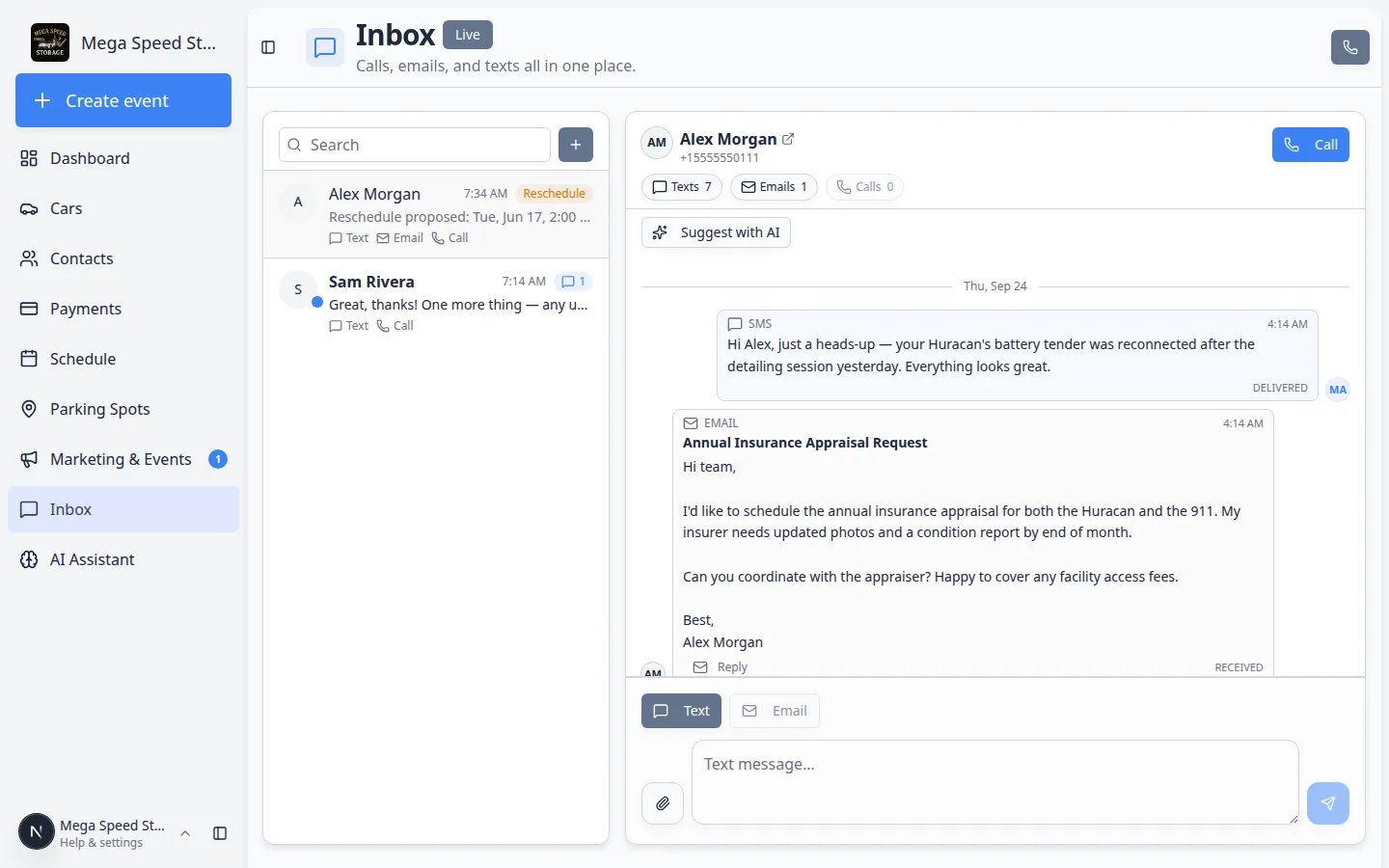 *When a customer is open, **Call** sits on the right of the conversation header. The **Calls** pill shows how many phone entries are already in this thread.*
**Call is gray for this customer only**
If other conversations still show an active **Call** button, this customer is missing a phone number — or the number is not a valid mobile or landline format. Fix it on their [Contacts](https://www.carstoragesoftware.com/dashboard/contacts) record, then return to Inbox.
## Use Quick call to dial any number
Use **Quick call** when you do not have that person open as a conversation yet — or when the number is not the one on the customer record.
Go to [Inbox](https://www.carstoragesoftware.com/dashboard/inbox). You do **not** need to select a customer first.
Look at the Inbox page header — the row that says **Inbox** and **Calls, emails, and texts all in one place.**
On the right side of that header, click the square phone icon. When you hover, the tooltip says **Quick call**.
The **Quick call** dialog opens with the title **Quick call** and the line **Dial any number.**
You can:
* Type in the field that shows **(555) 123-4567**
* Tap the on-screen pad (**1** through **9**, **\***, **0**, **#**)
* Press **Enter** on your keyboard when the number is ready
**Clear** empties the whole field. **Backspace** removes the last digit.
**Expected result:** When the number is valid, the dialog shows **Will dial** plus the full number (including country code). If the number is incomplete, you see **Enter a valid phone number.**
Click the large **Call** button at the bottom of the dialog.
**Expected result:** Inbox places the call to the number you entered. The dialog closes when the call starts.
*When a customer is open, **Call** sits on the right of the conversation header. The **Calls** pill shows how many phone entries are already in this thread.*
**Call is gray for this customer only**
If other conversations still show an active **Call** button, this customer is missing a phone number — or the number is not a valid mobile or landline format. Fix it on their [Contacts](https://www.carstoragesoftware.com/dashboard/contacts) record, then return to Inbox.
## Use Quick call to dial any number
Use **Quick call** when you do not have that person open as a conversation yet — or when the number is not the one on the customer record.
Go to [Inbox](https://www.carstoragesoftware.com/dashboard/inbox). You do **not** need to select a customer first.
Look at the Inbox page header — the row that says **Inbox** and **Calls, emails, and texts all in one place.**
On the right side of that header, click the square phone icon. When you hover, the tooltip says **Quick call**.
The **Quick call** dialog opens with the title **Quick call** and the line **Dial any number.**
You can:
* Type in the field that shows **(555) 123-4567**
* Tap the on-screen pad (**1** through **9**, **\***, **0**, **#**)
* Press **Enter** on your keyboard when the number is ready
**Clear** empties the whole field. **Backspace** removes the last digit.
**Expected result:** When the number is valid, the dialog shows **Will dial** plus the full number (including country code). If the number is incomplete, you see **Enter a valid phone number.**
Click the large **Call** button at the bottom of the dialog.
**Expected result:** Inbox places the call to the number you entered. The dialog closes when the call starts.
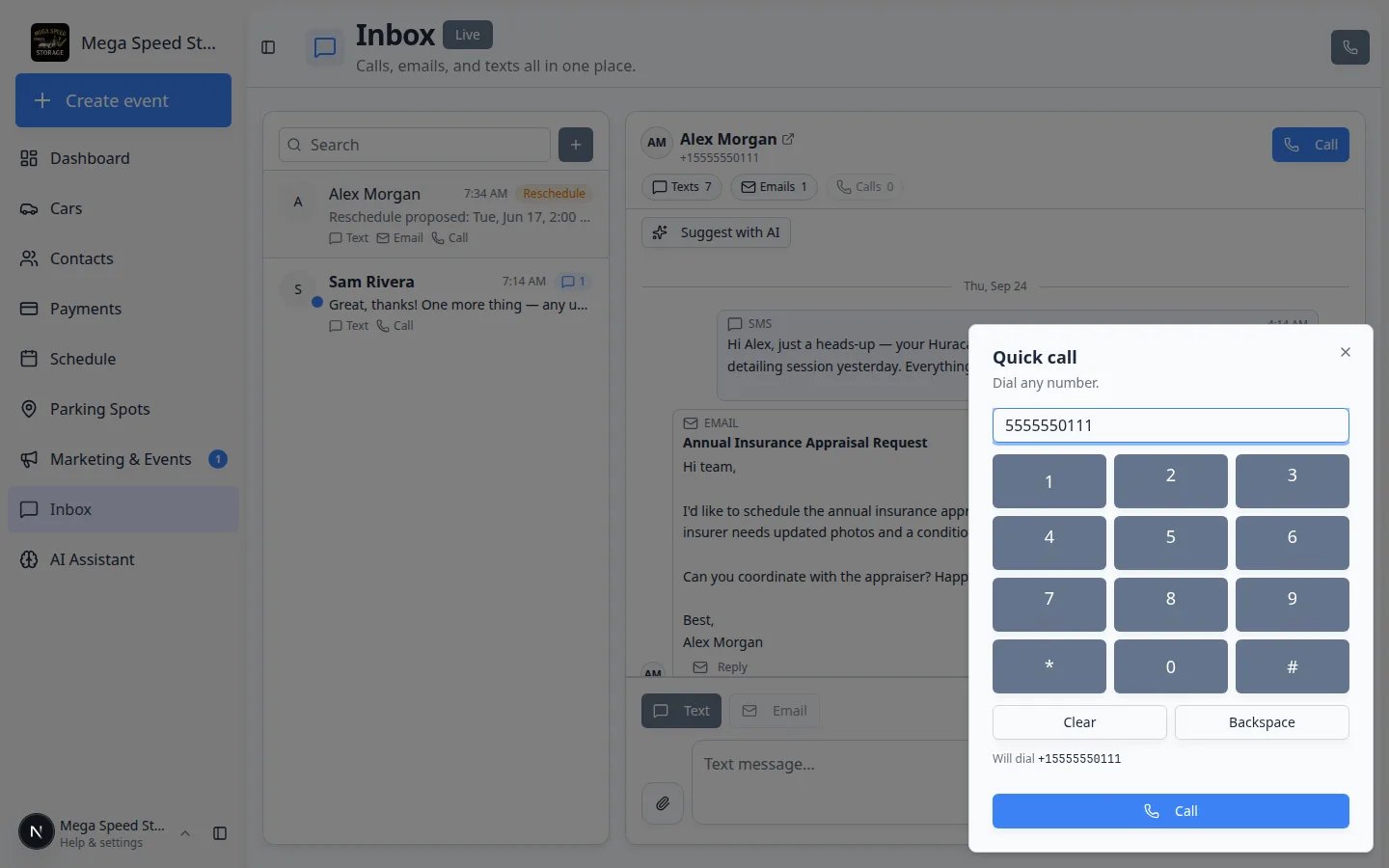 ***Quick call** lets you type or tap a number. Wait for **Will dial** to show the full number before you click **Call**.*
**Safety first on unsaved numbers**
Do not share gate codes, billing details, or vehicle locations until you know who answered. If you reached a spouse, valet, or new lead, keep the first call identity-safe — then add or update the person in [Contacts](https://www.carstoragesoftware.com/dashboard/contacts).
**Already on a call?**
The dialog shows **You’re already on a call. Hang up to place another call.** Hang up first. Inbox will not start a second outbound call on top of the first one.
## After the call
A call is only half the job. The next teammate still needs a written trail.
Open the customer (or search for the number), then click **Calls**.
**Expected result:** You see an **OUTBOUND** entry with a duration. If you used **Quick call** on an unsaved number, the conversation may appear as that phone number until you save it as a contact.
Good follow-up texts:
* "Thanks for the call — we will stage the Huracan at 10 AM tomorrow."
* "As discussed, Thursday at 10 AM is confirmed. Reply here if you need to change it."
Use [Send a text message from Inbox](/docs/inbox/send-a-text-message-from-inbox) for a short recap, or [Send an email from Inbox](/docs/inbox/send-an-email-from-inbox) when the customer needs a subject line they can search later.
If the call moved an appointment, update [Schedule](https://www.carstoragesoftware.com/dashboard/schedule) **and** confirm the new time in Inbox. See [Respond to reschedule requests in Inbox](/docs/inbox/respond-to-reschedule-requests-in-inbox).
***Quick call** lets you type or tap a number. Wait for **Will dial** to show the full number before you click **Call**.*
**Safety first on unsaved numbers**
Do not share gate codes, billing details, or vehicle locations until you know who answered. If you reached a spouse, valet, or new lead, keep the first call identity-safe — then add or update the person in [Contacts](https://www.carstoragesoftware.com/dashboard/contacts).
**Already on a call?**
The dialog shows **You’re already on a call. Hang up to place another call.** Hang up first. Inbox will not start a second outbound call on top of the first one.
## After the call
A call is only half the job. The next teammate still needs a written trail.
Open the customer (or search for the number), then click **Calls**.
**Expected result:** You see an **OUTBOUND** entry with a duration. If you used **Quick call** on an unsaved number, the conversation may appear as that phone number until you save it as a contact.
Good follow-up texts:
* "Thanks for the call — we will stage the Huracan at 10 AM tomorrow."
* "As discussed, Thursday at 10 AM is confirmed. Reply here if you need to change it."
Use [Send a text message from Inbox](/docs/inbox/send-a-text-message-from-inbox) for a short recap, or [Send an email from Inbox](/docs/inbox/send-an-email-from-inbox) when the customer needs a subject line they can search later.
If the call moved an appointment, update [Schedule](https://www.carstoragesoftware.com/dashboard/schedule) **and** confirm the new time in Inbox. See [Respond to reschedule requests in Inbox](/docs/inbox/respond-to-reschedule-requests-in-inbox).
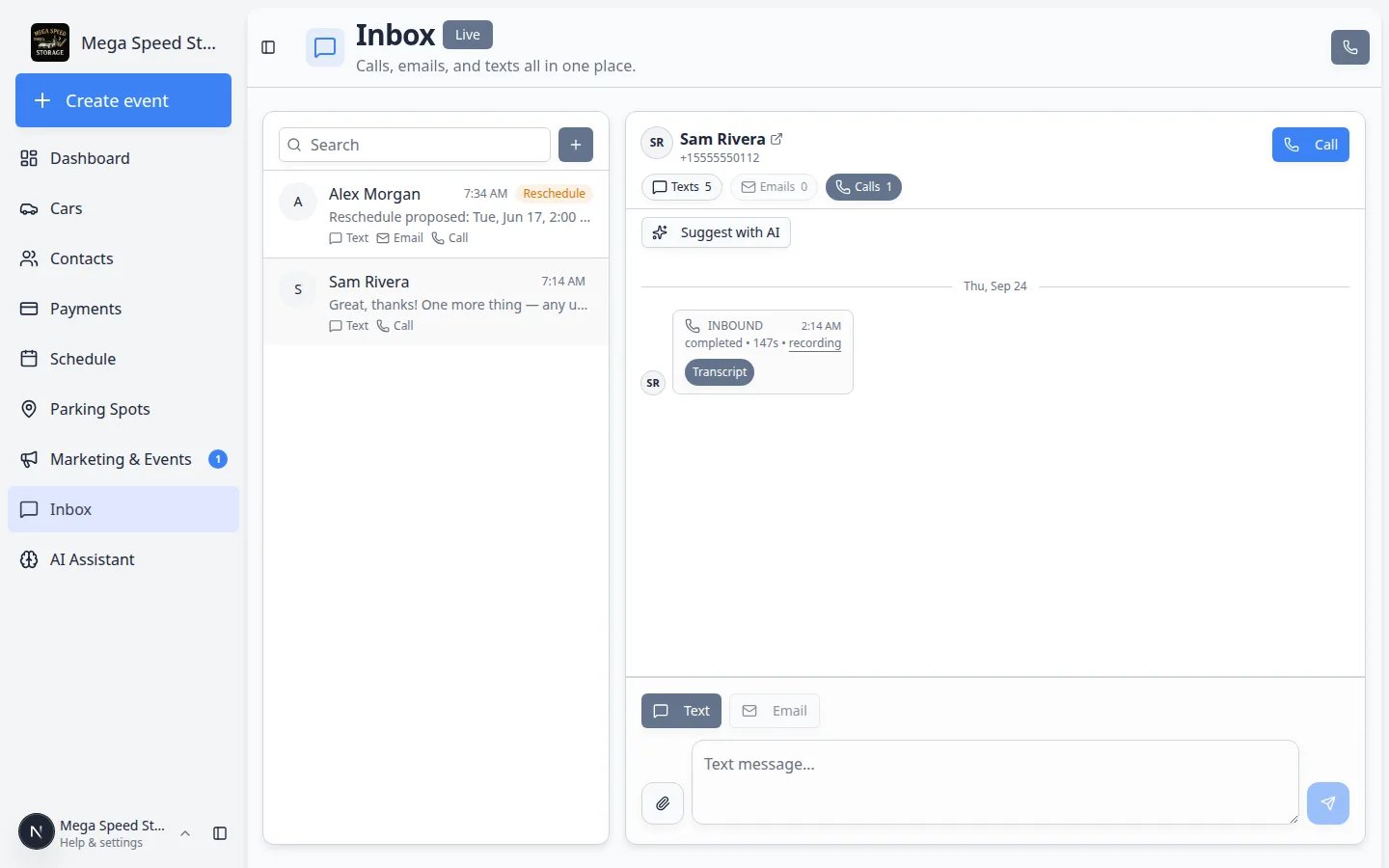 *After a call, click **Calls** to see phone history without scrolling through texts and emails.*
## Common mistakes to avoid
* Do not dial from a personal cell phone when Inbox calling is available. The rest of your team will not see the call.
* Do not click **Call** until you have checked the name and number at the top of the conversation.
* Do not use **Quick call** when the saved customer is already open — **Call** keeps the history on that record automatically.
* Do not promise a time or price from memory. Open [Cars](https://www.carstoragesoftware.com/dashboard/cars), [Schedule](https://www.carstoragesoftware.com/dashboard/schedule), or [Payments](https://www.carstoragesoftware.com/dashboard/payments/invoices) in another tab first.
* Do not hang up without a next step the customer can repeat — then write that next step in the same Inbox thread.
## What success looks like
* The call used the number you intended.
* An **OUTBOUND** entry appears under **Calls** for that conversation.
* If you agreed on a time, car, or amount, a short text or email repeats it in the same thread.
* The next teammate can open Inbox and see that the call already happened.
## Troubleshooting
**Quick call and Call are both gray**
Calling is not finished for your facility. Ask an admin to tap **Calling** under **Channels** on [Settings > Communications](https://www.carstoragesoftware.com/dashboard/settings/communications). Follow [Configure communication settings for Inbox](/docs/inbox/configure-communication-settings).
**The browser asks for the microphone**
Click **Allow**. If you clicked Block earlier, open your browser site settings for this app, allow the microphone, and refresh [Inbox](https://www.carstoragesoftware.com/dashboard/inbox).
**I hear nothing**
Check the volume on your computer or tablet. Confirm you are not already in another call. Try a headset if the built-in microphone is muted.
**The customer says they missed the call**
Look at the **Calls** filter. If the status is **completed** with a very short duration, they may have missed it. Send a short text: "We just tried you — is now a good time to talk?" Then try **Call** again when they reply.
**Quick call says Enter a valid phone number**
Include the area code. For numbers outside your country, include the country code. Use **Clear** and type the number again if the pad added an extra digit.
## What to do next
If you need to review a recording or transcript from this call or an earlier one, continue with [Review calls and transcripts](/docs/inbox/review-calls-and-transcripts).
If a customer calls **you** while you are on another dashboard page, see [Handle incoming phone calls](/docs/inbox/handle-incoming-phone-calls).
## Related topics
- [Inbox overview](/docs/inbox/overview.md)
- [Review calls and transcripts](/docs/inbox/review-calls-and-transcripts.md)
- [Handle incoming phone calls](/docs/inbox/handle-incoming-phone-calls.md)
- [Configure communication settings for Inbox](/docs/inbox/configure-communication-settings.md)
- [Respond to a conversation](/docs/inbox/respond-to-a-conversation.md)
This documentation is built and hosted on [Mintlify](https://mintlify.com), a developer documentation platform.
*After a call, click **Calls** to see phone history without scrolling through texts and emails.*
## Common mistakes to avoid
* Do not dial from a personal cell phone when Inbox calling is available. The rest of your team will not see the call.
* Do not click **Call** until you have checked the name and number at the top of the conversation.
* Do not use **Quick call** when the saved customer is already open — **Call** keeps the history on that record automatically.
* Do not promise a time or price from memory. Open [Cars](https://www.carstoragesoftware.com/dashboard/cars), [Schedule](https://www.carstoragesoftware.com/dashboard/schedule), or [Payments](https://www.carstoragesoftware.com/dashboard/payments/invoices) in another tab first.
* Do not hang up without a next step the customer can repeat — then write that next step in the same Inbox thread.
## What success looks like
* The call used the number you intended.
* An **OUTBOUND** entry appears under **Calls** for that conversation.
* If you agreed on a time, car, or amount, a short text or email repeats it in the same thread.
* The next teammate can open Inbox and see that the call already happened.
## Troubleshooting
**Quick call and Call are both gray**
Calling is not finished for your facility. Ask an admin to tap **Calling** under **Channels** on [Settings > Communications](https://www.carstoragesoftware.com/dashboard/settings/communications). Follow [Configure communication settings for Inbox](/docs/inbox/configure-communication-settings).
**The browser asks for the microphone**
Click **Allow**. If you clicked Block earlier, open your browser site settings for this app, allow the microphone, and refresh [Inbox](https://www.carstoragesoftware.com/dashboard/inbox).
**I hear nothing**
Check the volume on your computer or tablet. Confirm you are not already in another call. Try a headset if the built-in microphone is muted.
**The customer says they missed the call**
Look at the **Calls** filter. If the status is **completed** with a very short duration, they may have missed it. Send a short text: "We just tried you — is now a good time to talk?" Then try **Call** again when they reply.
**Quick call says Enter a valid phone number**
Include the area code. For numbers outside your country, include the country code. Use **Clear** and type the number again if the pad added an extra digit.
## What to do next
If you need to review a recording or transcript from this call or an earlier one, continue with [Review calls and transcripts](/docs/inbox/review-calls-and-transcripts).
If a customer calls **you** while you are on another dashboard page, see [Handle incoming phone calls](/docs/inbox/handle-incoming-phone-calls).
## Related topics
- [Inbox overview](/docs/inbox/overview.md)
- [Review calls and transcripts](/docs/inbox/review-calls-and-transcripts.md)
- [Handle incoming phone calls](/docs/inbox/handle-incoming-phone-calls.md)
- [Configure communication settings for Inbox](/docs/inbox/configure-communication-settings.md)
- [Respond to a conversation](/docs/inbox/respond-to-a-conversation.md)
This documentation is built and hosted on [Mintlify](https://mintlify.com), a developer documentation platform.