> ## Documentation Index
> Fetch the complete documentation index at: https://www.carstoragesoftware.com/docs/llms.txt
> Use this file to discover all available pages before exploring further.
# Configure communication settings for Inbox
> Set up phone, text, email, and staff alerts so your team can use Inbox with confidence.
Use this guide when Inbox buttons are grayed out, messages will not send, or your team is getting ready to use customer texts, emails, and calls for the first time.
Most setup happens on [Settings > Communications](https://www.carstoragesoftware.com/dashboard/settings/communications). This guide explains what to check on that page and why each setting matters for day-to-day Inbox work.
## What you will accomplish
* Understand which settings control texting, calling, and email in Inbox.
* Confirm your facility has a customer-facing phone number and email domain.
* Choose who should receive alerts when customers need a reply.
* Know how to test Inbox safely before messaging real customers.
## Before you start
* You should be signed in as a team member who can open **Settings > Communications**. Facility owners and admins usually have this access. Other staff need the **Inbox** permission—ask your admin to review [Manage team permissions](/docs/settings/manage-team-permissions) if the page is blocked.
* Know the phone number your customers already recognize for your facility.
* Know the email address style you want to use, such as **[service@yourfacility.com](mailto:service@yourfacility.com)**.
* Have someone ready to help with website or domain records if the app asks for DNS verification.
* Decide which staff members should watch Inbox and respond to customers.
**If Inbox says it is not configured yet**
When phone and email setup are incomplete, [Inbox](https://www.carstoragesoftware.com/dashboard/inbox) may show a message that Inbox is not configured yet and mention **Team Settings**. That means the same page as **Settings > Communications** in the left sidebar—not a separate hidden menu. Finish the steps in this guide, save your changes, then refresh Inbox.
## Open communication settings
Go to [Settings > Communications](https://www.carstoragesoftware.com/dashboard/settings/communications).
This page controls phone and text messaging, email sending, social links, review requests, and notification preferences.
The page title is **Communications**. The subtitle says **Channels for email and phone, alerts for staff and customers, then marketing accounts.**
Work through these areas in order:
* **Channels** — three cards labeled **Email**, **Calling**, and **SMS**. Tap a card to open its setup.
* **Alerts** — **Staff** defaults and **Customers** automated messages.
* **Marketing** — Instagram, Facebook, and similar accounts. Optional for Inbox.
Save any updates before returning to Inbox.
If the page shows verification steps, finish those steps before you test texting or email with customers.
**Expected result:** You can see all three communication sections and any setup buttons your team still needs to finish.
**Yellow banner on Inbox: not configured yet**
When you open [Inbox](https://www.carstoragesoftware.com/dashboard/inbox) before setup is complete, you may see a yellow banner that says **Inbox isn't configured yet**. That is normal during your first week.
**What still works:** Your team can read conversation history and practice finding customers in the list.
**What is blocked:** **Text**, **Email**, and **Call** buttons stay gray until an admin finishes the steps below on [Settings > Communications](https://www.carstoragesoftware.com/dashboard/settings/communications).
**What to do:** Work through this guide from top to bottom, save your changes, then refresh Inbox. The banner should disappear when at least one channel (text or email) is ready.
**Why staff still see Inbox is not configured yet**
The yellow banner on [Inbox](https://www.carstoragesoftware.com/dashboard/inbox) appears when **neither** phone/SMS **nor** email sending is fully ready. Your team can still read conversation history, but **Text**, **Email**, and **Call** buttons stay disabled until the steps below are complete. Finish phone setup first if your team texts customers every day.
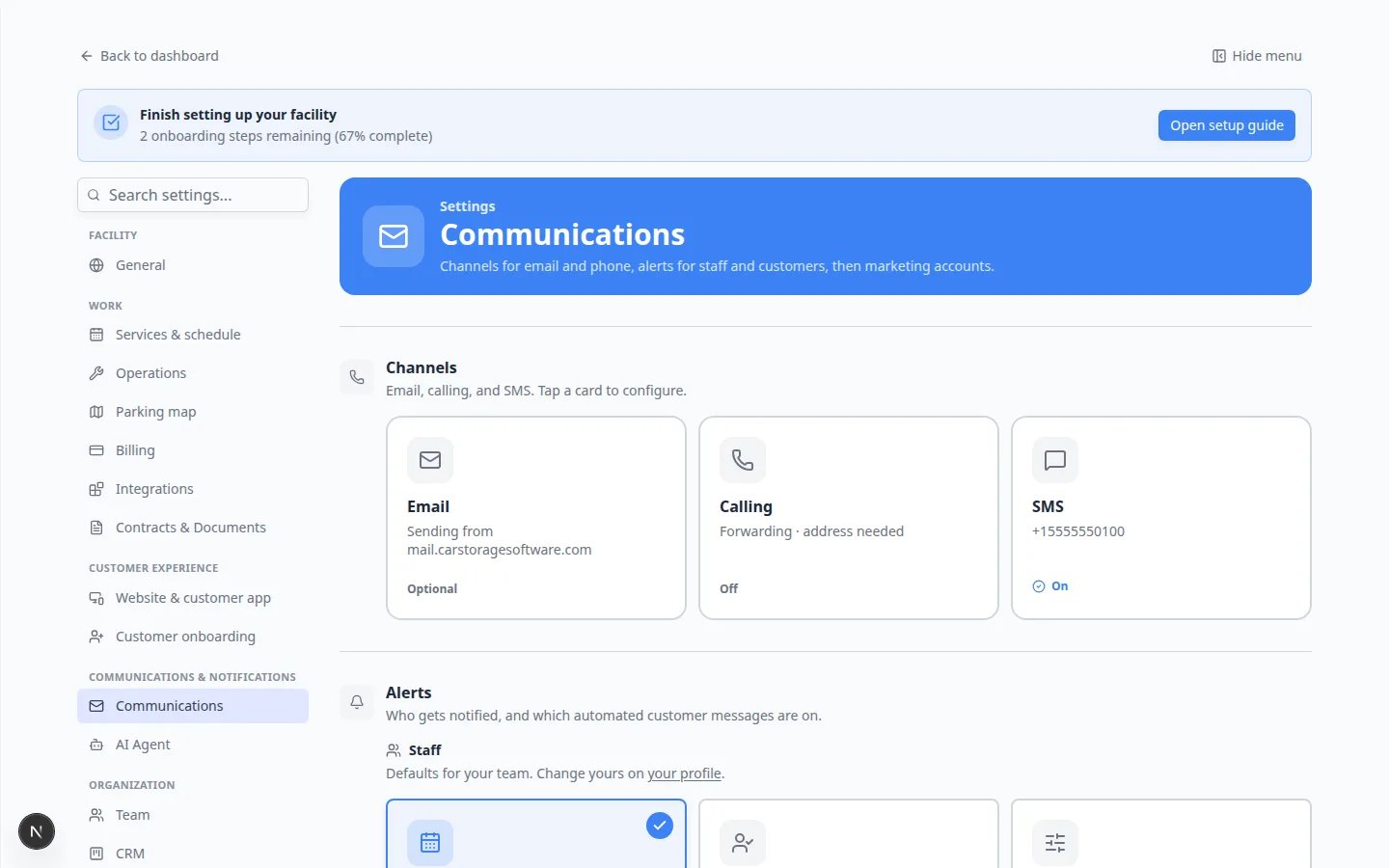 *Settings > Communications starts with three **Channels** cards — **Email**, **Calling**, and **SMS**. Each card shows **On**, **Off**, or **Optional**. Tap a card to set it up.*
## Check SMS (text messaging)
Text setup is the **SMS** card in **Channels**. Do this before **Calling**. Inbox texts and your facility phone number both live here.
On [Settings > Communications](https://www.carstoragesoftware.com/dashboard/settings/communications), find **Channels**. The helper line says **Email, calling, and SMS. Tap a card to configure.**
Click the **SMS** card.
**Expected result:** The card highlights and a setup panel opens under the three cards.
When SMS is ready, the card shows your facility number (for example **+15555550100**) and a green **On** label.
If the card says **No number yet** and **Off**, follow the setup in the open panel or ask your admin to connect a number.
Open [Inbox](https://www.carstoragesoftware.com/dashboard/inbox) and select a customer who has a phone number.
**Expected result:** The **Text** tab at the bottom of the conversation is available (not gray).
*Settings > Communications starts with three **Channels** cards — **Email**, **Calling**, and **SMS**. Each card shows **On**, **Off**, or **Optional**. Tap a card to set it up.*
## Check SMS (text messaging)
Text setup is the **SMS** card in **Channels**. Do this before **Calling**. Inbox texts and your facility phone number both live here.
On [Settings > Communications](https://www.carstoragesoftware.com/dashboard/settings/communications), find **Channels**. The helper line says **Email, calling, and SMS. Tap a card to configure.**
Click the **SMS** card.
**Expected result:** The card highlights and a setup panel opens under the three cards.
When SMS is ready, the card shows your facility number (for example **+15555550100**) and a green **On** label.
If the card says **No number yet** and **Off**, follow the setup in the open panel or ask your admin to connect a number.
Open [Inbox](https://www.carstoragesoftware.com/dashboard/inbox) and select a customer who has a phone number.
**Expected result:** The **Text** tab at the bottom of the conversation is available (not gray).
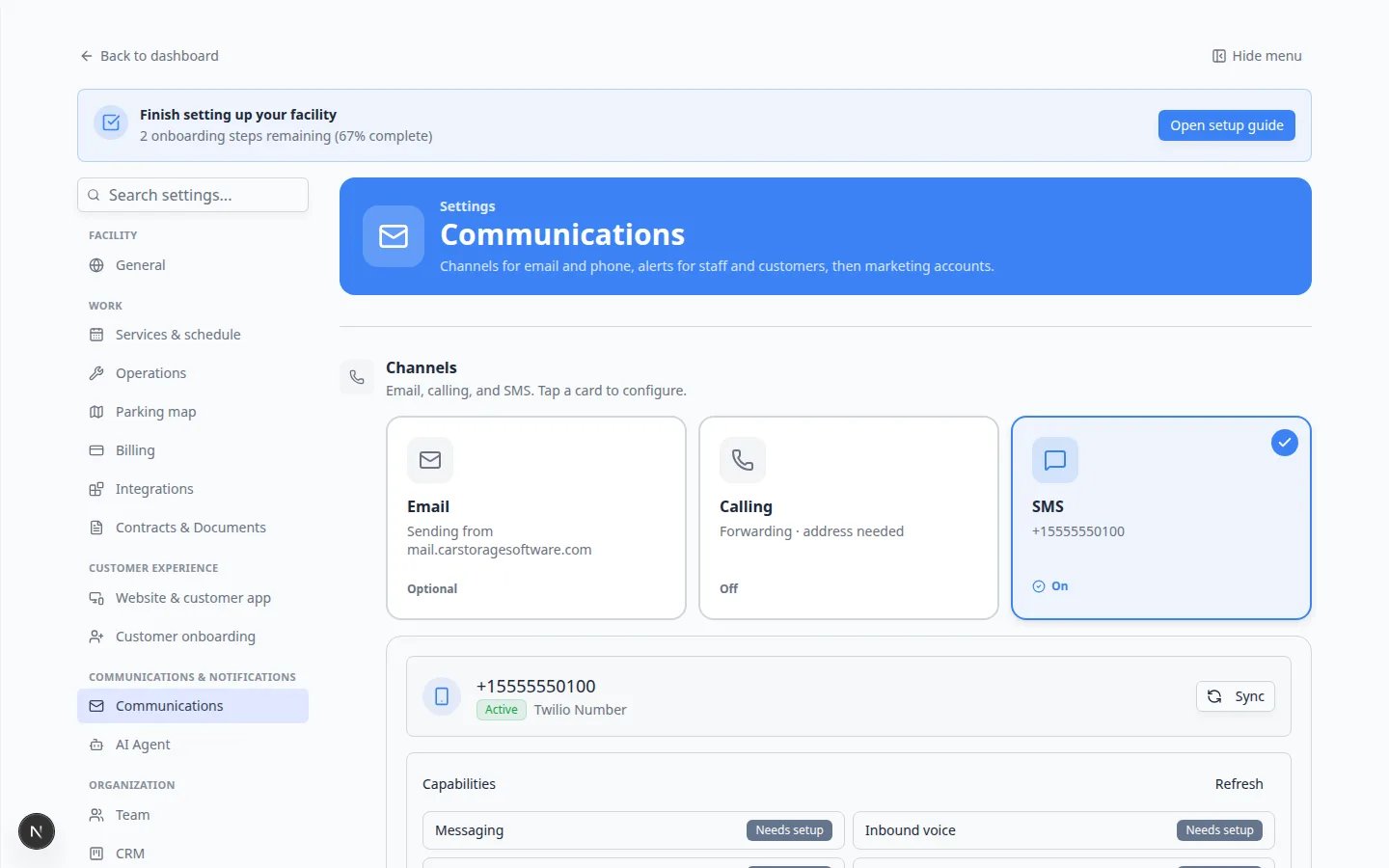 *Tap **SMS** to connect the number customers already know. Inbox **Text** stays gray until this card shows **On**.*
**Use a recognizable number**
Customers are more likely to trust a text or call when the number matches the number they already know for your facility.
## Check Calling
**Calling** is a separate card from **SMS**. You need the SMS number first. Then you finish calling so staff can use **Call** and **Quick call** in Inbox.
On the same **Channels** row, click **Calling**.
The panel may say **Get an SMS number first, then configure call routing and emergency address.**
Click **Set up SMS number** and finish the **SMS** card, then come back to **Calling**.
When a number exists, **Calling** may still show **Off** with a note such as **Forwarding · address needed**.
In the open panel you will see **Routing** (for example **Forward to number**), **Forwarding numbers**, and **Call recording**. Complete the emergency address the page asks for.
**Why this matters:** A phone number without calling setup lets you text, but **Call** and **Quick call** stay gray.
**Expected result:** The **Calling** card shows **On**. Staff can follow [Call a customer from Inbox](/docs/inbox/call-a-customer-from-inbox).
*Tap **SMS** to connect the number customers already know. Inbox **Text** stays gray until this card shows **On**.*
**Use a recognizable number**
Customers are more likely to trust a text or call when the number matches the number they already know for your facility.
## Check Calling
**Calling** is a separate card from **SMS**. You need the SMS number first. Then you finish calling so staff can use **Call** and **Quick call** in Inbox.
On the same **Channels** row, click **Calling**.
The panel may say **Get an SMS number first, then configure call routing and emergency address.**
Click **Set up SMS number** and finish the **SMS** card, then come back to **Calling**.
When a number exists, **Calling** may still show **Off** with a note such as **Forwarding · address needed**.
In the open panel you will see **Routing** (for example **Forward to number**), **Forwarding numbers**, and **Call recording**. Complete the emergency address the page asks for.
**Why this matters:** A phone number without calling setup lets you text, but **Call** and **Quick call** stay gray.
**Expected result:** The **Calling** card shows **On**. Staff can follow [Call a customer from Inbox](/docs/inbox/call-a-customer-from-inbox).
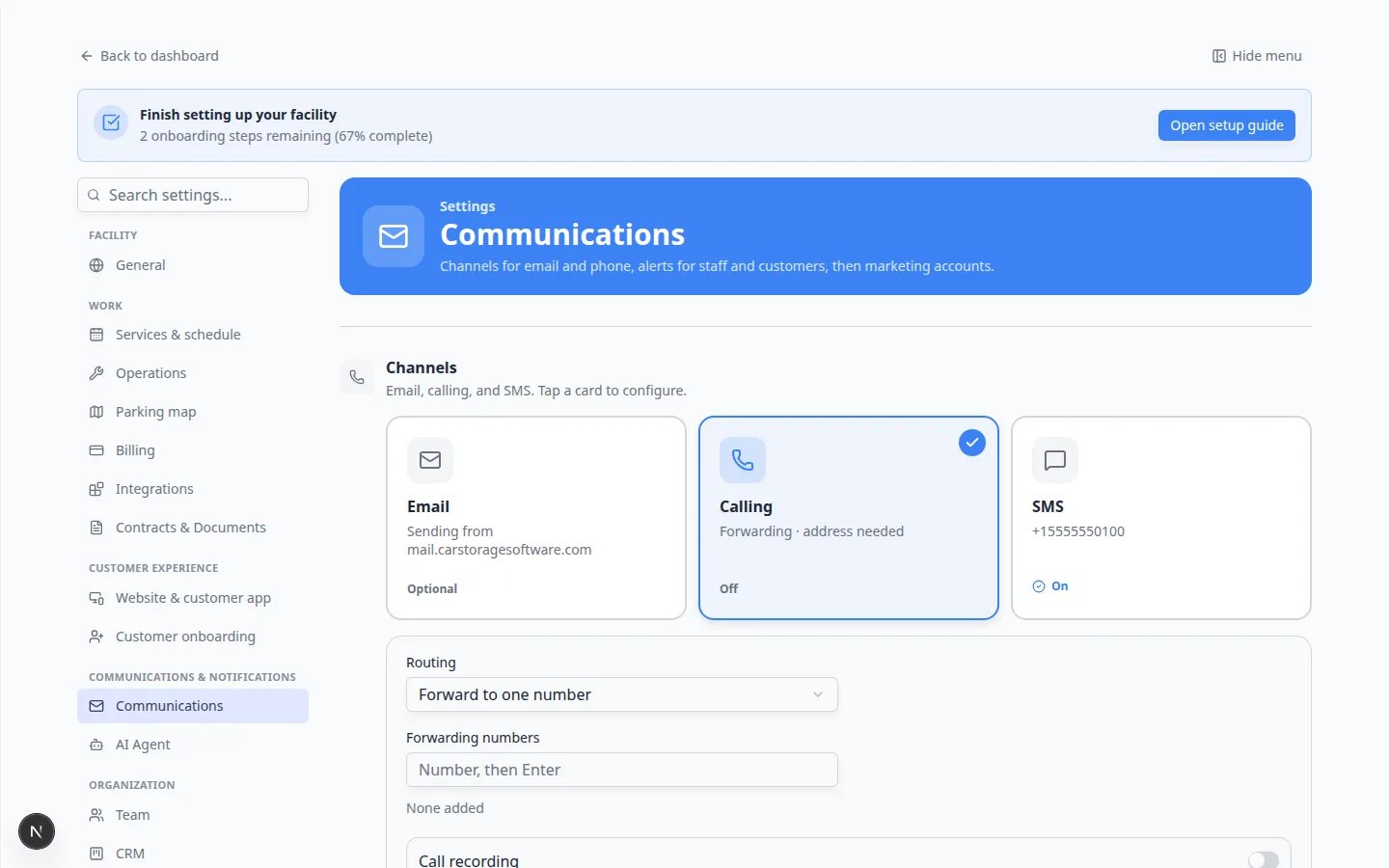 ***Calling** stays **Off** until SMS has a number and the emergency address is complete. That is expected during setup.*
**Use a recognizable number**
Customers are more likely to trust a text or call when the number matches the number they already know for your facility.
## Check Email
Email setup is the **Email** card in **Channels**. It affects Inbox replies, invoice emails, portal invites, and other customer messages.
Click **Email** in **Channels**.
The card footer can say:
* **Optional** — messages can send from the shared **mail.carstoragesoftware.com** domain (fine while you get started).
* **On** — your own domain is verified (or you use a custom domain).
* **Off** — a domain was started but DNS is not finished yet.
The smaller line on the card may say **Sending from mail.carstoragesoftware.com**, **Needs DNS**, or **Verified**.
If the open panel asks for domain records such as SPF, DKIM, DMARC, or MX, copy them exactly and send them to the person who manages your website or domain.
You do not need to finish a custom domain on day one. **Optional** is enough to practice Inbox email.
Open [Inbox](https://www.carstoragesoftware.com/dashboard/inbox), choose a customer with an email address, click **Email**, and confirm **Subject** and **Write your email…** are available.
**Expected result:** The **Email** tab in Inbox is available for customers who have an email address on file.
***Calling** stays **Off** until SMS has a number and the emergency address is complete. That is expected during setup.*
**Use a recognizable number**
Customers are more likely to trust a text or call when the number matches the number they already know for your facility.
## Check Email
Email setup is the **Email** card in **Channels**. It affects Inbox replies, invoice emails, portal invites, and other customer messages.
Click **Email** in **Channels**.
The card footer can say:
* **Optional** — messages can send from the shared **mail.carstoragesoftware.com** domain (fine while you get started).
* **On** — your own domain is verified (or you use a custom domain).
* **Off** — a domain was started but DNS is not finished yet.
The smaller line on the card may say **Sending from mail.carstoragesoftware.com**, **Needs DNS**, or **Verified**.
If the open panel asks for domain records such as SPF, DKIM, DMARC, or MX, copy them exactly and send them to the person who manages your website or domain.
You do not need to finish a custom domain on day one. **Optional** is enough to practice Inbox email.
Open [Inbox](https://www.carstoragesoftware.com/dashboard/inbox), choose a customer with an email address, click **Email**, and confirm **Subject** and **Write your email…** are available.
**Expected result:** The **Email** tab in Inbox is available for customers who have an email address on file.
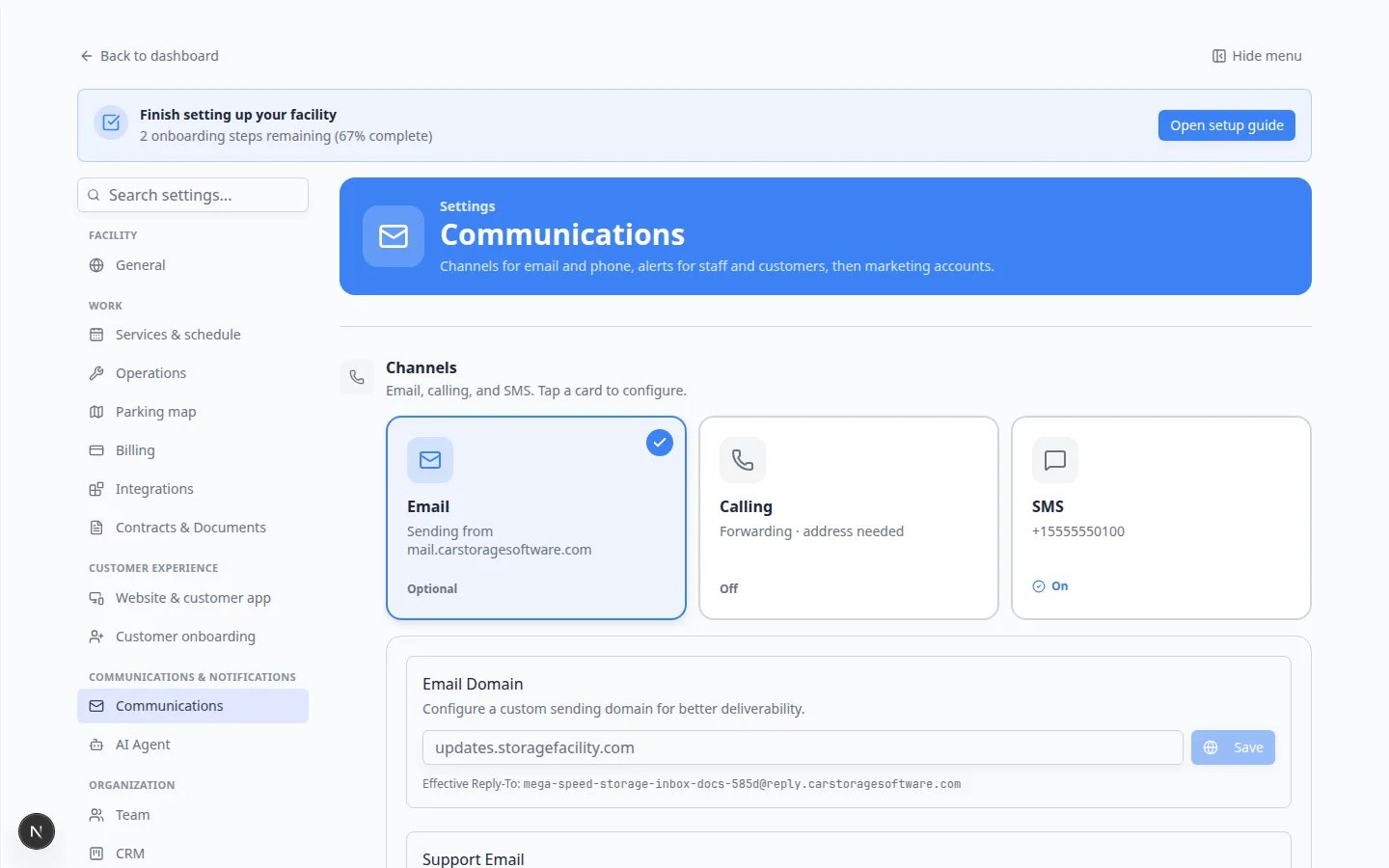 *Tap **Email** to review how outgoing mail is sent. **Optional** means you can practice Inbox email before your own domain is verified.*
## Check Alerts
**Alerts** sits below **Channels**. The helper line says **Who gets notified, and which automated customer messages are on.**
Under **Alerts**, find the **Staff** heading. The line under it says **Defaults for your team. Change yours on your profile.**
Choose one card:
* **All scheduled** — every scheduled event on the calendar
* **Assigned to me** — only when I am on the event
* **Custom** — choose which activities alert you
Then set **Channels**: **Email**, **Text**, and **Push**. The helper line says these apply to teammates who have not set their own preferences yet.
Avoid turning on every alert for everyone. Too many pings make important Inbox messages easier to miss.
Click **your profile** in that sentence, or open [Settings > Your profile](https://www.carstoragesoftware.com/dashboard/settings/user).
**Why this matters:** The Communications page sets team defaults. Each person still chooses how *they* want to be pinged.
Below **Staff**, find **Customers**. The line says **Scheduling, reminders, and billing messages.**
Choose **Off** (**Scheduling & transport paused — billing still sends**) or **On** (**Scheduling, transport, and billing emails**). Then you may see **Scheduling**, **Reminders**, and **Billing** cards.
These messages go to customers automatically. They are not required for sending a manual Inbox reply, but they keep pickup times and invoices from depending on one person remembering to text.
**Marketing** (Instagram, Facebook, and similar) is further down the page. You can leave it for later. It does not turn Inbox **Text**, **Email**, or **Call** on or off.
**Expected result:** The right people know when a new customer text, email, or call needs follow-up.
*Tap **Email** to review how outgoing mail is sent. **Optional** means you can practice Inbox email before your own domain is verified.*
## Check Alerts
**Alerts** sits below **Channels**. The helper line says **Who gets notified, and which automated customer messages are on.**
Under **Alerts**, find the **Staff** heading. The line under it says **Defaults for your team. Change yours on your profile.**
Choose one card:
* **All scheduled** — every scheduled event on the calendar
* **Assigned to me** — only when I am on the event
* **Custom** — choose which activities alert you
Then set **Channels**: **Email**, **Text**, and **Push**. The helper line says these apply to teammates who have not set their own preferences yet.
Avoid turning on every alert for everyone. Too many pings make important Inbox messages easier to miss.
Click **your profile** in that sentence, or open [Settings > Your profile](https://www.carstoragesoftware.com/dashboard/settings/user).
**Why this matters:** The Communications page sets team defaults. Each person still chooses how *they* want to be pinged.
Below **Staff**, find **Customers**. The line says **Scheduling, reminders, and billing messages.**
Choose **Off** (**Scheduling & transport paused — billing still sends**) or **On** (**Scheduling, transport, and billing emails**). Then you may see **Scheduling**, **Reminders**, and **Billing** cards.
These messages go to customers automatically. They are not required for sending a manual Inbox reply, but they keep pickup times and invoices from depending on one person remembering to text.
**Marketing** (Instagram, Facebook, and similar) is further down the page. You can leave it for later. It does not turn Inbox **Text**, **Email**, or **Call** on or off.
**Expected result:** The right people know when a new customer text, email, or call needs follow-up.
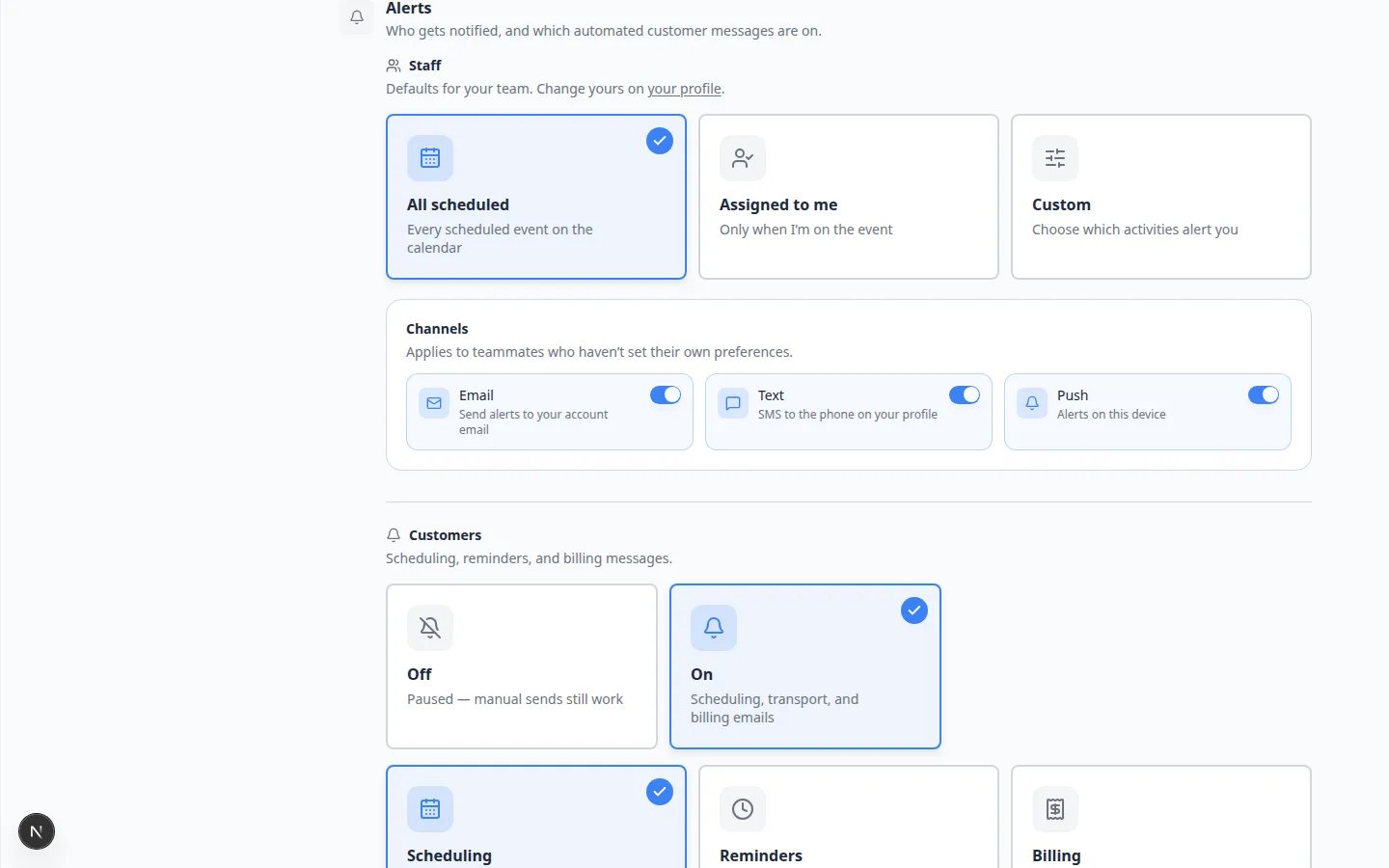 ***Alerts** has two parts: **Staff** defaults for your team, and **Customers** automated messages. Inbox replies still start from the **Channels** cards above.*
## Test before you message customers
After you save settings, confirm each channel works **before** real customers depend on replies.
Go to [Inbox](https://www.carstoragesoftware.com/dashboard/inbox).
**Expected result:** The yellow **Inbox isn't configured yet** banner is gone when at least one channel (text or email) is ready. If the banner remains, return to [Settings > Communications](https://www.carstoragesoftware.com/dashboard/settings/communications) and finish the missing section.
Use a customer record your team controls, such as a staff-owned test account.
**Why this matters:** A test message to a real customer can cause confusion. Use someone on your team who expects the test.
Follow [Start a new Inbox conversation](/docs/inbox/start-a-new-inbox-conversation) or [Send an email from Inbox](/docs/inbox/send-an-email-from-inbox) with that test customer.
Check that **Text**, **Email**, and **Call** buttons look active (not gray) when the customer has phone and email on file.
**Expected result:** The message appears in the timeline. Texts should show **DELIVERED** when SMS is configured.
Ask one front-desk teammate to open [Overview](https://www.carstoragesoftware.com/dashboard/v2) on another browser tab, then send a test message to your facility line.
**Expected result:** The teammate sees the conversation in the Inbox panel or receives a browser notification when alerts are enabled.
If buttons stay gray or messages fail, return to [Settings > Communications](https://www.carstoragesoftware.com/dashboard/settings/communications) and finish the missing step.
**Expected result:** Your team can send a test message successfully before using Inbox with real customers.
**Why test with your team first**
A five-minute internal test prevents embarrassing first messages to customers—such as texts that fail silently or emails that land in spam before your domain is verified.
## Quick setup checklist
Use this table before you tell staff Inbox is ready:
| Check | Where to look | Ready when… |
| - | - | - |
| Texting (SMS) | **Channels** → **SMS** | Card shows **On** and a phone number |
| Calling | **Channels** → **Calling** | Card shows **On** (needs SMS first, then an address) |
| Email | **Channels** → **Email** | Card shows **Optional** or **On** |
| Staff alerts | **Alerts** → **Staff** | The right people receive new-message alerts |
| Internal test | [Inbox](https://www.carstoragesoftware.com/dashboard/inbox) | A test text or email appears in the timeline |
## What success looks like
After setup:
* Inbox shows available **Text**, **Email**, and **Call** options when setup is complete and the customer has contact details on file.
* Customer messages are sent from a phone number or email domain your customers recognize.
* Staff know who is responsible for watching Inbox.
* Your team completed a small internal test before using the channel with customers.
## Troubleshooting
**Text messages are not sending**
Open **Channels** and tap **SMS**. Confirm the card shows **On** and a phone number. Also confirm the customer's phone number is valid in [Contacts](https://www.carstoragesoftware.com/dashboard/contacts).
**The Call button is disabled**
Tap **Calling** on [Settings > Communications](https://www.carstoragesoftware.com/dashboard/settings/communications). The card must show **On**. If it says **address needed** or **Set up SMS number**, finish those steps first. Also confirm the customer has a usable phone number.
**Email is not available**
Email sending may not be configured, the sending domain may not be verified, or the customer may not have an email address. Check the customer record and [Settings > Communications](https://www.carstoragesoftware.com/dashboard/settings/communications).
**Inbox says it is not configured yet**
On [Inbox](https://www.carstoragesoftware.com/dashboard/inbox), a yellow or gray notice may say **Inbox isn't configured yet** and point to **Team Settings**. That means texting, email, or both still need setup. Open [Settings > Communications](https://www.carstoragesoftware.com/dashboard/settings/communications) from the sidebar (not the global admin area) and finish phone and/or email setup on this page.
**Domain records feel confusing**
It is normal for domain records to feel unfamiliar. Copy the records exactly as shown and send them to your website or domain helper. Ask them to add the records without changing the values.
Common record types you may see:
* **SPF** — tells email providers your facility is allowed to send mail from this domain
* **DKIM** — adds a digital signature so messages are less likely to land in spam
* **DMARC** — tells providers what to do if a message fails those checks
* **MX** — routes inbound mail (only needed if you receive email at this domain inside the app)
You do not need to memorize these. Copy each row from the setup screen into your domain host exactly as written.
**I can open Communications but Inbox buttons stay gray**
Save your work on this page, wait a minute for verification to finish, then hard-refresh [Inbox](https://www.carstoragesoftware.com/dashboard/inbox). If **Text** or **Email** is still gray for a specific customer, open their record in [Contacts](https://www.carstoragesoftware.com/dashboard/contacts) and confirm they have a valid phone number or email address—not just a name.
## What to do next
After communication settings are ready, open [Inbox](https://www.carstoragesoftware.com/dashboard/inbox) and run the [test before you message customers](#test-before-you-message-customers) steps above. When a test message appears in the timeline, continue with [Start a new Inbox conversation](/docs/inbox/start-a-new-inbox-conversation).
If more than one person will answer customers, share [Coordinate with your team in Inbox](/docs/inbox/coordinate-with-your-team-in-inbox).
For the full settings walkthrough outside Inbox, see [Configure communications](/docs/settings/configure-communications).
**Who should complete this setup?**
Pick one facility admin or office manager to own communication setup. Front-desk staff can test Inbox afterward using [Use Inbox from your Overview dashboard](/docs/inbox/use-inbox-from-your-overview-dashboard) and [Start a new Inbox conversation](/docs/inbox/start-a-new-inbox-conversation).
## Related topics
- [Configure communications](/docs/settings/configure-communications.md)
- [Inbox overview](/docs/inbox/overview.md)
- [Call a customer from Inbox](/docs/inbox/call-a-customer-from-inbox.md)
- [Start a new Inbox conversation](/docs/inbox/start-a-new-inbox-conversation.md)
- [Send an email from Inbox](/docs/inbox/send-an-email-from-inbox.md)
This documentation is built and hosted on [Mintlify](https://mintlify.com), a developer documentation platform.
***Alerts** has two parts: **Staff** defaults for your team, and **Customers** automated messages. Inbox replies still start from the **Channels** cards above.*
## Test before you message customers
After you save settings, confirm each channel works **before** real customers depend on replies.
Go to [Inbox](https://www.carstoragesoftware.com/dashboard/inbox).
**Expected result:** The yellow **Inbox isn't configured yet** banner is gone when at least one channel (text or email) is ready. If the banner remains, return to [Settings > Communications](https://www.carstoragesoftware.com/dashboard/settings/communications) and finish the missing section.
Use a customer record your team controls, such as a staff-owned test account.
**Why this matters:** A test message to a real customer can cause confusion. Use someone on your team who expects the test.
Follow [Start a new Inbox conversation](/docs/inbox/start-a-new-inbox-conversation) or [Send an email from Inbox](/docs/inbox/send-an-email-from-inbox) with that test customer.
Check that **Text**, **Email**, and **Call** buttons look active (not gray) when the customer has phone and email on file.
**Expected result:** The message appears in the timeline. Texts should show **DELIVERED** when SMS is configured.
Ask one front-desk teammate to open [Overview](https://www.carstoragesoftware.com/dashboard/v2) on another browser tab, then send a test message to your facility line.
**Expected result:** The teammate sees the conversation in the Inbox panel or receives a browser notification when alerts are enabled.
If buttons stay gray or messages fail, return to [Settings > Communications](https://www.carstoragesoftware.com/dashboard/settings/communications) and finish the missing step.
**Expected result:** Your team can send a test message successfully before using Inbox with real customers.
**Why test with your team first**
A five-minute internal test prevents embarrassing first messages to customers—such as texts that fail silently or emails that land in spam before your domain is verified.
## Quick setup checklist
Use this table before you tell staff Inbox is ready:
| Check | Where to look | Ready when… |
| - | - | - |
| Texting (SMS) | **Channels** → **SMS** | Card shows **On** and a phone number |
| Calling | **Channels** → **Calling** | Card shows **On** (needs SMS first, then an address) |
| Email | **Channels** → **Email** | Card shows **Optional** or **On** |
| Staff alerts | **Alerts** → **Staff** | The right people receive new-message alerts |
| Internal test | [Inbox](https://www.carstoragesoftware.com/dashboard/inbox) | A test text or email appears in the timeline |
## What success looks like
After setup:
* Inbox shows available **Text**, **Email**, and **Call** options when setup is complete and the customer has contact details on file.
* Customer messages are sent from a phone number or email domain your customers recognize.
* Staff know who is responsible for watching Inbox.
* Your team completed a small internal test before using the channel with customers.
## Troubleshooting
**Text messages are not sending**
Open **Channels** and tap **SMS**. Confirm the card shows **On** and a phone number. Also confirm the customer's phone number is valid in [Contacts](https://www.carstoragesoftware.com/dashboard/contacts).
**The Call button is disabled**
Tap **Calling** on [Settings > Communications](https://www.carstoragesoftware.com/dashboard/settings/communications). The card must show **On**. If it says **address needed** or **Set up SMS number**, finish those steps first. Also confirm the customer has a usable phone number.
**Email is not available**
Email sending may not be configured, the sending domain may not be verified, or the customer may not have an email address. Check the customer record and [Settings > Communications](https://www.carstoragesoftware.com/dashboard/settings/communications).
**Inbox says it is not configured yet**
On [Inbox](https://www.carstoragesoftware.com/dashboard/inbox), a yellow or gray notice may say **Inbox isn't configured yet** and point to **Team Settings**. That means texting, email, or both still need setup. Open [Settings > Communications](https://www.carstoragesoftware.com/dashboard/settings/communications) from the sidebar (not the global admin area) and finish phone and/or email setup on this page.
**Domain records feel confusing**
It is normal for domain records to feel unfamiliar. Copy the records exactly as shown and send them to your website or domain helper. Ask them to add the records without changing the values.
Common record types you may see:
* **SPF** — tells email providers your facility is allowed to send mail from this domain
* **DKIM** — adds a digital signature so messages are less likely to land in spam
* **DMARC** — tells providers what to do if a message fails those checks
* **MX** — routes inbound mail (only needed if you receive email at this domain inside the app)
You do not need to memorize these. Copy each row from the setup screen into your domain host exactly as written.
**I can open Communications but Inbox buttons stay gray**
Save your work on this page, wait a minute for verification to finish, then hard-refresh [Inbox](https://www.carstoragesoftware.com/dashboard/inbox). If **Text** or **Email** is still gray for a specific customer, open their record in [Contacts](https://www.carstoragesoftware.com/dashboard/contacts) and confirm they have a valid phone number or email address—not just a name.
## What to do next
After communication settings are ready, open [Inbox](https://www.carstoragesoftware.com/dashboard/inbox) and run the [test before you message customers](#test-before-you-message-customers) steps above. When a test message appears in the timeline, continue with [Start a new Inbox conversation](/docs/inbox/start-a-new-inbox-conversation).
If more than one person will answer customers, share [Coordinate with your team in Inbox](/docs/inbox/coordinate-with-your-team-in-inbox).
For the full settings walkthrough outside Inbox, see [Configure communications](/docs/settings/configure-communications).
**Who should complete this setup?**
Pick one facility admin or office manager to own communication setup. Front-desk staff can test Inbox afterward using [Use Inbox from your Overview dashboard](/docs/inbox/use-inbox-from-your-overview-dashboard) and [Start a new Inbox conversation](/docs/inbox/start-a-new-inbox-conversation).
## Related topics
- [Configure communications](/docs/settings/configure-communications.md)
- [Inbox overview](/docs/inbox/overview.md)
- [Call a customer from Inbox](/docs/inbox/call-a-customer-from-inbox.md)
- [Start a new Inbox conversation](/docs/inbox/start-a-new-inbox-conversation.md)
- [Send an email from Inbox](/docs/inbox/send-an-email-from-inbox.md)
This documentation is built and hosted on [Mintlify](https://mintlify.com), a developer documentation platform.