> ## Documentation Index
> Fetch the complete documentation index at: https://www.carstoragesoftware.com/docs/llms.txt
> Use this file to discover all available pages before exploring further.
# Inbox overview
> Learn how the Inbox helps your team manage customer texts, emails, calls, and follow-up in one place.
The [Inbox](https://www.carstoragesoftware.com/dashboard/inbox) is where your team reads customer messages, replies by text or email, reviews call history, and keeps each conversation connected to the right customer.
Use this section when a customer asks a question, sends a photo, replies to an email, calls your facility, or needs a follow-up from your team.
When your Inbox is used well, staff do not have to search through separate phones, email accounts, and notes to understand what happened.
## What you will accomplish
* Understand what Inbox is for and when to use it.
* Know how the conversation list and timeline work together.
* Pick the right guide for texting, emailing, calling, or setup.
* Spot unread conversations from [Overview](https://www.carstoragesoftware.com/dashboard/v2) when your dashboard includes an Inbox panel.
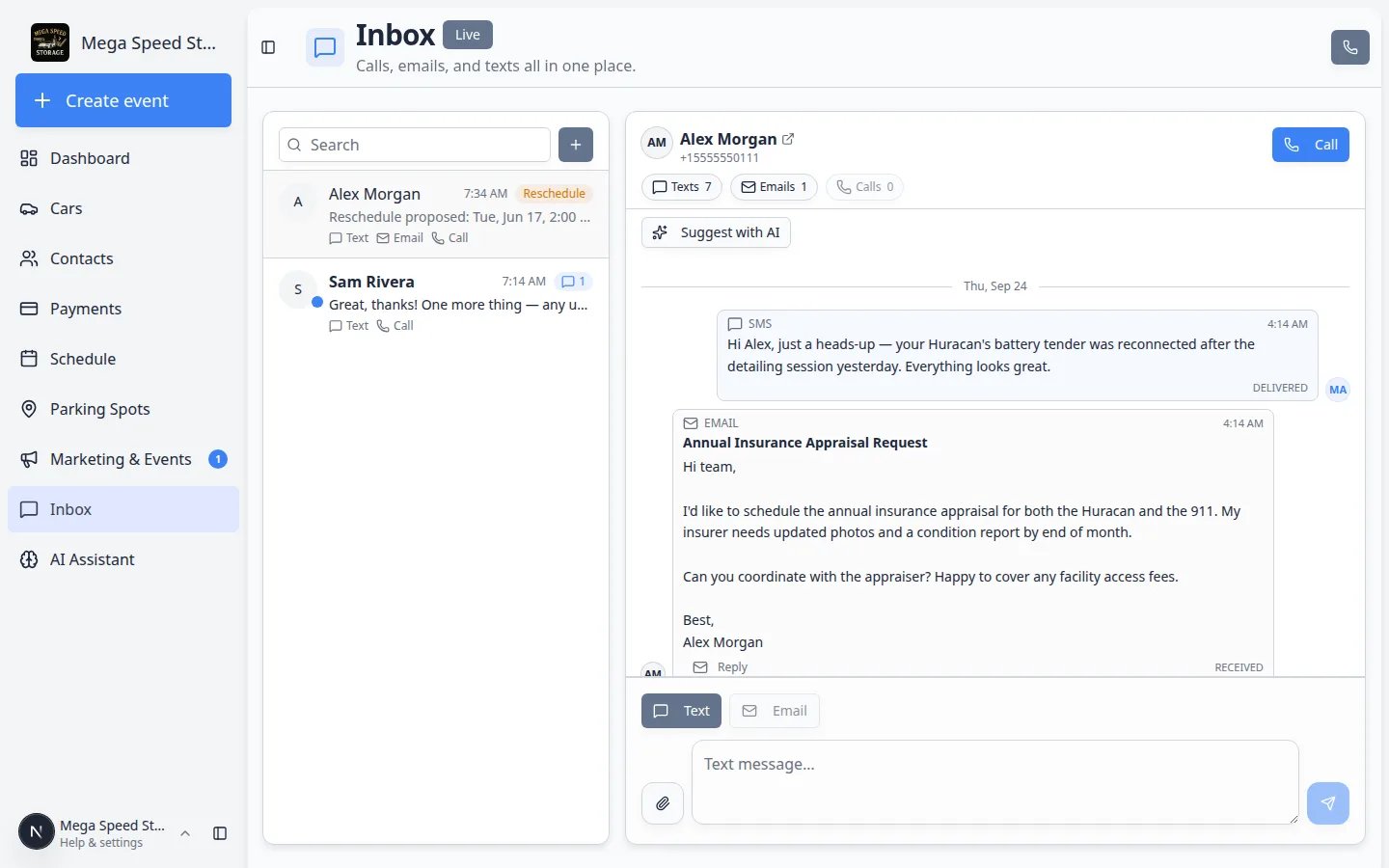 *The Inbox keeps customer texts, emails, and calls together so your team can answer with the full history in view. The Live badge means new activity can appear without refreshing.*
 *Live tells your team that new customer messages can appear automatically while the page is open.*
## Yellow setup notices (normal during your first week)
If phone or email is not finished yet, Inbox may show yellow or gray notices such as **Inbox isn't configured yet** at the top of the page and **Messaging isn't configured yet** above the message box at the bottom.
**What still works before setup is complete**
Your team can still **read** conversation history, search customers, and practice opening threads. **Text**, **Email**, and **Call** stay gray until an admin finishes [Configure communication settings for Inbox](/docs/inbox/configure-communication-settings).
**What to do**
An admin should work through [Settings > Communications](https://www.carstoragesoftware.com/dashboard/settings/communications) (the same page linked in the banner as **Team Settings**). After you save and refresh [Inbox](https://www.carstoragesoftware.com/dashboard/inbox), the yellow banners should disappear when at least one channel is ready.
**Expected result:** Staff can train on real conversation layouts while setup finishes, without sending messages to customers before your facility line is live.
## What you can do from Inbox
* Start a new conversation with an existing customer or a new phone number.
* Reply by **Text** when the message should be short and fast.
* Reply by **Email** when the answer needs a subject line, more detail, or a formal record.
* Use **Call** on a saved customer or **Quick call** from the Inbox header when the customer needs a live conversation. See [Call a customer from Inbox](/docs/inbox/call-a-customer-from-inbox).
* Review the timeline filters **Texts**, **Emails**, and **Calls** when you want to focus on one type of activity.
* Use **Suggest with AI** to draft a possible reply when you want a starting point.
* Mark a conversation unread when someone still needs to follow up.
* Watch for the **Live** badge and teammate presence notes when more than one person uses Inbox.
* Spot **Reschedule** badges when a customer asks to move an appointment.
## Start with the right guide
Use [Use Inbox from your Overview dashboard](/docs/inbox/use-inbox-from-your-overview-dashboard) when your [Overview](https://www.carstoragesoftware.com/dashboard/v2) layout includes an Inbox panel and you only need to see unread threads before jumping into the full page.
Start with [Configure communication settings for Inbox](/docs/inbox/configure-communication-settings). Text, email, and call buttons depend on this setup.
Use [Start a new Inbox conversation](/docs/inbox/start-a-new-inbox-conversation).
Use [Respond to a conversation](/docs/inbox/respond-to-a-conversation) to review the timeline, choose the best channel, and reply carefully.
Use [Send a text message from Inbox](/docs/inbox/send-a-text-message-from-inbox).
Use [Send an email from Inbox](/docs/inbox/send-an-email-from-inbox).
Use [Call a customer from Inbox](/docs/inbox/call-a-customer-from-inbox) to click **Call** on a saved customer or **Quick call** to dial any number.
Use [Review calls and transcripts](/docs/inbox/review-calls-and-transcripts).
Use [Use AI-suggested replies in Inbox](/docs/inbox/use-ai-suggested-replies-in-inbox) when you want help drafting a reply from the current conversation history.
**Why this helps:** The assistant reads recent texts and emails in the thread and suggests wording—you still review and edit before anything sends.
Use [Coordinate with your team in Inbox](/docs/inbox/coordinate-with-your-team-in-inbox).
Use [Handle incoming phone calls](/docs/inbox/handle-incoming-phone-calls).
Use [Respond to reschedule requests in Inbox](/docs/inbox/respond-to-reschedule-requests-in-inbox).
## Open Inbox from anywhere in the dashboard
You do not have to click **Inbox** in the sidebar every time.
* **Sidebar:** Click **Inbox** for the full-page view with the conversation list and timeline.
* **Overview dashboard:** If your facility added an **Inbox** widget to [Overview](https://www.carstoragesoftware.com/dashboard/v2), unread conversations appear there with links into each thread. See [Use Inbox from your Overview dashboard](/docs/inbox/use-inbox-from-your-overview-dashboard).
* **Customer record:** From [Contacts](https://www.carstoragesoftware.com/dashboard/contacts), open a customer and use message shortcuts when your team needs to reach them from their profile.
**Full page vs Overview panel**
Use the **full Inbox page** when you need the whole conversation list, long timelines, **Quick call**, image attachments, or **Suggest with AI**. Use the **Overview Inbox panel** for a fast glance at unread messages while you work on schedule or parking.
## How the Inbox is organized
The Inbox has two main areas.
* The **conversation list** is on the left. It shows each customer or phone number, the most recent activity, and channel labels such as **Text**, **Email**, or **Call**.
* The **conversation timeline** is on the right. It shows the selected customer's messages and calls in time order.
* The **reply area** is at the bottom of the conversation. This is where you choose **Text** or **Email** and write your reply.
* The **Call** button is near the top of the selected conversation when the customer has a usable phone number.
* The **Search** field and **+** button are above the conversation list. Use **Search** to find an existing thread. Use **+** (labeled **New** when you hover) to start a new conversation.
*Live tells your team that new customer messages can appear automatically while the page is open.*
## Yellow setup notices (normal during your first week)
If phone or email is not finished yet, Inbox may show yellow or gray notices such as **Inbox isn't configured yet** at the top of the page and **Messaging isn't configured yet** above the message box at the bottom.
**What still works before setup is complete**
Your team can still **read** conversation history, search customers, and practice opening threads. **Text**, **Email**, and **Call** stay gray until an admin finishes [Configure communication settings for Inbox](/docs/inbox/configure-communication-settings).
**What to do**
An admin should work through [Settings > Communications](https://www.carstoragesoftware.com/dashboard/settings/communications) (the same page linked in the banner as **Team Settings**). After you save and refresh [Inbox](https://www.carstoragesoftware.com/dashboard/inbox), the yellow banners should disappear when at least one channel is ready.
**Expected result:** Staff can train on real conversation layouts while setup finishes, without sending messages to customers before your facility line is live.
## What you can do from Inbox
* Start a new conversation with an existing customer or a new phone number.
* Reply by **Text** when the message should be short and fast.
* Reply by **Email** when the answer needs a subject line, more detail, or a formal record.
* Use **Call** on a saved customer or **Quick call** from the Inbox header when the customer needs a live conversation. See [Call a customer from Inbox](/docs/inbox/call-a-customer-from-inbox).
* Review the timeline filters **Texts**, **Emails**, and **Calls** when you want to focus on one type of activity.
* Use **Suggest with AI** to draft a possible reply when you want a starting point.
* Mark a conversation unread when someone still needs to follow up.
* Watch for the **Live** badge and teammate presence notes when more than one person uses Inbox.
* Spot **Reschedule** badges when a customer asks to move an appointment.
## Start with the right guide
Use [Use Inbox from your Overview dashboard](/docs/inbox/use-inbox-from-your-overview-dashboard) when your [Overview](https://www.carstoragesoftware.com/dashboard/v2) layout includes an Inbox panel and you only need to see unread threads before jumping into the full page.
Start with [Configure communication settings for Inbox](/docs/inbox/configure-communication-settings). Text, email, and call buttons depend on this setup.
Use [Start a new Inbox conversation](/docs/inbox/start-a-new-inbox-conversation).
Use [Respond to a conversation](/docs/inbox/respond-to-a-conversation) to review the timeline, choose the best channel, and reply carefully.
Use [Send a text message from Inbox](/docs/inbox/send-a-text-message-from-inbox).
Use [Send an email from Inbox](/docs/inbox/send-an-email-from-inbox).
Use [Call a customer from Inbox](/docs/inbox/call-a-customer-from-inbox) to click **Call** on a saved customer or **Quick call** to dial any number.
Use [Review calls and transcripts](/docs/inbox/review-calls-and-transcripts).
Use [Use AI-suggested replies in Inbox](/docs/inbox/use-ai-suggested-replies-in-inbox) when you want help drafting a reply from the current conversation history.
**Why this helps:** The assistant reads recent texts and emails in the thread and suggests wording—you still review and edit before anything sends.
Use [Coordinate with your team in Inbox](/docs/inbox/coordinate-with-your-team-in-inbox).
Use [Handle incoming phone calls](/docs/inbox/handle-incoming-phone-calls).
Use [Respond to reschedule requests in Inbox](/docs/inbox/respond-to-reschedule-requests-in-inbox).
## Open Inbox from anywhere in the dashboard
You do not have to click **Inbox** in the sidebar every time.
* **Sidebar:** Click **Inbox** for the full-page view with the conversation list and timeline.
* **Overview dashboard:** If your facility added an **Inbox** widget to [Overview](https://www.carstoragesoftware.com/dashboard/v2), unread conversations appear there with links into each thread. See [Use Inbox from your Overview dashboard](/docs/inbox/use-inbox-from-your-overview-dashboard).
* **Customer record:** From [Contacts](https://www.carstoragesoftware.com/dashboard/contacts), open a customer and use message shortcuts when your team needs to reach them from their profile.
**Full page vs Overview panel**
Use the **full Inbox page** when you need the whole conversation list, long timelines, **Quick call**, image attachments, or **Suggest with AI**. Use the **Overview Inbox panel** for a fast glance at unread messages while you work on schedule or parking.
## How the Inbox is organized
The Inbox has two main areas.
* The **conversation list** is on the left. It shows each customer or phone number, the most recent activity, and channel labels such as **Text**, **Email**, or **Call**.
* The **conversation timeline** is on the right. It shows the selected customer's messages and calls in time order.
* The **reply area** is at the bottom of the conversation. This is where you choose **Text** or **Email** and write your reply.
* The **Call** button is near the top of the selected conversation when the customer has a usable phone number.
* The **Search** field and **+** button are above the conversation list. Use **Search** to find an existing thread. Use **+** (labeled **New** when you hover) to start a new conversation.
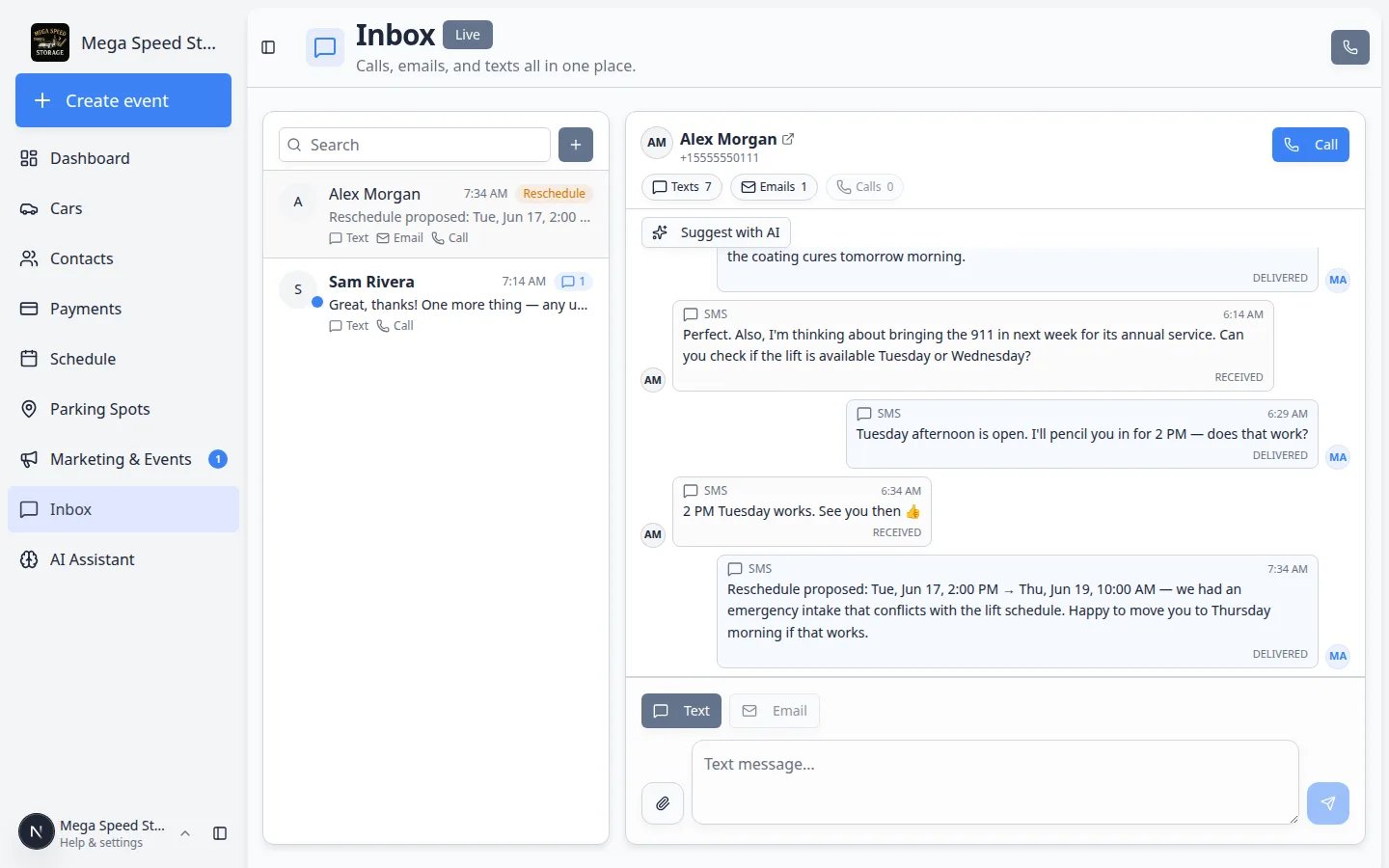 *Select a customer on the left to read the full timeline on the right before you reply. **Call** is on the conversation. **Quick call** is the phone icon in the Inbox header.*
**Why this layout helps**
Seeing the full history before you reply reduces repeat questions. It also helps your team avoid giving an answer that conflicts with something another staff member already said.
## Choose the right channel
**Text** is best for short, time-sensitive updates such as pickup times, quick confirmations, and simple questions.
**Email** is best when you need a subject line, several details, or a message the customer may want to find later.
**Call** is best when the topic is easier to explain live than by text or email.
## What unread counts mean
Unread conversations are ones your team may still need to review.
In the conversation list on the left, you may notice:
* A **blue dot** on the customer's circle when the conversation has unread activity.
* **Bold text** on the customer name when something new arrived.
* Small **numbers** on channel labels such as **Text** or **Email** when only that channel has unread messages.
* An orange **Reschedule** badge when the latest preview starts with **Reschedule proposed:** (see [Respond to reschedule requests in Inbox](/docs/inbox/respond-to-reschedule-requests-in-inbox)).
The screenshot below shows examples of unread conversations in the list (bold names and blue dots).
*Select a customer on the left to read the full timeline on the right before you reply. **Call** is on the conversation. **Quick call** is the phone icon in the Inbox header.*
**Why this layout helps**
Seeing the full history before you reply reduces repeat questions. It also helps your team avoid giving an answer that conflicts with something another staff member already said.
## Choose the right channel
**Text** is best for short, time-sensitive updates such as pickup times, quick confirmations, and simple questions.
**Email** is best when you need a subject line, several details, or a message the customer may want to find later.
**Call** is best when the topic is easier to explain live than by text or email.
## What unread counts mean
Unread conversations are ones your team may still need to review.
In the conversation list on the left, you may notice:
* A **blue dot** on the customer's circle when the conversation has unread activity.
* **Bold text** on the customer name when something new arrived.
* Small **numbers** on channel labels such as **Text** or **Email** when only that channel has unread messages.
* An orange **Reschedule** badge when the latest preview starts with **Reschedule proposed:** (see [Respond to reschedule requests in Inbox](/docs/inbox/respond-to-reschedule-requests-in-inbox)).
The screenshot below shows examples of unread conversations in the list (bold names and blue dots).
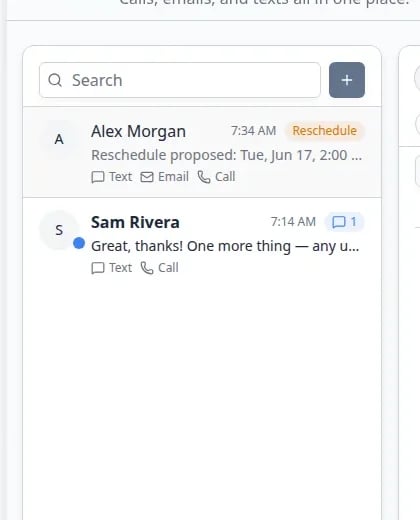 *Unread threads often show a **blue dot**, **bold** customer name, and small numbers on **Text** or **Email** when only that channel has new messages. An orange **Reschedule** badge means the latest preview starts with **Reschedule proposed:**.*
Open the conversation and read the latest message before replying or marking it handled.
**Tip**
If a message still needs action, leave it unread or use **Mark unread** from the conversation menu (right-click or long-press the customer name in the list). This helps the next person know that follow-up is still needed. See [Respond to a conversation](/docs/inbox/respond-to-a-conversation#mark-a-conversation-for-follow-up).
## Your first week with Inbox
If Inbox is new to your facility, work through this short checklist in order. Each step builds on the one before it so your team can answer customers confidently on day one.
An admin completes [Configure communication settings for Inbox](/docs/inbox/configure-communication-settings) so **Text**, **Email**, and **Call** are not gray.
**Expected result:** Your team can send a test message to an internal phone or email before customers go live.
Add the **Inbox** panel on [Overview](https://www.carstoragesoftware.com/dashboard/v2) so front-desk staff see unread threads while they work. See [Use Inbox from your Overview dashboard](/docs/inbox/use-inbox-from-your-overview-dashboard).
**Why this matters:** Most missed messages happen when staff never open the full Inbox page. A dashboard widget catches them early.
Walk through [Respond to a conversation](/docs/inbox/respond-to-a-conversation) with a test customer: read the timeline, pick **Text** or **Email**, send, and confirm the message appears in history.
**Expected result:** Every teammate knows where sent messages show up and how to spot **delivered** on texts.
Practice [Call a customer from Inbox](/docs/inbox/call-a-customer-from-inbox) on an internal test number, then review [Handle incoming phone calls](/docs/inbox/handle-incoming-phone-calls) and [Coordinate with your team in Inbox](/docs/inbox/coordinate-with-your-team-in-inbox) so two people do not reply to the same customer with different answers.
When your facility enables AI tools, try [Use AI-suggested replies in Inbox](/docs/inbox/use-ai-suggested-replies-in-inbox) on a low-risk thread. Always edit before sending.
## Settings that must be ready
Inbox behavior depends on your communication settings.
* Text messages need phone and SMS setup.
* Emails need email sending setup.
* Calling needs phone setup.
* Staff notifications depend on your team's notification preferences.
If a button is unavailable or a message does not send, ask an admin to review [Configure communication settings for Inbox](/docs/inbox/configure-communication-settings) and [Settings > Communications](https://www.carstoragesoftware.com/dashboard/settings/communications).
## Helpful habits for your team
* Read the latest messages before you reply.
* Confirm the customer name and phone or email at the top of the conversation.
* Coordinate with teammates so two people do not send conflicting answers.
* Open the related car, invoice, or appointment record when the customer asks about specific work.
## Quick links by job
| I need to… | Open this page | Step-by-step guide |
| - | - | - |
| Glance at unread from Overview | [Overview](https://www.carstoragesoftware.com/dashboard/v2) → Inbox panel | [Use Inbox from your Overview dashboard](/docs/inbox/use-inbox-from-your-overview-dashboard) |
| Set up texting, email, or calls | [Settings > Communications](https://www.carstoragesoftware.com/dashboard/settings/communications) | [Configure communication settings for Inbox](/docs/inbox/configure-communication-settings) |
| Text a customer first | [Inbox](https://www.carstoragesoftware.com/dashboard/inbox) → **+** | [Start a new Inbox conversation](/docs/inbox/start-a-new-inbox-conversation) |
| Answer a message that already arrived | [Inbox](https://www.carstoragesoftware.com/dashboard/inbox) | [Respond to a conversation](/docs/inbox/respond-to-a-conversation) |
| Send a short update | Open the customer → **Text** | [Send a text message from Inbox](/docs/inbox/send-a-text-message-from-inbox) |
| Send a longer written answer | Open the customer → **Email** or **Reply** on an email | [Send an email from Inbox](/docs/inbox/send-an-email-from-inbox) |
| Call a saved customer or dial any number | Open the customer → **Call**, or header **Quick call** | [Call a customer from Inbox](/docs/inbox/call-a-customer-from-inbox) |
| Review a phone call | Open the customer → **Calls** filter | [Review calls and transcripts](/docs/inbox/review-calls-and-transcripts) |
| Answer the phone from the dashboard | Any dashboard page when a call rings | [Handle incoming phone calls](/docs/inbox/handle-incoming-phone-calls) |
| Move an appointment after a customer texts | [Inbox](https://www.carstoragesoftware.com/dashboard/inbox) then [Schedule](https://www.carstoragesoftware.com/dashboard/schedule) | [Respond to reschedule requests in Inbox](/docs/inbox/respond-to-reschedule-requests-in-inbox) |
## Your first hour in Inbox
Use this short path when a teammate is brand new to customer messages. You can finish it in one sitting.
Go to [Inbox](https://www.carstoragesoftware.com/dashboard/inbox). Look for **Live** next to the page title.
**Why this matters:** **Live** means new customer texts and emails can appear while the page is open—you do not need to refresh.
Click a row in the conversation list, such as **Alex Morgan**.
**Expected result:** The right side shows that customer's full timeline—texts, emails, and calls together in time order.
Near the top of the timeline, click **Texts**, **Emails**, or **Calls**.
Each pill shows a count (for example **Texts 7**). Click the same pill again to return to the full timeline.
See [Respond to a conversation](/docs/inbox/respond-to-a-conversation) for details.
Scroll to the latest message. Confirm the customer name and phone or email at the top of the conversation.
**Why this matters:** A quick read prevents duplicate answers and wrong-customer replies.
If your facility has finished phone or email setup, follow [Send a text message from Inbox](/docs/inbox/send-a-text-message-from-inbox) with an internal test customer first.
If **Text** and **Email** are gray, an admin must finish [Configure communication settings for Inbox](/docs/inbox/configure-communication-settings) before you message real customers.
**Yellow banner: Inbox is not configured yet**
If you see **Inbox isn't configured yet** at the top of the page, your team can still **read** demo or imported conversations—but **Text**, **Email**, and **Call** may stay disabled until an admin completes [Settings > Communications](https://www.carstoragesoftware.com/dashboard/settings/communications). This is normal during setup. Do not tell customers to expect replies until setup is finished.
## Important words in plain English
**Conversation** means one customer's message thread (texts, emails, and calls together).
**Timeline** means the right side of the screen where messages appear in time order.
**Channel** means how you communicate: **Text**, **Email**, or **Call**.
**Live** means new customer activity can appear on the page without refreshing.
**Unread** means someone on your team has not finished reviewing the latest message.
**Reschedule** badge means the newest preview starts with **Reschedule proposed:** — usually an appointment time change.
## Common mistakes to avoid
* Do not reply before you confirm the customer name and phone or email at the top of the conversation.
* Do not send two different answers to the same customer — pause when you see a teammate typing in the same thread.
* Do not use the main **Search** box to find a company name — use the **+** button search panel instead (see [Start a new Inbox conversation](/docs/inbox/start-a-new-inbox-conversation)).
* Do not assume **Text** or **Email** will work if buttons are gray — finish setup in [Configure communication settings for Inbox](/docs/inbox/configure-communication-settings) first.
* Do not change [Schedule](https://www.carstoragesoftware.com/dashboard/schedule) without confirming the new time in Inbox — and do not confirm in Inbox without updating the calendar when the customer asked to move an appointment.
## What success looks like
When Inbox is working well for your facility:
* Customers receive replies on the channel they used (text, email, or call follow-up).
* Every conversation stays on the correct customer record in [Contacts](https://www.carstoragesoftware.com/dashboard/contacts).
* Staff can see who sent each outbound message and what still needs a reply.
* Reschedule requests are caught early thanks to **Reschedule** badges in the conversation list.
## See unread messages from your Overview dashboard
You do not have to open Inbox to notice new customer activity. If your facility uses the customizable home dashboard, add the **Inbox** widget to show recent unread conversations on [Overview](https://www.carstoragesoftware.com/dashboard).
**Why this helps:** Front-desk staff can spot a new text while they are checking parking or today's schedule, then click through to the full conversation.
For setup steps, see [Customize your Overview dashboard](/docs/basics/customize-your-overview).
## Troubleshooting
**Inbox says it is not configured yet**
An admin needs to finish phone and/or email setup on [Settings > Communications](https://www.carstoragesoftware.com/dashboard/settings/communications). Follow [Configure communication settings for Inbox](/docs/inbox/configure-communication-settings) from top to bottom, save, then refresh Inbox.
**Text, Email, or Call is gray for one customer**
Open that customer's record in [Contacts](https://www.carstoragesoftware.com/dashboard/contacts). A missing phone number blocks **Text** and **Call**. A missing email blocks **Email**. Fix the contact details, return to Inbox, and try again.
**I replied but the customer says they never got it**
For texts, check that the timeline shows **DELIVERED**. For email, confirm the address on the customer record and ask them to check spam. If many customers are affected, an admin should re-check domain verification in [Settings > Communications](https://www.carstoragesoftware.com/dashboard/settings/communications).
**Two teammates sent different answers**
Send one clear follow-up with the correct information. Agree on who owns the customer going forward. Prevent repeats with [Coordinate with your team in Inbox](/docs/inbox/coordinate-with-your-team-in-inbox).
## What to do next
If your Inbox is not set up yet, start with [Configure communication settings for Inbox](/docs/inbox/configure-communication-settings).
If the Inbox is ready and you need to contact a customer, continue with [Start a new Inbox conversation](/docs/inbox/start-a-new-inbox-conversation).
## All Inbox how-to guides
* [Use Inbox from your Overview dashboard](/docs/inbox/use-inbox-from-your-overview-dashboard) — glance at unread messages from your home screen.
* [Configure communication settings for Inbox](/docs/inbox/configure-communication-settings) — set up phone, text, email, and alerts.
* [Coordinate with your team in Inbox](/docs/inbox/coordinate-with-your-team-in-inbox) — avoid duplicate replies when several staff share Inbox.
* [Start a new Inbox conversation](/docs/inbox/start-a-new-inbox-conversation) — text a customer who has not messaged you yet.
* [Respond to a conversation](/docs/inbox/respond-to-a-conversation) — read the timeline and choose text, email, or call.
* [Send a text message from Inbox](/docs/inbox/send-a-text-message-from-inbox) — short updates and photo attachments.
* [Send an email from Inbox](/docs/inbox/send-an-email-from-inbox) — longer or formal written replies.
* [Call a customer from Inbox](/docs/inbox/call-a-customer-from-inbox) — **Call** a saved customer or dial any number with **Quick call**.
* [Respond to reschedule requests in Inbox](/docs/inbox/respond-to-reschedule-requests-in-inbox) — move appointments on Schedule and confirm in writing.
* [Review calls and transcripts](/docs/inbox/review-calls-and-transcripts) — call history, recordings, and transcripts.
* [Handle incoming phone calls](/docs/inbox/handle-incoming-phone-calls) — answer from anywhere in the dashboard.
* [Use AI-suggested replies in Inbox](/docs/inbox/use-ai-suggested-replies-in-inbox) — draft a reply from recent message history.
## Related topics
- [When the assistant cannot help](/docs/ai-assistant/when-the-assistant-cannot-help.md)
- [Learn the dashboard](/docs/basics/learn-the-dashboard.md)
- [Use Inbox from your Overview dashboard](/docs/inbox/use-inbox-from-your-overview-dashboard.md)
- [AI Assistant overview](/docs/ai-assistant/overview.md)
- [Coordinate with your team in Inbox](/docs/inbox/coordinate-with-your-team-in-inbox.md)
This documentation is built and hosted on [Mintlify](https://mintlify.com), a developer documentation platform.
*Unread threads often show a **blue dot**, **bold** customer name, and small numbers on **Text** or **Email** when only that channel has new messages. An orange **Reschedule** badge means the latest preview starts with **Reschedule proposed:**.*
Open the conversation and read the latest message before replying or marking it handled.
**Tip**
If a message still needs action, leave it unread or use **Mark unread** from the conversation menu (right-click or long-press the customer name in the list). This helps the next person know that follow-up is still needed. See [Respond to a conversation](/docs/inbox/respond-to-a-conversation#mark-a-conversation-for-follow-up).
## Your first week with Inbox
If Inbox is new to your facility, work through this short checklist in order. Each step builds on the one before it so your team can answer customers confidently on day one.
An admin completes [Configure communication settings for Inbox](/docs/inbox/configure-communication-settings) so **Text**, **Email**, and **Call** are not gray.
**Expected result:** Your team can send a test message to an internal phone or email before customers go live.
Add the **Inbox** panel on [Overview](https://www.carstoragesoftware.com/dashboard/v2) so front-desk staff see unread threads while they work. See [Use Inbox from your Overview dashboard](/docs/inbox/use-inbox-from-your-overview-dashboard).
**Why this matters:** Most missed messages happen when staff never open the full Inbox page. A dashboard widget catches them early.
Walk through [Respond to a conversation](/docs/inbox/respond-to-a-conversation) with a test customer: read the timeline, pick **Text** or **Email**, send, and confirm the message appears in history.
**Expected result:** Every teammate knows where sent messages show up and how to spot **delivered** on texts.
Practice [Call a customer from Inbox](/docs/inbox/call-a-customer-from-inbox) on an internal test number, then review [Handle incoming phone calls](/docs/inbox/handle-incoming-phone-calls) and [Coordinate with your team in Inbox](/docs/inbox/coordinate-with-your-team-in-inbox) so two people do not reply to the same customer with different answers.
When your facility enables AI tools, try [Use AI-suggested replies in Inbox](/docs/inbox/use-ai-suggested-replies-in-inbox) on a low-risk thread. Always edit before sending.
## Settings that must be ready
Inbox behavior depends on your communication settings.
* Text messages need phone and SMS setup.
* Emails need email sending setup.
* Calling needs phone setup.
* Staff notifications depend on your team's notification preferences.
If a button is unavailable or a message does not send, ask an admin to review [Configure communication settings for Inbox](/docs/inbox/configure-communication-settings) and [Settings > Communications](https://www.carstoragesoftware.com/dashboard/settings/communications).
## Helpful habits for your team
* Read the latest messages before you reply.
* Confirm the customer name and phone or email at the top of the conversation.
* Coordinate with teammates so two people do not send conflicting answers.
* Open the related car, invoice, or appointment record when the customer asks about specific work.
## Quick links by job
| I need to… | Open this page | Step-by-step guide |
| - | - | - |
| Glance at unread from Overview | [Overview](https://www.carstoragesoftware.com/dashboard/v2) → Inbox panel | [Use Inbox from your Overview dashboard](/docs/inbox/use-inbox-from-your-overview-dashboard) |
| Set up texting, email, or calls | [Settings > Communications](https://www.carstoragesoftware.com/dashboard/settings/communications) | [Configure communication settings for Inbox](/docs/inbox/configure-communication-settings) |
| Text a customer first | [Inbox](https://www.carstoragesoftware.com/dashboard/inbox) → **+** | [Start a new Inbox conversation](/docs/inbox/start-a-new-inbox-conversation) |
| Answer a message that already arrived | [Inbox](https://www.carstoragesoftware.com/dashboard/inbox) | [Respond to a conversation](/docs/inbox/respond-to-a-conversation) |
| Send a short update | Open the customer → **Text** | [Send a text message from Inbox](/docs/inbox/send-a-text-message-from-inbox) |
| Send a longer written answer | Open the customer → **Email** or **Reply** on an email | [Send an email from Inbox](/docs/inbox/send-an-email-from-inbox) |
| Call a saved customer or dial any number | Open the customer → **Call**, or header **Quick call** | [Call a customer from Inbox](/docs/inbox/call-a-customer-from-inbox) |
| Review a phone call | Open the customer → **Calls** filter | [Review calls and transcripts](/docs/inbox/review-calls-and-transcripts) |
| Answer the phone from the dashboard | Any dashboard page when a call rings | [Handle incoming phone calls](/docs/inbox/handle-incoming-phone-calls) |
| Move an appointment after a customer texts | [Inbox](https://www.carstoragesoftware.com/dashboard/inbox) then [Schedule](https://www.carstoragesoftware.com/dashboard/schedule) | [Respond to reschedule requests in Inbox](/docs/inbox/respond-to-reschedule-requests-in-inbox) |
## Your first hour in Inbox
Use this short path when a teammate is brand new to customer messages. You can finish it in one sitting.
Go to [Inbox](https://www.carstoragesoftware.com/dashboard/inbox). Look for **Live** next to the page title.
**Why this matters:** **Live** means new customer texts and emails can appear while the page is open—you do not need to refresh.
Click a row in the conversation list, such as **Alex Morgan**.
**Expected result:** The right side shows that customer's full timeline—texts, emails, and calls together in time order.
Near the top of the timeline, click **Texts**, **Emails**, or **Calls**.
Each pill shows a count (for example **Texts 7**). Click the same pill again to return to the full timeline.
See [Respond to a conversation](/docs/inbox/respond-to-a-conversation) for details.
Scroll to the latest message. Confirm the customer name and phone or email at the top of the conversation.
**Why this matters:** A quick read prevents duplicate answers and wrong-customer replies.
If your facility has finished phone or email setup, follow [Send a text message from Inbox](/docs/inbox/send-a-text-message-from-inbox) with an internal test customer first.
If **Text** and **Email** are gray, an admin must finish [Configure communication settings for Inbox](/docs/inbox/configure-communication-settings) before you message real customers.
**Yellow banner: Inbox is not configured yet**
If you see **Inbox isn't configured yet** at the top of the page, your team can still **read** demo or imported conversations—but **Text**, **Email**, and **Call** may stay disabled until an admin completes [Settings > Communications](https://www.carstoragesoftware.com/dashboard/settings/communications). This is normal during setup. Do not tell customers to expect replies until setup is finished.
## Important words in plain English
**Conversation** means one customer's message thread (texts, emails, and calls together).
**Timeline** means the right side of the screen where messages appear in time order.
**Channel** means how you communicate: **Text**, **Email**, or **Call**.
**Live** means new customer activity can appear on the page without refreshing.
**Unread** means someone on your team has not finished reviewing the latest message.
**Reschedule** badge means the newest preview starts with **Reschedule proposed:** — usually an appointment time change.
## Common mistakes to avoid
* Do not reply before you confirm the customer name and phone or email at the top of the conversation.
* Do not send two different answers to the same customer — pause when you see a teammate typing in the same thread.
* Do not use the main **Search** box to find a company name — use the **+** button search panel instead (see [Start a new Inbox conversation](/docs/inbox/start-a-new-inbox-conversation)).
* Do not assume **Text** or **Email** will work if buttons are gray — finish setup in [Configure communication settings for Inbox](/docs/inbox/configure-communication-settings) first.
* Do not change [Schedule](https://www.carstoragesoftware.com/dashboard/schedule) without confirming the new time in Inbox — and do not confirm in Inbox without updating the calendar when the customer asked to move an appointment.
## What success looks like
When Inbox is working well for your facility:
* Customers receive replies on the channel they used (text, email, or call follow-up).
* Every conversation stays on the correct customer record in [Contacts](https://www.carstoragesoftware.com/dashboard/contacts).
* Staff can see who sent each outbound message and what still needs a reply.
* Reschedule requests are caught early thanks to **Reschedule** badges in the conversation list.
## See unread messages from your Overview dashboard
You do not have to open Inbox to notice new customer activity. If your facility uses the customizable home dashboard, add the **Inbox** widget to show recent unread conversations on [Overview](https://www.carstoragesoftware.com/dashboard).
**Why this helps:** Front-desk staff can spot a new text while they are checking parking or today's schedule, then click through to the full conversation.
For setup steps, see [Customize your Overview dashboard](/docs/basics/customize-your-overview).
## Troubleshooting
**Inbox says it is not configured yet**
An admin needs to finish phone and/or email setup on [Settings > Communications](https://www.carstoragesoftware.com/dashboard/settings/communications). Follow [Configure communication settings for Inbox](/docs/inbox/configure-communication-settings) from top to bottom, save, then refresh Inbox.
**Text, Email, or Call is gray for one customer**
Open that customer's record in [Contacts](https://www.carstoragesoftware.com/dashboard/contacts). A missing phone number blocks **Text** and **Call**. A missing email blocks **Email**. Fix the contact details, return to Inbox, and try again.
**I replied but the customer says they never got it**
For texts, check that the timeline shows **DELIVERED**. For email, confirm the address on the customer record and ask them to check spam. If many customers are affected, an admin should re-check domain verification in [Settings > Communications](https://www.carstoragesoftware.com/dashboard/settings/communications).
**Two teammates sent different answers**
Send one clear follow-up with the correct information. Agree on who owns the customer going forward. Prevent repeats with [Coordinate with your team in Inbox](/docs/inbox/coordinate-with-your-team-in-inbox).
## What to do next
If your Inbox is not set up yet, start with [Configure communication settings for Inbox](/docs/inbox/configure-communication-settings).
If the Inbox is ready and you need to contact a customer, continue with [Start a new Inbox conversation](/docs/inbox/start-a-new-inbox-conversation).
## All Inbox how-to guides
* [Use Inbox from your Overview dashboard](/docs/inbox/use-inbox-from-your-overview-dashboard) — glance at unread messages from your home screen.
* [Configure communication settings for Inbox](/docs/inbox/configure-communication-settings) — set up phone, text, email, and alerts.
* [Coordinate with your team in Inbox](/docs/inbox/coordinate-with-your-team-in-inbox) — avoid duplicate replies when several staff share Inbox.
* [Start a new Inbox conversation](/docs/inbox/start-a-new-inbox-conversation) — text a customer who has not messaged you yet.
* [Respond to a conversation](/docs/inbox/respond-to-a-conversation) — read the timeline and choose text, email, or call.
* [Send a text message from Inbox](/docs/inbox/send-a-text-message-from-inbox) — short updates and photo attachments.
* [Send an email from Inbox](/docs/inbox/send-an-email-from-inbox) — longer or formal written replies.
* [Call a customer from Inbox](/docs/inbox/call-a-customer-from-inbox) — **Call** a saved customer or dial any number with **Quick call**.
* [Respond to reschedule requests in Inbox](/docs/inbox/respond-to-reschedule-requests-in-inbox) — move appointments on Schedule and confirm in writing.
* [Review calls and transcripts](/docs/inbox/review-calls-and-transcripts) — call history, recordings, and transcripts.
* [Handle incoming phone calls](/docs/inbox/handle-incoming-phone-calls) — answer from anywhere in the dashboard.
* [Use AI-suggested replies in Inbox](/docs/inbox/use-ai-suggested-replies-in-inbox) — draft a reply from recent message history.
## Related topics
- [When the assistant cannot help](/docs/ai-assistant/when-the-assistant-cannot-help.md)
- [Learn the dashboard](/docs/basics/learn-the-dashboard.md)
- [Use Inbox from your Overview dashboard](/docs/inbox/use-inbox-from-your-overview-dashboard.md)
- [AI Assistant overview](/docs/ai-assistant/overview.md)
- [Coordinate with your team in Inbox](/docs/inbox/coordinate-with-your-team-in-inbox.md)
This documentation is built and hosted on [Mintlify](https://mintlify.com), a developer documentation platform.