> ## Documentation Index
> Fetch the complete documentation index at: https://www.carstoragesoftware.com/docs/llms.txt
> Use this file to discover all available pages before exploring further.
# Send an email from Inbox
> Send a customer email from Inbox when your reply needs a subject line, more detail, or a formal written record.
Use email when a message needs more detail than a text.
Email is a good choice for service estimates, billing explanations, appointment summaries, document follow-up, and any message the customer may want to find later.
## What you will accomplish
* Send a customer email from the correct Inbox conversation.
* Write a clear subject line and easy-to-read message.
* Keep the email in the same customer timeline for your team.
## Before you start
* Email sending must be set up for your team. If **Email** is disabled, review [Configure communication settings for Inbox](/docs/inbox/configure-communication-settings).
* The customer must have a valid email address on file.
* Know the main point you need the customer to understand.
* If the email mentions a car, invoice, appointment, or contract, confirm those details before writing.
## Open the email composer
Go to [Inbox](https://www.carstoragesoftware.com/dashboard/inbox).
Click the customer conversation.
Read the latest messages before replying.
At the bottom of the conversation, click **Email**.
The email composer shows a **Subject** field and a larger message field labeled **Write your email…** (some screens shorten this to **Write an email…**—both mean the same box).
**If Email is gray:** Ask an admin to finish setup in [Configure communication settings for Inbox](/docs/inbox/configure-communication-settings), and confirm the customer has an email address on file.
**Why Email vs Text:** **Text** is for short phone updates. **Email** adds a **Subject** line and a larger writing area—better when the customer needs to search their inbox later or when you are explaining several details.
**Expected result:** The **Subject** field and email body field are ready for you to type.
 *After you click **Email** at the bottom, you will see **Subject** and **Write your email…**. If a yellow **Messaging isn't configured yet** notice appears, an admin must finish email setup before you can send.*
**Email button is gray?**
If **Email** is disabled at the bottom of the conversation, email sending may not be finished in [Settings > Communications](https://www.carstoragesoftware.com/dashboard/settings/communications). Common reasons include an unverified email domain or a missing customer email address on file. You can still reply to an existing customer email with **Reply** on that message in the timeline when email is configured.
**Shortcut: Reply to an email already in the thread**
If the customer sent an email, you can click **Reply** on that email in the timeline instead of starting from a blank composer. See [Reply to an existing email](#reply-to-an-existing-email) below.
## Write the email
Use a subject that tells the customer what the email is about.
Good examples:
* **Re: Service estimate for the Porsche**
* **Huracan pickup confirmation**
* **Invoice question follow-up**
Put the most important answer in the first sentence.
Example: "Hi Alex, we will send the Porsche service estimate this afternoon."
Keep paragraphs short. If there are several steps, use a short list.
Customers are more likely to read and understand a message when it is easy to scan.
Tell the customer what happens next.
Example: "Please reply to approve the estimate, or call us if you want to review it together."
## Send the email
Confirm you are in the correct customer conversation and the subject is accurate.
Check names, dates, times, vehicle details, dollar amounts, and links.
Click **Send email**.
The email appears in the conversation timeline after it sends.
**Expected result:** The sent email appears in the timeline with the subject line you chose.
**What address the customer sees**
Outbound emails come from your facility's configured sending domain (for example **[service@yourfacility.com](mailto:service@yourfacility.com)**). If customers say they cannot find your email, ask them to search for your facility name and check spam. Admins set this up in [Configure communication settings for Inbox](/docs/inbox/configure-communication-settings).
## Reply to an existing email
If the customer sent an email, you may see a **Reply** button on that email in the timeline. This keeps your answer in the same email thread the customer started.
Go to [Inbox](https://www.carstoragesoftware.com/dashboard/inbox) and select the customer, such as **Alex Morgan**.
Near the top of the timeline, click the **Emails** pill (it shows a count such as **Emails 1**).
**Why this helps:** Hides texts and calls so you can focus on the email thread.
See [Respond to a conversation](/docs/inbox/respond-to-a-conversation) for more on timeline filters.
On the customer's email message, click **Reply**.
**Expected result:** The **Email** composer opens at the bottom with **Subject** filled in (often starting with **Re:**).
Type your message, review it, and click **Send email**.
**Expected result:** Your reply appears in the timeline under the original email.
*After you click **Email** at the bottom, you will see **Subject** and **Write your email…**. If a yellow **Messaging isn't configured yet** notice appears, an admin must finish email setup before you can send.*
**Email button is gray?**
If **Email** is disabled at the bottom of the conversation, email sending may not be finished in [Settings > Communications](https://www.carstoragesoftware.com/dashboard/settings/communications). Common reasons include an unverified email domain or a missing customer email address on file. You can still reply to an existing customer email with **Reply** on that message in the timeline when email is configured.
**Shortcut: Reply to an email already in the thread**
If the customer sent an email, you can click **Reply** on that email in the timeline instead of starting from a blank composer. See [Reply to an existing email](#reply-to-an-existing-email) below.
## Write the email
Use a subject that tells the customer what the email is about.
Good examples:
* **Re: Service estimate for the Porsche**
* **Huracan pickup confirmation**
* **Invoice question follow-up**
Put the most important answer in the first sentence.
Example: "Hi Alex, we will send the Porsche service estimate this afternoon."
Keep paragraphs short. If there are several steps, use a short list.
Customers are more likely to read and understand a message when it is easy to scan.
Tell the customer what happens next.
Example: "Please reply to approve the estimate, or call us if you want to review it together."
## Send the email
Confirm you are in the correct customer conversation and the subject is accurate.
Check names, dates, times, vehicle details, dollar amounts, and links.
Click **Send email**.
The email appears in the conversation timeline after it sends.
**Expected result:** The sent email appears in the timeline with the subject line you chose.
**What address the customer sees**
Outbound emails come from your facility's configured sending domain (for example **[service@yourfacility.com](mailto:service@yourfacility.com)**). If customers say they cannot find your email, ask them to search for your facility name and check spam. Admins set this up in [Configure communication settings for Inbox](/docs/inbox/configure-communication-settings).
## Reply to an existing email
If the customer sent an email, you may see a **Reply** button on that email in the timeline. This keeps your answer in the same email thread the customer started.
Go to [Inbox](https://www.carstoragesoftware.com/dashboard/inbox) and select the customer, such as **Alex Morgan**.
Near the top of the timeline, click the **Emails** pill (it shows a count such as **Emails 1**).
**Why this helps:** Hides texts and calls so you can focus on the email thread.
See [Respond to a conversation](/docs/inbox/respond-to-a-conversation) for more on timeline filters.
On the customer's email message, click **Reply**.
**Expected result:** The **Email** composer opens at the bottom with **Subject** filled in (often starting with **Re:**).
Type your message, review it, and click **Send email**.
**Expected result:** Your reply appears in the timeline under the original email.
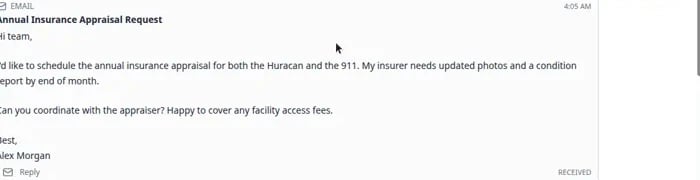
 *Click the **Emails** pill to isolate email messages, then click **Reply** on the message you are answering.*
 *The **Reply** button sits on the customer's email in the timeline. Use it when you are continuing the same email thread—not starting a brand-new subject.*
## When to use Reply vs a new Email
* **Use Reply** when the customer sent an email and you are answering that same thread. The subject usually keeps **Re:** so messages stay grouped in the customer's inbox.
* **Use Email** (the tab at the bottom) when you are starting a new topic, sending a first email to a customer who only texted before, or writing about something unrelated to the email above.
**Attachments and formatting**
Inbox email is for plain written messages with a subject line. You cannot attach files from the Inbox email composer today. If the customer needs a PDF, invoice link, or signed contract, send them to the [customer portal](/docs/contacts/guide-a-customer-through-the-portal) or share a link from [Payments](/docs/payments/overview) instead.
When a customer emails you, their message may show rich formatting (bold text, images, or links). Your reply is plain text—keep paragraphs short so it is easy to read on a phone.
## Common mistakes to avoid
**Replying to the wrong customer**
Always check the customer name and email at the top of the conversation before you click **Send email**. Two customers with similar names or shared family accounts are a common source of mistakes.
**Starting a new email when Reply is better**
If the customer already emailed you about "Tuesday pickup," click **Reply** on that email so your answer stays in the same thread. Starting a brand-new **Email** from the bottom creates a separate subject line and can confuse the customer.
**Promising details you have not verified**
Before you send dollar amounts, appointment times, or vehicle locations, open the related record in [Cars](https://www.carstoragesoftware.com/dashboard/cars), [Schedule](https://www.carstoragesoftware.com/dashboard/schedule), or [Payments](https://www.carstoragesoftware.com/dashboard/payments/invoices). A wrong email is harder to undo than a quick double-check.
**Why the subject line matters**
Customers search their inbox by subject. A clear subject like **Huracan pickup confirmation** is easier to find later than a vague **Update**.
## What success looks like
* The email appears in the conversation timeline.
* The subject clearly matches the topic.
* The customer knows what happened and what to do next.
* Your team can find the email later in the same customer conversation.
## Troubleshooting
**The Email button is disabled**
Email may not be configured, or the customer's record may not have an email address. Check the customer record and [Configure communication settings for Inbox](/docs/inbox/configure-communication-settings).
**Send email is disabled**
The email needs both a **Subject** and a message body before it can be sent.
**The customer did not receive the email**
Confirm the email address is correct. Ask the customer to check spam or junk. If many customers are missing emails, ask an admin to review email domain setup.
## What to do next
If the customer replies, the new email appears in the same Inbox conversation. If the topic needs a faster answer, use [Send a text message from Inbox](/docs/inbox/send-a-text-message-from-inbox) or call the customer.
To see the same email on the customer's record outside Inbox, open their page in [Contacts](https://www.carstoragesoftware.com/dashboard/contacts) and review **Activity**—see [Review customer activity and history](/docs/contacts/review-customer-activity-and-history).
## Related topics
- [Inbox overview](/docs/inbox/overview.md)
- [Send a text message from Inbox](/docs/inbox/send-a-text-message-from-inbox.md)
- [Configure communication settings for Inbox](/docs/inbox/configure-communication-settings.md)
- [Call a customer from Inbox](/docs/inbox/call-a-customer-from-inbox.md)
- [Use AI-suggested replies in Inbox](/docs/inbox/use-ai-suggested-replies-in-inbox.md)
This documentation is built and hosted on [Mintlify](https://mintlify.com), a developer documentation platform.
*The **Reply** button sits on the customer's email in the timeline. Use it when you are continuing the same email thread—not starting a brand-new subject.*
## When to use Reply vs a new Email
* **Use Reply** when the customer sent an email and you are answering that same thread. The subject usually keeps **Re:** so messages stay grouped in the customer's inbox.
* **Use Email** (the tab at the bottom) when you are starting a new topic, sending a first email to a customer who only texted before, or writing about something unrelated to the email above.
**Attachments and formatting**
Inbox email is for plain written messages with a subject line. You cannot attach files from the Inbox email composer today. If the customer needs a PDF, invoice link, or signed contract, send them to the [customer portal](/docs/contacts/guide-a-customer-through-the-portal) or share a link from [Payments](/docs/payments/overview) instead.
When a customer emails you, their message may show rich formatting (bold text, images, or links). Your reply is plain text—keep paragraphs short so it is easy to read on a phone.
## Common mistakes to avoid
**Replying to the wrong customer**
Always check the customer name and email at the top of the conversation before you click **Send email**. Two customers with similar names or shared family accounts are a common source of mistakes.
**Starting a new email when Reply is better**
If the customer already emailed you about "Tuesday pickup," click **Reply** on that email so your answer stays in the same thread. Starting a brand-new **Email** from the bottom creates a separate subject line and can confuse the customer.
**Promising details you have not verified**
Before you send dollar amounts, appointment times, or vehicle locations, open the related record in [Cars](https://www.carstoragesoftware.com/dashboard/cars), [Schedule](https://www.carstoragesoftware.com/dashboard/schedule), or [Payments](https://www.carstoragesoftware.com/dashboard/payments/invoices). A wrong email is harder to undo than a quick double-check.
**Why the subject line matters**
Customers search their inbox by subject. A clear subject like **Huracan pickup confirmation** is easier to find later than a vague **Update**.
## What success looks like
* The email appears in the conversation timeline.
* The subject clearly matches the topic.
* The customer knows what happened and what to do next.
* Your team can find the email later in the same customer conversation.
## Troubleshooting
**The Email button is disabled**
Email may not be configured, or the customer's record may not have an email address. Check the customer record and [Configure communication settings for Inbox](/docs/inbox/configure-communication-settings).
**Send email is disabled**
The email needs both a **Subject** and a message body before it can be sent.
**The customer did not receive the email**
Confirm the email address is correct. Ask the customer to check spam or junk. If many customers are missing emails, ask an admin to review email domain setup.
## What to do next
If the customer replies, the new email appears in the same Inbox conversation. If the topic needs a faster answer, use [Send a text message from Inbox](/docs/inbox/send-a-text-message-from-inbox) or call the customer.
To see the same email on the customer's record outside Inbox, open their page in [Contacts](https://www.carstoragesoftware.com/dashboard/contacts) and review **Activity**—see [Review customer activity and history](/docs/contacts/review-customer-activity-and-history).
## Related topics
- [Inbox overview](/docs/inbox/overview.md)
- [Send a text message from Inbox](/docs/inbox/send-a-text-message-from-inbox.md)
- [Configure communication settings for Inbox](/docs/inbox/configure-communication-settings.md)
- [Call a customer from Inbox](/docs/inbox/call-a-customer-from-inbox.md)
- [Use AI-suggested replies in Inbox](/docs/inbox/use-ai-suggested-replies-in-inbox.md)
This documentation is built and hosted on [Mintlify](https://mintlify.com), a developer documentation platform.