> ## Documentation Index
> Fetch the complete documentation index at: https://www.carstoragesoftware.com/docs/llms.txt
> Use this file to discover all available pages before exploring further.
# Start a new Inbox conversation
> Begin a text conversation with an existing customer or a new phone number from Inbox.
Use this guide when you need to contact a customer before they have messaged you in Inbox.
Starting from Inbox helps keep the conversation history in one place. The next staff member can see what was sent and continue from the same thread.
## What you will accomplish
* Start a new thread with an existing customer or a phone number.
* Confirm you selected the right person before sending.
* Send a first message that explains why you are reaching out.
## Before you start
* Make sure text messaging is set up for your team. If it is not ready, review [Configure communication settings for Inbox](/docs/inbox/configure-communication-settings).
* If you are contacting an existing customer, make sure the customer exists in [Contacts](https://www.carstoragesoftware.com/dashboard/contacts).
* Use a clear reason for the message, such as confirming a pickup time, asking about a service decision, or replying to a missed call.
* Do not send sensitive billing or personal details to an unsaved phone number unless you are sure who owns the number.
## When to start a new conversation vs reply to an existing one
**Reply in an existing thread** when the customer already appears in your conversation list — even if the last message was days ago.
**Start a new conversation** when you need to reach a customer who has never messaged your facility line, or when you are texting a phone number that is not saved yet.
**Why starting from Inbox matters**
When you use the **+** button in [Inbox](https://www.carstoragesoftware.com/dashboard/inbox), the message stays on the correct customer timeline. Texting from a personal phone splits the history and makes handoffs harder for your team.
## Open the new conversation search
Go to [Inbox](https://www.carstoragesoftware.com/dashboard/inbox).
Look at the top of the conversation list on the left. You will see:
* A **Search** box (placeholder: search by name, email, or phone)
* A small **+** button immediately to the right of Search
Click **+**. On some screens the button is labeled **New** when you hover.
**Why this placement matters:** The main **Search** box only finds conversations you already have. The **+** button is how you start a brand-new thread or text a number that is not saved yet.
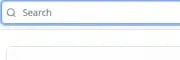 *Look for **Search** and the **+** button together at the top of the conversation list on the left.*
Start typing the customer's name, company, email address, or phone number.
Matching customers appear in the results list. Each row may show the customer's email or phone under their name to help you pick the right person.
You can also search by **company name** in this panel. The main Inbox **Search** box on the conversation list does not search company names.
**Expected result:** You see matching customers, or a **New number** option when you type a full phone number that is not already on file.
*Look for **Search** and the **+** button together at the top of the conversation list on the left.*
Start typing the customer's name, company, email address, or phone number.
Matching customers appear in the results list. Each row may show the customer's email or phone under their name to help you pick the right person.
You can also search by **company name** in this panel. The main Inbox **Search** box on the conversation list does not search company names.
**Expected result:** You see matching customers, or a **New number** option when you type a full phone number that is not already on file.
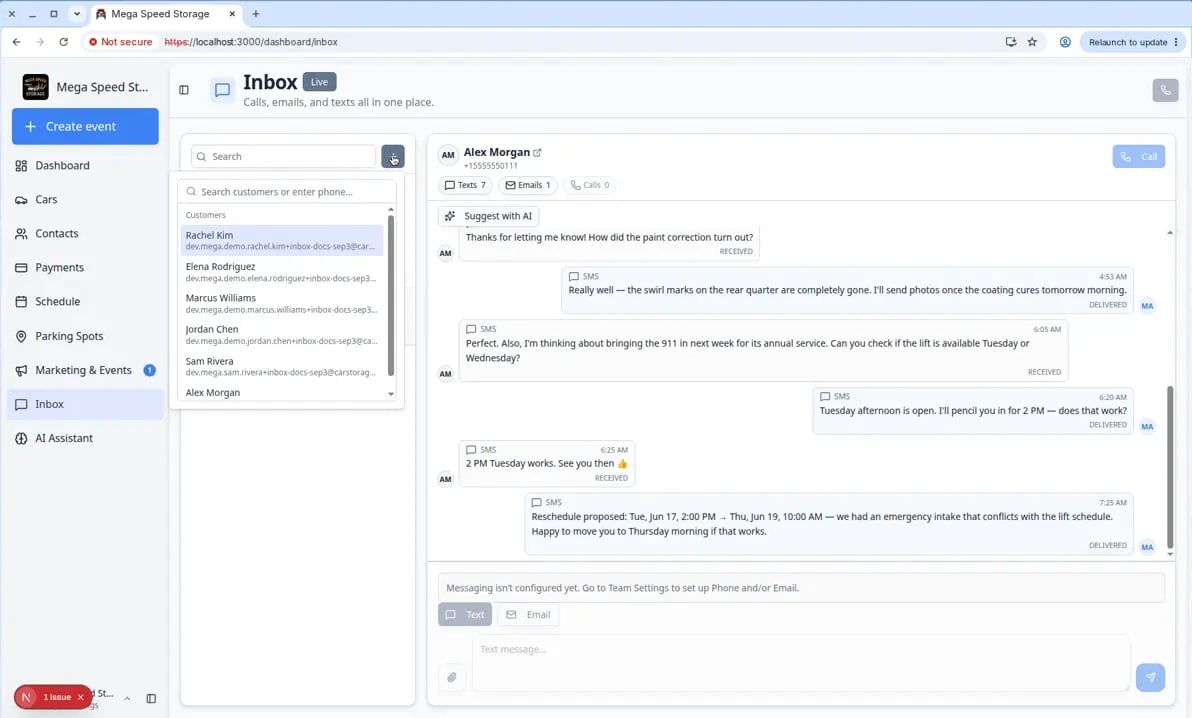 *Use the **+** button beside Search to start a conversation. Type a customer name, email, phone number, or company name to find the right person.*
## Start a conversation with an existing customer
Click the correct customer from the search results.
Check the email, phone, or company shown under the name if more than one person has a similar name.
**Expected result:** The customer opens in the conversation area on the right. If you clicked the wrong person, click the correct row in the conversation list on the left to switch.
The customer opens in the conversation area.
If there is past activity, read it before sending a new message.
Click **Text** if needed, then use the **Text message…** field at the bottom of the conversation.
Keep the first message short and clear. Explain why you are reaching out.
Click the send button.
The message appears in the timeline after it is sent.
**Expected result:** The customer appears in the conversation list on the left with your new message visible in the timeline on the right. Other staff can open the same thread and continue the conversation.
*Use the **+** button beside Search to start a conversation. Type a customer name, email, phone number, or company name to find the right person.*
## Start a conversation with an existing customer
Click the correct customer from the search results.
Check the email, phone, or company shown under the name if more than one person has a similar name.
**Expected result:** The customer opens in the conversation area on the right. If you clicked the wrong person, click the correct row in the conversation list on the left to switch.
The customer opens in the conversation area.
If there is past activity, read it before sending a new message.
Click **Text** if needed, then use the **Text message…** field at the bottom of the conversation.
Keep the first message short and clear. Explain why you are reaching out.
Click the send button.
The message appears in the timeline after it is sent.
**Expected result:** The customer appears in the conversation list on the left with your new message visible in the timeline on the right. Other staff can open the same thread and continue the conversation.
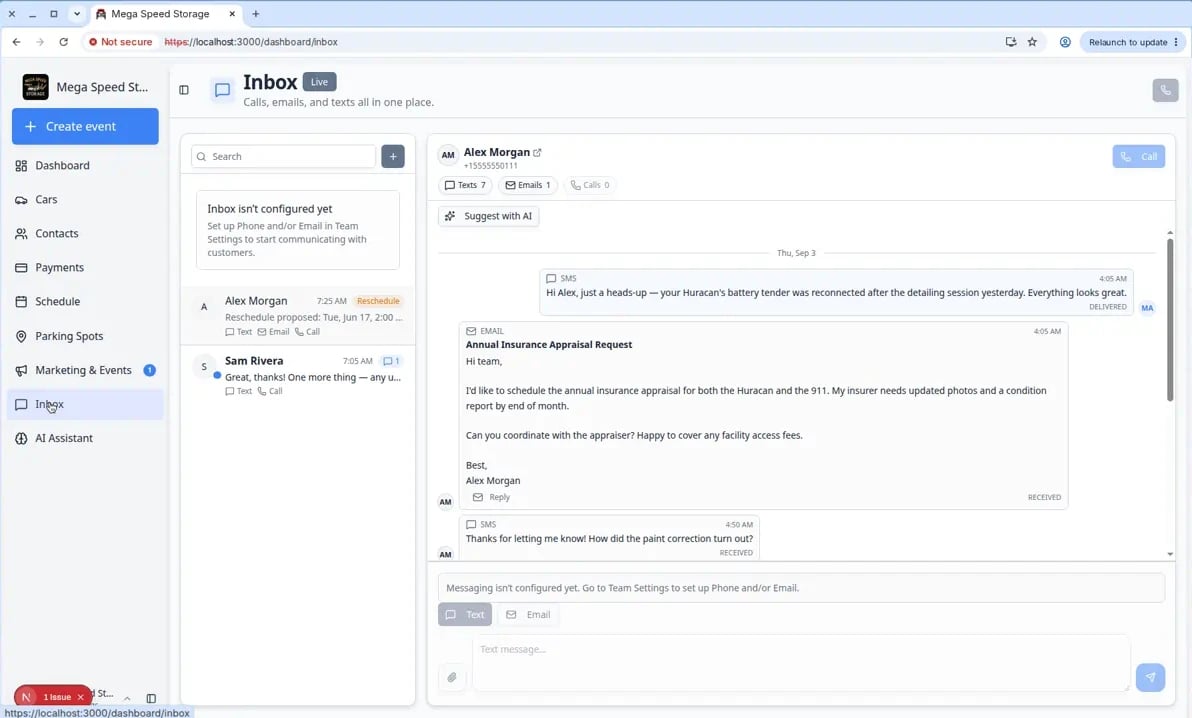 *After your first message sends, it stays on the customer's timeline so the next teammate on shift can see exactly what you told the customer.*
**Expected result:** The customer appears in the conversation list with your new message in the timeline.
## Text a new phone number
Sometimes you may need to text a number that is not saved as a customer yet—for example when someone calls from a spouse's phone or a new lead texts your facility line.
**Safety first**
Do not send account details, gate codes, billing information, or vehicle location to an unsaved number until you confirm who owns the phone. When in doubt, send a short identity-safe message first and wait for a reply.
Click the **+** button, then type the full phone number.
Include the area code. If your team works internationally, include the country code too.
If the number is valid and not already listed, Inbox shows a **New number** section with **Text** and the full phone number. A note below says **Not a saved contact**.
**Expected result:** You see a row such as **Text +15555550999** with **Not a saved contact** underneath.
Before sending anything private, make sure you know who owns the number.
If you are not sure, send a simple identity-safe message first, such as: "Hi, this is \[Facility Name]. We are following up on your message. Is this the best number to reach you?"
Write your message and click send.
Consider adding the person to [Contacts](https://www.carstoragesoftware.com/dashboard/contacts) after you confirm who they are.
*After your first message sends, it stays on the customer's timeline so the next teammate on shift can see exactly what you told the customer.*
**Expected result:** The customer appears in the conversation list with your new message in the timeline.
## Text a new phone number
Sometimes you may need to text a number that is not saved as a customer yet—for example when someone calls from a spouse's phone or a new lead texts your facility line.
**Safety first**
Do not send account details, gate codes, billing information, or vehicle location to an unsaved number until you confirm who owns the phone. When in doubt, send a short identity-safe message first and wait for a reply.
Click the **+** button, then type the full phone number.
Include the area code. If your team works internationally, include the country code too.
If the number is valid and not already listed, Inbox shows a **New number** section with **Text** and the full phone number. A note below says **Not a saved contact**.
**Expected result:** You see a row such as **Text +15555550999** with **Not a saved contact** underneath.
Before sending anything private, make sure you know who owns the number.
If you are not sure, send a simple identity-safe message first, such as: "Hi, this is \[Facility Name]. We are following up on your message. Is this the best number to reach you?"
Write your message and click send.
Consider adding the person to [Contacts](https://www.carstoragesoftware.com/dashboard/contacts) after you confirm who they are.
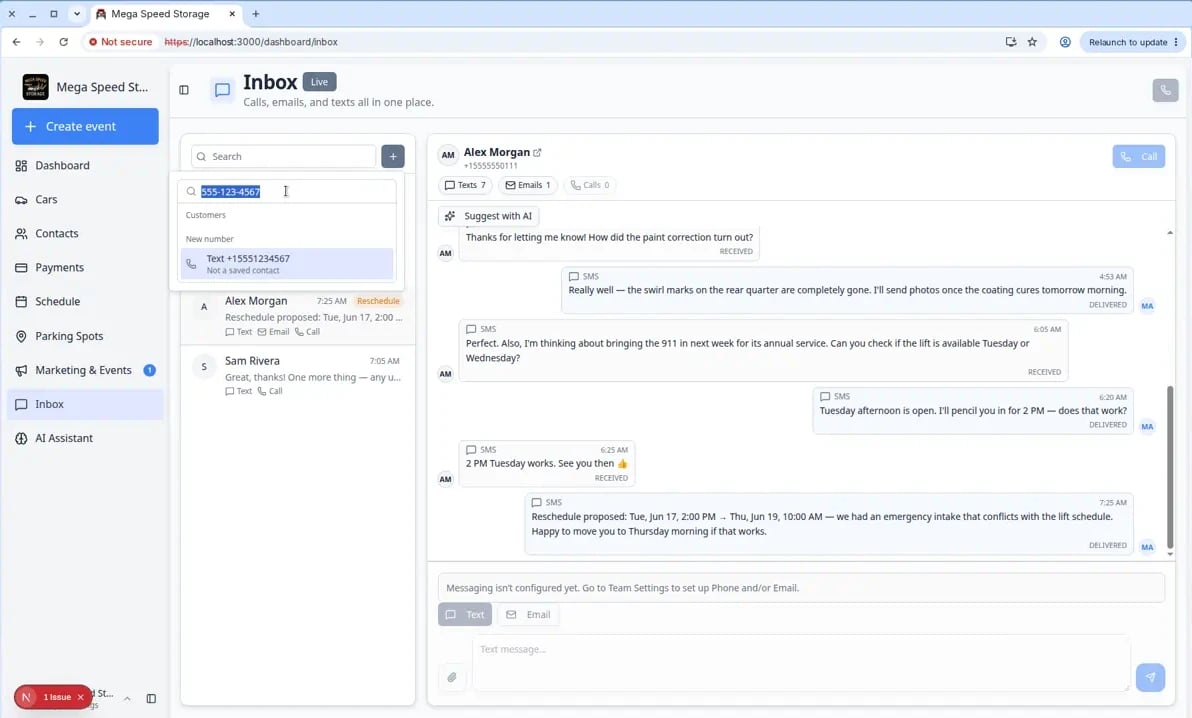 *When you type a full phone number that is not on file, Inbox shows **New number** with **Not a saved contact** so you know you are texting someone new.*
**Saved customers are safer**
When possible, add or update the customer record in [Contacts](https://www.carstoragesoftware.com/dashboard/contacts) before starting a new conversation. Saved customer records make it easier for your team to confirm identity later.
## First message examples
Use these as starting points. Change the names, times, and details to match your facility.
**Pickup reminder (text):** Hi Alex, your Huracan is staged at the front entrance tomorrow at 10 AM. Reply here if you need a different time.
**Missed call follow-up (text):** Hi Sam, sorry we missed your call. This is Mega Speed Storage—how can we help today?
**Service estimate ready (email subject):** Re: Porsche service estimate
**Document follow-up (email):** Hi Alex, your signed storage agreement is attached to your customer portal. Sign in at \[your portal link] when you have a moment.
**Match the channel to the message**
Use **text** for short, time-sensitive updates. Use **email** when you need a subject line, several details, or a formal record the customer may search later.
## What success looks like
* The customer or phone number appears in the conversation list.
* The message appears in the timeline after sending.
* Other staff can open the same conversation and see what was sent.
## Troubleshooting
**No customers appear in the search**
Check the spelling, try the customer's phone number, or open [Contacts](https://www.carstoragesoftware.com/dashboard/contacts) to confirm the customer record exists.
**The phone number is not accepted**
Make sure the number includes an area code and has no missing digits. If the customer is outside your country, include the country code.
**The message does not send**
Text messaging may not be configured, or the number may not be valid. Ask an admin to check [Settings > Communications](https://www.carstoragesoftware.com/dashboard/settings/communications).
**The + button is missing or Inbox looks empty**
Inbox may not be set up yet. Ask an admin to review [Configure communication settings for Inbox](/docs/inbox/configure-communication-settings).
## What to do next
After you start the conversation, continue with [Send a text message from Inbox](/docs/inbox/send-a-text-message-from-inbox).
If the customer replies with a longer question, see [Respond to a conversation](/docs/inbox/respond-to-a-conversation).
## Related topics
- [Respond to a conversation](/docs/inbox/respond-to-a-conversation.md)
- [Inbox overview](/docs/inbox/overview.md)
- [Send a text message from Inbox](/docs/inbox/send-a-text-message-from-inbox.md)
- [Configure communication settings for Inbox](/docs/inbox/configure-communication-settings.md)
- [Use Inbox from your Overview dashboard](/docs/inbox/use-inbox-from-your-overview-dashboard.md)
This documentation is built and hosted on [Mintlify](https://mintlify.com), a developer documentation platform.
*When you type a full phone number that is not on file, Inbox shows **New number** with **Not a saved contact** so you know you are texting someone new.*
**Saved customers are safer**
When possible, add or update the customer record in [Contacts](https://www.carstoragesoftware.com/dashboard/contacts) before starting a new conversation. Saved customer records make it easier for your team to confirm identity later.
## First message examples
Use these as starting points. Change the names, times, and details to match your facility.
**Pickup reminder (text):** Hi Alex, your Huracan is staged at the front entrance tomorrow at 10 AM. Reply here if you need a different time.
**Missed call follow-up (text):** Hi Sam, sorry we missed your call. This is Mega Speed Storage—how can we help today?
**Service estimate ready (email subject):** Re: Porsche service estimate
**Document follow-up (email):** Hi Alex, your signed storage agreement is attached to your customer portal. Sign in at \[your portal link] when you have a moment.
**Match the channel to the message**
Use **text** for short, time-sensitive updates. Use **email** when you need a subject line, several details, or a formal record the customer may search later.
## What success looks like
* The customer or phone number appears in the conversation list.
* The message appears in the timeline after sending.
* Other staff can open the same conversation and see what was sent.
## Troubleshooting
**No customers appear in the search**
Check the spelling, try the customer's phone number, or open [Contacts](https://www.carstoragesoftware.com/dashboard/contacts) to confirm the customer record exists.
**The phone number is not accepted**
Make sure the number includes an area code and has no missing digits. If the customer is outside your country, include the country code.
**The message does not send**
Text messaging may not be configured, or the number may not be valid. Ask an admin to check [Settings > Communications](https://www.carstoragesoftware.com/dashboard/settings/communications).
**The + button is missing or Inbox looks empty**
Inbox may not be set up yet. Ask an admin to review [Configure communication settings for Inbox](/docs/inbox/configure-communication-settings).
## What to do next
After you start the conversation, continue with [Send a text message from Inbox](/docs/inbox/send-a-text-message-from-inbox).
If the customer replies with a longer question, see [Respond to a conversation](/docs/inbox/respond-to-a-conversation).
## Related topics
- [Respond to a conversation](/docs/inbox/respond-to-a-conversation.md)
- [Inbox overview](/docs/inbox/overview.md)
- [Send a text message from Inbox](/docs/inbox/send-a-text-message-from-inbox.md)
- [Configure communication settings for Inbox](/docs/inbox/configure-communication-settings.md)
- [Use Inbox from your Overview dashboard](/docs/inbox/use-inbox-from-your-overview-dashboard.md)
This documentation is built and hosted on [Mintlify](https://mintlify.com), a developer documentation platform.