> ## Documentation Index
> Fetch the complete documentation index at: https://www.carstoragesoftware.com/docs/llms.txt
> Use this file to discover all available pages before exploring further.
# Check in social event attendees
> Use the event check-in tools to confirm who arrived at a customer event.
## What you will accomplish
On event day, you will mark attendees as **checked in** so your team knows who arrived, who is still expected, and whether a ticket was already used.
This guide is for staff at the door or front desk. You do not need technical skills—only the event page open on a phone, tablet, or computer.
**Check-in is not the same as RSVP**
**RSVP** means the customer said they plan to come. **Check-in** means they actually arrived. Use [Review social event RSVPs and attendees](/docs/marketing-events/review-social-event-rsvps-and-attendees) before event day; use this guide when guests walk in.
## When to use this guide
Use check-in when:
* Customers arrive with a QR code or ticket code from email or their phone.
* You need a head count for food, parking, or capacity limits.
* Paid tickets should only be used once.
* You want a clear record of who was physically present.
## Before you start
* The social event is already created. If not, follow [Create a social event](/docs/marketing-events/create-a-social-event) first.
* Customers received the event link, RSVP confirmation, or ticket email before they arrive.
* If you plan to scan QR codes, use a device with a working camera and allow the browser to use it when asked.
* Charge the tablet or phone you will use at the door.
* Have a backup plan: search the attendee list or type a ticket code by hand.
## Set up at the door (5 minutes before guests arrive)
* Open the event detail page on a charged phone or tablet (see Step 1 below).
* Tap **Check in** once so you know the check-in screen loads.
* If you use QR codes, allow the browser to use the camera when prompted.
* Post the event **QR code** from **Share** near the entrance if guests should scan to RSVP or check in.
* Brief staff: confirm the guest name on screen before tapping **Check in**.
* Keep **Enter code manually** ready as a backup when a guest's phone screen is too dim to scan.
## Step 1: Open the event detail page
Go to [Marketing & Events](https://www.carstoragesoftware.com/dashboard/marketing).
On the **Calendar** tab, click the event name (for example **Cars & Coffee Open House**). You can also use the search box or filter to **Events** if the calendar is busy.
**Expected result:** You land on the event detail page with the event title at the top and summary cards for **Going**, **Maybe**, and **Can't Go**.
The page shows attendance numbers, an attendee table, and buttons such as **Check in**, **Edit**, and **Share**.
The web address looks like `/dashboard/social-events/` followed by the event id.
If you need a QR poster for the entrance, click **Share** and choose **QR code** before guests arrive. See [Review social event RSVPs and attendees](/docs/marketing-events/review-social-event-rsvps-and-attendees) for sharing options.
Click **Check in**.
**Expected result:** You see the check-in screen for this event (not the general marketing calendar).
 *Open this page before customers arrive. Click Check in when you are ready at the door.*
## Step 2: Choose scan or manual entry
The check-in screen offers two paths. Both work—the best choice depends on your device and lighting.
Tap **Open camera scanner** (or similar wording). Point the camera at the customer's QR code.
When the browser asks to use your camera, tap **Allow**. Hold the QR code steady inside the box on the screen.
**Why this matters:** Scanning is faster when many guests arrive at once.
Tap **Enter code manually** when the camera fails, the code is worn, or the customer shows a code from email instead of a QR image.
**Expected result:** A text box appears where you can type the ticket code.
*Open this page before customers arrive. Click Check in when you are ready at the door.*
## Step 2: Choose scan or manual entry
The check-in screen offers two paths. Both work—the best choice depends on your device and lighting.
Tap **Open camera scanner** (or similar wording). Point the camera at the customer's QR code.
When the browser asks to use your camera, tap **Allow**. Hold the QR code steady inside the box on the screen.
**Why this matters:** Scanning is faster when many guests arrive at once.
Tap **Enter code manually** when the camera fails, the code is worn, or the customer shows a code from email instead of a QR image.
**Expected result:** A text box appears where you can type the ticket code.
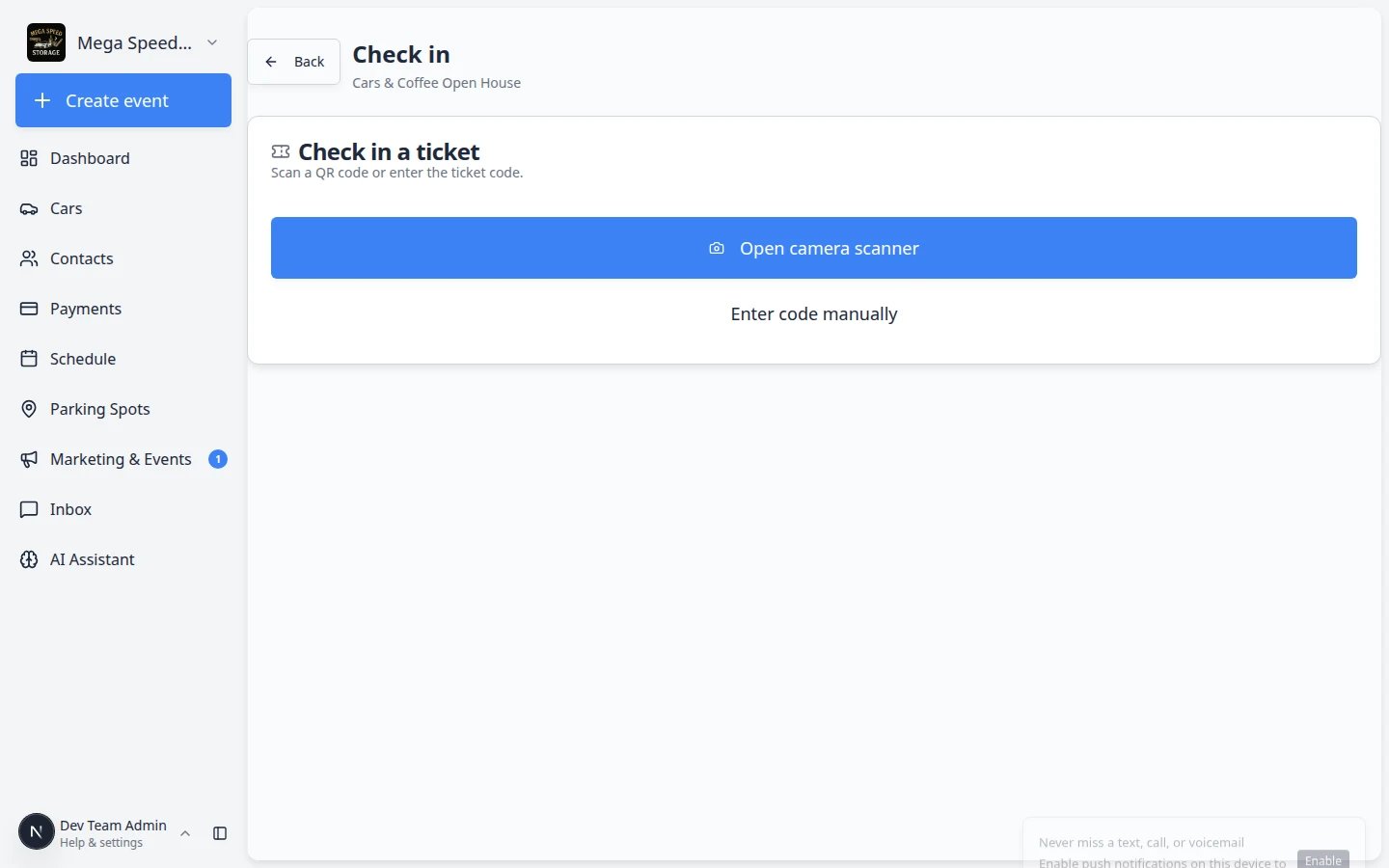 *Start with the camera when it works well. Switch to Enter code manually when scanning is slow or the guest only has an email code.*
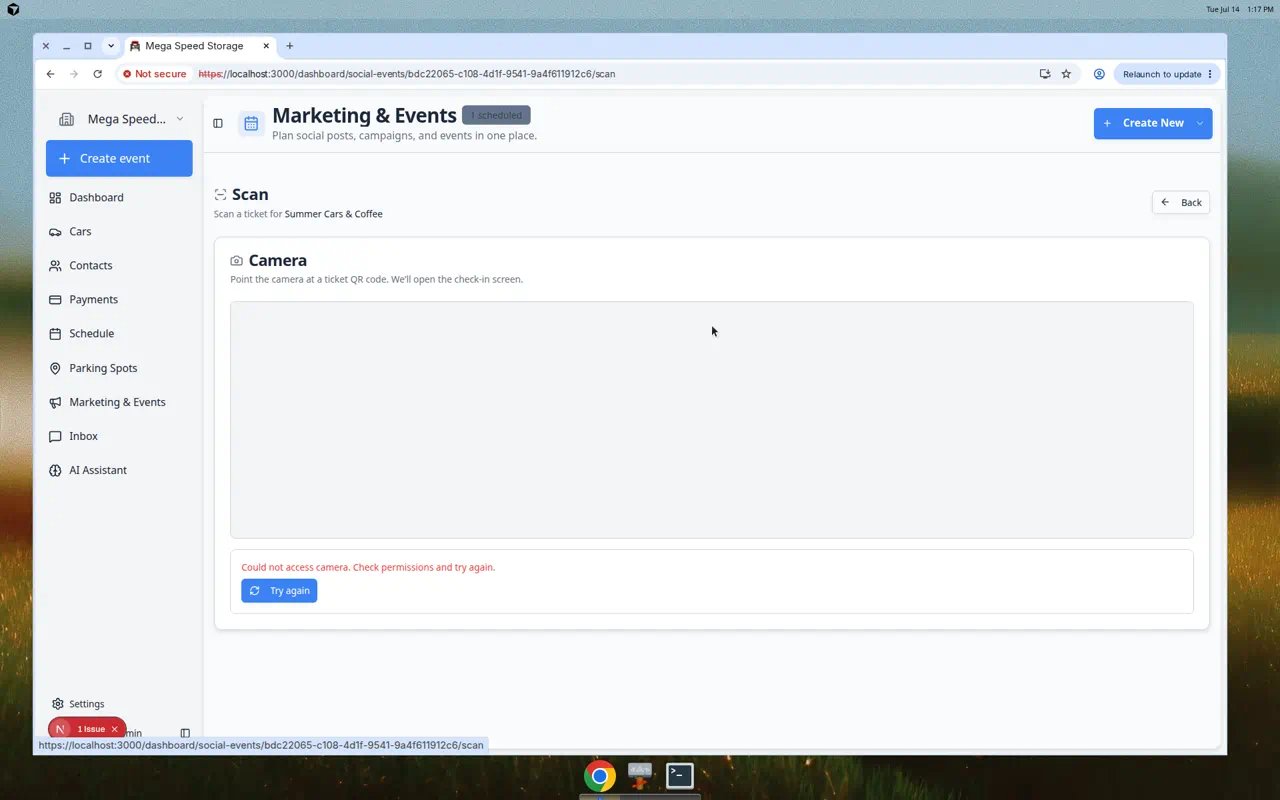 *The camera scanner opens in your browser. Allow camera access when asked, then point at the guest's QR code from email or their phone.*
### Enter a ticket code by hand
When you choose **Enter code manually**, you see a **Code** box and a **Lookup** button.
The code is usually short letters and numbers (for example **CCN3W6**). Copy it from the customer's RSVP email or text. Do not add spaces.
**Why this matters:** One wrong character makes the system say the ticket was not found.
Click **Lookup** (or press Enter on your keyboard).
**Expected result:** A card appears with the guest's name, email, RSVP status, and whether they are already checked in.
*The camera scanner opens in your browser. Allow camera access when asked, then point at the guest's QR code from email or their phone.*
### Enter a ticket code by hand
When you choose **Enter code manually**, you see a **Code** box and a **Lookup** button.
The code is usually short letters and numbers (for example **CCN3W6**). Copy it from the customer's RSVP email or text. Do not add spaces.
**Why this matters:** One wrong character makes the system say the ticket was not found.
Click **Lookup** (or press Enter on your keyboard).
**Expected result:** A card appears with the guest's name, email, RSVP status, and whether they are already checked in.
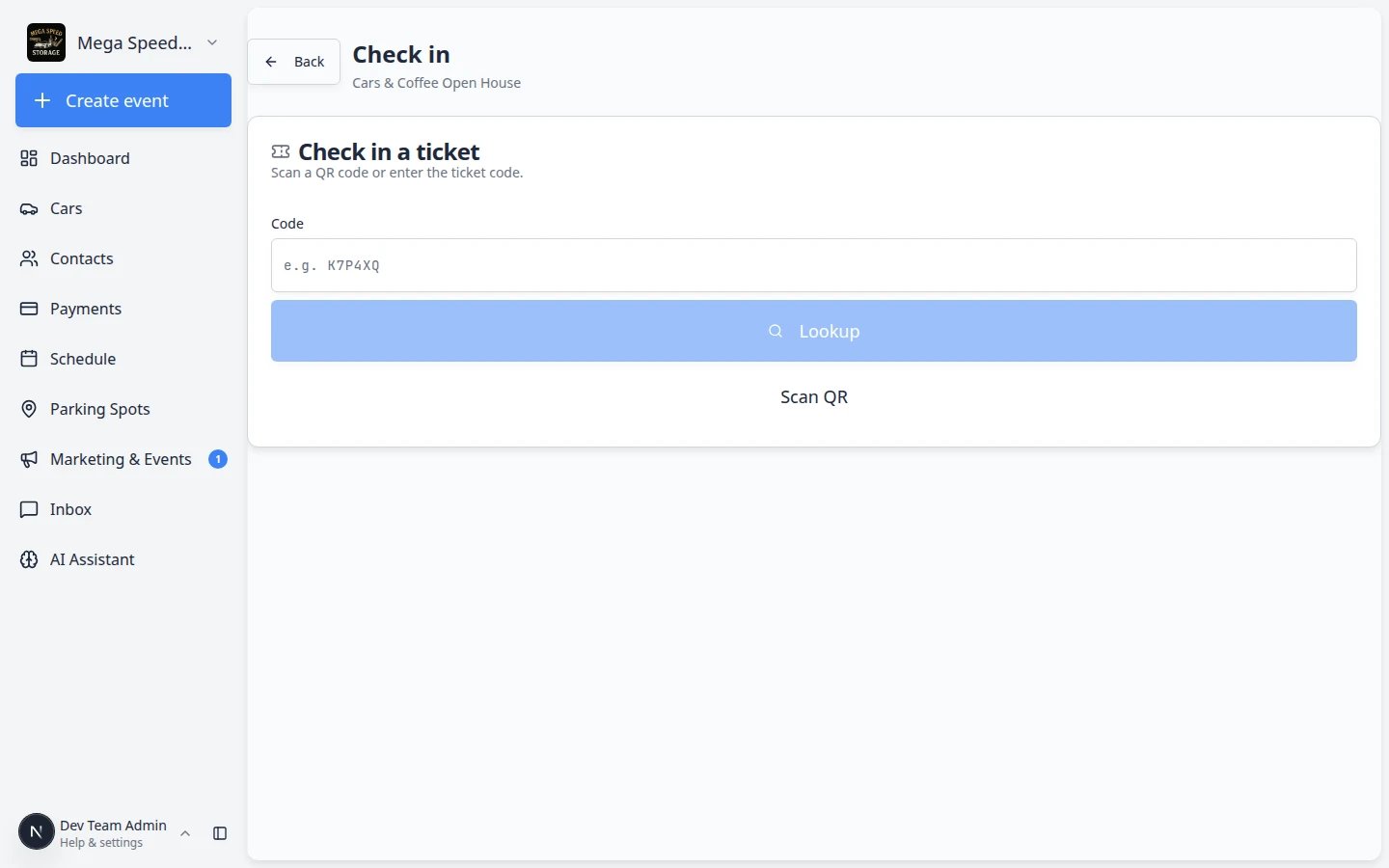 *Type the ticket code from the guest's email, then click Lookup before you check them in.*
## Step 3: Check in one attendee
After a scan or after you click **Lookup**, the screen shows a card with the guest's name, email, RSVP status (**going**, **maybe**, and so on), and a badge such as **Not checked in** or **Checked in**.
Read the name out loud or point to the screen and ask, "Is this you?" before you continue.
**Why this matters:** The badge tells you whether this ticket was already used at the door.
Click the blue **Check in** button on the guest card when the person in front of you matches the name on the screen.
**Expected result:** The badge changes to show the guest is checked in, or you see a short success message. When you return to the [event detail page](https://www.carstoragesoftware.com/dashboard/marketing), that guest appears as checked in in the attendee list.
**Why this matters:** A clear success message tells door staff the scan worked before the next guest steps up.
After each successful check-in, the scanner or manual entry screen is ready for the next person.
**Why this matters:** During busy arrivals, staff should confirm one guest at a time so ticket codes are not mixed up.
If the screen says the ticket was already used, pause. The guest may have entered earlier, or someone else may have used the same code. Ask a manager before allowing another entry.
*Type the ticket code from the guest's email, then click Lookup before you check them in.*
## Step 3: Check in one attendee
After a scan or after you click **Lookup**, the screen shows a card with the guest's name, email, RSVP status (**going**, **maybe**, and so on), and a badge such as **Not checked in** or **Checked in**.
Read the name out loud or point to the screen and ask, "Is this you?" before you continue.
**Why this matters:** The badge tells you whether this ticket was already used at the door.
Click the blue **Check in** button on the guest card when the person in front of you matches the name on the screen.
**Expected result:** The badge changes to show the guest is checked in, or you see a short success message. When you return to the [event detail page](https://www.carstoragesoftware.com/dashboard/marketing), that guest appears as checked in in the attendee list.
**Why this matters:** A clear success message tells door staff the scan worked before the next guest steps up.
After each successful check-in, the scanner or manual entry screen is ready for the next person.
**Why this matters:** During busy arrivals, staff should confirm one guest at a time so ticket codes are not mixed up.
If the screen says the ticket was already used, pause. The guest may have entered earlier, or someone else may have used the same code. Ask a manager before allowing another entry.
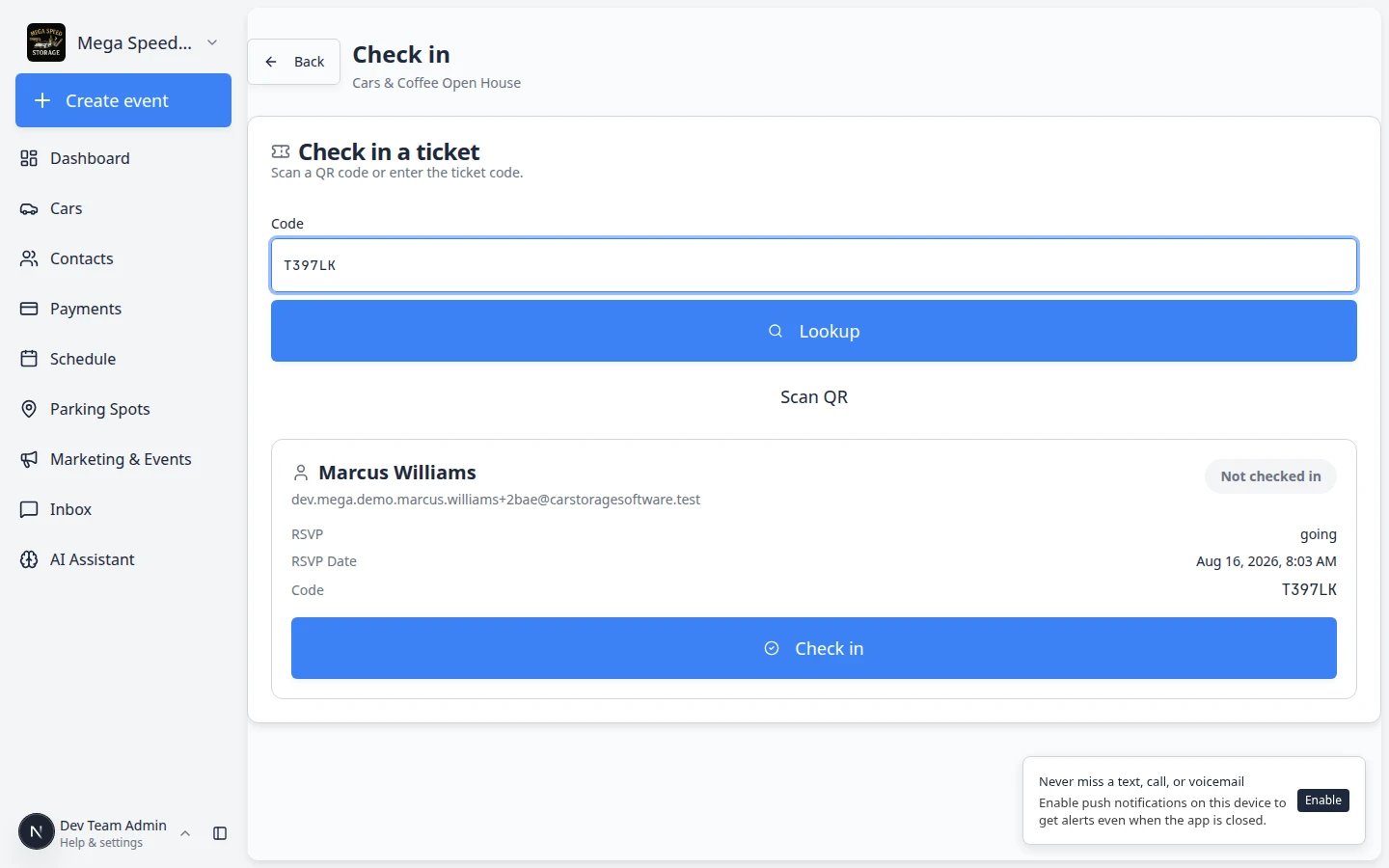 *After Lookup, confirm the guest's name matches the person in front of you, then click Check in on their card.*
**Why confirming the name matters**
Ticket codes can be forwarded. A quick name check prevents the wrong person from using someone else's ticket.
## If the attendee does not have a QR code
Use **Back** or open the event again from [Marketing & Events](https://www.carstoragesoftware.com/dashboard/marketing).
Use **Search attendees...** and type the person's name or email.
Confirm they appear as **Going** (or the status your facility uses for confirmed guests).
Open **Check in** again, choose **Enter code manually**, and type the short code from the customer's email exactly as shown (usually letters and numbers, no spaces).
If the person is not on the list, pause and ask a manager. Do not add walk-ins unless your facility policy allows it.
*After Lookup, confirm the guest's name matches the person in front of you, then click Check in on their card.*
**Why confirming the name matters**
Ticket codes can be forwarded. A quick name check prevents the wrong person from using someone else's ticket.
## If the attendee does not have a QR code
Use **Back** or open the event again from [Marketing & Events](https://www.carstoragesoftware.com/dashboard/marketing).
Use **Search attendees...** and type the person's name or email.
Confirm they appear as **Going** (or the status your facility uses for confirmed guests).
Open **Check in** again, choose **Enter code manually**, and type the short code from the customer's email exactly as shown (usually letters and numbers, no spaces).
If the person is not on the list, pause and ask a manager. Do not add walk-ins unless your facility policy allows it.
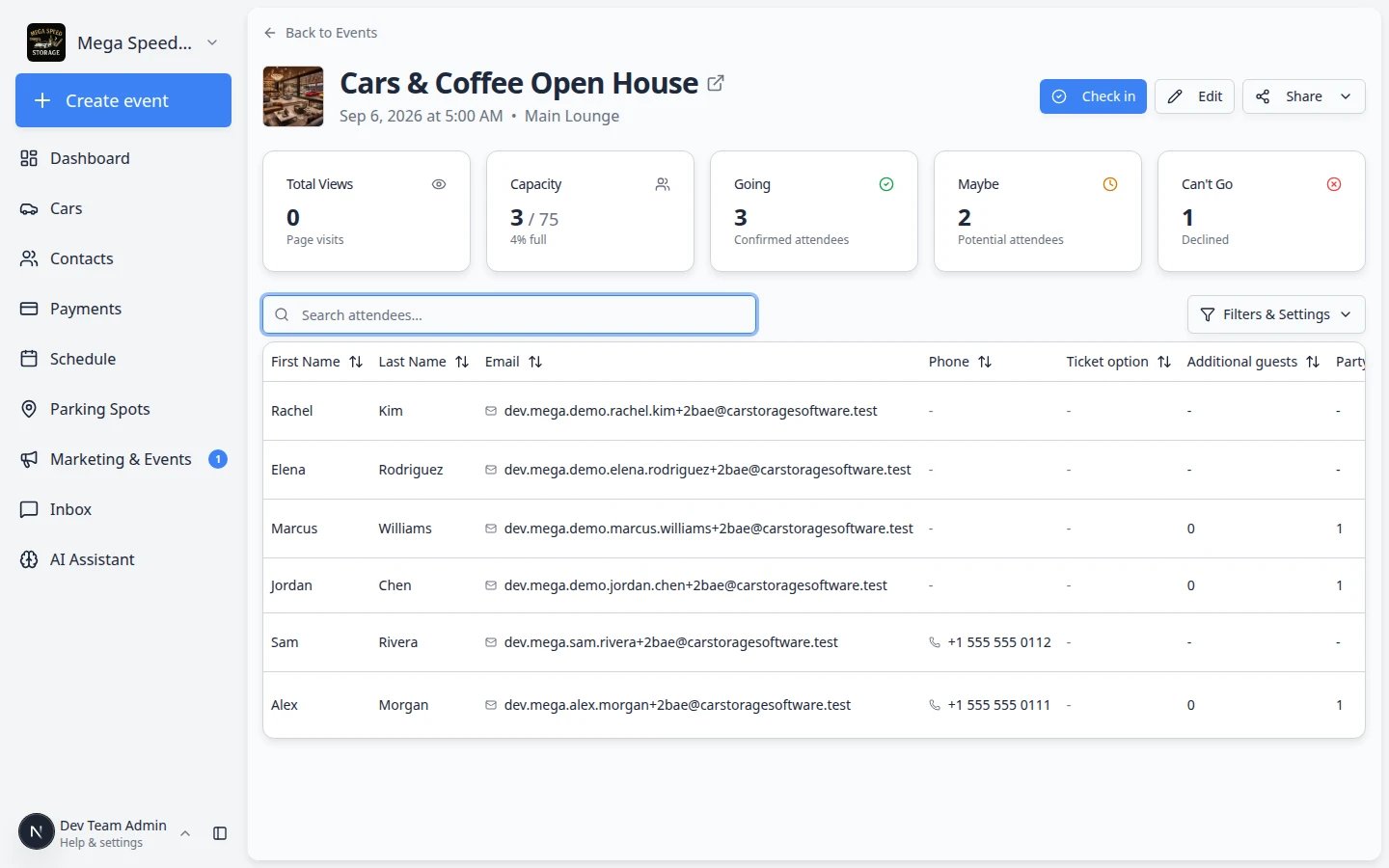 *Search the guest list on the event detail page when someone forgot their QR code but you still need to confirm they RSVP'd.*
## After check-in
* Watch **Going** and capacity numbers so your team knows how full the event is.
* Refresh the event page occasionally if multiple staff are checking people in.
* After the event, send a thank-you campaign or review request to attendees who had a good experience.
## What success looks like
* Guests with valid tickets are marked checked in within a few seconds.
* Staff can answer "how many people are here?" from the event page without paper lists.
* Duplicate or invalid tickets are caught before guests enter restricted areas.
## Common mistakes to avoid
* Do not check someone in without confirming their name matches the ticket.
* Do not let one staff member use scan while another uses manual entry on the same ticket at the same time—refresh the page if counts look wrong.
* Do not add walk-in guests without a manager unless your facility policy allows it.
## Troubleshooting
**The camera scanner does not open**
Allow camera access in the browser settings. If the camera still fails, use **Enter code manually**.
**The code says No ticket found**
Check for typing mistakes. Ask the customer which email they used to RSVP. Codes are usually short and may be case-sensitive.
**The ticket is already checked in**
The guest may have already entered, or someone else may have used the same ticket. Ask a manager before allowing another entry.
**I do not see Check in**
Open the event from the calendar so the address includes `/dashboard/social-events/`. Ask an admin if the button is still missing—your role may need social event access.
**The page sent me back to Marketing & Events**
You may have opened an old bookmark. Start from [Marketing & Events](https://www.carstoragesoftware.com/dashboard/marketing), click today's event, then click **Check in** again.
## What to do next
Send a follow-up with [Create a campaign](/docs/marketing-events/create-a-campaign), or ask for feedback with [Request and manage reviews](/docs/marketing-events/request-and-manage-reviews).
## Related topics
- [Review social event RSVPs and attendees](/docs/marketing-events/review-social-event-rsvps-and-attendees.md)
- [Create a social event](/docs/marketing-events/create-a-social-event.md)
- [Add campaign message, audience, and publish](/docs/marketing-events/add-campaign-message-audience-and-publish.md)
- [Marketing & Events overview](/docs/marketing-events/overview.md)
- [Update social event](/docs/api-reference/marketing/update-social-event.md)
This documentation is built and hosted on [Mintlify](https://mintlify.com), a developer documentation platform.
*Search the guest list on the event detail page when someone forgot their QR code but you still need to confirm they RSVP'd.*
## After check-in
* Watch **Going** and capacity numbers so your team knows how full the event is.
* Refresh the event page occasionally if multiple staff are checking people in.
* After the event, send a thank-you campaign or review request to attendees who had a good experience.
## What success looks like
* Guests with valid tickets are marked checked in within a few seconds.
* Staff can answer "how many people are here?" from the event page without paper lists.
* Duplicate or invalid tickets are caught before guests enter restricted areas.
## Common mistakes to avoid
* Do not check someone in without confirming their name matches the ticket.
* Do not let one staff member use scan while another uses manual entry on the same ticket at the same time—refresh the page if counts look wrong.
* Do not add walk-in guests without a manager unless your facility policy allows it.
## Troubleshooting
**The camera scanner does not open**
Allow camera access in the browser settings. If the camera still fails, use **Enter code manually**.
**The code says No ticket found**
Check for typing mistakes. Ask the customer which email they used to RSVP. Codes are usually short and may be case-sensitive.
**The ticket is already checked in**
The guest may have already entered, or someone else may have used the same ticket. Ask a manager before allowing another entry.
**I do not see Check in**
Open the event from the calendar so the address includes `/dashboard/social-events/`. Ask an admin if the button is still missing—your role may need social event access.
**The page sent me back to Marketing & Events**
You may have opened an old bookmark. Start from [Marketing & Events](https://www.carstoragesoftware.com/dashboard/marketing), click today's event, then click **Check in** again.
## What to do next
Send a follow-up with [Create a campaign](/docs/marketing-events/create-a-campaign), or ask for feedback with [Request and manage reviews](/docs/marketing-events/request-and-manage-reviews).
## Related topics
- [Review social event RSVPs and attendees](/docs/marketing-events/review-social-event-rsvps-and-attendees.md)
- [Create a social event](/docs/marketing-events/create-a-social-event.md)
- [Add campaign message, audience, and publish](/docs/marketing-events/add-campaign-message-audience-and-publish.md)
- [Marketing & Events overview](/docs/marketing-events/overview.md)
- [Update social event](/docs/api-reference/marketing/update-social-event.md)
This documentation is built and hosted on [Mintlify](https://mintlify.com), a developer documentation platform.