> ## Documentation Index
> Fetch the complete documentation index at: https://www.carstoragesoftware.com/docs/llms.txt
> Use this file to discover all available pages before exploring further.
# Organize your marketing photos and files
> Store logos, facility photos, event flyers, and car pictures in Marketing Assets so your team can reuse them in emails and campaigns.
## What you will accomplish
You will set up a simple photo and file library for your facility. When you finish, your team can:
* Keep logos, event flyers, and facility photos in one place
* Pull in car pictures you already took during a visit
* Help the email designer pick **your** photos instead of generic stock pictures
**Expected result:** [Marketing & Events > Marketing Assets](https://www.carstoragesoftware.com/dashboard/marketing/assets) shows folders and files your staff can find in a few clicks.
**Why this library matters**
Customers notice when an invitation uses your real showroom, your logo, and cars they recognize. This page is the folder where those files live **before** you write a campaign.
## When to use Marketing Assets
* You are about to send an [email campaign](/docs/marketing-events/create-a-campaign) and want it to look like your facility.
* You have a flyer or logo on your computer and want the whole team to use the same file.
* You already photographed a customer car and want that picture in a campaign (without uploading it again).
* You want folders such as **Facility photos** or **Event flyers** so staff do not hunt through email attachments.
| If you need… | Use this page | Use something else |
| - | - | - |
| A shared photo library for campaigns | [Marketing Assets](https://www.carstoragesoftware.com/dashboard/marketing/assets) | — |
| To send the email itself | — | [Add campaign message, audience, and publish](/docs/marketing-events/add-campaign-message-audience-and-publish) |
| Photos of one car’s condition | — | The car record and [event walkthrough](/docs/events/overview) |
| A public gallery on your website | — | [Facility Web Pages](/docs/facility-web-pages/overview) |
## Before you start
* You can open [Marketing & Events](https://www.carstoragesoftware.com/dashboard/marketing). If you cannot, ask a manager to check your role in [Settings > Team](https://www.carstoragesoftware.com/dashboard/settings/team).
* Have at least one file ready—your logo, a facility photo, or an event flyer (JPG, PNG, WebP, or PDF).
* If you want to reuse car photos, those pictures must already exist on a car or event in Car Storage Software.
## Step 1: Open Marketing Assets
From the left sidebar, click **Marketing & Events**. You can also open [Marketing & Events](https://www.carstoragesoftware.com/dashboard/marketing) directly.
**Why this matters:** Campaigns, events, forms, community, reviews, website traffic, and files all live in this one area.
Across the top of the page, click **Marketing Assets**. The tab sits after **Website**. You can also open [Marketing & Events > Marketing Assets](https://www.carstoragesoftware.com/dashboard/marketing/assets) directly.
**Expected result:** The heading still says **Marketing & Events**. The **Marketing Assets** tab is underlined. You see **All assets**, plus **Link photos**, **New folder**, and **Upload**.
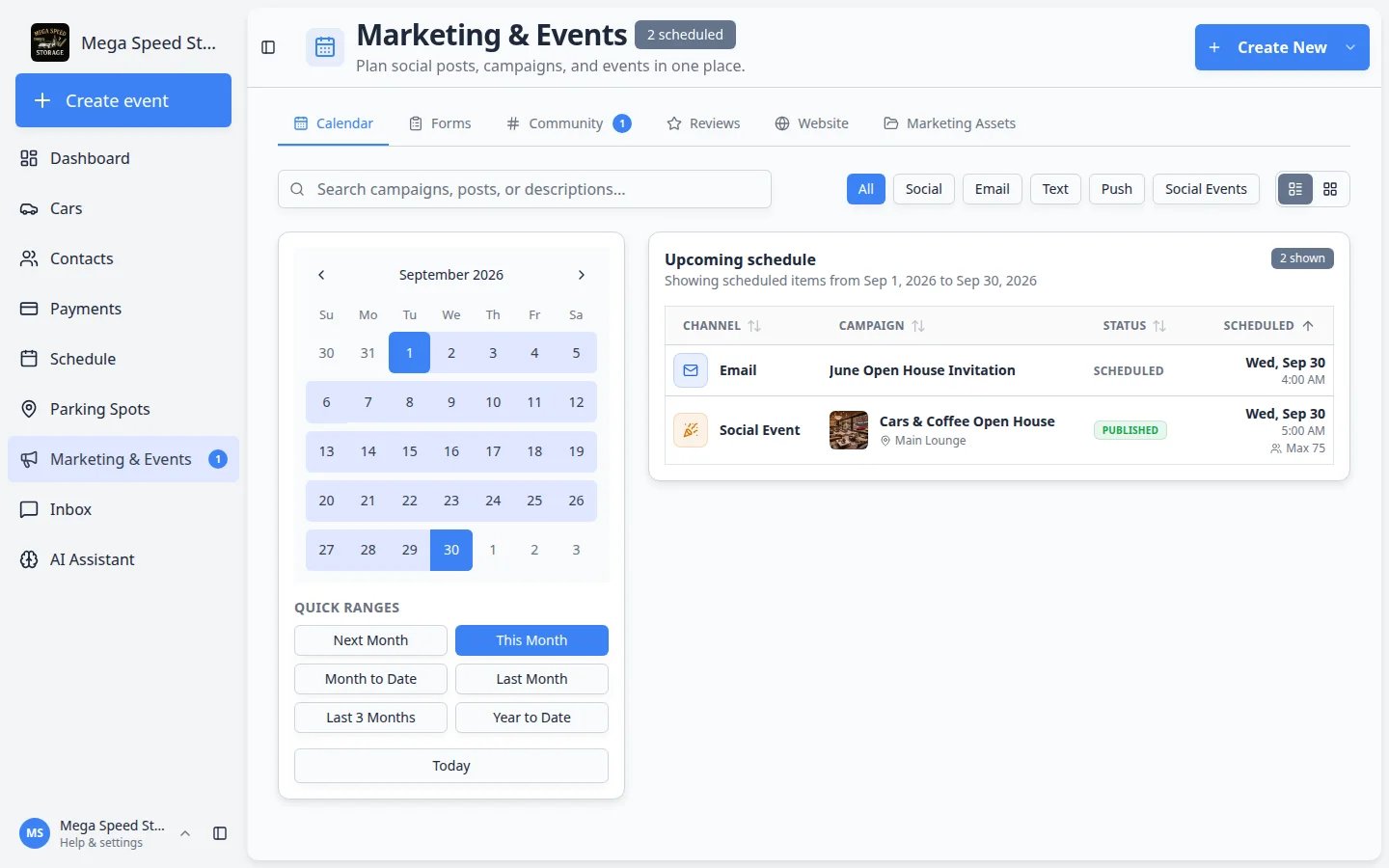 ***Marketing Assets** is the last tab. Use it when you need files—not when you are sending a message or checking RSVPs.*
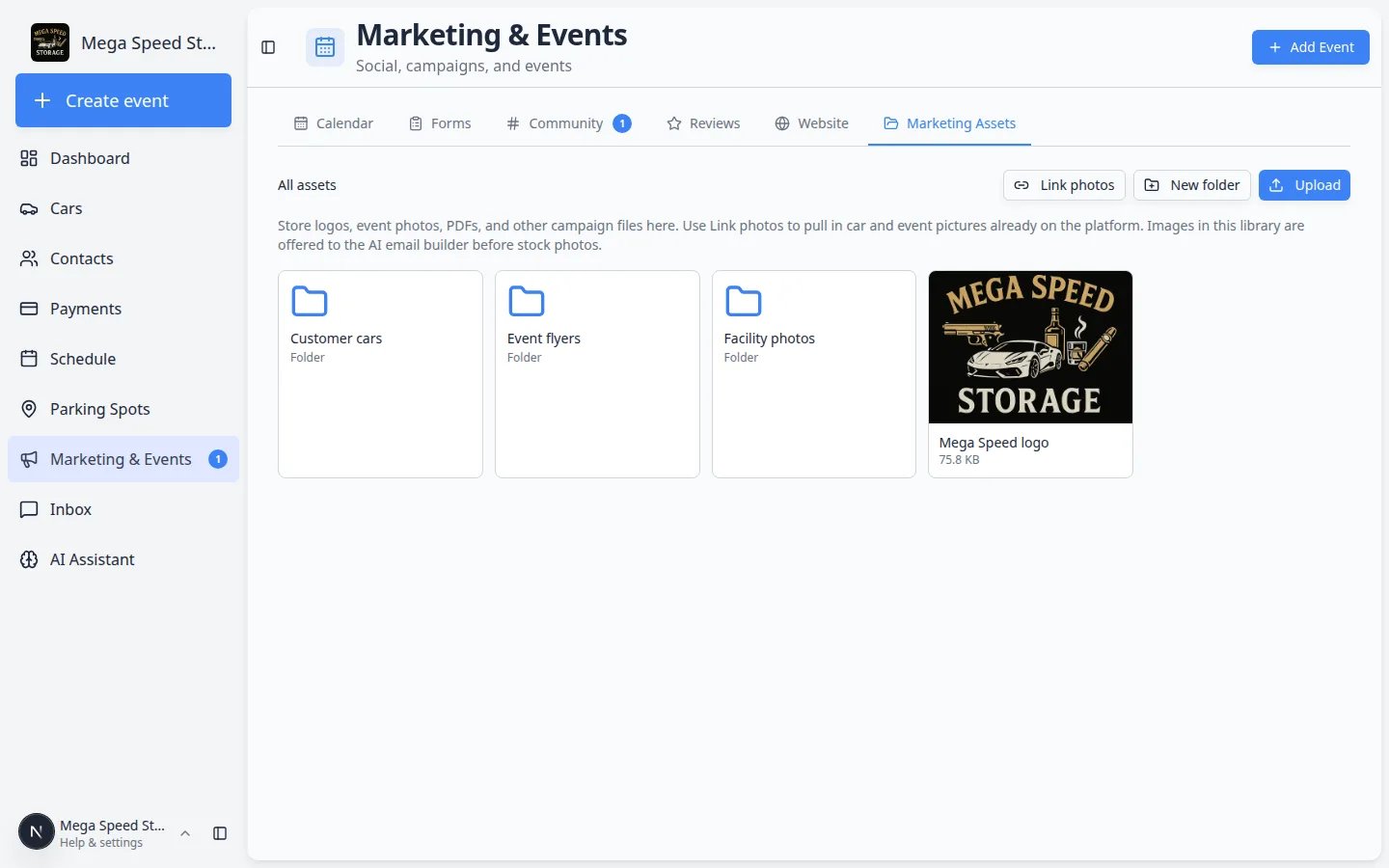 *A healthy library has a few folders and at least one logo or flyer on **All assets** so new staff can see where files live.*
**Read the helper sentence under All assets**
The page explains the job in plain language: store logos, event photos, PDFs, and other campaign files. **Link photos** pulls in car and event pictures already in the product. Images here are offered to the email designer **before** stock photos.
## Step 2: Create folders your team will recognize
Folders keep a spring campaign from mixing with next year’s holiday photos.
In the top-right of the library, click **New folder**.
The dialog title is **New folder**. The field label is **Name**. Use a name your front desk would say out loud, such as **Facility photos**, **Event flyers**, or **Spring campaign**.
**Why this matters:** Vague names like **Stuff** or **New folder 2** make the next person upload the same logo again.
Click **Create**. Click **Cancel** if you opened the dialog by mistake.
**Expected result:** A folder tile appears with a folder icon, your name, and the word **Folder**.
*A healthy library has a few folders and at least one logo or flyer on **All assets** so new staff can see where files live.*
**Read the helper sentence under All assets**
The page explains the job in plain language: store logos, event photos, PDFs, and other campaign files. **Link photos** pulls in car and event pictures already in the product. Images here are offered to the email designer **before** stock photos.
## Step 2: Create folders your team will recognize
Folders keep a spring campaign from mixing with next year’s holiday photos.
In the top-right of the library, click **New folder**.
The dialog title is **New folder**. The field label is **Name**. Use a name your front desk would say out loud, such as **Facility photos**, **Event flyers**, or **Spring campaign**.
**Why this matters:** Vague names like **Stuff** or **New folder 2** make the next person upload the same logo again.
Click **Create**. Click **Cancel** if you opened the dialog by mistake.
**Expected result:** A folder tile appears with a folder icon, your name, and the word **Folder**.
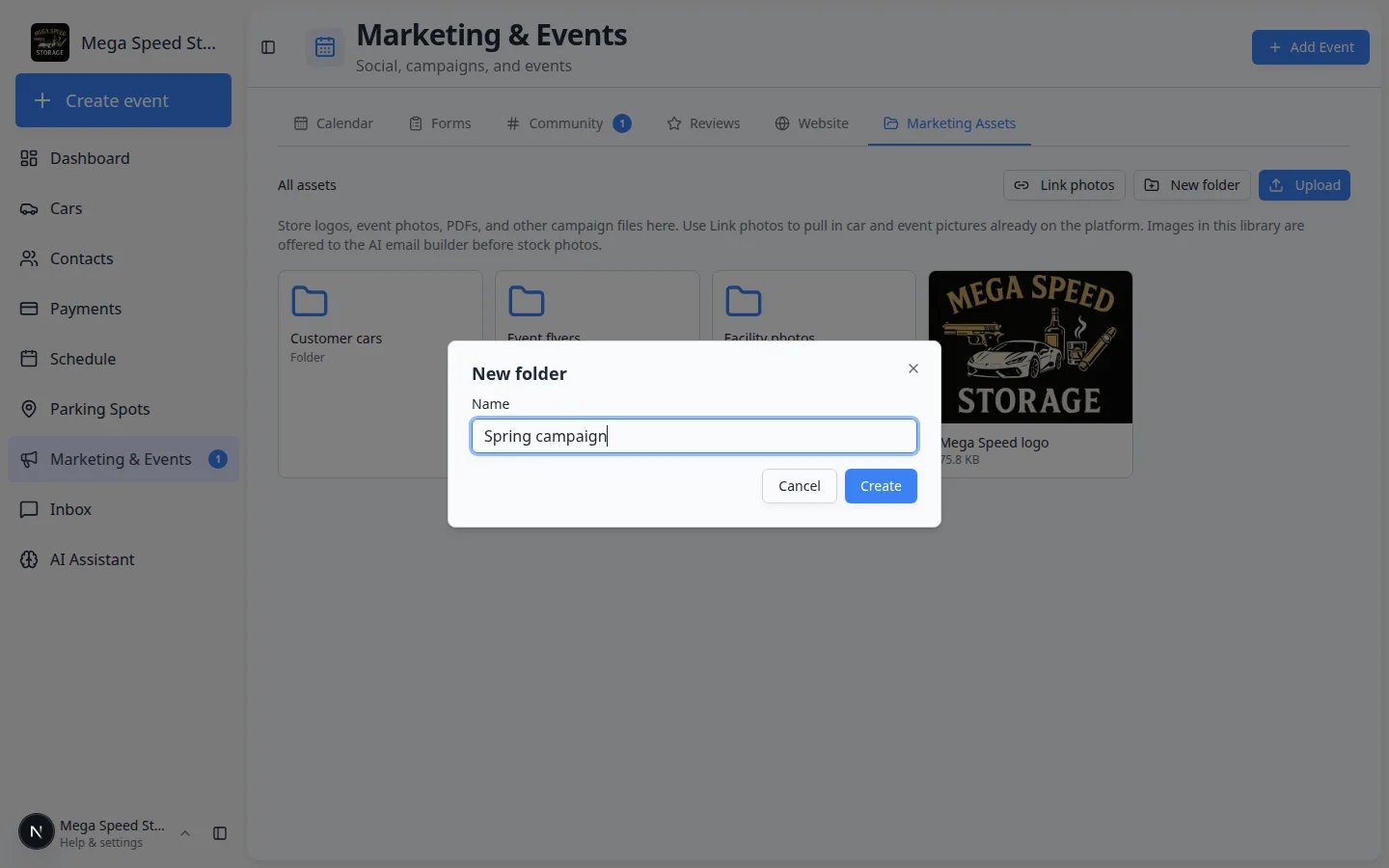 *Name the folder the way your team talks—**Spring campaign** is clearer than **Folder 1**.*
**Open a folder with the name, not the menu**
Click the folder name to go inside it. The small **⋯** button on a folder is only for **Delete**. The breadcrumb at the top (**All assets › Facility photos**) takes you back out.
## Step 3: Upload a logo or flyer from your computer
Use **Upload** when the file lives on your computer or a shared drive—not already inside Car Storage Software.
Click **All assets** to stay at the top, or open **Facility photos** / **Event flyers** first.
**Why this matters:** Uploads land in the folder you are looking at. If you are inside **Event flyers**, the file stays there.
Click **Upload**. Your computer’s file picker opens. You can choose more than one file.
After the upload finishes, the page says **File uploaded** (or how many files uploaded).
**Expected result:** A tile appears with a picture (for photos) or a file icon (for PDFs). The name usually matches the file name, without the ending like `.jpg`.
**You can also drag files onto an empty library**
If you see **No files yet**, you can drag files from your computer onto that empty area. After you have folders and files, use the **Upload** button so you know which folder you are filling.
## Step 4: Link photos you already took of cars
**Link photos** does **not** copy a file from your laptop. It reuses a picture that is already on a car or event.
Click **Link photos**. The dialog title is **Link existing photos**.
The search box placeholder says **e.g. Ferrari, Smith, detail day…**
* Leave the box empty to see recent photos.
* Type a car (make, model, or VIN), a customer name, or an event title.
**Expected result:** Tiles show the car, who it belongs to, and the date. Photos already in this library show a **Linked** checkmark and stay grayed out.
Click the empty square on each photo you need. The footer updates from **Select photos to add to this folder** to a count.
Click **Add to library**. Click **Cancel** if you changed your mind.
**Expected result:** A toast says the photos were added. Those tiles in the library show a small **Linked** badge so you know they came from a car or event—not a fresh upload.
*Name the folder the way your team talks—**Spring campaign** is clearer than **Folder 1**.*
**Open a folder with the name, not the menu**
Click the folder name to go inside it. The small **⋯** button on a folder is only for **Delete**. The breadcrumb at the top (**All assets › Facility photos**) takes you back out.
## Step 3: Upload a logo or flyer from your computer
Use **Upload** when the file lives on your computer or a shared drive—not already inside Car Storage Software.
Click **All assets** to stay at the top, or open **Facility photos** / **Event flyers** first.
**Why this matters:** Uploads land in the folder you are looking at. If you are inside **Event flyers**, the file stays there.
Click **Upload**. Your computer’s file picker opens. You can choose more than one file.
After the upload finishes, the page says **File uploaded** (or how many files uploaded).
**Expected result:** A tile appears with a picture (for photos) or a file icon (for PDFs). The name usually matches the file name, without the ending like `.jpg`.
**You can also drag files onto an empty library**
If you see **No files yet**, you can drag files from your computer onto that empty area. After you have folders and files, use the **Upload** button so you know which folder you are filling.
## Step 4: Link photos you already took of cars
**Link photos** does **not** copy a file from your laptop. It reuses a picture that is already on a car or event.
Click **Link photos**. The dialog title is **Link existing photos**.
The search box placeholder says **e.g. Ferrari, Smith, detail day…**
* Leave the box empty to see recent photos.
* Type a car (make, model, or VIN), a customer name, or an event title.
**Expected result:** Tiles show the car, who it belongs to, and the date. Photos already in this library show a **Linked** checkmark and stay grayed out.
Click the empty square on each photo you need. The footer updates from **Select photos to add to this folder** to a count.
Click **Add to library**. Click **Cancel** if you changed your mind.
**Expected result:** A toast says the photos were added. Those tiles in the library show a small **Linked** badge so you know they came from a car or event—not a fresh upload.
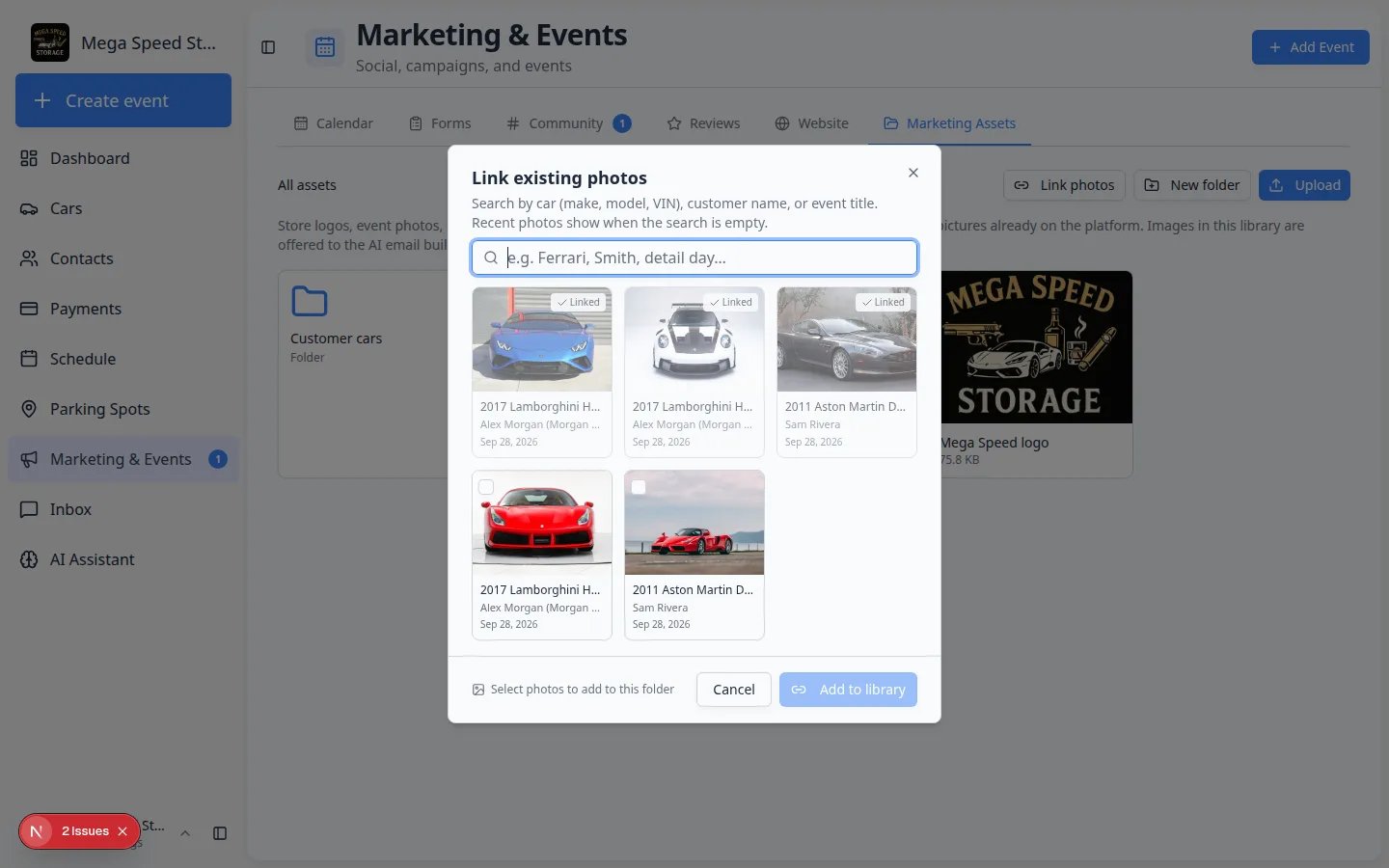 *Search by car or customer. **Linked** means that picture is already in Marketing Assets—you do not need to add it again.*
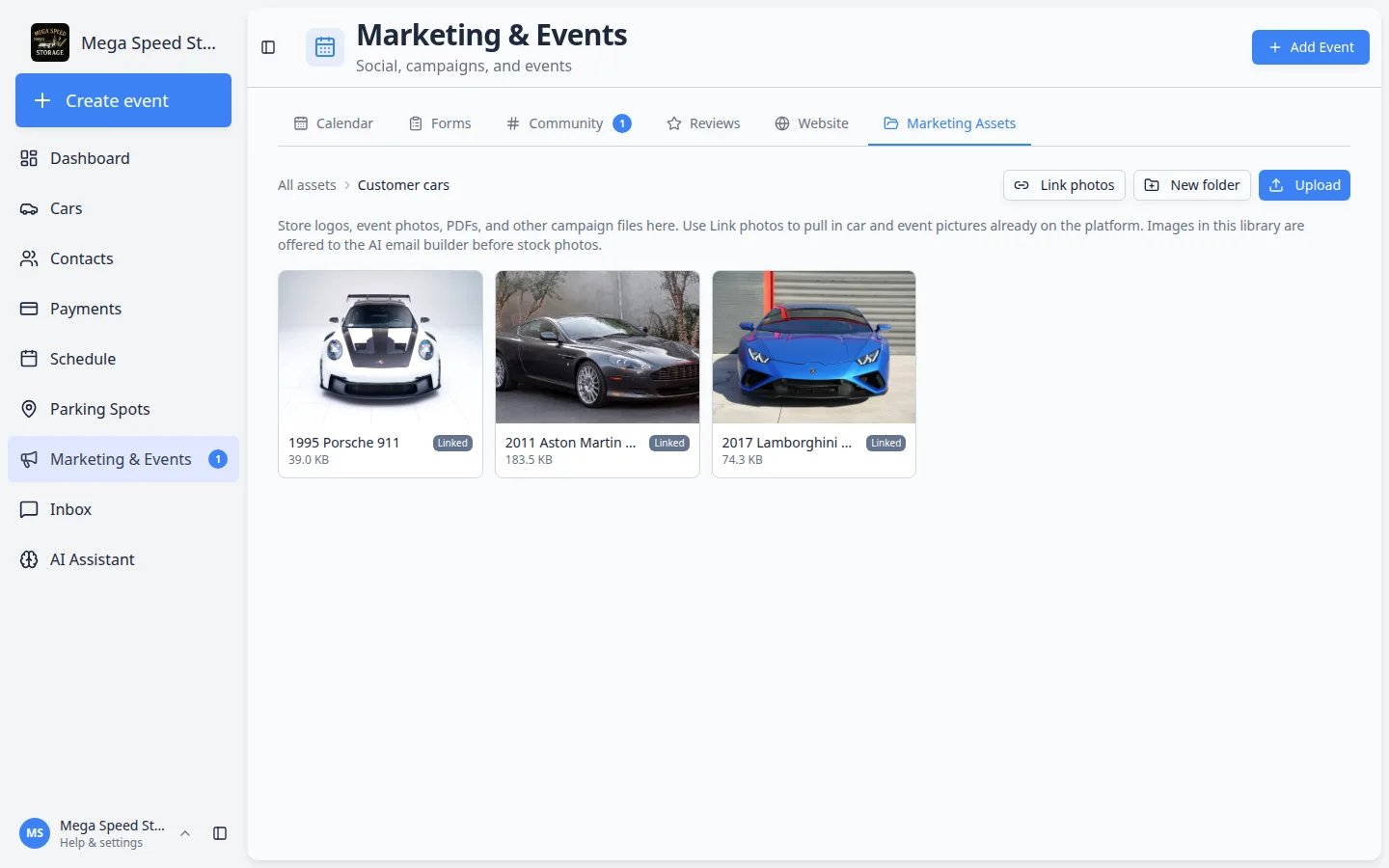 *A **Customer cars** folder with **Linked** badges is a good pattern: staff can find real inventory photos without leaving Marketing & Events.*
**Linked photos stay tied to the original picture**
If someone later deletes the original car photo, the linked Marketing Assets file can disappear too. For your **logo** and **printed flyer**, upload a copy so it does not depend on a car visit.
## Step 5: Add a short description so the email designer picks the right picture
The email designer can look at this library first. A one-line description is how you tell it what the picture shows.
Click the photo or file (not the **⋯** menu).
The title is **File details**. You will see:
* **Name** — what staff see on the tile
* **Description for AI (optional)** — a short note about what is in the picture
* Helper text: **Helps the email AI pick this image when it matches the campaign.**
Say what a new staff member would see.
**Good example:** "Primary facility logo for email headers"
**Good example:** "Our showroom at sunset with collector cars under warm lighting"
**Weak example:** "IMG\_4821" or "photo"
Click **Save**. Click **Cancel** to leave the name as it was.
**Expected result:** The tile name updates if you changed it. The description is saved for the next email you design.
*A **Customer cars** folder with **Linked** badges is a good pattern: staff can find real inventory photos without leaving Marketing & Events.*
**Linked photos stay tied to the original picture**
If someone later deletes the original car photo, the linked Marketing Assets file can disappear too. For your **logo** and **printed flyer**, upload a copy so it does not depend on a car visit.
## Step 5: Add a short description so the email designer picks the right picture
The email designer can look at this library first. A one-line description is how you tell it what the picture shows.
Click the photo or file (not the **⋯** menu).
The title is **File details**. You will see:
* **Name** — what staff see on the tile
* **Description for AI (optional)** — a short note about what is in the picture
* Helper text: **Helps the email AI pick this image when it matches the campaign.**
Say what a new staff member would see.
**Good example:** "Primary facility logo for email headers"
**Good example:** "Our showroom at sunset with collector cars under warm lighting"
**Weak example:** "IMG\_4821" or "photo"
Click **Save**. Click **Cancel** to leave the name as it was.
**Expected result:** The tile name updates if you changed it. The description is saved for the next email you design.
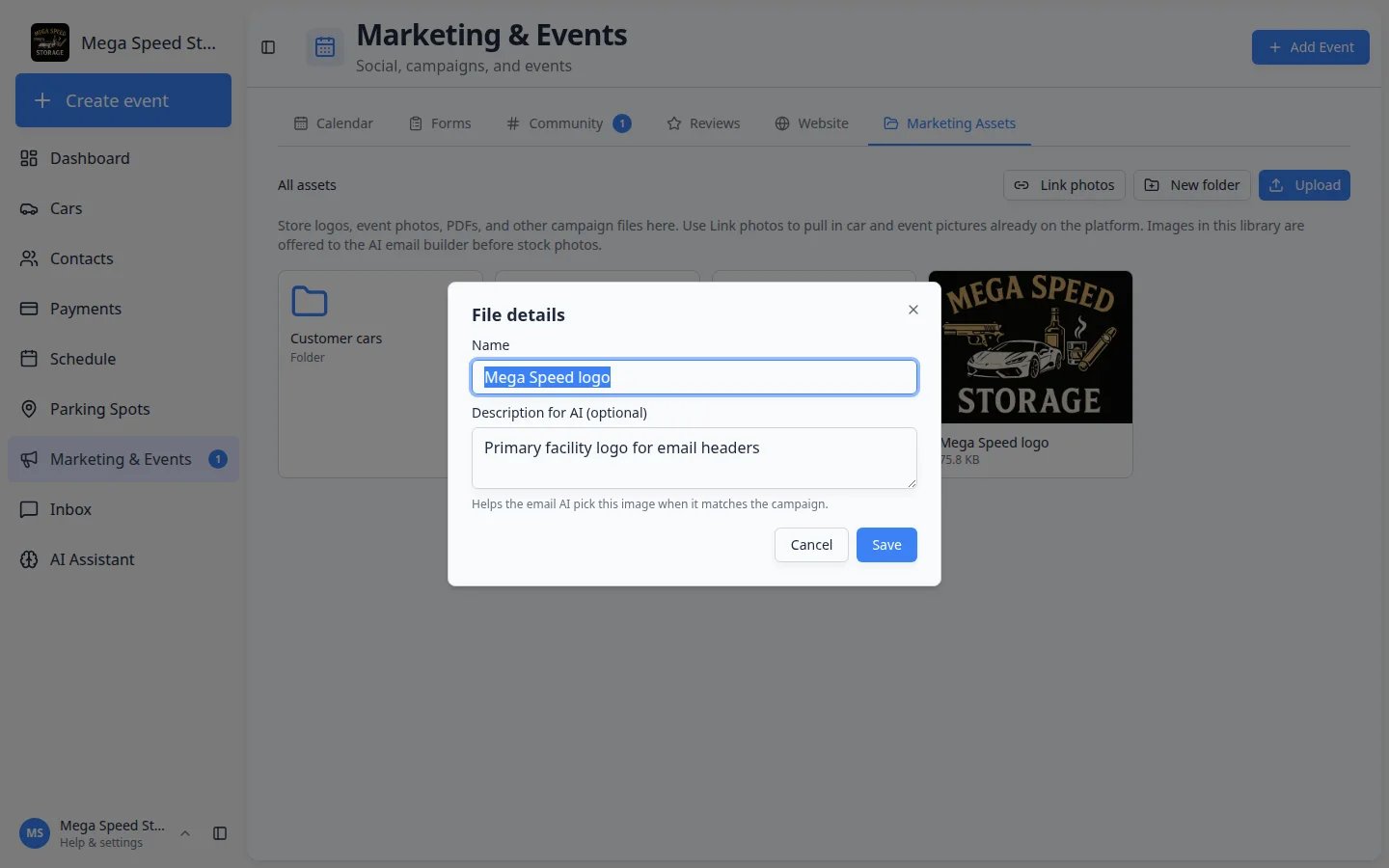 ***Description for AI** is optional, but one clear sentence makes email photos match your facility instead of a random stock image.*
## A simple folder plan that works
You do not need dozens of folders. Start with three:
***Description for AI** is optional, but one clear sentence makes email photos match your facility instead of a random stock image.*
## A simple folder plan that works
You do not need dozens of folders. Start with three:
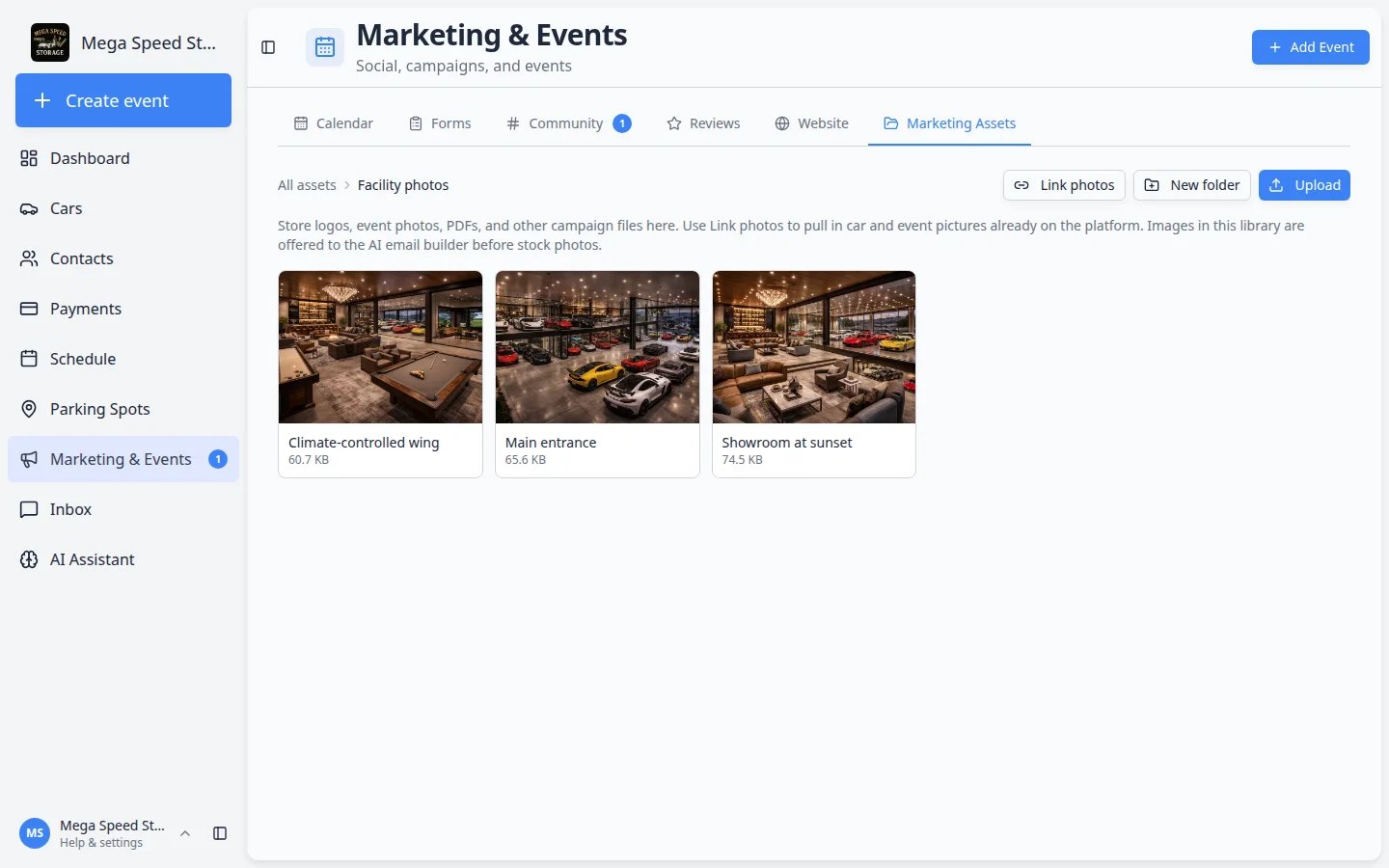 ***Facility photos** is a good first folder: showroom, entrance, and storage aisles your customers will recognize.*
* **Facility photos** — showroom, entrance, lounge, climate-controlled aisles.
* **Event flyers** — Cars & Coffee art, open-house posters, seasonal invitations.
* **Customer cars** — linked photos you may feature (with the owner’s permission).
Keep the **logo** on **All assets** (the top level) so nobody has to open a folder to find it.
## Open, delete, or clean up a file
Each file tile has a **⋯** button (three dots). The label is **Actions for** plus the file name.
Choose **Open** to view the file in a new browser tab. Use this when you want to confirm you picked the right photo.
Choose **Delete**, then confirm. The confirm message asks **Delete "file name"?**
**Why this matters:** Deleting a logo everyone still uses will break the next campaign that expected it. Check with a teammate first.
**Deleting a folder deletes everything inside it**
The folder **⋯** menu only has **Delete**. The confirm message asks if you want to delete the folder **and everything inside it**. There is no undo. Move or download files you still need before you delete a folder.
## Common mistakes to avoid
* Do not upload the same logo five times with different names. Open **File details** and rename the one copy everyone should use.
* Do not skip **Description for AI** on your best facility photos if you plan to use the email designer.
* Do not link a damage or inspection photo into a public invitation unless you truly want customers to see that picture.
* Do not store private contracts here. Use [Contracts](/docs/contracts/overview) for agreements and customer uploads.
## Troubleshooting
**I do not see the Marketing Assets tab**
Refresh the page and look at the last tab after **Website**. If Marketing & Events is missing from the sidebar, your login may not include marketing access. Ask a facility owner to review [Settings > Team](https://www.carstoragesoftware.com/dashboard/settings/team).
**Upload failed**
Try a smaller JPG or PNG. If the file is on a USB drive that was just unplugged, copy it to the computer first. Then click **Upload** again.
**Link existing photos says No photos match that search**
Clear the search box to see recent photos. If the list is still empty, those cars do not have pictures yet. Take photos on the car record or during an event, then return here.
**The email still used a stock photo**
Open the picture, add a **Description for AI** that matches the campaign (for example “Cars & Coffee in the main lounge”), and design the email again. Also confirm the picture is an image, not a PDF.
**I linked a photo but I wanted a copy I can keep forever**
**Link photos** stays connected to the original car or event picture. For logos and printed flyers, use **Upload** instead.
## What to do next
* Upload your logo to **All assets** and add a description such as “Primary facility logo.”
* Create **Facility photos** and add two or three pictures of the building customers would recognize.
* When you are ready to write the message, follow [Create a campaign](/docs/marketing-events/create-a-campaign) and [Add campaign message, audience, and publish](/docs/marketing-events/add-campaign-message-audience-and-publish).
* If the email invites people to a date on the calendar, create the [social event](/docs/marketing-events/create-a-social-event) first so you can include the RSVP link.
## Related topics
- [Add campaign message, audience, and publish](/docs/marketing-events/add-campaign-message-audience-and-publish.md)
- [Create a campaign](/docs/marketing-events/create-a-campaign.md)
- [Marketing & Events overview](/docs/marketing-events/overview.md)
- [Import vehicles and photos from a spreadsheet](/docs/cars/import-vehicles-and-photos.md)
- [Organize vehicles with tags](/docs/cars/organize-vehicles-with-tags.md)
This documentation is built and hosted on [Mintlify](https://mintlify.com), a developer documentation platform.
***Facility photos** is a good first folder: showroom, entrance, and storage aisles your customers will recognize.*
* **Facility photos** — showroom, entrance, lounge, climate-controlled aisles.
* **Event flyers** — Cars & Coffee art, open-house posters, seasonal invitations.
* **Customer cars** — linked photos you may feature (with the owner’s permission).
Keep the **logo** on **All assets** (the top level) so nobody has to open a folder to find it.
## Open, delete, or clean up a file
Each file tile has a **⋯** button (three dots). The label is **Actions for** plus the file name.
Choose **Open** to view the file in a new browser tab. Use this when you want to confirm you picked the right photo.
Choose **Delete**, then confirm. The confirm message asks **Delete "file name"?**
**Why this matters:** Deleting a logo everyone still uses will break the next campaign that expected it. Check with a teammate first.
**Deleting a folder deletes everything inside it**
The folder **⋯** menu only has **Delete**. The confirm message asks if you want to delete the folder **and everything inside it**. There is no undo. Move or download files you still need before you delete a folder.
## Common mistakes to avoid
* Do not upload the same logo five times with different names. Open **File details** and rename the one copy everyone should use.
* Do not skip **Description for AI** on your best facility photos if you plan to use the email designer.
* Do not link a damage or inspection photo into a public invitation unless you truly want customers to see that picture.
* Do not store private contracts here. Use [Contracts](/docs/contracts/overview) for agreements and customer uploads.
## Troubleshooting
**I do not see the Marketing Assets tab**
Refresh the page and look at the last tab after **Website**. If Marketing & Events is missing from the sidebar, your login may not include marketing access. Ask a facility owner to review [Settings > Team](https://www.carstoragesoftware.com/dashboard/settings/team).
**Upload failed**
Try a smaller JPG or PNG. If the file is on a USB drive that was just unplugged, copy it to the computer first. Then click **Upload** again.
**Link existing photos says No photos match that search**
Clear the search box to see recent photos. If the list is still empty, those cars do not have pictures yet. Take photos on the car record or during an event, then return here.
**The email still used a stock photo**
Open the picture, add a **Description for AI** that matches the campaign (for example “Cars & Coffee in the main lounge”), and design the email again. Also confirm the picture is an image, not a PDF.
**I linked a photo but I wanted a copy I can keep forever**
**Link photos** stays connected to the original car or event picture. For logos and printed flyers, use **Upload** instead.
## What to do next
* Upload your logo to **All assets** and add a description such as “Primary facility logo.”
* Create **Facility photos** and add two or three pictures of the building customers would recognize.
* When you are ready to write the message, follow [Create a campaign](/docs/marketing-events/create-a-campaign) and [Add campaign message, audience, and publish](/docs/marketing-events/add-campaign-message-audience-and-publish).
* If the email invites people to a date on the calendar, create the [social event](/docs/marketing-events/create-a-social-event) first so you can include the RSVP link.
## Related topics
- [Add campaign message, audience, and publish](/docs/marketing-events/add-campaign-message-audience-and-publish.md)
- [Create a campaign](/docs/marketing-events/create-a-campaign.md)
- [Marketing & Events overview](/docs/marketing-events/overview.md)
- [Import vehicles and photos from a spreadsheet](/docs/cars/import-vehicles-and-photos.md)
- [Organize vehicles with tags](/docs/cars/organize-vehicles-with-tags.md)
This documentation is built and hosted on [Mintlify](https://mintlify.com), a developer documentation platform.