> ## Documentation Index
> Fetch the complete documentation index at: https://www.carstoragesoftware.com/docs/llms.txt
> Use this file to discover all available pages before exploring further.
# Marketing & Events overview
> Understand the campaigns, community, reviews, and social event workflows available from the Marketing & Events section.
## What you will accomplish
After reading this overview, you will know which part of [Marketing & Events](https://www.carstoragesoftware.com/dashboard/marketing) to open for customer messages, facility events, community updates, and review requests.
Your team can use this area to:
* Plan emails, texts, social posts, and events on one calendar.
* Invite customers to in-person events with RSVP and check-in.
* Run announcement or discussion channels in the customer portal.
* Ask happy customers for Google reviews and reply when feedback arrives.
* Keep logos, flyers, and facility photos in one library for emails.
## Who this section is for
These guides are for **facility owners, managers, and front-desk staff** who send customer messages, plan open houses, run community updates, and ask for Google reviews. You do not need technical skills—only access to **Marketing & Events** in your dashboard.
**Customers do not use this area**
Customers see your **campaigns** in their inbox, email, or text messages. They see **social events** on RSVP pages and in the portal. They see **community channels** inside the customer app. This dashboard section is for your **staff team** to plan and send that outreach.
## When to use Marketing & Events
Use **campaigns** when many customers should receive the same message (open house invite, storage reminder, thank-you note).
Use **social events** when customers need a date, time, location, RSVP, tickets, or check-in at the door.
Use **community channels** when customers should see ongoing updates inside their portal.
Use **reviews** when you want to request a Google review or respond to feedback after a good visit.
Use **Marketing Assets** when you need a shared folder of logos, flyers, and photos before you design an email.
Events" variant="note">
**Marketing & Events** is for **customer outreach**—emails, texts, facility parties, portal community, and Google reviews.
**[Schedule](/docs/schedule/overview)** is for **day-to-day work** on cars (intake, detail, pickup, service appointments).
**[Events](/docs/events/overview)** under **Settings** is where admins **set up** those service types—not where you send a marketing blast.
If you are unsure, ask: "Am I inviting customers to something, or scheduling work on a vehicle?" Invitations belong here; vehicle work belongs on Schedule.
## Before you start
* Confirm email, text messaging, social links, and Google Reviews are ready in [Settings > Communications](https://www.carstoragesoftware.com/dashboard/settings/communications) before you send campaigns or review requests.
* If you plan to sell paid event tickets, confirm payment processing in [Settings > Billing](https://www.carstoragesoftware.com/dashboard/settings/billing).
* Know which customers should receive outreach—use [Contacts](https://www.carstoragesoftware.com/dashboard/contacts) tags and filters when you are unsure.
* Decide who on your team reviews messages before customers receive them (campaigns and event invites).
## Quick links by job
Use this table when you know the outcome you need and want to jump straight to the right page or guide.
| I need to… | Open this page | Step-by-step guide |
| - | - | - |
| See what is already scheduled this month | [Marketing & Events](https://www.carstoragesoftware.com/dashboard/marketing) (Calendar tab) | This overview |
| Send an email or text to many customers | [Marketing & Events](https://www.carstoragesoftware.com/dashboard/marketing) → **Create New** | [Create a campaign](/docs/marketing-events/create-a-campaign) |
| Finish wording, audience, and send a campaign | Your campaign detail page | [Add campaign message, audience, and publish](/docs/marketing-events/add-campaign-message-audience-and-publish) |
| Run an open house or Cars & Coffee with RSVP | [Marketing & Events](https://www.carstoragesoftware.com/dashboard/marketing) → **Create New** → **Social Event** | [Create a social event](/docs/marketing-events/create-a-social-event) |
| Collect event interest or waitlist signups on a custom page | [Marketing & Events > Forms](https://www.carstoragesoftware.com/dashboard/forms) → **New form** | [Create and share a custom form](/docs/marketing-events/create-and-share-a-custom-form) |
| Read survey answers or download a spreadsheet | Your form → **Results** | [Review form responses and export](/docs/marketing-events/review-form-responses-and-export) |
| See who is coming before event day | Your event detail page | [Review social event RSVPs and attendees](/docs/marketing-events/review-social-event-rsvps-and-attendees) |
| Check guests in at the door | Event page → **Check in** | [Check in social event attendees](/docs/marketing-events/check-in-social-event-attendees) |
| Post ongoing updates in the customer portal | [Marketing & Events > Community](https://www.carstoragesoftware.com/dashboard/marketing/community) | [Manage community channels](/docs/marketing-events/manage-community-channels) |
| Ask one happy customer for a Google review | [Marketing & Events > Reviews](https://www.carstoragesoftware.com/dashboard/marketing/reviews) | [Request and manage reviews](/docs/marketing-events/request-and-manage-reviews) |
| See how many people visit your public website | [Marketing & Events > Website](https://www.carstoragesoftware.com/dashboard/marketing/website) | [Review website traffic on your public pages](/docs/marketing-events/review-website-traffic-on-your-public-pages) |
| Send a text, push, or social post (not email) | [Marketing & Events](https://www.carstoragesoftware.com/dashboard/marketing) → **Create New** | [Create a text, push, or social campaign](/docs/marketing-events/create-a-text-push-or-social-campaign) |
| Put a survey on your public facility page | [Settings > Website & customer app](https://www.carstoragesoftware.com/dashboard/settings/website) → **Page editor** | [Embed a custom form on your website](/docs/marketing-events/embed-a-custom-form-on-your-website) |
| Store logos, flyers, and photos for emails | [Marketing & Events > Marketing Assets](https://www.carstoragesoftware.com/dashboard/marketing/assets) | [Organize your marketing photos and files](/docs/marketing-events/organize-your-marketing-assets) |
## Open Marketing & Events
From the dashboard sidebar, click **Marketing & Events**. You land on the **Calendar** tab.
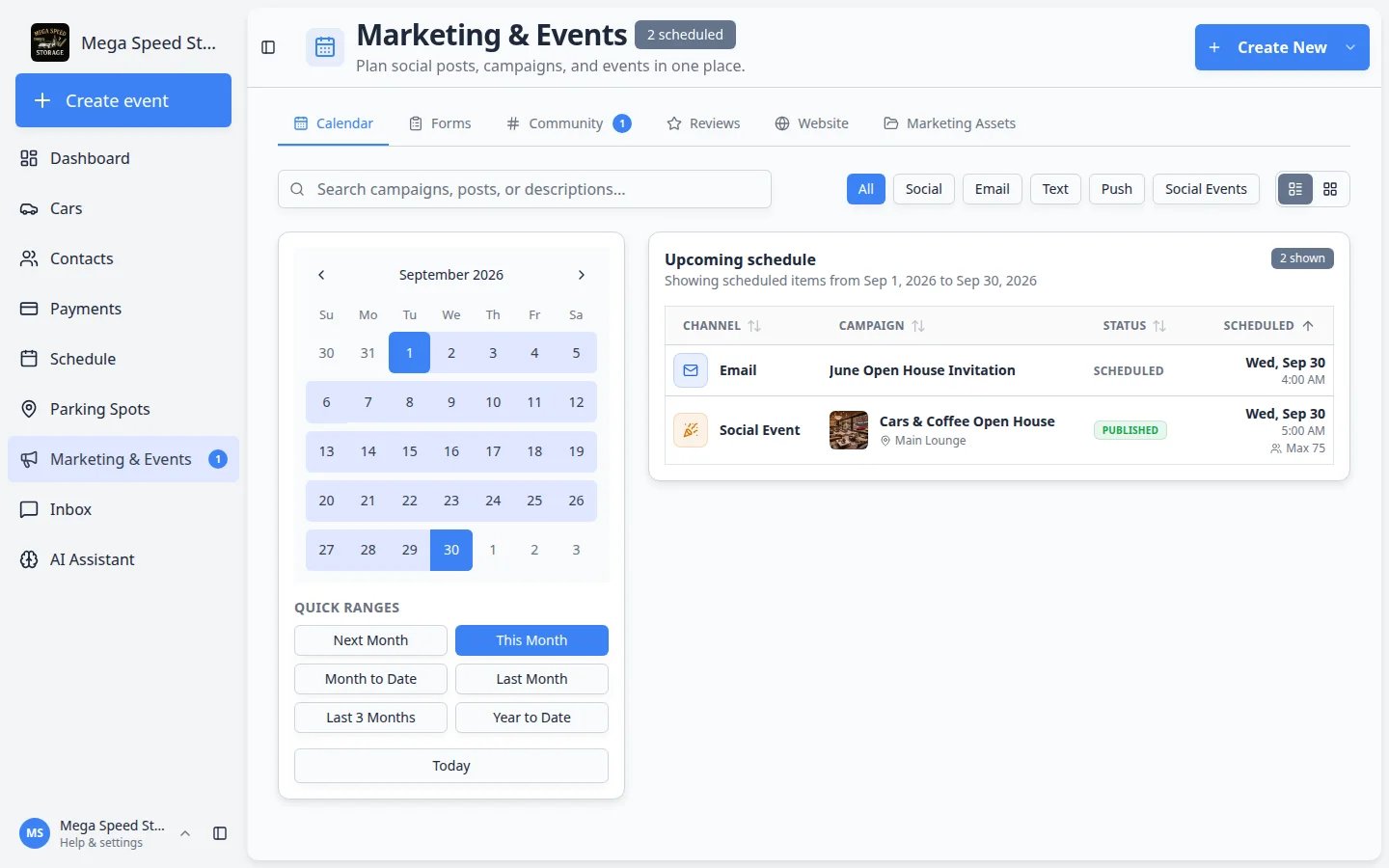 *The Calendar tab shows upcoming campaigns and social events. The last tab, **Marketing Assets**, is your photo and file library.*
**Expected result:** You see a calendar (or list) of planned customer outreach and events. A small badge near the page title may show how many items are **scheduled** this month. Use **Create New** in the top-right corner when you are ready to add something.
*The Calendar tab shows upcoming campaigns and social events. The last tab, **Marketing Assets**, is your photo and file library.*
**Expected result:** You see a calendar (or list) of planned customer outreach and events. A small badge near the page title may show how many items are **scheduled** this month. Use **Create New** in the top-right corner when you are ready to add something.
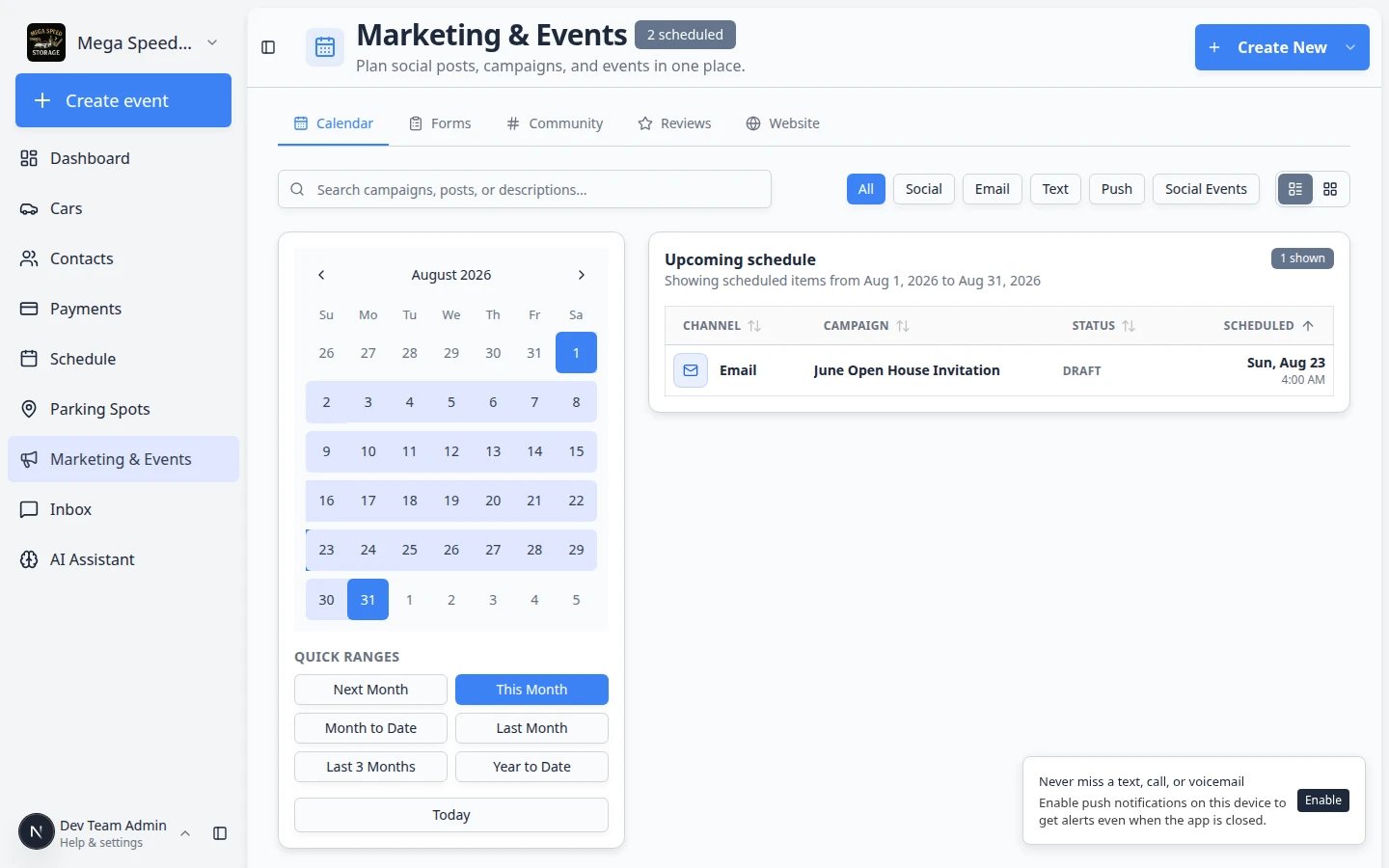 *Use **Quick ranges** to jump to this week, this month, or next month without clicking through the calendar one day at a time.*
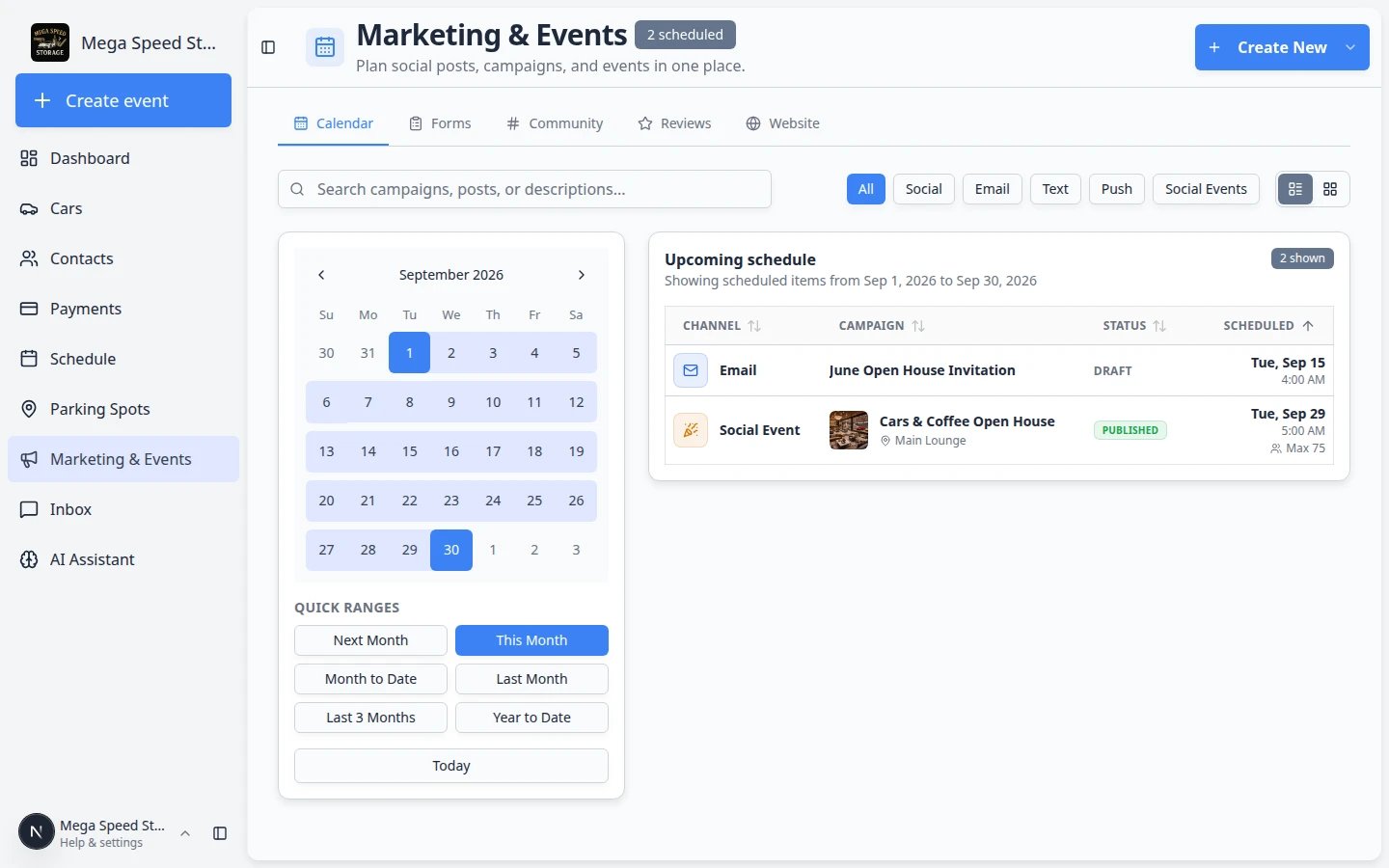 ***Create New** is where you start campaigns and social events. Pick the type that matches what customers need to do next.*
**Forms need responses before Results is useful**
After you [publish a custom form](/docs/marketing-events/create-and-share-a-custom-form), submit one test answer yourself. Then open [Review form responses and export](/docs/marketing-events/review-form-responses-and-export) so you know where charts and the CSV download live before real customers respond.
## Plan your week on the calendar
The **Calendar** tab is more than a pretty month view. Use it to avoid sending two big messages on the same day and to see what is already scheduled.
Colored dots and labels show emails, texts, social posts, and in-person events. Click a day to focus the list below.
**Why this matters:** Customers notice when they get a storage reminder and an event invite on the same morning. Spacing messages helps each one get attention.
On the left side of the calendar, click **This week**, **This month**, or **Next month** to jump the date range without clicking day by day.
**Why this matters:** Busy teams use quick ranges to scan what is coming soon—not only the current month on screen.
**Expected result:** The calendar and **Upcoming schedule** list both focus on the range you picked.
Above **Upcoming schedule**, click filter pills such as **All**, **Social**, **Email**, **Text**, **Push**, or **Events**. The exact order may vary slightly, but every type is there. Only the type you pick stays in the list.
**Expected result:** You can answer questions like "Do we already have a text going out this Friday?" without scrolling past emails.
Next to the filters, use the view buttons (**Table view** and **Card view**) to change how **Upcoming schedule** looks.
**Why this matters:** **Table view** is best for scanning many rows. **Card view** is easier on smaller screens.
**Expected result:** The same scheduled items appear—only the layout changes.
Type in the search box to find a campaign or event by name.
**Expected result:** Long lists shrink to the one item you need.
Click a row in **Upcoming schedule** to open the campaign setup wizard or the social event detail page.
**Expected result:** Email, text, and push campaigns open a four-step wizard (**Design**, **Audience**, **Schedule**, **Review**). Social events open their RSVP and check-in page.
**Campaign setup wizard**
When you open a **draft** email, text, or push campaign, Car Storage Software walks you through **Design → Audience → Schedule → Review**. Customers do not receive anything until you click **Start campaign** on the Review step. See [Add campaign message, audience, and publish](/docs/marketing-events/add-campaign-message-audience-and-publish).
**Calendar vs Forms vs Community vs Reviews vs Website vs Marketing Assets**
Stay on **Calendar** when you are scheduling outreach. Switch to **Forms** for custom signup pages, **Community** for ongoing portal posts, **Reviews** for Google feedback, **Website** for public-page traffic, or **Marketing Assets** when you need logos and photos—not when you are only planning an email blast.
## The six main tabs
Marketing & Events has six tabs across the top of the page. Each tab does a different job.
*Use **Calendar** to plan outreach, **Forms** for signup pages, **Community** for portal posts, **Reviews** for Google feedback, **Website** for traffic, and **Marketing Assets** for logos and photos.*
***Create New** is where you start campaigns and social events. Pick the type that matches what customers need to do next.*
**Forms need responses before Results is useful**
After you [publish a custom form](/docs/marketing-events/create-and-share-a-custom-form), submit one test answer yourself. Then open [Review form responses and export](/docs/marketing-events/review-form-responses-and-export) so you know where charts and the CSV download live before real customers respond.
## Plan your week on the calendar
The **Calendar** tab is more than a pretty month view. Use it to avoid sending two big messages on the same day and to see what is already scheduled.
Colored dots and labels show emails, texts, social posts, and in-person events. Click a day to focus the list below.
**Why this matters:** Customers notice when they get a storage reminder and an event invite on the same morning. Spacing messages helps each one get attention.
On the left side of the calendar, click **This week**, **This month**, or **Next month** to jump the date range without clicking day by day.
**Why this matters:** Busy teams use quick ranges to scan what is coming soon—not only the current month on screen.
**Expected result:** The calendar and **Upcoming schedule** list both focus on the range you picked.
Above **Upcoming schedule**, click filter pills such as **All**, **Social**, **Email**, **Text**, **Push**, or **Events**. The exact order may vary slightly, but every type is there. Only the type you pick stays in the list.
**Expected result:** You can answer questions like "Do we already have a text going out this Friday?" without scrolling past emails.
Next to the filters, use the view buttons (**Table view** and **Card view**) to change how **Upcoming schedule** looks.
**Why this matters:** **Table view** is best for scanning many rows. **Card view** is easier on smaller screens.
**Expected result:** The same scheduled items appear—only the layout changes.
Type in the search box to find a campaign or event by name.
**Expected result:** Long lists shrink to the one item you need.
Click a row in **Upcoming schedule** to open the campaign setup wizard or the social event detail page.
**Expected result:** Email, text, and push campaigns open a four-step wizard (**Design**, **Audience**, **Schedule**, **Review**). Social events open their RSVP and check-in page.
**Campaign setup wizard**
When you open a **draft** email, text, or push campaign, Car Storage Software walks you through **Design → Audience → Schedule → Review**. Customers do not receive anything until you click **Start campaign** on the Review step. See [Add campaign message, audience, and publish](/docs/marketing-events/add-campaign-message-audience-and-publish).
**Calendar vs Forms vs Community vs Reviews vs Website vs Marketing Assets**
Stay on **Calendar** when you are scheduling outreach. Switch to **Forms** for custom signup pages, **Community** for ongoing portal posts, **Reviews** for Google feedback, **Website** for public-page traffic, or **Marketing Assets** when you need logos and photos—not when you are only planning an email blast.
## The six main tabs
Marketing & Events has six tabs across the top of the page. Each tab does a different job.
*Use **Calendar** to plan outreach, **Forms** for signup pages, **Community** for portal posts, **Reviews** for Google feedback, **Website** for traffic, and **Marketing Assets** for logos and photos.*
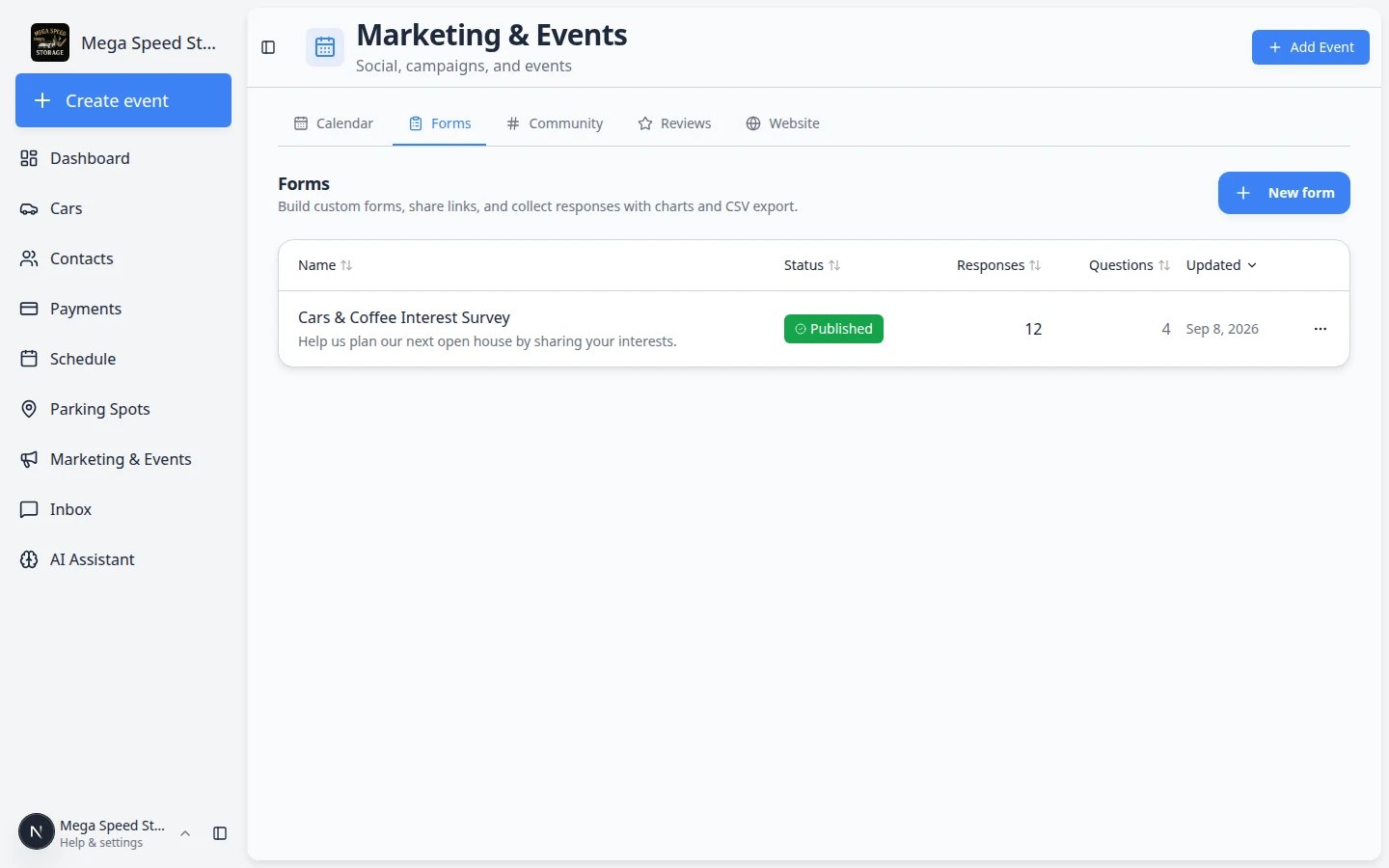 *The **Forms** tab lists every custom survey or signup page. Published forms accept responses; drafts stay private until you are ready to share.*
Stay on [Marketing & Events](https://www.carstoragesoftware.com/dashboard/marketing) to see what is scheduled. This is the best view when you want to avoid sending two big messages on the same day.
Open [Marketing & Events > Forms](https://www.carstoragesoftware.com/dashboard/forms) to build custom signup or survey pages you can share by link or QR code. Published forms appear here with a **Published** status. Use them when you need more than the standard storage registration form—for example, a lead capture page for a car show or a detail-service waitlist.
**Expected result:** You see a list of your forms with status (**Draft**, **Published**, or **Closed**), response counts, and buttons to copy the public link or edit the form.
Step-by-step: [Create and share a custom form](/docs/marketing-events/create-and-share-a-custom-form) and [Review form responses and export](/docs/marketing-events/review-form-responses-and-export).
Open [Marketing & Events > Community](https://www.carstoragesoftware.com/dashboard/marketing/community) to create channels such as **Announcements**, **Event Updates**, or member discussion. A number badge on this tab means unread messages are waiting in one or more channels.
Open [Marketing & Events > Reviews](https://www.carstoragesoftware.com/dashboard/marketing/reviews) to send review requests and read Google feedback when your Google Business connection is ready.
Open [Marketing & Events > Website](https://www.carstoragesoftware.com/dashboard/marketing/website) to see how many people visited your public facility pages and which paths they opened most often.
**Expected result:** You see page views, visitors, and (when Google Analytics is connected) charts for the last 7, 30, or 90 days.
Step-by-step: [Review website traffic on your public pages](/docs/marketing-events/review-website-traffic-on-your-public-pages).
Open [Marketing & Events > Marketing Assets](https://www.carstoragesoftware.com/dashboard/marketing/assets) to store logos, event flyers, facility photos, and car pictures your team can reuse.
**Expected result:** You see **All assets**, folders you create, and buttons for **Link photos**, **New folder**, and **Upload**.
Step-by-step: [Organize your marketing photos and files](/docs/marketing-events/organize-your-marketing-assets).
*The **Forms** tab lists every custom survey or signup page. Published forms accept responses; drafts stay private until you are ready to share.*
Stay on [Marketing & Events](https://www.carstoragesoftware.com/dashboard/marketing) to see what is scheduled. This is the best view when you want to avoid sending two big messages on the same day.
Open [Marketing & Events > Forms](https://www.carstoragesoftware.com/dashboard/forms) to build custom signup or survey pages you can share by link or QR code. Published forms appear here with a **Published** status. Use them when you need more than the standard storage registration form—for example, a lead capture page for a car show or a detail-service waitlist.
**Expected result:** You see a list of your forms with status (**Draft**, **Published**, or **Closed**), response counts, and buttons to copy the public link or edit the form.
Step-by-step: [Create and share a custom form](/docs/marketing-events/create-and-share-a-custom-form) and [Review form responses and export](/docs/marketing-events/review-form-responses-and-export).
Open [Marketing & Events > Community](https://www.carstoragesoftware.com/dashboard/marketing/community) to create channels such as **Announcements**, **Event Updates**, or member discussion. A number badge on this tab means unread messages are waiting in one or more channels.
Open [Marketing & Events > Reviews](https://www.carstoragesoftware.com/dashboard/marketing/reviews) to send review requests and read Google feedback when your Google Business connection is ready.
Open [Marketing & Events > Website](https://www.carstoragesoftware.com/dashboard/marketing/website) to see how many people visited your public facility pages and which paths they opened most often.
**Expected result:** You see page views, visitors, and (when Google Analytics is connected) charts for the last 7, 30, or 90 days.
Step-by-step: [Review website traffic on your public pages](/docs/marketing-events/review-website-traffic-on-your-public-pages).
Open [Marketing & Events > Marketing Assets](https://www.carstoragesoftware.com/dashboard/marketing/assets) to store logos, event flyers, facility photos, and car pictures your team can reuse.
**Expected result:** You see **All assets**, folders you create, and buttons for **Link photos**, **New folder**, and **Upload**.
Step-by-step: [Organize your marketing photos and files](/docs/marketing-events/organize-your-marketing-assets).
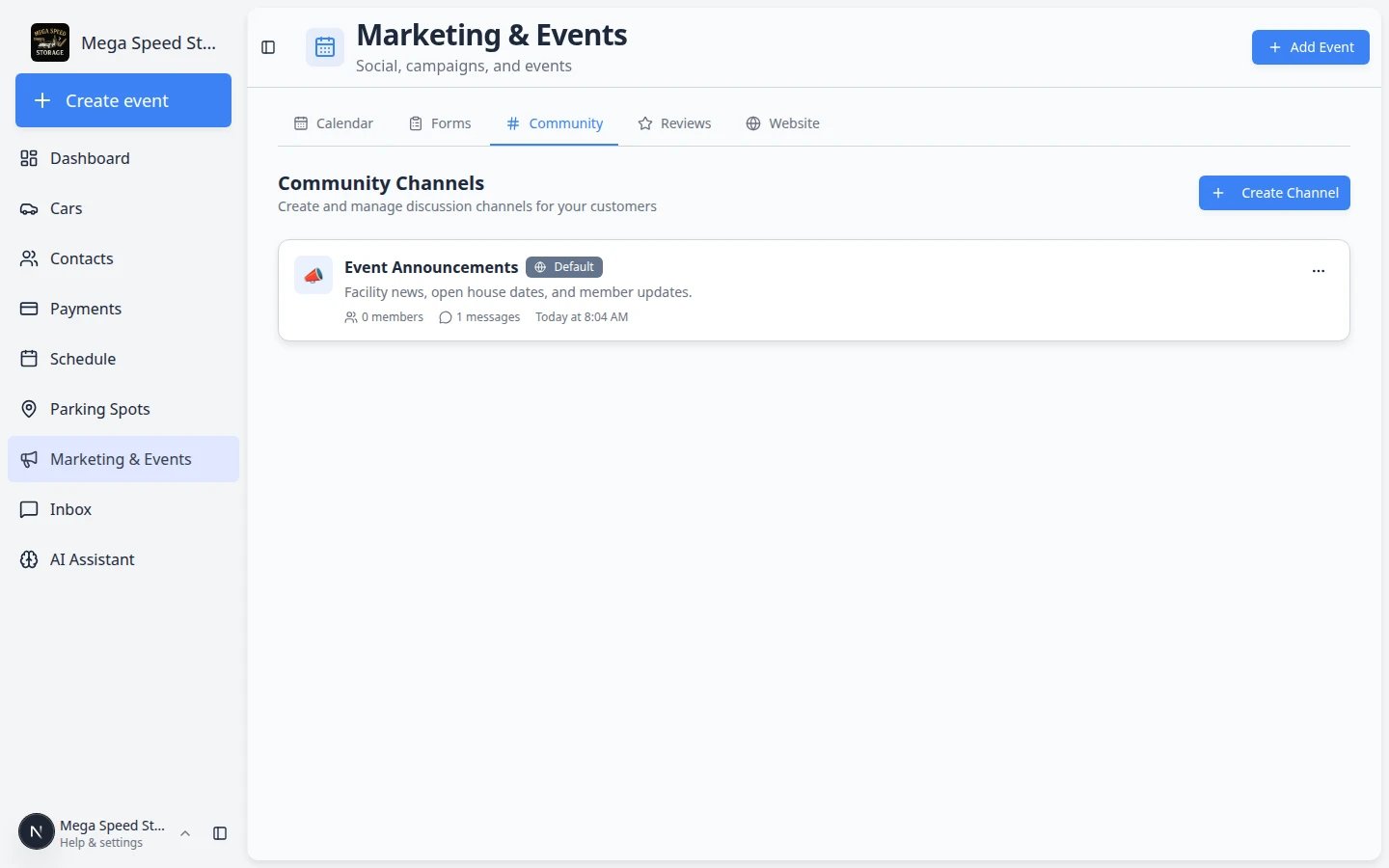 *Community channels live on their own tab so announcement spaces stay separate from the calendar.*
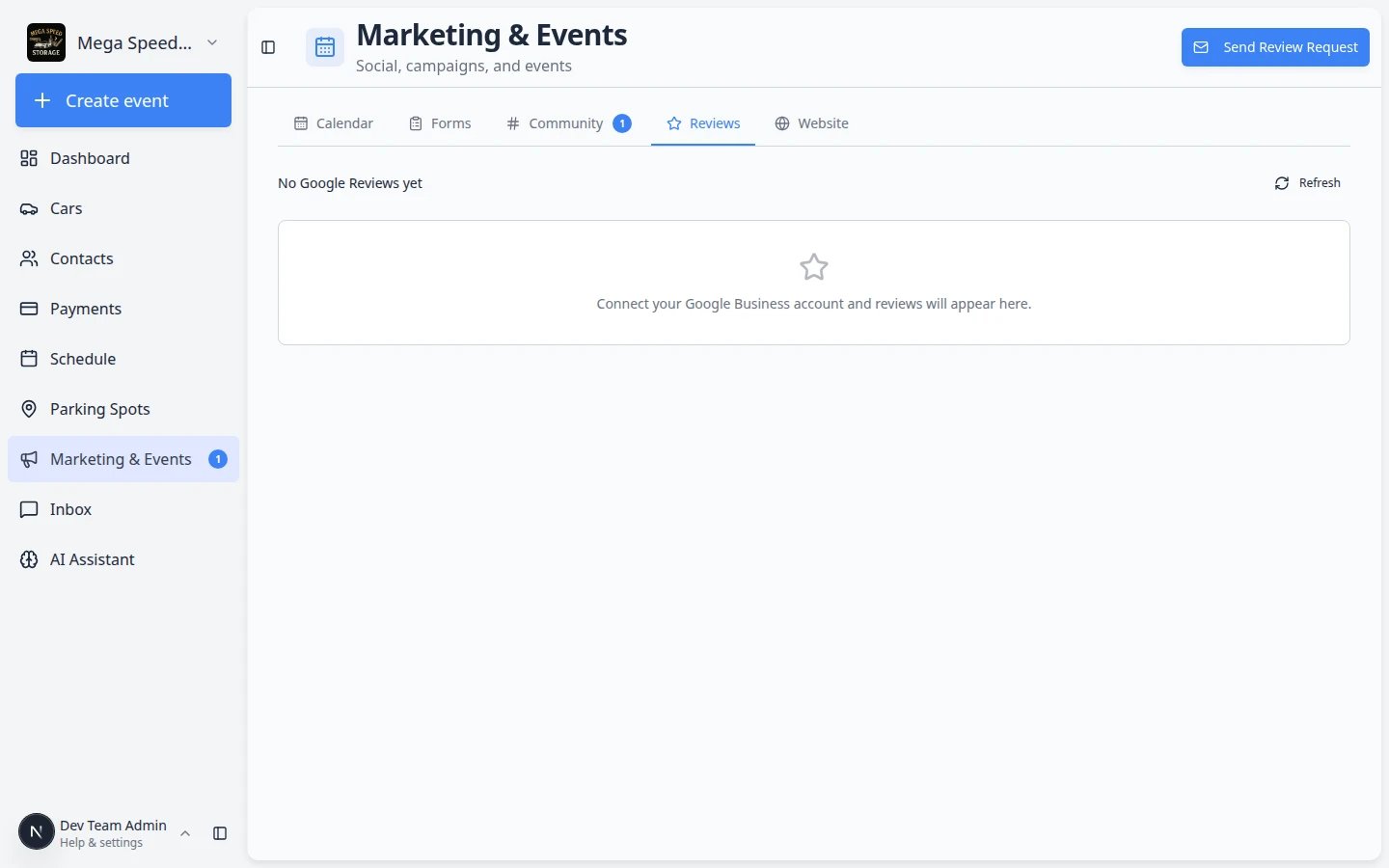 *The Reviews tab is where your team sends personal review requests and tracks Google feedback.*
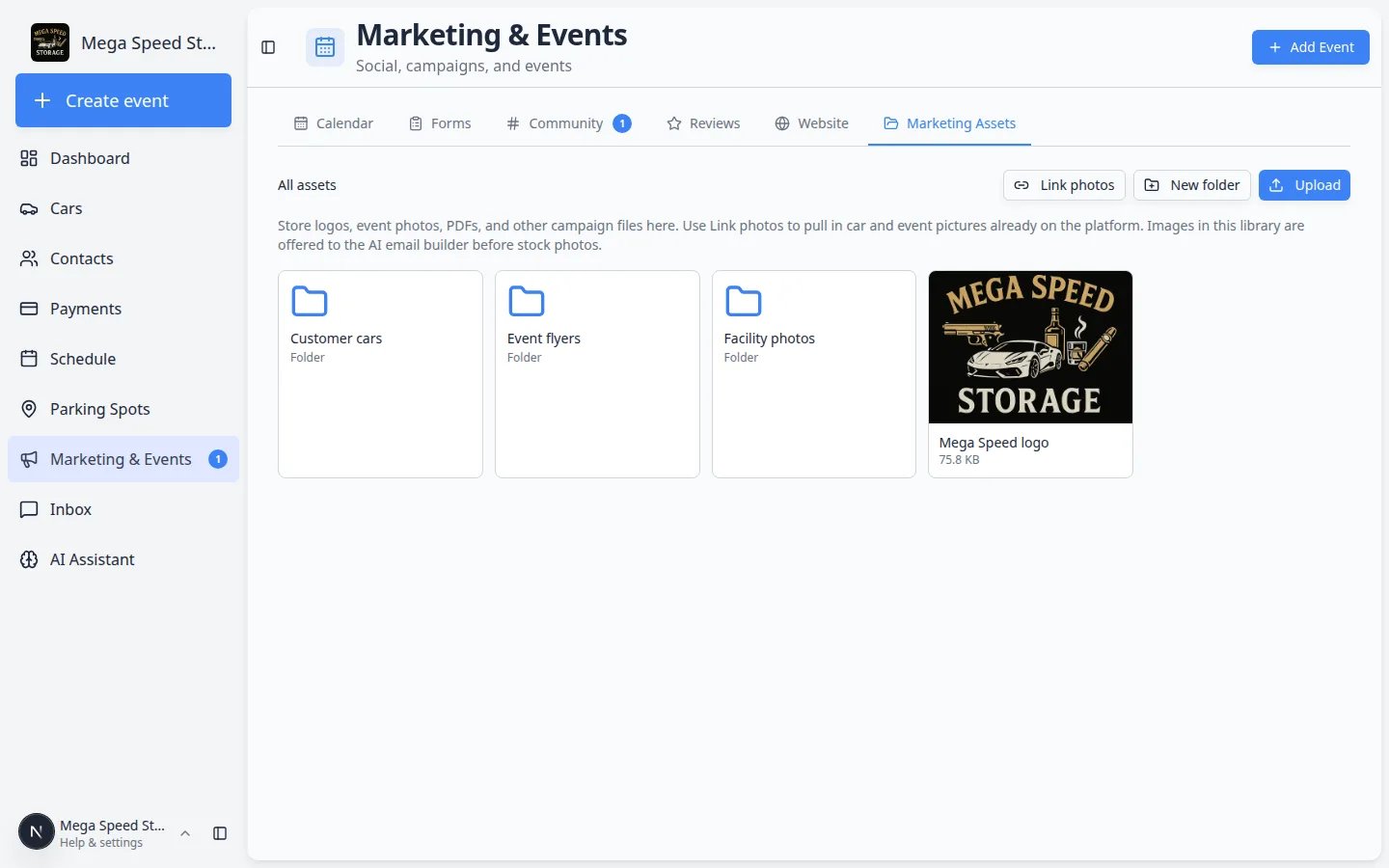 *The **Marketing Assets** tab is your shared folder for logos, flyers, and photos. Set this up before you design an email campaign.*
## Event week: from RSVP to check-in to reviews
When you run an in-person customer event, three guides work together. You do not need to read them all at once—use this map so your team knows **when** to open each one.
Open your event on [Marketing & Events](https://www.carstoragesoftware.com/dashboard/marketing) and follow [Review social event RSVPs and attendees](/docs/marketing-events/review-social-event-rsvps-and-attendees).
**Expected result:** You know how many guests marked **Going**, who is still **Maybe**, and whether you are near **Capacity**.
On the same event page, click **Check in** and follow [Check in social event attendees](/docs/marketing-events/check-in-social-event-attendees).
**Expected result:** Each arrival is marked **Checked In** so your head count matches who actually walked through the door.
Open [Marketing & Events > Reviews](https://www.carstoragesoftware.com/dashboard/marketing/reviews) and follow [Request and manage reviews](/docs/marketing-events/request-and-manage-reviews) for customers who had a positive experience.
**Expected result:** Happy guests receive a personal link to leave a Google review—not a mass blast to everyone.
**Custom signup forms fit in the middle**
If you collected interest with a form before the event, read [Review form responses and export](/docs/marketing-events/review-form-responses-and-export) to see who answered **before** you send the RSVP link in a campaign.
## Recommended learning path
If your facility is new to this area, follow this order:
* Review [communication settings](/docs/settings/configure-communications) so email, text messaging, social links, and Google Reviews are ready.
* Put your logo and a couple of facility photos in [Marketing Assets](/docs/marketing-events/organize-your-marketing-assets) so emails look like your building.
* Create your first [campaign](/docs/marketing-events/create-a-campaign) for a customer update, event invitation, promotion, or announcement.
* Finish the message, audience, and [publish steps](/docs/marketing-events/add-campaign-message-audience-and-publish) before customers should receive an email or text.
* When you need a custom question list (event interest, waitlist, feedback), [create and share a custom form](/docs/marketing-events/create-and-share-a-custom-form) and [review responses](/docs/marketing-events/review-form-responses-and-export).
* Create a [social event](/docs/marketing-events/create-a-social-event) when customers need an RSVP page, event details, or ticket check-in.
* [Review RSVPs and attendees](/docs/marketing-events/review-social-event-rsvps-and-attendees) a few days before the event so your team can plan capacity and reminders.
* Create [community channels](/docs/marketing-events/manage-community-channels) for announcements or customer discussion.
* Use [event check-in](/docs/marketing-events/check-in-social-event-attendees) when attendees arrive.
* Send [review requests](/docs/marketing-events/request-and-manage-reviews) after a helpful service, visit, delivery, or event.
* Review [website traffic](/docs/marketing-events/review-website-traffic-on-your-public-pages) monthly so you know whether public pages are working.
**Why this order helps**
Customers have a better experience when your message, event page, community area, and review request feel connected. Set up communications first, then invite people.
## Related workflows
Marketing work often depends on customer records, tags, portal settings, and payments.
Use [Contacts](/docs/contacts/overview) to organize who should receive a campaign. Use [Settings > Communications](https://www.carstoragesoftware.com/dashboard/settings/communications) before sending texts or review requests. Use [Payments](/docs/payments/overview) before selling paid event tickets.
## Common mistakes to avoid
* Do not send a campaign until another teammate has reviewed the audience and message.
* Do not publish a paid event until payment processing is ready in [Settings > Billing](https://www.carstoragesoftware.com/dashboard/settings/billing).
* Do not make a community channel read-only unless only staff should post there.
* Do not ask every customer for a review at once. Start with people who had a recent positive visit.
## Troubleshooting
**I do not see Marketing & Events in the sidebar**
Your staff account may not have access to this area. Ask a facility owner to review your role in [Settings > Team](https://www.carstoragesoftware.com/dashboard/settings/team).
**SMS or Push options are grayed out when I create a campaign**
Finish text messaging or push notification setup in [Settings > Communications](https://www.carstoragesoftware.com/dashboard/settings/communications). Until then, use **Email Campaign** or **Social Media Post**.
**The Forms tab is missing or empty**
Open [Marketing & Events > Forms](https://www.carstoragesoftware.com/dashboard/forms) directly. You need at least one form before the list looks populated—start with [Create and share a custom form](/docs/marketing-events/create-and-share-a-custom-form).
**Google reviews do not appear on the Reviews tab**
Connect your Google Business account in [Settings > Communications](https://www.carstoragesoftware.com/dashboard/settings/communications), then click **Refresh** on [Marketing & Events > Reviews](https://www.carstoragesoftware.com/dashboard/marketing/reviews). New connections can take a few minutes to sync.
**Customers say they never got a campaign email or text**
Open the campaign and confirm it was **Published**, the audience includes that customer, and the send time has passed. Check the customer's email and phone in [Contacts](https://www.carstoragesoftware.com/dashboard/contacts). Ask them to check spam or junk folders for email.
**The email used a stock photo instead of our building**
Add your logo and facility pictures in [Marketing Assets](https://www.carstoragesoftware.com/dashboard/marketing/assets), then write a short **Description for AI** on each photo. Step-by-step: [Organize your marketing photos and files](/docs/marketing-events/organize-your-marketing-assets).
## How-to guides in this section
* [Create a campaign](/docs/marketing-events/create-a-campaign) — start an email, text, push, or social post.
* [Add campaign message, audience, and publish](/docs/marketing-events/add-campaign-message-audience-and-publish) — finish the message and send it to the right customers.
* [Create and share a custom form](/docs/marketing-events/create-and-share-a-custom-form) — build a survey or signup page with a shareable link.
* [Review form responses and export](/docs/marketing-events/review-form-responses-and-export) — read answers, view charts, and download a CSV.
* [Create a social event](/docs/marketing-events/create-a-social-event) — publish an RSVP page with event details.
* [Review social event RSVPs and attendees](/docs/marketing-events/review-social-event-rsvps-and-attendees) — see who is coming before event day.
* [Check in social event attendees](/docs/marketing-events/check-in-social-event-attendees) — mark guests as arrived on event day (QR scan or manual ticket code).
* [Manage community channels](/docs/marketing-events/manage-community-channels) — create customer discussion or announcement channels.
* [Request and manage reviews](/docs/marketing-events/request-and-manage-reviews) — ask for Google reviews and reply to feedback.
* [Review website traffic on your public pages](/docs/marketing-events/review-website-traffic-on-your-public-pages) — see visits to your facility website.
* [Create a text, push, or social campaign](/docs/marketing-events/create-a-text-push-or-social-campaign) — reach customers outside email.
* [Embed a custom form on your website](/docs/marketing-events/embed-a-custom-form-on-your-website) — show a survey on your public facility page.
* [Organize your marketing photos and files](/docs/marketing-events/organize-your-marketing-assets) — store logos, flyers, and photos for emails.
## What success looks like
When Marketing & Events is working well for your facility:
* Your team can see upcoming emails, texts, and events on one calendar without surprises.
* Customers receive clear messages with the right audience—not everyone gets every blast.
* Social events show honest RSVP counts before event day so you can plan parking and staff.
* Community channels have at least one active post so portal customers know where to look for news.
* Happy customers receive timely review requests—and your team replies to Google feedback professionally.
* Custom forms collect useful answers your team can export and act on—not scattered notes in email.
* Logos and facility photos live in **Marketing Assets**, so every campaign uses the same files.
## What to do next
If you are new to this area, start with [Create a campaign](/docs/marketing-events/create-a-campaign), then follow [Add campaign message, audience, and publish](/docs/marketing-events/add-campaign-message-audience-and-publish).
If you are preparing for an event, continue with [Create a social event](/docs/marketing-events/create-a-social-event) and [Review social event RSVPs and attendees](/docs/marketing-events/review-social-event-rsvps-and-attendees).
## Related topics
- [Request and manage reviews](/docs/marketing-events/request-and-manage-reviews.md)
- [Review form responses and export](/docs/marketing-events/review-form-responses-and-export.md)
- [Create a text, push, or social campaign](/docs/marketing-events/create-a-text-push-or-social-campaign.md)
- [Create and share a custom form](/docs/marketing-events/create-and-share-a-custom-form.md)
- [Create a campaign](/docs/marketing-events/create-a-campaign.md)
This documentation is built and hosted on [Mintlify](https://mintlify.com), a developer documentation platform.
*The **Marketing Assets** tab is your shared folder for logos, flyers, and photos. Set this up before you design an email campaign.*
## Event week: from RSVP to check-in to reviews
When you run an in-person customer event, three guides work together. You do not need to read them all at once—use this map so your team knows **when** to open each one.
Open your event on [Marketing & Events](https://www.carstoragesoftware.com/dashboard/marketing) and follow [Review social event RSVPs and attendees](/docs/marketing-events/review-social-event-rsvps-and-attendees).
**Expected result:** You know how many guests marked **Going**, who is still **Maybe**, and whether you are near **Capacity**.
On the same event page, click **Check in** and follow [Check in social event attendees](/docs/marketing-events/check-in-social-event-attendees).
**Expected result:** Each arrival is marked **Checked In** so your head count matches who actually walked through the door.
Open [Marketing & Events > Reviews](https://www.carstoragesoftware.com/dashboard/marketing/reviews) and follow [Request and manage reviews](/docs/marketing-events/request-and-manage-reviews) for customers who had a positive experience.
**Expected result:** Happy guests receive a personal link to leave a Google review—not a mass blast to everyone.
**Custom signup forms fit in the middle**
If you collected interest with a form before the event, read [Review form responses and export](/docs/marketing-events/review-form-responses-and-export) to see who answered **before** you send the RSVP link in a campaign.
## Recommended learning path
If your facility is new to this area, follow this order:
* Review [communication settings](/docs/settings/configure-communications) so email, text messaging, social links, and Google Reviews are ready.
* Put your logo and a couple of facility photos in [Marketing Assets](/docs/marketing-events/organize-your-marketing-assets) so emails look like your building.
* Create your first [campaign](/docs/marketing-events/create-a-campaign) for a customer update, event invitation, promotion, or announcement.
* Finish the message, audience, and [publish steps](/docs/marketing-events/add-campaign-message-audience-and-publish) before customers should receive an email or text.
* When you need a custom question list (event interest, waitlist, feedback), [create and share a custom form](/docs/marketing-events/create-and-share-a-custom-form) and [review responses](/docs/marketing-events/review-form-responses-and-export).
* Create a [social event](/docs/marketing-events/create-a-social-event) when customers need an RSVP page, event details, or ticket check-in.
* [Review RSVPs and attendees](/docs/marketing-events/review-social-event-rsvps-and-attendees) a few days before the event so your team can plan capacity and reminders.
* Create [community channels](/docs/marketing-events/manage-community-channels) for announcements or customer discussion.
* Use [event check-in](/docs/marketing-events/check-in-social-event-attendees) when attendees arrive.
* Send [review requests](/docs/marketing-events/request-and-manage-reviews) after a helpful service, visit, delivery, or event.
* Review [website traffic](/docs/marketing-events/review-website-traffic-on-your-public-pages) monthly so you know whether public pages are working.
**Why this order helps**
Customers have a better experience when your message, event page, community area, and review request feel connected. Set up communications first, then invite people.
## Related workflows
Marketing work often depends on customer records, tags, portal settings, and payments.
Use [Contacts](/docs/contacts/overview) to organize who should receive a campaign. Use [Settings > Communications](https://www.carstoragesoftware.com/dashboard/settings/communications) before sending texts or review requests. Use [Payments](/docs/payments/overview) before selling paid event tickets.
## Common mistakes to avoid
* Do not send a campaign until another teammate has reviewed the audience and message.
* Do not publish a paid event until payment processing is ready in [Settings > Billing](https://www.carstoragesoftware.com/dashboard/settings/billing).
* Do not make a community channel read-only unless only staff should post there.
* Do not ask every customer for a review at once. Start with people who had a recent positive visit.
## Troubleshooting
**I do not see Marketing & Events in the sidebar**
Your staff account may not have access to this area. Ask a facility owner to review your role in [Settings > Team](https://www.carstoragesoftware.com/dashboard/settings/team).
**SMS or Push options are grayed out when I create a campaign**
Finish text messaging or push notification setup in [Settings > Communications](https://www.carstoragesoftware.com/dashboard/settings/communications). Until then, use **Email Campaign** or **Social Media Post**.
**The Forms tab is missing or empty**
Open [Marketing & Events > Forms](https://www.carstoragesoftware.com/dashboard/forms) directly. You need at least one form before the list looks populated—start with [Create and share a custom form](/docs/marketing-events/create-and-share-a-custom-form).
**Google reviews do not appear on the Reviews tab**
Connect your Google Business account in [Settings > Communications](https://www.carstoragesoftware.com/dashboard/settings/communications), then click **Refresh** on [Marketing & Events > Reviews](https://www.carstoragesoftware.com/dashboard/marketing/reviews). New connections can take a few minutes to sync.
**Customers say they never got a campaign email or text**
Open the campaign and confirm it was **Published**, the audience includes that customer, and the send time has passed. Check the customer's email and phone in [Contacts](https://www.carstoragesoftware.com/dashboard/contacts). Ask them to check spam or junk folders for email.
**The email used a stock photo instead of our building**
Add your logo and facility pictures in [Marketing Assets](https://www.carstoragesoftware.com/dashboard/marketing/assets), then write a short **Description for AI** on each photo. Step-by-step: [Organize your marketing photos and files](/docs/marketing-events/organize-your-marketing-assets).
## How-to guides in this section
* [Create a campaign](/docs/marketing-events/create-a-campaign) — start an email, text, push, or social post.
* [Add campaign message, audience, and publish](/docs/marketing-events/add-campaign-message-audience-and-publish) — finish the message and send it to the right customers.
* [Create and share a custom form](/docs/marketing-events/create-and-share-a-custom-form) — build a survey or signup page with a shareable link.
* [Review form responses and export](/docs/marketing-events/review-form-responses-and-export) — read answers, view charts, and download a CSV.
* [Create a social event](/docs/marketing-events/create-a-social-event) — publish an RSVP page with event details.
* [Review social event RSVPs and attendees](/docs/marketing-events/review-social-event-rsvps-and-attendees) — see who is coming before event day.
* [Check in social event attendees](/docs/marketing-events/check-in-social-event-attendees) — mark guests as arrived on event day (QR scan or manual ticket code).
* [Manage community channels](/docs/marketing-events/manage-community-channels) — create customer discussion or announcement channels.
* [Request and manage reviews](/docs/marketing-events/request-and-manage-reviews) — ask for Google reviews and reply to feedback.
* [Review website traffic on your public pages](/docs/marketing-events/review-website-traffic-on-your-public-pages) — see visits to your facility website.
* [Create a text, push, or social campaign](/docs/marketing-events/create-a-text-push-or-social-campaign) — reach customers outside email.
* [Embed a custom form on your website](/docs/marketing-events/embed-a-custom-form-on-your-website) — show a survey on your public facility page.
* [Organize your marketing photos and files](/docs/marketing-events/organize-your-marketing-assets) — store logos, flyers, and photos for emails.
## What success looks like
When Marketing & Events is working well for your facility:
* Your team can see upcoming emails, texts, and events on one calendar without surprises.
* Customers receive clear messages with the right audience—not everyone gets every blast.
* Social events show honest RSVP counts before event day so you can plan parking and staff.
* Community channels have at least one active post so portal customers know where to look for news.
* Happy customers receive timely review requests—and your team replies to Google feedback professionally.
* Custom forms collect useful answers your team can export and act on—not scattered notes in email.
* Logos and facility photos live in **Marketing Assets**, so every campaign uses the same files.
## What to do next
If you are new to this area, start with [Create a campaign](/docs/marketing-events/create-a-campaign), then follow [Add campaign message, audience, and publish](/docs/marketing-events/add-campaign-message-audience-and-publish).
If you are preparing for an event, continue with [Create a social event](/docs/marketing-events/create-a-social-event) and [Review social event RSVPs and attendees](/docs/marketing-events/review-social-event-rsvps-and-attendees).
## Related topics
- [Request and manage reviews](/docs/marketing-events/request-and-manage-reviews.md)
- [Review form responses and export](/docs/marketing-events/review-form-responses-and-export.md)
- [Create a text, push, or social campaign](/docs/marketing-events/create-a-text-push-or-social-campaign.md)
- [Create and share a custom form](/docs/marketing-events/create-and-share-a-custom-form.md)
- [Create a campaign](/docs/marketing-events/create-a-campaign.md)
This documentation is built and hosted on [Mintlify](https://mintlify.com), a developer documentation platform.