> ## Documentation Index
> Fetch the complete documentation index at: https://www.carstoragesoftware.com/docs/llms.txt
> Use this file to discover all available pages before exploring further.
# Request and manage reviews
> Send customers a Google review request and understand where replies and review activity appear.
## What you will accomplish
You will send one customer a Google review request by email, text, or both. You will also know where to read Google reviews and post replies when your Google Business account is connected.
Reviews help future customers trust your facility. This guide focuses on **asking at the right time** and **replying professionally**—not on pressuring people or offering rewards for stars.
## When to use this guide
* After a successful service visit, delivery, storage tour, or event.
* When a customer thanks your team and you want to invite them to share that experience publicly.
* When a new Google review needs a calm, professional reply.
**Ask at the right moment**
Review requests work best soon after a positive experience. Wait until the customer has what they paid for and your team has finished the job.
## Before you start
* Confirm Google Reviews settings in [Settings > Communications](https://www.carstoragesoftware.com/dashboard/settings/communications).
* Make sure the customer has a valid email address and/or phone number in [Contacts](https://www.carstoragesoftware.com/dashboard/contacts).
* If you plan to send by text, confirm text messaging is ready in [Settings > Communications](https://www.carstoragesoftware.com/dashboard/settings/communications).
* Only ask customers who had a recent positive experience—never pressure or offer rewards for reviews.
**Two different jobs:** Sending a **review request** only needs email or texting. **Reading and replying** to Google reviews also needs your Google Business account connected in settings.
## Who should receive a review request?
Review requests work best when they feel personal—not like a mass mailing.
* Customers who thanked your team at pickup, delivery, or event check-in.
* Long-term storage customers after a smooth renewal or facility tour.
* Event guests who marked **Going** and had a good experience (follow up within a day or two).
**Who to skip for now**
Wait on customers who had a billing dispute, a damage concern, or an unfinished service job. Fix the issue first, then ask when the relationship is back on track.
## Step 1: Connect Google (for reading and replying)
Skip this step if you only need to **send** a review request and you do not need to read Google feedback in the app yet.
Go to [Settings > Communications](https://www.carstoragesoftware.com/dashboard/settings/communications).
Scroll to the **Google Reviews** area. Follow the on-screen steps to connect your Google Business account.
**Why this matters:** Without this connection, the Reviews tab cannot show new Google stars or let you post public replies from Car Storage Software.
After you connect, return to [Marketing & Events > Reviews](https://www.carstoragesoftware.com/dashboard/marketing/reviews). Click **Refresh** if reviews do not appear right away.
**Expected result:** Summary cards at the top show totals when reviews sync. If you are still setting up, you may see a message that asks you to connect Google first.
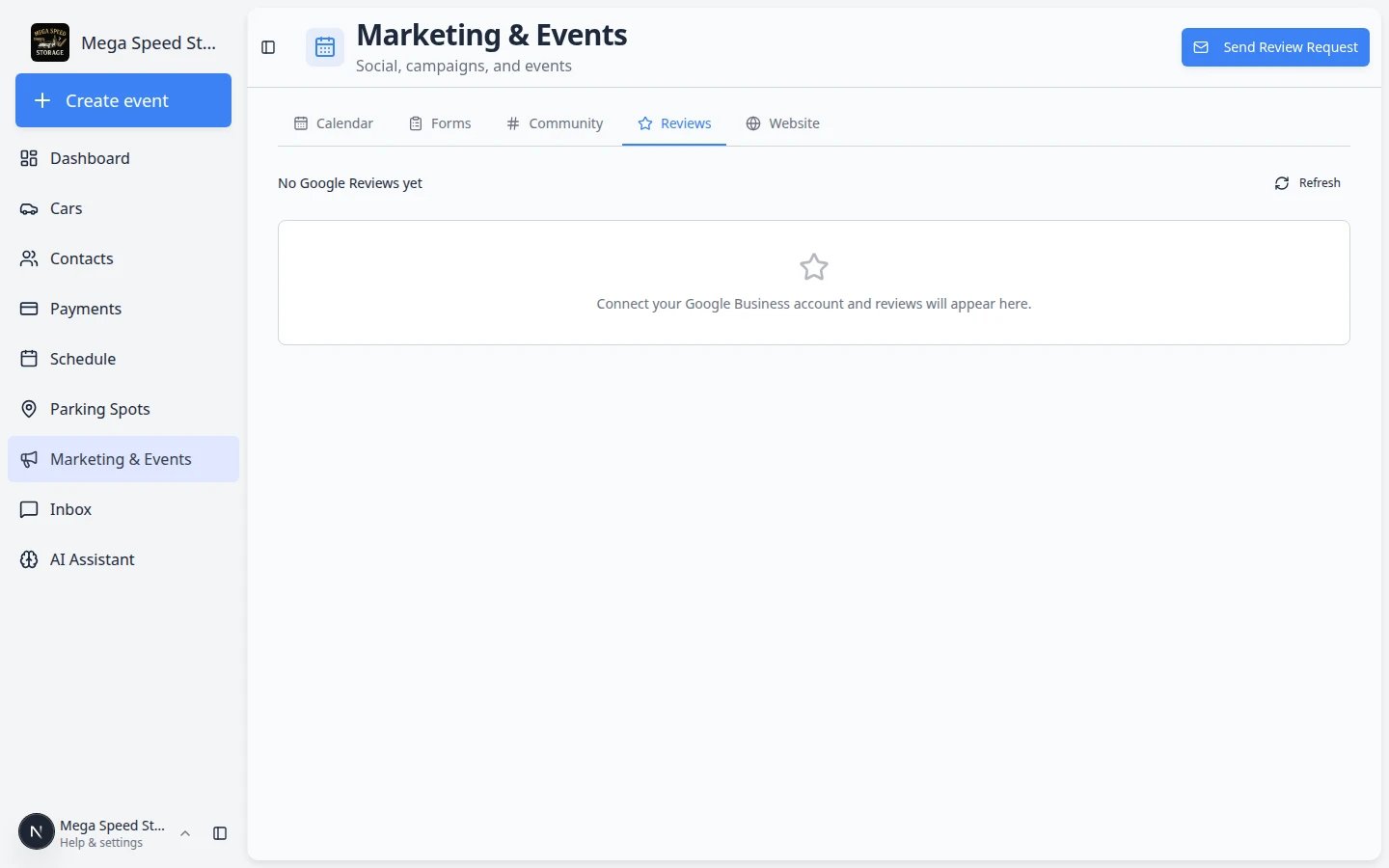 *Until Google is connected, you can still send review requests—but the review list may stay empty with a short setup message.*
## Step 2: Open the Reviews tab
Go to [Marketing & Events](https://www.carstoragesoftware.com/dashboard/marketing).
Click the **Reviews** tab near the top of the page. You can also go directly to [Marketing & Events > Reviews](https://www.carstoragesoftware.com/dashboard/marketing/reviews).
**Expected result:** You see the Reviews page—not the marketing calendar.
When Google is connected, summary cards at the top show helpful totals such as **Average Rating**, **Total Reviews**, **Replied**, and **Awaiting Reply**. If Google is not connected yet, the page explains what to set up first.
Below the cards, the **Rating Distribution** chart shows how many reviews you have at each star level (5 stars, 4 stars, and so on).
**Why this matters:** Glance here before you send requests so you know whether new reviews are already coming in—and whether any public replies still need attention.
If you just finished connecting Google in settings, click **Refresh** on the Reviews page and wait a moment.
**Expected result:** New Google reviews appear in the list below the summary cards when Google has finished syncing.
*Until Google is connected, you can still send review requests—but the review list may stay empty with a short setup message.*
## Step 2: Open the Reviews tab
Go to [Marketing & Events](https://www.carstoragesoftware.com/dashboard/marketing).
Click the **Reviews** tab near the top of the page. You can also go directly to [Marketing & Events > Reviews](https://www.carstoragesoftware.com/dashboard/marketing/reviews).
**Expected result:** You see the Reviews page—not the marketing calendar.
When Google is connected, summary cards at the top show helpful totals such as **Average Rating**, **Total Reviews**, **Replied**, and **Awaiting Reply**. If Google is not connected yet, the page explains what to set up first.
Below the cards, the **Rating Distribution** chart shows how many reviews you have at each star level (5 stars, 4 stars, and so on).
**Why this matters:** Glance here before you send requests so you know whether new reviews are already coming in—and whether any public replies still need attention.
If you just finished connecting Google in settings, click **Refresh** on the Reviews page and wait a moment.
**Expected result:** New Google reviews appear in the list below the summary cards when Google has finished syncing.
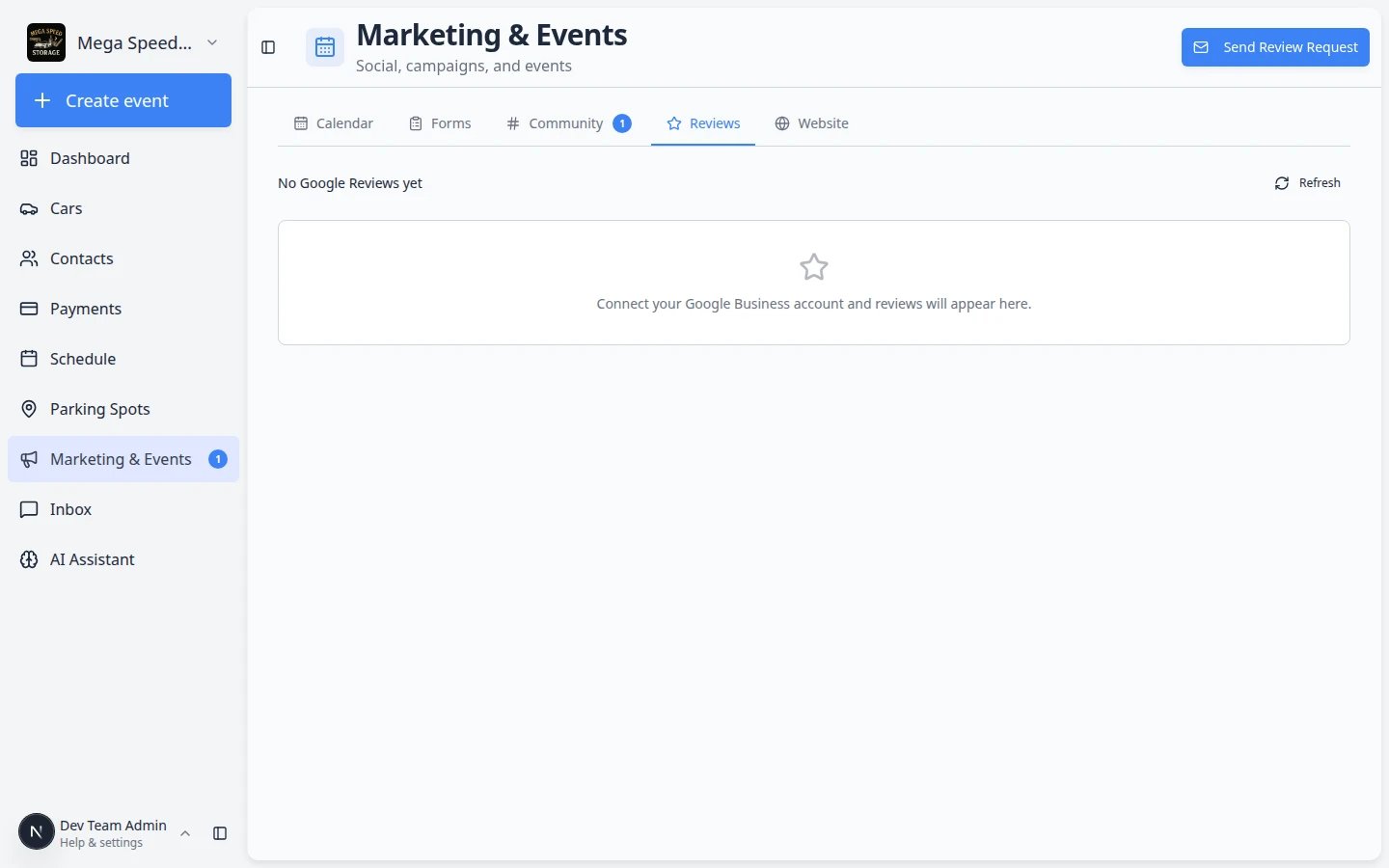 *Start on the Reviews tab to see existing Google feedback before sending new requests.*
## Step 3: Send a review request to one customer
In the top-right area of the Reviews page, click **Send Review Request**.
**Expected result:** A window opens to choose the customer and how to send the request.
Click **Select a customer...** and pick the person who should receive the request. Double-check the name—requests go to one customer at a time.
**Why this matters:** Personal timing works better than blasting everyone at once.
In **Channel**, pick how the request should be sent:
* **Email** — sends an email with a link to leave a Google review.
* **SMS** — sends a text message (only if texting is set up).
* **Email & SMS** — sends both when you have both contact methods.
In **Custom Message (optional)**, add one or two friendly sentences.
Example: "Thank you for visiting today. If everything went well, we would appreciate a quick Google review."
Click **Send Request**. The customer receives a link to leave a review on Google.
**Expected result:** The window closes and the app confirms the request was sent. If email or texting is not ready, you will see an error message—fix settings before trying again.
**Tip:** Send one request per happy visit. If the same customer had a great detail appointment last month, wait until their next positive touchpoint before asking again.
*Start on the Reviews tab to see existing Google feedback before sending new requests.*
## Step 3: Send a review request to one customer
In the top-right area of the Reviews page, click **Send Review Request**.
**Expected result:** A window opens to choose the customer and how to send the request.
Click **Select a customer...** and pick the person who should receive the request. Double-check the name—requests go to one customer at a time.
**Why this matters:** Personal timing works better than blasting everyone at once.
In **Channel**, pick how the request should be sent:
* **Email** — sends an email with a link to leave a Google review.
* **SMS** — sends a text message (only if texting is set up).
* **Email & SMS** — sends both when you have both contact methods.
In **Custom Message (optional)**, add one or two friendly sentences.
Example: "Thank you for visiting today. If everything went well, we would appreciate a quick Google review."
Click **Send Request**. The customer receives a link to leave a review on Google.
**Expected result:** The window closes and the app confirms the request was sent. If email or texting is not ready, you will see an error message—fix settings before trying again.
**Tip:** Send one request per happy visit. If the same customer had a great detail appointment last month, wait until their next positive touchpoint before asking again.
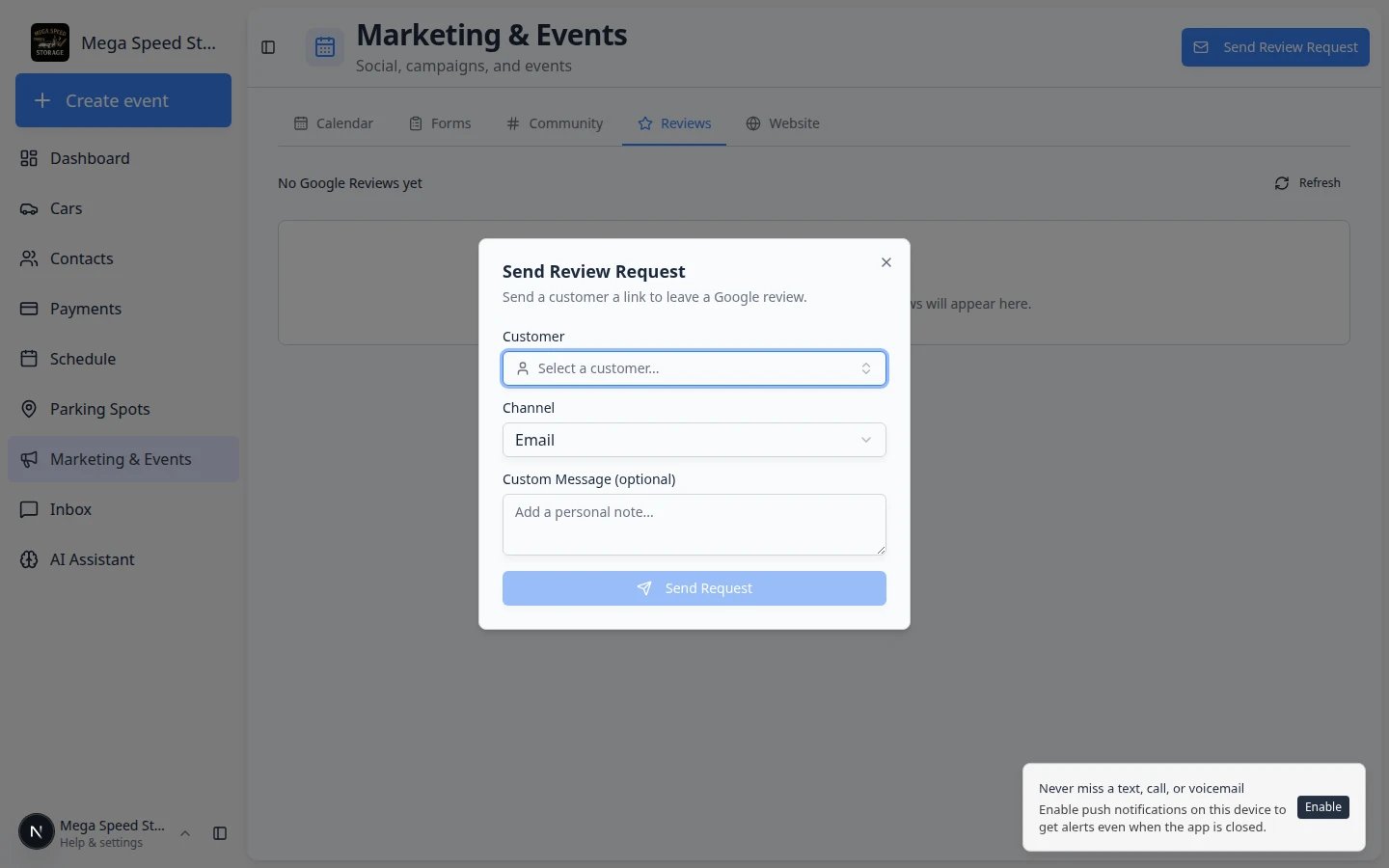 *Choose one customer at a time so each request feels personal and timely.*
## What customers receive
When you click **Send Request**, the customer gets a short message with a link to leave a review on **Google**—not inside your facility app.
**Email:** They see your facility name, your optional personal note, and a button or link to open Google’s review page.
**Text (SMS):** They receive a brief text with the same review link. Keep your optional note short—text messages have limited space.
**Why this matters:** Customers are more likely to leave a review when the link opens directly to the right Google page. They do not need to search for your business name themselves.
## Step 4: Reply to a Google review
This step works after your Google Business account is connected in [Settings > Communications](https://www.carstoragesoftware.com/dashboard/settings/communications). If you do not see reviews listed yet, finish [Step 1](#step-1-connect-google-for-reading-and-replying) and check back later.
Go to [Marketing & Events > Reviews](https://www.carstoragesoftware.com/dashboard/marketing/reviews).
Scroll below the summary cards to the list of Google reviews. Read the full review before you respond.
The **Awaiting Reply** count at the top helps you see how many public responses still need attention.
**Why this matters:** A rushed public reply is hard to take back. Read the whole review first.
On the review card, click **Reply**. A text box opens on that same card.
**Expected result:** You see a blank text area under the customer's review, with **Send Reply** (and sometimes **Cancel**) below it.
**What you will see on each card:** The customer's star rating (for example **5 stars**), their comment, the date they posted, and either a **Reply** button (when you have not responded yet) or your previous reply with options to edit or delete.
If you do not see any review cards yet, finish [Step 1](#step-1-connect-google-for-reading-and-replying) first. Until Google syncs, you can still send review requests—but there may be nothing to reply to.
Thank the customer. Keep it short. If there is a problem, invite them to contact your facility directly so you can help offline.
Avoid arguing, sarcasm, or sharing private details in the public reply.
Good example: "Thank you for the kind words. We are glad the team took good care of your car. See you at your next visit."
Click **Send Reply** when the response is ready.
**Expected result:** Your reply appears on the review card in the app and publishes to Google after Google processes it. The **Awaiting Reply** count should go down.
If your facility posted the wrong public reply, use **Delete reply** on that review (when the button is available), then post a corrected message.
**Why this matters:** Google customers read these replies for months. A calm correction is better than leaving a confusing post online.
**Reply like a front-desk manager**
Use the customer's name when it feels natural. Sign with your facility name. Move detailed problem-solving to a phone call or email—not the public thread.
## Tips for better review requests
* Send the request within a day or two of a great visit—not weeks later.
* Use the customer's first name in the optional message when it feels natural.
* Do not send the same customer multiple requests in a short period.
* Reply to negative reviews in a professional tone—avoid arguing in public.
* Train front-desk staff to mention reviews only after the customer already expressed satisfaction.
## Common mistakes to avoid
* Do not send review requests to every customer in one afternoon—personal timing works better.
* Do not offer discounts or gifts in exchange for stars—Google and customers both notice pressure tactics.
* Do not argue with a negative review in public—invite the customer to call or email instead.
* Do not assume Google reviews appear instantly—wait a few minutes and click **Refresh** after connecting Google.
## What success looks like
* Happy customers receive a simple link and know what you are asking for.
* New Google reviews appear on the Reviews tab after customers post them.
* Your team replies to feedback within a reasonable time—especially critical reviews.
## Troubleshooting
**The customer list is empty**
Open [Contacts](https://www.carstoragesoftware.com/dashboard/contacts) and confirm the customer exists, is active, and has an email or phone number saved.
**SMS is not available**
Open [Settings > Communications](https://www.carstoragesoftware.com/dashboard/settings/communications) and finish phone and text setup before choosing **SMS** or **Email & SMS**.
**Reviews do not appear yet**
Confirm the Google Business connection in [Settings > Communications](https://www.carstoragesoftware.com/dashboard/settings/communications). New connections can take a short time to sync—refresh the Reviews page after a few minutes.
**The customer says they did not get the request**
Check the email and phone on the customer record. Ask them to look in spam or junk folders for email. You can send one follow-up request after fixing the contact info—avoid repeated sends the same day.
**I am not sure what to say to a negative review**
Keep the public reply short: thank them, apologize for the experience, and invite them to call or email your facility so you can make it right. Move detailed problem-solving to a private conversation.
## What to do next
Thank event guests with [Create a campaign](/docs/marketing-events/create-a-campaign), or plan your next outreach from the [Marketing & Events overview](/docs/marketing-events/overview).
## Related topics
- [Review social event RSVPs and attendees](/docs/marketing-events/review-social-event-rsvps-and-attendees.md)
- [Check in social event attendees](/docs/marketing-events/check-in-social-event-attendees.md)
- [Add campaign message, audience, and publish](/docs/marketing-events/add-campaign-message-audience-and-publish.md)
- [Marketing & Events overview](/docs/marketing-events/overview.md)
- [Create a social event](/docs/marketing-events/create-a-social-event.md)
This documentation is built and hosted on [Mintlify](https://mintlify.com), a developer documentation platform.
*Choose one customer at a time so each request feels personal and timely.*
## What customers receive
When you click **Send Request**, the customer gets a short message with a link to leave a review on **Google**—not inside your facility app.
**Email:** They see your facility name, your optional personal note, and a button or link to open Google’s review page.
**Text (SMS):** They receive a brief text with the same review link. Keep your optional note short—text messages have limited space.
**Why this matters:** Customers are more likely to leave a review when the link opens directly to the right Google page. They do not need to search for your business name themselves.
## Step 4: Reply to a Google review
This step works after your Google Business account is connected in [Settings > Communications](https://www.carstoragesoftware.com/dashboard/settings/communications). If you do not see reviews listed yet, finish [Step 1](#step-1-connect-google-for-reading-and-replying) and check back later.
Go to [Marketing & Events > Reviews](https://www.carstoragesoftware.com/dashboard/marketing/reviews).
Scroll below the summary cards to the list of Google reviews. Read the full review before you respond.
The **Awaiting Reply** count at the top helps you see how many public responses still need attention.
**Why this matters:** A rushed public reply is hard to take back. Read the whole review first.
On the review card, click **Reply**. A text box opens on that same card.
**Expected result:** You see a blank text area under the customer's review, with **Send Reply** (and sometimes **Cancel**) below it.
**What you will see on each card:** The customer's star rating (for example **5 stars**), their comment, the date they posted, and either a **Reply** button (when you have not responded yet) or your previous reply with options to edit or delete.
If you do not see any review cards yet, finish [Step 1](#step-1-connect-google-for-reading-and-replying) first. Until Google syncs, you can still send review requests—but there may be nothing to reply to.
Thank the customer. Keep it short. If there is a problem, invite them to contact your facility directly so you can help offline.
Avoid arguing, sarcasm, or sharing private details in the public reply.
Good example: "Thank you for the kind words. We are glad the team took good care of your car. See you at your next visit."
Click **Send Reply** when the response is ready.
**Expected result:** Your reply appears on the review card in the app and publishes to Google after Google processes it. The **Awaiting Reply** count should go down.
If your facility posted the wrong public reply, use **Delete reply** on that review (when the button is available), then post a corrected message.
**Why this matters:** Google customers read these replies for months. A calm correction is better than leaving a confusing post online.
**Reply like a front-desk manager**
Use the customer's name when it feels natural. Sign with your facility name. Move detailed problem-solving to a phone call or email—not the public thread.
## Tips for better review requests
* Send the request within a day or two of a great visit—not weeks later.
* Use the customer's first name in the optional message when it feels natural.
* Do not send the same customer multiple requests in a short period.
* Reply to negative reviews in a professional tone—avoid arguing in public.
* Train front-desk staff to mention reviews only after the customer already expressed satisfaction.
## Common mistakes to avoid
* Do not send review requests to every customer in one afternoon—personal timing works better.
* Do not offer discounts or gifts in exchange for stars—Google and customers both notice pressure tactics.
* Do not argue with a negative review in public—invite the customer to call or email instead.
* Do not assume Google reviews appear instantly—wait a few minutes and click **Refresh** after connecting Google.
## What success looks like
* Happy customers receive a simple link and know what you are asking for.
* New Google reviews appear on the Reviews tab after customers post them.
* Your team replies to feedback within a reasonable time—especially critical reviews.
## Troubleshooting
**The customer list is empty**
Open [Contacts](https://www.carstoragesoftware.com/dashboard/contacts) and confirm the customer exists, is active, and has an email or phone number saved.
**SMS is not available**
Open [Settings > Communications](https://www.carstoragesoftware.com/dashboard/settings/communications) and finish phone and text setup before choosing **SMS** or **Email & SMS**.
**Reviews do not appear yet**
Confirm the Google Business connection in [Settings > Communications](https://www.carstoragesoftware.com/dashboard/settings/communications). New connections can take a short time to sync—refresh the Reviews page after a few minutes.
**The customer says they did not get the request**
Check the email and phone on the customer record. Ask them to look in spam or junk folders for email. You can send one follow-up request after fixing the contact info—avoid repeated sends the same day.
**I am not sure what to say to a negative review**
Keep the public reply short: thank them, apologize for the experience, and invite them to call or email your facility so you can make it right. Move detailed problem-solving to a private conversation.
## What to do next
Thank event guests with [Create a campaign](/docs/marketing-events/create-a-campaign), or plan your next outreach from the [Marketing & Events overview](/docs/marketing-events/overview).
## Related topics
- [Review social event RSVPs and attendees](/docs/marketing-events/review-social-event-rsvps-and-attendees.md)
- [Check in social event attendees](/docs/marketing-events/check-in-social-event-attendees.md)
- [Add campaign message, audience, and publish](/docs/marketing-events/add-campaign-message-audience-and-publish.md)
- [Marketing & Events overview](/docs/marketing-events/overview.md)
- [Create a social event](/docs/marketing-events/create-a-social-event.md)
This documentation is built and hosted on [Mintlify](https://mintlify.com), a developer documentation platform.