> ## Documentation Index
> Fetch the complete documentation index at: https://www.carstoragesoftware.com/docs/llms.txt
> Use this file to discover all available pages before exploring further.
# Reserve a parking spot
> Hold a parking spot for a customer or car before the vehicle is physically parked there.
## What you will accomplish
You will hold a parking spot for a customer or car so your team knows the space is spoken for before the vehicle arrives.
When you finish:
* The spot row shows **Reserved** in **Table** view (or a reserved label on the map).
* Other staff can see who the space is held for without calling around.
* When the car physically arrives, you assign it to the same spot so **Currently Parked** changes to **Present**.
## When to use this guide
Use this guide when you want to hold a specific parking spot for a customer or vehicle before the car is physically there.
When you finish, the spot will show as reserved on the [Parking Spots page](https://www.carstoragesoftware.com/dashboard/parking-spots). That tells your team the space is spoken for, even if the vehicle has not arrived yet.
## When to reserve a spot
Reserve a spot when the decision is planned but the car is not in the space yet.
Good examples:
* A new storage customer has been approved and will arrive later this week.
* A customer is switching to a premium or lift spot after service is complete.
* Your team promised a specific space to a customer.
* A car is expected back from service and should return to the same location.
**Reservation is not the same as parking**
Reserve a spot to hold it. Assign a spot when the car is physically parked there. This difference helps your team know what is planned and what is actually in the building.
## Before you start
* The spot should already exist in [Parking Spots](https://www.carstoragesoftware.com/dashboard/parking-spots).
* The customer or car should already exist in [Contacts](https://www.carstoragesoftware.com/dashboard/contacts) or [Cars](https://www.carstoragesoftware.com/dashboard/cars).
* Confirm the spot should be held before you save the reservation.
* If you are reserving a lift space, confirm the correct lift level.
## Step 1: Open Parking Spots
Go to [Parking Spots](https://www.carstoragesoftware.com/dashboard/parking-spots).
If you are not sure which spot to reserve, start with [Find parking spots and available spaces](/docs/parking-spots/find-parking-spots-and-available-spaces).
## Step 2: Switch to Table view
Reservations are easiest to manage from the table.
Click **Filters & Settings** near the top of the page.
Click **Table**. The page changes to a list of spots.
Search or scroll until you find the spot you want to reserve.
### Expected result
You can see the spot row, including **Reserved Car**, **Reserved Customer**, **Currently Parked**, and **Status** (Active or Inactive).
**Read the right column**
Look at **Currently Parked** for **Available**, **Reserved**, or **Present**. The **Status** column only shows whether the spot itself is **Active** or **Inactive**—not whether a car is parked there.
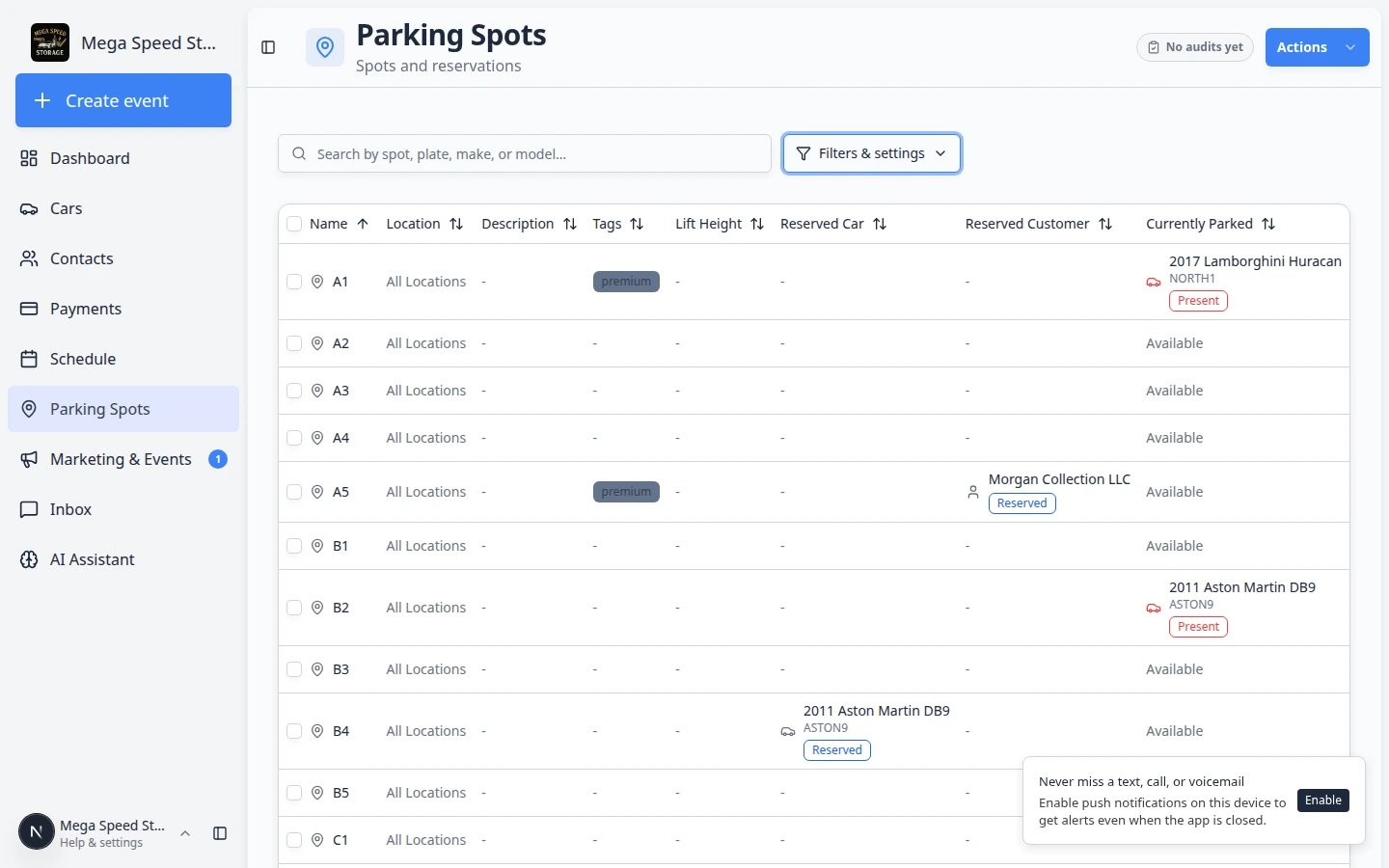 *In Table view, reserved spots show who the space is held for in Reserved Customer or Reserved Car. Open spots show Available in Currently Parked.*
## Step 3: Open Reserve Spot
In **Table** view, each row has a **three-dot** menu (**⋯**) on the right side. That menu is where **Reserve Spot** lives.
Look in the **Currently Parked** column for **Available**. Pick a spot that is truly open—not **Present** (car there now) or **Reserved** (already held).
**Why this matters:** Reserving a spot that already has a car or reservation creates confusion for the next teammate.
On the right side of the row, click the **three-dot** menu button (shown as **⋯**).
**Expected result:** A small menu drops down with actions for that spot—including **Reserve Spot** when the row is open.
*In Table view, reserved spots show who the space is held for in Reserved Customer or Reserved Car. Open spots show Available in Currently Parked.*
## Step 3: Open Reserve Spot
In **Table** view, each row has a **three-dot** menu (**⋯**) on the right side. That menu is where **Reserve Spot** lives.
Look in the **Currently Parked** column for **Available**. Pick a spot that is truly open—not **Present** (car there now) or **Reserved** (already held).
**Why this matters:** Reserving a spot that already has a car or reservation creates confusion for the next teammate.
On the right side of the row, click the **three-dot** menu button (shown as **⋯**).
**Expected result:** A small menu drops down with actions for that spot—including **Reserve Spot** when the row is open.
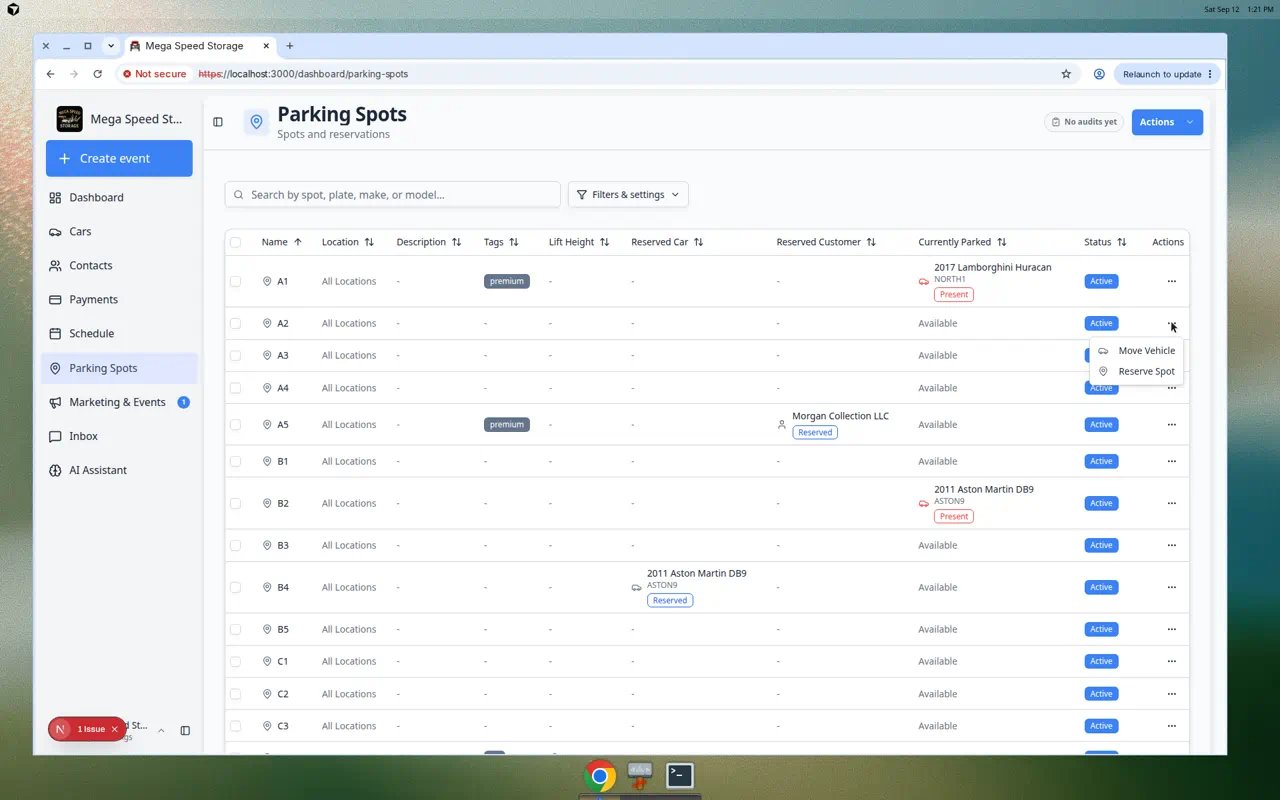 *Open the **⋯** menu on an **Available** row, then click **Reserve Spot**.*
Click **Reserve Spot**. If the spot already has a reservation, the menu may say **Edit Reservation** instead.
The window title should say **Reserve Parking Spot**.
**Expected result:** A dialog opens on top of the table. You are ready to choose a car or customer.
**What Reserved rows look like in Table view**
After you save, reserved spots show the customer or car name in **Reserved Customer** or **Reserved Car**, and **Currently Parked** may show **Reserved**. Your teammates can spot held spaces without opening each row.
*Open the **⋯** menu on an **Available** row, then click **Reserve Spot**.*
Click **Reserve Spot**. If the spot already has a reservation, the menu may say **Edit Reservation** instead.
The window title should say **Reserve Parking Spot**.
**Expected result:** A dialog opens on top of the table. You are ready to choose a car or customer.
**What Reserved rows look like in Table view**
After you save, reserved spots show the customer or car name in **Reserved Customer** or **Reserved Car**, and **Currently Parked** may show **Reserved**. Your teammates can spot held spaces without opening each row.
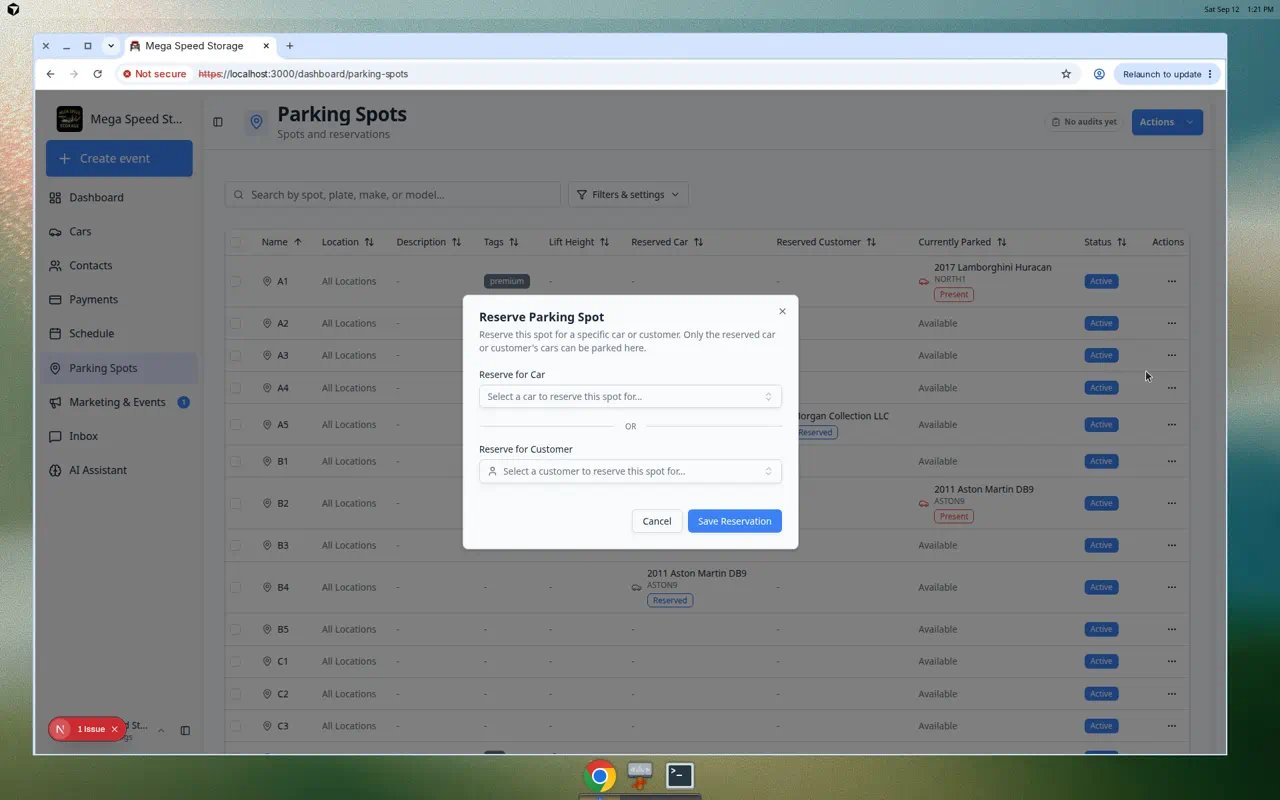 *Use Reserve for Car when you know the exact vehicle. Use Reserve for Customer when you are holding a spot before the final car is chosen.*
## Step 4: Choose what the reservation is for
You can reserve a spot for a specific car or for a customer.
Choose the car when the exact vehicle is known. This is best for a returning car, a scheduled drop-off, or a car that has already been added to the system.
Choose the customer when the team wants to hold a spot but the exact car is not final yet.
If the customer has more than one car, confirm the year, make, model, license plate, or VIN before saving.
**Choose the most specific option you know**
If you know the exact car, reserve the spot for the car. If you only know the customer, reserve it for the customer. This keeps the reservation easy for the next teammate to understand.
## Step 5: Save the reservation
Click the save button in the **Reserve Parking Spot** window.
After the reservation saves:
* The table row shows the reserved car or reserved customer.
* The spot is easier for staff to identify as planned, not open.
* Your team can still assign the car later when it physically arrives.
### Expected result
The spot is held for the customer or car, and your team can see the reservation on [Parking Spots](https://www.carstoragesoftware.com/dashboard/parking-spots).
## Reserve from the map (optional)
Some teams prefer the map when they already know which box to hold.
Go to [Parking Spots](https://www.carstoragesoftware.com/dashboard/parking-spots). If you see a table, open **Filters & Settings** and choose **Map**.
Click a spot that should be available (not already occupied).
If the spot dialog offers a way to reserve or hold the space, follow the on-screen steps. If you only see options to add or move a car, use **Table** view and **Reserve Spot** instead (steps above).
**Table view is the most reliable path**
If you do not see a reserve button on the map, use **Table** view and the row **⋯** menu. That path always shows **Reserve Spot** when your role allows it.
## Step 6: Assign the car when it arrives
When the vehicle is physically parked in the reserved space, update the location record.
Follow [Assign a parking spot](/docs/parking-spots/assign-a-parking-spot).
This final step matters because a reservation does not prove the car is physically present. Assigning the spot keeps the map, car record, and parking report accurate.
**Where reservations show up**
**Table** view is the most reliable place to see who a spot is reserved for (**Reserved Customer** or **Reserved Car** columns). The map legend also tracks **Reserved** counts when reservations are active. If your team lives on the map, switch to **Table** view at least once per day to confirm holds still look right.
## Change or clear a reservation
Use this when a plan changes—for example the customer cancels, picks a different spot, or the car arrives early.
Go to [Parking Spots](https://www.carstoragesoftware.com/dashboard/parking-spots), switch to **Table** view, and find the reserved spot. Sort by **Currently Parked** or search for the customer name if the list is long.
**Tip:** Reserved spots often show a name under **Reserved Customer** or **Reserved Car**, and **Currently Parked** may show **Reserved**.
Open the **⋯** row menu on the right side of the row and click **Edit Reservation**.
**Expected result:** A window titled **Reserve Parking Spot** opens.
Read the grey **Current Reservation** box at the top. It tells you who the spot is held for today.
**Why this matters:** You can confirm you opened the correct row before you change anything.
Use **Reserve for Car** when you now know the exact vehicle. Use **Reserve for Customer** when you are still holding the spot for the owner but the car may change.
**Expected result:** The dropdowns show the new car or customer you picked.
Click **Clear Reservation** if the space should return to normal availability.
**Expected result:** **Currently Parked** shows **Available** and the reserved name columns are empty after you save or close the window.
Click **Save Reservation** after you edit who the spot is held for.
**Expected result:** The table row updates. Ask a teammate to refresh their screen if they still see the old reservation.
*Use Reserve for Car when you know the exact vehicle. Use Reserve for Customer when you are holding a spot before the final car is chosen.*
## Step 4: Choose what the reservation is for
You can reserve a spot for a specific car or for a customer.
Choose the car when the exact vehicle is known. This is best for a returning car, a scheduled drop-off, or a car that has already been added to the system.
Choose the customer when the team wants to hold a spot but the exact car is not final yet.
If the customer has more than one car, confirm the year, make, model, license plate, or VIN before saving.
**Choose the most specific option you know**
If you know the exact car, reserve the spot for the car. If you only know the customer, reserve it for the customer. This keeps the reservation easy for the next teammate to understand.
## Step 5: Save the reservation
Click the save button in the **Reserve Parking Spot** window.
After the reservation saves:
* The table row shows the reserved car or reserved customer.
* The spot is easier for staff to identify as planned, not open.
* Your team can still assign the car later when it physically arrives.
### Expected result
The spot is held for the customer or car, and your team can see the reservation on [Parking Spots](https://www.carstoragesoftware.com/dashboard/parking-spots).
## Reserve from the map (optional)
Some teams prefer the map when they already know which box to hold.
Go to [Parking Spots](https://www.carstoragesoftware.com/dashboard/parking-spots). If you see a table, open **Filters & Settings** and choose **Map**.
Click a spot that should be available (not already occupied).
If the spot dialog offers a way to reserve or hold the space, follow the on-screen steps. If you only see options to add or move a car, use **Table** view and **Reserve Spot** instead (steps above).
**Table view is the most reliable path**
If you do not see a reserve button on the map, use **Table** view and the row **⋯** menu. That path always shows **Reserve Spot** when your role allows it.
## Step 6: Assign the car when it arrives
When the vehicle is physically parked in the reserved space, update the location record.
Follow [Assign a parking spot](/docs/parking-spots/assign-a-parking-spot).
This final step matters because a reservation does not prove the car is physically present. Assigning the spot keeps the map, car record, and parking report accurate.
**Where reservations show up**
**Table** view is the most reliable place to see who a spot is reserved for (**Reserved Customer** or **Reserved Car** columns). The map legend also tracks **Reserved** counts when reservations are active. If your team lives on the map, switch to **Table** view at least once per day to confirm holds still look right.
## Change or clear a reservation
Use this when a plan changes—for example the customer cancels, picks a different spot, or the car arrives early.
Go to [Parking Spots](https://www.carstoragesoftware.com/dashboard/parking-spots), switch to **Table** view, and find the reserved spot. Sort by **Currently Parked** or search for the customer name if the list is long.
**Tip:** Reserved spots often show a name under **Reserved Customer** or **Reserved Car**, and **Currently Parked** may show **Reserved**.
Open the **⋯** row menu on the right side of the row and click **Edit Reservation**.
**Expected result:** A window titled **Reserve Parking Spot** opens.
Read the grey **Current Reservation** box at the top. It tells you who the spot is held for today.
**Why this matters:** You can confirm you opened the correct row before you change anything.
Use **Reserve for Car** when you now know the exact vehicle. Use **Reserve for Customer** when you are still holding the spot for the owner but the car may change.
**Expected result:** The dropdowns show the new car or customer you picked.
Click **Clear Reservation** if the space should return to normal availability.
**Expected result:** **Currently Parked** shows **Available** and the reserved name columns are empty after you save or close the window.
Click **Save Reservation** after you edit who the spot is held for.
**Expected result:** The table row updates. Ask a teammate to refresh their screen if they still see the old reservation.
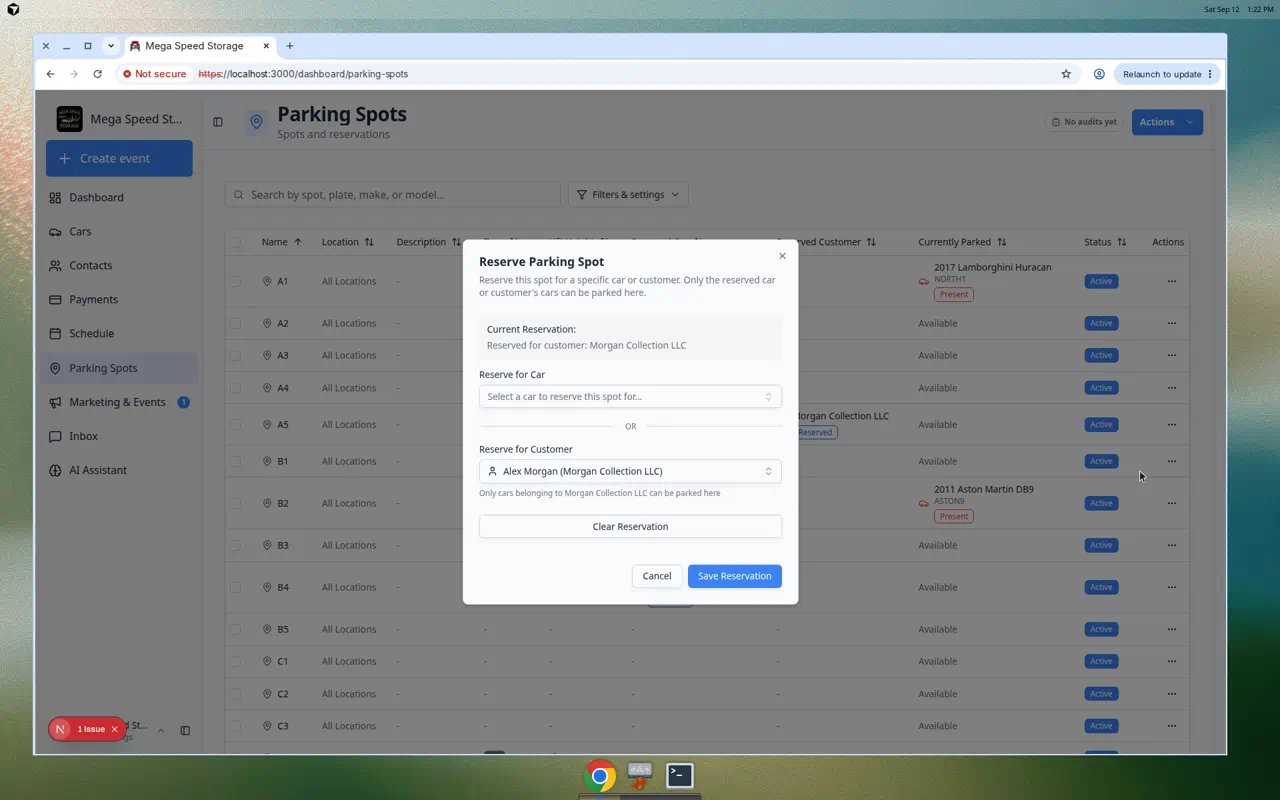 ***Edit Reservation** opens the same window you used to create the hold. Use **Clear Reservation** when the customer no longer needs the space.*
**Button names in the reservation window**
**Save Reservation** stores your changes. **Clear Reservation** removes the hold entirely. **Cancel** closes the window without saving.
## Common mistakes to avoid
* Do not reserve a spot and then forget to assign the car when it arrives.
* Do not reserve a spot for the wrong customer when two customers have similar names.
* Do not reserve a spot that is already physically occupied unless your team has confirmed the current car is leaving.
* Do not use reservations to hide broken or blocked spaces. Mark those spots inactive in the floor plan instead.
## Troubleshooting
**I do not see Reserve Spot**
Make sure you are in **Table** view and scroll to the right side of the table if your screen is narrow. If you still do not see it, your account may not have permission to manage parking spots.
**The car is missing from the car search**
Create the car first from [Cars](https://www.carstoragesoftware.com/dashboard/cars), then return to [Parking Spots](https://www.carstoragesoftware.com/dashboard/parking-spots) and reserve the spot.
**The customer is missing from the customer search**
Create the customer first from [Contacts](https://www.carstoragesoftware.com/dashboard/contacts), then return to [Parking Spots](https://www.carstoragesoftware.com/dashboard/parking-spots) and reserve the spot.
**The spot still looks available to someone on my team**
Ask them to refresh [Parking Spots](https://www.carstoragesoftware.com/dashboard/parking-spots). If the reservation still does not show, reopen the spot row and confirm the reservation was saved.
**I reserved the wrong spot or wrong customer**
Open the **⋯** menu on the row and click **Edit Reservation**. Use **Clear Reservation** if the hold should be removed entirely, or pick the correct car or customer and click **Save Reservation**. Do not assign a different car to the spot until the old reservation is cleared or updated—two holds on one space confuse the whole team.
## What to do next
After the car arrives, follow [Assign a parking spot](/docs/parking-spots/assign-a-parking-spot) so the app shows the car as physically present.
If you need to check parking history later, use [Review the parking report](/docs/parking-spots/review-the-parking-report).
## Related topics
- [Assign a parking spot](/docs/parking-spots/assign-a-parking-spot.md)
- [Find parking spots and available spaces](/docs/parking-spots/find-parking-spots-and-available-spaces.md)
- [Parking Spots overview](/docs/parking-spots/overview.md)
- [Set up parking spots and zones](/docs/parking-spots/set-up-parking-spots-and-zones.md)
- [Assign parking during a Schedule event](/docs/parking-spots/assign-parking-during-a-schedule-event.md)
This documentation is built and hosted on [Mintlify](https://mintlify.com), a developer documentation platform.
***Edit Reservation** opens the same window you used to create the hold. Use **Clear Reservation** when the customer no longer needs the space.*
**Button names in the reservation window**
**Save Reservation** stores your changes. **Clear Reservation** removes the hold entirely. **Cancel** closes the window without saving.
## Common mistakes to avoid
* Do not reserve a spot and then forget to assign the car when it arrives.
* Do not reserve a spot for the wrong customer when two customers have similar names.
* Do not reserve a spot that is already physically occupied unless your team has confirmed the current car is leaving.
* Do not use reservations to hide broken or blocked spaces. Mark those spots inactive in the floor plan instead.
## Troubleshooting
**I do not see Reserve Spot**
Make sure you are in **Table** view and scroll to the right side of the table if your screen is narrow. If you still do not see it, your account may not have permission to manage parking spots.
**The car is missing from the car search**
Create the car first from [Cars](https://www.carstoragesoftware.com/dashboard/cars), then return to [Parking Spots](https://www.carstoragesoftware.com/dashboard/parking-spots) and reserve the spot.
**The customer is missing from the customer search**
Create the customer first from [Contacts](https://www.carstoragesoftware.com/dashboard/contacts), then return to [Parking Spots](https://www.carstoragesoftware.com/dashboard/parking-spots) and reserve the spot.
**The spot still looks available to someone on my team**
Ask them to refresh [Parking Spots](https://www.carstoragesoftware.com/dashboard/parking-spots). If the reservation still does not show, reopen the spot row and confirm the reservation was saved.
**I reserved the wrong spot or wrong customer**
Open the **⋯** menu on the row and click **Edit Reservation**. Use **Clear Reservation** if the hold should be removed entirely, or pick the correct car or customer and click **Save Reservation**. Do not assign a different car to the spot until the old reservation is cleared or updated—two holds on one space confuse the whole team.
## What to do next
After the car arrives, follow [Assign a parking spot](/docs/parking-spots/assign-a-parking-spot) so the app shows the car as physically present.
If you need to check parking history later, use [Review the parking report](/docs/parking-spots/review-the-parking-report).
## Related topics
- [Assign a parking spot](/docs/parking-spots/assign-a-parking-spot.md)
- [Find parking spots and available spaces](/docs/parking-spots/find-parking-spots-and-available-spaces.md)
- [Parking Spots overview](/docs/parking-spots/overview.md)
- [Set up parking spots and zones](/docs/parking-spots/set-up-parking-spots-and-zones.md)
- [Assign parking during a Schedule event](/docs/parking-spots/assign-parking-during-a-schedule-event.md)
This documentation is built and hosted on [Mintlify](https://mintlify.com), a developer documentation platform.