> ## Documentation Index
> Fetch the complete documentation index at: https://www.carstoragesoftware.com/docs/llms.txt
> Use this file to discover all available pages before exploring further.
# Review the parking report
> Use the parking report to review where cars were assigned during a date range.
## What you will accomplish
You will open the parking report, choose a date range, read assignment history, and export a copy when your team needs records outside the app.
## When to use this guide
Use this guide when you need to answer questions such as:
* Which cars were parked here this month?
* How long did a car stay in a spot?
* Which customer used a specific location?
* What parking history should we review before billing or an internal audit?
The report is based on parking assignments your team saves in the app. It is only as accurate as the updates made on [Parking Spots](https://www.carstoragesoftware.com/dashboard/parking-spots) and on vehicle records.
**When to use the report**
Use it before sending a storage invoice, answering a customer question about how long a car was parked, or reviewing whether staff are recording moves consistently.
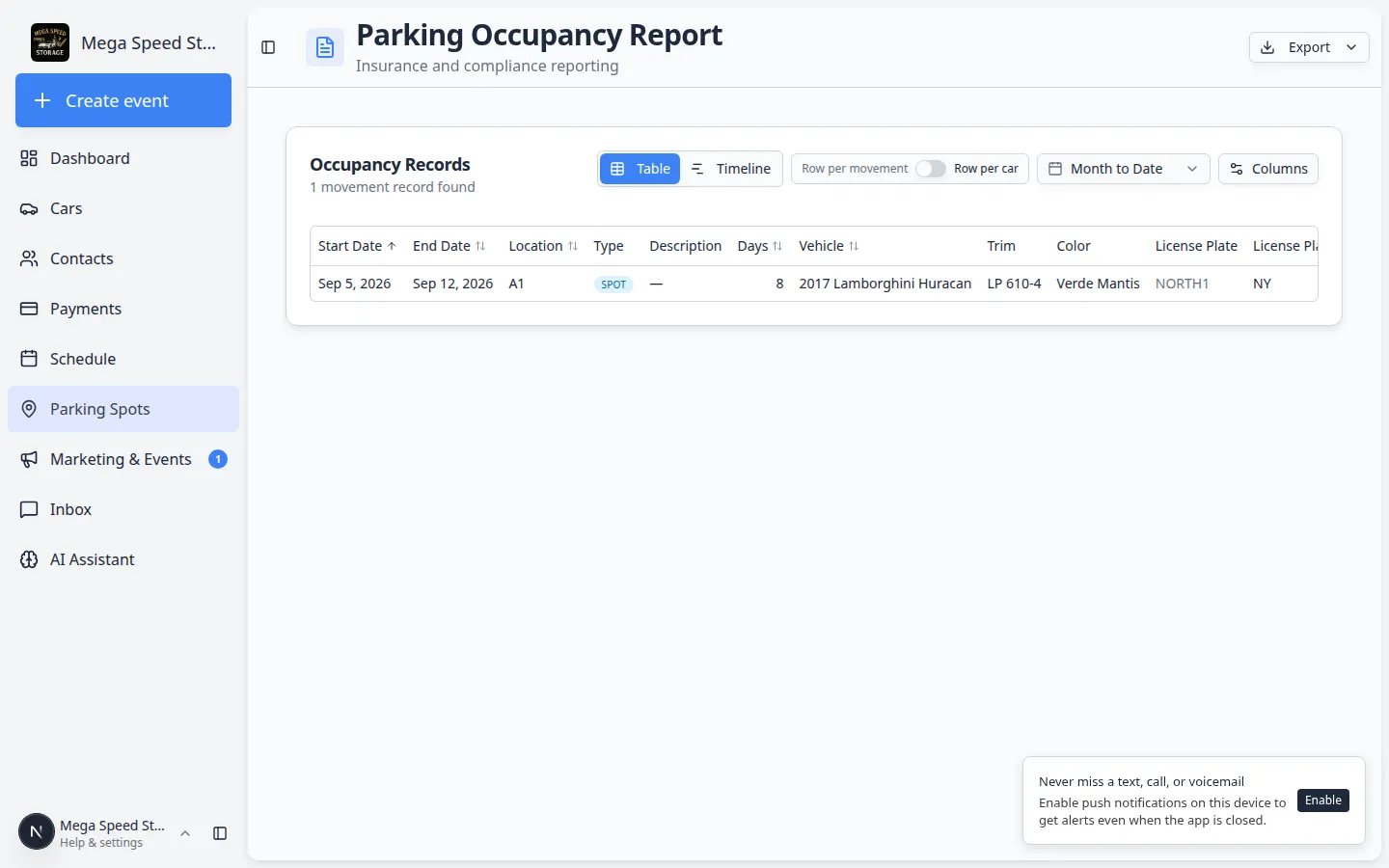 *The parking report lists parking assignments for the date range you choose—including **Vendor** rows for off-site time.*
**Report accuracy depends on daily habits**
The report only knows about moves your team records in Parking Spots or on car records. If staff move cars without updating the app, the report will not match the real building. Train the team to update locations at the same time they move vehicles—see [Assign a parking spot](/docs/parking-spots/assign-a-parking-spot).
## Before you start
* Your team should be using parking assignments on [Parking Spots](https://www.carstoragesoftware.com/dashboard/parking-spots).
* Know the date range you want to review.
* Know whether you are checking one car, one customer, one spot, or overall facility use.
* If you plan to export the report, decide which columns your team needs first.
## Open the report
You can open the report from the main Parking Spots page or go directly to [Parking Spots Report](https://www.carstoragesoftware.com/dashboard/parking-spots/report). The page title is **Parking Occupancy Report**.
Open the [Parking Spots page](https://www.carstoragesoftware.com/dashboard/parking-spots).
Click **Actions**, then click **Report**. This opens the [Parking Spots Report](https://www.carstoragesoftware.com/dashboard/parking-spots/report). You can also go there directly.
**Expected result:** You see **Parking Occupancy Report** at the top and a table of occupancy records below.
The report may take a moment if your date range includes many cars. When it finishes, the table shows parking assignments that match your selected range.
## Choose the date range
At the top of the report, use the date range control. The default is usually **Month to Date**.
Choose a quick range like **Month to Date**, **Last Month**, **Last 3 Months**, or **Year to Date**.
If you need exact dates, choose a custom start date and end date.
After changing the date range, check that the rows and totals match the time period you selected.
*The parking report lists parking assignments for the date range you choose—including **Vendor** rows for off-site time.*
**Report accuracy depends on daily habits**
The report only knows about moves your team records in Parking Spots or on car records. If staff move cars without updating the app, the report will not match the real building. Train the team to update locations at the same time they move vehicles—see [Assign a parking spot](/docs/parking-spots/assign-a-parking-spot).
## Before you start
* Your team should be using parking assignments on [Parking Spots](https://www.carstoragesoftware.com/dashboard/parking-spots).
* Know the date range you want to review.
* Know whether you are checking one car, one customer, one spot, or overall facility use.
* If you plan to export the report, decide which columns your team needs first.
## Open the report
You can open the report from the main Parking Spots page or go directly to [Parking Spots Report](https://www.carstoragesoftware.com/dashboard/parking-spots/report). The page title is **Parking Occupancy Report**.
Open the [Parking Spots page](https://www.carstoragesoftware.com/dashboard/parking-spots).
Click **Actions**, then click **Report**. This opens the [Parking Spots Report](https://www.carstoragesoftware.com/dashboard/parking-spots/report). You can also go there directly.
**Expected result:** You see **Parking Occupancy Report** at the top and a table of occupancy records below.
The report may take a moment if your date range includes many cars. When it finishes, the table shows parking assignments that match your selected range.
## Choose the date range
At the top of the report, use the date range control. The default is usually **Month to Date**.
Choose a quick range like **Month to Date**, **Last Month**, **Last 3 Months**, or **Year to Date**.
If you need exact dates, choose a custom start date and end date.
After changing the date range, check that the rows and totals match the time period you selected.
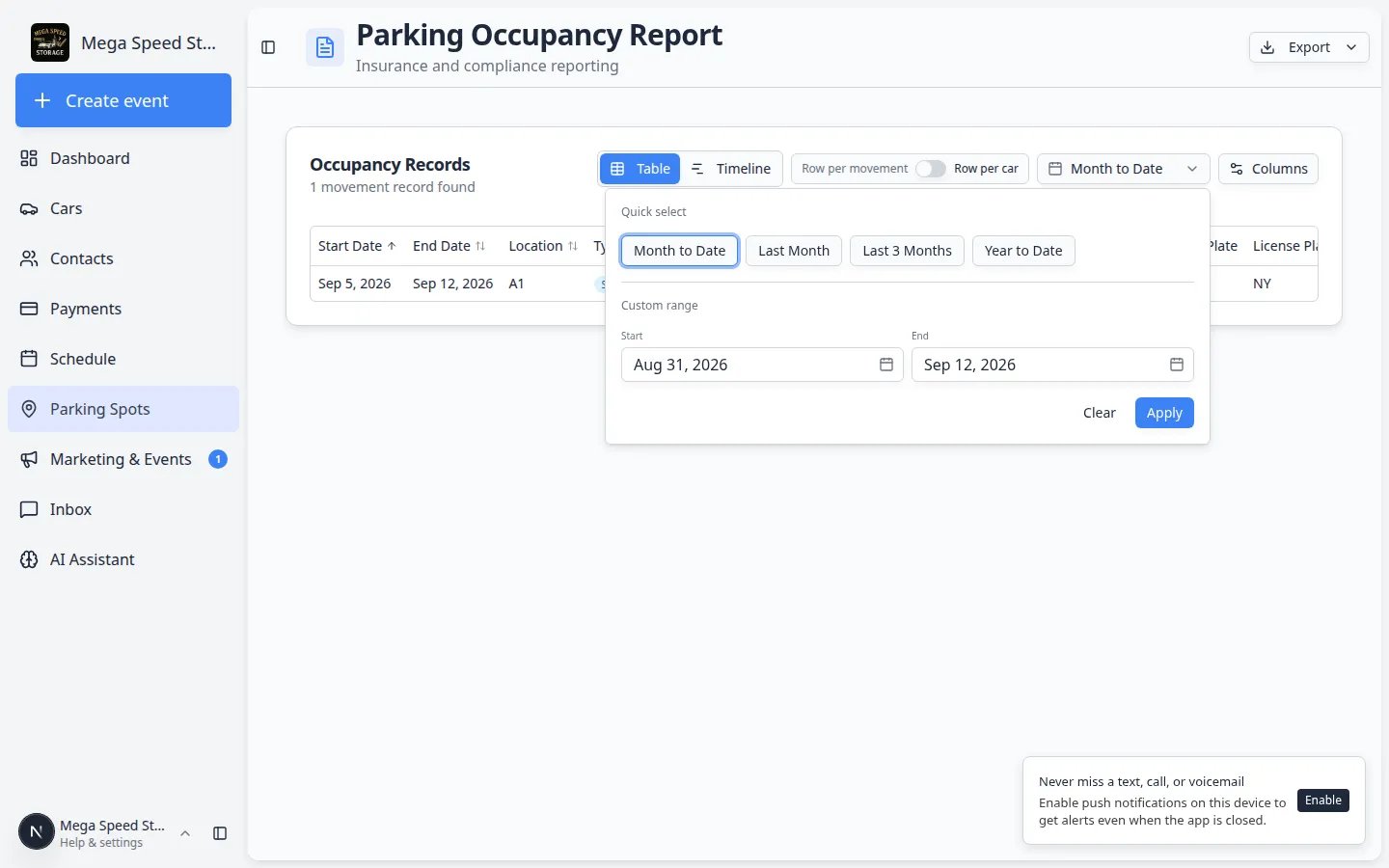 *Pick a quick range for routine reviews, or set custom start and end dates when a customer asks about a specific week or month.*
**Why date range matters**
A car may move several times. The date range controls which parts of that parking history appear in the report.
## Switch between Table and Timeline views
The report has two main ways to read the same history.
**Table** shows rows and columns. Use it when you need dates, spot names, customers, and **Days** for billing or audits.
**Timeline** shows a chart across the date range. Use it when you want to see how long a car stayed in each spot without reading every row.
Near the top of [Parking Spots Report](https://www.carstoragesoftware.com/dashboard/parking-spots/report), look for two buttons: **Table** and **Timeline**.
**Table** is best for sorting columns, changing **Row per movement** vs **Row per car**, and exporting CSV or PDF.
**Timeline** draws bars across the dates you selected. Each bar shows when a car was in a spot during that range.
*Pick a quick range for routine reviews, or set custom start and end dates when a customer asks about a specific week or month.*
**Why date range matters**
A car may move several times. The date range controls which parts of that parking history appear in the report.
## Switch between Table and Timeline views
The report has two main ways to read the same history.
**Table** shows rows and columns. Use it when you need dates, spot names, customers, and **Days** for billing or audits.
**Timeline** shows a chart across the date range. Use it when you want to see how long a car stayed in each spot without reading every row.
Near the top of [Parking Spots Report](https://www.carstoragesoftware.com/dashboard/parking-spots/report), look for two buttons: **Table** and **Timeline**.
**Table** is best for sorting columns, changing **Row per movement** vs **Row per car**, and exporting CSV or PDF.
**Timeline** draws bars across the dates you selected. Each bar shows when a car was in a spot during that range.
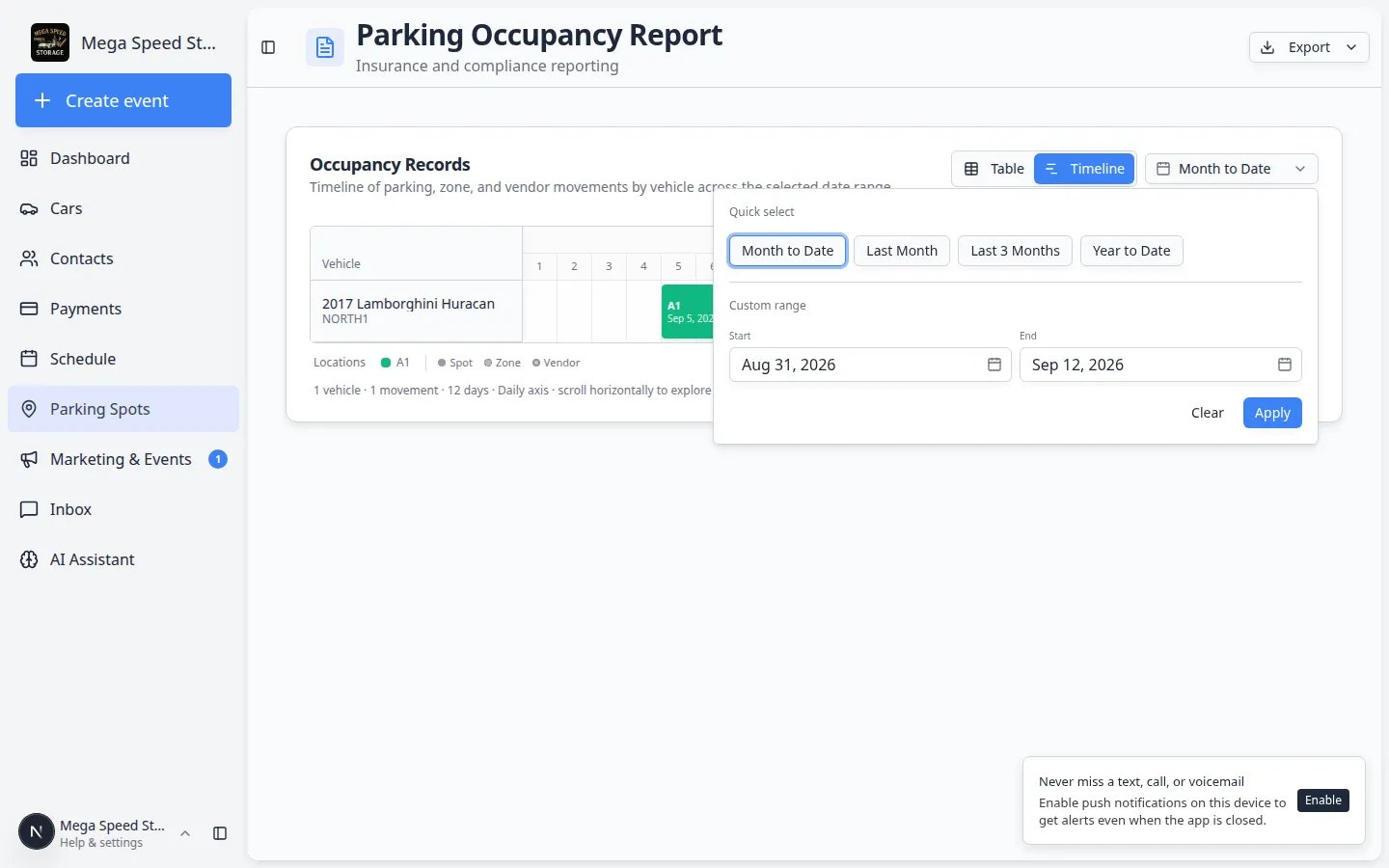 *Timeline view helps you explain how long a car was in a spot, zone, or at a vendor without reading every table row.*
### Expected result (Timeline)
You can point to a bar and explain when a vehicle was in a spot. If a car moved twice in the same month, you may see more than one bar.
**Movement view vs car view in Timeline**
**Timeline** always shows each parking stay as its own bar—similar to **Row per movement** in the table. Use **Row per car** in Table view when you want one summary line per vehicle instead of a chart.
## Choose how rows are grouped
When the report is in **Table** view (not **Timeline**), you can switch how rows are listed.
**Row per movement** shows each parking stay or move as its own row. Use this when you want detailed history.
**Row per car** groups activity by vehicle. Use this when you want a shorter list of which cars were in the facility during the date range.
If you are not sure which to use, start with **Row per movement**. It gives the most detail.
Near the top of the [Parking Spots Report](https://www.carstoragesoftware.com/dashboard/parking-spots/report), look for the switch labeled **Row per movement** and **Row per car**.
Keep **Row per movement** when you need to see each time a car entered or left a spot.
Turn the switch toward **Row per car** when you mainly need one line per vehicle for the date range.
*Timeline view helps you explain how long a car was in a spot, zone, or at a vendor without reading every table row.*
### Expected result (Timeline)
You can point to a bar and explain when a vehicle was in a spot. If a car moved twice in the same month, you may see more than one bar.
**Movement view vs car view in Timeline**
**Timeline** always shows each parking stay as its own bar—similar to **Row per movement** in the table. Use **Row per car** in Table view when you want one summary line per vehicle instead of a chart.
## Choose how rows are grouped
When the report is in **Table** view (not **Timeline**), you can switch how rows are listed.
**Row per movement** shows each parking stay or move as its own row. Use this when you want detailed history.
**Row per car** groups activity by vehicle. Use this when you want a shorter list of which cars were in the facility during the date range.
If you are not sure which to use, start with **Row per movement**. It gives the most detail.
Near the top of the [Parking Spots Report](https://www.carstoragesoftware.com/dashboard/parking-spots/report), look for the switch labeled **Row per movement** and **Row per car**.
Keep **Row per movement** when you need to see each time a car entered or left a spot.
Turn the switch toward **Row per car** when you mainly need one line per vehicle for the date range.
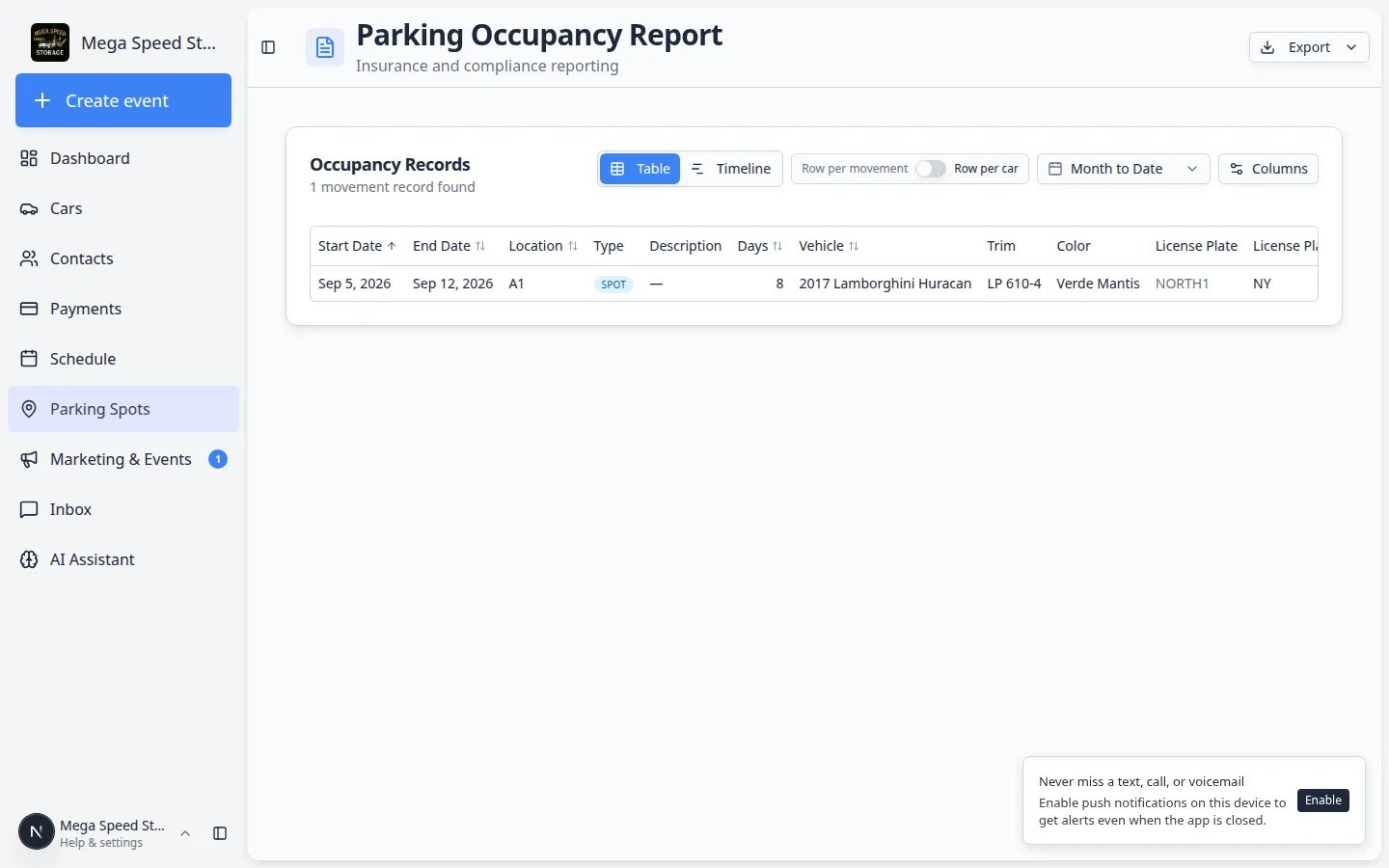 *Row per movement is best for audits and billing reviews because each stay or move appears on its own line.*
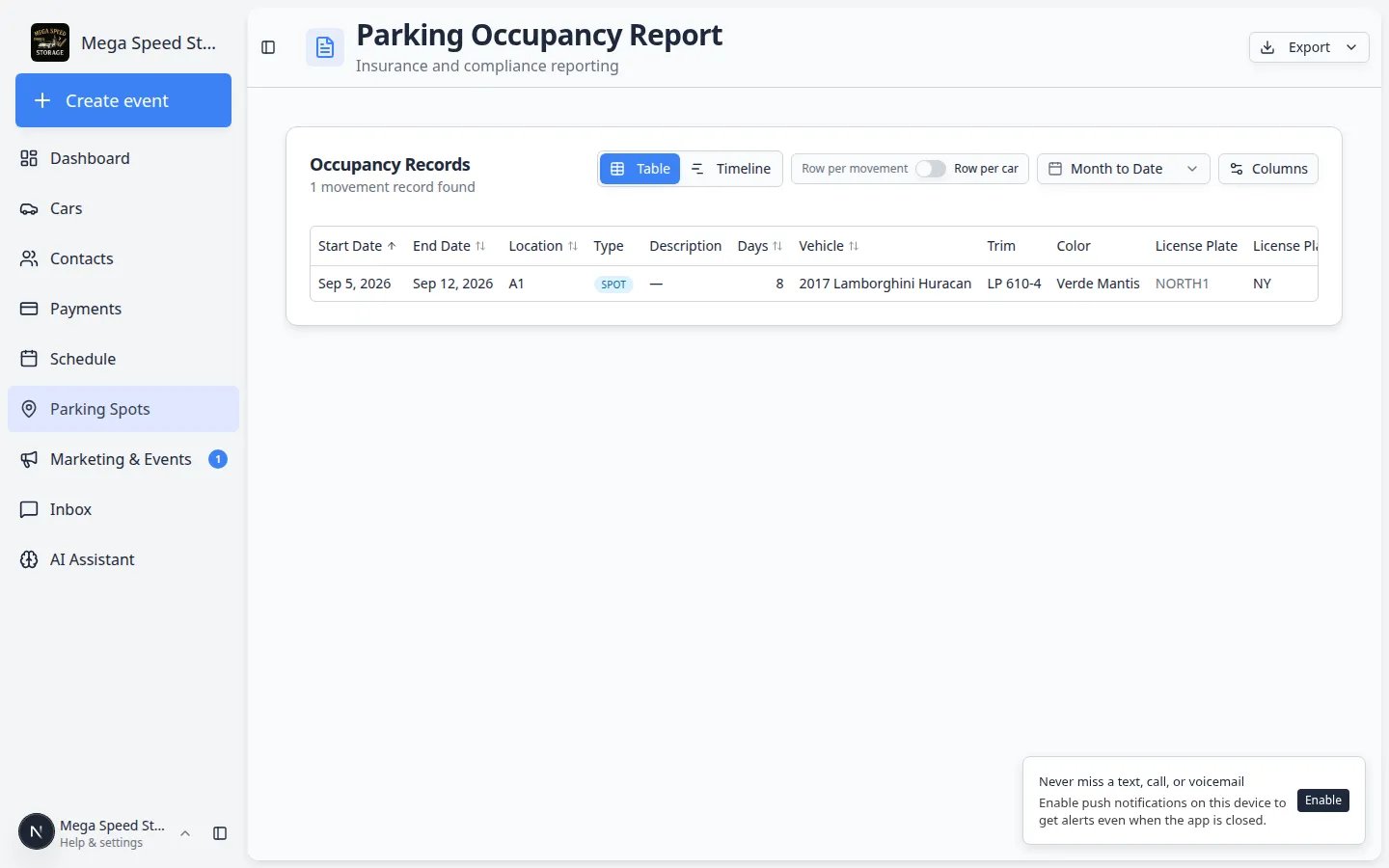 *Row per car rolls up multiple moves into one line per vehicle when you only need a facility-wide vehicle list.*
### Expected result
The rows change to match the grouping you picked. **Row per movement** usually shows more lines because each stay or move is its own row.
## Read the main columns
These columns show when the car's assignment started and ended within your selected range. If the car is still assigned, the end date may show the current range end.
**Location** shows the spot, zone, or vendor name. **Type** shows **Spot**, **Zone**, or **Vendor** so you can tell numbered spaces apart from flexible areas or off-site locations.
Use the vehicle details to confirm you are looking at the correct car. This is especially helpful when customers own more than one vehicle.
The customer column helps you connect the parking history to the owner or company.
**Days** shows how many days the assignment overlaps your selected date range. This is helpful for occupancy review and billing checks.
Open **Columns** to add fields your team may need:
* **VIN**, **License Plate**, **Customer Email** — identify the right vehicle and owner.
* **Insurance Company**, **Declared Value** — confirm coverage details before billing questions.
* **Est. Min / Avg / Max Value** — market value estimates when your facility uses vehicle valuation data.
**Vendor rows**
When a car was sent to an outside vendor (for example transport or detail off-site), **Type** shows **Vendor** and **Location** shows the vendor name. This is different from a spot or zone inside your building. To record vendor location, read [Send a car to an outside vendor](/docs/parking-spots/send-a-car-to-an-outside-vendor).
*Row per car rolls up multiple moves into one line per vehicle when you only need a facility-wide vehicle list.*
### Expected result
The rows change to match the grouping you picked. **Row per movement** usually shows more lines because each stay or move is its own row.
## Read the main columns
These columns show when the car's assignment started and ended within your selected range. If the car is still assigned, the end date may show the current range end.
**Location** shows the spot, zone, or vendor name. **Type** shows **Spot**, **Zone**, or **Vendor** so you can tell numbered spaces apart from flexible areas or off-site locations.
Use the vehicle details to confirm you are looking at the correct car. This is especially helpful when customers own more than one vehicle.
The customer column helps you connect the parking history to the owner or company.
**Days** shows how many days the assignment overlaps your selected date range. This is helpful for occupancy review and billing checks.
Open **Columns** to add fields your team may need:
* **VIN**, **License Plate**, **Customer Email** — identify the right vehicle and owner.
* **Insurance Company**, **Declared Value** — confirm coverage details before billing questions.
* **Est. Min / Avg / Max Value** — market value estimates when your facility uses vehicle valuation data.
**Vendor rows**
When a car was sent to an outside vendor (for example transport or detail off-site), **Type** shows **Vendor** and **Location** shows the vendor name. This is different from a spot or zone inside your building. To record vendor location, read [Send a car to an outside vendor](/docs/parking-spots/send-a-car-to-an-outside-vendor).
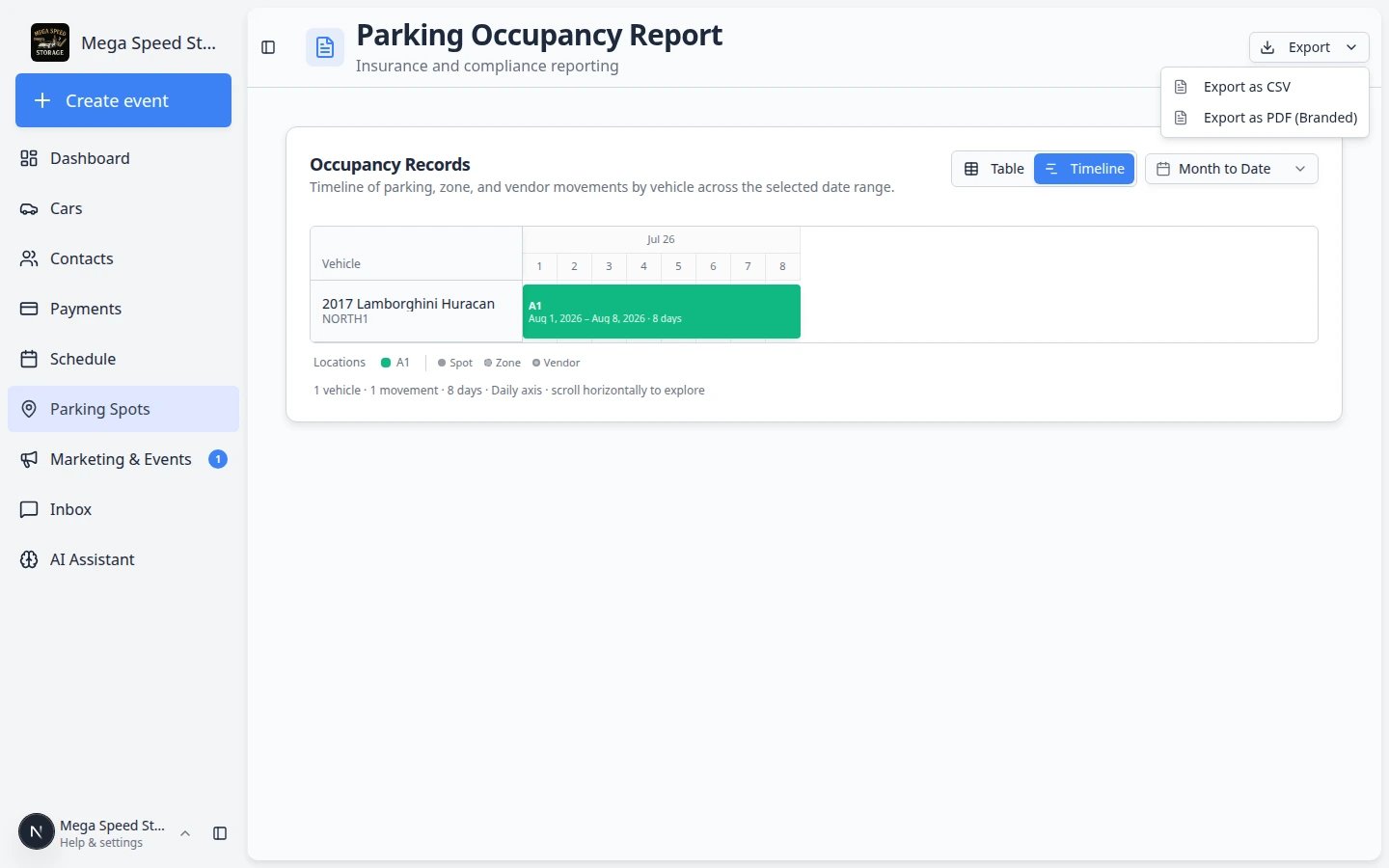 *Vendor rows help billing and operations teams see off-site time separately from numbered spots and zones.*
## Change which columns you see
*Vendor rows help billing and operations teams see off-site time separately from numbered spots and zones.*
## Change which columns you see
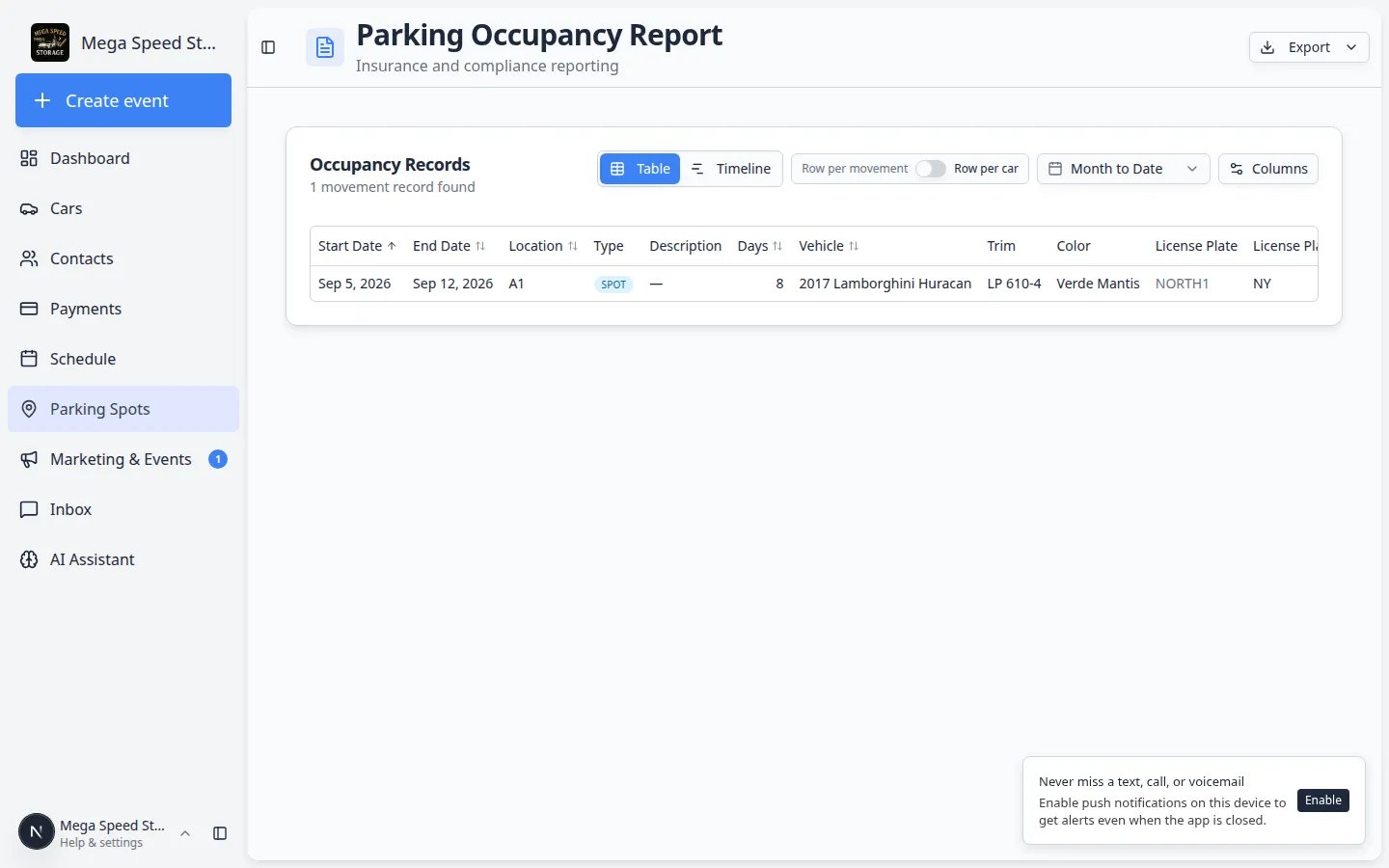 *Open **Columns** before you export. Only checked columns appear in the downloaded file.*
Near the top-right of [Parking Spots Report](https://www.carstoragesoftware.com/dashboard/parking-spots/report), click **Columns**.
**Expected result:** A checklist of column names appears, such as **Days**, **VIN**, **License Plate**, and **Customer Email**.
Check the fields your team needs. For billing reviews, turn on **Days**. For vehicle identification, add **VIN** or **License Plate**.
**Why this matters:** The export file includes only the columns that are visible when you click **Export**.
Turn off columns you do not need for the task. A shorter report is easier to review on screen and in a spreadsheet.
## Export the report
Use export when you need to share the report outside the app or save a copy for your records—for example before a billing review or when a manager asks for a spreadsheet.
*Open **Columns** before you export. Only checked columns appear in the downloaded file.*
Near the top-right of [Parking Spots Report](https://www.carstoragesoftware.com/dashboard/parking-spots/report), click **Columns**.
**Expected result:** A checklist of column names appears, such as **Days**, **VIN**, **License Plate**, and **Customer Email**.
Check the fields your team needs. For billing reviews, turn on **Days**. For vehicle identification, add **VIN** or **License Plate**.
**Why this matters:** The export file includes only the columns that are visible when you click **Export**.
Turn off columns you do not need for the task. A shorter report is easier to review on screen and in a spreadsheet.
## Export the report
Use export when you need to share the report outside the app or save a copy for your records—for example before a billing review or when a manager asks for a spreadsheet.
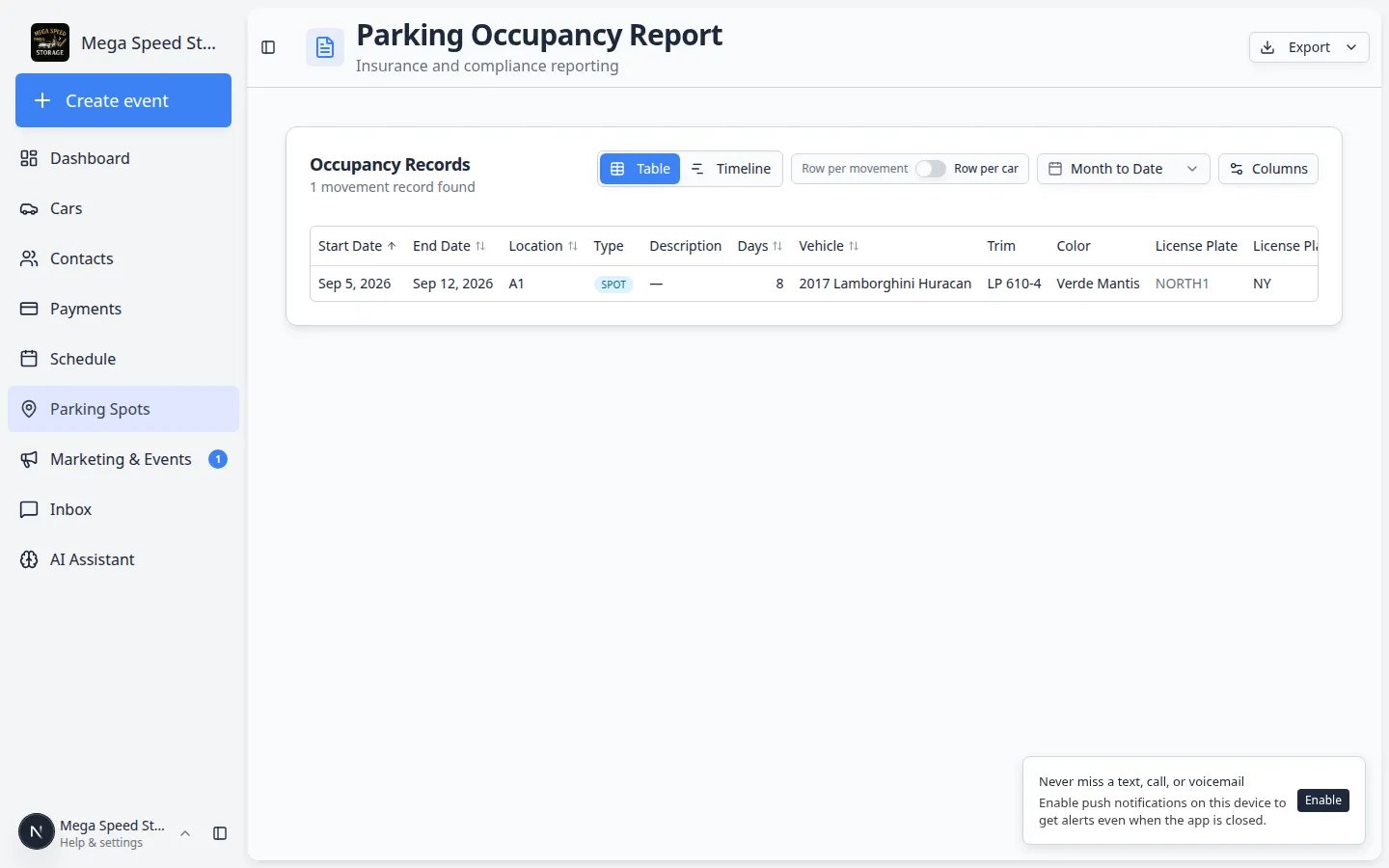 *Choose **Export as CSV** for spreadsheets or **Export as PDF (Branded)** for a formatted copy with your facility logo.*
Open [Parking Spots Report](https://www.carstoragesoftware.com/dashboard/parking-spots/report) and click **Table** if you are on **Timeline**. Export works from the table.
Always choose the correct date range before exporting. The file includes only rows that overlap that range.
The export uses the visible columns, so turn on the columns you need before downloading. Add **Days**, **VIN**, or **Customer Email** when billing or audit teams need them.
In the top-right area of the report, click **Export**. Choose **Export as CSV** for a spreadsheet file you can open in Excel or Google Sheets. Choose **Export as PDF (Branded)** when you need a formatted copy with your facility logo for a customer or manager.
***Export as CSV** is best for sorting and formulas. **Export as PDF (Branded)** is best when a customer or owner wants a polished document without editing.*
**Expected result:** Your browser downloads a file. CSV opens in a spreadsheet app; PDF opens ready to print or email.
Open the download and confirm one vehicle, spot name, and **Days** value look right before you email the file.
**Expected result:** Each row matches what you saw in the on-screen table for the same date range.
**Expected result after export**
A CSV file opens in your spreadsheet app with one row per movement (or per car, depending on your grouping toggle). A branded PDF is ready to email or print without extra formatting.
## Use the report before billing
Many facilities open the parking report before sending a storage invoice or answering “how long was my car there?”
Choose the same date range you plan to bill—for example **Last Month** or a custom month.
Keep **Row per movement** on so each stay shows its own **Start Date**, **End Date**, and **Days** count.
Open **Columns** and turn on **Days**, **Customer**, and **License Plate** or **VIN** if your billing team needs them.
Open the customer’s invoice in [Payments > Invoices](https://www.carstoragesoftware.com/dashboard/payments/invoices) and confirm the storage period matches the report.
**Why this matters:** Catching a missing move on the map is easier before the customer receives the bill.
## What to do if the report finds a problem
* If a car is missing, open the car record and check whether it has a parking assignment.
* If a car shows the wrong spot, move the car record to the correct spot from [Parking Spots](https://www.carstoragesoftware.com/dashboard/parking-spots) or the car record.
* If a car was off-site at a vendor, confirm **Type** shows **Vendor** on the report. See [Send a car to an outside vendor](/docs/parking-spots/send-a-car-to-an-outside-vendor).
* If a spot name is wrong, update it in [Settings > Floor Plan](https://www.carstoragesoftware.com/dashboard/settings/floor-plan).
* If staff are not updating moves, review [Assign a parking spot](/docs/parking-spots/assign-a-parking-spot) with the team.
## Troubleshooting
**The report is empty**
Check the date range first. If the range is correct, your team may not have created parking assignments during that period.
**The car is in the facility but missing from the report**
The car may not have an active parking assignment. Open the car record or [Parking Spots](https://www.carstoragesoftware.com/dashboard/parking-spots) and assign the car to its current location.
**The days look different than I expected**
The report counts the days that overlap your selected date range. If a car was parked before the range started, the report starts counting from the first day in your range.
## What to do next
* If the report shows the wrong current spot, correct it with [Assign a parking spot](/docs/parking-spots/assign-a-parking-spot).
* If a car should show as off-site, update it with [Send a car to an outside vendor](/docs/parking-spots/send-a-car-to-an-outside-vendor).
* If a spot name is wrong on the report, update it in [Settings > Floor Plan](https://www.carstoragesoftware.com/dashboard/settings/floor-plan).
* For day-to-day lookups, use [Find parking spots and available spaces](/docs/parking-spots/find-parking-spots-and-available-spaces).
* For off-site location tracking, read [Send a car to an outside vendor](/docs/parking-spots/send-a-car-to-an-outside-vendor).
## Related topics
- [Run a parking audit](/docs/parking-spots/run-a-parking-audit.md)
- [Send a car to an outside vendor](/docs/parking-spots/send-a-car-to-an-outside-vendor.md)
- [Reserve a parking spot](/docs/parking-spots/reserve-a-parking-spot.md)
- [Parking Spots overview](/docs/parking-spots/overview.md)
- [Assign a parking spot](/docs/parking-spots/assign-a-parking-spot.md)
This documentation is built and hosted on [Mintlify](https://mintlify.com), a developer documentation platform.
*Choose **Export as CSV** for spreadsheets or **Export as PDF (Branded)** for a formatted copy with your facility logo.*
Open [Parking Spots Report](https://www.carstoragesoftware.com/dashboard/parking-spots/report) and click **Table** if you are on **Timeline**. Export works from the table.
Always choose the correct date range before exporting. The file includes only rows that overlap that range.
The export uses the visible columns, so turn on the columns you need before downloading. Add **Days**, **VIN**, or **Customer Email** when billing or audit teams need them.
In the top-right area of the report, click **Export**. Choose **Export as CSV** for a spreadsheet file you can open in Excel or Google Sheets. Choose **Export as PDF (Branded)** when you need a formatted copy with your facility logo for a customer or manager.
***Export as CSV** is best for sorting and formulas. **Export as PDF (Branded)** is best when a customer or owner wants a polished document without editing.*
**Expected result:** Your browser downloads a file. CSV opens in a spreadsheet app; PDF opens ready to print or email.
Open the download and confirm one vehicle, spot name, and **Days** value look right before you email the file.
**Expected result:** Each row matches what you saw in the on-screen table for the same date range.
**Expected result after export**
A CSV file opens in your spreadsheet app with one row per movement (or per car, depending on your grouping toggle). A branded PDF is ready to email or print without extra formatting.
## Use the report before billing
Many facilities open the parking report before sending a storage invoice or answering “how long was my car there?”
Choose the same date range you plan to bill—for example **Last Month** or a custom month.
Keep **Row per movement** on so each stay shows its own **Start Date**, **End Date**, and **Days** count.
Open **Columns** and turn on **Days**, **Customer**, and **License Plate** or **VIN** if your billing team needs them.
Open the customer’s invoice in [Payments > Invoices](https://www.carstoragesoftware.com/dashboard/payments/invoices) and confirm the storage period matches the report.
**Why this matters:** Catching a missing move on the map is easier before the customer receives the bill.
## What to do if the report finds a problem
* If a car is missing, open the car record and check whether it has a parking assignment.
* If a car shows the wrong spot, move the car record to the correct spot from [Parking Spots](https://www.carstoragesoftware.com/dashboard/parking-spots) or the car record.
* If a car was off-site at a vendor, confirm **Type** shows **Vendor** on the report. See [Send a car to an outside vendor](/docs/parking-spots/send-a-car-to-an-outside-vendor).
* If a spot name is wrong, update it in [Settings > Floor Plan](https://www.carstoragesoftware.com/dashboard/settings/floor-plan).
* If staff are not updating moves, review [Assign a parking spot](/docs/parking-spots/assign-a-parking-spot) with the team.
## Troubleshooting
**The report is empty**
Check the date range first. If the range is correct, your team may not have created parking assignments during that period.
**The car is in the facility but missing from the report**
The car may not have an active parking assignment. Open the car record or [Parking Spots](https://www.carstoragesoftware.com/dashboard/parking-spots) and assign the car to its current location.
**The days look different than I expected**
The report counts the days that overlap your selected date range. If a car was parked before the range started, the report starts counting from the first day in your range.
## What to do next
* If the report shows the wrong current spot, correct it with [Assign a parking spot](/docs/parking-spots/assign-a-parking-spot).
* If a car should show as off-site, update it with [Send a car to an outside vendor](/docs/parking-spots/send-a-car-to-an-outside-vendor).
* If a spot name is wrong on the report, update it in [Settings > Floor Plan](https://www.carstoragesoftware.com/dashboard/settings/floor-plan).
* For day-to-day lookups, use [Find parking spots and available spaces](/docs/parking-spots/find-parking-spots-and-available-spaces).
* For off-site location tracking, read [Send a car to an outside vendor](/docs/parking-spots/send-a-car-to-an-outside-vendor).
## Related topics
- [Run a parking audit](/docs/parking-spots/run-a-parking-audit.md)
- [Send a car to an outside vendor](/docs/parking-spots/send-a-car-to-an-outside-vendor.md)
- [Reserve a parking spot](/docs/parking-spots/reserve-a-parking-spot.md)
- [Parking Spots overview](/docs/parking-spots/overview.md)
- [Assign a parking spot](/docs/parking-spots/assign-a-parking-spot.md)
This documentation is built and hosted on [Mintlify](https://mintlify.com), a developer documentation platform.