> ## Documentation Index
> Fetch the complete documentation index at: https://www.carstoragesoftware.com/docs/llms.txt
> Use this file to discover all available pages before exploring further.
# Run a parking audit
> Walk your spots and zones, confirm each car is where the map says, and fix mismatches before they become “where is this car?” calls.
## What you will accomplish
You will walk the facility with the [Parking Spots](https://www.carstoragesoftware.com/dashboard/parking-spots) **Audit** tool, confirm or correct each space, and finish with a simple accuracy score your team can trust.
When you finish:
* Each checked spot matches what is actually on the floor
* Wrong or missing cars are fixed in the same walk
* The [parking report](https://www.carstoragesoftware.com/dashboard/parking-spots/report) and car records stay in sync
* Your team can see when the last walk happened and when the next one is due
## When to use a parking audit
Use an audit when you need to **prove the map is true**, not when you are only parking one arriving car.
Typical times:
* A weekly or monthly lot walk your manager asks for
* After a busy drop-off weekend when cars moved quickly
* Before billing, insurance, or a customer pickup argument
* When the map badge says **Never audited**, **Due today**, or **Overdue**
**Audit vs everyday parking**
If one car just arrived, use [Assign a parking spot](/docs/parking-spots/assign-a-parking-spot). An **audit** is a guided walk of **many** spots so nothing is skipped.
## Before you start
* You can open [Parking Spots](https://www.carstoragesoftware.com/dashboard/parking-spots) with a staff login.
* Your map already has spots or zones. If it is empty, an admin should follow [Set up parking spots and zones](/docs/parking-spots/set-up-parking-spots-and-zones) first.
* Plan a quiet 10–20 minutes for a small building, or longer for a full lot. You can pause and tap **Resume audit** later.
* Walk with a phone or tablet if you can. The audit screen is built for standing at each space.
## Open Audit from Parking Spots
Click **Parking Spots** in the left sidebar, or go to [Parking Spots](https://www.carstoragesoftware.com/dashboard/parking-spots).
**Expected result:** The page title says **Parking Spots**. You see the map or table, plus a blue **Actions** button near the top.
Click **Actions**.
**Expected result:** A menu opens with **Audit**, **Report**, and other tools.
Click **Audit**. The line under the name says **Walk spots and review history**.
**Why this matters:** **Report** is history you read later. **Audit** is the walk you do now.
**Expected result:** A side panel opens. The heading is about starting or reviewing a walkthrough.
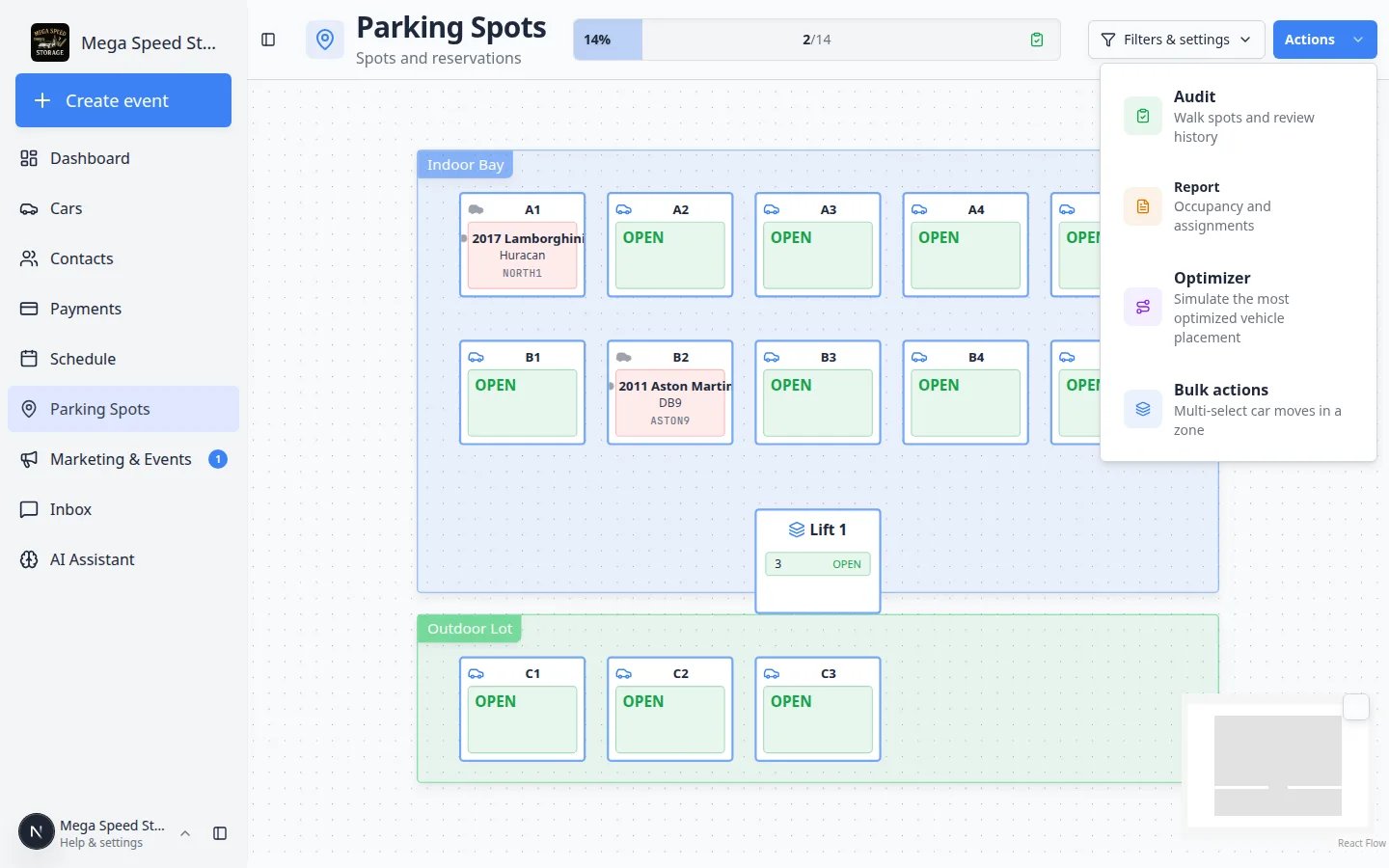 *On [Parking Spots](https://www.carstoragesoftware.com/dashboard/parking-spots), click **Actions**, then **Audit**. That is how you start a walkthrough.*
**Faster path**
If you see a small clipboard badge on the occupancy bar (or a pill that says **Never audited** / **Due today**), you can click that badge instead of opening **Actions**. Both open the same panel.
## Start a new walk, or resume one
The bottom button shows a count, such as **Start audit · 16 items**. That number is every numbered spot plus cars parked only in a zone.
**Why this matters:** If the count is **0**, this location has no saved spots yet. Stop and set up the map first.
Click **Start audit · … items**.
**Expected result:** A full-screen walkthrough opens. The top bar shows **Step 1 of …** (or **Zone cars** when you are in a flexible zone).
Look for a card labeled **In progress**. Click **Resume audit** to pick up where you left off. Click **Start new audit** only if your manager wants a fresh walk (the old unfinished walk stays in **Recent audits** until you finish or leave it).
*On [Parking Spots](https://www.carstoragesoftware.com/dashboard/parking-spots), click **Actions**, then **Audit**. That is how you start a walkthrough.*
**Faster path**
If you see a small clipboard badge on the occupancy bar (or a pill that says **Never audited** / **Due today**), you can click that badge instead of opening **Actions**. Both open the same panel.
## Start a new walk, or resume one
The bottom button shows a count, such as **Start audit · 16 items**. That number is every numbered spot plus cars parked only in a zone.
**Why this matters:** If the count is **0**, this location has no saved spots yet. Stop and set up the map first.
Click **Start audit · … items**.
**Expected result:** A full-screen walkthrough opens. The top bar shows **Step 1 of …** (or **Zone cars** when you are in a flexible zone).
Look for a card labeled **In progress**. Click **Resume audit** to pick up where you left off. Click **Start new audit** only if your manager wants a fresh walk (the old unfinished walk stays in **Recent audits** until you finish or leave it).
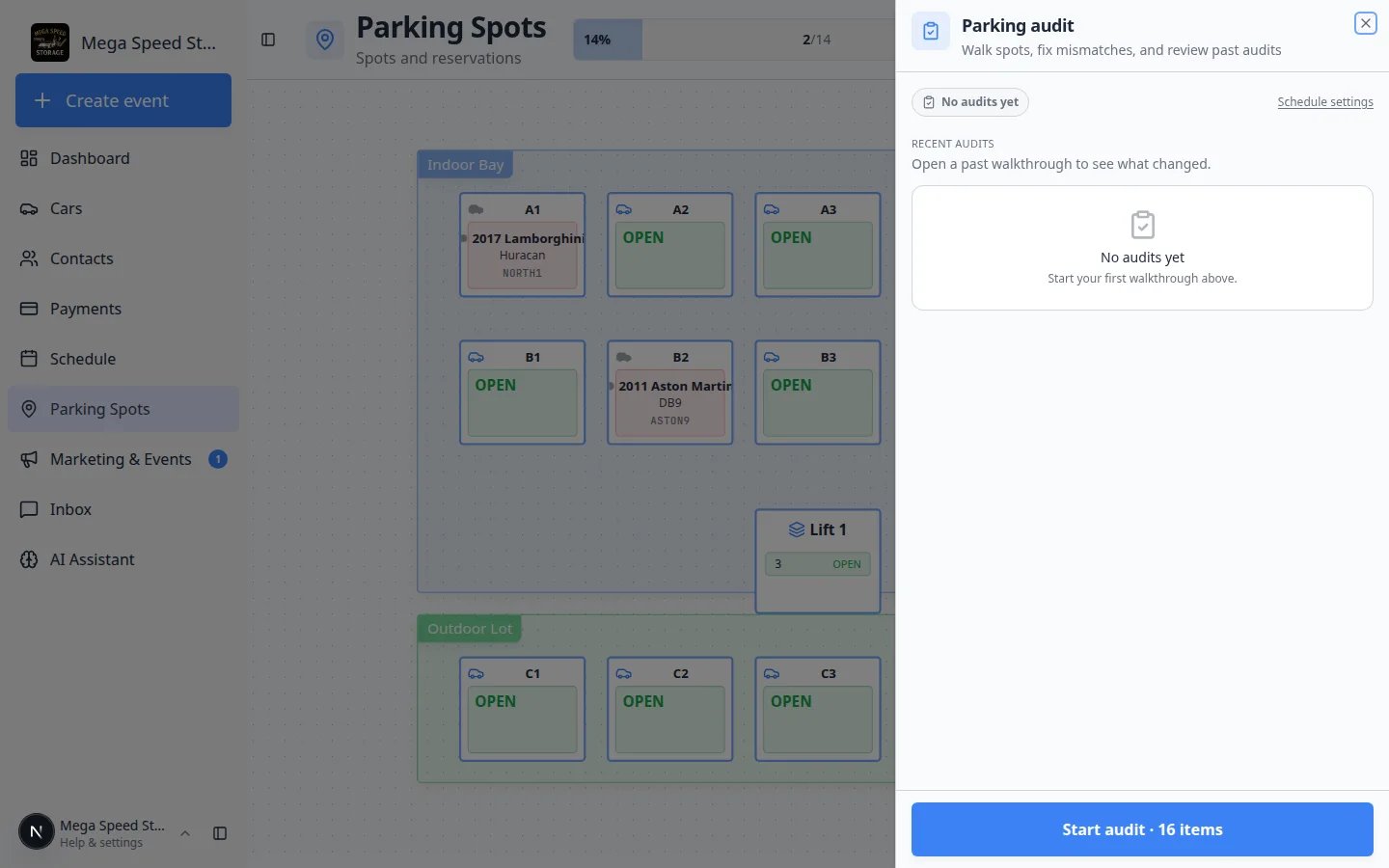 *The start panel lists **Recent audits** and a big **Start audit** button. Use **Schedule settings** if you need overdue reminders.*
**You can close the walk and come back**
Tap the **X** (Close audit) if a customer arrives mid-walk. Open **Actions → Audit** later and click **Resume audit**. Your checked steps stay saved.
## Check one numbered spot
Each numbered space (for example **A1**) is its own step.
Read the large spot name at the top (for example **A1**). Walk to that space in the building before you tap anything.
**Why this matters:** Confirming the wrong row is the most common audit mistake.
The card shows the year, make, model, plate, and owner the system thinks is there. If the spot is empty in the app, the card says **Empty spot**.
Tap the large **Looks good** button.
**Expected result:** The step is marked checked. The progress bar at the top moves forward.
Use **Left facility** when the space is empty **and** the car is no longer on your property (customer took it, transport left, and so on).
**Expected result:** The system clears that parking assignment so the map no longer shows the car there.
Use **Parked elsewhere**, then pick the correct spot or zone.
**Expected result:** The old space opens up. The car record shows the new **Spot:** or **Zone:**.
Use **Different car**, then search by plate, owner, make, or model. Read the current location on each row before you confirm.
**Why this matters:** Two similar cars are easy to mix up. The list shows where each car is already assigned so you do not double-park a record.
Search for the vehicle and assign it to this spot.
**Expected result:** The card updates to that car. The map shows it as present.
*The start panel lists **Recent audits** and a big **Start audit** button. Use **Schedule settings** if you need overdue reminders.*
**You can close the walk and come back**
Tap the **X** (Close audit) if a customer arrives mid-walk. Open **Actions → Audit** later and click **Resume audit**. Your checked steps stay saved.
## Check one numbered spot
Each numbered space (for example **A1**) is its own step.
Read the large spot name at the top (for example **A1**). Walk to that space in the building before you tap anything.
**Why this matters:** Confirming the wrong row is the most common audit mistake.
The card shows the year, make, model, plate, and owner the system thinks is there. If the spot is empty in the app, the card says **Empty spot**.
Tap the large **Looks good** button.
**Expected result:** The step is marked checked. The progress bar at the top moves forward.
Use **Left facility** when the space is empty **and** the car is no longer on your property (customer took it, transport left, and so on).
**Expected result:** The system clears that parking assignment so the map no longer shows the car there.
Use **Parked elsewhere**, then pick the correct spot or zone.
**Expected result:** The old space opens up. The car record shows the new **Spot:** or **Zone:**.
Use **Different car**, then search by plate, owner, make, or model. Read the current location on each row before you confirm.
**Why this matters:** Two similar cars are easy to mix up. The list shows where each car is already assigned so you do not double-park a record.
Search for the vehicle and assign it to this spot.
**Expected result:** The card updates to that car. The map shows it as present.
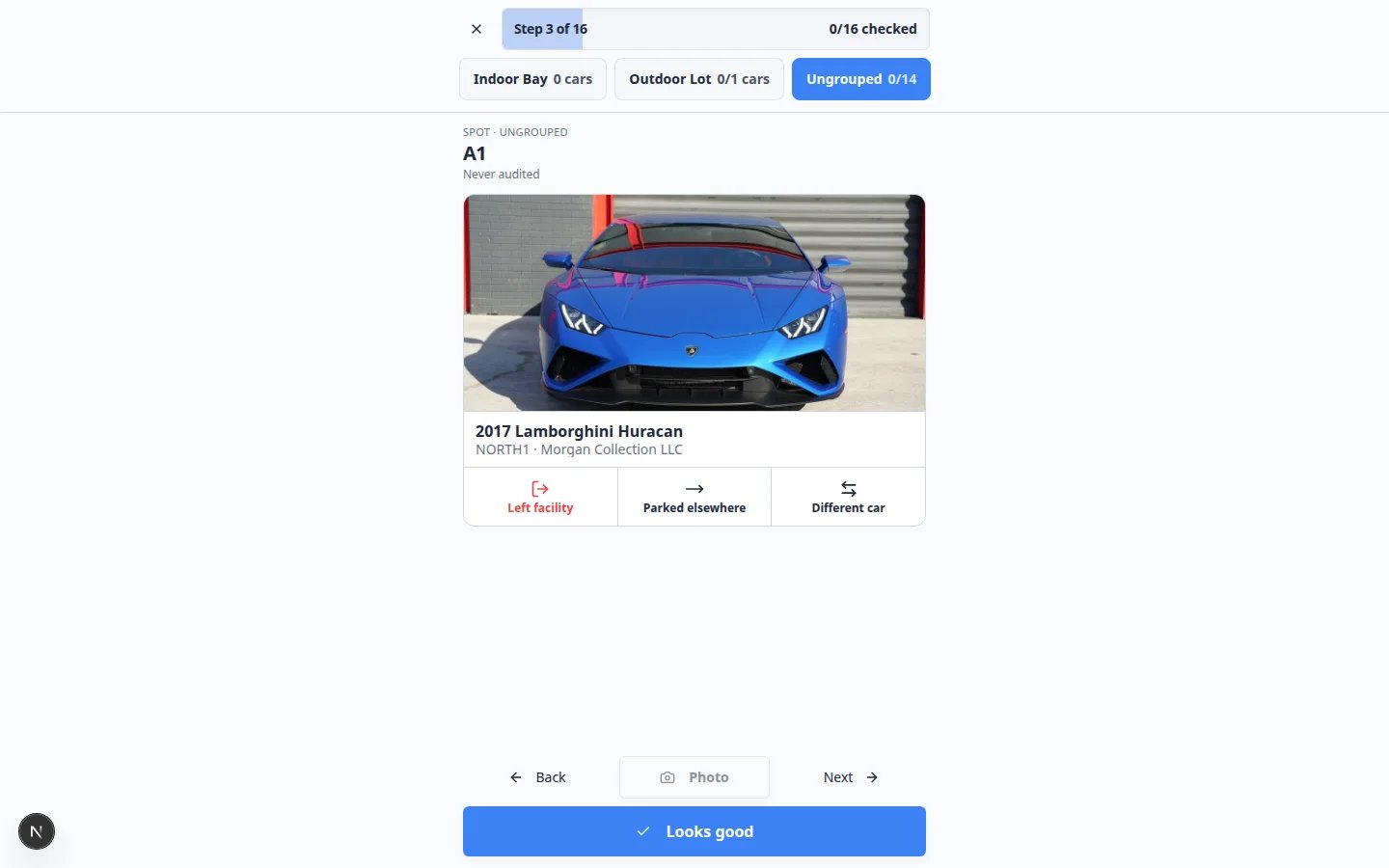 *Stand at the real space, read the card, then tap **Looks good** when the car matches—or use the fix buttons when it does not.*
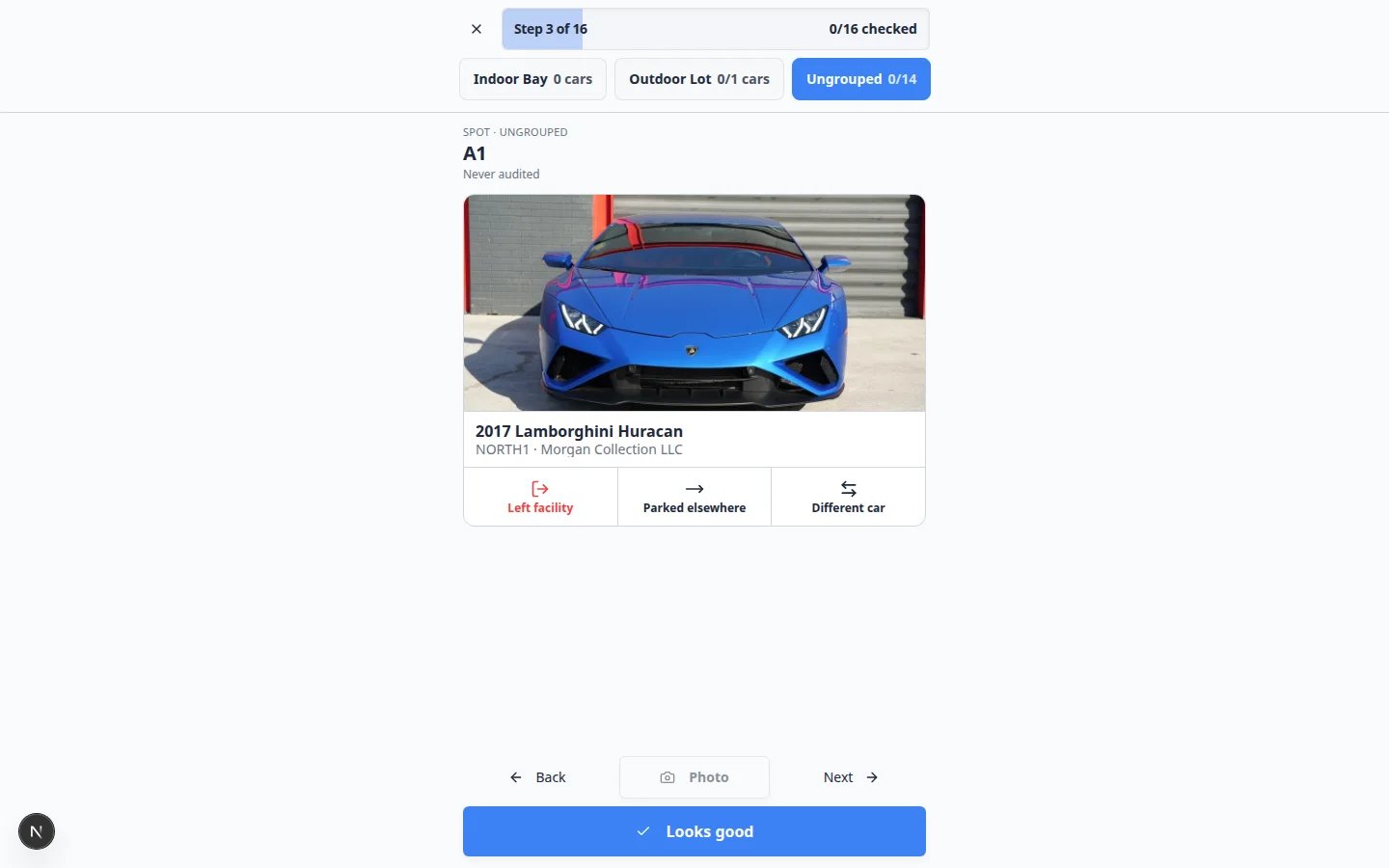 ***Left facility**, **Parked elsewhere**, and **Different car** fix the map during the walk so you do not need a second trip to the car record.*
**Next is not the same as Looks good**
**Next** skips this space without saying it is correct. Use **Next** only if you cannot see the space right now. Skipped spaces do not count as confirmed.
## Check a zone (outdoor lot or overflow)
When cars park anywhere in a colored area (for example **Outdoor Lot**), the walk shows **Zone cars** instead of one spot name.
Use the zone chips near the top (for example **Outdoor Lot 1/4**) to jump to that area.
Select the cars that are physically in the zone, then tap **Looks good (N)**.
If a vehicle is in the lot but not on the list, tap **Add car** and search for it.
Select a car that is gone and tap **Left facility**, or **Parked elsewhere** if it moved to a numbered spot.
Turn on **Camera mode** to scan facility QR codes as you walk. Then review **Confirm all match** or **Apply changes**.
**Why this matters:** Scanning is faster in a large overflow lot. You can still add or remove cars by hand if a sticker is missing.
**Empty zone floor**
If the zone has no cars in the system, you may see **Confirm empty**. Tap it only after you walk the real lot and confirm nobody is parked there without a numbered spot.
## Add a photo (optional)
On a step, tap **Photo** if your team wants a picture of the row or a damage note.
Choose a photo from the device. It is stored with this audit.
**Expected result:** A small thumbnail appears. You can open it later from **Recent audits**.
## Finish the walk and read the score
After the last step (or when you open the summary), you see **Occupancy accuracy** as a percent.
**95%** means almost every checked space matched. The line under the number says how many matched, how many you **corrected**, and how many you **skipped**.
Tap **Finish audit**.
**Expected result:** The walkthrough closes. The start panel now lists this walk under **Recent audits** with a status such as **completed**.
***Left facility**, **Parked elsewhere**, and **Different car** fix the map during the walk so you do not need a second trip to the car record.*
**Next is not the same as Looks good**
**Next** skips this space without saying it is correct. Use **Next** only if you cannot see the space right now. Skipped spaces do not count as confirmed.
## Check a zone (outdoor lot or overflow)
When cars park anywhere in a colored area (for example **Outdoor Lot**), the walk shows **Zone cars** instead of one spot name.
Use the zone chips near the top (for example **Outdoor Lot 1/4**) to jump to that area.
Select the cars that are physically in the zone, then tap **Looks good (N)**.
If a vehicle is in the lot but not on the list, tap **Add car** and search for it.
Select a car that is gone and tap **Left facility**, or **Parked elsewhere** if it moved to a numbered spot.
Turn on **Camera mode** to scan facility QR codes as you walk. Then review **Confirm all match** or **Apply changes**.
**Why this matters:** Scanning is faster in a large overflow lot. You can still add or remove cars by hand if a sticker is missing.
**Empty zone floor**
If the zone has no cars in the system, you may see **Confirm empty**. Tap it only after you walk the real lot and confirm nobody is parked there without a numbered spot.
## Add a photo (optional)
On a step, tap **Photo** if your team wants a picture of the row or a damage note.
Choose a photo from the device. It is stored with this audit.
**Expected result:** A small thumbnail appears. You can open it later from **Recent audits**.
## Finish the walk and read the score
After the last step (or when you open the summary), you see **Occupancy accuracy** as a percent.
**95%** means almost every checked space matched. The line under the number says how many matched, how many you **corrected**, and how many you **skipped**.
Tap **Finish audit**.
**Expected result:** The walkthrough closes. The start panel now lists this walk under **Recent audits** with a status such as **completed**.
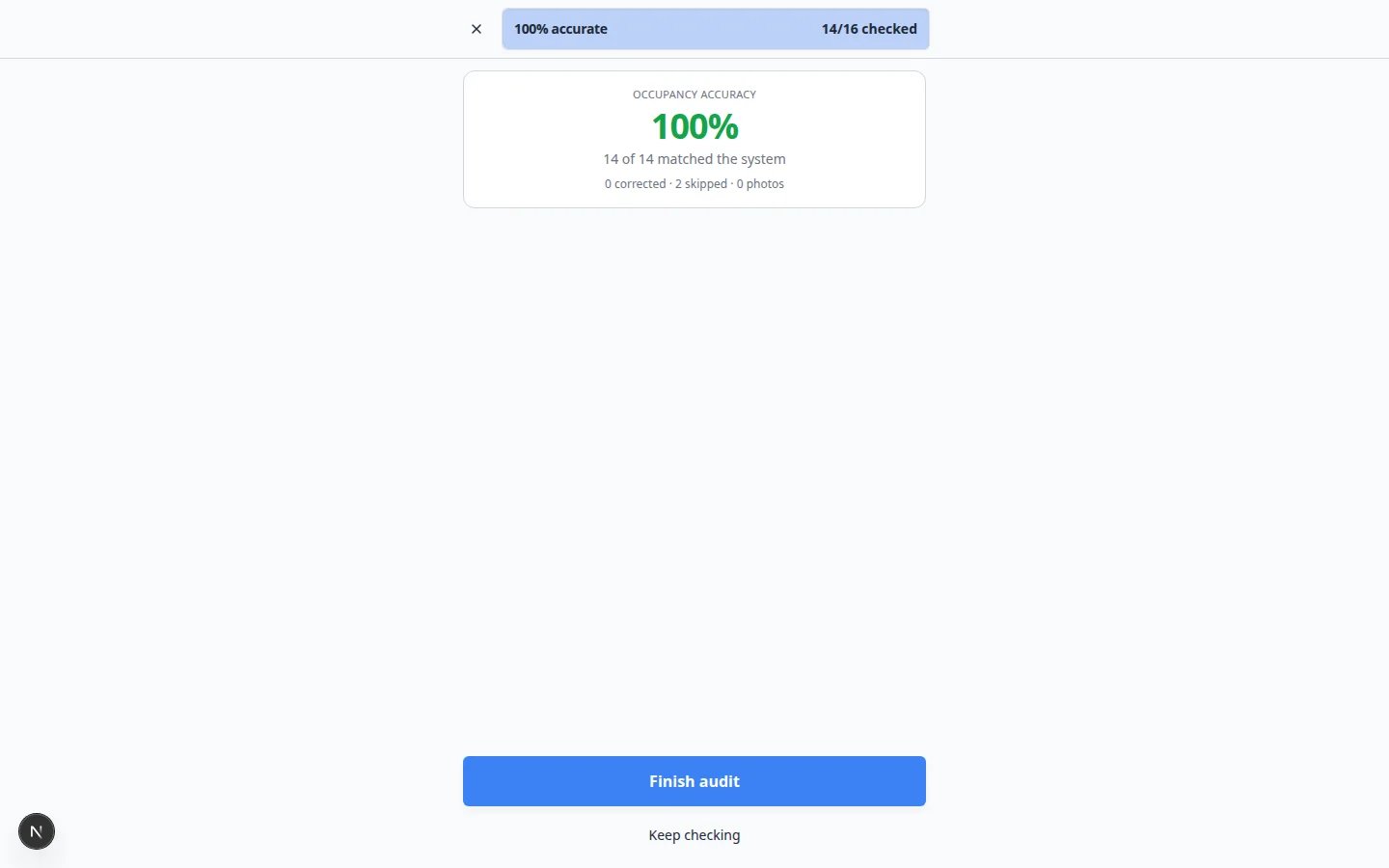 *The summary is your score for this walk. Tap **Finish audit** so the due date and history update.*
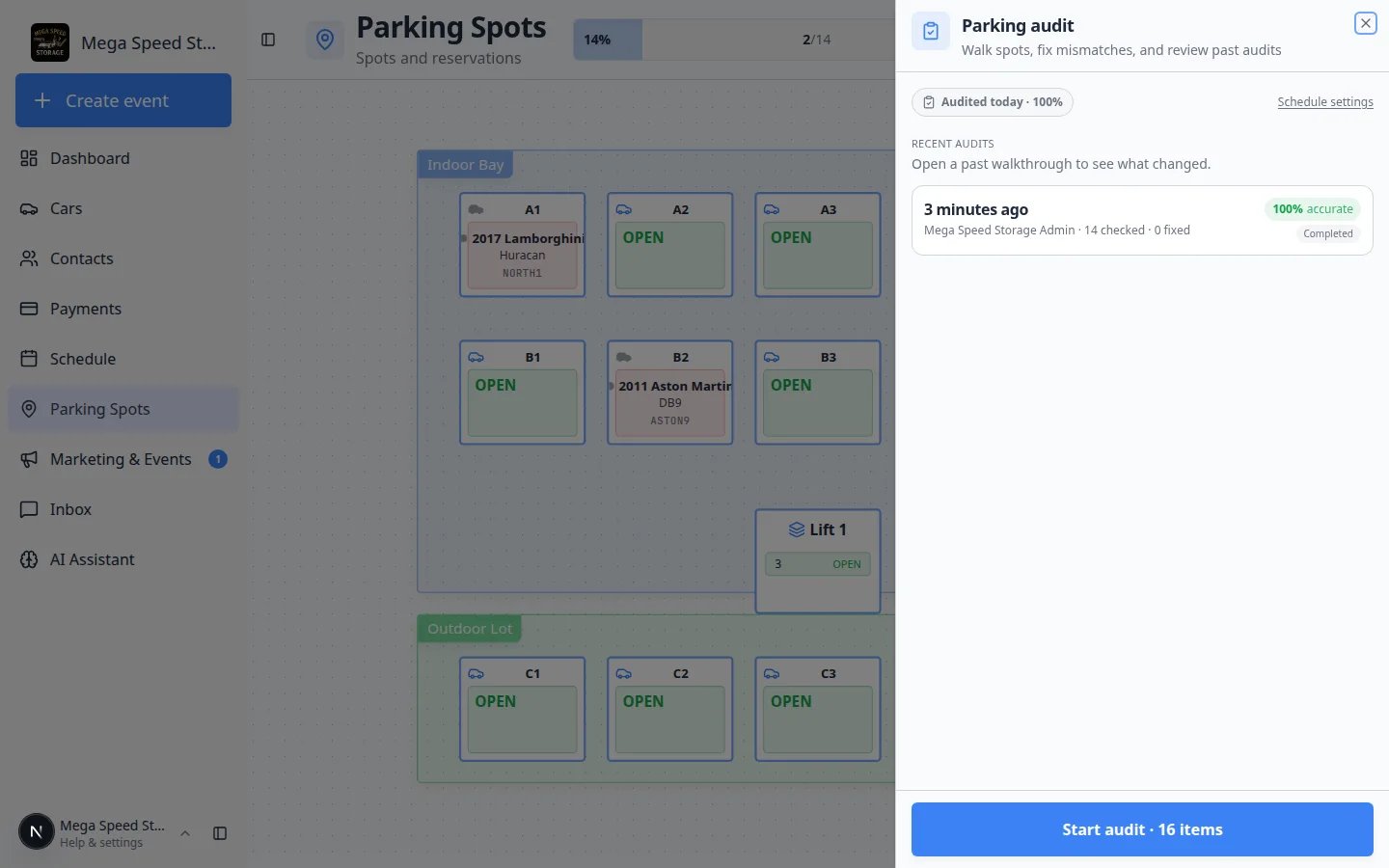 ***Recent audits** lets you reopen a finished walk to see what changed. Share a high score with your manager after a clean weekend.*
## Turn on due-date reminders (admin)
Staff can run an audit even when reminders are off. Reminders only **nudge** the team.
Go to [Settings > Operations](https://www.carstoragesoftware.com/dashboard/settings/operations) and scroll to **Parking audit schedule**.
Click the **On** card. The short line says **Flag when the last audit is older than your interval**.
Type a number such as **7** (weekly) or **30** (monthly). Click outside the box to save.
**Why this matters:** [Parking Spots](https://www.carstoragesoftware.com/dashboard/parking-spots) then shows **Due in 3d**, **Due today**, or **Overdue 2d** so a walk does not slip for months.
***Recent audits** lets you reopen a finished walk to see what changed. Share a high score with your manager after a clean weekend.*
## Turn on due-date reminders (admin)
Staff can run an audit even when reminders are off. Reminders only **nudge** the team.
Go to [Settings > Operations](https://www.carstoragesoftware.com/dashboard/settings/operations) and scroll to **Parking audit schedule**.
Click the **On** card. The short line says **Flag when the last audit is older than your interval**.
Type a number such as **7** (weekly) or **30** (monthly). Click outside the box to save.
**Why this matters:** [Parking Spots](https://www.carstoragesoftware.com/dashboard/parking-spots) then shows **Due in 3d**, **Due today**, or **Overdue 2d** so a walk does not slip for months.
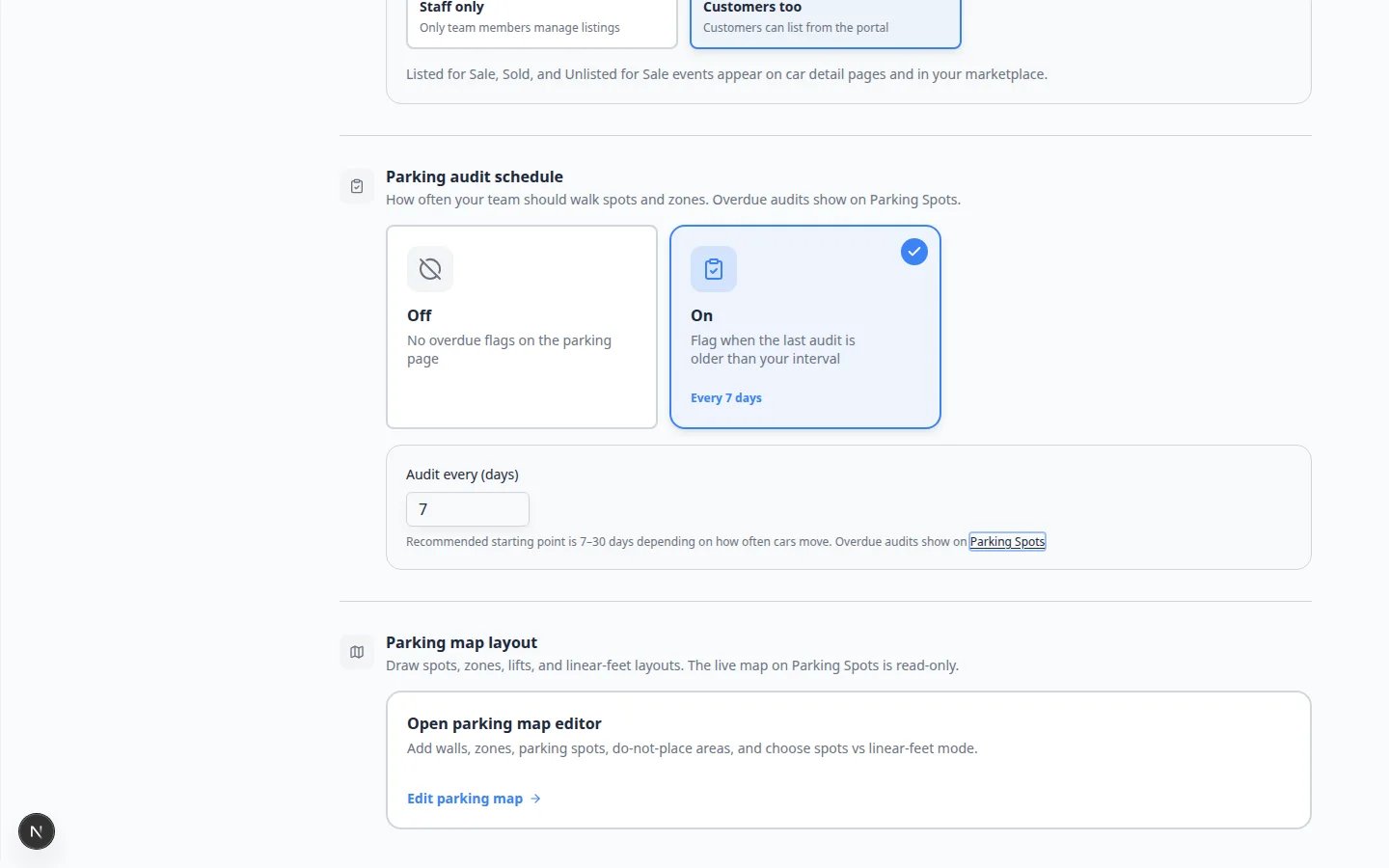 *Owners turn on **Parking audit schedule** in [Settings > Operations](https://www.carstoragesoftware.com/dashboard/settings/operations). Staff still start the walk from **Actions → Audit**.*
**Off vs On**
**Off** means no overdue flag. You can still run audits. **On** means the parking page reminds the team when the last finished walk is too old.
For the rest of Operations (bays, cars for sale), see [Configure operations settings](/docs/settings/configure-operations-settings).
## Common mistakes to avoid
* Do not tap **Looks good** from the office. Walk to the space first.
* Do not use **Left facility** when the car only moved to **B3**—use **Parked elsewhere**.
* Do not tap **Next** on every space to “finish faster.” Skipped spaces are not confirmed.
* Do not start a second new audit if one is already **In progress**—resume it.
* Do not treat **Optimizer** or **Bulk actions** in the **Actions** menu as the audit. Those are different tools.
## Troubleshooting
**I do not see Audit in the menu**
Refresh [Parking Spots](https://www.carstoragesoftware.com/dashboard/parking-spots). Make sure you clicked **Actions** (not **Filters & settings**). If **Actions** is missing, ask an admin to confirm your role includes parking access in [Settings > Team](https://www.carstoragesoftware.com/dashboard/settings/team).
**Start audit is disabled and says no zones or spots**
This location has no saved floor plan. An admin should open [Settings > Floor Plan](https://www.carstoragesoftware.com/dashboard/settings/floor-plan), add spots, and click **Save Floor Plan**. See [Set up parking spots and zones](/docs/parking-spots/set-up-parking-spots-and-zones).
**I assigned the wrong car during the walk**
Stay in the audit if you can: go back to that step and use **Different car** again. If you already finished, open the car in [Cars](https://www.carstoragesoftware.com/dashboard/cars) and follow [Assign a parking spot](/docs/parking-spots/assign-a-parking-spot).
**The accuracy looks low but the lot looks fine**
Low scores often mean many **corrections** or **skips**. Open the finished walk in **Recent audits** and read the **Changes** list. Fix habits (update the map when cars move) so the next walk is cleaner.
## What success looks like
* Staff can answer “where is this car?” from the map after the walk.
* Corrections happen during the audit, not hours later from memory.
* **Recent audits** shows a completed walk with a believable accuracy percent.
* If reminders are on, the parking page shows a due date instead of **Never audited**.
## What to do next
* Fix everyday moves with [Assign a parking spot](/docs/parking-spots/assign-a-parking-spot).
* Use zones for overflow with [Work with zones on the map](/docs/parking-spots/work-with-zones-on-the-map).
* Review history for billing with [Review the parking report](/docs/parking-spots/review-the-parking-report).
* Return to the [Parking Spots overview](/docs/parking-spots/overview).
## Related topics
- [Parking Spots overview](/docs/parking-spots/overview.md)
- [Set up parking spots and zones](/docs/parking-spots/set-up-parking-spots-and-zones.md)
- [Configure operations settings](/docs/settings/configure-operations-settings.md)
- [Create operations workflows](/docs/settings/create-operations-workflows.md)
- [Assign a parking spot](/docs/parking-spots/assign-a-parking-spot.md)
This documentation is built and hosted on [Mintlify](https://mintlify.com), a developer documentation platform.
*Owners turn on **Parking audit schedule** in [Settings > Operations](https://www.carstoragesoftware.com/dashboard/settings/operations). Staff still start the walk from **Actions → Audit**.*
**Off vs On**
**Off** means no overdue flag. You can still run audits. **On** means the parking page reminds the team when the last finished walk is too old.
For the rest of Operations (bays, cars for sale), see [Configure operations settings](/docs/settings/configure-operations-settings).
## Common mistakes to avoid
* Do not tap **Looks good** from the office. Walk to the space first.
* Do not use **Left facility** when the car only moved to **B3**—use **Parked elsewhere**.
* Do not tap **Next** on every space to “finish faster.” Skipped spaces are not confirmed.
* Do not start a second new audit if one is already **In progress**—resume it.
* Do not treat **Optimizer** or **Bulk actions** in the **Actions** menu as the audit. Those are different tools.
## Troubleshooting
**I do not see Audit in the menu**
Refresh [Parking Spots](https://www.carstoragesoftware.com/dashboard/parking-spots). Make sure you clicked **Actions** (not **Filters & settings**). If **Actions** is missing, ask an admin to confirm your role includes parking access in [Settings > Team](https://www.carstoragesoftware.com/dashboard/settings/team).
**Start audit is disabled and says no zones or spots**
This location has no saved floor plan. An admin should open [Settings > Floor Plan](https://www.carstoragesoftware.com/dashboard/settings/floor-plan), add spots, and click **Save Floor Plan**. See [Set up parking spots and zones](/docs/parking-spots/set-up-parking-spots-and-zones).
**I assigned the wrong car during the walk**
Stay in the audit if you can: go back to that step and use **Different car** again. If you already finished, open the car in [Cars](https://www.carstoragesoftware.com/dashboard/cars) and follow [Assign a parking spot](/docs/parking-spots/assign-a-parking-spot).
**The accuracy looks low but the lot looks fine**
Low scores often mean many **corrections** or **skips**. Open the finished walk in **Recent audits** and read the **Changes** list. Fix habits (update the map when cars move) so the next walk is cleaner.
## What success looks like
* Staff can answer “where is this car?” from the map after the walk.
* Corrections happen during the audit, not hours later from memory.
* **Recent audits** shows a completed walk with a believable accuracy percent.
* If reminders are on, the parking page shows a due date instead of **Never audited**.
## What to do next
* Fix everyday moves with [Assign a parking spot](/docs/parking-spots/assign-a-parking-spot).
* Use zones for overflow with [Work with zones on the map](/docs/parking-spots/work-with-zones-on-the-map).
* Review history for billing with [Review the parking report](/docs/parking-spots/review-the-parking-report).
* Return to the [Parking Spots overview](/docs/parking-spots/overview).
## Related topics
- [Parking Spots overview](/docs/parking-spots/overview.md)
- [Set up parking spots and zones](/docs/parking-spots/set-up-parking-spots-and-zones.md)
- [Configure operations settings](/docs/settings/configure-operations-settings.md)
- [Create operations workflows](/docs/settings/create-operations-workflows.md)
- [Assign a parking spot](/docs/parking-spots/assign-a-parking-spot.md)
This documentation is built and hosted on [Mintlify](https://mintlify.com), a developer documentation platform.