> ## Documentation Index
> Fetch the complete documentation index at: https://www.carstoragesoftware.com/docs/llms.txt
> Use this file to discover all available pages before exploring further.
# Manage products and services
> Create reusable billing items for invoices, quotes, recurring plans, checkout, and customer purchases.
## What you will accomplish
You will create **products and services**—reusable billing items your team can add to invoices, quotes, recurring plans, and customer checkout pages without retyping the same charge every time.
Good products use plain names customers understand, such as **Monthly Climate Controlled Storage** or **Premium Detail Service**.
## When to set up products first
Set up products **before** your team sends many invoices or recurring charges. This is one of the best first steps when you turn on [Payments](/docs/payments/overview) for your facility.
Products and services are reusable billing items. They save time because your team does not need to type the same charge details over and over.
Use [Products & Services](https://www.carstoragesoftware.com/dashboard/payments/products) to create items such as:
* Monthly storage
* Premium detailing
* Transport service
* Club membership
* Event registration
* Battery tender service
* Marketplace add-ons
Good products make invoices and quotes clearer for customers.
## Before you start
* Know the name customers should see on invoices, quotes, and emails.
* Decide if the item is **Recurring** or **One-time**.
* For one-time items, know whether the customer should pay immediately or on a statement (if your team uses statement billing). Recurring items always bill through Stripe.
* Know the default quantity and unit label, such as cars, months, services, or memberships.
* Ask a manager whether this item should be visible in checkout, the customer portal, or marketplace pages.
## Open Products and Services
Go to [Payments > Products](https://www.carstoragesoftware.com/dashboard/payments/products). The page title is **Products & Services**.
This page shows each product, whether it is recurring or one-time, the price, status, **Capacity** (when your facility limits how many can be sold), and available options.
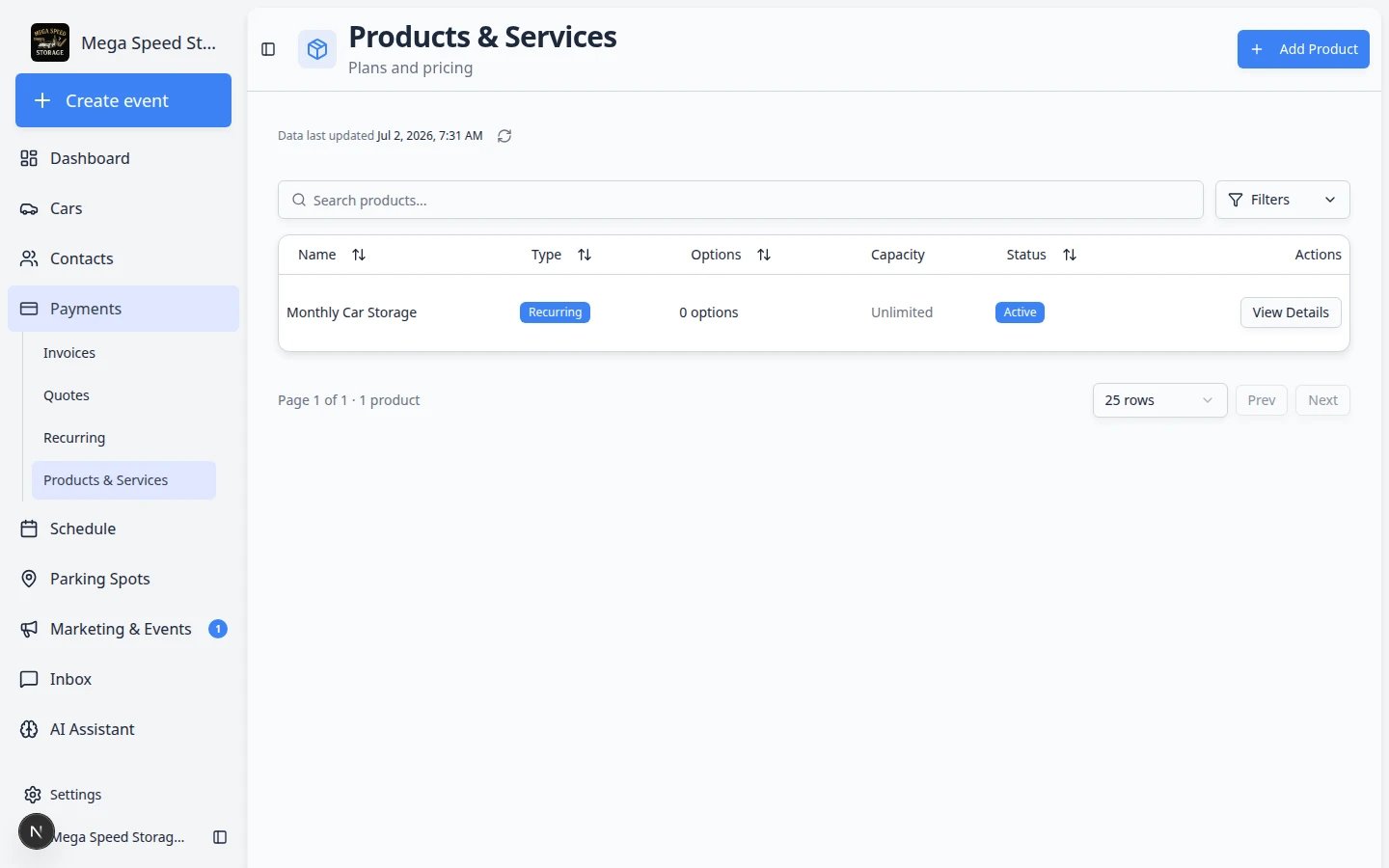 *The **Capacity** column shows inventory limits for products that can sell out—such as event tickets or limited storage slots.*
## Create a product or service
In the top-right area of the [Products page](https://www.carstoragesoftware.com/dashboard/payments/products), click **Add Product**.
**Expected result:** A window titled **Create New Product** opens.
Type a short, clear name. This name may appear on invoices, quotes, emails, and customer pages.
Good examples: **Monthly Climate Controlled Storage**, **Premium Detail Service**, or **Collectors Club Membership**.
Use the description to explain what is included. Keep it simple and specific.
Select the customer type that best matches this product, such as **Storage**, **Events**, **Detailing**, **Ancillary Services**, or **Marketplace**.
This helps your team group customers and understand what they buy.
Select **Recurring** for charges that repeat on a schedule, such as monthly storage or membership dues.
Select **One-time** for charges that happen once, such as a detail service, repair, or transport job.
For **one-time** products, select **Immediate** to charge when the item is added to an invoice, or **Statement** if your facility uses statement billing (charges roll up onto a monthly statement). See [Settings > Billing](https://www.carstoragesoftware.com/dashboard/settings/billing).
For **recurring** products, billing always runs through Stripe subscriptions (Immediate). Statement billing is not available for recurring plans—stack multiple products on one Stripe subscription instead.
**Expected result:** New invoices and recurring plans follow the timing your facility chose.
Confirm the default quantity and unit label. For example, monthly storage may use a quantity of **1** and a unit label of **cars**.
Click the create button. The system creates the product container, then takes you to the product detail page where you can add or review pricing options.
*The **Capacity** column shows inventory limits for products that can sell out—such as event tickets or limited storage slots.*
## Create a product or service
In the top-right area of the [Products page](https://www.carstoragesoftware.com/dashboard/payments/products), click **Add Product**.
**Expected result:** A window titled **Create New Product** opens.
Type a short, clear name. This name may appear on invoices, quotes, emails, and customer pages.
Good examples: **Monthly Climate Controlled Storage**, **Premium Detail Service**, or **Collectors Club Membership**.
Use the description to explain what is included. Keep it simple and specific.
Select the customer type that best matches this product, such as **Storage**, **Events**, **Detailing**, **Ancillary Services**, or **Marketplace**.
This helps your team group customers and understand what they buy.
Select **Recurring** for charges that repeat on a schedule, such as monthly storage or membership dues.
Select **One-time** for charges that happen once, such as a detail service, repair, or transport job.
For **one-time** products, select **Immediate** to charge when the item is added to an invoice, or **Statement** if your facility uses statement billing (charges roll up onto a monthly statement). See [Settings > Billing](https://www.carstoragesoftware.com/dashboard/settings/billing).
For **recurring** products, billing always runs through Stripe subscriptions (Immediate). Statement billing is not available for recurring plans—stack multiple products on one Stripe subscription instead.
**Expected result:** New invoices and recurring plans follow the timing your facility chose.
Confirm the default quantity and unit label. For example, monthly storage may use a quantity of **1** and a unit label of **cars**.
Click the create button. The system creates the product container, then takes you to the product detail page where you can add or review pricing options.
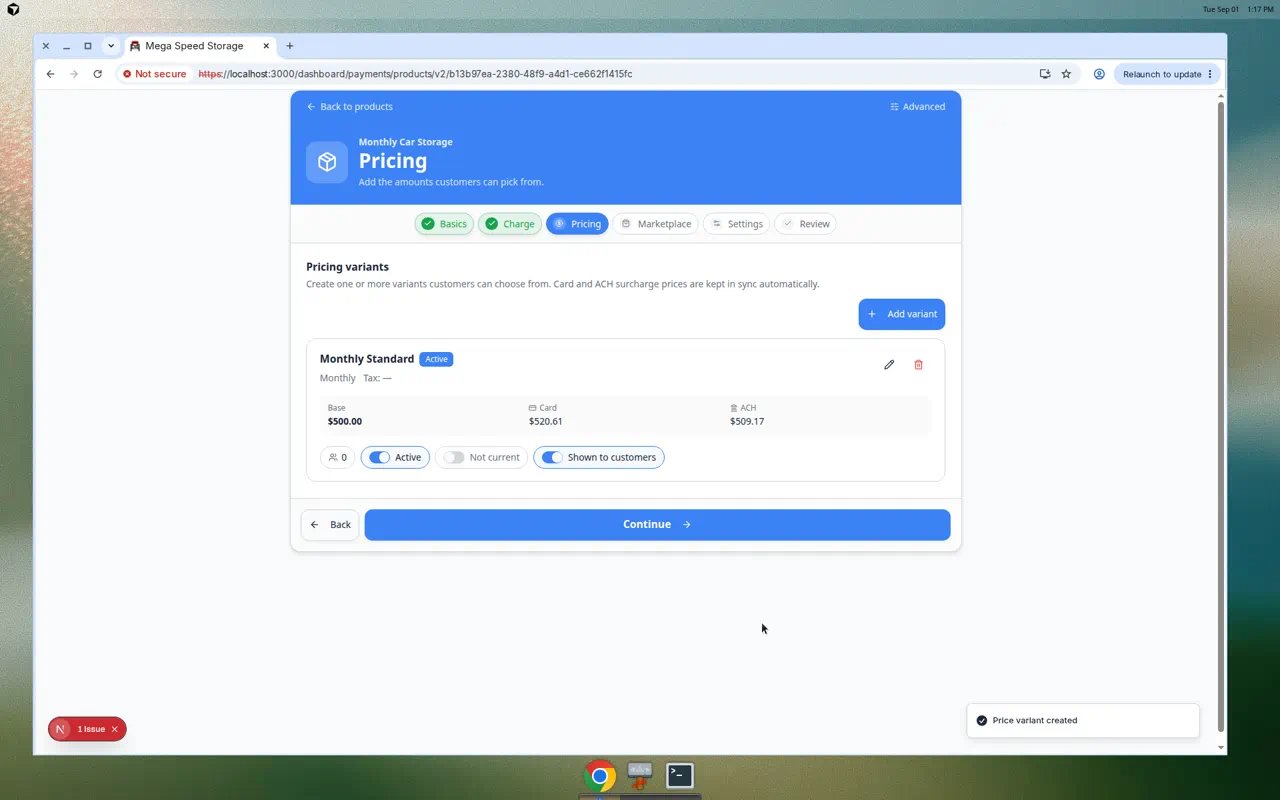 *Start with a clear product name and choose whether the item is recurring or one-time.*
## Review prices on the product detail page
After you create a product, the app opens the product detail page. This is where you add **pricing variants**—the actual dollar amounts customers pay.
**A product name is not enough**
Creating the product only adds the **label** (for example **Monthly Climate Controlled Storage**). You still need at least one **pricing variant** before you can add the item to a recurring plan, quote, or invoice with a set price. If staff see errors like "select a price," open the product and add a variant first.
*Start with a clear product name and choose whether the item is recurring or one-time.*
## Review prices on the product detail page
After you create a product, the app opens the product detail page. This is where you add **pricing variants**—the actual dollar amounts customers pay.
**A product name is not enough**
Creating the product only adds the **label** (for example **Monthly Climate Controlled Storage**). You still need at least one **pricing variant** before you can add the item to a recurring plan, quote, or invoice with a set price. If staff see errors like "select a price," open the product and add a variant first.
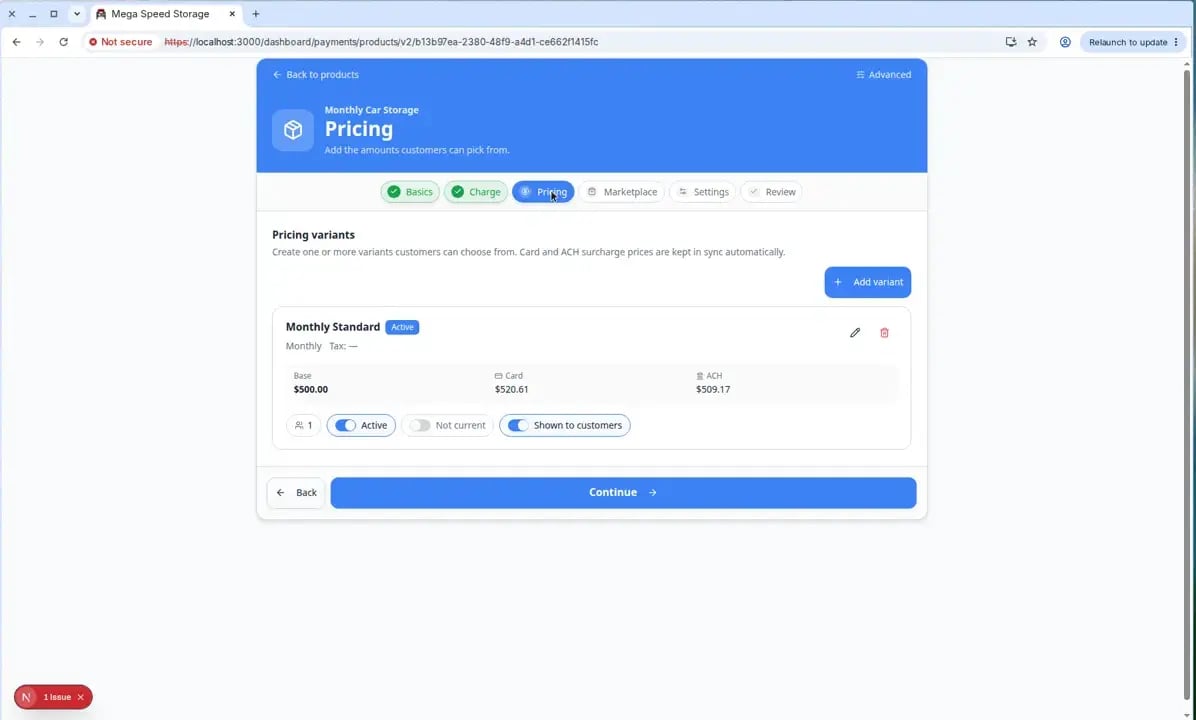 *The product detail page is where you add real prices. Scroll to Pricing Variants and click Add Variant when the list is empty.*
On [Products & Services](https://www.carstoragesoftware.com/dashboard/payments/products), click the product name.
**Expected result:** You see **Product Details** near the top and **Pricing Variants** farther down the page.
In **Pricing Variants**, click **Add Variant**.
**Expected result:** A window opens where you enter the price name, amount, and billing frequency (for recurring products).
*The product detail page is where you add real prices. Scroll to Pricing Variants and click Add Variant when the list is empty.*
On [Products & Services](https://www.carstoragesoftware.com/dashboard/payments/products), click the product name.
**Expected result:** You see **Product Details** near the top and **Pricing Variants** farther down the page.
In **Pricing Variants**, click **Add Variant**.
**Expected result:** A window opens where you enter the price name, amount, and billing frequency (for recurring products).
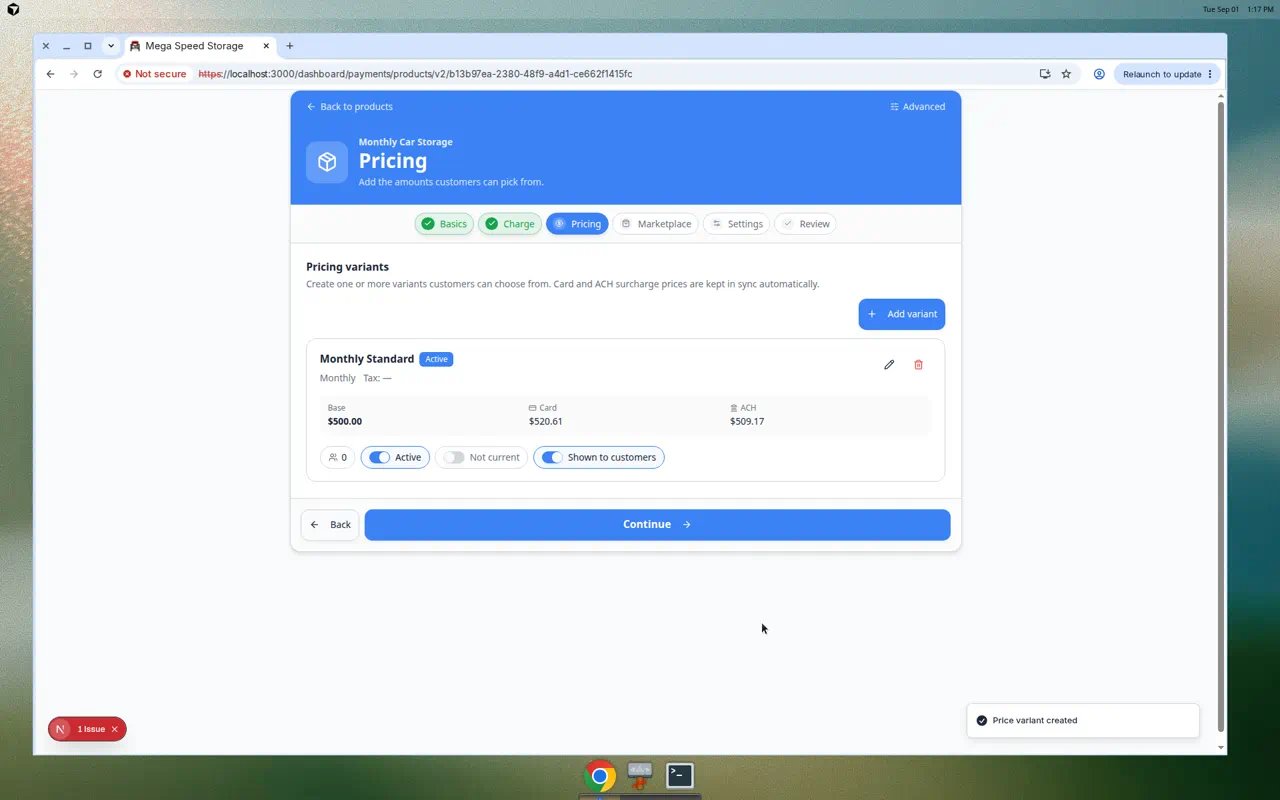 *Give each variant a clear name (for example **monthly\_standard**) and enter the base amount. Card and ACH totals may show processing fees separately.*
Use a short internal name staff will recognize, such as **monthly\_standard** or **annual\_prepay**.
Customers usually see the product name on invoices—the variant name helps your team pick the right option.
Type the price in dollars. Example: **500.00** for five hundred dollars per billing period.
**Why this matters:** This is the base amount before any processing fees your facility passes through to customers.
For recurring products, pick how often the customer is charged—**Monthly**, **Quarterly**, **Annual**, or another interval your team uses.
**Expected result:** The variant appears in the **Pricing Variants** table with the amount and interval.
Click **Save** or **Create** in the window.
**Expected result:** The new row appears under **Pricing Variants**. You can now use this product on invoices, quotes, and recurring plans.
Make sure the product status is **Active** before your team uses it on new charges.
**Expected result:** The product appears when creating invoices, quotes, or recurring plans.
## Filter and sort the product list
When your facility has many products, use the toolbar above the table to find the right item quickly.
On [Products & Services](https://www.carstoragesoftware.com/dashboard/payments/products), click **Filters** (or the filter icon) near the search box.
**Expected result:** A panel opens with **Type** (Recurring / One-time) and **Status** (Active / Inactive) checkboxes.
Turn on only the types or statuses you need—for example **Recurring** and **Active** when you are setting up monthly storage plans.
**Why this matters:** Hiding inactive products keeps new staff from picking old prices by mistake.
Click column headers such as **Name**, **Type**, **Options**, or **Status** to sort the table.
**Expected result:** Products appear in a helpful order (for example alphabetical by name).
*Give each variant a clear name (for example **monthly\_standard**) and enter the base amount. Card and ACH totals may show processing fees separately.*
Use a short internal name staff will recognize, such as **monthly\_standard** or **annual\_prepay**.
Customers usually see the product name on invoices—the variant name helps your team pick the right option.
Type the price in dollars. Example: **500.00** for five hundred dollars per billing period.
**Why this matters:** This is the base amount before any processing fees your facility passes through to customers.
For recurring products, pick how often the customer is charged—**Monthly**, **Quarterly**, **Annual**, or another interval your team uses.
**Expected result:** The variant appears in the **Pricing Variants** table with the amount and interval.
Click **Save** or **Create** in the window.
**Expected result:** The new row appears under **Pricing Variants**. You can now use this product on invoices, quotes, and recurring plans.
Make sure the product status is **Active** before your team uses it on new charges.
**Expected result:** The product appears when creating invoices, quotes, or recurring plans.
## Filter and sort the product list
When your facility has many products, use the toolbar above the table to find the right item quickly.
On [Products & Services](https://www.carstoragesoftware.com/dashboard/payments/products), click **Filters** (or the filter icon) near the search box.
**Expected result:** A panel opens with **Type** (Recurring / One-time) and **Status** (Active / Inactive) checkboxes.
Turn on only the types or statuses you need—for example **Recurring** and **Active** when you are setting up monthly storage plans.
**Why this matters:** Hiding inactive products keeps new staff from picking old prices by mistake.
Click column headers such as **Name**, **Type**, **Options**, or **Status** to sort the table.
**Expected result:** Products appear in a helpful order (for example alphabetical by name).
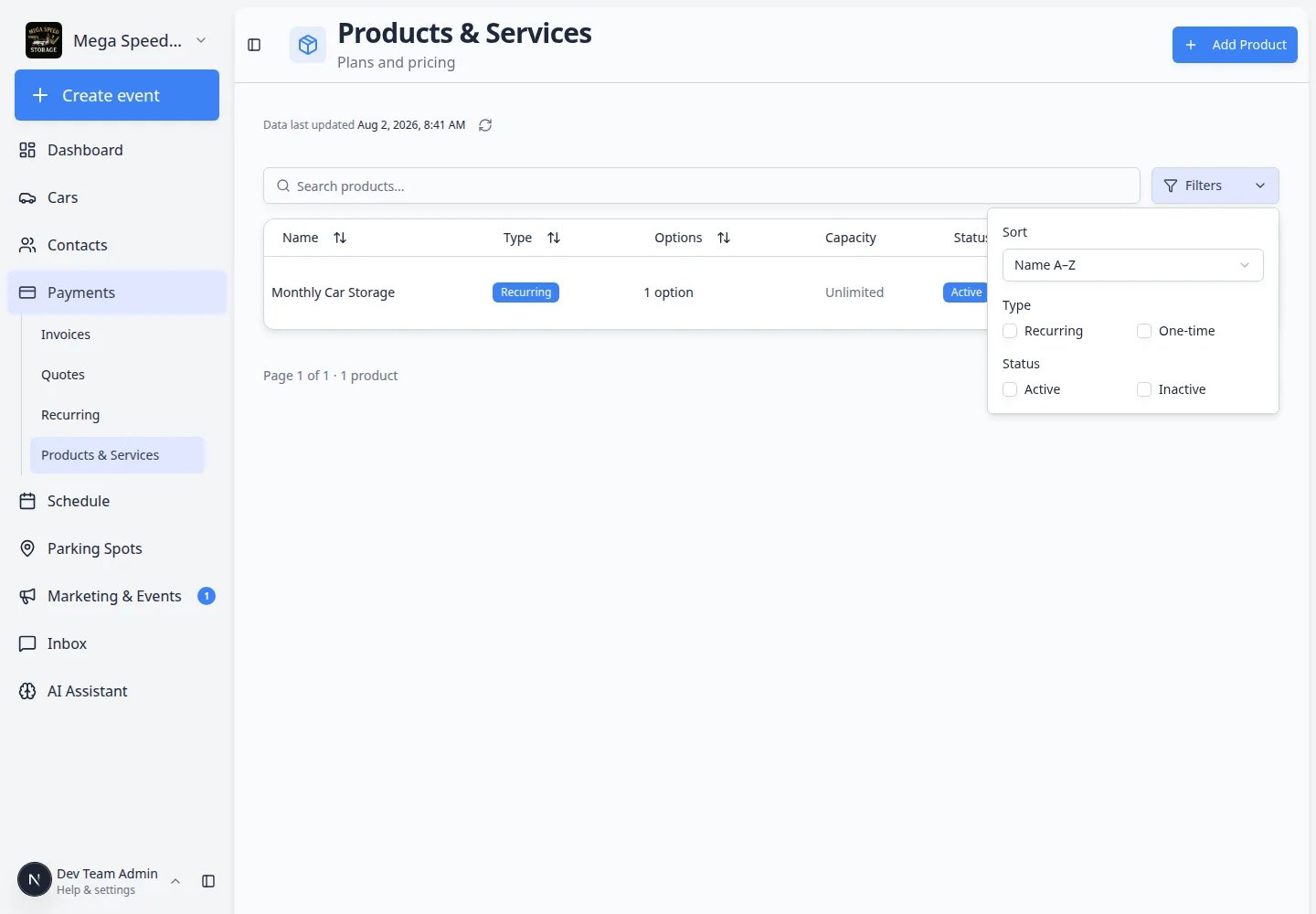 *Filter before you edit products so you only see recurring items, active items, or both.*
## Understand the Capacity column
Some products can **sell out**—for example event tickets, limited club memberships, or storage slots with a fixed count.
When **Capacity** shows a fraction such as **12 / 20**, your facility has sold 12 of 20 available spots for that product.
When **Capacity** is blank or shows a dash, the product does not use inventory limits.
If a product is at capacity, new customers may see a waitlist or “sold out” message on checkout pages—depending on how your facility configured the product.
**Capacity is not parking spots**
**Capacity** on a product limits how many times that **billing item** can be sold. It is separate from [Parking Spots](/docs/parking-spots/overview) on your floor plan. A storage product might have capacity **50** even when you have **60** physical spots—those are different settings.
*Filter before you edit products so you only see recurring items, active items, or both.*
## Understand the Capacity column
Some products can **sell out**—for example event tickets, limited club memberships, or storage slots with a fixed count.
When **Capacity** shows a fraction such as **12 / 20**, your facility has sold 12 of 20 available spots for that product.
When **Capacity** is blank or shows a dash, the product does not use inventory limits.
If a product is at capacity, new customers may see a waitlist or “sold out” message on checkout pages—depending on how your facility configured the product.
**Capacity is not parking spots**
**Capacity** on a product limits how many times that **billing item** can be sold. It is separate from [Parking Spots](/docs/parking-spots/overview) on your floor plan. A storage product might have capacity **50** even when you have **60** physical spots—those are different settings.
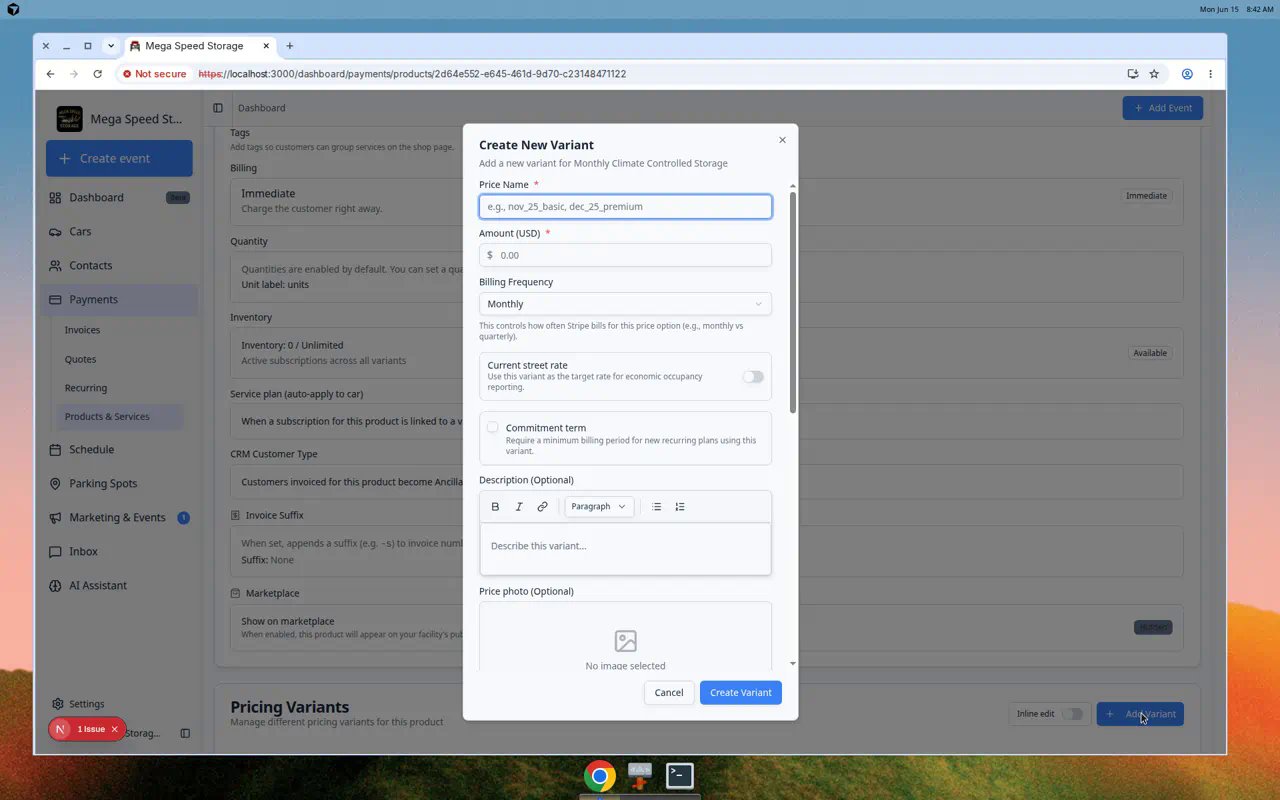 *Each variant is one billable price option. A storage product might have monthly\_standard and annual\_prepay variants.*
## Recurring vs one-time
Choose **Recurring** when the customer should be billed again on a schedule.
Examples: monthly storage, annual membership, quarterly concierge plan.
Choose **One-time** when the customer should be charged once.
Examples: detail service, transport, repair, event ticket, inspection.
## Immediate vs Statement (plain English)
**Immediate** — The charge bills when your team creates or finalizes the invoice, or when Stripe recurring billing runs. Most facilities use this for storage and membership plans.
**Statement** — For **one-time** products only. The charge waits and groups with other charges on a **monthly statement**. Use this only when your owner or bookkeeper confirmed statement billing in [Settings > Billing](https://www.carstoragesoftware.com/dashboard/settings/billing). Recurring plans always use Stripe (Immediate); add multiple line items on one subscription when a customer needs several recurring products on one bill.
**Wrong charge timing?**
If customers complain they were billed too early—or not until month-end—check whether a **one-time** product uses **Immediate** or **Statement**, and whether the customer is on statement billing. Recurring plans bill on the Stripe subscription schedule, not the statement close date.
## What success looks like
After you create a product or service:
* The item appears on the [Products & Services page](https://www.carstoragesoftware.com/dashboard/payments/products).
* Your team can add it to invoices and quotes.
* If it is recurring, your team can use it when creating recurring plans.
* The product detail page lets you manage price options and other settings.
## Naming tips
* Use names customers can understand without asking your team.
* Include the time period when it matters, such as monthly or annual.
* Avoid internal abbreviations like "MCS" unless customers also know what they mean.
* Keep similar products named consistently, such as "Monthly Storage - Standard" and "Monthly Storage - Premium."
## Troubleshooting
**I do not see Add Product**
Your account may not have permission to create products, or payment setup may not be complete. Ask a team admin to check your role and [Settings > Billing](https://www.carstoragesoftware.com/dashboard/settings/billing).
**The product does not appear when creating an invoice**
Open the product and confirm it is **Active**. Also check that the product type matches the workflow. For example, only recurring products appear when adding a recurring plan.
**Recurring plan says no price is available**
Open the product on [Products & Services](https://www.carstoragesoftware.com/dashboard/payments/products) and add at least one **pricing variant** with a billing frequency. See the steps above under **Review prices on the product detail page**.
**I picked the wrong product type**
If the product has not been used yet, it may be easiest to create a new product with the correct type and deactivate the incorrect one. Ask your billing manager before changing items that customers have already purchased.
**Planning a facility-wide rate increase?**
Create the new price as a **pricing variant** on the product first (see above). Then use **Update Prices** on [Payments > Recurring](https://www.carstoragesoftware.com/dashboard/payments/recurring) to move many customers to that variant at once. Read the bulk section in [Manage recurring billing](/docs/payments/manage-recurring-billing).
## What to do next
After your products are ready, use them in [Create an invoice](/docs/payments/create-an-invoice), [Create a quote](/docs/payments/create-a-quote), or [Manage recurring billing](/docs/payments/manage-recurring-billing).
## Related topics
- [Manage recurring billing](/docs/payments/manage-recurring-billing.md)
- [Set up vehicle service plans](/docs/settings/set-up-vehicle-service-plans.md)
- [Publish marketplace listings](/docs/facility-web-pages/publish-marketplace-listings.md)
- [Test marketplace checkout](/docs/facility-web-pages/test-marketplace-checkout.md)
- [Create a quote](/docs/payments/create-a-quote.md)
This documentation is built and hosted on [Mintlify](https://mintlify.com), a developer documentation platform.
*Each variant is one billable price option. A storage product might have monthly\_standard and annual\_prepay variants.*
## Recurring vs one-time
Choose **Recurring** when the customer should be billed again on a schedule.
Examples: monthly storage, annual membership, quarterly concierge plan.
Choose **One-time** when the customer should be charged once.
Examples: detail service, transport, repair, event ticket, inspection.
## Immediate vs Statement (plain English)
**Immediate** — The charge bills when your team creates or finalizes the invoice, or when Stripe recurring billing runs. Most facilities use this for storage and membership plans.
**Statement** — For **one-time** products only. The charge waits and groups with other charges on a **monthly statement**. Use this only when your owner or bookkeeper confirmed statement billing in [Settings > Billing](https://www.carstoragesoftware.com/dashboard/settings/billing). Recurring plans always use Stripe (Immediate); add multiple line items on one subscription when a customer needs several recurring products on one bill.
**Wrong charge timing?**
If customers complain they were billed too early—or not until month-end—check whether a **one-time** product uses **Immediate** or **Statement**, and whether the customer is on statement billing. Recurring plans bill on the Stripe subscription schedule, not the statement close date.
## What success looks like
After you create a product or service:
* The item appears on the [Products & Services page](https://www.carstoragesoftware.com/dashboard/payments/products).
* Your team can add it to invoices and quotes.
* If it is recurring, your team can use it when creating recurring plans.
* The product detail page lets you manage price options and other settings.
## Naming tips
* Use names customers can understand without asking your team.
* Include the time period when it matters, such as monthly or annual.
* Avoid internal abbreviations like "MCS" unless customers also know what they mean.
* Keep similar products named consistently, such as "Monthly Storage - Standard" and "Monthly Storage - Premium."
## Troubleshooting
**I do not see Add Product**
Your account may not have permission to create products, or payment setup may not be complete. Ask a team admin to check your role and [Settings > Billing](https://www.carstoragesoftware.com/dashboard/settings/billing).
**The product does not appear when creating an invoice**
Open the product and confirm it is **Active**. Also check that the product type matches the workflow. For example, only recurring products appear when adding a recurring plan.
**Recurring plan says no price is available**
Open the product on [Products & Services](https://www.carstoragesoftware.com/dashboard/payments/products) and add at least one **pricing variant** with a billing frequency. See the steps above under **Review prices on the product detail page**.
**I picked the wrong product type**
If the product has not been used yet, it may be easiest to create a new product with the correct type and deactivate the incorrect one. Ask your billing manager before changing items that customers have already purchased.
**Planning a facility-wide rate increase?**
Create the new price as a **pricing variant** on the product first (see above). Then use **Update Prices** on [Payments > Recurring](https://www.carstoragesoftware.com/dashboard/payments/recurring) to move many customers to that variant at once. Read the bulk section in [Manage recurring billing](/docs/payments/manage-recurring-billing).
## What to do next
After your products are ready, use them in [Create an invoice](/docs/payments/create-an-invoice), [Create a quote](/docs/payments/create-a-quote), or [Manage recurring billing](/docs/payments/manage-recurring-billing).
## Related topics
- [Manage recurring billing](/docs/payments/manage-recurring-billing.md)
- [Set up vehicle service plans](/docs/settings/set-up-vehicle-service-plans.md)
- [Publish marketplace listings](/docs/facility-web-pages/publish-marketplace-listings.md)
- [Test marketplace checkout](/docs/facility-web-pages/test-marketplace-checkout.md)
- [Create a quote](/docs/payments/create-a-quote.md)
This documentation is built and hosted on [Mintlify](https://mintlify.com), a developer documentation platform.