> ## Documentation Index
> Fetch the complete documentation index at: https://www.carstoragesoftware.com/docs/llms.txt
> Use this file to discover all available pages before exploring further.
# Manage recurring billing
> Set up and monitor repeat charges for storage, memberships, service plans, or other ongoing billing.
## What you will accomplish
You will set up **recurring billing** so the same charge happens again on a schedule—without creating a new invoice by hand every month.
Common examples include monthly storage, quarterly service plans, annual memberships, and other repeat charges.
Recurring billing helps your team avoid missed charges and reduces manual work. You set the plan once, then monitor it on [Payments > Recurring](https://www.carstoragesoftware.com/dashboard/payments/recurring).
**Moving many existing plans over?**
Import them from a spreadsheet instead of adding each one here. See [Import recurring billing plans](/docs/payments/import-recurring-billing-plans).
## Before you start
* Make sure the customer already exists in [Contacts](https://www.carstoragesoftware.com/dashboard/contacts).
* Create the recurring product first in [Products & Services](https://www.carstoragesoftware.com/dashboard/payments/products).
* Add at least one **pricing variant** on that product (for example **monthly\_standard** at \$500/month). Without a variant, the **Add recurring** window cannot show a price. See [Manage products and services](/docs/payments/manage-products-and-services).
* Know the price, billing schedule, start date, and quantity.
* Confirm whether the customer has a saved payment method or should receive a payment request.
* Ask a manager if you are unsure whether the customer should be charged in advance or after the service period.
## Open the Recurring page
Go to [Payments > Recurring](https://www.carstoragesoftware.com/dashboard/payments/recurring).
This page shows active, paused, future, and canceled recurring plans. You can also open the recurring revenue report from this page.
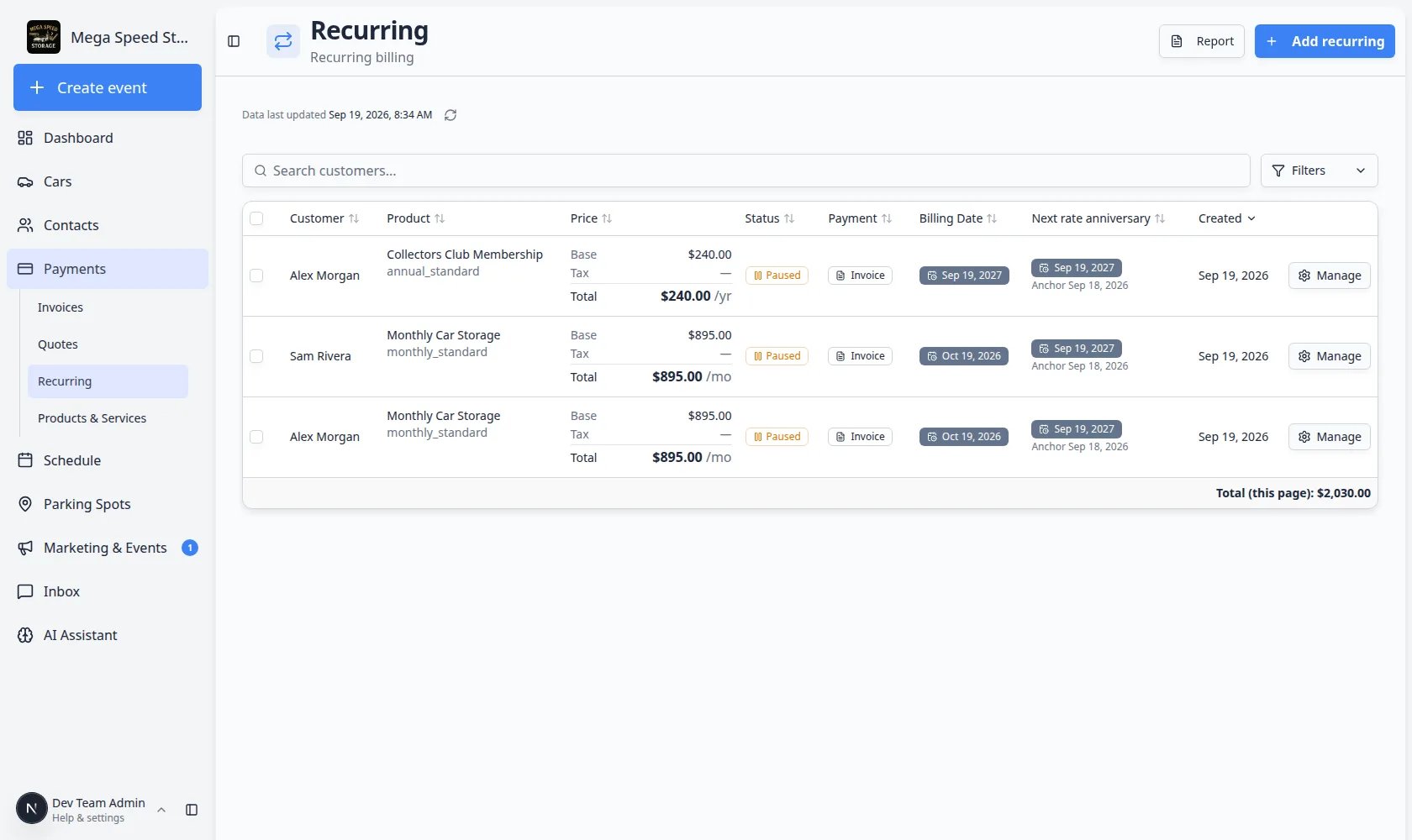 *The Recurring page lists each repeat charge. Use **Manage** on a row to pause, change the price, or cancel that plan.*
**If you see Setup Required**
Before you can add a recurring charge, your facility needs at least one **recurring** product in [Products & Services](https://www.carstoragesoftware.com/dashboard/payments/products). Create something like **Monthly Climate Controlled Storage**, add a **pricing variant**, then return to Recurring and click **Add recurring**.
## Understand the Add recurring steps
**Add recurring** is a short guided flow. You pick the customer first, then walk through **Plan**, **Payment**, **Schedule**, and **Review**.
*The Recurring page lists each repeat charge. Use **Manage** on a row to pause, change the price, or cancel that plan.*
**If you see Setup Required**
Before you can add a recurring charge, your facility needs at least one **recurring** product in [Products & Services](https://www.carstoragesoftware.com/dashboard/payments/products). Create something like **Monthly Climate Controlled Storage**, add a **pricing variant**, then return to Recurring and click **Add recurring**.
## Understand the Add recurring steps
**Add recurring** is a short guided flow. You pick the customer first, then walk through **Plan**, **Payment**, **Schedule**, and **Review**.
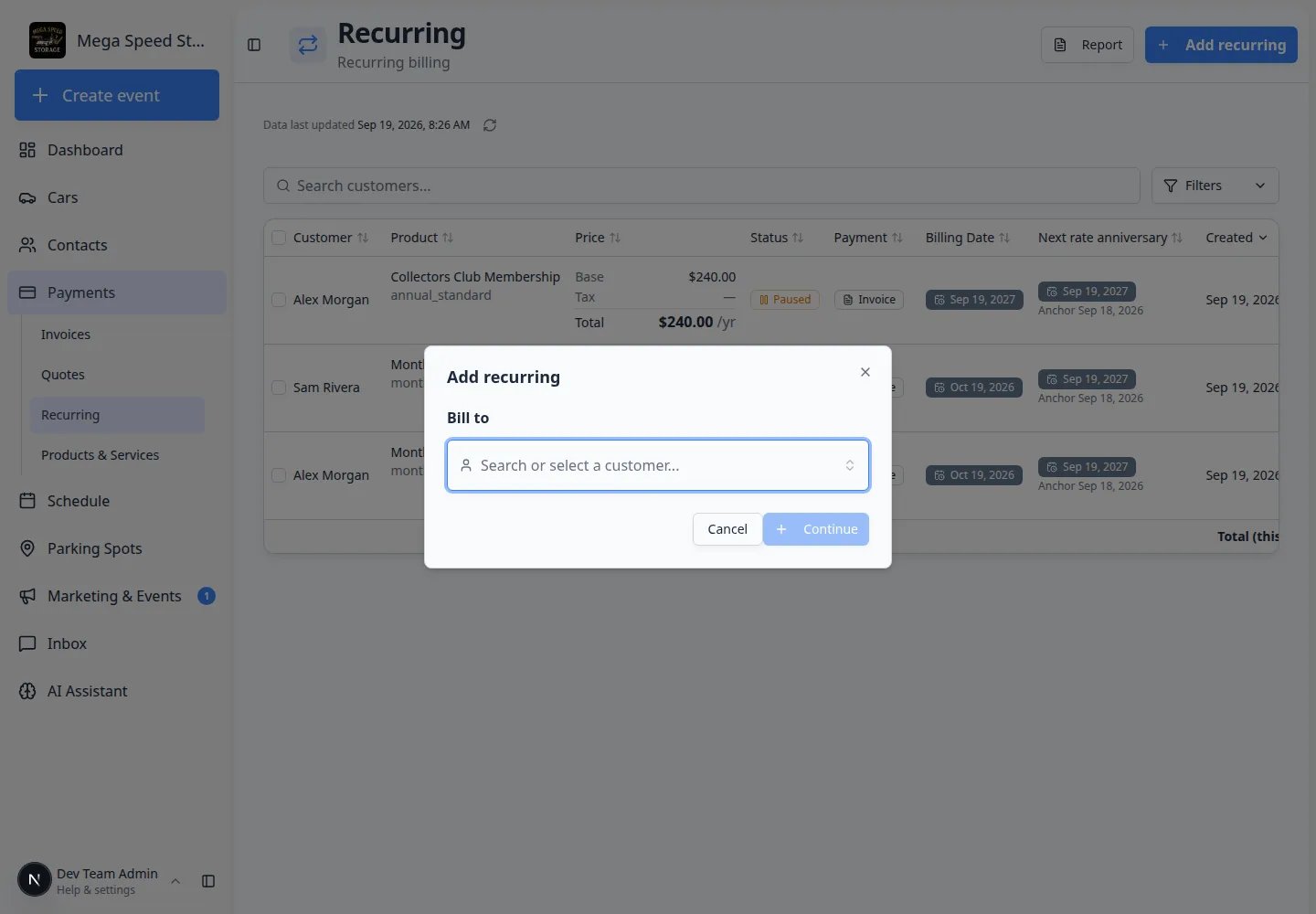 *The first window is only **Bill to**. Search for the customer, then click **Continue**.*
**Bill to** — Who will be charged. Search by person name or company (for example **Alex Morgan (Morgan Collection LLC)**).
**Plan** — The recurring product (such as **Monthly Car Storage**) and the price option (such as **monthly\_standard**).
**Payment** — How you collect money: a saved card, an invoice the customer pays later, or a request that they add a payment method.
**Schedule** — When billing starts. This sets the first **Billing Date** and **Next rate anniversary** on the list.
**Review** — A last look at the customer, product, price, and first charge before you click **Add recurring**.
## Add a recurring charge
In the top-right area of the [Recurring page](https://www.carstoragesoftware.com/dashboard/payments/recurring), click **Add recurring**.
**Expected result:** A window titled **Add recurring** opens. The first field is **Bill to**.
Click **Search or select a customer...** and type the person or company name. Pick the correct row (for example **Alex Morgan (Morgan Collection LLC)**).
Click **Continue** only after the name looks right.
**Why this matters:** The rest of the steps lock to this customer. Choosing the wrong person bills the wrong account.
**Expected result:** You move into the **Plan** step.
On **Plan**, choose the product (such as **Monthly Car Storage** or **Collectors Club Membership**) and the price option (such as **monthly\_standard** or **annual\_standard**).
If the product is missing, create it first in [Products & Services](https://www.carstoragesoftware.com/dashboard/payments/products). If the price list is empty, add a **pricing variant** on that product first.
The amount may be a little higher than the base price if your facility passes card fees to customers.
On **Payment**, pick whether to charge a saved card, send an **Invoice**, or ask the customer to add a payment method.
If you are unsure, ask your billing manager. **Invoice** is common when the customer pays by check or will pay the emailed bill later.
On **Schedule**, choose when the plan starts. This sets the first **Billing Date** on the Recurring list.
On **Review**, check the customer, product, price, and first billing date. Click **Add recurring** only when it matches the agreement.
When **Notify the customer?** appears, choose **Yes** to email the invoice or payment request, or **No** to save without emailing. Closing the window cancels the save.
**Expected outcome:** The plan appears on the Recurring list. Status may show **Active**, **Paused**, or **Future**. **Paused** is normal when the plan is set to **Invoice** and the customer does not yet have a card on file.
## What success looks like
After you save the recurring plan:
* The plan appears on the [Recurring page](https://www.carstoragesoftware.com/dashboard/payments/recurring).
* The status shows whether the plan is active, paused, incomplete, future-dated, or canceled.
* The next billing date shows when the next invoice or payment should happen.
* Your team can open the plan later to pause, resume, update payment details, or review billing history.
## Update billing dates for several customers at once
When your manager approves moving many plans to the same billing day (for example the 1st of the month), use the checkboxes and **Change Billing Date** on [Payments > Recurring](https://www.carstoragesoftware.com/dashboard/payments/recurring).
Full steps are in **Bulk change billing dates** below. Double-check the selected rows before you save—this changes when customers are charged.
## Open the recurring revenue report
When you need a big-picture view of scheduled income:
Go to [Payments > Recurring](https://www.carstoragesoftware.com/dashboard/payments/recurring).
In the top-right area, click **Report**.
**Expected result:** The **Recurring Revenue Report** opens. You can review upcoming recurring charges and export to Excel if your team needs a spreadsheet.
*The first window is only **Bill to**. Search for the customer, then click **Continue**.*
**Bill to** — Who will be charged. Search by person name or company (for example **Alex Morgan (Morgan Collection LLC)**).
**Plan** — The recurring product (such as **Monthly Car Storage**) and the price option (such as **monthly\_standard**).
**Payment** — How you collect money: a saved card, an invoice the customer pays later, or a request that they add a payment method.
**Schedule** — When billing starts. This sets the first **Billing Date** and **Next rate anniversary** on the list.
**Review** — A last look at the customer, product, price, and first charge before you click **Add recurring**.
## Add a recurring charge
In the top-right area of the [Recurring page](https://www.carstoragesoftware.com/dashboard/payments/recurring), click **Add recurring**.
**Expected result:** A window titled **Add recurring** opens. The first field is **Bill to**.
Click **Search or select a customer...** and type the person or company name. Pick the correct row (for example **Alex Morgan (Morgan Collection LLC)**).
Click **Continue** only after the name looks right.
**Why this matters:** The rest of the steps lock to this customer. Choosing the wrong person bills the wrong account.
**Expected result:** You move into the **Plan** step.
On **Plan**, choose the product (such as **Monthly Car Storage** or **Collectors Club Membership**) and the price option (such as **monthly\_standard** or **annual\_standard**).
If the product is missing, create it first in [Products & Services](https://www.carstoragesoftware.com/dashboard/payments/products). If the price list is empty, add a **pricing variant** on that product first.
The amount may be a little higher than the base price if your facility passes card fees to customers.
On **Payment**, pick whether to charge a saved card, send an **Invoice**, or ask the customer to add a payment method.
If you are unsure, ask your billing manager. **Invoice** is common when the customer pays by check or will pay the emailed bill later.
On **Schedule**, choose when the plan starts. This sets the first **Billing Date** on the Recurring list.
On **Review**, check the customer, product, price, and first billing date. Click **Add recurring** only when it matches the agreement.
When **Notify the customer?** appears, choose **Yes** to email the invoice or payment request, or **No** to save without emailing. Closing the window cancels the save.
**Expected outcome:** The plan appears on the Recurring list. Status may show **Active**, **Paused**, or **Future**. **Paused** is normal when the plan is set to **Invoice** and the customer does not yet have a card on file.
## What success looks like
After you save the recurring plan:
* The plan appears on the [Recurring page](https://www.carstoragesoftware.com/dashboard/payments/recurring).
* The status shows whether the plan is active, paused, incomplete, future-dated, or canceled.
* The next billing date shows when the next invoice or payment should happen.
* Your team can open the plan later to pause, resume, update payment details, or review billing history.
## Update billing dates for several customers at once
When your manager approves moving many plans to the same billing day (for example the 1st of the month), use the checkboxes and **Change Billing Date** on [Payments > Recurring](https://www.carstoragesoftware.com/dashboard/payments/recurring).
Full steps are in **Bulk change billing dates** below. Double-check the selected rows before you save—this changes when customers are charged.
## Open the recurring revenue report
When you need a big-picture view of scheduled income:
Go to [Payments > Recurring](https://www.carstoragesoftware.com/dashboard/payments/recurring).
In the top-right area, click **Report**.
**Expected result:** The **Recurring Revenue Report** opens. You can review upcoming recurring charges and export to Excel if your team needs a spreadsheet.
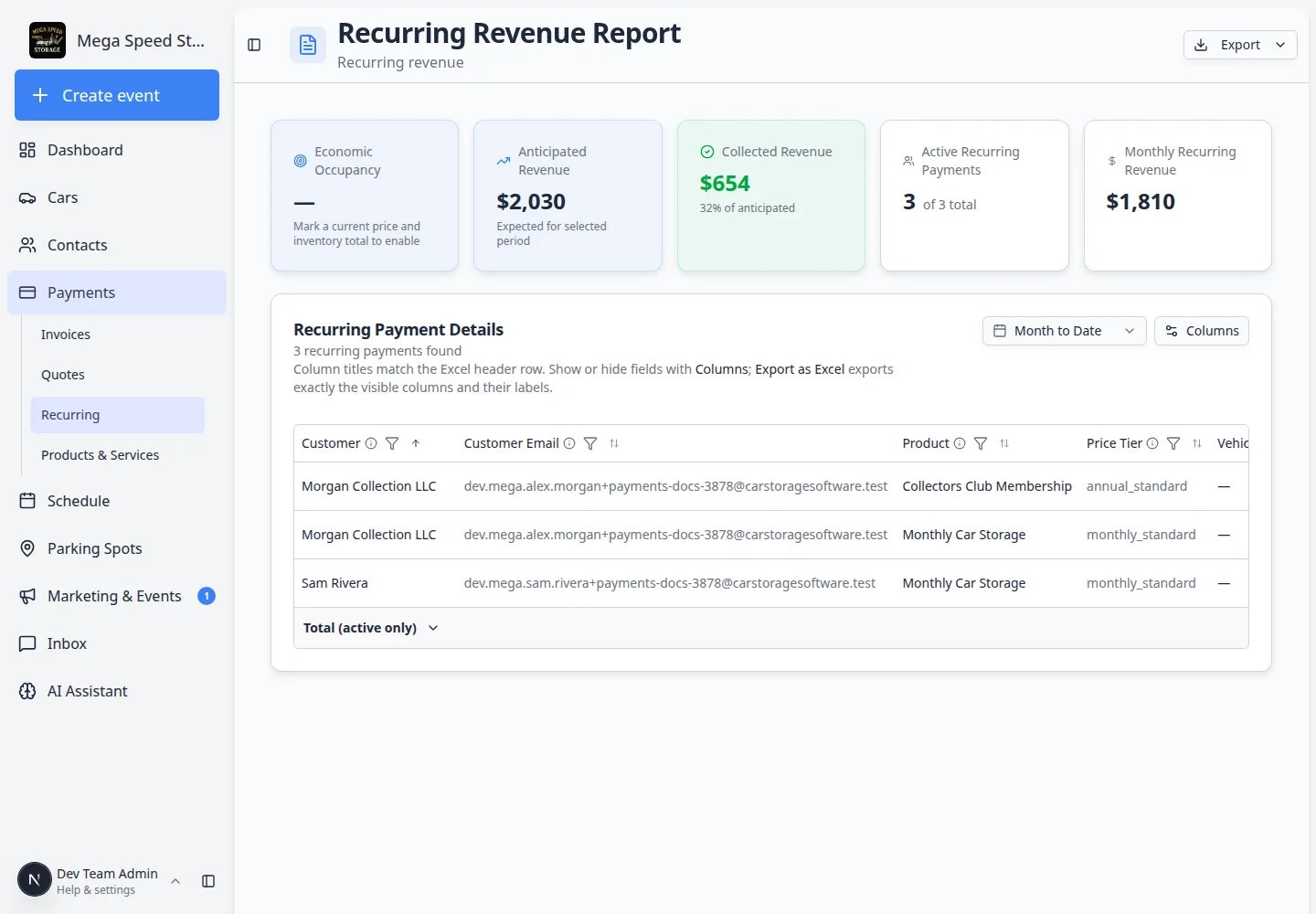 *Use **Report** when owners want a summary of scheduled income. Use **Manage** on the Recurring list when you are changing one customer's plan.*
## Recurring billing terms in plain English
**Billing schedule** means how often the customer is charged, such as monthly or yearly.
**Start date** means when the recurring plan begins.
**Next billing date** means the next date the customer should be billed.
**Payment method** means how the customer pays, such as a card, bank account, invoice, cash, or check.
**Paused** means the recurring plan is stopped for now but not deleted.
## Common mistakes to avoid
* Do not create a recurring plan for a one-time service. Use [Invoices](https://www.carstoragesoftware.com/dashboard/payments/invoices) instead.
* Do not choose the wrong price option. Monthly, annual, and custom options can look similar.
* Do not leave the start date unchecked. A wrong start date can bill too early or too late.
* Do not assume the customer has a saved payment method. Check before choosing automatic payment.
## Troubleshooting
**The product is missing from the list**
Only active **recurring** products appear when adding a recurring plan. Go to [Products & Services](https://www.carstoragesoftware.com/dashboard/payments/products), create or open the product, confirm it is **Active**, and mark it as recurring.
**No price appears in the dropdown**
The product needs at least one **pricing variant**. Open the product, click **Add Variant**, enter the amount and billing frequency, save, then return to **Add recurring**.
**The next billing date looks wrong**
Check the start date, billing schedule, and billing timing before saving. If the plan was already saved, open it from the Recurring page and review the available edit options.
**The customer does not have a payment method**
You may be able to send a payment request or invoice instead of charging automatically. Ask your team lead which payment option to use.
**Status shows Incomplete or Paused?**
A new plan may show **Incomplete** or **Paused** until the customer adds a payment method or pays the first invoice. This is common when **Payment** is set to **Invoice**. Open **Manage** and use **Resume Billing** or **Change Payment Method** when they are ready.
## Pause, resume, or cancel an existing plan
Use these steps when a customer's storage ends, they pause membership, or pricing changes.
Go to [Payments > Recurring](https://www.carstoragesoftware.com/dashboard/payments/recurring).
Search or scroll to the correct customer and product name.
**Expected result:** You see the plan status (for example **Active**, **Paused**, or **Canceled**) and the **Next billing date**.
Click **Manage** on that row.
**Expected result:** A window titled **Manage Recurring** opens. It shows the customer, product, current price, payment method, and next billing date at the top.
*Use **Report** when owners want a summary of scheduled income. Use **Manage** on the Recurring list when you are changing one customer's plan.*
## Recurring billing terms in plain English
**Billing schedule** means how often the customer is charged, such as monthly or yearly.
**Start date** means when the recurring plan begins.
**Next billing date** means the next date the customer should be billed.
**Payment method** means how the customer pays, such as a card, bank account, invoice, cash, or check.
**Paused** means the recurring plan is stopped for now but not deleted.
## Common mistakes to avoid
* Do not create a recurring plan for a one-time service. Use [Invoices](https://www.carstoragesoftware.com/dashboard/payments/invoices) instead.
* Do not choose the wrong price option. Monthly, annual, and custom options can look similar.
* Do not leave the start date unchecked. A wrong start date can bill too early or too late.
* Do not assume the customer has a saved payment method. Check before choosing automatic payment.
## Troubleshooting
**The product is missing from the list**
Only active **recurring** products appear when adding a recurring plan. Go to [Products & Services](https://www.carstoragesoftware.com/dashboard/payments/products), create or open the product, confirm it is **Active**, and mark it as recurring.
**No price appears in the dropdown**
The product needs at least one **pricing variant**. Open the product, click **Add Variant**, enter the amount and billing frequency, save, then return to **Add recurring**.
**The next billing date looks wrong**
Check the start date, billing schedule, and billing timing before saving. If the plan was already saved, open it from the Recurring page and review the available edit options.
**The customer does not have a payment method**
You may be able to send a payment request or invoice instead of charging automatically. Ask your team lead which payment option to use.
**Status shows Incomplete or Paused?**
A new plan may show **Incomplete** or **Paused** until the customer adds a payment method or pays the first invoice. This is common when **Payment** is set to **Invoice**. Open **Manage** and use **Resume Billing** or **Change Payment Method** when they are ready.
## Pause, resume, or cancel an existing plan
Use these steps when a customer's storage ends, they pause membership, or pricing changes.
Go to [Payments > Recurring](https://www.carstoragesoftware.com/dashboard/payments/recurring).
Search or scroll to the correct customer and product name.
**Expected result:** You see the plan status (for example **Active**, **Paused**, or **Canceled**) and the **Next billing date**.
Click **Manage** on that row.
**Expected result:** A window titled **Manage Recurring** opens. It shows the customer, product, current price, payment method, and next billing date at the top.
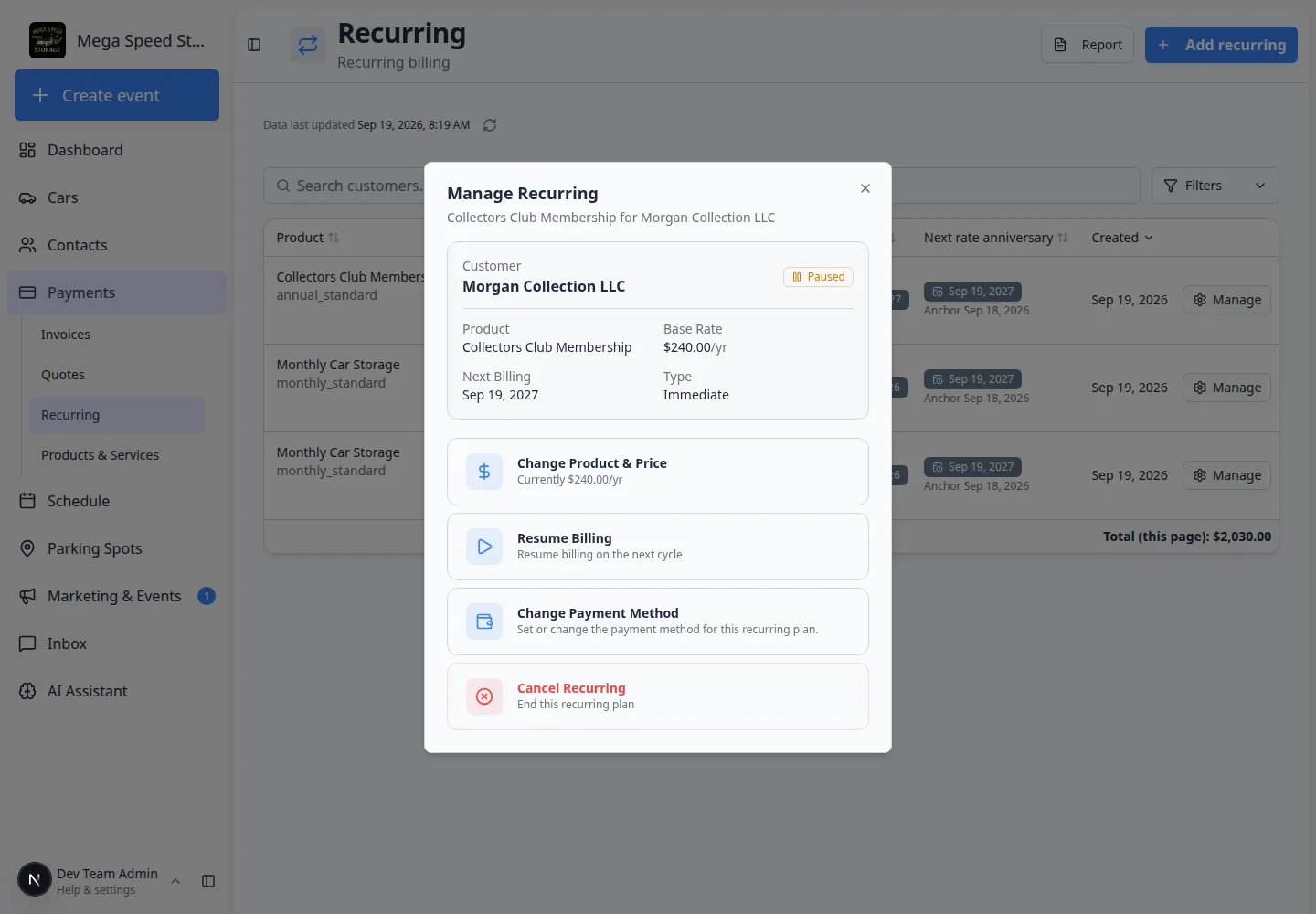 *The **Manage Recurring** window is where you pause, resume, change the product or price, or cancel one plan. Read each button before you click.*
### Choose an action in Manage Recurring
The **Manage Recurring** window lists large action buttons. Pick the one that matches what the customer asked for:
**Change Product & Price** — Switch the product or the price option when your manager approved a new rate (for example moving from **monthly\_standard** to a higher indoor rate).
**Pause Billing** — Stop charges for now. The customer may return later. You can pause immediately or at the end of the current billing period.
**Resume Billing** — Appears when the plan is already **Paused**. Restarts billing on the next cycle.
**Change Payment Method** — Switch between card, bank account, **Invoice**, cash, or check when your facility allows it.
**Cancel recurring** — End the plan when the customer is leaving storage or ending a membership.
Click **Pause Billing**. Choose whether to pause **now** or at the **end of the current period**.
**Why this matters:** Pausing now stops the next charge right away. Pausing at period end lets the customer finish the time they already paid for.
**Expected result:** The Recurring list shows **Paused** until you resume.
Open **Manage** on a paused plan and click **Resume Billing**.
**Expected result:** Status returns to **Active** and the **Next billing date** updates.
Click **Cancel recurring**. Follow the prompts to cancel at the end of the period, immediately, or on a specific date—depending on what your facility allows.
After you confirm the cancellation, a window asks **Notify the customer?** Choose **Yes** to send a cancellation email, or **No** to cancel without emailing. Closing that window leaves the plan unchanged.
**Why this matters:** Canceling stops future automatic charges. It does not automatically refund past payments.
**Expected result:** The plan status shows **Canceled** on the Recurring list.
Click **Change Product & Price**, pick the new price option (or product), and save.
**Expected result:** The amount on the Recurring row updates. Confirm with the customer if your facility policy requires it.
**Pausing is not the same as voiding an invoice**
A paused recurring plan stops future automatic charges. Open invoices the customer already received are handled separately on [Payments > Invoices](https://www.carstoragesoftware.com/dashboard/payments/invoices).
## Update many recurring plans at once (bulk actions)
Use bulk actions when your manager approves a **facility-wide price change** or when several customers need the **same billing date** moved—not when you are fixing one person's plan.
**When bulk is the right tool**
Bulk updates save time when storage rates go up for every customer on **Monthly Car Storage**, or when your team aligns billing to the 1st of the month. For a single customer, use **Manage** on that row instead.
### Select plans on the Recurring list
Go to [Payments > Recurring](https://www.carstoragesoftware.com/dashboard/payments/recurring).
Click the checkbox on each row you want to include. You can select up to **10 active plans at a time**.
**Why this matters:** The bulk tools are built for small batches so your team can review each change carefully.
After you select at least one plan, a bar appears above the table. It shows how many plans you selected and buttons such as **Adjust Pricing**, **Change Billing Date**, **Cancel**, and **Resume**.
**Expected result:** You see how many plans are selected and which bulk actions are available.
*The **Manage Recurring** window is where you pause, resume, change the product or price, or cancel one plan. Read each button before you click.*
### Choose an action in Manage Recurring
The **Manage Recurring** window lists large action buttons. Pick the one that matches what the customer asked for:
**Change Product & Price** — Switch the product or the price option when your manager approved a new rate (for example moving from **monthly\_standard** to a higher indoor rate).
**Pause Billing** — Stop charges for now. The customer may return later. You can pause immediately or at the end of the current billing period.
**Resume Billing** — Appears when the plan is already **Paused**. Restarts billing on the next cycle.
**Change Payment Method** — Switch between card, bank account, **Invoice**, cash, or check when your facility allows it.
**Cancel recurring** — End the plan when the customer is leaving storage or ending a membership.
Click **Pause Billing**. Choose whether to pause **now** or at the **end of the current period**.
**Why this matters:** Pausing now stops the next charge right away. Pausing at period end lets the customer finish the time they already paid for.
**Expected result:** The Recurring list shows **Paused** until you resume.
Open **Manage** on a paused plan and click **Resume Billing**.
**Expected result:** Status returns to **Active** and the **Next billing date** updates.
Click **Cancel recurring**. Follow the prompts to cancel at the end of the period, immediately, or on a specific date—depending on what your facility allows.
After you confirm the cancellation, a window asks **Notify the customer?** Choose **Yes** to send a cancellation email, or **No** to cancel without emailing. Closing that window leaves the plan unchanged.
**Why this matters:** Canceling stops future automatic charges. It does not automatically refund past payments.
**Expected result:** The plan status shows **Canceled** on the Recurring list.
Click **Change Product & Price**, pick the new price option (or product), and save.
**Expected result:** The amount on the Recurring row updates. Confirm with the customer if your facility policy requires it.
**Pausing is not the same as voiding an invoice**
A paused recurring plan stops future automatic charges. Open invoices the customer already received are handled separately on [Payments > Invoices](https://www.carstoragesoftware.com/dashboard/payments/invoices).
## Update many recurring plans at once (bulk actions)
Use bulk actions when your manager approves a **facility-wide price change** or when several customers need the **same billing date** moved—not when you are fixing one person's plan.
**When bulk is the right tool**
Bulk updates save time when storage rates go up for every customer on **Monthly Car Storage**, or when your team aligns billing to the 1st of the month. For a single customer, use **Manage** on that row instead.
### Select plans on the Recurring list
Go to [Payments > Recurring](https://www.carstoragesoftware.com/dashboard/payments/recurring).
Click the checkbox on each row you want to include. You can select up to **10 active plans at a time**.
**Why this matters:** The bulk tools are built for small batches so your team can review each change carefully.
After you select at least one plan, a bar appears above the table. It shows how many plans you selected and buttons such as **Adjust Pricing**, **Change Billing Date**, **Cancel**, and **Resume**.
**Expected result:** You see how many plans are selected and which bulk actions are available.
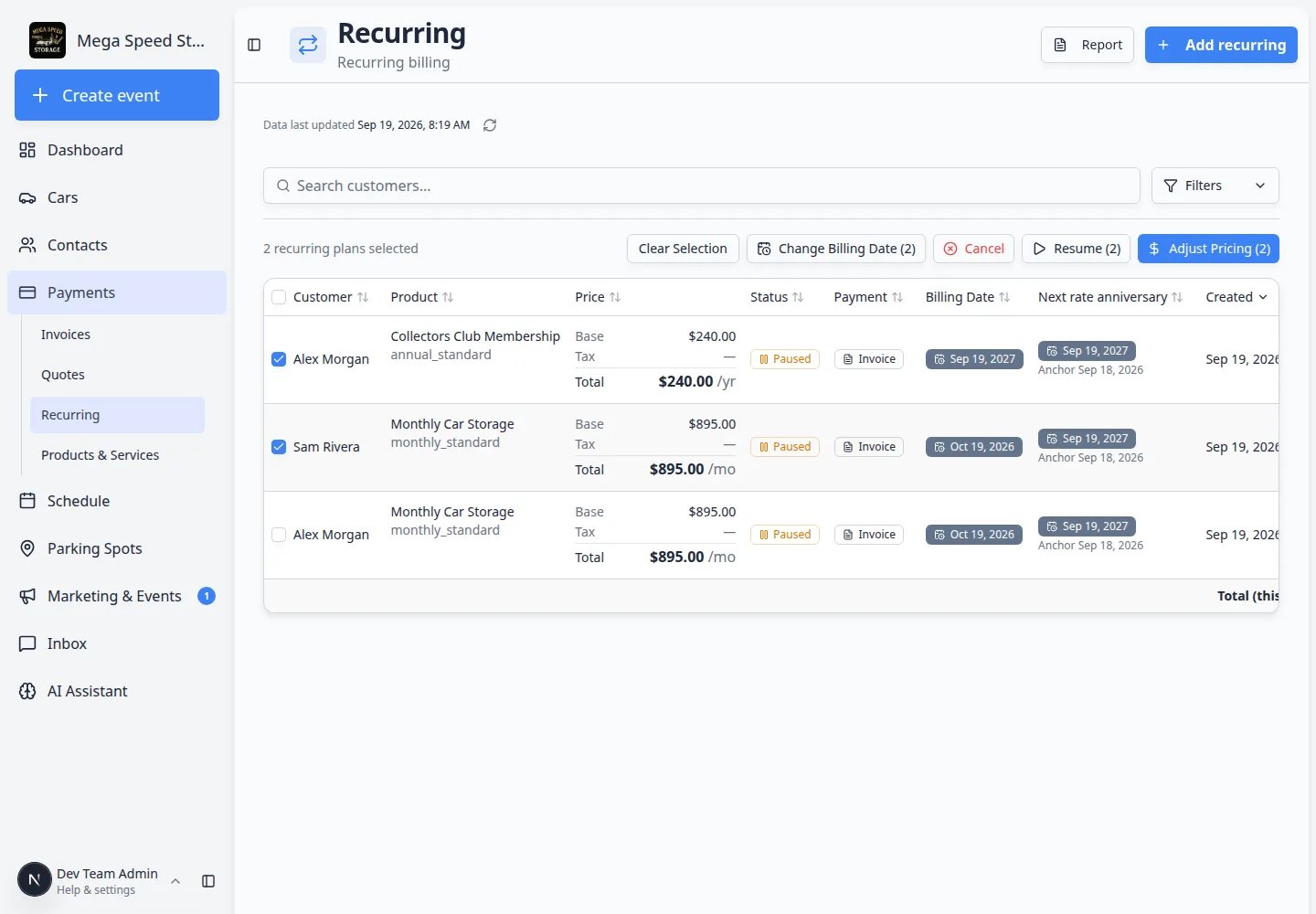 *Select up to 10 plans, then use the bar above the table. **Resume** appears when selected plans are paused.*
### Bulk update prices
Use this when approved storage rates change for many customers on the **same product**.
On [Payments > Recurring](https://www.carstoragesoftware.com/dashboard/payments/recurring), check the boxes for the customers who should get the new price. All selected plans should be for the same recurring product (for example **Monthly Car Storage**).
Click **Adjust Pricing** in the bulk action bar.
**Expected result:** You land on the bulk pricing page (or a dialog that opens the same workflow).
Pick an **Update Mode**:
* **Set Absolute Price** — enter the new dollar amount every selected customer should pay (net, before card fees).
* **Percentage Change** — enter a percent increase or decrease (for example `5` for a 5% increase).
* **Select Existing Price** — pick a pricing variant you already created under [Products & Services](https://www.carstoragesoftware.com/dashboard/payments/products).
**Why this matters:** **Select Existing Price** is safest when your team already set up the new rate as a product variant. **Percentage Change** is common for annual increases.
The page shows a **Preview** for the first few customers: old price → new price.
Read every line. If one customer looks wrong, go back and uncheck that row.
Click **Update \[N] Recurring Plan(s)** when the preview matches your manager's approval.
**Expected result:** A success message shows how many plans updated. Failed rows (if any) are listed so you can fix them one at a time with **Manage**.
*Select up to 10 plans, then use the bar above the table. **Resume** appears when selected plans are paused.*
### Bulk update prices
Use this when approved storage rates change for many customers on the **same product**.
On [Payments > Recurring](https://www.carstoragesoftware.com/dashboard/payments/recurring), check the boxes for the customers who should get the new price. All selected plans should be for the same recurring product (for example **Monthly Car Storage**).
Click **Adjust Pricing** in the bulk action bar.
**Expected result:** You land on the bulk pricing page (or a dialog that opens the same workflow).
Pick an **Update Mode**:
* **Set Absolute Price** — enter the new dollar amount every selected customer should pay (net, before card fees).
* **Percentage Change** — enter a percent increase or decrease (for example `5` for a 5% increase).
* **Select Existing Price** — pick a pricing variant you already created under [Products & Services](https://www.carstoragesoftware.com/dashboard/payments/products).
**Why this matters:** **Select Existing Price** is safest when your team already set up the new rate as a product variant. **Percentage Change** is common for annual increases.
The page shows a **Preview** for the first few customers: old price → new price.
Read every line. If one customer looks wrong, go back and uncheck that row.
Click **Update \[N] Recurring Plan(s)** when the preview matches your manager's approval.
**Expected result:** A success message shows how many plans updated. Failed rows (if any) are listed so you can fix them one at a time with **Manage**.
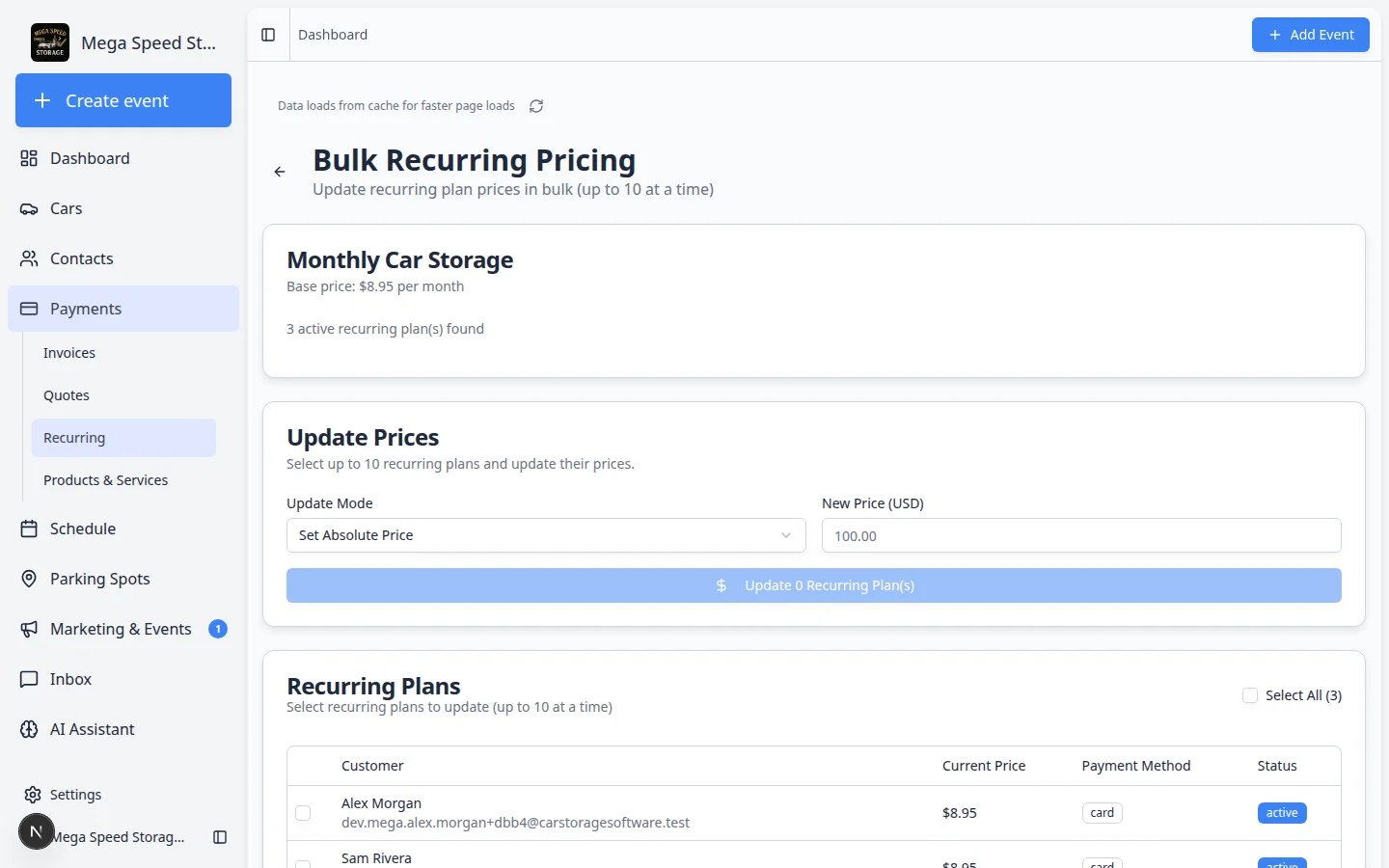 *Bulk Recurring Pricing lets you raise or lower rates for up to 10 customers at once. Always read the preview before you click Update.*
**Processing fees are calculated per customer**
Amounts in the preview are usually **net** (what your facility receives). Card and bank fees may still appear on the customer's invoice based on their payment method.
### Bulk change billing dates
Use this when several customers should bill on the same day of the month (for example the 1st) instead of scattered dates.
On [Payments > Recurring](https://www.carstoragesoftware.com/dashboard/payments/recurring), check up to 10 plans that should share a new billing date.
Click **Change Billing Date** in the bulk action bar.
**Expected result:** The **Bulk Billing Date** page opens with the plans you selected grouped by billing frequency (monthly, yearly, and so on).
For each group, choose the **billing day** (such as the 1st or 15th) and whether the change should happen **now** or at the **end of the current period**.
**Why this matters:** Moving to **end of period** avoids surprising a customer with two charges close together.
Read the preview that shows upcoming invoice dates before you apply the change.
Confirm when the preview looks correct.
**Expected result:** The **Next billing date** column on [Recurring](https://www.carstoragesoftware.com/dashboard/payments/recurring) updates for each included plan.
### Bulk cancel or resume
* **Cancel** — ends multiple plans when a group of customers is leaving storage at once. Read each prompt; canceling cannot always be undone. You will also be asked **Notify the customer?** so you can cancel with or without sending email.
* **Resume** — appears when you select **Paused** plans. Use it after a seasonal pause when those customers are returning.
**Bulk cancel still needs human judgment**
Even when canceling many plans, confirm each customer actually ended storage. Bulk tools speed up clicks—they do not replace checking your move-out list.
## What to do next
After creating a recurring plan, check the [Recurring page](https://www.carstoragesoftware.com/dashboard/payments/recurring) regularly. Use the **Report** button to review recurring revenue and make sure expected storage or membership income is being tracked.
If the customer approved pricing on a quote first, see [When a customer accepts a quote](/docs/payments/when-a-customer-accepts-a-quote) to confirm the new plan matches what they accepted.
If you are adding your first plan, see the **Add recurring** window for customer, product, price, and start date fields:
*Bulk Recurring Pricing lets you raise or lower rates for up to 10 customers at once. Always read the preview before you click Update.*
**Processing fees are calculated per customer**
Amounts in the preview are usually **net** (what your facility receives). Card and bank fees may still appear on the customer's invoice based on their payment method.
### Bulk change billing dates
Use this when several customers should bill on the same day of the month (for example the 1st) instead of scattered dates.
On [Payments > Recurring](https://www.carstoragesoftware.com/dashboard/payments/recurring), check up to 10 plans that should share a new billing date.
Click **Change Billing Date** in the bulk action bar.
**Expected result:** The **Bulk Billing Date** page opens with the plans you selected grouped by billing frequency (monthly, yearly, and so on).
For each group, choose the **billing day** (such as the 1st or 15th) and whether the change should happen **now** or at the **end of the current period**.
**Why this matters:** Moving to **end of period** avoids surprising a customer with two charges close together.
Read the preview that shows upcoming invoice dates before you apply the change.
Confirm when the preview looks correct.
**Expected result:** The **Next billing date** column on [Recurring](https://www.carstoragesoftware.com/dashboard/payments/recurring) updates for each included plan.
### Bulk cancel or resume
* **Cancel** — ends multiple plans when a group of customers is leaving storage at once. Read each prompt; canceling cannot always be undone. You will also be asked **Notify the customer?** so you can cancel with or without sending email.
* **Resume** — appears when you select **Paused** plans. Use it after a seasonal pause when those customers are returning.
**Bulk cancel still needs human judgment**
Even when canceling many plans, confirm each customer actually ended storage. Bulk tools speed up clicks—they do not replace checking your move-out list.
## What to do next
After creating a recurring plan, check the [Recurring page](https://www.carstoragesoftware.com/dashboard/payments/recurring) regularly. Use the **Report** button to review recurring revenue and make sure expected storage or membership income is being tracked.
If the customer approved pricing on a quote first, see [When a customer accepts a quote](/docs/payments/when-a-customer-accepts-a-quote) to confirm the new plan matches what they accepted.
If you are adding your first plan, see the **Add recurring** window for customer, product, price, and start date fields:
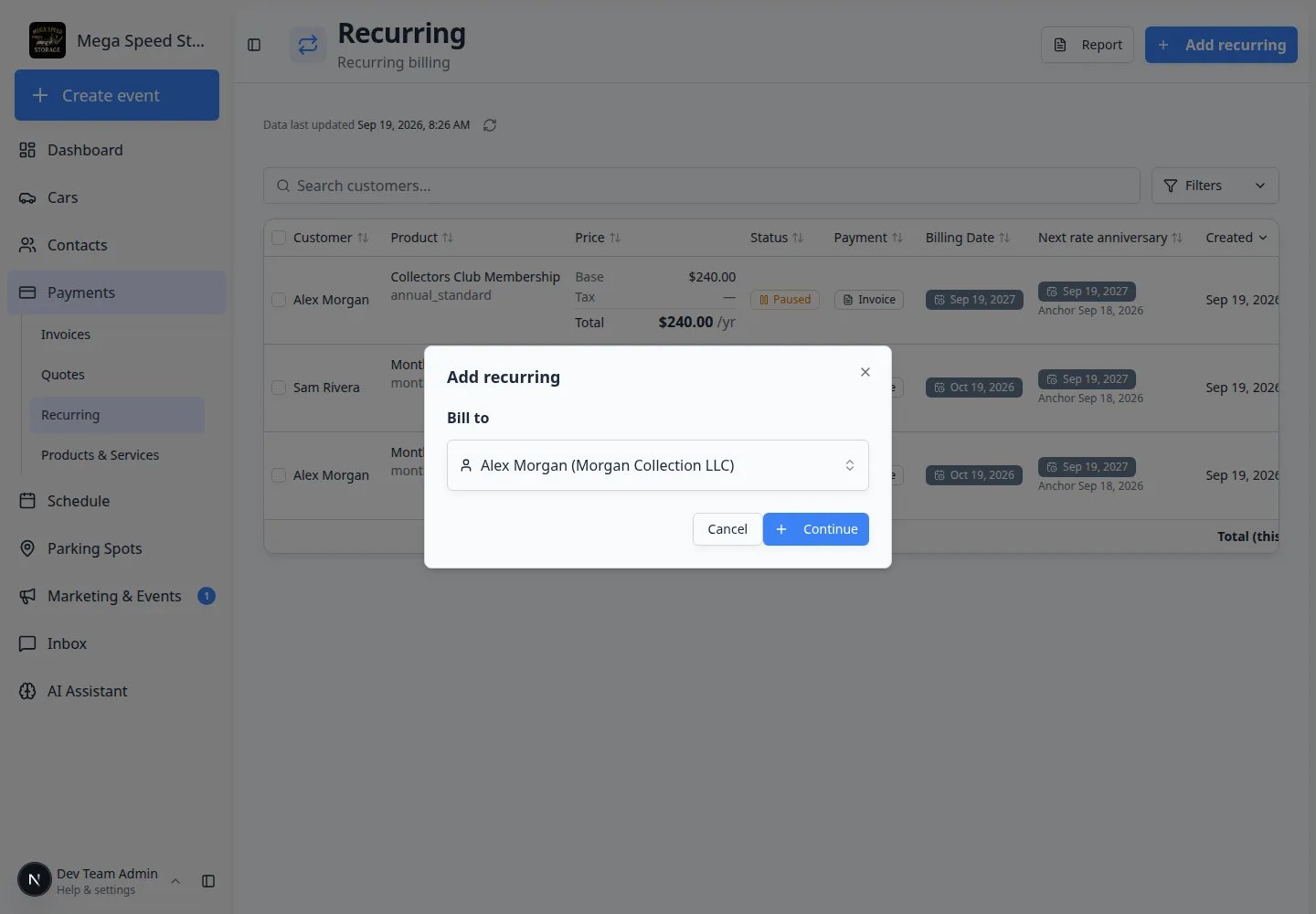 *Each recurring plan starts with one customer. Confirm the name, then continue to the product and price.*
## Related topics
- [Link recurring billing to a vehicle](/docs/cars/link-recurring-billing-to-a-vehicle.md)
- [Import recurring billing plans](/docs/payments/import-recurring-billing-plans.md)
- [Manage billing on a customer record](/docs/contacts/manage-billing-on-a-customer-record.md)
- [Manage products and services](/docs/payments/manage-products-and-services.md)
- [Payments overview](/docs/payments/overview.md)
This documentation is built and hosted on [Mintlify](https://mintlify.com), a developer documentation platform.
*Each recurring plan starts with one customer. Confirm the name, then continue to the product and price.*
## Related topics
- [Link recurring billing to a vehicle](/docs/cars/link-recurring-billing-to-a-vehicle.md)
- [Import recurring billing plans](/docs/payments/import-recurring-billing-plans.md)
- [Manage billing on a customer record](/docs/contacts/manage-billing-on-a-customer-record.md)
- [Manage products and services](/docs/payments/manage-products-and-services.md)
- [Payments overview](/docs/payments/overview.md)
This documentation is built and hosted on [Mintlify](https://mintlify.com), a developer documentation platform.