> ## Documentation Index
> Fetch the complete documentation index at: https://www.carstoragesoftware.com/docs/llms.txt
> Use this file to discover all available pages before exploring further.
# Payments overview
> Learn what each Payments page does and where to start when you need to bill, quote, or manage vendors.
## What you will accomplish
After reading this overview, you will know which Payments page to open for each job—bill a customer, send a quote, set up monthly storage, manage products, or pay an outside vendor.
You will also know the difference between **money coming in** (customer invoices) and **money going out** (vendor invoices), so your team does not mix up the two lists.
Use the [Payments section](https://www.carstoragesoftware.com/dashboard/payments) when your team needs to collect money, prepare pricing, manage repeat charges, organize billable products, or track vendor work.
You will find **Payments** in the left sidebar of your dashboard. It includes **Invoices**, **Quotes**, **Recurring**, and **Products & Services**. Outside vendors (detailers, transport companies, and contractors) are managed under **[Contacts > Vendors](https://www.carstoragesoftware.com/dashboard/contacts/vendors)**—not as a tab inside Payments.
This section is written for **front desk staff, service managers, and owners** who bill customers and pay outside vendors. You do not need to be a bookkeeper—follow the guide that matches the job you are doing right now.
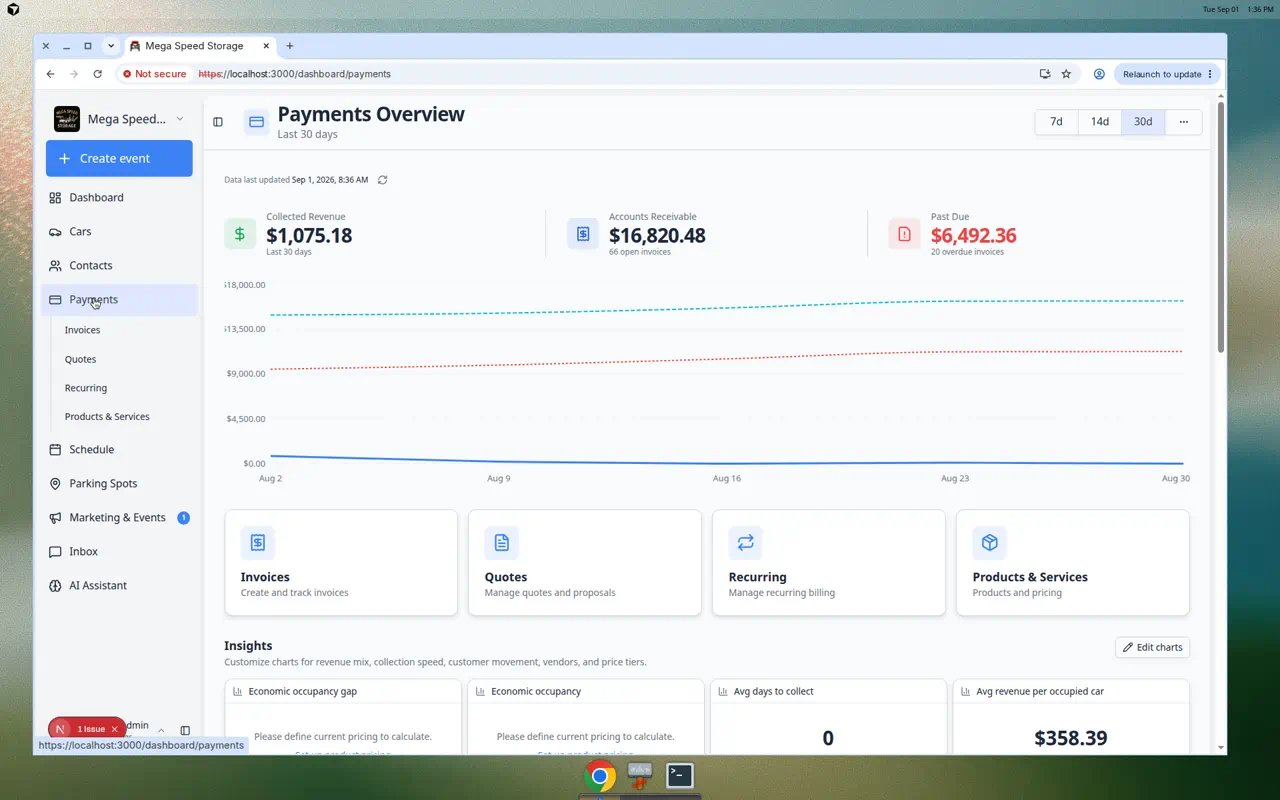 *The Payments overview is your starting point. Wait until the three summary cards finish loading before you use the numbers for decisions.*
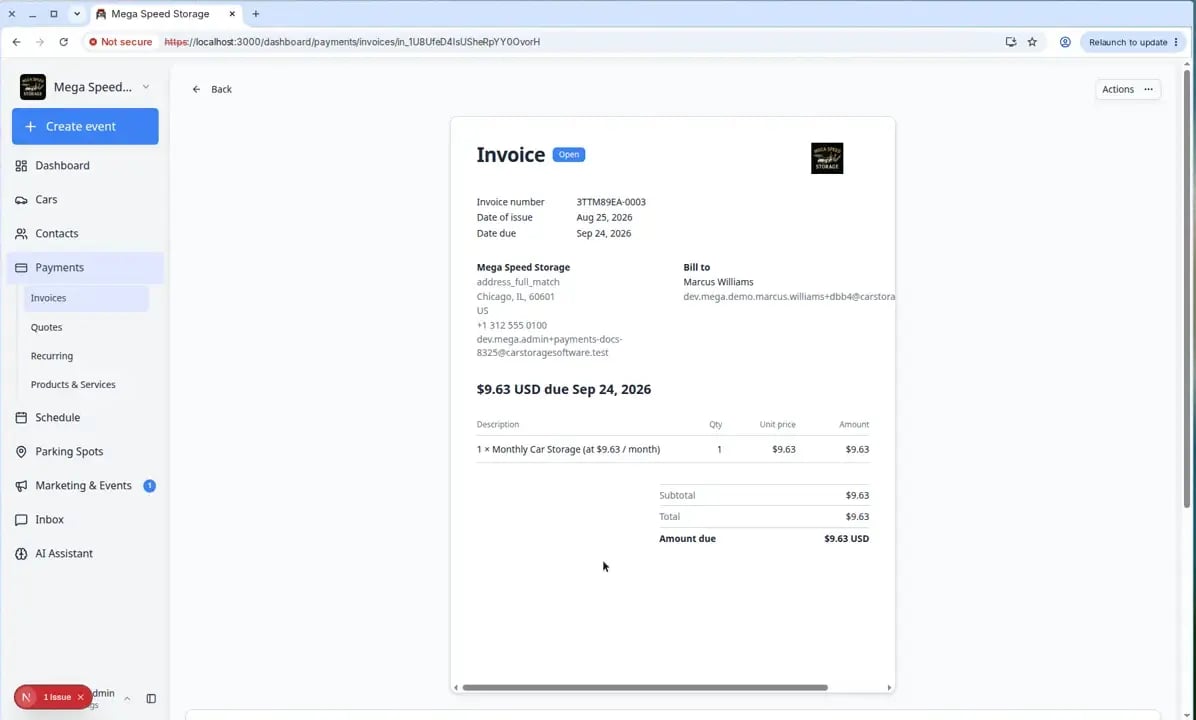 *Open any Payments page from the sidebar. **Vendors** live under **Contacts**, not inside the Payments submenu.*
The Payments area brings customer money and vendor money into one place. This helps your team answer simple questions quickly:
* Who still owes us money?
* Which quotes are waiting for a customer?
* Which customers have monthly storage charges?
* What services can we bill for?
* Which vendor invoices need review?
*Open any Payments page from the sidebar. **Vendors** live under **Contacts**, not inside the Payments submenu.*
The Payments area brings customer money and vendor money into one place. This helps your team answer simple questions quickly:
* Who still owes us money?
* Which quotes are waiting for a customer?
* Which customers have monthly storage charges?
* What services can we bill for?
* Which vendor invoices need review?
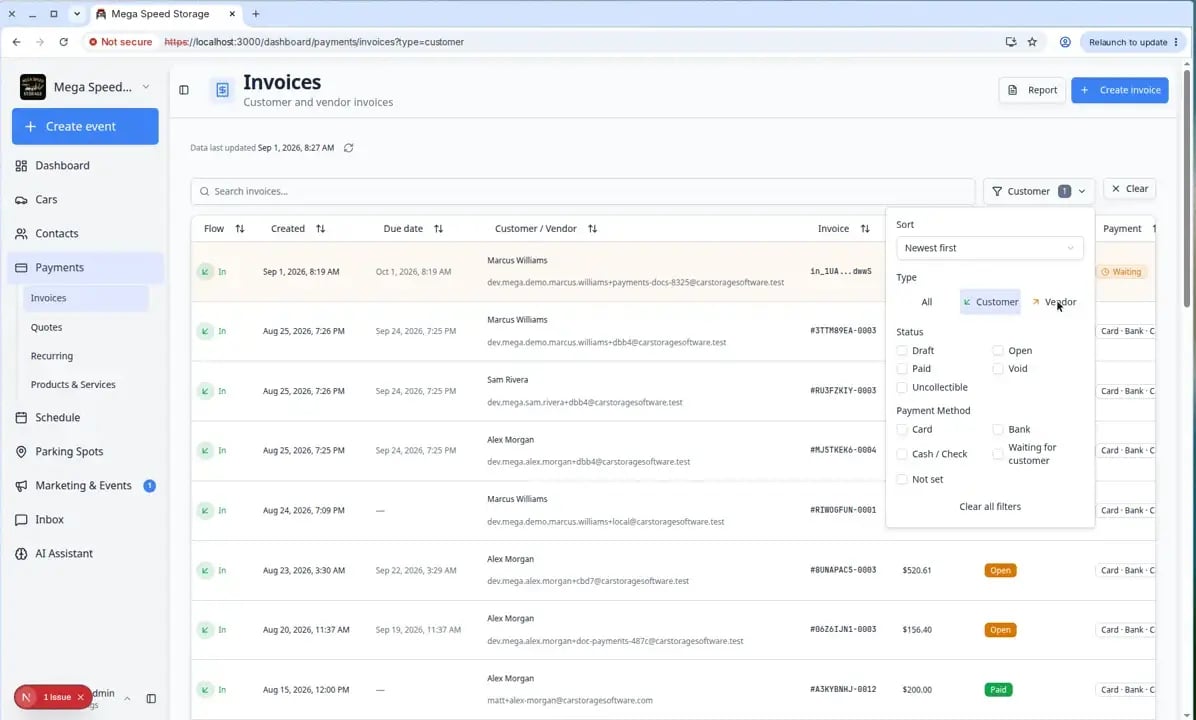 *The Invoices page lists customer and vendor bills together. Use **Filters → Type** when you want to focus on one kind.*
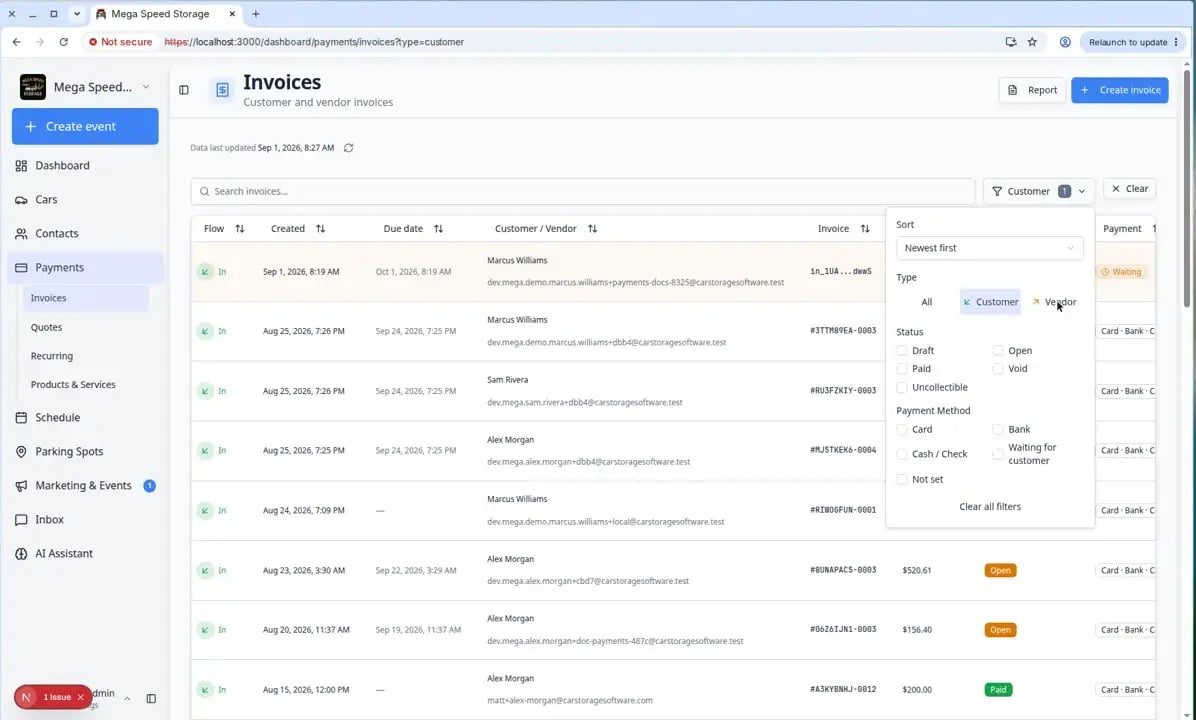 *Click **Filters**, then under **Type** choose **Customer** to see only bills your facility sends. Status badges such as **Open**, **Paid**, and **Draft** tell you what to do next.*
## Your first week with Payments
Use this path when your facility is new to billing in Car Storage Software. Each step builds on the last.
An owner or admin finishes [Connect payment processing](/docs/settings/connect-payment-processing) in [Settings > Billing](https://www.carstoragesoftware.com/dashboard/settings/billing).
**Expected result:** The blue setup banner on Payments pages disappears and **Create invoice** works.
Follow [Manage products and services](/docs/payments/manage-products-and-services) so your team has reusable line items (for example **Monthly Climate Storage**).
**Why this matters:** Invoices, quotes, and recurring plans all pull from products—you type less and make fewer mistakes.
Create a test invoice with [Create an invoice](/docs/payments/create-an-invoice) for an internal customer. Save as **Draft** first if you are nervous.
**Expected result:** You see the invoice on [Payments > Invoices](https://www.carstoragesoftware.com/dashboard/payments/invoices) with **Draft** status.
Read [Review a customer invoice](/docs/payments/review-a-customer-invoice), then practice [Send and collect customer payments](/docs/payments/send-and-collect-customer-payments).
**Expected result:** Your team knows what **Open**, **Paid**, and **Past due** mean before talking to real customers.
Open [Use the Payments overview dashboard](/docs/payments/use-the-payments-overview-dashboard) and [Review the Invoices Report](/docs/payments/review-the-invoices-report) with your owner or bookkeeper.
**Expected result:** Everyone agrees where to look for revenue totals and Excel export.
## Before you use Payments
* Your team should have payment processing set up in [Settings > Billing](https://www.carstoragesoftware.com/dashboard/settings/billing). An owner or admin usually completes this once for the whole facility.
* Create customer records in [Contacts](https://www.carstoragesoftware.com/dashboard/contacts) before sending invoices, quotes, or recurring charges.
* Create products or services first if you want reusable pricing instead of typing custom line items each time. See [Manage products and services](/docs/payments/manage-products-and-services).
* Ask your facility owner or manager which teammates are allowed to create charges, issue credits, or approve vendor bills.
**If you see a setup message**
Some Payments pages may show a message that payment processing is not enabled. Go to [Settings > Billing](https://www.carstoragesoftware.com/dashboard/settings/billing) and finish payment setup before creating customer charges online.
**Expected result after setup:** **Create invoice**, **Create quote**, and **Add recurring** work without a setup warning, and customers can pay from invoice links.
## What you see before payment processing is enabled
If your facility is new to Car Storage Software, several Payments pages may look empty or show a blue banner that says **Stripe payments are not enabled for your team**. That is normal until an owner or admin finishes setup.
In the dashboard sidebar, click **Settings**, then **Billing**. You can also open [Settings > Billing](https://www.carstoragesoftware.com/dashboard/settings/billing) directly.
**Why this matters:** Online invoices, quotes, and recurring charges need a connected payment account before customers can pay from email links.
Follow [Connect payment processing](/docs/settings/connect-payment-processing) with your facility owner. This is usually a one-time setup.
**Expected result:** Payments pages stop showing the setup warning, and buttons such as **Create invoice** and **Add Product** open full forms instead of blocking you.
After payments are enabled, create your reusable pricing in [Products & Services](https://www.carstoragesoftware.com/dashboard/payments/products) before your team sends many invoices or recurring plans. See [Manage products and services](/docs/payments/manage-products-and-services).
**Vendors are under Contacts, not Payments tabs**
The Payments area includes **Invoices**, **Quotes**, **Recurring**, and **Products & Services**. **Vendors** (outside detailers, transport companies, and contractors) live under **[Contacts > Vendors](https://www.carstoragesoftware.com/dashboard/contacts/vendors)** in the sidebar. Old bookmarks to `/dashboard/payments/vendors` still work—they redirect to Contacts.
**Give the overview a moment to load**
Revenue cards and charts may show **Loading...** for a few seconds after you open the page. Wait until numbers appear before you use the overview for decisions.
**Expected result:** **Collected Revenue**, **Accounts Receivable**, and **Past Due** show dollar amounts instead of loading text.
For a full walkthrough of the overview page—including date ranges, the revenue chart, and **Insights** charts—read [Use the Payments overview dashboard](/docs/payments/use-the-payments-overview-dashboard).
## Understand the revenue cards at the top
The [Payments overview](https://www.carstoragesoftware.com/dashboard/payments) shows three summary cards. They help owners and managers spot billing problems early—without opening every invoice one by one.
**Collected Revenue** — Money your facility has already received in the time range you selected (7 days, 14 days, or 30 days). This answers: “How much came in recently?”
**Accounts Receivable** — Money customers still owe from open invoices. This answers: “How much is outstanding right now?”
**Past Due** — Open invoices that are past their due date. This answers: “Who is late—and needs a friendly follow-up?”
Go to [Payments](https://www.carstoragesoftware.com/dashboard/payments) in the sidebar.
**Expected result:** You see the three cards near the top. They may show **Loading...** for a few seconds on a busy day—wait until numbers appear.
Open [Payments > Invoices](https://www.carstoragesoftware.com/dashboard/payments/invoices), click **Customer**, and sort or filter for **Open** invoices past their due date. Follow [Send and collect customer payments](/docs/payments/send-and-collect-customer-payments) for each customer who still owes money.
**Why this matters:** Past due storage fees add up quickly. A short weekly check prevents surprises at month-end.
Compare the total to your open invoice list. One large draft invoice, a duplicate bill, or a customer who never received email can inflate the number. Start with [Review a customer invoice](/docs/payments/review-a-customer-invoice) on the biggest open rows.
## Money in vs money out
**Customer invoices (money in)** — Bills your facility sends to customers. You create them, send them, and collect payment. Open [Invoices](https://www.carstoragesoftware.com/dashboard/payments/invoices), click **Filters**, then under **Type** choose **Customer**.
**Vendor invoices (money out)** — Bills outside providers send to your facility (detailers, transport, mechanics). You review the file, approve it, and record payment outside the app. Open [Invoices](https://www.carstoragesoftware.com/dashboard/payments/invoices), click **Filters**, then under **Type** choose **Vendor**.
## Quick start by job
| I need to… | Open this page | Step-by-step guide |
| - | - | - |
| See revenue, past due, and charts | [Payments overview](https://www.carstoragesoftware.com/dashboard/payments) | [Use the Payments overview dashboard](/docs/payments/use-the-payments-overview-dashboard) |
| Export billing history for a date range | [Invoices](https://www.carstoragesoftware.com/dashboard/payments/invoices) → **Report** | [Review the Invoices Report](/docs/payments/review-the-invoices-report) |
| Bill a customer today | [Invoices](https://www.carstoragesoftware.com/dashboard/payments/invoices) → **Customer** | [Create an invoice](/docs/payments/create-an-invoice) |
| Follow up after sending a bill | Open the invoice, then use **Actions** | [Send and collect customer payments](/docs/payments/send-and-collect-customer-payments) |
| Lower what a customer owes on an open bill | Open the invoice → **Actions** → **Issue credit note** | [Review a customer invoice](/docs/payments/review-a-customer-invoice) |
| Check what a status means | Open the invoice row (filter **Type → Customer** if the list is long) | [Review a customer invoice](/docs/payments/review-a-customer-invoice) |
| Review billing activity for a date range | [Invoices](https://www.carstoragesoftware.com/dashboard/payments/invoices) → **Report** | [Review the invoices report](/docs/payments/review-the-invoices-report) |
| Send pricing for approval first | [Quotes](https://www.carstoragesoftware.com/dashboard/payments/quotes) | [Create a quote](/docs/payments/create-a-quote) |
| Pause or cancel monthly storage | [Recurring](https://www.carstoragesoftware.com/dashboard/payments/recurring) → **Manage** on a row | [Manage recurring billing](/docs/payments/manage-recurring-billing) |
| Charge monthly storage automatically | [Recurring](https://www.carstoragesoftware.com/dashboard/payments/recurring) | [Manage recurring billing](/docs/payments/manage-recurring-billing) |
| Raise storage rates for many customers at once | [Recurring](https://www.carstoragesoftware.com/dashboard/payments/recurring) → select plans → **Update Prices** | [Manage recurring billing](/docs/payments/manage-recurring-billing) (bulk section) |
| Set up reusable line items | [Products & Services](https://www.carstoragesoftware.com/dashboard/payments/products) | [Manage products and services](/docs/payments/manage-products-and-services) |
| Add a detailer or transport company | [Contacts > Vendors](https://www.carstoragesoftware.com/dashboard/contacts/vendors) | [Manage vendors](/docs/payments/manage-vendors) |
| Review a bill from an outside provider | [Invoices](https://www.carstoragesoftware.com/dashboard/payments/invoices) → **Vendor** | [Review and pay vendor invoices](/docs/payments/review-and-pay-vendor-invoices) |
| Export billing history for a date range | [Invoices](https://www.carstoragesoftware.com/dashboard/payments/invoices) → **Report** | [Review the Invoices Report](/docs/payments/review-the-invoices-report) |
| Fix a wrong or canceled customer bill | Open the invoice → **Actions** | [Void, credit, or correct an invoice](/docs/payments/void-credit-or-correct-an-invoice) |
## Use the Payments overview dashboard
The first page under **Payments** is an overview—not the invoice list. It helps owners and managers answer "how are we doing?" before they drill into one customer.
Click **Payments** (not a sub-item). You land on [Payments overview](https://www.carstoragesoftware.com/dashboard/payments).
**Expected result:** You see revenue summary cards and shortcuts to **Invoices**, **Quotes**, **Recurring**, and **Products & Services**.
Cards such as **Collected Revenue**, **Accounts Receivable**, and **Past Due** update for the date range you pick.
**Why this matters:** **Past Due** tells you who needs a friendly follow-up call without opening every invoice row.
Click a card to jump to the right workspace—for example **Invoices** to chase open bills or **Recurring** to check monthly storage plans.
**Expected result:** You leave the overview and land on the list page for that job.
**Overview vs Invoices Report**
The **Payments overview** shows trends and totals for quick decisions. The [Invoices Report](https://www.carstoragesoftware.com/dashboard/payments/invoices/report) is a detailed table with **Excel export** for accountants—see [Review the Invoices Report](/docs/payments/review-the-invoices-report).
## Choose the right Payments page
Open [Invoices](https://www.carstoragesoftware.com/dashboard/payments/invoices) to create a bill for storage, service, amenities, or one-time work. Use this when you know the amount and are ready to send, save, resend, or collect payment on an invoice.
Open [Quotes](https://www.carstoragesoftware.com/dashboard/payments/quotes) when the customer should review pricing before your team starts work or sends an invoice.
Open [Recurring](https://www.carstoragesoftware.com/dashboard/payments/recurring) for monthly storage, memberships, service plans, or any charge that should repeat on a schedule.
When many customers need the same price or billing date change, select up to 10 plans on that page and use **Update Prices** or **Change Billing Date**. See the bulk section in [Manage recurring billing](/docs/payments/manage-recurring-billing).
Open [Products & Services](https://www.carstoragesoftware.com/dashboard/payments/products) to create the items your team adds to invoices, quotes, checkout, and recurring plans.
Open [Contacts > Vendors](https://www.carstoragesoftware.com/dashboard/contacts/vendors) to track detailers, transport companies, mechanics, contractors, and vendor payment setup. Vendor bills themselves are reviewed on [Invoices](https://www.carstoragesoftware.com/dashboard/payments/invoices) using **Filters → Type → Vendor**.
Open [Invoices](https://www.carstoragesoftware.com/dashboard/payments/invoices?type=vendor), then click **Vendor** if needed. Use this when a detailer, transporter, mechanic, contractor, or other provider sends your facility a bill.
Open [Invoices](https://www.carstoragesoftware.com/dashboard/payments/invoices), then click **Report**, or go to [Invoices Report](https://www.carstoragesoftware.com/dashboard/payments/invoices/report). Use this when an owner or bookkeeper needs totals, overdue counts, or an Excel export for a specific period—not when you are editing one invoice.
## Recommended learning path
If your team is setting up Payments for the first time, follow this order:
1. [Manage products and services](/docs/payments/manage-products-and-services) so your pricing is ready.
2. [Create an invoice](/docs/payments/create-an-invoice) so your team can bill a customer.
3. [Review a customer invoice](/docs/payments/review-a-customer-invoice) so your team understands statuses before collecting payment.
4. [Send and collect customer payments](/docs/payments/send-and-collect-customer-payments) so your team knows how to follow up after the invoice exists.
5. [Create a quote](/docs/payments/create-a-quote) so your team can send pricing for approval.
6. [Manage recurring billing](/docs/payments/manage-recurring-billing) so storage and memberships bill on time.
7. [Manage vendors](/docs/payments/manage-vendors) so outside providers can be tracked clearly.
8. [Review and pay vendor invoices](/docs/payments/review-and-pay-vendor-invoices) so vendor bills are handled consistently.
9. [Review the Invoices Report](/docs/payments/review-the-invoices-report) when managers or bookkeepers need date-range history or Excel export.
## All Payments how-to guides
* [Create an invoice](/docs/payments/create-an-invoice)
* [Review a customer invoice](/docs/payments/review-a-customer-invoice)
* [Send and collect customer payments](/docs/payments/send-and-collect-customer-payments)
* [Void, credit, or correct an invoice](/docs/payments/void-credit-or-correct-an-invoice)
* [Create a quote](/docs/payments/create-a-quote)
* [Manage recurring billing](/docs/payments/manage-recurring-billing)
* [Manage products and services](/docs/payments/manage-products-and-services)
* [Manage vendors](/docs/payments/manage-vendors)
* [Review and pay vendor invoices](/docs/payments/review-and-pay-vendor-invoices)
* [Review the Invoices Report](/docs/payments/review-the-invoices-report)
## Common terms in plain English
**Invoice** means a bill you send to a customer.
**Quote** means pricing the customer can review before you invoice them.
**Recurring** means a charge that repeats, such as monthly storage.
**Bulk update** means changing price or billing date for up to 10 recurring plans at once from [Payments > Recurring](https://www.carstoragesoftware.com/dashboard/payments/recurring).
**Product or service** means a reusable item your team can bill for, such as "Monthly Storage" or "Premium Detail."
**Vendor** means an outside person or company that helps your facility, such as a detailer, transporter, or repair shop.
**Vendor invoice** means a bill that an outside provider sends to your facility.
**Credit note** means a record that lowers what a customer owes on an existing invoice (for example, a fee waiver or partial refund approved by your manager).
## Helpful habits
* Use clear names customers will understand, such as "Monthly Climate Controlled Storage" instead of "Storage fee."
* Review totals before sending anything to a customer.
* Keep customer records up to date so invoices and quotes go to the right email address.
* Use recurring billing for repeat work so your team does not need to remember every charge manually.
* Review vendor invoice files before approving or recording payment.
## What success looks like
When Payments is working well for your facility:
* Customers receive invoices and quotes by email with links that work on a phone or computer.
* Your team can see at a glance who owes money and which quotes are still waiting for approval.
* Monthly storage and memberships bill on time through recurring plans.
* Vendor bills are reviewed and marked paid so nothing is paid twice by mistake.
## Troubleshooting
**Revenue cards stay on Loading...**
Wait 10–15 seconds after opening the page. If numbers never appear, refresh the browser tab. Payment overview charts need a moment to pull totals from your payment account.
**I cannot create invoices or quotes**
Finish [Connect payment processing](/docs/settings/connect-payment-processing) in [Settings > Billing](https://www.carstoragesoftware.com/dashboard/settings/billing). Until setup is complete, some buttons stay disabled or show a blue setup banner.
**Customer paid in the portal but I still see Open**
Bank payments can show **processing** for a day or two. Open the invoice and scroll to **Payments & transactions**. See [Review a customer invoice](/docs/payments/review-a-customer-invoice).
## What to do next
If you only need to bill one customer today, start with [Create an invoice](/docs/payments/create-an-invoice).
If the invoice already exists and you need to collect payment, use [Send and collect customer payments](/docs/payments/send-and-collect-customer-payments).
If you are setting up Payments for your whole team, start with [Manage products and services](/docs/payments/manage-products-and-services), then [Connect payment processing](/docs/settings/connect-payment-processing).
## All Payments guides
* [Use the Payments overview dashboard](/docs/payments/use-the-payments-overview-dashboard) — revenue cards, date ranges, charts, and Insights.
* [Create an invoice](/docs/payments/create-an-invoice) — bill a customer.
* [Review a customer invoice](/docs/payments/review-a-customer-invoice) — understand statuses.
* [Send and collect customer payments](/docs/payments/send-and-collect-customer-payments) — resend, charge on file, or record cash/check.
* [Create a quote](/docs/payments/create-a-quote) — pricing before work starts.
* [Manage recurring billing](/docs/payments/manage-recurring-billing) — monthly storage and memberships.
* [Manage products and services](/docs/payments/manage-products-and-services) — reusable line items and capacity.
* [Manage vendors](/docs/payments/manage-vendors) — outside detailers and transport companies.
* [Review and pay vendor invoices](/docs/payments/review-and-pay-vendor-invoices) — bills your facility receives.
## Related topics
- [Use the Payments overview dashboard](/docs/payments/use-the-payments-overview-dashboard.md)
- [Review the Invoices Report](/docs/payments/review-the-invoices-report.md)
- [Manage vendors](/docs/payments/manage-vendors.md)
- [When a customer accepts a quote](/docs/payments/when-a-customer-accepts-a-quote.md)
- [Create an invoice](/docs/payments/create-an-invoice.md)
This documentation is built and hosted on [Mintlify](https://mintlify.com), a developer documentation platform.
*Click **Filters**, then under **Type** choose **Customer** to see only bills your facility sends. Status badges such as **Open**, **Paid**, and **Draft** tell you what to do next.*
## Your first week with Payments
Use this path when your facility is new to billing in Car Storage Software. Each step builds on the last.
An owner or admin finishes [Connect payment processing](/docs/settings/connect-payment-processing) in [Settings > Billing](https://www.carstoragesoftware.com/dashboard/settings/billing).
**Expected result:** The blue setup banner on Payments pages disappears and **Create invoice** works.
Follow [Manage products and services](/docs/payments/manage-products-and-services) so your team has reusable line items (for example **Monthly Climate Storage**).
**Why this matters:** Invoices, quotes, and recurring plans all pull from products—you type less and make fewer mistakes.
Create a test invoice with [Create an invoice](/docs/payments/create-an-invoice) for an internal customer. Save as **Draft** first if you are nervous.
**Expected result:** You see the invoice on [Payments > Invoices](https://www.carstoragesoftware.com/dashboard/payments/invoices) with **Draft** status.
Read [Review a customer invoice](/docs/payments/review-a-customer-invoice), then practice [Send and collect customer payments](/docs/payments/send-and-collect-customer-payments).
**Expected result:** Your team knows what **Open**, **Paid**, and **Past due** mean before talking to real customers.
Open [Use the Payments overview dashboard](/docs/payments/use-the-payments-overview-dashboard) and [Review the Invoices Report](/docs/payments/review-the-invoices-report) with your owner or bookkeeper.
**Expected result:** Everyone agrees where to look for revenue totals and Excel export.
## Before you use Payments
* Your team should have payment processing set up in [Settings > Billing](https://www.carstoragesoftware.com/dashboard/settings/billing). An owner or admin usually completes this once for the whole facility.
* Create customer records in [Contacts](https://www.carstoragesoftware.com/dashboard/contacts) before sending invoices, quotes, or recurring charges.
* Create products or services first if you want reusable pricing instead of typing custom line items each time. See [Manage products and services](/docs/payments/manage-products-and-services).
* Ask your facility owner or manager which teammates are allowed to create charges, issue credits, or approve vendor bills.
**If you see a setup message**
Some Payments pages may show a message that payment processing is not enabled. Go to [Settings > Billing](https://www.carstoragesoftware.com/dashboard/settings/billing) and finish payment setup before creating customer charges online.
**Expected result after setup:** **Create invoice**, **Create quote**, and **Add recurring** work without a setup warning, and customers can pay from invoice links.
## What you see before payment processing is enabled
If your facility is new to Car Storage Software, several Payments pages may look empty or show a blue banner that says **Stripe payments are not enabled for your team**. That is normal until an owner or admin finishes setup.
In the dashboard sidebar, click **Settings**, then **Billing**. You can also open [Settings > Billing](https://www.carstoragesoftware.com/dashboard/settings/billing) directly.
**Why this matters:** Online invoices, quotes, and recurring charges need a connected payment account before customers can pay from email links.
Follow [Connect payment processing](/docs/settings/connect-payment-processing) with your facility owner. This is usually a one-time setup.
**Expected result:** Payments pages stop showing the setup warning, and buttons such as **Create invoice** and **Add Product** open full forms instead of blocking you.
After payments are enabled, create your reusable pricing in [Products & Services](https://www.carstoragesoftware.com/dashboard/payments/products) before your team sends many invoices or recurring plans. See [Manage products and services](/docs/payments/manage-products-and-services).
**Vendors are under Contacts, not Payments tabs**
The Payments area includes **Invoices**, **Quotes**, **Recurring**, and **Products & Services**. **Vendors** (outside detailers, transport companies, and contractors) live under **[Contacts > Vendors](https://www.carstoragesoftware.com/dashboard/contacts/vendors)** in the sidebar. Old bookmarks to `/dashboard/payments/vendors` still work—they redirect to Contacts.
**Give the overview a moment to load**
Revenue cards and charts may show **Loading...** for a few seconds after you open the page. Wait until numbers appear before you use the overview for decisions.
**Expected result:** **Collected Revenue**, **Accounts Receivable**, and **Past Due** show dollar amounts instead of loading text.
For a full walkthrough of the overview page—including date ranges, the revenue chart, and **Insights** charts—read [Use the Payments overview dashboard](/docs/payments/use-the-payments-overview-dashboard).
## Understand the revenue cards at the top
The [Payments overview](https://www.carstoragesoftware.com/dashboard/payments) shows three summary cards. They help owners and managers spot billing problems early—without opening every invoice one by one.
**Collected Revenue** — Money your facility has already received in the time range you selected (7 days, 14 days, or 30 days). This answers: “How much came in recently?”
**Accounts Receivable** — Money customers still owe from open invoices. This answers: “How much is outstanding right now?”
**Past Due** — Open invoices that are past their due date. This answers: “Who is late—and needs a friendly follow-up?”
Go to [Payments](https://www.carstoragesoftware.com/dashboard/payments) in the sidebar.
**Expected result:** You see the three cards near the top. They may show **Loading...** for a few seconds on a busy day—wait until numbers appear.
Open [Payments > Invoices](https://www.carstoragesoftware.com/dashboard/payments/invoices), click **Customer**, and sort or filter for **Open** invoices past their due date. Follow [Send and collect customer payments](/docs/payments/send-and-collect-customer-payments) for each customer who still owes money.
**Why this matters:** Past due storage fees add up quickly. A short weekly check prevents surprises at month-end.
Compare the total to your open invoice list. One large draft invoice, a duplicate bill, or a customer who never received email can inflate the number. Start with [Review a customer invoice](/docs/payments/review-a-customer-invoice) on the biggest open rows.
## Money in vs money out
**Customer invoices (money in)** — Bills your facility sends to customers. You create them, send them, and collect payment. Open [Invoices](https://www.carstoragesoftware.com/dashboard/payments/invoices), click **Filters**, then under **Type** choose **Customer**.
**Vendor invoices (money out)** — Bills outside providers send to your facility (detailers, transport, mechanics). You review the file, approve it, and record payment outside the app. Open [Invoices](https://www.carstoragesoftware.com/dashboard/payments/invoices), click **Filters**, then under **Type** choose **Vendor**.
## Quick start by job
| I need to… | Open this page | Step-by-step guide |
| - | - | - |
| See revenue, past due, and charts | [Payments overview](https://www.carstoragesoftware.com/dashboard/payments) | [Use the Payments overview dashboard](/docs/payments/use-the-payments-overview-dashboard) |
| Export billing history for a date range | [Invoices](https://www.carstoragesoftware.com/dashboard/payments/invoices) → **Report** | [Review the Invoices Report](/docs/payments/review-the-invoices-report) |
| Bill a customer today | [Invoices](https://www.carstoragesoftware.com/dashboard/payments/invoices) → **Customer** | [Create an invoice](/docs/payments/create-an-invoice) |
| Follow up after sending a bill | Open the invoice, then use **Actions** | [Send and collect customer payments](/docs/payments/send-and-collect-customer-payments) |
| Lower what a customer owes on an open bill | Open the invoice → **Actions** → **Issue credit note** | [Review a customer invoice](/docs/payments/review-a-customer-invoice) |
| Check what a status means | Open the invoice row (filter **Type → Customer** if the list is long) | [Review a customer invoice](/docs/payments/review-a-customer-invoice) |
| Review billing activity for a date range | [Invoices](https://www.carstoragesoftware.com/dashboard/payments/invoices) → **Report** | [Review the invoices report](/docs/payments/review-the-invoices-report) |
| Send pricing for approval first | [Quotes](https://www.carstoragesoftware.com/dashboard/payments/quotes) | [Create a quote](/docs/payments/create-a-quote) |
| Pause or cancel monthly storage | [Recurring](https://www.carstoragesoftware.com/dashboard/payments/recurring) → **Manage** on a row | [Manage recurring billing](/docs/payments/manage-recurring-billing) |
| Charge monthly storage automatically | [Recurring](https://www.carstoragesoftware.com/dashboard/payments/recurring) | [Manage recurring billing](/docs/payments/manage-recurring-billing) |
| Raise storage rates for many customers at once | [Recurring](https://www.carstoragesoftware.com/dashboard/payments/recurring) → select plans → **Update Prices** | [Manage recurring billing](/docs/payments/manage-recurring-billing) (bulk section) |
| Set up reusable line items | [Products & Services](https://www.carstoragesoftware.com/dashboard/payments/products) | [Manage products and services](/docs/payments/manage-products-and-services) |
| Add a detailer or transport company | [Contacts > Vendors](https://www.carstoragesoftware.com/dashboard/contacts/vendors) | [Manage vendors](/docs/payments/manage-vendors) |
| Review a bill from an outside provider | [Invoices](https://www.carstoragesoftware.com/dashboard/payments/invoices) → **Vendor** | [Review and pay vendor invoices](/docs/payments/review-and-pay-vendor-invoices) |
| Export billing history for a date range | [Invoices](https://www.carstoragesoftware.com/dashboard/payments/invoices) → **Report** | [Review the Invoices Report](/docs/payments/review-the-invoices-report) |
| Fix a wrong or canceled customer bill | Open the invoice → **Actions** | [Void, credit, or correct an invoice](/docs/payments/void-credit-or-correct-an-invoice) |
## Use the Payments overview dashboard
The first page under **Payments** is an overview—not the invoice list. It helps owners and managers answer "how are we doing?" before they drill into one customer.
Click **Payments** (not a sub-item). You land on [Payments overview](https://www.carstoragesoftware.com/dashboard/payments).
**Expected result:** You see revenue summary cards and shortcuts to **Invoices**, **Quotes**, **Recurring**, and **Products & Services**.
Cards such as **Collected Revenue**, **Accounts Receivable**, and **Past Due** update for the date range you pick.
**Why this matters:** **Past Due** tells you who needs a friendly follow-up call without opening every invoice row.
Click a card to jump to the right workspace—for example **Invoices** to chase open bills or **Recurring** to check monthly storage plans.
**Expected result:** You leave the overview and land on the list page for that job.
**Overview vs Invoices Report**
The **Payments overview** shows trends and totals for quick decisions. The [Invoices Report](https://www.carstoragesoftware.com/dashboard/payments/invoices/report) is a detailed table with **Excel export** for accountants—see [Review the Invoices Report](/docs/payments/review-the-invoices-report).
## Choose the right Payments page
Open [Invoices](https://www.carstoragesoftware.com/dashboard/payments/invoices) to create a bill for storage, service, amenities, or one-time work. Use this when you know the amount and are ready to send, save, resend, or collect payment on an invoice.
Open [Quotes](https://www.carstoragesoftware.com/dashboard/payments/quotes) when the customer should review pricing before your team starts work or sends an invoice.
Open [Recurring](https://www.carstoragesoftware.com/dashboard/payments/recurring) for monthly storage, memberships, service plans, or any charge that should repeat on a schedule.
When many customers need the same price or billing date change, select up to 10 plans on that page and use **Update Prices** or **Change Billing Date**. See the bulk section in [Manage recurring billing](/docs/payments/manage-recurring-billing).
Open [Products & Services](https://www.carstoragesoftware.com/dashboard/payments/products) to create the items your team adds to invoices, quotes, checkout, and recurring plans.
Open [Contacts > Vendors](https://www.carstoragesoftware.com/dashboard/contacts/vendors) to track detailers, transport companies, mechanics, contractors, and vendor payment setup. Vendor bills themselves are reviewed on [Invoices](https://www.carstoragesoftware.com/dashboard/payments/invoices) using **Filters → Type → Vendor**.
Open [Invoices](https://www.carstoragesoftware.com/dashboard/payments/invoices?type=vendor), then click **Vendor** if needed. Use this when a detailer, transporter, mechanic, contractor, or other provider sends your facility a bill.
Open [Invoices](https://www.carstoragesoftware.com/dashboard/payments/invoices), then click **Report**, or go to [Invoices Report](https://www.carstoragesoftware.com/dashboard/payments/invoices/report). Use this when an owner or bookkeeper needs totals, overdue counts, or an Excel export for a specific period—not when you are editing one invoice.
## Recommended learning path
If your team is setting up Payments for the first time, follow this order:
1. [Manage products and services](/docs/payments/manage-products-and-services) so your pricing is ready.
2. [Create an invoice](/docs/payments/create-an-invoice) so your team can bill a customer.
3. [Review a customer invoice](/docs/payments/review-a-customer-invoice) so your team understands statuses before collecting payment.
4. [Send and collect customer payments](/docs/payments/send-and-collect-customer-payments) so your team knows how to follow up after the invoice exists.
5. [Create a quote](/docs/payments/create-a-quote) so your team can send pricing for approval.
6. [Manage recurring billing](/docs/payments/manage-recurring-billing) so storage and memberships bill on time.
7. [Manage vendors](/docs/payments/manage-vendors) so outside providers can be tracked clearly.
8. [Review and pay vendor invoices](/docs/payments/review-and-pay-vendor-invoices) so vendor bills are handled consistently.
9. [Review the Invoices Report](/docs/payments/review-the-invoices-report) when managers or bookkeepers need date-range history or Excel export.
## All Payments how-to guides
* [Create an invoice](/docs/payments/create-an-invoice)
* [Review a customer invoice](/docs/payments/review-a-customer-invoice)
* [Send and collect customer payments](/docs/payments/send-and-collect-customer-payments)
* [Void, credit, or correct an invoice](/docs/payments/void-credit-or-correct-an-invoice)
* [Create a quote](/docs/payments/create-a-quote)
* [Manage recurring billing](/docs/payments/manage-recurring-billing)
* [Manage products and services](/docs/payments/manage-products-and-services)
* [Manage vendors](/docs/payments/manage-vendors)
* [Review and pay vendor invoices](/docs/payments/review-and-pay-vendor-invoices)
* [Review the Invoices Report](/docs/payments/review-the-invoices-report)
## Common terms in plain English
**Invoice** means a bill you send to a customer.
**Quote** means pricing the customer can review before you invoice them.
**Recurring** means a charge that repeats, such as monthly storage.
**Bulk update** means changing price or billing date for up to 10 recurring plans at once from [Payments > Recurring](https://www.carstoragesoftware.com/dashboard/payments/recurring).
**Product or service** means a reusable item your team can bill for, such as "Monthly Storage" or "Premium Detail."
**Vendor** means an outside person or company that helps your facility, such as a detailer, transporter, or repair shop.
**Vendor invoice** means a bill that an outside provider sends to your facility.
**Credit note** means a record that lowers what a customer owes on an existing invoice (for example, a fee waiver or partial refund approved by your manager).
## Helpful habits
* Use clear names customers will understand, such as "Monthly Climate Controlled Storage" instead of "Storage fee."
* Review totals before sending anything to a customer.
* Keep customer records up to date so invoices and quotes go to the right email address.
* Use recurring billing for repeat work so your team does not need to remember every charge manually.
* Review vendor invoice files before approving or recording payment.
## What success looks like
When Payments is working well for your facility:
* Customers receive invoices and quotes by email with links that work on a phone or computer.
* Your team can see at a glance who owes money and which quotes are still waiting for approval.
* Monthly storage and memberships bill on time through recurring plans.
* Vendor bills are reviewed and marked paid so nothing is paid twice by mistake.
## Troubleshooting
**Revenue cards stay on Loading...**
Wait 10–15 seconds after opening the page. If numbers never appear, refresh the browser tab. Payment overview charts need a moment to pull totals from your payment account.
**I cannot create invoices or quotes**
Finish [Connect payment processing](/docs/settings/connect-payment-processing) in [Settings > Billing](https://www.carstoragesoftware.com/dashboard/settings/billing). Until setup is complete, some buttons stay disabled or show a blue setup banner.
**Customer paid in the portal but I still see Open**
Bank payments can show **processing** for a day or two. Open the invoice and scroll to **Payments & transactions**. See [Review a customer invoice](/docs/payments/review-a-customer-invoice).
## What to do next
If you only need to bill one customer today, start with [Create an invoice](/docs/payments/create-an-invoice).
If the invoice already exists and you need to collect payment, use [Send and collect customer payments](/docs/payments/send-and-collect-customer-payments).
If you are setting up Payments for your whole team, start with [Manage products and services](/docs/payments/manage-products-and-services), then [Connect payment processing](/docs/settings/connect-payment-processing).
## All Payments guides
* [Use the Payments overview dashboard](/docs/payments/use-the-payments-overview-dashboard) — revenue cards, date ranges, charts, and Insights.
* [Create an invoice](/docs/payments/create-an-invoice) — bill a customer.
* [Review a customer invoice](/docs/payments/review-a-customer-invoice) — understand statuses.
* [Send and collect customer payments](/docs/payments/send-and-collect-customer-payments) — resend, charge on file, or record cash/check.
* [Create a quote](/docs/payments/create-a-quote) — pricing before work starts.
* [Manage recurring billing](/docs/payments/manage-recurring-billing) — monthly storage and memberships.
* [Manage products and services](/docs/payments/manage-products-and-services) — reusable line items and capacity.
* [Manage vendors](/docs/payments/manage-vendors) — outside detailers and transport companies.
* [Review and pay vendor invoices](/docs/payments/review-and-pay-vendor-invoices) — bills your facility receives.
## Related topics
- [Use the Payments overview dashboard](/docs/payments/use-the-payments-overview-dashboard.md)
- [Review the Invoices Report](/docs/payments/review-the-invoices-report.md)
- [Manage vendors](/docs/payments/manage-vendors.md)
- [When a customer accepts a quote](/docs/payments/when-a-customer-accepts-a-quote.md)
- [Create an invoice](/docs/payments/create-an-invoice.md)
This documentation is built and hosted on [Mintlify](https://mintlify.com), a developer documentation platform.