> ## Documentation Index
> Fetch the complete documentation index at: https://www.carstoragesoftware.com/docs/llms.txt
> Use this file to discover all available pages before exploring further.
# Send and collect customer payments
> Follow up on customer invoices, resend payment links, charge a saved payment method, or record cash and check payments.
## What you will accomplish
After an invoice already exists, you will know how to find it on [Payments > Invoices](https://www.carstoragesoftware.com/dashboard/payments/invoices), resend the payment email, charge a saved payment method (when allowed), or record cash or check so the status updates correctly.
This is useful when a customer says they did not receive an invoice, wants to pay by cash or check, has a card or bank account on file, or asks what they still owe.
**Start here only after the invoice exists**
If you still need to create the bill, start with [Create an invoice](/docs/payments/create-an-invoice). To understand statuses first, read [Review a customer invoice](/docs/payments/review-a-customer-invoice).
**At the top of this guide**
Read [Review a customer invoice](/docs/payments/review-a-customer-invoice) first if you need to understand what a status means. Return here when you are ready to resend, charge, or record payment.
## Before you start
* The customer invoice should already exist on [Payments > Invoices](https://www.carstoragesoftware.com/dashboard/payments/invoices).
* Make sure the customer record has the correct email address if you plan to email the invoice.
* Confirm the amount due before collecting payment.
* Ask a manager before voiding, recreating, or issuing credits for an invoice.
## Open the invoice list
Sign in to your dashboard. In the left sidebar, click **Payments**, then **Invoices**. You can also open [Payments > Invoices](https://www.carstoragesoftware.com/dashboard/payments/invoices) directly.
**Expected result:** You see the **Invoices** page with a search bar and **Filters** button.
Click **Filters**. Under **Type**, choose **Customer**.
**Why this matters:** **Vendor** rows are for bills your facility receives from outside providers. **Customer** rows are bills you send to customers.
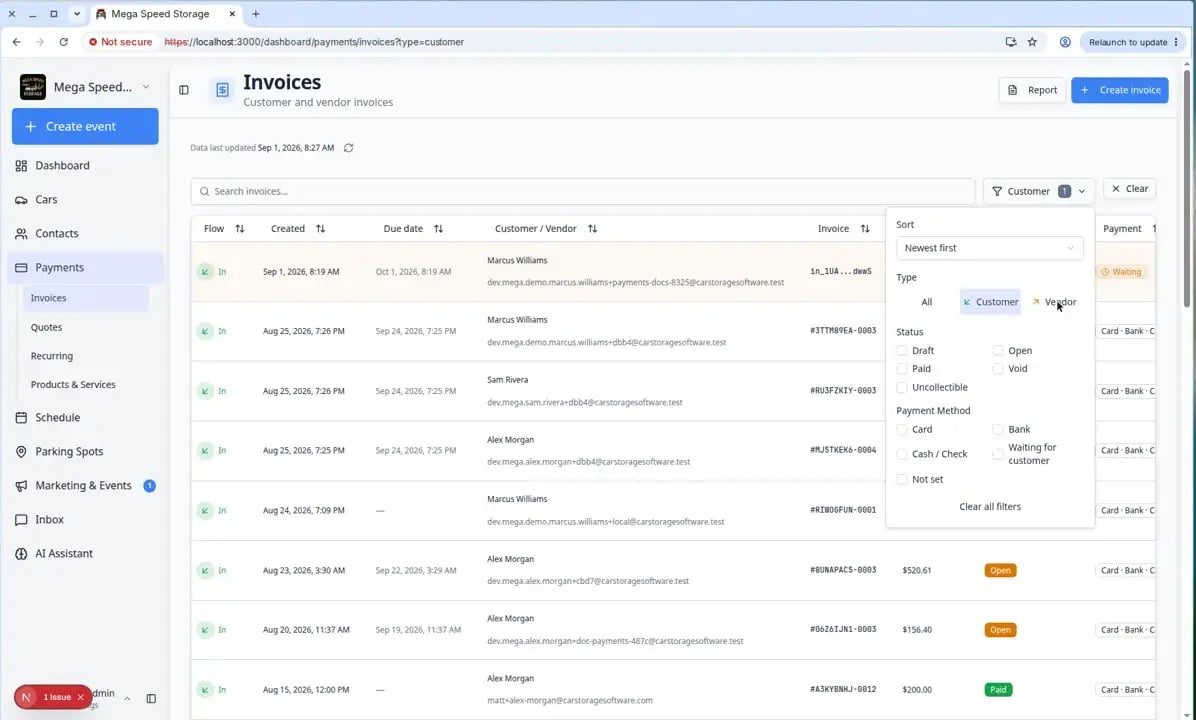 *Use **Filters → Type → Customer** when you are collecting money from customers. Check **Status** before you open a row.*
**Customer vs vendor invoices**
Customer invoices are money coming **in** to your facility. Vendor invoices are money going **out** to detailers, transport companies, and other providers. Use the **Type** filter—not a separate page—to switch views.
## Find the right customer invoice
Use the search box to search by customer name, email address, invoice number, or invoice ID.
**Expected result:** The invoice you need appears in the table.
Look at the **Status** column before you take action. The status tells you what should happen next.
Click the invoice row.
**Expected result:** The invoice detail page opens. You see the customer name, invoice number, status, amount due, line items, and buttons such as **Actions** or **Finalize invoice** near the top-right.
## What customer invoice statuses mean
**Draft** means the invoice is not final yet. Your team can still review or edit it.
**Open** means the invoice is ready for payment.
**Paid** means the invoice has been paid.
**Void** means the invoice was canceled and can no longer be paid.
**Uncollectible** means your team does not expect to collect the money.
**Waiting for customer** means the customer still needs to choose a payment method before the invoice can continue.
For a full walkthrough of the detail page, see [Review a customer invoice](/docs/payments/review-a-customer-invoice).
## Send or resend an invoice email
Use this when the customer did not receive the invoice, lost the email, or needs a fresh payment link.
The invoice should be **Open** (or **Waiting for customer**), not **Draft**.
From [Payments > Invoices](https://www.carstoragesoftware.com/dashboard/payments/invoices) (with **Filters → Type → Customer** if needed), click the invoice row.
**Expected result:** You land on the invoice detail page. Near the top you see the customer name, **Open** (or similar) status, and **Actions** on the right.
Click **Actions** in the top-right area.
**Expected result:** A menu opens with follow-up choices.
If the invoice is **Open**, choose **Resend invoice email**.
If the invoice is **Waiting for customer**, choose **Remind customer** or **Send reminder email**.
To stop automatic daily follow-ups for this invoice only, turn off **Daily reminders** on the invoice page. Manual reminder emails still send. This does not turn off reminders for other invoices.
**Why this matters:** The customer gets a fresh link by email. You do not need to create a new invoice.
A window titled **Notify the customer?** asks if you want to email them about this update. Choose **Yes** to send. Choose **No** or close the window to cancel the resend.
**Expected result:** A success message appears when the email is sent.
*Use **Filters → Type → Customer** when you are collecting money from customers. Check **Status** before you open a row.*
**Customer vs vendor invoices**
Customer invoices are money coming **in** to your facility. Vendor invoices are money going **out** to detailers, transport companies, and other providers. Use the **Type** filter—not a separate page—to switch views.
## Find the right customer invoice
Use the search box to search by customer name, email address, invoice number, or invoice ID.
**Expected result:** The invoice you need appears in the table.
Look at the **Status** column before you take action. The status tells you what should happen next.
Click the invoice row.
**Expected result:** The invoice detail page opens. You see the customer name, invoice number, status, amount due, line items, and buttons such as **Actions** or **Finalize invoice** near the top-right.
## What customer invoice statuses mean
**Draft** means the invoice is not final yet. Your team can still review or edit it.
**Open** means the invoice is ready for payment.
**Paid** means the invoice has been paid.
**Void** means the invoice was canceled and can no longer be paid.
**Uncollectible** means your team does not expect to collect the money.
**Waiting for customer** means the customer still needs to choose a payment method before the invoice can continue.
For a full walkthrough of the detail page, see [Review a customer invoice](/docs/payments/review-a-customer-invoice).
## Send or resend an invoice email
Use this when the customer did not receive the invoice, lost the email, or needs a fresh payment link.
The invoice should be **Open** (or **Waiting for customer**), not **Draft**.
From [Payments > Invoices](https://www.carstoragesoftware.com/dashboard/payments/invoices) (with **Filters → Type → Customer** if needed), click the invoice row.
**Expected result:** You land on the invoice detail page. Near the top you see the customer name, **Open** (or similar) status, and **Actions** on the right.
Click **Actions** in the top-right area.
**Expected result:** A menu opens with follow-up choices.
If the invoice is **Open**, choose **Resend invoice email**.
If the invoice is **Waiting for customer**, choose **Remind customer** or **Send reminder email**.
To stop automatic daily follow-ups for this invoice only, turn off **Daily reminders** on the invoice page. Manual reminder emails still send. This does not turn off reminders for other invoices.
**Why this matters:** The customer gets a fresh link by email. You do not need to create a new invoice.
A window titled **Notify the customer?** asks if you want to email them about this update. Choose **Yes** to send. Choose **No** or close the window to cancel the resend.
**Expected result:** A success message appears when the email is sent.
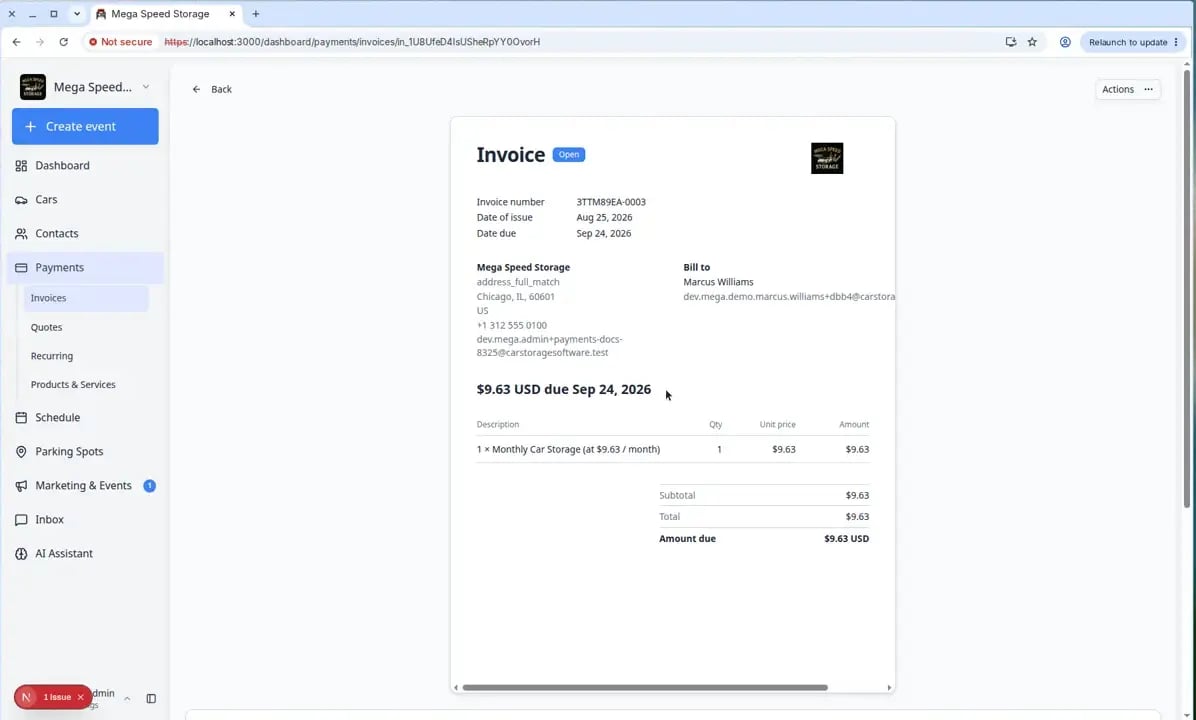 *Start on the invoice detail page. **Actions** holds resend, charge, and mark-paid choices.*
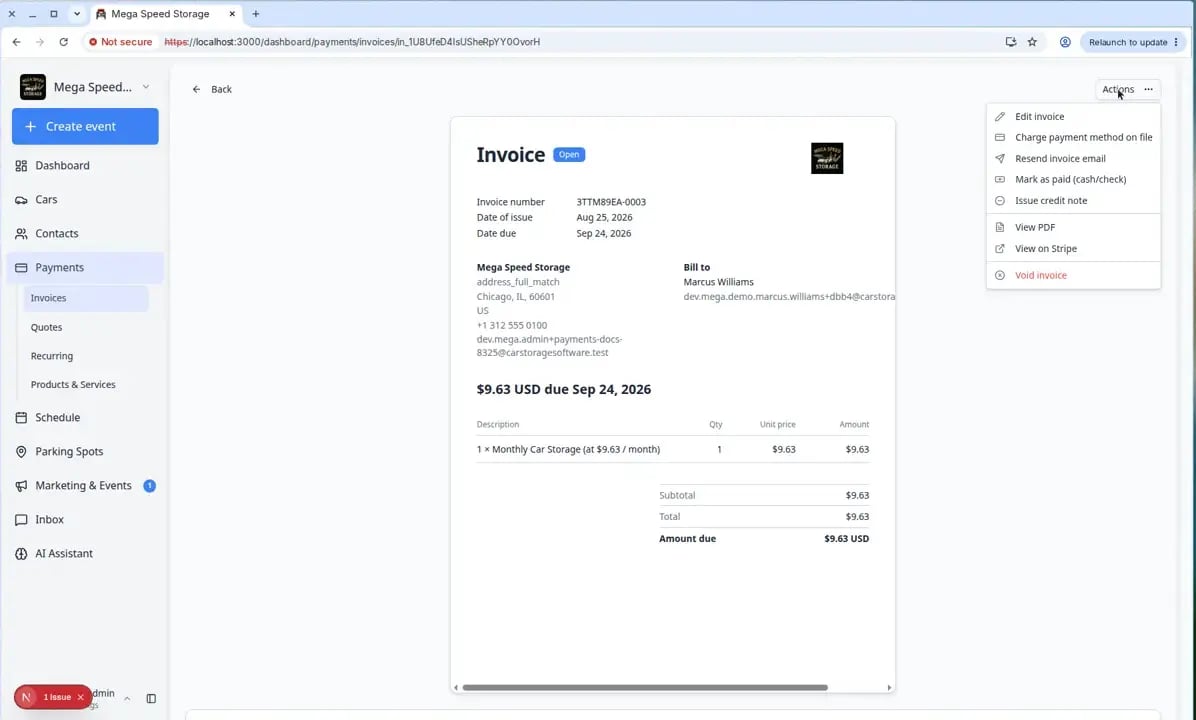 *Pick **Resend invoice email** when the customer needs the bill again. Pick **Mark as paid (cash/check)** only after you actually received payment.*
### What success looks like
* The customer receives an email with a link to review or pay the invoice.
* The invoice remains on the Invoices page so your team can track it.
* If the customer pays online, the invoice status updates to **Paid** after payment is processed.
## Finalize a draft invoice before collecting payment
If the invoice still shows **Draft**, the customer cannot pay yet—even if you emailed them informally about the amount.
From [Payments > Invoices](https://www.carstoragesoftware.com/dashboard/payments/invoices) (**Filters → Type → Customer**), click the invoice with **Draft** status.
Confirm descriptions, tax, due date, and the final total match what the customer expects. To print the draft or save it as a PDF before you finalize, click **Print** and use your browser print dialog. See [Review a customer invoice](/docs/payments/review-a-customer-invoice#print-or-save-a-draft-invoice).
**Why this matters:** Finalizing tells the system the bill is official. After this step, payment links and charges use the finalized amount.
Near the top-right, click **Finalize invoice** (not **Actions**—that appears after the invoice is open for payment).
Follow any prompts to send the email or charge on file, depending on how the invoice was created. When **Notify the customer?** appears, choose **Yes** to email them or **No** to finish the update without emailing.
**Expected result:** Status changes to **Open** or **Waiting for customer**, and **Actions** becomes available for follow-up steps.
## Charge a saved payment method
Use this when the customer has already given your facility permission to charge a saved card or bank account.
Open the customer invoice from [Payments > Invoices](https://www.carstoragesoftware.com/dashboard/payments/invoices). The invoice should show **Open**.
In the top-right area of the invoice detail page, click **Actions**.
Select **Charge payment method on file**.
**Why this matters:** This uses the payment method the customer already saved. It is faster than waiting for them to open an email link.
If the customer has more than one saved payment method, select the correct one.
Review the amount, then click **Charge now**.
When **Notify the customer?** appears, choose **Yes** to send a receipt or **No** to charge without emailing. Closing the window cancels the charge.
**Expected result:** A confirmation may appear. After you confirm, the payment attempt shows under **Payments & transactions**. When it succeeds, status changes to **Paid**.
**Get permission first**
Only charge a saved payment method when your facility has the customer's permission and your role allows it.
## Issue a credit note instead of marking paid
If the customer should pay **less** than the full invoice—not zero—your manager may ask you to issue a **credit note** rather than recording cash or check.
From [Payments > Invoices](https://www.carstoragesoftware.com/dashboard/payments/invoices) (**Filters → Type → Customer**), open the invoice.
Click **Actions**, then **Issue credit note**.
**Why this matters:** A credit note adjusts the bill in the system. **Mark as paid (cash/check)** should only be used when the customer actually paid the remaining balance.
Choose **Credit processing fees only**, **Credit full balance**, or **Custom amount** as directed.
**Expected result:** **Amount due** updates. If money is still owed, resend the invoice or collect payment using the steps above.
Full walkthrough: [Review a customer invoice](/docs/payments/review-a-customer-invoice) (see **Issue a credit note**).
### What success looks like
The invoice payment attempt appears in **Payments & transactions**. If the payment succeeds, the invoice changes to **Paid**.
*Scroll to **Payments & transactions** on the invoice detail page to see online charges, processing bank payments, or recorded cash/check payments.*
**Some bank payments take longer**
Bank payments may show as **processing** before they are fully complete. This is normal. Check **Payments & transactions** if the customer recently paid and the invoice has not changed yet.
## Record a cash or check payment
Use this when the customer paid outside the online payment link—for example at the front desk with cash or by mailing a check.
Open the customer invoice from [Payments > Invoices](https://www.carstoragesoftware.com/dashboard/payments/invoices).
If the invoice is still a **Draft**, click **Finalize invoice** first, then continue.
If the invoice is **Open**, click **Actions**, then choose **Mark as paid (cash/check)**.
**Expected result:** A window opens asking how the customer paid.
Select **Cash** or **Check**. If you choose **Check**, enter the check number when you have it.
Leave the amount as the full total unless your team allows partial payments and you only received part of the bill.
Use today's date, or choose the date when the customer actually paid.
Click **Mark as paid** to save.
When **Notify the customer?** appears, choose **Yes** to send a receipt or **No** to record payment without emailing. Closing the window cancels the mark-paid step.
**Why this matters:** This records payment in Car Storage Software. It does not replace putting cash in the safe or depositing the check at the bank—that is still your team's physical process.
*Pick **Resend invoice email** when the customer needs the bill again. Pick **Mark as paid (cash/check)** only after you actually received payment.*
### What success looks like
* The customer receives an email with a link to review or pay the invoice.
* The invoice remains on the Invoices page so your team can track it.
* If the customer pays online, the invoice status updates to **Paid** after payment is processed.
## Finalize a draft invoice before collecting payment
If the invoice still shows **Draft**, the customer cannot pay yet—even if you emailed them informally about the amount.
From [Payments > Invoices](https://www.carstoragesoftware.com/dashboard/payments/invoices) (**Filters → Type → Customer**), click the invoice with **Draft** status.
Confirm descriptions, tax, due date, and the final total match what the customer expects. To print the draft or save it as a PDF before you finalize, click **Print** and use your browser print dialog. See [Review a customer invoice](/docs/payments/review-a-customer-invoice#print-or-save-a-draft-invoice).
**Why this matters:** Finalizing tells the system the bill is official. After this step, payment links and charges use the finalized amount.
Near the top-right, click **Finalize invoice** (not **Actions**—that appears after the invoice is open for payment).
Follow any prompts to send the email or charge on file, depending on how the invoice was created. When **Notify the customer?** appears, choose **Yes** to email them or **No** to finish the update without emailing.
**Expected result:** Status changes to **Open** or **Waiting for customer**, and **Actions** becomes available for follow-up steps.
## Charge a saved payment method
Use this when the customer has already given your facility permission to charge a saved card or bank account.
Open the customer invoice from [Payments > Invoices](https://www.carstoragesoftware.com/dashboard/payments/invoices). The invoice should show **Open**.
In the top-right area of the invoice detail page, click **Actions**.
Select **Charge payment method on file**.
**Why this matters:** This uses the payment method the customer already saved. It is faster than waiting for them to open an email link.
If the customer has more than one saved payment method, select the correct one.
Review the amount, then click **Charge now**.
When **Notify the customer?** appears, choose **Yes** to send a receipt or **No** to charge without emailing. Closing the window cancels the charge.
**Expected result:** A confirmation may appear. After you confirm, the payment attempt shows under **Payments & transactions**. When it succeeds, status changes to **Paid**.
**Get permission first**
Only charge a saved payment method when your facility has the customer's permission and your role allows it.
## Issue a credit note instead of marking paid
If the customer should pay **less** than the full invoice—not zero—your manager may ask you to issue a **credit note** rather than recording cash or check.
From [Payments > Invoices](https://www.carstoragesoftware.com/dashboard/payments/invoices) (**Filters → Type → Customer**), open the invoice.
Click **Actions**, then **Issue credit note**.
**Why this matters:** A credit note adjusts the bill in the system. **Mark as paid (cash/check)** should only be used when the customer actually paid the remaining balance.
Choose **Credit processing fees only**, **Credit full balance**, or **Custom amount** as directed.
**Expected result:** **Amount due** updates. If money is still owed, resend the invoice or collect payment using the steps above.
Full walkthrough: [Review a customer invoice](/docs/payments/review-a-customer-invoice) (see **Issue a credit note**).
### What success looks like
The invoice payment attempt appears in **Payments & transactions**. If the payment succeeds, the invoice changes to **Paid**.
*Scroll to **Payments & transactions** on the invoice detail page to see online charges, processing bank payments, or recorded cash/check payments.*
**Some bank payments take longer**
Bank payments may show as **processing** before they are fully complete. This is normal. Check **Payments & transactions** if the customer recently paid and the invoice has not changed yet.
## Record a cash or check payment
Use this when the customer paid outside the online payment link—for example at the front desk with cash or by mailing a check.
Open the customer invoice from [Payments > Invoices](https://www.carstoragesoftware.com/dashboard/payments/invoices).
If the invoice is still a **Draft**, click **Finalize invoice** first, then continue.
If the invoice is **Open**, click **Actions**, then choose **Mark as paid (cash/check)**.
**Expected result:** A window opens asking how the customer paid.
Select **Cash** or **Check**. If you choose **Check**, enter the check number when you have it.
Leave the amount as the full total unless your team allows partial payments and you only received part of the bill.
Use today's date, or choose the date when the customer actually paid.
Click **Mark as paid** to save.
When **Notify the customer?** appears, choose **Yes** to send a receipt or **No** to record payment without emailing. Closing the window cancels the mark-paid step.
**Why this matters:** This records payment in Car Storage Software. It does not replace putting cash in the safe or depositing the check at the bank—that is still your team's physical process.
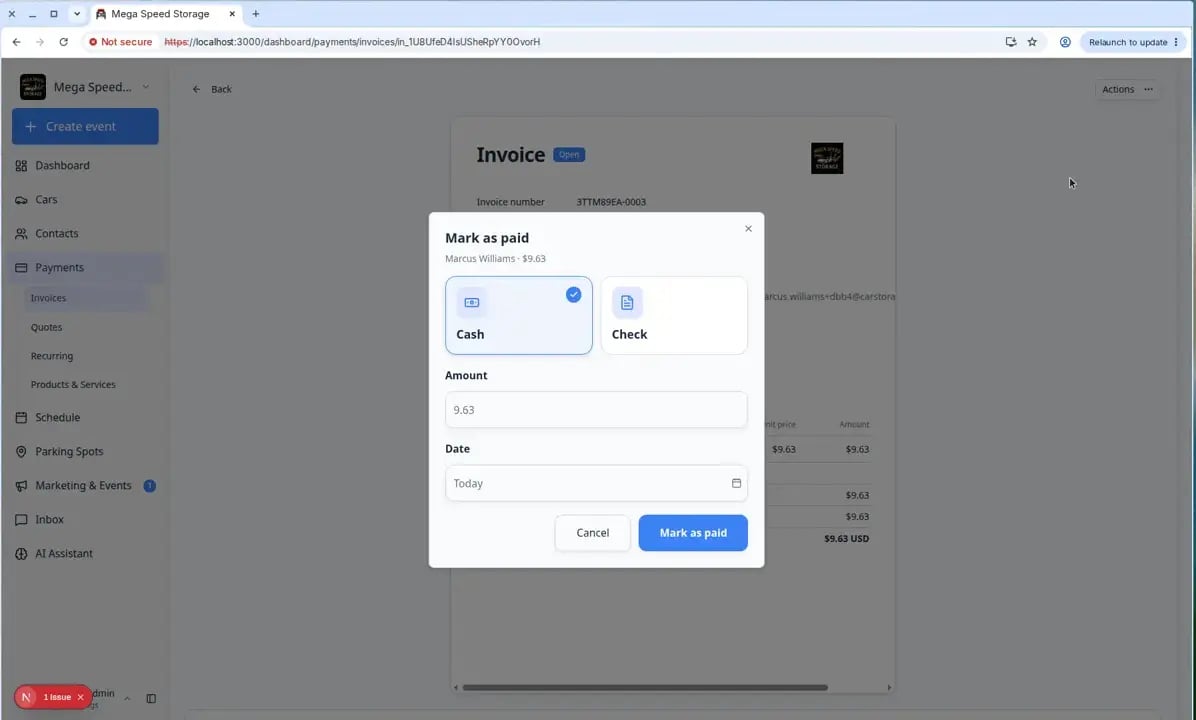 *Record cash or check only after your team actually received the money. The invoice status updates to **Paid** when the full amount is recorded.*
### What success looks like
* The invoice status changes to **Paid** when the full amount is recorded.
* Cash or check details are saved for your team to review later.
* Processing fees are removed when the payment is recorded as cash or check.
## Common mistakes to avoid
* Do not resend an invoice before checking that the customer email address is correct in [Contacts](https://www.carstoragesoftware.com/dashboard/contacts).
* Do not charge a saved payment method unless your team has permission from the customer.
* Do not mark an invoice as paid until the cash, check, or outside payment has actually been received.
* Do not void or recreate an invoice without checking with your billing manager.
## Troubleshooting
**The customer says the invoice email is missing**
Open the customer record in [Contacts](https://www.carstoragesoftware.com/dashboard/contacts) and confirm the email address. Open the invoice and use **Resend invoice email** from **Actions**. Ask the customer to check spam or junk folders.
**I do not see Actions**
**Draft** invoices use **Finalize invoice** instead of **Actions**. If the invoice is **Open** and you still do not see **Actions**, ask an admin to review your role under [Settings > Team](https://www.carstoragesoftware.com/dashboard/settings/team).
**The payment failed**
Open the invoice and review **Payments & transactions**. The customer may need to try another card, approve the bank payment, or contact their bank.
**I charged the wrong invoice**
Stop and tell your billing manager. Do not create another correction until your team decides whether to issue a credit, refund, or replacement invoice. See [Void, credit, or correct an invoice](/docs/payments/void-credit-or-correct-an-invoice).
## Fix the invoice instead of chasing payment
If the customer says the **amount is wrong** or the **service was canceled**, collecting payment is not the right next step.
**Draft** mistakes can be fixed before you finalize. **Open** mistakes use **Actions** on the detail page.
Use [Void, credit, or correct an invoice](/docs/payments/void-credit-or-correct-an-invoice) to choose between **Edit invoice**, **Void invoice**, or **Issue credit note**.
**Why this matters:** Fixing the bill first prevents the customer from paying the wrong amount.
## What to do next
After the invoice is paid, no further collection step is needed. If this customer should be billed again on a schedule, use [Manage recurring billing](/docs/payments/manage-recurring-billing) instead of creating the same invoice by hand each month.
If you need to fix a wrong amount or cancel a duplicate bill, use [Void, credit, or correct an invoice](/docs/payments/void-credit-or-correct-an-invoice).
If you need to create a new bill from scratch, use [Create an invoice](/docs/payments/create-an-invoice).
## Related topics
- [Payments overview](/docs/payments/overview.md)
- [When a customer accepts a quote](/docs/payments/when-a-customer-accepts-a-quote.md)
- [Use the Payments overview dashboard](/docs/payments/use-the-payments-overview-dashboard.md)
- [Create an invoice](/docs/payments/create-an-invoice.md)
- [Review a customer invoice](/docs/payments/review-a-customer-invoice.md)
This documentation is built and hosted on [Mintlify](https://mintlify.com), a developer documentation platform.
*Record cash or check only after your team actually received the money. The invoice status updates to **Paid** when the full amount is recorded.*
### What success looks like
* The invoice status changes to **Paid** when the full amount is recorded.
* Cash or check details are saved for your team to review later.
* Processing fees are removed when the payment is recorded as cash or check.
## Common mistakes to avoid
* Do not resend an invoice before checking that the customer email address is correct in [Contacts](https://www.carstoragesoftware.com/dashboard/contacts).
* Do not charge a saved payment method unless your team has permission from the customer.
* Do not mark an invoice as paid until the cash, check, or outside payment has actually been received.
* Do not void or recreate an invoice without checking with your billing manager.
## Troubleshooting
**The customer says the invoice email is missing**
Open the customer record in [Contacts](https://www.carstoragesoftware.com/dashboard/contacts) and confirm the email address. Open the invoice and use **Resend invoice email** from **Actions**. Ask the customer to check spam or junk folders.
**I do not see Actions**
**Draft** invoices use **Finalize invoice** instead of **Actions**. If the invoice is **Open** and you still do not see **Actions**, ask an admin to review your role under [Settings > Team](https://www.carstoragesoftware.com/dashboard/settings/team).
**The payment failed**
Open the invoice and review **Payments & transactions**. The customer may need to try another card, approve the bank payment, or contact their bank.
**I charged the wrong invoice**
Stop and tell your billing manager. Do not create another correction until your team decides whether to issue a credit, refund, or replacement invoice. See [Void, credit, or correct an invoice](/docs/payments/void-credit-or-correct-an-invoice).
## Fix the invoice instead of chasing payment
If the customer says the **amount is wrong** or the **service was canceled**, collecting payment is not the right next step.
**Draft** mistakes can be fixed before you finalize. **Open** mistakes use **Actions** on the detail page.
Use [Void, credit, or correct an invoice](/docs/payments/void-credit-or-correct-an-invoice) to choose between **Edit invoice**, **Void invoice**, or **Issue credit note**.
**Why this matters:** Fixing the bill first prevents the customer from paying the wrong amount.
## What to do next
After the invoice is paid, no further collection step is needed. If this customer should be billed again on a schedule, use [Manage recurring billing](/docs/payments/manage-recurring-billing) instead of creating the same invoice by hand each month.
If you need to fix a wrong amount or cancel a duplicate bill, use [Void, credit, or correct an invoice](/docs/payments/void-credit-or-correct-an-invoice).
If you need to create a new bill from scratch, use [Create an invoice](/docs/payments/create-an-invoice).
## Related topics
- [Payments overview](/docs/payments/overview.md)
- [When a customer accepts a quote](/docs/payments/when-a-customer-accepts-a-quote.md)
- [Use the Payments overview dashboard](/docs/payments/use-the-payments-overview-dashboard.md)
- [Create an invoice](/docs/payments/create-an-invoice.md)
- [Review a customer invoice](/docs/payments/review-a-customer-invoice.md)
This documentation is built and hosted on [Mintlify](https://mintlify.com), a developer documentation platform.