> ## Documentation Index
> Fetch the complete documentation index at: https://www.carstoragesoftware.com/docs/llms.txt
> Use this file to discover all available pages before exploring further.
# Approve or decline a customer booking request
> Review online appointment requests, confirm the time, decline politely, or suggest a new time before the customer is left waiting.
## What you will accomplish
When a customer books an appointment online and your facility requires staff approval, the request lands on the [Schedule page](https://www.carstoragesoftware.com/dashboard/schedule) with a **Needs Approval** status.
You will learn how to:
* Find every request that is still waiting on your team.
* Open the request and read the customer, vehicle, and requested time.
* **Approve** the booking so it becomes a normal scheduled event.
* **Decline** the booking when you cannot take the appointment.
* **Suggest a new time** when the customer’s choice does not work but you still want the business.
**Why this matters**
Customers often assume “I submitted the form” means “my appointment is confirmed.” Approving or declining quickly prevents no-shows, double-booking, and phone calls asking “Am I on the calendar?”
Striped or tentative styling on the calendar means the visit is not confirmed yet—see [Read calendar icons and badges](/docs/schedule/read-calendar-icons-and-badges).
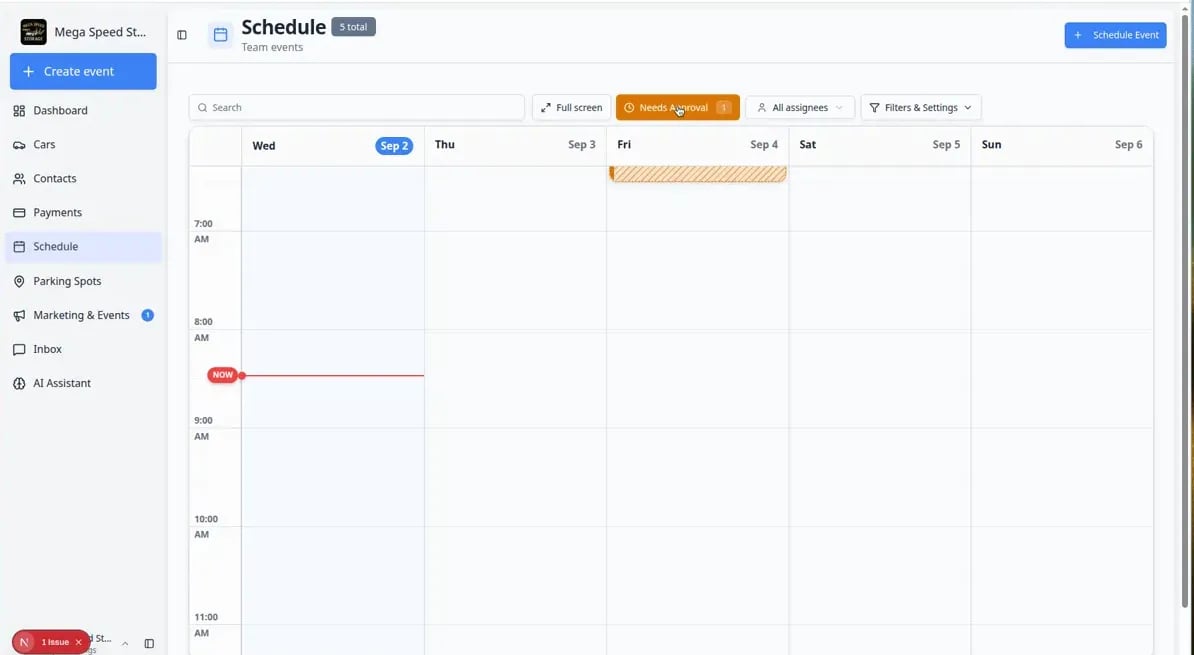 *When bookings need review, a **Needs Approval** button appears near the top of [Schedule](https://www.carstoragesoftware.com/dashboard/schedule). The orange number badge tells you how many requests are waiting.*
 *Look for this button near the **Search** box. The number badge is your to-do count for online booking requests.*
## Before you start
* You can sign in to the staff dashboard.
* Your role can view and act on [Schedule](https://www.carstoragesoftware.com/dashboard/schedule) events.
* You know whether your team sends automatic emails or texts when a booking is approved or declined (many facilities do).
**Needs Approval** means the customer completed an online booking form, but your facility has not confirmed it yet.
**Scheduled** means your team accepted the time and the event is treated like any other appointment on the calendar.
## What the customer sees while waiting
When someone books online and your facility requires approval, the customer usually receives a message that their **request was received**—not that the time is confirmed.
**While status is Needs Approval:** Do not tell the customer they are "on the calendar" until you click **Approve** (or they accept a **Suggest New Time** offer).
**After you approve:** The visit becomes normal scheduled work. Depending on your notification settings, the customer may get a confirmation email or text with the date and time.
**After you decline:** The customer is typically notified the request was not accepted. A short personal follow-up call or email can preserve goodwill.
## A simple daily routine (recommended)
Open [Schedule](https://www.carstoragesoftware.com/dashboard/schedule) and click **Needs Approval** if the button appears.
**Expected result:** You see every online request waiting on your team before bays get busy.
Check **Needs Approval** again. Mid-day bookings are easy to miss when the phone rings.
**Why this matters:** Fast responses reduce “Did you get my request?” calls and help customers plan their drive.
If the badge still shows a number, either approve, decline, or suggest a new time before you leave.
**Expected result:** Customers are not left wondering overnight.
## Find booking requests that need approval
Go to [Schedule](https://www.carstoragesoftware.com/dashboard/schedule) from the dashboard sidebar.
**Expected result:** You see your team’s calendar, table, whiteboard, or progress board (whichever view you used last).
When at least one request is waiting, a **Needs Approval** button appears near the top of the page. A small number badge (for example **1**) sits on the button so you know how many requests still need a decision.
On **Calendar** view, pending requests may also show a **diagonal stripe** on the event block even before you turn the filter on.
If you do not see this button, there may be no pending requests right now.
Click **Needs Approval** to show only events waiting for a decision.
**Expected result:** The schedule list or calendar hides confirmed work and shows only requests that still need approval. Pending events often use a warning color so they stand out.
Click **Filters & Settings**, then choose **Calendar** under **View Mode** if you want to see requests on a timeline.
For a sortable list with **Status** and **Details** on each row, choose **Table** instead. Table view is helpful when several requests arrived overnight.
**Expected result:** Pending bookings are easy to scan before you open each one.
### Review several requests in Table view
When more than one customer booked overnight, **Table** view is often faster than clicking each block on the calendar.
Click **Needs Approval** near the top of [Schedule](https://www.carstoragesoftware.com/dashboard/schedule) so only waiting requests stay visible.
Open **Filters & Settings**, choose **Table** under **View Mode**, then close the panel.
**Expected result:** Each row shows **Status**, customer, vehicle, time, and **Details** in columns you can scan quickly.
Click the row (or use **View details** in the row menu) to open the same approval panel as on the calendar.
**Why this matters:** Table view helps front desk staff clear a morning queue without hunting for yellow blocks on different days.
*Look for this button near the **Search** box. The number badge is your to-do count for online booking requests.*
## Before you start
* You can sign in to the staff dashboard.
* Your role can view and act on [Schedule](https://www.carstoragesoftware.com/dashboard/schedule) events.
* You know whether your team sends automatic emails or texts when a booking is approved or declined (many facilities do).
**Needs Approval** means the customer completed an online booking form, but your facility has not confirmed it yet.
**Scheduled** means your team accepted the time and the event is treated like any other appointment on the calendar.
## What the customer sees while waiting
When someone books online and your facility requires approval, the customer usually receives a message that their **request was received**—not that the time is confirmed.
**While status is Needs Approval:** Do not tell the customer they are "on the calendar" until you click **Approve** (or they accept a **Suggest New Time** offer).
**After you approve:** The visit becomes normal scheduled work. Depending on your notification settings, the customer may get a confirmation email or text with the date and time.
**After you decline:** The customer is typically notified the request was not accepted. A short personal follow-up call or email can preserve goodwill.
## A simple daily routine (recommended)
Open [Schedule](https://www.carstoragesoftware.com/dashboard/schedule) and click **Needs Approval** if the button appears.
**Expected result:** You see every online request waiting on your team before bays get busy.
Check **Needs Approval** again. Mid-day bookings are easy to miss when the phone rings.
**Why this matters:** Fast responses reduce “Did you get my request?” calls and help customers plan their drive.
If the badge still shows a number, either approve, decline, or suggest a new time before you leave.
**Expected result:** Customers are not left wondering overnight.
## Find booking requests that need approval
Go to [Schedule](https://www.carstoragesoftware.com/dashboard/schedule) from the dashboard sidebar.
**Expected result:** You see your team’s calendar, table, whiteboard, or progress board (whichever view you used last).
When at least one request is waiting, a **Needs Approval** button appears near the top of the page. A small number badge (for example **1**) sits on the button so you know how many requests still need a decision.
On **Calendar** view, pending requests may also show a **diagonal stripe** on the event block even before you turn the filter on.
If you do not see this button, there may be no pending requests right now.
Click **Needs Approval** to show only events waiting for a decision.
**Expected result:** The schedule list or calendar hides confirmed work and shows only requests that still need approval. Pending events often use a warning color so they stand out.
Click **Filters & Settings**, then choose **Calendar** under **View Mode** if you want to see requests on a timeline.
For a sortable list with **Status** and **Details** on each row, choose **Table** instead. Table view is helpful when several requests arrived overnight.
**Expected result:** Pending bookings are easy to scan before you open each one.
### Review several requests in Table view
When more than one customer booked overnight, **Table** view is often faster than clicking each block on the calendar.
Click **Needs Approval** near the top of [Schedule](https://www.carstoragesoftware.com/dashboard/schedule) so only waiting requests stay visible.
Open **Filters & Settings**, choose **Table** under **View Mode**, then close the panel.
**Expected result:** Each row shows **Status**, customer, vehicle, time, and **Details** in columns you can scan quickly.
Click the row (or use **View details** in the row menu) to open the same approval panel as on the calendar.
**Why this matters:** Table view helps front desk staff clear a morning queue without hunting for yellow blocks on different days.
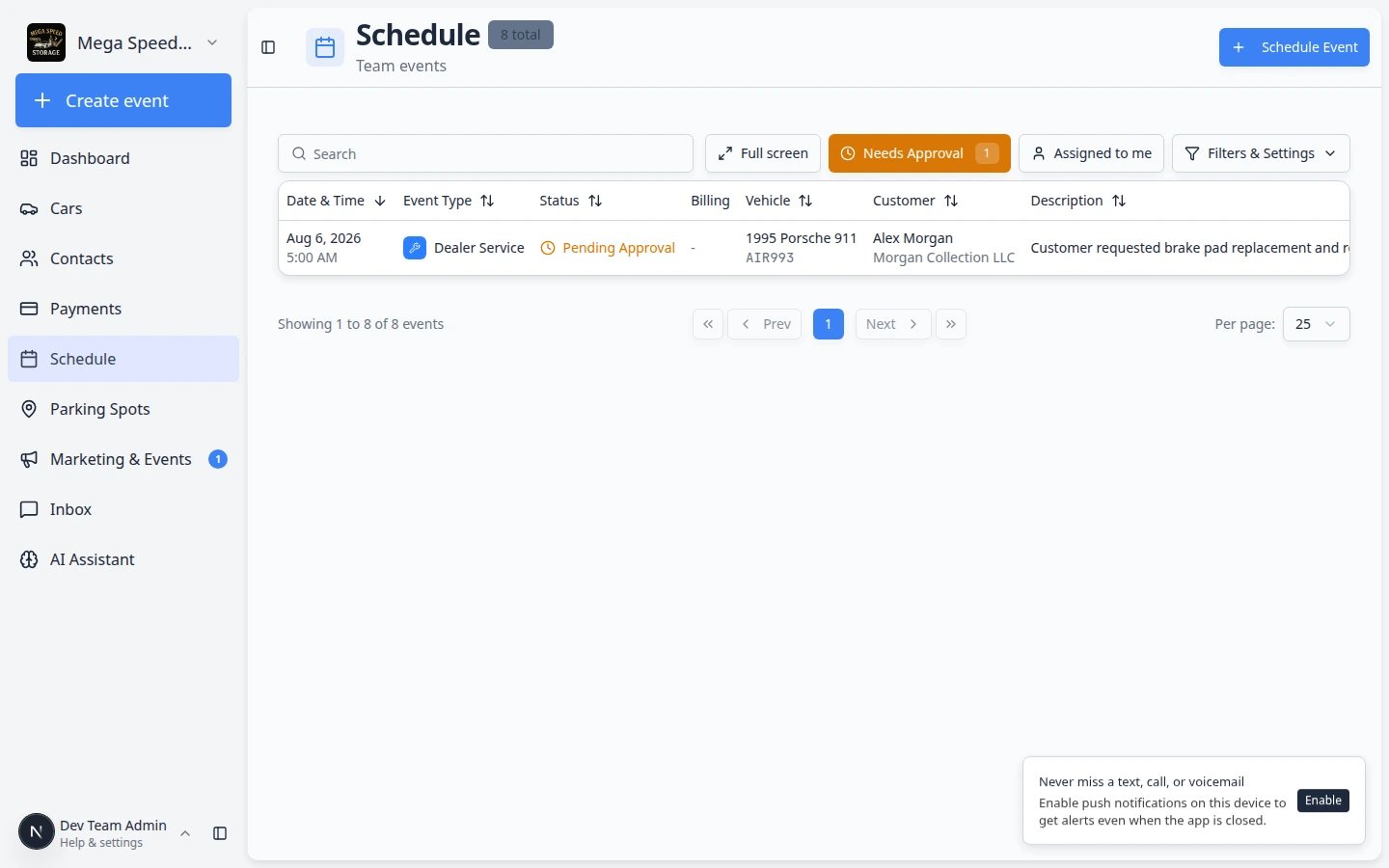 *Table view plus **Needs Approval** is ideal when several online requests arrived overnight. Open each row to approve, decline, or suggest a new time.*
**Cannot find a request the customer mentioned?**
Clear the search box, turn off **Assigned to me**, and make sure **Needs Approval** is on. The request may be on a different day — try **Month** or **5 Day** in **Filters & Settings** so you can scan a wider date range.
## Review one booking request
Click the event card or calendar block for the request.
A details panel opens. At the top you should see a message such as **This booking request needs your approval**.
Check the customer name, company (if shown), and vehicle year, make, and model.
If more than one car belongs to this customer, read the plate or notes so you approve the correct vehicle.
Read **Scheduled for** (or the time shown on the event). Compare it with your real availability, staff assignments, and bay capacity.
**Expected result:** You are confident you know what the customer asked for before you approve or decline.
Scroll through any notes the customer or your booking form collected. They often include arrival instructions or special requests.
*Table view plus **Needs Approval** is ideal when several online requests arrived overnight. Open each row to approve, decline, or suggest a new time.*
**Cannot find a request the customer mentioned?**
Clear the search box, turn off **Assigned to me**, and make sure **Needs Approval** is on. The request may be on a different day — try **Month** or **5 Day** in **Filters & Settings** so you can scan a wider date range.
## Review one booking request
Click the event card or calendar block for the request.
A details panel opens. At the top you should see a message such as **This booking request needs your approval**.
Check the customer name, company (if shown), and vehicle year, make, and model.
If more than one car belongs to this customer, read the plate or notes so you approve the correct vehicle.
Read **Scheduled for** (or the time shown on the event). Compare it with your real availability, staff assignments, and bay capacity.
**Expected result:** You are confident you know what the customer asked for before you approve or decline.
Scroll through any notes the customer or your booking form collected. They often include arrival instructions or special requests.
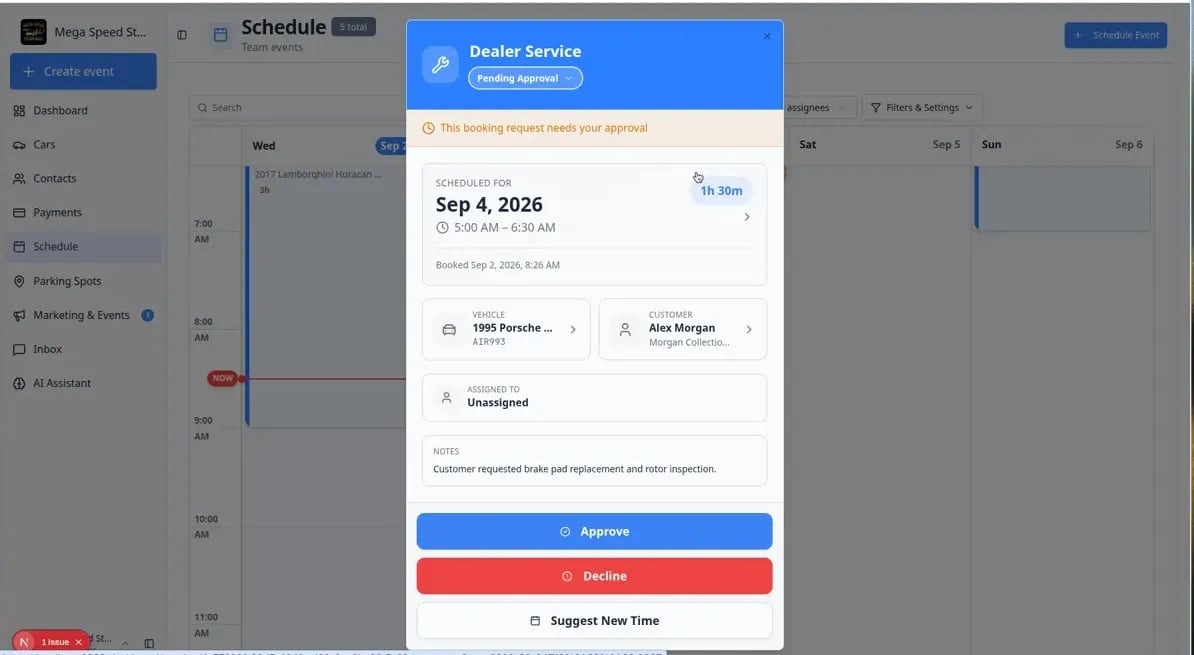 *Pending bookings show large action buttons: **Approve**, **Decline**, and **Suggest New Time**. Read the details first, then choose the outcome that matches your availability.*
## Approve the booking
Use **Approve** when you can honor the requested time (or you already agreed to it by phone and the online request matches).
In the event details panel, click **Approve**.
**Why this step matters:** The customer is usually notified that the appointment is confirmed. Your team can now plan staff, bays, and customer communication around a real scheduled event.
The app saves the change and shows a success message when approval finishes.
**Expected result:** The event status changes from **Needs Approval** to **Scheduled** (or your team’s normal scheduled label). It appears on the calendar like other confirmed work.
If your team uses **Assigned to**, open the event again and choose the responsible team member or outside **vendor**, or use [Update, assign, or reschedule an event](/docs/schedule/update-assign-or-reschedule-an-event).
Assigning someone helps them find the job with **Assigned to me** on busy days.
## Decline the booking
Use **Decline** when you cannot take the appointment at all (fully booked, wrong service type, customer not accepted, and similar cases).
Click **Decline** in the event details panel.
Read any confirmation message carefully, then confirm.
**Expected result:** The request is removed from active scheduling. The customer is typically notified that the booking was not accepted (depending on your notification settings).
A short personal message after a decline can preserve goodwill, especially for valued customers.
**Decline vs cancel**
**Decline** is for requests that were never confirmed. If you already approved an appointment and plans change later, use [Cancel or delete a scheduled event](/docs/schedule/cancel-or-delete-a-scheduled-event) instead so your history stays accurate.
## Suggest a new time
Use **Suggest New Time** when you want the business but the customer's chosen slot does not work (bay busy, staff out, needs more notice, and similar cases).
This keeps the request on your [Schedule](https://www.carstoragesoftware.com/dashboard/schedule) while you offer a time that actually works for your team.
Click **Suggest New Time** in the pending event panel.
**Expected result:** The event opens in **Edit Event** mode so you can pick a new date and time.
In the **When** section, pick the time you want to offer the customer.
**Expected result:** The calendar preview updates to the new slot you selected.
Update **Notes** with a short, polite message. Example: “Our detail bay is full at 2 PM. We can do 10 AM the same day instead.”
The app may start with a default message. Replace it with words your customer will understand.
Click **Save Changes**.
**Expected result:** The customer is notified according to your facility’s booking settings. The request stays in **Needs Approval** or moves forward based on your event type rules until the customer accepts the new time.
*Pending bookings show large action buttons: **Approve**, **Decline**, and **Suggest New Time**. Read the details first, then choose the outcome that matches your availability.*
## Approve the booking
Use **Approve** when you can honor the requested time (or you already agreed to it by phone and the online request matches).
In the event details panel, click **Approve**.
**Why this step matters:** The customer is usually notified that the appointment is confirmed. Your team can now plan staff, bays, and customer communication around a real scheduled event.
The app saves the change and shows a success message when approval finishes.
**Expected result:** The event status changes from **Needs Approval** to **Scheduled** (or your team’s normal scheduled label). It appears on the calendar like other confirmed work.
If your team uses **Assigned to**, open the event again and choose the responsible team member or outside **vendor**, or use [Update, assign, or reschedule an event](/docs/schedule/update-assign-or-reschedule-an-event).
Assigning someone helps them find the job with **Assigned to me** on busy days.
## Decline the booking
Use **Decline** when you cannot take the appointment at all (fully booked, wrong service type, customer not accepted, and similar cases).
Click **Decline** in the event details panel.
Read any confirmation message carefully, then confirm.
**Expected result:** The request is removed from active scheduling. The customer is typically notified that the booking was not accepted (depending on your notification settings).
A short personal message after a decline can preserve goodwill, especially for valued customers.
**Decline vs cancel**
**Decline** is for requests that were never confirmed. If you already approved an appointment and plans change later, use [Cancel or delete a scheduled event](/docs/schedule/cancel-or-delete-a-scheduled-event) instead so your history stays accurate.
## Suggest a new time
Use **Suggest New Time** when you want the business but the customer's chosen slot does not work (bay busy, staff out, needs more notice, and similar cases).
This keeps the request on your [Schedule](https://www.carstoragesoftware.com/dashboard/schedule) while you offer a time that actually works for your team.
Click **Suggest New Time** in the pending event panel.
**Expected result:** The event opens in **Edit Event** mode so you can pick a new date and time.
In the **When** section, pick the time you want to offer the customer.
**Expected result:** The calendar preview updates to the new slot you selected.
Update **Notes** with a short, polite message. Example: “Our detail bay is full at 2 PM. We can do 10 AM the same day instead.”
The app may start with a default message. Replace it with words your customer will understand.
Click **Save Changes**.
**Expected result:** The customer is notified according to your facility’s booking settings. The request stays in **Needs Approval** or moves forward based on your event type rules until the customer accepts the new time.
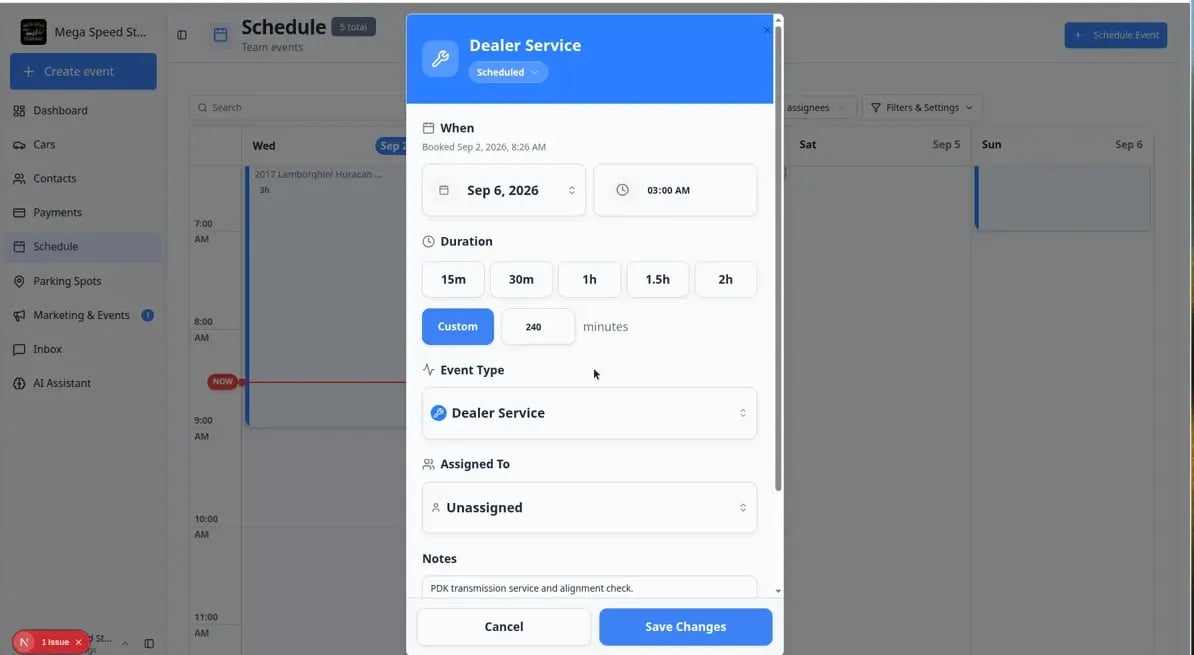 *After **Suggest New Time**, the **When** section and **Notes** field are where you pick the new slot and explain the change in plain language.*
**Email links from notifications**
Some facilities send emails that include action links. If a team member opens a link with **approve**, **decline**, or **reschedule** in the address, the [Schedule page](https://www.carstoragesoftware.com/dashboard/schedule) may open that exact booking for review. Always confirm the customer and vehicle before you click **Approve**.
## What success looks like
* The **Needs Approval** count returns to zero (or drops by the number you handled).
* Approved events show as normal scheduled work on [Schedule](https://www.carstoragesoftware.com/dashboard/schedule).
* Declined requests no longer block the calendar as active appointments.
* Customers receive clear communication instead of being left unsure.
## Common mistakes to avoid
**Approving without checking the vehicle**
Customers with multiple cars can book the wrong vehicle by mistake. Always match year, make, model, and plate before you click **Approve**.
**Leaving requests overnight**
Treat **Needs Approval** like an inbox: review it at the start of each shift and after lunch on busy days. Fast responses reduce support calls.
## Troubleshooting
**I never see Needs Approval**
Your event type may not require approval. An admin can open the event type in [Settings > Events & schedule](https://www.carstoragesoftware.com/dashboard/settings/events), click **Edit**, and turn on **Require Approval** under **Access & Status**. See [Configure event types](/docs/events/configure-event-types) for step-by-step help.
**The Approve button is missing**
You may be viewing an already scheduled event, or your role may not have permission to approve bookings. Ask a team admin to review permissions in [Settings → Team](https://www.carstoragesoftware.com/dashboard/settings/team).
**I approved the wrong event**
Open the event and use [Update, assign, or reschedule an event](/docs/schedule/update-assign-or-reschedule-an-event) to fix the time or assignment. If the appointment should not exist, follow [Cancel or delete a scheduled event](/docs/schedule/cancel-or-delete-a-scheduled-event).
## What to do next
* Put confirmed work on the calendar with [Create an appointment](/docs/schedule/create-an-appointment) when staff book by phone.
* Learn views and filters with [Find and filter scheduled work](/docs/schedule/find-and-filter-scheduled-work).
* Return to [Schedule overview](/docs/schedule/overview) for the full list of Schedule guides.
## Related topics
- [Read calendar icons and badges](/docs/schedule/read-calendar-icons-and-badges.md)
- [Find and filter scheduled work](/docs/schedule/find-and-filter-scheduled-work.md)
- [Schedule overview](/docs/schedule/overview.md)
- [Understand tentative and service plan events](/docs/schedule/understand-tentative-and-service-plan-events.md)
- [Use Table view on Schedule](/docs/schedule/use-table-view-on-schedule.md)
This documentation is built and hosted on [Mintlify](https://mintlify.com), a developer documentation platform.
*After **Suggest New Time**, the **When** section and **Notes** field are where you pick the new slot and explain the change in plain language.*
**Email links from notifications**
Some facilities send emails that include action links. If a team member opens a link with **approve**, **decline**, or **reschedule** in the address, the [Schedule page](https://www.carstoragesoftware.com/dashboard/schedule) may open that exact booking for review. Always confirm the customer and vehicle before you click **Approve**.
## What success looks like
* The **Needs Approval** count returns to zero (or drops by the number you handled).
* Approved events show as normal scheduled work on [Schedule](https://www.carstoragesoftware.com/dashboard/schedule).
* Declined requests no longer block the calendar as active appointments.
* Customers receive clear communication instead of being left unsure.
## Common mistakes to avoid
**Approving without checking the vehicle**
Customers with multiple cars can book the wrong vehicle by mistake. Always match year, make, model, and plate before you click **Approve**.
**Leaving requests overnight**
Treat **Needs Approval** like an inbox: review it at the start of each shift and after lunch on busy days. Fast responses reduce support calls.
## Troubleshooting
**I never see Needs Approval**
Your event type may not require approval. An admin can open the event type in [Settings > Events & schedule](https://www.carstoragesoftware.com/dashboard/settings/events), click **Edit**, and turn on **Require Approval** under **Access & Status**. See [Configure event types](/docs/events/configure-event-types) for step-by-step help.
**The Approve button is missing**
You may be viewing an already scheduled event, or your role may not have permission to approve bookings. Ask a team admin to review permissions in [Settings → Team](https://www.carstoragesoftware.com/dashboard/settings/team).
**I approved the wrong event**
Open the event and use [Update, assign, or reschedule an event](/docs/schedule/update-assign-or-reschedule-an-event) to fix the time or assignment. If the appointment should not exist, follow [Cancel or delete a scheduled event](/docs/schedule/cancel-or-delete-a-scheduled-event).
## What to do next
* Put confirmed work on the calendar with [Create an appointment](/docs/schedule/create-an-appointment) when staff book by phone.
* Learn views and filters with [Find and filter scheduled work](/docs/schedule/find-and-filter-scheduled-work).
* Return to [Schedule overview](/docs/schedule/overview) for the full list of Schedule guides.
## Related topics
- [Read calendar icons and badges](/docs/schedule/read-calendar-icons-and-badges.md)
- [Find and filter scheduled work](/docs/schedule/find-and-filter-scheduled-work.md)
- [Schedule overview](/docs/schedule/overview.md)
- [Understand tentative and service plan events](/docs/schedule/understand-tentative-and-service-plan-events.md)
- [Use Table view on Schedule](/docs/schedule/use-table-view-on-schedule.md)
This documentation is built and hosted on [Mintlify](https://mintlify.com), a developer documentation platform.