> ## Documentation Index
> Fetch the complete documentation index at: https://www.carstoragesoftware.com/docs/llms.txt
> Use this file to discover all available pages before exploring further.
# Create recurring appointments
> Schedule repeating customer visits or internal tasks so your team does not have to recreate the same event every week.
## What you will accomplish
You will turn on **Recurring Event** when creating a visit so the same work appears on [Schedule](https://www.carstoragesoftware.com/dashboard/schedule) again and again—without retyping each date by hand.
**Expected outcome:** Future dates show on the calendar automatically. When one visit moves, you can change **only that day** or the **whole series** using the prompt the app shows after you save.
Use this guide when the same work should happen **again and again**—weekly storage check-ins, monthly battery service, standing detail appointments, or regular dealer transport runs.
## When to use recurring appointments
* A customer has a **standing weekly or monthly visit** (storage check-in, battery service, wash).
* Your team runs the **same internal task** on a fixed rhythm (bay prep, inventory walk-through).
* You want future dates on [Schedule](https://www.carstoragesoftware.com/dashboard/schedule) **without re-entering** each visit by hand.
## Before you start
* Know the event type, customer or vehicle, first date, and start time.
* Know how often the work repeats (every week, every two weeks, monthly, and so on).
* Know when the series should stop — many teams use a date three to six months out and extend later.
* Confirm the first appointment time is correct before saving — notifications may use that time.
## Create the recurring series
Go to [Schedule](https://www.carstoragesoftware.com/dashboard/schedule) and click **Schedule Event**.
**Expected result:** The **Create New Event** form opens.
Choose the **Event type**, vehicle or customer, assignee (team member or **vendor**), date, time, and notes the same way you would for a one-time appointment.
See [Create an appointment](/docs/schedule/create-an-appointment) if you need help with those fields.
Find **RECURRING EVENT** at the bottom of the left column. Turn the switch **on**.
If the repeating work has no customer arrival time (for example a weekly battery tender walkthrough), also turn on **All day** on the right. See [Create an all-day event](/docs/schedule/create-an-all-day-event).
**Expected result:** Extra fields appear for repeat frequency, days of the week (for weekly repeats), and an end date.
Open the **Repeat** dropdown and pick the pattern that matches your shop:
* **Daily** — every day (rare for vehicle storage, but useful for short internal tasks).
* **Weekly** — same day each week.
* **Every 2 weeks** — every other week.
* **Monthly**, **Quarterly**, or **Yearly** — longer service cycles.
**Expected result:** The form matches how your team talks about the work (“every Tuesday” or “first Monday of the month”).
For **Weekly** or **Every 2 weeks**, tap the day letters (**S M T W T F S**) for each day the event should happen.
Leave the days empty if the event should repeat on the **same weekday as the first date** you picked.
**Expected result:** Only the days you selected will get events in the series.
In **Until**, choose the last day the series should run.
**Why this matters:** The series stops creating new events after this date. You can create a new series later if the customer renews.
**Expected result:** Your team knows the repeat pattern has a clear end instead of running forever by accident.
Review the first date, repeat pattern, and end date. Click **Create Event**.
**Expected result:** The first event appears on the calendar, and future dates in the series are created according to your repeat rules.
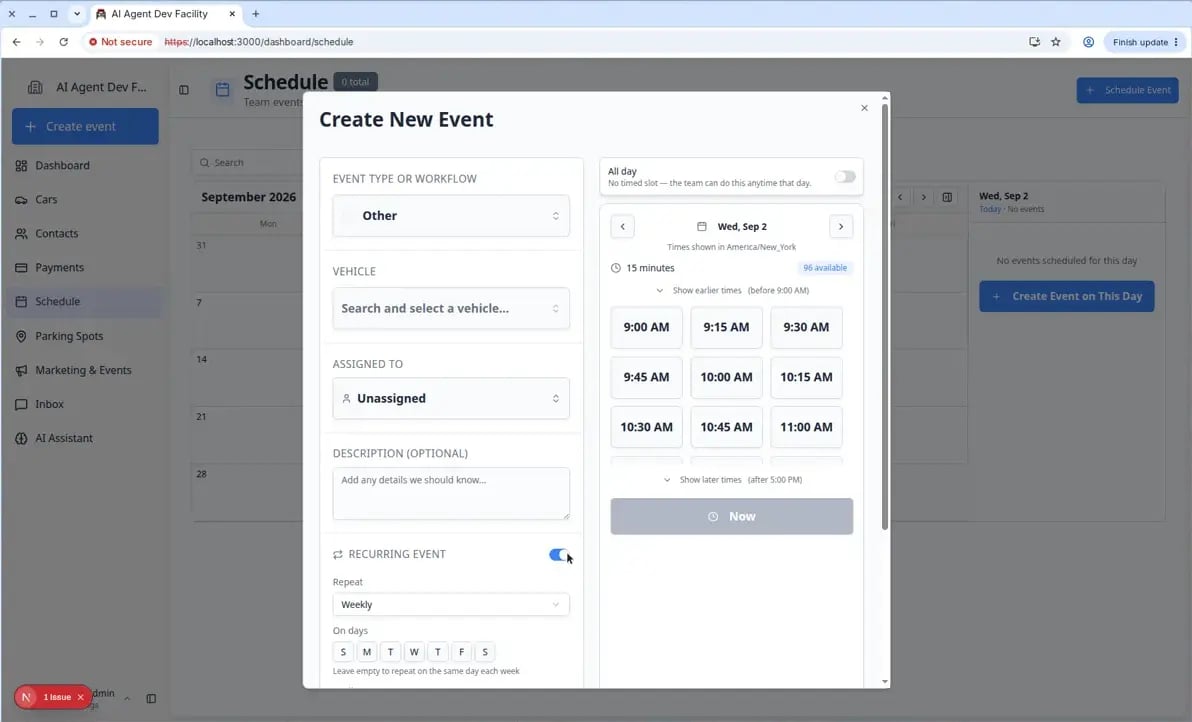 *Turn on **Recurring Event** after the main details are correct. Set how often the work repeats and when the series should end.*
## Good examples of recurring work
**Weekly battery maintenance** for stored vehicles — same weekday, same bay, 30–45 minutes.
**Monthly wash and inspection** for VIP storage customers.
**Standing dealer transport** every other Tuesday for a consignment vehicle.
**Internal bay prep** every Friday morning (facility-only event type).
**Pick an end date on purpose**
Many teams set **Until** three to six months out, then extend the series when the customer renews. An end date prevents “forever” appointments from cluttering the calendar if a customer leaves storage.
**When not to use recurring**
Use a **one-time** appointment when the customer books a single visit (one detail, one pickup). Use recurring only when the same work truly repeats on a pattern. One-off reschedules are easier to manage as single events.
## See the series on the calendar
After you save, switch the calendar to **Week** or **Month** view (open **Filters & Settings** if you need to change the range).
*Turn on **Recurring Event** after the main details are correct. Set how often the work repeats and when the series should end.*
## Good examples of recurring work
**Weekly battery maintenance** for stored vehicles — same weekday, same bay, 30–45 minutes.
**Monthly wash and inspection** for VIP storage customers.
**Standing dealer transport** every other Tuesday for a consignment vehicle.
**Internal bay prep** every Friday morning (facility-only event type).
**Pick an end date on purpose**
Many teams set **Until** three to six months out, then extend the series when the customer renews. An end date prevents “forever” appointments from cluttering the calendar if a customer leaves storage.
**When not to use recurring**
Use a **one-time** appointment when the customer books a single visit (one detail, one pickup). Use recurring only when the same work truly repeats on a pattern. One-off reschedules are easier to manage as single events.
## See the series on the calendar
After you save, switch the calendar to **Week** or **Month** view (open **Filters & Settings** if you need to change the range).
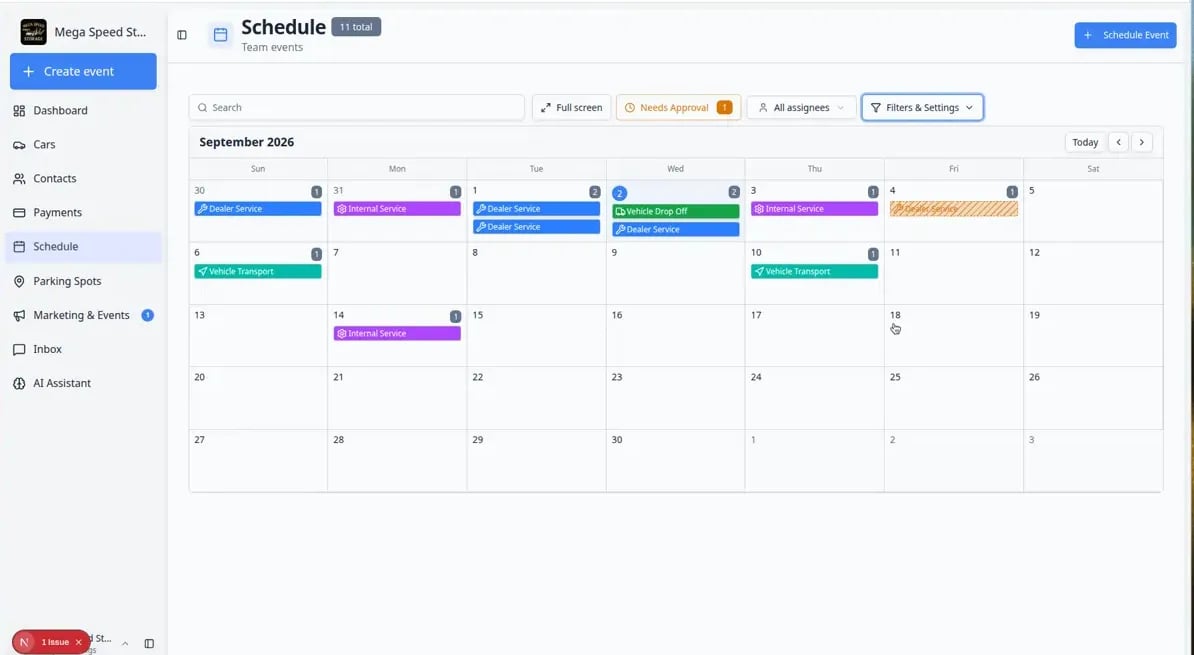 *A healthy recurring series shows the same type of work on multiple days. Switch to **Month** in **Filters & Settings** to see the full series at once.*
**Expected result:** You can spot repeat visits at a glance. If a date is missing, open **Create New Event** again and confirm the **Until** date and repeat pattern.
## Change or stop one event in a series
Later, if only **one** date needs to move or cancel, open that event on [Schedule](https://www.carstoragesoftware.com/dashboard/schedule) and follow [Update, assign, or reschedule an event](/docs/schedule/update-assign-or-reschedule-an-event) or [Cancel or delete a scheduled event](/docs/schedule/cancel-or-delete-a-scheduled-event).
Click the event for the date you want to change (not a different day in the series).
**Expected result:** The event details panel opens for that specific visit.
Use **Edit Event** to move the time, assignee, or notes. Use **Cancel** when that visit will not happen.
**Expected result:** The app may show a question about the **whole series** before it saves.
After you click **Save Changes**, a window titled **Edit recurring event** may appear.
It asks whether to change **only this event** or **all events in the series**. Read it slowly before you click.
**Expected result:** You understand how many future visits will change before you confirm.
* Choose **Only this event** when one customer visit moved but the rest of the repeat pattern stays the same.
* Choose **All events in the series** only when the repeat rule itself is wrong (wrong weekday, wrong end date, wrong time for every future visit).
**Expected result:** You changed the smallest number of future appointments needed.
*A healthy recurring series shows the same type of work on multiple days. Switch to **Month** in **Filters & Settings** to see the full series at once.*
**Expected result:** You can spot repeat visits at a glance. If a date is missing, open **Create New Event** again and confirm the **Until** date and repeat pattern.
## Change or stop one event in a series
Later, if only **one** date needs to move or cancel, open that event on [Schedule](https://www.carstoragesoftware.com/dashboard/schedule) and follow [Update, assign, or reschedule an event](/docs/schedule/update-assign-or-reschedule-an-event) or [Cancel or delete a scheduled event](/docs/schedule/cancel-or-delete-a-scheduled-event).
Click the event for the date you want to change (not a different day in the series).
**Expected result:** The event details panel opens for that specific visit.
Use **Edit Event** to move the time, assignee, or notes. Use **Cancel** when that visit will not happen.
**Expected result:** The app may show a question about the **whole series** before it saves.
After you click **Save Changes**, a window titled **Edit recurring event** may appear.
It asks whether to change **only this event** or **all events in the series**. Read it slowly before you click.
**Expected result:** You understand how many future visits will change before you confirm.
* Choose **Only this event** when one customer visit moved but the rest of the repeat pattern stays the same.
* Choose **All events in the series** only when the repeat rule itself is wrong (wrong weekday, wrong end date, wrong time for every future visit).
**Expected result:** You changed the smallest number of future appointments needed.
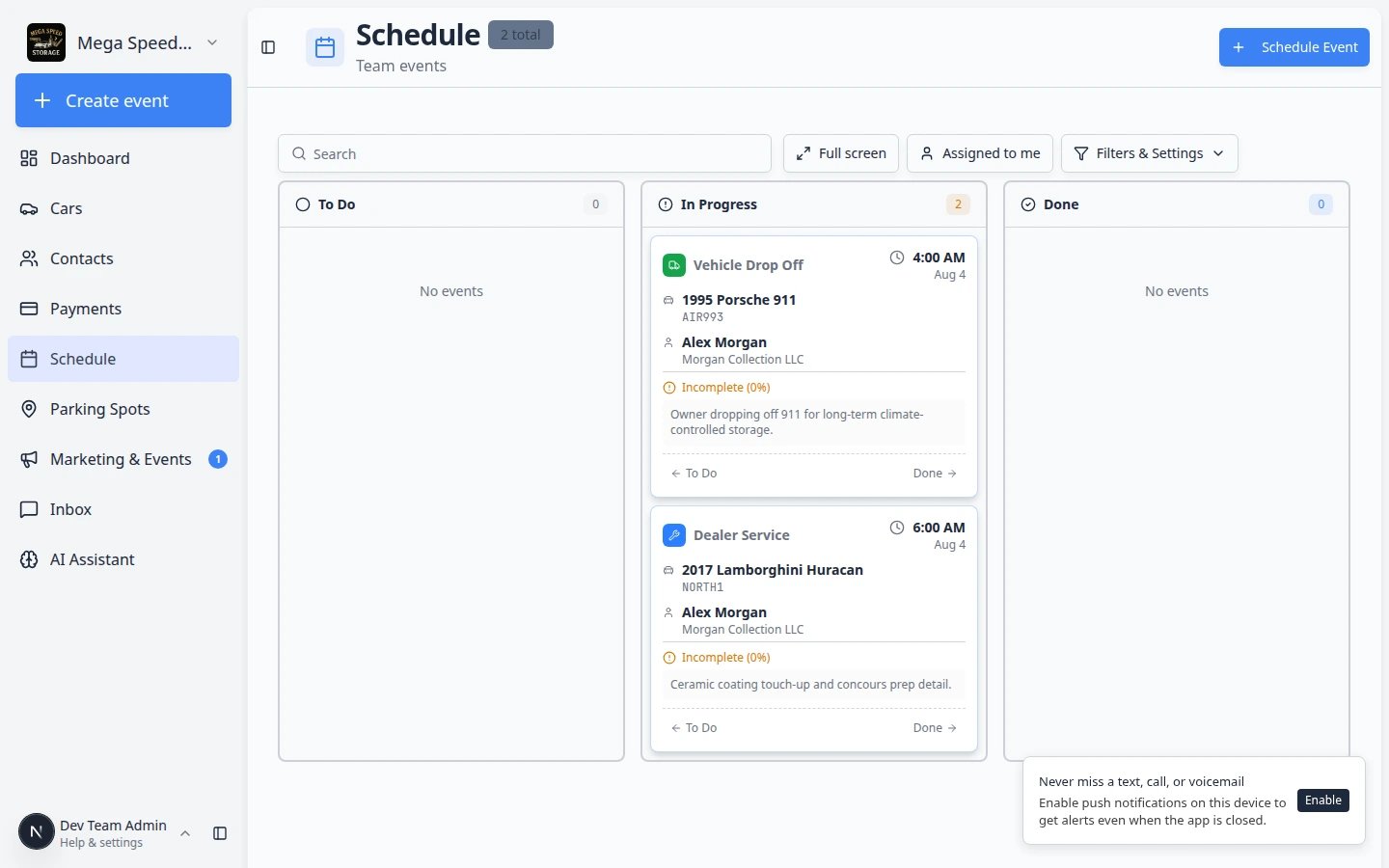 *When you change a recurring visit, this window protects the rest of the series. Use **Only this event** for one-off moves.*
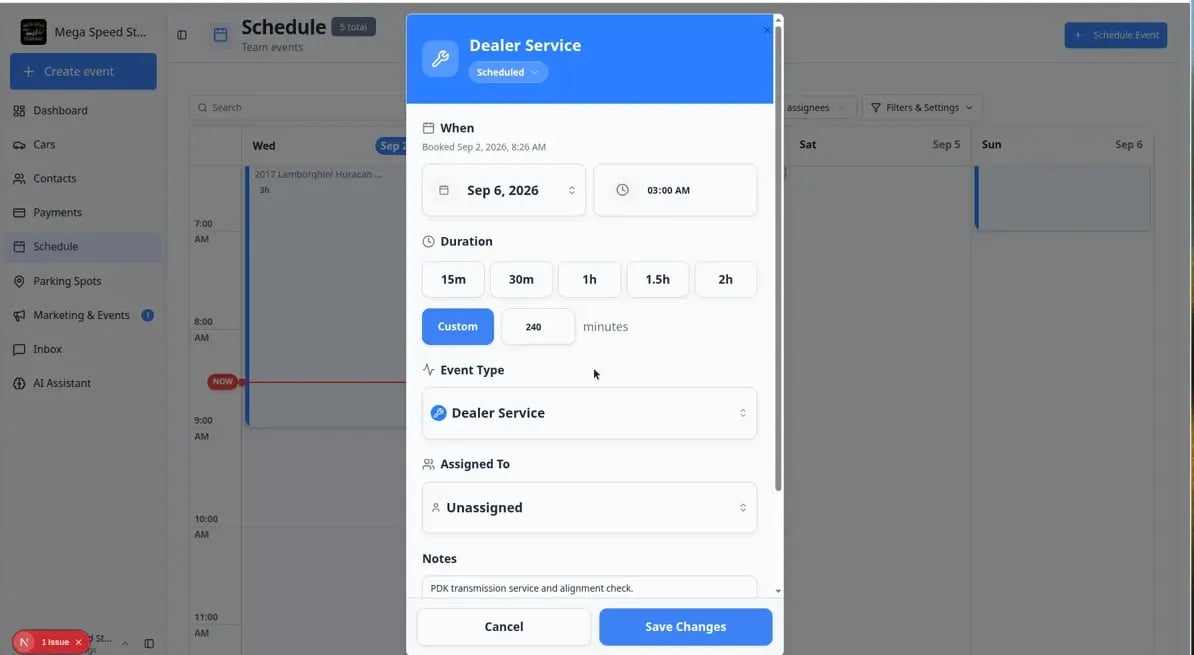 *When you edit a recurring visit, save only after you confirm whether the change applies to one date or the full series.*
**Read the series prompt slowly**
Choosing **All events in the series** can move or cancel many future appointments at once. Use that option only when the whole repeat pattern is wrong, not when one customer visit changed.
## What success looks like
* Future dates in the series appear on [Schedule](https://www.carstoragesoftware.com/dashboard/schedule) without manual re-entry.
* Each occurrence shows the correct customer, vehicle, and event type.
* Staff can still change a single date without breaking the whole series when plans shift.
## Troubleshooting
**I do not see Recurring Event**
Recurring setup is available when staff create events from the dashboard. If the switch is missing, ask a team admin whether your role can create scheduled work in [Settings → Team](https://www.carstoragesoftware.com/dashboard/settings/team).
**Some dates in the series look wrong**
Open one occurrence and use **Edit Event** to fix the time or notes. If the whole pattern is wrong, edit with care and choose whether the change applies to one event or the full series.
## What to do next
* Repeat work with no arrival time: [Create an all-day event](/docs/schedule/create-an-all-day-event).
* Find events quickly with [Find and filter scheduled work](/docs/schedule/find-and-filter-scheduled-work).
* Track daily completion in [Track work in the Progress view](/docs/schedule/track-work-in-progress-view).
* Return to [Schedule overview](/docs/schedule/overview).
## Related topics
- [Create an appointment](/docs/schedule/create-an-appointment.md)
- [Create an all-day event](/docs/schedule/create-an-all-day-event.md)
- [Update, assign, or reschedule an event](/docs/schedule/update-assign-or-reschedule-an-event.md)
- [Events overview](/docs/events/overview.md)
- [Read calendar icons and badges](/docs/schedule/read-calendar-icons-and-badges.md)
This documentation is built and hosted on [Mintlify](https://mintlify.com), a developer documentation platform.
*When you edit a recurring visit, save only after you confirm whether the change applies to one date or the full series.*
**Read the series prompt slowly**
Choosing **All events in the series** can move or cancel many future appointments at once. Use that option only when the whole repeat pattern is wrong, not when one customer visit changed.
## What success looks like
* Future dates in the series appear on [Schedule](https://www.carstoragesoftware.com/dashboard/schedule) without manual re-entry.
* Each occurrence shows the correct customer, vehicle, and event type.
* Staff can still change a single date without breaking the whole series when plans shift.
## Troubleshooting
**I do not see Recurring Event**
Recurring setup is available when staff create events from the dashboard. If the switch is missing, ask a team admin whether your role can create scheduled work in [Settings → Team](https://www.carstoragesoftware.com/dashboard/settings/team).
**Some dates in the series look wrong**
Open one occurrence and use **Edit Event** to fix the time or notes. If the whole pattern is wrong, edit with care and choose whether the change applies to one event or the full series.
## What to do next
* Repeat work with no arrival time: [Create an all-day event](/docs/schedule/create-an-all-day-event).
* Find events quickly with [Find and filter scheduled work](/docs/schedule/find-and-filter-scheduled-work).
* Track daily completion in [Track work in the Progress view](/docs/schedule/track-work-in-progress-view).
* Return to [Schedule overview](/docs/schedule/overview).
## Related topics
- [Create an appointment](/docs/schedule/create-an-appointment.md)
- [Create an all-day event](/docs/schedule/create-an-all-day-event.md)
- [Update, assign, or reschedule an event](/docs/schedule/update-assign-or-reschedule-an-event.md)
- [Events overview](/docs/events/overview.md)
- [Read calendar icons and badges](/docs/schedule/read-calendar-icons-and-badges.md)
This documentation is built and hosted on [Mintlify](https://mintlify.com), a developer documentation platform.