> ## Documentation Index
> Fetch the complete documentation index at: https://www.carstoragesoftware.com/docs/llms.txt
> Use this file to discover all available pages before exploring further.
# Schedule overview
> Learn how to use the Schedule page to plan appointments, adjust events, and track daily facility work.
## What you will accomplish
You will learn how your team uses the [Schedule page](https://www.carstoragesoftware.com/dashboard/schedule) to plan work, respond to online booking requests, and track what is finished during a busy day.
This overview links to step-by-step guides for each job (create appointments, approve bookings, change times, cancel work, and more).
The [Schedule page](https://www.carstoragesoftware.com/dashboard/schedule) is your team's daily calendar. Use it to plan customer visits, service work, pickups, drop-offs, facility tasks, and blocks of time when your team is not available.
The goal of the Schedule page is simple: everyone should know **what is happening, when it is happening, who it is for, and what needs attention next**.
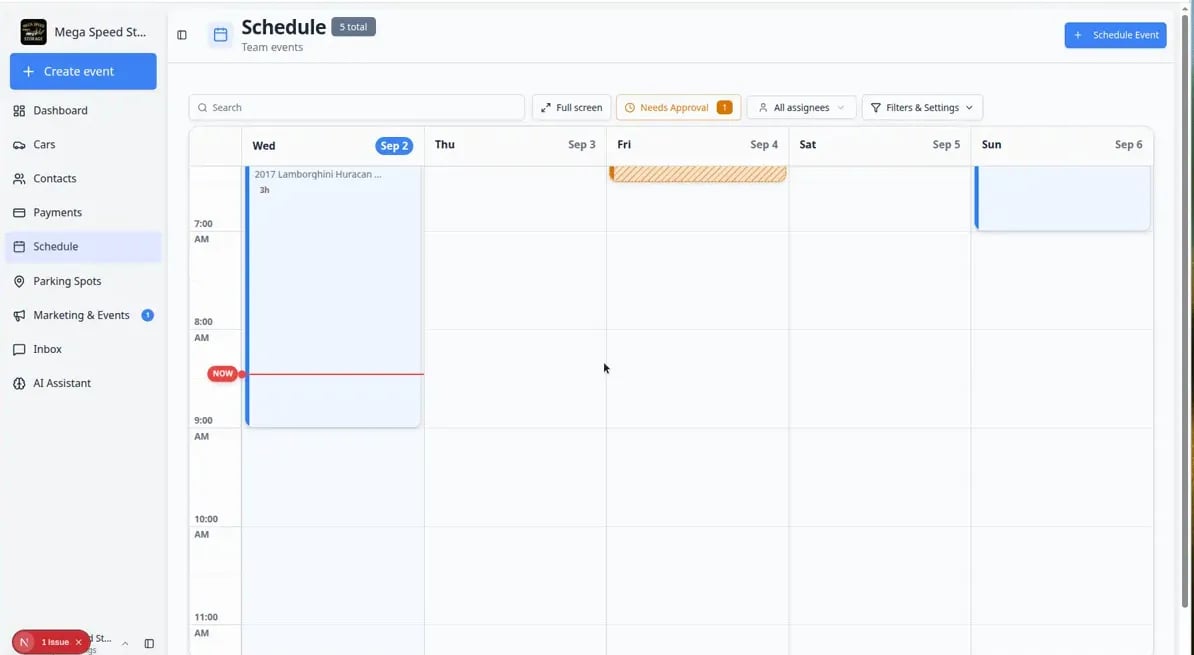 *The Schedule page displays your week at a glance. Each colored block is one scheduled event — you can see what is happening, when, and for which vehicle or customer.*
## What you can do from Schedule
* Create a customer appointment, service visit, pickup, drop-off, or internal facility event — including **All day** work that has no clock time.
* Switch between calendar, table, whiteboard, and progress views—including **2 Week** planning and optional **Day detail panel**.
* Search for events by customer, vehicle, event type, or notes.
* Filter to work assigned to you or bookings that need approval (watch for the **Needs Approval** button and its number badge).
* Read corner icons on event blocks—see [Read calendar icons and badges](/docs/schedule/read-calendar-icons-and-badges).
* Open an event to see the time, customer, vehicle, notes, assignees (staff and vendors), and status.
* Edit the time, duration, event type, assignee, and notes when plans change—or drag an event on the calendar to a new time.
* Mark work as in progress or complete so the team knows what happened.
* Cancel an appointment while keeping a record, or delete an event that should not remain on the schedule.
## The four views of Schedule
Schedule gives you four different ways to look at the same work. Each view highlights different information, so choose the one that fits what you are trying to do right now.
*The Schedule page displays your week at a glance. Each colored block is one scheduled event — you can see what is happening, when, and for which vehicle or customer.*
## What you can do from Schedule
* Create a customer appointment, service visit, pickup, drop-off, or internal facility event — including **All day** work that has no clock time.
* Switch between calendar, table, whiteboard, and progress views—including **2 Week** planning and optional **Day detail panel**.
* Search for events by customer, vehicle, event type, or notes.
* Filter to work assigned to you or bookings that need approval (watch for the **Needs Approval** button and its number badge).
* Read corner icons on event blocks—see [Read calendar icons and badges](/docs/schedule/read-calendar-icons-and-badges).
* Open an event to see the time, customer, vehicle, notes, assignees (staff and vendors), and status.
* Edit the time, duration, event type, assignee, and notes when plans change—or drag an event on the calendar to a new time.
* Mark work as in progress or complete so the team knows what happened.
* Cancel an appointment while keeping a record, or delete an event that should not remain on the schedule.
## The four views of Schedule
Schedule gives you four different ways to look at the same work. Each view highlights different information, so choose the one that fits what you are trying to do right now.
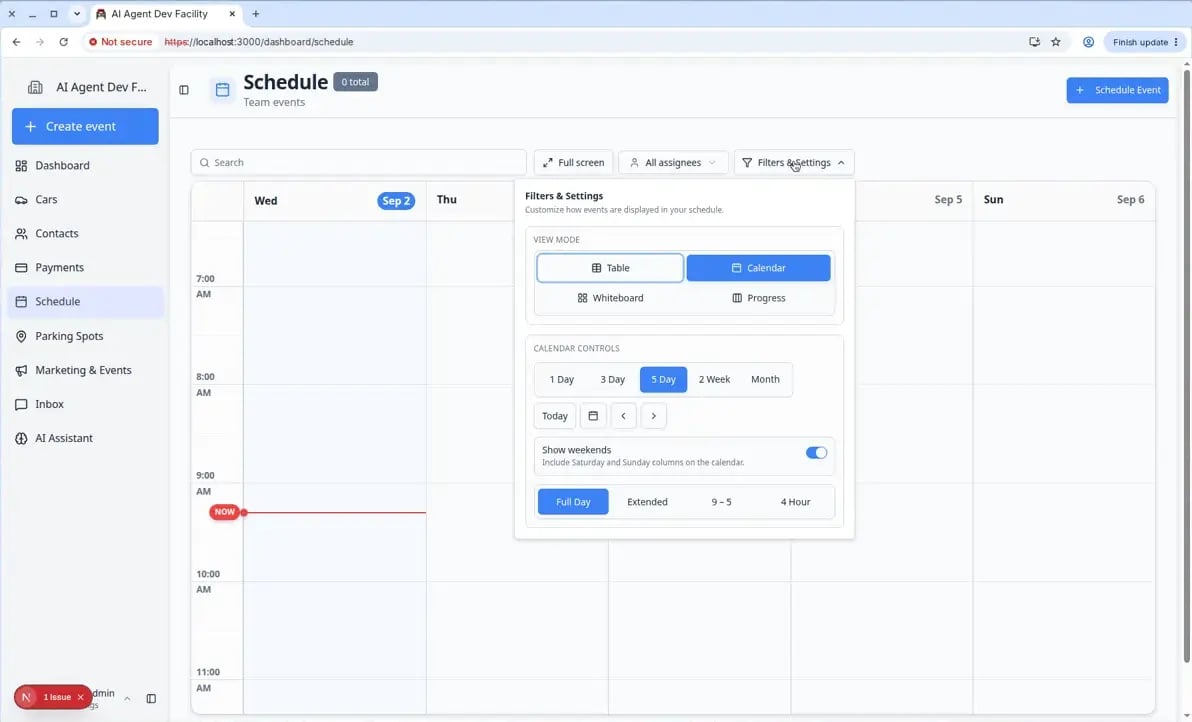 *Open Filters & Settings to switch between views and control how much of the calendar you see at once.*
**Calendar** is best for seeing time and availability. Use it when you want to know "What is happening at 2 PM on Thursday?"
**Table** is best for sorting, scanning many events quickly, and seeing details in columns. Use it when you want to review a long list of upcoming work.
**Whiteboard** is best for a visual card layout of scheduled work. Use it when your team prefers a spatial view.
**Progress** is best for tracking work through stages like **To Do**, **In Progress**, and **Done**. Use it when you want to answer "What still needs to be finished today?"
## Your first day on Schedule (5-minute checklist)
New to the calendar? Walk through this once while signed in:
Go to [Schedule](https://www.carstoragesoftware.com/dashboard/schedule). If the calendar looks empty, widen the date range in **Filters & Settings** (try **5 Day** or **This Week**).
**Expected result:** You see colored blocks for upcoming visits.
If a **Needs Approval** button shows a number badge, click it and review each online booking request.
**Why this matters:** Customers often think submitting a form means they are confirmed. Clearing this queue prevents confusion.
Open **Filters & Settings** and switch to **Table** or **Progress** for one minute. Switch back to **Calendar** when you are done.
**Expected result:** You know where to find a sortable list (Table) and a status board (Progress) before a busy day.
Front desk: [Create an appointment](/docs/schedule/create-an-appointment). Floor techs: [Run event workflow from Schedule](/docs/schedule/run-event-workflow-from-schedule). Managers: [Track work in the Progress view](/docs/schedule/track-work-in-progress-view).
## Recommended path for your first week
If Schedule is new to your team, use this order:
Start with [Create an appointment](/docs/schedule/create-an-appointment) for drop-offs, service, and pickups your team books by phone.
When the board gets busy, use [Find and filter scheduled work](/docs/schedule/find-and-filter-scheduled-work). For **2 Week** planning or the side **Day detail panel**, read [Use the 2-week view and day detail panel](/docs/schedule/use-two-week-view-and-day-detail-panel). For a sortable list of every visit, open [Use Table view on Schedule](/docs/schedule/use-table-view-on-schedule).
If customers book on your website, review [Approve or decline a customer booking request](/docs/schedule/approve-or-decline-customer-booking-requests) at least twice per day.
On active service days, open [Track work in the Progress view](/docs/schedule/track-work-in-progress-view) so **To Do**, **In Progress**, and **Done** stay honest.
## Choose the right Schedule guide
Use [Use full-screen schedule display](/docs/schedule/use-full-screen-schedule-display) when a TV or large screen should show today’s work without dashboard menus in the way.
Start with [Create an appointment](/docs/schedule/create-an-appointment) when you need to put new work on the calendar. When you know who owns the visit, also read [Assign team members and vendors to events](/docs/schedule/assign-team-members-and-vendors).
Use [Create an all-day event](/docs/schedule/create-an-all-day-event) when staff can finish the job anytime that day (battery checks, holds, or a full-day **Calendar Block**). Those visits sit in the **ALL DAY** row above the hours.
Use [Use the 2-week view and day detail panel](/docs/schedule/use-two-week-view-and-day-detail-panel) when **5 Day** feels too tight but you still need more than a month grid.
Use [Read calendar icons and badges](/docs/schedule/read-calendar-icons-and-badges) when you see repeat arrows, dollar signs, stripes, or grouped **3 events** blocks.
Use [Create recurring appointments](/docs/schedule/create-recurring-appointments) when the same visit or task should repeat weekly, monthly, or on another schedule. When you change one date later, read the **Only this event** vs **All events in the series** prompt carefully.
Use [Find and filter scheduled work](/docs/schedule/find-and-filter-scheduled-work) when the schedule is busy and you need to narrow it down.
Use [Use Table view on Schedule](/docs/schedule/use-table-view-on-schedule) when you want to sort and review events as rows instead of calendar blocks.
Use [Use the Whiteboard view on Schedule](/docs/schedule/use-the-whiteboard-view-on-schedule) when your team prefers a card layout instead of a time grid.
Use [Approve or decline a customer booking request](/docs/schedule/approve-or-decline-customer-booking-requests) when a customer books online and the event shows **Needs Approval**.
Use [Run event workflow from Schedule](/docs/schedule/run-event-workflow-from-schedule) when a technician should open **Open Event** and complete the visit (not just read the calendar block).
Use [Update, assign, or reschedule an event](/docs/schedule/update-assign-or-reschedule-an-event) when a time, person, duration, event type, or note needs to change. You can also drag an event on the calendar when only the time moves.
Use [Cancel or delete a scheduled event](/docs/schedule/cancel-or-delete-a-scheduled-event) when an event is no longer happening or was added by mistake.
Use [Track work in the Progress view](/docs/schedule/track-work-in-progress-view) when you want a board-style view of what is waiting, active, blocked, or done.
Use [Subscribe to the team calendar](/docs/schedule/subscribe-to-the-team-calendar) when you want Apple Calendar, Google Calendar, or Outlook to stay in sync with your shop schedule.
Use [Understand tentative and service plan events](/docs/schedule/understand-tentative-and-service-plan-events) when an event looks tentative or was created automatically from a service plan.
## Reading the small marks on calendar blocks
On **Calendar** view, event blocks may show extra marks in the corners. These help your team spot work that needs attention without opening every appointment.
*Open Filters & Settings to switch between views and control how much of the calendar you see at once.*
**Calendar** is best for seeing time and availability. Use it when you want to know "What is happening at 2 PM on Thursday?"
**Table** is best for sorting, scanning many events quickly, and seeing details in columns. Use it when you want to review a long list of upcoming work.
**Whiteboard** is best for a visual card layout of scheduled work. Use it when your team prefers a spatial view.
**Progress** is best for tracking work through stages like **To Do**, **In Progress**, and **Done**. Use it when you want to answer "What still needs to be finished today?"
## Your first day on Schedule (5-minute checklist)
New to the calendar? Walk through this once while signed in:
Go to [Schedule](https://www.carstoragesoftware.com/dashboard/schedule). If the calendar looks empty, widen the date range in **Filters & Settings** (try **5 Day** or **This Week**).
**Expected result:** You see colored blocks for upcoming visits.
If a **Needs Approval** button shows a number badge, click it and review each online booking request.
**Why this matters:** Customers often think submitting a form means they are confirmed. Clearing this queue prevents confusion.
Open **Filters & Settings** and switch to **Table** or **Progress** for one minute. Switch back to **Calendar** when you are done.
**Expected result:** You know where to find a sortable list (Table) and a status board (Progress) before a busy day.
Front desk: [Create an appointment](/docs/schedule/create-an-appointment). Floor techs: [Run event workflow from Schedule](/docs/schedule/run-event-workflow-from-schedule). Managers: [Track work in the Progress view](/docs/schedule/track-work-in-progress-view).
## Recommended path for your first week
If Schedule is new to your team, use this order:
Start with [Create an appointment](/docs/schedule/create-an-appointment) for drop-offs, service, and pickups your team books by phone.
When the board gets busy, use [Find and filter scheduled work](/docs/schedule/find-and-filter-scheduled-work). For **2 Week** planning or the side **Day detail panel**, read [Use the 2-week view and day detail panel](/docs/schedule/use-two-week-view-and-day-detail-panel). For a sortable list of every visit, open [Use Table view on Schedule](/docs/schedule/use-table-view-on-schedule).
If customers book on your website, review [Approve or decline a customer booking request](/docs/schedule/approve-or-decline-customer-booking-requests) at least twice per day.
On active service days, open [Track work in the Progress view](/docs/schedule/track-work-in-progress-view) so **To Do**, **In Progress**, and **Done** stay honest.
## Choose the right Schedule guide
Use [Use full-screen schedule display](/docs/schedule/use-full-screen-schedule-display) when a TV or large screen should show today’s work without dashboard menus in the way.
Start with [Create an appointment](/docs/schedule/create-an-appointment) when you need to put new work on the calendar. When you know who owns the visit, also read [Assign team members and vendors to events](/docs/schedule/assign-team-members-and-vendors).
Use [Create an all-day event](/docs/schedule/create-an-all-day-event) when staff can finish the job anytime that day (battery checks, holds, or a full-day **Calendar Block**). Those visits sit in the **ALL DAY** row above the hours.
Use [Use the 2-week view and day detail panel](/docs/schedule/use-two-week-view-and-day-detail-panel) when **5 Day** feels too tight but you still need more than a month grid.
Use [Read calendar icons and badges](/docs/schedule/read-calendar-icons-and-badges) when you see repeat arrows, dollar signs, stripes, or grouped **3 events** blocks.
Use [Create recurring appointments](/docs/schedule/create-recurring-appointments) when the same visit or task should repeat weekly, monthly, or on another schedule. When you change one date later, read the **Only this event** vs **All events in the series** prompt carefully.
Use [Find and filter scheduled work](/docs/schedule/find-and-filter-scheduled-work) when the schedule is busy and you need to narrow it down.
Use [Use Table view on Schedule](/docs/schedule/use-table-view-on-schedule) when you want to sort and review events as rows instead of calendar blocks.
Use [Use the Whiteboard view on Schedule](/docs/schedule/use-the-whiteboard-view-on-schedule) when your team prefers a card layout instead of a time grid.
Use [Approve or decline a customer booking request](/docs/schedule/approve-or-decline-customer-booking-requests) when a customer books online and the event shows **Needs Approval**.
Use [Run event workflow from Schedule](/docs/schedule/run-event-workflow-from-schedule) when a technician should open **Open Event** and complete the visit (not just read the calendar block).
Use [Update, assign, or reschedule an event](/docs/schedule/update-assign-or-reschedule-an-event) when a time, person, duration, event type, or note needs to change. You can also drag an event on the calendar when only the time moves.
Use [Cancel or delete a scheduled event](/docs/schedule/cancel-or-delete-a-scheduled-event) when an event is no longer happening or was added by mistake.
Use [Track work in the Progress view](/docs/schedule/track-work-in-progress-view) when you want a board-style view of what is waiting, active, blocked, or done.
Use [Subscribe to the team calendar](/docs/schedule/subscribe-to-the-team-calendar) when you want Apple Calendar, Google Calendar, or Outlook to stay in sync with your shop schedule.
Use [Understand tentative and service plan events](/docs/schedule/understand-tentative-and-service-plan-events) when an event looks tentative or was created automatically from a service plan.
## Reading the small marks on calendar blocks
On **Calendar** view, event blocks may show extra marks in the corners. These help your team spot work that needs attention without opening every appointment.
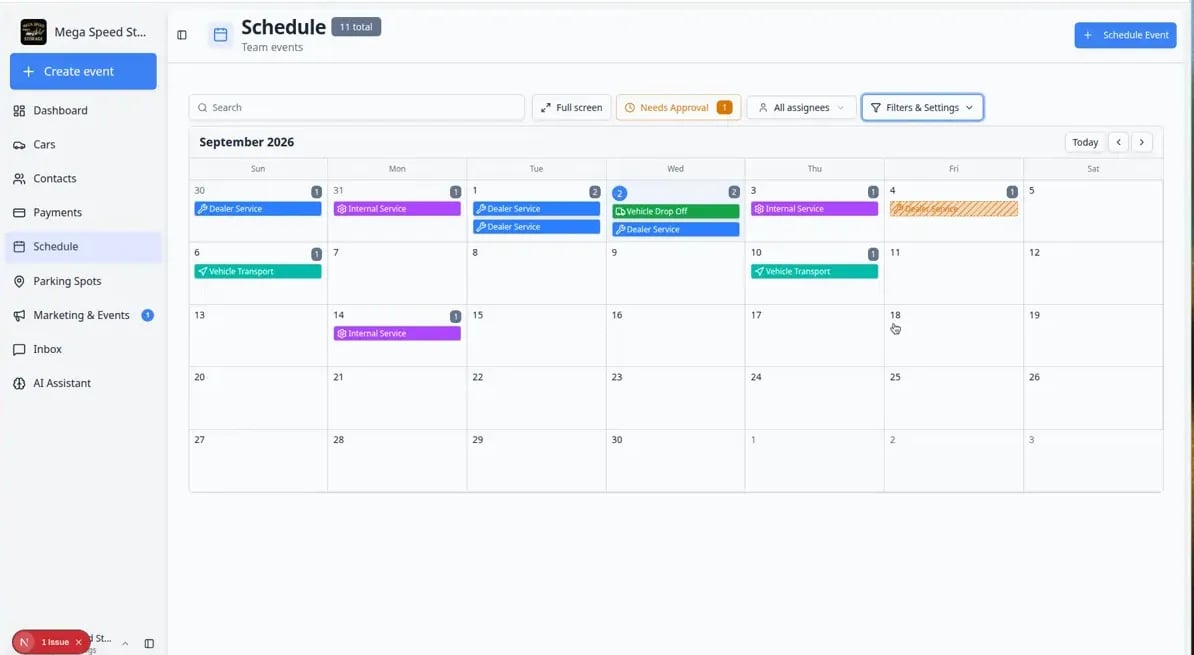 *Look at the corners of event blocks. A diagonal stripe pattern often means **Needs Approval**. Small colored dots can mean billing status or damage photos on file.*
| What you might see | What it usually means |
| - | - |
| **Diagonal stripe pattern** on the block | An online booking request waiting for **Needs Approval** |
| **Small colored dot** (green, yellow, or red) | Invoice status linked to the visit—paid, open/draft, or failed |
| **Small red badge** with a number | Damage photos marked on that event |
| **Gray or muted block** | The event may be **Cancelled** or outside your current filters |
**Dots do not replace opening the event**
Indicators are shortcuts. Always click the event to read notes, customer details, and the full status before you approve, bill, or mark work complete.
For a full walkthrough of search, filters, and grouped blocks, see [Find and filter scheduled work](/docs/schedule/find-and-filter-scheduled-work).
## Important words on the Schedule page
**Event** means one scheduled item. It may be a customer appointment, a vehicle task, or a facility-only block of time.
**Event type** means the kind of event, such as **Vehicle Drop Off**, **Dealer Service**, **Vehicle Pick Up**, or **Calendar Block**. Each event type has its own color on the calendar so you can tell them apart at a glance.
**Assigned to** means the team member responsible for the event. When you assign someone, that event will show when they use the "Assigned to me" filter.
**Status** tells your team where the event stands, such as **Scheduled**, **In Progress**, **Complete**, **Cancelled**, **Needs Approval**, **Declined**, **Tentative**, or **Blocked** (when your team uses a blocked stage on the Progress board).
**All day** means the work is on a date but has no clock time. It sits in the **ALL DAY** row above the hours. Use it for battery checks, holds, or a full-day **Calendar Block**. See [Create an all-day event](/docs/schedule/create-an-all-day-event).
**Recurring** means the event is part of a repeat series. Changing one date may ask whether you mean **only this event** or **all events in the series**.
**Open Event** appears on some events when your team should run a linked workflow (photos, checklists, or operational steps) from the event detail panel.
**Branch icon** on a calendar block means the visit is tied to a workflow instance. Click the icon to open the workflow overview page. Use **Open Event** when a technician is doing today's floor work.
**Blockout day** means the facility (or an event type) is closed that day. You cannot drop new bookings on blockout days.
**Damage badge** (small red mark on an event) means photos on that visit were flagged as damage. Open the event to review them.
## Related setup
Schedule uses settings created in other areas of the app:
* Set up appointment names, colors, availability, reminders, and rules in [Settings > Events & schedule](https://www.carstoragesoftware.com/dashboard/settings/events).
* Learn the setup steps in [Configure event types](/docs/events/configure-event-types).
* Add rooms, bays, equipment, staff resources, or other bookable resources with [Set up bookable resources](/docs/events/set-up-bookable-resources).
* Create customers in [Contacts](https://www.carstoragesoftware.com/dashboard/contacts) and cars in [Cars](https://www.carstoragesoftware.com/dashboard/cars) before scheduling customer or vehicle work.
* Let staff subscribe to the schedule in Apple, Google, or Outlook with [Subscribe to the team calendar](/docs/schedule/subscribe-to-the-team-calendar).
## Quick links by job
* **Front desk / phone bookings:** [Create an appointment](/docs/schedule/create-an-appointment)
* **Work with no arrival time:** [Create an all-day event](/docs/schedule/create-an-all-day-event)
* **Busy week / sort by status:** [Use Table view on Schedule](/docs/schedule/use-table-view-on-schedule)
* **Online booking requests:** [Approve or decline a customer booking request](/docs/schedule/approve-or-decline-customer-booking-requests)
* **Technician starting the job:** [Run event workflow from Schedule](/docs/schedule/run-event-workflow-from-schedule)
* **Busy day on the floor:** [Track work in the Progress view](/docs/schedule/track-work-in-progress-view)
* **Shop TV or wall monitor:** [Use full-screen schedule display](/docs/schedule/use-full-screen-schedule-display)
* **Personal phone calendar:** [Subscribe to the team calendar](/docs/schedule/subscribe-to-the-team-calendar)
## Who should read which guide
**Front desk / phone bookings** — start with [Create an appointment](/docs/schedule/create-an-appointment) and [Find and filter scheduled work](/docs/schedule/find-and-filter-scheduled-work).
**Managers running the shop floor** — use [Track work in the Progress view](/docs/schedule/track-work-in-progress-view) and [Use full-screen schedule display](/docs/schedule/use-full-screen-schedule-display).
**Technicians doing the visit** — use [Run event workflow from Schedule](/docs/schedule/run-event-workflow-from-schedule) when you see **Open Event** on an appointment.
**Anyone handling online bookings** — check [Approve or decline a customer booking request](/docs/schedule/approve-or-decline-customer-booking-requests) at least twice per day when **Needs Approval** shows a number badge.
## Online booking requests (Needs Approval)
When customers book on your website, some appointments may wait for your team before they appear as confirmed work.
On [Schedule](https://www.carstoragesoftware.com/dashboard/schedule), find **Needs Approval** near the top of the page. A small number badge shows how many requests are waiting.
**Expected result:** You see only events that need a yes or no from your team.
Open each event, read the customer, vehicle, time, and notes, then approve or decline.
Follow [Approve or decline a customer booking request](/docs/schedule/approve-or-decline-customer-booking-requests) for the full steps.
*Look at the corners of event blocks. A diagonal stripe pattern often means **Needs Approval**. Small colored dots can mean billing status or damage photos on file.*
| What you might see | What it usually means |
| - | - |
| **Diagonal stripe pattern** on the block | An online booking request waiting for **Needs Approval** |
| **Small colored dot** (green, yellow, or red) | Invoice status linked to the visit—paid, open/draft, or failed |
| **Small red badge** with a number | Damage photos marked on that event |
| **Gray or muted block** | The event may be **Cancelled** or outside your current filters |
**Dots do not replace opening the event**
Indicators are shortcuts. Always click the event to read notes, customer details, and the full status before you approve, bill, or mark work complete.
For a full walkthrough of search, filters, and grouped blocks, see [Find and filter scheduled work](/docs/schedule/find-and-filter-scheduled-work).
## Important words on the Schedule page
**Event** means one scheduled item. It may be a customer appointment, a vehicle task, or a facility-only block of time.
**Event type** means the kind of event, such as **Vehicle Drop Off**, **Dealer Service**, **Vehicle Pick Up**, or **Calendar Block**. Each event type has its own color on the calendar so you can tell them apart at a glance.
**Assigned to** means the team member responsible for the event. When you assign someone, that event will show when they use the "Assigned to me" filter.
**Status** tells your team where the event stands, such as **Scheduled**, **In Progress**, **Complete**, **Cancelled**, **Needs Approval**, **Declined**, **Tentative**, or **Blocked** (when your team uses a blocked stage on the Progress board).
**All day** means the work is on a date but has no clock time. It sits in the **ALL DAY** row above the hours. Use it for battery checks, holds, or a full-day **Calendar Block**. See [Create an all-day event](/docs/schedule/create-an-all-day-event).
**Recurring** means the event is part of a repeat series. Changing one date may ask whether you mean **only this event** or **all events in the series**.
**Open Event** appears on some events when your team should run a linked workflow (photos, checklists, or operational steps) from the event detail panel.
**Branch icon** on a calendar block means the visit is tied to a workflow instance. Click the icon to open the workflow overview page. Use **Open Event** when a technician is doing today's floor work.
**Blockout day** means the facility (or an event type) is closed that day. You cannot drop new bookings on blockout days.
**Damage badge** (small red mark on an event) means photos on that visit were flagged as damage. Open the event to review them.
## Related setup
Schedule uses settings created in other areas of the app:
* Set up appointment names, colors, availability, reminders, and rules in [Settings > Events & schedule](https://www.carstoragesoftware.com/dashboard/settings/events).
* Learn the setup steps in [Configure event types](/docs/events/configure-event-types).
* Add rooms, bays, equipment, staff resources, or other bookable resources with [Set up bookable resources](/docs/events/set-up-bookable-resources).
* Create customers in [Contacts](https://www.carstoragesoftware.com/dashboard/contacts) and cars in [Cars](https://www.carstoragesoftware.com/dashboard/cars) before scheduling customer or vehicle work.
* Let staff subscribe to the schedule in Apple, Google, or Outlook with [Subscribe to the team calendar](/docs/schedule/subscribe-to-the-team-calendar).
## Quick links by job
* **Front desk / phone bookings:** [Create an appointment](/docs/schedule/create-an-appointment)
* **Work with no arrival time:** [Create an all-day event](/docs/schedule/create-an-all-day-event)
* **Busy week / sort by status:** [Use Table view on Schedule](/docs/schedule/use-table-view-on-schedule)
* **Online booking requests:** [Approve or decline a customer booking request](/docs/schedule/approve-or-decline-customer-booking-requests)
* **Technician starting the job:** [Run event workflow from Schedule](/docs/schedule/run-event-workflow-from-schedule)
* **Busy day on the floor:** [Track work in the Progress view](/docs/schedule/track-work-in-progress-view)
* **Shop TV or wall monitor:** [Use full-screen schedule display](/docs/schedule/use-full-screen-schedule-display)
* **Personal phone calendar:** [Subscribe to the team calendar](/docs/schedule/subscribe-to-the-team-calendar)
## Who should read which guide
**Front desk / phone bookings** — start with [Create an appointment](/docs/schedule/create-an-appointment) and [Find and filter scheduled work](/docs/schedule/find-and-filter-scheduled-work).
**Managers running the shop floor** — use [Track work in the Progress view](/docs/schedule/track-work-in-progress-view) and [Use full-screen schedule display](/docs/schedule/use-full-screen-schedule-display).
**Technicians doing the visit** — use [Run event workflow from Schedule](/docs/schedule/run-event-workflow-from-schedule) when you see **Open Event** on an appointment.
**Anyone handling online bookings** — check [Approve or decline a customer booking request](/docs/schedule/approve-or-decline-customer-booking-requests) at least twice per day when **Needs Approval** shows a number badge.
## Online booking requests (Needs Approval)
When customers book on your website, some appointments may wait for your team before they appear as confirmed work.
On [Schedule](https://www.carstoragesoftware.com/dashboard/schedule), find **Needs Approval** near the top of the page. A small number badge shows how many requests are waiting.
**Expected result:** You see only events that need a yes or no from your team.
Open each event, read the customer, vehicle, time, and notes, then approve or decline.
Follow [Approve or decline a customer booking request](/docs/schedule/approve-or-decline-customer-booking-requests) for the full steps.
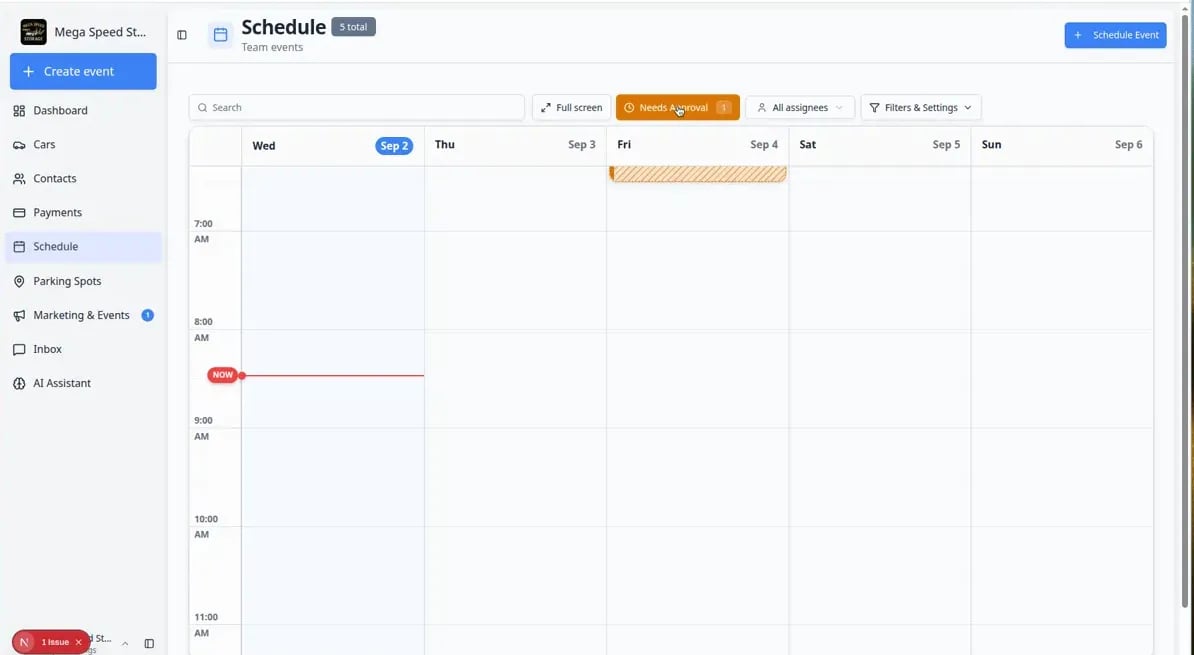 *The **Needs Approval** filter shows online booking requests waiting for your team. The number badge on the button tells you how many requests still need a decision.*
## Progress view at a glance
On busy service days, many teams switch to **Progress** view to see work in **To Do**, **In Progress**, and **Done** columns instead of clock times.
*The **Needs Approval** filter shows online booking requests waiting for your team. The number badge on the button tells you how many requests still need a decision.*
## Progress view at a glance
On busy service days, many teams switch to **Progress** view to see work in **To Do**, **In Progress**, and **Done** columns instead of clock times.
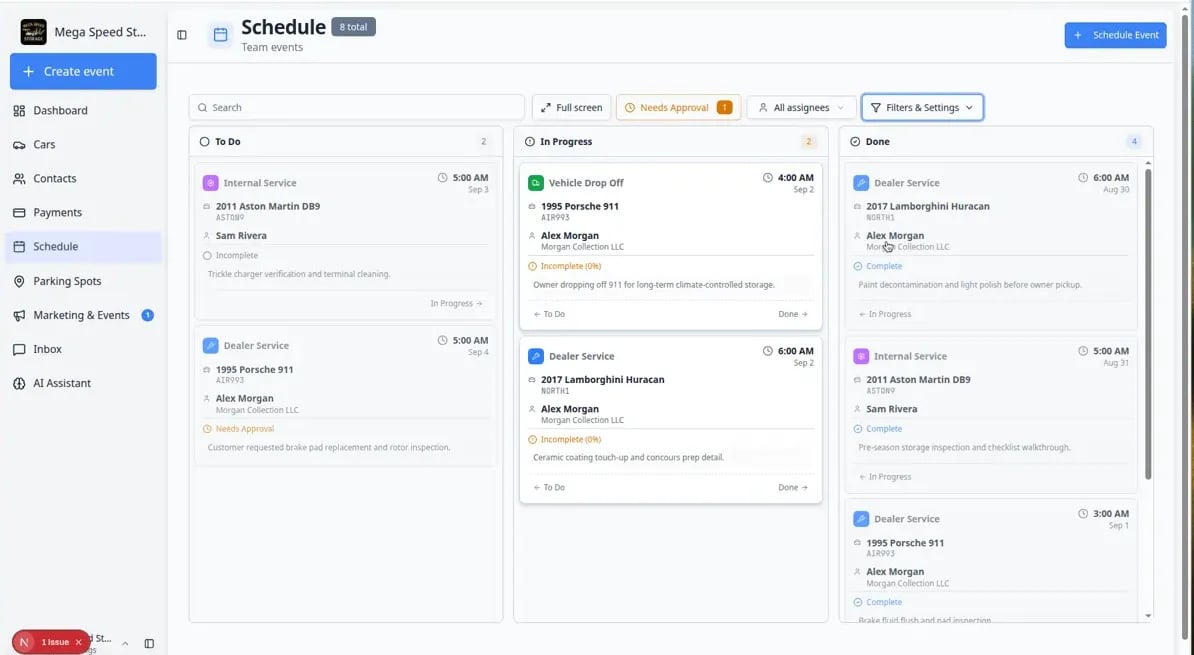 *Progress view answers “What still needs to be finished today?” Open **Filters & Settings** → **Progress** to try it. See [Track work in the Progress view](/docs/schedule/track-work-in-progress-view).*
## Troubleshooting
**The calendar looks empty**
Clear the **Search** box, turn off **Assigned to me**, and widen the date range in **Filters & Settings** (try **5 Day** or **This Week**). Events may still exist—they are just filtered out. See [Find and filter scheduled work](/docs/schedule/find-and-filter-scheduled-work).
**I cannot find Needs Approval**
If no customers book online yet, the button may not show a badge. Test with a practice booking from your public registration page, or ask an admin to review [Configure event types](/docs/events/configure-event-types) and turn on **Customers can book** for the right services.
**Times look wrong by one hour**
Check your facility time zone in [Settings > General](https://www.carstoragesoftware.com/dashboard/settings/general). Schedule times always follow that setting.
## What success looks like
When your Schedule is healthy:
* Each event has the correct date, time, customer or vehicle, and event type.
* Staff can quickly see what is happening today.
* Busy days are easier to manage because filters and views show the right work.
* Online booking requests are approved or declined promptly—not left in **Needs Approval** for days.
* Customers are less likely to receive confusing updates because cancelled, rescheduled, and completed work is tracked clearly.
## What to do next
If you are new to Schedule, start with [Create an appointment](/docs/schedule/create-an-appointment) for your first event, then learn [Find and filter scheduled work](/docs/schedule/find-and-filter-scheduled-work) before your calendar gets busy.
## Related topics
- [Customize your Overview dashboard](/docs/basics/customize-your-overview.md)
- [Configure services and schedule settings](/docs/settings/configure-events-and-schedule-settings.md)
- [Ask about schedule, parking, and records](/docs/ai-assistant/ask-about-schedule-parking-and-records.md)
- [Run event workflow from Schedule](/docs/schedule/run-event-workflow-from-schedule.md)
- [Use Table view on Schedule](/docs/schedule/use-table-view-on-schedule.md)
This documentation is built and hosted on [Mintlify](https://mintlify.com), a developer documentation platform.
*Progress view answers “What still needs to be finished today?” Open **Filters & Settings** → **Progress** to try it. See [Track work in the Progress view](/docs/schedule/track-work-in-progress-view).*
## Troubleshooting
**The calendar looks empty**
Clear the **Search** box, turn off **Assigned to me**, and widen the date range in **Filters & Settings** (try **5 Day** or **This Week**). Events may still exist—they are just filtered out. See [Find and filter scheduled work](/docs/schedule/find-and-filter-scheduled-work).
**I cannot find Needs Approval**
If no customers book online yet, the button may not show a badge. Test with a practice booking from your public registration page, or ask an admin to review [Configure event types](/docs/events/configure-event-types) and turn on **Customers can book** for the right services.
**Times look wrong by one hour**
Check your facility time zone in [Settings > General](https://www.carstoragesoftware.com/dashboard/settings/general). Schedule times always follow that setting.
## What success looks like
When your Schedule is healthy:
* Each event has the correct date, time, customer or vehicle, and event type.
* Staff can quickly see what is happening today.
* Busy days are easier to manage because filters and views show the right work.
* Online booking requests are approved or declined promptly—not left in **Needs Approval** for days.
* Customers are less likely to receive confusing updates because cancelled, rescheduled, and completed work is tracked clearly.
## What to do next
If you are new to Schedule, start with [Create an appointment](/docs/schedule/create-an-appointment) for your first event, then learn [Find and filter scheduled work](/docs/schedule/find-and-filter-scheduled-work) before your calendar gets busy.
## Related topics
- [Customize your Overview dashboard](/docs/basics/customize-your-overview.md)
- [Configure services and schedule settings](/docs/settings/configure-events-and-schedule-settings.md)
- [Ask about schedule, parking, and records](/docs/ai-assistant/ask-about-schedule-parking-and-records.md)
- [Run event workflow from Schedule](/docs/schedule/run-event-workflow-from-schedule.md)
- [Use Table view on Schedule](/docs/schedule/use-table-view-on-schedule.md)
This documentation is built and hosted on [Mintlify](https://mintlify.com), a developer documentation platform.