> ## Documentation Index
> Fetch the complete documentation index at: https://www.carstoragesoftware.com/docs/llms.txt
> Use this file to discover all available pages before exploring further.
# Subscribe to the team calendar
> Add your facility schedule to Apple Calendar, Google Calendar, or Outlook so appointments stay in sync without manual copying.
## What you will accomplish
You will copy a **read-only subscription link** from [Settings → Events & schedule](https://www.carstoragesoftware.com/dashboard/settings/events) and add it to Apple Calendar, Google Calendar, or Outlook so your personal calendar stays in sync with the shop schedule.
* Find your facility’s calendar subscription link in the dashboard.
* Add that link to Apple Calendar, Google Calendar, or Outlook.
* Choose whether the feed shows full details or busy-only privacy.
* Know what to do if a link stops working or was shared too widely.
Use this guide when you or a teammate wants the shop schedule on a phone or computer calendar — without re-typing every appointment.
You will get a **read-only subscription link** from Car Storage Software. Your personal calendar app (Apple, Google, or Outlook) checks that link on its own schedule and adds updates. You **cannot** create or change appointments in Car Storage Software from those external calendars.
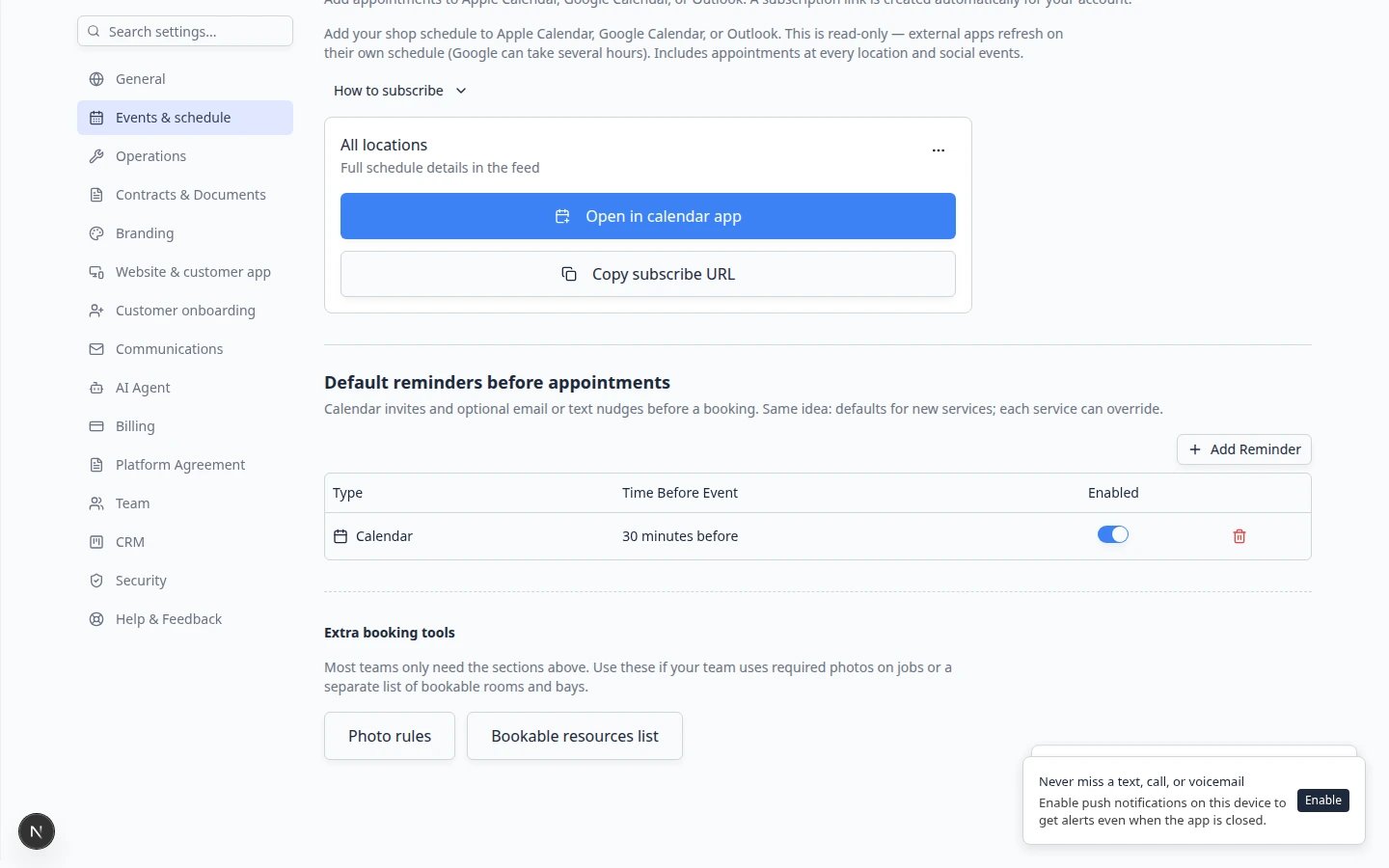
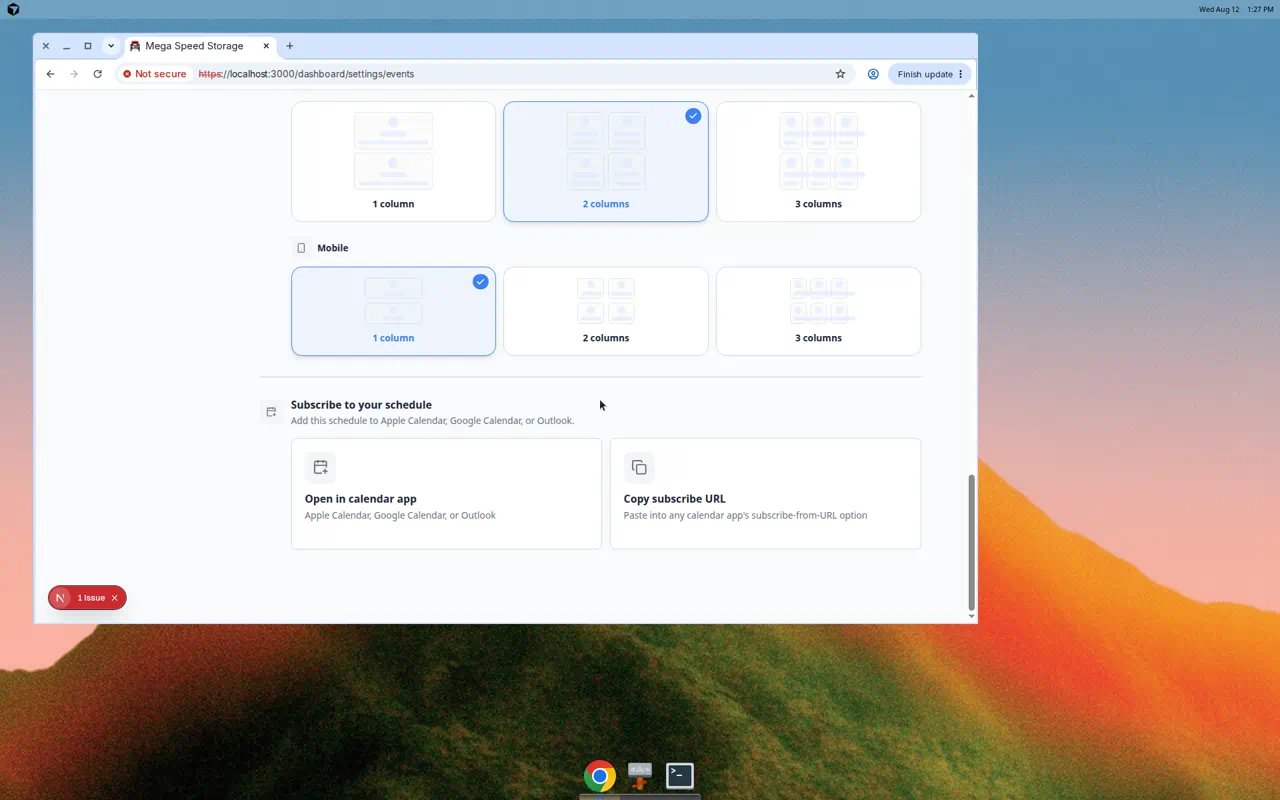 *Open [Settings → Events & schedule](https://www.carstoragesoftware.com/dashboard/settings/events) and scroll to **Subscribe to your schedule**.*
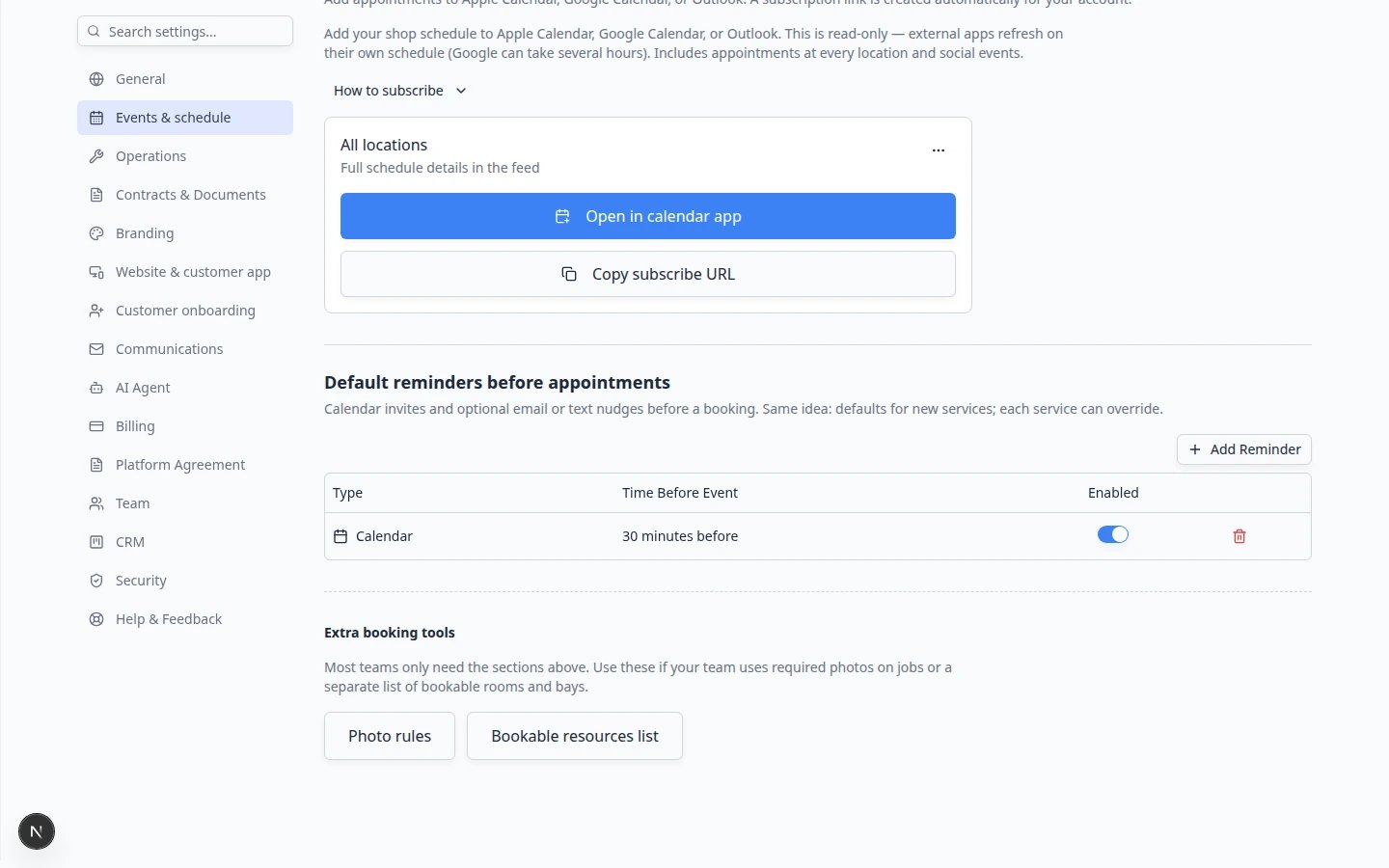 *Your subscription card shows which schedule you are sharing and the two buttons you will use most often.*
## When to use a calendar subscription
* You want today’s appointments on your phone lock screen or watch.
* Managers want the team schedule next to personal events in one calendar app.
* You are tired of copying times from the dashboard into another calendar by hand.
**Important**
Subscriptions are **read-only**. If you move or delete an event in Apple, Google, or Outlook, **nothing changes** in Car Storage Software. Always update real appointments on the [Schedule page](https://www.carstoragesoftware.com/dashboard/schedule).
## Before you start
* You can sign in to the dashboard.
* You know which calendar app you will use (Apple, Google, or Outlook).
* For privacy settings or link rotation, you need **team admin** access (the three-dot menu on the feed card).
* If you manage your own website domain, keep someone available who can add DNS records — only needed if email domain setup is unrelated; calendar subscribe links do not need DNS for basic use.
## Open your subscription link
Go to [Settings → Events & schedule](https://www.carstoragesoftware.com/dashboard/settings/events).
**Expected result:** You see sections for services, closed days, reminders, and **Subscribe to your schedule**.
Find the heading **Subscribe to your schedule**.
A short note explains that this is read-only and that Google may take several hours to refresh.
If your facility has more than one location, you may see **Which schedule to subscribe to**.
* **All locations** — appointments for the whole shop, plus **social events** (car meets, open houses, and similar).
* A **single location** — appointments for that location only (no social events in that feed).
Staff who only work at one location may see only their location’s feed.
**Expected result:** The card below the dropdown matches the schedule you want on your personal calendar.
Under the feed name you will see either:
* **Full schedule details in the feed** — event title, vehicle, customer name, appointment type, location, and notes (never email or phone numbers), or
* **Busy only — no customer or vehicle details in the feed** — events appear as **Busy** blocks.
Private bookings always show as busy, even when the feed is set to full details.
**Expected result:** You know whether names will appear on a shared calendar before you send the link to someone outside your shop.
*Your subscription card shows which schedule you are sharing and the two buttons you will use most often.*
## When to use a calendar subscription
* You want today’s appointments on your phone lock screen or watch.
* Managers want the team schedule next to personal events in one calendar app.
* You are tired of copying times from the dashboard into another calendar by hand.
**Important**
Subscriptions are **read-only**. If you move or delete an event in Apple, Google, or Outlook, **nothing changes** in Car Storage Software. Always update real appointments on the [Schedule page](https://www.carstoragesoftware.com/dashboard/schedule).
## Before you start
* You can sign in to the dashboard.
* You know which calendar app you will use (Apple, Google, or Outlook).
* For privacy settings or link rotation, you need **team admin** access (the three-dot menu on the feed card).
* If you manage your own website domain, keep someone available who can add DNS records — only needed if email domain setup is unrelated; calendar subscribe links do not need DNS for basic use.
## Open your subscription link
Go to [Settings → Events & schedule](https://www.carstoragesoftware.com/dashboard/settings/events).
**Expected result:** You see sections for services, closed days, reminders, and **Subscribe to your schedule**.
Find the heading **Subscribe to your schedule**.
A short note explains that this is read-only and that Google may take several hours to refresh.
If your facility has more than one location, you may see **Which schedule to subscribe to**.
* **All locations** — appointments for the whole shop, plus **social events** (car meets, open houses, and similar).
* A **single location** — appointments for that location only (no social events in that feed).
Staff who only work at one location may see only their location’s feed.
**Expected result:** The card below the dropdown matches the schedule you want on your personal calendar.
Under the feed name you will see either:
* **Full schedule details in the feed** — event title, vehicle, customer name, appointment type, location, and notes (never email or phone numbers), or
* **Busy only — no customer or vehicle details in the feed** — events appear as **Busy** blocks.
Private bookings always show as busy, even when the feed is set to full details.
**Expected result:** You know whether names will appear on a shared calendar before you send the link to someone outside your shop.
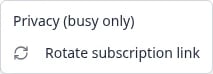 *Team admins can open the three-dot menu on the subscription card for privacy and link rotation options.*
## Subscribe in Apple Calendar (Mac or iPhone)
On the subscription card, click **Open in calendar app**.
Your device should open Apple Calendar (or another default calendar app) with a **Subscribe** prompt.
Read the calendar name, then confirm **Subscribe** (or **OK** on some devices).
**Expected result:** A new calendar appears in Apple Calendar. Events fill in after Apple refreshes the feed (often within about an hour).
Click **Copy subscribe URL**.
In Apple Calendar:
* **Mac:** **File → New Calendar Subscription**
* **iPhone/iPad:** **Calendars → Add Calendar → Add Subscription**
Paste the link. It must start with `https://`.
**Expected result:** Apple accepts the URL and shows the same subscribe confirmation.
**Validation failed or not secure**
If Apple says **validation failed** or **not secure**:
1. Refresh [Settings → Events & schedule](https://www.carstoragesoftware.com/dashboard/settings/events) and use **Copy subscribe URL** again (older link formats may fail).
2. The URL should look like `https://…/api/team-calendars/feed/cal_….ics` and end with **`.ics`** (Outlook requires this).
3. If it still fails on your live website, a facility admin may need a hosting firewall rule so calendar apps are not blocked when they check the link. Ask your admin to allow path `/api/team-calendars/feed/` to bypass bot challenges.
## Subscribe in Google Calendar
On the subscription card, click **Copy subscribe URL**.
**Expected result:** The app confirms the URL was copied.
Open [Google Calendar](https://calendar.google.com).
1. On the left, next to **Other calendars**, click **+**.
2. Choose **From URL**.
3. Paste the `https://…` link.
4. Click **Add calendar**.
Google refreshes subscribed calendars on its own schedule — often **3 to 24 hours** between updates.
**Expected result:** New and changed appointments appear after Google’s next refresh. This delay is normal and is controlled by Google, not your facility.
**Tip**
You can also click **Open in calendar app** on some devices; if your computer opens Google Calendar with the URL filled in, confirm the prompt there. If nothing opens, use **Copy subscribe URL** and **From URL** as above.
## Subscribe in Outlook
On the subscription card, click **Copy subscribe URL**. The link must start with `https://` and end with `.ics`.
In Outlook on the web or desktop:
1. Open the calendar.
2. Choose **Add calendar** → **Subscribe from web** (wording may vary slightly by version).
3. Paste the `https://…` link.
4. Save.
**Expected result:** Outlook shows imported events after it refreshes the subscription.
**Outlook on iPhone or Android**
The Outlook mobile app may not offer **Subscribe from web**. Copy the URL on your phone, open [outlook.office.com](https://outlook.office.com) in your browser, subscribe there, and the calendar will sync to the Outlook app.
## Change feed privacy (admins)
Use **busy only** when people outside your shop should not see customer or vehicle names on a shared calendar (for example, a manager’s calendar mirrored on a wall display).
On the subscription card, click the **three-dot** button (admin only).
Click **Privacy (busy only)**.
Use the **Busy only** switch:
* **On** — hide customer and vehicle names in this feed.
* **Off** — show full schedule details (still never email or phone).
Click **Save**.
**Expected result:** The line under the feed name updates to match your choice. Subscribers may need to wait for their calendar app to refresh before names disappear or reappear.
*Team admins can open the three-dot menu on the subscription card for privacy and link rotation options.*
## Subscribe in Apple Calendar (Mac or iPhone)
On the subscription card, click **Open in calendar app**.
Your device should open Apple Calendar (or another default calendar app) with a **Subscribe** prompt.
Read the calendar name, then confirm **Subscribe** (or **OK** on some devices).
**Expected result:** A new calendar appears in Apple Calendar. Events fill in after Apple refreshes the feed (often within about an hour).
Click **Copy subscribe URL**.
In Apple Calendar:
* **Mac:** **File → New Calendar Subscription**
* **iPhone/iPad:** **Calendars → Add Calendar → Add Subscription**
Paste the link. It must start with `https://`.
**Expected result:** Apple accepts the URL and shows the same subscribe confirmation.
**Validation failed or not secure**
If Apple says **validation failed** or **not secure**:
1. Refresh [Settings → Events & schedule](https://www.carstoragesoftware.com/dashboard/settings/events) and use **Copy subscribe URL** again (older link formats may fail).
2. The URL should look like `https://…/api/team-calendars/feed/cal_….ics` and end with **`.ics`** (Outlook requires this).
3. If it still fails on your live website, a facility admin may need a hosting firewall rule so calendar apps are not blocked when they check the link. Ask your admin to allow path `/api/team-calendars/feed/` to bypass bot challenges.
## Subscribe in Google Calendar
On the subscription card, click **Copy subscribe URL**.
**Expected result:** The app confirms the URL was copied.
Open [Google Calendar](https://calendar.google.com).
1. On the left, next to **Other calendars**, click **+**.
2. Choose **From URL**.
3. Paste the `https://…` link.
4. Click **Add calendar**.
Google refreshes subscribed calendars on its own schedule — often **3 to 24 hours** between updates.
**Expected result:** New and changed appointments appear after Google’s next refresh. This delay is normal and is controlled by Google, not your facility.
**Tip**
You can also click **Open in calendar app** on some devices; if your computer opens Google Calendar with the URL filled in, confirm the prompt there. If nothing opens, use **Copy subscribe URL** and **From URL** as above.
## Subscribe in Outlook
On the subscription card, click **Copy subscribe URL**. The link must start with `https://` and end with `.ics`.
In Outlook on the web or desktop:
1. Open the calendar.
2. Choose **Add calendar** → **Subscribe from web** (wording may vary slightly by version).
3. Paste the `https://…` link.
4. Save.
**Expected result:** Outlook shows imported events after it refreshes the subscription.
**Outlook on iPhone or Android**
The Outlook mobile app may not offer **Subscribe from web**. Copy the URL on your phone, open [outlook.office.com](https://outlook.office.com) in your browser, subscribe there, and the calendar will sync to the Outlook app.
## Change feed privacy (admins)
Use **busy only** when people outside your shop should not see customer or vehicle names on a shared calendar (for example, a manager’s calendar mirrored on a wall display).
On the subscription card, click the **three-dot** button (admin only).
Click **Privacy (busy only)**.
Use the **Busy only** switch:
* **On** — hide customer and vehicle names in this feed.
* **Off** — show full schedule details (still never email or phone).
Click **Save**.
**Expected result:** The line under the feed name updates to match your choice. Subscribers may need to wait for their calendar app to refresh before names disappear or reappear.
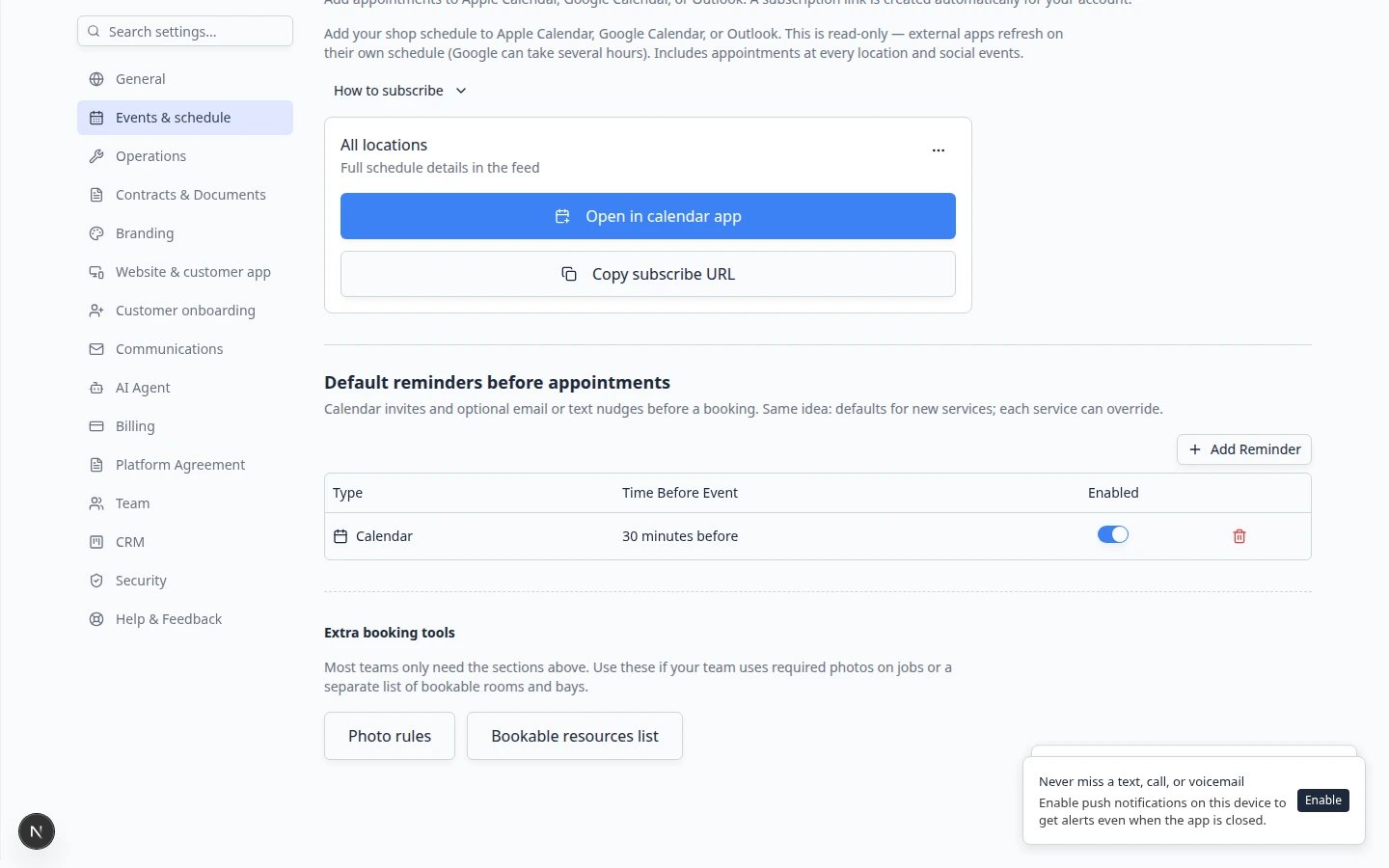 *The **Feed privacy** window lets admins turn **Busy only** on or off for this subscription link.*
## Rotate a subscription link (admins)
Rotate when a link may have been shared too widely (email forward, old employee, posted in the wrong place).
Click the **three-dot** button on the subscription card.
Choose **Rotate subscription link**.
Read the warning: anyone using the **old** link stops getting updates after their calendar app refreshes (often within about 24 hours).
Click **Rotate link**.
**Expected result:** A new URL is created. Share **Copy subscribe URL** only with people who should still receive updates.
*The **Feed privacy** window lets admins turn **Busy only** on or off for this subscription link.*
## Rotate a subscription link (admins)
Rotate when a link may have been shared too widely (email forward, old employee, posted in the wrong place).
Click the **three-dot** button on the subscription card.
Choose **Rotate subscription link**.
Read the warning: anyone using the **old** link stops getting updates after their calendar app refreshes (often within about 24 hours).
Click **Rotate link**.
**Expected result:** A new URL is created. Share **Copy subscribe URL** only with people who should still receive updates.
 *Rotating a link is permanent for the old URL. Only share the new link after you confirm **Rotate link**.*
## What each feed includes
**All locations (team feed)** — schedule appointments at every location **and** social events.
**Single location** — appointments for that location only.
**Cancellations** — deleted appointments and cancelled social events are sent as cancellations so subscribed calendars remove them on refresh.
## Remove a subscription from your phone or computer
In Apple Calendar, Google Calendar, or Outlook, delete or unsubscribe from the calendar you added. The steps vary by app, but you are looking for **Delete Calendar**, **Remove**, or **Unsubscribe**.
**Expected result:** Your personal calendar no longer shows shop appointments. Nothing changes in Car Storage Software — this only affects your external calendar app.
If you worry the subscribe link was emailed to the wrong people, ask a team admin to **Rotate subscription link** (see above). Old links stop updating after calendar apps refresh.
## Limitations to expect
* You cannot create or edit Car Storage Software appointments from Apple, Google, or Outlook with this subscription.
* External apps choose how often to refresh; delays are normal, especially in Google Calendar.
* Recurring events follow the same rules as your dashboard schedule.
* **All day** visits from [Schedule](https://www.carstoragesoftware.com/dashboard/schedule) usually appear as all-day items in Apple, Google, or Outlook (no start time). Timed visits keep their clock time.
## Troubleshooting
**My calendar is empty**
Confirm you subscribed to the correct feed (all locations vs one location). Make sure appointments exist on [Schedule](https://www.carstoragesoftware.com/dashboard/schedule). Wait for the calendar app’s refresh cycle — Google can take many hours.
**Times look wrong**
Check the time zone on your phone or computer. Subscription feeds use your facility’s scheduling data; your device controls how times display.
**I still see a cancelled appointment**
External calendars remove cancellations only after they refresh. Wait, or remove the subscription and add it again with a fresh **Copy subscribe URL**.
**Staff cannot change privacy or rotate links**
Only team admins can use the three-dot menu on the default team feed and location feeds.
**Personal calendar vs shop wall display**
A subscription on your phone is great for managers. A **wall monitor** in the shop should use [Use full-screen schedule display](/docs/schedule/use-full-screen-schedule-display) on a signed-in shop computer instead of a personal calendar feed—your whole team sees the same live [Schedule](https://www.carstoragesoftware.com/dashboard/schedule) page.
## What to do next
* Put new work on the calendar with [Create an appointment](/docs/schedule/create-an-appointment).
* Schedule work with no clock time: [Create an all-day event](/docs/schedule/create-an-all-day-event).
* Learn daily views with [Find and filter scheduled work](/docs/schedule/find-and-filter-scheduled-work).
* Return to [Schedule overview](/docs/schedule/overview) for the full list of Schedule guides.
## Related topics
- [Events overview](/docs/events/overview.md)
- [Schedule overview](/docs/schedule/overview.md)
- [Configure services and schedule settings](/docs/settings/configure-events-and-schedule-settings.md)
- [Use full-screen schedule display](/docs/schedule/use-full-screen-schedule-display.md)
- [Configure event types](/docs/events/configure-event-types.md)
This documentation is built and hosted on [Mintlify](https://mintlify.com), a developer documentation platform.
*Rotating a link is permanent for the old URL. Only share the new link after you confirm **Rotate link**.*
## What each feed includes
**All locations (team feed)** — schedule appointments at every location **and** social events.
**Single location** — appointments for that location only.
**Cancellations** — deleted appointments and cancelled social events are sent as cancellations so subscribed calendars remove them on refresh.
## Remove a subscription from your phone or computer
In Apple Calendar, Google Calendar, or Outlook, delete or unsubscribe from the calendar you added. The steps vary by app, but you are looking for **Delete Calendar**, **Remove**, or **Unsubscribe**.
**Expected result:** Your personal calendar no longer shows shop appointments. Nothing changes in Car Storage Software — this only affects your external calendar app.
If you worry the subscribe link was emailed to the wrong people, ask a team admin to **Rotate subscription link** (see above). Old links stop updating after calendar apps refresh.
## Limitations to expect
* You cannot create or edit Car Storage Software appointments from Apple, Google, or Outlook with this subscription.
* External apps choose how often to refresh; delays are normal, especially in Google Calendar.
* Recurring events follow the same rules as your dashboard schedule.
* **All day** visits from [Schedule](https://www.carstoragesoftware.com/dashboard/schedule) usually appear as all-day items in Apple, Google, or Outlook (no start time). Timed visits keep their clock time.
## Troubleshooting
**My calendar is empty**
Confirm you subscribed to the correct feed (all locations vs one location). Make sure appointments exist on [Schedule](https://www.carstoragesoftware.com/dashboard/schedule). Wait for the calendar app’s refresh cycle — Google can take many hours.
**Times look wrong**
Check the time zone on your phone or computer. Subscription feeds use your facility’s scheduling data; your device controls how times display.
**I still see a cancelled appointment**
External calendars remove cancellations only after they refresh. Wait, or remove the subscription and add it again with a fresh **Copy subscribe URL**.
**Staff cannot change privacy or rotate links**
Only team admins can use the three-dot menu on the default team feed and location feeds.
**Personal calendar vs shop wall display**
A subscription on your phone is great for managers. A **wall monitor** in the shop should use [Use full-screen schedule display](/docs/schedule/use-full-screen-schedule-display) on a signed-in shop computer instead of a personal calendar feed—your whole team sees the same live [Schedule](https://www.carstoragesoftware.com/dashboard/schedule) page.
## What to do next
* Put new work on the calendar with [Create an appointment](/docs/schedule/create-an-appointment).
* Schedule work with no clock time: [Create an all-day event](/docs/schedule/create-an-all-day-event).
* Learn daily views with [Find and filter scheduled work](/docs/schedule/find-and-filter-scheduled-work).
* Return to [Schedule overview](/docs/schedule/overview) for the full list of Schedule guides.
## Related topics
- [Events overview](/docs/events/overview.md)
- [Schedule overview](/docs/schedule/overview.md)
- [Configure services and schedule settings](/docs/settings/configure-events-and-schedule-settings.md)
- [Use full-screen schedule display](/docs/schedule/use-full-screen-schedule-display.md)
- [Configure event types](/docs/events/configure-event-types.md)
This documentation is built and hosted on [Mintlify](https://mintlify.com), a developer documentation platform.