> ## Documentation Index
> Fetch the complete documentation index at: https://www.carstoragesoftware.com/docs/llms.txt
> Use this file to discover all available pages before exploring further.
# Use the Whiteboard view on Schedule
> See scheduled work as cards on a board when your team thinks in tasks more than clock times.
## What you will accomplish
You will open **Whiteboard** view on [Schedule](https://www.carstoragesoftware.com/dashboard/schedule) and use it like a card board of today’s work—without reading a clock grid hour by hour.
**Expected outcome:** Service managers and front-desk staff can scan how many jobs are on the board, open any card for full details, and switch back to **Calendar** or **Progress** when they need exact times or status columns.
* Open [Schedule](https://www.carstoragesoftware.com/dashboard/schedule) in **Whiteboard** view.
* Read event cards at a glance and open details when needed.
* Set **DATE RANGE** to **Today** or **This Week** before a stand-up meeting.
* Switch back to **Calendar** or **Progress** when you need times or completion status.
Use the **Whiteboard** when your team wants to scan **what is on the board today** without reading a time grid. Each scheduled item appears as a **card** with the customer, vehicle, event type, and time.
## When Whiteboard helps most
* Your shop runs many same-day jobs and staff ask “What else is on the list?”
* You run a stand-up meeting and want cards on a big screen (pair with [Use full-screen schedule display](/docs/schedule/use-full-screen-schedule-display)).
* Table view feels too spreadsheet-like but Calendar feels too time-focused.
* Detail or service managers want to **count jobs** for a day without reading a clock grid.
**Try Whiteboard before the shop opens**
Set **DATE RANGE** to **Today**, open [Use full-screen schedule display](/docs/schedule/use-full-screen-schedule-display) on a wall monitor, and walk through each card during stand-up. Staff can spot missing assignments before the first vehicle arrives.
## Quick comparison: which Schedule view should I use?
**Calendar** — “What is happening at 2:00 PM?”
**Table** — “Sort and scan a long list with columns.”
**Whiteboard** — “What jobs are on the board today, shown as cards?”
**Progress** — “What is waiting, in progress, or done?”
**Whiteboard is not the Progress board**
**Whiteboard** still shows events by **date and time** on cards. **Progress** groups work by **status** (To Do, In Progress, Done). Use [Track work in the Progress view](/docs/schedule/track-work-in-progress-view) when you are tracking whether work is finished, not just what is scheduled.
**Need to assign a vendor to a card?**
Whiteboard shows who is assigned on each card. To add or change a **vendor** or staff member, click the card and use **Edit Event**. See [Update, assign, or reschedule an event](/docs/schedule/update-assign-or-reschedule-an-event).
## Before you start
* Open [Schedule](https://www.carstoragesoftware.com/dashboard/schedule).
* Know the date range you care about (today vs the whole week).
* Have events already on the calendar — create new work with [Create an appointment](/docs/schedule/create-an-appointment) if the board is empty.
## Open Whiteboard view
**Close What's New first**
If a **What's New** pop-up covers the center of the screen after sign-in, click **Got it** before you follow screenshots or tap **Filters & Settings**.
On [Schedule](https://www.carstoragesoftware.com/dashboard/schedule), click **Filters & Settings** near the top-right.
**Expected result:** A panel opens on the right with **View Mode** and calendar options.
Click **Whiteboard**.
**Expected result:** The time grid disappears. Scheduled work appears as **cards** in a board-style layout.
Open **Filters & Settings** and look for **DATE RANGE** (this section appears in Whiteboard and Progress views). Choose **Today**, **This Week**, or **This Month**.
**Expected result:** Cards update to show events in that date range. **This Week** is a common choice for morning stand-up meetings.
**Why this matters:** Whiteboard without a date range can feel crowded. **Today** keeps stand-up meetings focused on what is actually happening now.
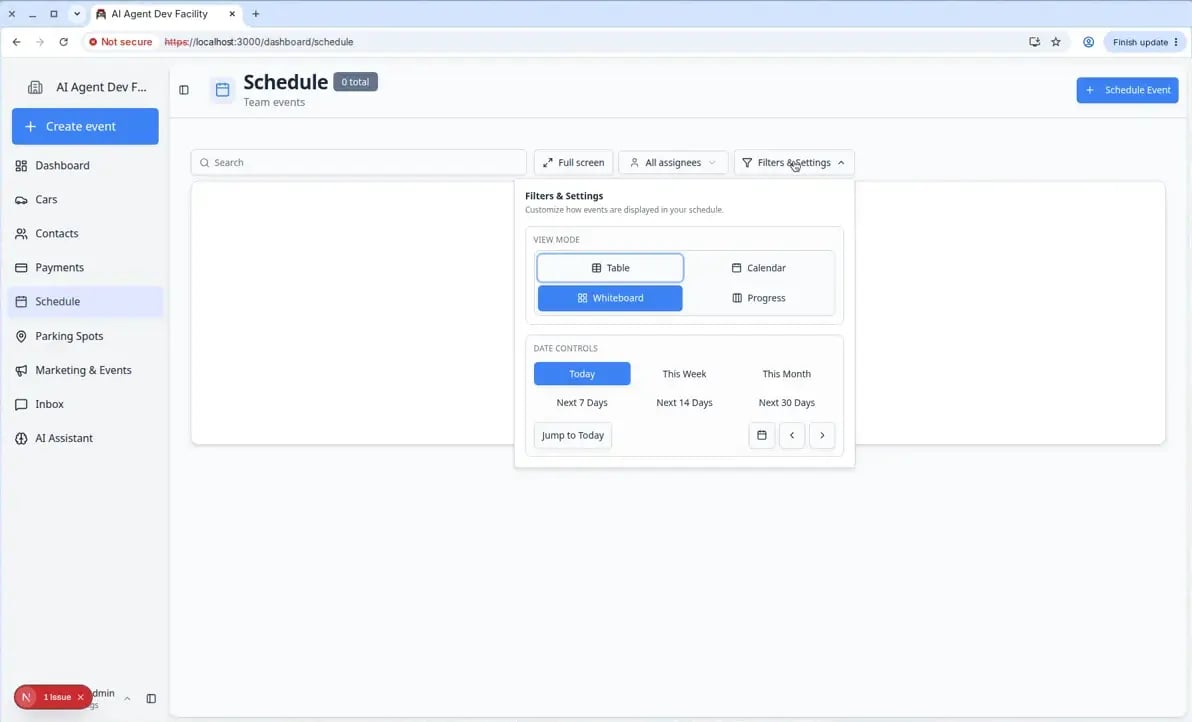 *In Whiteboard view, open **Filters & Settings** and set **DATE RANGE** to **Today** or **This Week** before a stand-up meeting.*
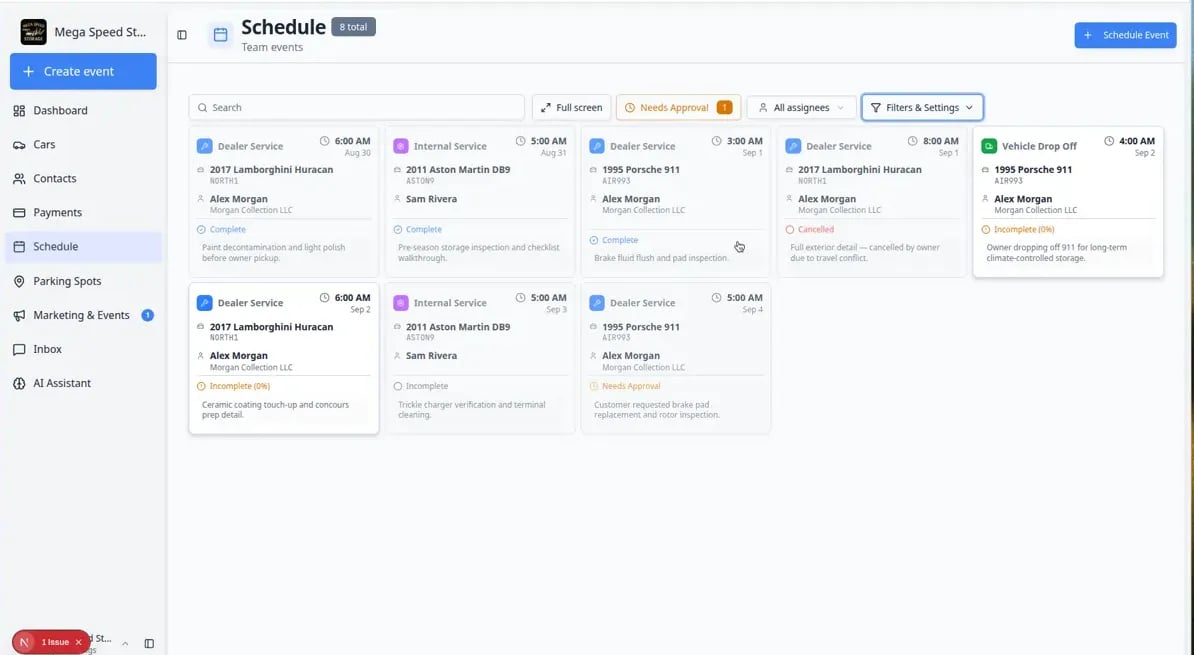 *Whiteboard view shows each scheduled item as a card. Open a card to see full details or make changes.*
**Indicators on cards**
Whiteboard cards show the main text (customer, vehicle, time). Small billing or damage marks from **Calendar** view may not appear on every card. Open the card or switch to **Calendar** when you need those corner indicators. For a full legend of calendar icons, read [Read calendar icons and badges](/docs/schedule/read-calendar-icons-and-badges).
## Read a card and open details
Each card usually shows:
* **Event type** (color helps you spot drop-offs vs service vs pickups)
* **Vehicle or customer name**
* **Time** (start time or time range)
**Why this matters:** Staff can answer “Is the Urus detail still on today?” without opening the calendar hour-by-hour.
Click the card to open the event details panel.
**Expected result:** You see notes, assignment, status, and buttons such as **Edit Event** or status actions.
To move a time or change who owns the job, use **Edit Event** and follow [Update, assign, or reschedule an event](/docs/schedule/update-assign-or-reschedule-an-event).
To mark work started or finished, switch to [Track work in the Progress view](/docs/schedule/track-work-in-progress-view).
*Whiteboard view shows each scheduled item as a card. Open a card to see full details or make changes.*
**Indicators on cards**
Whiteboard cards show the main text (customer, vehicle, time). Small billing or damage marks from **Calendar** view may not appear on every card. Open the card or switch to **Calendar** when you need those corner indicators. For a full legend of calendar icons, read [Read calendar icons and badges](/docs/schedule/read-calendar-icons-and-badges).
## Read a card and open details
Each card usually shows:
* **Event type** (color helps you spot drop-offs vs service vs pickups)
* **Vehicle or customer name**
* **Time** (start time or time range)
**Why this matters:** Staff can answer “Is the Urus detail still on today?” without opening the calendar hour-by-hour.
Click the card to open the event details panel.
**Expected result:** You see notes, assignment, status, and buttons such as **Edit Event** or status actions.
To move a time or change who owns the job, use **Edit Event** and follow [Update, assign, or reschedule an event](/docs/schedule/update-assign-or-reschedule-an-event).
To mark work started or finished, switch to [Track work in the Progress view](/docs/schedule/track-work-in-progress-view).
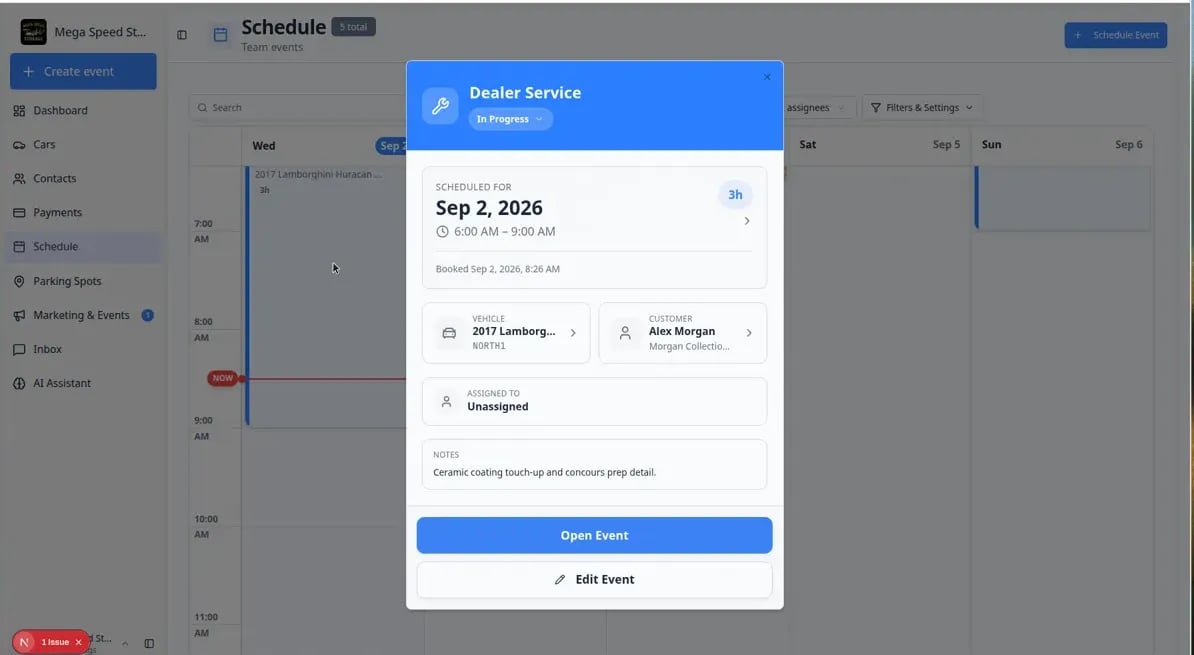 *Click any Whiteboard card to open full details. Use **Edit Event** for time or assignment changes; use Progress view when you need to track whether work is finished.*
## Use Whiteboard during a morning stand-up
Follow the steps above and set **DATE RANGE** to **Today** (or **This Week** for a longer stand-up) in **Filters & Settings**.
**Note:** **1 Day** and **3 Day** buttons belong to **Calendar** view, not Whiteboard. Whiteboard uses **Today**, **This Week**, and **This Month**.
**Expected result:** Cards represent today’s (or this week’s) scheduled work.
Read event type, vehicle or customer, and time on each card. This helps the team spot missing assignments or double-booked bays early.
**Why this matters:** Whiteboard is a planning view. Catching gaps in the morning prevents afternoon surprises.
Click any card with thin notes or an **Unassigned** owner. Add notes or assign someone before work starts.
**Expected result:** Handoffs are clear before vehicles arrive.
## Narrow the board with search and filters
Type a customer name, vehicle, plate, or note in the **Search** box at the top of Schedule.
**Expected result:** Only matching cards stay visible.
Click **Assigned to me** to hide everyone else’s cards.
**Expected result:** You see only events assigned to your user account.
When online requests are waiting, click **Needs Approval** and follow [Approve or decline a customer booking request](/docs/schedule/approve-or-decline-customer-booking-requests).
## Common mistakes to avoid
**Do not drag cards expecting them to move on the board**
Unlike **Progress** view, Whiteboard cards are not a drag-and-drop status board. Moving work between stages happens in Progress view or inside the event details panel.
**An empty board usually means filters or dates**
Clear **Search**, turn off **Assigned to me**, and widen the date range in **Filters & Settings**. The events may still be on the calendar in another view.
## Troubleshooting
**Whiteboard looks empty but Calendar has events**
Clear **Search**, turn off **Assigned to me**, and widen the date range. Whiteboard respects the same filters as other views.
**I expected to drag cards between columns**
That workflow belongs in **Progress** view. Open [Track work in the Progress view](/docs/schedule/track-work-in-progress-view) when you need **To Do**, **In Progress**, and **Done** columns.
## What to do next
* Put new work on the calendar with [Create an appointment](/docs/schedule/create-an-appointment).
* Sort and scan events as rows with [Use Table view on Schedule](/docs/schedule/use-table-view-on-schedule).
* Compare views in [Find and filter scheduled work](/docs/schedule/find-and-filter-scheduled-work).
* Show the same work on a wall TV with [Use full-screen schedule display](/docs/schedule/use-full-screen-schedule-display).
* Return to [Schedule overview](/docs/schedule/overview).
## Related topics
- [Track work in the Progress view](/docs/schedule/track-work-in-progress-view.md)
- [Find and filter scheduled work](/docs/schedule/find-and-filter-scheduled-work.md)
- [Schedule overview](/docs/schedule/overview.md)
- [Create an appointment](/docs/schedule/create-an-appointment.md)
- [Use Table view on Schedule](/docs/schedule/use-table-view-on-schedule.md)
This documentation is built and hosted on [Mintlify](https://mintlify.com), a developer documentation platform.
*Click any Whiteboard card to open full details. Use **Edit Event** for time or assignment changes; use Progress view when you need to track whether work is finished.*
## Use Whiteboard during a morning stand-up
Follow the steps above and set **DATE RANGE** to **Today** (or **This Week** for a longer stand-up) in **Filters & Settings**.
**Note:** **1 Day** and **3 Day** buttons belong to **Calendar** view, not Whiteboard. Whiteboard uses **Today**, **This Week**, and **This Month**.
**Expected result:** Cards represent today’s (or this week’s) scheduled work.
Read event type, vehicle or customer, and time on each card. This helps the team spot missing assignments or double-booked bays early.
**Why this matters:** Whiteboard is a planning view. Catching gaps in the morning prevents afternoon surprises.
Click any card with thin notes or an **Unassigned** owner. Add notes or assign someone before work starts.
**Expected result:** Handoffs are clear before vehicles arrive.
## Narrow the board with search and filters
Type a customer name, vehicle, plate, or note in the **Search** box at the top of Schedule.
**Expected result:** Only matching cards stay visible.
Click **Assigned to me** to hide everyone else’s cards.
**Expected result:** You see only events assigned to your user account.
When online requests are waiting, click **Needs Approval** and follow [Approve or decline a customer booking request](/docs/schedule/approve-or-decline-customer-booking-requests).
## Common mistakes to avoid
**Do not drag cards expecting them to move on the board**
Unlike **Progress** view, Whiteboard cards are not a drag-and-drop status board. Moving work between stages happens in Progress view or inside the event details panel.
**An empty board usually means filters or dates**
Clear **Search**, turn off **Assigned to me**, and widen the date range in **Filters & Settings**. The events may still be on the calendar in another view.
## Troubleshooting
**Whiteboard looks empty but Calendar has events**
Clear **Search**, turn off **Assigned to me**, and widen the date range. Whiteboard respects the same filters as other views.
**I expected to drag cards between columns**
That workflow belongs in **Progress** view. Open [Track work in the Progress view](/docs/schedule/track-work-in-progress-view) when you need **To Do**, **In Progress**, and **Done** columns.
## What to do next
* Put new work on the calendar with [Create an appointment](/docs/schedule/create-an-appointment).
* Sort and scan events as rows with [Use Table view on Schedule](/docs/schedule/use-table-view-on-schedule).
* Compare views in [Find and filter scheduled work](/docs/schedule/find-and-filter-scheduled-work).
* Show the same work on a wall TV with [Use full-screen schedule display](/docs/schedule/use-full-screen-schedule-display).
* Return to [Schedule overview](/docs/schedule/overview).
## Related topics
- [Track work in the Progress view](/docs/schedule/track-work-in-progress-view.md)
- [Find and filter scheduled work](/docs/schedule/find-and-filter-scheduled-work.md)
- [Schedule overview](/docs/schedule/overview.md)
- [Create an appointment](/docs/schedule/create-an-appointment.md)
- [Use Table view on Schedule](/docs/schedule/use-table-view-on-schedule.md)
This documentation is built and hosted on [Mintlify](https://mintlify.com), a developer documentation platform.