> ## Documentation Index
> Fetch the complete documentation index at: https://www.carstoragesoftware.com/docs/llms.txt
> Use this file to discover all available pages before exploring further.
# Configure communications
> Set up email, calling, and text messaging, then choose which alerts staff and customers receive.
Communications settings control how your facility reaches customers and how your team receives important updates.
Use this guide before sending portal invites, appointment reminders, invoice emails, or customer texts.
## What you will accomplish
* Set up **Email**, **Calling**, and **SMS** from the **Channels** cards.
* Choose **Staff** alert defaults so the right teammates get notified.
* Review **Customers** alerts so reminders and billing messages stay on.
* Connect marketing accounts (optional) if you post reviews or social updates from the app.
## Before you start
* You should be signed in as an admin or manager.
* Know the business phone number your facility wants customers to recognize.
* Know which email customers should reply to, such as **[hello@yourfacility.com](mailto:hello@yourfacility.com)**.
* Have access to your website or domain provider if email verification records need to be added.
## Open Communications settings
Go to [Settings > Communications](https://www.carstoragesoftware.com/dashboard/settings/communications).
The page title is **Communications**. The first section is **Channels**.
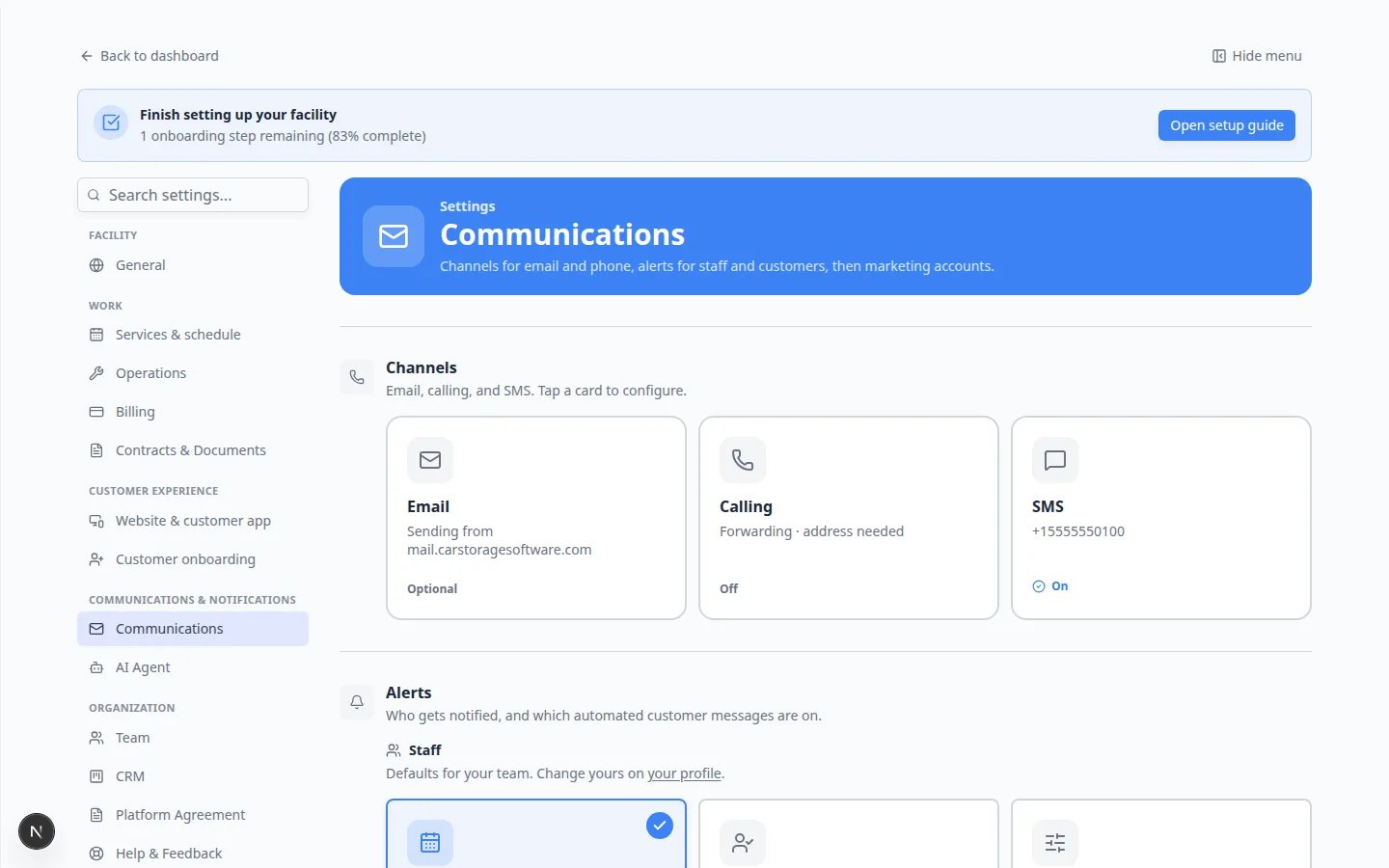 *Tap a **Channels** card to open its settings. **Email**, **Calling**, and **SMS** each have their own card.*
## Quick links by job
**I need to…**
* Set the number customers text — tap the **SMS** card
* Set call forwarding — tap the **Calling** card
* Fix emails going to spam — tap the **Email** card
* Choose which events email your team — scroll to **Alerts** → **Staff**
* Turn customer reminders on or off — scroll to **Alerts** → **Customers**
* Reply to customer texts — open [Inbox](https://www.carstoragesoftware.com/dashboard/inbox). See [Configure communication settings for Inbox](/docs/inbox/configure-communication-settings)
## Set up Email
On [Settings > Communications](https://www.carstoragesoftware.com/dashboard/settings/communications), tap **Email**.
The card may say you are sending from a shared address such as **mail.carstoragesoftware.com**. That works while you get started.
Enter the inbox your team actually reads, such as **[hello@yourfacility.com](mailto:hello@yourfacility.com)**.
**Why this matters:** Customers hit Reply on invoice and reminder emails. That reply should land in a mailbox someone checks every day.
If the page shows domain setup, follow the on-screen instructions to add your business email domain.
A domain is the part after the @ symbol, such as **yourfacility.com**.
**Expected result:** Customer emails, invoice emails, and portal invites can come from a more trusted business address.
*Tap a **Channels** card to open its settings. **Email**, **Calling**, and **SMS** each have their own card.*
## Quick links by job
**I need to…**
* Set the number customers text — tap the **SMS** card
* Set call forwarding — tap the **Calling** card
* Fix emails going to spam — tap the **Email** card
* Choose which events email your team — scroll to **Alerts** → **Staff**
* Turn customer reminders on or off — scroll to **Alerts** → **Customers**
* Reply to customer texts — open [Inbox](https://www.carstoragesoftware.com/dashboard/inbox). See [Configure communication settings for Inbox](/docs/inbox/configure-communication-settings)
## Set up Email
On [Settings > Communications](https://www.carstoragesoftware.com/dashboard/settings/communications), tap **Email**.
The card may say you are sending from a shared address such as **mail.carstoragesoftware.com**. That works while you get started.
Enter the inbox your team actually reads, such as **[hello@yourfacility.com](mailto:hello@yourfacility.com)**.
**Why this matters:** Customers hit Reply on invoice and reminder emails. That reply should land in a mailbox someone checks every day.
If the page shows domain setup, follow the on-screen instructions to add your business email domain.
A domain is the part after the @ symbol, such as **yourfacility.com**.
**Expected result:** Customer emails, invoice emails, and portal invites can come from a more trusted business address.
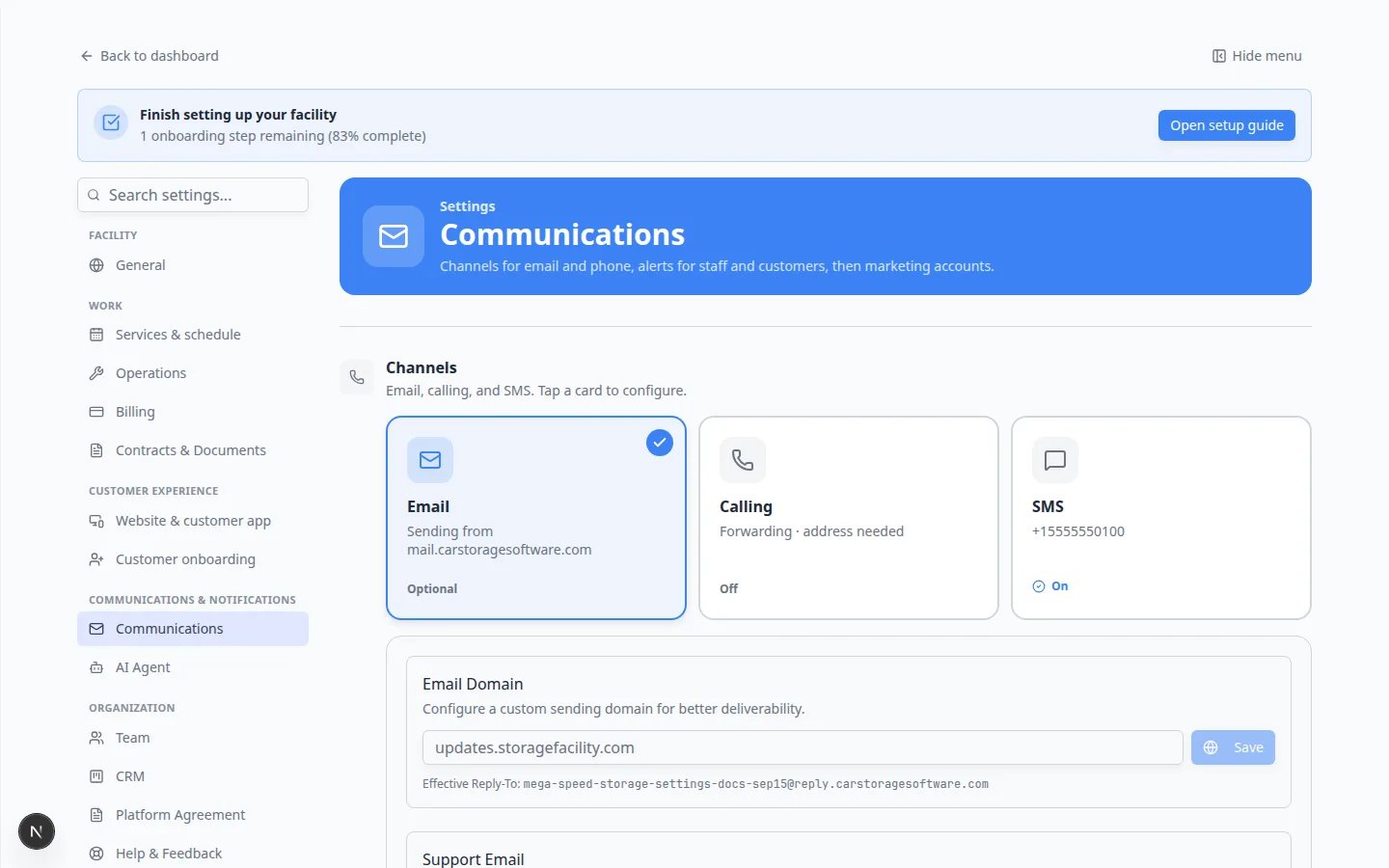 *Tap **Email** to open the detail panel. Set the reply-to address your team actually reads.*
### Plain English: what domain records do
If the page asks you to add **DNS records**, think of them as instructions that tell the internet your facility is allowed to send email from your domain.
You may see short names such as **SPF**, **DKIM**, or **DMARC**. You do not need to memorize them. Copy each **Name** and **Value** exactly as shown, or send them to the person who manages your website.
When records are set up correctly, customer invites and invoices are less likely to land in spam folders.
**Ask for help with domain records if needed**
If this feels overwhelming, that is normal. Many facility owners email the copied records to their website person once, then never think about them again.
## Set up SMS (text messages)
On [Settings > Communications](https://www.carstoragesoftware.com/dashboard/settings/communications), tap **SMS**.
Follow the on-screen option to get a number or manage the number you already have.
If your facility already uses a business number, ask your manager whether you should keep that number or use a new one.
Send a message to an internal staff phone from [Inbox](https://www.carstoragesoftware.com/dashboard/inbox) before you text customers.
**Expected result:** The message shows your facility’s business number as the sender.
**Use a number customers will recognize**
Customers are more likely to trust messages from a business number they recognize. If you change numbers, tell customers before sending important messages.
## Set up Calling
On [Settings > Communications](https://www.carstoragesoftware.com/dashboard/settings/communications), tap **Calling**.
If the page says **Get an SMS number first**, tap **Set up SMS number**. Calling uses the same number as text messaging.
When the number is ready, set where inbound calls should ring and confirm the emergency address the provider requires.
**Expected result:** Customers can call the same number they text, and your team can answer or forward the call.
## Review Alerts
**Alerts** has two parts: **Staff** and **Customers**.
*Tap **Email** to open the detail panel. Set the reply-to address your team actually reads.*
### Plain English: what domain records do
If the page asks you to add **DNS records**, think of them as instructions that tell the internet your facility is allowed to send email from your domain.
You may see short names such as **SPF**, **DKIM**, or **DMARC**. You do not need to memorize them. Copy each **Name** and **Value** exactly as shown, or send them to the person who manages your website.
When records are set up correctly, customer invites and invoices are less likely to land in spam folders.
**Ask for help with domain records if needed**
If this feels overwhelming, that is normal. Many facility owners email the copied records to their website person once, then never think about them again.
## Set up SMS (text messages)
On [Settings > Communications](https://www.carstoragesoftware.com/dashboard/settings/communications), tap **SMS**.
Follow the on-screen option to get a number or manage the number you already have.
If your facility already uses a business number, ask your manager whether you should keep that number or use a new one.
Send a message to an internal staff phone from [Inbox](https://www.carstoragesoftware.com/dashboard/inbox) before you text customers.
**Expected result:** The message shows your facility’s business number as the sender.
**Use a number customers will recognize**
Customers are more likely to trust messages from a business number they recognize. If you change numbers, tell customers before sending important messages.
## Set up Calling
On [Settings > Communications](https://www.carstoragesoftware.com/dashboard/settings/communications), tap **Calling**.
If the page says **Get an SMS number first**, tap **Set up SMS number**. Calling uses the same number as text messaging.
When the number is ready, set where inbound calls should ring and confirm the emergency address the provider requires.
**Expected result:** Customers can call the same number they text, and your team can answer or forward the call.
## Review Alerts
**Alerts** has two parts: **Staff** and **Customers**.
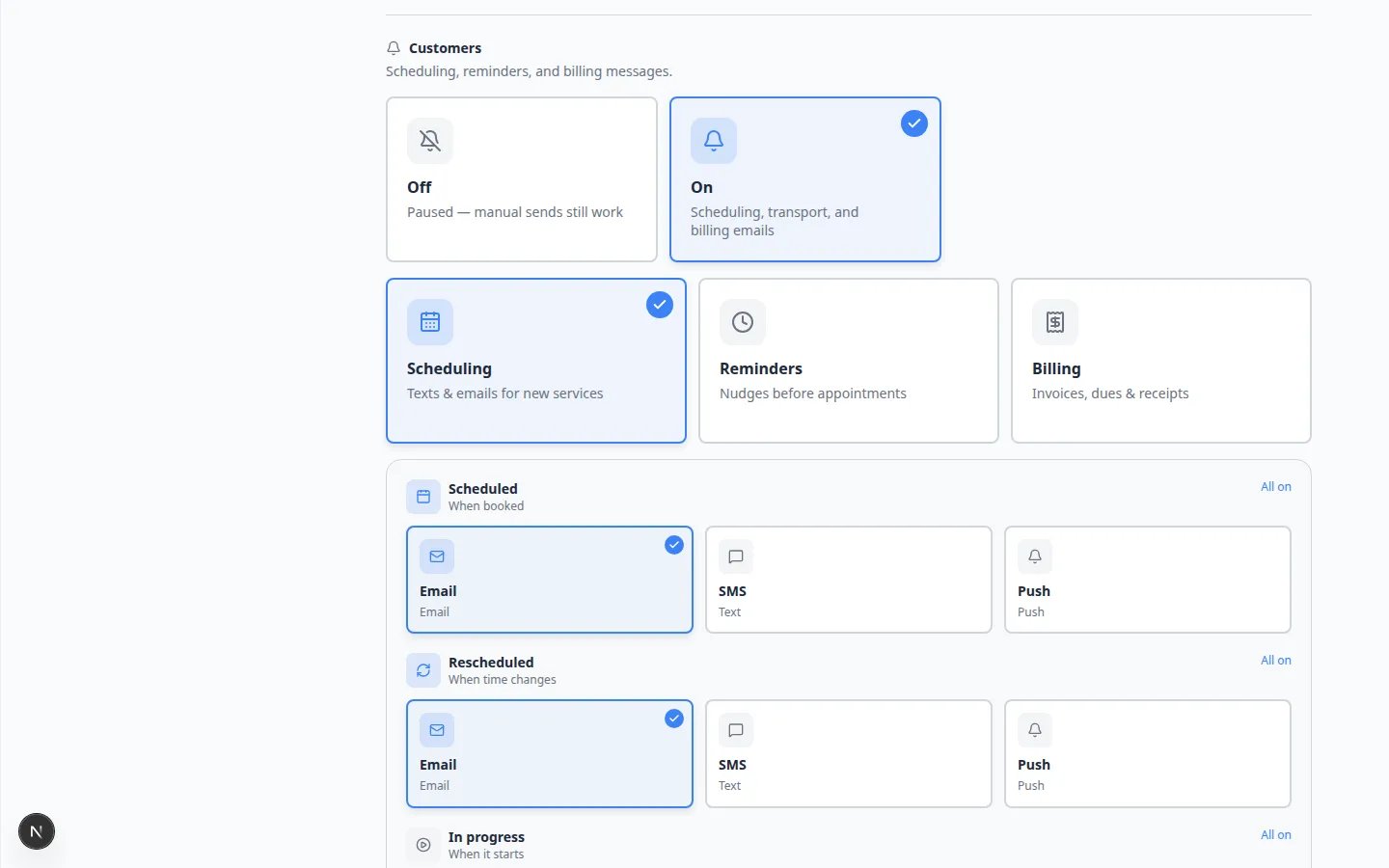 ***Staff** alerts are team defaults. Each person can still change their own alerts on **Your profile**.*
Under **Alerts**, find **Staff**.
Turn on the notifications your team needs, such as new bookings, event updates, or payment received.
Avoid sending every alert to everyone. Choose the people who can act on each message.
Teammates can still change their own alerts on [Your profile](https://www.carstoragesoftware.com/dashboard/settings/user).
Scroll to **Customers**.
These are scheduling, reminders, and billing messages customers receive automatically.
**Expected result:** Reminders stay on for appointments you promised, and billing messages stay on if you invoice online.
## Connect marketing accounts (optional)
Scroll to **Marketing** if you want to sign in to the platforms you post from. Google Business is included here.
You can skip this section until you are ready to ask for reviews or post from the app.
## Test your setup before going live
After email is set, send a portal invite or test invoice to your own work email.
**Expected result:** The message arrives in your inbox (not spam) and shows your facility name.
Text an internal staff phone from [Inbox](https://www.carstoragesoftware.com/dashboard/inbox).
**Expected result:** The message shows your facility’s business number as the sender.
Turn on one **Staff** alert, then complete a test action (for example, submit a practice registration).
**Expected result:** Only the teammate who should act on that alert receives it.
**Communications powers Inbox**
After phone and email are ready, your team can reply from [Inbox](https://www.carstoragesoftware.com/dashboard/inbox). See [Send a text message from Inbox](/docs/inbox/send-a-text-message-from-inbox) and [Send an email from Inbox](/docs/inbox/send-an-email-from-inbox).
## What success looks like
* Your team has a clear email reply-to address.
* SMS is on if you plan to text customers, and the number is one they will recognize.
* Calling is set only after the SMS number exists.
* Staff alerts go to people who can act — not to everyone.
* You sent at least one test email and text to yourself before messaging customers.
## Troubleshooting
**Email domain verification fails**
Check that each domain record was copied exactly. Records can also take time to update. If it still fails later, ask the person who manages your website domain to review them.
**Customers are not receiving emails**
Check the **Email** card first. Then ask customers to check spam or junk folders. If this affects many customers, contact your team admin.
**Text messages are not sending**
Open the **SMS** card and confirm your number is **On**. Also confirm the customer's phone number is correct.
**Staff receive too many notifications**
Review **Alerts** → **Staff**, and ask teammates to trim their own alerts on [Your profile](https://www.carstoragesoftware.com/dashboard/settings/user).
## What to do next
After communications are ready, continue with [Set up your facility name, logo, and colors](/docs/settings/set-up-facility-branding) and [Configure portal and website](/docs/settings/configure-portal-and-website) so customer-facing links and the customer app are ready before you invite customers.
## Related topics
- [Configure communication settings for Inbox](/docs/inbox/configure-communication-settings.md)
- [Configure portal and website](/docs/settings/configure-portal-and-website.md)
- [Settings overview](/docs/settings/overview.md)
- [Inbox overview](/docs/inbox/overview.md)
- [Review calls and transcripts](/docs/inbox/review-calls-and-transcripts.md)
This documentation is built and hosted on [Mintlify](https://mintlify.com), a developer documentation platform.
***Staff** alerts are team defaults. Each person can still change their own alerts on **Your profile**.*
Under **Alerts**, find **Staff**.
Turn on the notifications your team needs, such as new bookings, event updates, or payment received.
Avoid sending every alert to everyone. Choose the people who can act on each message.
Teammates can still change their own alerts on [Your profile](https://www.carstoragesoftware.com/dashboard/settings/user).
Scroll to **Customers**.
These are scheduling, reminders, and billing messages customers receive automatically.
**Expected result:** Reminders stay on for appointments you promised, and billing messages stay on if you invoice online.
## Connect marketing accounts (optional)
Scroll to **Marketing** if you want to sign in to the platforms you post from. Google Business is included here.
You can skip this section until you are ready to ask for reviews or post from the app.
## Test your setup before going live
After email is set, send a portal invite or test invoice to your own work email.
**Expected result:** The message arrives in your inbox (not spam) and shows your facility name.
Text an internal staff phone from [Inbox](https://www.carstoragesoftware.com/dashboard/inbox).
**Expected result:** The message shows your facility’s business number as the sender.
Turn on one **Staff** alert, then complete a test action (for example, submit a practice registration).
**Expected result:** Only the teammate who should act on that alert receives it.
**Communications powers Inbox**
After phone and email are ready, your team can reply from [Inbox](https://www.carstoragesoftware.com/dashboard/inbox). See [Send a text message from Inbox](/docs/inbox/send-a-text-message-from-inbox) and [Send an email from Inbox](/docs/inbox/send-an-email-from-inbox).
## What success looks like
* Your team has a clear email reply-to address.
* SMS is on if you plan to text customers, and the number is one they will recognize.
* Calling is set only after the SMS number exists.
* Staff alerts go to people who can act — not to everyone.
* You sent at least one test email and text to yourself before messaging customers.
## Troubleshooting
**Email domain verification fails**
Check that each domain record was copied exactly. Records can also take time to update. If it still fails later, ask the person who manages your website domain to review them.
**Customers are not receiving emails**
Check the **Email** card first. Then ask customers to check spam or junk folders. If this affects many customers, contact your team admin.
**Text messages are not sending**
Open the **SMS** card and confirm your number is **On**. Also confirm the customer's phone number is correct.
**Staff receive too many notifications**
Review **Alerts** → **Staff**, and ask teammates to trim their own alerts on [Your profile](https://www.carstoragesoftware.com/dashboard/settings/user).
## What to do next
After communications are ready, continue with [Set up your facility name, logo, and colors](/docs/settings/set-up-facility-branding) and [Configure portal and website](/docs/settings/configure-portal-and-website) so customer-facing links and the customer app are ready before you invite customers.
## Related topics
- [Configure communication settings for Inbox](/docs/inbox/configure-communication-settings.md)
- [Configure portal and website](/docs/settings/configure-portal-and-website.md)
- [Settings overview](/docs/settings/overview.md)
- [Inbox overview](/docs/inbox/overview.md)
- [Review calls and transcripts](/docs/inbox/review-calls-and-transcripts.md)
This documentation is built and hosted on [Mintlify](https://mintlify.com), a developer documentation platform.