> ## Documentation Index
> Fetch the complete documentation index at: https://www.carstoragesoftware.com/docs/llms.txt
> Use this file to discover all available pages before exploring further.
# Configure CRM settings
> Set up CRM stages, customer types, sources, and vendor types so leads and customers are organized in a way your staff understands.
CRM settings help your team organize leads, customers, and follow-up work.
You do not need to know sales software terms to use this page. Think of CRM settings as the labels and stages your team uses to answer:
* Who is interested in becoming a customer?
* Where are they in our process?
* What type of customer are they?
* How did they find us?
* When should we follow up?
## What you will accomplish
* Name the follow-up stages your team uses (for example **New Lead**, **Contacted**, **Active Customer**).
* Group stages as **Lead**, **Customer**, or **Former Customer** so the [Contacts](https://www.carstoragesoftware.com/dashboard/contacts) board stays organized.
* Set auto due dates so follow-up does not slip through the cracks.
* Create **Customer types**, **Customer sources**, and **Vendor types** so staff pick consistent labels.
* Confirm the same stage names appear in [Contacts](https://www.carstoragesoftware.com/dashboard/contacts) **Board** view.
## Before you start
* Write down the real steps your team uses from first inquiry to active customer.
* List the customer types your facility serves, such as storage, events, detailing, or marketplace.
* List common lead sources, such as referral, website, phone call, auction, event, or social media.
* Decide how quickly staff should follow up at each stage.
## Open CRM settings
Go to [Settings > CRM](https://www.carstoragesoftware.com/dashboard/settings/crm).
The CRM settings page autosaves changes. You may see **Autosaves changes**, **Saving...**, or **Saved** near the top of the page.
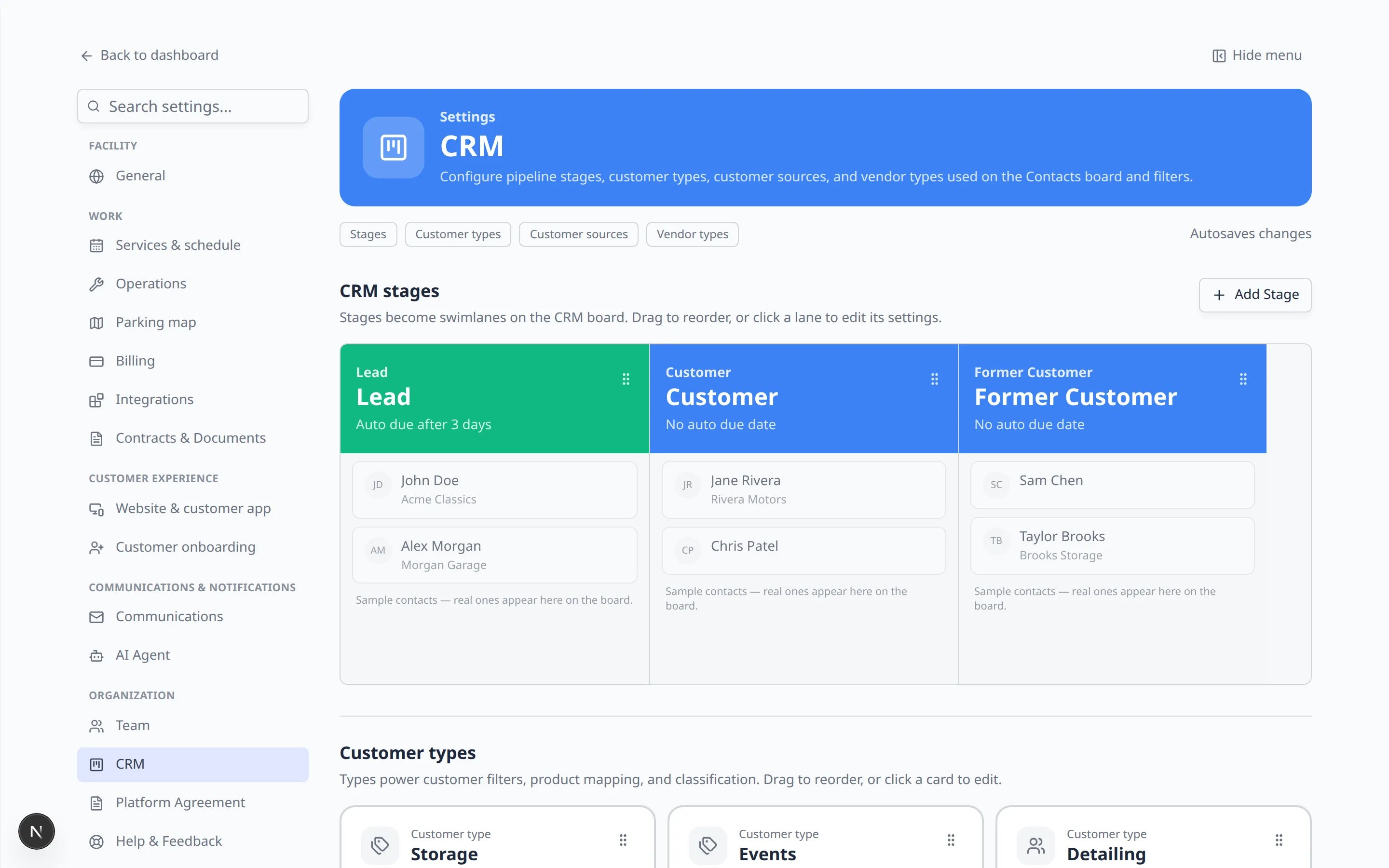 ***CRM stages** become columns on the contacts board. The green **Lead** lane here follows up after 3 days. Click **Add Stage** to add another step.*
Jump links at the top of the page include **Stages**, **Customer types**, **Customer sources**, and **Vendor types**.
## Set up CRM stages
CRM stages become the lanes on your customer relationship board.
On [Settings > CRM](https://www.carstoragesoftware.com/dashboard/settings/crm), find the swimlanes named **Lead**, **Customer**, and **Former Customer**.
Read each stage name. Keep names simple. Good examples include **New Lead**, **Contacted**, **Tour Scheduled**, **Proposal Sent**, **Active Customer**, and **Former Customer**.
Click a lane to change its name, description, and auto due date.
The due date is in days. For example, **3** means follow up within 3 days.
**Why this matters:** When a customer sits in **Lead** too long, your team may forget to call back. Auto due dates turn quiet leads into visible reminders on the [Contacts](https://www.carstoragesoftware.com/dashboard/contacts) board.
Click **Add Stage** to create a new stage.
Drag the handle on a lane to reorder stages into the order your team follows.
**Expected result:** Your relationship board shows stages in the same order your team describes the sales process on the phone.
**Keep stages action-focused**
Good stages tell staff what needs to happen next. For example, **Needs Follow-Up** is clearer than **Pending**.
## Confirm stages on the Contacts board
Go to [Contacts](https://www.carstoragesoftware.com/dashboard/contacts).
Click **Filters & settings** near the search bar (on a phone it may show only the filter icon).
In the panel that opens, click **Board**.
**Expected result:** You see columns (lanes) with the same stage names you set in CRM settings.
If you have a test customer in an early stage, drag their card to the next column once to confirm the board groups match your **Lead**, **Customer**, and **Former Customer** lanes.
***CRM stages** become columns on the contacts board. The green **Lead** lane here follows up after 3 days. Click **Add Stage** to add another step.*
Jump links at the top of the page include **Stages**, **Customer types**, **Customer sources**, and **Vendor types**.
## Set up CRM stages
CRM stages become the lanes on your customer relationship board.
On [Settings > CRM](https://www.carstoragesoftware.com/dashboard/settings/crm), find the swimlanes named **Lead**, **Customer**, and **Former Customer**.
Read each stage name. Keep names simple. Good examples include **New Lead**, **Contacted**, **Tour Scheduled**, **Proposal Sent**, **Active Customer**, and **Former Customer**.
Click a lane to change its name, description, and auto due date.
The due date is in days. For example, **3** means follow up within 3 days.
**Why this matters:** When a customer sits in **Lead** too long, your team may forget to call back. Auto due dates turn quiet leads into visible reminders on the [Contacts](https://www.carstoragesoftware.com/dashboard/contacts) board.
Click **Add Stage** to create a new stage.
Drag the handle on a lane to reorder stages into the order your team follows.
**Expected result:** Your relationship board shows stages in the same order your team describes the sales process on the phone.
**Keep stages action-focused**
Good stages tell staff what needs to happen next. For example, **Needs Follow-Up** is clearer than **Pending**.
## Confirm stages on the Contacts board
Go to [Contacts](https://www.carstoragesoftware.com/dashboard/contacts).
Click **Filters & settings** near the search bar (on a phone it may show only the filter icon).
In the panel that opens, click **Board**.
**Expected result:** You see columns (lanes) with the same stage names you set in CRM settings.
If you have a test customer in an early stage, drag their card to the next column once to confirm the board groups match your **Lead**, **Customer**, and **Former Customer** lanes.
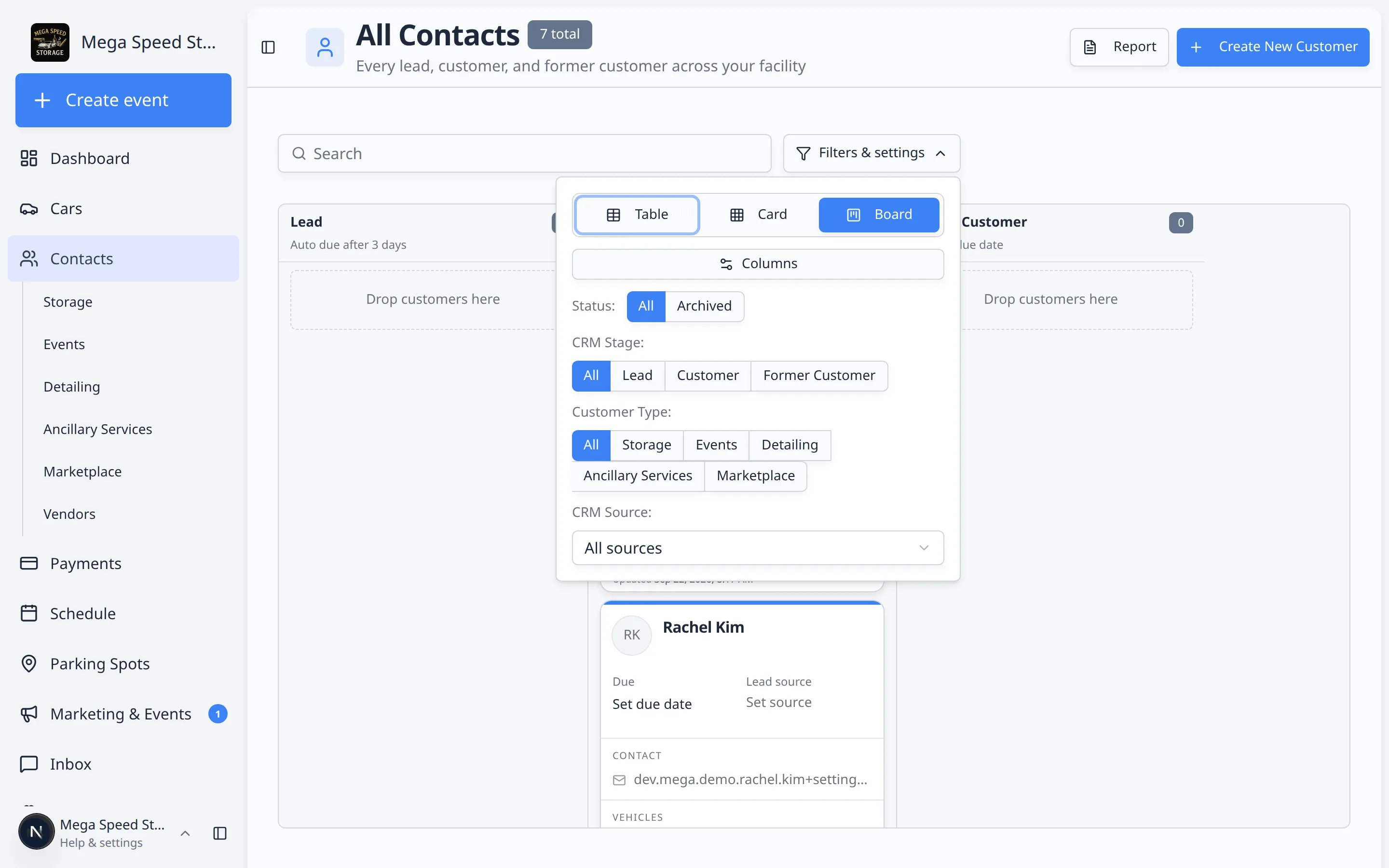 *On [Contacts](https://www.carstoragesoftware.com/dashboard/contacts), click **Filters & settings**, then **Board**. The same **Lead**, **Customer**, and **Former Customer** groups you named in CRM settings appear as columns.*
**Who uses Board view?**
**Sales or relationship leads** often live in Board view to track follow-up. **Front desk staff** may prefer the table or card list when they need phone numbers quickly. Both views use the same CRM stages you configure here.
## Set up customer types
Customer types help your team group customers by what they use your facility for.
On [Settings > CRM](https://www.carstoragesoftware.com/dashboard/settings/crm), scroll to **Customer types**, or click **Customer types** at the top of the page.
Use names staff will understand, such as **Storage**, **Events**, **Detailing**, **Marketplace**, or **Concierge**.
Click a card to edit it, or add a new type.
Use the description field to explain when staff should choose that type.
If a type has been used before, consider turning it off instead of deleting it.
**Expected result:** When you open a customer record, staff can pick a type that matches how your facility thinks about that relationship.
*On [Contacts](https://www.carstoragesoftware.com/dashboard/contacts), click **Filters & settings**, then **Board**. The same **Lead**, **Customer**, and **Former Customer** groups you named in CRM settings appear as columns.*
**Who uses Board view?**
**Sales or relationship leads** often live in Board view to track follow-up. **Front desk staff** may prefer the table or card list when they need phone numbers quickly. Both views use the same CRM stages you configure here.
## Set up customer types
Customer types help your team group customers by what they use your facility for.
On [Settings > CRM](https://www.carstoragesoftware.com/dashboard/settings/crm), scroll to **Customer types**, or click **Customer types** at the top of the page.
Use names staff will understand, such as **Storage**, **Events**, **Detailing**, **Marketplace**, or **Concierge**.
Click a card to edit it, or add a new type.
Use the description field to explain when staff should choose that type.
If a type has been used before, consider turning it off instead of deleting it.
**Expected result:** When you open a customer record, staff can pick a type that matches how your facility thinks about that relationship.
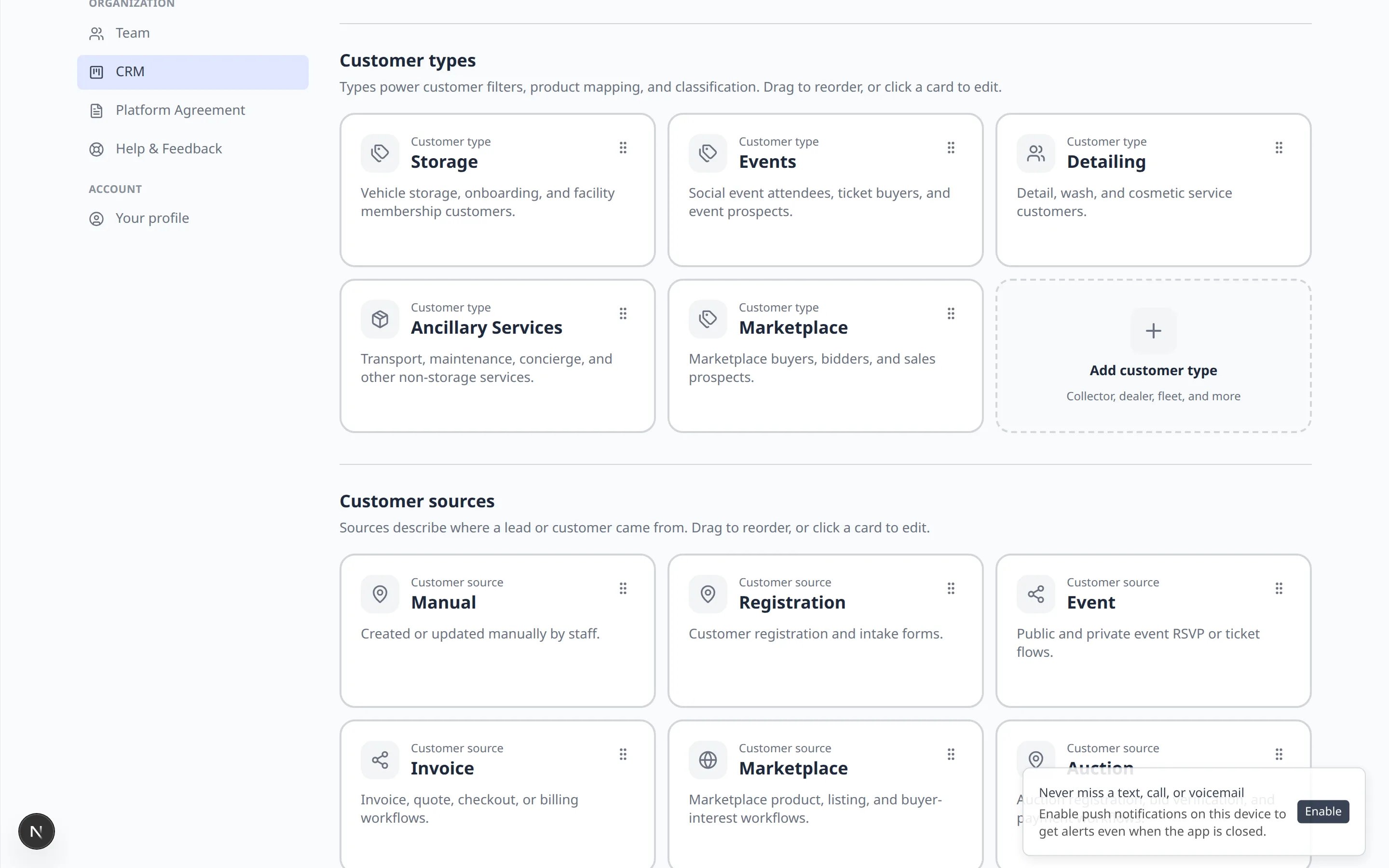 ***Customer types** and **Customer sources** are cards you can drag to reorder. Use the words your staff already say on the phone.*
## Set up customer sources
Sources describe where a lead or customer came from.
Click **Customer sources** at the top of [Settings > CRM](https://www.carstoragesoftware.com/dashboard/settings/crm).
Common examples include **Referral**, **Website**, **Phone Call**, **Instagram**, **Auction**, **Existing Customer**, and **Event**.
Put the most common sources near the top so staff can find them quickly.
**Expected result:** When staff add or edit a contact, they can choose a source from your list instead of typing a different answer every time.
## Set up vendor types (optional)
If you work with transporters, detailers, or other vendors, use **Vendor types** so those contacts stay labeled clearly.
Click **Vendor types** at the top of the CRM page.
Examples: **Transporter**, **Detail Shop**, **Insurance Adjuster**, **Auction House**.
Skip this section if you do not track vendors separately.
## What success looks like
* CRM stages match your real sales and customer follow-up process.
* Each stage sits in the right swimlane: Lead, Customer, or Former Customer.
* Auto due dates remind staff when follow-up should happen.
* Customer types help group customers by the services they use.
* Sources help your team understand where new leads come from.
## Simple example setup
If you are not sure where to start, try a simple setup first:
**Stages:** New Lead, Contacted, Tour Scheduled, Proposal Sent, Active Customer, Former Customer.
**Customer types:** Storage, Detailing, Events, Marketplace, Other.
**Sources:** Referral, Website, Phone Call, Social Media, Event, Existing Customer.
You can improve these later after your team uses the CRM for a few weeks.
## Troubleshooting
**Changes did not save**
Watch the save message near the top of the page. If it stays on **Saving...** or shows an error, refresh the page and try again. Avoid closing the page while it is saving.
**A stage appears in the wrong place**
Check which swimlane the stage sits in. A lead stage should live under **Lead**, an active customer stage under **Customer**, and a former customer stage under **Former Customer**.
**Staff are confused by a label**
Rename the label in plain language or add a description. Use the words your team already says in daily work.
**I want to remove an old label**
If the label has been used on real customer records, turning it off is usually safer than deleting it. This keeps history easier to understand.
## What to do next
After CRM settings are ready, review your customer records in [Contacts](https://www.carstoragesoftware.com/dashboard/contacts). Use [Manage contact tags and CRM fields](/docs/contacts/manage-contact-tags) when staff need flexible labels on individual customers. If you are still setting up the app, continue with [Review security settings](/docs/settings/review-security-settings).
## Related topics
- [Manage contact tags and CRM fields](/docs/contacts/manage-contact-tags.md)
- [Settings overview](/docs/settings/overview.md)
- [Customize the contact page](/docs/contacts/customize-the-contact-page.md)
- [Work with customer type lists](/docs/contacts/work-with-customer-type-lists.md)
- [Contacts overview](/docs/contacts/overview.md)
This documentation is built and hosted on [Mintlify](https://mintlify.com), a developer documentation platform.
***Customer types** and **Customer sources** are cards you can drag to reorder. Use the words your staff already say on the phone.*
## Set up customer sources
Sources describe where a lead or customer came from.
Click **Customer sources** at the top of [Settings > CRM](https://www.carstoragesoftware.com/dashboard/settings/crm).
Common examples include **Referral**, **Website**, **Phone Call**, **Instagram**, **Auction**, **Existing Customer**, and **Event**.
Put the most common sources near the top so staff can find them quickly.
**Expected result:** When staff add or edit a contact, they can choose a source from your list instead of typing a different answer every time.
## Set up vendor types (optional)
If you work with transporters, detailers, or other vendors, use **Vendor types** so those contacts stay labeled clearly.
Click **Vendor types** at the top of the CRM page.
Examples: **Transporter**, **Detail Shop**, **Insurance Adjuster**, **Auction House**.
Skip this section if you do not track vendors separately.
## What success looks like
* CRM stages match your real sales and customer follow-up process.
* Each stage sits in the right swimlane: Lead, Customer, or Former Customer.
* Auto due dates remind staff when follow-up should happen.
* Customer types help group customers by the services they use.
* Sources help your team understand where new leads come from.
## Simple example setup
If you are not sure where to start, try a simple setup first:
**Stages:** New Lead, Contacted, Tour Scheduled, Proposal Sent, Active Customer, Former Customer.
**Customer types:** Storage, Detailing, Events, Marketplace, Other.
**Sources:** Referral, Website, Phone Call, Social Media, Event, Existing Customer.
You can improve these later after your team uses the CRM for a few weeks.
## Troubleshooting
**Changes did not save**
Watch the save message near the top of the page. If it stays on **Saving...** or shows an error, refresh the page and try again. Avoid closing the page while it is saving.
**A stage appears in the wrong place**
Check which swimlane the stage sits in. A lead stage should live under **Lead**, an active customer stage under **Customer**, and a former customer stage under **Former Customer**.
**Staff are confused by a label**
Rename the label in plain language or add a description. Use the words your team already says in daily work.
**I want to remove an old label**
If the label has been used on real customer records, turning it off is usually safer than deleting it. This keeps history easier to understand.
## What to do next
After CRM settings are ready, review your customer records in [Contacts](https://www.carstoragesoftware.com/dashboard/contacts). Use [Manage contact tags and CRM fields](/docs/contacts/manage-contact-tags) when staff need flexible labels on individual customers. If you are still setting up the app, continue with [Review security settings](/docs/settings/review-security-settings).
## Related topics
- [Manage contact tags and CRM fields](/docs/contacts/manage-contact-tags.md)
- [Settings overview](/docs/settings/overview.md)
- [Customize the contact page](/docs/contacts/customize-the-contact-page.md)
- [Work with customer type lists](/docs/contacts/work-with-customer-type-lists.md)
- [Contacts overview](/docs/contacts/overview.md)
This documentation is built and hosted on [Mintlify](https://mintlify.com), a developer documentation platform.