> ## Documentation Index
> Fetch the complete documentation index at: https://www.carstoragesoftware.com/docs/llms.txt
> Use this file to discover all available pages before exploring further.
# Configure operations settings
> Set up bookable bays and rooms, default odometer units, cars for sale, and parking audit reminders.
Use this guide when you are ready to make day-to-day shop tools match how your facility really runs.
The [Settings > Operations](https://www.carstoragesoftware.com/dashboard/settings/operations) page is where admins set up bookable bays and rooms, default odometer units, cars-for-sale controls, and how often staff should walk the parking lot.
## What you will accomplish
* Understand what each section on [Settings > Operations](https://www.carstoragesoftware.com/dashboard/settings/operations) does.
* Add the bays, rooms, or equipment that should not be double-booked.
* Choose miles or kilometers for new cars.
* Know where staff list a car for sale and how often parking audits come due.
**Operations is different from Services & schedule**
**Services & schedule** ([Settings > Services & schedule](https://www.carstoragesoftware.com/dashboard/settings/events)) defines *what kinds* of appointments exist and *recurring service plans*.
**Operations** defines *spaces you can reserve*, *odometer defaults*, *marketplace listing tools*, and *parking audit reminders*.
Set up services first, then return here.
## Before you start
* You should be signed in as a team **admin** or **manager** with permission to change settings.
* Write down the real names staff use for bays and rooms (for example **Detail Bay 1** or **Wash Bay Large**).
* Know whether your facility measures distance in **miles** or **kilometers**.
* If you track parking on a map, skim [Set up parking spots and zones](/docs/parking-spots/set-up-parking-spots-and-zones).
## Open Operations settings
From the [Dashboard](https://www.carstoragesoftware.com/dashboard), click **Settings** in the main sidebar.
Click **Operations** in the settings list — or search **bay** or **odometer** in **Search settings…**.
Direct link: [Settings > Operations](https://www.carstoragesoftware.com/dashboard/settings/operations).
**Expected result:** The page title is **Operations**. The first section is **Bookable bays, rooms & equipment**. Under that you will see **Default odometer units**.
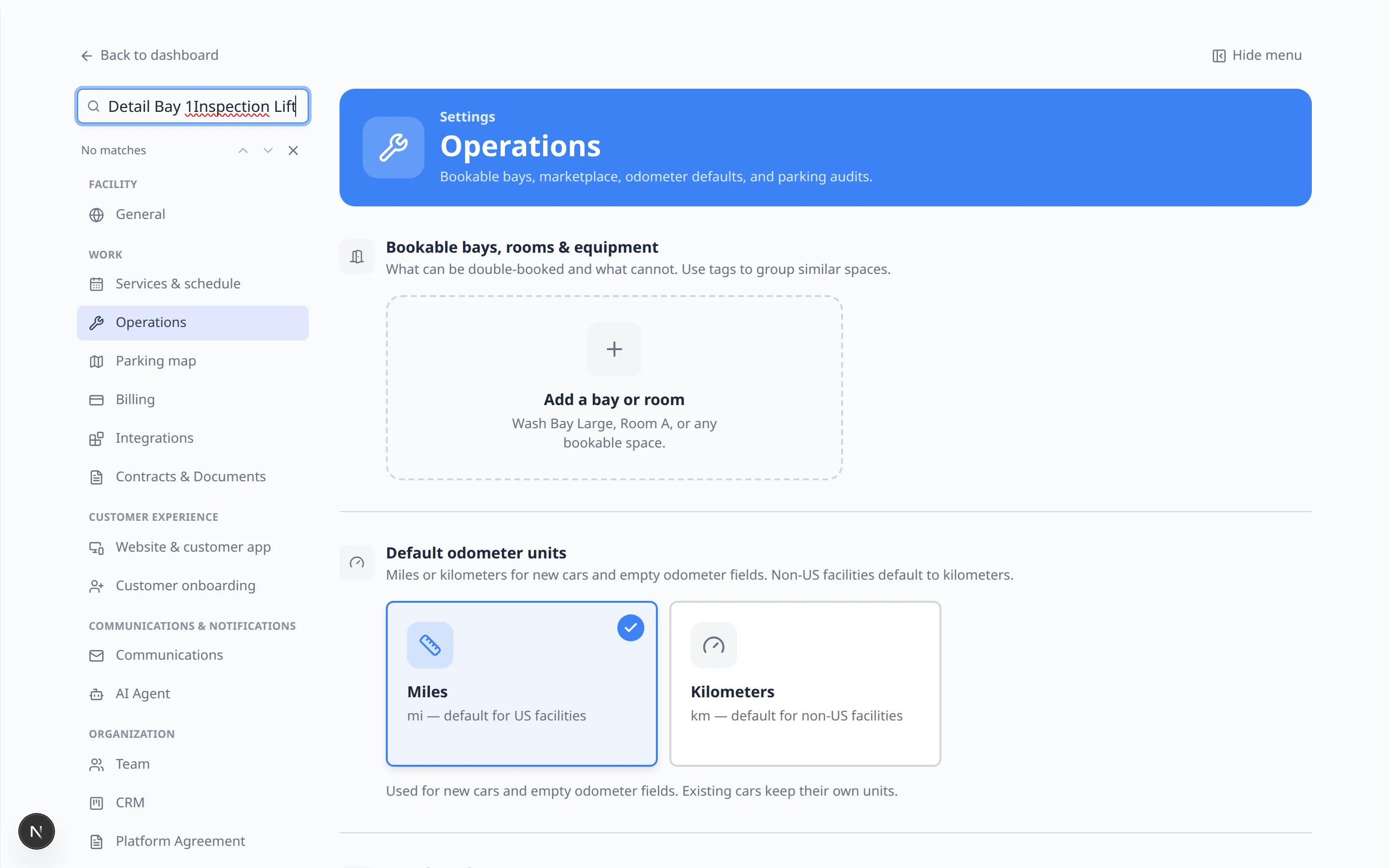 ***Operations** opens on bays and odometer units. Click **Add a bay or room** to name a space staff already say out loud, such as **Detail Bay 1**.*
## Add bookable bays, rooms, and equipment
Use this section for spaces or tools that should not be double-booked.
At the top of [Settings > Operations](https://www.carstoragesoftware.com/dashboard/settings/operations), find **Bookable bays, rooms & equipment**.
Click the add card. A **Create amenity** window opens.
In **Name**, type the name staff already say out loud, such as **Detail Bay 1**.
**Tags (optional)** help group similar spaces (for example **upstairs**). Press Enter to add a tag.
Click **Save**.
**Expected result:** The bay or room appears in the list and can be reserved when staff book time on [Schedule](https://www.carstoragesoftware.com/dashboard/schedule).
***Operations** opens on bays and odometer units. Click **Add a bay or room** to name a space staff already say out loud, such as **Detail Bay 1**.*
## Add bookable bays, rooms, and equipment
Use this section for spaces or tools that should not be double-booked.
At the top of [Settings > Operations](https://www.carstoragesoftware.com/dashboard/settings/operations), find **Bookable bays, rooms & equipment**.
Click the add card. A **Create amenity** window opens.
In **Name**, type the name staff already say out loud, such as **Detail Bay 1**.
**Tags (optional)** help group similar spaces (for example **upstairs**). Press Enter to add a tag.
Click **Save**.
**Expected result:** The bay or room appears in the list and can be reserved when staff book time on [Schedule](https://www.carstoragesoftware.com/dashboard/schedule).
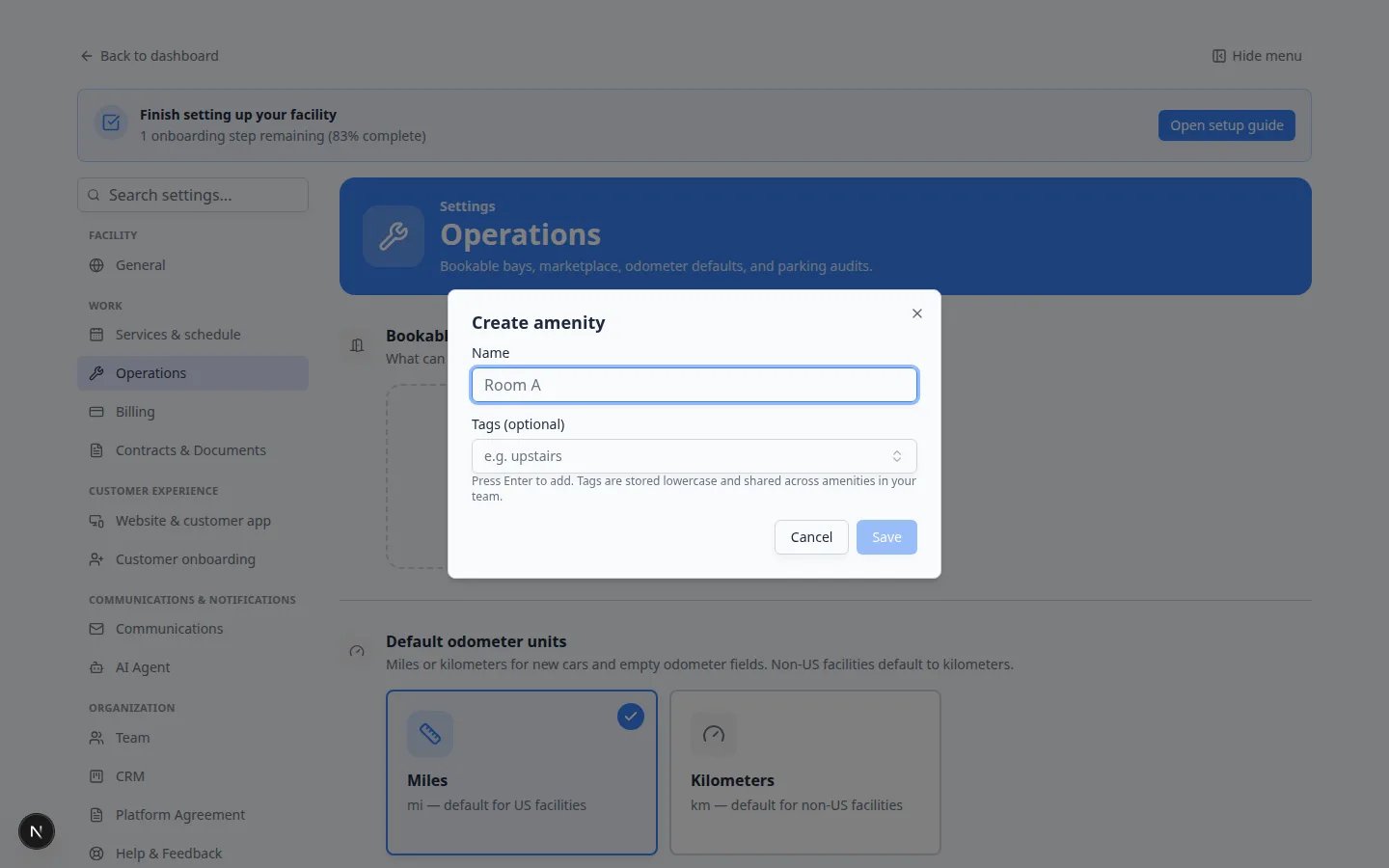 *The **Create amenity** window is how you add a bay or room. Use the name staff already say on the shop floor.*
**Match spoken names**
Do not name a space **Room A** if staff say **Detail Bay 1**. Matching real names makes scheduling faster and avoids double-booking the wrong bay.
## Set default odometer units
On [Settings > Operations](https://www.carstoragesoftware.com/dashboard/settings/operations), find **Default odometer units**.
Pick **Miles** (the usual choice for US facilities) or **Kilometers**.
**Expected result:** New cars and empty odometer fields use the unit you chose. You can still change units on one car later if needed.
## Review cars for sale
Scroll to **Cars for sale**. The line under the heading says this controls marketplace listings on car detail pages — list, unlist, and mark vehicles sold.
Click one of the two cards:
* **Off** — Hide marketplace listing actions.
* **On** — List, unlist, and mark vehicles sold. When this is on, you may see **Active on car pages**.
Two more cards appear:
* **Staff only** — Only team members manage listings.
* **Customers too** — Customers can list from the portal.
Start with **Staff only** until you have trained the front desk. Turn on **Customers too** only if you want owners to list their own cars.
**Expected result:** Staff who can edit cars see list / unlist actions on [Cars](https://www.carstoragesoftware.com/dashboard/cars). Customers see those actions in the portal only if you chose **Customers too**.
**Customers only see listings you publish**
Public marketplace visibility is set on [Settings > Website & customer app](https://www.carstoragesoftware.com/dashboard/settings/website) under **Marketplace**. See [Configure portal and website](/docs/settings/configure-portal-and-website).
## Set the parking audit schedule
Scroll to **Parking audit schedule**. The line under the heading says overdue audits show on Parking Spots.
Click one of the two cards:
* **Off** — No overdue flags on the parking page.
* **On** — Flag when the last audit is older than your interval.
In **Audit every (days)**, type how many days can pass between walk-throughs (for example **7** for weekly, **30** for monthly). Click away from the box to save.
**Why this matters:** Overdue audits show on [Parking Spots](https://www.carstoragesoftware.com/dashboard/parking-spots) so a walk-through does not slip for months.
**Need the floor map itself?**
The visual parking map is edited from **Parking map layout** on this same Operations page (click **Edit parking map**) or directly at [Settings > Floor Plan](https://www.carstoragesoftware.com/dashboard/settings/floor-plan). Follow [Set up parking spots and zones](/docs/parking-spots/set-up-parking-spots-and-zones).
## Where other Operations tools moved
**Service plans** — now on [Settings > Services & schedule](https://www.carstoragesoftware.com/dashboard/settings/events). See [Set up vehicle service plans](/docs/settings/set-up-vehicle-service-plans).
**Custom status labels** — [Settings > Custom statuses](https://www.carstoragesoftware.com/dashboard/settings/custom-statuses). See [Manage custom statuses and amenities](/docs/settings/manage-custom-statuses-and-amenities).
**Workflows (checklists)** — still covered in [Create operations workflows](/docs/settings/create-operations-workflows).
**External camera systems** — appears on Operations only if your team turned cameras on.
## Test Operations with one vehicle
Choose a single flow your shop already does well — such as booking a detail bay or listing a car for sale.
Add the bay, confirm odometer units, and skip the rest for now.
Open [Schedule](https://www.carstoragesoftware.com/dashboard/schedule), create a test event, and reserve the bay you added.
**Expected result:** The bay appears as a choice, and a second overlapping booking is blocked or clearly warned.
## How Operations connects to daily work
**Bay or room** — [Schedule](https://www.carstoragesoftware.com/dashboard/schedule) when booking time in a space.
**Odometer units** — [Cars](https://www.carstoragesoftware.com/dashboard/cars) on new vehicle records.
**Cars for sale** — the car detail page when staff list or unlist a vehicle.
**Parking audit** — [Parking Spots](https://www.carstoragesoftware.com/dashboard/parking-spots) overdue reminders.
## Common mistakes to avoid
* Do not create dozens of bays on day one. Start with the spaces that truly cannot overlap.
* Do not look for service plans on Operations — they live on **Services & schedule**.
* Do not skip testing. Book one test appointment in a new bay before the whole team relies on it.
## Troubleshooting
**I cannot edit Operations settings**
You may not have admin access. Ask a facility owner to review your role on [Settings > Team](https://www.carstoragesoftware.com/dashboard/settings/team). See [Manage team permissions](/docs/settings/manage-team-permissions).
**I cannot find service plans here**
Open [Settings > Services & schedule](https://www.carstoragesoftware.com/dashboard/settings/events) and scroll to **Service plans**.
**I am not sure where to start**
Add the one bay your team argues about most (the one that gets double-booked). Test it on [Schedule](https://www.carstoragesoftware.com/dashboard/schedule), then add the rest.
## What to do next
If your facility sells recurring care packages, continue with [Set up vehicle service plans](/docs/settings/set-up-vehicle-service-plans).
If your team needs a repeatable checklist for intake or pickup, continue with [Create operations workflows](/docs/settings/create-operations-workflows).
When Operations is in good shape, return to the [Settings overview](/docs/settings/overview) for billing, communications, portal, and team setup.
## Related topics
- [Configure services and schedule settings](/docs/settings/configure-events-and-schedule-settings.md)
- [Create operations workflows](/docs/settings/create-operations-workflows.md)
- [Settings overview](/docs/settings/overview.md)
- [Manage custom statuses and amenities](/docs/settings/manage-custom-statuses-and-amenities.md)
- [Set up vehicle service plans](/docs/settings/set-up-vehicle-service-plans.md)
This documentation is built and hosted on [Mintlify](https://mintlify.com), a developer documentation platform.
*The **Create amenity** window is how you add a bay or room. Use the name staff already say on the shop floor.*
**Match spoken names**
Do not name a space **Room A** if staff say **Detail Bay 1**. Matching real names makes scheduling faster and avoids double-booking the wrong bay.
## Set default odometer units
On [Settings > Operations](https://www.carstoragesoftware.com/dashboard/settings/operations), find **Default odometer units**.
Pick **Miles** (the usual choice for US facilities) or **Kilometers**.
**Expected result:** New cars and empty odometer fields use the unit you chose. You can still change units on one car later if needed.
## Review cars for sale
Scroll to **Cars for sale**. The line under the heading says this controls marketplace listings on car detail pages — list, unlist, and mark vehicles sold.
Click one of the two cards:
* **Off** — Hide marketplace listing actions.
* **On** — List, unlist, and mark vehicles sold. When this is on, you may see **Active on car pages**.
Two more cards appear:
* **Staff only** — Only team members manage listings.
* **Customers too** — Customers can list from the portal.
Start with **Staff only** until you have trained the front desk. Turn on **Customers too** only if you want owners to list their own cars.
**Expected result:** Staff who can edit cars see list / unlist actions on [Cars](https://www.carstoragesoftware.com/dashboard/cars). Customers see those actions in the portal only if you chose **Customers too**.
**Customers only see listings you publish**
Public marketplace visibility is set on [Settings > Website & customer app](https://www.carstoragesoftware.com/dashboard/settings/website) under **Marketplace**. See [Configure portal and website](/docs/settings/configure-portal-and-website).
## Set the parking audit schedule
Scroll to **Parking audit schedule**. The line under the heading says overdue audits show on Parking Spots.
Click one of the two cards:
* **Off** — No overdue flags on the parking page.
* **On** — Flag when the last audit is older than your interval.
In **Audit every (days)**, type how many days can pass between walk-throughs (for example **7** for weekly, **30** for monthly). Click away from the box to save.
**Why this matters:** Overdue audits show on [Parking Spots](https://www.carstoragesoftware.com/dashboard/parking-spots) so a walk-through does not slip for months.
**Need the floor map itself?**
The visual parking map is edited from **Parking map layout** on this same Operations page (click **Edit parking map**) or directly at [Settings > Floor Plan](https://www.carstoragesoftware.com/dashboard/settings/floor-plan). Follow [Set up parking spots and zones](/docs/parking-spots/set-up-parking-spots-and-zones).
## Where other Operations tools moved
**Service plans** — now on [Settings > Services & schedule](https://www.carstoragesoftware.com/dashboard/settings/events). See [Set up vehicle service plans](/docs/settings/set-up-vehicle-service-plans).
**Custom status labels** — [Settings > Custom statuses](https://www.carstoragesoftware.com/dashboard/settings/custom-statuses). See [Manage custom statuses and amenities](/docs/settings/manage-custom-statuses-and-amenities).
**Workflows (checklists)** — still covered in [Create operations workflows](/docs/settings/create-operations-workflows).
**External camera systems** — appears on Operations only if your team turned cameras on.
## Test Operations with one vehicle
Choose a single flow your shop already does well — such as booking a detail bay or listing a car for sale.
Add the bay, confirm odometer units, and skip the rest for now.
Open [Schedule](https://www.carstoragesoftware.com/dashboard/schedule), create a test event, and reserve the bay you added.
**Expected result:** The bay appears as a choice, and a second overlapping booking is blocked or clearly warned.
## How Operations connects to daily work
**Bay or room** — [Schedule](https://www.carstoragesoftware.com/dashboard/schedule) when booking time in a space.
**Odometer units** — [Cars](https://www.carstoragesoftware.com/dashboard/cars) on new vehicle records.
**Cars for sale** — the car detail page when staff list or unlist a vehicle.
**Parking audit** — [Parking Spots](https://www.carstoragesoftware.com/dashboard/parking-spots) overdue reminders.
## Common mistakes to avoid
* Do not create dozens of bays on day one. Start with the spaces that truly cannot overlap.
* Do not look for service plans on Operations — they live on **Services & schedule**.
* Do not skip testing. Book one test appointment in a new bay before the whole team relies on it.
## Troubleshooting
**I cannot edit Operations settings**
You may not have admin access. Ask a facility owner to review your role on [Settings > Team](https://www.carstoragesoftware.com/dashboard/settings/team). See [Manage team permissions](/docs/settings/manage-team-permissions).
**I cannot find service plans here**
Open [Settings > Services & schedule](https://www.carstoragesoftware.com/dashboard/settings/events) and scroll to **Service plans**.
**I am not sure where to start**
Add the one bay your team argues about most (the one that gets double-booked). Test it on [Schedule](https://www.carstoragesoftware.com/dashboard/schedule), then add the rest.
## What to do next
If your facility sells recurring care packages, continue with [Set up vehicle service plans](/docs/settings/set-up-vehicle-service-plans).
If your team needs a repeatable checklist for intake or pickup, continue with [Create operations workflows](/docs/settings/create-operations-workflows).
When Operations is in good shape, return to the [Settings overview](/docs/settings/overview) for billing, communications, portal, and team setup.
## Related topics
- [Configure services and schedule settings](/docs/settings/configure-events-and-schedule-settings.md)
- [Create operations workflows](/docs/settings/create-operations-workflows.md)
- [Settings overview](/docs/settings/overview.md)
- [Manage custom statuses and amenities](/docs/settings/manage-custom-statuses-and-amenities.md)
- [Set up vehicle service plans](/docs/settings/set-up-vehicle-service-plans.md)
This documentation is built and hosted on [Mintlify](https://mintlify.com), a developer documentation platform.