> ## Documentation Index
> Fetch the complete documentation index at: https://www.carstoragesoftware.com/docs/llms.txt
> Use this file to discover all available pages before exploring further.
# Connect payment processing
> Prepare billing settings so your team can collect payments, send invoices, set taxes, and manage quotes with confidence.
Billing settings control how money moves through your facility. Set this up before your team sends invoices, quotes, recurring storage charges, customer checkout links, or payment requests.
This guide helps you understand the Billing page, what each section does, and the safest order to review it.
## What you will accomplish
* Connect payments so customers can pay invoices and portal balances online.
* Choose whether your facility, the customer, or a split covers card processing fees.
* Set invoice numbering, payment terms, and tax rates that match how your bookkeeper works.
* Turn quotes on or off so staff know when customer approval is required before billing.
## When to set up billing
Set up billing **before** your team sends the first real invoice, storage statement, checkout link, or recurring charge.
You can skip billing setup today if you only need scheduling and customer records — but come back here before any money changes hands in the app.
## Before you start
* You must be a team admin to open [Settings > Billing](https://www.carstoragesoftware.com/dashboard/settings/billing).
* Have access to the business payment account, or ask the person who manages payments to be available.
* Know whether your facility will absorb card processing fees or pass them to customers.
* Know your default invoice payment terms, such as **Due on Receipt**, **Net 7**, or **Net 30**.
* Know which taxes apply to your products or services.
## Open Billing settings
Go to [Settings > Billing](https://www.carstoragesoftware.com/dashboard/settings/billing).
The page title is **Billing**. The first section is **Payments**. If you do not see Billing in the Settings list, your account may not have admin access.
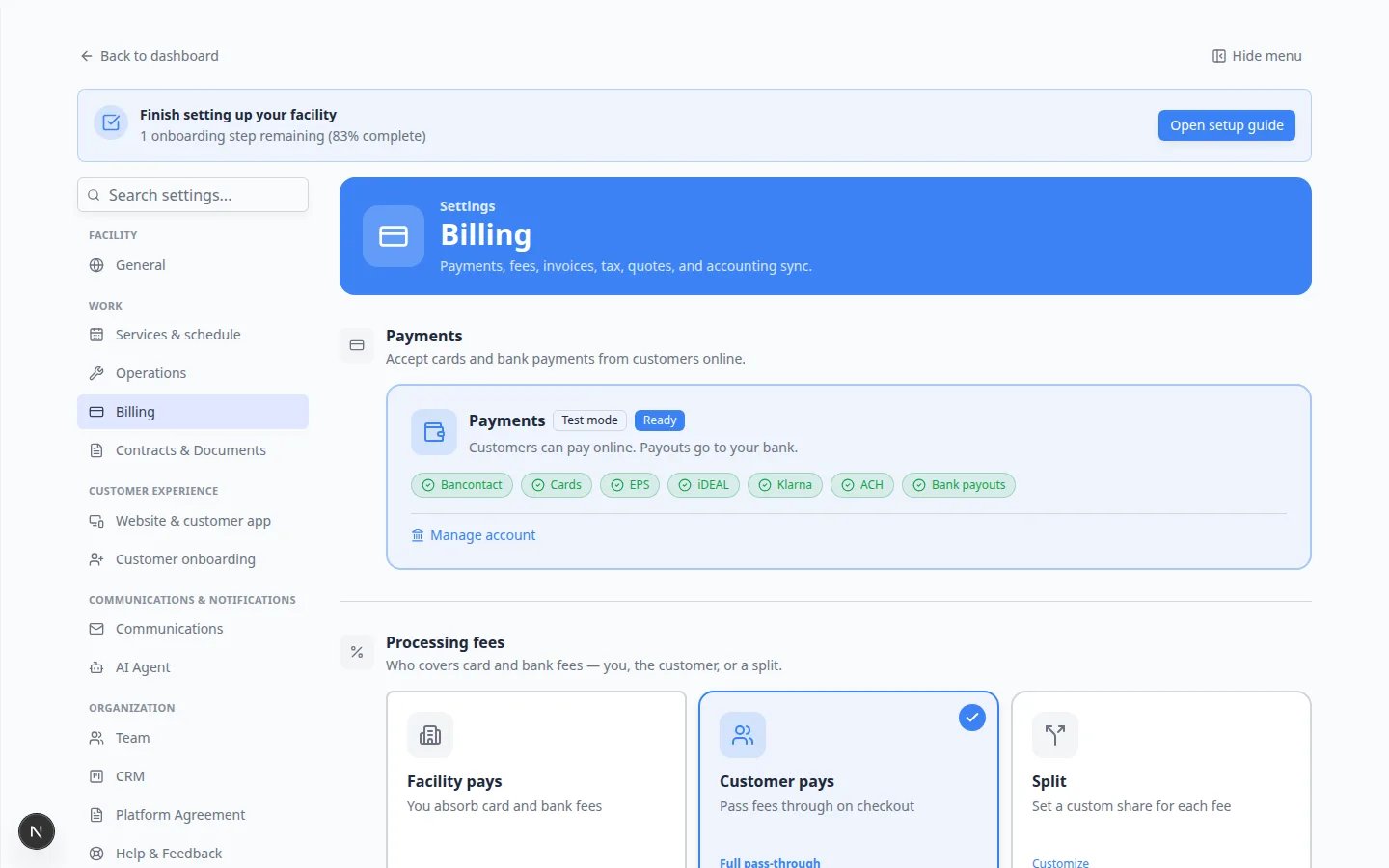 ***Payments** is the first section. **Processing fees** sits right under it with three cards: **Facility pays**, **Customer pays**, and **Split**.*
## Connect payments
**Payments** is how customers pay with a card or bank transfer.
At the top of [Settings > Billing](https://www.carstoragesoftware.com/dashboard/settings/billing), find **Payments**.
The card may say **Test mode** and **Ready** while you practice. That means you can try the flow without charging real customers.
Click **Manage account** (or the connect button shown on the card).
The app may send you to the payment provider to confirm business information, bank payout details, and identity information.
Complete the required screens. Use accurate legal business details so payouts and verification are not delayed.
After you come back, return to [Settings > Billing](https://www.carstoragesoftware.com/dashboard/settings/billing) and confirm **Payments** looks connected or ready.
**Expected result:** The card shows that customers can pay online and payouts can go to your bank.
**If the payment provider asks for more information**
This is normal. Complete those requests as soon as possible so live invoices are not delayed.
## Choose who pays processing fees
Processing fees are the small charges collected when a customer pays online.
On [Settings > Billing](https://www.carstoragesoftware.com/dashboard/settings/billing), scroll to **Processing fees**.
Pick one of the three cards:
* **Facility pays** — you absorb card and bank fees.
* **Customer pays** — eligible fees are added at checkout.
* **Split** — you set a custom share for each fee.
If you are unsure, ask your owner, accountant, or manager before changing this.
Create a **draft** invoice in [Payments](https://www.carstoragesoftware.com/dashboard/payments) and confirm the fee line looks the way your manager wants.
**Expected result:** New invoices and checkout prices follow the fee rule you selected.
**Ask before you pass fees to customers**
This setting changes what customers see on the bill. Review one draft invoice before you send anything live.
## Review statement billing and invoice settings
Statement billing is useful when customers receive one combined bill for several charges, such as monthly storage plus services.
***Payments** is the first section. **Processing fees** sits right under it with three cards: **Facility pays**, **Customer pays**, and **Split**.*
## Connect payments
**Payments** is how customers pay with a card or bank transfer.
At the top of [Settings > Billing](https://www.carstoragesoftware.com/dashboard/settings/billing), find **Payments**.
The card may say **Test mode** and **Ready** while you practice. That means you can try the flow without charging real customers.
Click **Manage account** (or the connect button shown on the card).
The app may send you to the payment provider to confirm business information, bank payout details, and identity information.
Complete the required screens. Use accurate legal business details so payouts and verification are not delayed.
After you come back, return to [Settings > Billing](https://www.carstoragesoftware.com/dashboard/settings/billing) and confirm **Payments** looks connected or ready.
**Expected result:** The card shows that customers can pay online and payouts can go to your bank.
**If the payment provider asks for more information**
This is normal. Complete those requests as soon as possible so live invoices are not delayed.
## Choose who pays processing fees
Processing fees are the small charges collected when a customer pays online.
On [Settings > Billing](https://www.carstoragesoftware.com/dashboard/settings/billing), scroll to **Processing fees**.
Pick one of the three cards:
* **Facility pays** — you absorb card and bank fees.
* **Customer pays** — eligible fees are added at checkout.
* **Split** — you set a custom share for each fee.
If you are unsure, ask your owner, accountant, or manager before changing this.
Create a **draft** invoice in [Payments](https://www.carstoragesoftware.com/dashboard/payments) and confirm the fee line looks the way your manager wants.
**Expected result:** New invoices and checkout prices follow the fee rule you selected.
**Ask before you pass fees to customers**
This setting changes what customers see on the bill. Review one draft invoice before you send anything live.
## Review statement billing and invoice settings
Statement billing is useful when customers receive one combined bill for several charges, such as monthly storage plus services.
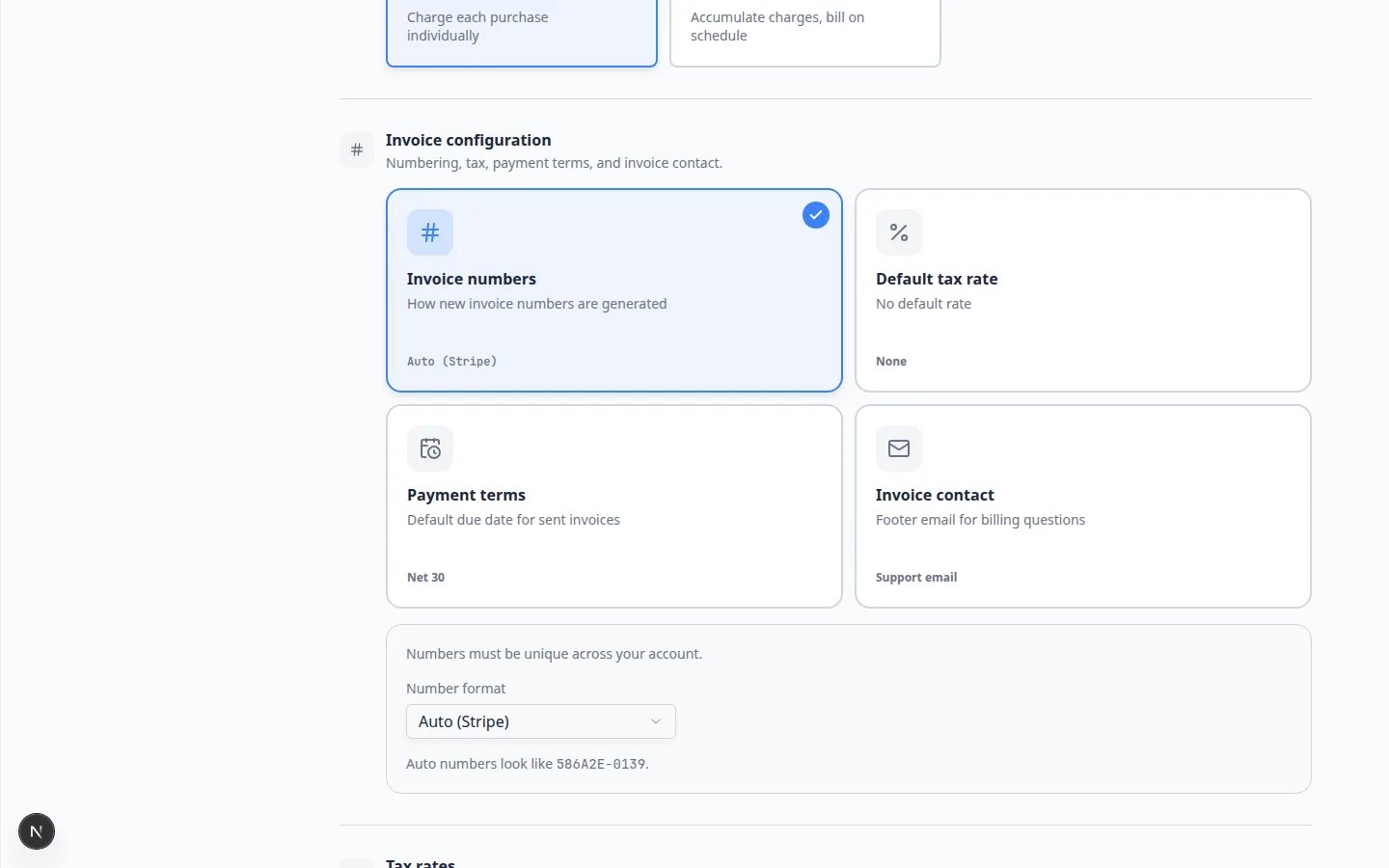 ***Invoice configuration**, **Tax rates**, and **Quotes & estimates** sit below payments and fees. Confirm these before you send a live bill.*
Scroll to **Statement billing**.
Review billing cycle timing and whether statements should turn into invoices automatically.
Scroll to **Invoice configuration**.
Confirm invoice number rules and **Default payment terms** such as **Due on Receipt**, **Net 7**, or **Net 30**.
**Why this matters:** **Due on Receipt** means the customer should pay immediately. **Net 30** means payment is due within 30 days. Pick the terms your bookkeeper and customers already expect.
Open a **draft** invoice in [Payments](https://www.carstoragesoftware.com/dashboard/payments) and confirm the due date and invoice number look correct.
**Expected result:** New invoices use your chosen numbering, due dates, and default tax behavior.
## Add tax rates
**Tax rates** help your team apply the right sales tax, VAT, GST, or custom rate to products and services.
Scroll to **Tax rates**.
Add the rates that apply to your business.
Use names that make sense to your staff, such as **State Sales Tax**, **County Tax**, or **VAT**.
Before sending a real invoice, confirm the correct tax appears on a test or draft invoice.
**Expected result:** Staff can pick the right tax without guessing.
**Check tax rules with a professional**
Tax requirements vary by location and service type. The software helps you apply the rates you enter, but it cannot decide which taxes your business owes. Ask your accountant if you are unsure.
## Review quote settings
Quotes let customers approve pricing before you send an invoice. This is helpful for large service jobs, custom storage packages, or any work where the customer should agree to a price first.
On [Settings > Billing](https://www.carstoragesoftware.com/dashboard/settings/billing), scroll to **Quotes & estimates**.
Turn quotes on when your team wants to send estimates customers can accept online.
Leave them off if you only send final invoices and never need customer approval first.
After settings are ready, open [Payments > Quotes](https://www.carstoragesoftware.com/dashboard/payments/quotes) and create a draft quote for a test customer.
**Expected result:** You can preview the quote, send it, and convert it to an invoice after approval without guessing settings on a live customer.
## Before your first live invoice
Open [Payments > Invoices](https://www.carstoragesoftware.com/dashboard/payments/invoices) and start a new invoice for an internal test contact — not a paying customer.
**Why this matters:** Drafts let you confirm tax, fees, and numbering without sending anything.
Check each line item shows the tax you expect. If you pass card fees to customers, confirm the fee line appears the way your manager wants.
When the draft looks right, send it to yourself or complete a test payment in the customer portal.
**Expected result:** Payment status updates in [Payments](https://www.carstoragesoftware.com/dashboard/payments) and the customer sees a paid or open balance correctly.
**Test mode vs live money**
Some teams practice in **test mode** first (no real money moves). Your owner or accountant should confirm when to switch to live payouts before you bill real customers. If you are unsure which mode you are in, look at the **Payments** card on [Settings > Billing](https://www.carstoragesoftware.com/dashboard/settings/billing).
## Accounting and vendor payouts (optional)
If your team uses QuickBooks, Xero, or vendor bank payouts, you may see an extra section called **Accounting & payouts** after your account owner enables it.
Scroll below tax and quote settings on [Settings > Billing](https://www.carstoragesoftware.com/dashboard/settings/billing).
If you do not see this section, your team may not have that feature turned on yet. That is normal.
Click the connect button in the integration section and sign in when prompted.
**Why this matters:** Connected accounting can sync invoices and payments so your bookkeeper spends less time re-entering data.
**Finish Payments first**
Finish **Payments** before connecting accounting software. Most sync flows depend on payment activity.
## What success looks like
* **Payments** shows as connected or ready.
* Your team knows whether processing fees are absorbed, passed through, or split.
* Invoice numbering and payment terms match your business process.
* Tax rates are entered and tested on a draft invoice.
* Quotes are enabled (or intentionally left off) to match how your team sells work.
* Your team can continue with [Payments](/docs/payments/overview) guides to create products, invoices, quotes, and recurring billing.
## Troubleshooting
**I cannot see Billing in Settings**
Billing is admin-only. Ask a team admin to update your access in [Settings > Team](https://www.carstoragesoftware.com/dashboard/settings/team), or ask an admin to complete billing setup.
**Payments pages say payment processing is not enabled**
Return to [Settings > Billing](https://www.carstoragesoftware.com/dashboard/settings/billing) and check **Payments**. Setup may be incomplete, paused, or waiting for more business information.
**The wrong tax appears on an invoice**
Check **Tax rates** first. Then check the product or service being added to the invoice. Some products may have a default tax behavior.
**An invoice number looks wrong**
Open **Invoice configuration** and review invoice numbering. If invoices have already been sent, ask your manager or bookkeeper before changing numbering rules.
## What to do next
After billing is ready, continue with [Manage products and services](/docs/payments/manage-products-and-services) so your team has clear reusable prices for invoices, quotes, checkout, and recurring plans.
## Related topics
- [Connect accounting integrations](/docs/settings/connect-accounting-integrations.md)
- [Payments overview](/docs/payments/overview.md)
- [Use the Payments overview dashboard](/docs/payments/use-the-payments-overview-dashboard.md)
- [Set up general facility settings](/docs/settings/set-up-general-facility-settings.md)
- [Manage billing on a customer record](/docs/contacts/manage-billing-on-a-customer-record.md)
This documentation is built and hosted on [Mintlify](https://mintlify.com), a developer documentation platform.
***Invoice configuration**, **Tax rates**, and **Quotes & estimates** sit below payments and fees. Confirm these before you send a live bill.*
Scroll to **Statement billing**.
Review billing cycle timing and whether statements should turn into invoices automatically.
Scroll to **Invoice configuration**.
Confirm invoice number rules and **Default payment terms** such as **Due on Receipt**, **Net 7**, or **Net 30**.
**Why this matters:** **Due on Receipt** means the customer should pay immediately. **Net 30** means payment is due within 30 days. Pick the terms your bookkeeper and customers already expect.
Open a **draft** invoice in [Payments](https://www.carstoragesoftware.com/dashboard/payments) and confirm the due date and invoice number look correct.
**Expected result:** New invoices use your chosen numbering, due dates, and default tax behavior.
## Add tax rates
**Tax rates** help your team apply the right sales tax, VAT, GST, or custom rate to products and services.
Scroll to **Tax rates**.
Add the rates that apply to your business.
Use names that make sense to your staff, such as **State Sales Tax**, **County Tax**, or **VAT**.
Before sending a real invoice, confirm the correct tax appears on a test or draft invoice.
**Expected result:** Staff can pick the right tax without guessing.
**Check tax rules with a professional**
Tax requirements vary by location and service type. The software helps you apply the rates you enter, but it cannot decide which taxes your business owes. Ask your accountant if you are unsure.
## Review quote settings
Quotes let customers approve pricing before you send an invoice. This is helpful for large service jobs, custom storage packages, or any work where the customer should agree to a price first.
On [Settings > Billing](https://www.carstoragesoftware.com/dashboard/settings/billing), scroll to **Quotes & estimates**.
Turn quotes on when your team wants to send estimates customers can accept online.
Leave them off if you only send final invoices and never need customer approval first.
After settings are ready, open [Payments > Quotes](https://www.carstoragesoftware.com/dashboard/payments/quotes) and create a draft quote for a test customer.
**Expected result:** You can preview the quote, send it, and convert it to an invoice after approval without guessing settings on a live customer.
## Before your first live invoice
Open [Payments > Invoices](https://www.carstoragesoftware.com/dashboard/payments/invoices) and start a new invoice for an internal test contact — not a paying customer.
**Why this matters:** Drafts let you confirm tax, fees, and numbering without sending anything.
Check each line item shows the tax you expect. If you pass card fees to customers, confirm the fee line appears the way your manager wants.
When the draft looks right, send it to yourself or complete a test payment in the customer portal.
**Expected result:** Payment status updates in [Payments](https://www.carstoragesoftware.com/dashboard/payments) and the customer sees a paid or open balance correctly.
**Test mode vs live money**
Some teams practice in **test mode** first (no real money moves). Your owner or accountant should confirm when to switch to live payouts before you bill real customers. If you are unsure which mode you are in, look at the **Payments** card on [Settings > Billing](https://www.carstoragesoftware.com/dashboard/settings/billing).
## Accounting and vendor payouts (optional)
If your team uses QuickBooks, Xero, or vendor bank payouts, you may see an extra section called **Accounting & payouts** after your account owner enables it.
Scroll below tax and quote settings on [Settings > Billing](https://www.carstoragesoftware.com/dashboard/settings/billing).
If you do not see this section, your team may not have that feature turned on yet. That is normal.
Click the connect button in the integration section and sign in when prompted.
**Why this matters:** Connected accounting can sync invoices and payments so your bookkeeper spends less time re-entering data.
**Finish Payments first**
Finish **Payments** before connecting accounting software. Most sync flows depend on payment activity.
## What success looks like
* **Payments** shows as connected or ready.
* Your team knows whether processing fees are absorbed, passed through, or split.
* Invoice numbering and payment terms match your business process.
* Tax rates are entered and tested on a draft invoice.
* Quotes are enabled (or intentionally left off) to match how your team sells work.
* Your team can continue with [Payments](/docs/payments/overview) guides to create products, invoices, quotes, and recurring billing.
## Troubleshooting
**I cannot see Billing in Settings**
Billing is admin-only. Ask a team admin to update your access in [Settings > Team](https://www.carstoragesoftware.com/dashboard/settings/team), or ask an admin to complete billing setup.
**Payments pages say payment processing is not enabled**
Return to [Settings > Billing](https://www.carstoragesoftware.com/dashboard/settings/billing) and check **Payments**. Setup may be incomplete, paused, or waiting for more business information.
**The wrong tax appears on an invoice**
Check **Tax rates** first. Then check the product or service being added to the invoice. Some products may have a default tax behavior.
**An invoice number looks wrong**
Open **Invoice configuration** and review invoice numbering. If invoices have already been sent, ask your manager or bookkeeper before changing numbering rules.
## What to do next
After billing is ready, continue with [Manage products and services](/docs/payments/manage-products-and-services) so your team has clear reusable prices for invoices, quotes, checkout, and recurring plans.
## Related topics
- [Connect accounting integrations](/docs/settings/connect-accounting-integrations.md)
- [Payments overview](/docs/payments/overview.md)
- [Use the Payments overview dashboard](/docs/payments/use-the-payments-overview-dashboard.md)
- [Set up general facility settings](/docs/settings/set-up-general-facility-settings.md)
- [Manage billing on a customer record](/docs/contacts/manage-billing-on-a-customer-record.md)
This documentation is built and hosted on [Mintlify](https://mintlify.com), a developer documentation platform.