> ## Documentation Index
> Fetch the complete documentation index at: https://www.carstoragesoftware.com/docs/llms.txt
> Use this file to discover all available pages before exploring further.
# Create operations workflows
> Build step-by-step checklists for repeated facility work, such as vehicle intake, pickup, transport, or detailing.
Use this guide when your team follows the same steps for a job over and over.
**Workflows is no longer a section on Operations**
The **Workflows** block used to live on [Settings > Operations](https://www.carstoragesoftware.com/dashboard/settings/operations). That page now covers bays, odometer units, cars for sale, and parking audits. See [Configure operations settings](/docs/settings/configure-operations-settings).
To set up the services each checklist step uses, open [Settings > Services & schedule](https://www.carstoragesoftware.com/dashboard/settings/events). To run work on a specific day, open [Schedule](https://www.carstoragesoftware.com/dashboard/schedule).
If your facility already has a workflow, staff can still open it from a vehicle or a scheduled event. New facilities can start with clearly named services instead of a multi-step checklist.
## What you will accomplish
* Plan a named process such as **New Vehicle Intake** or **Vehicle Departure**.
* Link each step to a service from [Settings > Services & schedule](https://www.carstoragesoftware.com/dashboard/settings/events).
* Set durations and optional delays between steps.
* Test the checklist once on [Schedule](https://www.carstoragesoftware.com/dashboard/schedule) before asking the whole team to use it.
A workflow is a saved checklist. It helps staff do the right work in the right order. You might use a workflow for vehicle intake, vehicle departure, transport, detailing, or a special service package.
## When to use a workflow (and when not to)
* **Use a workflow** when the same steps happen in the same order every time (intake, departure, transport handoff).
* **Use a single appointment** when the job is one visit with no checklist—for example a one-hour detail with no follow-up steps.
* **Build services first** in [Settings > Services & schedule](https://www.carstoragesoftware.com/dashboard/settings/events) before you link them in a workflow.
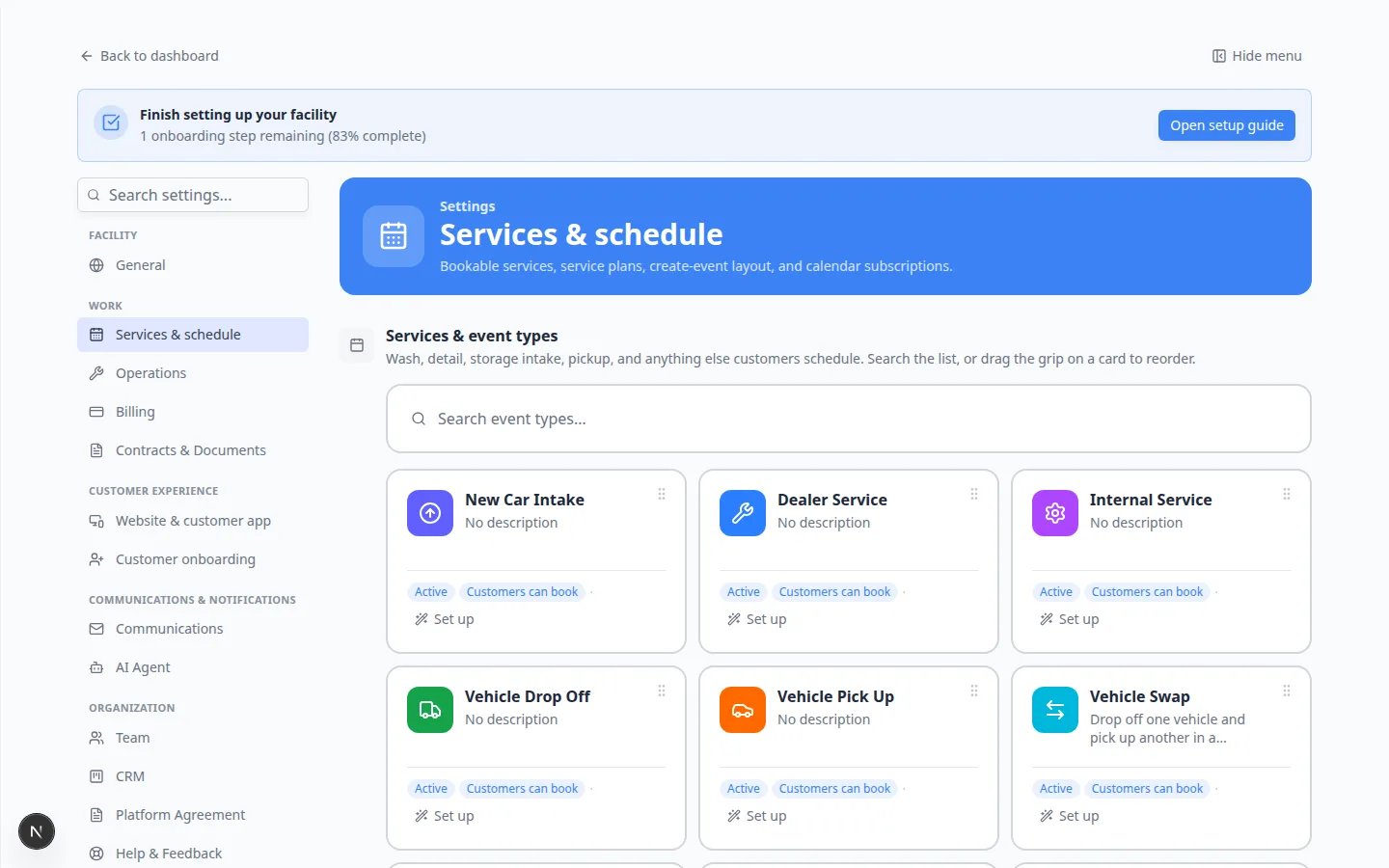 *Create the services a checklist will use on [Settings > Services & schedule](https://www.carstoragesoftware.com/dashboard/settings/events) before you try to chain them together.*
## Before you start
* You should be signed in as a team admin or manager.
* Open [Settings > Services & schedule](https://www.carstoragesoftware.com/dashboard/settings/events) and confirm each step already exists as a service.
* Know the real-world process you want to turn into a checklist.
## Plan the workflow before you build it
Write the steps in plain English first. This keeps the setup simple.
Example: **New Vehicle Intake**
1. Confirm drop off
2. Photo intake and condition check
3. Assign first care task
**Keep the first workflow small**
Start with the steps staff must complete every time. You can edit the workflow later after your team uses it.
## Build the same process with services
Until a Workflows settings page returns, create each step as its own service, then book those services in order.
Example for **New Vehicle Intake**:
1. Vehicle Drop Off
2. Photo intake and condition check
3. Assign first care task
Open [Settings > Services & schedule](https://www.carstoragesoftware.com/dashboard/settings/events) and add a service for every step that does not already exist.
Use the same names you wrote down. Follow [Configure services and schedule settings](/docs/settings/configure-events-and-schedule-settings).
Open [Schedule](https://www.carstoragesoftware.com/dashboard/schedule) and create the first appointment (for example **Vehicle Drop Off**).
Add the later visits on the same car when they should happen.
**Expected result:** Staff see the same order you planned, one appointment at a time.
**Already have a workflow?**
If your facility created a workflow before this settings change, staff can still open it from a scheduled event. Look for **Open Event** on [Schedule](https://www.carstoragesoftware.com/dashboard/schedule). See [Run event workflow from Schedule](/docs/schedule/run-event-workflow-from-schedule).
## Test the workflow on Schedule
Before you ask the whole team to use a new checklist, run it once on a sample vehicle or test event.
Open [Schedule](https://www.carstoragesoftware.com/dashboard/schedule) and follow [Create an appointment](/docs/schedule/create-an-appointment) for a test vehicle.
Choose an event type that matches the **first step** of your workflow.
Click the calendar block to open the event detail panel on the right.
Look for **Open Event** near **Edit Event** at the top of that panel.
**Expected result:** The floor workflow screen opens with the checklist steps you configured.
Complete or skip optional steps the way a technician would on a real visit.
**Why this matters:** Testing catches missing event types, wrong durations, or steps marked optional by mistake.
*Create the services a checklist will use on [Settings > Services & schedule](https://www.carstoragesoftware.com/dashboard/settings/events) before you try to chain them together.*
## Before you start
* You should be signed in as a team admin or manager.
* Open [Settings > Services & schedule](https://www.carstoragesoftware.com/dashboard/settings/events) and confirm each step already exists as a service.
* Know the real-world process you want to turn into a checklist.
## Plan the workflow before you build it
Write the steps in plain English first. This keeps the setup simple.
Example: **New Vehicle Intake**
1. Confirm drop off
2. Photo intake and condition check
3. Assign first care task
**Keep the first workflow small**
Start with the steps staff must complete every time. You can edit the workflow later after your team uses it.
## Build the same process with services
Until a Workflows settings page returns, create each step as its own service, then book those services in order.
Example for **New Vehicle Intake**:
1. Vehicle Drop Off
2. Photo intake and condition check
3. Assign first care task
Open [Settings > Services & schedule](https://www.carstoragesoftware.com/dashboard/settings/events) and add a service for every step that does not already exist.
Use the same names you wrote down. Follow [Configure services and schedule settings](/docs/settings/configure-events-and-schedule-settings).
Open [Schedule](https://www.carstoragesoftware.com/dashboard/schedule) and create the first appointment (for example **Vehicle Drop Off**).
Add the later visits on the same car when they should happen.
**Expected result:** Staff see the same order you planned, one appointment at a time.
**Already have a workflow?**
If your facility created a workflow before this settings change, staff can still open it from a scheduled event. Look for **Open Event** on [Schedule](https://www.carstoragesoftware.com/dashboard/schedule). See [Run event workflow from Schedule](/docs/schedule/run-event-workflow-from-schedule).
## Test the workflow on Schedule
Before you ask the whole team to use a new checklist, run it once on a sample vehicle or test event.
Open [Schedule](https://www.carstoragesoftware.com/dashboard/schedule) and follow [Create an appointment](/docs/schedule/create-an-appointment) for a test vehicle.
Choose an event type that matches the **first step** of your workflow.
Click the calendar block to open the event detail panel on the right.
Look for **Open Event** near **Edit Event** at the top of that panel.
**Expected result:** The floor workflow screen opens with the checklist steps you configured.
Complete or skip optional steps the way a technician would on a real visit.
**Why this matters:** Testing catches missing event types, wrong durations, or steps marked optional by mistake.
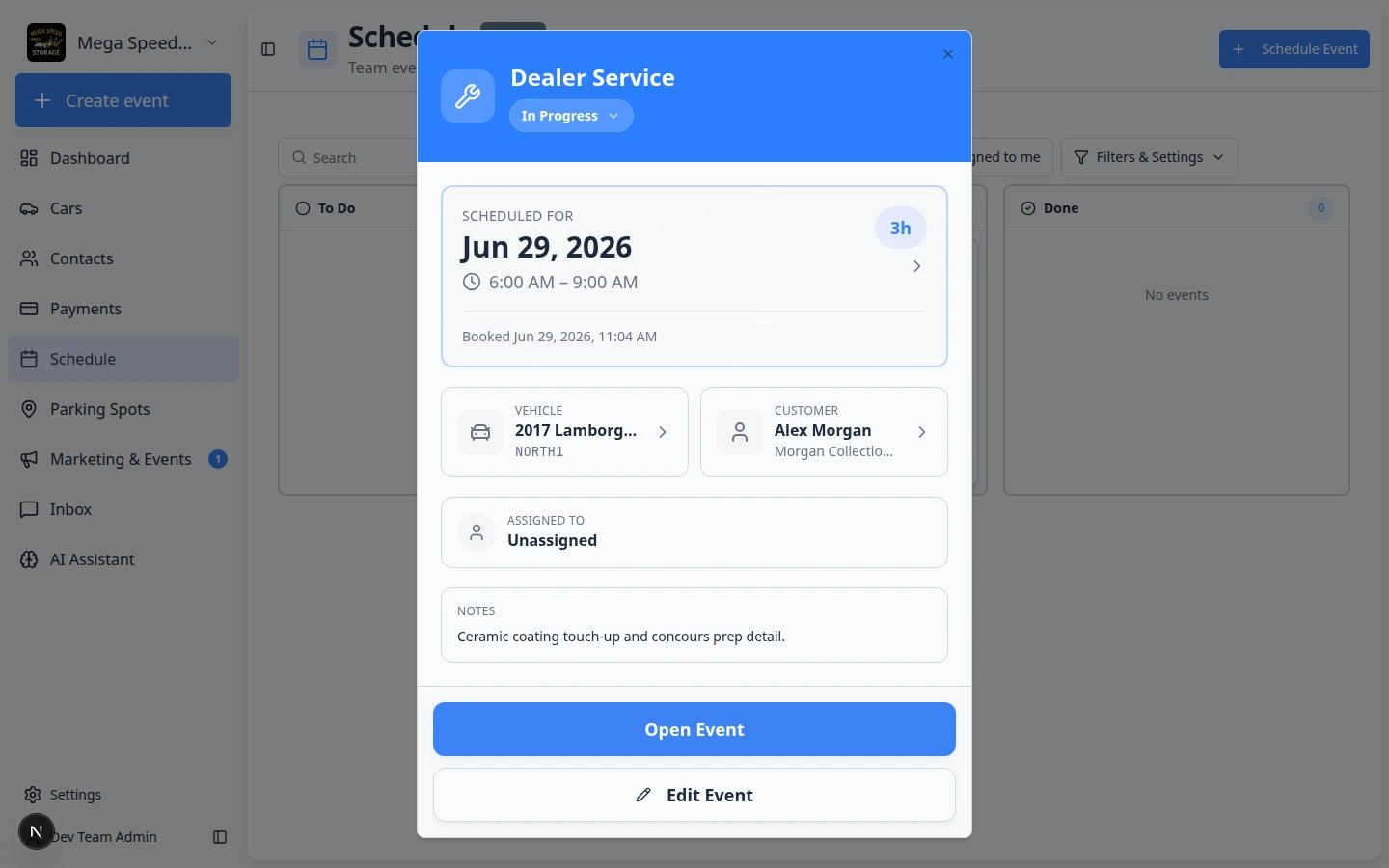 ***Open Event** on Schedule is how staff run an existing checklist. See [Run event workflow from Schedule](/docs/schedule/run-event-workflow-from-schedule).*
## What success looks like
* The workflow name matches how your team talks about the job.
* Each step exists as an active service on [Settings > Services & schedule](https://www.carstoragesoftware.com/dashboard/settings/events).
* Required steps are not marked optional.
* A test event shows **Open Event** and the checklist opens correctly.
* Staff know when to start the workflow from Schedule or a vehicle record.
## Helpful tips
Workflow is another word for a repeatable checklist.
Some teams also say "SOP," which means standard operating procedure. You do not need to use that term with your staff. A simple name like **New Vehicle Intake** is easier to understand.
## Troubleshooting
**I cannot find Add workflow on Operations**
That section is no longer on [Settings > Operations](https://www.carstoragesoftware.com/dashboard/settings/operations). Create each step as a service on [Settings > Services & schedule](https://www.carstoragesoftware.com/dashboard/settings/events) instead.
**The step duration does not look right**
Open that service with **Set up** on [Settings > Services & schedule](https://www.carstoragesoftware.com/dashboard/settings/events) and review its duration.
**Staff are skipping important work**
Open the service with **Set up** and confirm staff know which visits are required. Keep names clear so people do not skip a step by accident.
**Open Event does not appear**
Not every service uses a checklist. If your facility has an older workflow, confirm the scheduled event is linked to it and is not a simple **Calendar Block**. See [Run event workflow from Schedule](/docs/schedule/run-event-workflow-from-schedule).
## What to do next
After your test run works, train technicians with [Run event workflow from Schedule](/docs/schedule/run-event-workflow-from-schedule). If staff also need clearer progress labels, continue with [Manage custom statuses and amenities](/docs/settings/manage-custom-statuses-and-amenities).
## Related topics
- [Configure operations settings](/docs/settings/configure-operations-settings.md)
- [Manage custom statuses and amenities](/docs/settings/manage-custom-statuses-and-amenities.md)
- [Use the Create event home page](/docs/basics/use-the-create-event-home.md)
- [Set up vehicle service plans](/docs/settings/set-up-vehicle-service-plans.md)
- [Set up event checklists](/docs/events/set-up-event-checklists.md)
This documentation is built and hosted on [Mintlify](https://mintlify.com), a developer documentation platform.
***Open Event** on Schedule is how staff run an existing checklist. See [Run event workflow from Schedule](/docs/schedule/run-event-workflow-from-schedule).*
## What success looks like
* The workflow name matches how your team talks about the job.
* Each step exists as an active service on [Settings > Services & schedule](https://www.carstoragesoftware.com/dashboard/settings/events).
* Required steps are not marked optional.
* A test event shows **Open Event** and the checklist opens correctly.
* Staff know when to start the workflow from Schedule or a vehicle record.
## Helpful tips
Workflow is another word for a repeatable checklist.
Some teams also say "SOP," which means standard operating procedure. You do not need to use that term with your staff. A simple name like **New Vehicle Intake** is easier to understand.
## Troubleshooting
**I cannot find Add workflow on Operations**
That section is no longer on [Settings > Operations](https://www.carstoragesoftware.com/dashboard/settings/operations). Create each step as a service on [Settings > Services & schedule](https://www.carstoragesoftware.com/dashboard/settings/events) instead.
**The step duration does not look right**
Open that service with **Set up** on [Settings > Services & schedule](https://www.carstoragesoftware.com/dashboard/settings/events) and review its duration.
**Staff are skipping important work**
Open the service with **Set up** and confirm staff know which visits are required. Keep names clear so people do not skip a step by accident.
**Open Event does not appear**
Not every service uses a checklist. If your facility has an older workflow, confirm the scheduled event is linked to it and is not a simple **Calendar Block**. See [Run event workflow from Schedule](/docs/schedule/run-event-workflow-from-schedule).
## What to do next
After your test run works, train technicians with [Run event workflow from Schedule](/docs/schedule/run-event-workflow-from-schedule). If staff also need clearer progress labels, continue with [Manage custom statuses and amenities](/docs/settings/manage-custom-statuses-and-amenities).
## Related topics
- [Configure operations settings](/docs/settings/configure-operations-settings.md)
- [Manage custom statuses and amenities](/docs/settings/manage-custom-statuses-and-amenities.md)
- [Use the Create event home page](/docs/basics/use-the-create-event-home.md)
- [Set up vehicle service plans](/docs/settings/set-up-vehicle-service-plans.md)
- [Set up event checklists](/docs/events/set-up-event-checklists.md)
This documentation is built and hosted on [Mintlify](https://mintlify.com), a developer documentation platform.