> ## Documentation Index
> Fetch the complete documentation index at: https://www.carstoragesoftware.com/docs/llms.txt
> Use this file to discover all available pages before exploring further.
# Manage custom statuses and amenities
> Create clear work status labels and bookable facility amenities so staff can track progress and reserve the right spaces.
Use this guide when staff need clearer progress labels or when your facility needs to reserve bays, rooms, or equipment.
This guide covers two related Operations tools:
* [Settings > Custom statuses](https://www.carstoragesoftware.com/dashboard/settings/custom-statuses): the labels staff use to describe work progress.
* [Settings > Operations](https://www.carstoragesoftware.com/dashboard/settings/operations): the amenities list for bookable bays, rooms, and equipment.
## What you will accomplish
You will create a custom status label and add facility amenities that staff can recognize when scheduling work.
## Before you start
* You should be signed in as a team admin or manager.
* Write down the status labels your staff already use in conversation.
* Write down the bays, rooms, and equipment staff may need to reserve.
* Use short, plain names. These names appear in tables, boards, schedules, and dialogs.
## Create a custom status
Custom statuses help staff answer, "What is happening with this job right now?"
Many facilities start with three labels:
* **Waiting on customer** — work is paused until the owner replies
* **In the bay** — the car is in a service bay right now
* **Ready for pickup** — work is done and the customer can collect the vehicle
You can add more later (for example **Ordering parts**) once your team is comfortable with the basics.
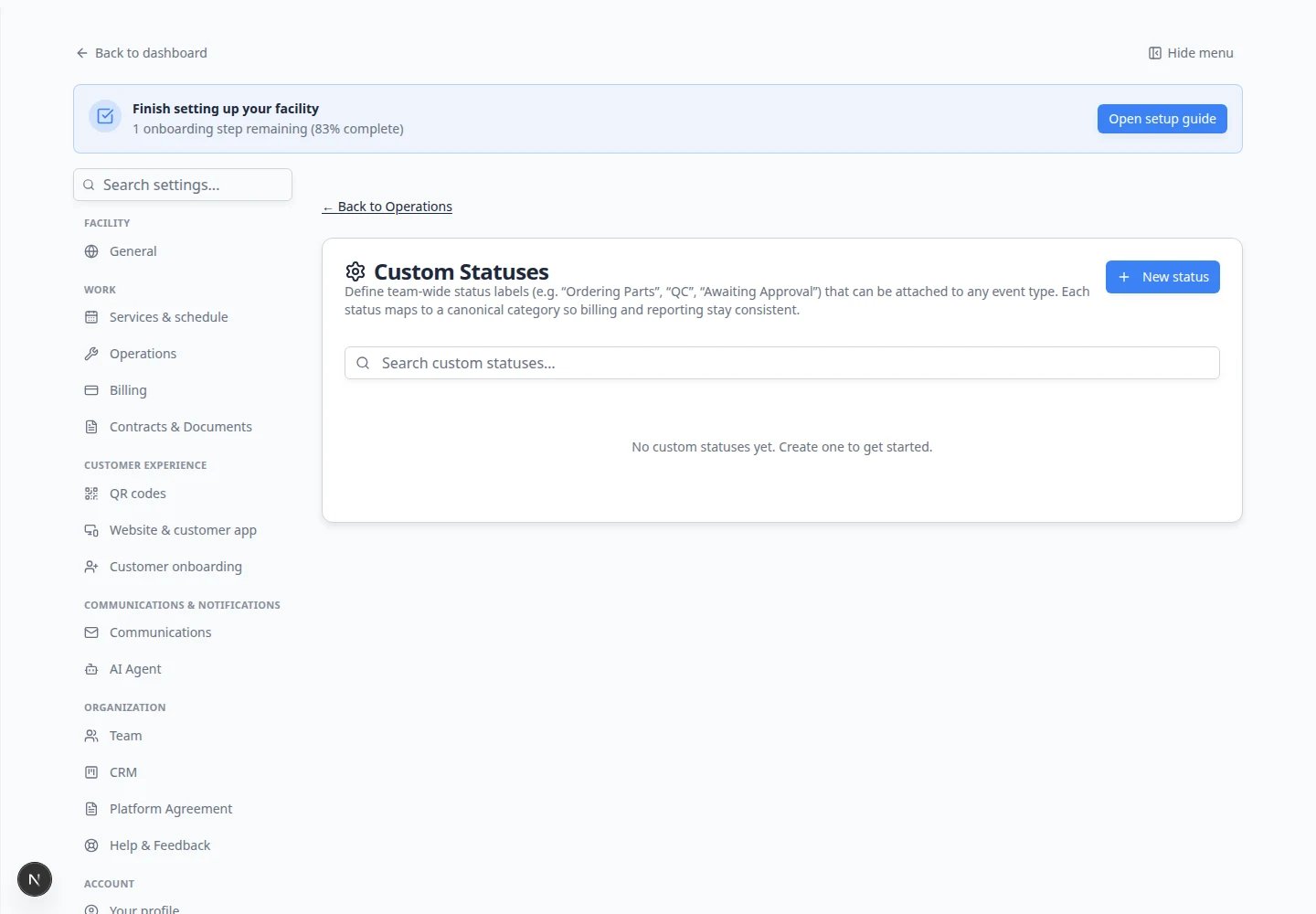 *Custom statuses give staff more specific progress labels than broad built-in statuses.*
Go to [Settings > Custom statuses](https://www.carstoragesoftware.com/dashboard/settings/custom-statuses).
Click **New status**.
A window named **New custom status** opens.
*Custom statuses give staff more specific progress labels than broad built-in statuses.*
Go to [Settings > Custom statuses](https://www.carstoragesoftware.com/dashboard/settings/custom-statuses).
Click **New status**.
A window named **New custom status** opens.
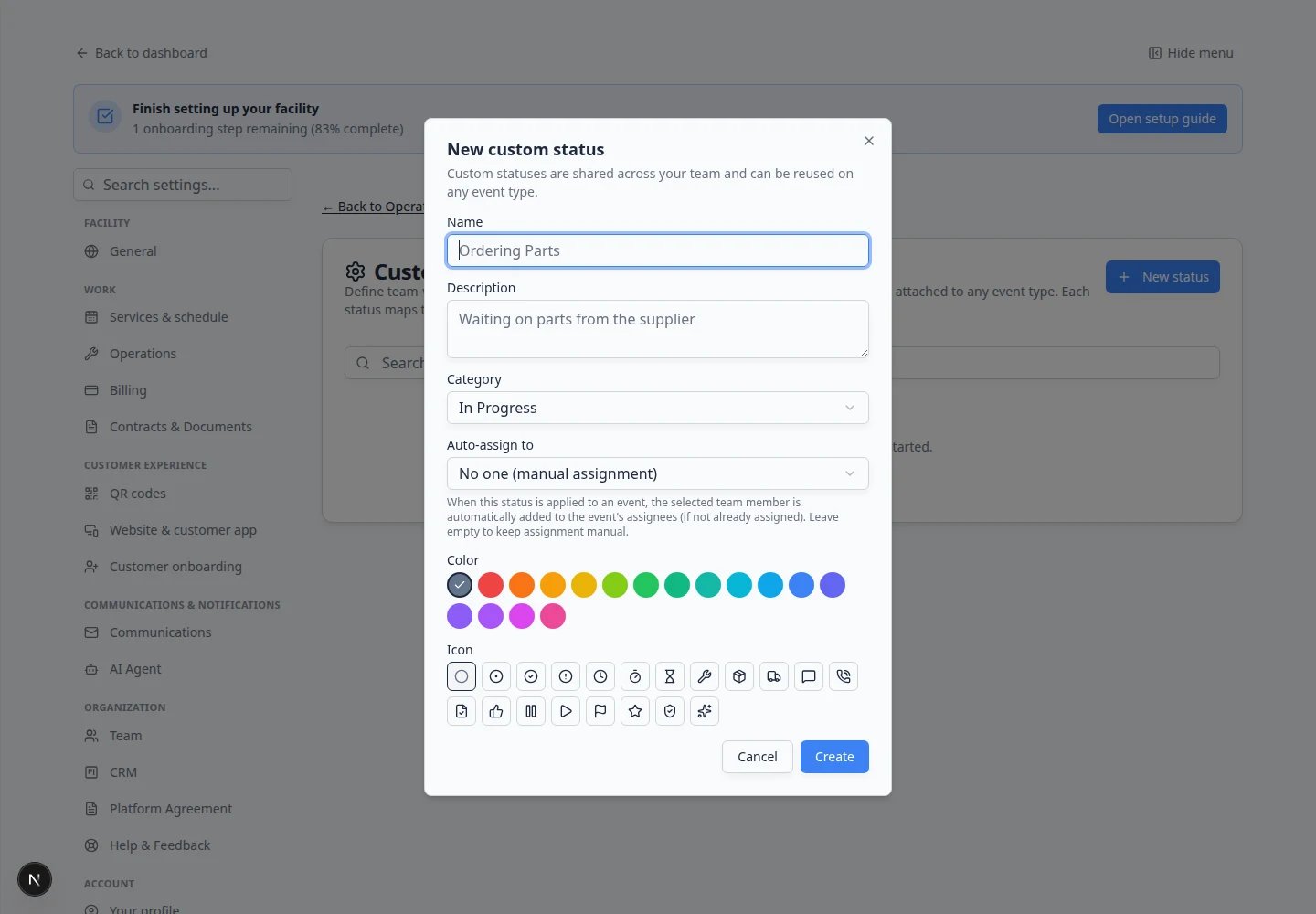 *Create a status with a plain name, category, color, and icon.*
In **Name**, type the exact label staff should see.
Keep it short. A good status is easy to scan on a busy day.
In **Description**, explain when staff should use the status.
Example: **Work is paused until the customer responds.**
**Why this matters:** A clear description helps new staff use the status the same way as experienced staff.
In **Category**, choose the broad stage that best matches the status.
Common choices include:
* **To Do** for work that has not started.
* **In Progress** for work happening now.
* **Blocked** for work that is paused.
* **Done** for work that is complete.
**Why this matters:** The category keeps reporting and work boards organized.
Use **Auto-assign user** when the same teammate should be added every time this status is used.
Example: if **Ordering parts** should always go to your parts manager, choose that person.
Leave it blank if ownership changes from job to job.
Pick a color and icon that make the status easy to spot.
Use colors consistently. For example, orange can mean waiting, blue can mean work in progress, and green can mean ready or done.
Click **Create**.
**Expected result:** The new status appears in the Custom statuses table.
## Keep your status list simple
**Start with a short list**
Create only the labels staff will use often. Too many statuses can make boards harder to read.
Good starting statuses for many facilities:
* **Waiting on customer**
* **In the bay**
* **Ready for pickup**
## Edit an existing custom status
Names and descriptions change as your shop learns what works. You do not need to delete and recreate a status.
Go to [Settings > Custom statuses](https://www.carstoragesoftware.com/dashboard/settings/custom-statuses).
**Expected result:** You see your status table with **Name**, **Category**, and action buttons such as **Edit**.
Click **Edit** on the row you want to change.
A window opens with the same fields you used when creating the status.
Change the **Name**, **Description**, **Category**, **Color**, or **Icon** as needed.
Click **Save** (or **Update**).
**Expected result:** The table shows the new wording. Existing jobs that already used the old label keep their history.
*Create a status with a plain name, category, color, and icon.*
In **Name**, type the exact label staff should see.
Keep it short. A good status is easy to scan on a busy day.
In **Description**, explain when staff should use the status.
Example: **Work is paused until the customer responds.**
**Why this matters:** A clear description helps new staff use the status the same way as experienced staff.
In **Category**, choose the broad stage that best matches the status.
Common choices include:
* **To Do** for work that has not started.
* **In Progress** for work happening now.
* **Blocked** for work that is paused.
* **Done** for work that is complete.
**Why this matters:** The category keeps reporting and work boards organized.
Use **Auto-assign user** when the same teammate should be added every time this status is used.
Example: if **Ordering parts** should always go to your parts manager, choose that person.
Leave it blank if ownership changes from job to job.
Pick a color and icon that make the status easy to spot.
Use colors consistently. For example, orange can mean waiting, blue can mean work in progress, and green can mean ready or done.
Click **Create**.
**Expected result:** The new status appears in the Custom statuses table.
## Keep your status list simple
**Start with a short list**
Create only the labels staff will use often. Too many statuses can make boards harder to read.
Good starting statuses for many facilities:
* **Waiting on customer**
* **In the bay**
* **Ready for pickup**
## Edit an existing custom status
Names and descriptions change as your shop learns what works. You do not need to delete and recreate a status.
Go to [Settings > Custom statuses](https://www.carstoragesoftware.com/dashboard/settings/custom-statuses).
**Expected result:** You see your status table with **Name**, **Category**, and action buttons such as **Edit**.
Click **Edit** on the row you want to change.
A window opens with the same fields you used when creating the status.
Change the **Name**, **Description**, **Category**, **Color**, or **Icon** as needed.
Click **Save** (or **Update**).
**Expected result:** The table shows the new wording. Existing jobs that already used the old label keep their history.
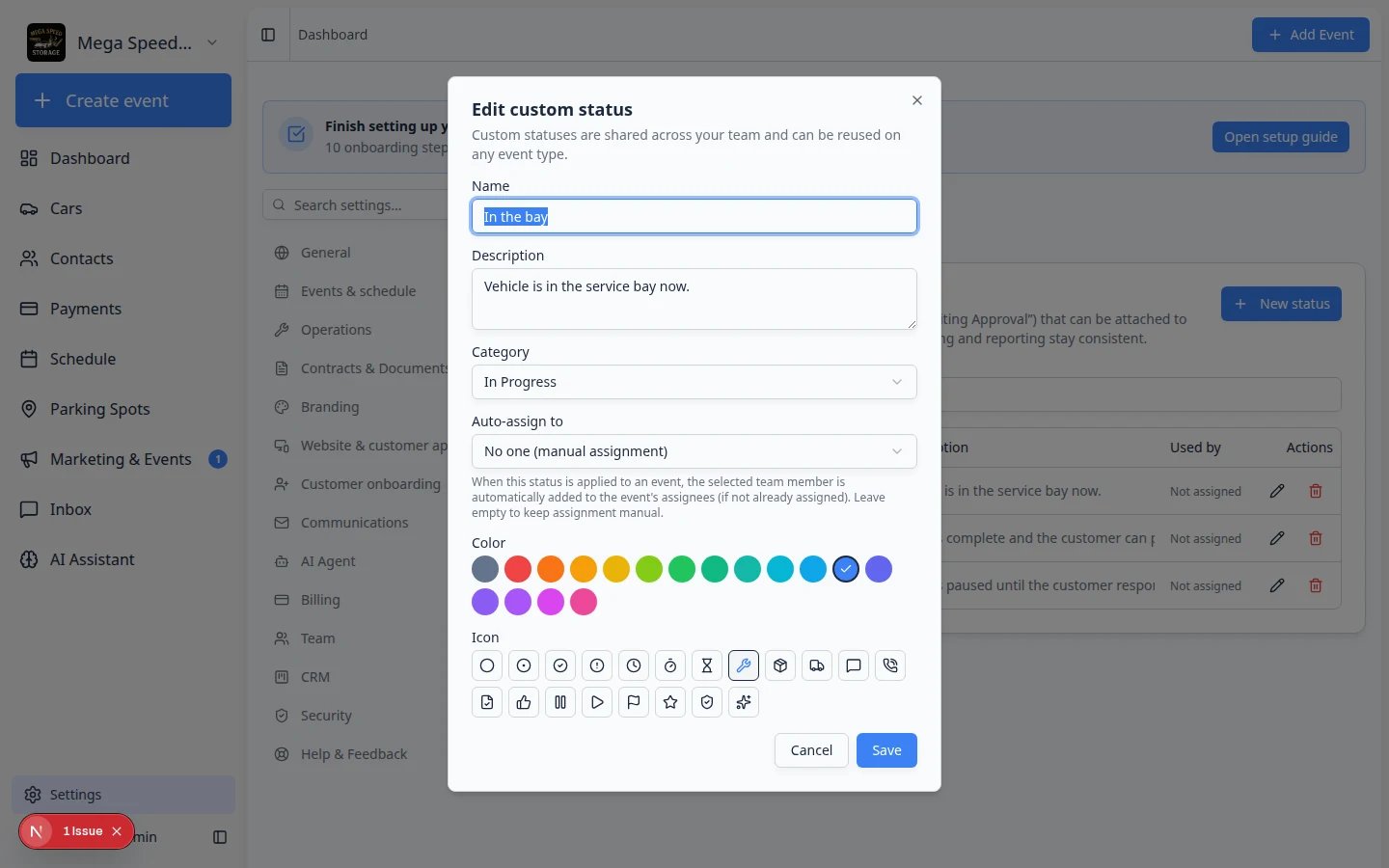 *Use **Edit** when a label needs clearer wording—not when you want to remove the status entirely.*
**Edit vs create new**
If the meaning of a status changed completely (for example you renamed **In the bay** to **With detailer**), editing is usually enough. Create a **new** status only when you want both labels available for a while.
## Archive a status you no longer use
When staff stop picking a label, archive it instead of deleting history.
On [Settings > Custom statuses](https://www.carstoragesoftware.com/dashboard/settings/custom-statuses), find the status that is outdated.
Click **Archive** on that row (or open **Edit** and turn **Active** off, if your screen shows that option).
**Why this matters:** Archived statuses disappear from new work but stay on old records so reports stay accurate.
Read the confirmation message, then confirm.
**Expected result:** The status no longer appears when staff assign progress on new jobs. Past events and cars still show the old label in history.
## Where staff see custom statuses
Custom statuses only help when staff know where to pick them. After you create labels, show your team these spots:
| Where in the app | What staff do |
| - | - |
| [Schedule](https://www.carstoragesoftware.com/dashboard/schedule) **Progress** view | Drag event cards between **To Do**, **In Progress**, and **Done**—and use custom labels when your event type has them turned on |
| Car or event workflow | Open a job and change status when work moves forward or pauses |
| Job boards and filters | Scan color-coded labels instead of reading long notes |
Go to [Schedule](https://www.carstoragesoftware.com/dashboard/schedule).
Open **Filters & settings**, then choose **Progress**.
**Expected result:** You see columns such as **To Do**, **In Progress**, and **Done** with event cards inside.
Drag a test event from **To Do** to **In Progress** when work starts.
**Why this matters:** The whole team sees the same picture of what is waiting, active, and finished—without walking the lot.
*Use **Edit** when a label needs clearer wording—not when you want to remove the status entirely.*
**Edit vs create new**
If the meaning of a status changed completely (for example you renamed **In the bay** to **With detailer**), editing is usually enough. Create a **new** status only when you want both labels available for a while.
## Archive a status you no longer use
When staff stop picking a label, archive it instead of deleting history.
On [Settings > Custom statuses](https://www.carstoragesoftware.com/dashboard/settings/custom-statuses), find the status that is outdated.
Click **Archive** on that row (or open **Edit** and turn **Active** off, if your screen shows that option).
**Why this matters:** Archived statuses disappear from new work but stay on old records so reports stay accurate.
Read the confirmation message, then confirm.
**Expected result:** The status no longer appears when staff assign progress on new jobs. Past events and cars still show the old label in history.
## Where staff see custom statuses
Custom statuses only help when staff know where to pick them. After you create labels, show your team these spots:
| Where in the app | What staff do |
| - | - |
| [Schedule](https://www.carstoragesoftware.com/dashboard/schedule) **Progress** view | Drag event cards between **To Do**, **In Progress**, and **Done**—and use custom labels when your event type has them turned on |
| Car or event workflow | Open a job and change status when work moves forward or pauses |
| Job boards and filters | Scan color-coded labels instead of reading long notes |
Go to [Schedule](https://www.carstoragesoftware.com/dashboard/schedule).
Open **Filters & settings**, then choose **Progress**.
**Expected result:** You see columns such as **To Do**, **In Progress**, and **Done** with event cards inside.
Drag a test event from **To Do** to **In Progress** when work starts.
**Why this matters:** The whole team sees the same picture of what is waiting, active, and finished—without walking the lot.
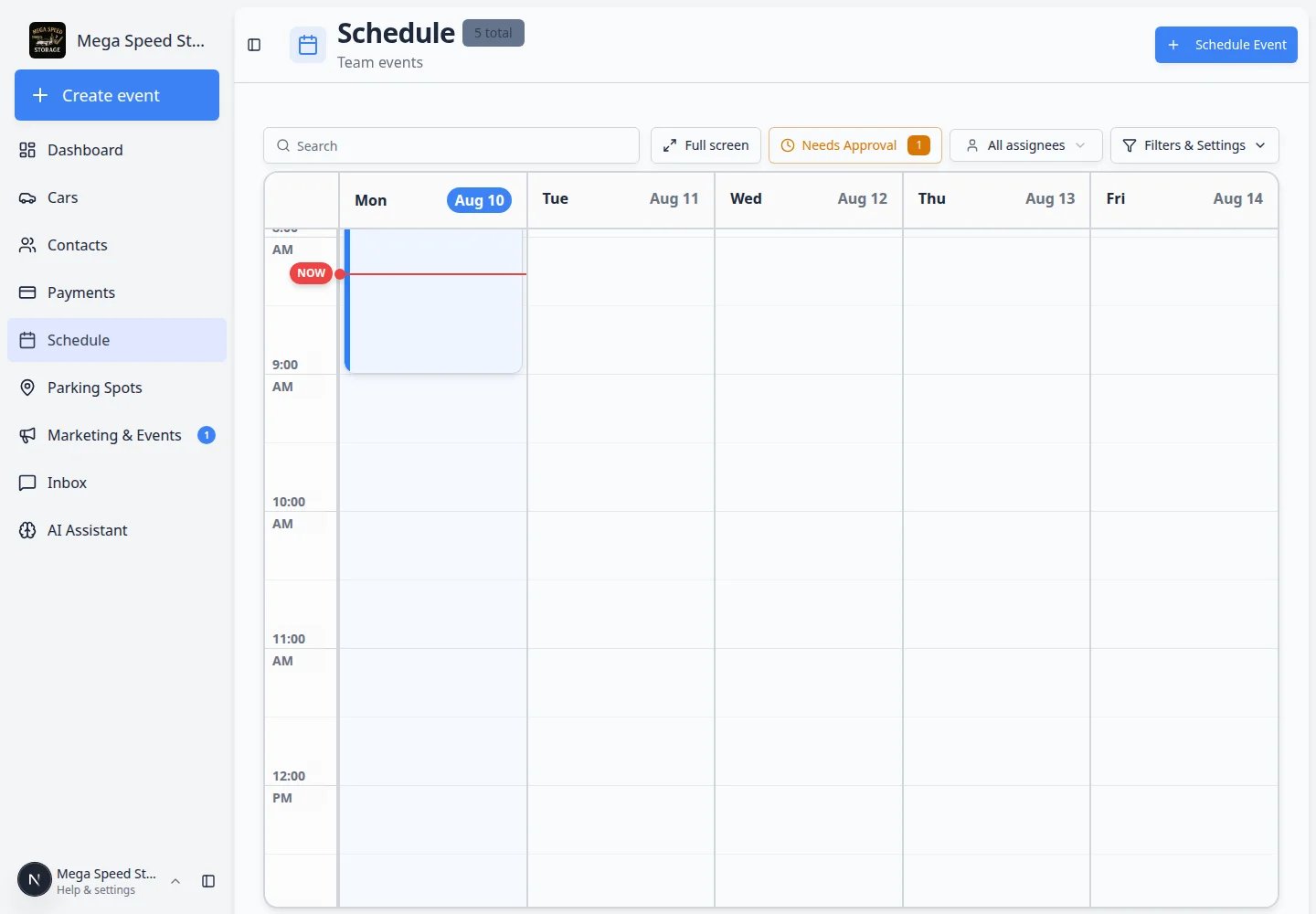 ***Progress** view on [Schedule](https://www.carstoragesoftware.com/dashboard/schedule) is where many teams use custom statuses during a busy service day. See [Track work in the Progress view](/docs/schedule/track-work-in-progress-view).*
**Turn custom statuses on for an event type**
Custom statuses apply per **event type**. If staff do not see your new labels on an appointment, ask an admin to review that event type under [Settings > Services & schedule](https://www.carstoragesoftware.com/dashboard/settings/events) and enable custom statuses for it.
## Add bookable amenities
Amenities are the spaces or equipment staff may need to reserve.
Examples:
* **Detail Bay 1**
* **Wash Bay Large**
* **Photo Room**
* **Transport Trailer**
***Progress** view on [Schedule](https://www.carstoragesoftware.com/dashboard/schedule) is where many teams use custom statuses during a busy service day. See [Track work in the Progress view](/docs/schedule/track-work-in-progress-view).*
**Turn custom statuses on for an event type**
Custom statuses apply per **event type**. If staff do not see your new labels on an appointment, ask an admin to review that event type under [Settings > Services & schedule](https://www.carstoragesoftware.com/dashboard/settings/events) and enable custom statuses for it.
## Add bookable amenities
Amenities are the spaces or equipment staff may need to reserve.
Examples:
* **Detail Bay 1**
* **Wash Bay Large**
* **Photo Room**
* **Transport Trailer**
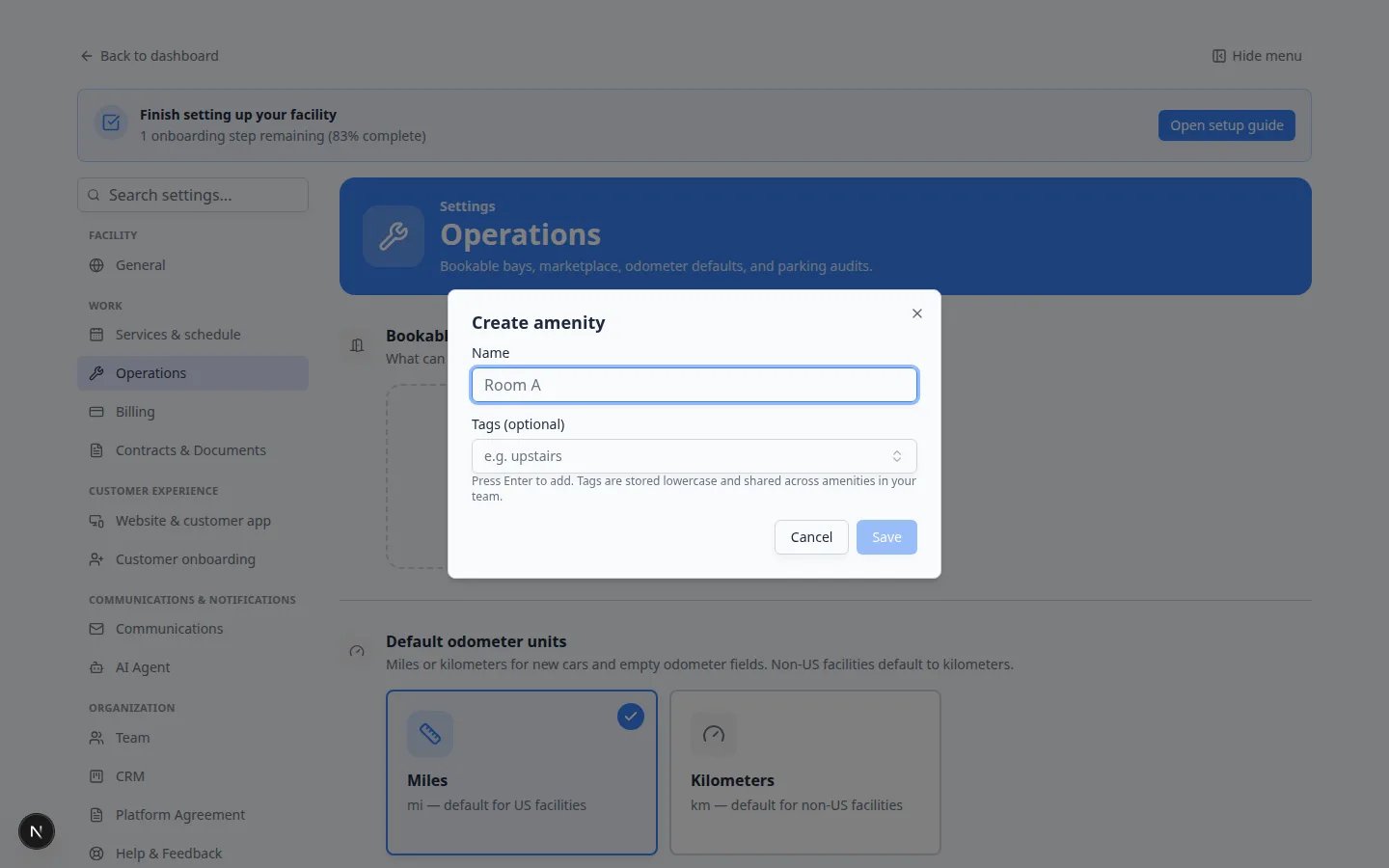 *Click the add card in **Bookable bays, rooms & equipment**. A **Create amenity** window opens.*
Go to [Settings > Operations](https://www.carstoragesoftware.com/dashboard/settings/operations).
Find **Bookable bays, rooms & equipment**.
Click **Create amenity**.
A window named **Create amenity** opens.
Use the **Name** field for the name staff say out loud, such as **Detail Bay 1** instead of **Bay**.
In **Name**, type the space or equipment name.
Use the name staff say out loud. For example, **Detail Bay 1** is clearer than **Bay**.
In **Tags (optional)**, add helpful words such as **indoor**, **large**, **wash**, **detailing**, or **photos**.
Tags are optional. Use them only if they make choices easier.
Click **Save**.
**Expected result:** The amenity appears in the table with its tags and active status.
## Where staff use amenities
Amenities matter when someone books time in a bay, room, or on equipment. After you add names staff recognize, show them how to pick the right space.
Open [Schedule](https://www.carstoragesoftware.com/dashboard/schedule) and follow [Create an appointment](/docs/schedule/create-an-appointment)—or open an existing event and click **Edit Event**.
On the appointment form, find the field for **Amenity**, **Bay**, **Room**, or similar wording (it depends on your event type).
Choose the space that matches where the work happens—for example **Detail Bay 1** for a detail job.
Save the event.
**Expected result:** The calendar shows the visit at the right time, and other staff can see which bay is reserved. If two details are booked at once, each event should name a different bay (for example **Detail Bay 1** vs **Wash Bay Large**).
**Why clear bay names matter**
When two details are booked at once, **Detail Bay 1** and **Wash Bay Large** prevent both jobs from landing in a vague **Bay** slot. Staff spend less time moving cars that were staged in the wrong place.
**If you do not see a bay or room field**
The field only appears when the **event type** is set up to use bookable amenities. Ask a team admin to review that event type under [Settings > Services & schedule](https://www.carstoragesoftware.com/dashboard/settings/events) and link the right bays or rooms.
## Disable or delete an amenity
Click **Disable** when a bay, room, or piece of equipment is temporarily unavailable.
Example: a wash bay is closed for repairs.
Click **Delete** when your team no longer needs the amenity in the list.
**Tip:** If you are unsure, disable it instead of deleting it.
## What success looks like
* Staff use the same short status labels on busy days (**Waiting on customer**, **In the bay**, **Ready for pickup**).
* [Schedule](https://www.carstoragesoftware.com/dashboard/schedule) **Progress** view shows work moving from waiting to active to done.
* Bays and rooms have names staff say out loud (**Detail Bay 1**, not **Bay**).
* New hires can read status **Descriptions** and know when to use each label.
* Outdated statuses are **Archived** instead of deleted, so history stays readable.
## Troubleshooting
**A status is confusing staff**
Edit the status name or description. Use words your staff already use. Avoid internal shorthand unless every teammate understands it.
**A status should not be used anymore**
Archive the status from [Settings > Custom statuses](https://www.carstoragesoftware.com/dashboard/settings/custom-statuses). Existing records keep their history, but staff will stop using the old label for new work.
**Staff cannot find the right bay or room**
Check the amenity name first. Clear names reduce mistakes. If you have many amenities, add simple tags such as **wash**, **detail**, **large**, or **indoor**.
## What to do next
After statuses and amenities are ready:
* Test labels on a real appointment in [Schedule](https://www.carstoragesoftware.com/dashboard/schedule) **Progress** view.
* Build a checklist for intake or pickup in [Create operations workflows](/docs/settings/create-operations-workflows).
* Return to [Configure operations settings](/docs/settings/configure-operations-settings) for the full Operations overview.
## Related topics
- [Turn on custom statuses for an event type](/docs/events/turn-on-custom-statuses-for-an-event-type.md)
- [Configure operations settings](/docs/settings/configure-operations-settings.md)
- [Create operations workflows](/docs/settings/create-operations-workflows.md)
- [Set up bookable resources](/docs/events/set-up-bookable-resources.md)
- [Settings overview](/docs/settings/overview.md)
This documentation is built and hosted on [Mintlify](https://mintlify.com), a developer documentation platform.
*Click the add card in **Bookable bays, rooms & equipment**. A **Create amenity** window opens.*
Go to [Settings > Operations](https://www.carstoragesoftware.com/dashboard/settings/operations).
Find **Bookable bays, rooms & equipment**.
Click **Create amenity**.
A window named **Create amenity** opens.
Use the **Name** field for the name staff say out loud, such as **Detail Bay 1** instead of **Bay**.
In **Name**, type the space or equipment name.
Use the name staff say out loud. For example, **Detail Bay 1** is clearer than **Bay**.
In **Tags (optional)**, add helpful words such as **indoor**, **large**, **wash**, **detailing**, or **photos**.
Tags are optional. Use them only if they make choices easier.
Click **Save**.
**Expected result:** The amenity appears in the table with its tags and active status.
## Where staff use amenities
Amenities matter when someone books time in a bay, room, or on equipment. After you add names staff recognize, show them how to pick the right space.
Open [Schedule](https://www.carstoragesoftware.com/dashboard/schedule) and follow [Create an appointment](/docs/schedule/create-an-appointment)—or open an existing event and click **Edit Event**.
On the appointment form, find the field for **Amenity**, **Bay**, **Room**, or similar wording (it depends on your event type).
Choose the space that matches where the work happens—for example **Detail Bay 1** for a detail job.
Save the event.
**Expected result:** The calendar shows the visit at the right time, and other staff can see which bay is reserved. If two details are booked at once, each event should name a different bay (for example **Detail Bay 1** vs **Wash Bay Large**).
**Why clear bay names matter**
When two details are booked at once, **Detail Bay 1** and **Wash Bay Large** prevent both jobs from landing in a vague **Bay** slot. Staff spend less time moving cars that were staged in the wrong place.
**If you do not see a bay or room field**
The field only appears when the **event type** is set up to use bookable amenities. Ask a team admin to review that event type under [Settings > Services & schedule](https://www.carstoragesoftware.com/dashboard/settings/events) and link the right bays or rooms.
## Disable or delete an amenity
Click **Disable** when a bay, room, or piece of equipment is temporarily unavailable.
Example: a wash bay is closed for repairs.
Click **Delete** when your team no longer needs the amenity in the list.
**Tip:** If you are unsure, disable it instead of deleting it.
## What success looks like
* Staff use the same short status labels on busy days (**Waiting on customer**, **In the bay**, **Ready for pickup**).
* [Schedule](https://www.carstoragesoftware.com/dashboard/schedule) **Progress** view shows work moving from waiting to active to done.
* Bays and rooms have names staff say out loud (**Detail Bay 1**, not **Bay**).
* New hires can read status **Descriptions** and know when to use each label.
* Outdated statuses are **Archived** instead of deleted, so history stays readable.
## Troubleshooting
**A status is confusing staff**
Edit the status name or description. Use words your staff already use. Avoid internal shorthand unless every teammate understands it.
**A status should not be used anymore**
Archive the status from [Settings > Custom statuses](https://www.carstoragesoftware.com/dashboard/settings/custom-statuses). Existing records keep their history, but staff will stop using the old label for new work.
**Staff cannot find the right bay or room**
Check the amenity name first. Clear names reduce mistakes. If you have many amenities, add simple tags such as **wash**, **detail**, **large**, or **indoor**.
## What to do next
After statuses and amenities are ready:
* Test labels on a real appointment in [Schedule](https://www.carstoragesoftware.com/dashboard/schedule) **Progress** view.
* Build a checklist for intake or pickup in [Create operations workflows](/docs/settings/create-operations-workflows).
* Return to [Configure operations settings](/docs/settings/configure-operations-settings) for the full Operations overview.
## Related topics
- [Turn on custom statuses for an event type](/docs/events/turn-on-custom-statuses-for-an-event-type.md)
- [Configure operations settings](/docs/settings/configure-operations-settings.md)
- [Create operations workflows](/docs/settings/create-operations-workflows.md)
- [Set up bookable resources](/docs/events/set-up-bookable-resources.md)
- [Settings overview](/docs/settings/overview.md)
This documentation is built and hosted on [Mintlify](https://mintlify.com), a developer documentation platform.